

BETA ON AMIKO VIPER 4K V20
The HD Satelit Enigma2 (E2) image for satellite, cable and terrestrial receivers
Built from the original enigma2 code published by Dream Multimedia. It comes first, as a beta, to the Amiko Viper 4K V20; other receivers follow as manufacturers or retailers send us test receivers.
The video walkthrough
What it brings
Subtitles
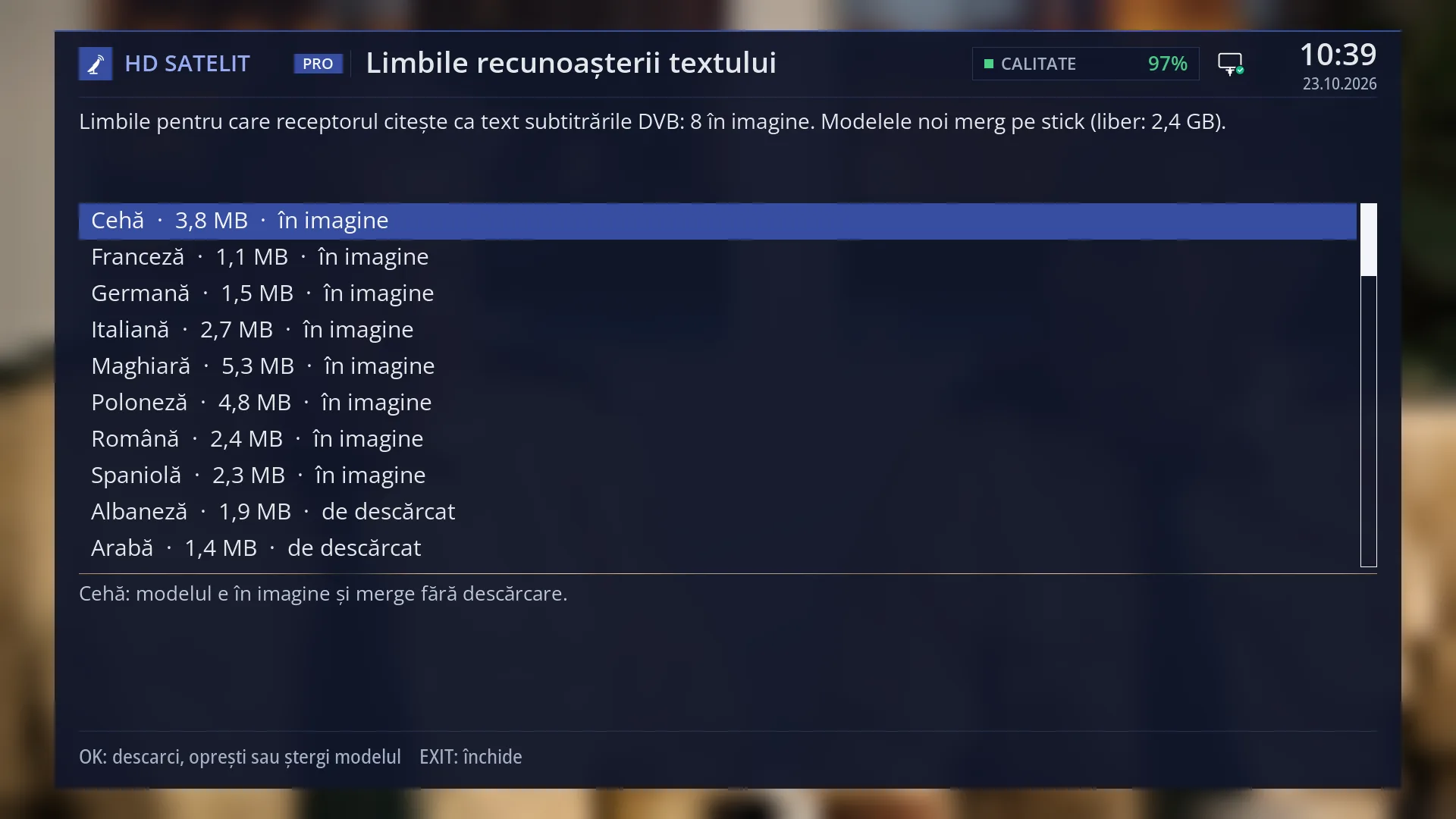
DVB subtitles read as text
Subtitles sent by the channel as pictures are read as letters on the receiver itself, without internet. You can then enlarge, recolour and translate them; when the reading is not certain, the original picture stays.
See in the help ›Exclusive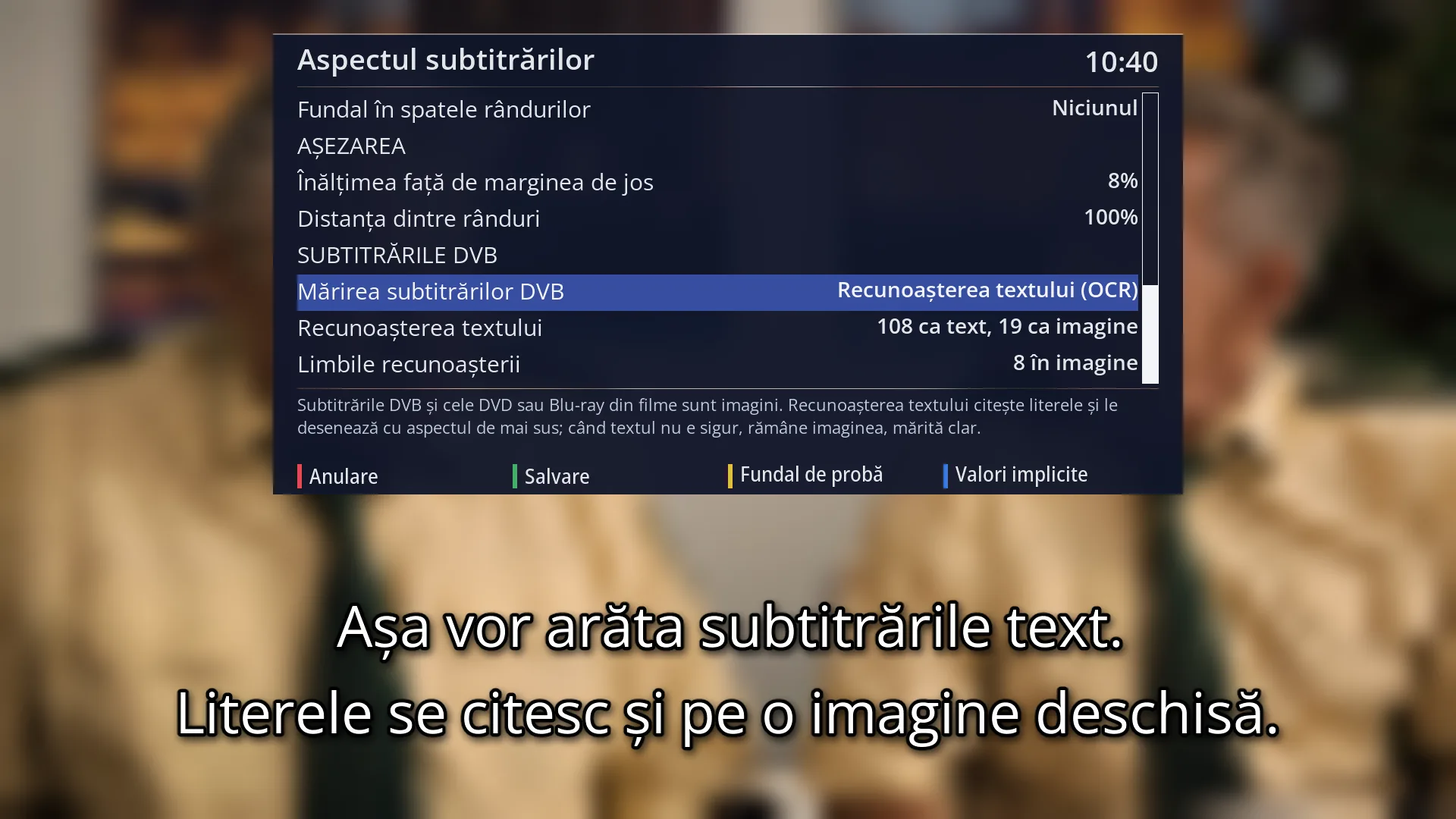
Enlarged subtitles with sharp edges
DVB subtitles are scaled up to the size of your TV and keep sharp edges.
See in the help ›Exclusive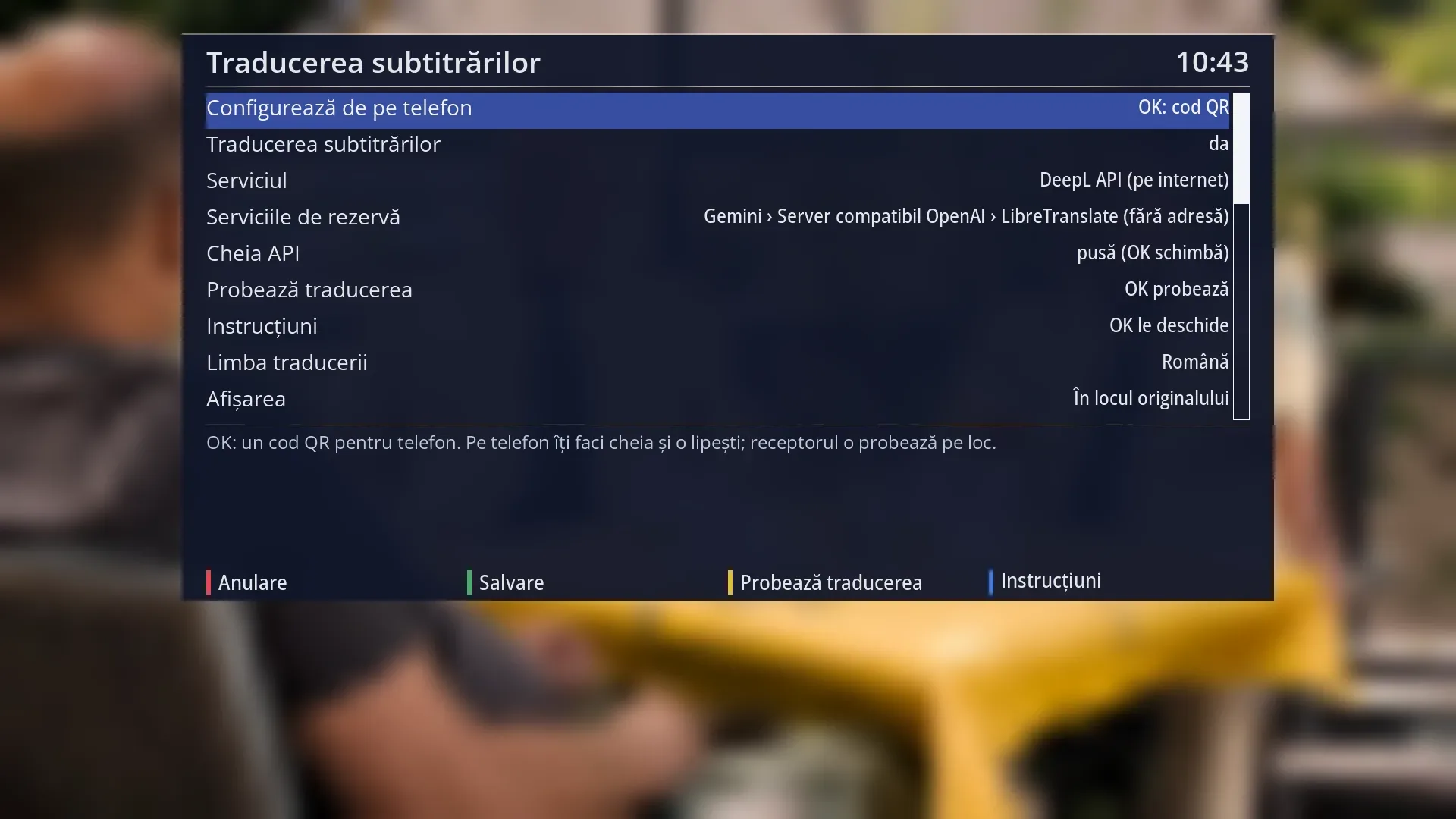
Subtitles translated into your language
Teletext subtitles, DVB subtitles read as text and subtitles from files appear translated automatically, instead of the original or under it. No subscription: with a free translation service, your own key or a translation server in your home.
See in the help ›Exclusive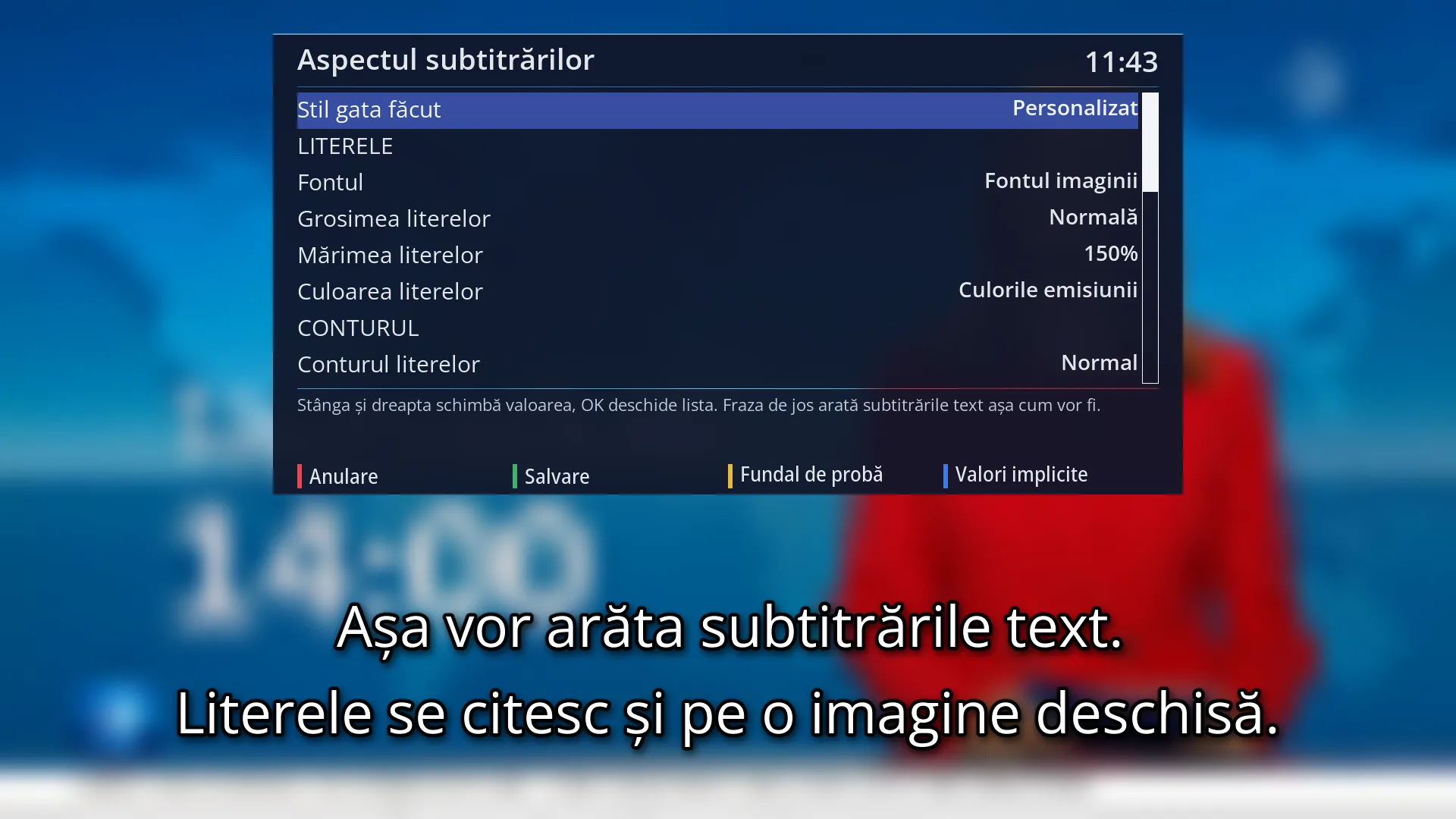
Subtitle style
You choose the font, size, colour, outline, shadow and background of the subtitles, with a sample line on screen. Ready-made styles are included.
See in the help ›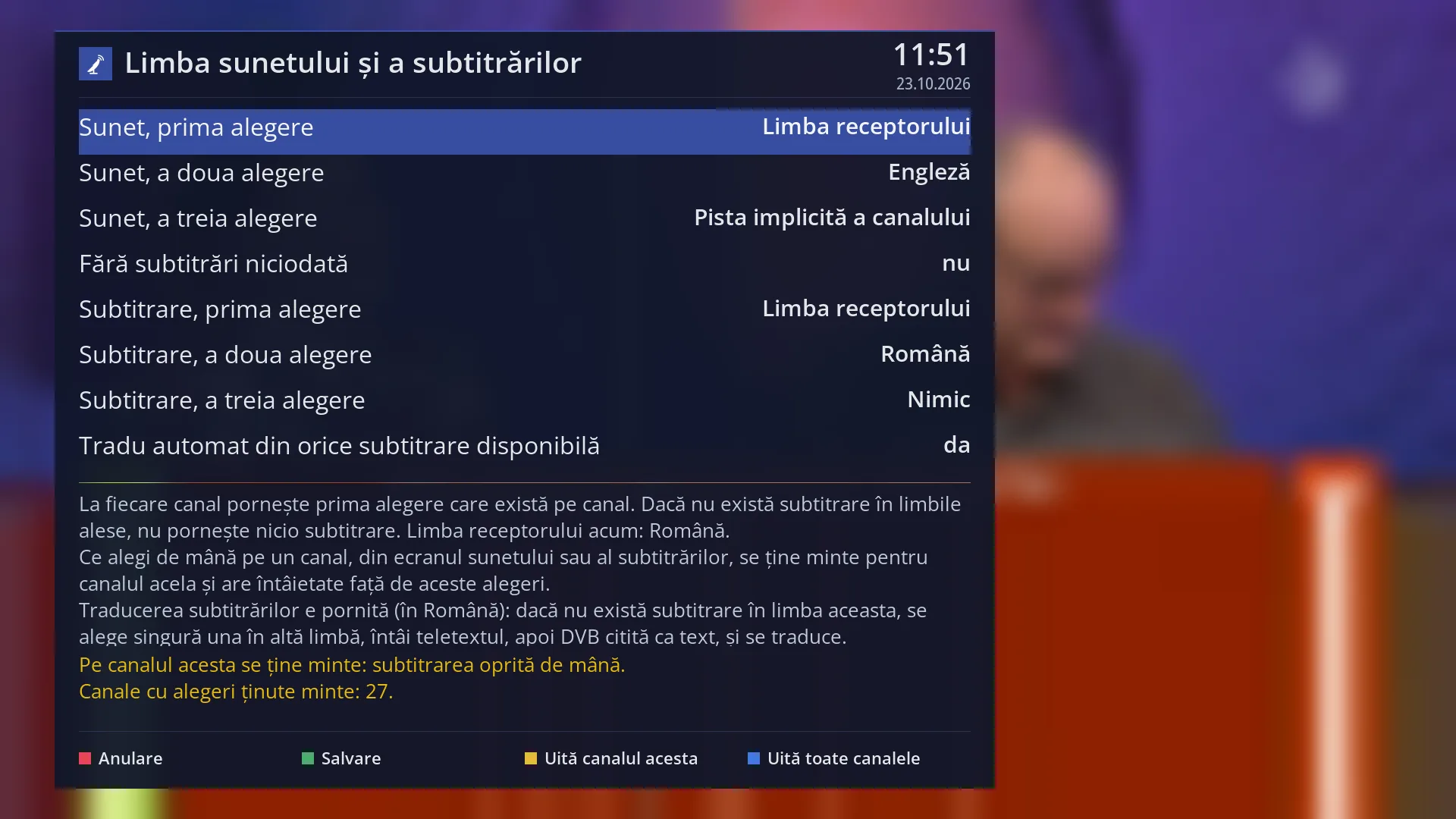
Audio and subtitle language
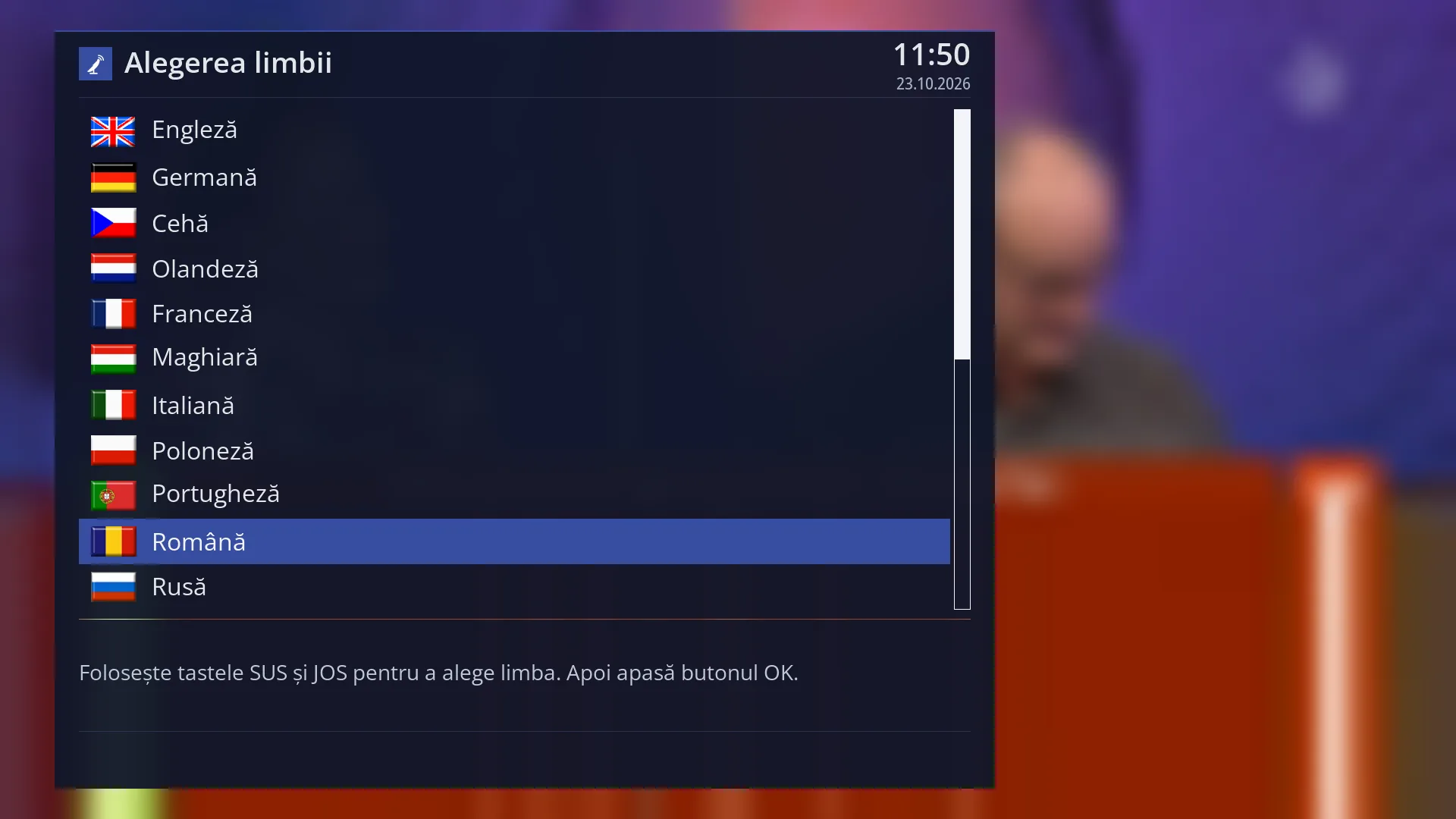
You choose three preferred languages for audio and for subtitles. What you pick by hand on a channel is remembered for that channel.
See in the help ›Translation
Your choice of translation service, with backups
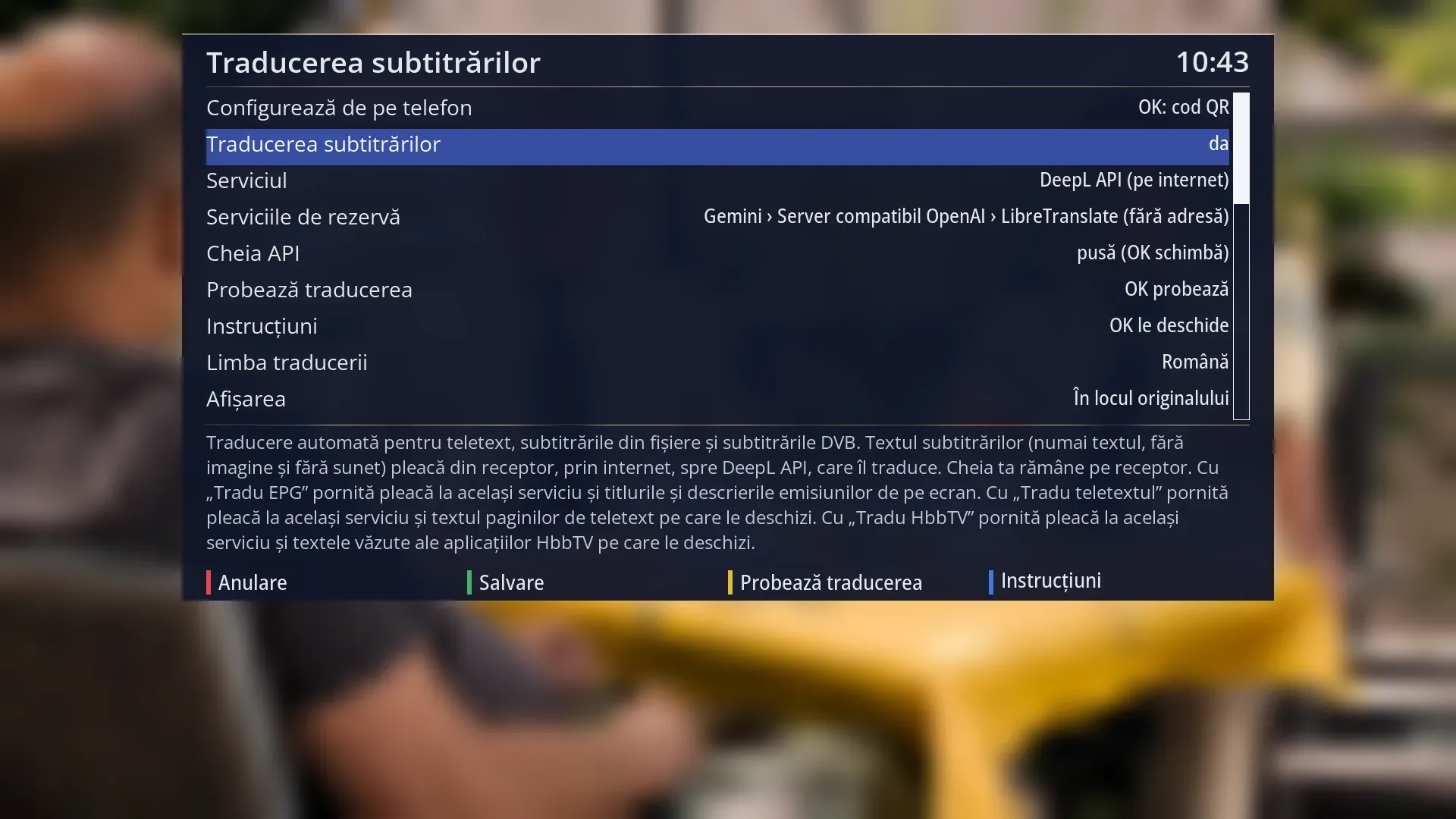
You choose the translation service: a free one with no card, one with your own key, or a server in your home. When a service says it has too many requests, the receiver moves on to the next one in the list by itself.
See in the help ›Exclusive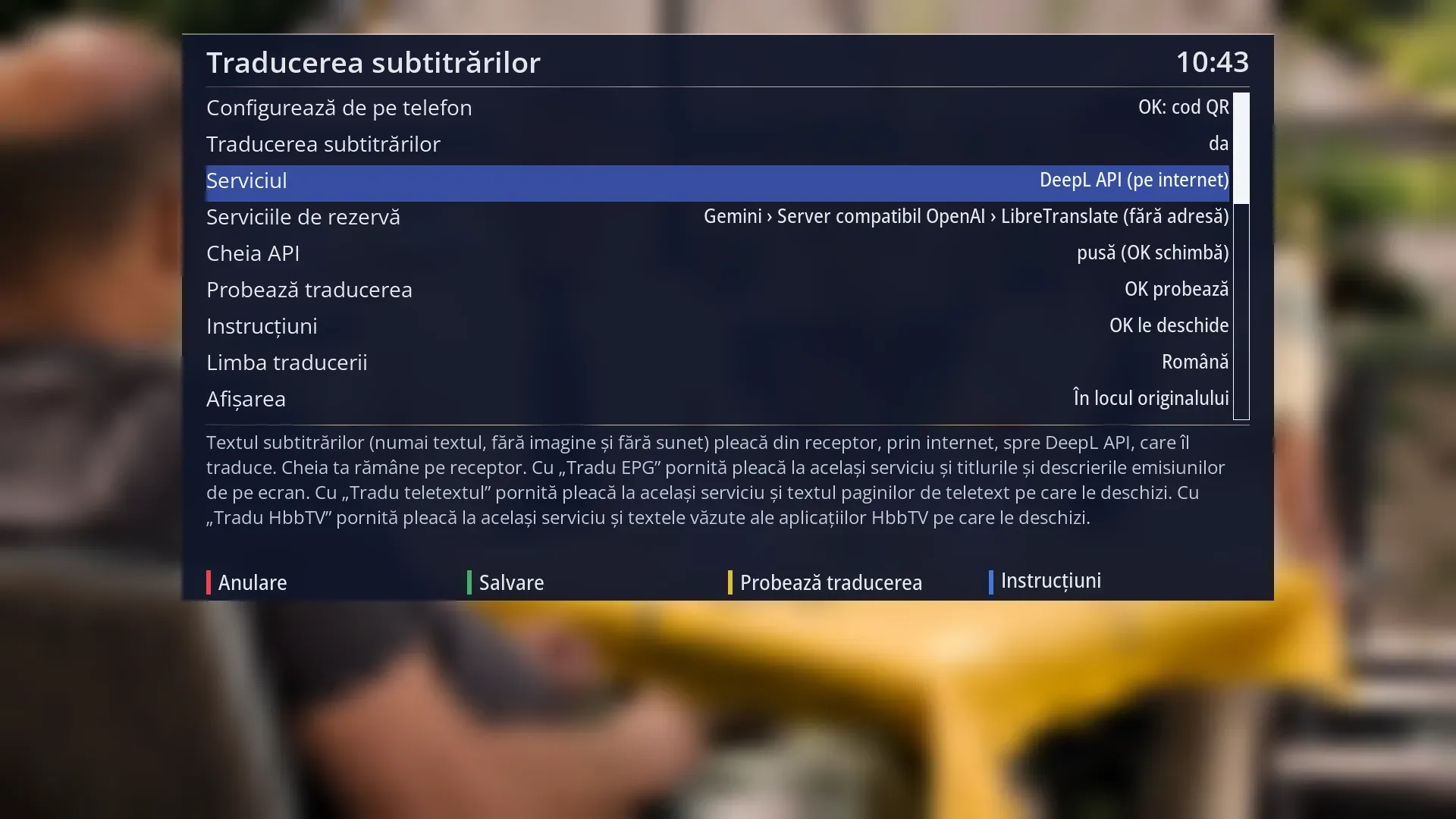
Set up from your phone with a QR code
You scan the QR code on the TV and the receiver's page opens on your phone. You paste the key, the receiver tests it on the spot and recognises the service by itself.
See in the help ›Exclusive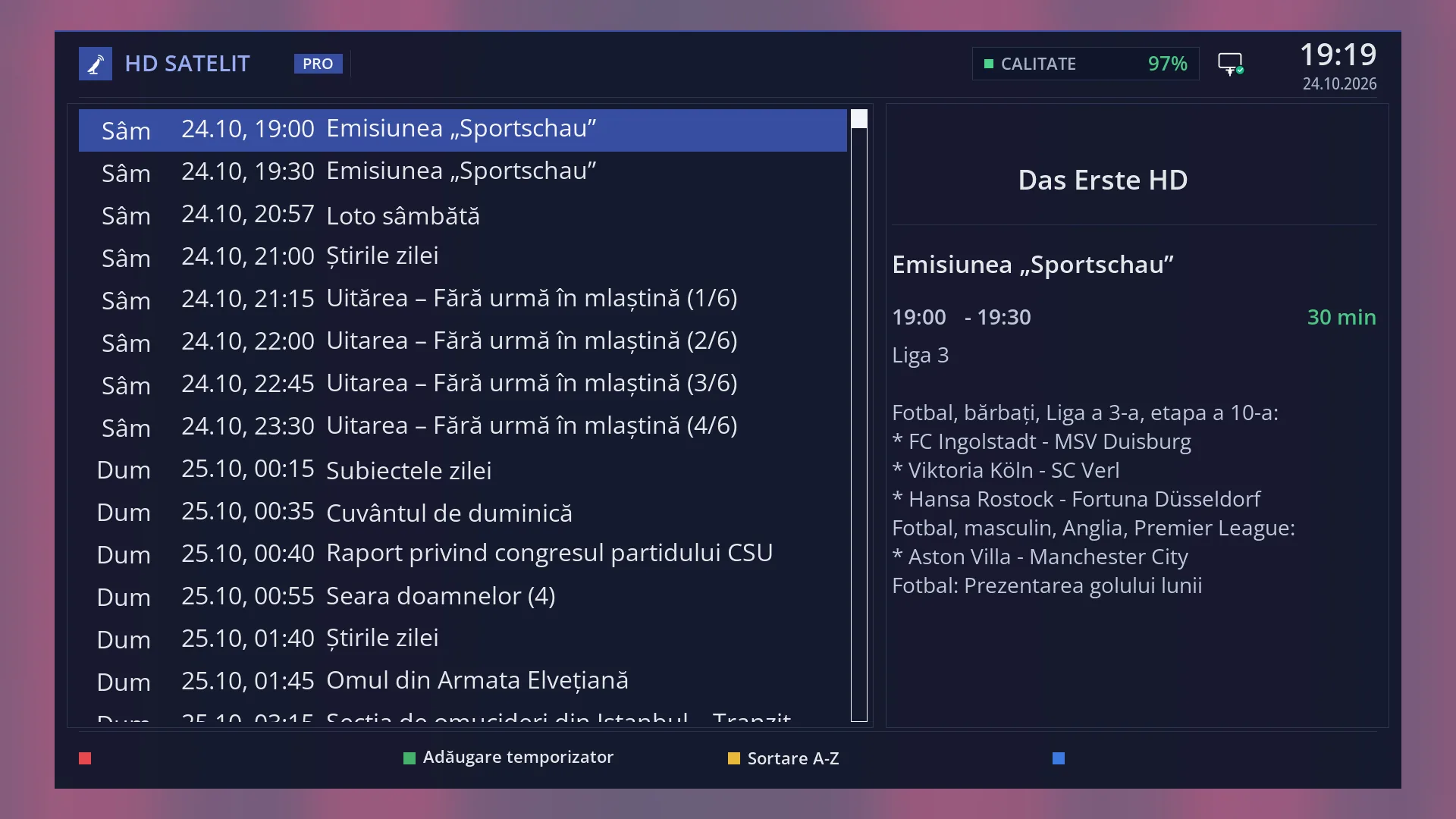
Programme guide translated
Programme titles and descriptions arrive translated into your language by themselves, everywhere: on the bottom bar, the second bar, the guides and the web interface, through the translation service you chose. The INFO key shows the original text.
See in the help ›Exclusive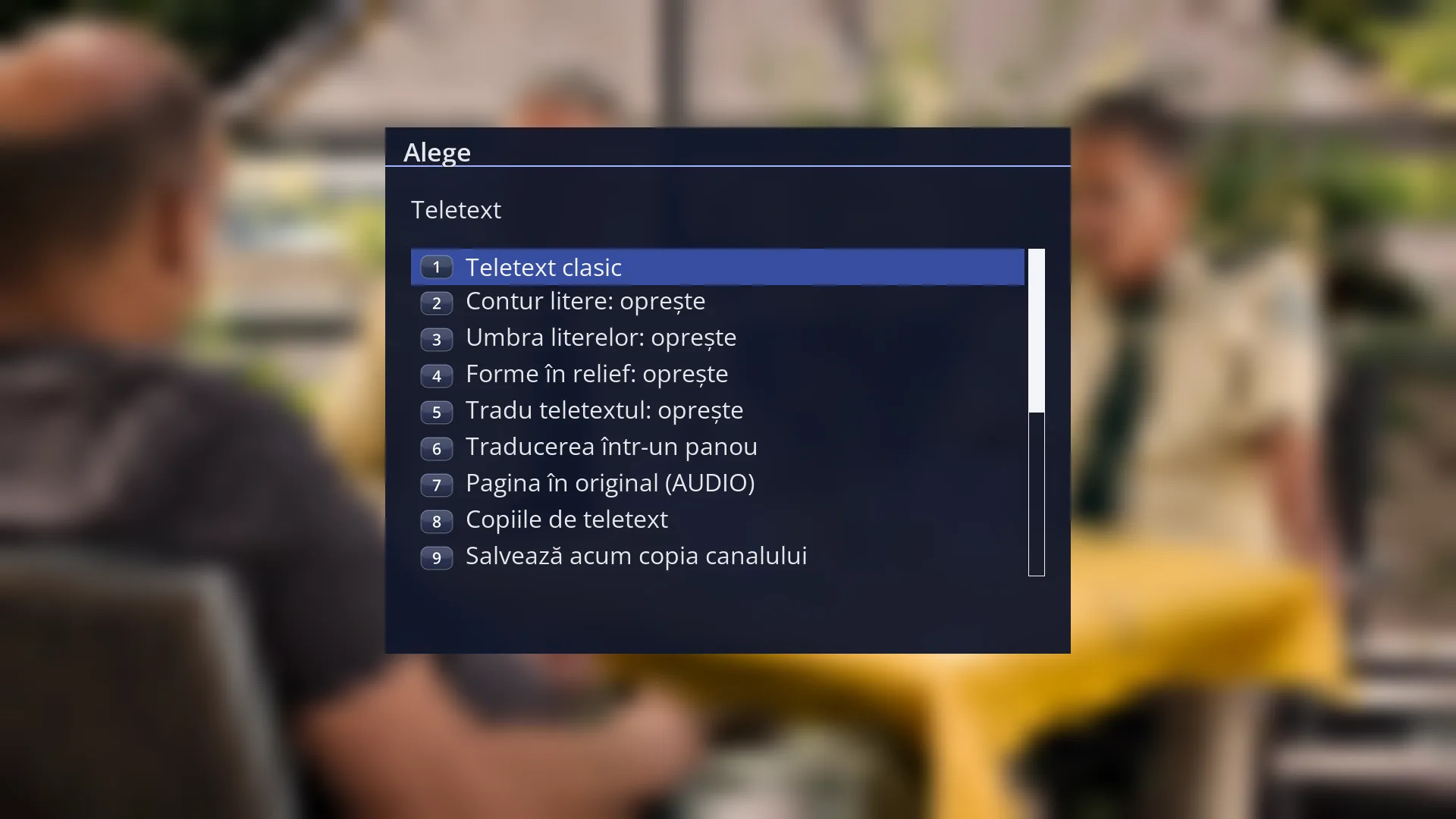
Teletext translated
The teletext page is translated over its lines or in a panel next to the original page. The AUDIO button shows the original.
See in the help ›Exclusive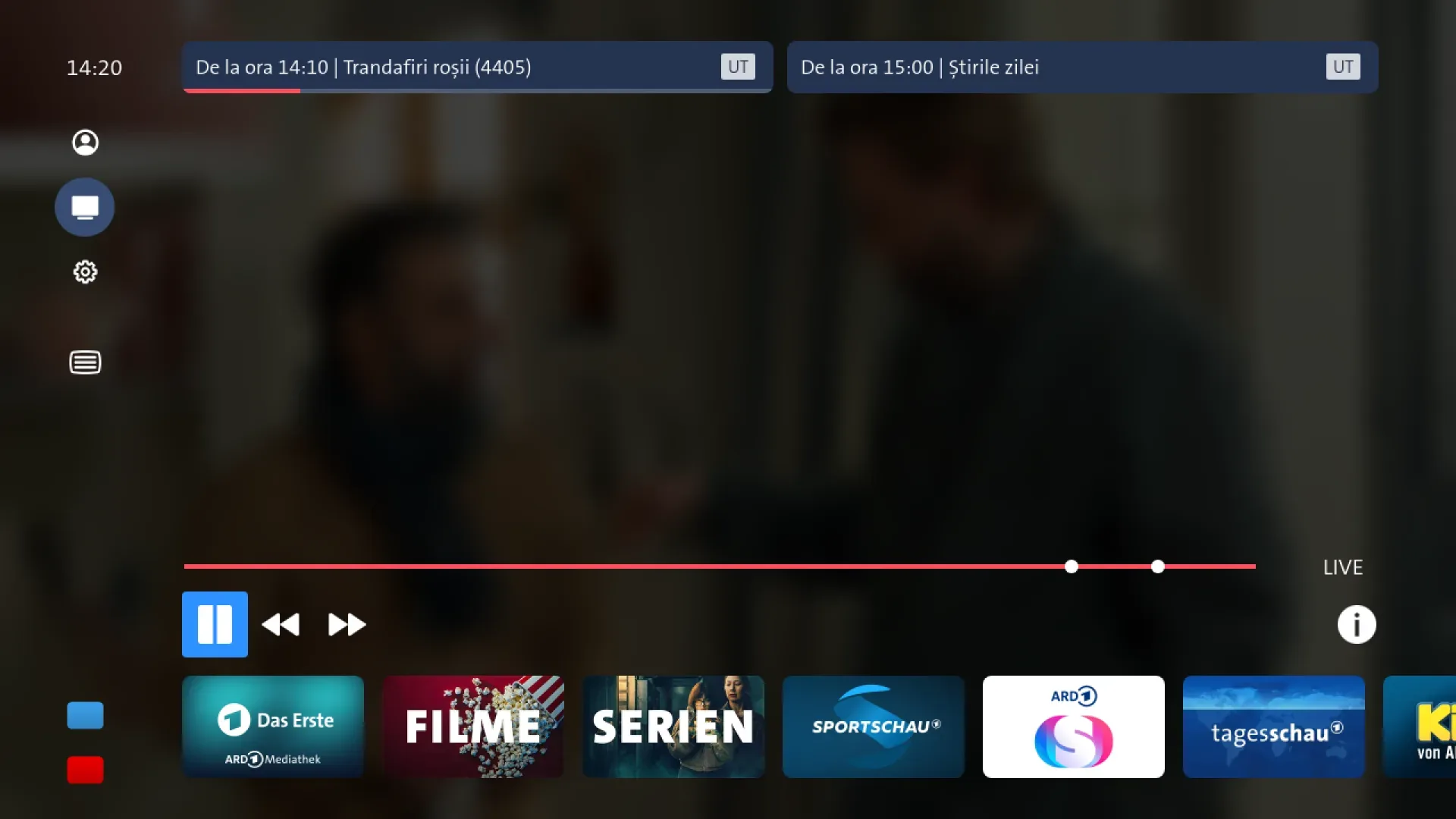
Channel apps translated
The texts in the channels' interactive apps (HbbTV) can be translated into your language. It is off by default.
See in the help ›Help, community and testing
Remote assistance with one click
You start assistance from Menu > Settings > Remote assistance with a single Start, for two hours. Our team can only read the receiver's status and logs and run tests from a fixed list. You can stop it at any time, on the receiver or from the web page.
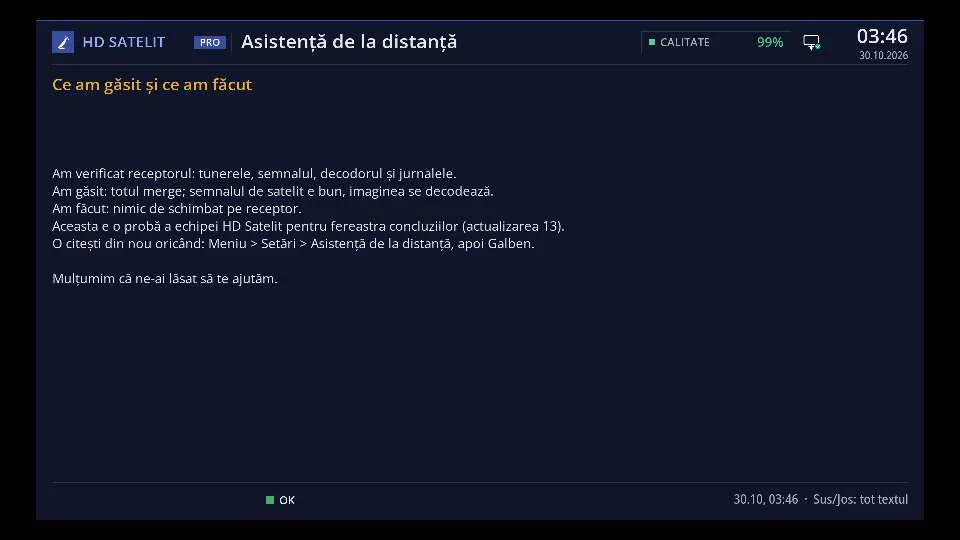
What we found and what we did, at the end
At the end of the assistance, a window on the receiver shows what the team found and what it did, and stays until you press OK. You can read it again with the yellow button on the assistance screen and in the web interface.
Your receiver's forum, on the receiver
On the receiver and in the web interface you read the discussion about your model on our forum, translated into your language. As a beta tester you write messages and add screenshots straight from the receiver.
Beta tester from the receiver
You sign up from Menu > Settings > Beta tester: with your consent you send us anonymous technical data, only what you tick, and write to us. You can leave at any time and your data is deleted, and a receiver is counted only once.
Report of a failed start
If the receiver does not start, it sends us by itself an anonymous technical report, without personal data, and puts a copy on the stick. The report code appears on the front display, and the screen shows the step where the start stopped.
TV and picture
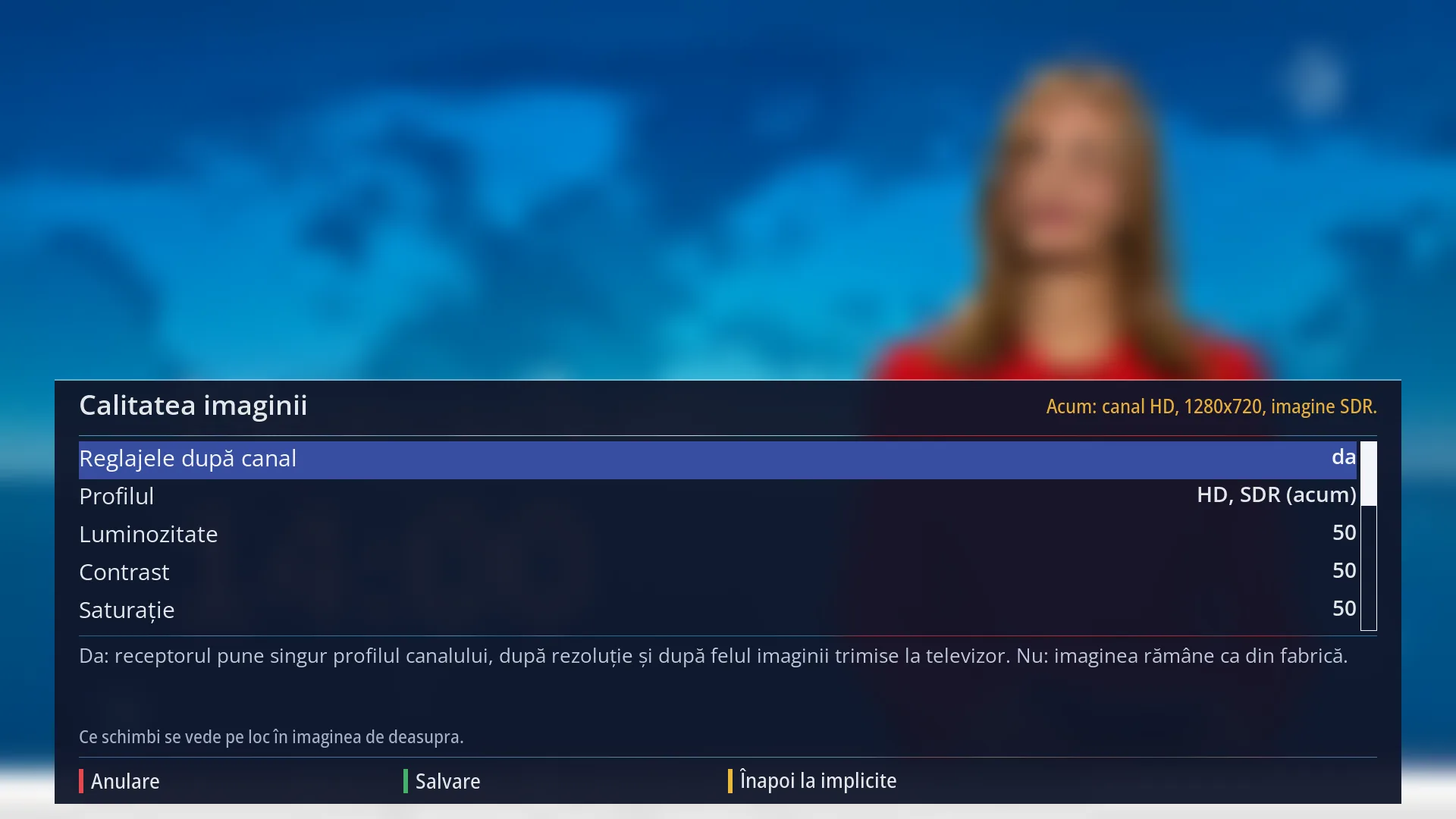
Picture quality profiles
You set brightness, contrast, colour, sharpness and noise separately for SD, HD and 4K channels, in SDR, HDR10 and HLG. The right profile is applied by itself when you change channel, and you see the effect on half of the screen.
See in the help ›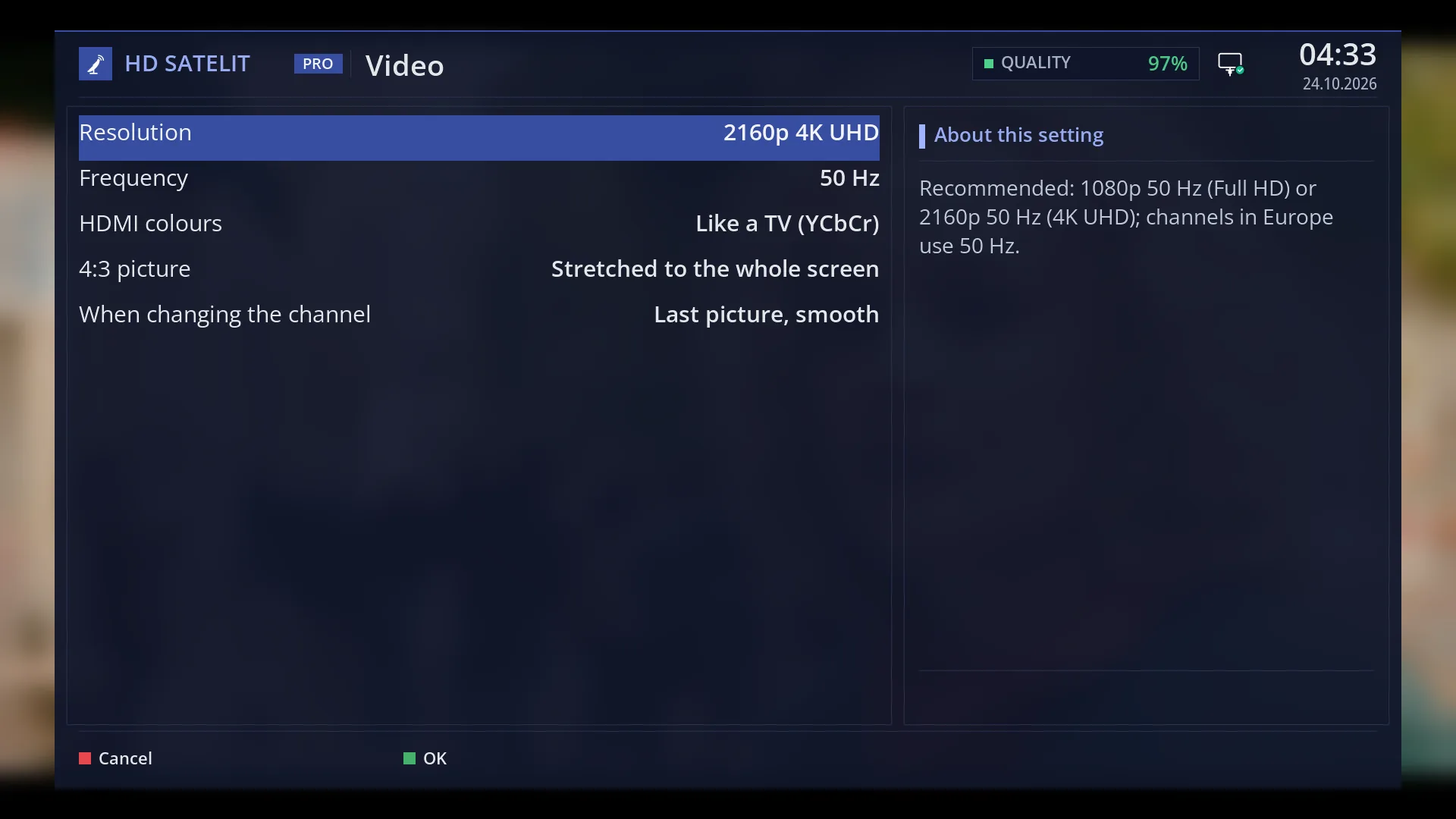
HDR output
HDR automatic by channel, always HDR10, always HLG or off. If you do not confirm the choice, the previous setting comes back.
See in the help ›Exclusive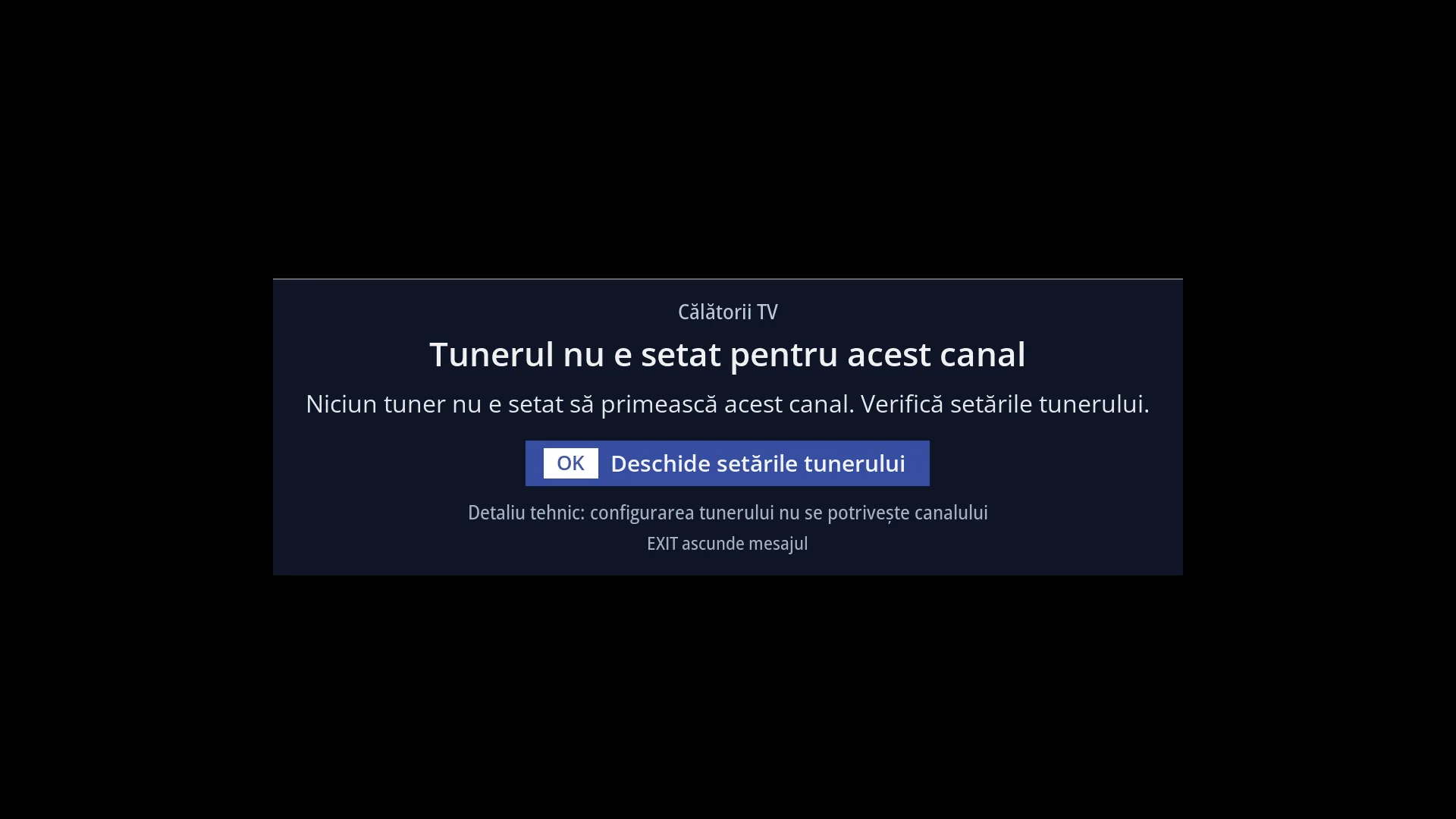
Black screen explained
When a channel has no picture, the middle of the screen tells you why, for example no signal, channel moved, tuner busy or dish turning, and what you can do.
See in the help ›Exclusive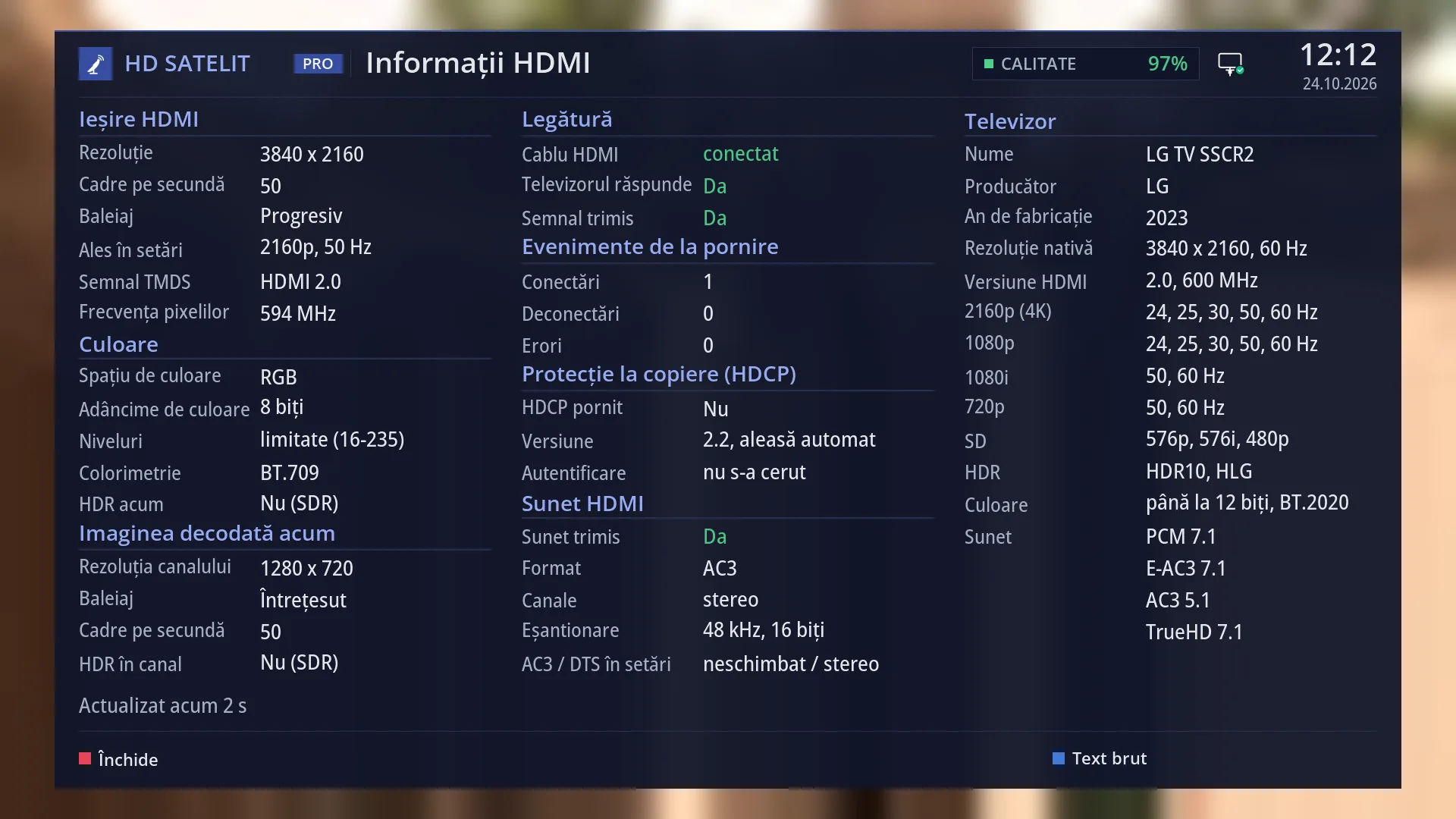
HDMI information in plain words
You see what the receiver sends over HDMI and what the TV accepts: 4K, HDR, sound and content protection, in plain words.
See in the help ›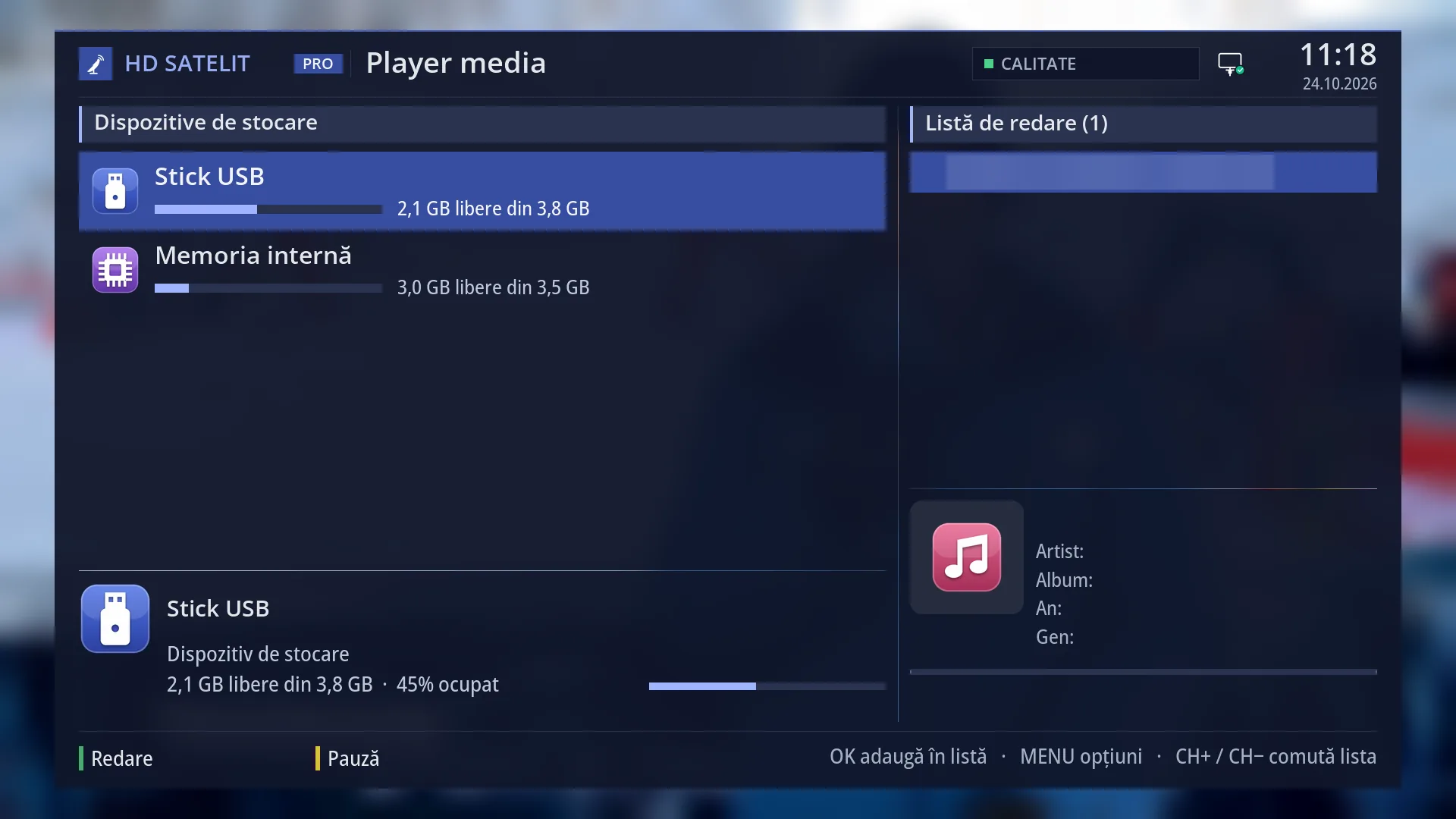
Picture and sound formats
H.265 channels and E-AC-3 sound play; movies in WMA, ALAC, TrueHD and DTS play too, from exFAT or NTFS sticks and disks.
See in the help ›Sound
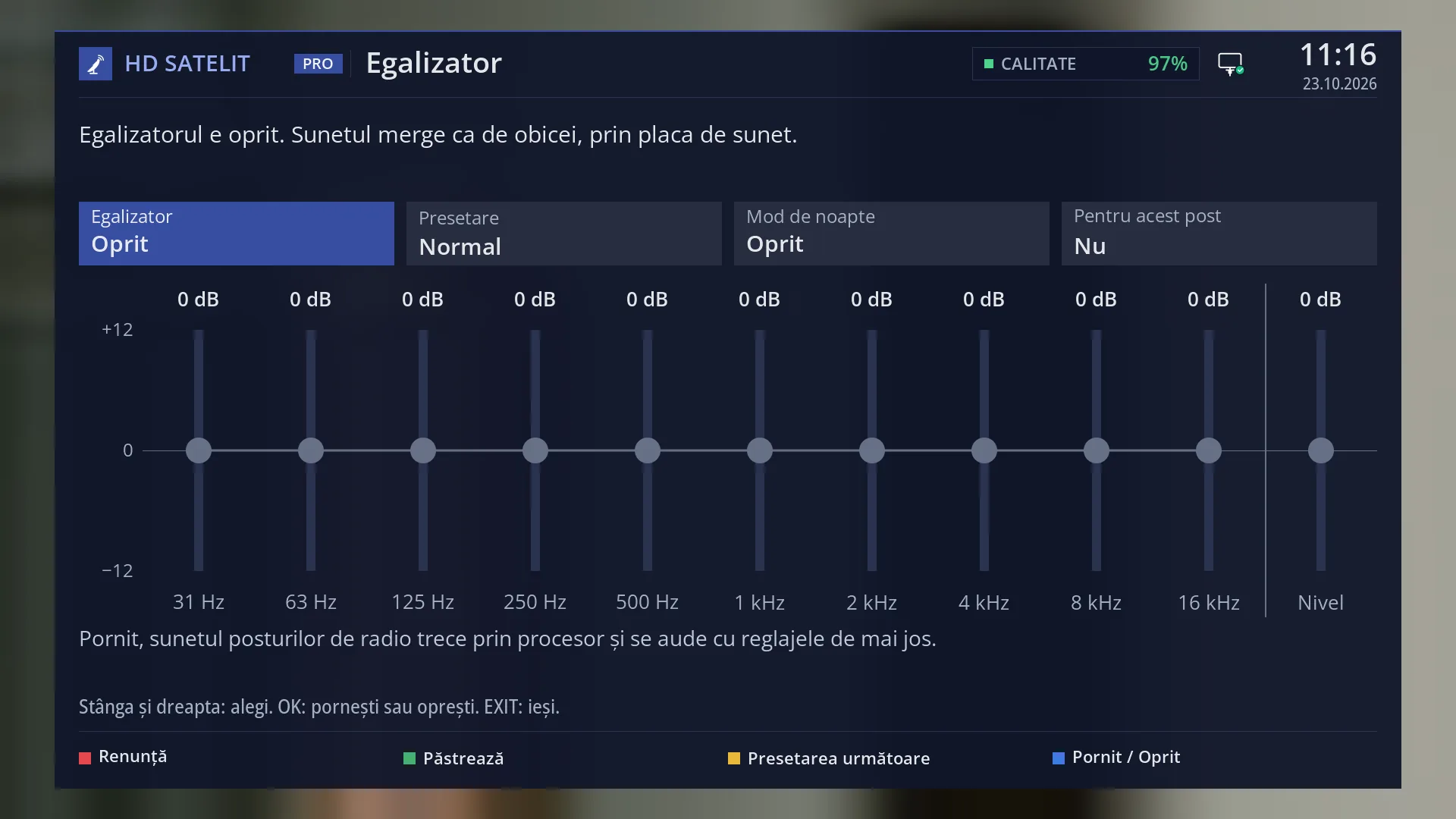
Equaliser
A 10-band equaliser with 7 presets and a night mode, remembered for each station. It works on stations with MPEG (MP2) sound, not on AAC ones.
See in the help ›Exclusive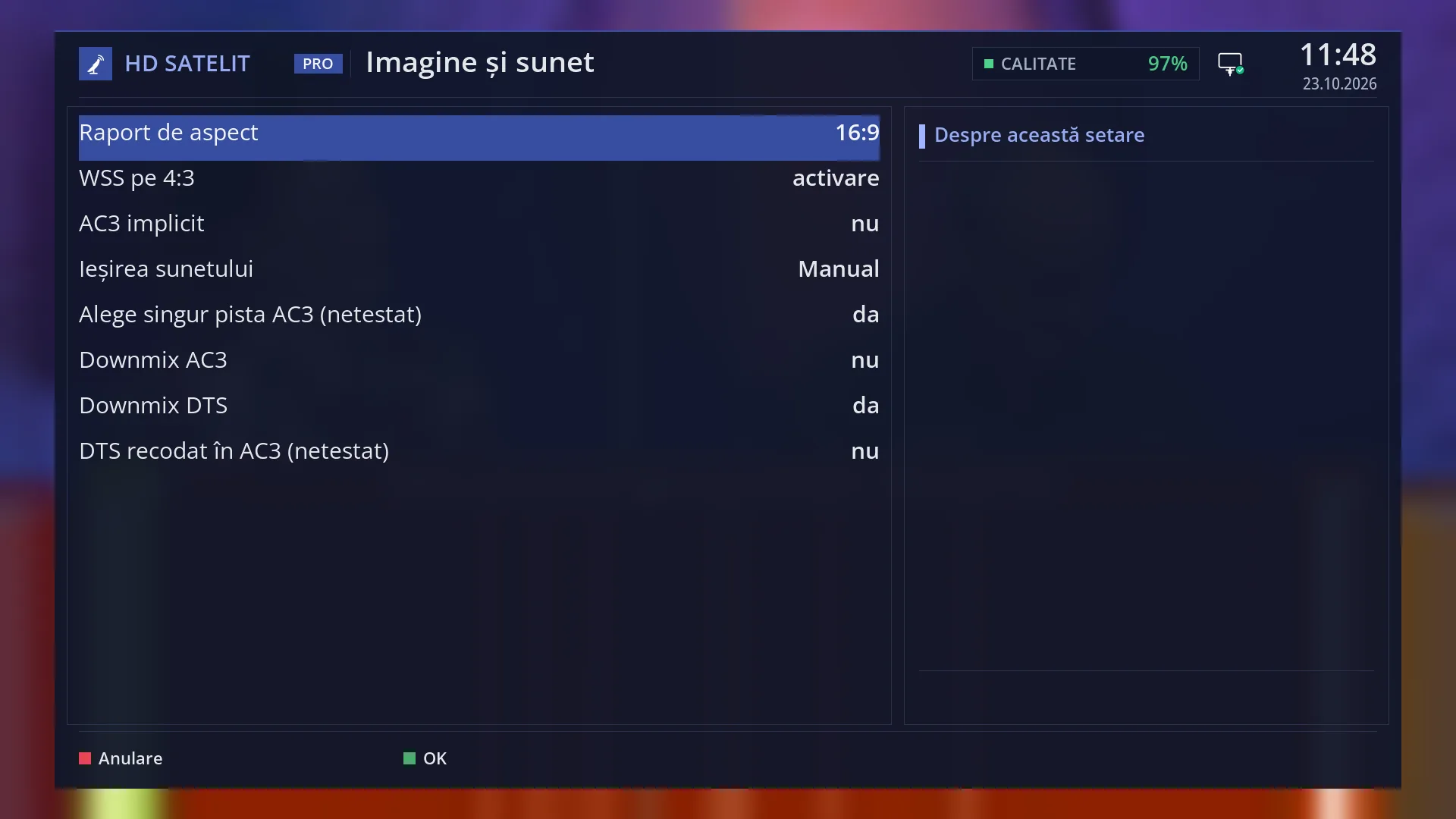
5.1 sound sent only where it can be played
On Automatic, 5.1 sound goes out unchanged only to a TV or amplifier that accepts it; otherwise stereo is sent.
See in the help ›
Volume remembered per channel
Each channel starts at the volume you left it at, and equal volume across channels calms down loud adverts.
See in the help ›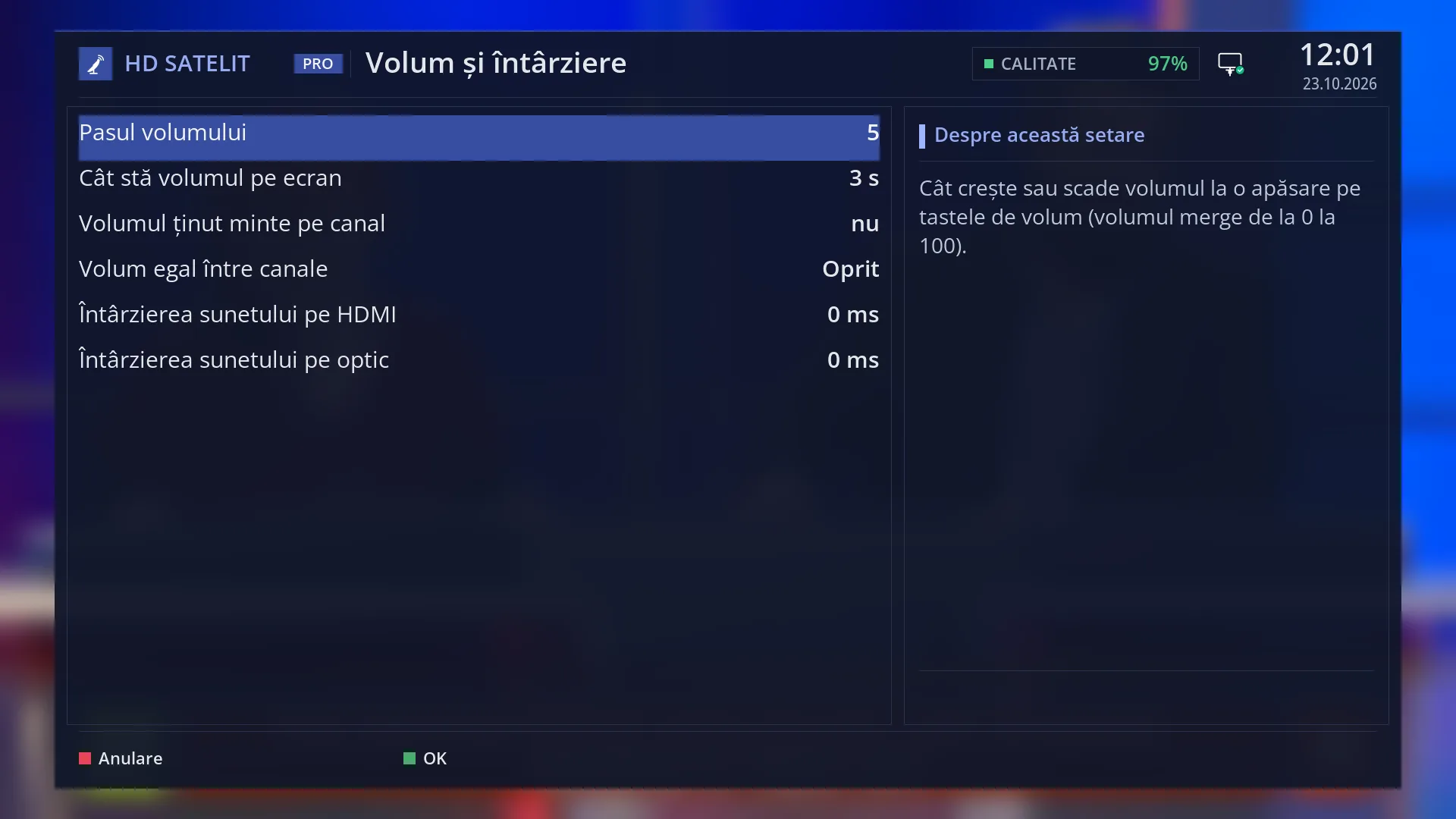
Audio delay
You match sound to picture separately on HDMI, on the optical output and on the audio track.
See in the help ›Radio and DAB+
Bars that follow the music
The radio screen visualiser moves with the real sound of the station, in any sound format, not with a random animation.
See in the help ›Exclusive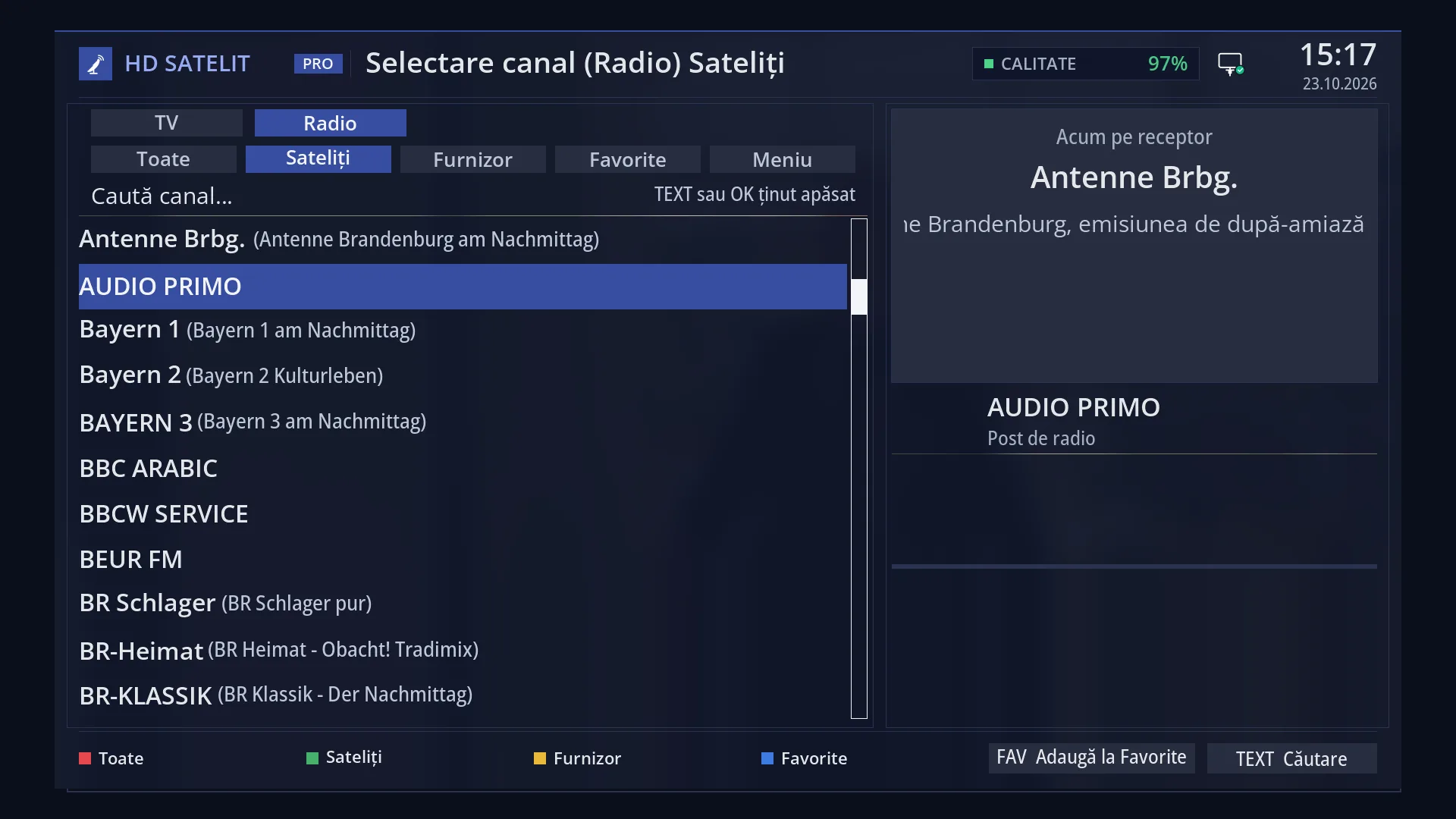
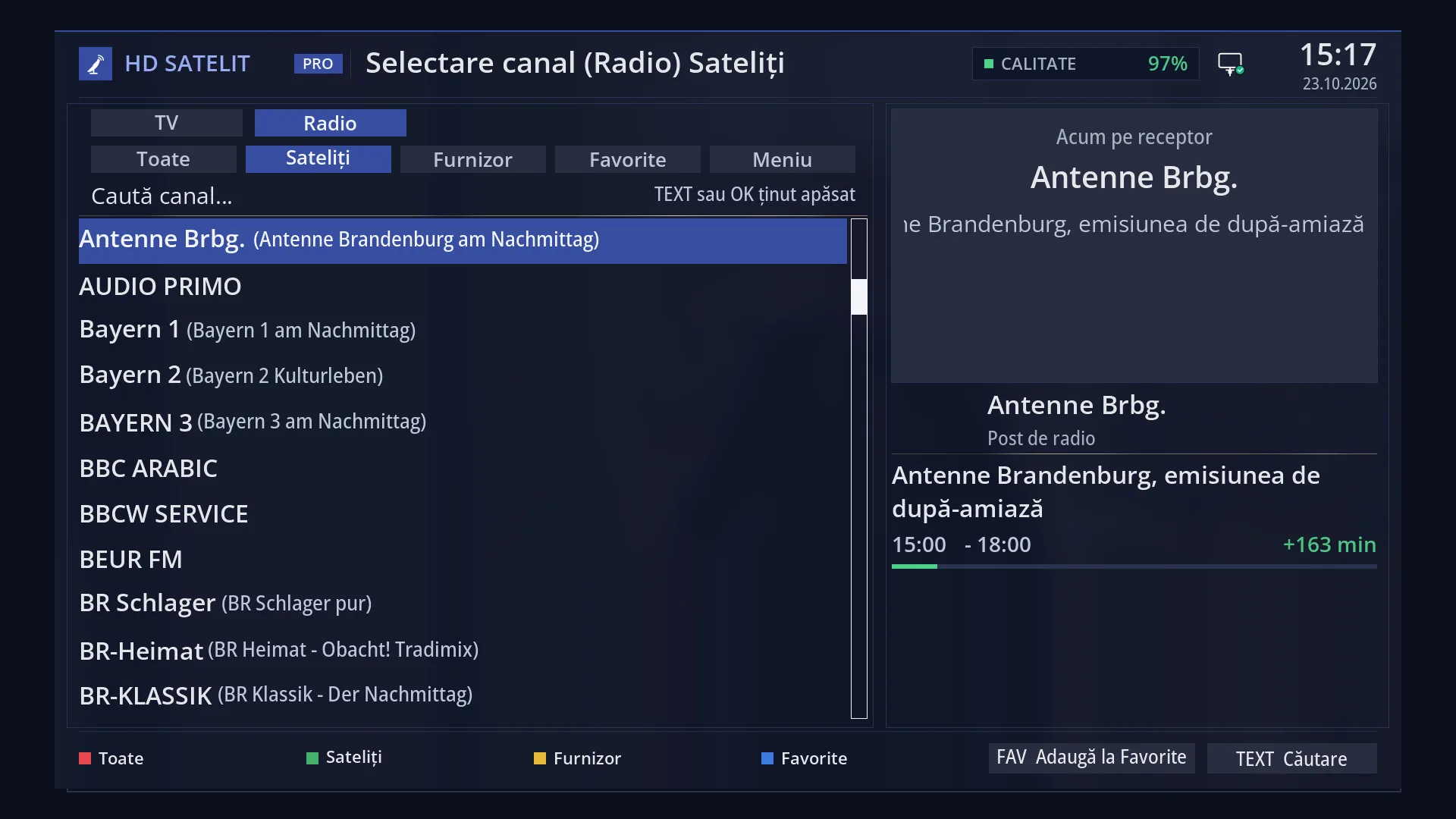
Full-screen radio display
On a radio station you see on the whole screen the station name, the current and next programmes, the radio text, song and artist, the sound and the signal.
See in the help ›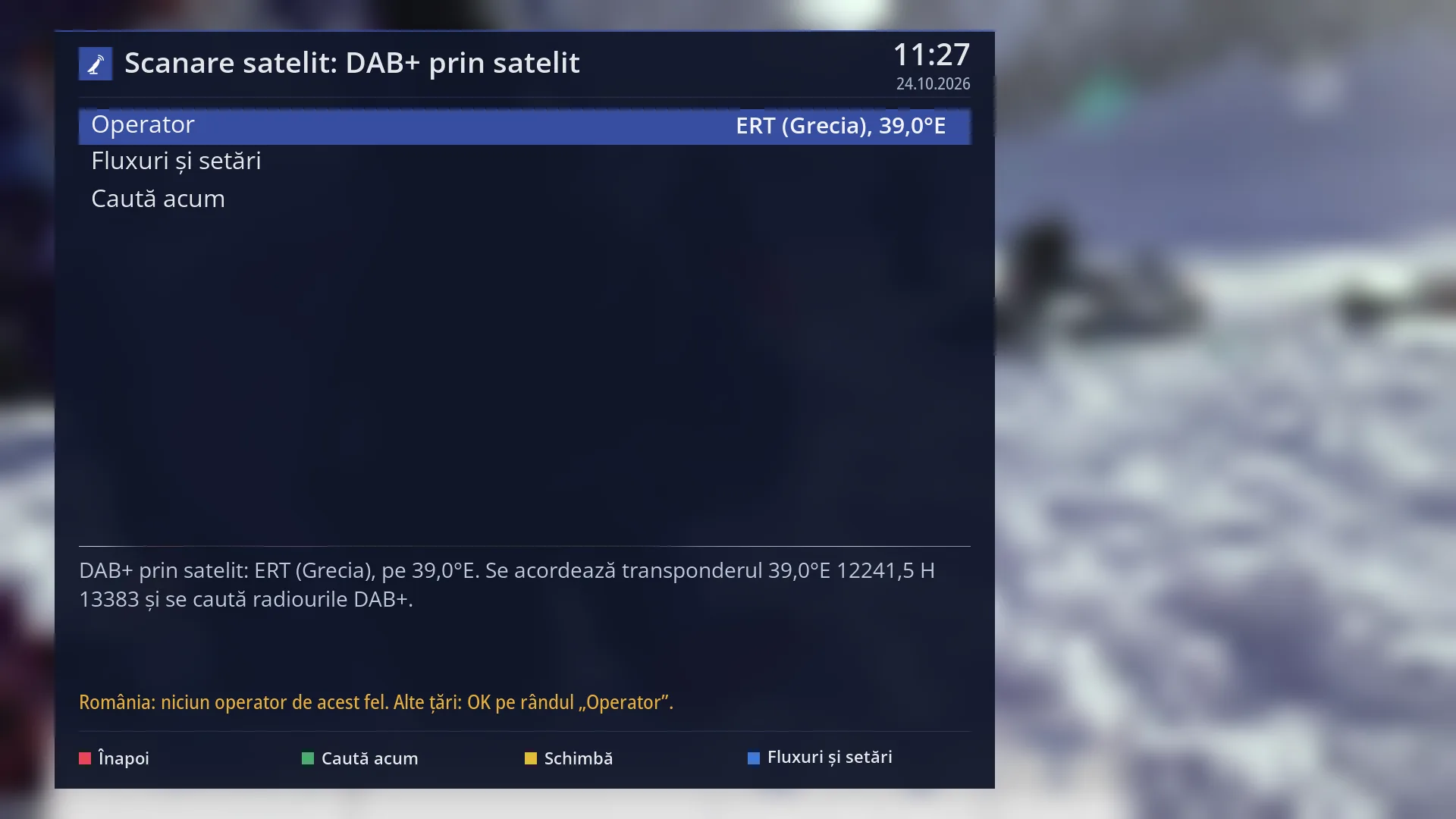
DAB+ from satellite
DAB+ digital radio stations sent over satellite are scanned and played like any other station. Their lists come from the HD Satelit server.
See in the help ›Exclusive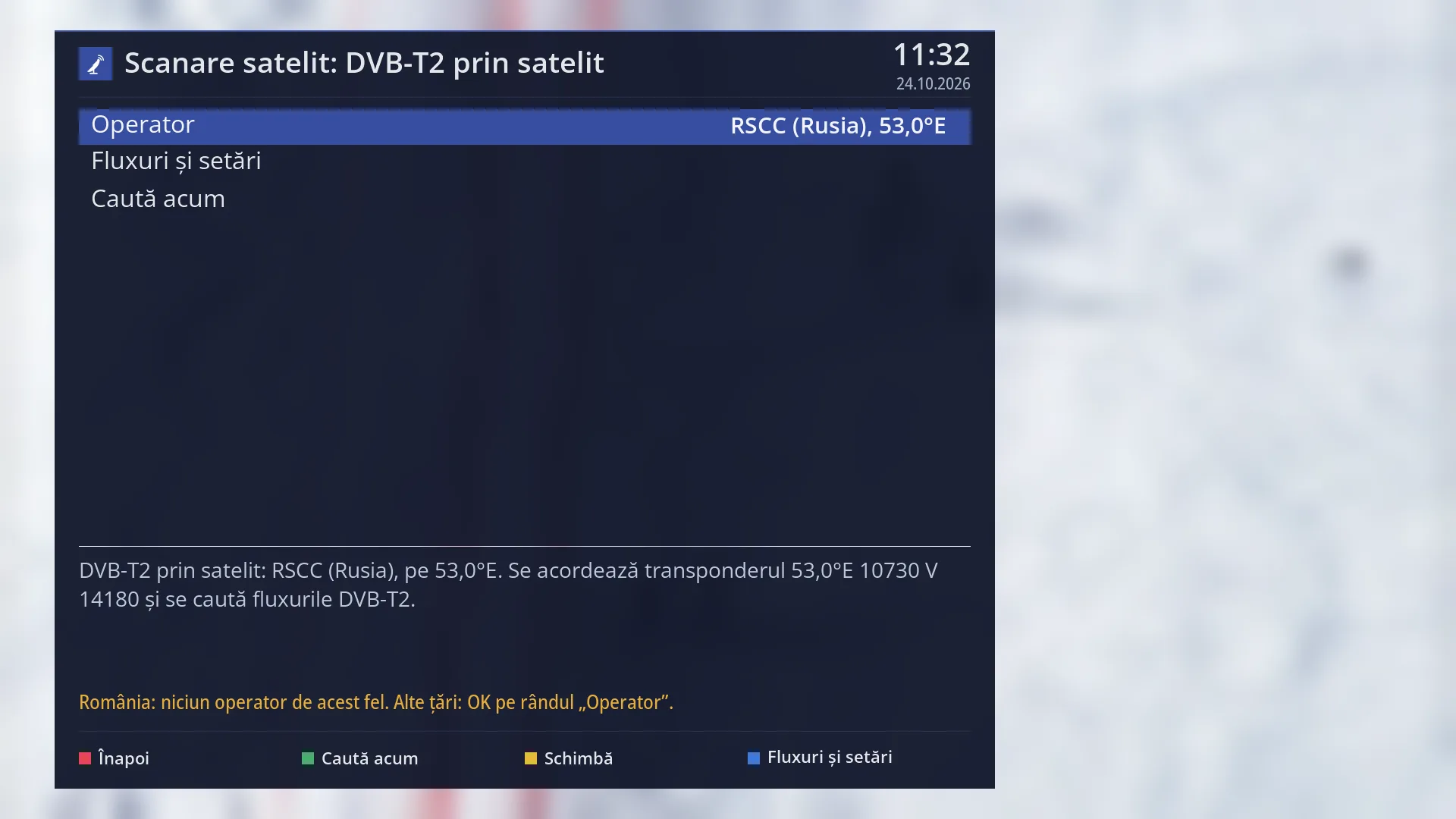
DVB-T2 from satellite
DVB-T2 programmes sent over satellite play like any channel, also on receivers whose tuner cannot unpack them by itself. Recording them is not possible yet.
See in the help ›Exclusive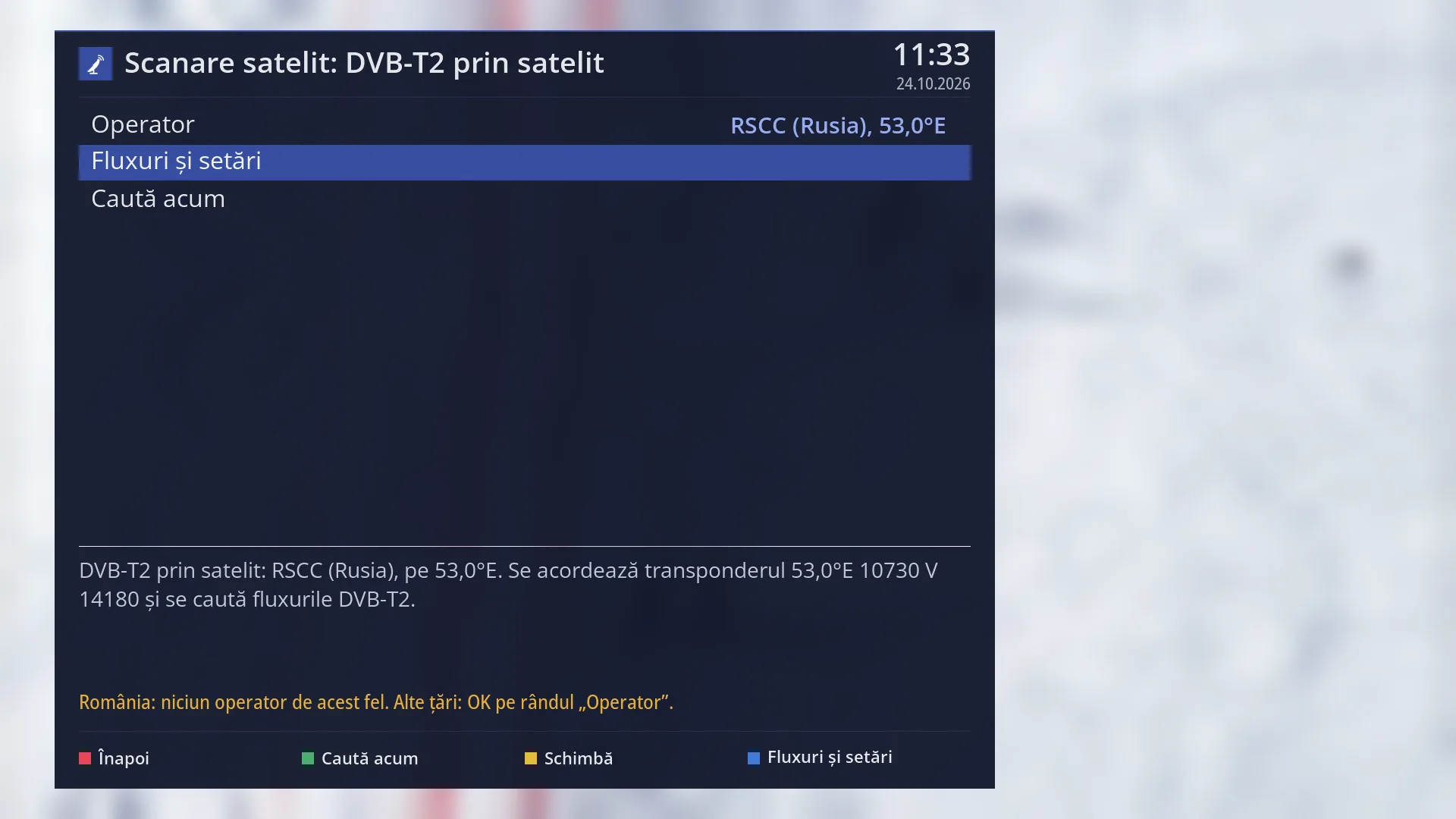
Abertis feeds from 30°W
The Spanish distribution feeds on 30°W (Abertis), which carry a whole terrestrial multiplex inside one PID, are unpacked by the receiver. After an ordinary scan of the transponder, their channels appear by themselves in a bouquet.
See in the help ›Internet: HbbTV, DVB-I, web browser
HbbTV on the RED button
The channels' apps (programmes, news, guide, media libraries) open with the RED button, with the programme in a corner. Videos from media libraries, for example ARD and ZDF, play on the receiver; copy-protected ones do not. It is off by default.
See in the help ›Exclusive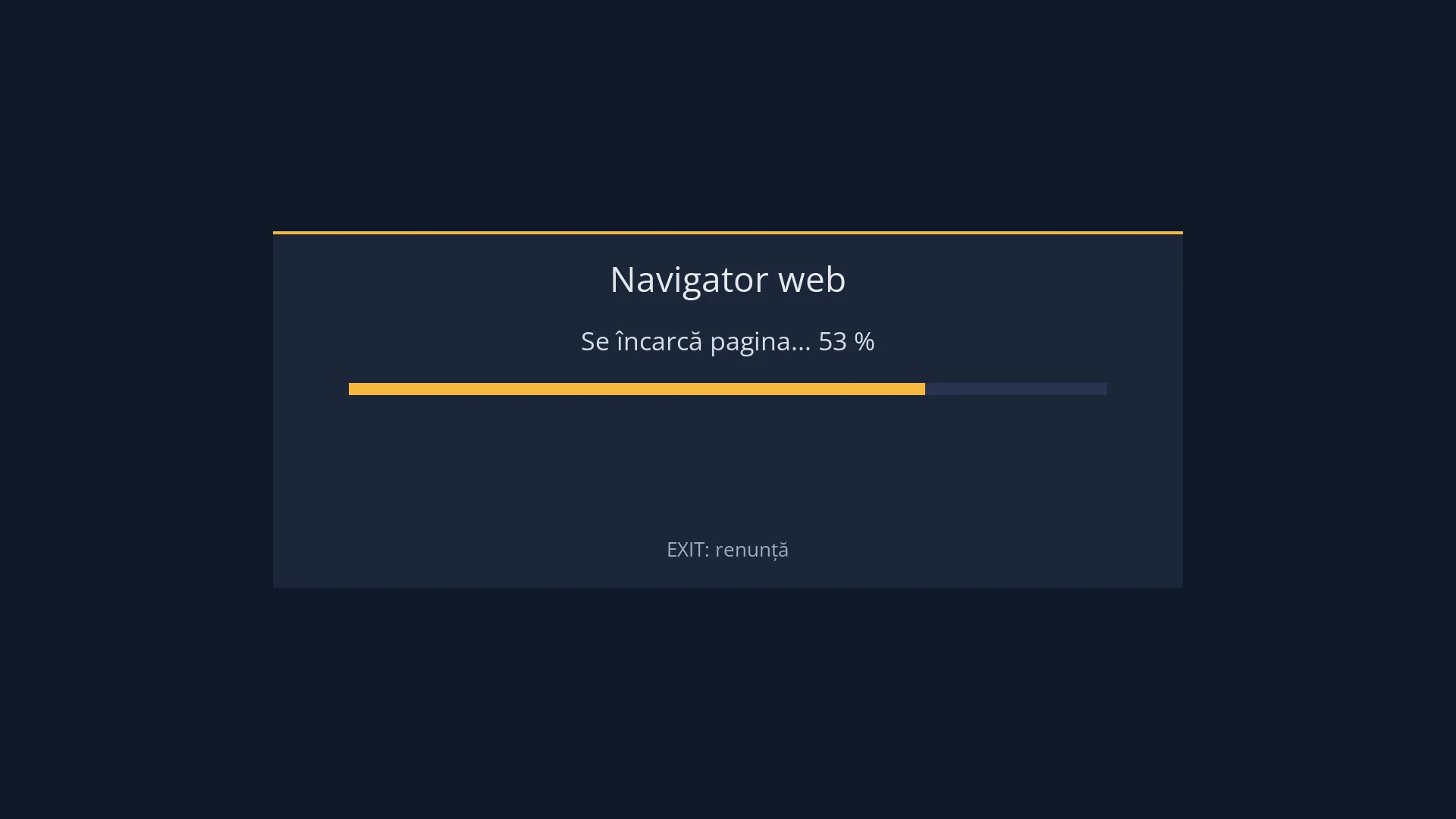
Web browser on the TV
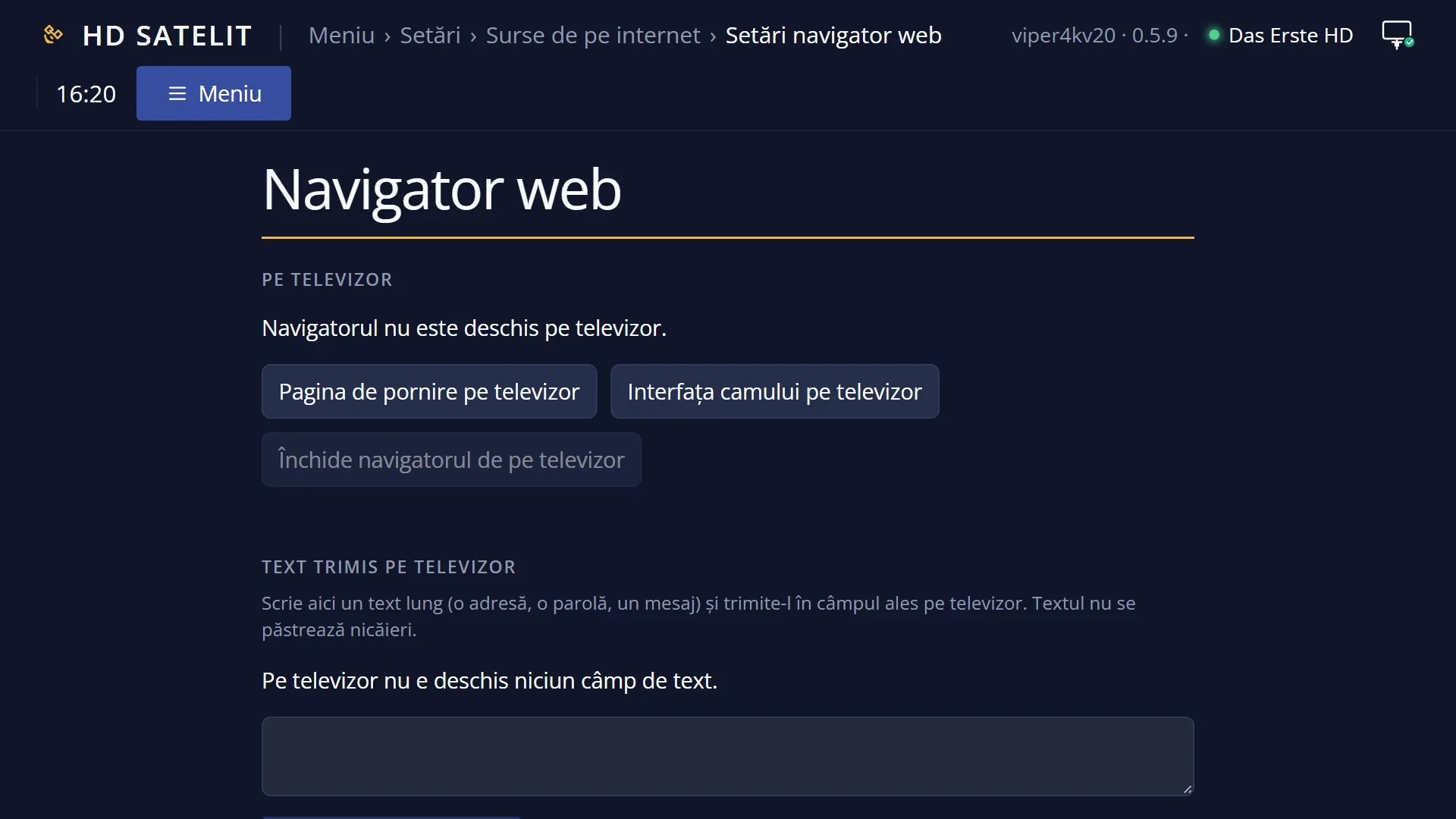
You open web pages on the TV with the remote: a frame on what you select, a mouse-like pointer and an on-screen keyboard; you can type addresses and passwords from your phone. The engine is WPE WebKit 2.54 from September 2026; videos inside pages do not play yet.
See in the help ›Exclusive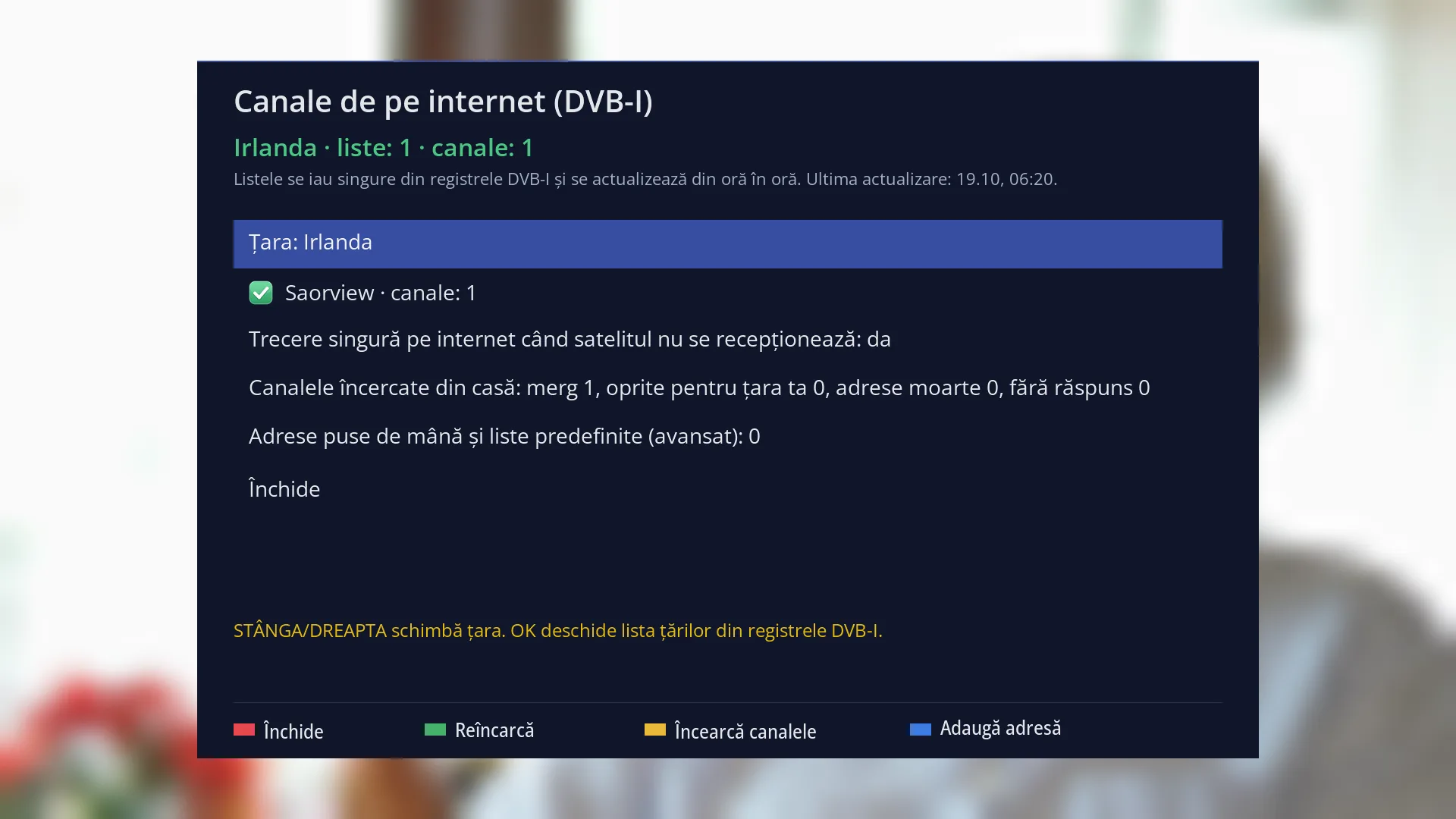
Internet channels (DVB-I)
You choose the country and the internet channel lists arrive by themselves, numbered. The receiver tries each channel from your home and tells you which ones work.
See in the help ›Dish and channel search
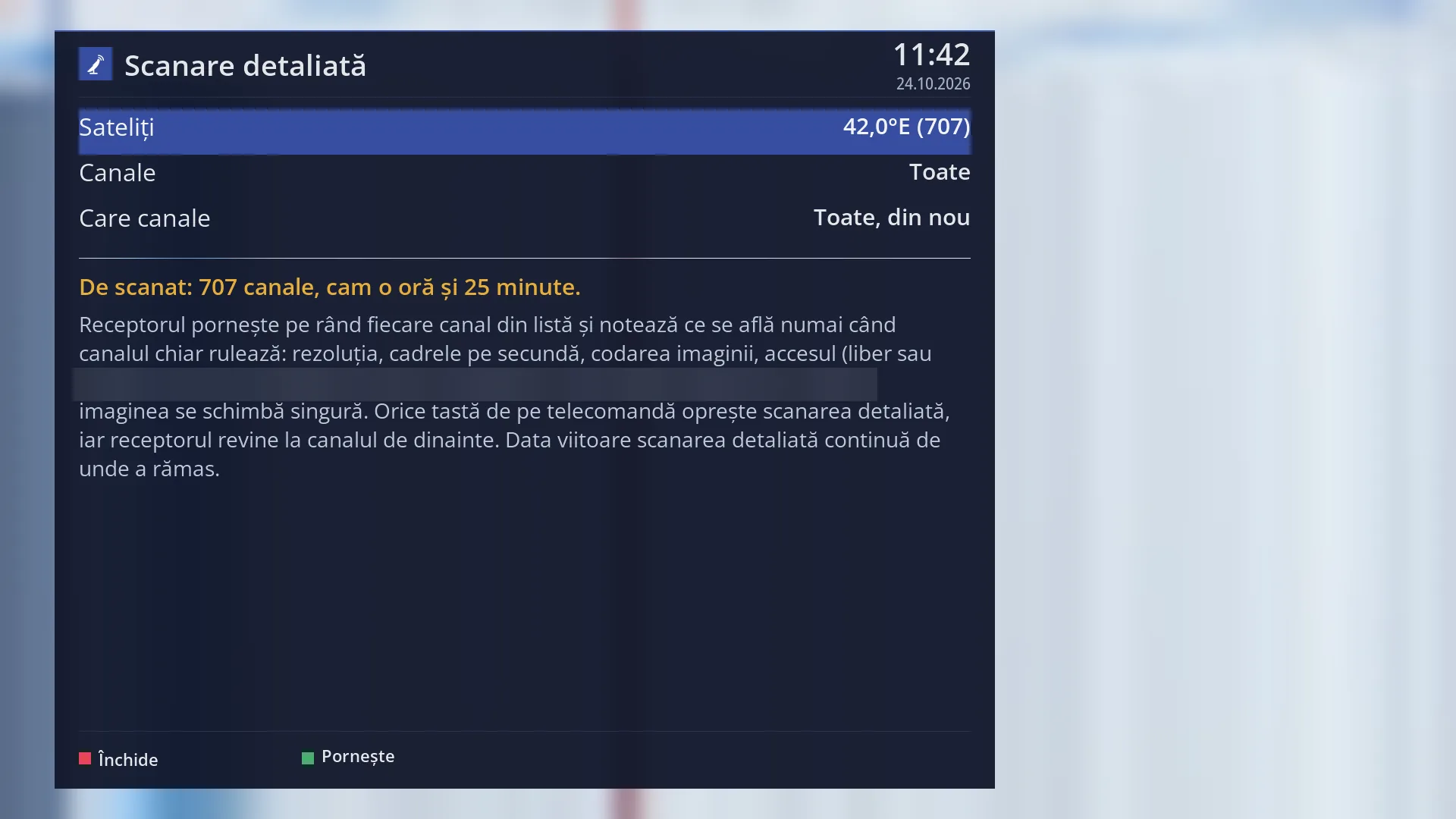
Detailed scan
The receiver tunes every channel in turn and notes the resolution, frames per second, coding and the audio and subtitle tracks. It stops at any key press and continues next time where it left off.
See in the help ›Exclusive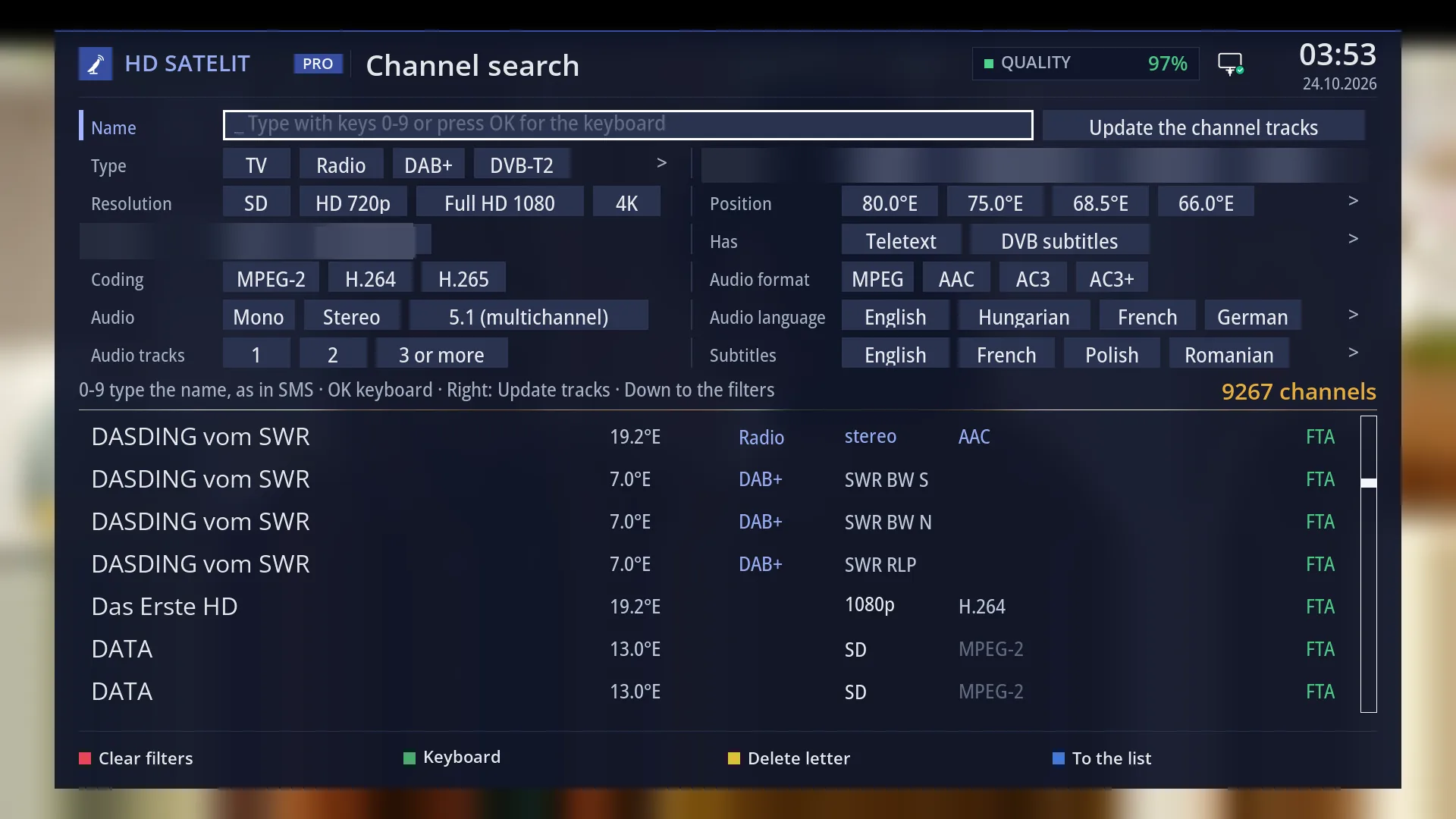
Channel search with filters
You search for a channel by name with the remote's number keys and narrow the list by audio and subtitle languages, teletext, HbbTV, sound format or number of tracks. Next to each filter you see how many channels remain.
See in the help ›Exclusive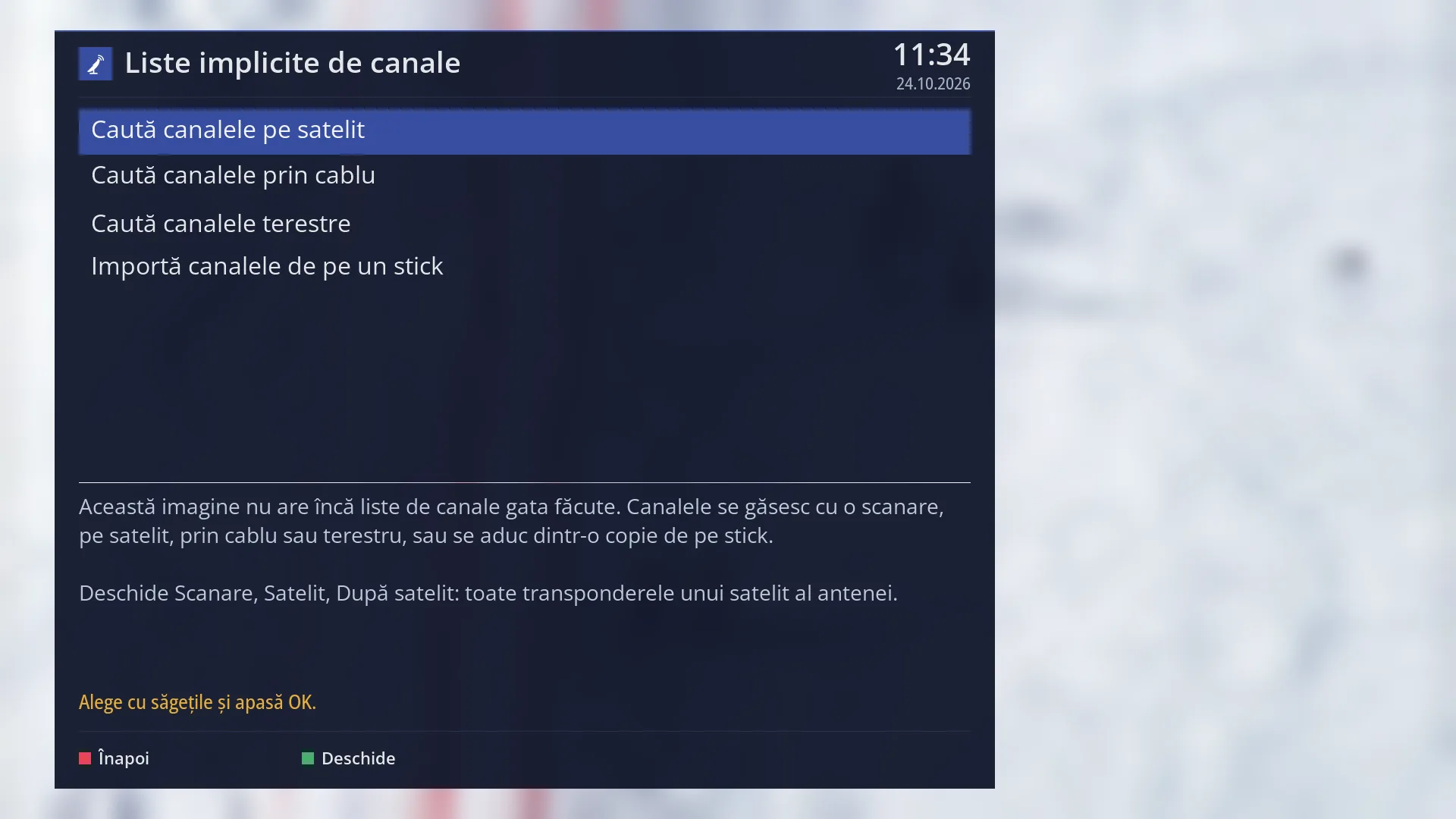
Built-in channel database
The receiver comes with the technical data of more than 8000 channels (resolution, sound, subtitles), used until it learns them by itself.
See in the help ›Signal history per satellite
The receiver remembers on which satellites it has received signal and when. Before searching a position where it has never received anything, it asks you.
Dish brought back to the satellite automatically
If the signal is lost while the dish is in position, the receiver first tries other frequencies of the satellite and turns the dish back only if needed, without stopping the programme.
See in the help ›Exclusive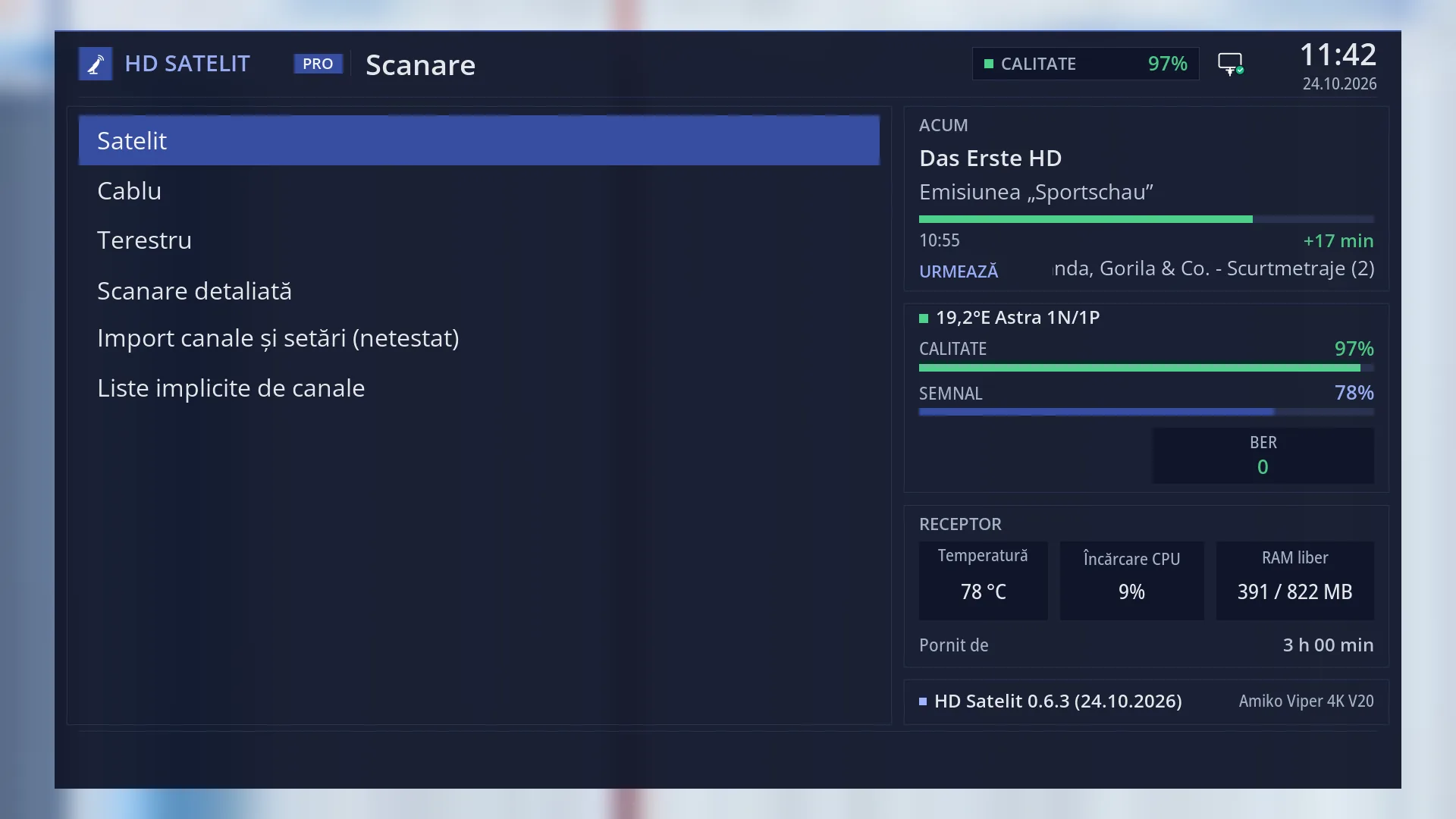
Scan time learned
The remaining time of a channel scan is worked out from how long it took on your receiver, dish rotation included.
See in the help ›Exclusive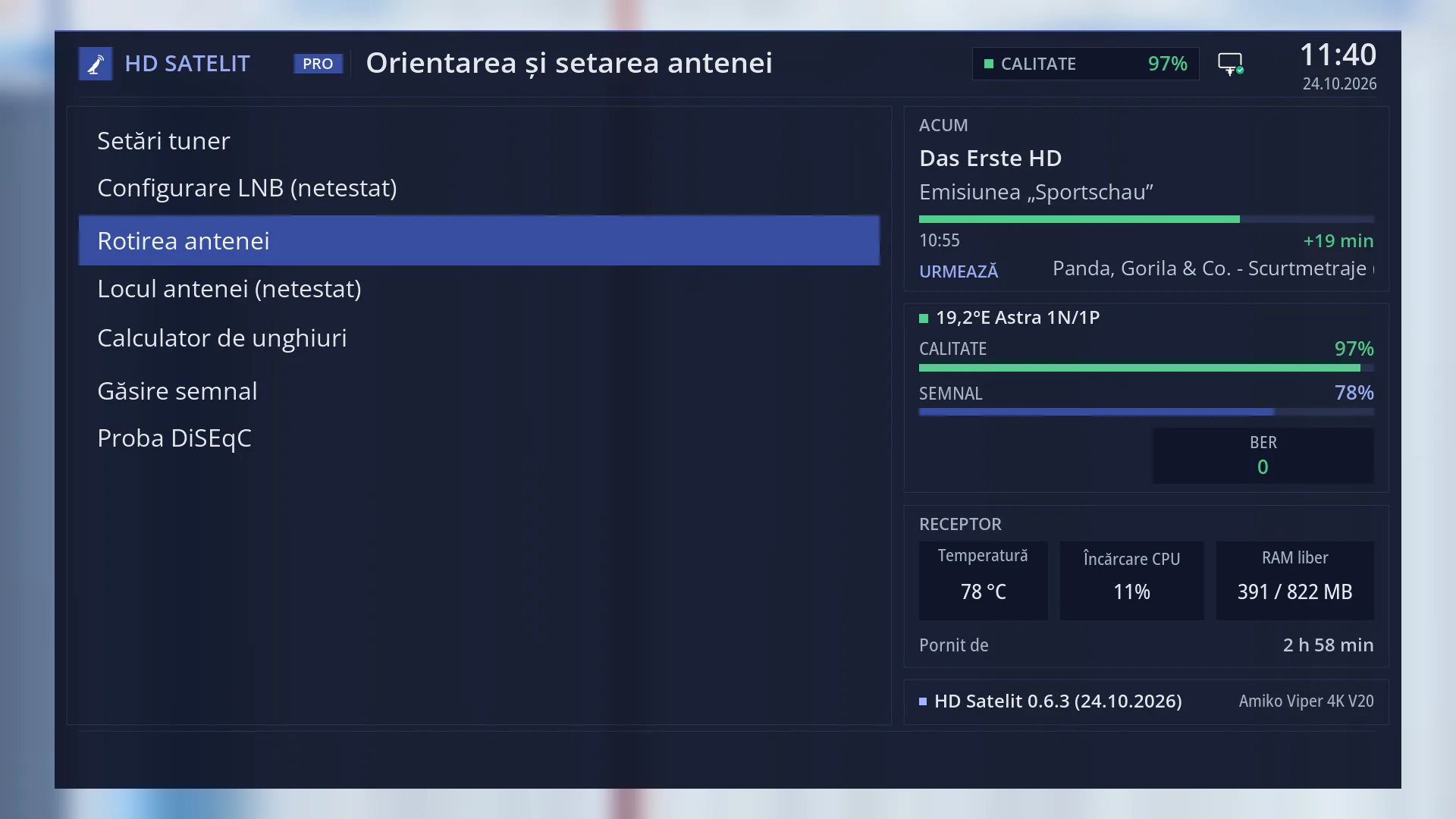
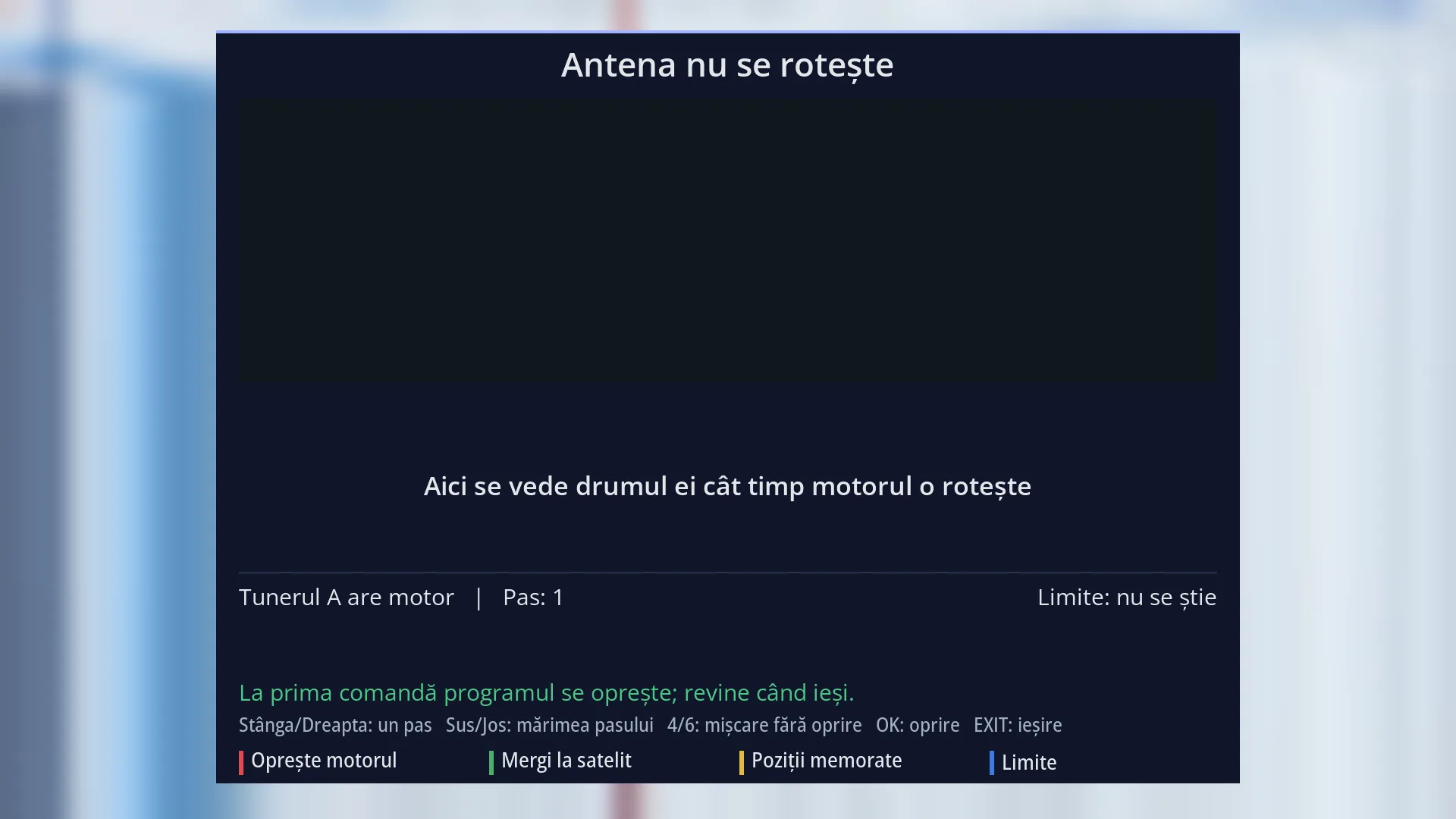
Dish rotation drawn on screen
You see on screen the arc of satellites, where the dish starts, where it goes and how far it still has to go. The receiver learns the motor speed from every move.
See in the help ›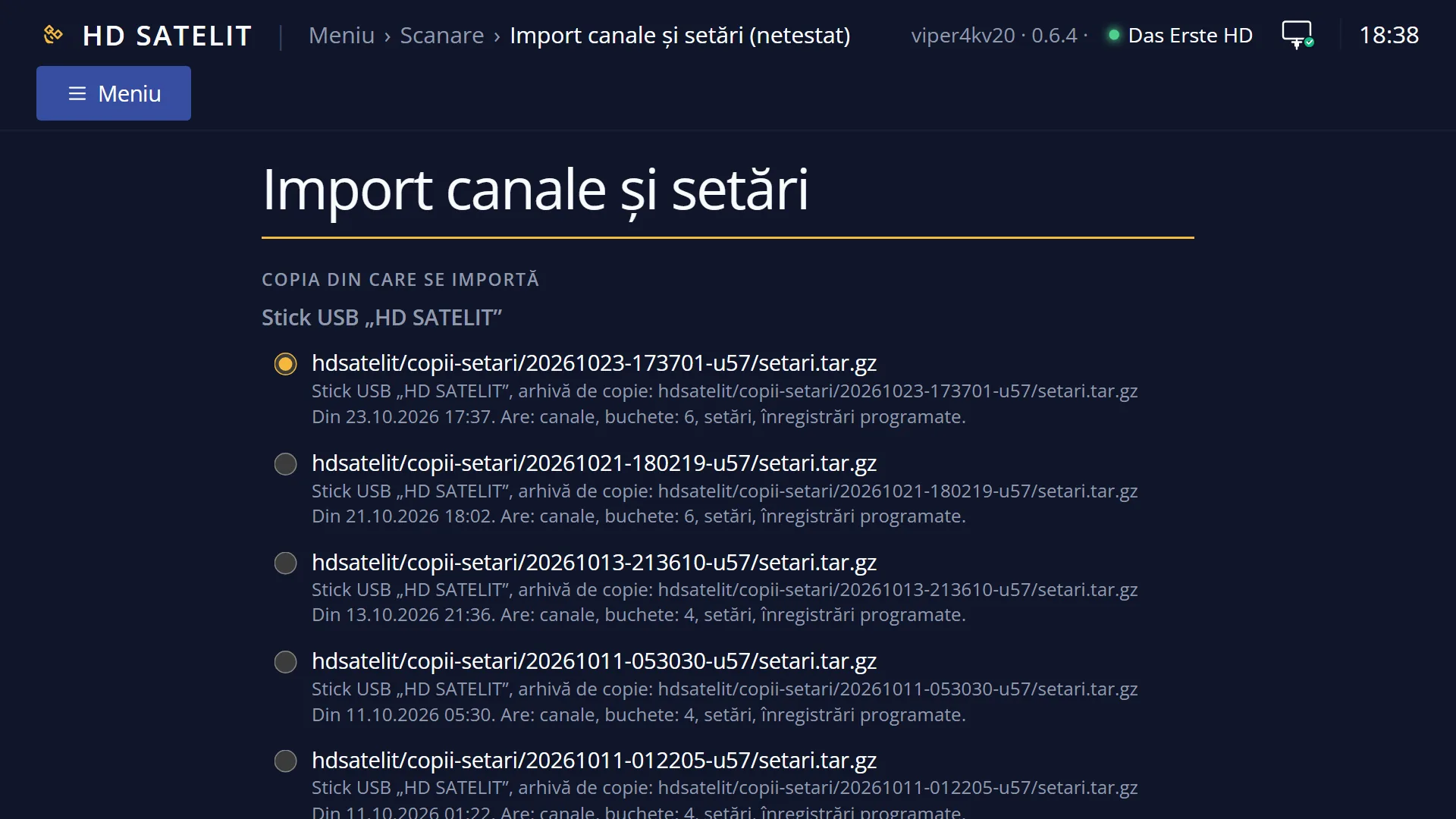
Channels brought over from another image
On first start or from the menu, the receiver brings over from a backup on a stick made by other receiver software the channels, lists, dish settings, scheduled recordings, picons and, if you want, the network and Wi-Fi. If it is left without a network, it puts the previous network back by itself.
See in the help ›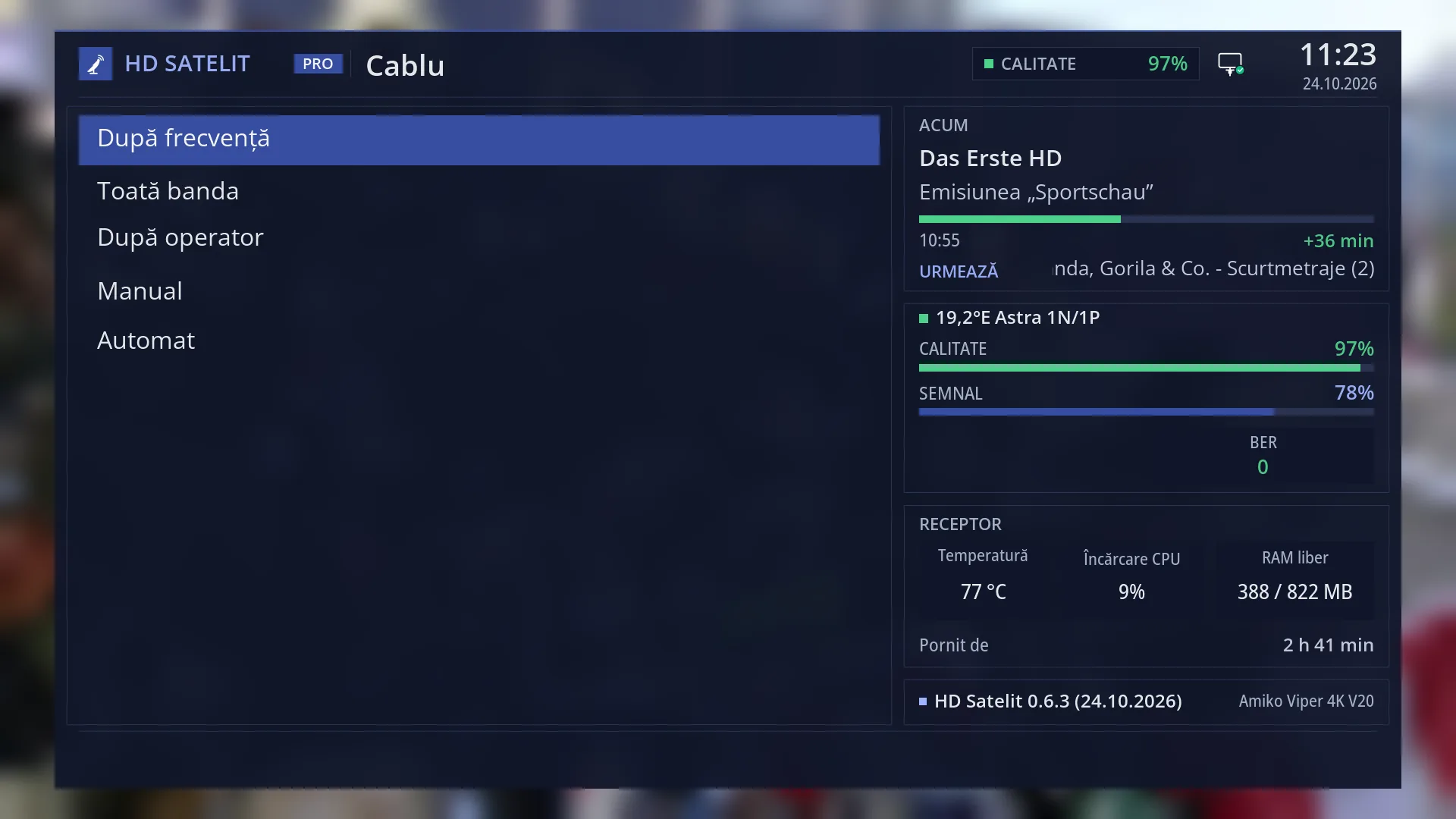
Channel numbers from the cable operator
After a cable scan, the operator's list appears in its own order, and the number keys take you to the channel with that number.
See in the help ›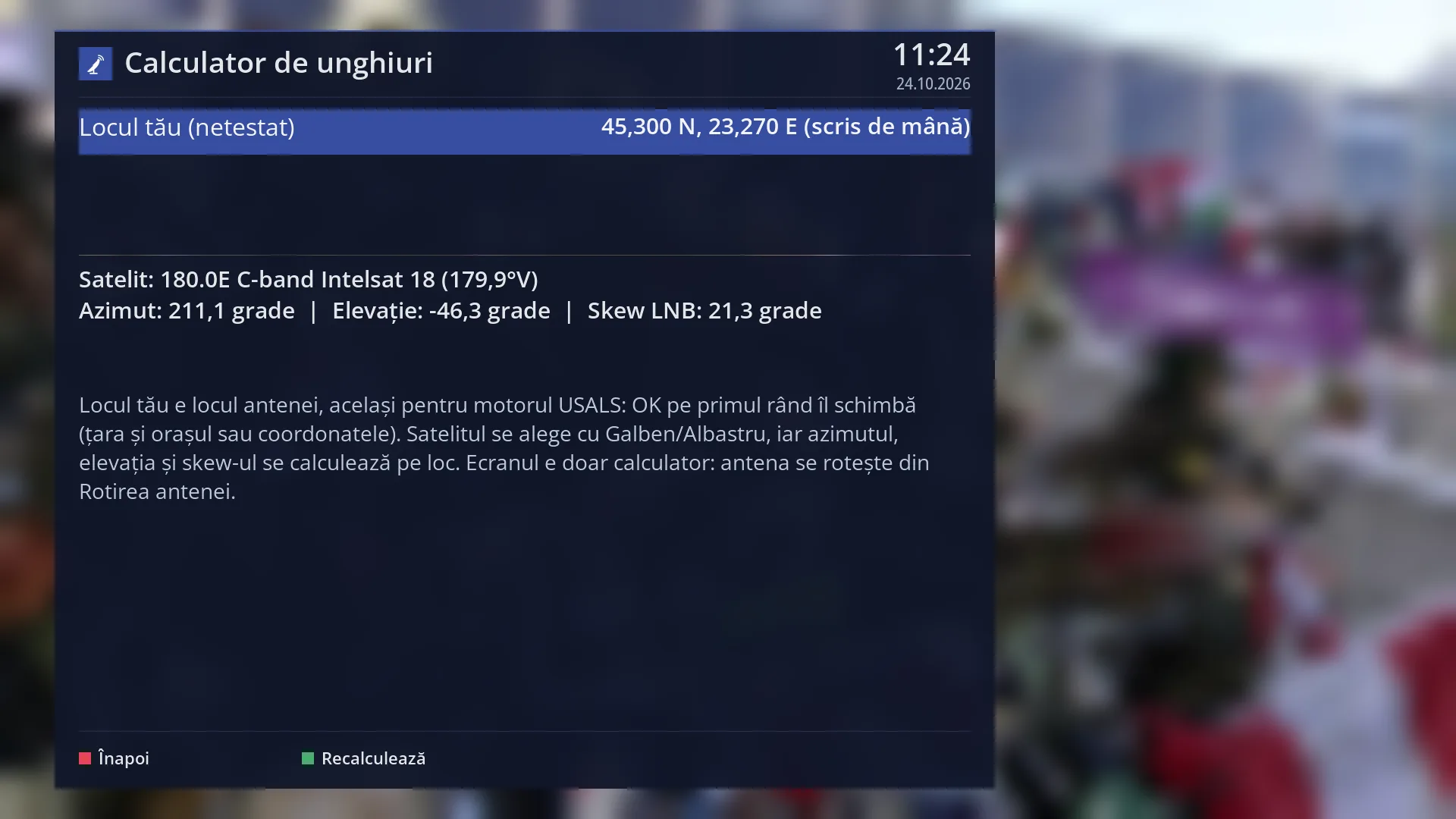
Dish tools
Angle calculator (azimuth, elevation, LNB skew), live signal finder and a test of every DiSEqC port.
See in the help ›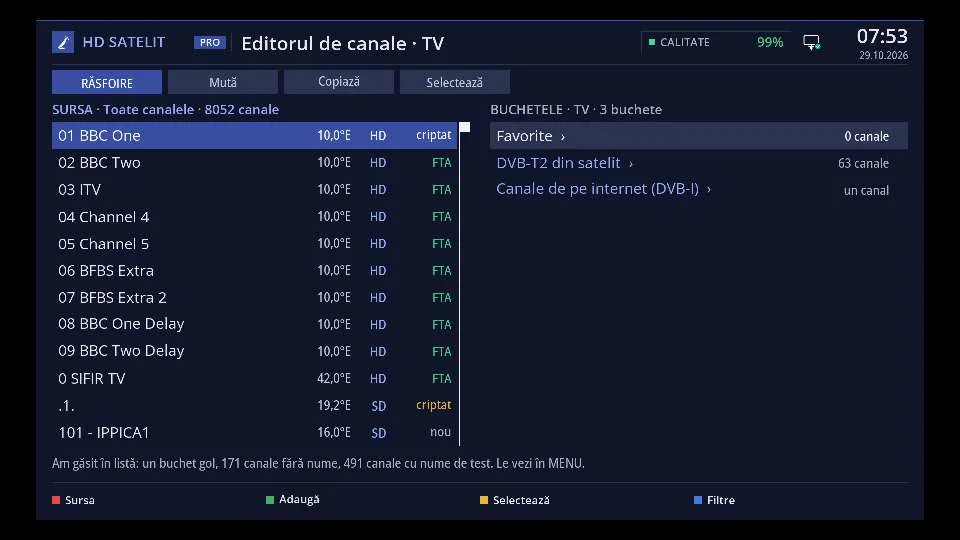
Channel editor
On the receiver and in the web interface you add, move, copy, rename and hide channels and bouquets. You can undo any step, see the list of changes before saving, and a backup is made before every save.
Tuner set up for your country
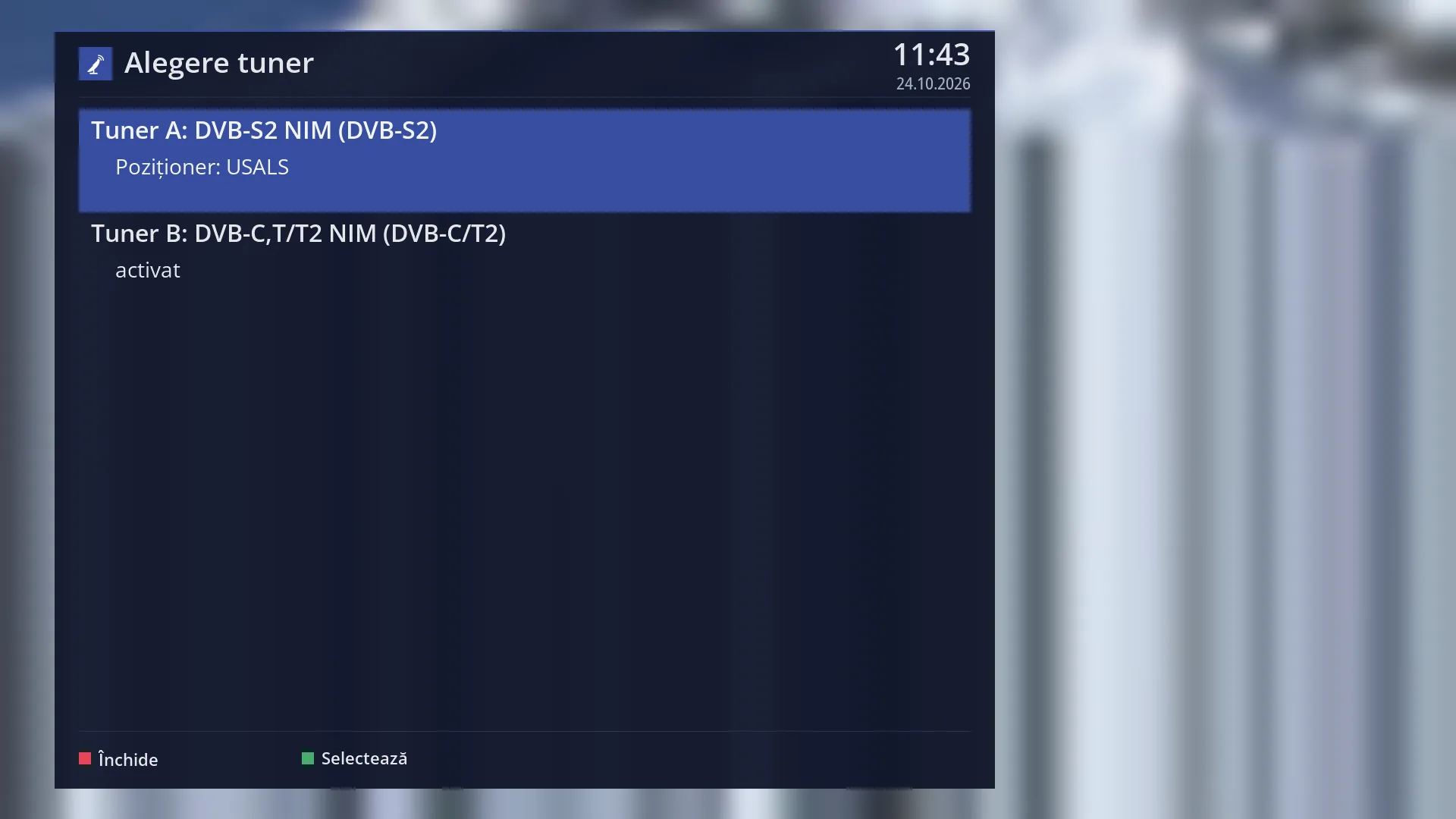
On a new receiver, the first satellite tuner comes set up for your country, so you can scan straight away. In Romania: Thor 0.8°W on DiSEqC A and 19.2°E on DiSEqC B. Whatever you set yourself stays.
See in the help ›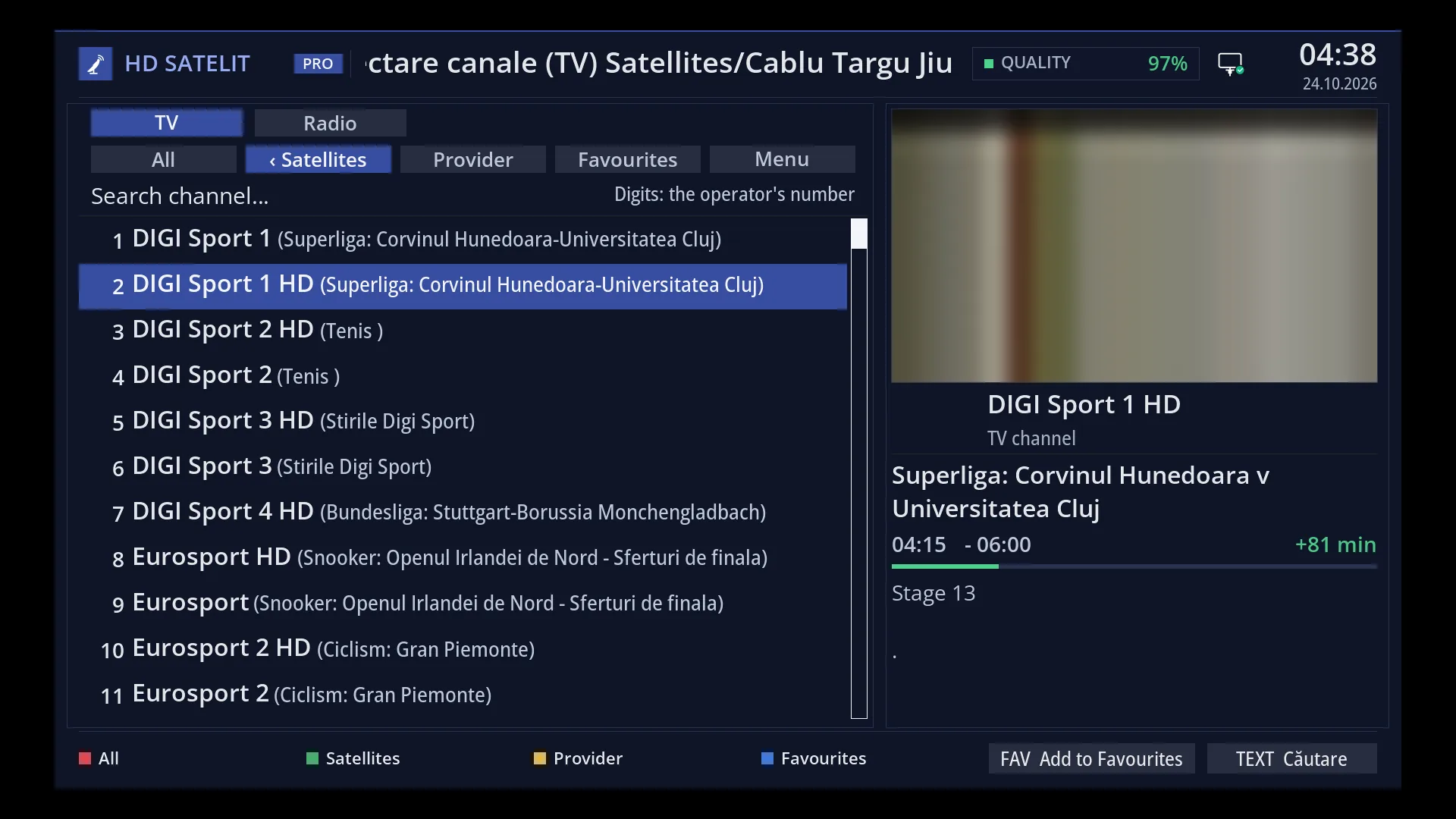
Bouquets on the blue button
In the channel list, the blue button opens the list of bouquets, with Favourites first, also after you bring channels over from other software. The Favourites name appears in the menu language.
See in the help ›Network and Wi-Fi
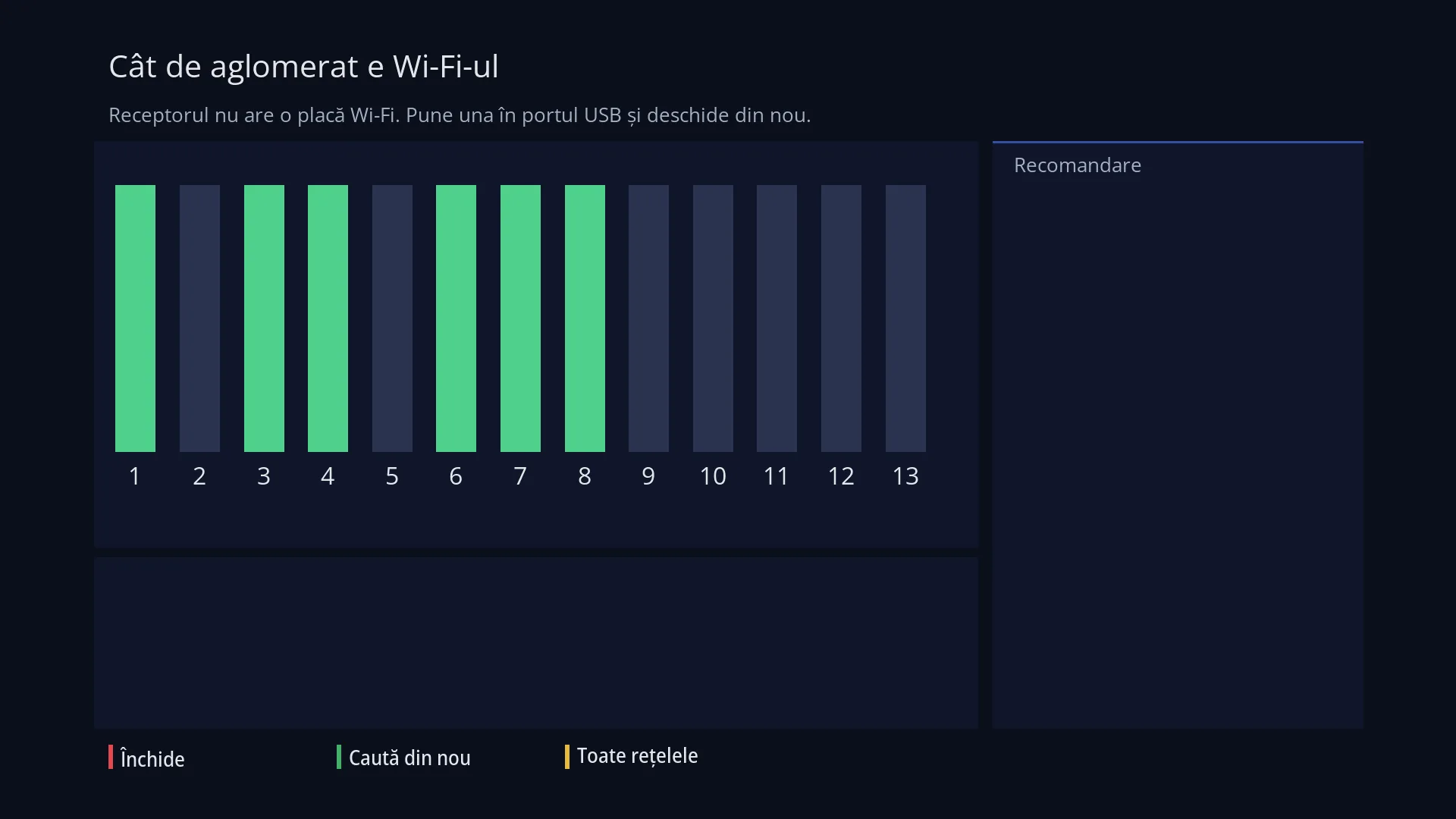
How crowded the Wi-Fi is
A chart shows how busy the Wi-Fi channels around you are and which one is the freest for your router, with the reason.
See in the help ›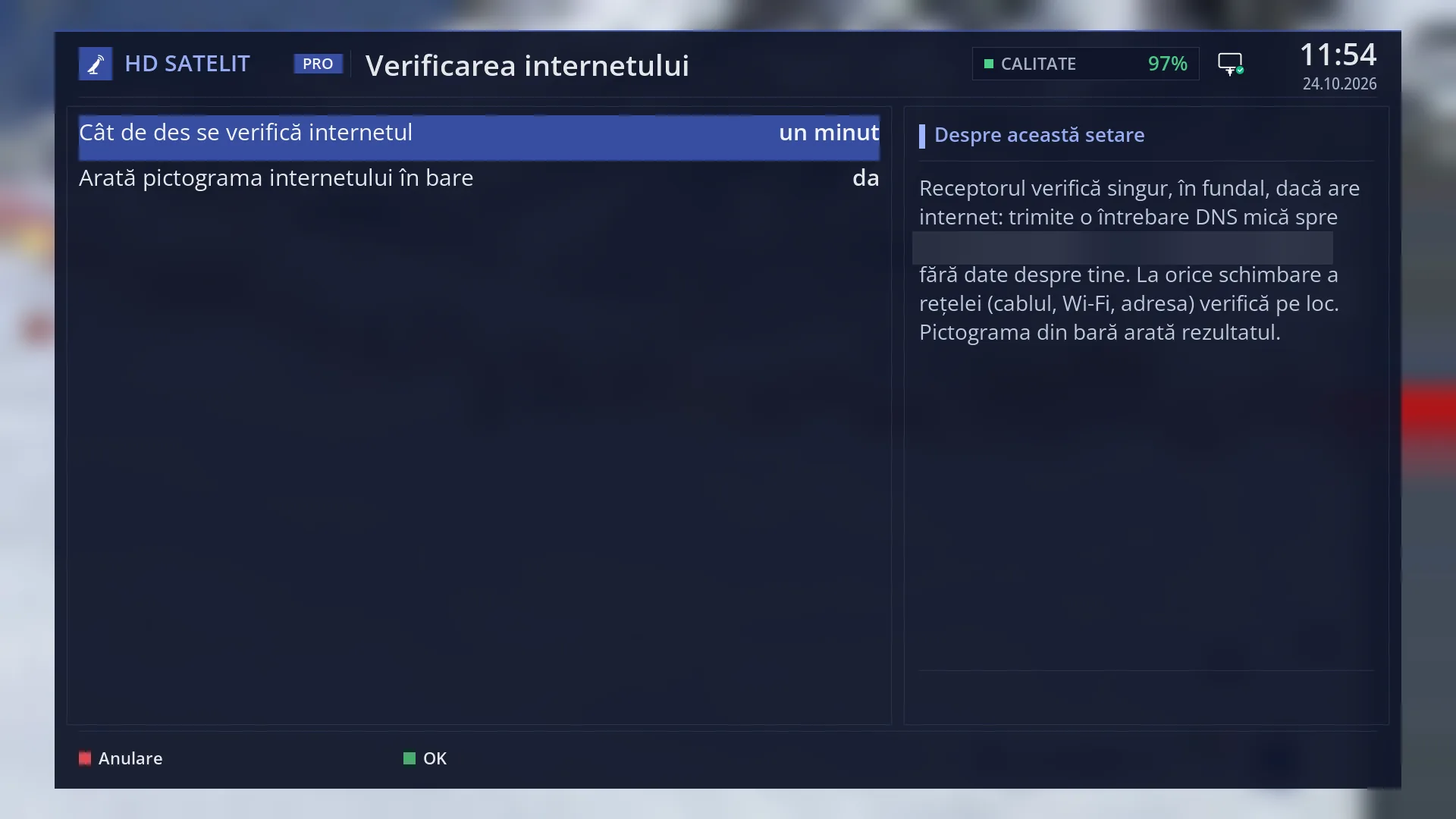
Internet icon
The icon on the bar shows whether you are on cable or Wi-Fi, whether the internet works and where the problem is: the router or the provider. When the internet is lost, a small message appears.
See in the help ›Exclusive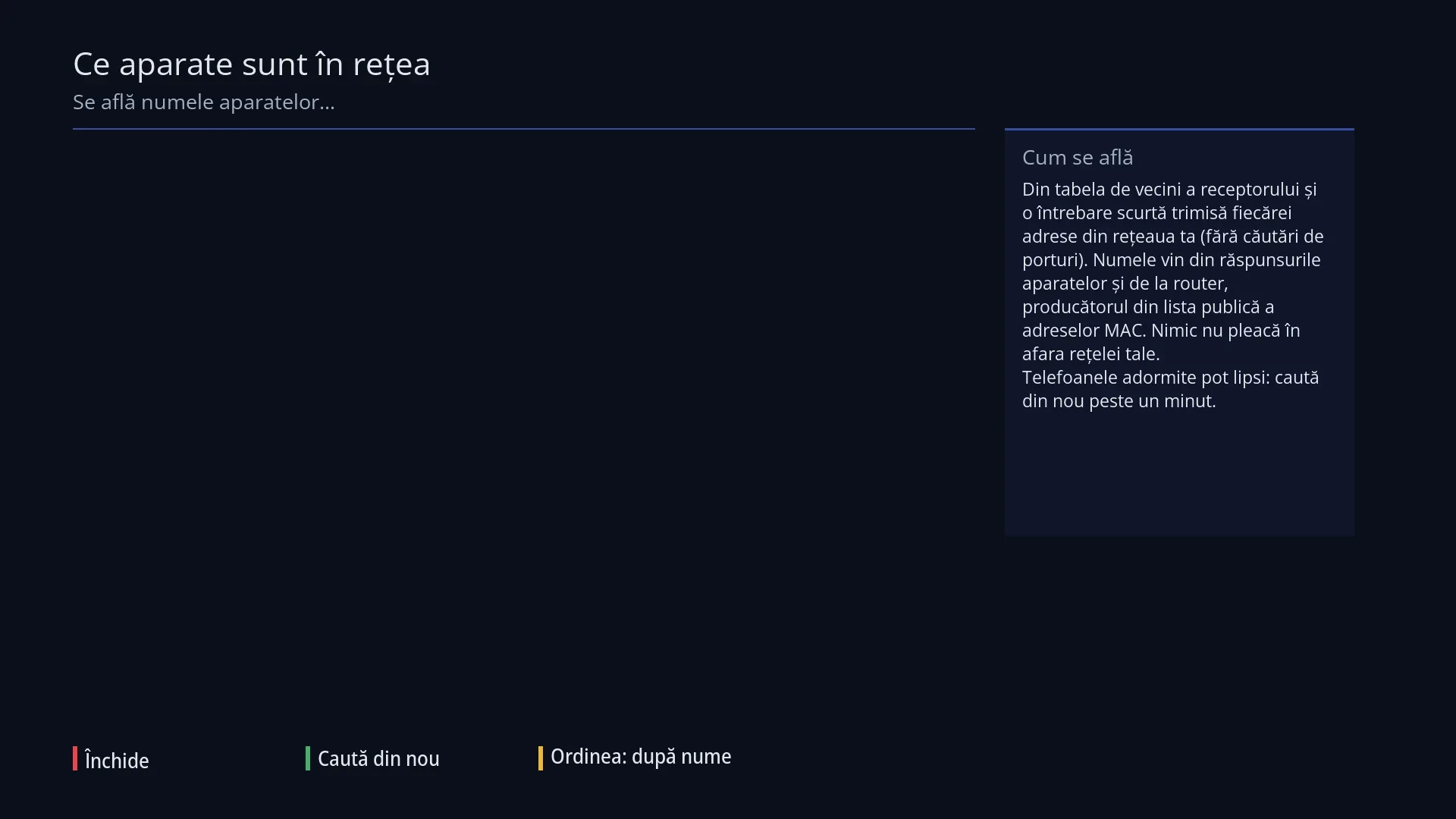
Devices on your network
A list of the devices on your home network, with the name, address and maker of each; OK opens the device's page on the TV.
See in the help ›Web interface and phone
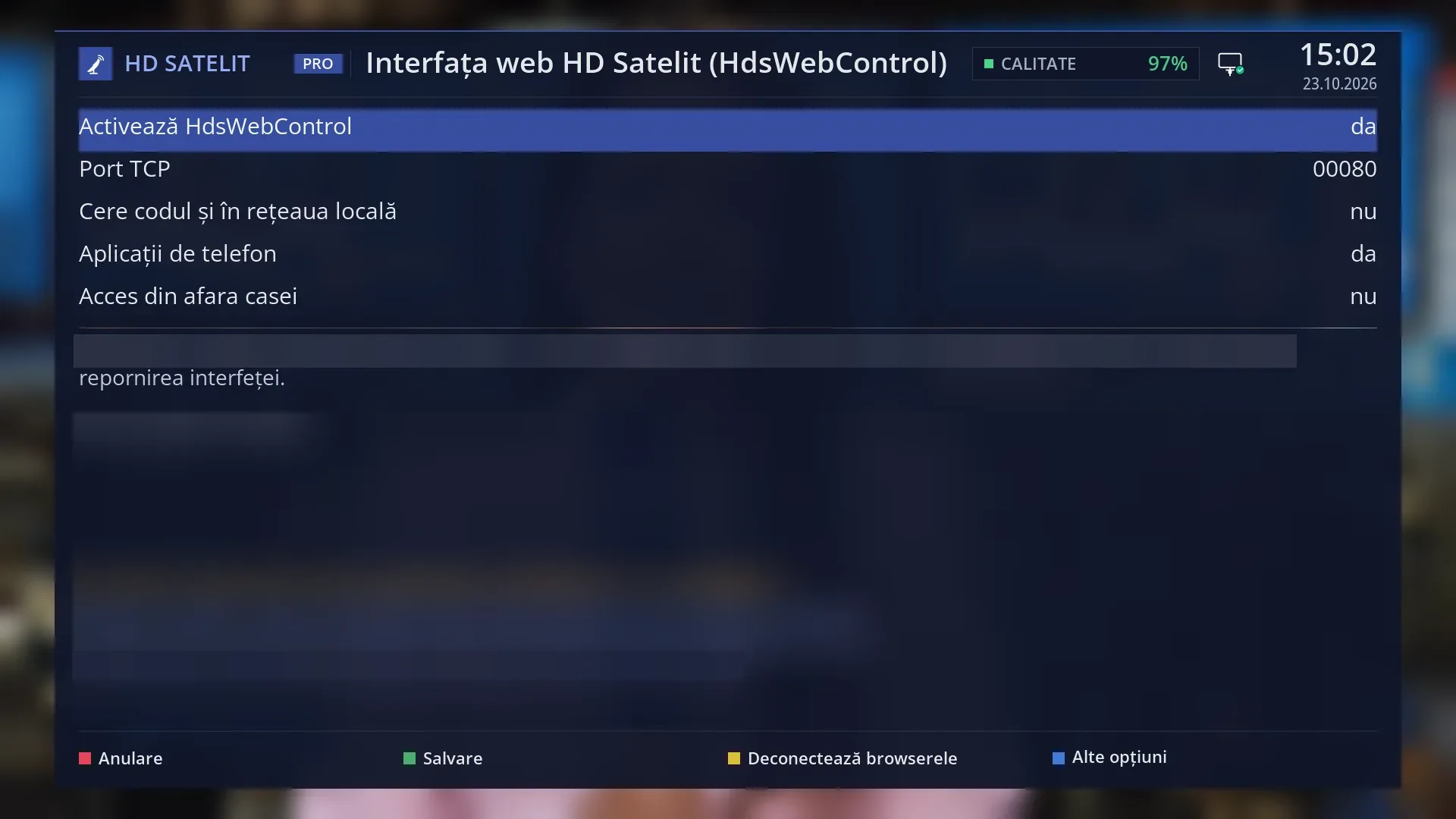
Its own complete web interface
A web interface built from scratch for the image: the whole receiver from your phone or computer, with the same menus and names as on the TV: channels, guide, recordings, settings, the dish, the remote and TV in the browser.
See in the help ›Exclusive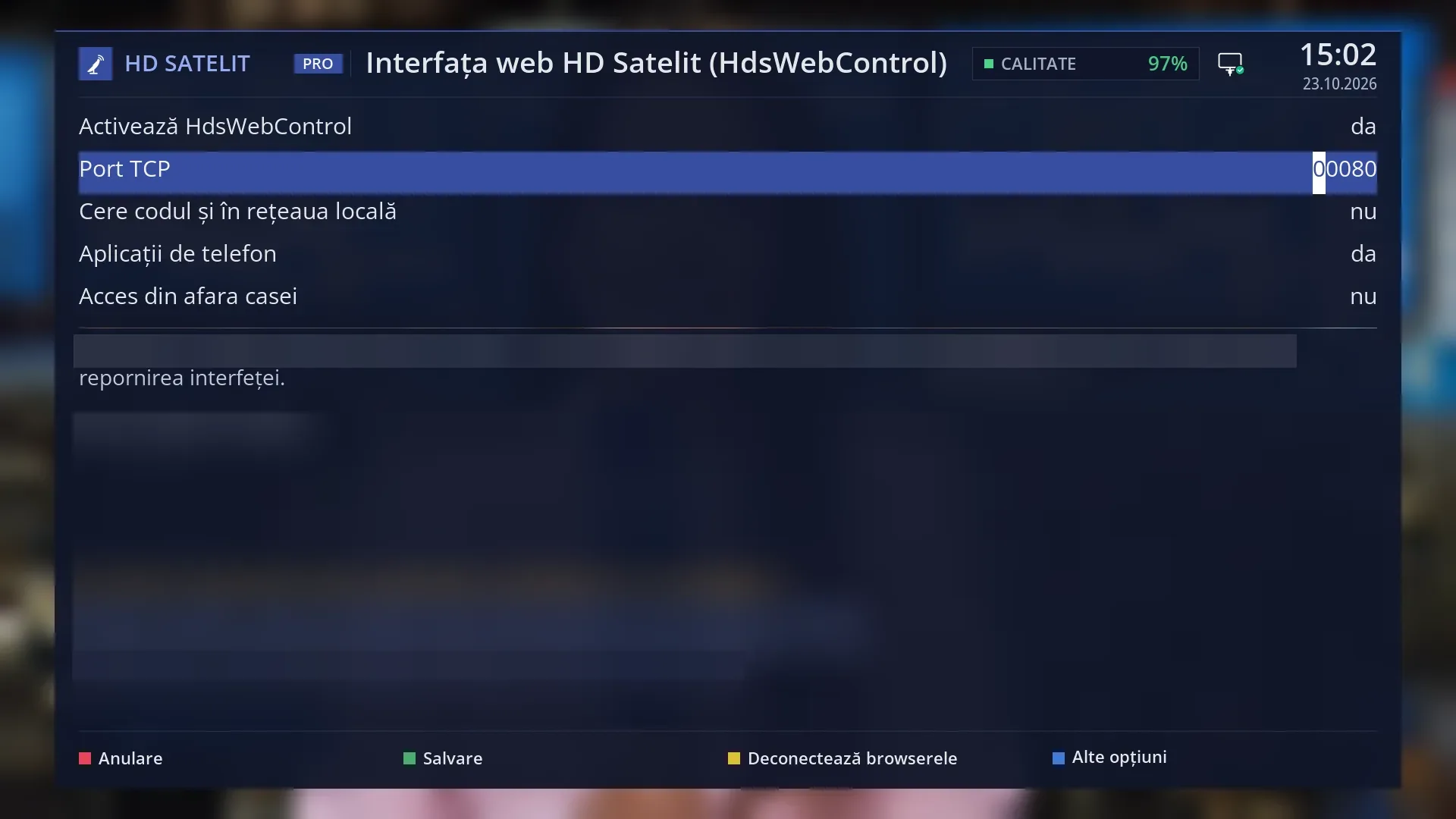
Access with a code shown on the TV
A new browser gets in only with the six-digit code shown large on the TV, valid for one hour.
See in the help ›Exclusive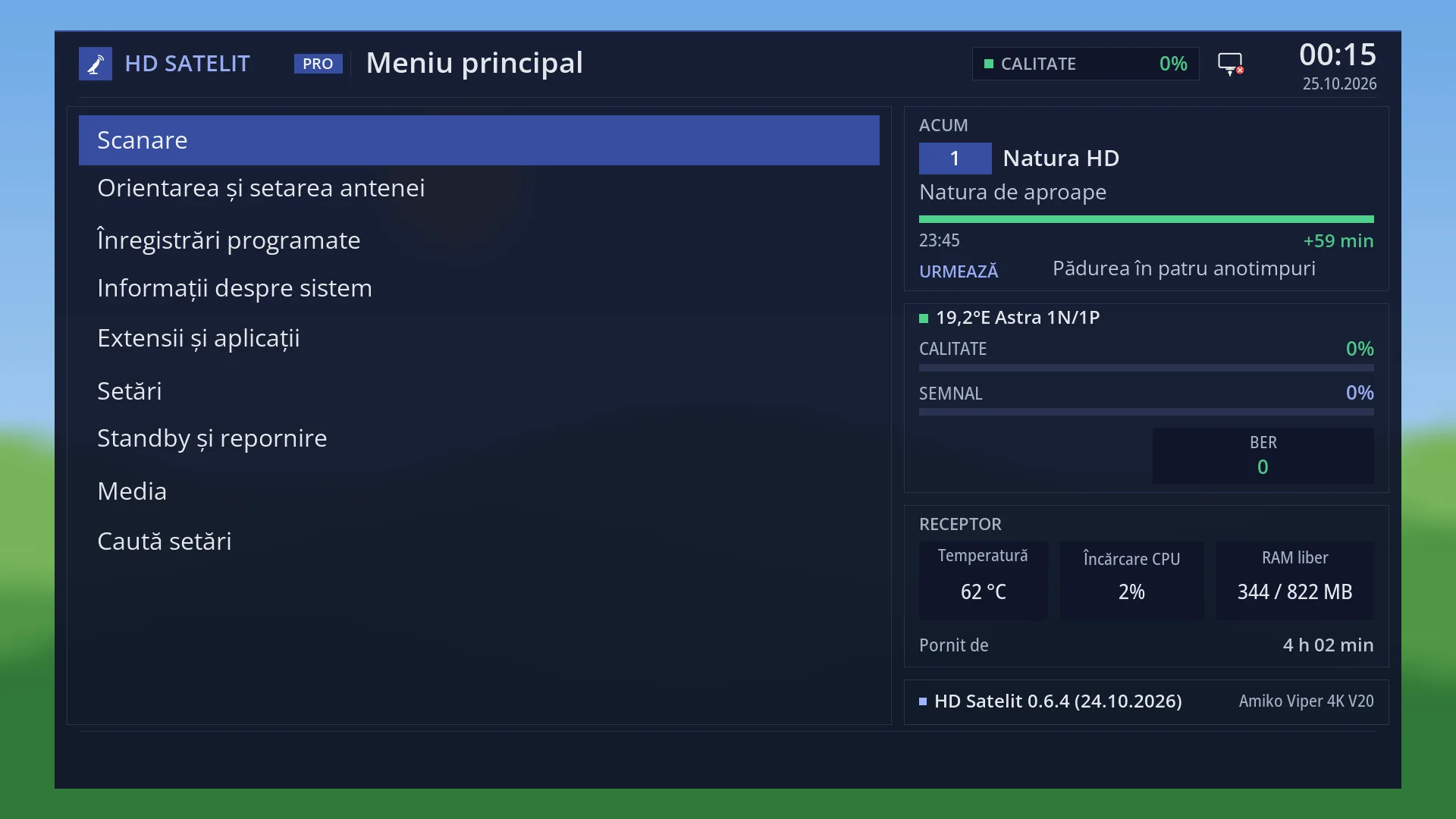
Keyboard and mouse, on the receiver and on the web page
They work plugged straight into the receiver over USB and on the web page, where you see the receiver's screen: you click lines and buttons, the keys work like the remote, and letters are typed into the fields on the TV.
See in the help ›Exclusive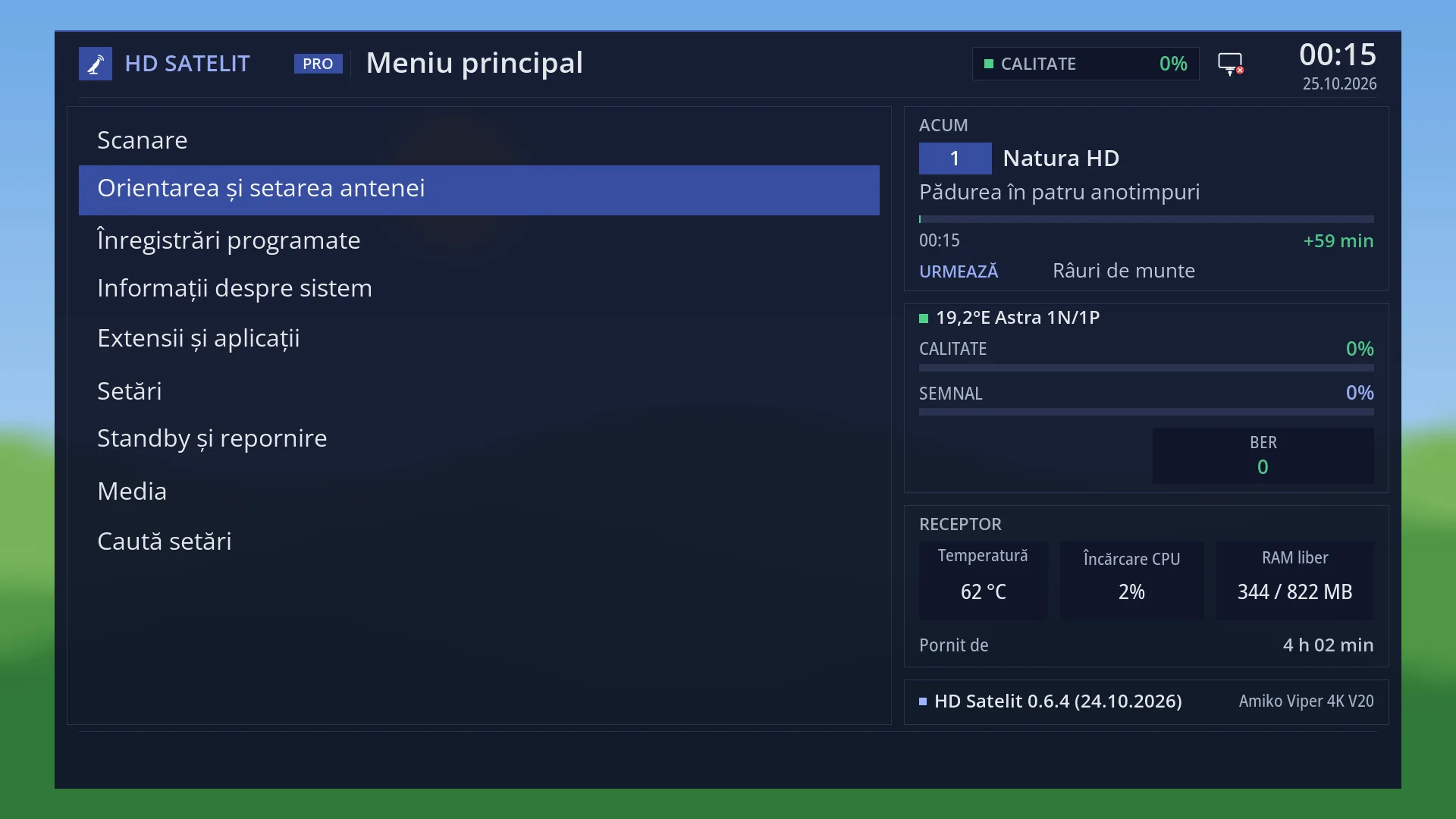
Every screen has a browser twin
The web interface has the same menus and names as the TV. What you change from a phone or computer shows up on the TV right away.
See in the help ›Exclusive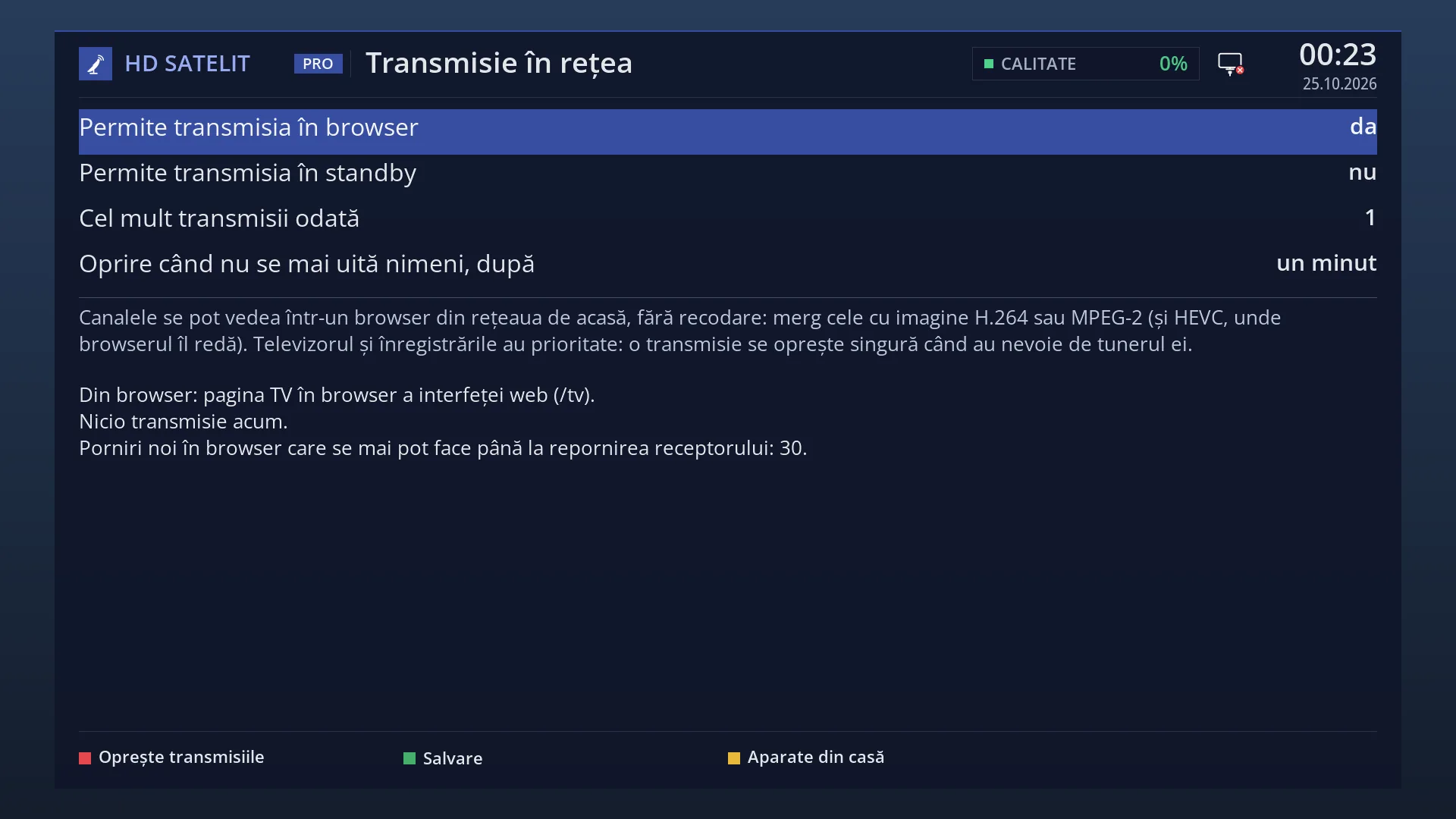
TV in the browser
The channel starts directly in the browser, with no plugins and no transcoding on the receiver, with the receiver menu and subtitles over the picture; MPEG-2 channels work too.
See in the help ›Exclusive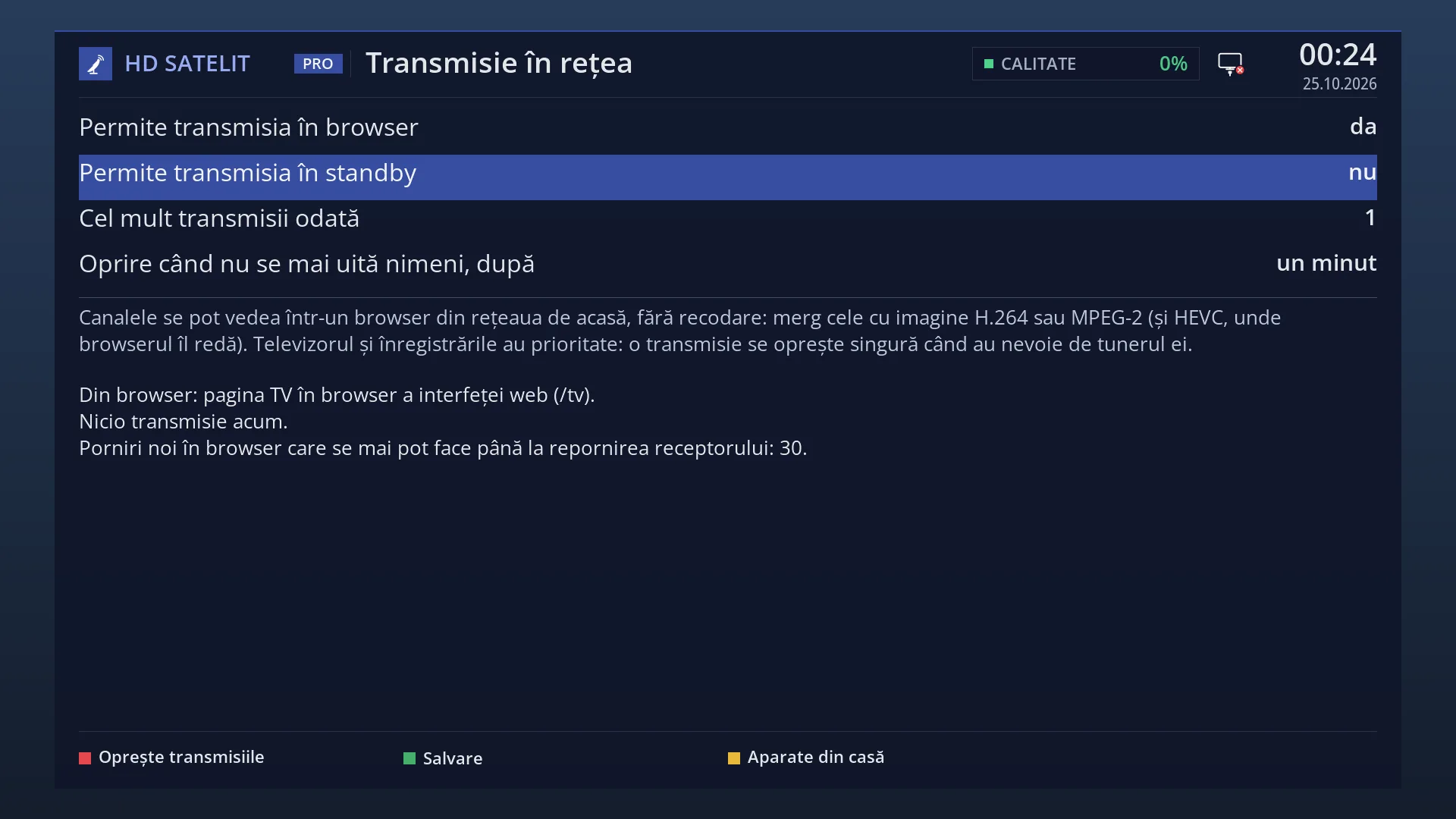
The whole receiver, live in the browser
In the browser you see the receiver as on the TV: the channel and, over it, everything the receiver draws (the menus, the info bar, the subtitles, the guide). When you change the channel, from the remote on the page or on the TV, the picture in the browser follows to the new channel by itself, without restarting the player.
See in the help ›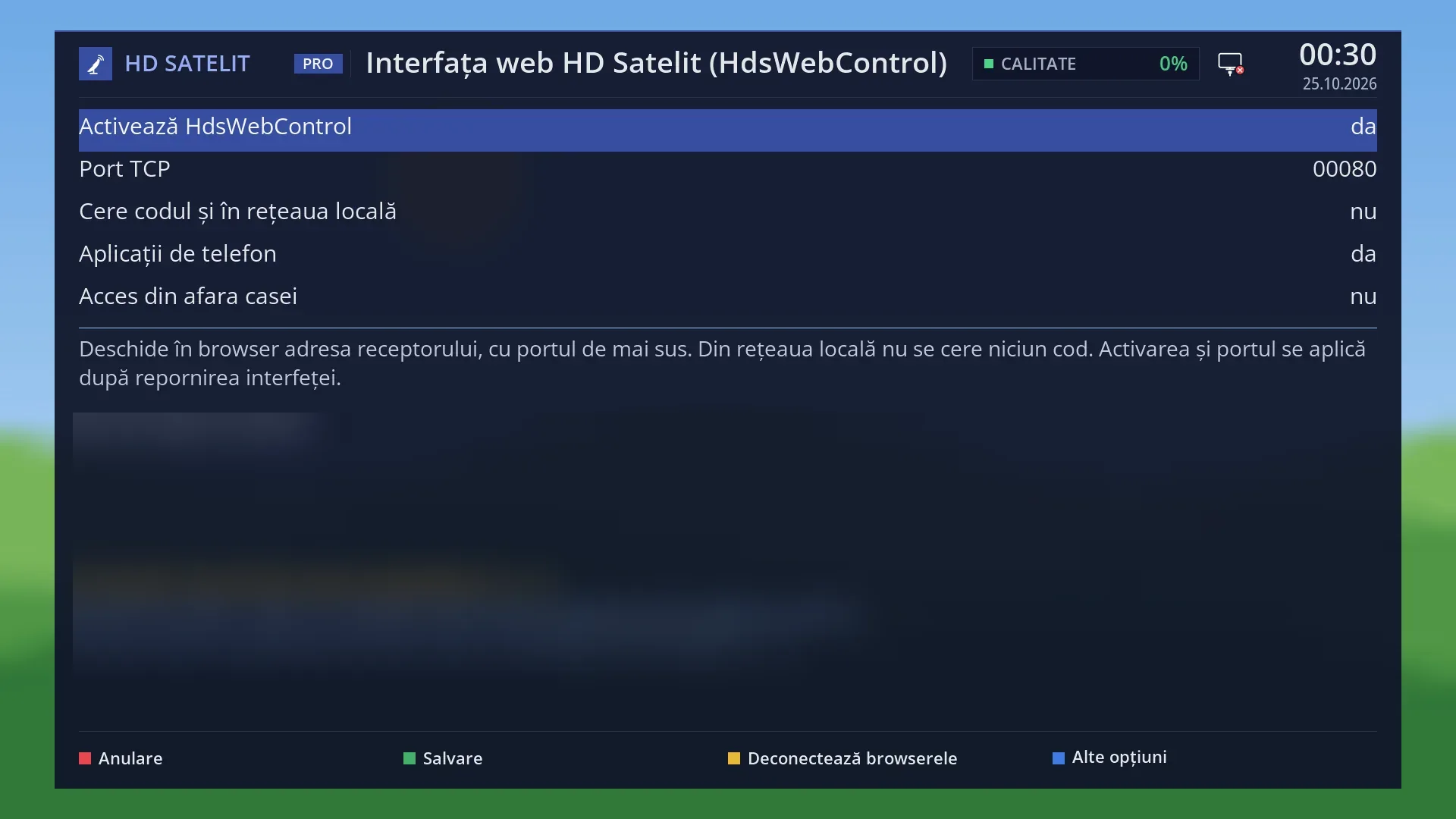
Receiver apps on your phone
The usual phone apps for receivers (remote, channels, guide, recordings) work at home without a password; from outside the home only with their own password.
See in the help ›Safety and updates
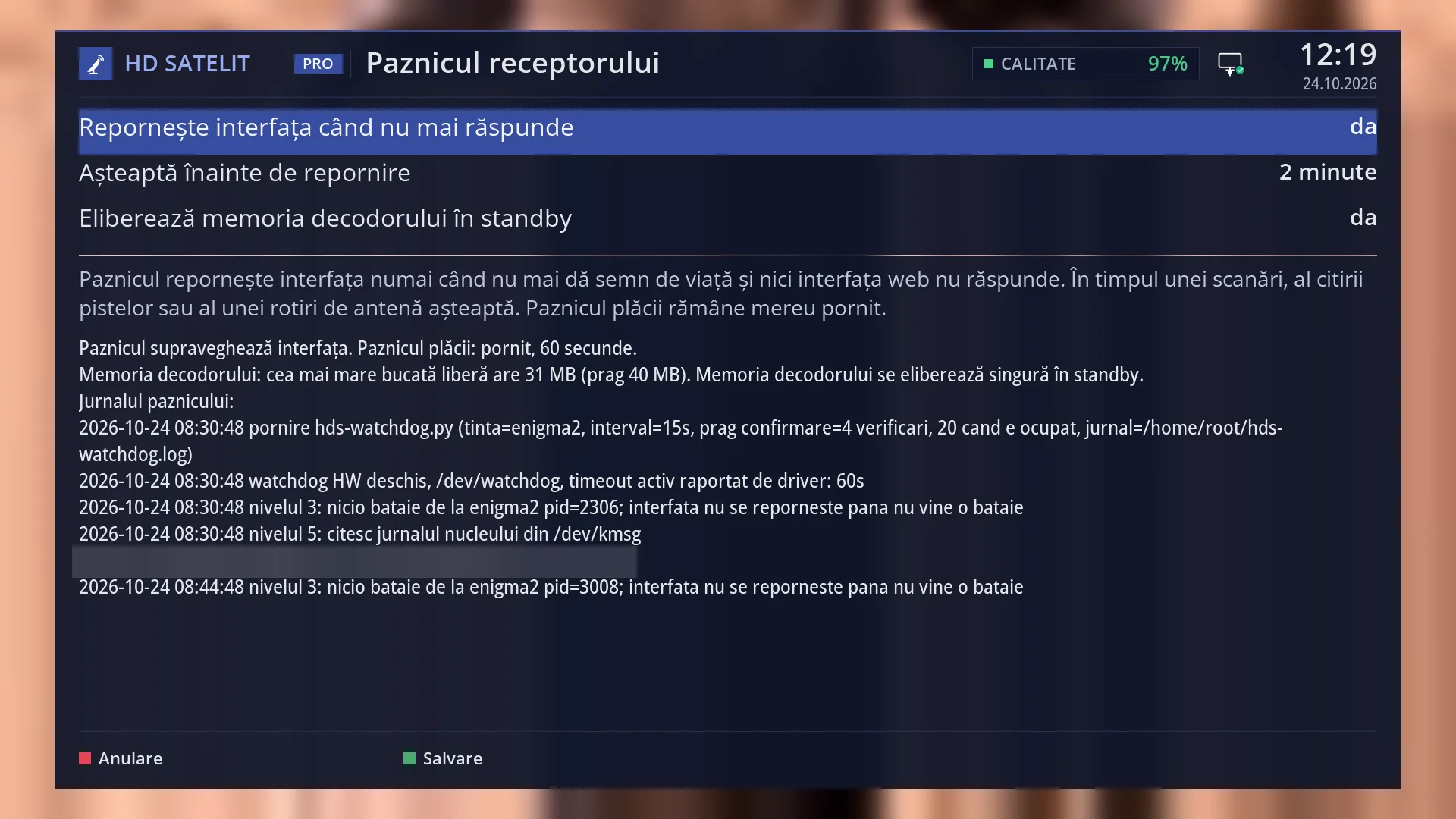
Receiver watchdog
If the interface freezes, the watchdog restarts it by itself, but it waits while a scan is running or the dish is turning.
See in the help ›Exclusive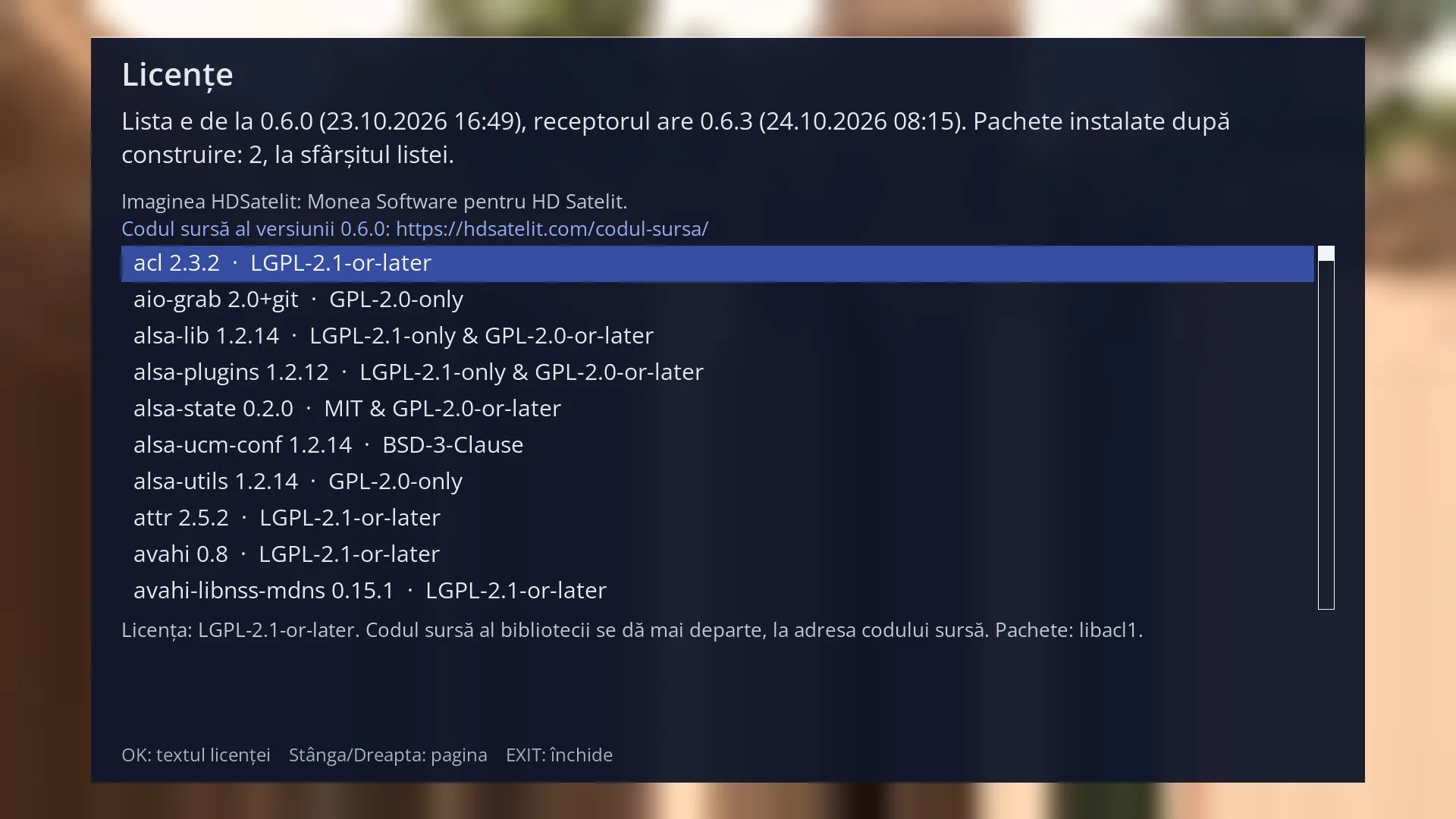
Licences
The list of programs in the image, with each one's licence and the source code address, on the TV and on the web.
See in the help ›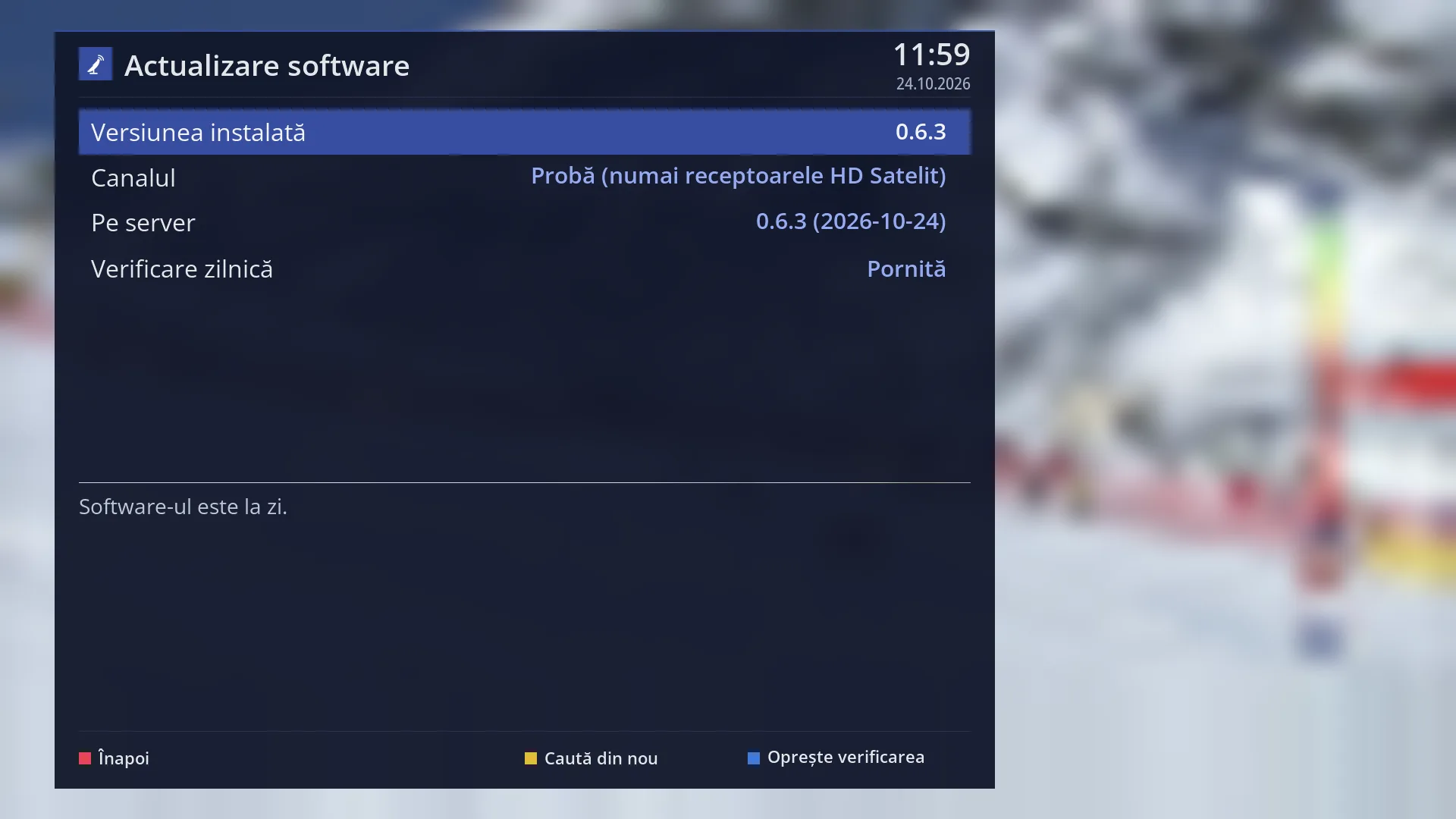
System libraries up to date
The libraries for secure connections, downloads and playback are kept up to date (OpenSSL 3.6.5, GnuTLS 3.8.13, curl 8.23.0, FFmpeg 8.0.3) and checked against known security holes at every version. Fixes arrive as updates, without a new image.
See in the help ›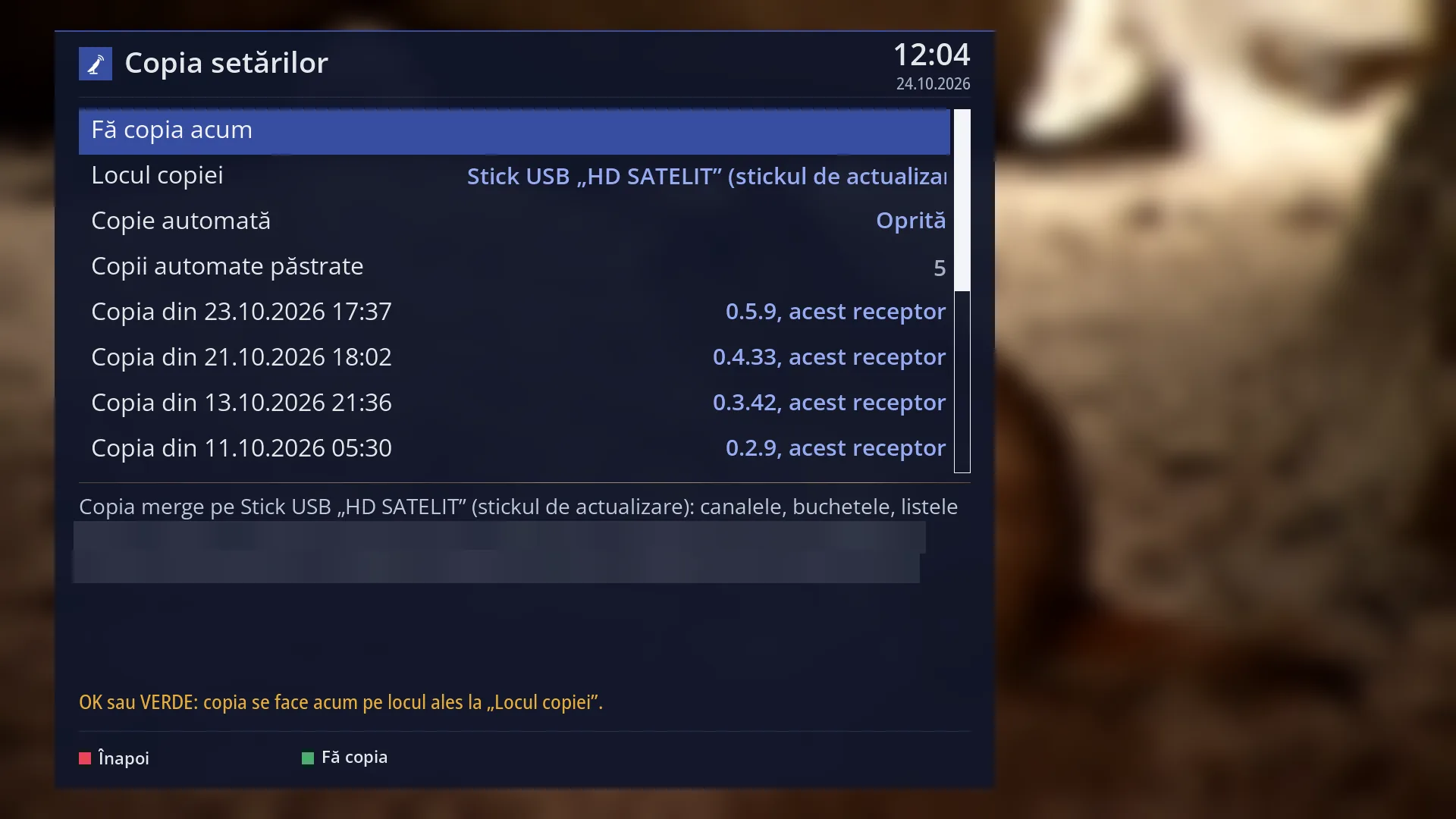
Settings backup restored automatically
A backup of channels and settings on a stick, on request or daily; after a new image it is restored by itself.
See in the help ›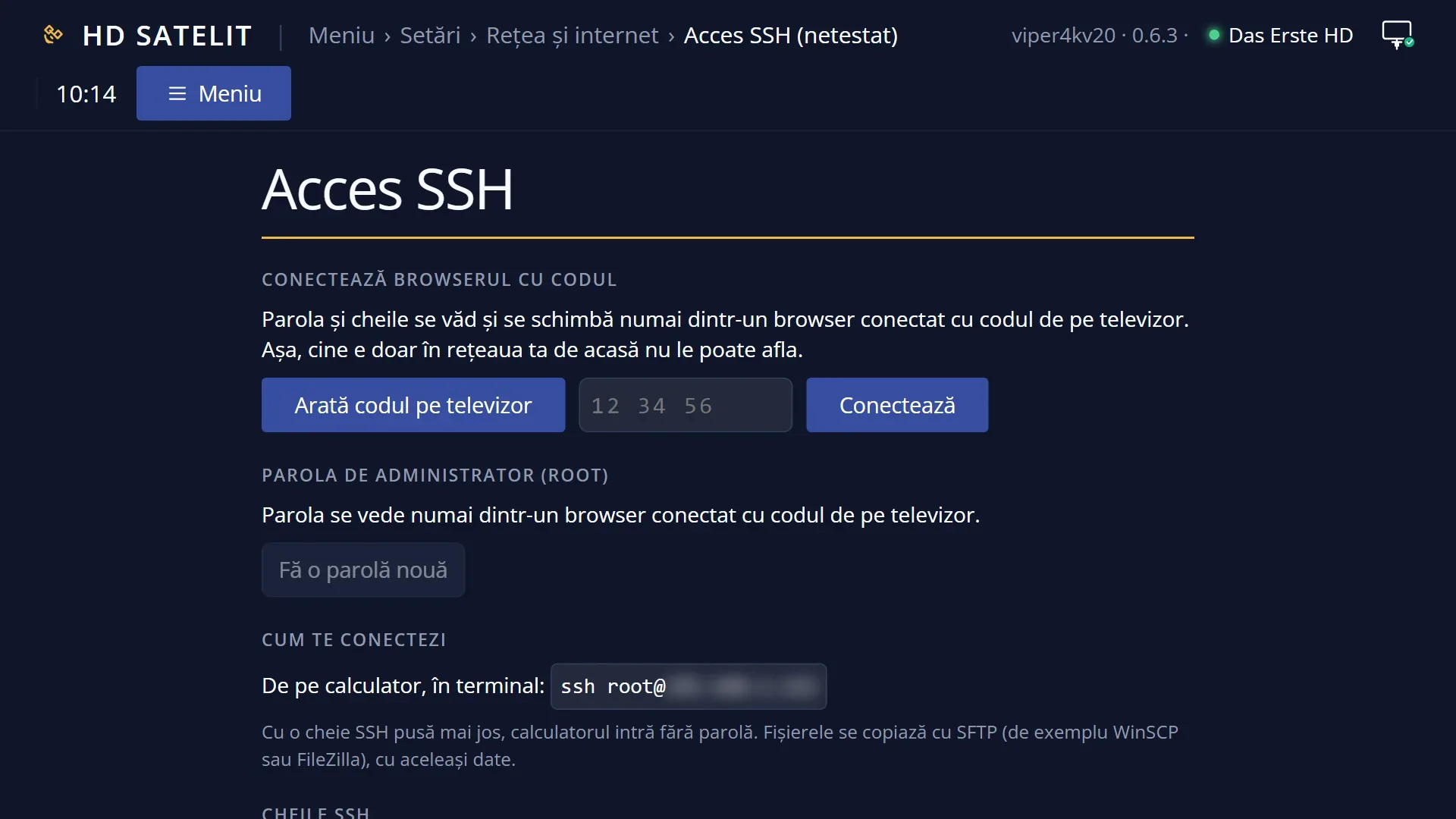
Receiver password
You choose the password for SSH and SFTP in Settings > Network and internet or in the web interface and can see it there at any time. The password only works from your home network, and telnet is off.
See in the help ›Speed and resources
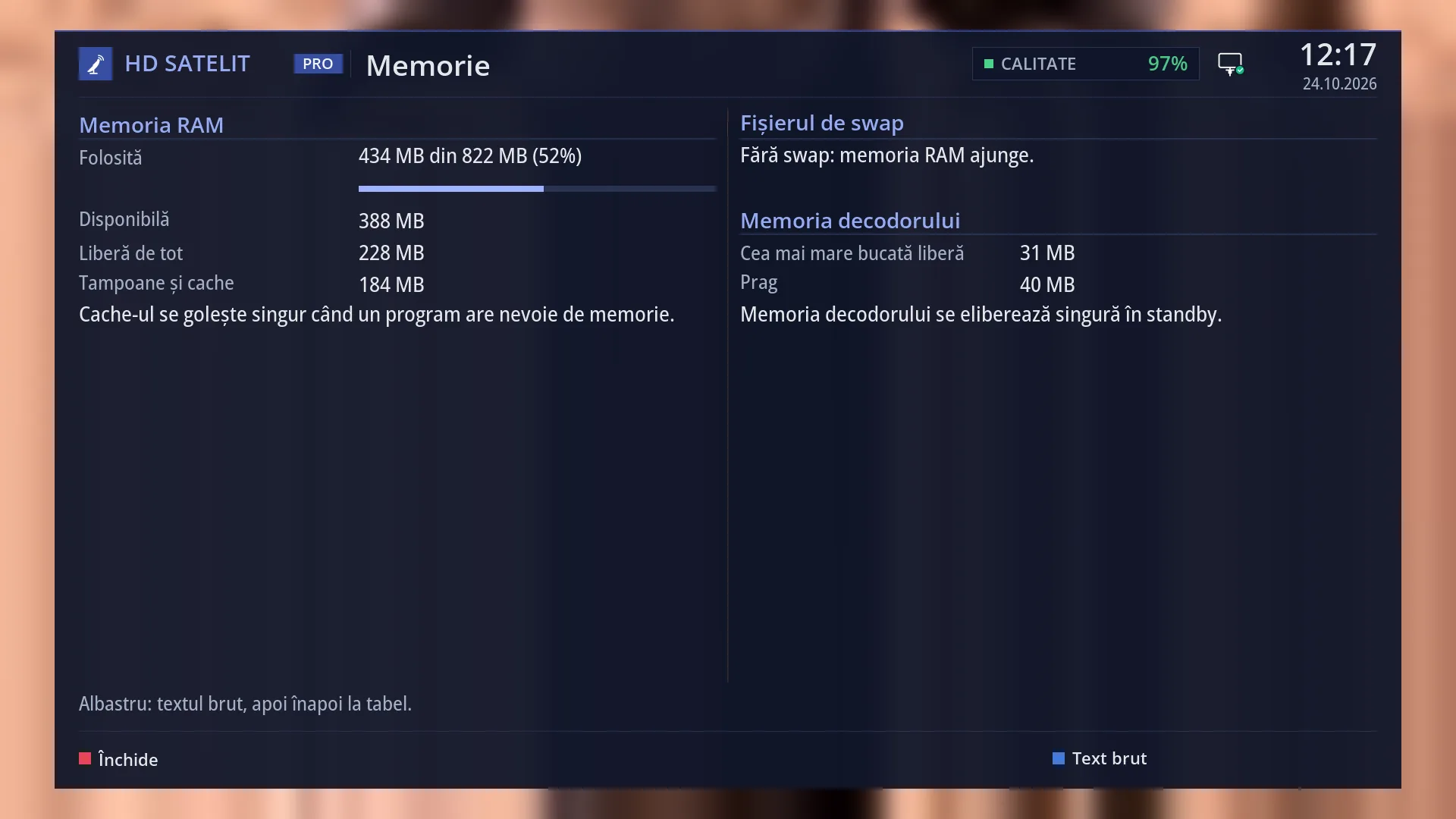
Memory freed by itself in standby
When needed, after a few minutes in standby the receiver restarts without turning on the TV and stays in standby, so the decoder memory is whole again.
See in the help ›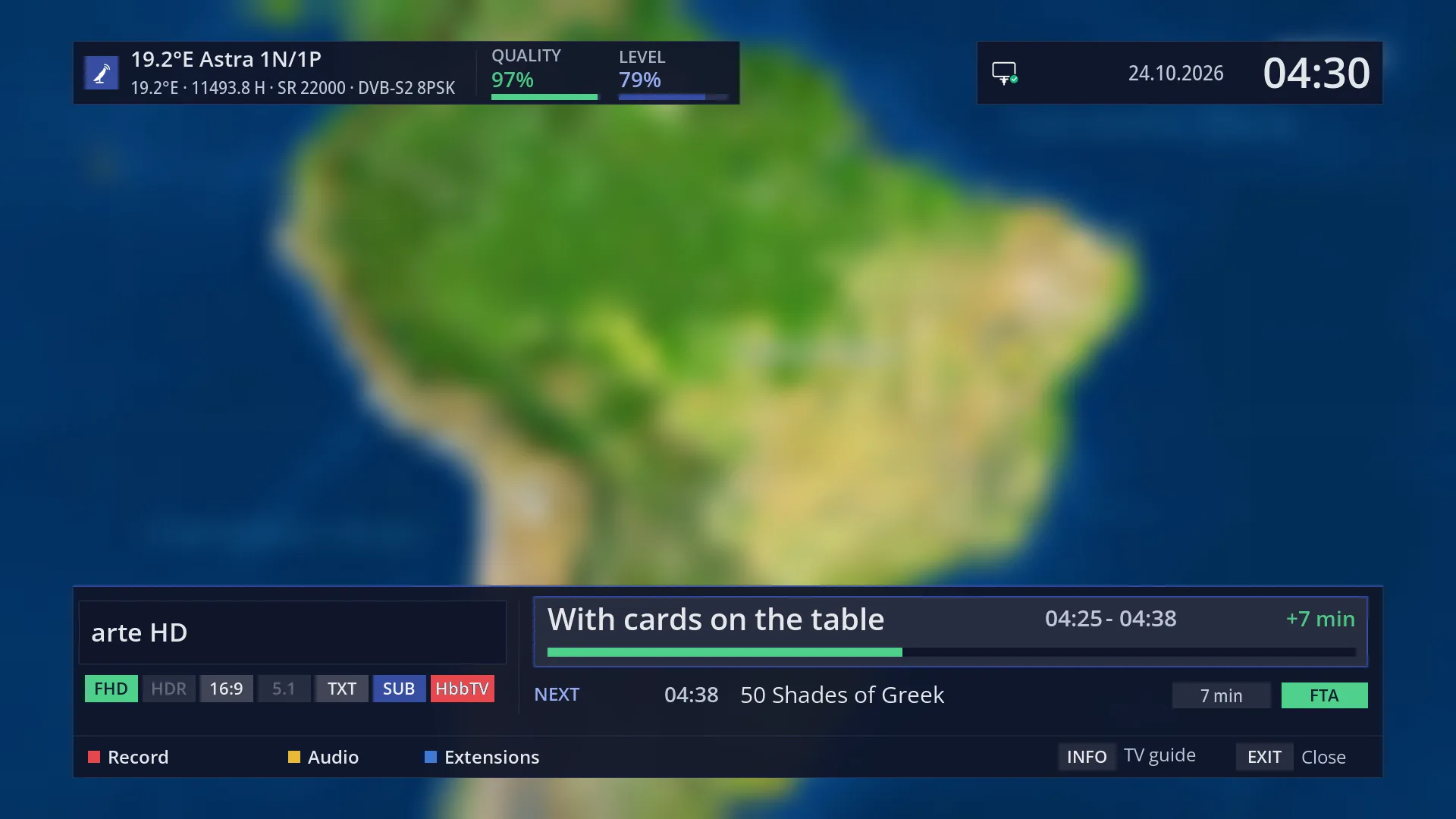
Channel change, measured
On the test receiver, from key press to picture: about 0.7 seconds on the same transponder and 1.3 seconds on another one (medians, free channels). Until the new channel appears, the last picture stays instead of a black screen.
See in the help ›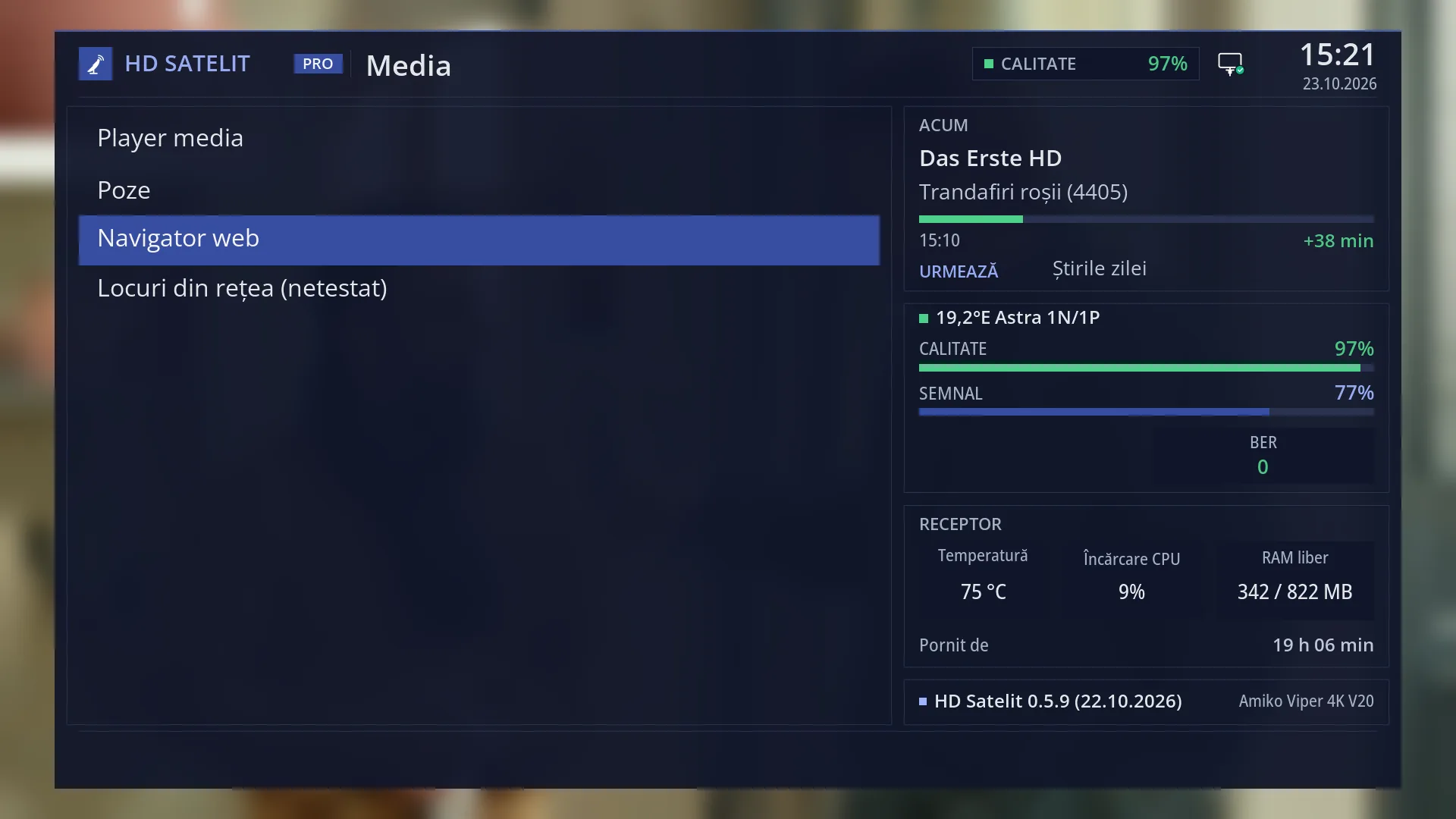
The browser starts only when you call it
The browser and the channel apps take no memory until you open them; when you close them the memory comes back.
See in the help ›Exclusive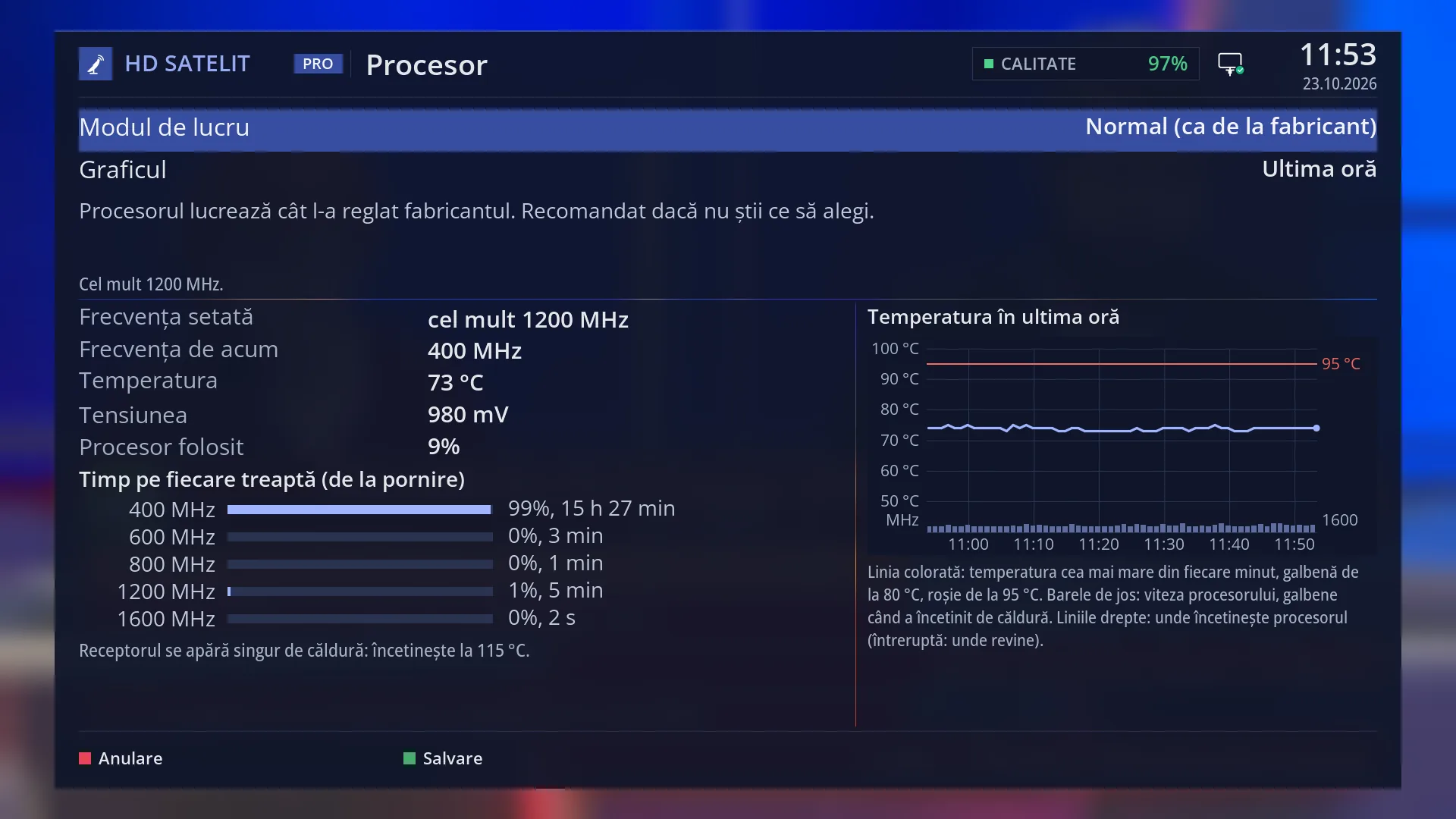
Processor and heat
A chart of the processor temperature over the last hour, and the working mode; in fast mode, at 85 °C the receiver slows down until it cools to 78 °C.
See in the help ›Menus, look and front display
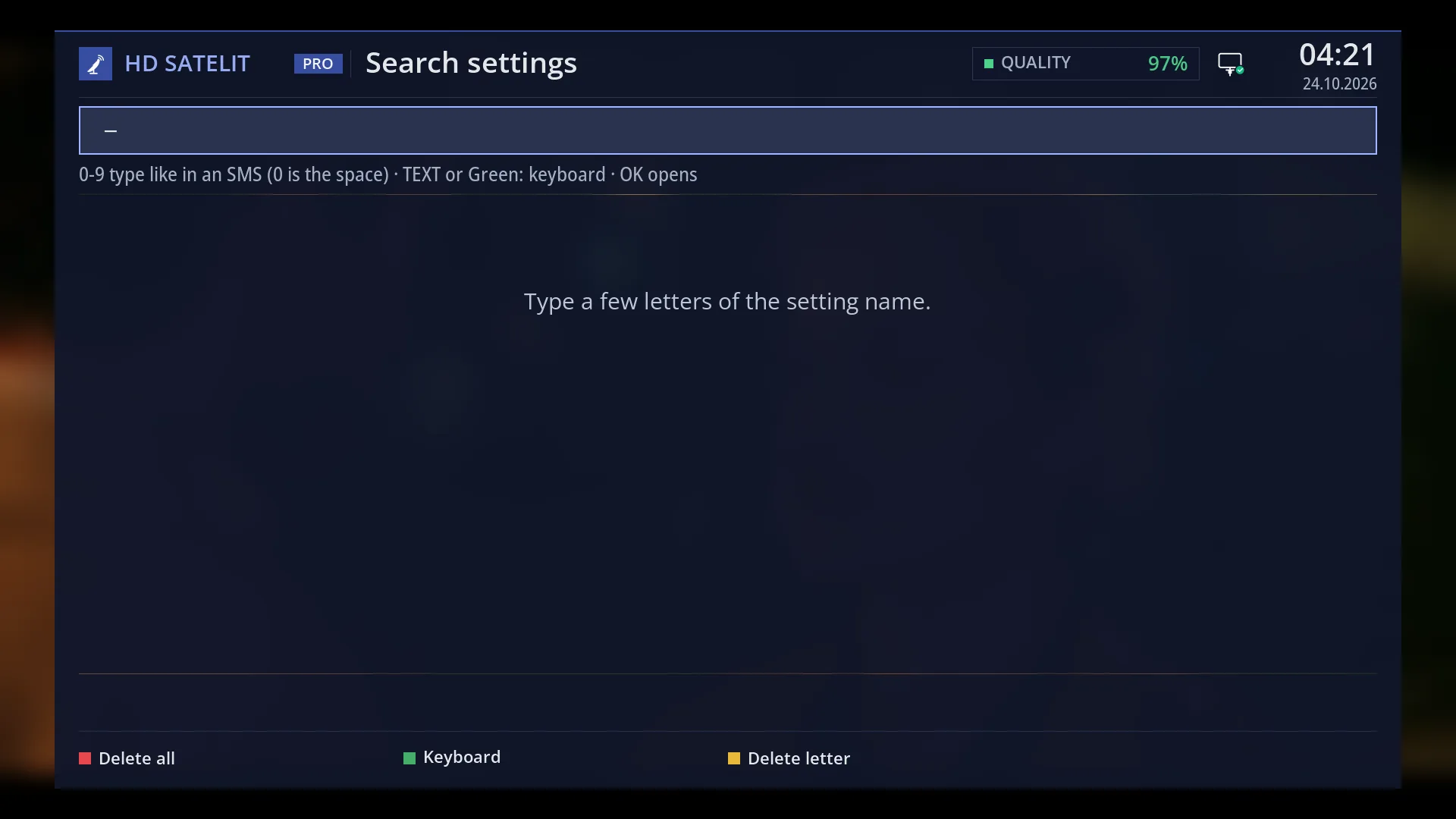
Search settings
You type a few letters with the remote's number keys and go straight to the setting. The TEXT button opens the search from any menu.
See in the help ›Exclusive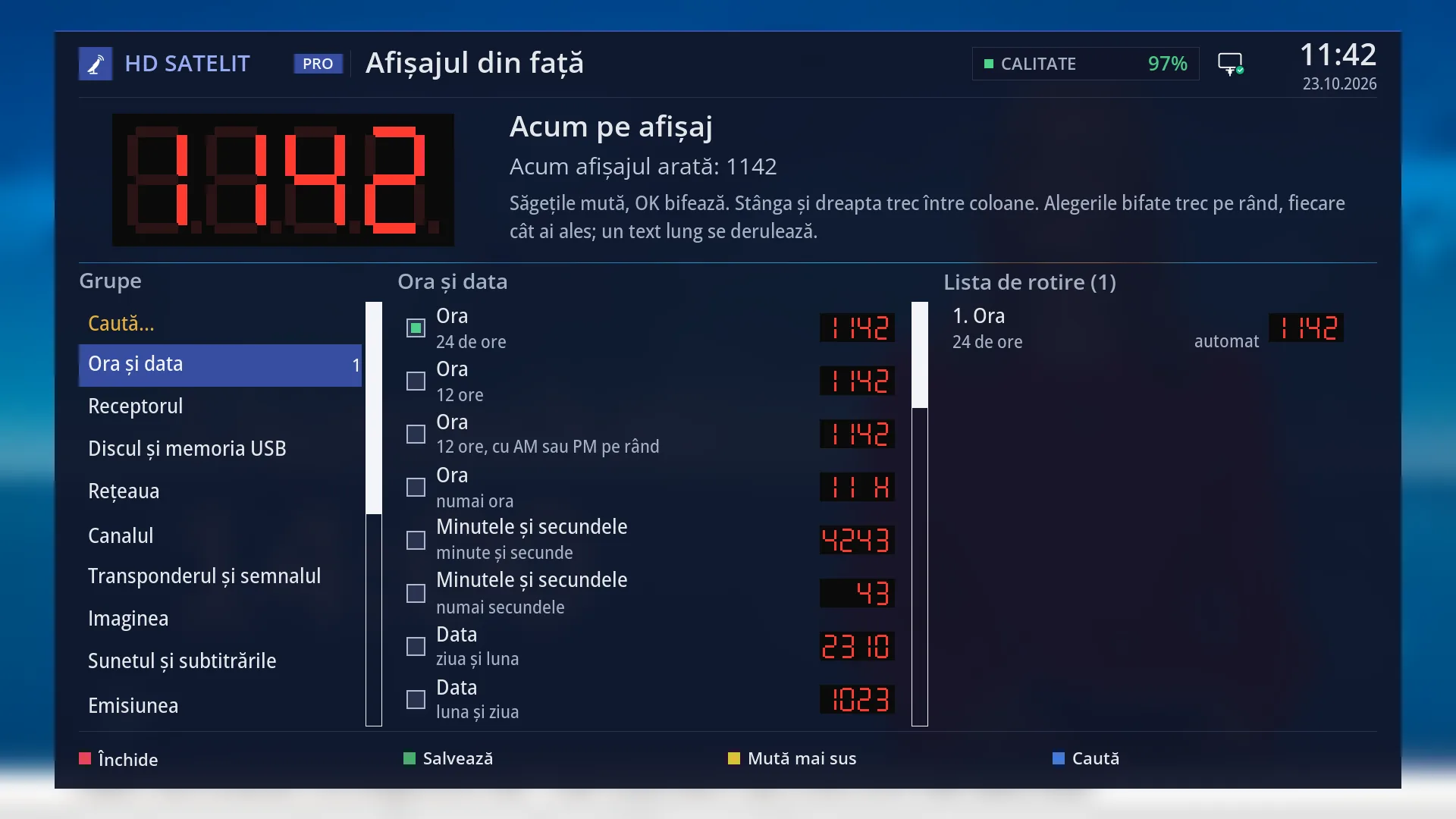
Front display with lots of data
The four-digit display shows in turn, for as long as you want, the time, the channel, the signal, the radio song and more than a hundred other items. It can also show a character that blinks and smiles.
See in the help ›Exclusive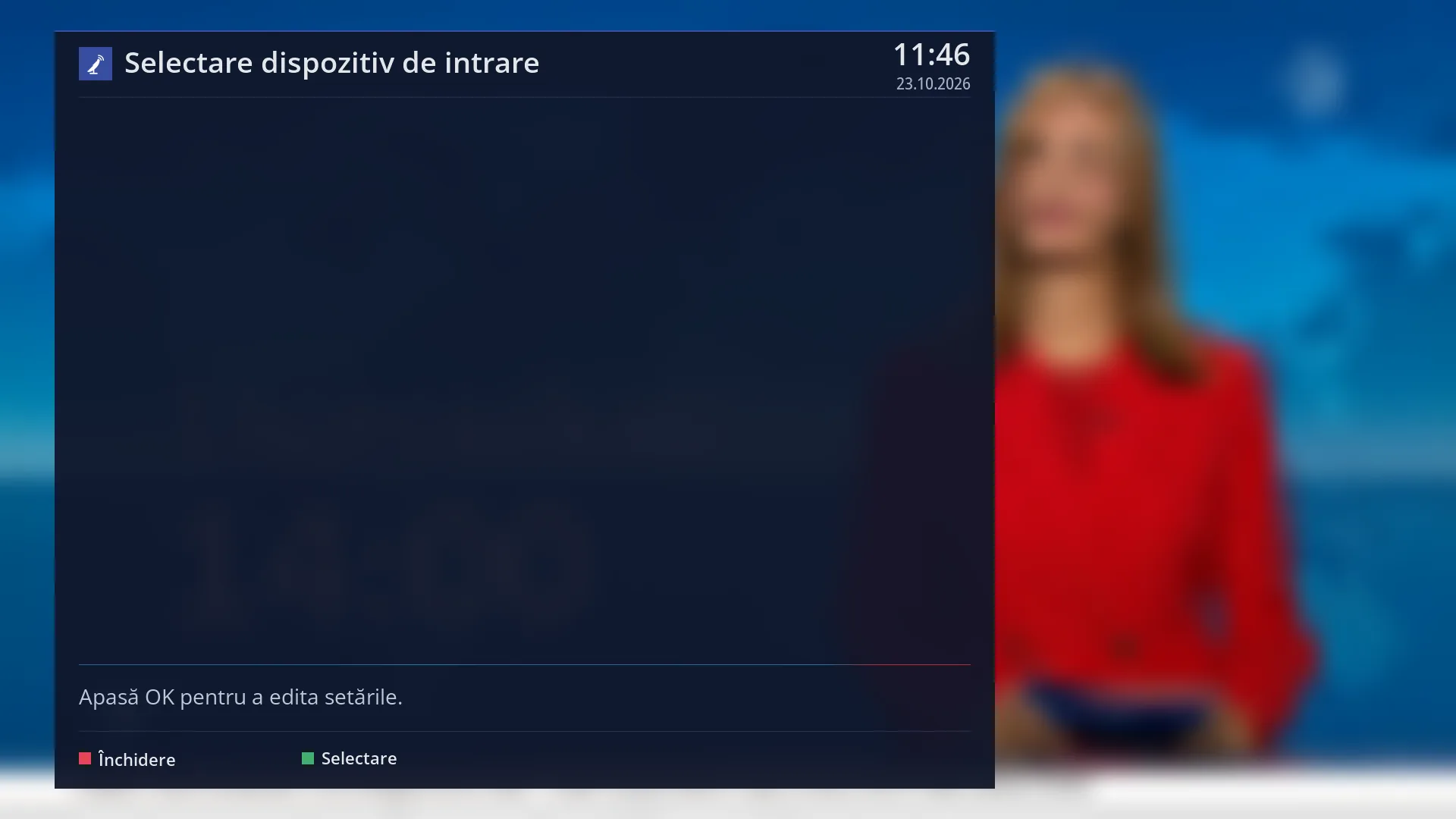
USB mouse and keyboard
Plug a mouse into the receiver and you get a pointer on screen: click for OK, right click for Exit. The keyboard also types Romanian letters.
See in the help ›Exclusive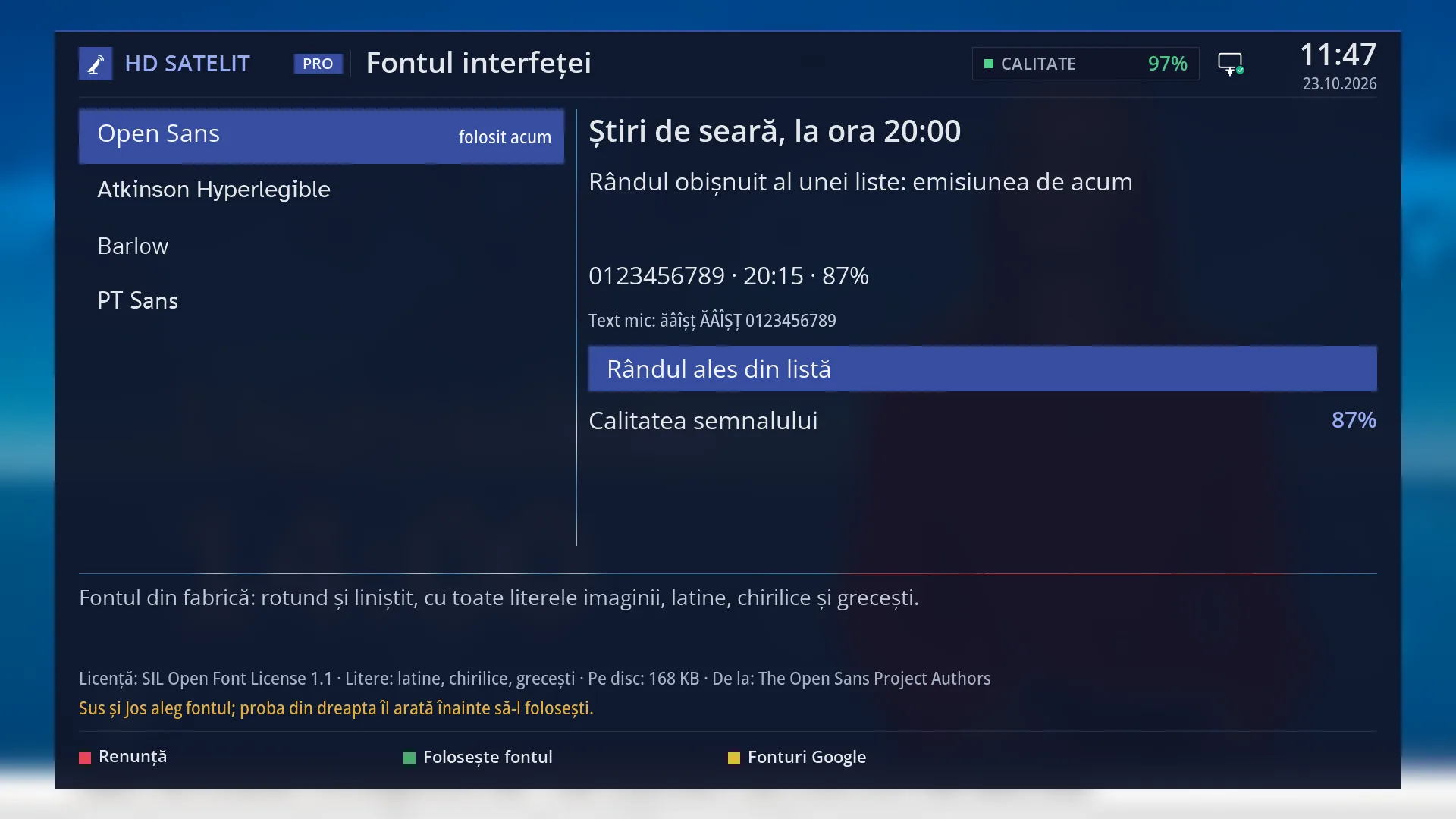
Interface font, Google Fonts included
Choose the menu font from four fonts easy to read from a distance or from almost 1800 Google fonts: you preview it with diacritics, the receiver downloads it and puts it in the menus by itself, with no FTP and no other programs. With a preview first.
See in the help ›Exclusive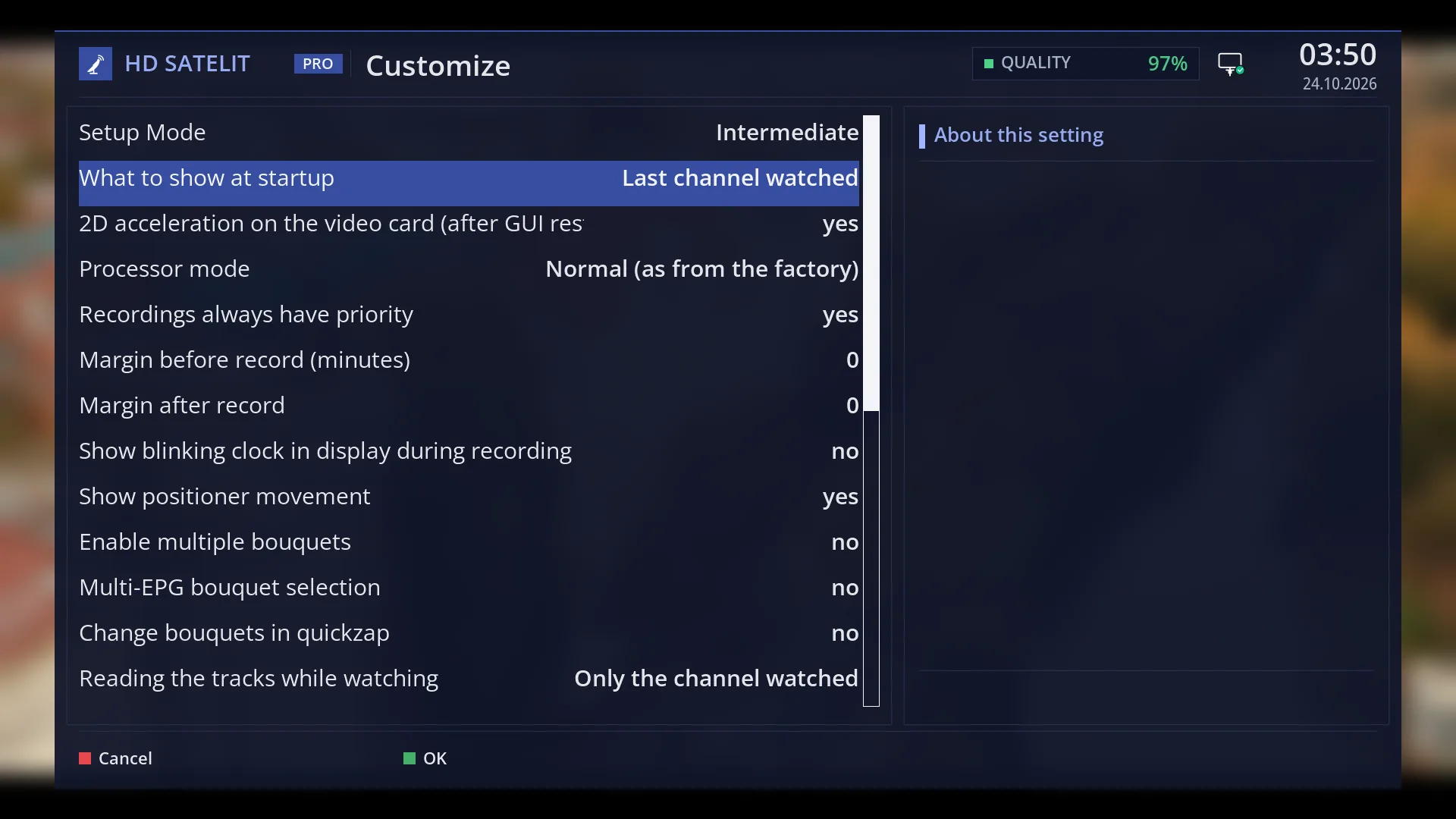
Boot screen
You pick the boot picture from a gallery sorted into groups or use your own picture from a stick. The version is written at the bottom, so you can see the update was installed.
See in the help ›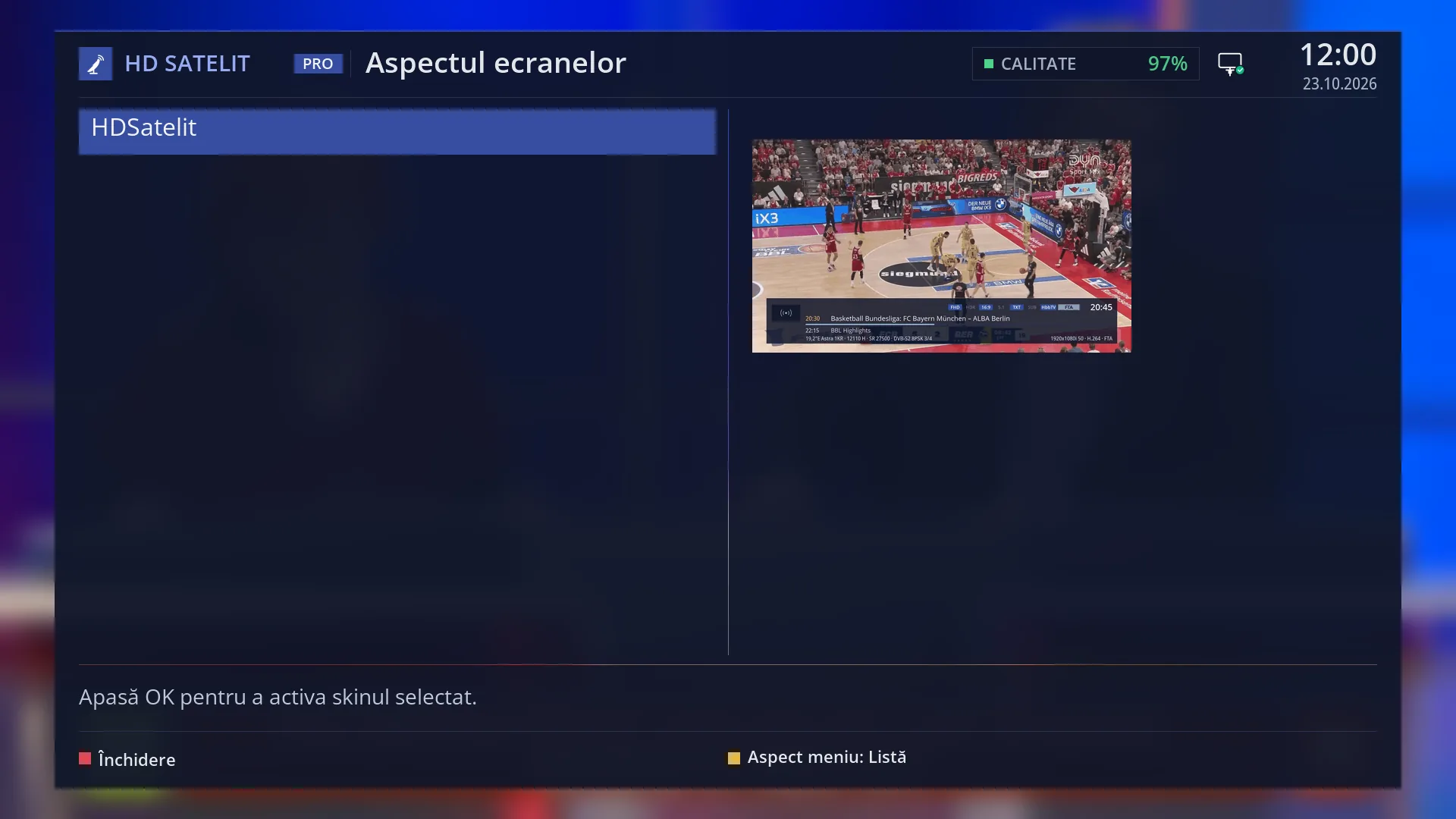
Two themes and a tile menu
The airy Classic theme or the Pro theme with more information; the menu can be a list or tiles, switched with the yellow button.
See in the help ›Exclusive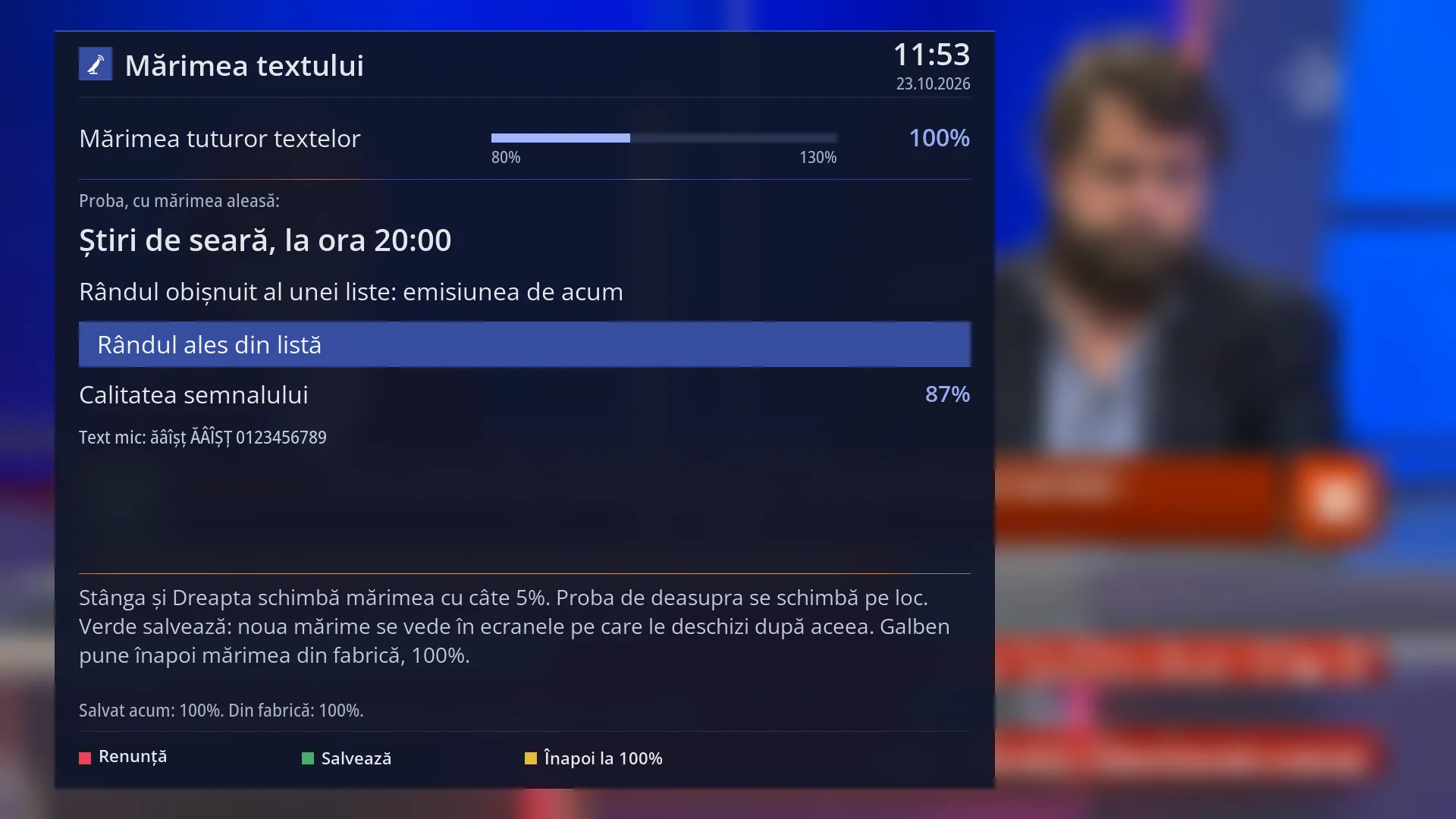
Text size
All texts can be sized from 80 to 130 %, with a slider and a live preview; text that does not fit scrolls instead of being cut off.
See in the help ›Screenshot button
The third button with a screen drawing on the remote, or Print Screen on a USB keyboard, saves what is on the screen to a stick or, without a stick, to the receiver's memory. You can then add the screenshots straight to a forum message.
Teletext
Smooth teletext
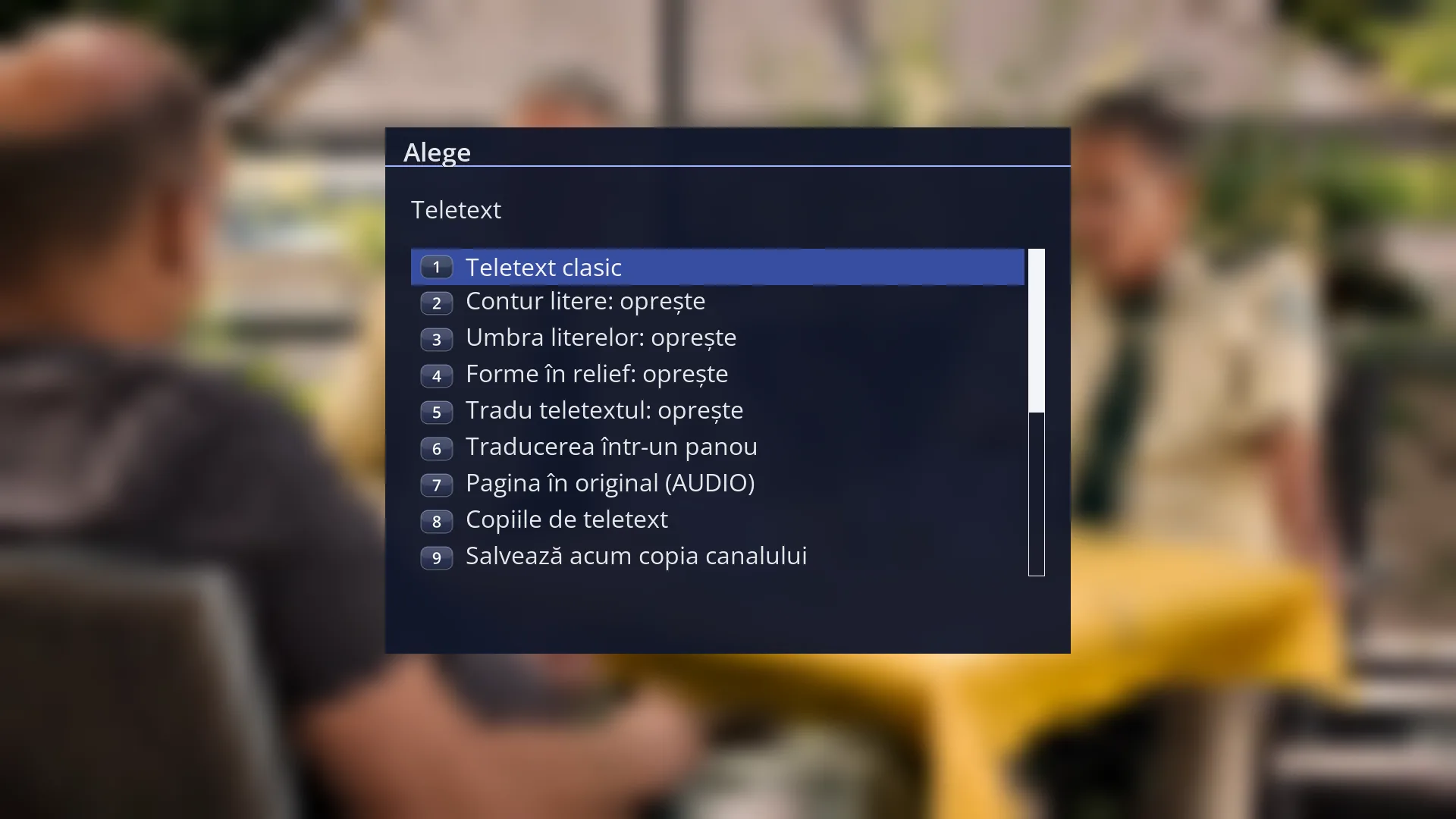
Teletext letters and graphics come out smooth, with straight lines and rounded corners; you choose the outline, shadow and relief.
See in the help ›Exclusive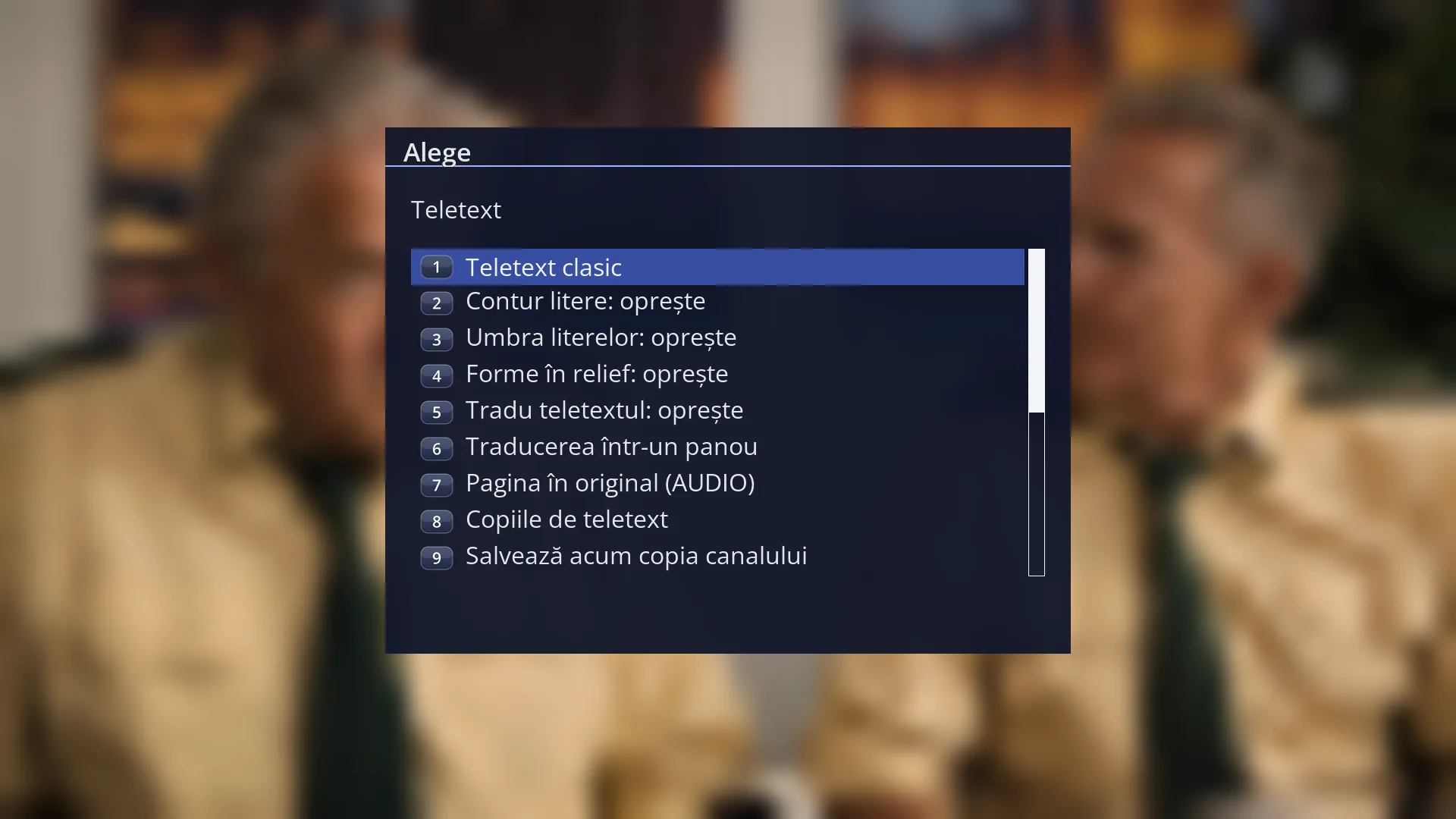
Teletext copies
The receiver saves the channels' teletext by itself. You can read it even without the dish, on the TV or in a browser, and download it to your phone.
See in the help ›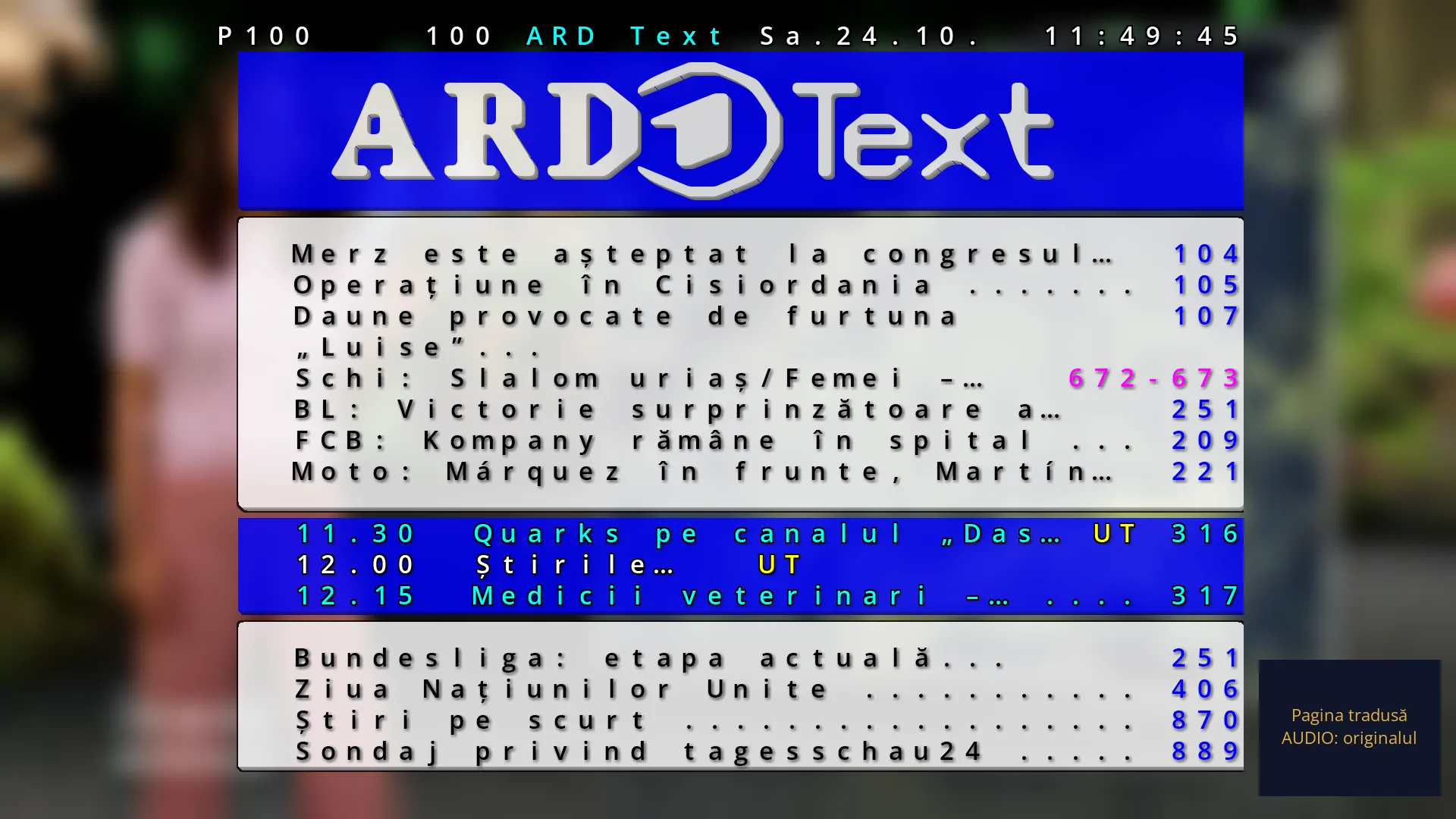
Teletext
The channel's teletext, with colours, graphics, subpages and the coloured buttons, full screen or over the programme.
See in the help ›Languages
Exclusive not found in the Enigma2 images with public source code, in our comparison of October 2026.
These are only some of the features; more come with updates.

Receivers
Latest version
0.6.25 · 02.11.2026
- Octagon SF8008 with the 2024 board: the receiver no longer restarts by itself a minute after start-up when the HDMI-CEC link to the TV hangs; only the CEC commands stop.
- Beta testers: interface crashes and freezes now reach the team ahead of ordinary logs, with their stack traces, together with the receiver's board version.
How we work on the image
For the HD Satelit image we have used many artificial intelligence tools, some running on our own computers and others in the cloud, to improve and test it. Using them comes at a considerable cost, but they help us work faster and catch more mistakes before they reach you.
Every version goes through more than 600 sets of automated tests and through trials on a real receiver and in an Enigma2 emulator we built ourselves, before it reaches you: first on a test channel, then on the public one.
Without these tools, what we have done in a few months would have taken us years. The optimisations and the tests would have cost a fortune and needed teams of professionals for a long time, and many of the performance and security optimisations we reached would have been hard to achieve.
Part of the code we wrote ourselves, and the code made with the help of these tools we read, correct and test ourselves. The decisions, the trials on the receiver and the final checks are ours, the HD Satelit team. The source code of every published version is open, so anyone can see what the image does.