

The black screen with explanations
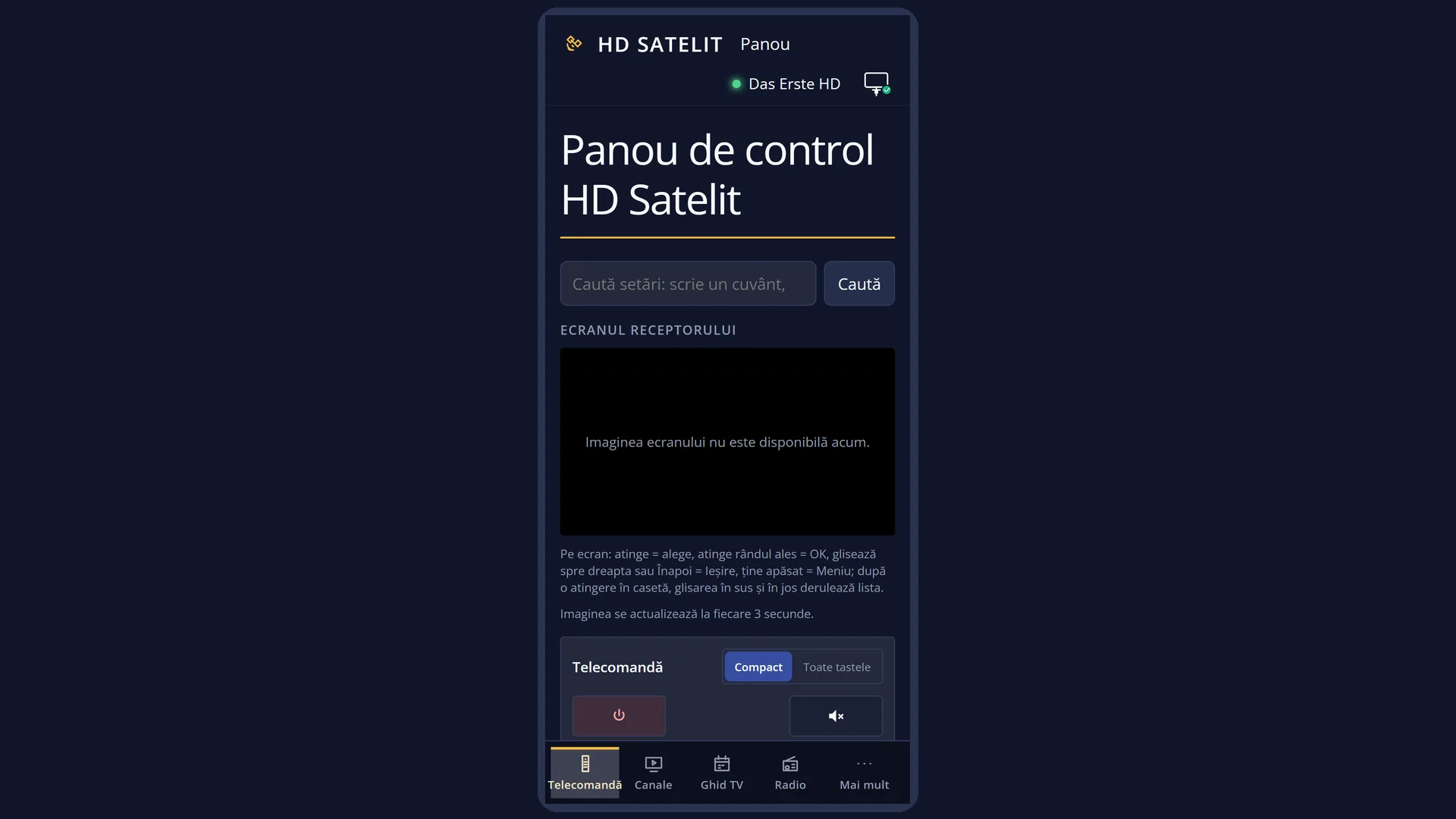
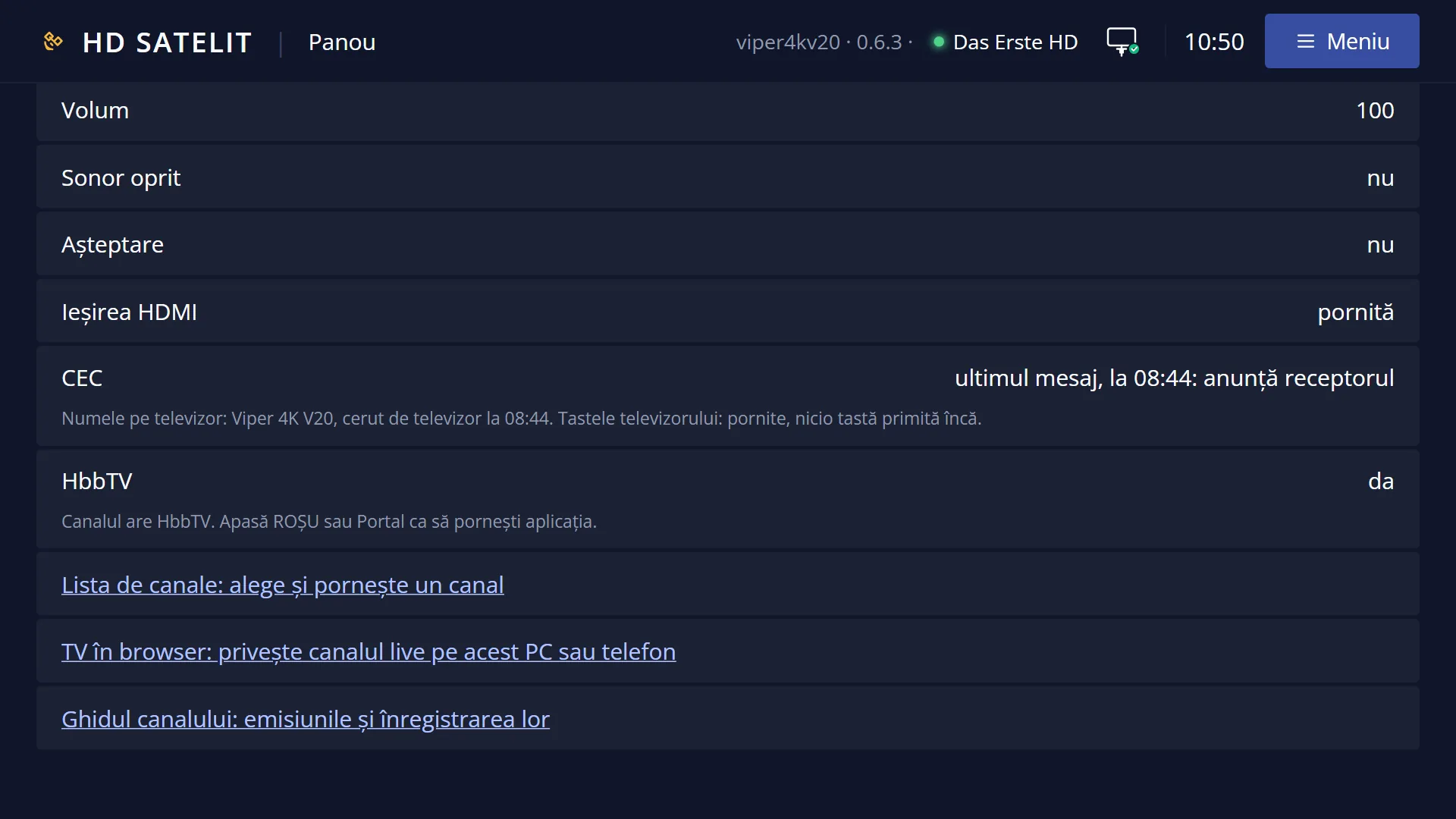
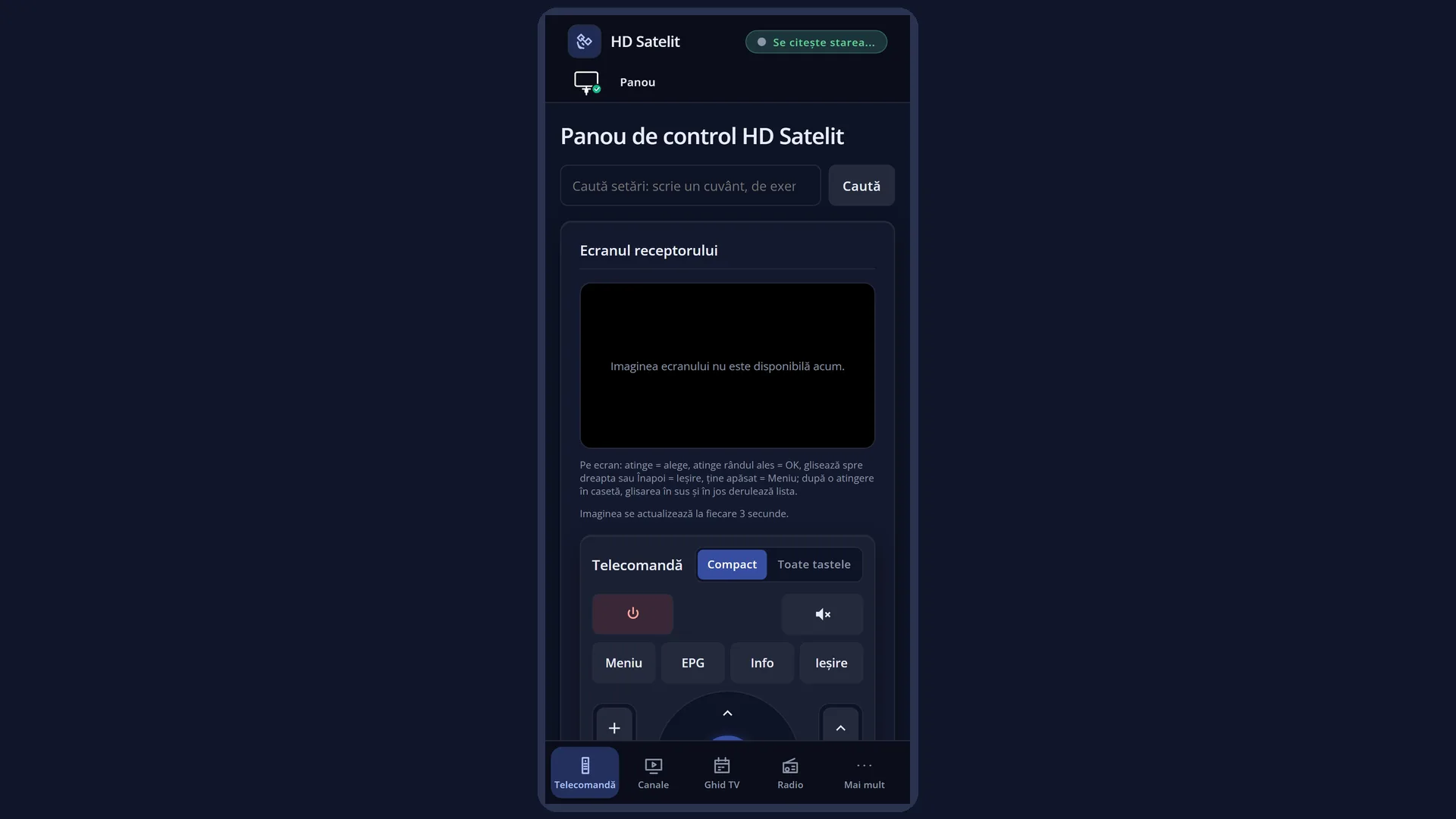
Screenshots are being added: so far 1 from the receiver and 7 from the web interface; the aim is at least 5 of each, with arrows and frames, and, where a setting changes what you see, a before and after comparison.
English screenshots coming: some of the pictures below still show the receiver and the web interface in Romanian. The rows, keys and steps described on this page are the English ones.
What it is for
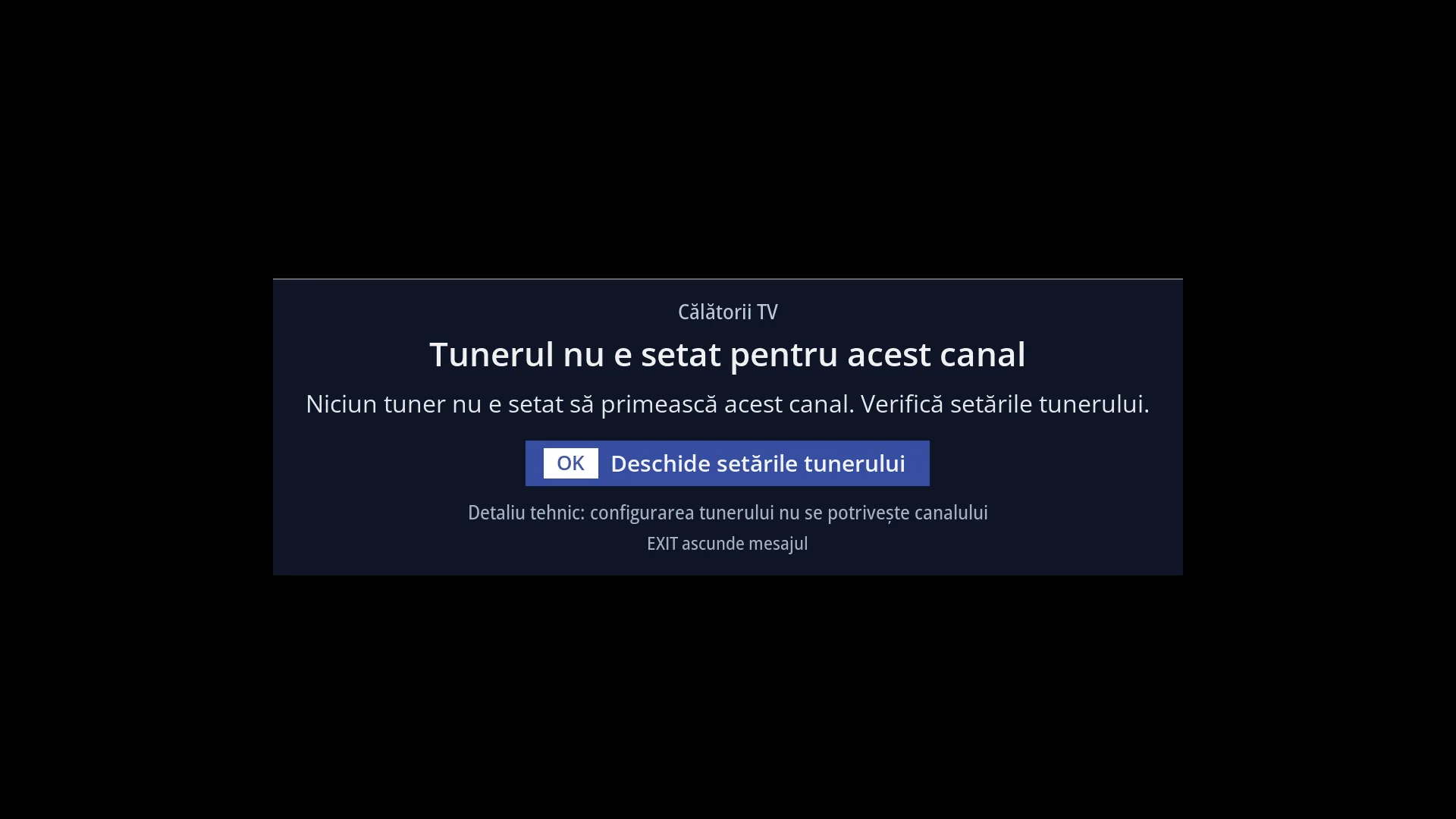
When a channel stays black, a box appears in the middle of the screen. It tells you why there is no picture and what you can do: no signal, the channel has moved, the tuner is busy with a recording, the dish is turning, the picture format cannot be played, and more.
The box has a button: OK carries out the suggested action straight away (for example, it searches for channels again on the same frequency or opens the tuner settings).
The message only shows what the receiver has measured, with signal and quality as bars, plus a smaller technical detail for anyone who wants it.
How to get here
It appears by itself when the channel's picture is missing for a few seconds: after 4 seconds with no signal received or after 6 seconds with no new picture.
Only while you are watching TV: if another screen is open, the second bar is shown full screen or the dish rotation panel is open, the box is not shown.
The setting: Menu > Settings > Interface & Appearance > OSD Preferences (MENU 6 6 5), row “Explanations on a black screen” (“yes” by default).
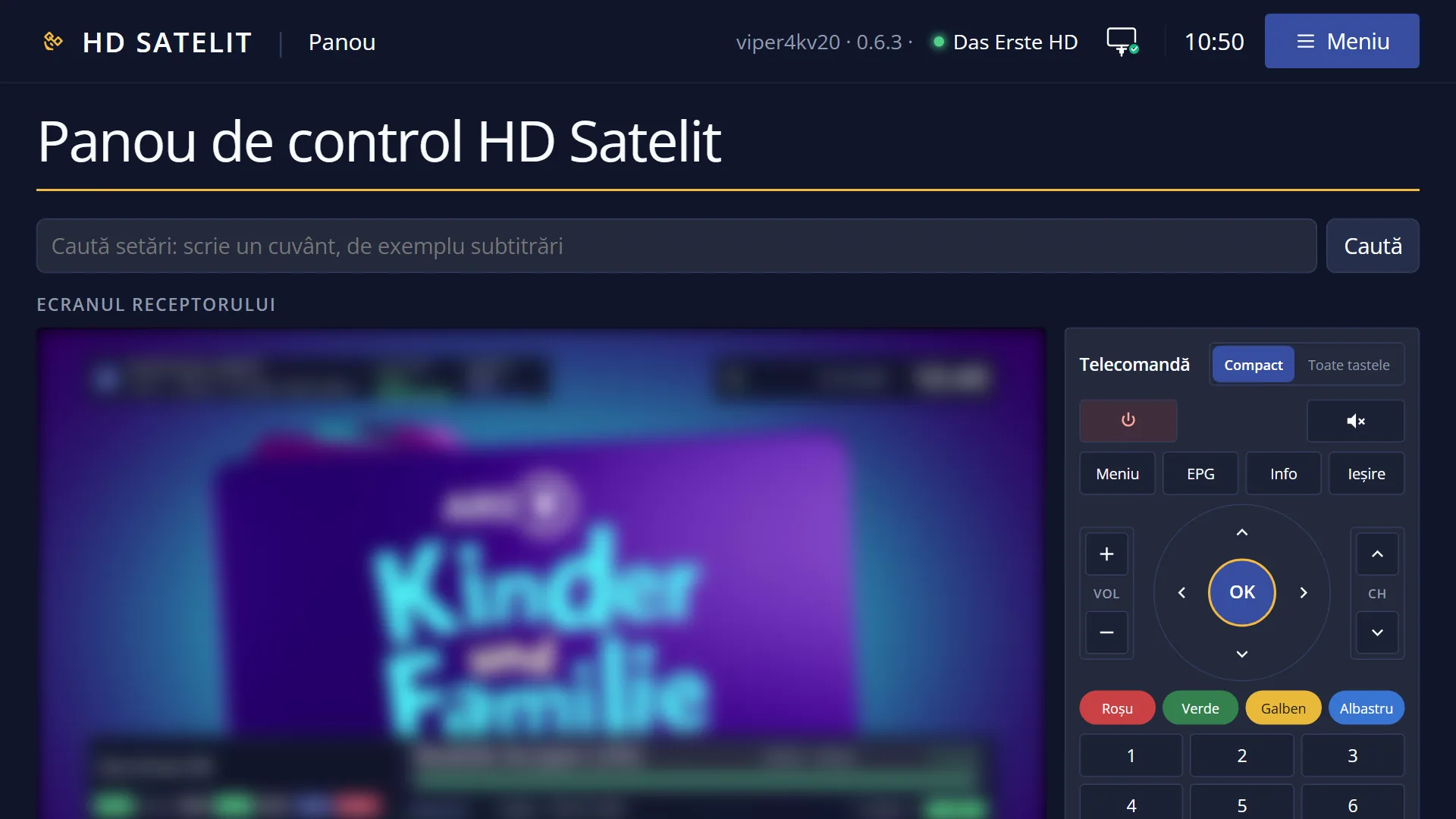
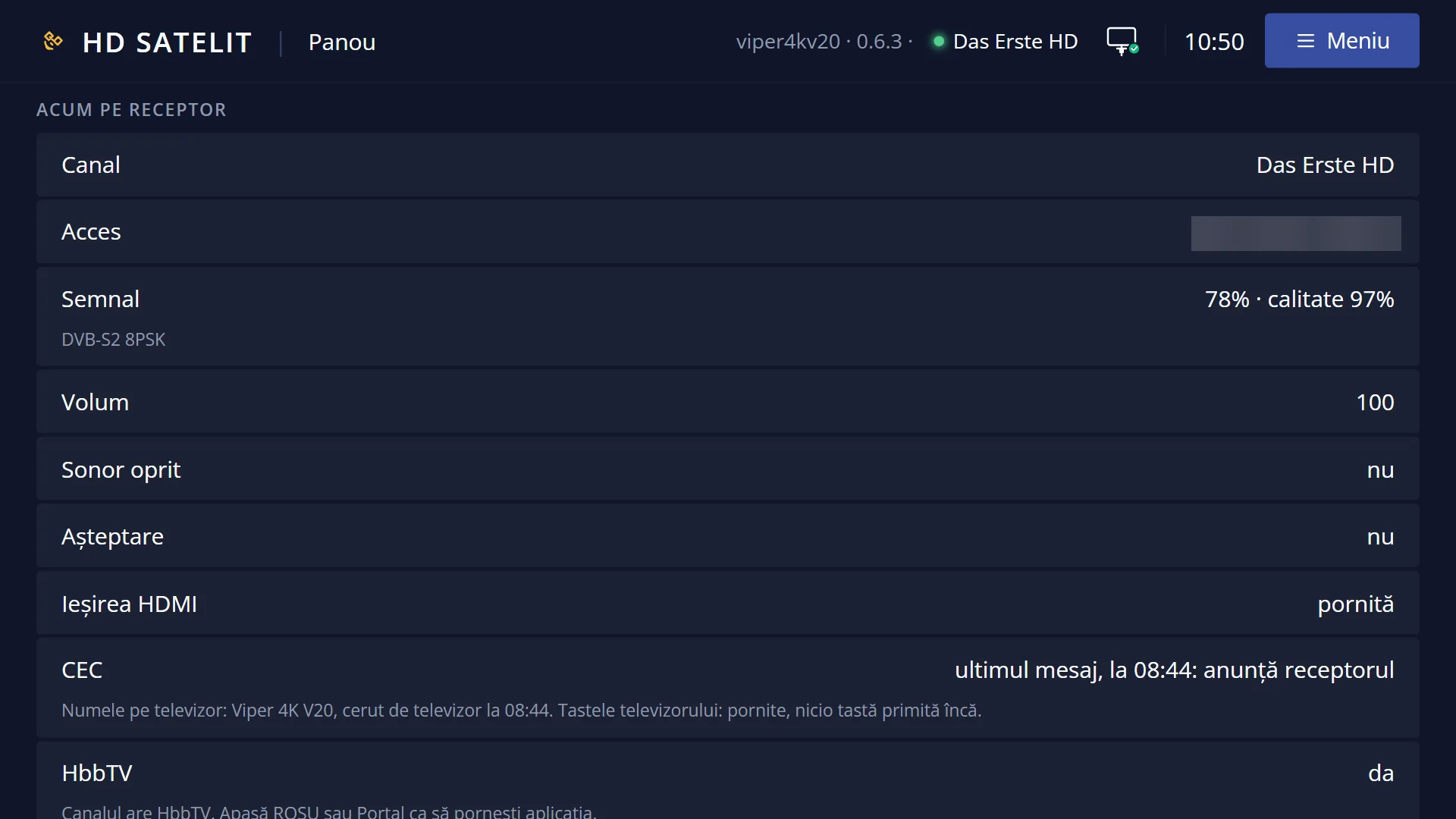
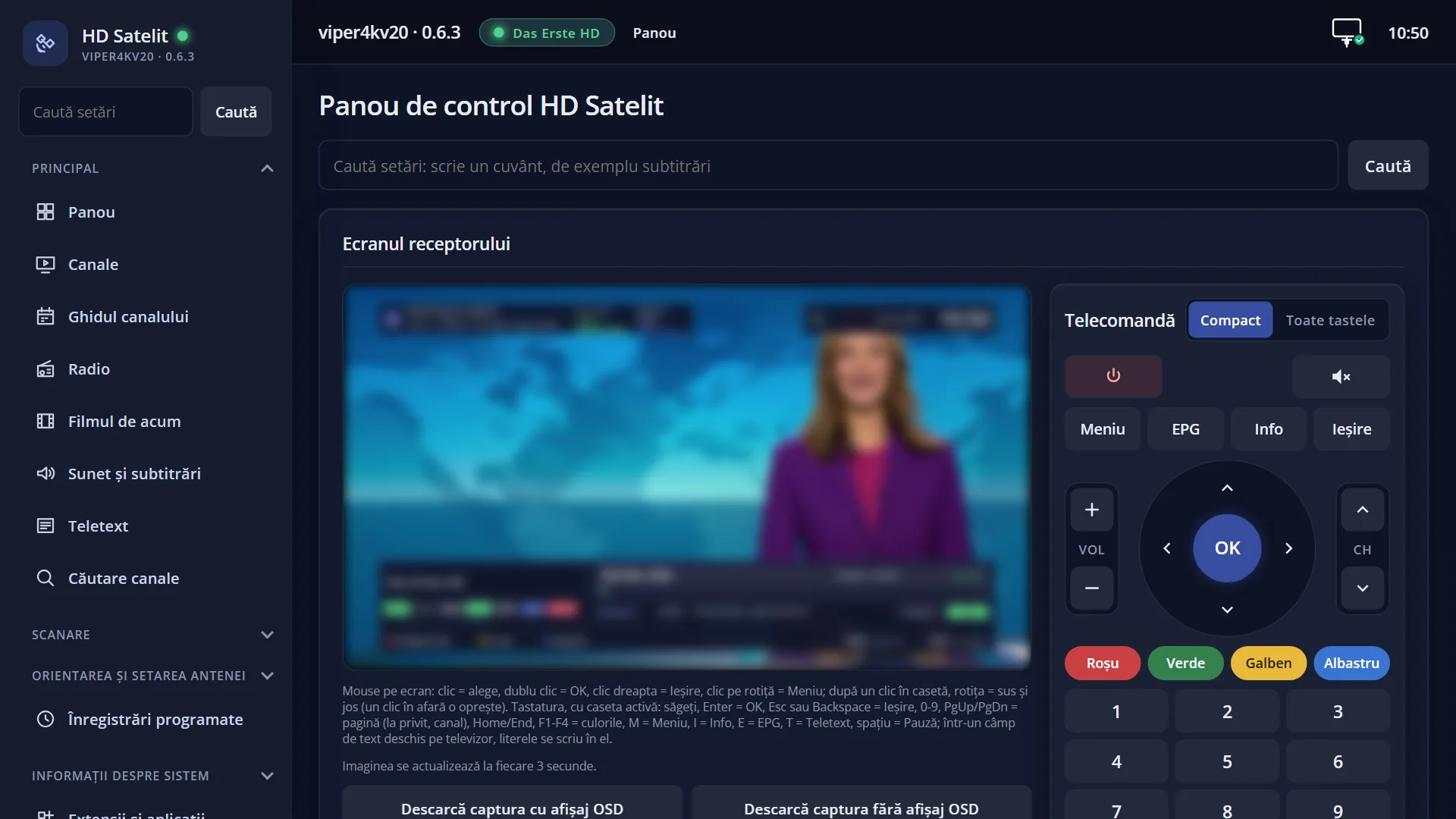
In the web interface: the box on the main panel (/panou), below the “Standby Mode” row, with the same text and the same button.
What you see on the screen
At the top, the channel name.
The title with the reason, for example: “No signal”, “The tuner is busy”, “The tuner is not set up for this channel”, “The dish location is not set”, “The dish is turning” (or “The command has been sent to the motor” when it is not known where the dish is starting from), “Nothing on this frequency”, “The station is no longer on this frequency”, “The channel does not respond”, “Picture in an unknown format”, “Data service”, “No picture”, “Channel locked”. On an encrypted channel, the message says that it is encrypted.
Below the title, a plain sentence, for example “The receiver does not get the signal of this channel.” or “The station no longer broadcasts on this frequency. It has probably moved or stopped. A new channel search can find it.”. With “The tuner is busy”, what is being recorded (“Recording: ...”).
The “Signal” and “Quality” rows, with bars and percentages.
The button with OK and the suggested action, when there is one: “Search this frequency again”, “Search channels again”, “Show recordings”, “Enter the code”, “Open the tuner settings”, “Analyse the stream”, “Choose the dish location”.
In smaller text, “Technical detail: ...” (for example “no free tuner” or “SID not found in PAT”).
At the bottom, “EXIT hides the message”.
Empty rows take up no space: the box gets shorter and stays in the middle of the screen.
Rows and settings
| Row | Values | Default | What it does |
|---|---|---|---|
| Explanations on a black screen | yes, no | yes | Yes: while the screen stays black, the middle of the screen shows why and what can be done. EXIT hides the message. No: the short error windows used before (for example “Tuning... please wait”). The row is in OSD Preferences (MENU 6 6 5). When you prefer the short error windows, which close by themselves. |
| Stream analysis on the black screen | When OK is pressed, Automatic | When OK is pressed | On channels without a picture (data service, unknown format), the receiver can read from the stream what the channel is sending: files, IP data, updates, applications. When OK is pressed: only when you ask, with OK on the message. Automatic: as soon as the message appears. The row only appears when “Explanations on a black screen” is set to yes. When you want to find out what data channels are sending without pressing OK. |
Keys
| OK | Carries out the action on the button (for example, searches again on the same frequency). With no button, OK shows the bar as usual. |
| EXIT | Hides the message until you change channel or there is a different reason. |
| When the first bar is on screen | OK and EXIT go to the bar (OK opens the second bar, EXIT hides the bar). The message receives the keys once the bar is hidden. |
| Other keys | Work as usual: you can change channel, or open the channel list or the menu. |
Step by step
A channel says “The station is no longer on this frequency”
- Press OK on “Search this frequency again”.
- The receiver searches the channel's frequency and finds the channels that are there now.
- If the station has moved to another frequency, do a new search of the whole satellite from Menu > Channel scan.
A channel says “The tuner is busy”
- The message tells you what is being recorded.
- Press OK on “Show recordings”: you can stop the recording or wait for it to finish.
- Or switch to a channel on the same frequency as the recording.
Hiding the message
- Press EXIT (with the first bar hidden).
- The message no longer appears on this channel for the same reason. On another channel or for another reason, it appears again.
Problems and solutions
“No signal” on all channels of a satellite.
The dish is not receiving that satellite: check the cable, the LNB and the tuner settings (Menu > Dish alignment and setup). You can see the values on the “Reception and signal” page of the second bar.
“Nothing on this frequency” or “The station is no longer on this frequency”.
The channels have moved or stopped. Do a new search (OK on the button or Menu > Channel scan).
“Picture in an unknown format”.
The channel sends its picture in a format that the receiver cannot play. Nothing can be done in the settings. OK on “Analyse the stream” shows what the channel is sending.
“Data service”.
It is not a TV channel: it only sends data, for example updates or the programme guide. OK on “Analyse the stream” shows what it is sending.
The message does not appear even though the screen is black.
Check “Explanations on a black screen” in OSD Preferences. The message also does not appear while another screen is open, while the second bar is shown full screen, or after you have hidden it with EXIT for the same reason. It does not appear on radio.
“Channel locked”.
The channel is locked with the parental code. Press OK on “Enter the code”.
Related topics
- The first info bar
- The second bar, “Reception and signal” page
- Changing the channel
- Tuner settings
- Dish location
- Channel scan
- Parental Lock
- OSD Preferences
- Matching web page: /panou (the box below the “Standby Mode” row).