

Channel Selection
English screenshots coming: some of the pictures below still show the receiver and the web interface in Romanian. The rows, keys and steps described on this page are the English ones.
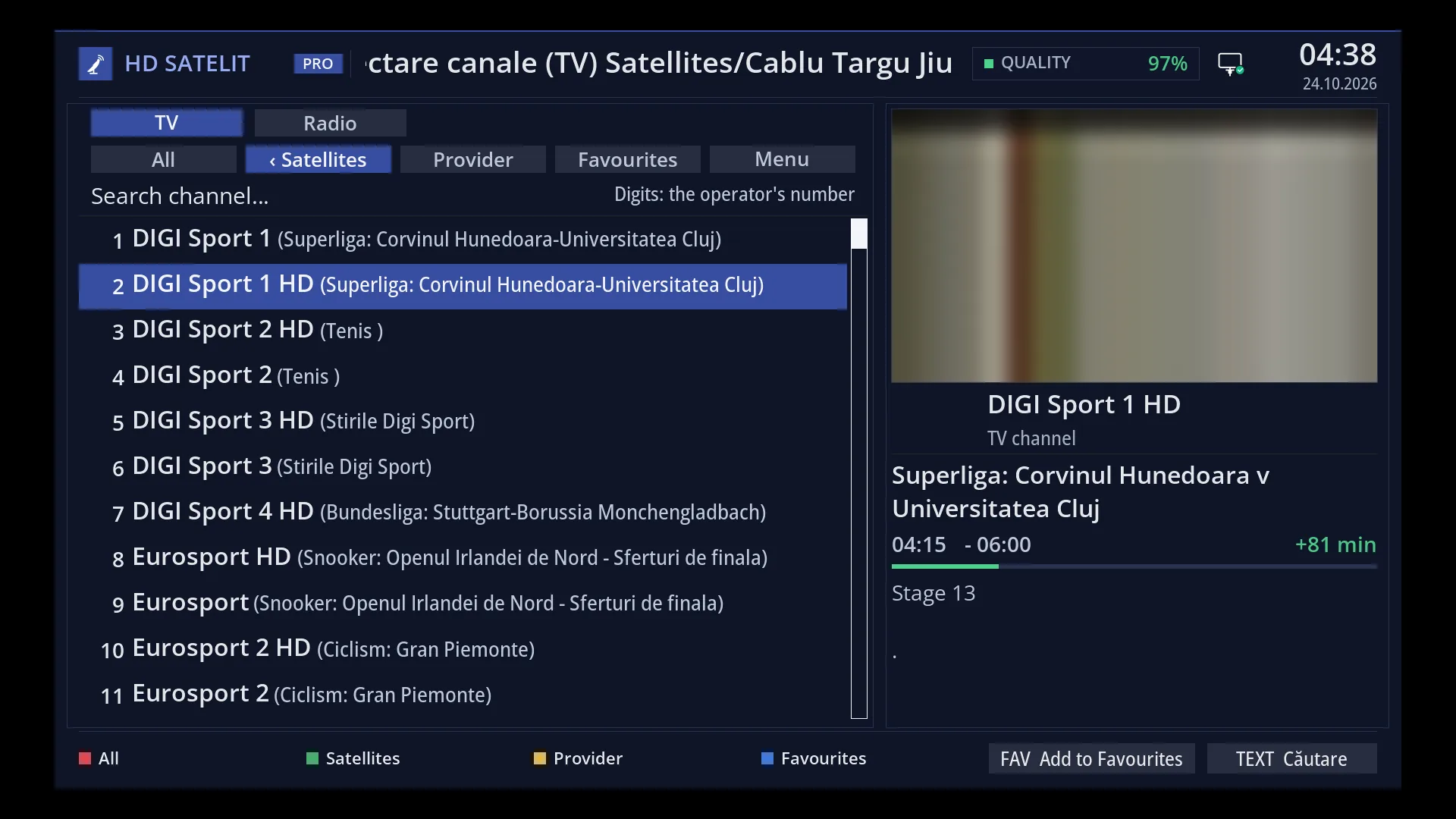
- 1 The title: “Channel Selection (TV)” and the group or folder you are in.
- 2 The TV | Radio tab: the current list is in yellow.
- 3 The groups: All, Satellites, Provider, Favourites and Menu. The current group is in yellow.
- 4 “Search channel…”: the search, with OK here, with TTX or by holding OK.
- 5 The channels, with the current programme. A red name means the channel is being recorded now.
- 6 The channel playing now (not the one selected in the list).
- 7 The channel selected in the list: its logo, name and type.
- 8 The current programme of the selected channel: the times, time remaining, progress and description.
- 9 The colour keys: RED All, GREEN Satellites, YELLOW Provider, BLUE Favourites.
- 10 FAV puts the selected channel in Favourites or removes it. TEXT (the TTX key) opens the search.
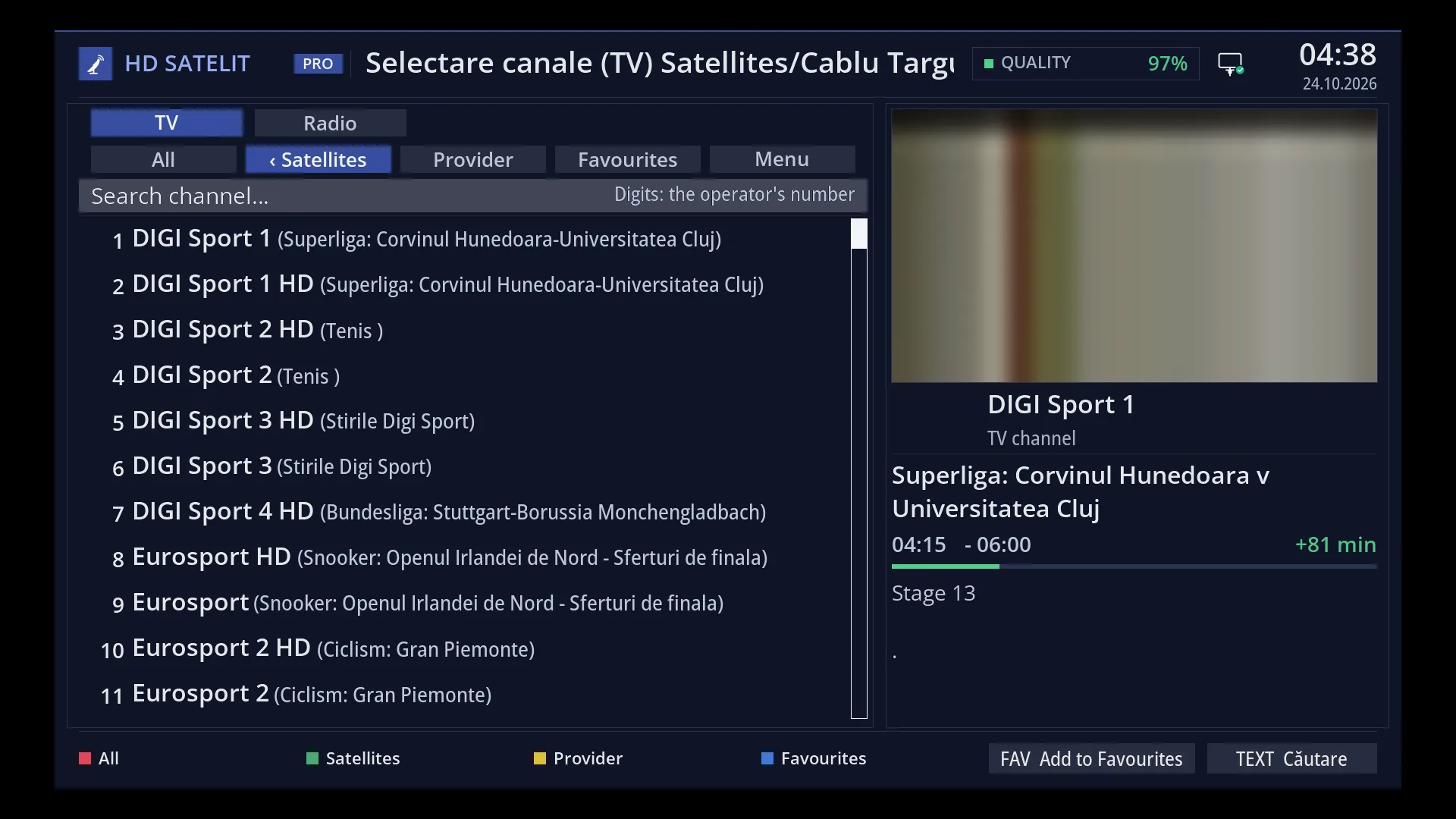
- 1 The row of groups: LEFT and RIGHT move the white line under the group buttons, OK opens the group.
- 2 “Search channel…”: OK here opens the search.
- 3 The TV | Radio tab: one more UP gets you here. LEFT, RIGHT or OK switch to the other list.
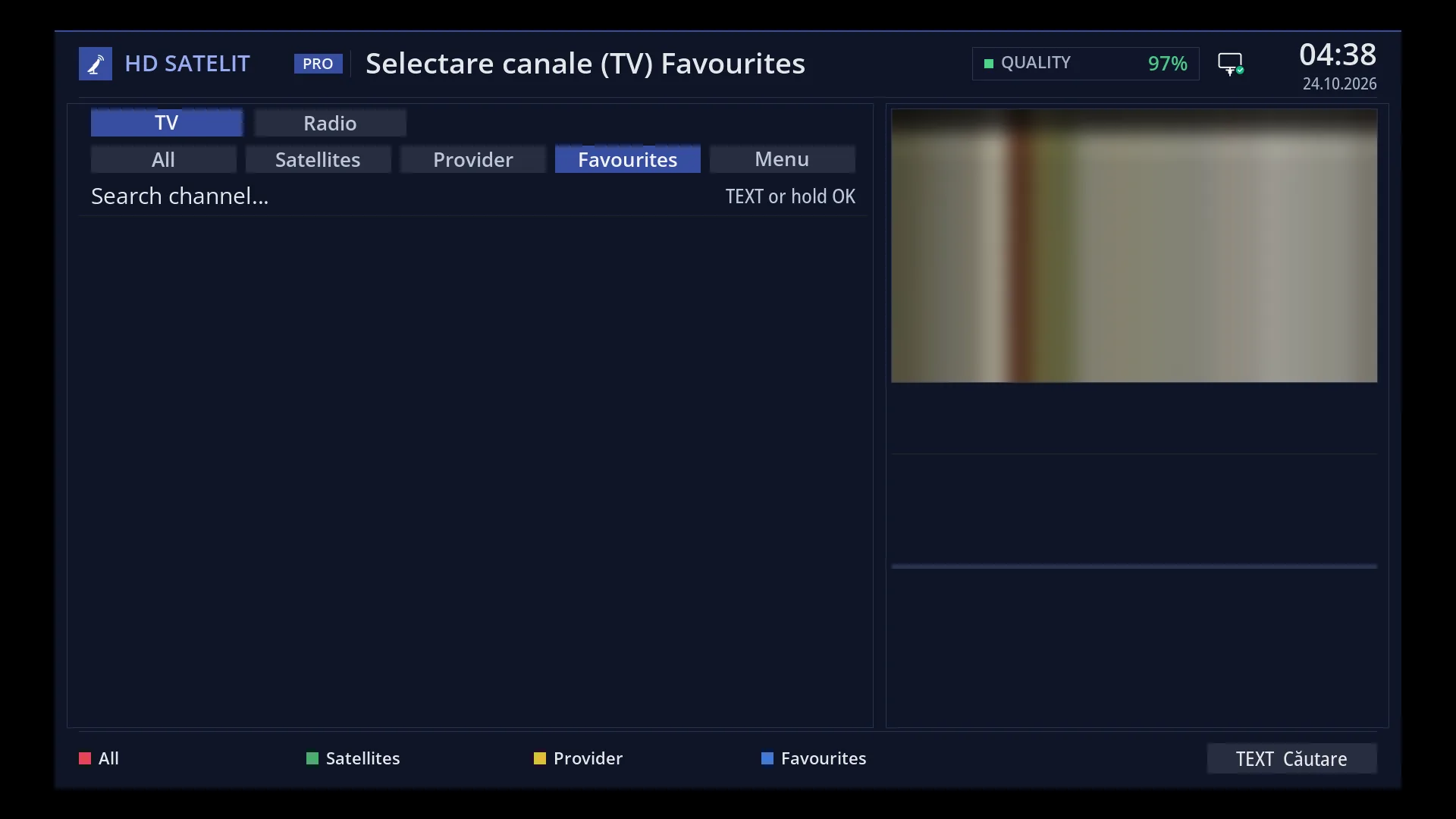
- 1 The title shows the list: “Channel Selection (TV) Favourites”.
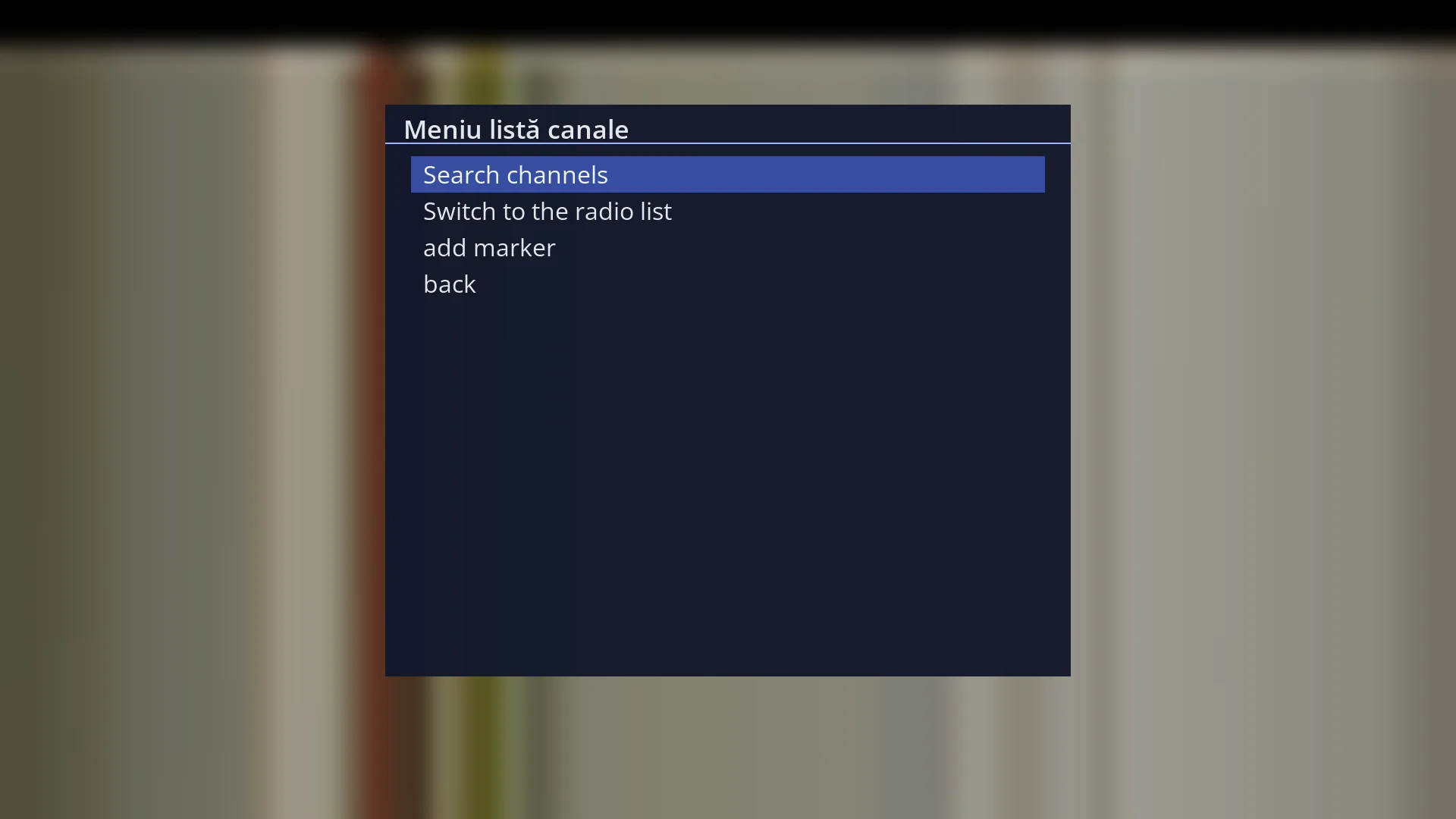
- 1 The first rows: “Search channels”, “Switch to the radio list” and “Add to Favourites” or “Remove favourite”.
- 2 The list rows: what you can do with the channel or with the list you are in. The last one is “back”.
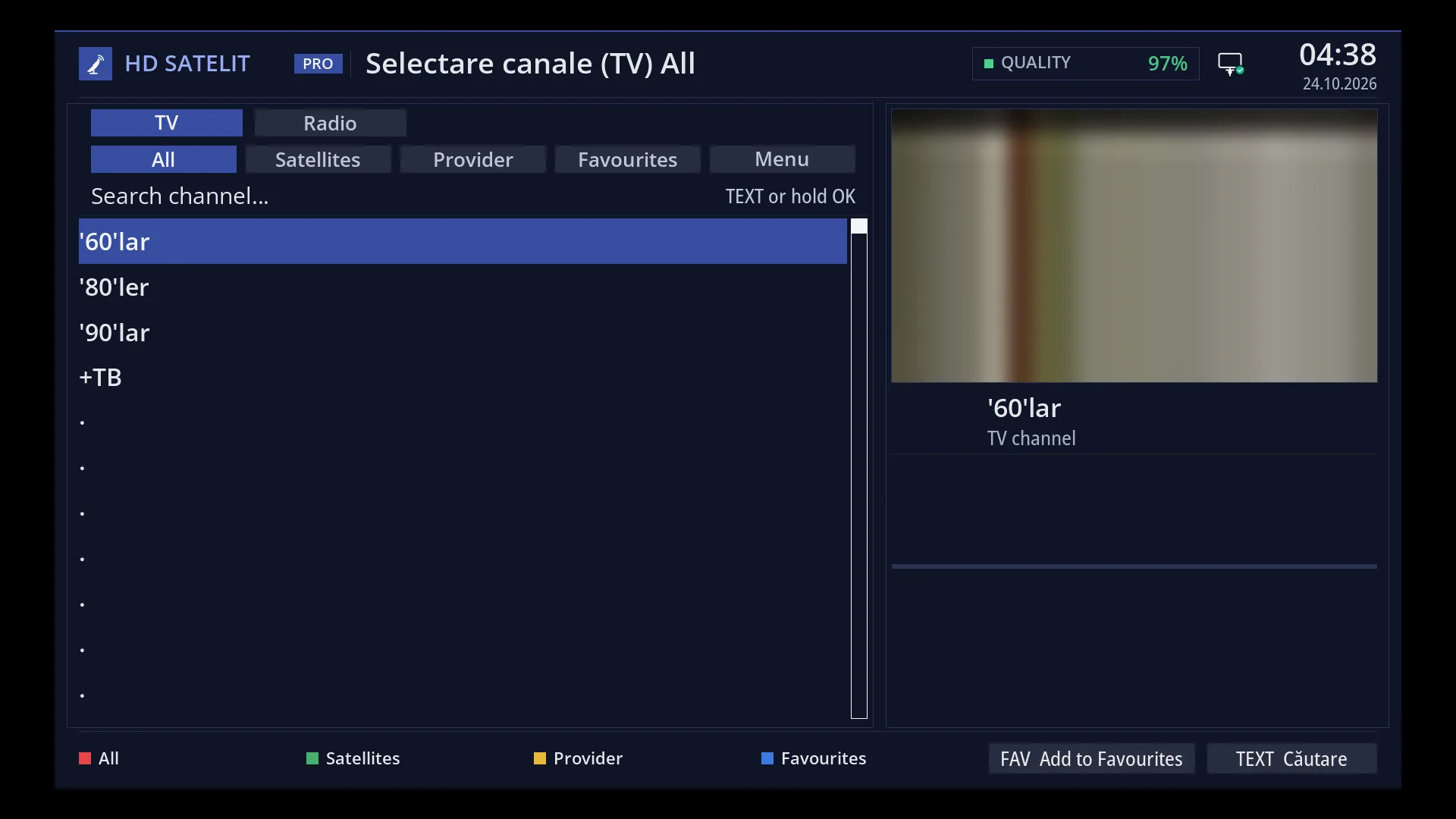
- 1 The selected row.
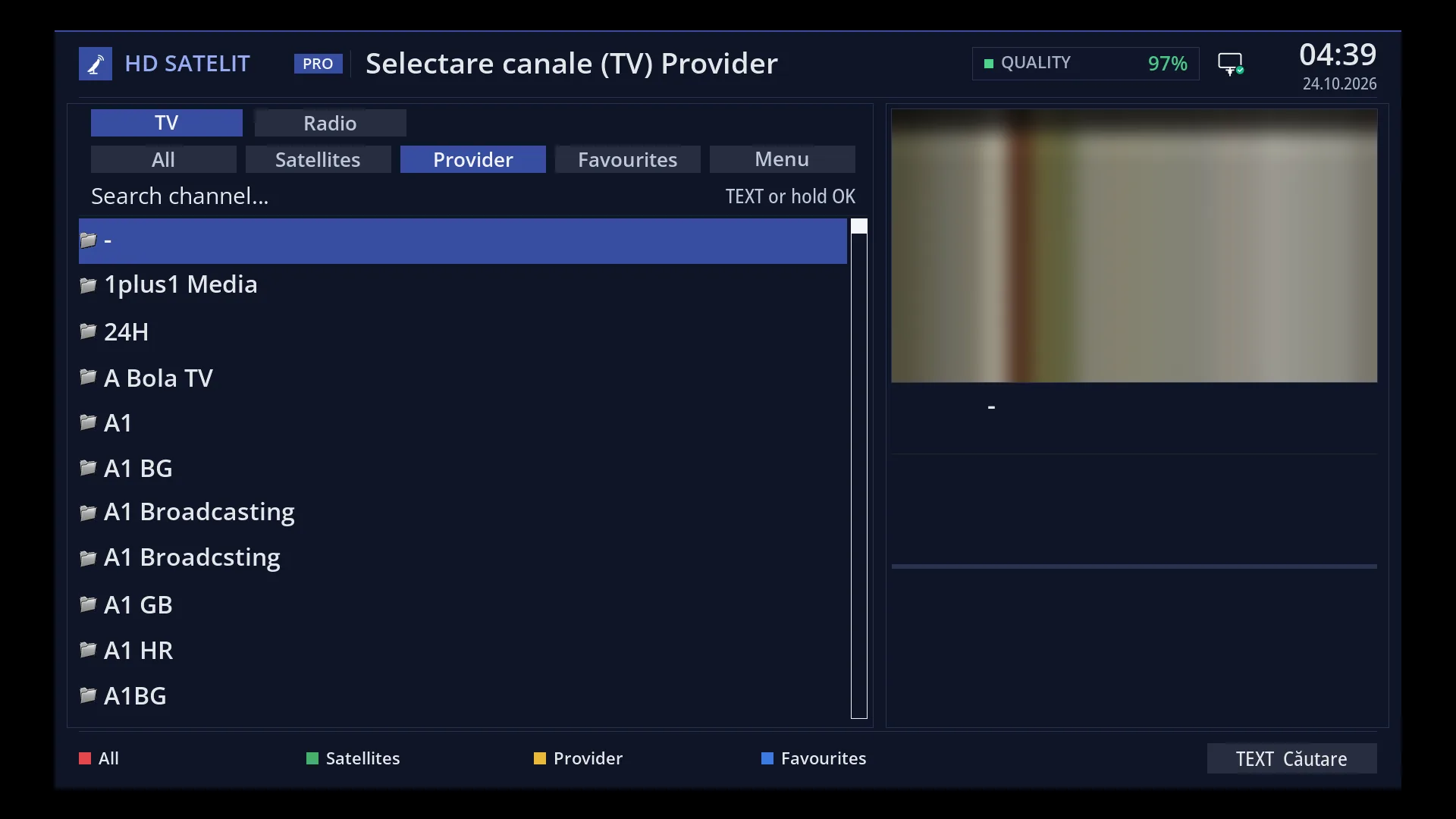
- 1 The selected row.
What it is for
The channel list is where you choose the channel you want to watch or the radio station you want to listen to. You open it from live TV with DOWN and close it with OK on a channel, or with EXIT.
The list opens where you last chose a channel: in Favourites, in a bouquet or in “Satellites”. In “Satellites”, only the satellite of the current channel is open, with the cursor on the channel. If the remembered place is empty or has no channels left (for example, empty Favourites after a new image), “Satellites” opens instead of an empty list.
On the right you see the channel that is playing now, in a small window. Below it you see the channel selected in the list, with its type and its current programme. This way you see what you are about to start without changing the channel.
At the top, above the channels, is the list header: the TV | Radio tab, the groups “All”, “Satellites”, “Provider”, “Favourites”, “Menu” and the “Search channel…” row. You use all of them with the arrow keys and OK only.
How to get here
Path: from live TV, DOWN (TV list) or UP (radio list). This is the factory setting. You choose what UP and DOWN do in Menu > Settings > Interface & Appearance > OSD Preferences > “Up and down arrows while watching”.
Keys while watching TV: DOWN. TV (TV list), RADIO (radio list) and FAV (list on Favourites) also open the list.
CH+ and CH- do not open the list on the receiver's remote: they change the channel directly.
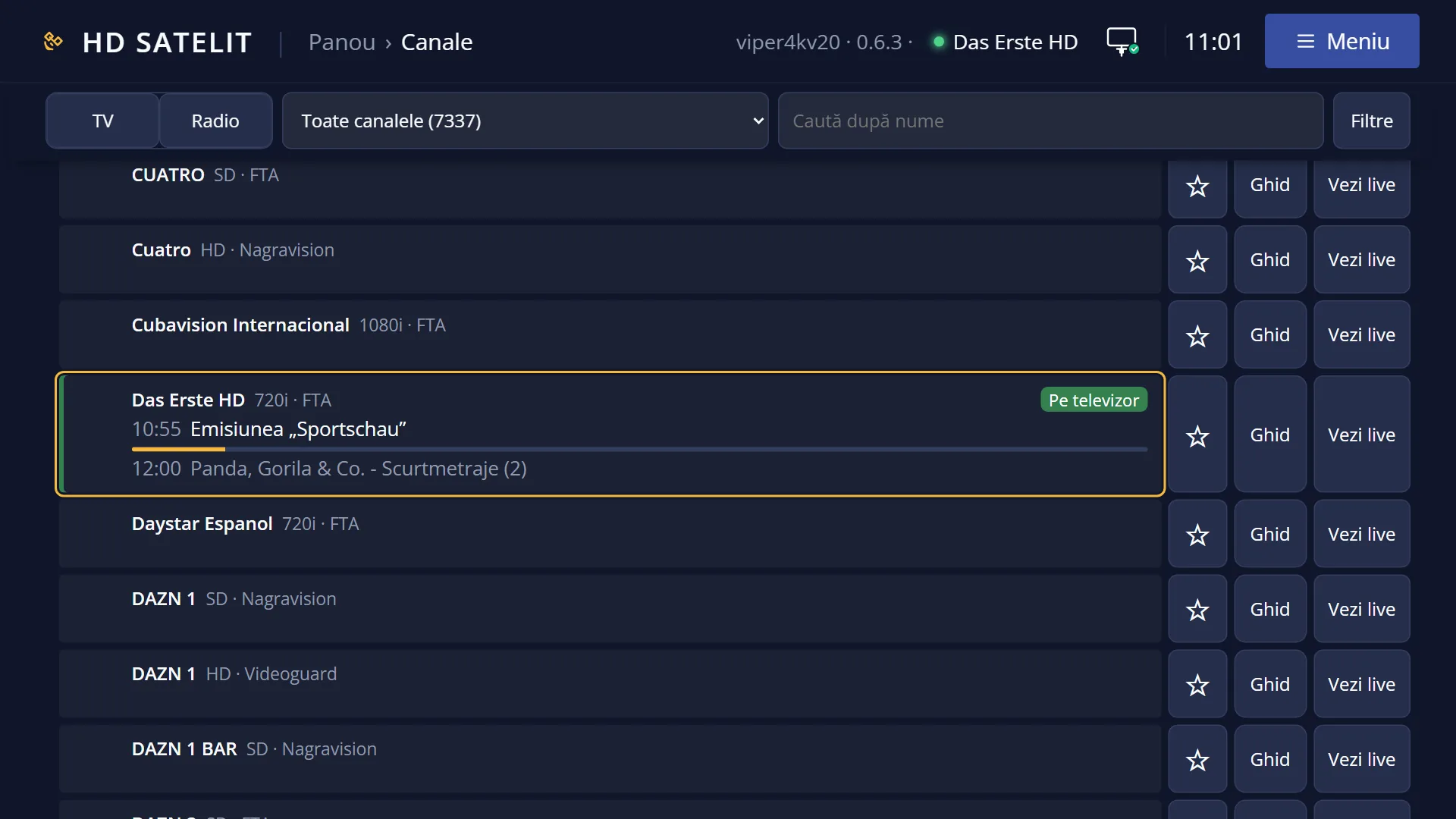
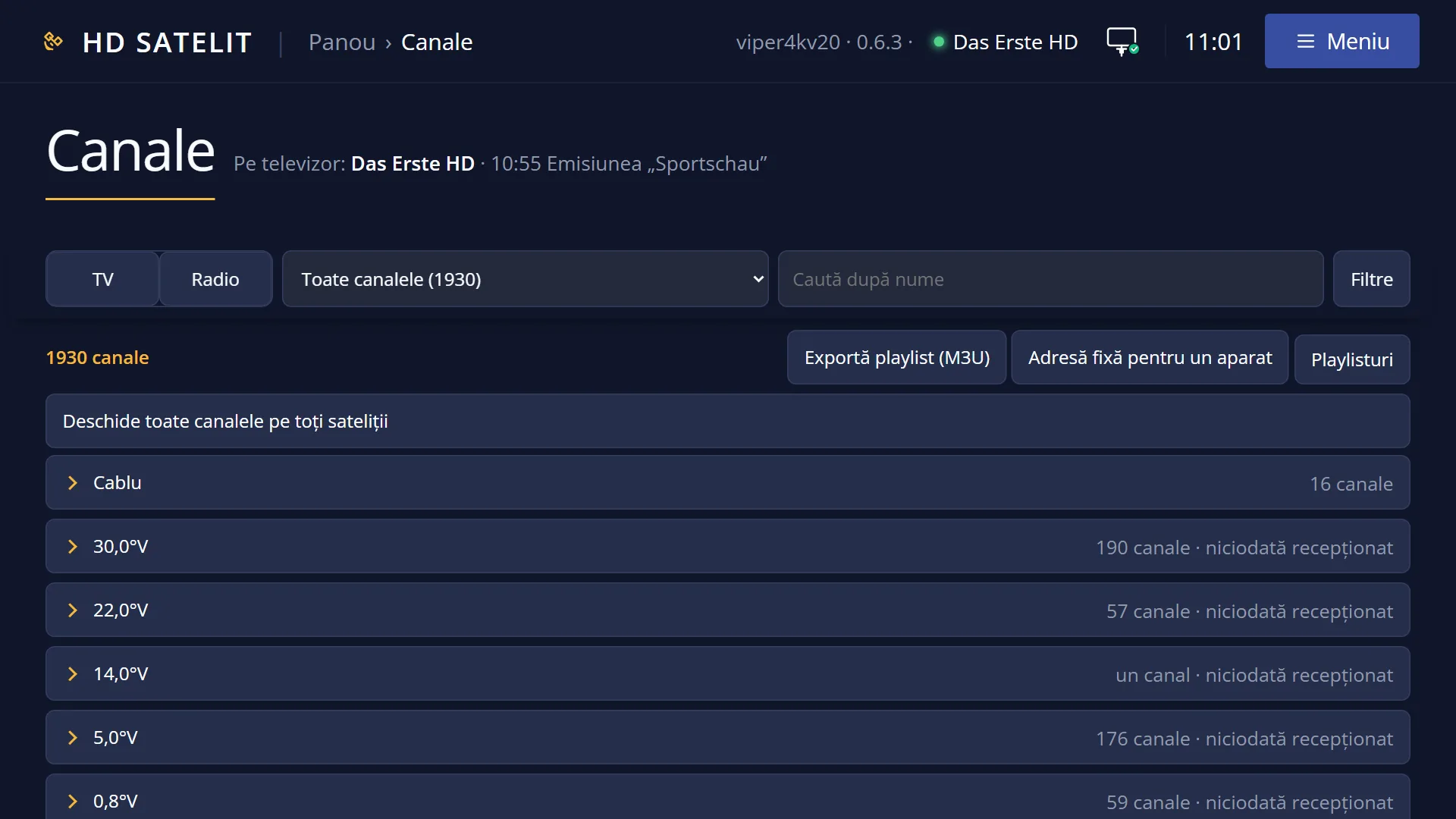
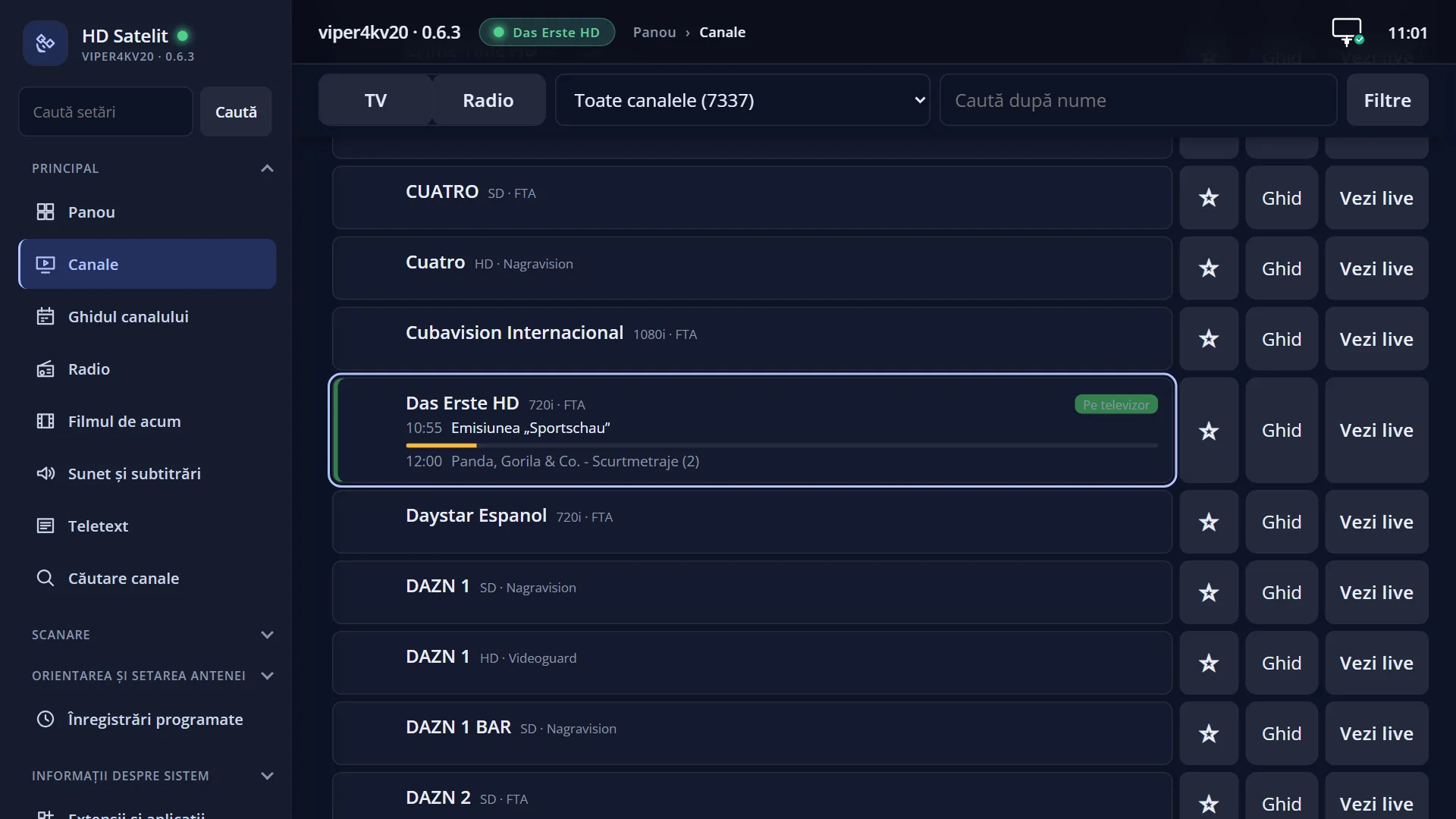
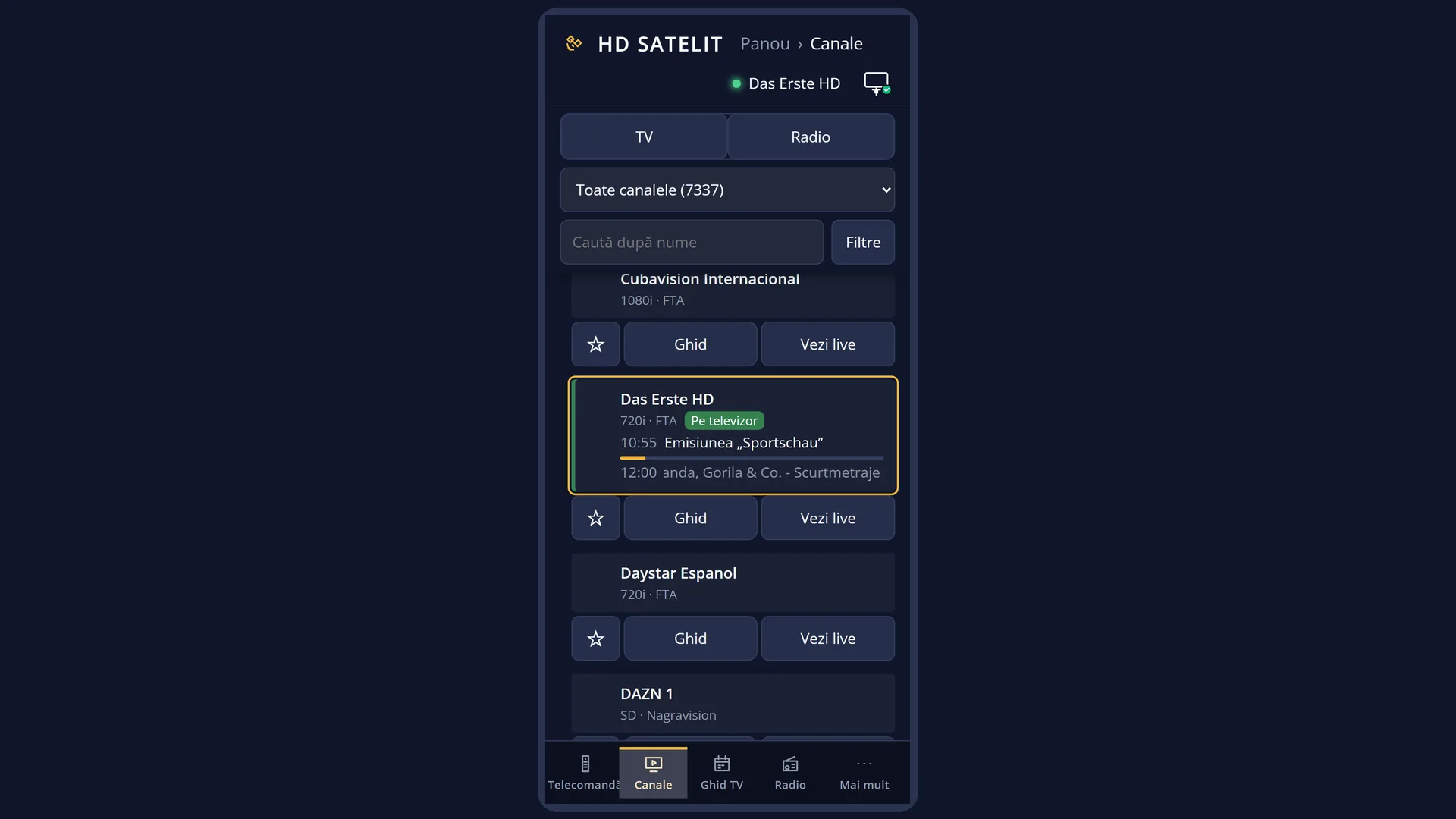
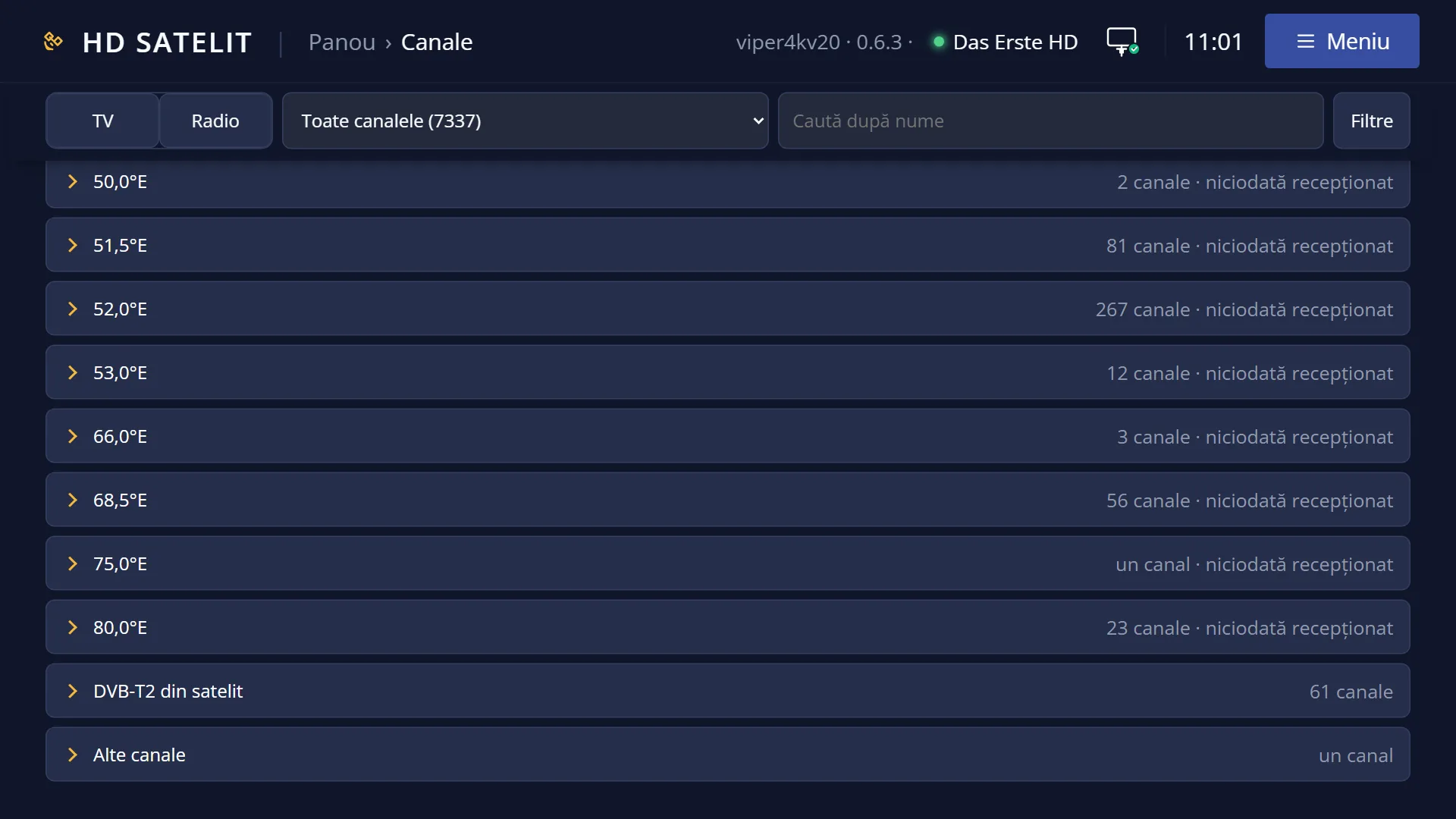
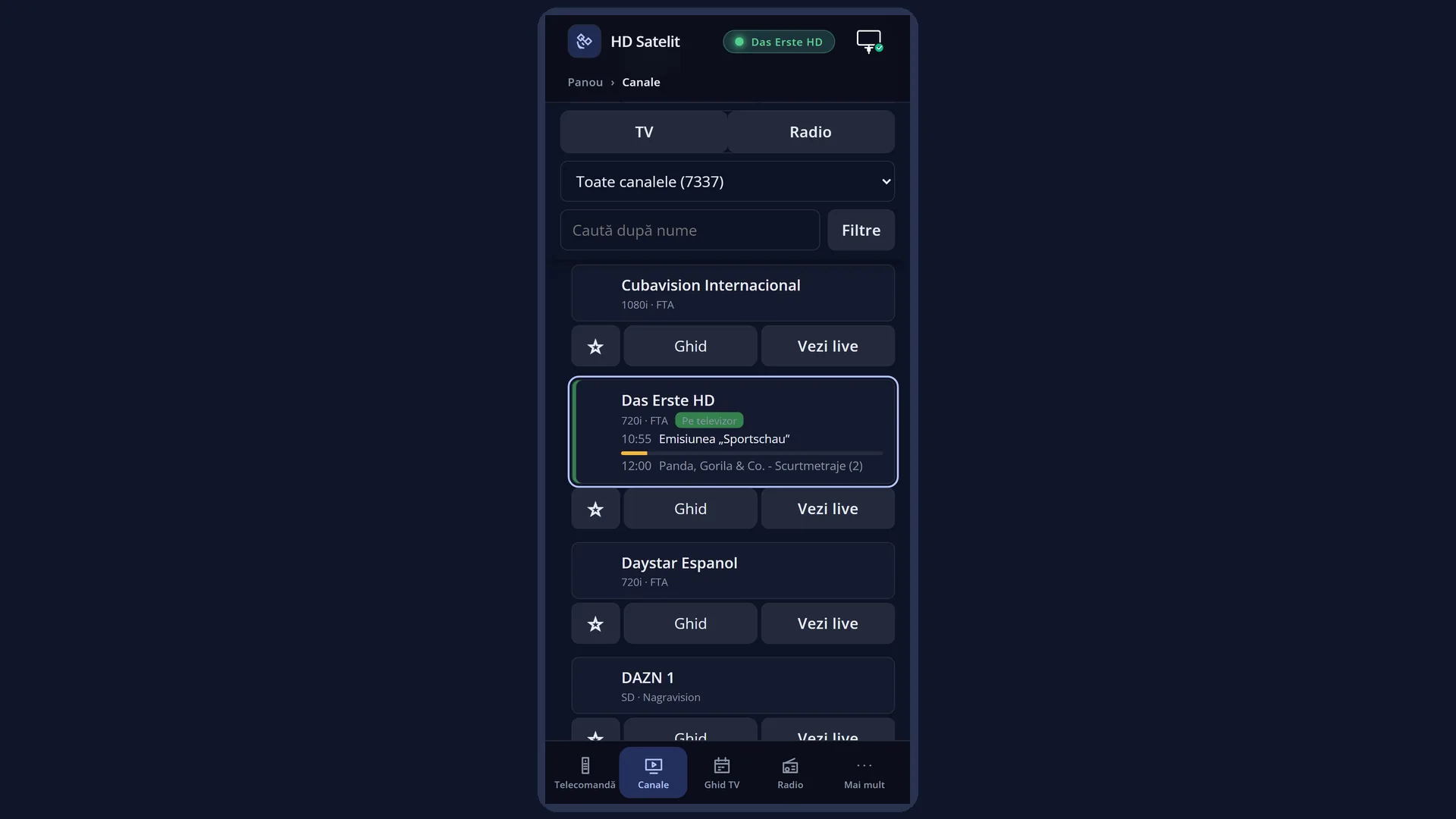
In the web interface: the /canale page (the TV and Radio tabs, the chosen list, search by name with filters, the current programme, starting the channel on the TV, the Favourites star, and “Guide” and “Watch live” on each channel).
What you see on the screen
At the top, the title: “Channel Selection (TV)” or “Channel Selection (Radio)”, followed by the group you are in (for example “Satellites”, “Favourites”, “All”) and, inside a folder, the folder name. On the right, the clock.
The list header has three rows: the “TV | Radio” tab (the current list is in yellow); the row of groups “All”, “Satellites”, “Provider”, “Favourites”, “Menu” (the current group is in yellow; it has “‹ ” in front when you are in one of its folders, and OK on it takes you back up); the “Search channel…” row, with the hint “TEXT or hold OK”. The row with the cursor has the blue bar.
The list shows 11 rows on screen: the channel name and the current programme. The channel number appears only in Favourites and in bouquets, not in “Satellites”, “All” or “Provider”, where channels are sorted by name.
Signs in the list: a red name means the channel is being recorded now; “Streaming” means the channel is being sent now to a browser or a player in your home; at the end of the row, “DAB+” or “DVB-T2” for stations received via satellite, and “DVB-I” for channels that also have an internet version. A grey channel cannot be started right now.
The programme progress bar in each row appears only when the “Show event-progress in channel selection” setting is on (it is off by default).
At the top right, the video window with the channel that is playing now (not the one selected in the list). When a radio station is playing, instead of the picture you see “Now on the receiver” and the station name. In the radio list, with no station playing, you see “No station playing”.
Below the window, the channel selected in the list: its logo, name and type (“TV channel”, “Radio station”, “Internet stream”, “Data service”, “DAB+ station via satellite”, “DVB-T2 programme via satellite”). Below that, its current programme: the title, start and end time, time remaining, the progress bar and the description.
At the bottom, the colour keys: RED “All”, GREEN “Satellites”, YELLOW “Provider”, BLUE “Favourites”. On the right, the drawn keys “FAV Add to Favourites” (or “FAV Remove favourite”) and “TEXT Search”. The FAV key is not shown on a folder or a marker, where it has nothing to do.
Rows and settings
| Row | Values | Default | What it does |
|---|---|---|---|
| Channel list menu (MENU): Search channels | Opens the channel search, like the TTX key or holding OK. When you look for a channel by name or by filters (resolution, language, satellite). | ||
| Channel list menu: Switch to the radio list / Switch to the TV list | Switches to the other list, like the TV | Radio tab. When you want radio instead of TV, or the other way round. | ||
| Channel list menu: Add to Favourites / Remove favourite | Puts the selected channel in Favourites or removes it, like the FAV key. The row is missing on a folder or a marker. When you build your list of favourite channels. | ||
| Channel list menu: rows for the selected channel | add service to bouquet (with “Enable multiple bouquets” on), add service to favourites (with “Enable multiple bouquets” off, only outside Favourites), add to parental protection / remove from parental protection (only when parental protection is set up), show transponder info (only with “Setup Mode” set to Expert), Activate Picture in Picture (only on receivers with two video decoders) | What you can do with the channel under the cursor. You can also choose “Activate Picture in Picture” with BLUE while the menu is open. When you want the channel in another bouquet as well, or want to lock it with a PIN. | |
| Channel list menu: rows for a folder in “Satellites” | remove selected satellite, copy to bouquets (with “Enable multiple bouquets” on), remove all new found flags (on the “New” folder) | “remove selected satellite” deletes all channels of the satellite under the cursor from the receiver, immediately and without asking. They come back only after a new scan. “copy to bouquets” creates a new bouquet with the channels of the folder. When your list has a satellite you no longer receive. | |
| Channel list menu: bouquet rows (in Favourites or in a bouquet) | remove entry, enable move mode / disable move mode, add marker, enable favourite edit (or enable bouquet edit) / finish editing / cancel editing, add bouquet (in the list of bouquets) | You remove a channel, move channels (in move mode, OK picks up the channel, the arrow keys move it, OK drops it in place), add a marker (a heading between channels, for example “News”) or select several channels at once. “enable move mode” needs “Setup Mode” set to at least Intermediate (the factory setting). When you arrange Favourites in your own order. | |
| Channel list menu: back | Closes the menu, like EXIT. | ||
| Enable multiple bouquets (OSD Preferences) | Yes, No | No | No: “Favourites” is a single channel list. Yes: “Favourites” shows the list of your bouquets and you open one with OK. Holding FAV lets you choose the bouquet. When you want several lists of your own (for example “Films”, “Sport”, “Children”). |
| Alternative radio mode (OSD Preferences) | Yes, No | No | No: radio has its own list. RADIO and the Radio tab close the TV list and open the radio list. Yes: the same list switches between TV and radio. When you want to switch between TV and radio without the list closing. |
| Up and down arrows while watching (OSD Preferences) | Up: radio channel list, down: TV channel list, Up: TV channel list, down: radio channel list, Both open the TV channel list, Both open the radio channel list, Change channel (up: next) | Up: radio channel list, down: TV channel list | What UP and DOWN do when you watch a channel with no menu open: they open the radio or TV list, or change the channel. When you want to open the TV list with both arrows, or change the channel with them. |
| Show event-progress in channel selection (OSD Preferences) | Yes, No | No | Yes: each row of the list also has a small bar showing how much of the current programme has passed. When you want to see at a glance which programmes are nearly over. |
Keys
| UP / DOWN | You move the cursor in the list. UP from the first row goes up into the list header: first to “Search channel…”, then to the groups, then to the TV | Radio tab. DOWN goes back down into the list. Held down, the arrows scroll the list and wrap from the first row to the last. |
| LEFT / RIGHT | In the list: page up or page down. From the first page, LEFT goes to the last row; from the last page, RIGHT goes to the first. On the row of groups: moves the cursor between the group buttons. On the TV | Radio tab: switch to the other list. |
| OK | On a channel: starts it and closes the list. On a folder (a satellite, a bouquet): opens it. In the list header: on a group, opens it; on “Search channel…”, opens the search; on the tab, switches to the other list. |
| Hold OK | Opens the channel search, wherever the cursor is. |
| EXIT | Closes the list without changing the channel. Next time, the list opens again where you chose the last channel. |
| RED | “All”: all channels in the list, by name. |
| GREEN | “Satellites”: the list by satellite, with all satellites collapsed and the cursor on the satellite of the current channel (see the “Satellites collapsed into groups” page). |
| YELLOW | “Provider”: channels by provider (the broadcaster or platform that sends them). |
| BLUE | “Favourites”: your list of favourite channels (or the list of bouquets, with “Enable multiple bouquets” on). With “Enable multiple bouquets” on, pressing it inside a bouquet takes you back up to the list of bouquets. |
| CH+ / CH- | The next or previous bouquet or folder. In “Satellites”, moves the cursor to the next or previous satellite. |
| < / > | Jump to the previous or next marker (the headings placed between channels in a bouquet). |
| Digits 1-9 | Jump to the first channel whose name starts with the key pressed, as when typing a text message: 2 once looks for a name starting with the digit 2, twice quickly for the letter A, three times for B, four times for C (in the list the digit comes first; in the channel search, the letter). If no channel starts that way, the cursor goes to the first row. In the list of a cable network, the digits choose the number given by the operator (the hint says “Digits: the operator's number”). |
| 0 | From a folder (a satellite, a provider, a bouquet), takes you back up to its group. |
| INFO / EPG | The guide of the channel selected in the list (see the “Channel guide” page). When you press EXIT in the guide, you return to the list, on the same channel. |
| MENU | “Channel list menu”, with the rows above. The “Menu” group button in the list header does the same. |
| TTX | The channel search (on screen the key is labelled “TEXT Search”). |
| FAV | The selected channel goes into Favourites or, if it is already there, is removed after a short question. Held down, it lets you choose the bouquet (see the “Favourites in one press” page). |
| TV / RADIO | TV: the TV list. RADIO: the radio list (by default the TV list closes and the radio list opens). |
| USB keyboard | A letter takes the cursor to the first channel that starts with it. Backspace leaves the list, like EXIT. |
Step by step
Change the channel from the list
- Press DOWN. The list opens with the cursor on the current channel.
- Choose the channel with UP and DOWN. Use LEFT and RIGHT to jump a page at a time. On the right you see its current programme.
- Press OK. The channel starts and the list closes.
Switch from the TV list to the radio list
- In the TV list, press UP until you reach the TV | Radio tab (from the first channel: three presses).
- Press RIGHT or OK. The radio list opens.
- Choose the station with UP and DOWN, then press OK. Quicker: the RADIO key, or MENU and “Switch to the radio list”.
Choose another group of the list
- Press the colour key of the group: RED “All”, GREEN “Satellites”, YELLOW “Provider”, BLUE “Favourites”.
- Or go up with UP to the row of groups, move with LEFT and RIGHT to the group button you want and press OK.
- Inside a folder (a satellite, a provider), 0 takes you back up to the group.
Problems and solutions
The list opens somewhere I did not expect (for example in Favourites or on another satellite).
The list remembers the place from which you started the last channel. Switch to the group you want with the colour keys and start a channel from there: next time the list opens there.
I cannot see the channel numbers.
Numbers appear only in Favourites and in your bouquets. In “Satellites”, “All” and “Provider”, channels are sorted by name, without numbers. Put the channels in Favourites (FAV key) to have them numbered.
I pressed a digit and the cursor jumped to the start of the list.
In the list, the digits search by the first letter of the name, as when typing a text message. No channel starts with what you typed, so the cursor went to the first row. Press the key several times quickly for its letters.
The video window shows a different channel from the one selected in the list.
The window always shows the channel that is playing now. The channel selected in the list starts only after you press OK.
A channel name is shown in red.
The channel is being recorded now. You can see this in Timer or in the list of timers and recordings.
The list header is missing (the TV | Radio tab, the groups, “Search channel…”).
The header is hidden while the list is in move mode or in Favourites editing. Finish editing from MENU (“finish editing” or “disable move mode”). With a screen appearance other than the HD Satelit one, the header is not shown at all, but holding OK still opens the search.
The rows have no programme progress bar.
Turn on “Show event-progress in channel selection” in Menu > Settings > Interface & Appearance > OSD Preferences. The large progress bar for the selected channel's programme is always on the right anyway.
I deleted a satellite by mistake with “remove selected satellite”.
Its channels come back after a new scan of the satellite, from Menu > Channel scan > Satellite.
A message over the list says the list is empty and that you have not yet searched for DAB+ stations or DVB-T2 channels.
This is the “DAB+ from satellite” or “DVB-T2 from satellite” folder, still empty. Press OK: the search for them starts.
Related topics
- Satellites collapsed into groups (GREEN key)
- Favourites in one press (FAV key)
- Channel search (TTX, hold OK, “Search channel…”)
- Channel guide (INFO or EPG in the list)
- List settings: Menu > Settings > Interface & Appearance > OSD Preferences (on the web, /setari?id=usage).
- Matching web page: /canale.
Differences between receivers
The “Activate Picture in Picture” row in MENU (and BLUE in the list menu) appears only on receivers that have at least two video decoders.