

Media player
English screenshots coming: some of the pictures below still show the receiver and the web interface in Romanian. The rows, keys and steps described on this page are the English ones.
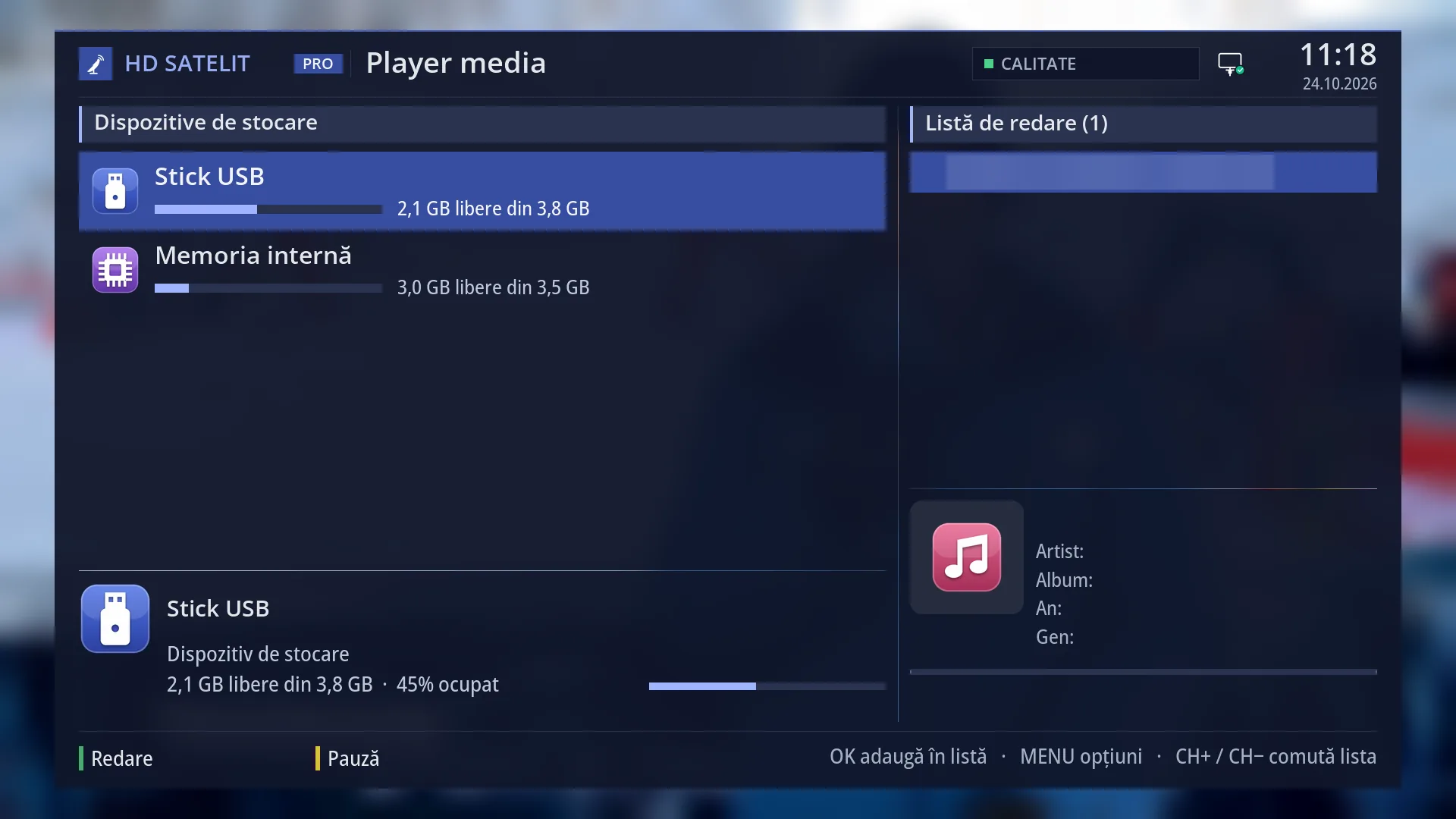
- 1 Where you are: the devices or the open folder.
- 2 The devices, folders and files you can play.
- 3 Details of the selected row: the type, the free space or the size.
- 4 The playlist, with the number of files.
- 5 The cover, artist, album, year, genre and how much has played.
- 6 GREEN play, YELLOW pause, then what OK, MENU and CH+ / CH- do.
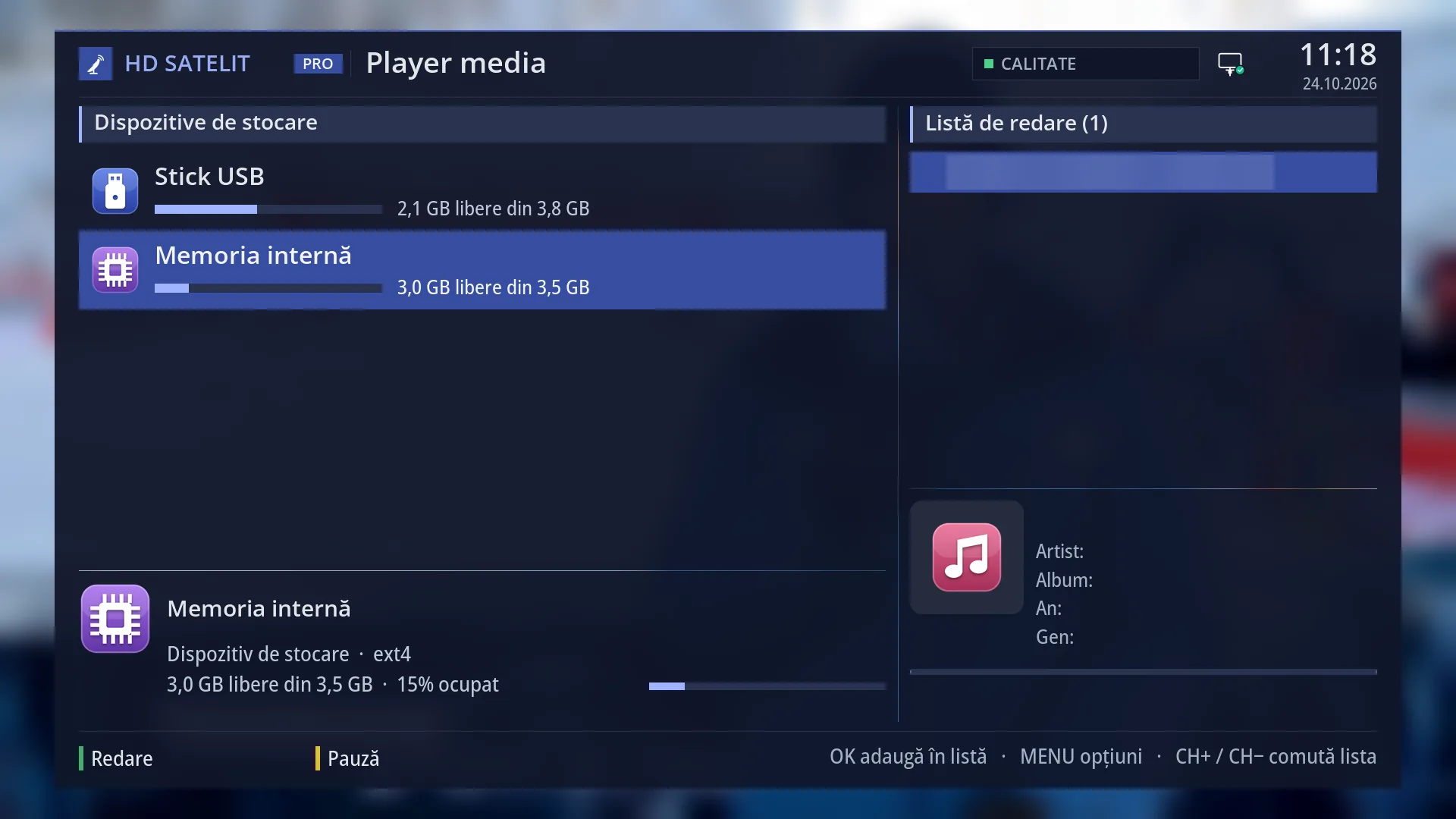
- 2 Details of the selected row: the type, the free space or the size.
What it is for
The media player plays films and music from a USB stick, a hard disk or the network. You choose a file on the left, it goes into the playlist on the right and starts.
It handles the usual files: films (MP4, MKV, AVI, TS, MPG, MOV, WebM and others), music (MP3, FLAC, OGG, AAC, WAV, M4A and others) and playlists (M3U, PLS and its own playlists).
Subtitles next to the film (files whose name starts with the film's name, in its folder or in a “Subs” subfolder) are found automatically. A film stopped partway through resumes where you left off, after the question “Resume where you stopped?”.
For music you see the album cover (from the file or from a picture placed in the album folder), the artist, the album, the year and the genre.
The playlist is kept when you exit, and you can save it under a name to load it another time.
How to get here
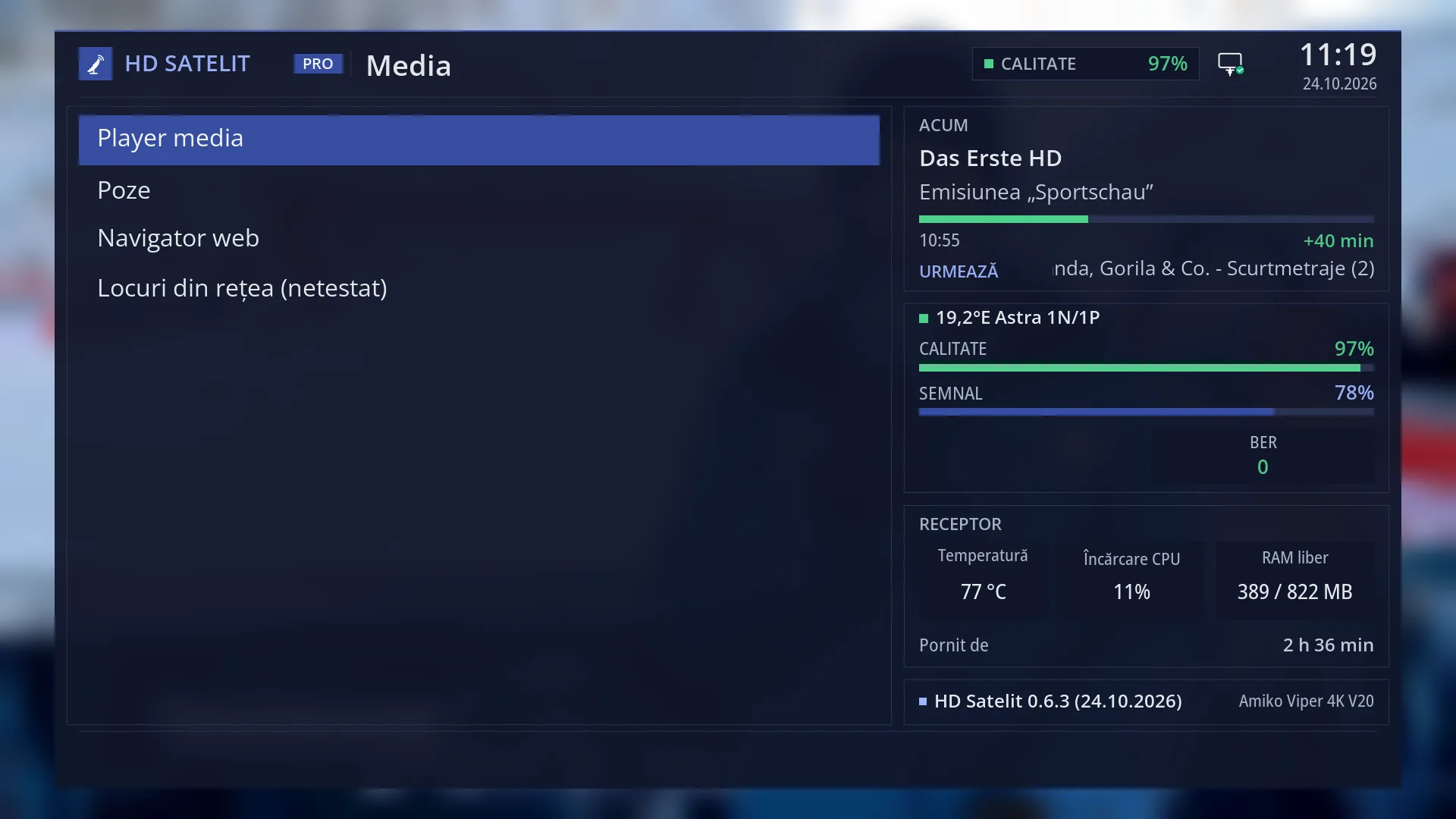
Path: Main menu > Media > Media player.
Keys while watching TV: MENU 8 1, or the Mplay key directly.
Films on your home computer: in the player menu (MENU), “Network places”.
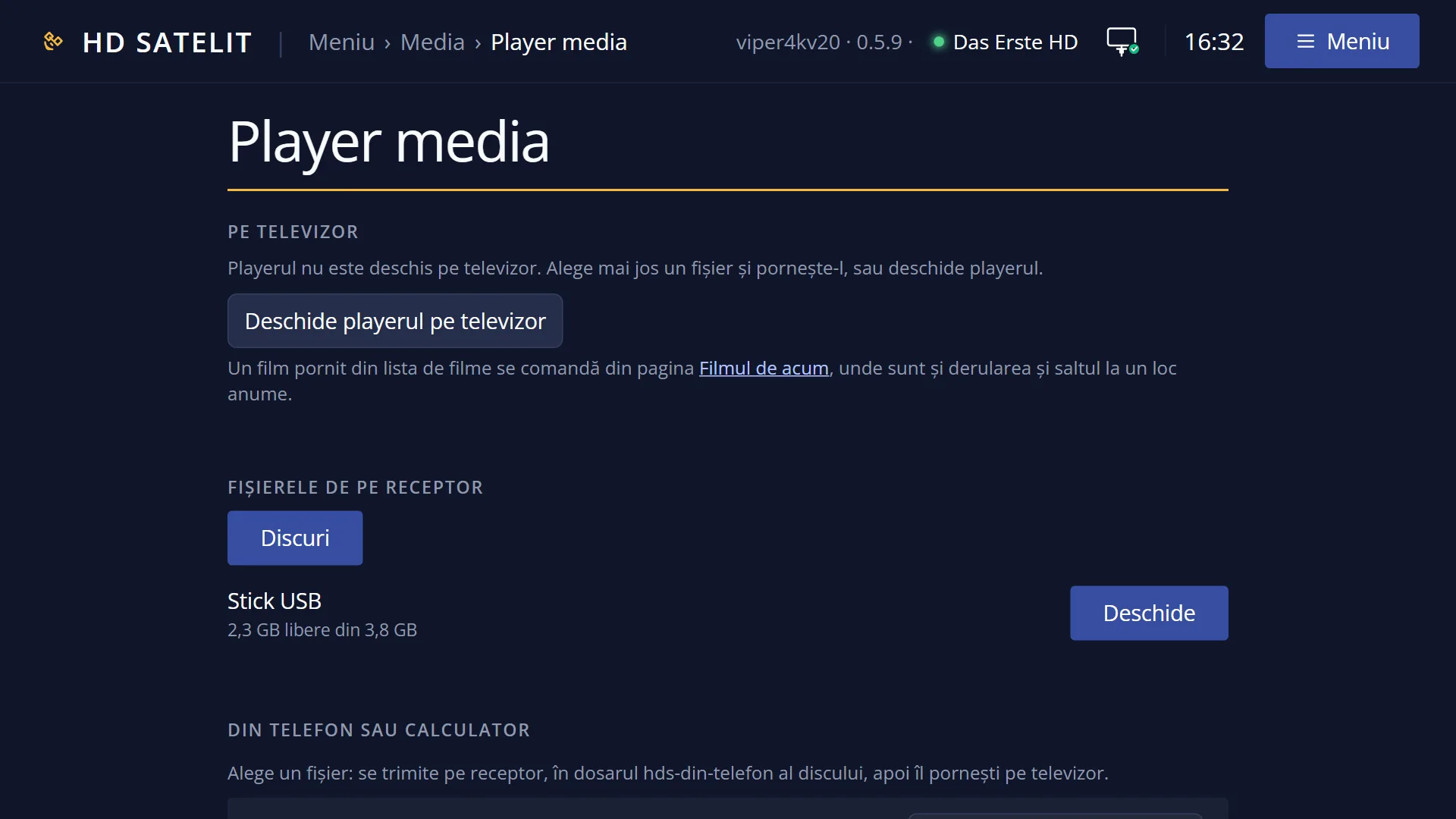
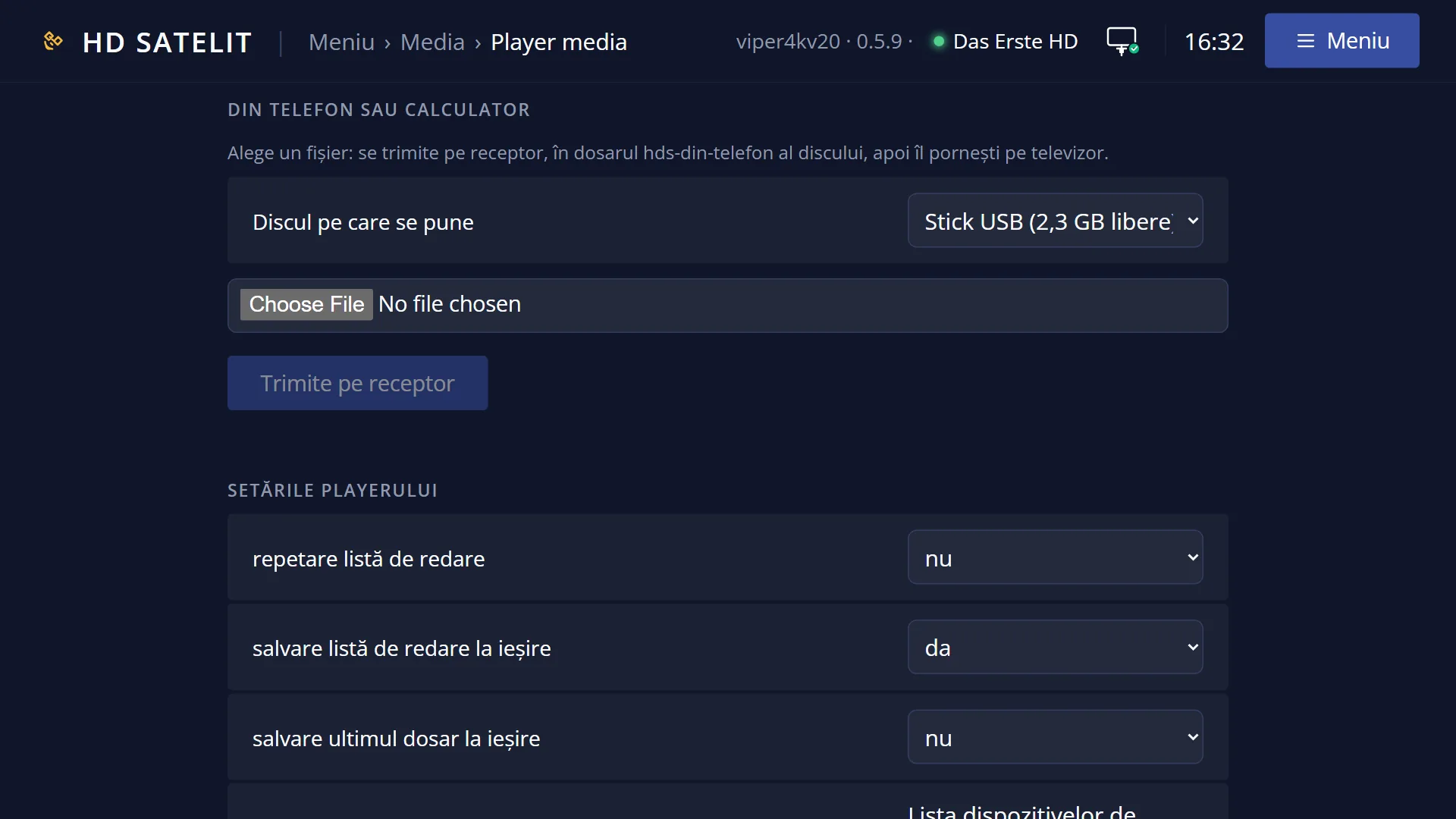
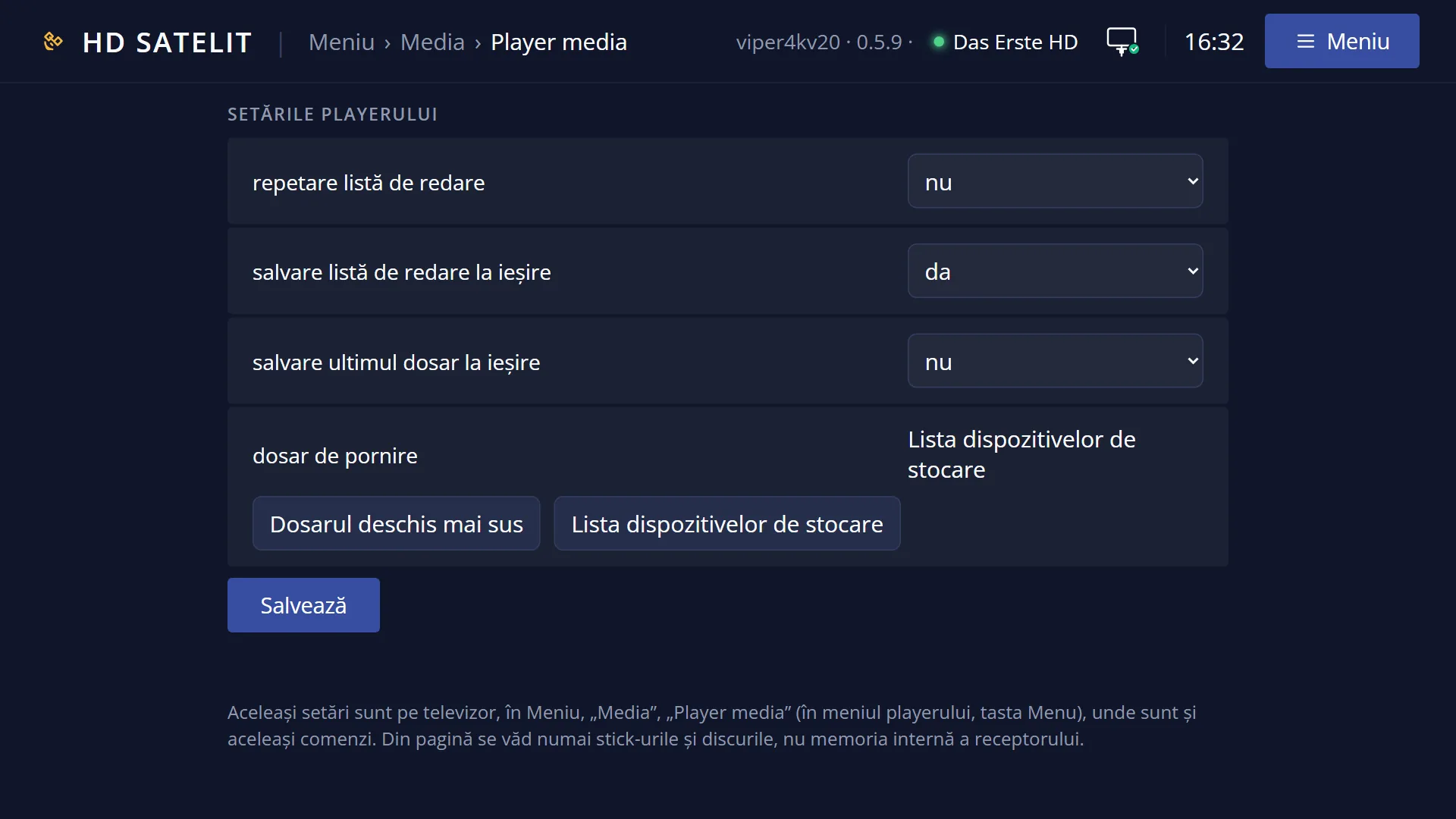
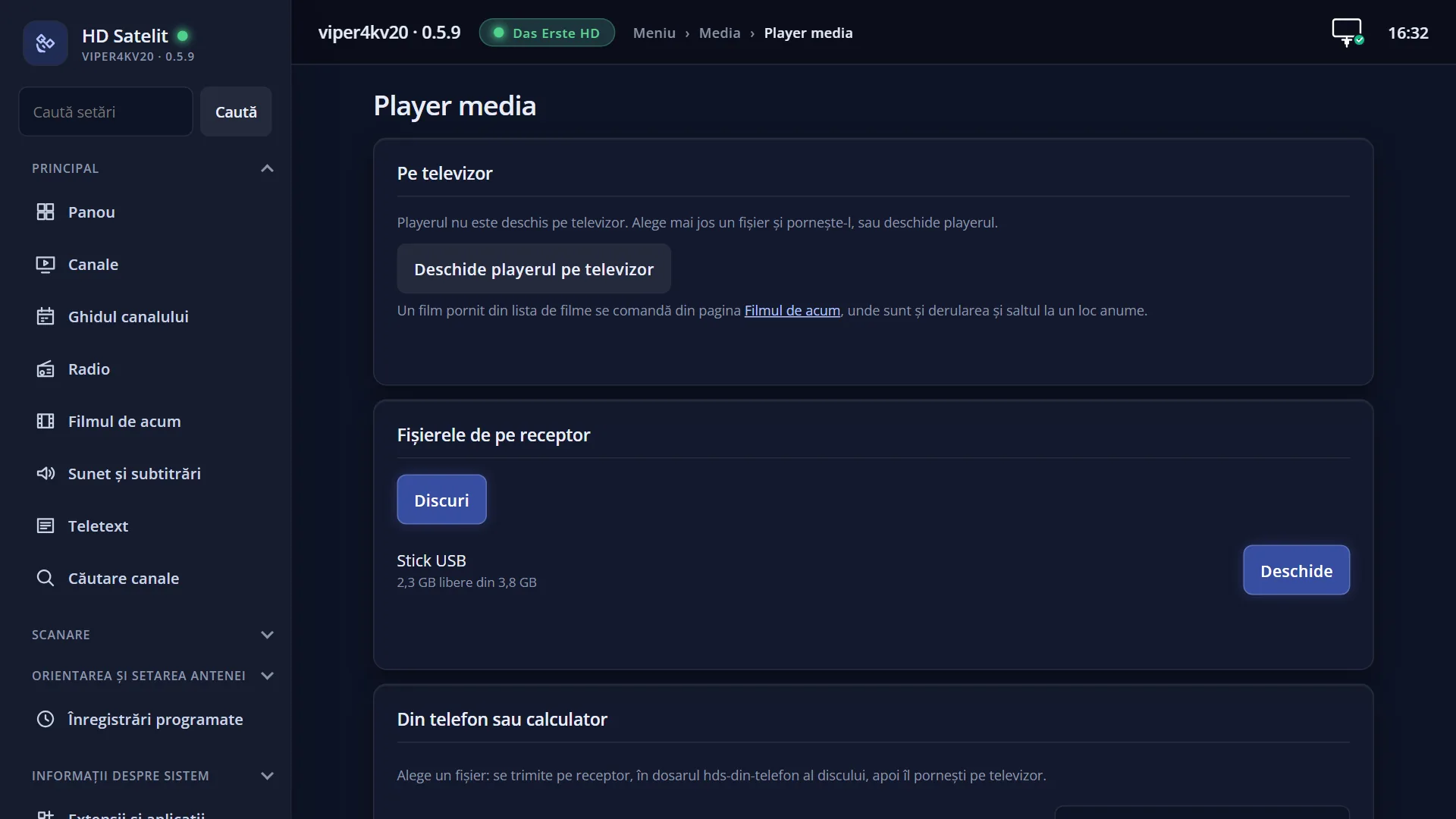
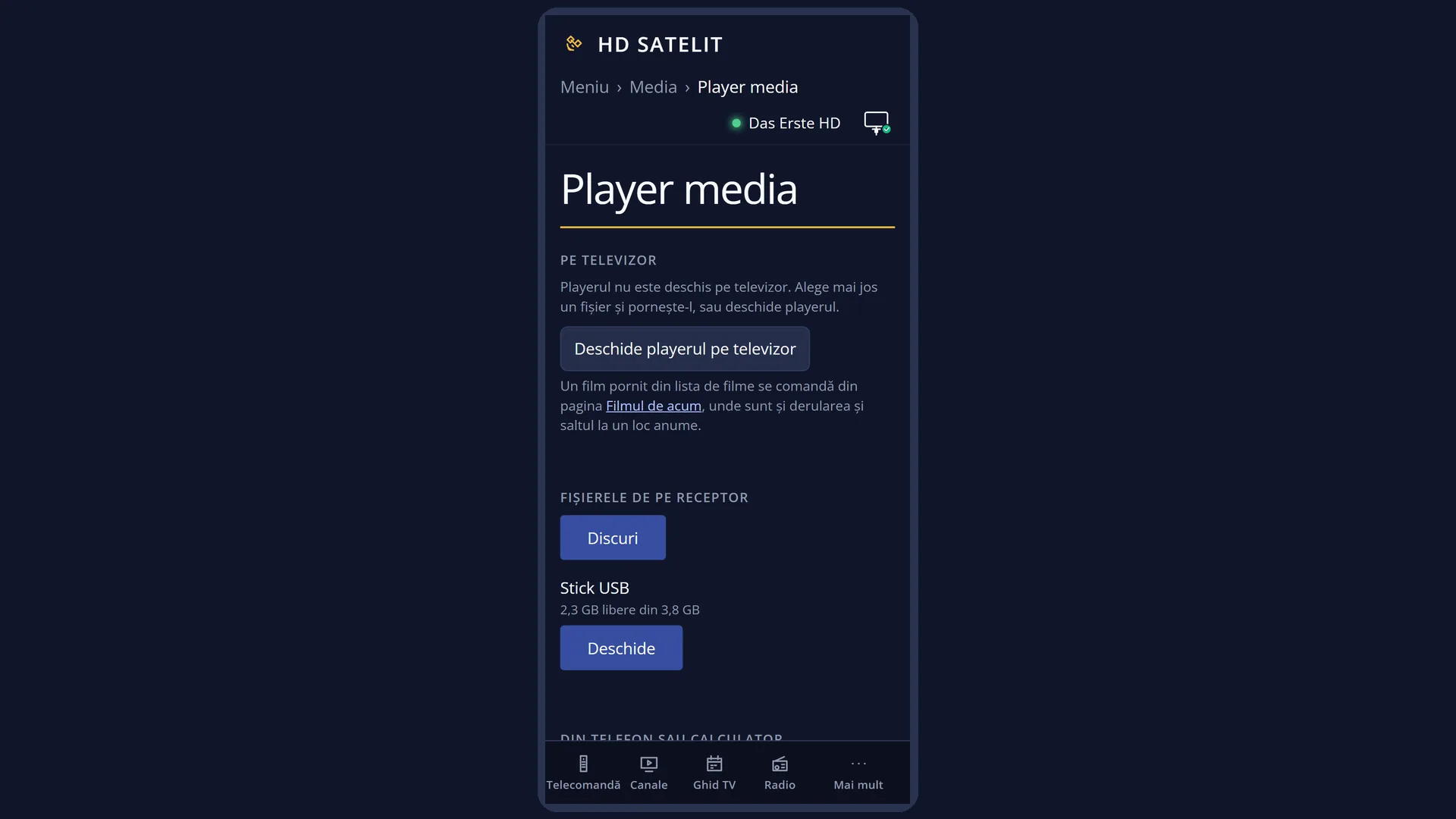
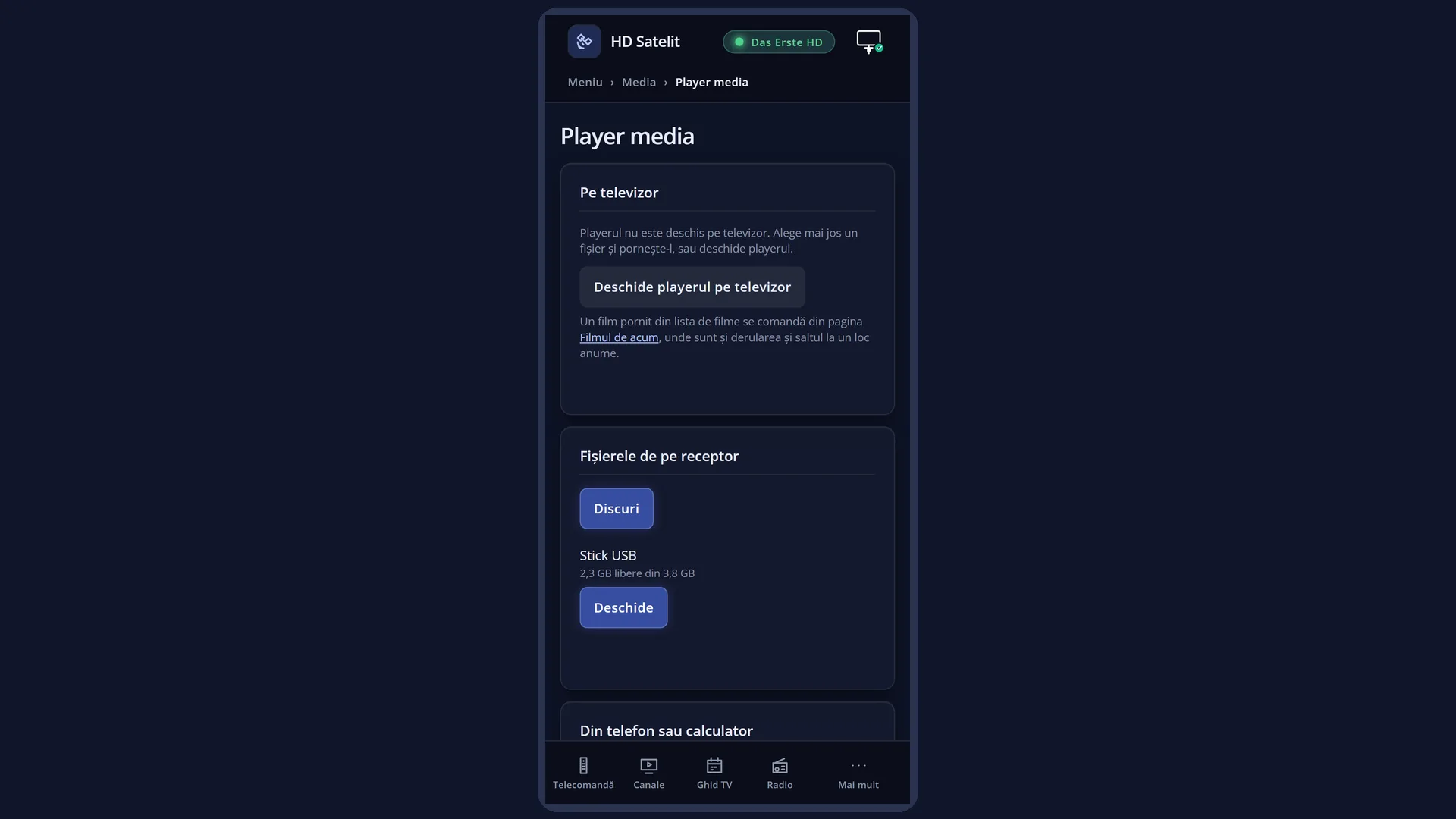
In the web interface: the /player page (you choose a file on the receiver or on your phone and it plays on the TV; “Player settings”).
What you see on the screen
At the top, the title “Media player”, the clock and the date.
At the top left, the bar showing where you are: “Storage devices” at first, then the open folder.
Below it, the list: at first the devices (for example “USB stick” and “Internal memory”), each with a bar and the free space (“2.3 GB free of 3.8 GB”); inside a folder, the subfolders and the files the player can play.
At the bottom left, the details of the selected row: the icon, the name, the type (for example “Storage device”) and the free space with how much is used (“41% used”), or the file size.
At the top right, “Playlist (N)” (or “The playlist is empty”) and the files in it; the one playing has the play symbol in front of it.
At the bottom right, the cover (or an icon with musical notes), the track name and “Artist:”, “Album:”, “Year:”, “Genre:”, then a bar showing how much of the current file has played.
At the bottom, GREEN “Play”, YELLOW “Pause” and the hint: “OK adds to list · MENU options · CH+ / CH− switches list”.
With a film, the player hides and the film fills the whole screen; with music, the player stays on screen.
Rows and settings
| Row | Values | Default | What it does |
|---|---|---|---|
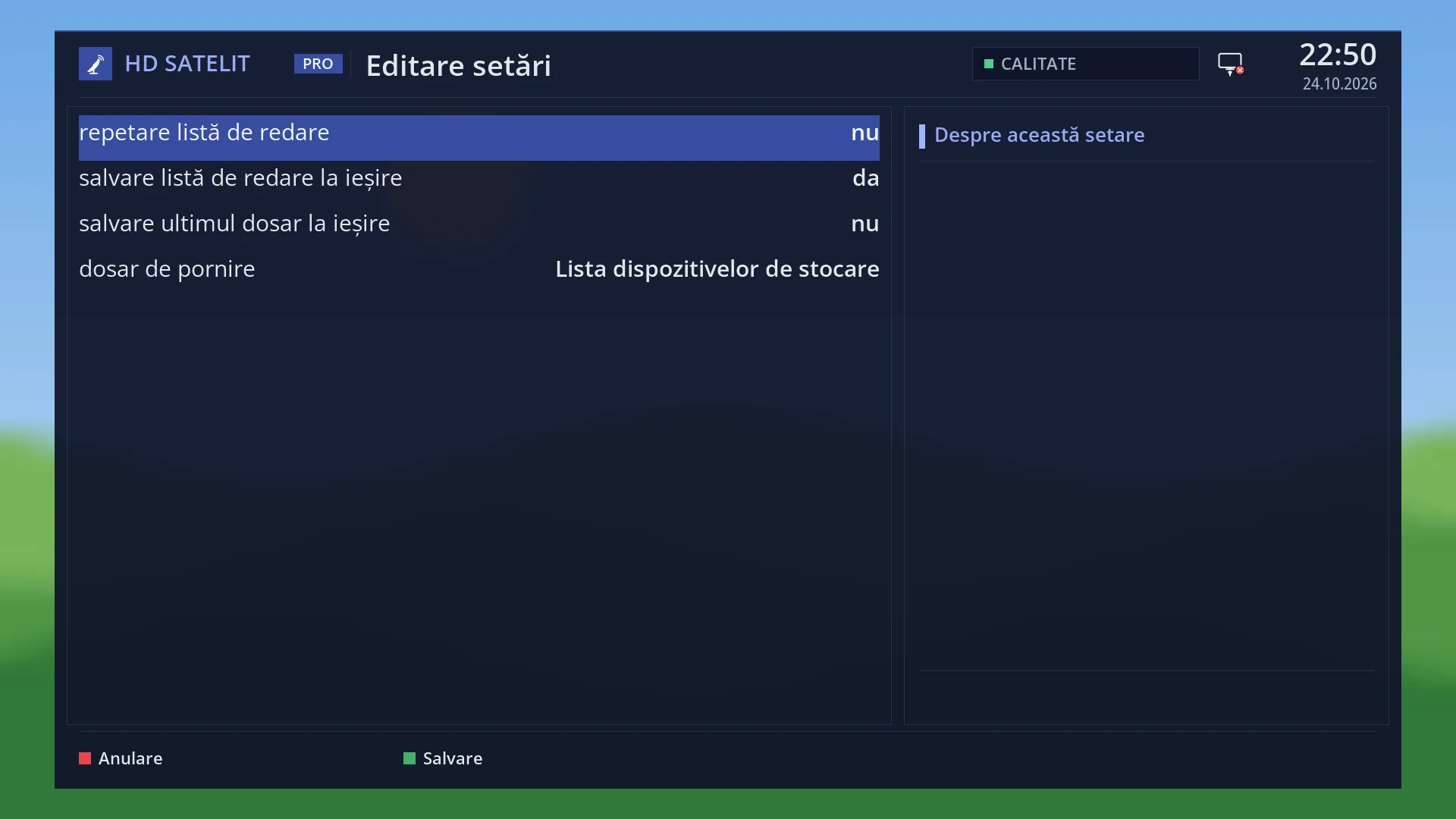
| repeat playlist (MENU > Edit settings) | yes, no | no | Yes: after the last file, the list starts again from the beginning. For background music without stopping. |
| save playlist on exit | yes, no | yes | Yes: the playlist is still there the next time you open the player. No, if you always want to start with an empty list. |
| save last directory on exit | yes, no | no | Yes: the player opens in the folder you were in last time. No: it opens in “start directory”. When you always listen from the same place and do not want to look for it each time. |
| start directory (only with “save last directory on exit” set to no) | a folder chosen with OK | the device list | The folder the player opens in. OK opens “Directory browser”: choose the folder and press GREEN (“Use”). When your films are always in the same folder. |
| Playlist | the files you added | empty (or the one from last time) | What plays, in order; when one file ends, the next starts. From the menu you can clear it, shuffle it, save it under a name (“Please enter filename (empty = use current date)”) or load a saved one. When you prepare a film night or a music list. |
Keys
| UP / DOWN | Moves the cursor in the list you are in (the files or the playlist). |
| LEFT / RIGHT (short press) | The page above or below. |
| LEFT / RIGHT (held for one second) | LEFT switches to the file list, RIGHT to the playlist. |
| CH+ / CH- | CH+ switches to the file list, CH- to the playlist. |
| OK | In the file list: opens the folder, or adds the file to the playlist (if the playlist was empty, it also starts it); an M3U or PLS playlist adds all its files. In the playlist: plays the selected file. |
| GREEN “Play” | In the file list: clears the playlist, puts the whole folder in it and starts from the selected file. On a folder, it adds all of it, with its subfolders. |
| YELLOW “Pause”, PAUSE, PLAY | Pauses or resumes playback. |
| STOP (short press / held) | Short: stops the file that is playing. Held: clears the playlist. |
| RED / BLUE, |<< / >>| | The previous or next file in the list (within the current file, first the previous or next mark, if it has any). |
| rewind / fast forward, 1 / 3, 4 / 6, 7 / 9 | Winding and jumps of 15 seconds, one minute and five minutes, as with recordings. |
| 2 / 8 | Jump to the start or end of the list you are in. |
| 0 | Sets or removes a mark at the current position in the file. |
| EMC | In the playlist: removes the selected file from the list. |
| REC (held) | Shuffles the playlist. |
| TTX or SUBT | Choose the film's subtitles. |
| AUDIO | The sound track; held, turns two-channel AC3 sound on or off. |
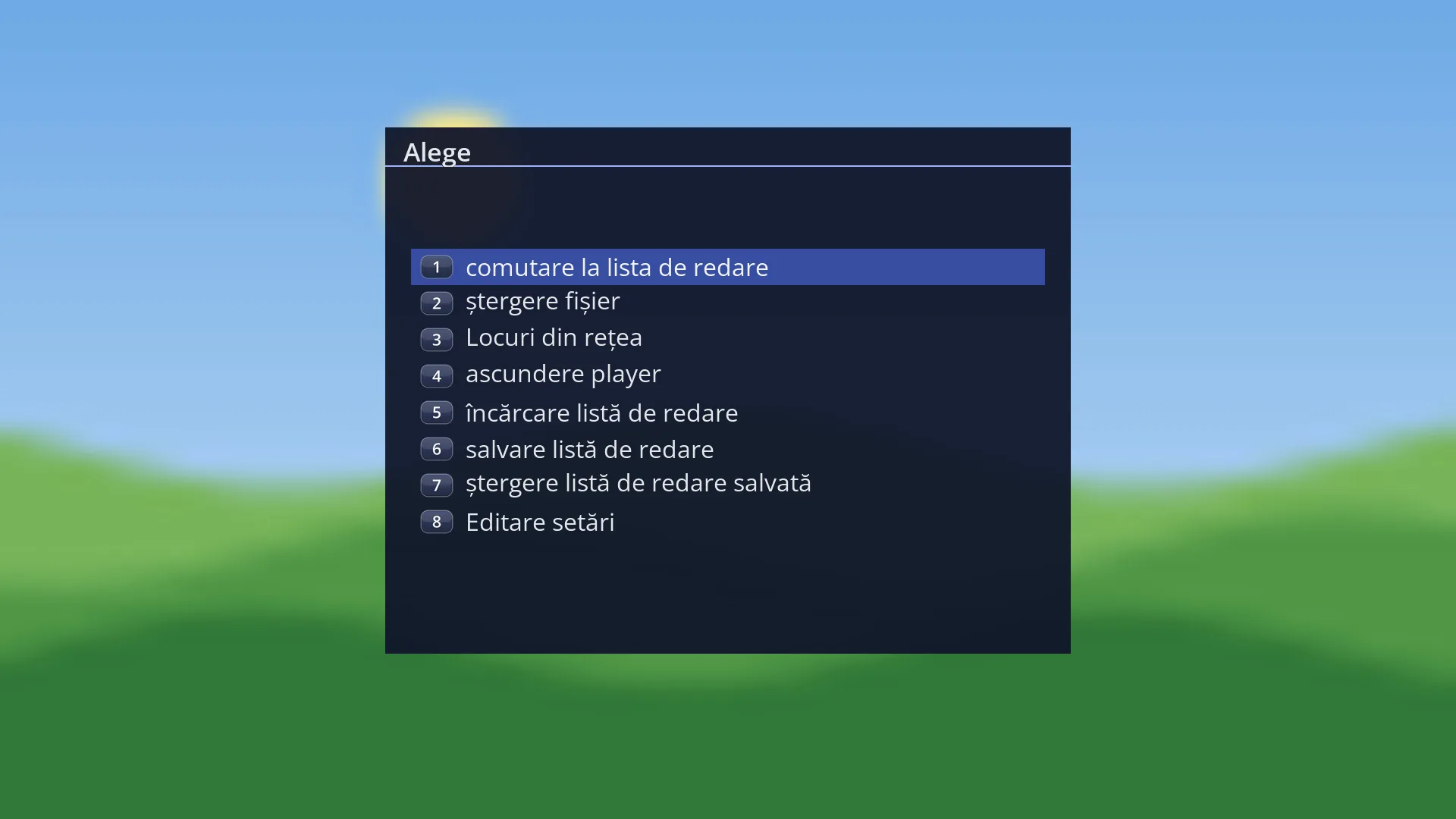
| MENU | The player menu: “add directory to playlist” or “add files to playlist”, “switch to playlist / filelist”, “delete file”, “clear playlist”, “Delete entry”, “shuffle playlist”, “Network places”, “hide player”, “load / save playlist”, “delete saved playlist”, “Edit settings”. |
| INFO | The details of the selected file, when it has any. |
| EXIT | Closes the player and starts the previous channel again; the playlist is kept (depending on the setting). |
Step by step
Playing a film from a USB stick
- Plug in the USB stick and press MENU 8 1 (or Mplay).
- Press OK on “USB stick”; open folders with OK.
- Press OK on the film: it goes into the playlist and starts. If you have watched it before, answer “Resume where you stopped?”.
- STOP takes you back to the player; EXIT closes it.
Listening to a whole album
- Open the album folder.
- On the first track, press GREEN (“Play”): the whole folder goes into the list and starts from that track.
- BLUE or >>| skips to the next track; holding REC shuffles the list.
Saving a playlist
- Add the files with OK.
- Press MENU and choose “save playlist”.
- Type a name (or leave it empty for today's date) and press OK. Another time: MENU, “load playlist”.
Problems and solutions
I cannot see the USB stick in the list.
Leave the player with EXIT and open it again after plugging in the USB stick. If it still does not appear, try another USB port or check the USB stick on a computer.
I cannot see the file in the folder.
The player only shows files it can play (films, music, playlists). Pictures are shown in “Photos”.
It says “This film cannot be played on this receiver.”, with “The picture is in … format, which the receiver does not support.”
The receiver does not know the picture (or sound) format in the file. Convert the film on a computer to a common format (for example MP4 with H.264 video).
It says “The film plays without sound.”
The receiver does not know the sound format; the picture works. Choose another sound track with AUDIO, if there is one.
It says “The file cannot be read. Check that the USB stick or disk is still connected.”
The USB stick was disconnected or the file is damaged. Plug the USB stick in again and try again.
It says “The receiver's decoder has run out of memory. Restart the receiver.”
Restart the receiver from Menu > Power & Restart; the film will then play.
The subtitles do not appear.
The subtitle file name must start with the film's name, and the file must be next to the film (or in the “Subs” subfolder). Press SUBT to choose it; see also “Movie subtitles”.
On exit, the previous channel did not start again.
If you started a channel from the web interface or your phone in the meantime, the player closes and that channel stays on.