

DAB+ via satellite
English screenshots coming: some of the pictures below still show the receiver and the web interface in Romanian. The rows, keys and steps described on this page are the English ones.
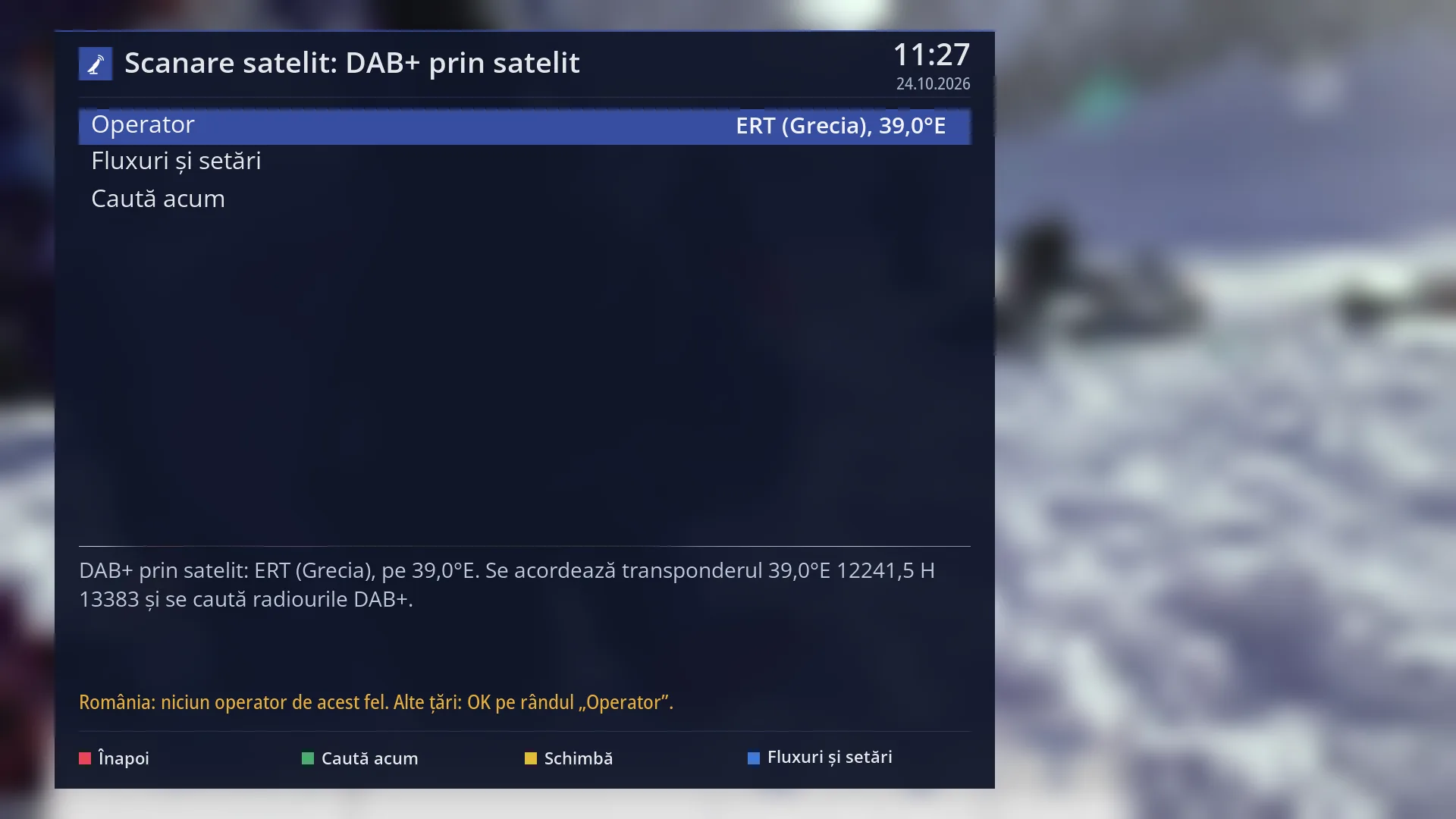
- 1 The kind of search: DAB+ via satellite.
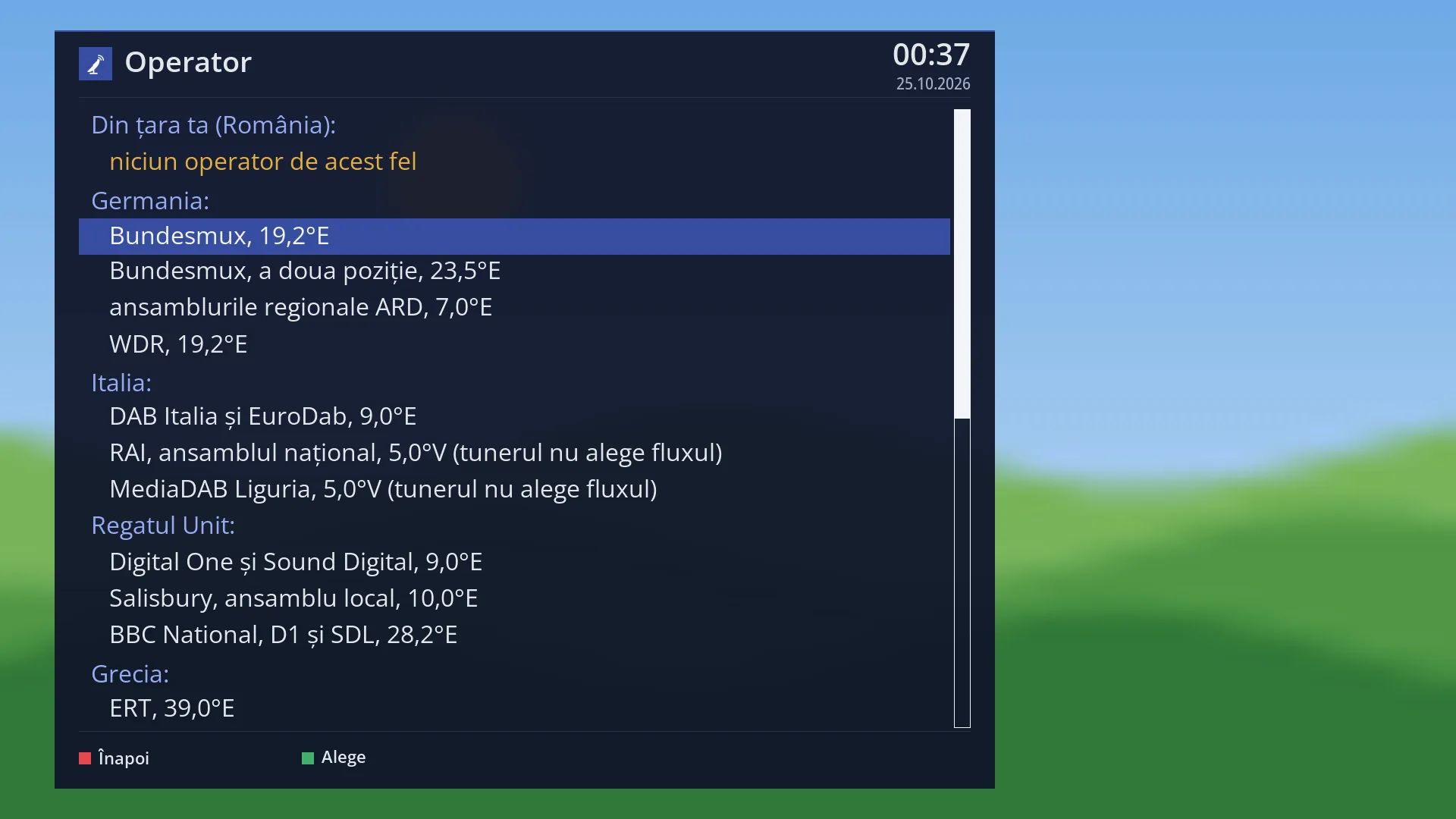
- 2 The provider and the position of its satellite; OK opens the list, grouped by country.
- 3 The window with the DAB+ streams from satellite.
- 4 OK here shows the plan and starts the search.
- 5 The transponder that is tuned.
- 6 For Romania: no provider of this kind.
- 7 RED back, GREEN search, YELLOW change, BLUE streams and settings.
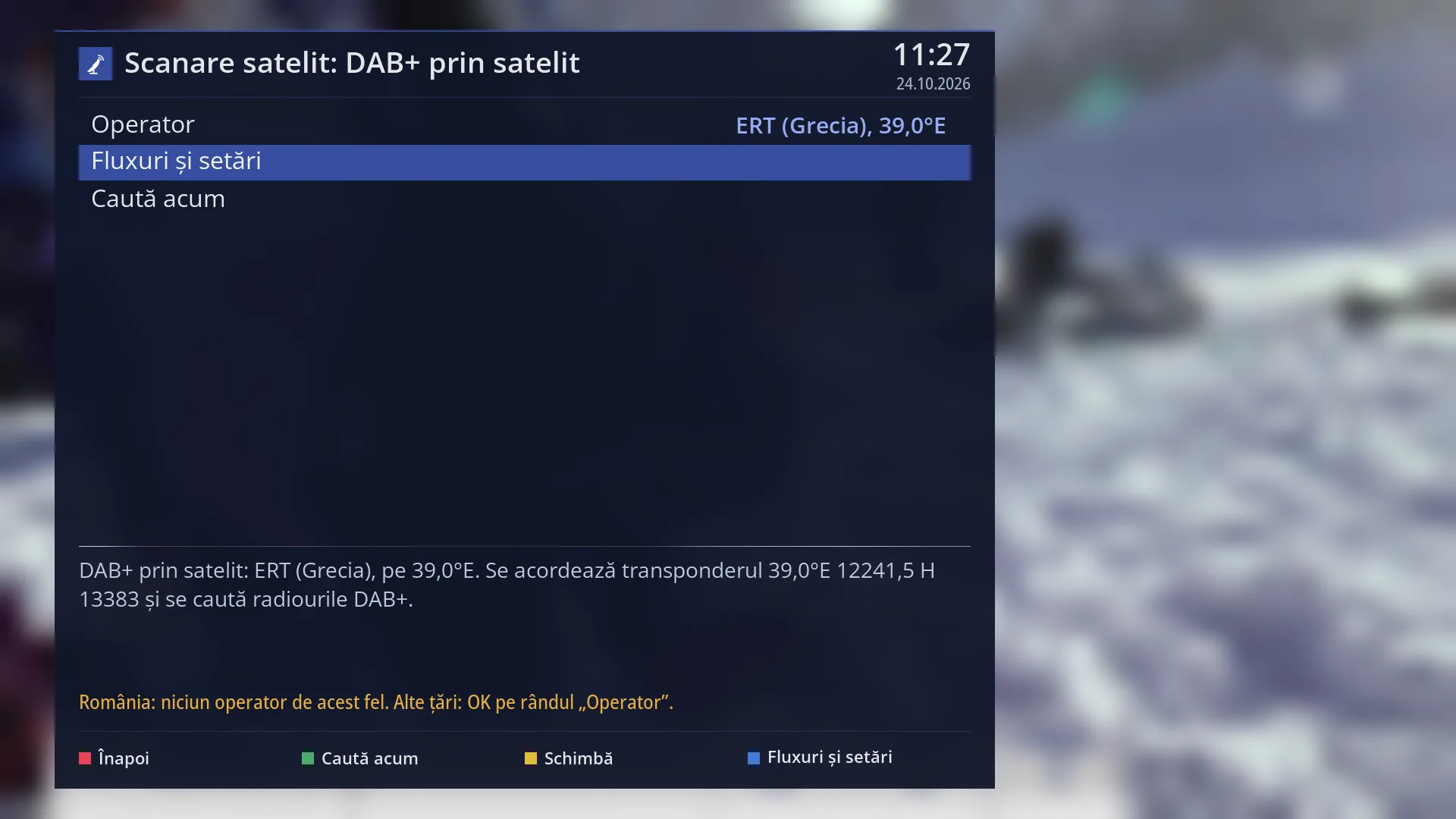
- 1 The selected row: “Streams and settings”.
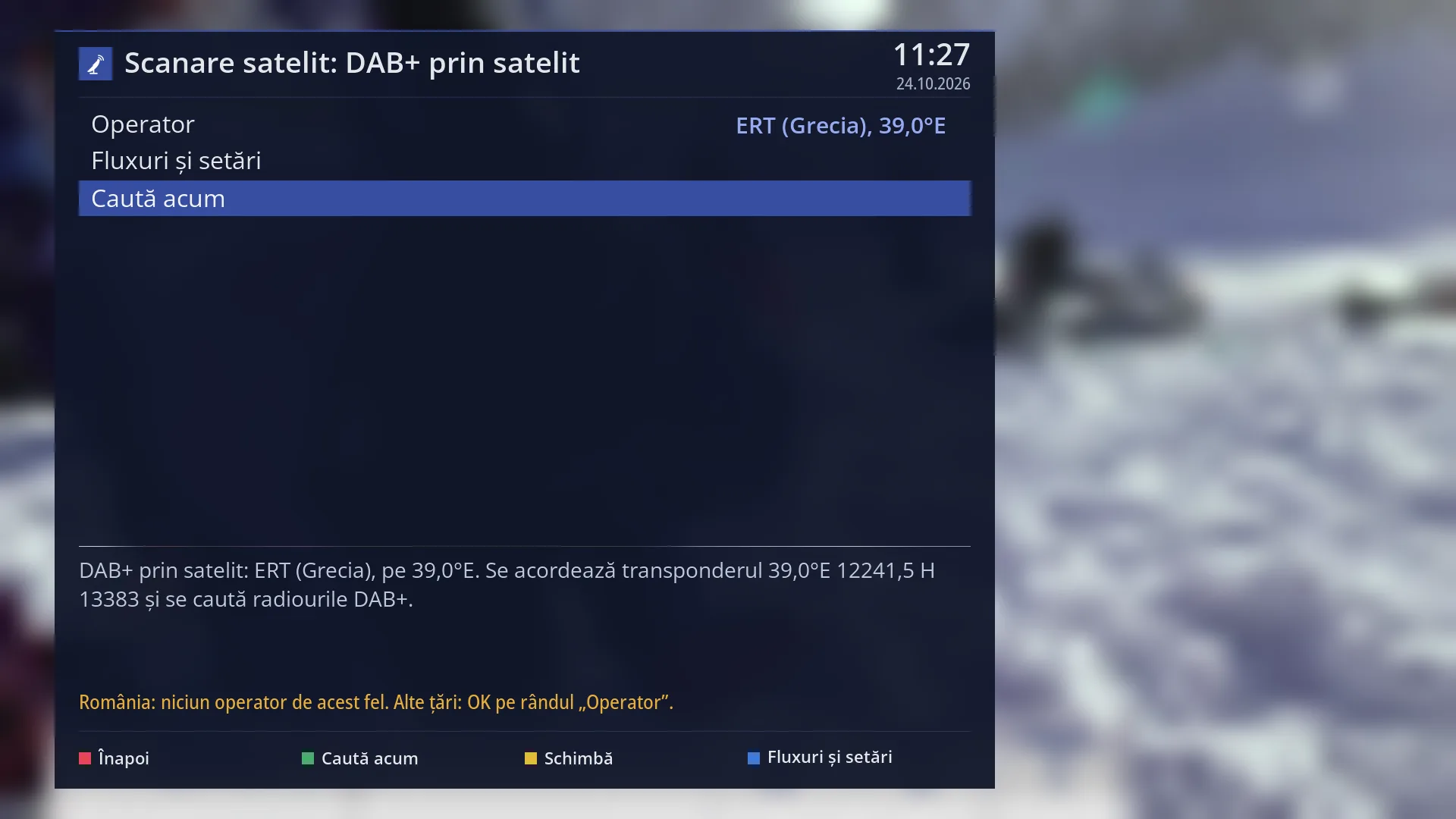
- 1 The selected row: “Search now”.
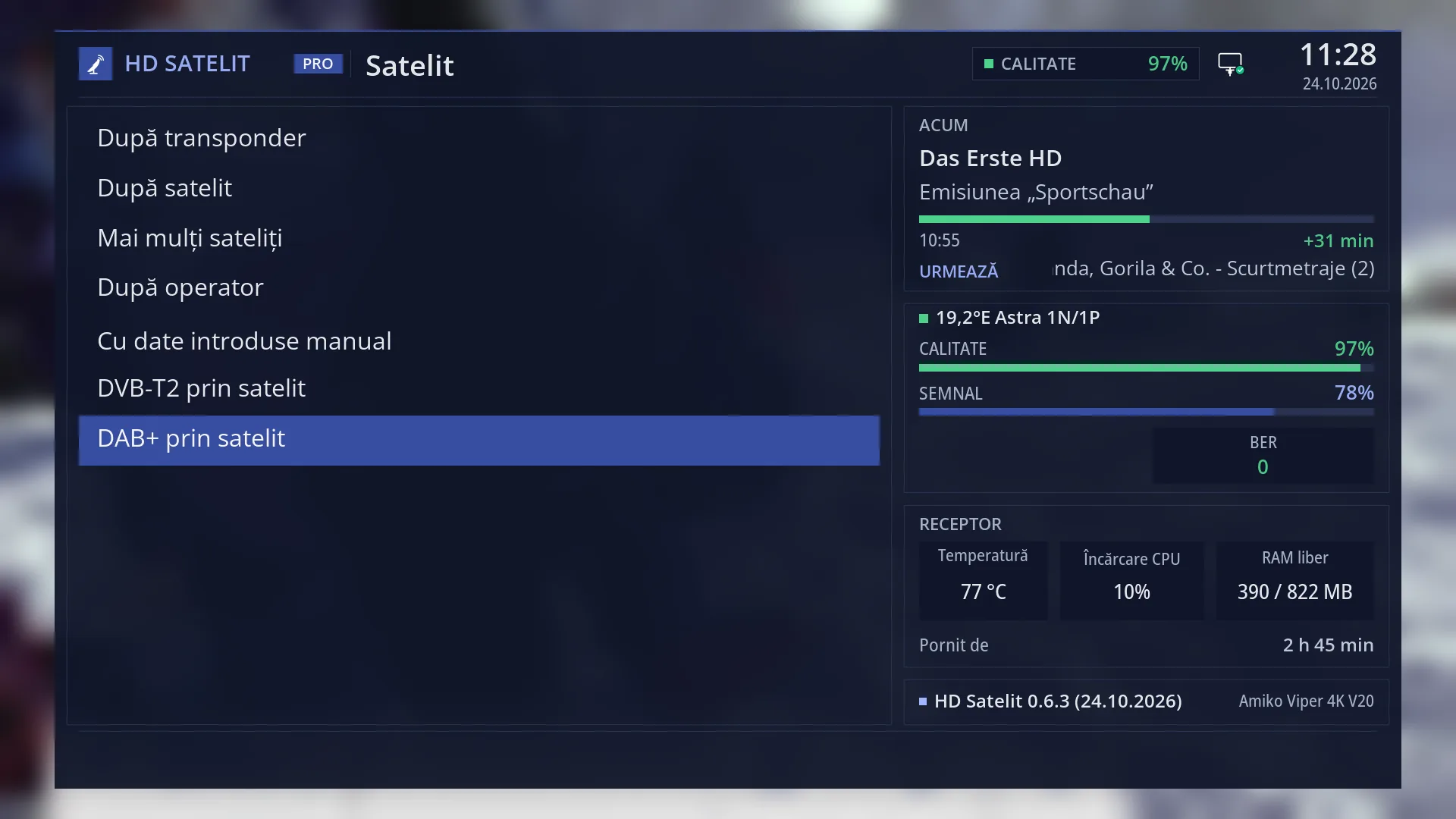
What it is for
“DAB+ via satellite” finds the DAB+ digital radio stations that some providers send by satellite to reach their transmitters. It adds them to the channel list, under Radio, in the “DAB+ from satellite” bouquet.
This is not a normal search. The receiver tunes to the transponder that carries the stations, looks there for DAB+ ensembles (packages of stations) and reads the station list of each one. It takes about half a minute, plus the time the dish needs to turn. An ensemble with no list in the signal is read separately, which can take up to 45 seconds more.
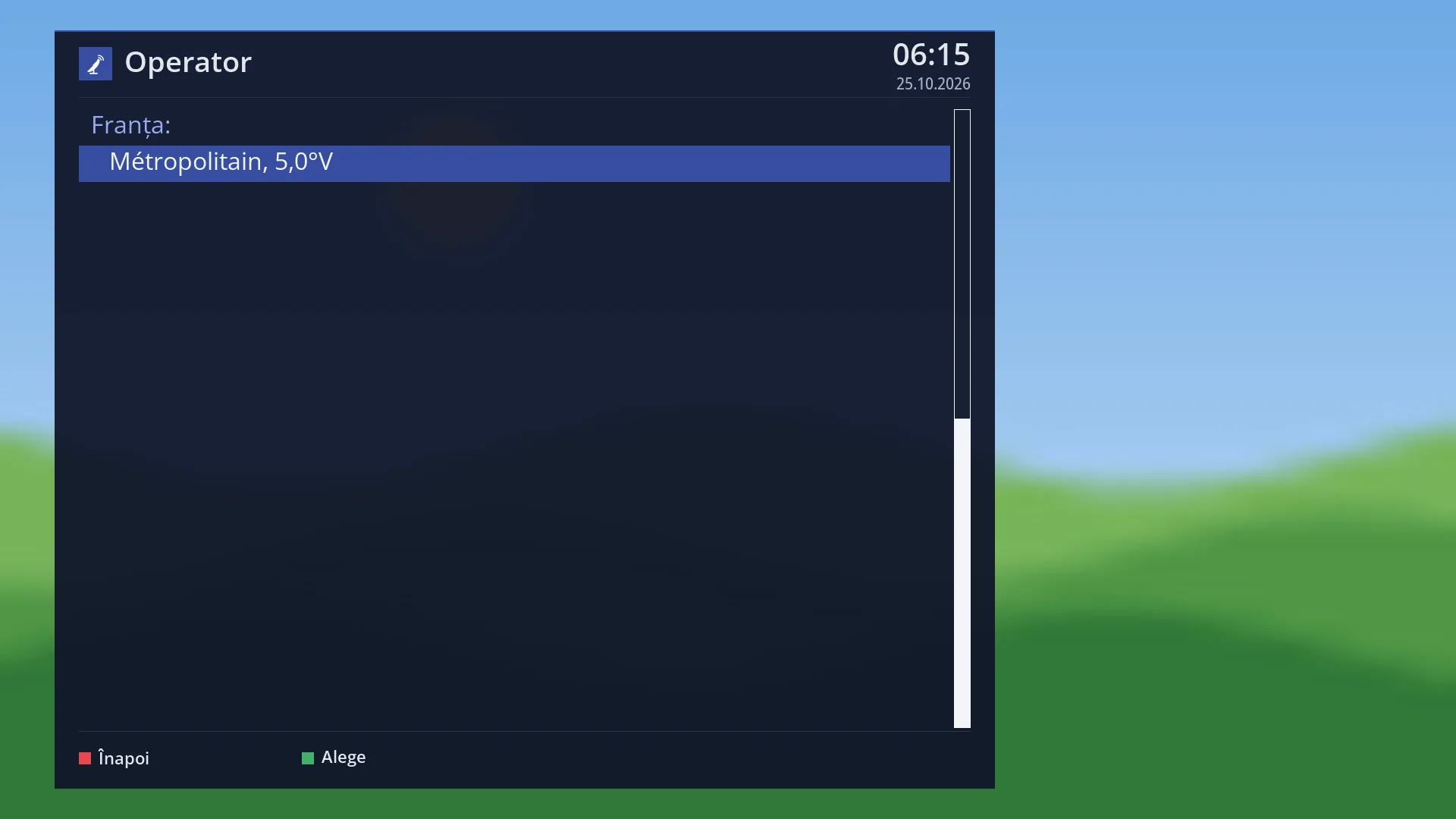
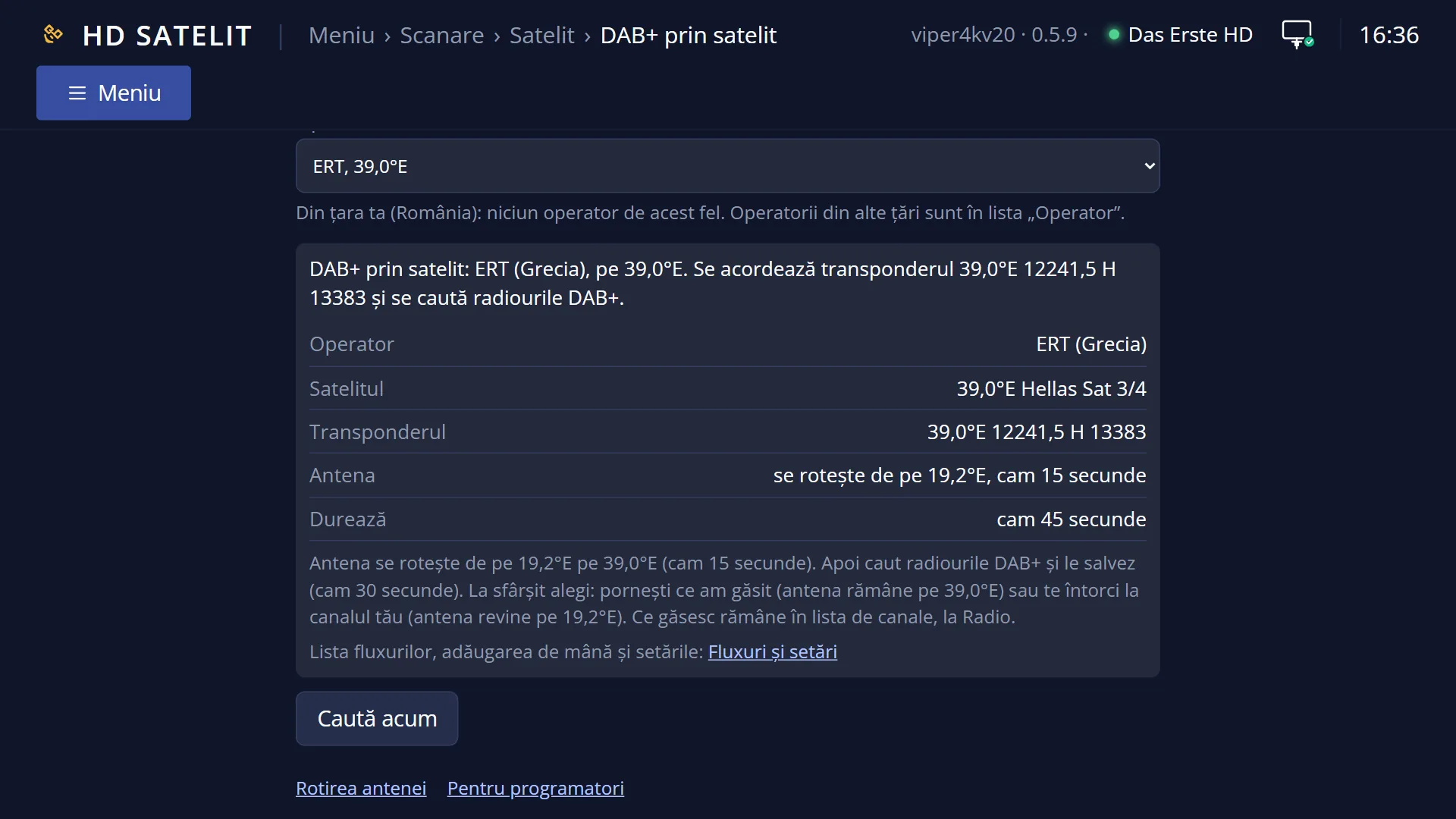
You only choose the provider. There is none for Romania, and the screen tells you so. The list has providers from Germany, Italy, the United Kingdom, Greece and France, grouped by country. Some broadcast on transponders with several streams and only work if the tuner can choose the stream.
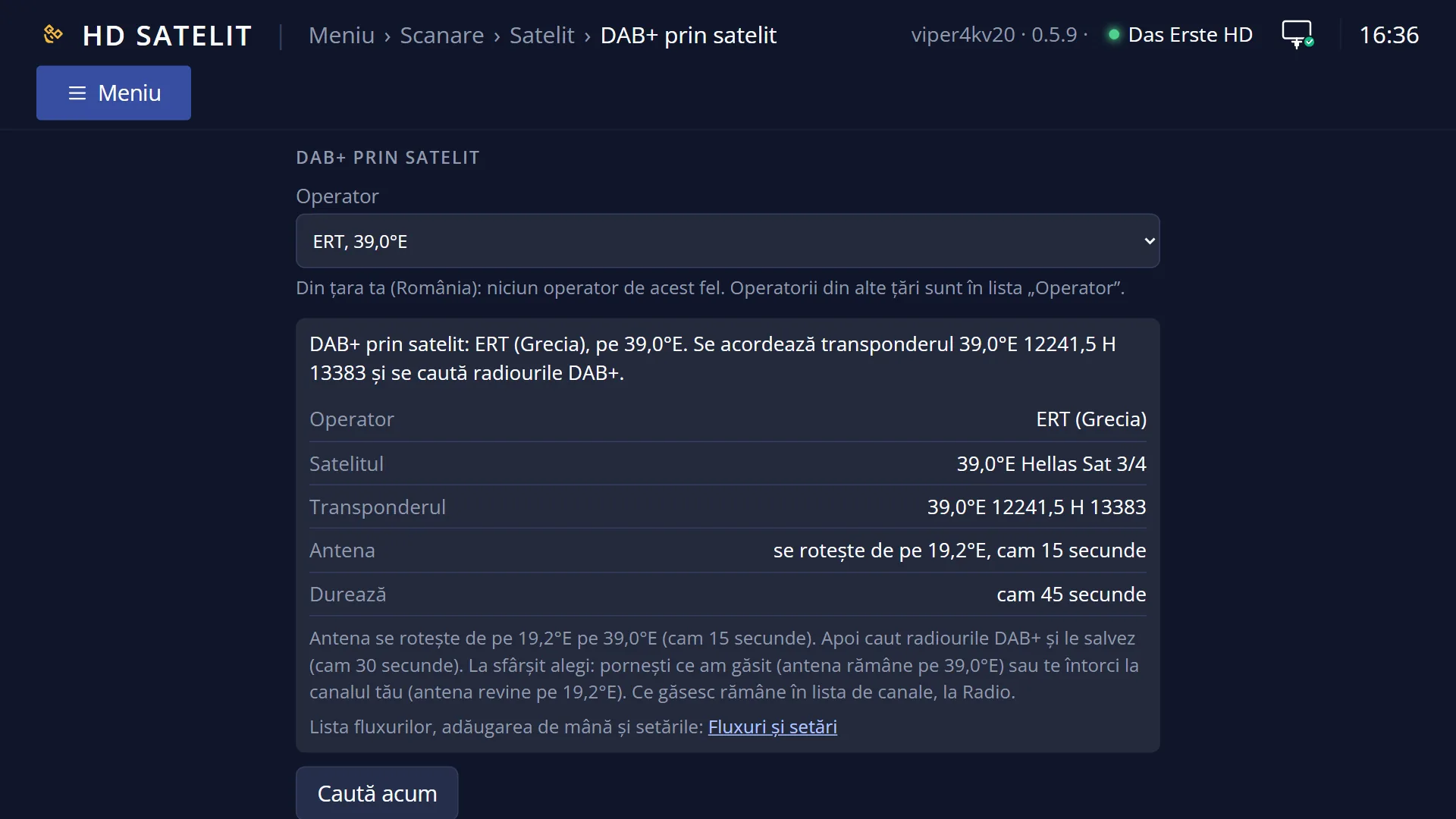
Before the search starts, a screen tells you what will happen: the satellite, the transponder, where the dish turns and how long it takes. At the end you choose: you listen to a station that was found (the dish stays on the satellite) or you go back to your channel (the dish turns back).
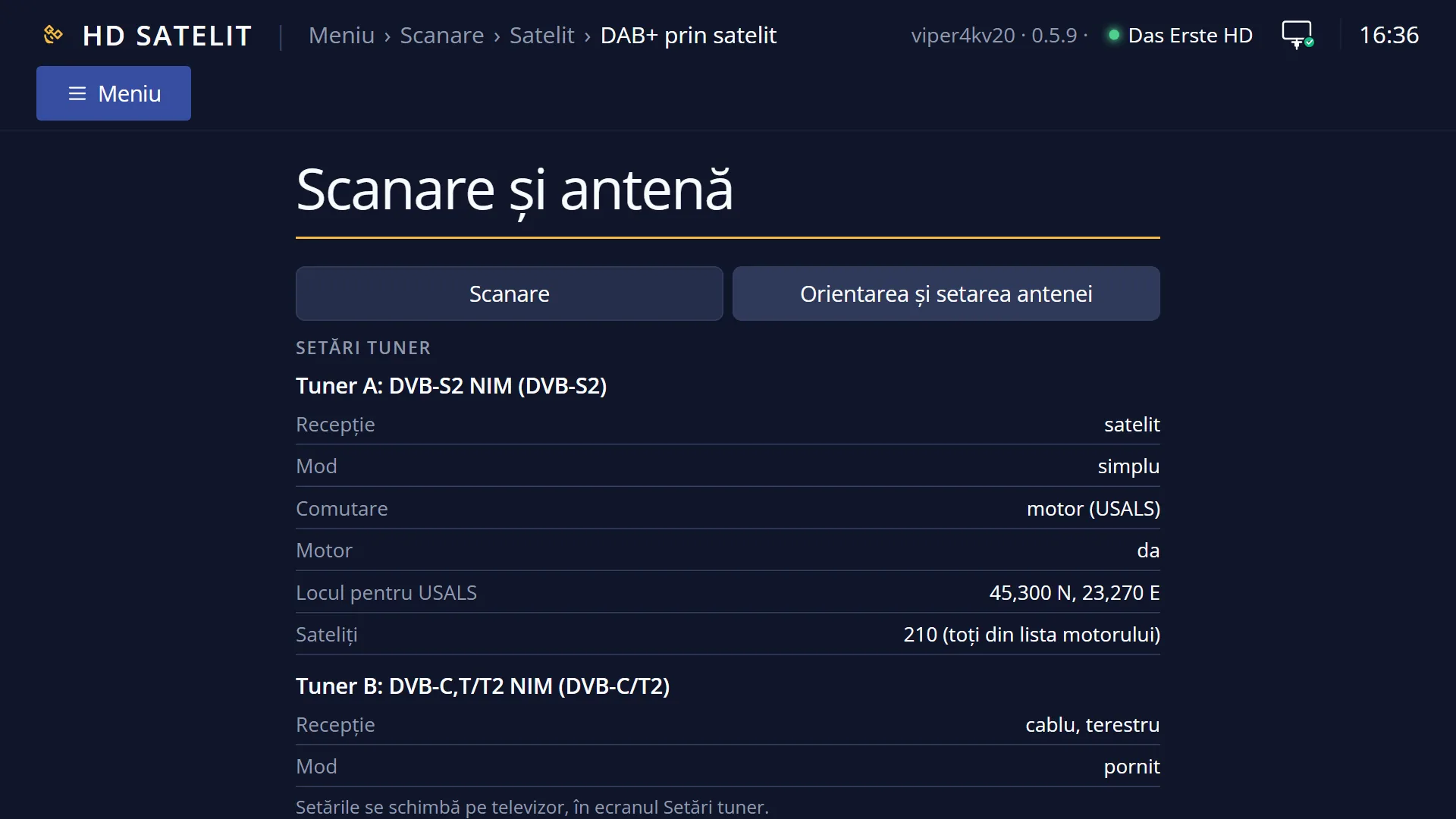
The “Streams and settings” row (or the BLUE key) opens the window with the DAB+ streams from satellite. The same kind of search is also in the web interface, on the /scanare/satelit/dab page.
How to get here
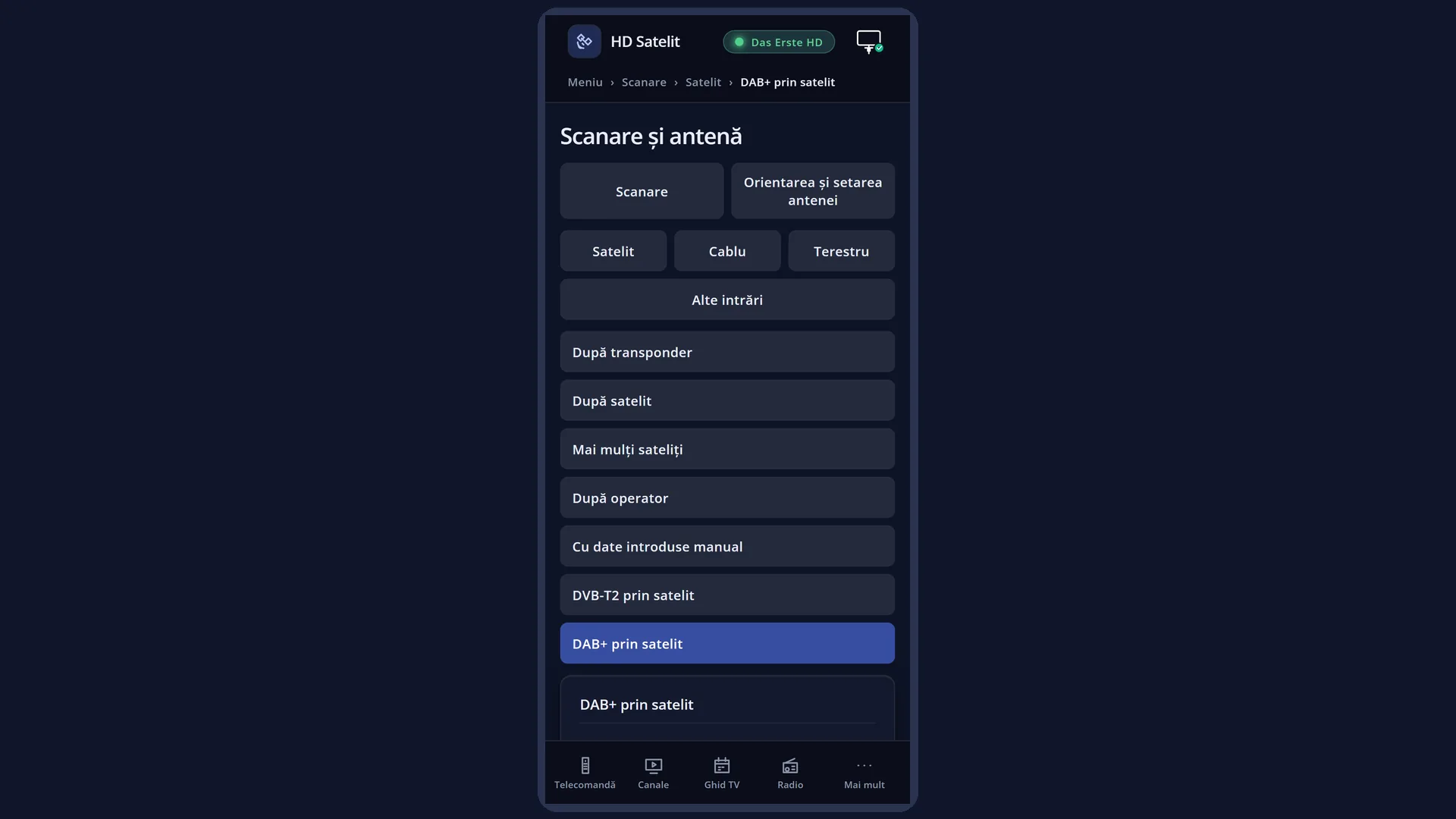
Path: Main menu > Channel scan > Satellite > DAB+ via satellite
Keys on the TV: MENU 1 1 7
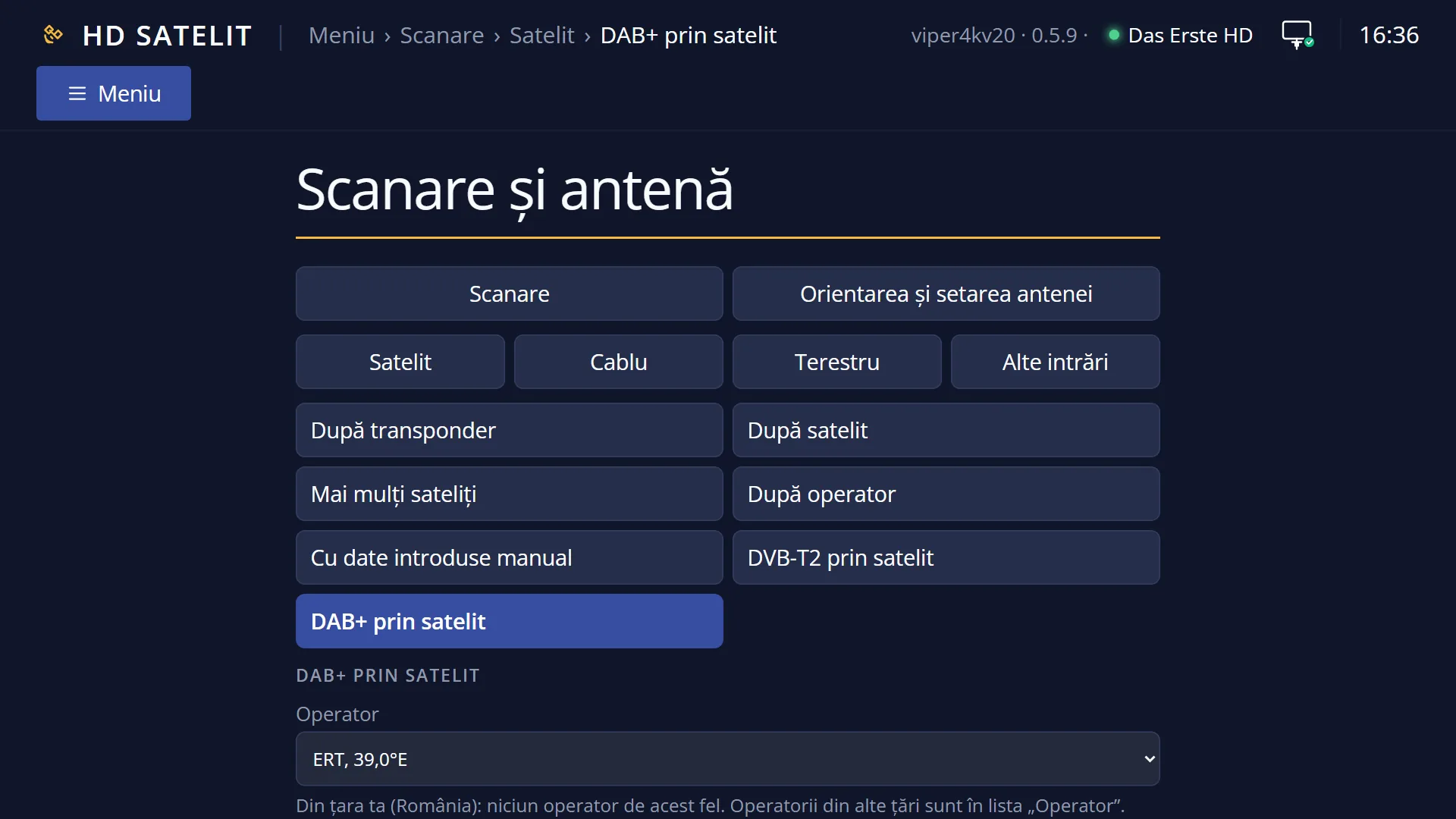
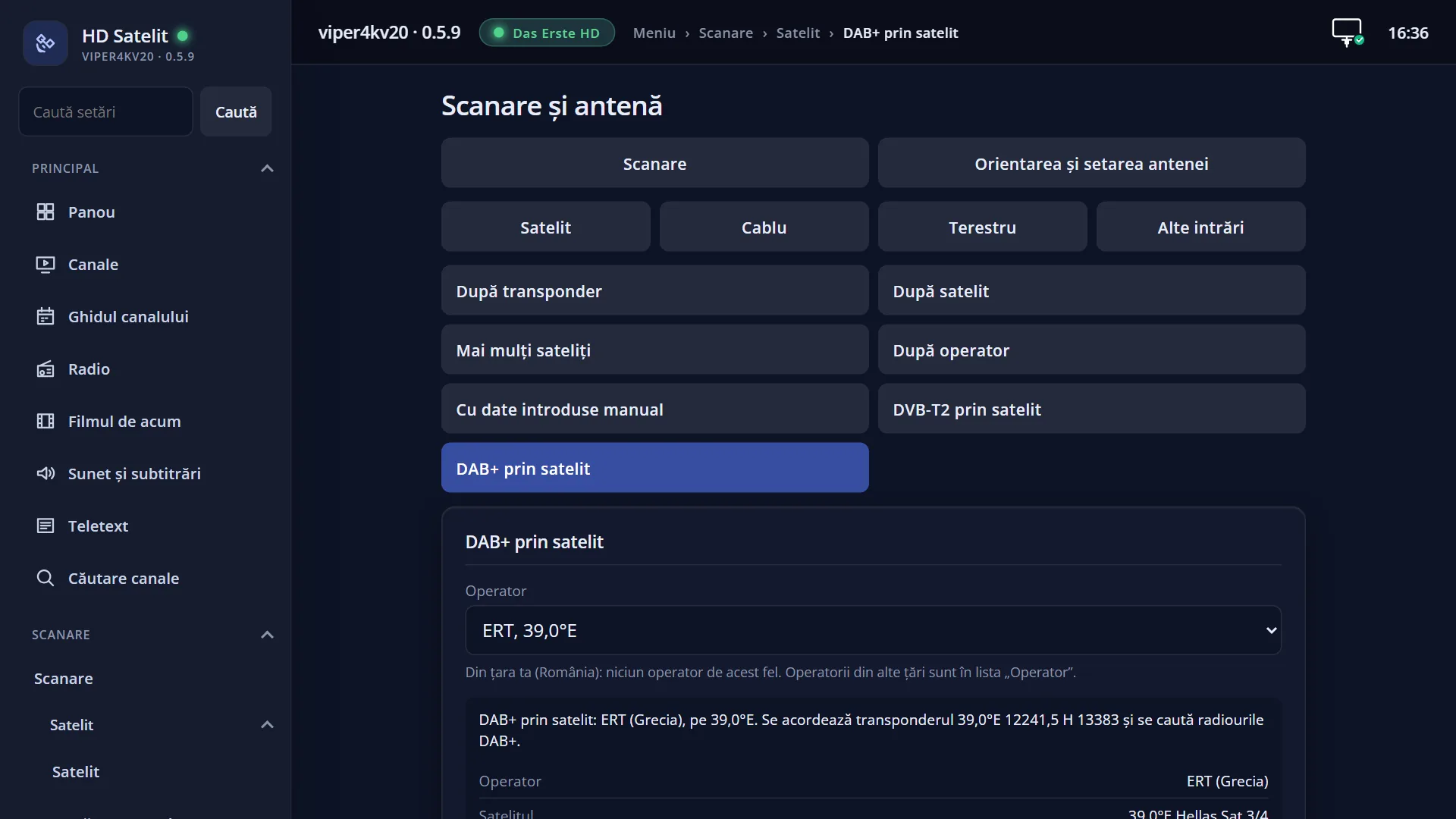
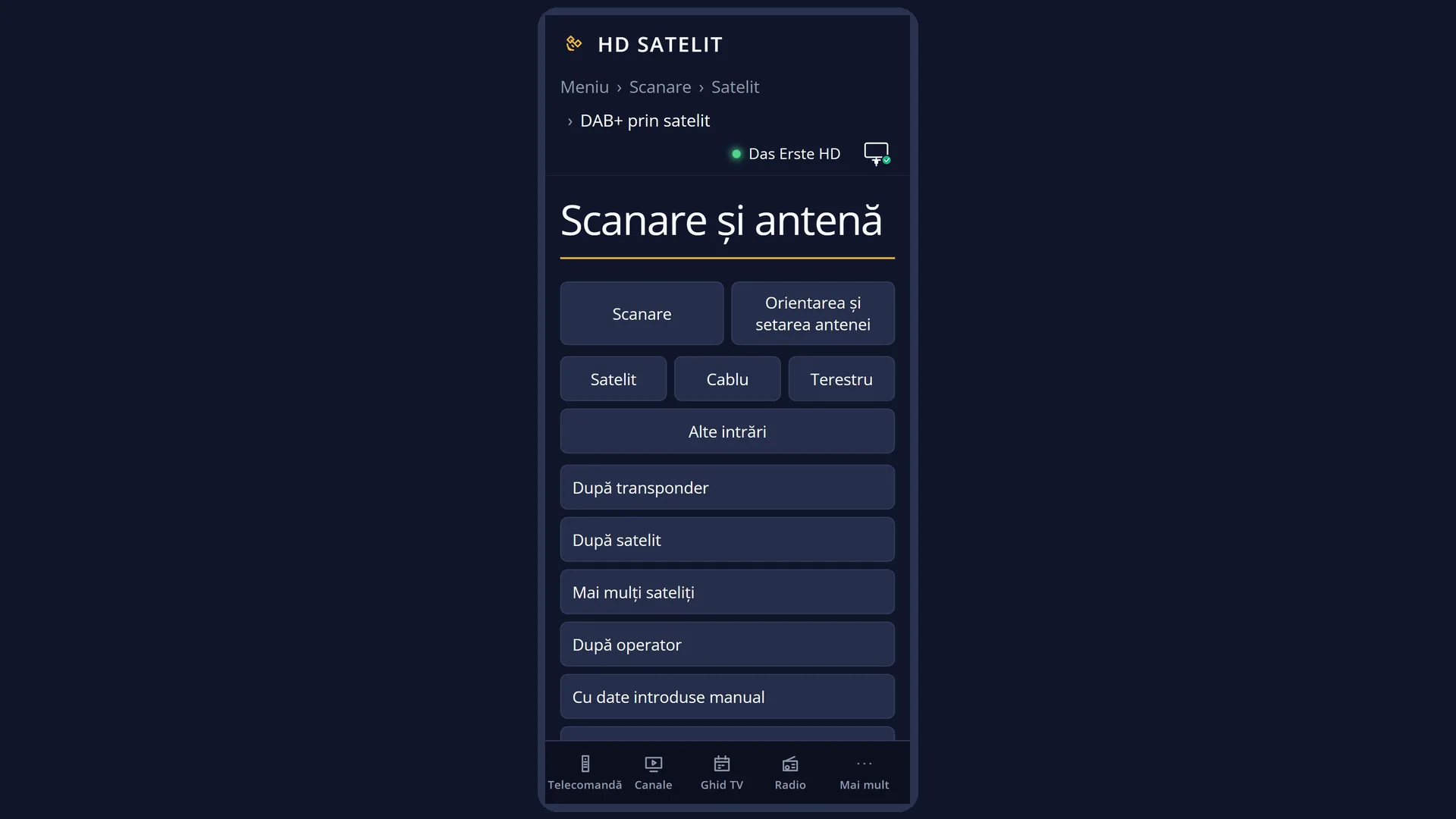
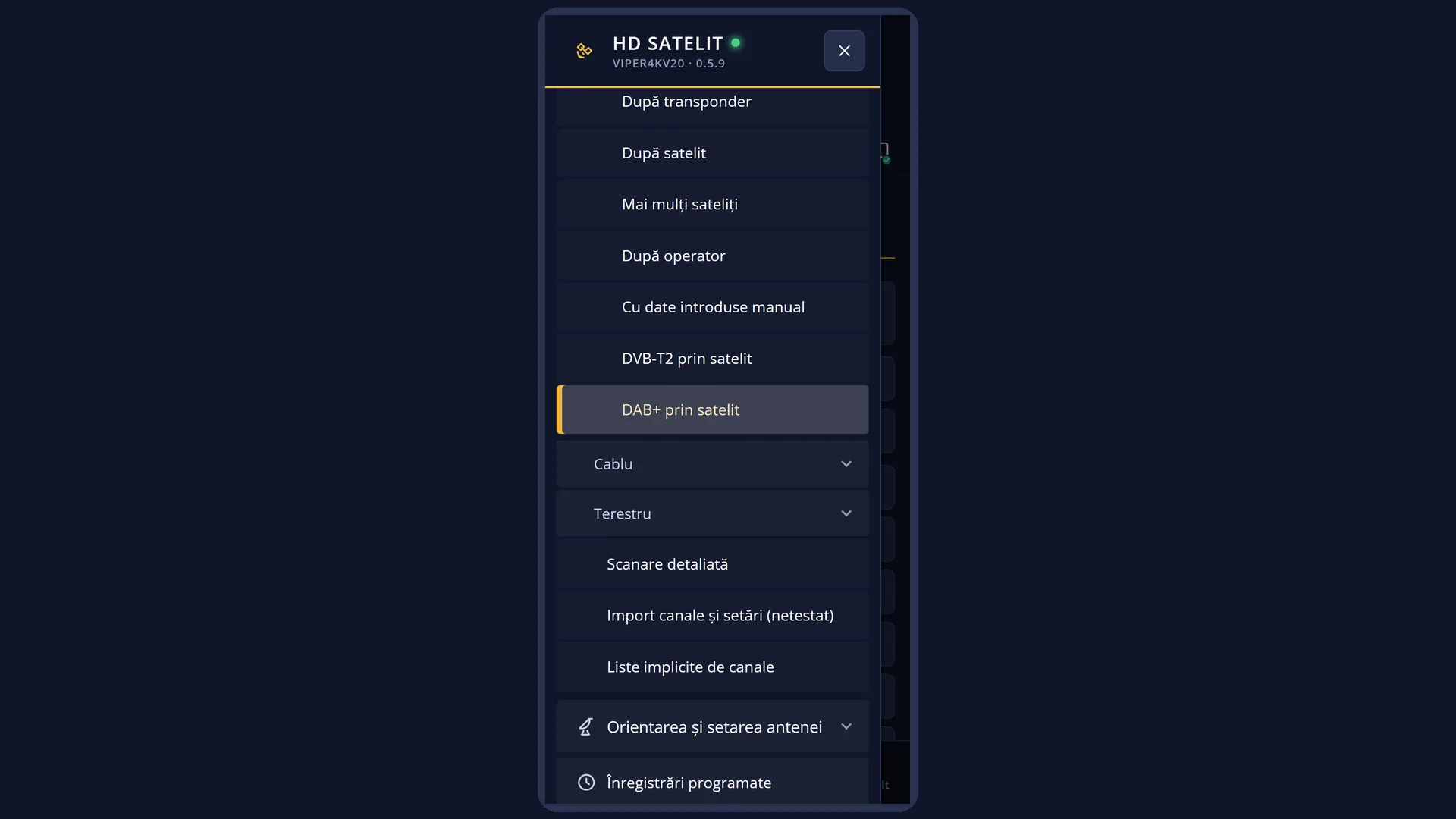
In the web interface: the /scanare/satelit/dab page (“Channel scan” tab, “Satellite” group, “DAB+ via satellite” button).
What you see on the screen
At the top you see the title “Satellite scan: DAB+ prin satelit”, the time and the date. In the Pro theme, the blue square with the logo is to the left of the title.
The list has three rows: “Provider”, with the provider and the satellite position (for example “ERT (Greece), 39.0°E”), “Streams and settings” and “Search now”.
Below the list is the preview: “DAB+ via satellite: ERT (Greece), on 39.0°E. Tuning transponder 39.0°E 12241.5 H 13383 and searching for the DAB+ radio stations.”. When a search is not possible, the reason is shown here.
Underneath, in yellow, is the status line. For Romania: “Romania: no provider of this kind. Other countries: OK on the “Provider” row.”.
At the bottom are the colour keys: RED “Back”, GREEN “Search now”, YELLOW “Change”, BLUE “Streams and settings”.
After “Search now”, the “DAB+: before scanning” screen opens. It has the rows “Provider”, “Satellite”, “Transponder”, “Dish” (for example “fixed, no turning”, “turns from 19.2°E, about … seconds” or “stays on 19.2°E”) and “Duration”, then “Start the scan” and “Cancel”. Underneath, the same plan is written out in sentences.
During the search the title is “DAB+: scan in progress”. You see the rows “Satellite”, “Step” (“tuning and turning the dish”, “looking for DAB+ ensembles”, “saving what I found”, “reading the station list”), the ensembles found so far with the number of stations in each (they appear while the detector is still working), and “Stop the scan”. The status line shows how much time has passed.
At the end the title is “DAB+: stations found” (or “nothing found”, “the scan failed”). You see each ensemble, in yellow and with its number of stations, then its stations, each with “Listen” on the right, and at the bottom “Back to my channel” (or “Close”). If nothing was found, “Search again” appears.
Rows and settings
| Row | Values | Default | What it does |
|---|---|---|---|
| Provider | Bundesmux (Germany), 19.2°E, Bundesmux, second position (Germany), 23.5°E, ARD regional ensembles (Germany), 7.0°E, WDR (Germany), 19.2°E, DAB Italia and EuroDab (Italy), 9.0°E, RAI, national ensemble (Italy), 5.0°W, MediaDAB Liguria (Italy), 5.0°W, Digital One and Sound Digital (United Kingdom), 9.0°E, Salisbury, local ensemble (United Kingdom), 10.0°E, BBC National, D1 and SDL (United Kingdom), 28.2°E, ERT (Greece), 39.0°E, Métropolitain (France), 5.0°W | the first provider that the dish sees and the tuner can tune to (with the dish on 19.2°E or with a motor: Bundesmux) | The provider whose transponder is searched. Next to a provider you cannot search right now you see “(the dish does not see the satellite)” or “(the tuner does not choose the stream)”. The chosen provider is remembered separately from the one in “By provider” and the one in “DVB-T2 via satellite”. When you want the stations of another provider. |
| Streams and settings | OK on this row (or the BLUE key) opens the window with the DAB+ streams from satellite: the streams the receiver knows, adding a stream by hand and their settings (see the page “DAB+ and DVB-T2 from satellite in the list”). When you want to see or add streams, not search. | ||
| Search now | OK on this row (or GREEN) opens the “DAB+: before scanning” screen, with the search plan. The search only starts with “Start the scan”. After you have chosen the provider. | ||
| Dish (on the screen before the scan) | fixed, no turning, turns from …, about …, turns to …, up to …, stays on … | What the dish does during the search. With a motor, the turning time is worked out from the distance between the satellites. When the dish position is not known, the longest time is given. | |
| The channel on screen during the search | There is only one satellite tuner, so the channel on screen stops when the search starts. At the end it does not start by itself: you choose a station that was found or “Back to my channel”. If you leave before choosing, your channel starts again. | ||
| The stations found | They are saved in the channel list, under Radio, in “DAB+ from satellite”. OK on a station starts it (the dish stays on the searched satellite). The radio list remembers the bouquet and the station (the RADIO key usually opens it there), and CH+ and CH- move through that bouquet. When several stations have the same name, the service number of each is written after the name. |
Keys
| UP / DOWN | Moves the cursor to the row above or below. From the last row, DOWN goes to the first, and the other way round. |
| LEFT / RIGHT | On “Provider”, they go to the previous or next provider without opening the list. |
| OK | On “Provider” it opens the list of providers; on “Streams and settings” it opens the streams window; on “Search now” it opens the search plan. |
| GREEN | Opens the search plan from any row (the screen shows “Search now”). |
| YELLOW | On “Provider” it opens the list, like OK (the screen shows “Change”). On the other rows it does nothing. |
| BLUE | Opens the window with the DAB+ streams from satellite (the screen shows “Streams and settings”). |
| RED or EXIT | Closes the screen and takes you back to the Satellite menu. The chosen provider is remembered. |
| On the screen before the scan: GREEN / RED | GREEN (“Start”) starts the search. RED (“Cancel”) or EXIT take you back without searching. You can also choose “Start the scan” or “Cancel” with the arrow keys and OK. |
| During the search: RED, EXIT or OK on “Stop the scan” | Stop the search; the previous channel starts again. |
| At the end: OK on a station, or GREEN | Start the chosen station (GREEN, with the cursor not on a station, starts the first one; the screen shows “Listen”). The screen closes and the station keeps playing. |
| At the end: RED or EXIT | Do what the red key shows: “Back to my channel” (the previous channel starts and the dish turns back) or “Close”. |
| At the end: BLUE | Shows the raw text of the search: the detector's response and what went wrong while reading the lists (the screen shows “Raw text”). |
| At the end: LEFT / RIGHT | Move the cursor five rows at a time; the ensemble headings are skipped. |
Step by step
Searching for a provider's DAB+ stations
- Press MENU 1 1 7.
- On “Provider” press OK, choose the provider (under the heading of its country) and press OK.
- Press GREEN and read the plan: the satellite, the dish and how long it takes.
- Press GREEN (“Start”) and wait. The ensembles found appear on screen while the search runs.
- At the end press OK on a station to listen to it, or RED (“Back to my channel”).
Listening to the stations found later
- Press RADIO on the remote.
- Open the “DAB+ from satellite” bouquet and start the station you want. CH+ and CH- go to the next or previous station.
Starting the search from your phone
- Open the receiver's web interface and go to /scanare/satelit/dab.
- Choose the provider and press “Search now”. The page shows the plan (the satellite, the dish, how long it takes).
- Press “Start the scan”. The search runs on the TV. At the end the page shows the stations, each with a “Listen” button, plus “Back to my channel” and “Search again”.
Problems and solutions
The status line says “Romania: no provider of this kind. Other countries: OK on the “Provider” row.”
No DAB+ stations are sent by satellite for Romania. You can search the providers of other countries if your dish sees their satellite (for example Bundesmux, on 19.2°E).
You see “…: multistream broadcast (several streams on the same transponder), and the satellite tuner of this receiver cannot choose the stream. …”
The chosen provider cannot be searched with your receiver's tuner. Choose a provider without the “(the tuner does not choose the stream)” mark.
You see “Your dish is fixed and only sees: …”
The provider's satellite is not on your dish. The message tells you which providers of the same kind are on your dish's satellites.
The end screen says “No signal on …. Check the dish and try again.”
The dish did not reach the satellite or the signal is too weak. Check the transponder in Signal finder (MENU 2 6), then choose “Search again”.
You see “The satellite tuner is busy with something else right now, for example a recording. Try again when it finishes.”
A recording or a network stream is holding the tuner. Wait for it to finish, then search again.
You see “No DAB+ station found on …. …”
The transponder no longer carries ensembles or the signal is not good. Try another provider or add the streams by hand in “Streams and settings”.
You see “What I found could not be saved. Try again.”
The reason is written underneath (for example “The receiver's memory is full.”). Free up some memory and search again.
You see “The stream detector did not start. Details in the log.”
Press GREEN (“Search again”). If it happens again, restart the interface (Menu > Power & Restart) and search again.
Related topics
- Satellite, all kinds of search
- DVB-T2 via satellite
- DAB+ and DVB-T2 from satellite in the list
- The radio screen, where you listen to the stations
- Signal finder
- The matching web page: /scanare/satelit/dab.
Differences between receivers
The Amiko Viper 4K V20 has only one satellite tuner (A): during the search you cannot watch another satellite channel.