

Internet check
English screenshots coming: some of the pictures below still show the receiver and the web interface in Romanian. The rows, keys and steps described on this page are the English ones.
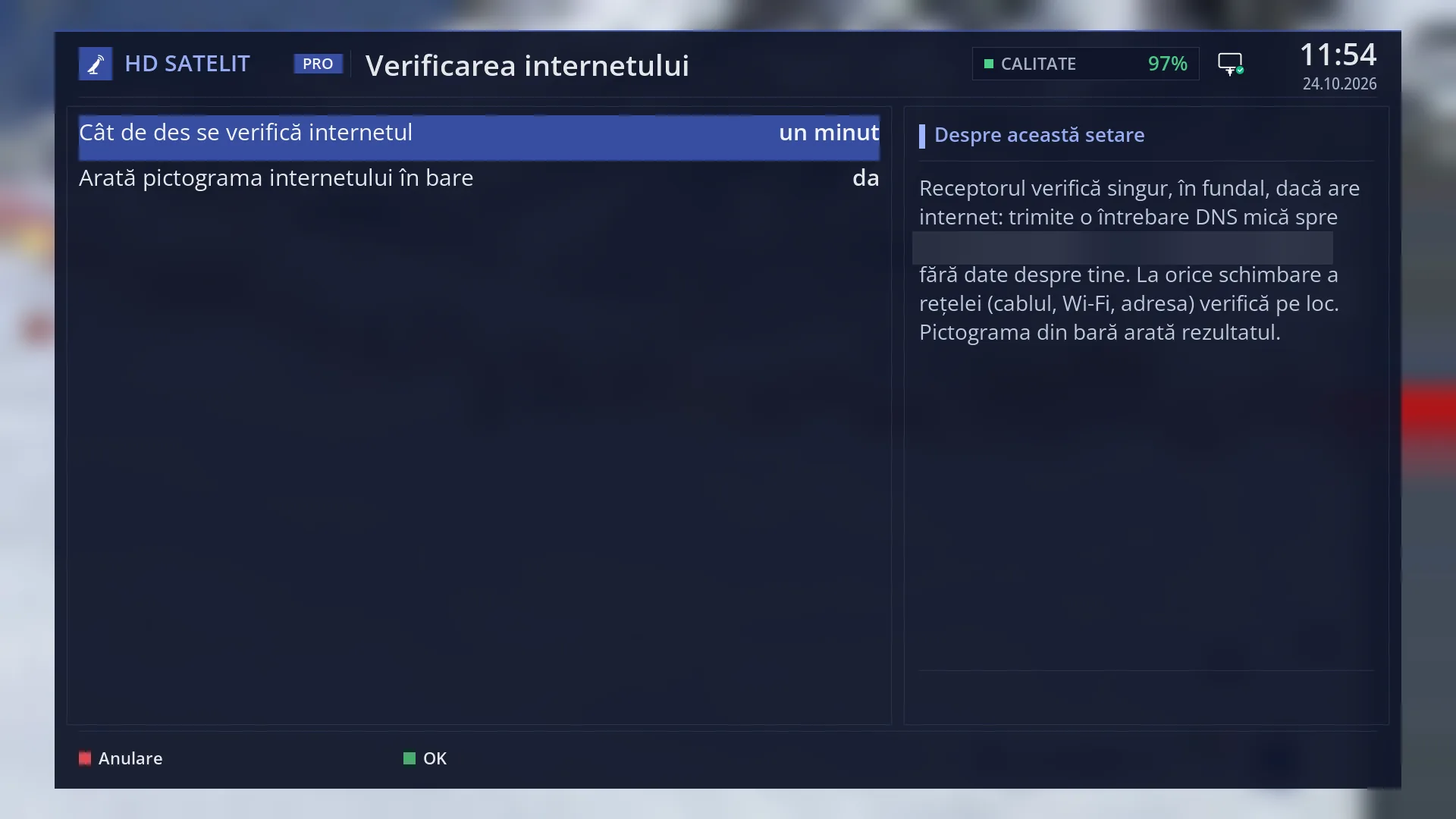
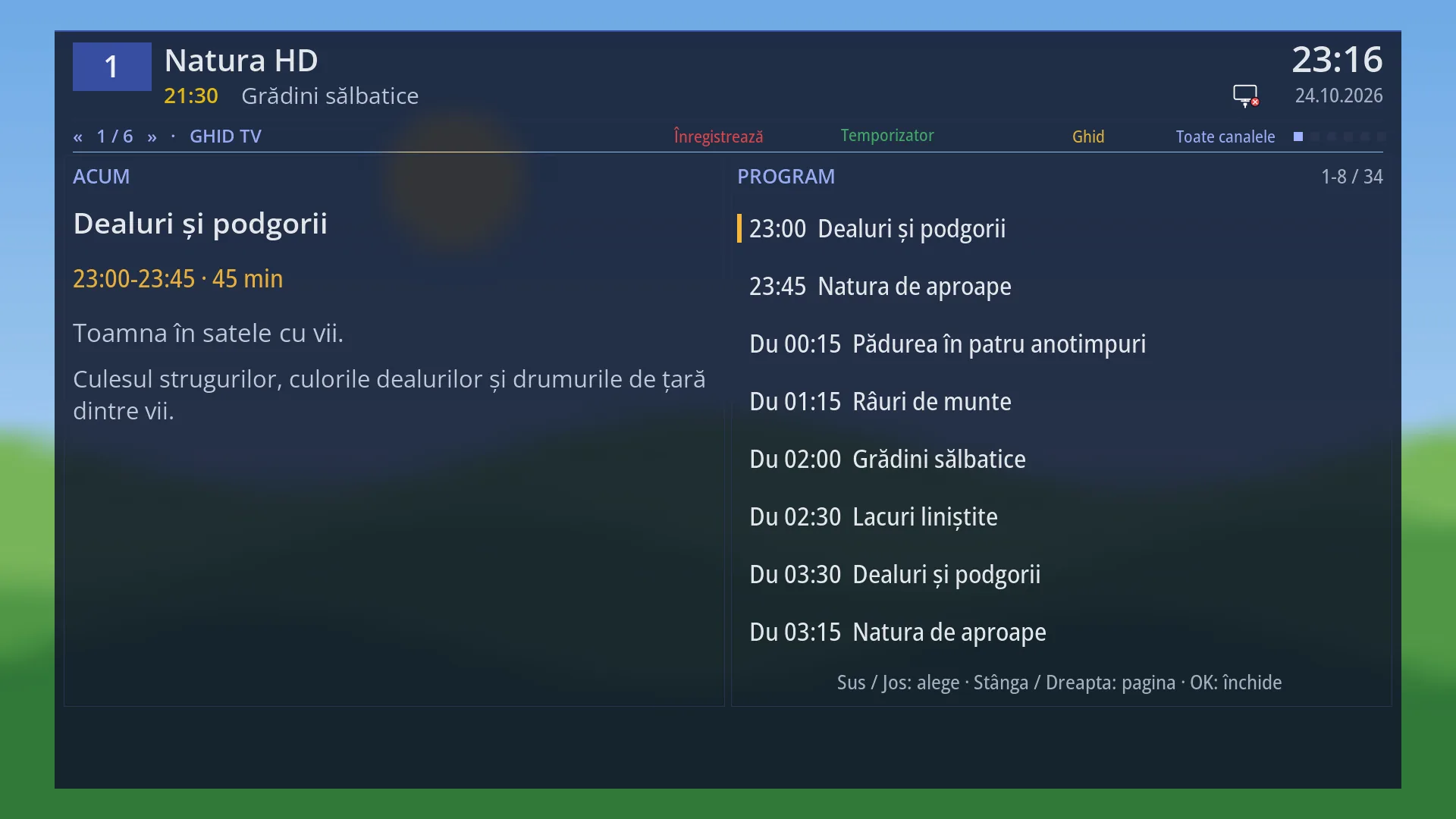
- 1 How often the internet is checked: 30 seconds, a minute, 2 or 5 minutes.
- 2 Show the internet icon in the bars: yes or no.
- 3 The explanation of the selected row.
- 4 The network icon described here: cable or Wi-Fi, and the internet status.
- 5 RED cancels, GREEN keeps.
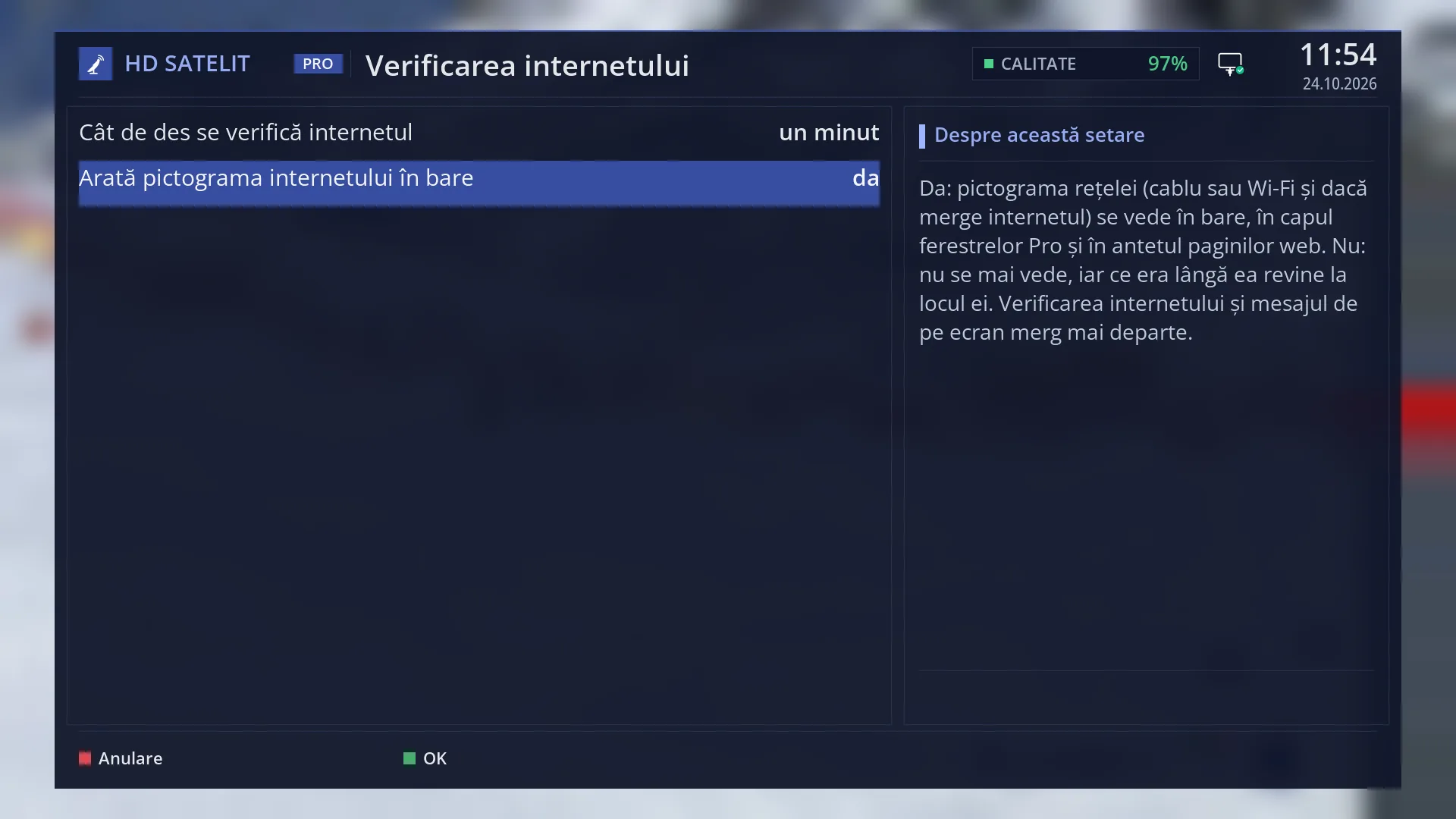
- 1 The selected row: “Show the internet icon in the bars: yes”.
What it is for
The receiver checks by itself, in the background, whether it has internet access and shows you the result through the network icon. This lets you see at a glance whether a problem lies with the cable or the Wi-Fi, the router or the internet provider.
The check is small. First it reads what the receiver already knows (the cable, the Wi-Fi, the address, the route to the router), without sending anything. Only when needed does it send a small DNS query to three free public DNS servers that are made for anyone to use. No data about you is sent, and nothing is requested from the HD Satelit servers. If none of them answers, it asks the router, to find out whether the problem is at the router or beyond it.
Whenever the network changes (you unplug the cable, the Wi-Fi drops, the address changes), it checks straight away, without waiting for the interval.
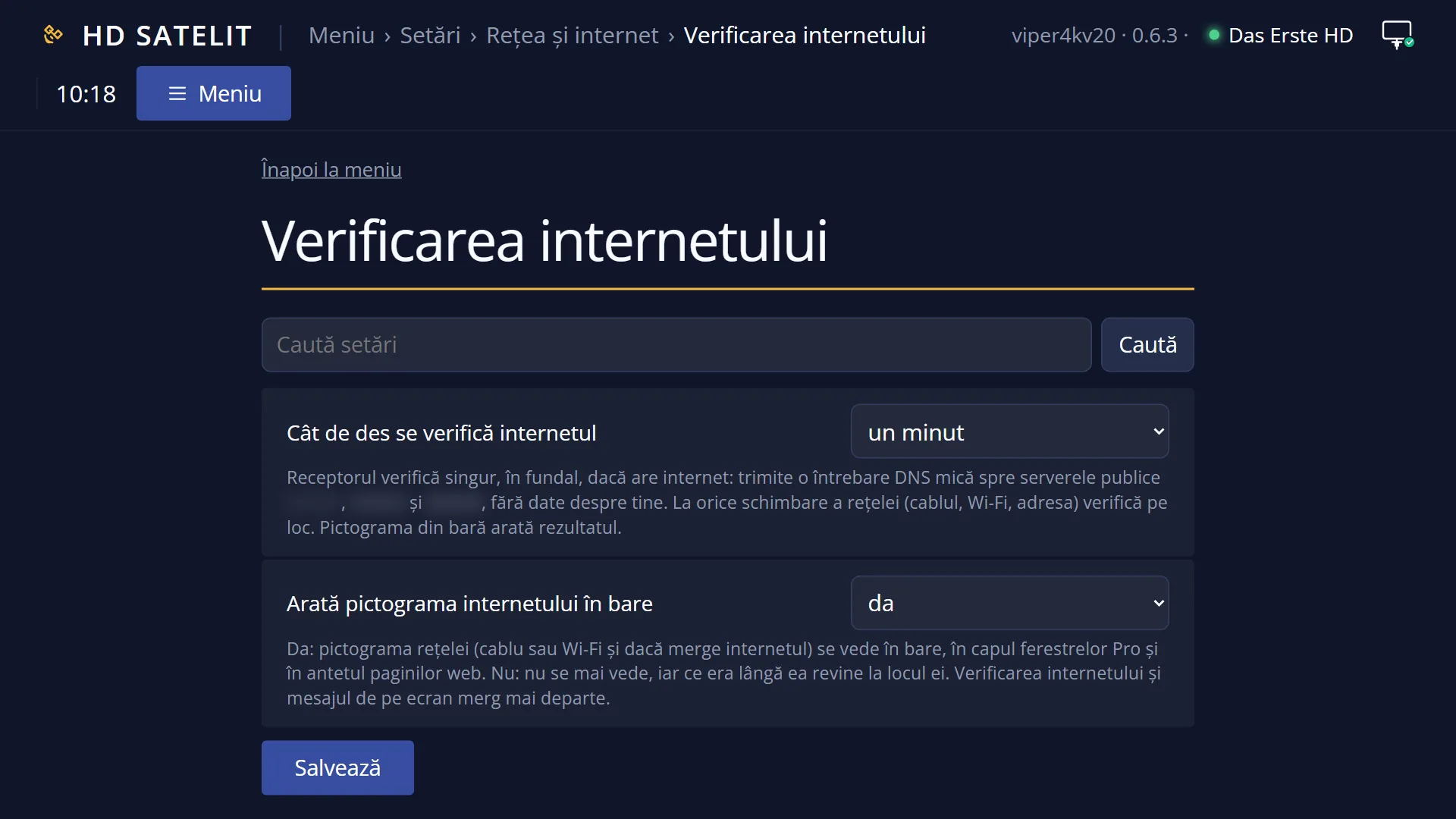
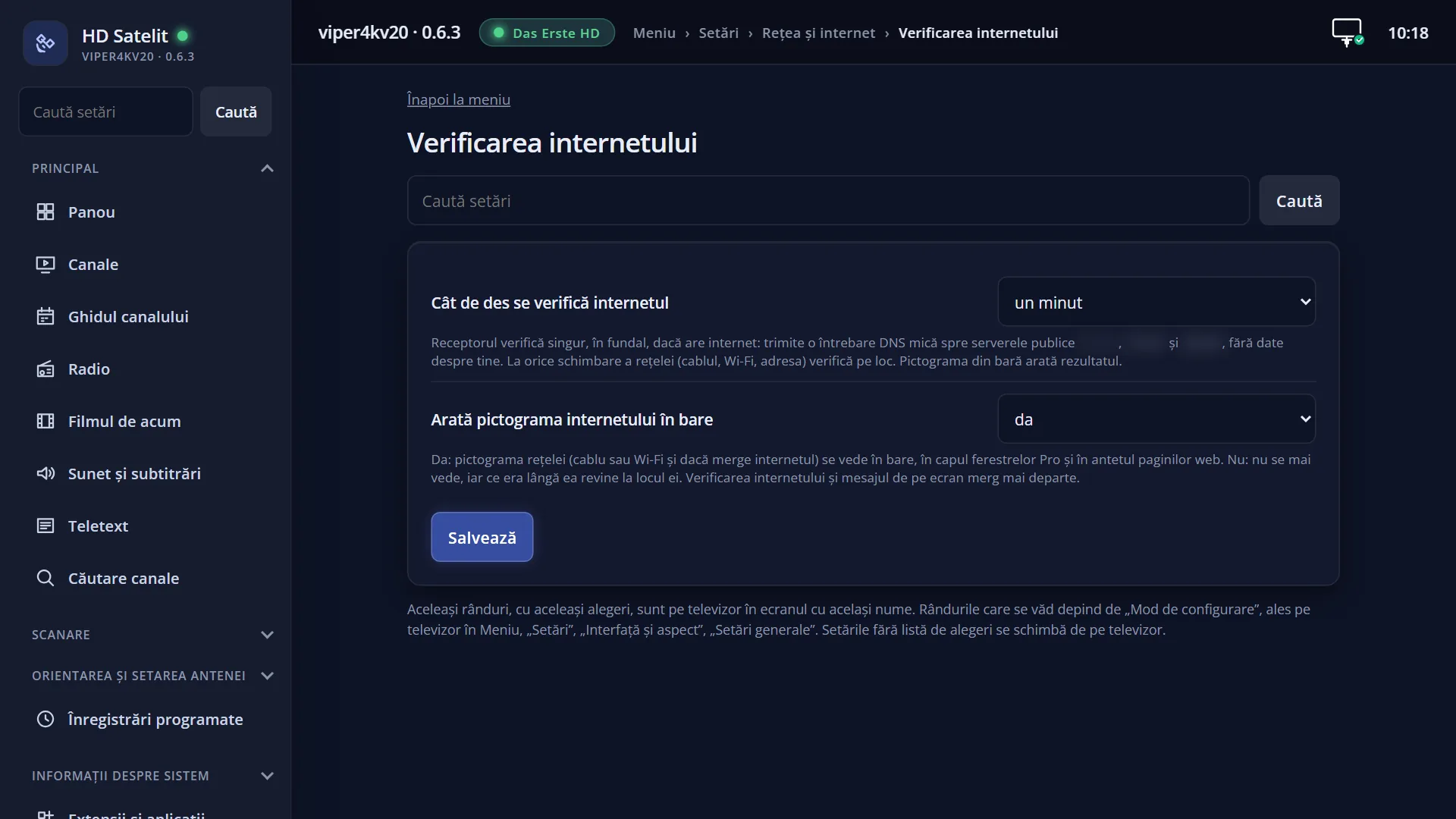
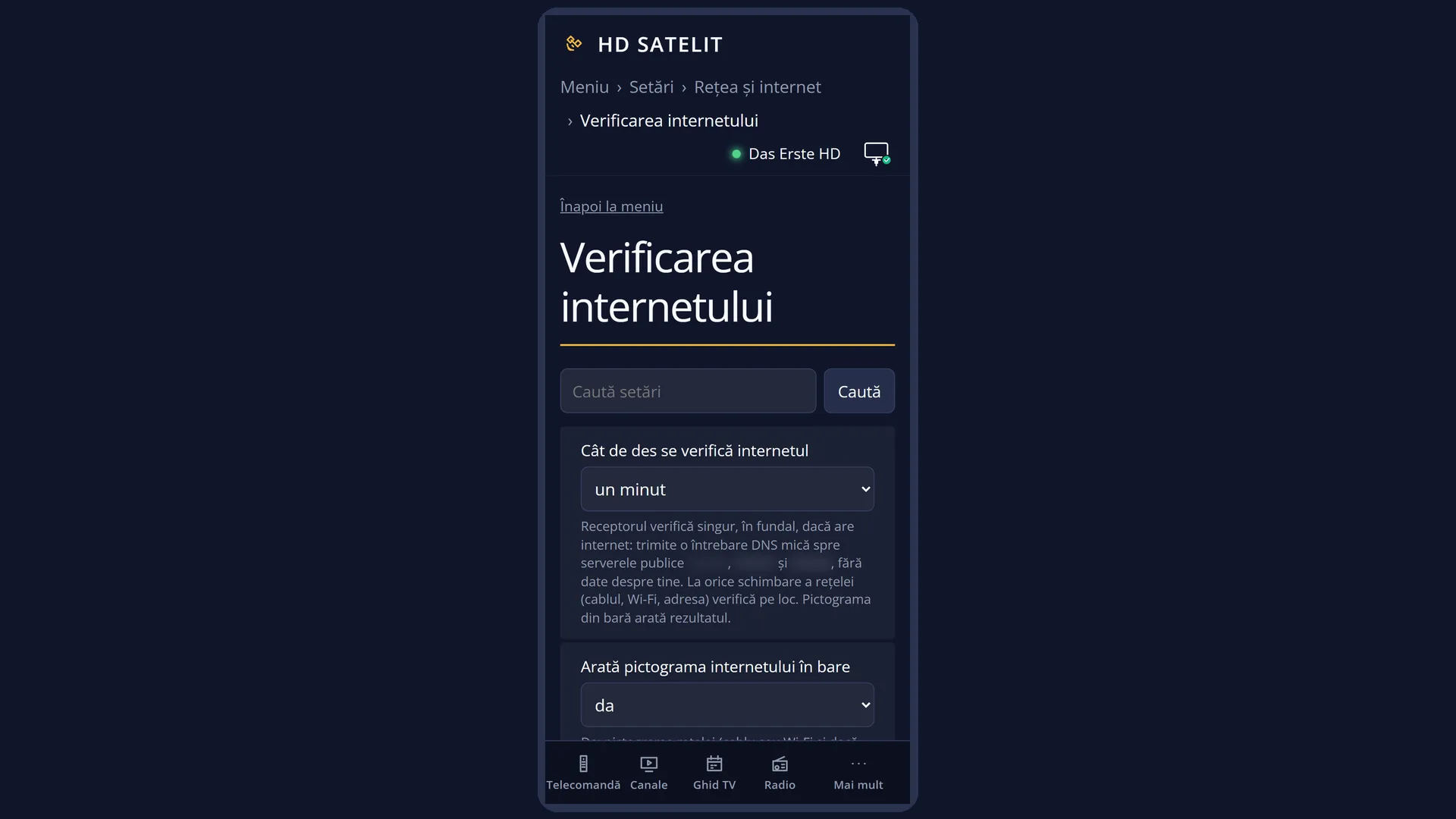
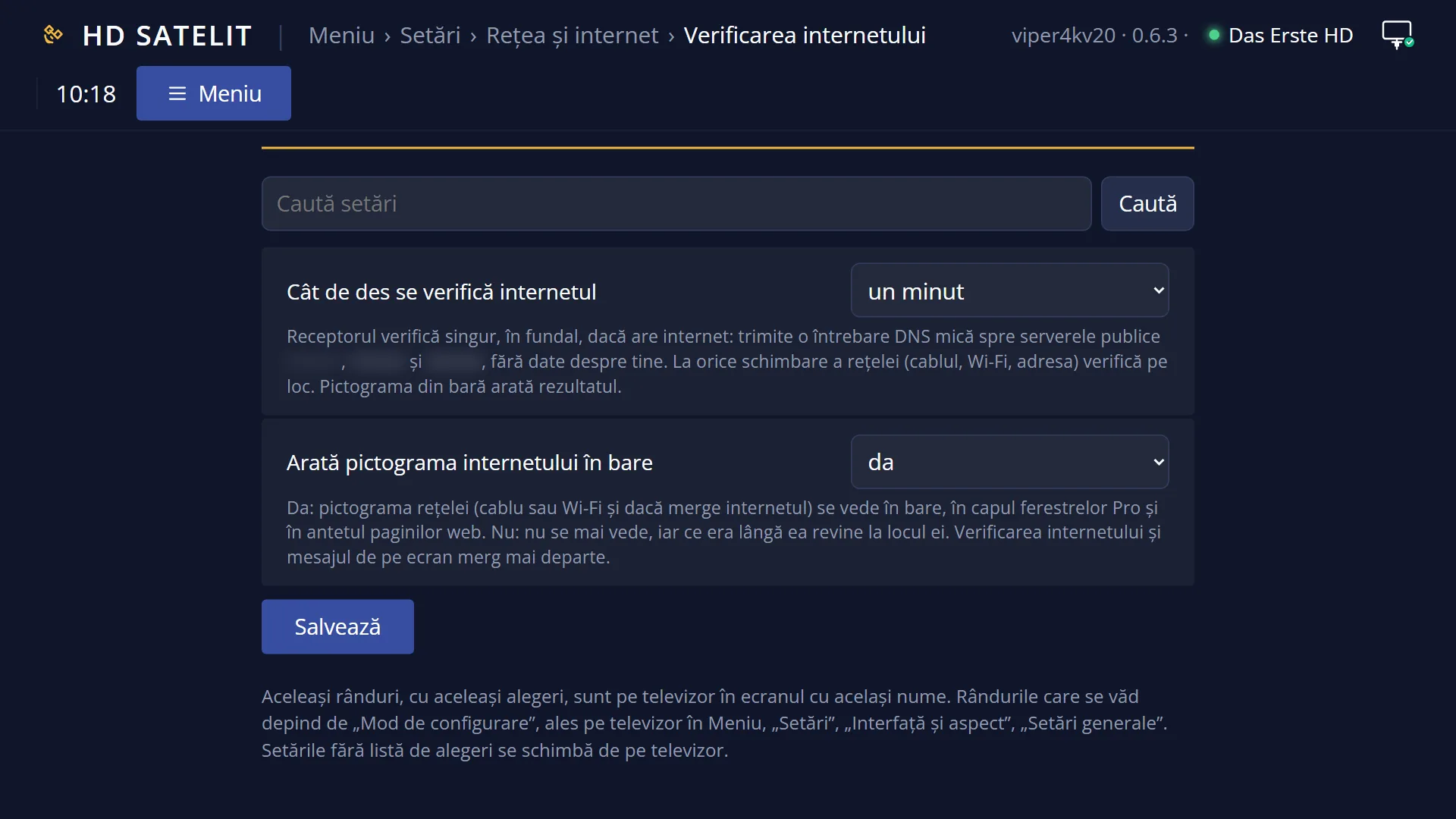
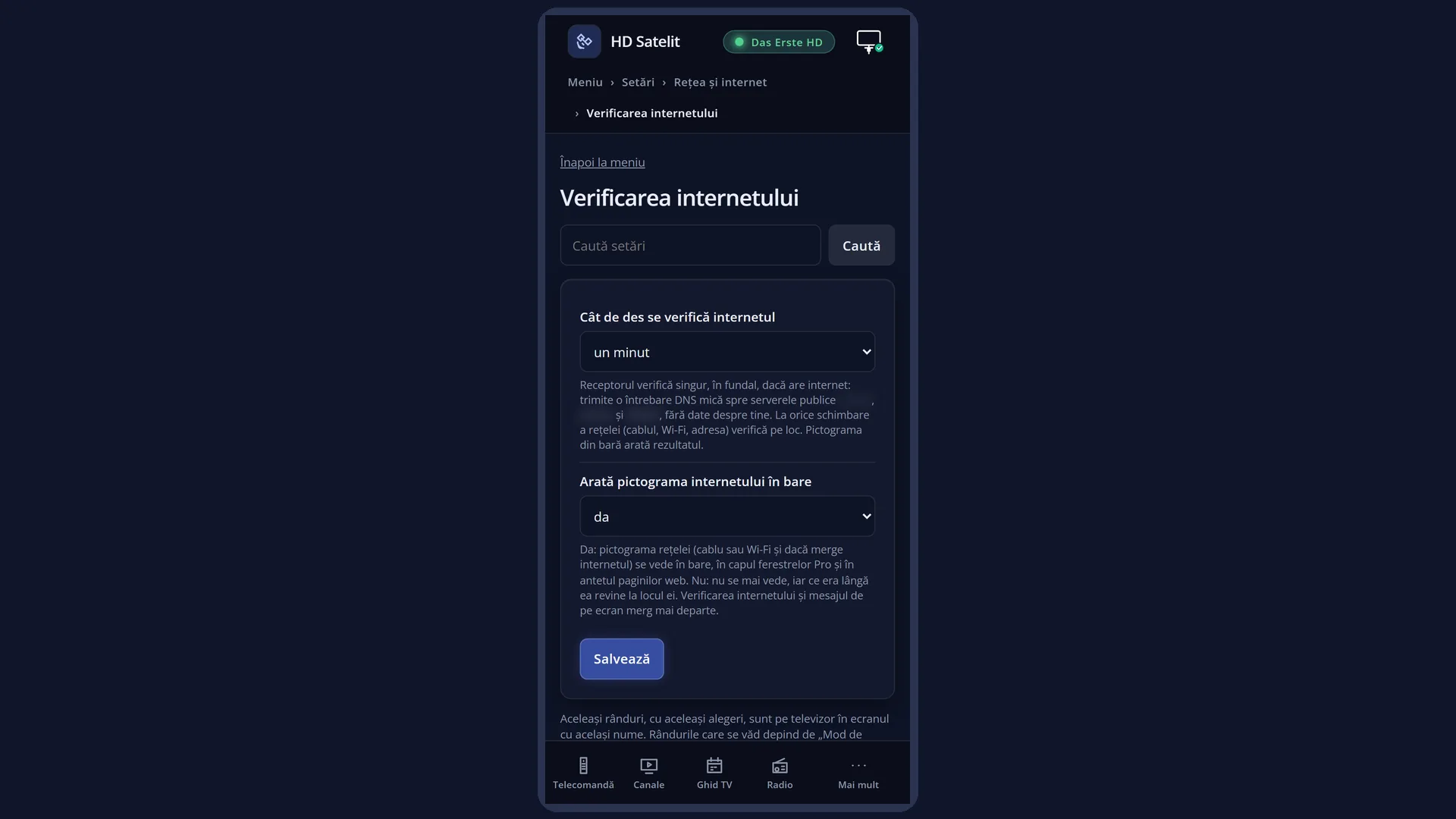
On this screen you choose how often it checks and whether the icon is shown in the bars. The same two settings are also in the web interface.
How to get here
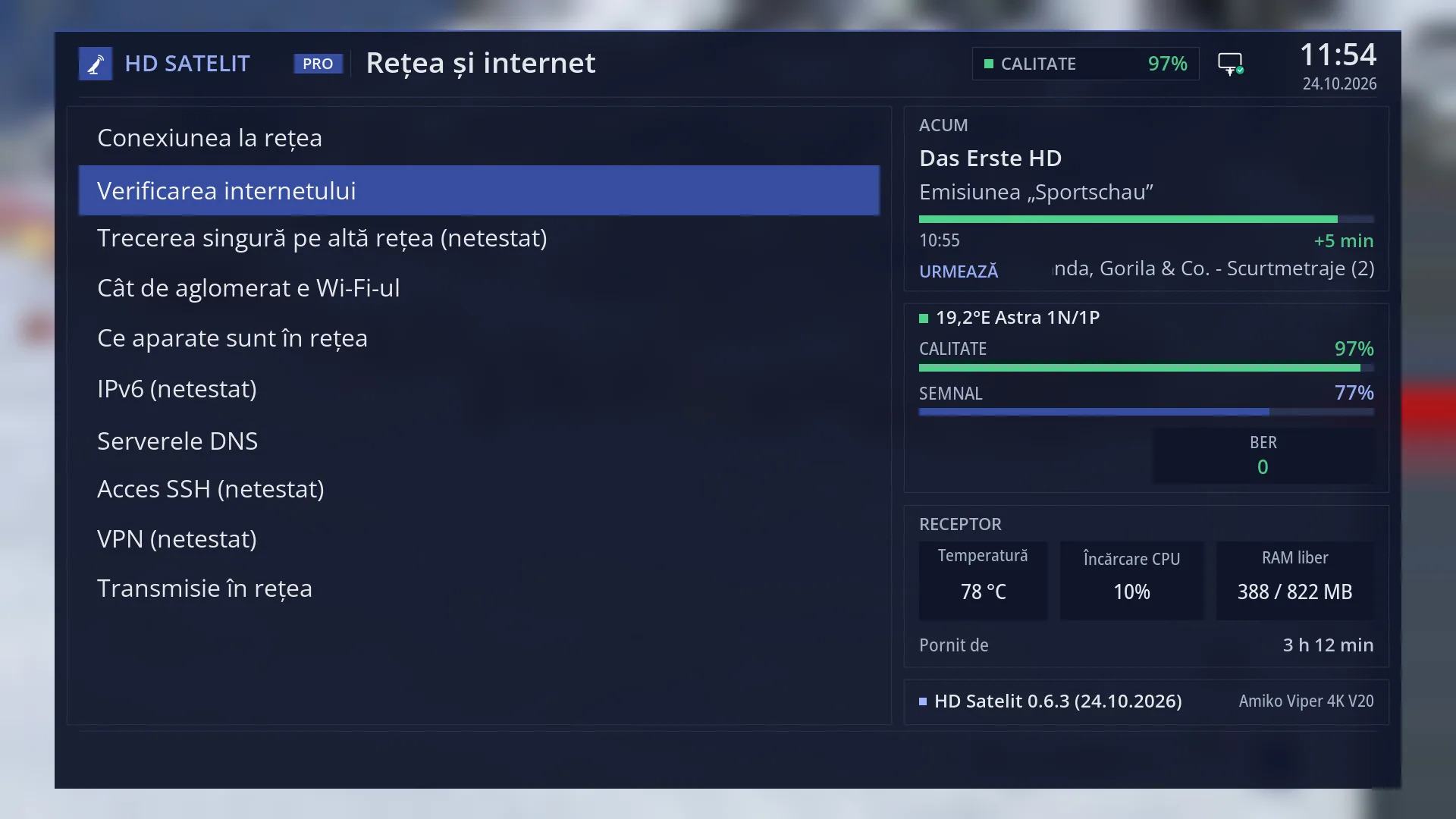
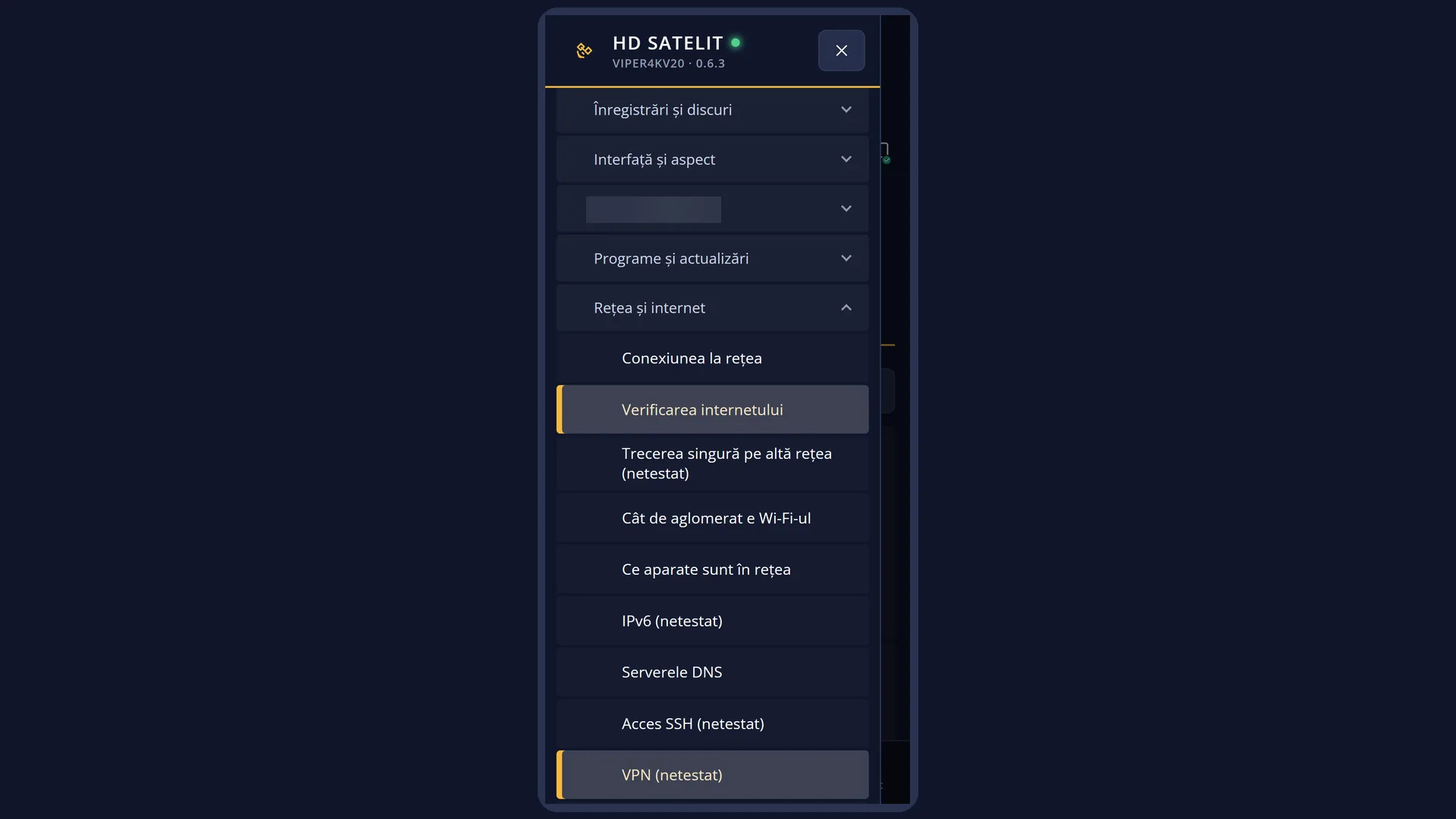
Path: Main menu > Settings > Network & Internet > Internet check (the second row).
Keys on the remote: MENU 6 9 2.
In the web interface: the page /setari?id=hds_internet or the “The internet” card on the /retea page (there you also see the current status, with the large icon).
What you see on the screen
At the top, the title “Internet check”. In the Pro theme, the network icon described on this page sits on the right of the window header.
On the left, the two rows: “How often the internet is checked” and “Show the internet icon in the bars”, each with its value on the right. The selected row has a blue background.
On the right, “About this setting”: the explanation of the selected row.
At the bottom, the keys: RED “Cancel” and GREEN “OK”.
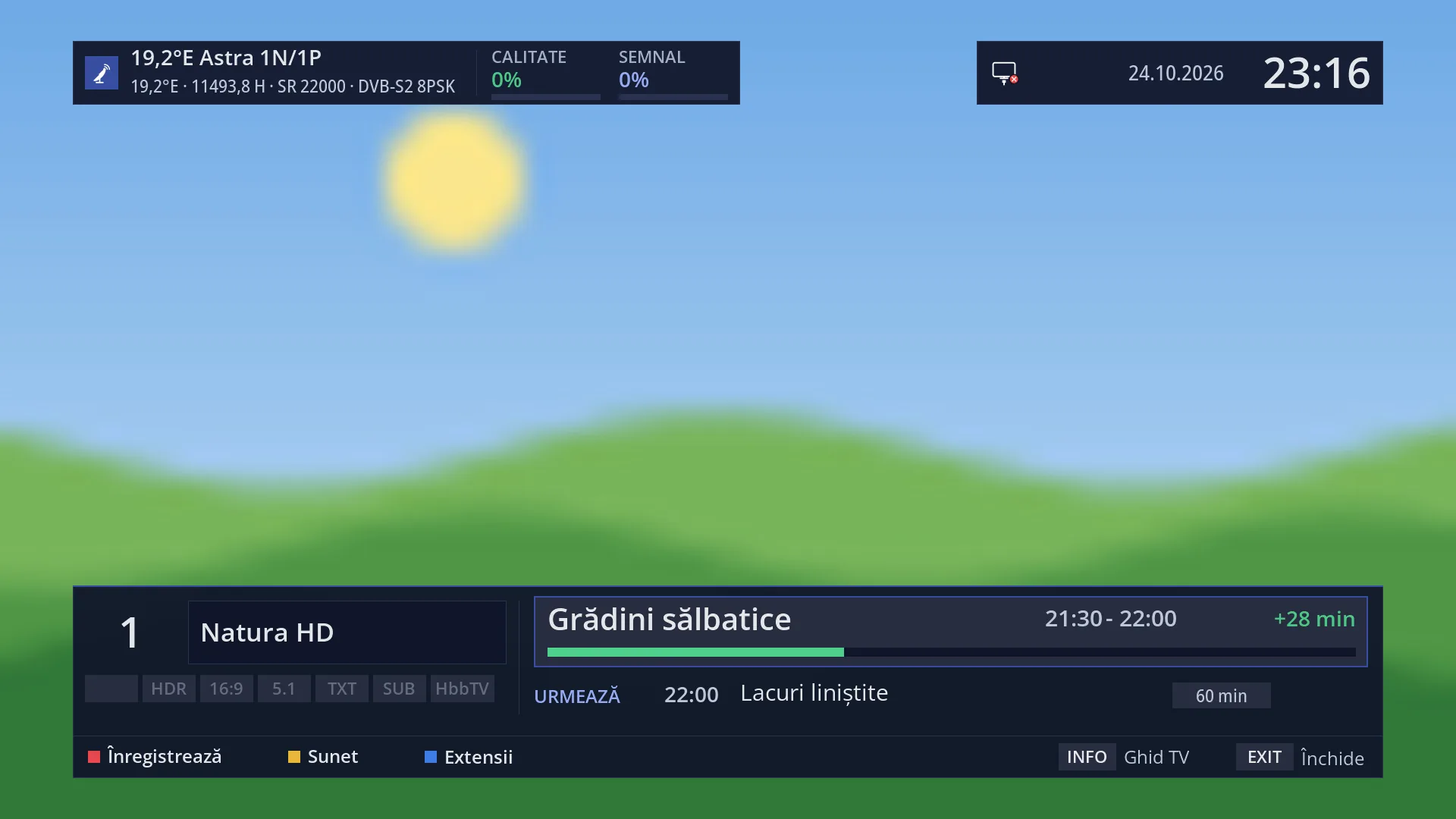
The network icon (in the info bar, in the second bar, in the window headers of the Pro theme, in the Pro channel list and in the header of the web pages) shows the type of connection: a monitor with a network plug for cable, or three arcs for Wi-Fi, with as many arcs lit as there are signal levels (out of 4). In the bottom corner it has a small mark: green with a tick when the internet works, amber with a crossed-out globe when the router has no internet, red with an X when the receiver is not connected to the router. While the check is running, the icon is paler and has no mark.
In the web interface, when you move the mouse over the icon in the header, the status is shown: “Internet over cable: works”, “Internet over Wi-Fi: works (signal 3 of 4)”, “The receiver is connected to the router, but the router has no internet. The problem is probably with the internet provider.”, “The receiver is not connected to the router (cable). Check the cable or the router.” or “Checking the internet...”.
Rows and settings
| Row | Values | Default | What it does |
|---|---|---|---|
| How often the internet is checked | 30 seconds, a minute, 2 minutes, 5 minutes | a minute | How many seconds or minutes pass between the receiver's checks of whether the internet works, when nothing has changed on the network. Between checks, the icon shows the last result. Network changes (the cable, the Wi-Fi, the address) are checked straight away in any case. More often (30 seconds) if you want to notice an internet outage sooner; less often (5 minutes) if you want as few queries sent as possible. |
| Show the internet icon in the bars | yes, no | yes | Yes: the network icon is shown in the bars, in the window headers of the Pro theme and in the header of the web pages. No: it is no longer shown, and whatever was next to it moves into its place so that no gap is left. The internet check carries on. When you do not want the icon on the screen. |
| The message in the middle of the screen | “The receiver is not connected to the router (cable). Check the cable or the router.”, “The receiver is not connected to the router (Wi-Fi). Check the Wi-Fi network or the router.”, “The receiver is connected to the router, but the router has no internet. The problem is probably with the internet provider.”, “The internet works again.” | When the internet goes down, the receiver shows once in the middle of the screen what has happened, but only if the network icon is not already visible on the screen and the receiver is not in standby. When it comes back, it shows “The internet works again.”, but only if the loss was announced. With the icon hidden (the row above set to no), the message also appears when the bar is open. It has no setting of its own. |
Keys
| UP / DOWN | Select the row. |
| LEFT / RIGHT | Change the value of the selected row. The change is visible straight away. |
| GREEN (“OK”) | Keeps the values and closes the screen. |
| RED (“Cancel”) or EXIT | Close the screen. If you have changed something, it asks “Really close without saving settings?”; if you answer yes, the previous values are restored. |
Step by step
Notice sooner when the internet goes down
- Press MENU 6 9 2.
- On “How often the internet is checked”, choose “30 seconds” with LEFT / RIGHT.
- Press GREEN.
Hide the network icon
- Press MENU 6 9 2, then DOWN to “Show the internet icon in the bars”.
- Set it to no with LEFT / RIGHT and press GREEN.
- The icon disappears from the bars and from the header of the web pages; the check carries on.
Find out where the problem is when the internet does not work
- Look at the small mark in the corner of the icon: red with an X means the receiver cannot reach the router (check the cable or the Wi-Fi); amber with a crossed-out globe means the router has no internet (restart the router or call your provider).
- In the web interface, open /retea: the “The internet” card shows the full status.
- For a step-by-step test: MENU 6 9 1, choose the adapter, OK, “Network test”.
Problems and solutions
The icon shows a red X, but the TV next to it has internet.
The receiver is not connected to the router: the cable is unplugged or the Wi-Fi has dropped. Open MENU 6 9 1 and check the adapter's status; reconnect to the Wi-Fi if needed.
The icon shows the crossed-out globe.
The receiver is connected to the router, but the router has no internet. Restart the router; if that does not help, the problem is with the internet provider.
The icon stays pale for a long time, with no mark.
The receiver is still checking. If it stays like this for several minutes, open MENU 6 9 1 and run “Network test”.
I cannot see the network icon anywhere.
The “Show the internet icon in the bars” row is set to no. Set it to yes. In the Classic theme the icon is not shown in the window headers, only in the bars.
The message saying the receiver is not connected to the router often appears on the screen.
The connection to the router keeps dropping. On Wi-Fi, check the signal (MENU 6 9 1, the Wi-Fi adapter, “WiFi status”) and the router's channel (“How busy the Wi-Fi is”); on cable, try another cable.
The internet went down, but the message did not appear.
The message appears only when the icon is not visible on the screen and the receiver is not in standby; otherwise the icon shows you. It appears only once for each loss.
Related topics
- Network & Internet
- Network Connection Setup
- Switch to another network by itself (uses the same checks)
- The network notice on screen
- The first info bar
- The matching web pages: /setari?id=hds_internet and the “The internet” card in /retea.