

The channel's HbbTV application
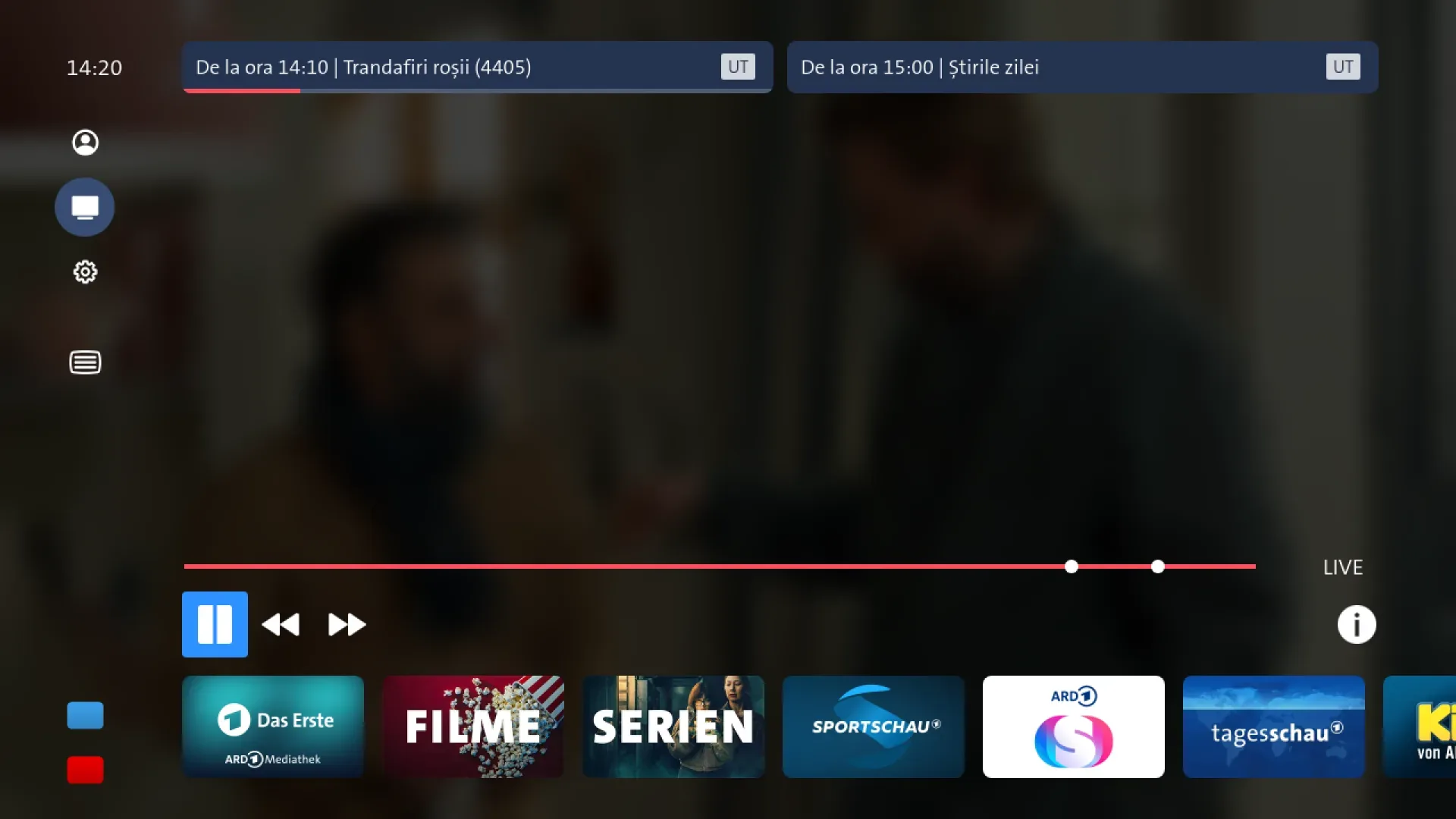
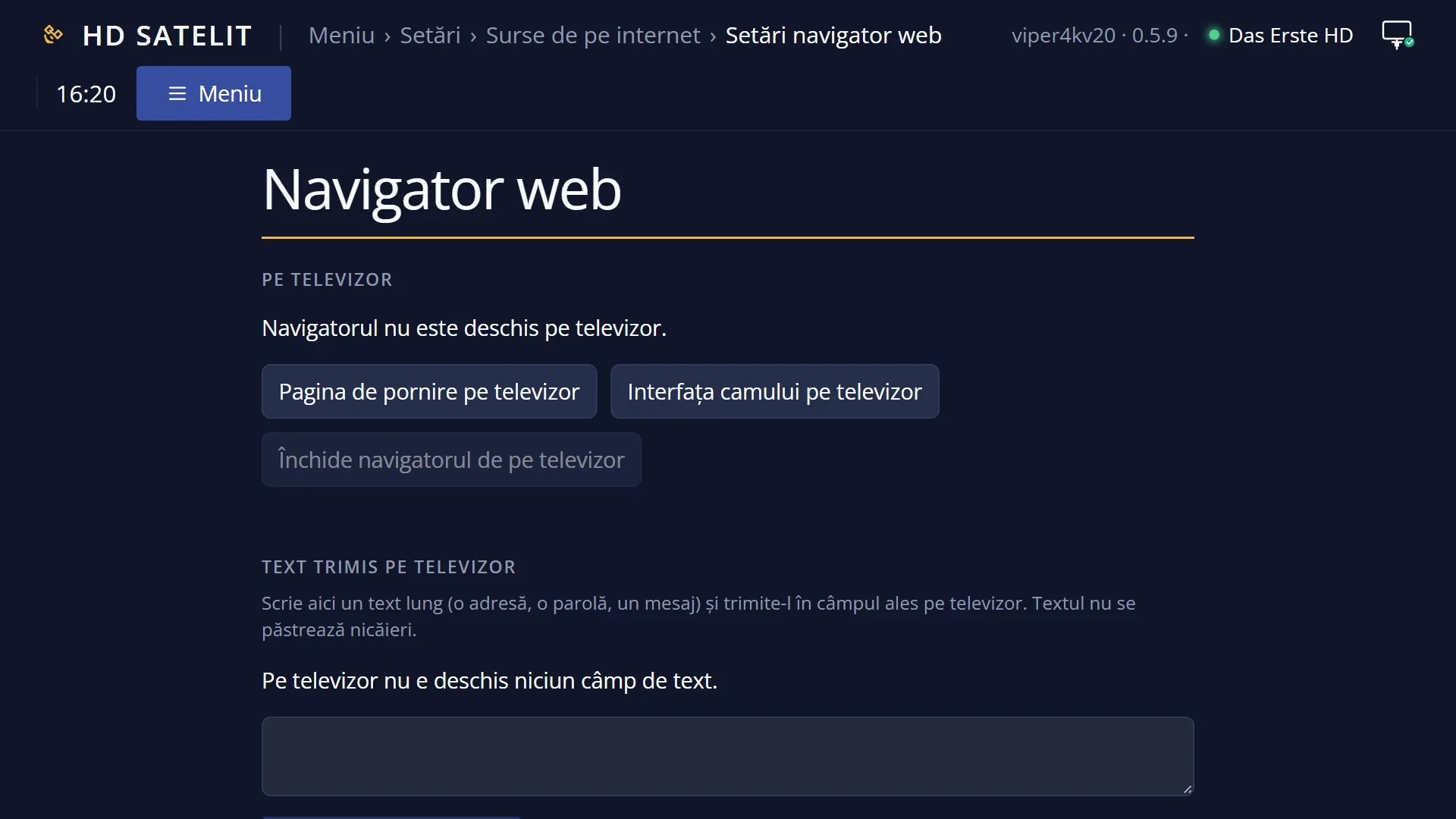
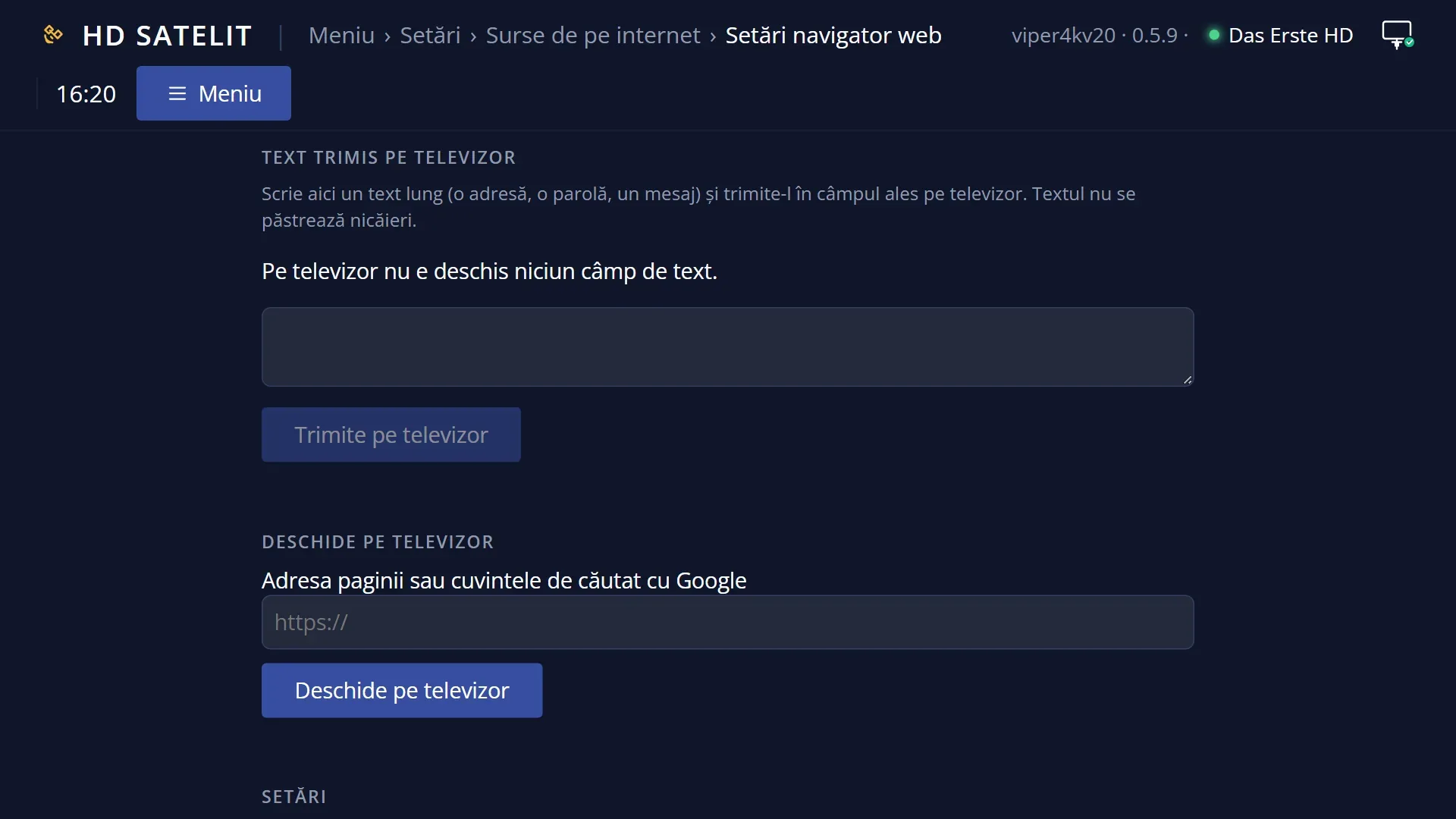
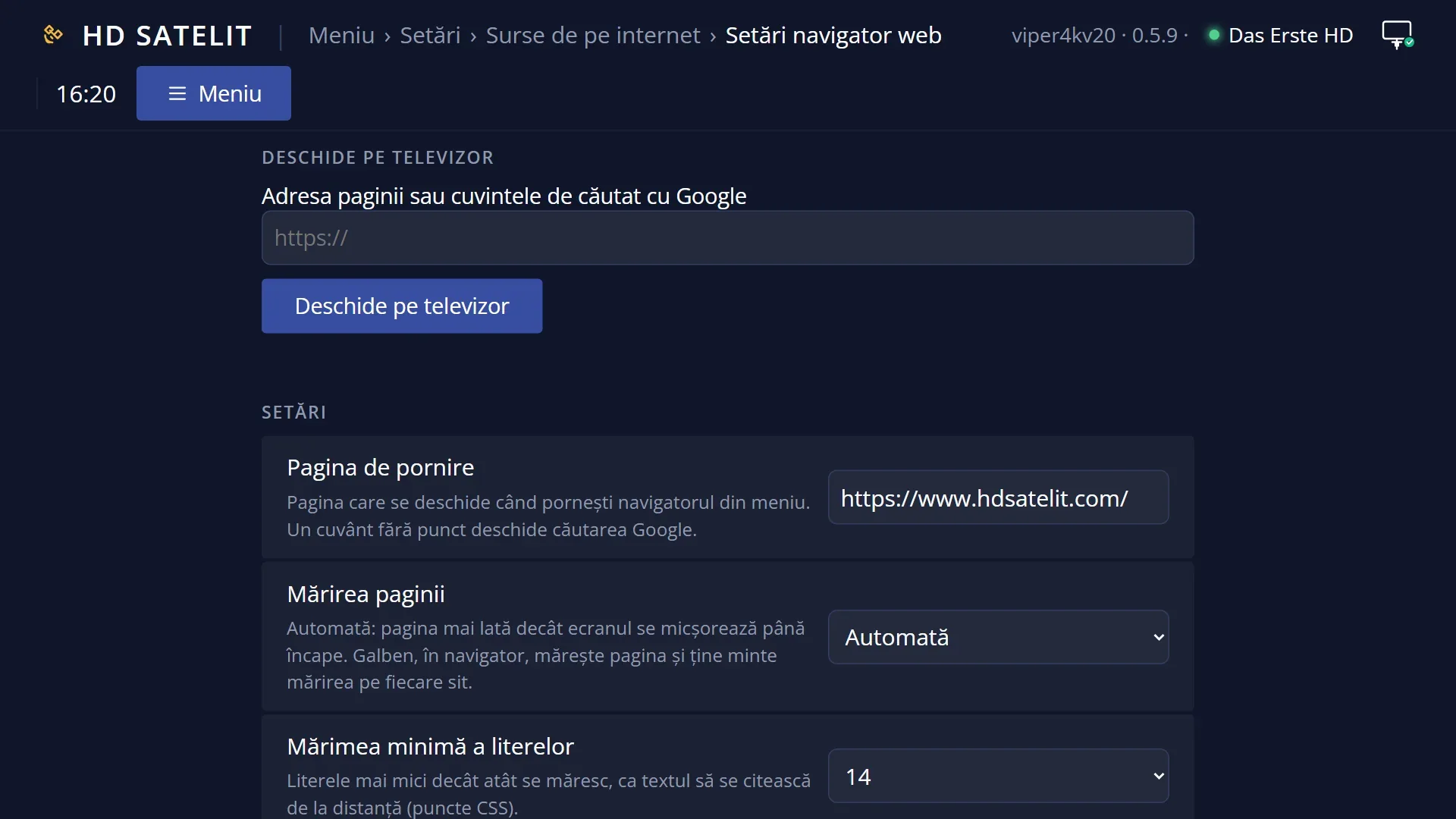
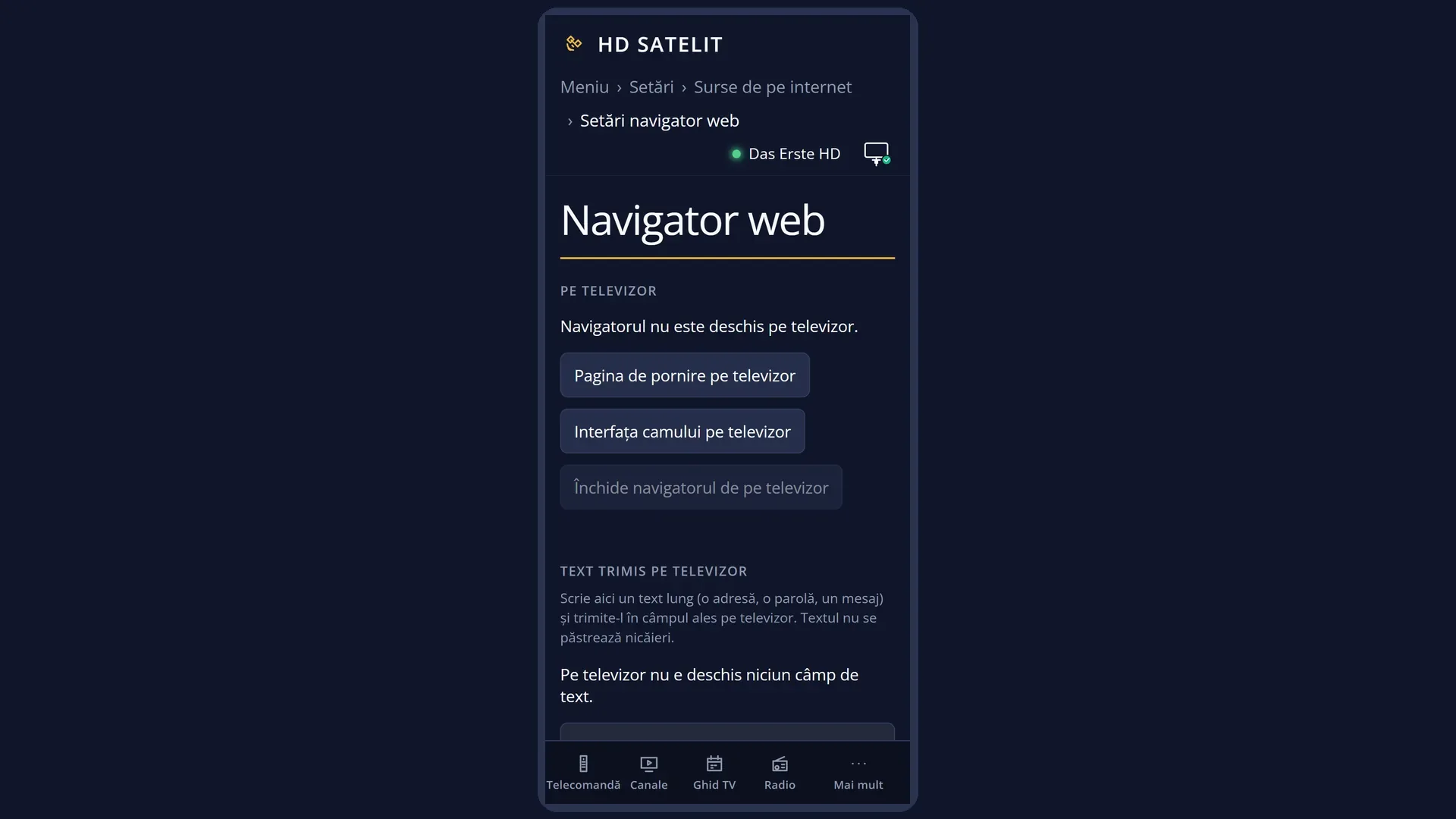
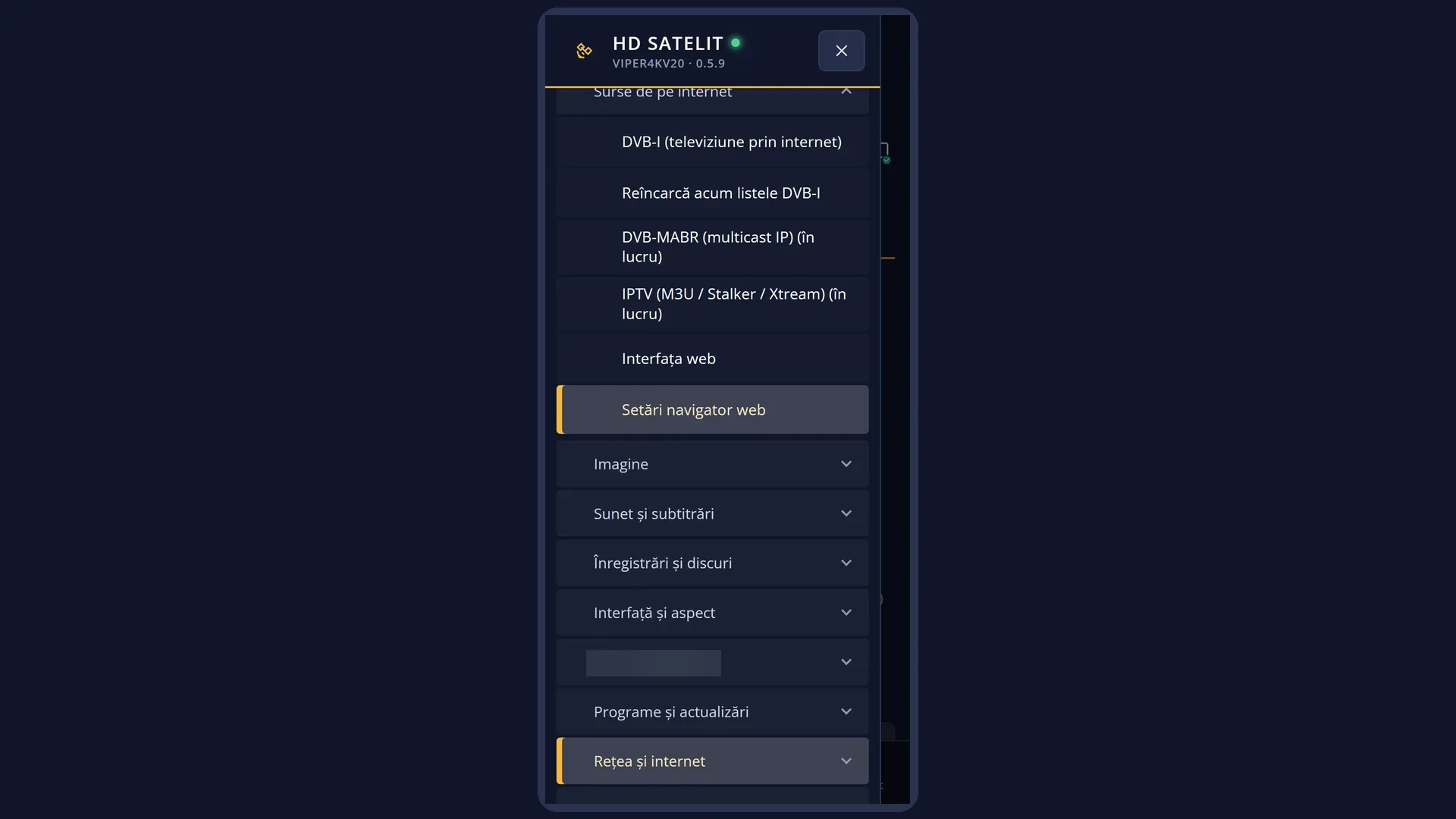
Screenshots are being added: so far 1 from the receiver and 9 from the web interface; the aim is at least 5 of each, with arrows and frames, and, where a setting changes what you see, a before and after comparison.
English screenshots coming: some of the pictures below still show the receiver and the web interface in Romanian. The rows, keys and steps described on this page are the English ones.
What it is for
Many channels send an HbbTV application along with the programme: a programme guide, news, weather, a programme archive, competitions or the channel's own page. You open the application with the RED key. It appears over the programme, and the programme carries on underneath or shrunk into a corner, depending on what the application asks for.
The application usually comes from the internet, so the receiver needs an internet connection. Some come straight from the satellite signal (see “HbbTV from the satellite signal”).
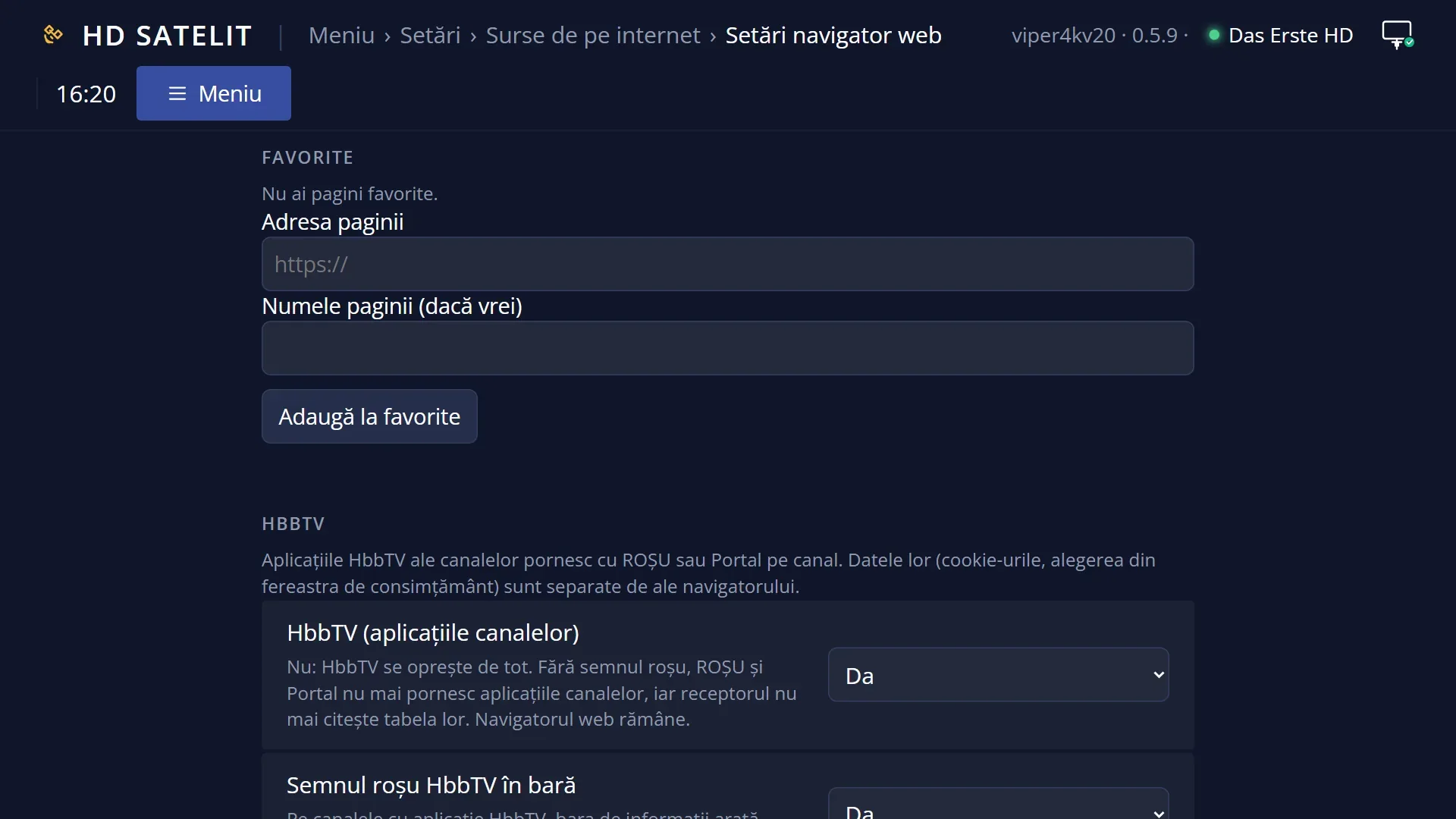
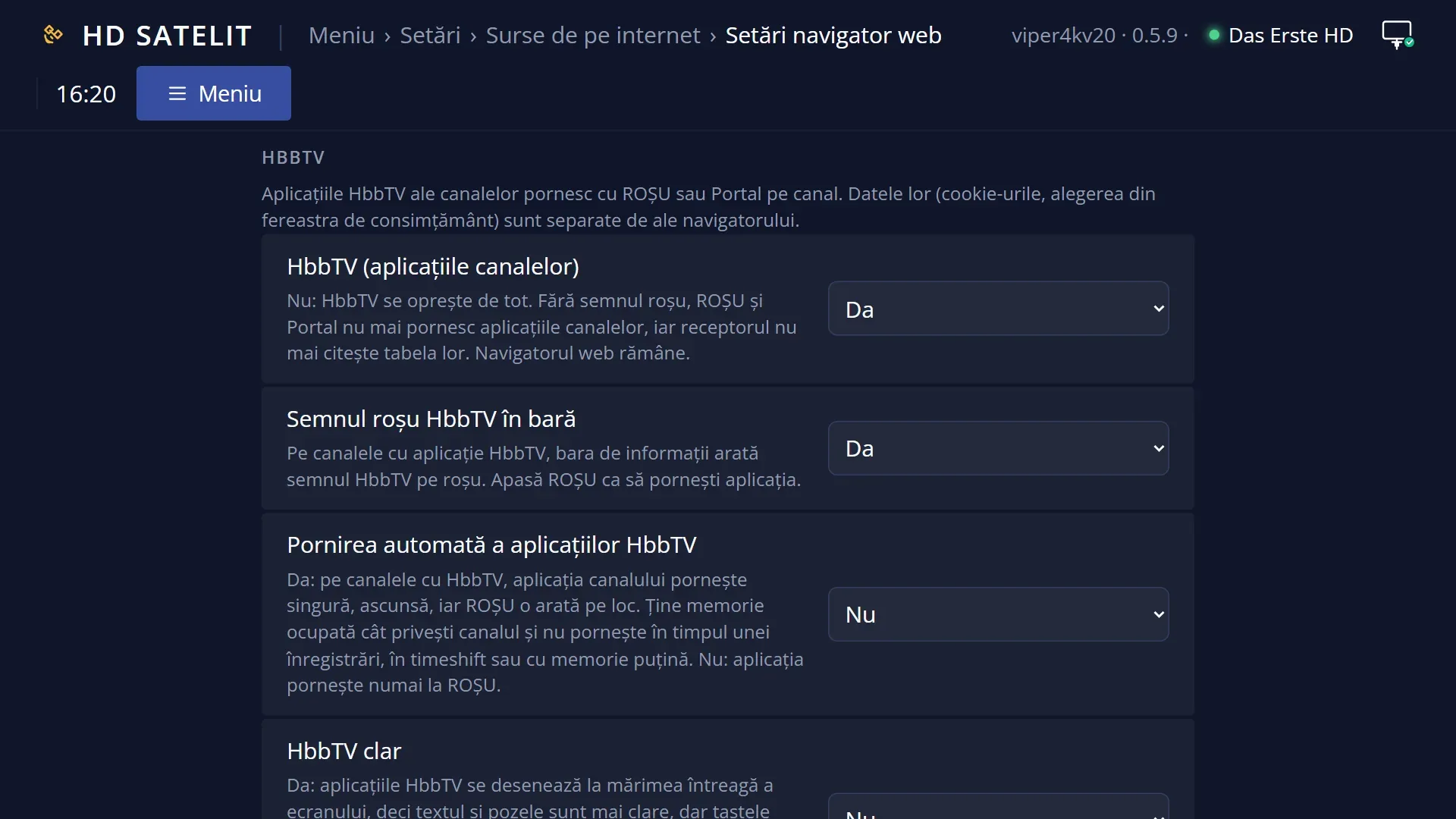
HbbTV is off by default. To turn it on, go to Menu > Settings > Internet Sources > Web browser settings and set the “HbbTV (channel applications)” row to “yes”. When it is off, RED starts nothing, and the receiver no longer even reads the application announcements from the signal.
EXIT closes the application. The channel stays on, as before.
How to get here
How to get there: while watching TV, on a channel with an HbbTV application, press RED. On such channels the “HbbTV” label on the info bar is red.
Keys while watching TV: RED (or Portal, which does the same on a channel with an application).
Beforehand, once only: MENU 6 2 6, set “HbbTV (channel applications)” to “yes”, OK.
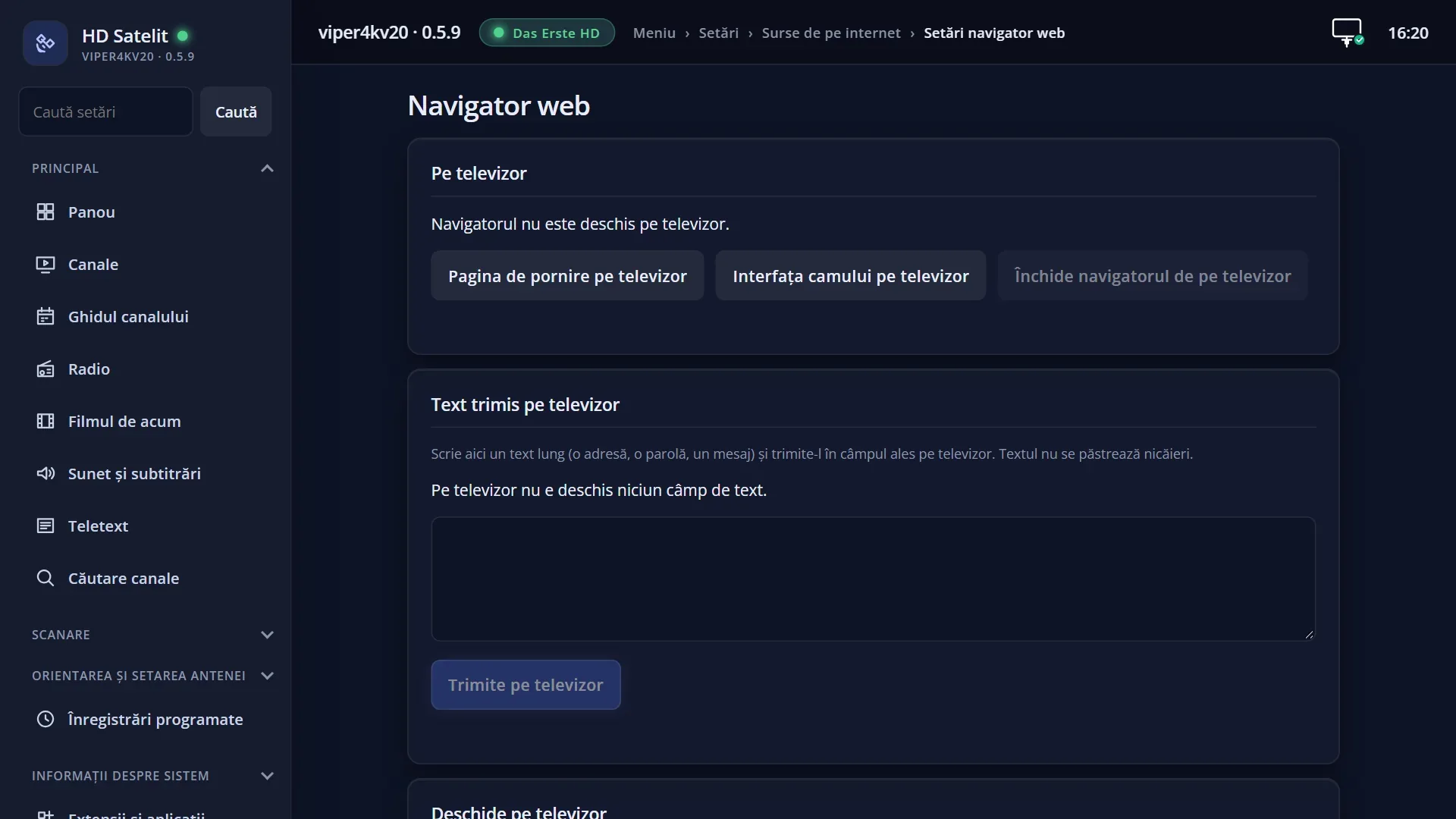
In the web interface: the /navigator page, “HbbTV” box (turning HbbTV on, the red sign, automatic start, “Sharp HbbTV”, deleting the data and the last application that failed to open). From the remote on the /panou page you can press RED.
What you see on the screen
On the info bar, in the row of channel labels (for example TXT and SUB), the last one is “HbbTV”. It is grey when the channel has no HbbTV, lit when it has HbbTV, and red when it has an application you can start with RED and “Red HbbTV sign in the info bar” is on.
After you press RED, a small window appears at the top right: “HbbTV: starting the channel's application...” and “EXIT: cancel”.
Then the application appears over the programme: its menu, usually at the bottom or on one side, with the programme visible through the empty areas. The channel decides what the application shows and which keys it uses. Usually the keys are shown on it (for example the arrow keys, OK, the colour keys).
Some applications shrink the programme into a window. When you close the application, the picture goes back to full screen.
With “Translate HbbTV” on (in the translation settings), the application's texts are translated into the chosen language, using the chosen translation service.
When the application cannot open or closes by itself, a message with the reason appears for 6 seconds (the list is below, under problems).
Rows and settings
| Row | Values | Default | What it does |
|---|---|---|---|
| The “HbbTV” label on the info bar | grey, lit, red | Grey: the channel does not announce HbbTV. Lit: the channel has HbbTV. Red: it has an application you can start with RED (only with HbbTV on and “Red HbbTV sign in the info bar” set to “yes”). | |
| Start HbbTV applications automatically (in Web browser settings) | yes, no | no | Yes: the channel's application starts by itself, hidden, and RED shows it straight away. It does not start during a recording, in timeshift or when memory is low. No: the application starts only when you press RED. When you want applications to appear without waiting. |
Keys
| RED (while watching TV) | Starts the channel's HbbTV application. On a channel without an application it does nothing. If an application has started automatically and is hidden, it shows it straight away. |
| EXIT | Closes the application; the channel stays on. While the application is loading, it cancels. |
| The arrow keys, OK, the colour keys, the digits | Go to the application, as it says on screen. The application may use only some of them; the others do nothing while it is on screen. |
| VOL+ / VOL- / MUTE | Change the sound as usual. The volume bar is not shown while the application is on screen. |
| P+ / P- | Change the channel; the application closes. |
| POWER | Goes to the receiver, as usual. The application closes when the receiver goes into standby. |
| MENU, INFO, EPG and the others | Do nothing while the application is on screen. Close the application with EXIT first. |
Step by step
Opening a channel's application
- Once only: press MENU 6 2 6, set “HbbTV (channel applications)” to “yes” and press OK.
- Switch to a channel and press INFO. The “HbbTV” label on the bar is red if the channel has an application.
- Press RED and wait a few seconds.
- Use the application with the keys shown on it. EXIT closes it.
Answering an application's consent question again
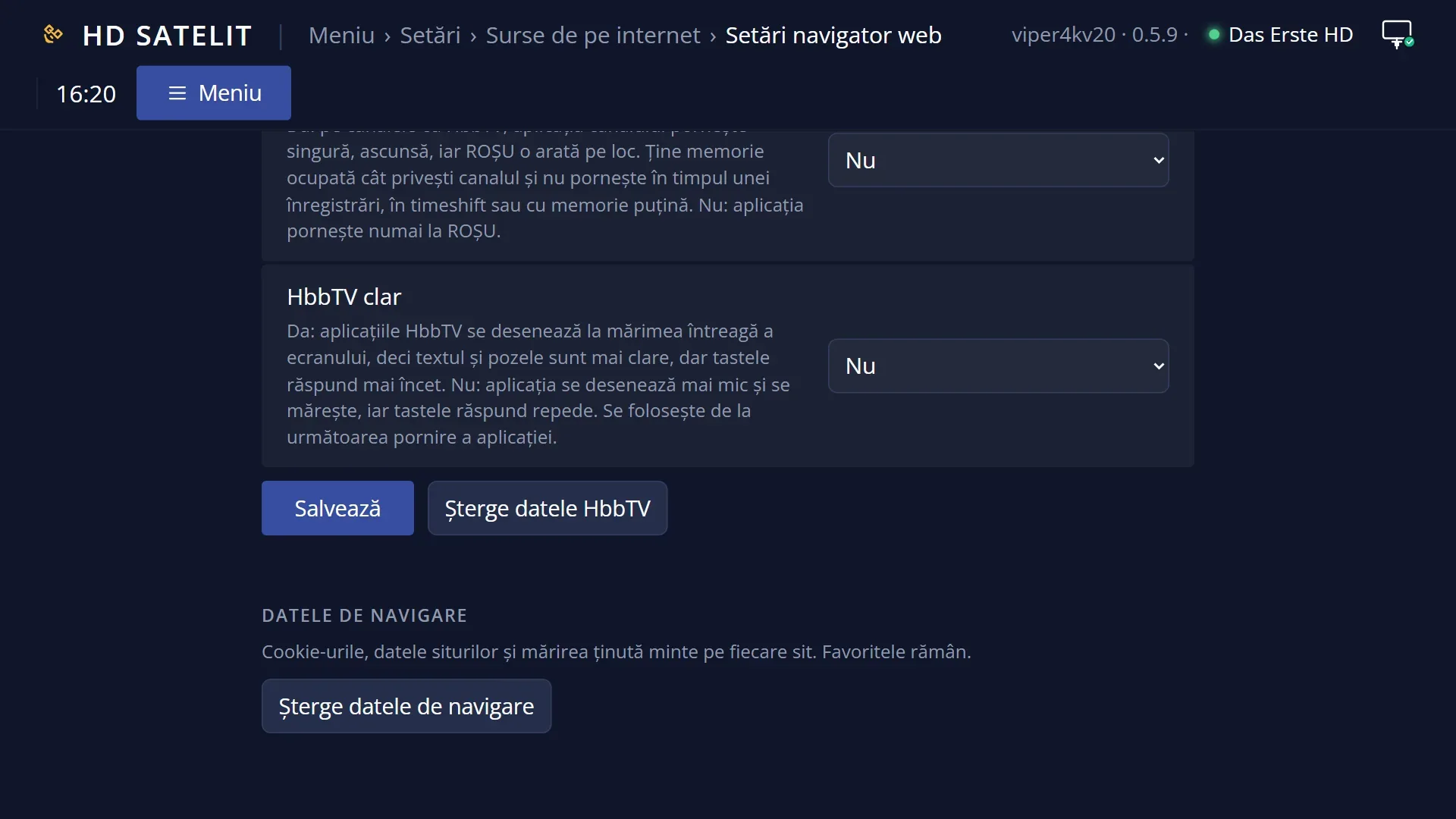
- Press MENU 6 2 6 and go down to “Delete HbbTV data”.
- Press OK, then Yes.
- Open the application again with RED. The question appears again.
Problems and solutions
I press RED and nothing happens.
HbbTV is off by default: turn it on in Web browser settings. If it is on, the channel may not have an application. Press Portal, which tells you whether it has one, or look at the “HbbTV” label on the bar.
“The receiver has no internet access, and HbbTV applications come from the internet.”
Connect the receiver to the internet and check the connection in Menu > Settings > Network & Internet.
“HbbTV applications do not start while timeshift is on.” or “… while a recording is running.”
Stop timeshift (go back to live) or wait for the recording to finish. If a recording starts while the application is open, the application closes by itself (“A recording has started, so the HbbTV application was closed.”).
“The receiver's free memory is not enough for the HbbTV application right now.” or “The receiver's free memory ran low, so the HbbTV application was closed.”
An HbbTV application uses a lot of memory. Stop timeshift or other open applications. If it happens again, restart the interface.
“This channel's HbbTV application is no longer at the address announced by the channel...” or “The address of this channel's HbbTV application no longer exists on the internet.”
The channel has moved or removed the application. The receiver cannot do anything about it. Try again in a few days.
“This channel's HbbTV application is used only for audience measurement...” or “… is a blank page...”
The channel has an application, but it has nothing to show. This is not a fault.
“This channel's HbbTV application starts with the BLUE key. Press BLUE.”
Some applications open with a different colour key. Press BLUE, as the message says.
“This channel's HbbTV application starts with a consent question that is not shown on screen...”
It usually goes away by itself within half a minute. If you want to answer the question again, delete the HbbTV data in Web browser settings.
“The channel's HbbTV application did not appear on the screen.”
Some applications work only in the background and have nothing to show. This is not a fault.
“This channel's HbbTV application opens only on certain TVs and did not accept the receiver.”
The channel has made the application available only for certain TVs. The receiver cannot open it.
The application's texts are blurry.
Set “Sharp HbbTV” to “yes” in Web browser settings. The texts become sharper, but the keys respond more slowly. You will see the change the next time the application starts.