

Which devices are on the network
Screenshots are being added: so far 2 from the receiver and 0 from the web interface; the aim is at least 5 of each, with arrows and frames, and, where a setting changes what you see, a before and after comparison.
English screenshots coming: some of the pictures below still show the receiver and the web interface in Romanian. The rows, keys and steps described on this page are the English ones.
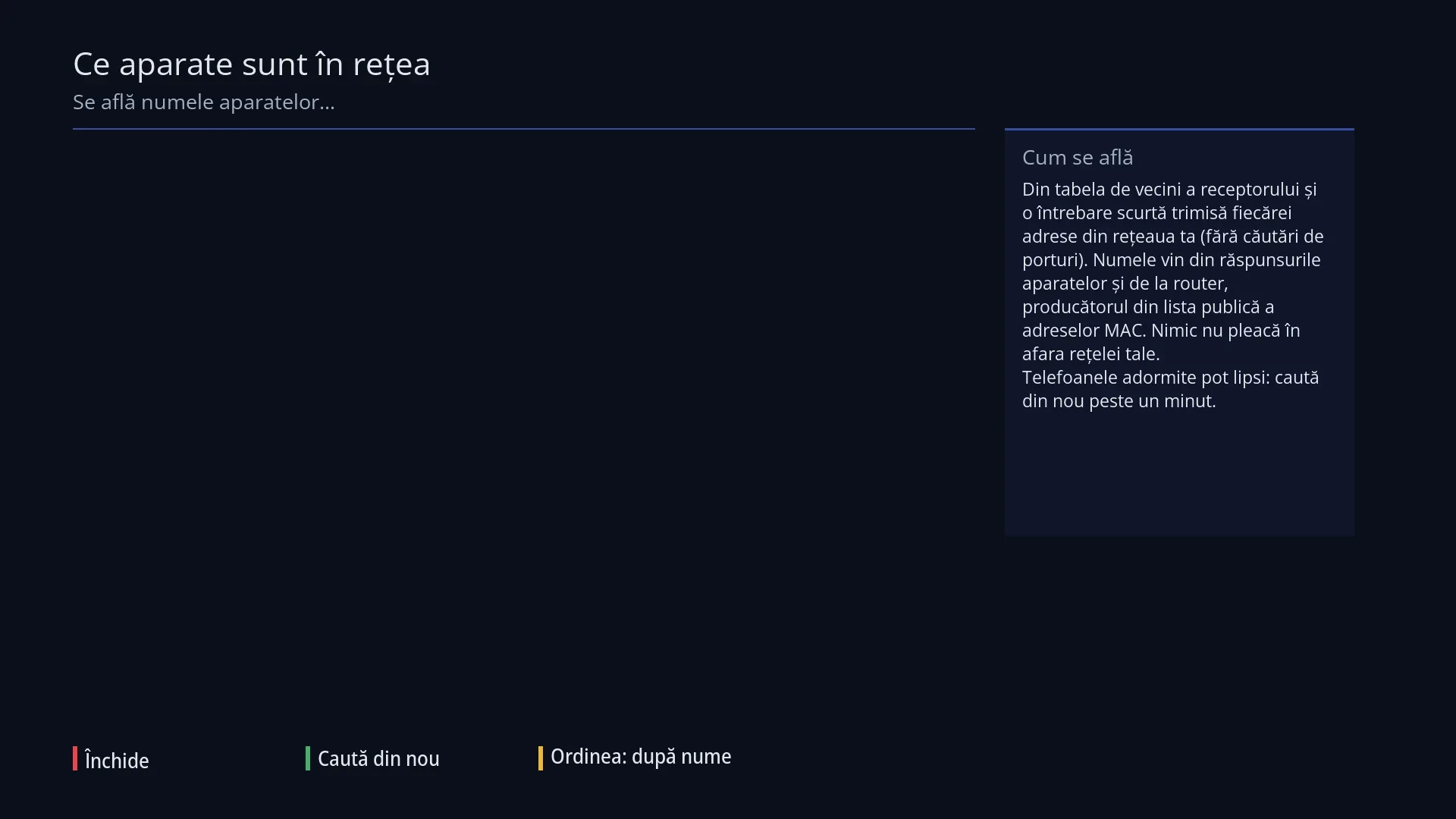
- 1 The search is running.
- 2 How the devices are found.
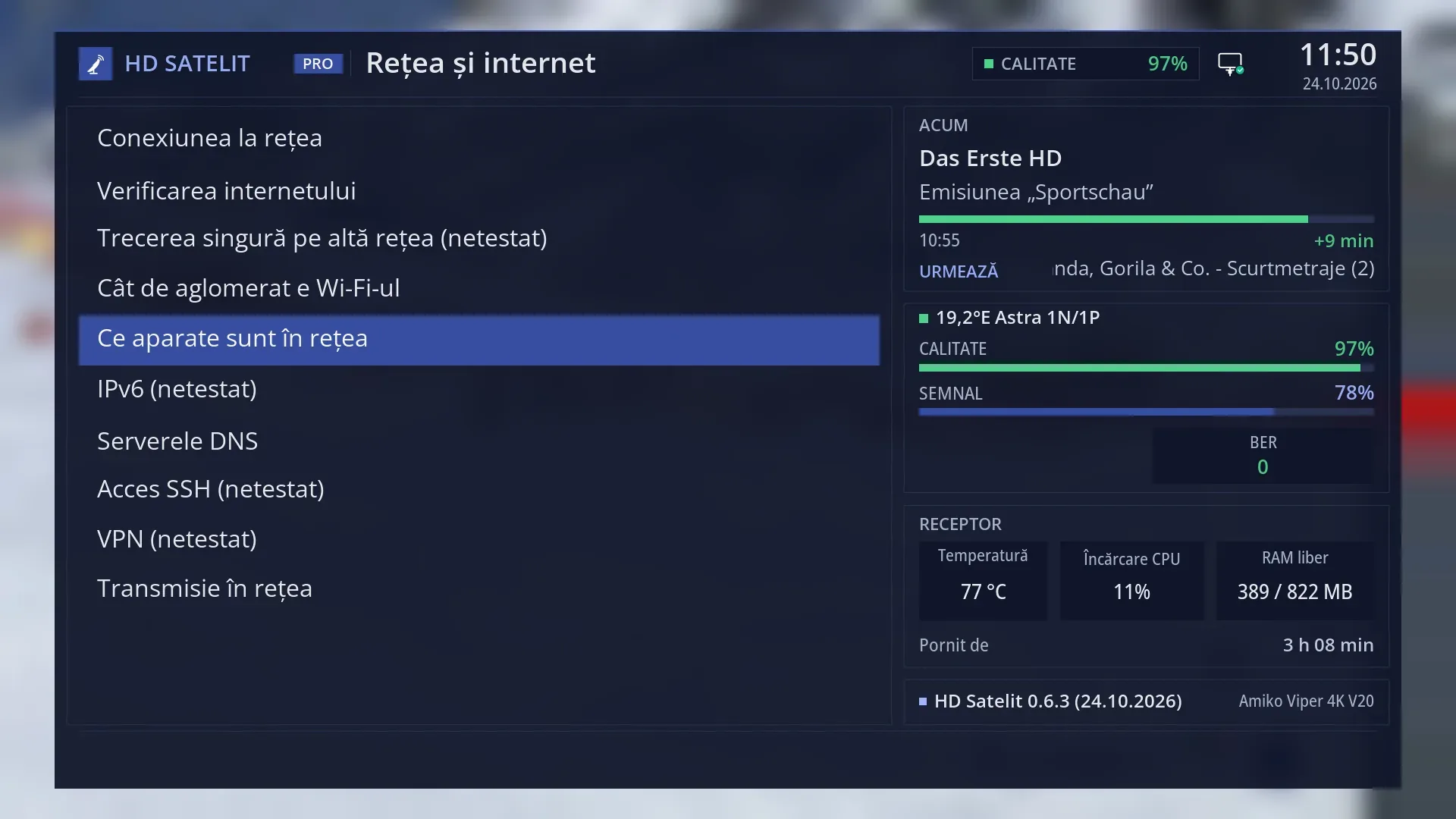
What it is for
“Which devices are on the network” shows every device that is switched on in your home network: phones, computers, TVs, printers, other receivers and the router. Each one is listed with its name, IP address, manufacturer and physical address (MAC).
Open it when you are looking for a device's address (for example, to add it as a network place for films), when you want to check whether a device is connected to the router, or when you want to see who is on your network.
Pressing OK on a device opens its web page (if it has one, like a router, a printer or another receiver) in the receiver's web browser, on the TV.
The search stays inside your network: nothing leaves it and no ports are scanned. The receiver sends one small query to each address on the network and listens for the devices' replies.
How to get here
Path: Main menu > Settings > Network & Internet > Which devices are on the network (fifth row).
Keys on the remote: MENU 6 9 5.
In the web interface: the /aparate-retea page (and the “Which devices are on the network” button on the card for switching to another network, on /retea).
What you see on the screen
At the top is the title “Which devices are on the network”. Below it, while the search runs, you see “Looking for the devices on the network...” and “Finding out the device names...”, then, for example, “Network 192.168.1.0/24 · 9 devices found · nothing leaves your network”. The screen fills the whole TV.
On the left is the list of devices, one per row: the name at the top (or “unnamed”), and below it, in smaller text, “router” or “this receiver” for the two known devices; the IP address in the middle; on the right the manufacturer, with the physical address below it. Newer phones and tablets choose a private physical address themselves: in that case you see “Random address” instead of the manufacturer.
On the right is the “How it is found out” box: how the receiver finds the devices, and the tip “Sleeping phones may be missing: search again in a minute.”.
Below the box are the details of the selected device: name, IP address, physical address, manufacturer, where the name comes from (“name given by the device (mDNS)”, “computer name (NetBIOS)”, “name known by the router” or “receiver name”) and “OK: the device's web page, in the browser.”.
At the bottom are the keys: RED “Close”, GREEN “Search again” and YELLOW “Order: by name” (then “Order: by address”).
Rows and settings
| Row | Values | Default | What it does |
|---|---|---|---|
| A device in the list | Name, IP address, manufacturer, Physical address (MAC) | The names come from what the devices say about themselves (phones, TVs and printers reply to mDNS, Windows computers to NetBIOS) and from the router (the names given via DHCP). The manufacturer is found from the first digits of the physical address, using a public list included in the image (Licenses). | |
| List order (YELLOW) | by address, by name | by address | By default the devices are sorted by IP address. YELLOW sorts them by name (unnamed ones at the end) and back again. The key shows the order it will switch to when you press it. When you are looking for a device by name. |
| The device's web page (OK) | Pressing OK on a device tries its web page (first http, then https). While it tries, you see “Looking for the web page of device 192.168.1.50...”. If there is one, it opens in the receiver's web browser; if not, you see “Device 192.168.1.50 has no web page (it does not answer on port 80 or 443).”. When you want the page of the router or a printer on the TV. | ||
| The network searched | The receiver searches the network of the adapter it uses to reach the internet. A very large network is not searched in full: you see “The network is large (/16): only the 254 addresses around the receiver are searched.”. A few seconds must pass between two searches. |
Keys
| UP / DOWN | Select the device; the details at the bottom right change with it. |
| LEFT / RIGHT | Jump one page of devices up or down. |
| OK | Opens the web page of the selected device in the receiver's web browser. |
| GREEN (“Search again”) | Searches for the devices again. If a search is already running or you searched recently, you see “A search is already running.” or “Wait a few seconds before a new search.”. |
| YELLOW (“Order: by name” / “Order: by address”) | Changes the order of the list. |
| RED (“Close”) or EXIT | Close the screen. |
Step by step
Find a device's address
- Press MENU 6 9 5 and wait for the search to finish.
- Press YELLOW to sort the list by name and look for the device (for example “Living-Room-PC”).
- The IP address is in the middle of the row; at the bottom right you can also see where the name comes from.
Open the router's page on the TV
- Press MENU 6 9 5.
- Select the device with “router” below its name and press OK.
- The router's page opens in the receiver's web browser.
Do the same from your phone
- Open the web interface and go to /aparate-retea.
- Press “Search again”. The table has the columns “Name”, “IP address” and “Manufacturer and MAC address”, and the “Order: by name” button changes the order.
Problems and solutions
My phone is not in the list.
Sleeping phones (with the screen off) do not always reply. Turn on the phone's screen and press GREEN a minute later.
A device shows “unnamed”.
The device does not give its name, and the router does not know it. You can recognise it by its manufacturer and physical address.
The manufacturer shows “Random address”.
It is a phone or tablet that chooses its own private physical address on each Wi-Fi network. This is normal; you can recognise it by its name or address.
“The receiver is not connected to any network.”
The receiver has no connection to the router. Check MENU 6 9 1 (Network Connection Setup).
OK says the device has no web page.
The device does not respond on port 80 or on 443: it has no settings page in a browser (a phone, for example).
“Wait a few seconds before a new search.”
Ten seconds must pass between two searches. Press GREEN again a little later.
Related topics
- Network & Internet
- How busy the Wi-Fi is
- Web browser (where the device's page opens)
- Licenses (the list of manufacturers)
- Matching web page: /aparate-retea.