

Search settings
English screenshots coming: some of the pictures below still show the receiver and the web interface in Romanian. The rows, keys and steps described on this page are the English ones.
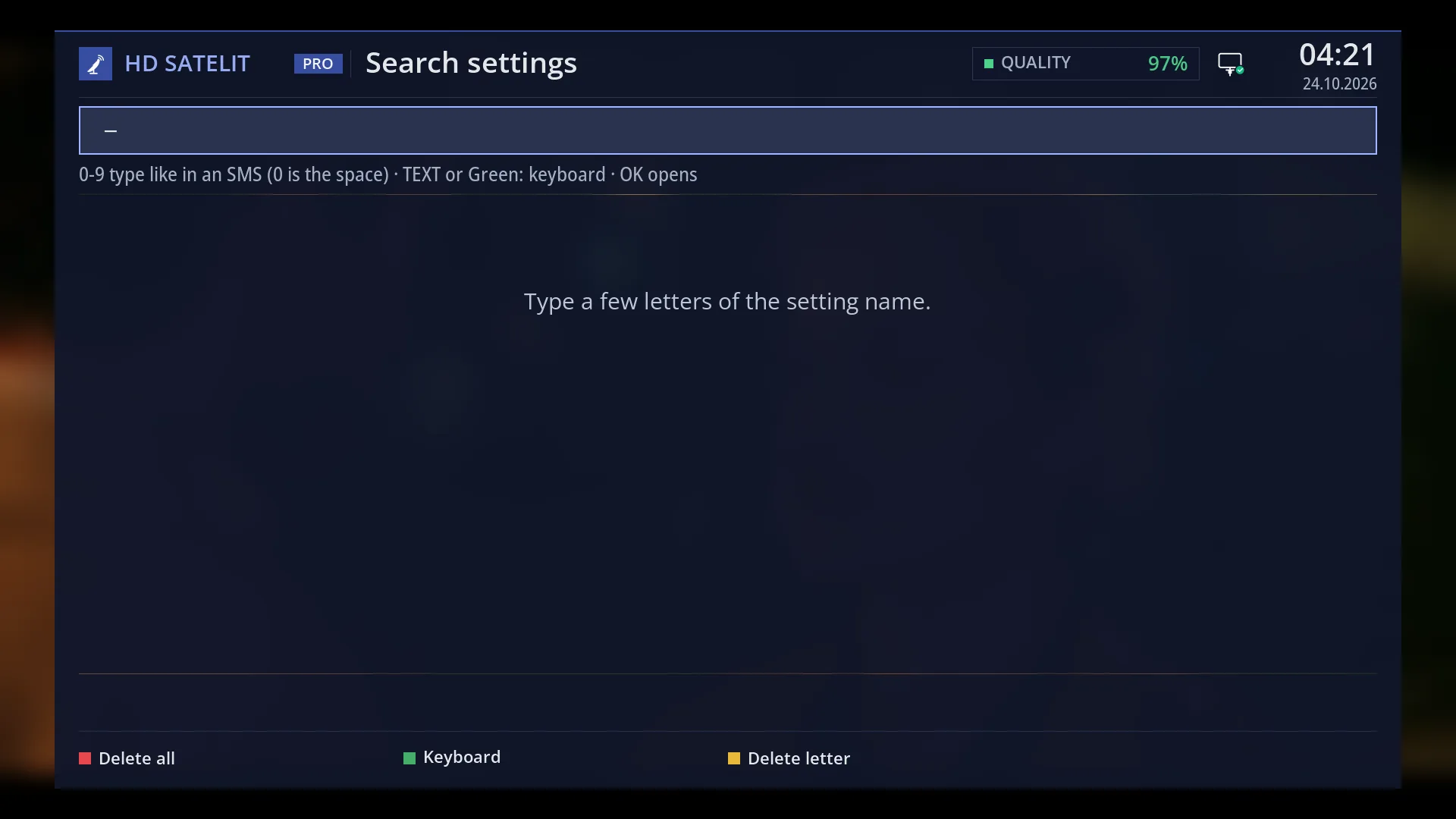
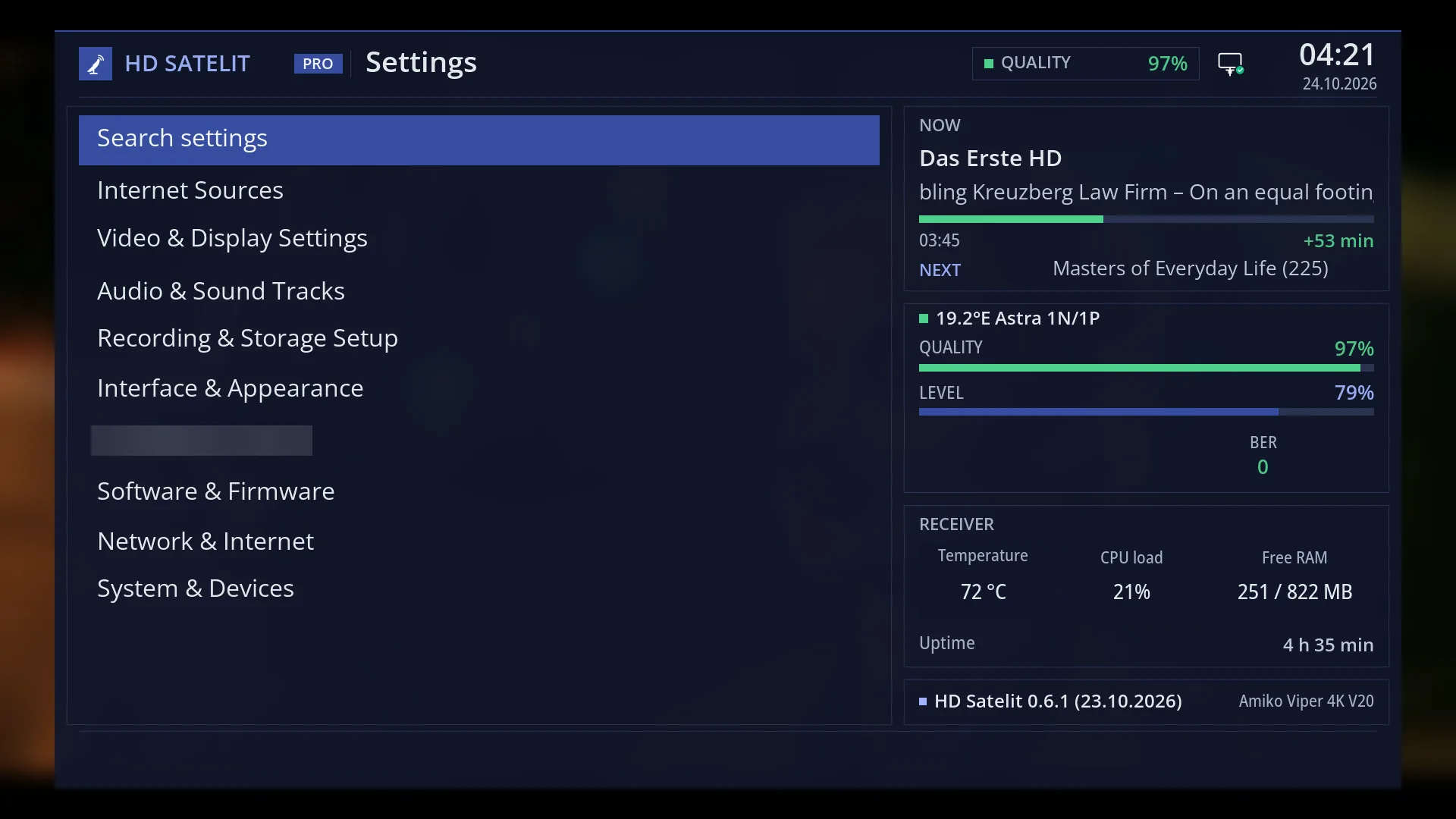
- 1 The selected row.
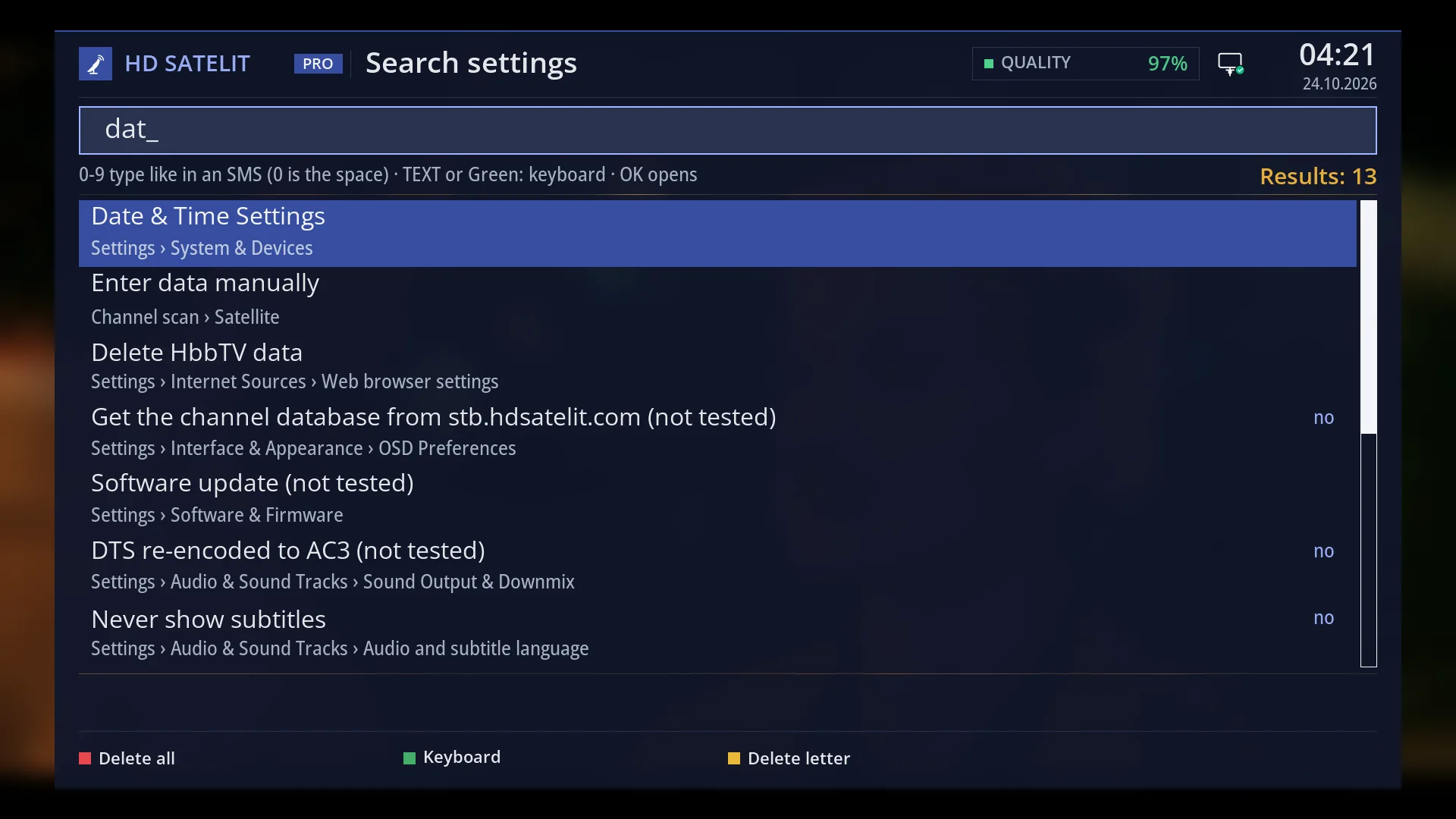
- 1 The search box, with the text typed.
- 2 How to type: the digits as in an SMS, TEXT or GREEN for the keyboard, OK opens.
- 3 How many results were found.
- 4 The results: the name and current value at the top, the menu path below.
- 5 RED deletes all, GREEN keyboard, YELLOW deletes a letter.
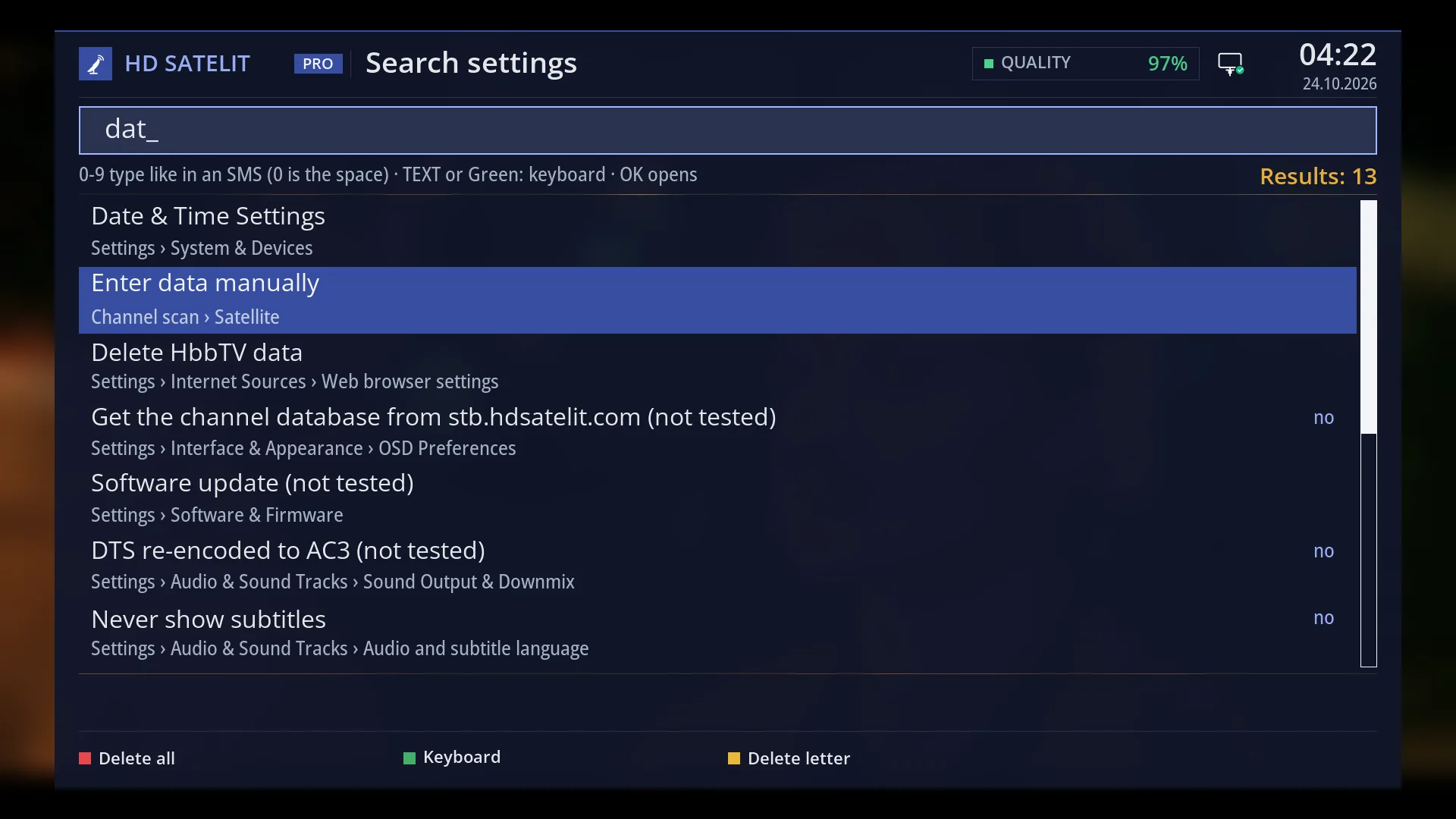
- 1 The selected row.
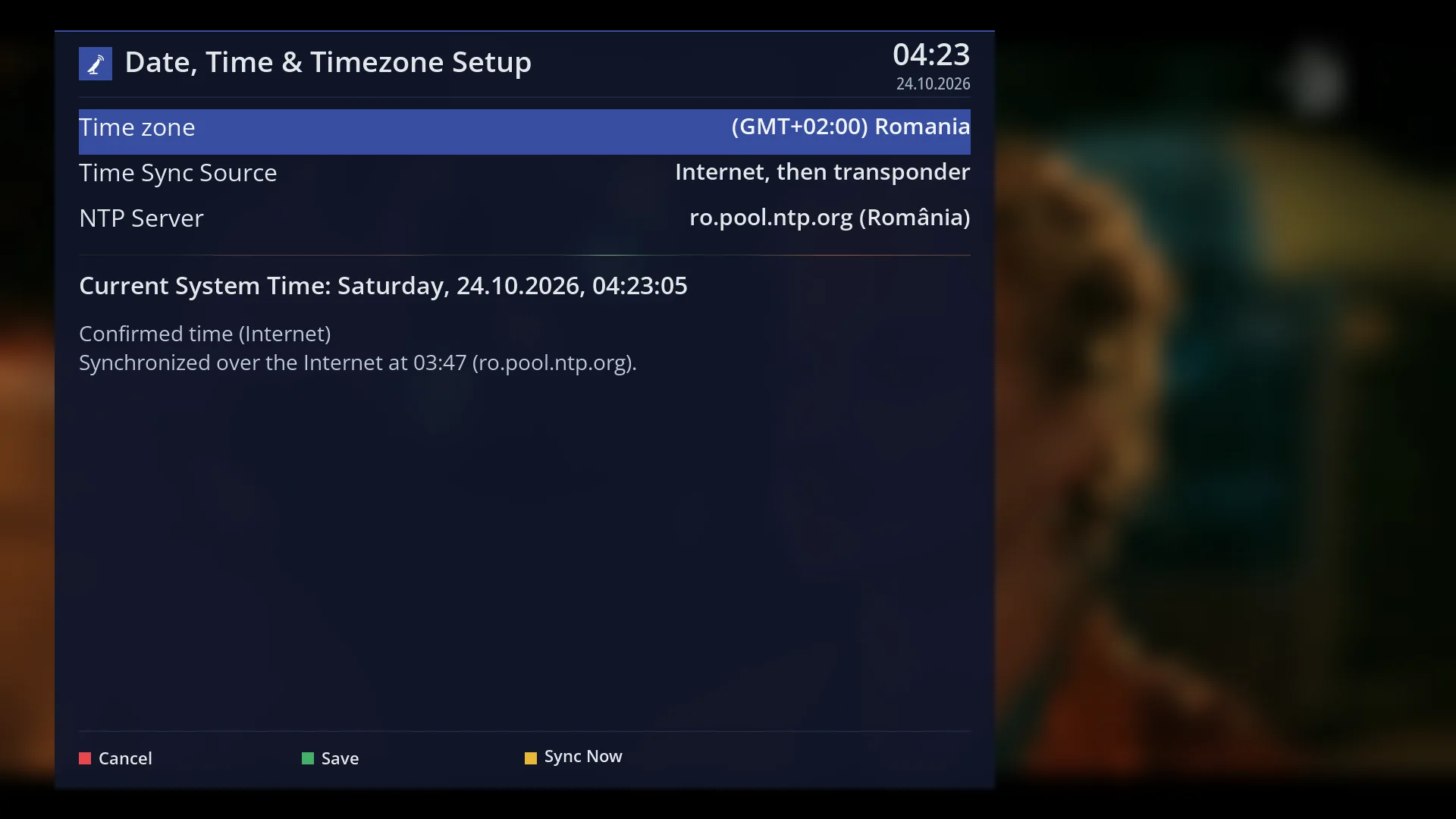
- 1 The selected row.
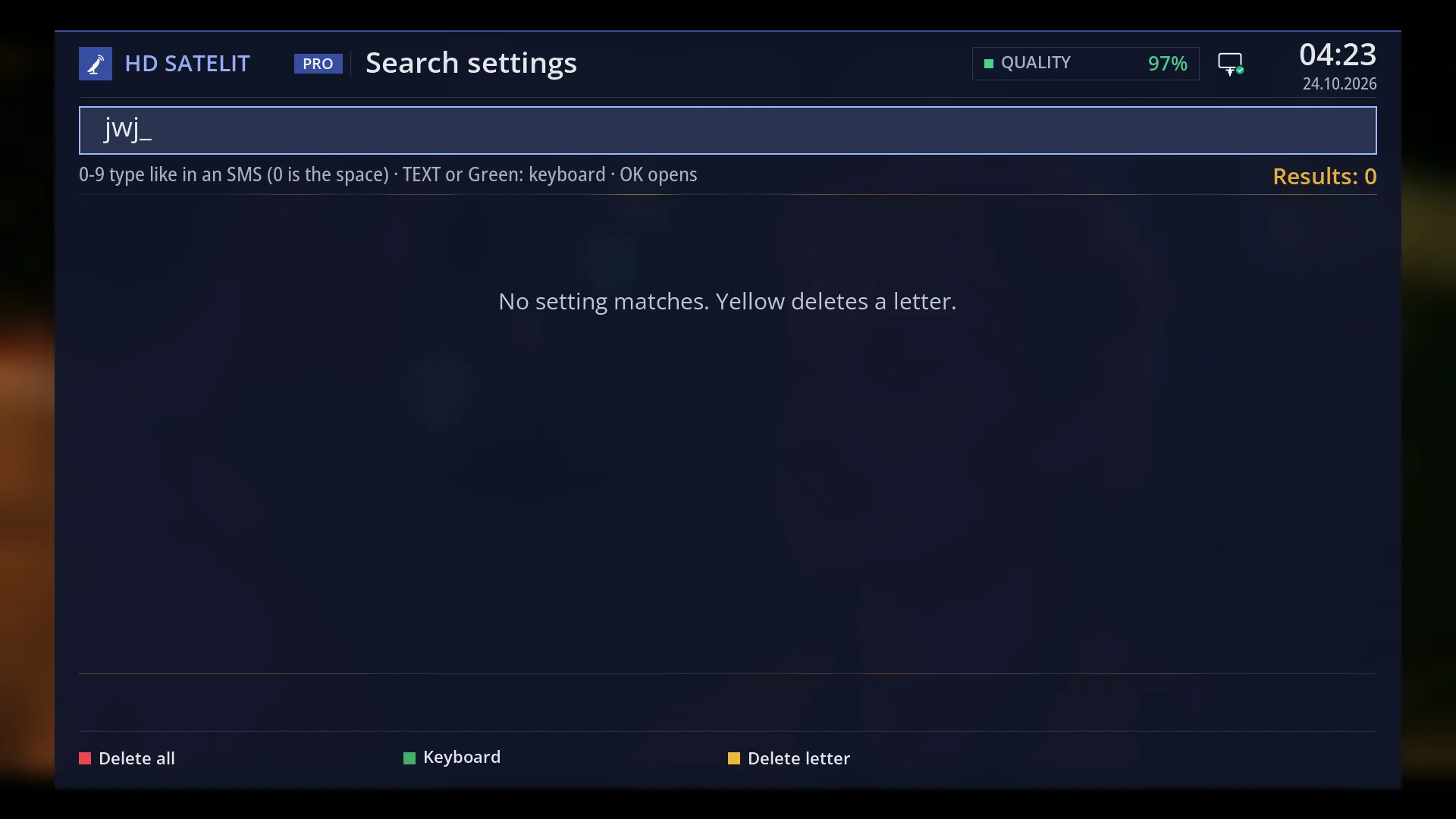
- 1 Nothing matches; YELLOW deletes the last letter.
- 2 The text typed.
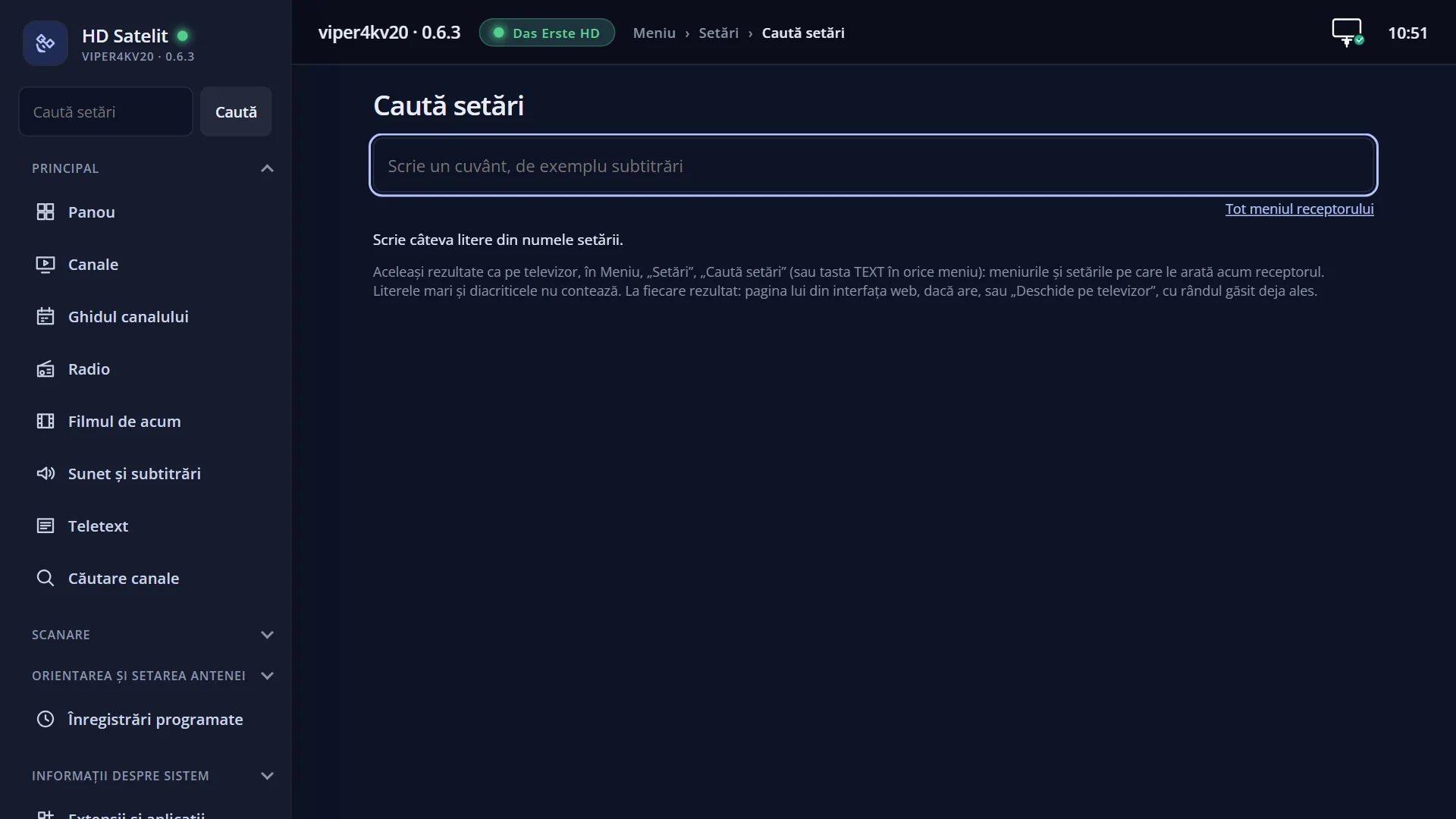
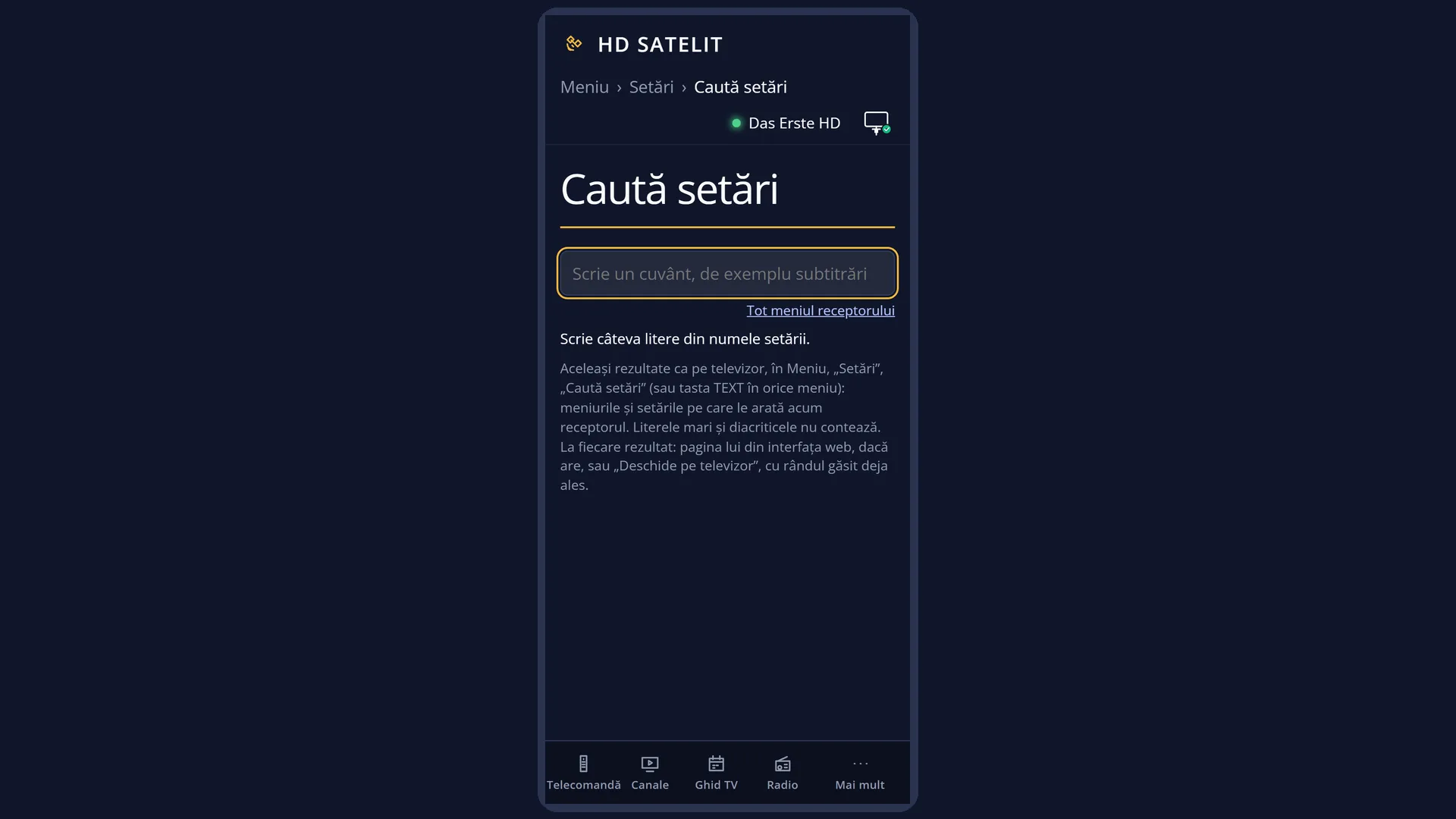
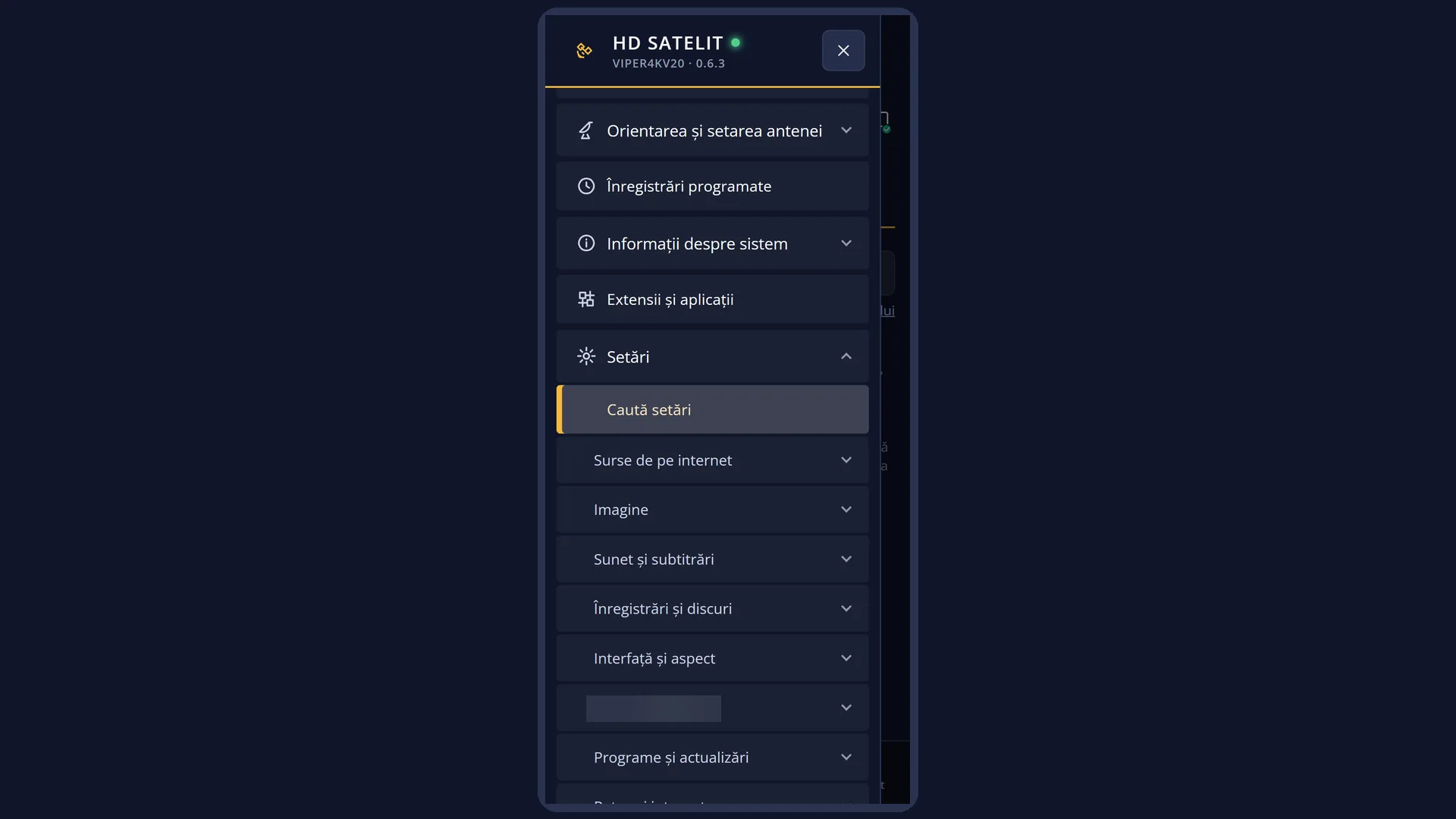
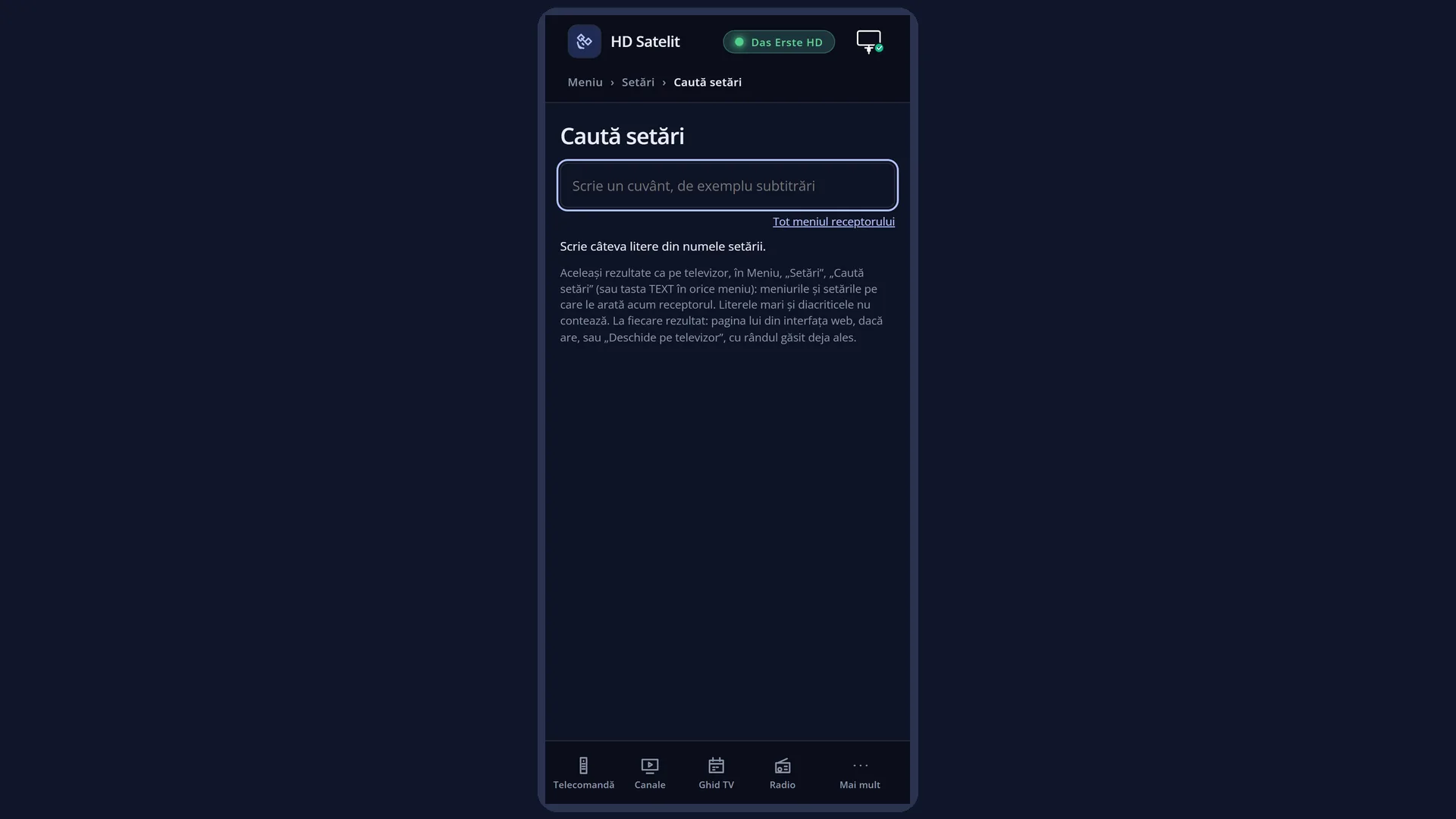
What it is for
“Search settings” finds any setting, screen or submenu anywhere in the receiver's menu from a few letters of its name, as on Android phones. You no longer need to know which submenu a setting is in.
You type with the digit keys on the remote, as in an SMS, with the on-screen keyboard or with a USB keyboard connected to the receiver. The results appear as you type.
Next to each result you see its path in the menu (for example “Settings › Audio & Sound Tracks”) and, for simple settings (Yes / No, a choice, a number), the current value. OK opens the screen with the cursor right on the row found, ready to change.
The search ignores accents and capital letters: “setari”, “SETARI” and “Setări” find the same thing. It also works with the Romanian name of the setting when the menu is in another language.
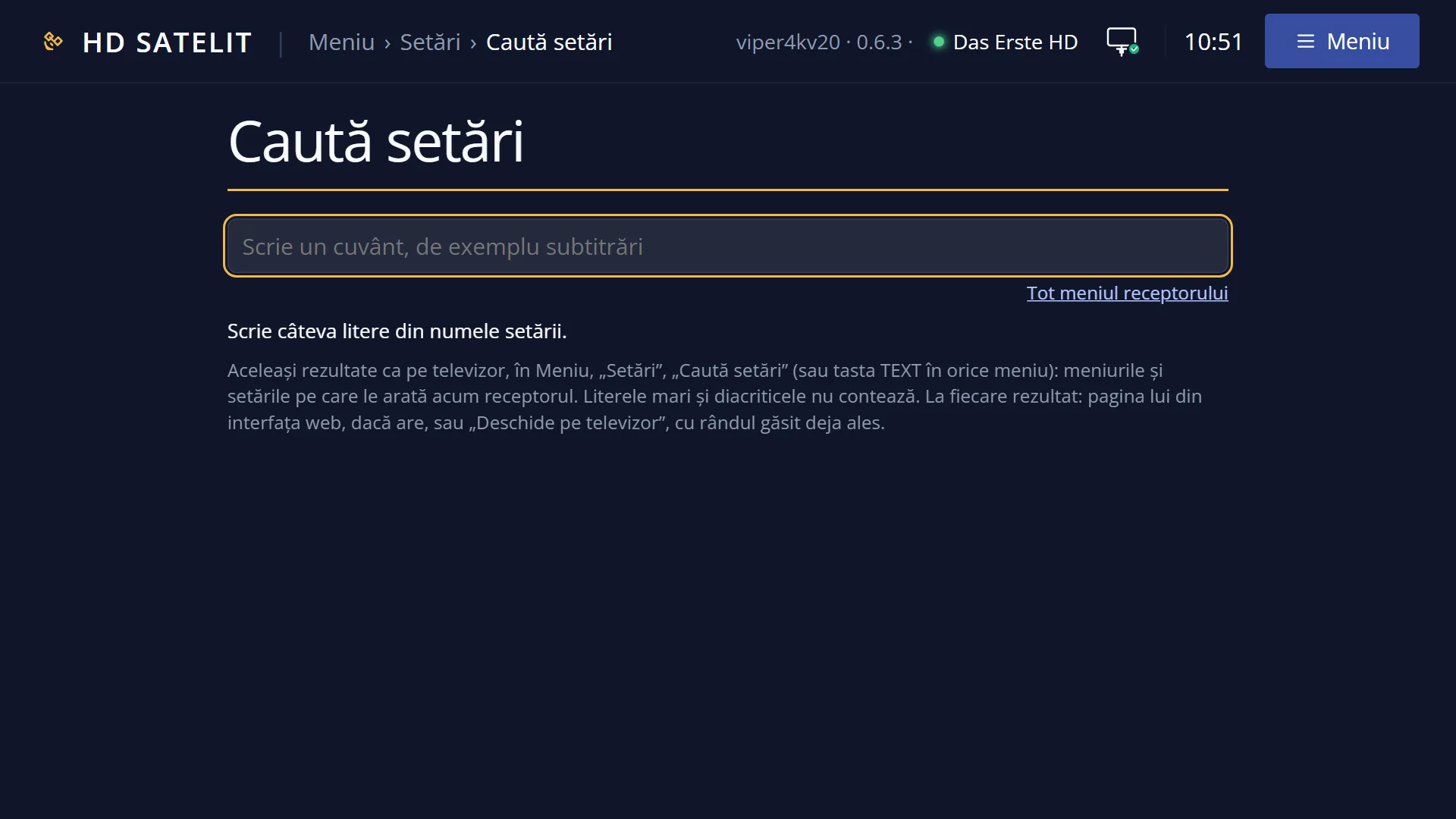
The same search is available in the web interface, on the /cauta-setari page, and in the search field at the top of the web pages.
How to get here
Path: Main menu > Settings > Search settings (the first row in Settings) or Main menu > Search settings (the last row).
Keys on the remote: MENU 6 1 or MENU 9.
From any menu: the TTX key (labelled TEXT on the screen).
In the web interface: the /cauta-setari page or the “Search settings” field at the top of the pages (the panel, /meniu, /setari).
What you see on the screen
At the top, the search box, with the text you have typed and the small line that shows where you are typing. When the text no longer fits, you see its end, that is, what you are typing now.
Below the box, the help line: “0-9 type like in an SMS (0 is the space) · TEXT or Green: keyboard · OK opens”. To its right, in yellow, the number of results: “Results: 12”.
The list of results, 7 per page, best matches first (60 at most). Each result shows its name at the top (with the “(untested)” or “(in progress)” mark if it has one in the menu too) and, on the right, the current value; below, in smaller text, the path to it in the menu. The selected result has a blue background.
Below the list, the explanation of the selected result, the same as in the setting's screen.
When the box is empty, the list shows “Type a few letters of the setting name.”. When nothing matches: “No setting matches. Yellow deletes a letter.”.
At the bottom, the colour keys: RED “Delete all”, GREEN “Keyboard”, YELLOW “Delete letter”.
The value is shown only for simple settings. For text fields (passwords, addresses, names) nothing is shown, so that personal details do not appear on the screen.
Rows and settings
| Row | Values | Default | What it does |
|---|---|---|---|
| Search box | 60 letters at most | empty | The text you search for. Each word must appear somewhere in the result's name, in its menu path or in its search words, and at least one word must be outside the path (otherwise “settings” would bring up everything under Settings). A word also matches the beginning of a longer word: “subt” finds “Subtitles”. Every time you search. |
| Text from last time | When you open the search again, the text from last time and its results are still there, without the typing line. The first digit you press starts a new search (the old text is removed). YELLOW (which deletes only the last letter) or the on-screen keyboard keeps it, so you can change it; RED deletes it completely. The text is forgotten when the interface restarts. | ||
| A result in the list | a submenu, a screen, a settings row | OK on a submenu opens it. OK on a screen opens it. OK on a settings row opens its screen and puts the cursor on the row. Entries that switch off or restart the receiver, plugins and a few special entries do not start directly from the search: the menu they are in opens with the cursor on them, and you press OK yourself. | |
| Value on the right of the result | Yes / No, a choice, a number | The current value of the setting, as in its screen. It lets you see at a glance how a setting is set, without opening it. | |
| What is searched (menu level) | Simple, Intermediate, Expert | Intermediate | The search finds only what the menu currently shows: entries and rows hidden by “Setup Mode” (OSD Preferences), or that do not exist on your receiver, do not appear in the results either. The results are in the menu language. When a setting you know about does not appear in the results: set “Setup Mode” to Expert. |
Keys
| 0 ... 9 | Type as in an SMS: 2 twice gives “b”, 7 four times gives “s”. The letter is confirmed by itself after one second or when you press another digit. 0 first types a space (it separates words), then the digit 0; 1 types the digit 1. |
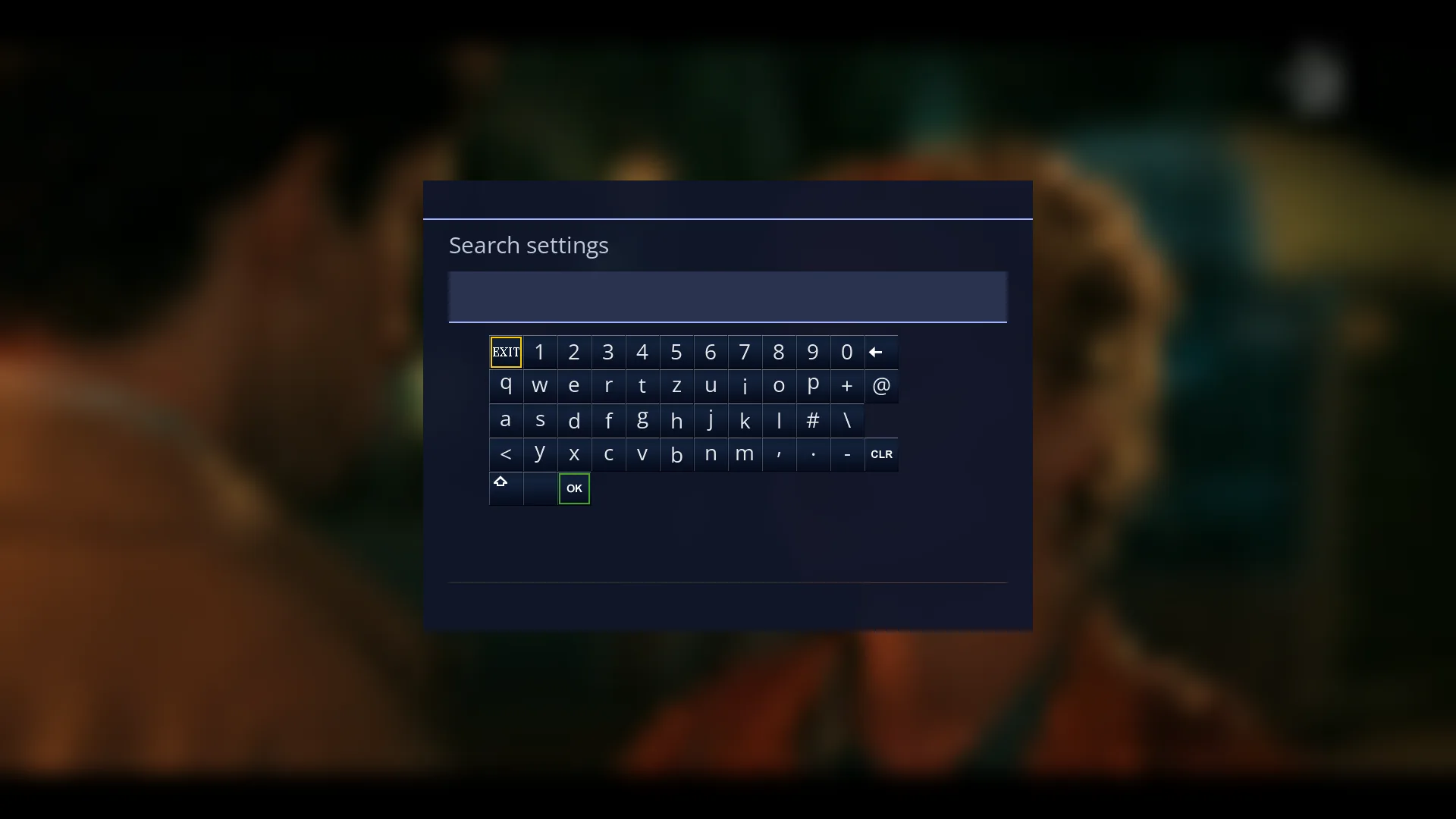
| GREEN or TTX | Opens the on-screen keyboard with the current text in it; OK on its letters, then confirming, puts the text back in the box. |
| YELLOW | Deletes the last letter. |
| RED | Deletes all the text so you can start again. |
| UP / DOWN | Moves the cursor to the result above or below. |
| LEFT / RIGHT | Jump one page of results up or down. |
| OK | Opens the selected result (see the row “A result in the list”). When the list is empty, it opens the on-screen keyboard. |
| EXIT | Closes the search and takes you back to where you were (in the menu or on live TV). |
| MENU | Closes the search and all the menus below it. Likewise, MENU pressed in a screen opened from the search closes everything. |
| USB keyboard | Letters are typed straight into the box; Backspace deletes the last letter. |
| HELP | Shows the list of keys for this screen. |
Step by step
Find and change a setting
- Press MENU 9 (or TTX in any menu).
- Type a few letters of the name, for example “sunet”: 7 four times, 8 twice, 6 twice, 3 twice, 8 once.
- Move the cursor with DOWN to the result you want; on the right you see the current value, at the bottom the explanation.
- Press OK: the setting's screen opens with the cursor on its row. Change the value with LEFT / RIGHT and save as usual.
Type faster with the on-screen keyboard
- In the search, press GREEN.
- Choose the letters with the arrow keys and OK, then confirm the text.
- The results appear in the list straight away.
Search from your phone
- Open the receiver's web interface and go to /cauta-setari.
- Type the word; next to each result you have “Web page” and “Open on the TV”.
- “Open on the TV” shows the setting's screen on the TV, with the cursor on the row.
Problems and solutions
“No setting matches.” appears
Type fewer letters or a different word (for example “volume” instead of “sound volume”). Press YELLOW to delete the last letter. If you typed with the digits, check the letter: one extra press changes the letter.
I know the setting exists, but it does not appear in the results.
The search finds only what the menu currently shows. Set Menu > Settings > Interface & Appearance > OSD Preferences > “Setup Mode” to Expert and search again. Some settings appear only on receivers that have the feature.
The wrong letters come out when I type with the digits.
For two letters on the same key (for example “ab”), wait one second between them, until the first one is confirmed. Or use the on-screen keyboard (GREEN).
I pressed OK on “Restart Box” and nothing happened.
Switching off, restarting, plugins and a few special entries do not start from the search: their menu opens with the cursor on them. Press OK once more there if you really want to.
I cannot see the value next to a result.
The value appears only for simple settings. Results that are submenus or screens, and text fields, have no value in the list.
TTX does not open the search.
TTX opens the search only from a menu. On live TV, TTX opens teletext; press MENU first.
Related topics
- Main menu
- Settings
- OSD Preferences (Setup Mode)
- The receiver's menu in the web interface
- Matching web page: /cauta-setari.