

TV in browser
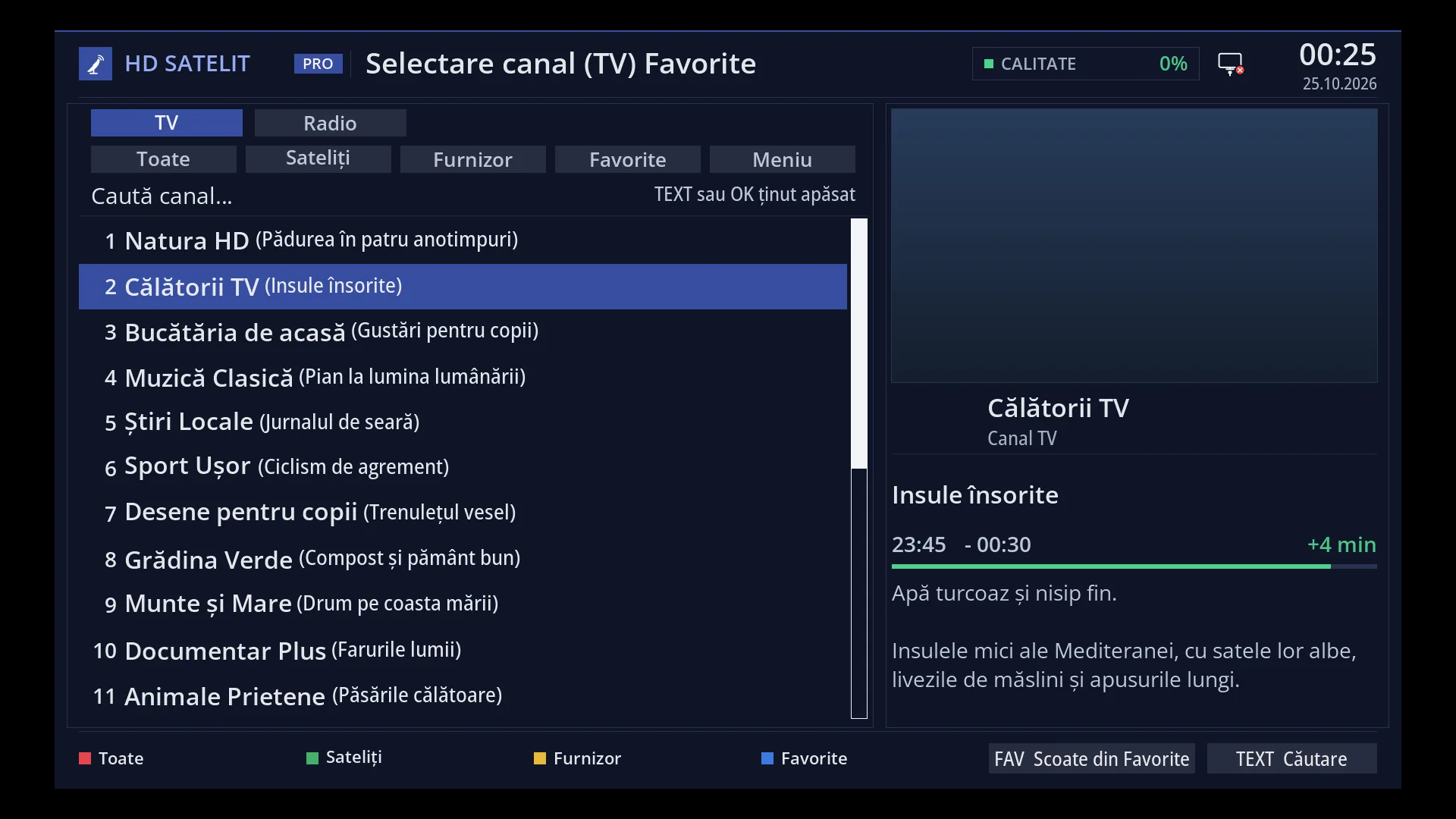
English screenshots coming: some of the pictures below still show the receiver and the web interface in Romanian. The rows, keys and steps described on this page are the English ones.
What it is for
The “TV in browser” page of the web interface plays a channel from the receiver directly in the browser of a computer, phone or tablet on your home network. You do not need any extra software.
The channel is sent exactly as it comes from the dish or aerial, without re-encoding on the receiver. The browser plays H.264 video by itself. The page decodes MPEG-2 video and AC-3 sound on the computer's processor. HEVC (H.265) plays where the browser supports it. Radio stations also work.
You can also see the receiver display over the picture, as on the TV: the menus, the info bar, subtitles and the guide.
“Start the channel from the TV” links the picture to the TV: when you change channel on the TV (with the remote, from the panel or from the guide), the browser switches to the new channel by itself.
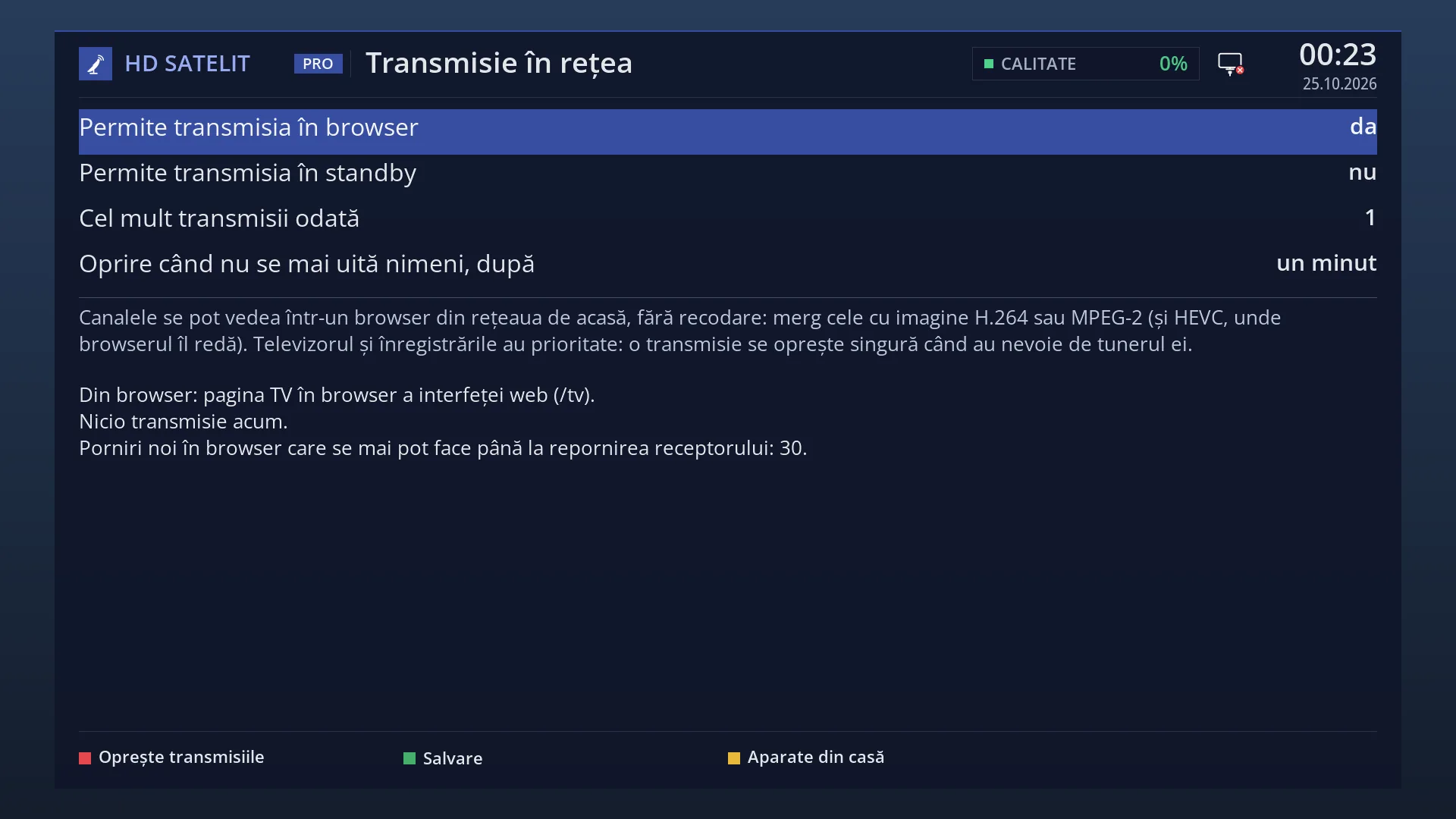
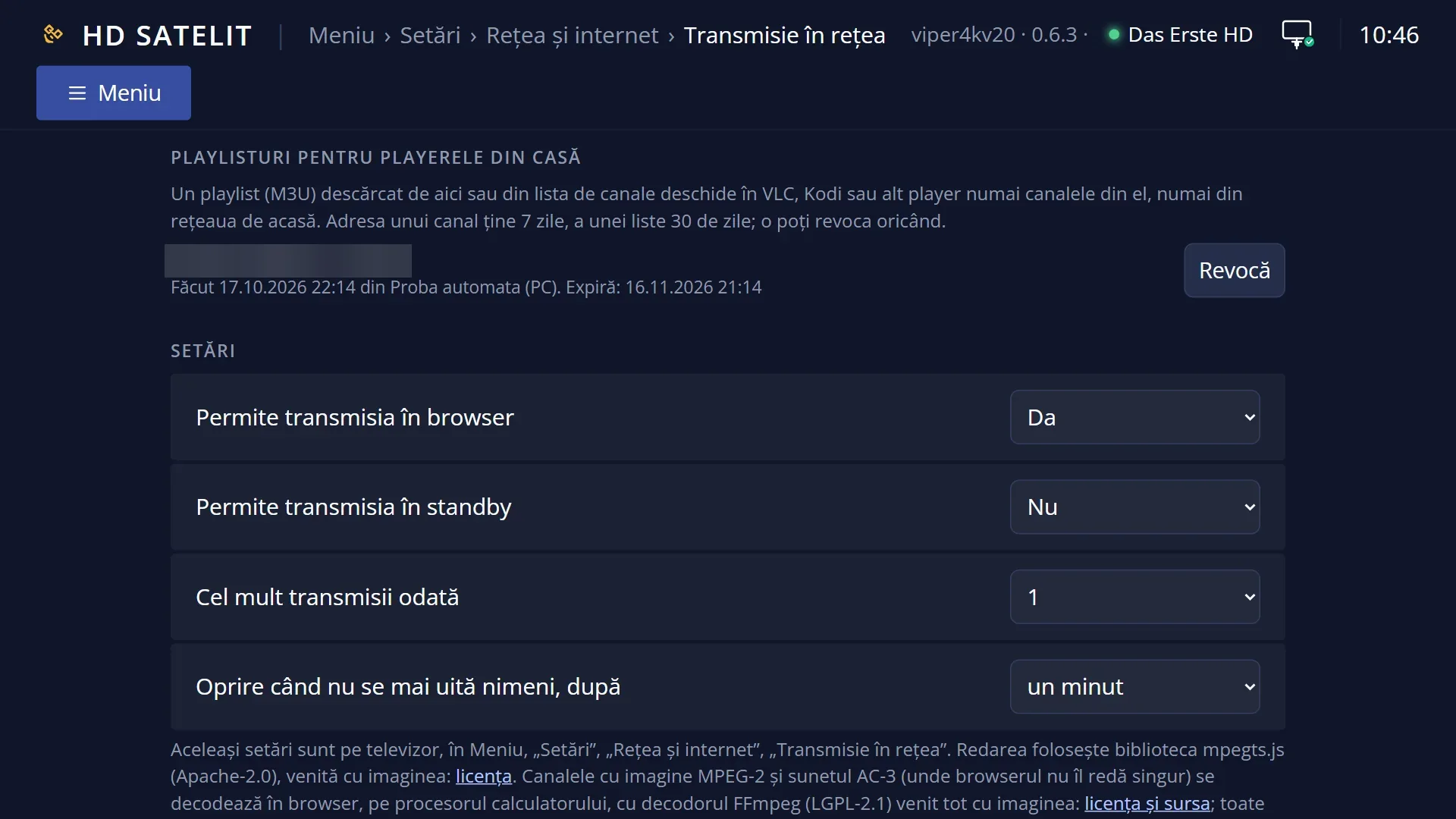
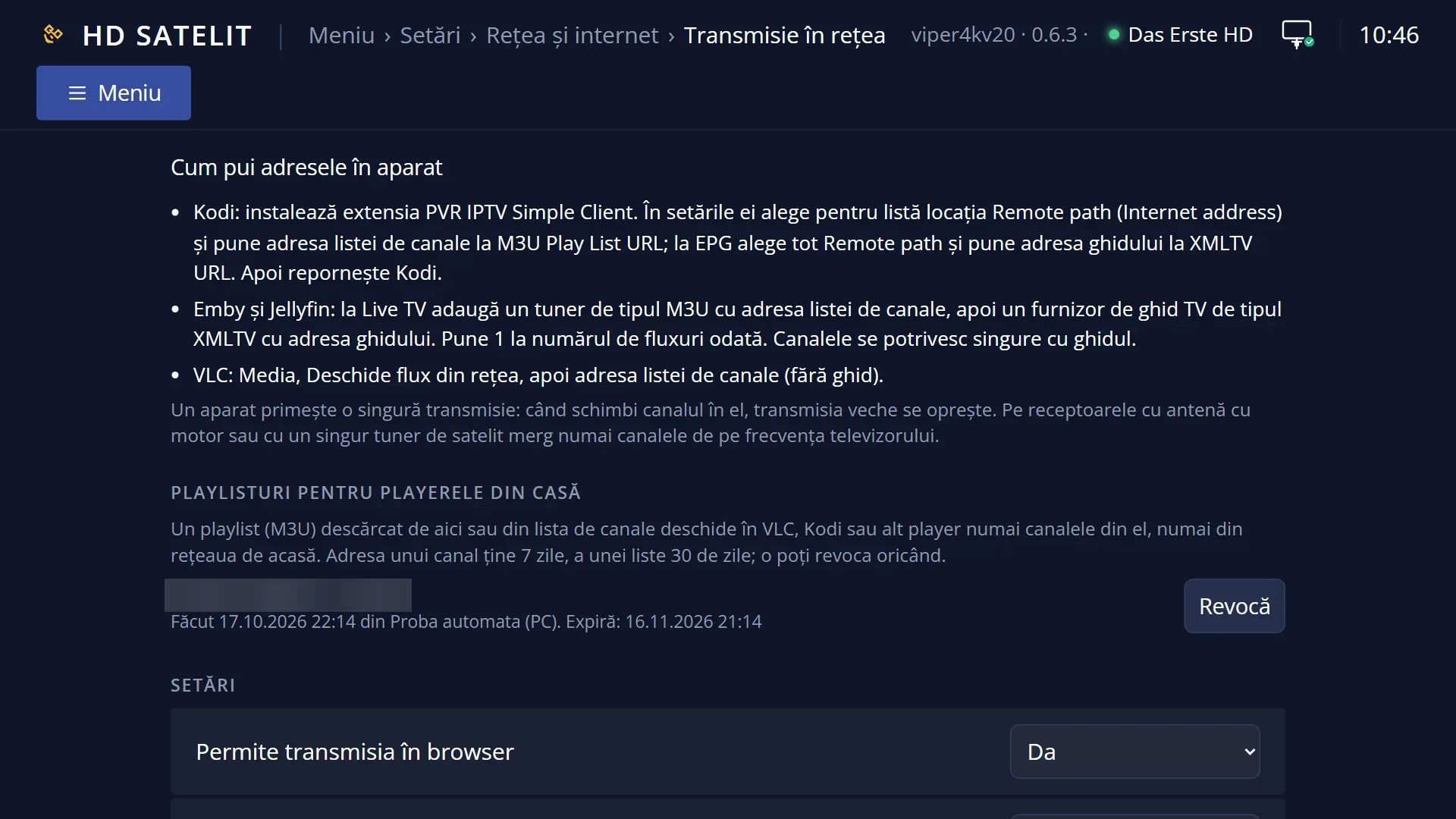
On the same page you can see who is watching (Active streams), download playlists for the players at home and change the streaming settings, which are the same as those on the TV under “Network streaming”.
How to get here
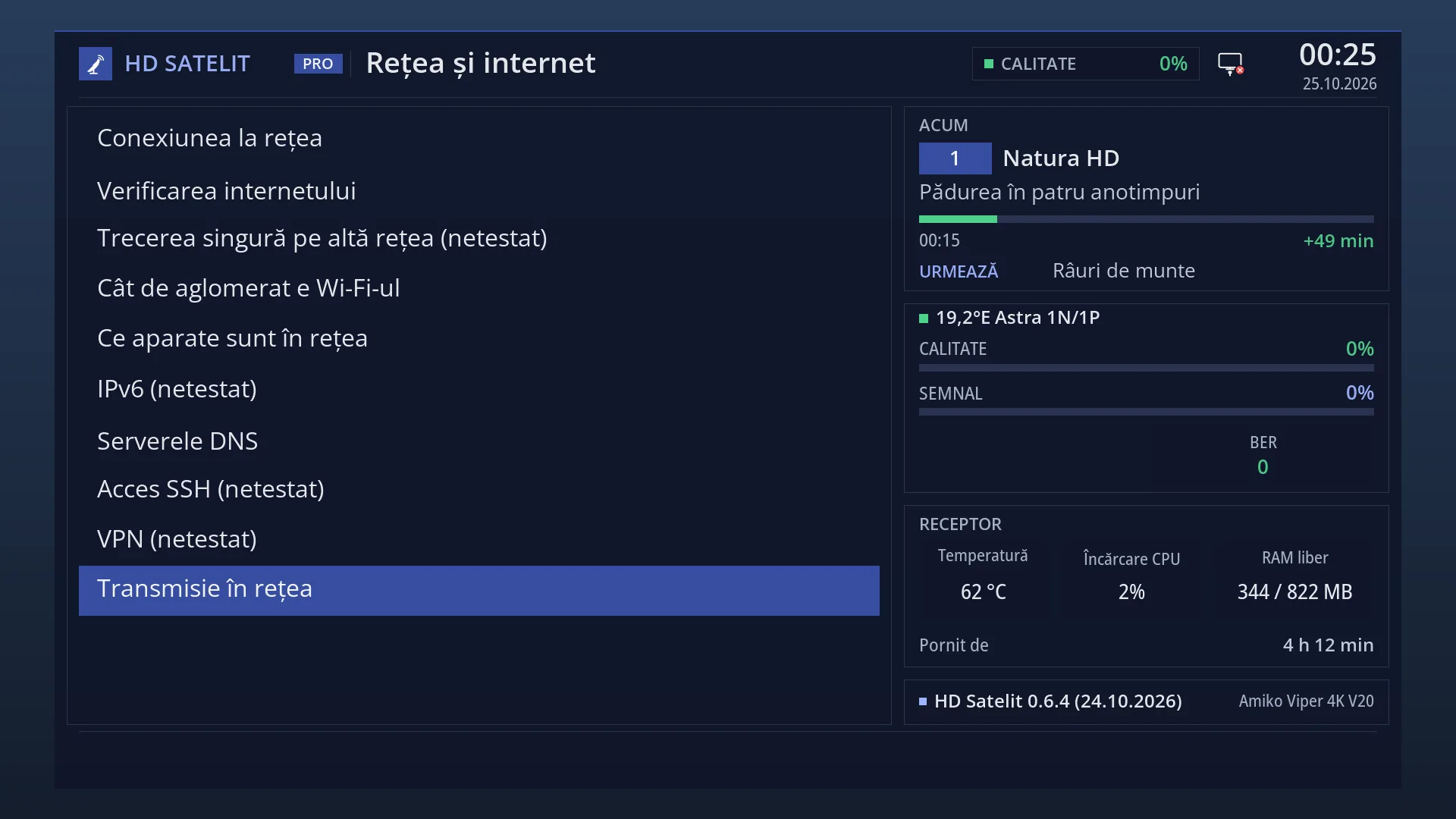
Path: in the browser, the receiver's address followed by /tv (for example http://<receiver address>/tv). The exact address is shown on the TV in Menu > Settings > Network & Internet > Network streaming, next to “From the browser:”.
From the web interface panel: the “Watch live here” button under the screenshot plays the picture in the panel itself, and the link “TV in browser: watch the live channel on this PC or phone” opens the /tv page.
From the /canale page and from the channel search (/cautare): the “Watch live” button next to each channel.
The picture only plays in a browser that is connected to the receiver (with the code shown on the TV), not with a key written in the address.
What you see on the screen
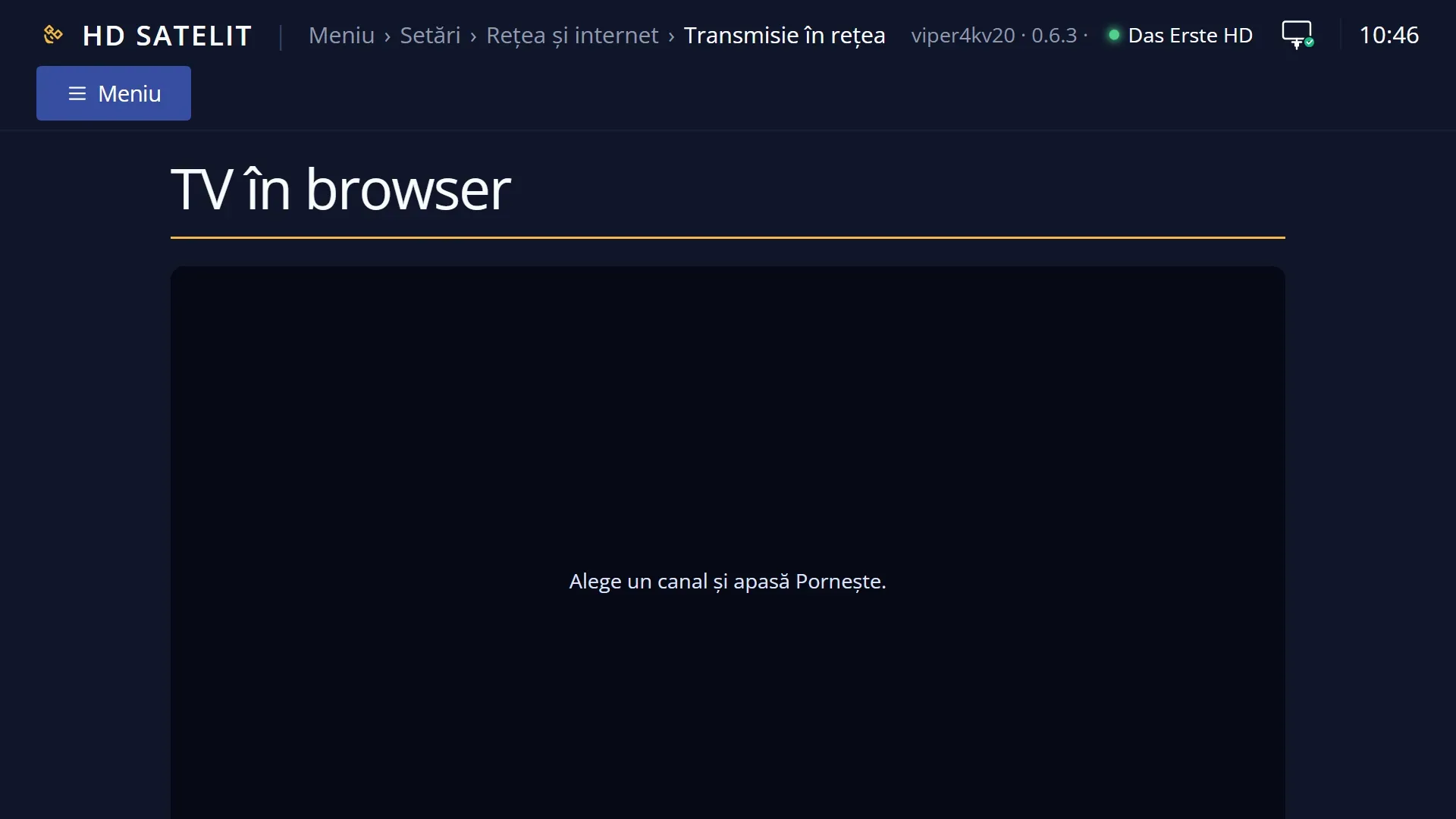
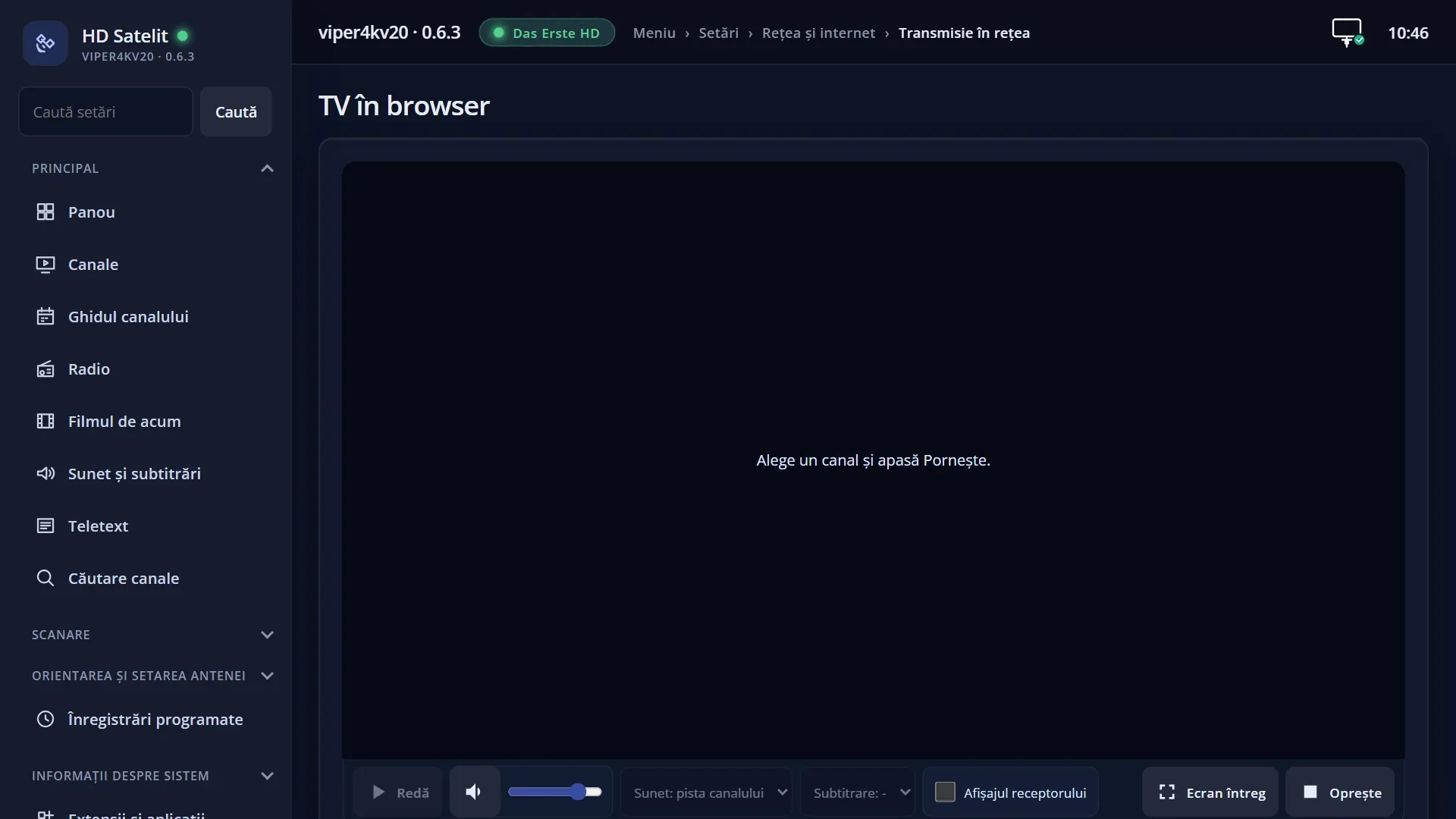
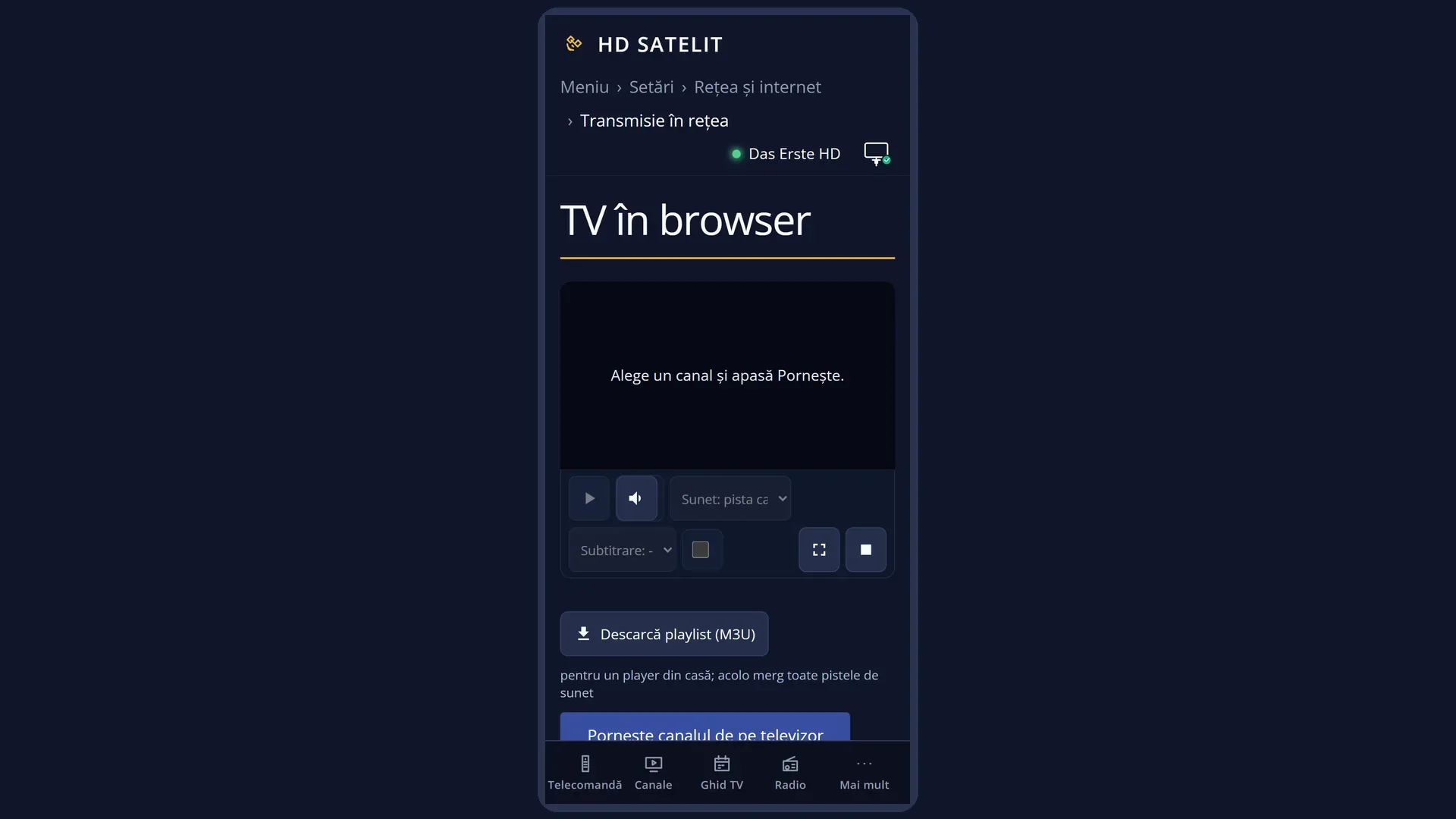
At the top is the player: the channel's picture and, below it, the bar with the Play / Pause button, the sound button with the volume, “Audio track”, “Subtitle”, the “Receiver display” tick box, “Full screen” and “Stop”. Under the bar there is the status line (for example “Now: Das Erste HD” and “The picture works.”) and the “Download playlist (M3U)” button. Before you start, the player shows “Choose a channel and press Start.”.
Under the player there is the large “Start the channel from the TV” button, a line for messages and, when the receiver can work out its memory, how many more new starts are possible before the receiver needs a restart.
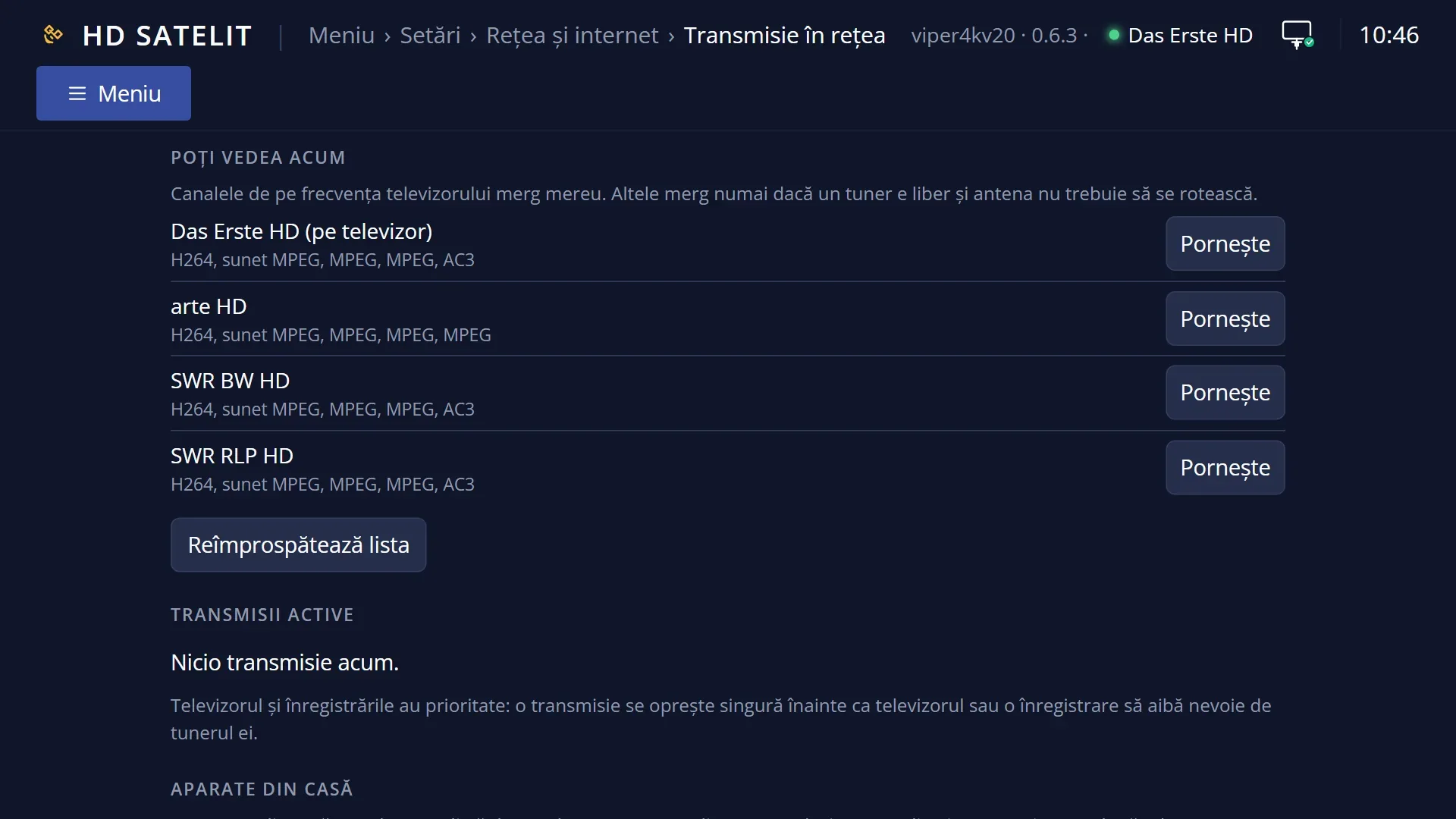
The “You can see now” card: the channels on the TV's frequency (these always work, as the tuner is shared), then the channels from the TV's channel list that work at the moment. Each one shows its name (with “(on the TV)” next to the current one), the type of picture and sound, possibly a warning (for example that the browser decodes the MPEG-2 picture) and the “Start” button. Under the list there is “Not working now” (it opens when you click it), with the channels that cannot start at the moment and the reason for each one, and the “Refresh the list” button.
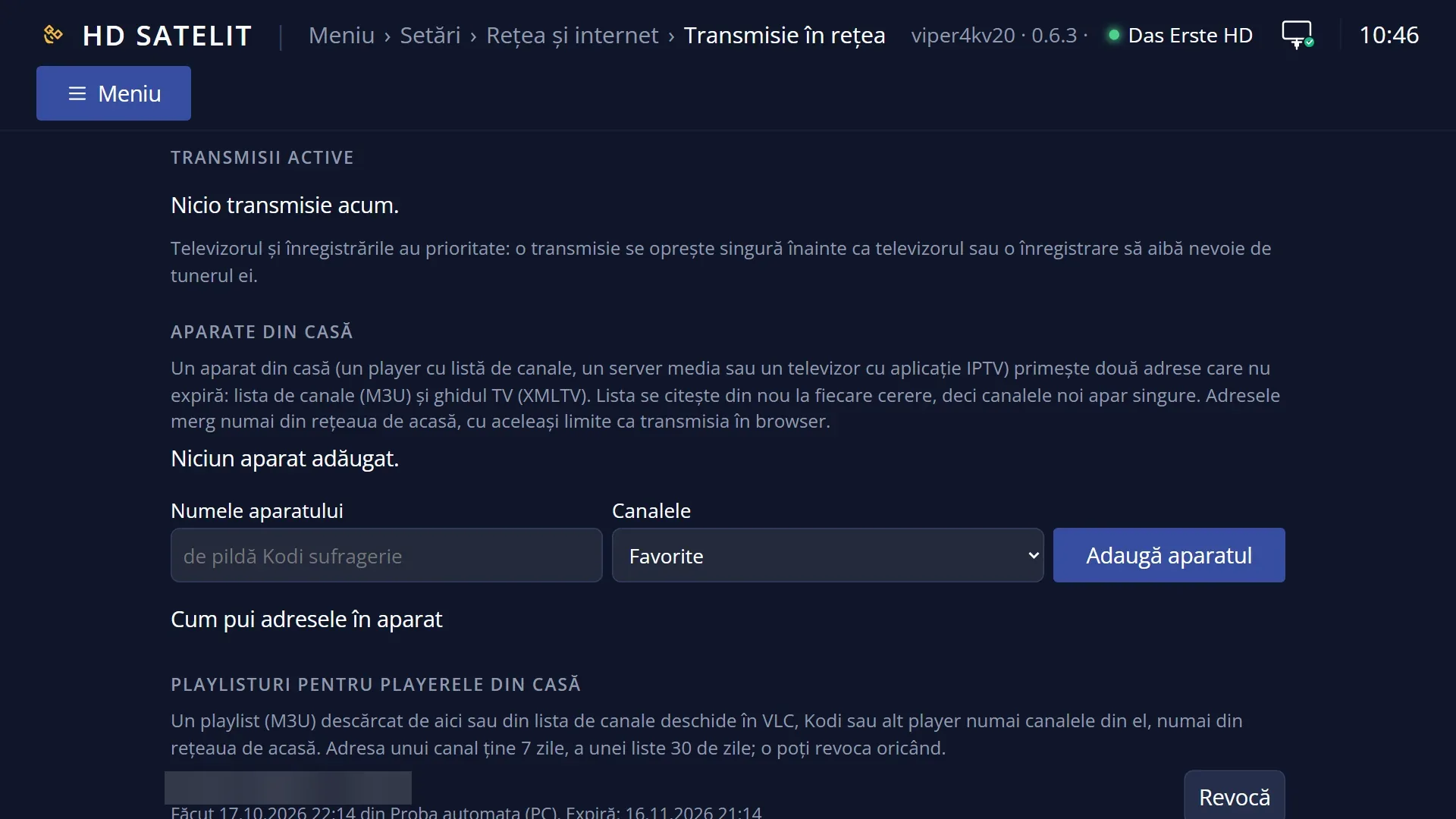
The “Active streams” card: each stream, with the channel, which browser it goes to, how long it has been running, how much has been sent, “no viewer now” or “External player”, and the “Stop” button. When there are no streams: “No streams now.”.
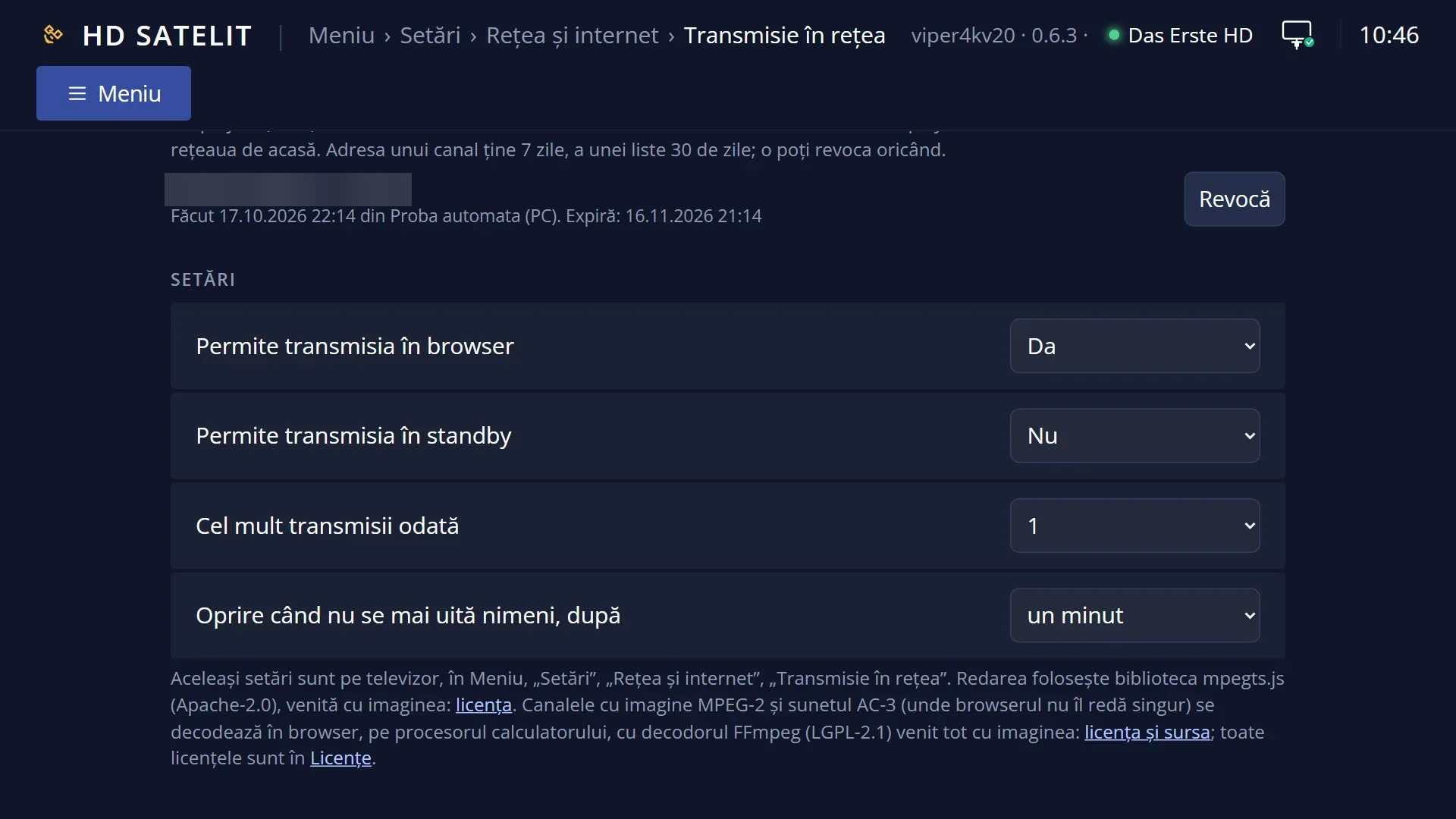
The cards for the devices at home and “Playlists for the players at home”: the playlists you have issued, with the date, the expiry and the “Revoke” button.
The “Settings” card: the four streaming settings, as on the TV, and the links to the licences of the playback libraries.
The picture in the browser runs 1-3 seconds behind the TV. The receiver display has the same delay, so that subtitles line up with the picture.
Rows and settings
| Row | Values | Default | What it does |
|---|---|---|---|
| Start the channel from the TV | Plays the channel that is on the TV now in the browser and follows it: each time the channel changes on the TV, “Changing channel...” appears, then the new channel. The button is grey when streaming is turned off in the settings. When you want to see exactly what is on the TV on your phone, for example in another room. | ||
| Start (next to a channel) | Plays the chosen channel in the browser without changing the TV. It works if the channel is on the TV's frequency, or if a tuner is free and the dish does not need to turn. When you want a different channel in the browser from the one on the TV. | ||
| Audio track | Audio: the channel's track, Audio: <language> (for example German, English, audio description) | the channel's track | Chooses the sound for the picture in the browser, without changing the sound on the TV. Tracks the browser cannot play are marked “does not play in the browser”. In a player at home, using the playlist, all tracks work. When the programme has several languages. |
| Subtitle | Subtitles: off, Subtitles: <language>, Subtitles: only on the TV channel, Subtitles: - | Same as on the TV | The receiver draws the subtitles, so your choice also changes on the TV. You can only choose when the browser shows the TV's channel. When you want subtitles in another language. |
| Receiver display | ticked, not ticked | ticked on the TV's channel, not ticked on another channel | Shows the receiver's menus, info bar, subtitles and guide over the picture. When the picture on the TV shrinks into a window (channel list, HbbTV), the picture in the browser moves to the same place. On a channel other than the TV's it is off, because it would show the menus for a different channel. When you want to use the menu remotely and see what you are doing. |
| Volume | 0-100 | 80 | The volume in the browser. The browser remembers it. It does not change the volume on the TV. |
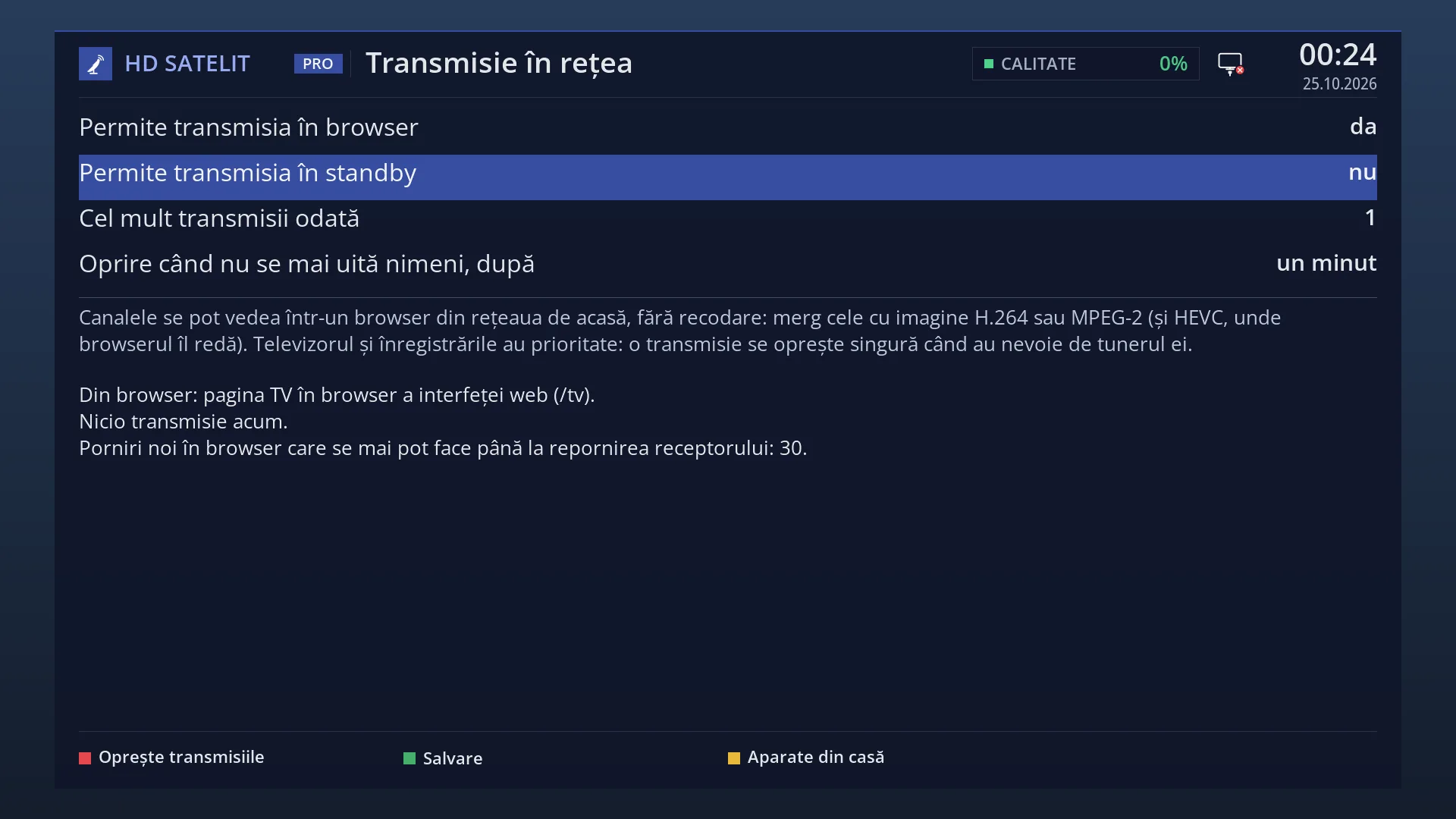
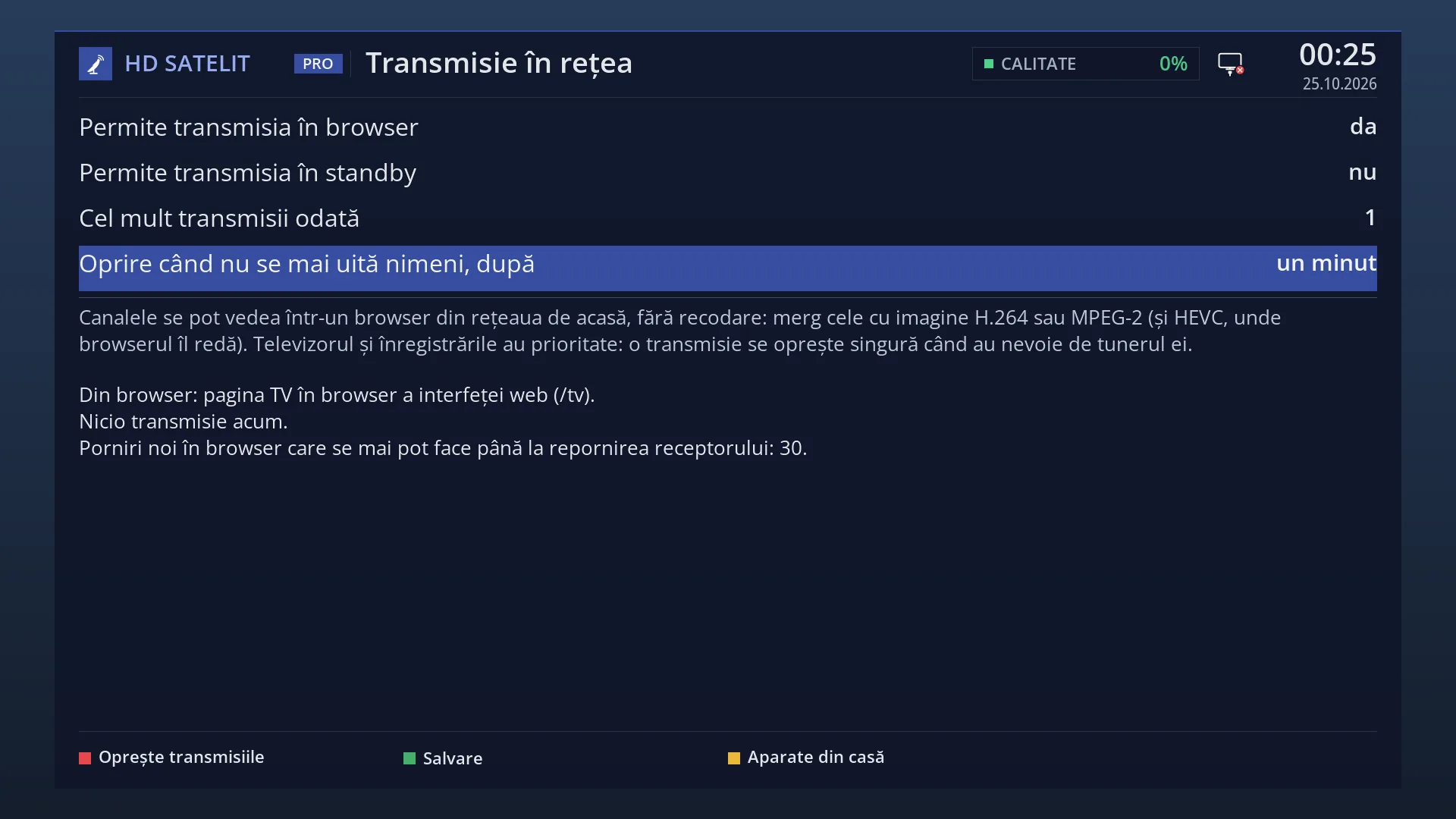
| Streaming settings | Allow streaming to a browser: Yes / No, Allow streaming in standby: Yes / No, Maximum streams at once: 1 / 2, Stop when nobody is watching, after: 10 seconds / 20 seconds / one minute | Yes, No, 1, one minute | The same settings as on the TV, under “Network streaming”. A change made here also shows there. With “Allow” set to No, the other three are hidden. See the “Network streaming” page. |
Keys
| Play / Pause | Pauses the picture in the browser. When you press Play, the picture does not continue from where it stopped but jumps to what is on now, live. |
| Sound button | Turns the sound in the browser on or off (“Turn sound on” / “Turn sound off”). |
| Full screen | Shows the player on the whole screen, with the receiver display and the bar. The bar appears when you move the mouse or touch the screen and hides by itself. “Exit” or the Esc key takes you out. |
| Stop | Stops the picture on the page and asks the receiver to stop streaming to this browser. The tuner is freed. |
| Download playlist (M3U) | Downloads a playlist with the chosen channel, for VLC, Kodi or another player at home. All sound tracks work there. |
| Details | Shows the technical details of the last error, if you want to know more. |
| Stop (in “Active streams”) | Stops the stream to that browser or player. |
| Refresh the list | Checks again which channels you can watch now. |
| Take over here / Take it back | When the same stream is open in another browser window, this moves it to the current window. |
Step by step
Watch what is on the TV on your phone
- On your phone, open the receiver's web interface (connected with the code shown on the TV).
- Go to /tv and press “Start the channel from the TV”.
- If the browser asks, tap the picture to start playback or the sound.
Watch a different channel from the one on the TV
- On /tv, find the channel under “You can see now”.
- Press “Start” next to it. The TV stays on its own channel.
- If it is not in the list, open “Not working now”: the reason tells you why (usually the tuner is busy on another frequency).
Use the receiver's menu from your computer
- Start the channel from the TV and leave “Receiver display” ticked.
- Use the remote on the panel page or the real one: the menus also appear over the picture in the browser, 1-3 seconds later.
Problems and solutions
“This channel sends its picture in MPEG-2, and this browser cannot play it”.
The browser lacks WebAssembly or WebGL. Try a recent version of Chrome, Edge, Firefox or Safari.
“This browser cannot decode this channel's HEVC (H.265) picture”.
Try Chrome or Edge on a computer with a recent graphics card, or Safari. Or download the playlist and open the channel in a player at home.
The picture plays, but there is no sound.
Tap the picture or the sound button: some browsers start without sound. If there is still no sound, choose another track under “Audio track” (some tracks, for example E-AC-3 or HE-AAC LATM, cannot be heard in the browser).
“Streaming to the browser is turned off in the settings”.
Set “Allow streaming to a browser” to Yes, either here in the “Settings” card or on the TV under “Network streaming”.
“The tuner is currently in use on another frequency”.
Choose a channel on the same frequency as the TV (the first ones in “You can see now”), or change the channel on the TV first.
“For a satellite channel, first start a channel from the same satellite on the TV”.
On a receiver with a motor or with only one satellite tuner, the dish cannot be turned from the browser. Change the channel on the TV. “Watch live” on /canale can ask whether the TV should switch to the channel.
“The receiver is already streaming to …”.
Someone else is watching. Stop that stream in “Active streams” or set “Maximum streams at once” to 2.
“The stream was taken over by another window.”
You have opened the same stream in another tab. Press “Take it back” to bring it here.
The picture stopped by itself.
The TV switched to a frequency the tuner can no longer also give to the browser, a recording started, or the receiver went into standby. The TV and recordings have priority. Press “Start again”.
“The video driver memory is running out. Restart the receiver to be able to stream again.”
Restart the receiver. To get here less often, change channels on the same frequency and reload the page instead of starting new streams after long breaks.
“The live picture only works with a connected browser”.
Open the page in the browser that is connected to the receiver (with the code shown on the TV), without the key written in the address.
Related topics
Differences between receivers
On a receiver with a motorised dish or with only one satellite tuner, the browser can only play satellite channels on the TV's frequency (in standby, the frequency of the previous channel).