

Radio screen (full screen)
English screenshots coming: some of the pictures below still show the receiver and the web interface in Romanian. The rows, keys and steps described on this page are the English ones.
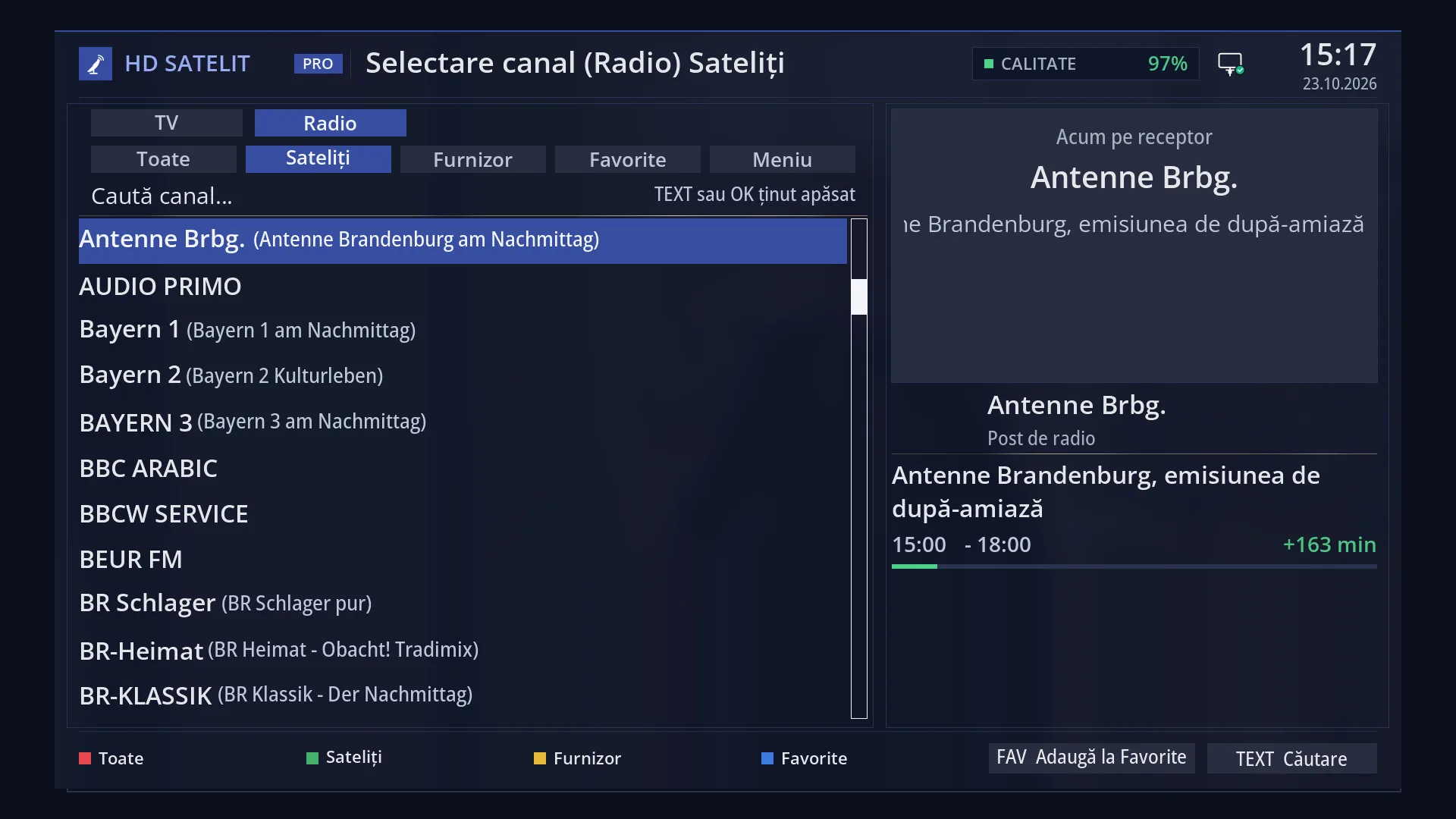
- 1 The selected row.
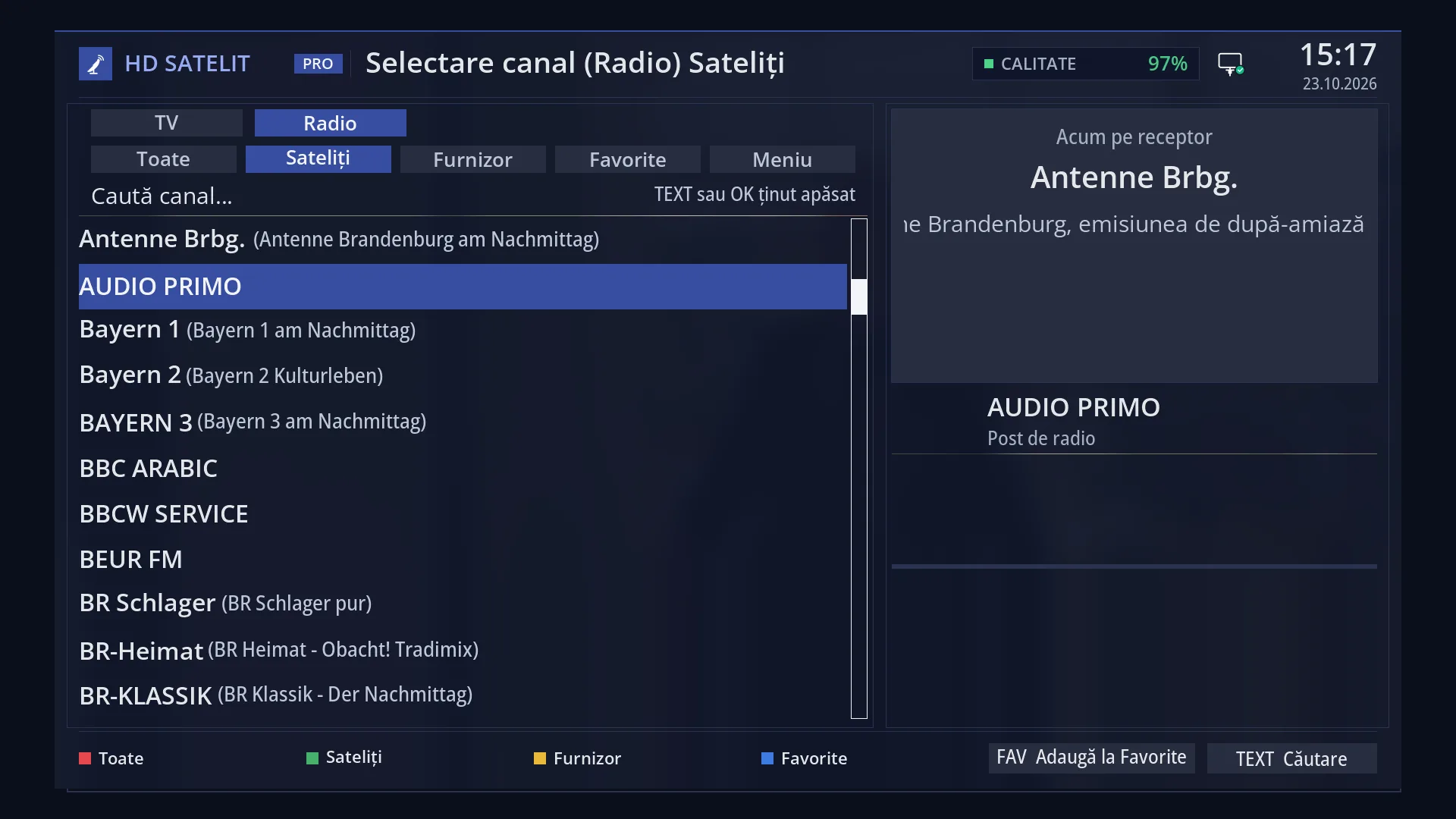
- 1 The selected row: “AUDIO PRIMO”.
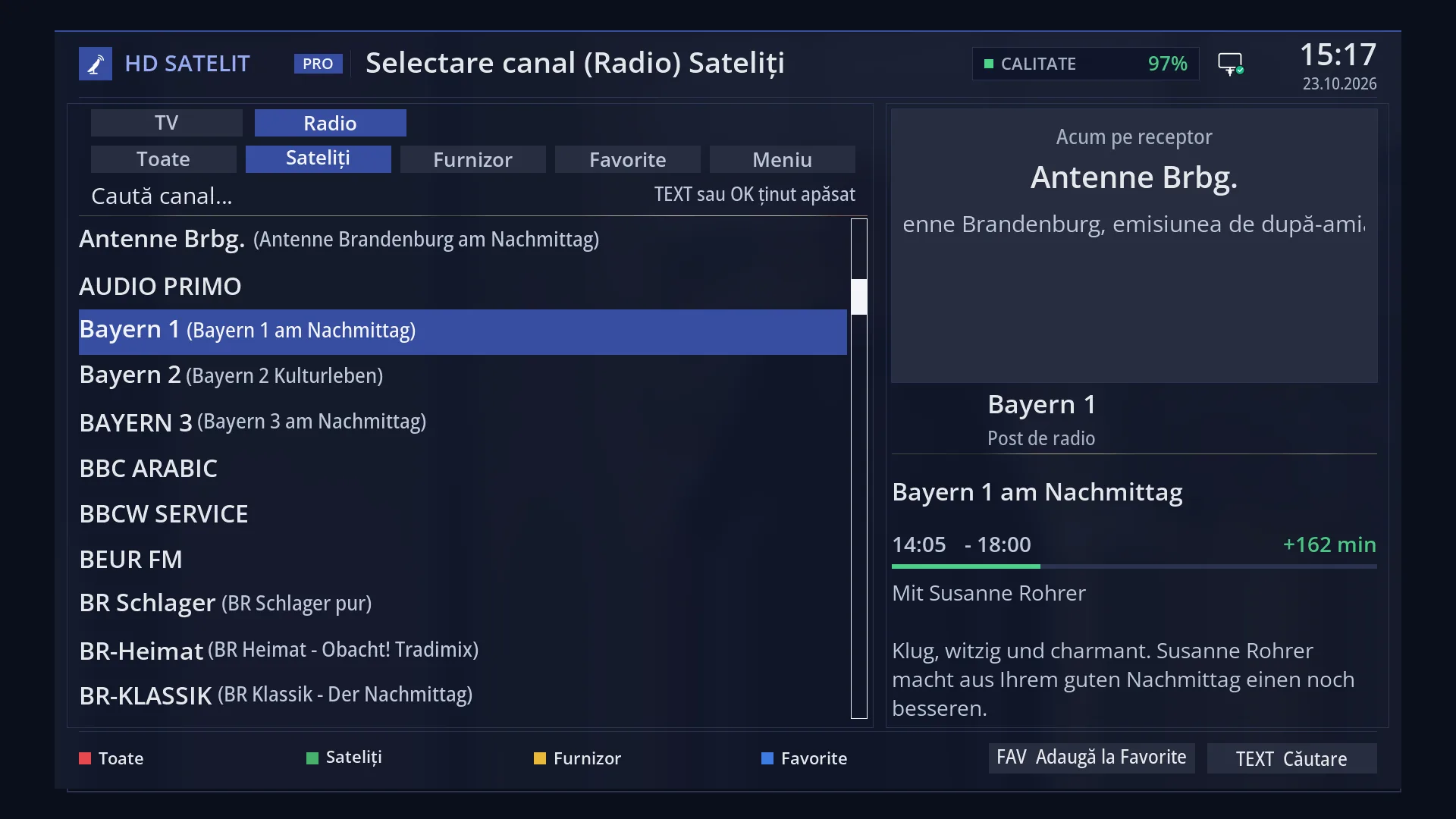
- 1 The selected row: “Bayern 1 (Bayern 1 am Nachmittag)”.
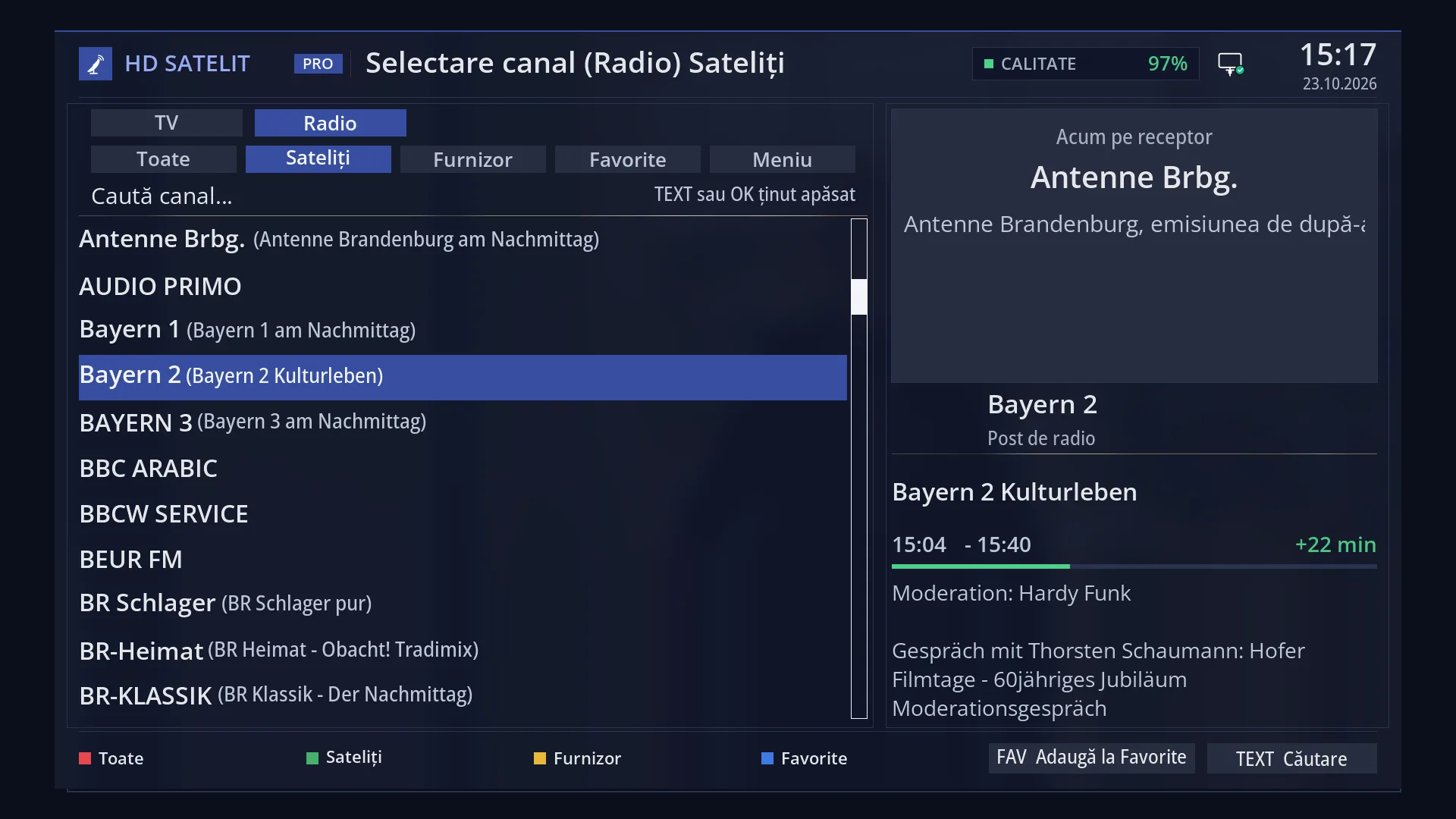
- 1 The selected row: “Bayern 2 (Bayern 2 Kulturleben)”.
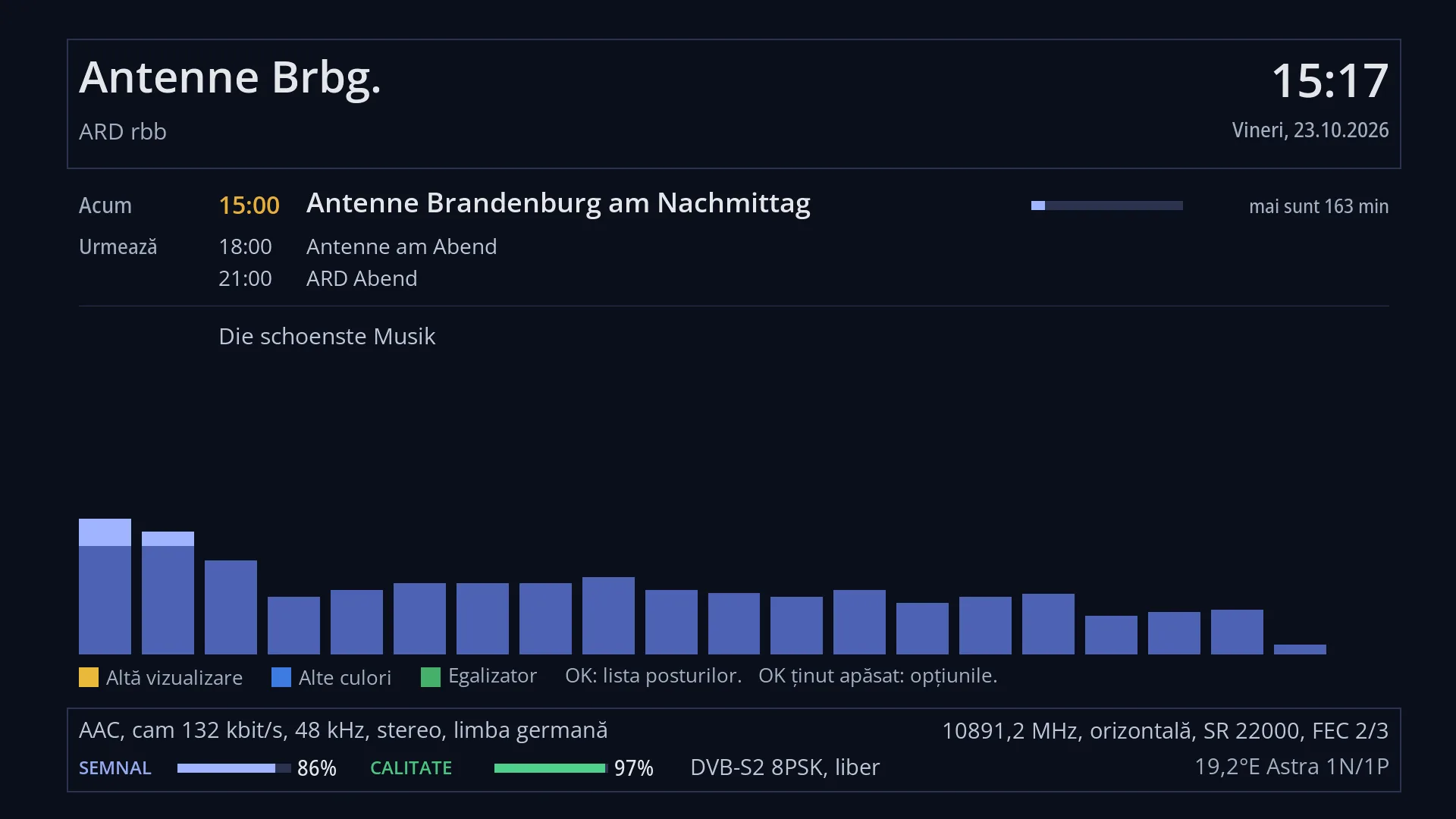
- 1 The logo, the station name, the provider and the number in the list; on the right, the clock and date.
- 2 “Now”: the current programme, how much has passed and how much is left; “Next”: the next programmes.
- 3 The bars that follow the music.
- 4 YELLOW another visualiser, BLUE other colours, GREEN the equaliser; OK the list, hold OK for the options.
- 5 The sound, the frequency, the signal and quality, the satellite.
What it is for
When you listen to a radio station, the receiver fills the whole screen with everything it knows about the station: the logo and name, the provider and the number in the list, the current and next programmes, the song and artist, the radio text, the sound type, the frequency and signal, plus bars that move with the music.
The screen appears by itself on any radio station, however you started it: from the radio list, from a search, from the web interface, with the digit keys or from a timer. It disappears on a TV channel, when you switch off and in standby.
The bars follow the station's actual sound. YELLOW changes the visualisation type, BLUE changes the colours and GREEN opens the equaliser.
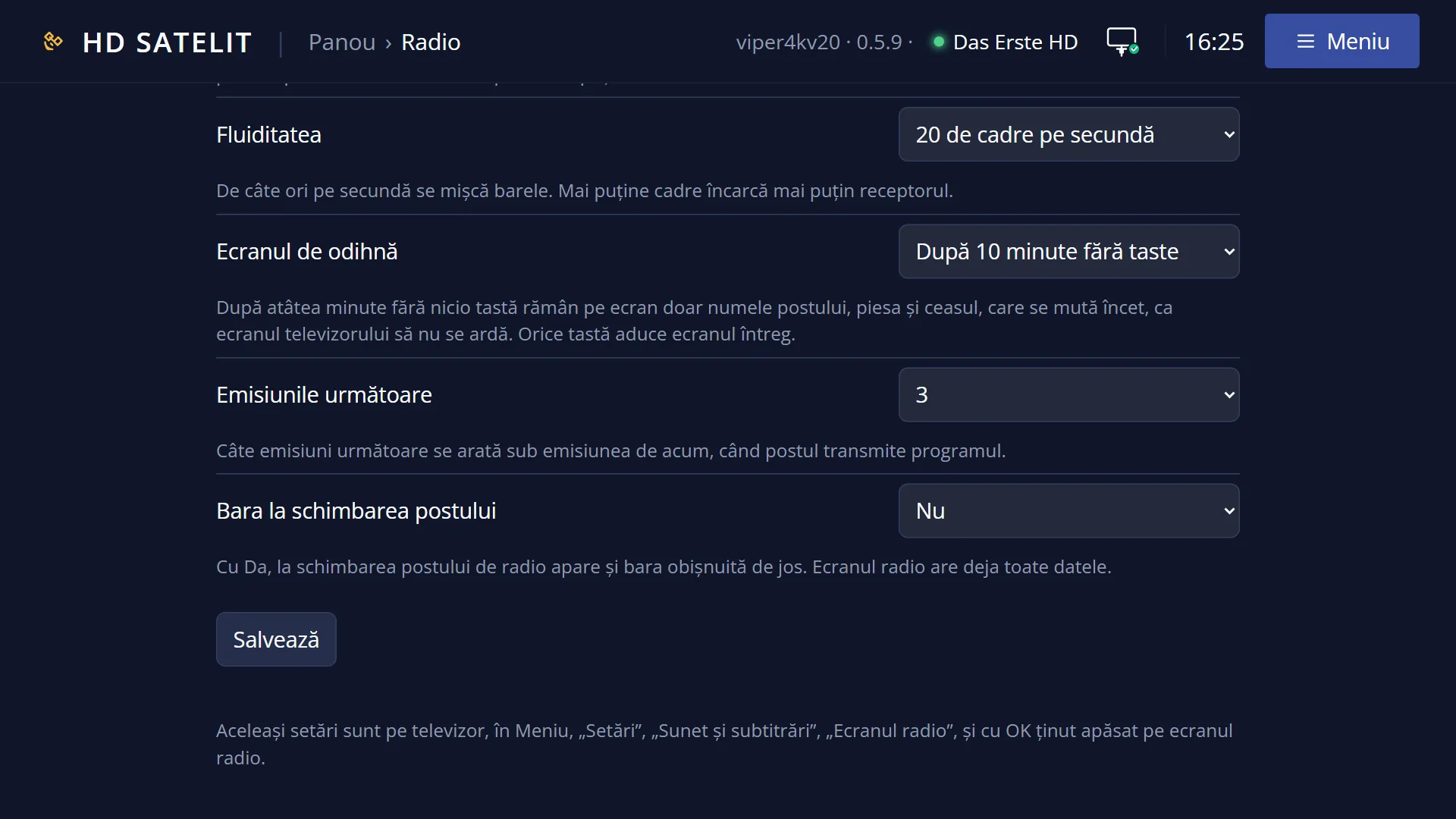
After 10 minutes without any key press (you can choose the time), only a small block remains, with the station name, the song, the clock and small bars, and it moves slowly around the screen so the TV does not burn in. The full screen also shifts by a few pixels once a minute, for the same reason.
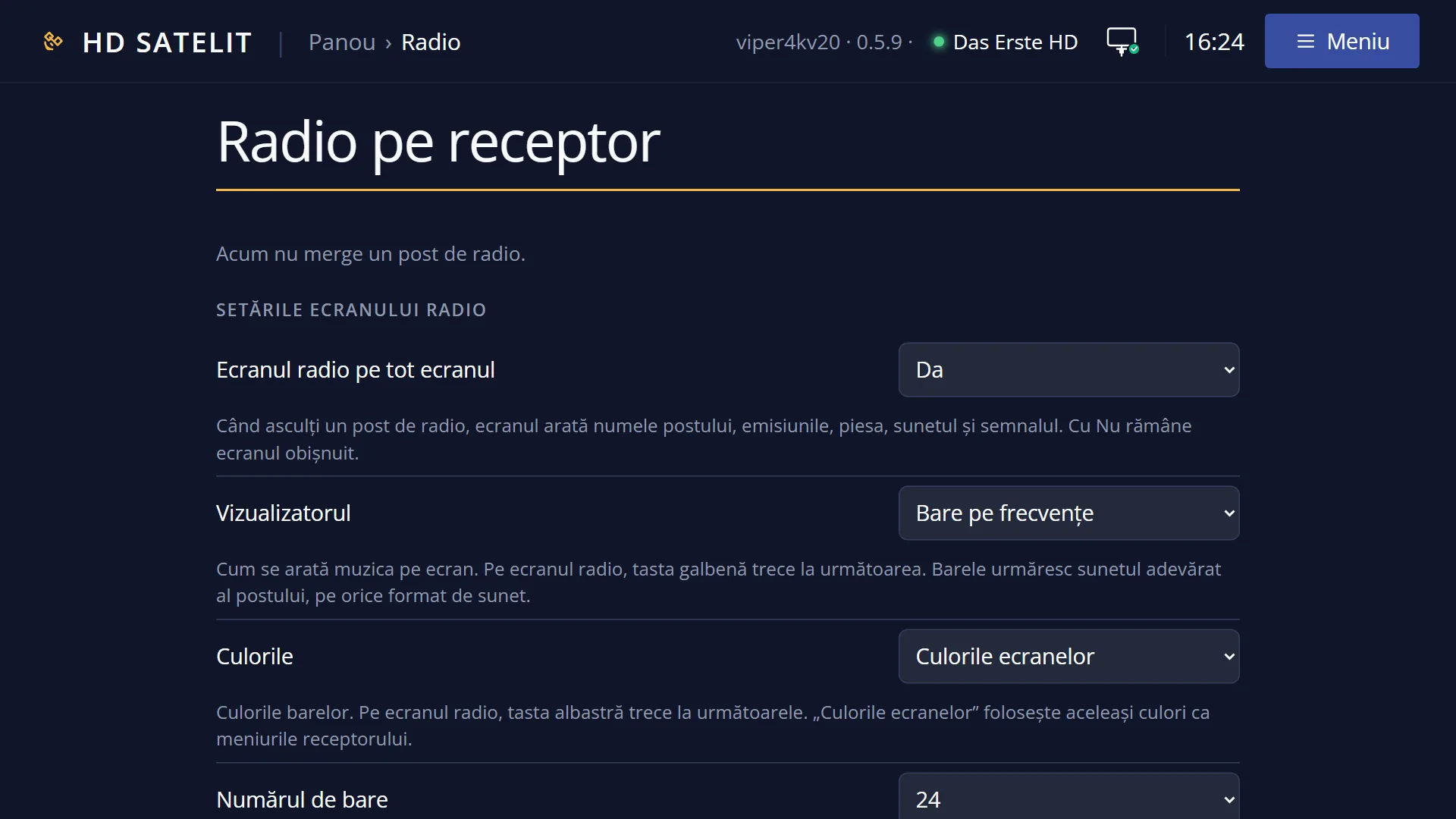
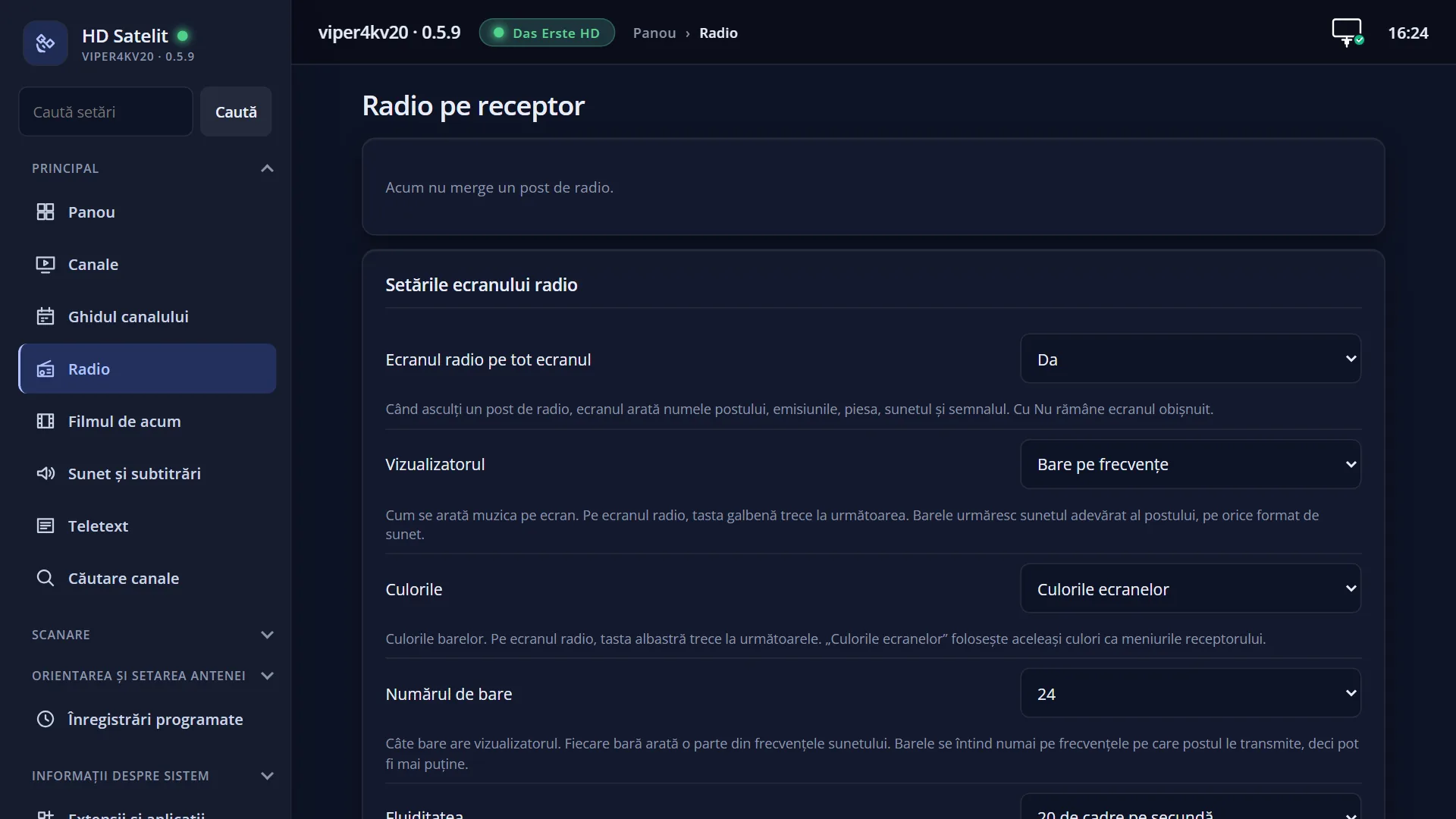
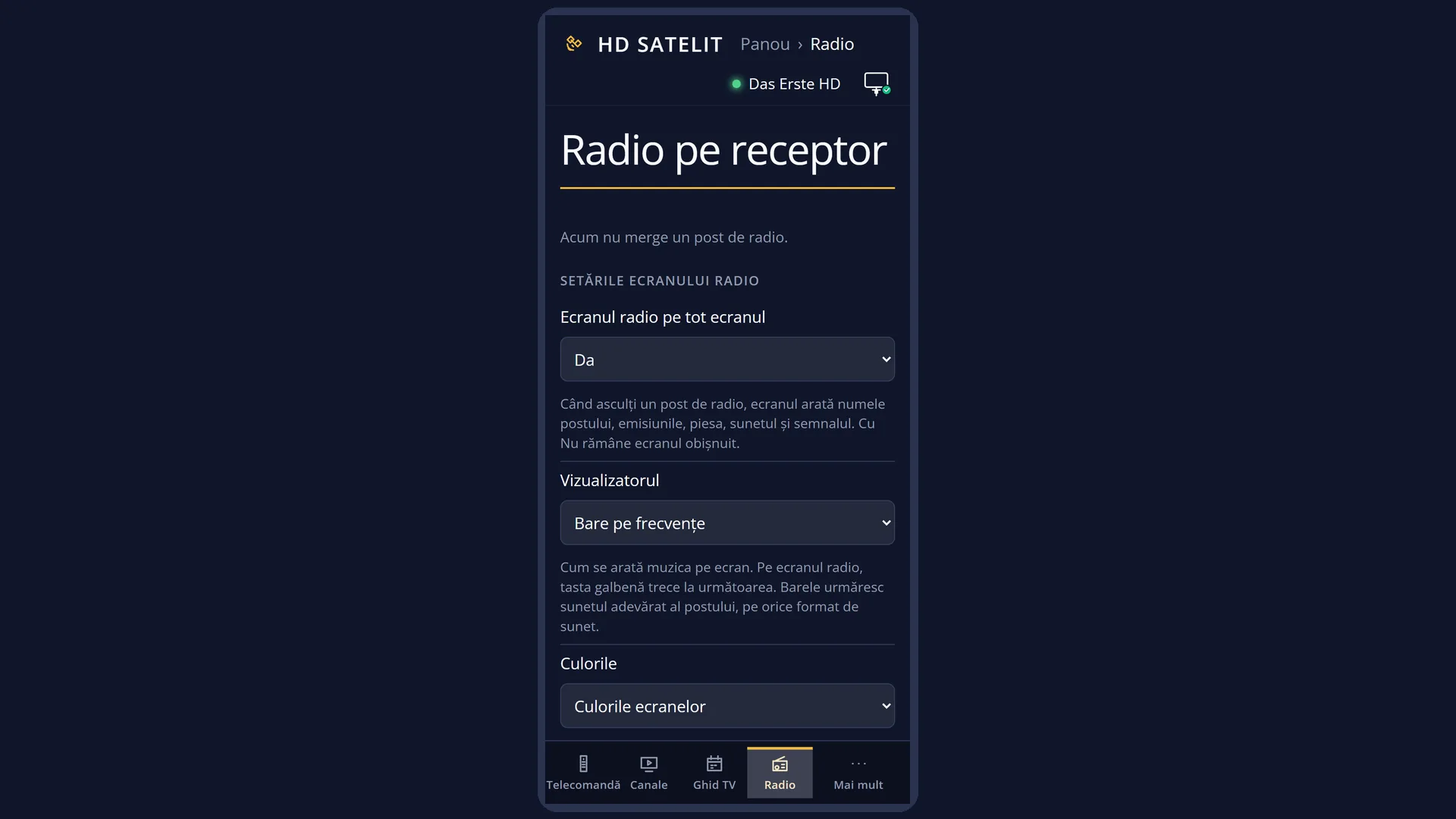
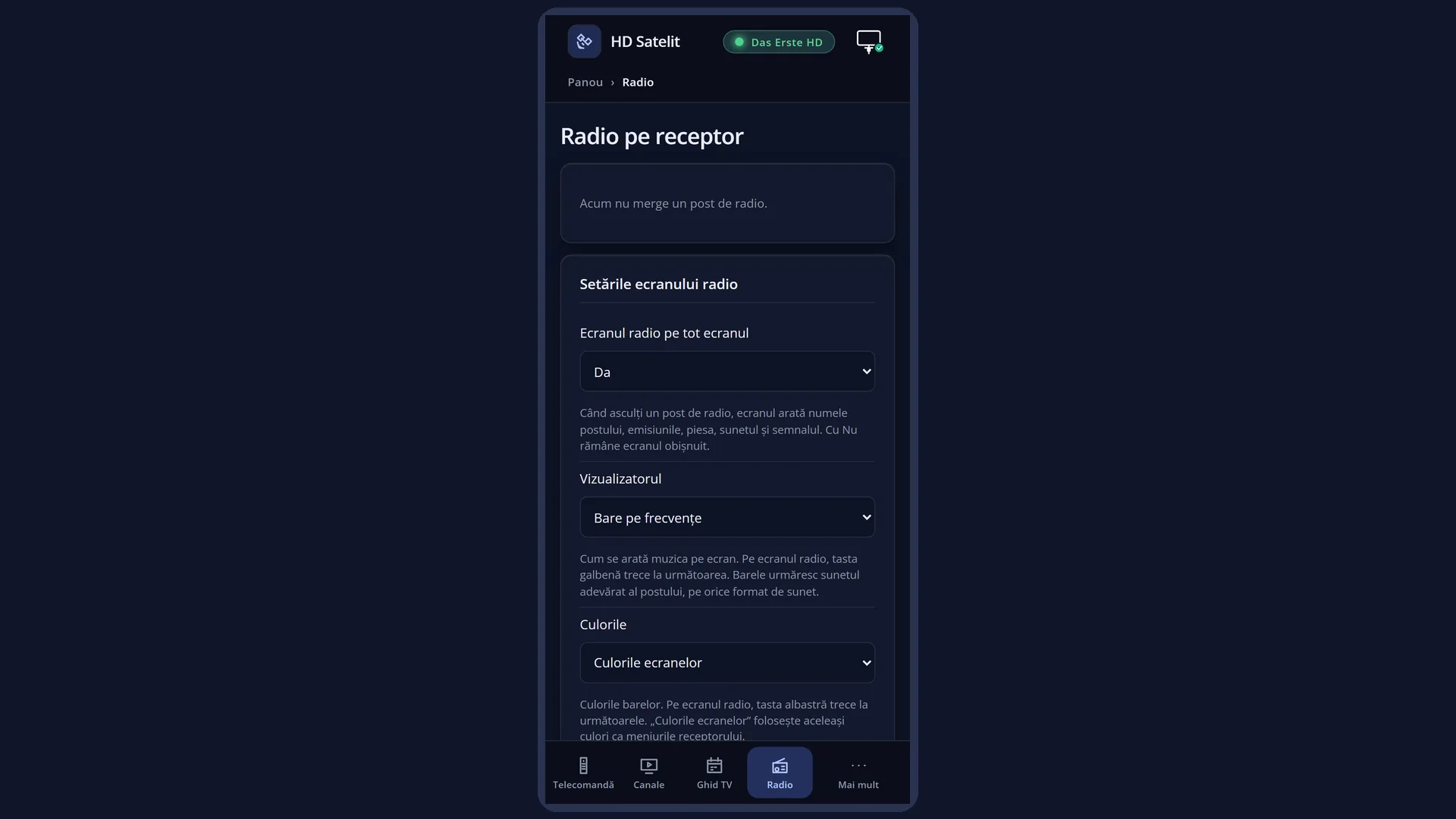
The same information, with the same bars, is also in the web interface, on the /radio page.
How to get here
Path: press RADIO (or UP from live TV, depending on the arrow key setting), choose a station and press OK. The list closes and the radio screen stays on the whole screen.
Keys while watching TV: RADIO, then OK on a station.
If you hid it with EXIT, it comes back when you press OK or on the next station.
In the web interface: the /radio page (“Radio on the receiver”).
What you see on the screen
At the top, in a frame: the station logo (when it is on the receiver; without it, the name also takes its place), the station name in large letters, below it the provider and the number in the list (for example “channel 12”), and on the right the clock and date.
“Now”: the start time and title of the current programme, a bar showing how much of it has passed and “N min left”. Below it, “Next”: the next programmes with their times (as many as you chose in “Next programmes”, 3 by default). When the station sends no programme schedule, it says “The station does not send a programme schedule.”
“Song”: the title and artist of the song, when the station sends them, on one or two full lines, never cut off. Below it, the station's radio text. “(RaSS)” or “The station sends RaSS pages.” shows that the station also sends pages with pictures.
The bars, in the chosen visualisation and the chosen colours. When the station has neither a programme schedule nor radio text, the bars get bigger and also take the place of those lines. When the bars cannot be shown, the reason appears in their place: “Reading the station's sound...”, “The bars cannot be shown for this station.” or “The bars are not available on this station.”
Below the bars, the small line of keys: YELLOW “Another visualiser”, BLUE “Other colours”, GREEN “Equalizer” and “OK: station list. Hold OK: options.”. After YELLOW or BLUE, the name of your choice appears over the bars for a few seconds (for example “Visualiser: Cerc”).
At the bottom, in a frame: the sound (for example “MP2, 256 kbit/s, 48 kHz, stereo”, with the language), the frequency with the polarisation, the symbol rate and the error correction, then the signal and quality as bars with percentages, as on the info bar when watching TV, and the satellite on the right. A value the tuner does not provide is not shown.
Rows and settings
| Row | Values | Default | What it does |
|---|---|---|---|
| Visualisation (YELLOW) | Off, Frequency bars, Bars with slowly falling peaks, Mirrored spectrum, Circle, Sound level, left and right | Bars with slowly falling peaks | Each press of YELLOW moves to the next one, and from the last one back to the first. Your choice is remembered (it is saved on the receiver a few seconds after the last press). As you like. |
| Colours (BLUE) | Screen colours, Classic (green, yellow, red), Blue, Fire, Subtle (grey) | Screen colours | Each press of BLUE moves to the next colours. Your choice is remembered. As you like. |
| Options (hold OK) | Visualiser, Colours, Equalizer, Station programme, Radio screen settings, Hide the radio screen | A window titled “Radio screen”. “Visualiser” and “Colours” open the list of choices, with the current one selected. “Equalizer” opens the equaliser. “Station programme” (only when the station sends a programme schedule) opens the station's guide. “Radio screen settings” opens the settings. “Hide the radio screen” hides it until the next station or until you press OK. When you want to choose directly, without going through all of them with YELLOW or BLUE. | |
| Rest screen | after 5, 10, 15 or 30 minutes without key presses, never | after 10 minutes | Only a small, darker block remains, with the station name, the song, the clock and small bars, and it moves slowly around the screen. Any key brings back the full screen. In Radio screen settings, the “Rest screen” row. |
Keys
| OK | Opens the list of radio stations. If the radio screen was hidden with EXIT, it shows it again. |
| Hold OK (about one second) | Opens the radio screen options. |
| LEFT / RIGHT | The previous or next station in the radio list you chose last (from one end of the list you go to the other end). |
| UP / DOWN | As when watching TV, depending on the “Up and down arrows while watching” setting: the radio list, the TV channel list, or the next and previous station. |
| YELLOW | The next bar visualisation. |
| BLUE | The next bar colours. |
| GREEN | Opens the equaliser over the radio screen, so you can adjust the station's sound and hear it immediately. |
| EXIT | If the normal info bar is open, it closes it. Otherwise it hides the radio screen until the next station or until you press OK. |
| AUDIO | The station's audio tracks, as usual. |
| Any key (on the rest screen) | Brings back the full radio screen. |
Step by step
Listening to a radio station
- Press RADIO.
- Choose the station with the arrow keys and press OK. The list closes and you see the radio screen.
- Use LEFT and RIGHT to go to the previous or next station.
Changing the bar type and colours
- On the radio screen, press YELLOW a few times: “Visualiser: …” appears over the bars.
- Press BLUE a few times for the colours.
- Your last choice is remembered.
Adjusting the station's sound
- On the radio screen, press GREEN.
- Switch on the equaliser and choose a preset or adjust the bands; you hear the result immediately.
- Press GREEN “Keep”.
Problems and solutions
The normal screen appears instead of the radio screen.
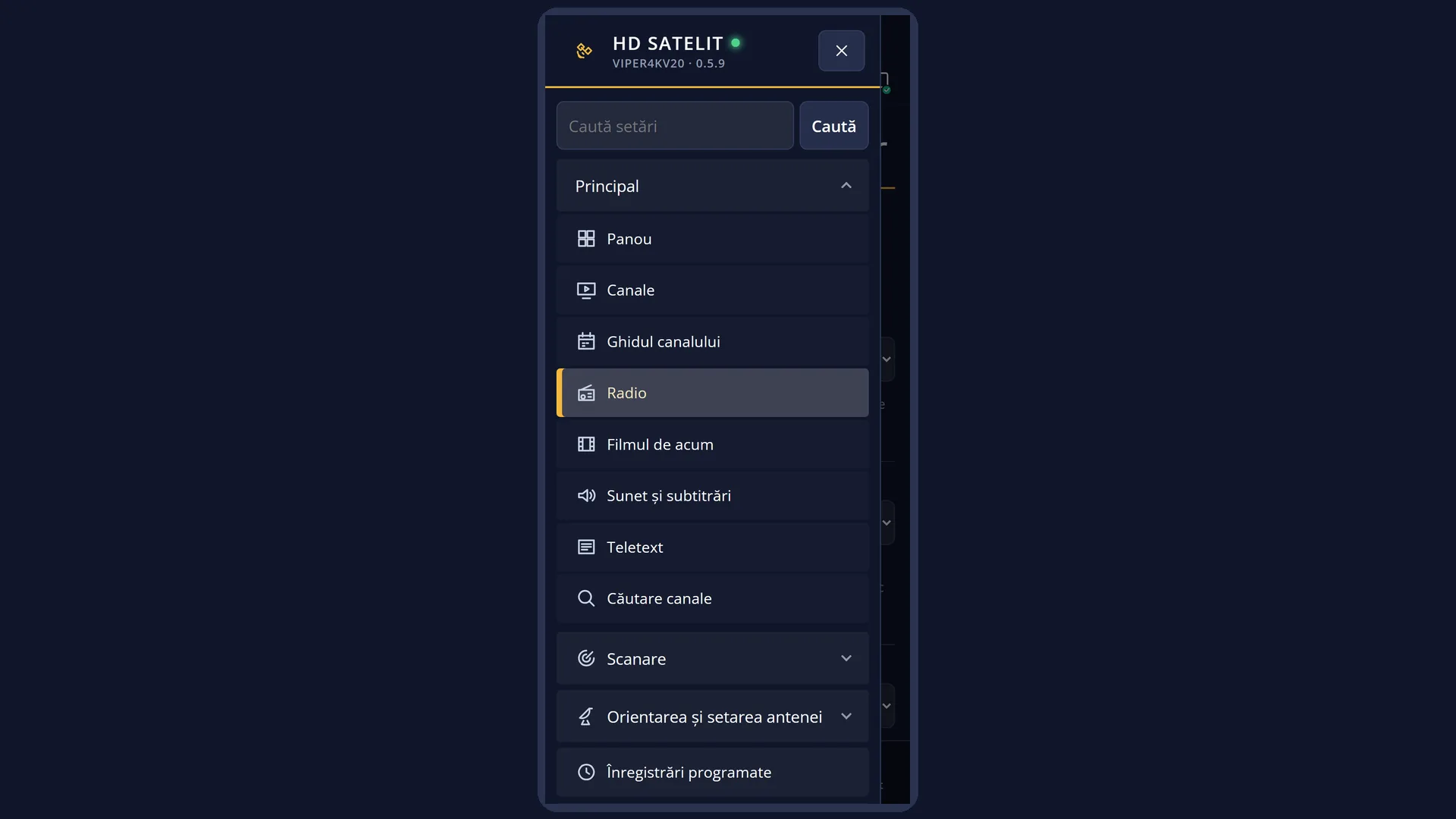
Check Menu > Settings > Audio & Sound Tracks > Radio screen: “Full-screen radio screen” must be set to Yes. If you hid it with EXIT, press OK.
Instead of the bars, it says “The bars cannot be shown for this station.”
The receiver cannot read this station's sound for the bars. The sound and the texts work normally.
I cannot see the song or the radio text.
The station is not sending them at the moment. Many stations send the text only from time to time; wait a little.
It says “The station does not send a programme schedule.”
The station does not send a programme schedule via satellite. The rest of the screen works.
I cannot see the station logo.
The logo appears only when it is on the receiver; without it, the station name also takes the place of the logo.
LEFT / RIGHT does not change the station.
You have not chosen a radio list yet (the station was started from the web or with the digit keys). Press OK, choose the station from the list, and then LEFT and RIGHT work.
YELLOW opens the audio tracks instead of changing the bars.
YELLOW belongs to the radio screen only while the radio screen is visible and no other window is on top of it. Close the window in front with EXIT.
The screen has become small, with a block that moves around.
This is the rest screen. Press any key.