

DVB subtitles read as text
English screenshots coming: some of the pictures below still show the receiver and the web interface in Romanian. The rows, keys and steps described on this page are the English ones.
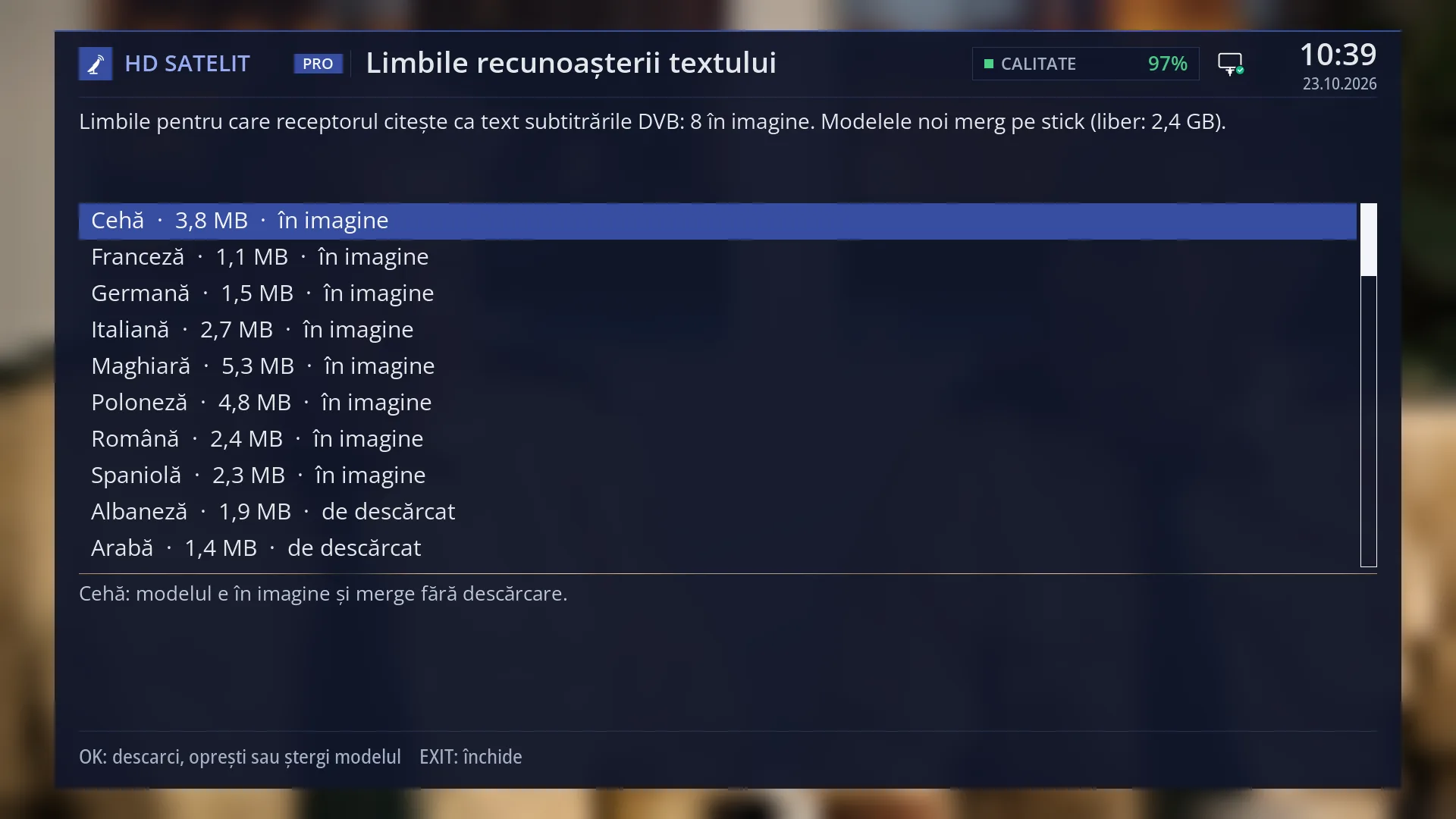
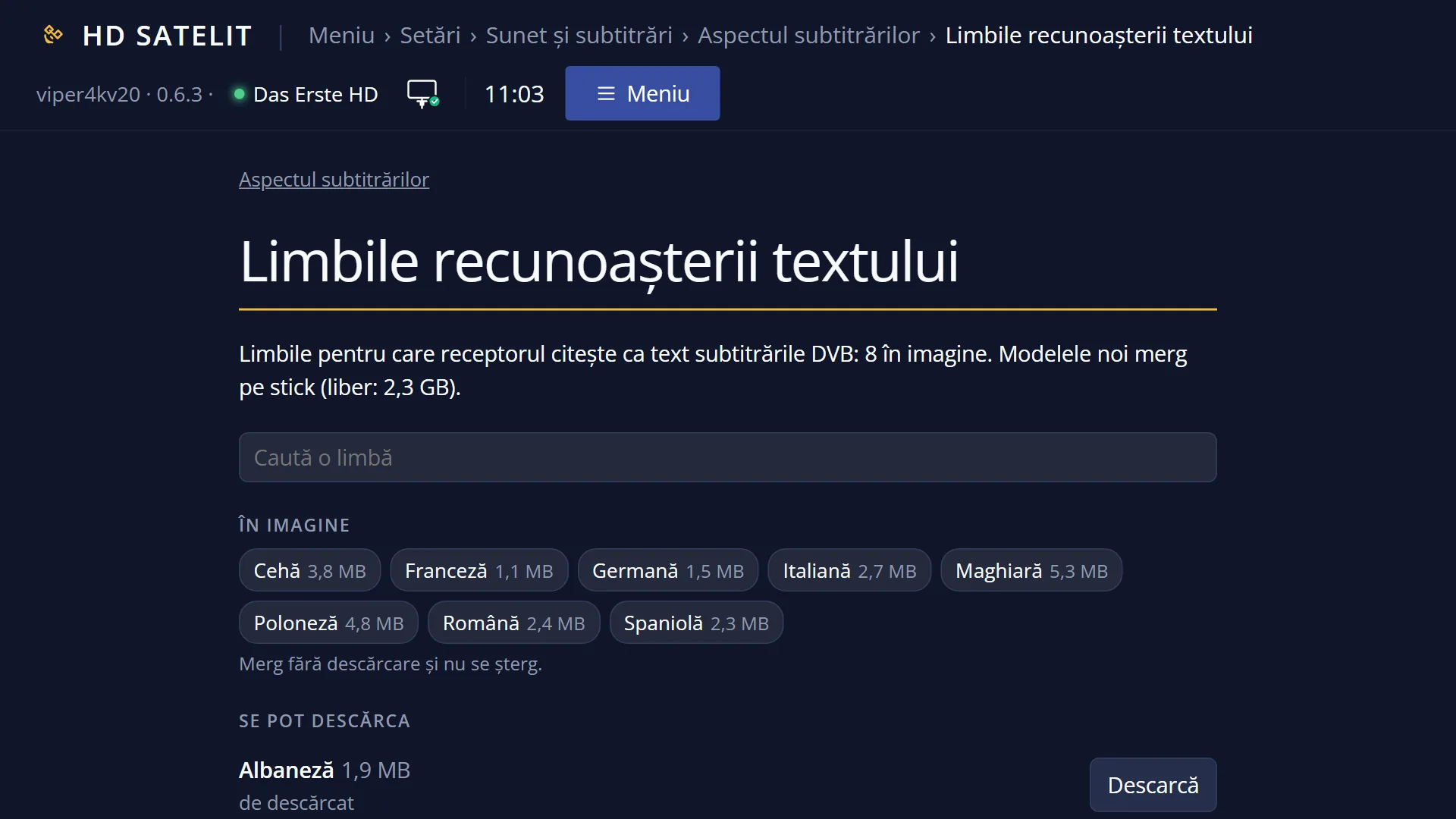
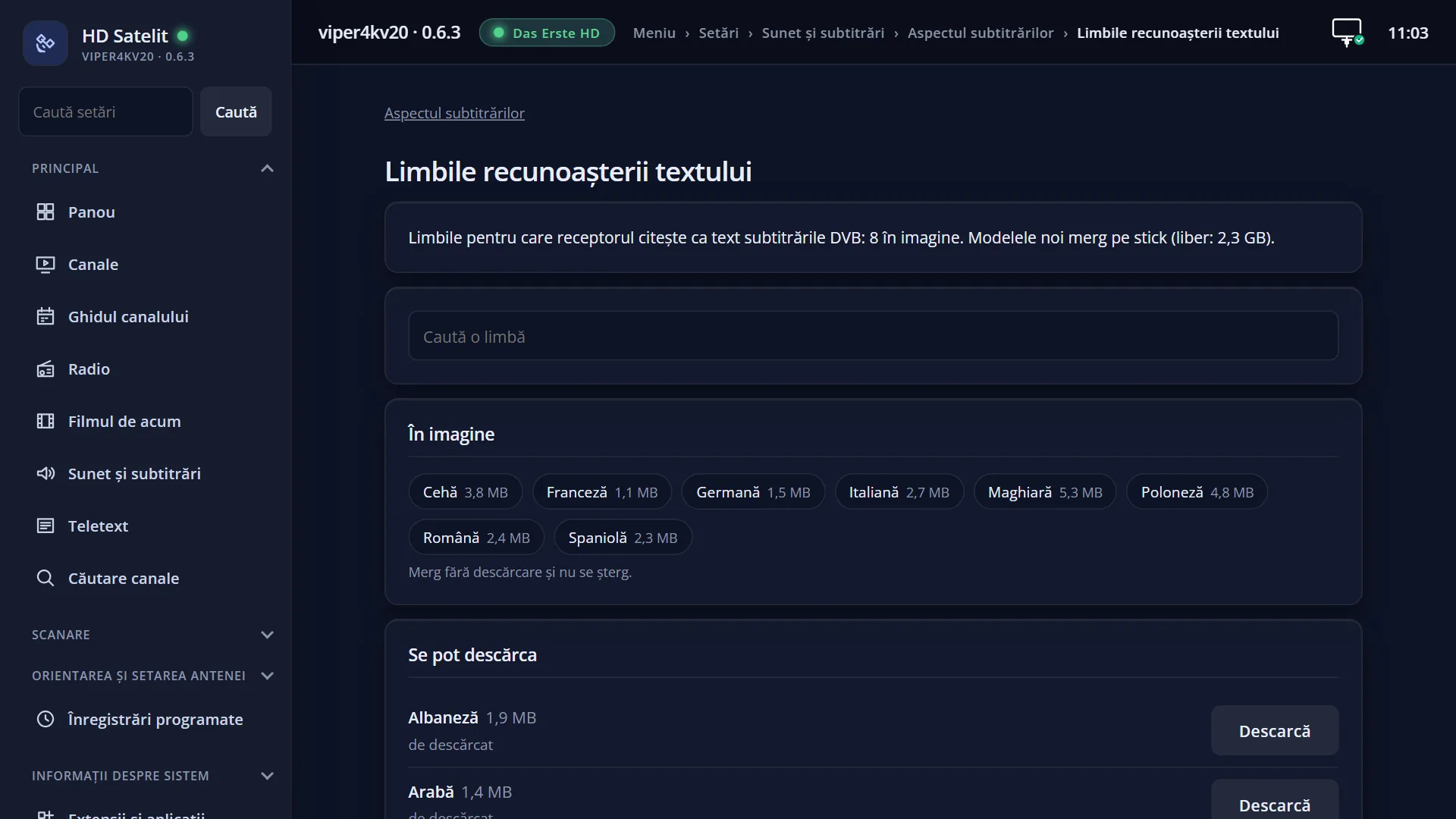
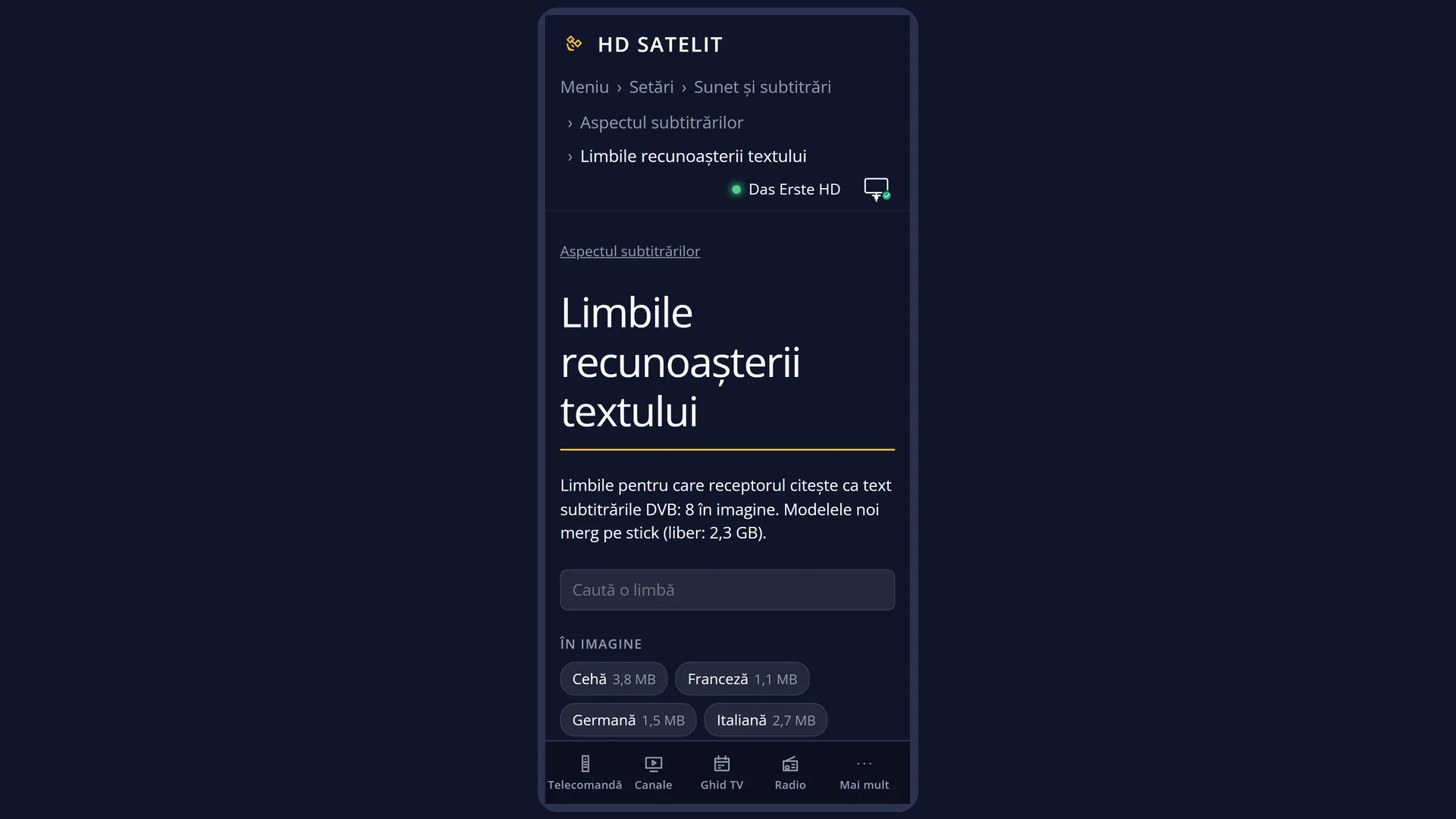
- 1 The title: “Text recognition languages”.
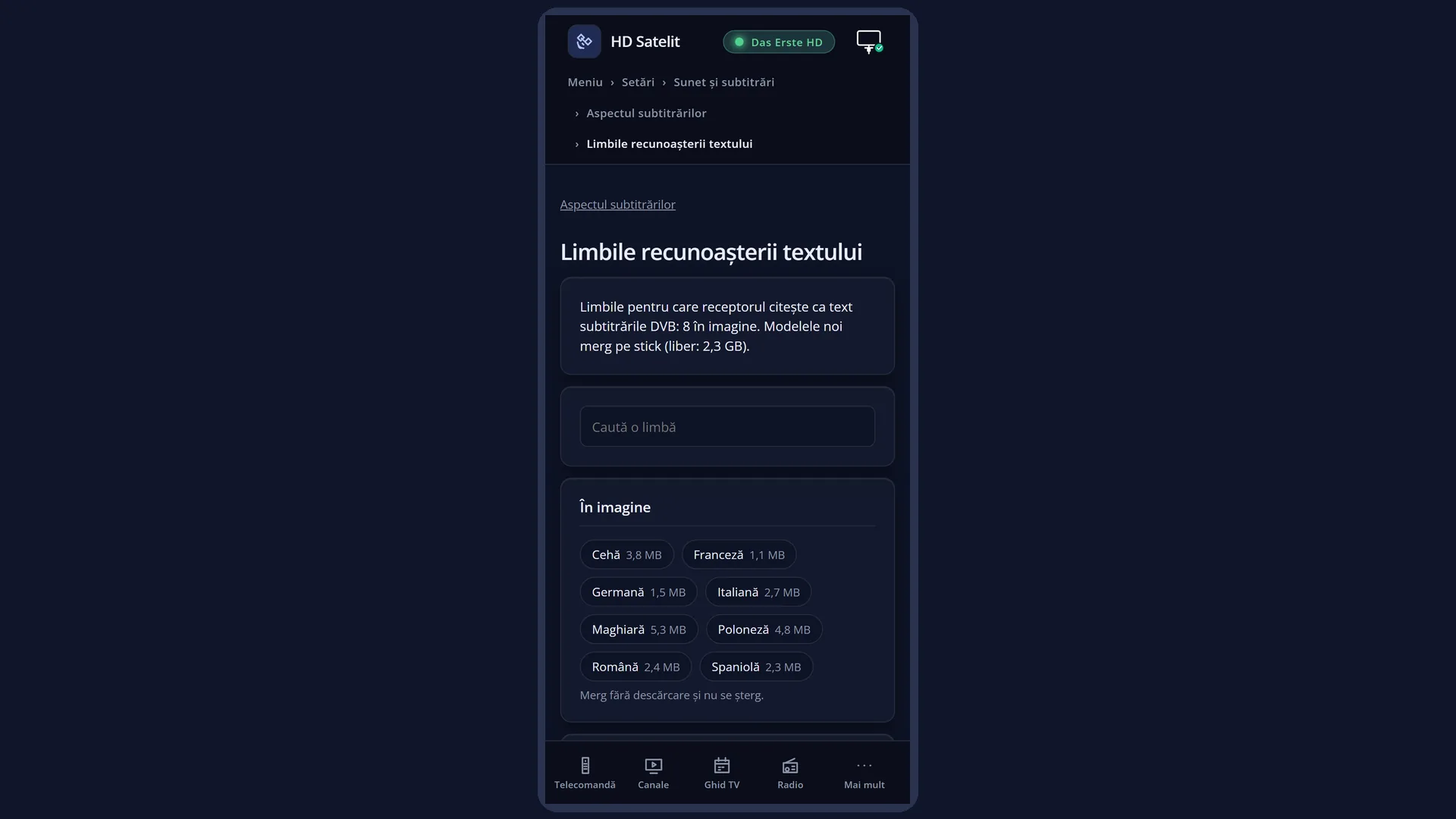
- 2 How many languages are in the image and downloaded, and where new models go, with the free space.
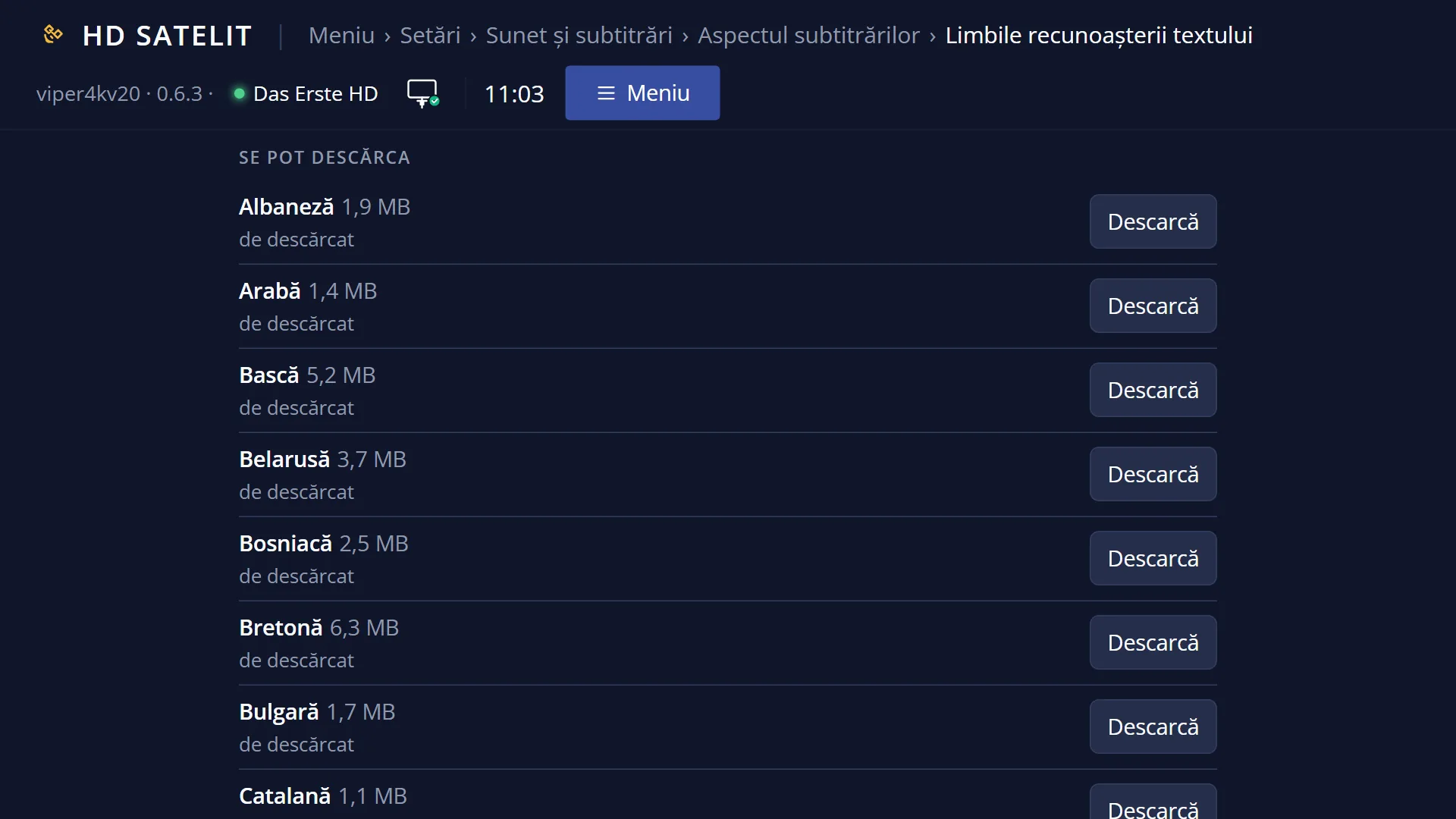
- 3 The languages: name, model size and status (“in the image”, “downloaded”, “to download”, “downloading” with the percentage).
- 4 The selected row, explained: what OK does on it and where the download goes.
- 5 The keys: OK downloads, stops or deletes the model. EXIT closes.
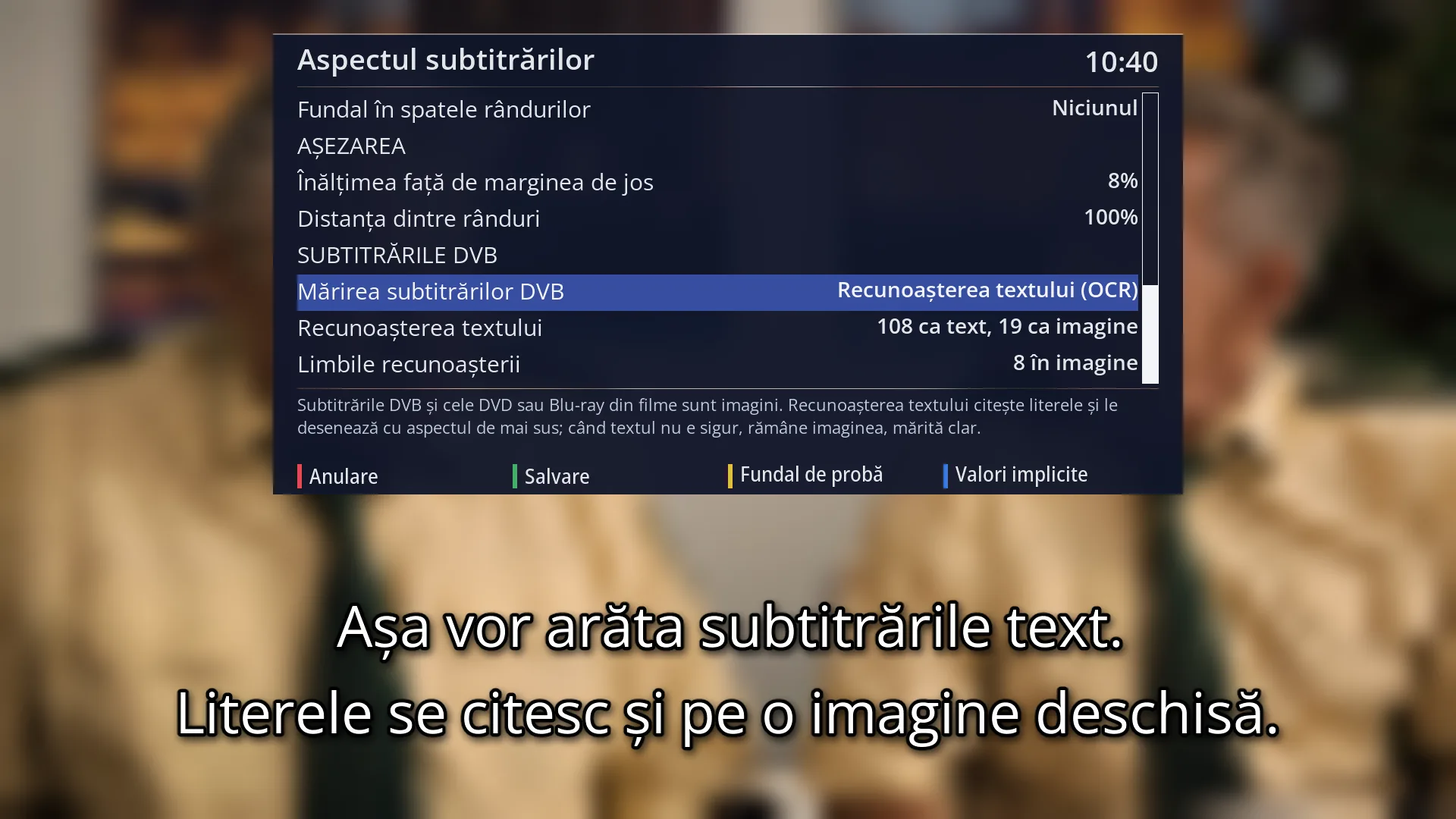
- 1 The row note: what text recognition does and when the image stays.
What it is for
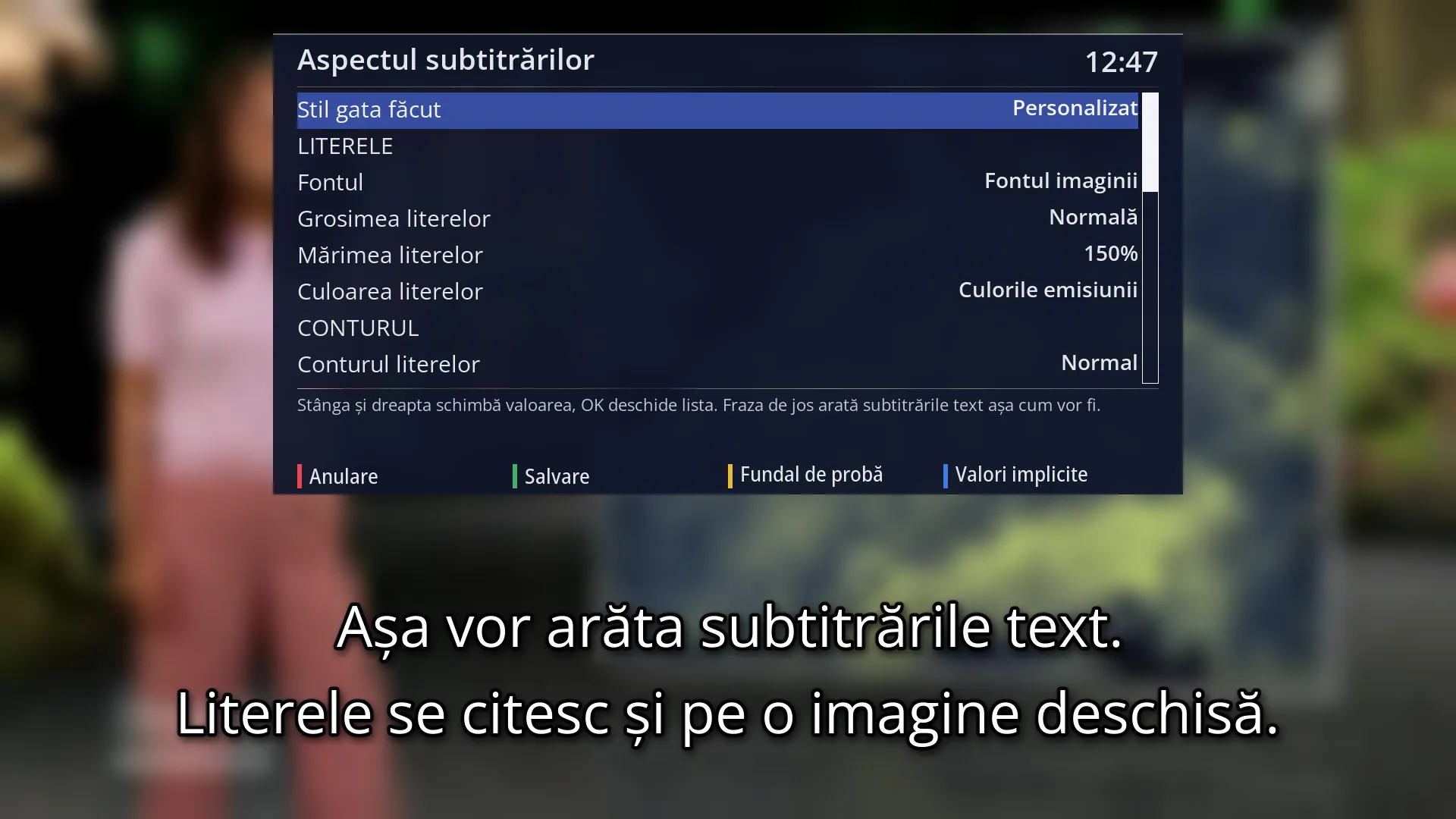
DVB subtitles come from the broadcaster as small images. On a large screen they are enlarged and can be hard to read. The receiver can read the letters in the image (text recognition, OCR) and draw them again as clear text.
As text, the subtitle takes the look you chose in “Subtitle appearance” (font, size, colour, outline, shadow) and can be translated. When the text read is uncertain or arrives too late, the broadcaster's image stays, enlarged cleanly.
DVD and Blu-ray subtitles in films (VobSub, PGS) are read in the same way. DVD subtitles inside MKV files are not shown yet (version 0.5.7 changelog).
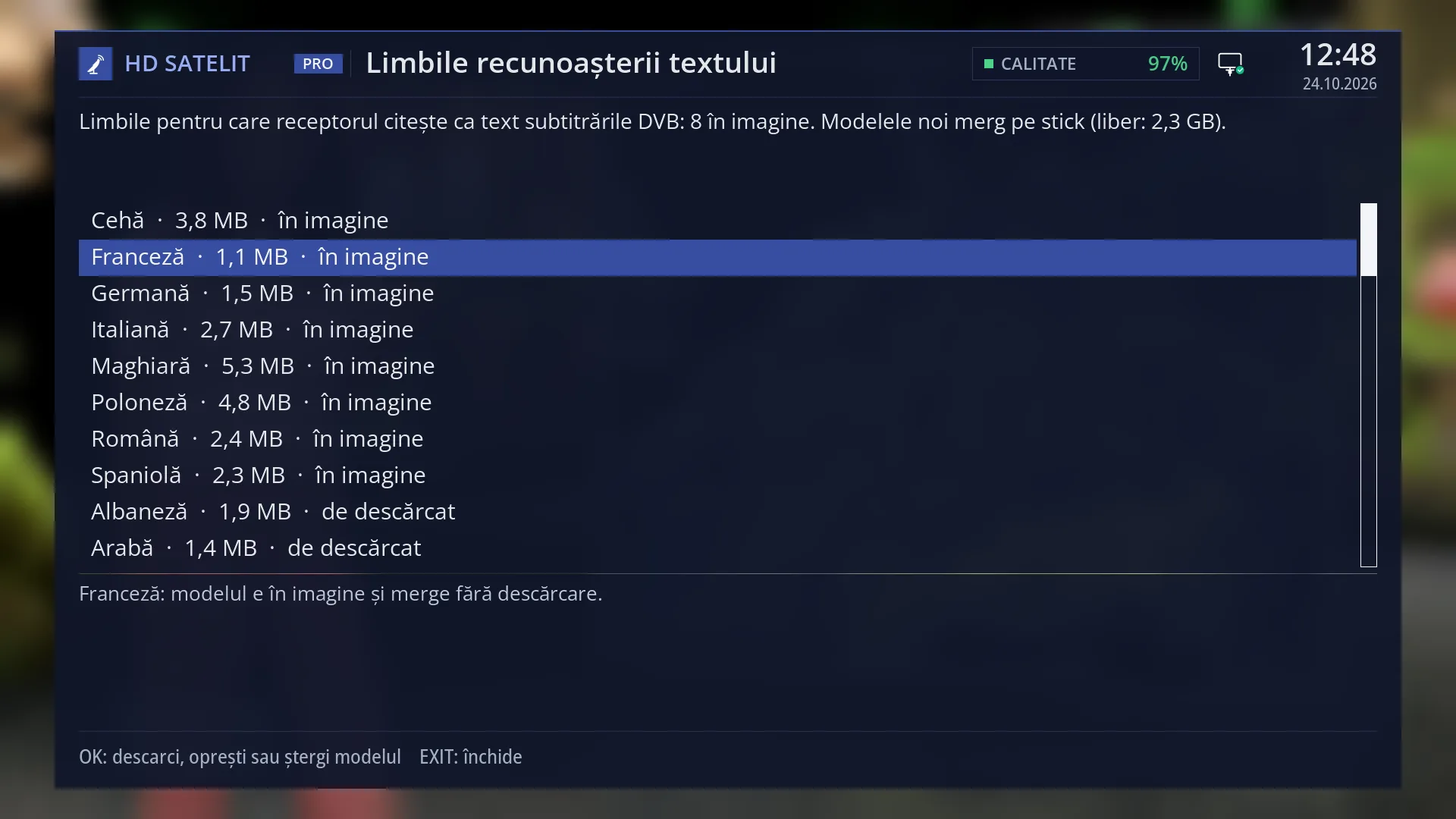
Each language needs a model. The image includes 8: Romanian, French, Polish, German, Czech, Hungarian, Spanish and Italian. Another 42 languages, English among them, are downloaded on request, preferably to a USB stick or a disk.
How to get here
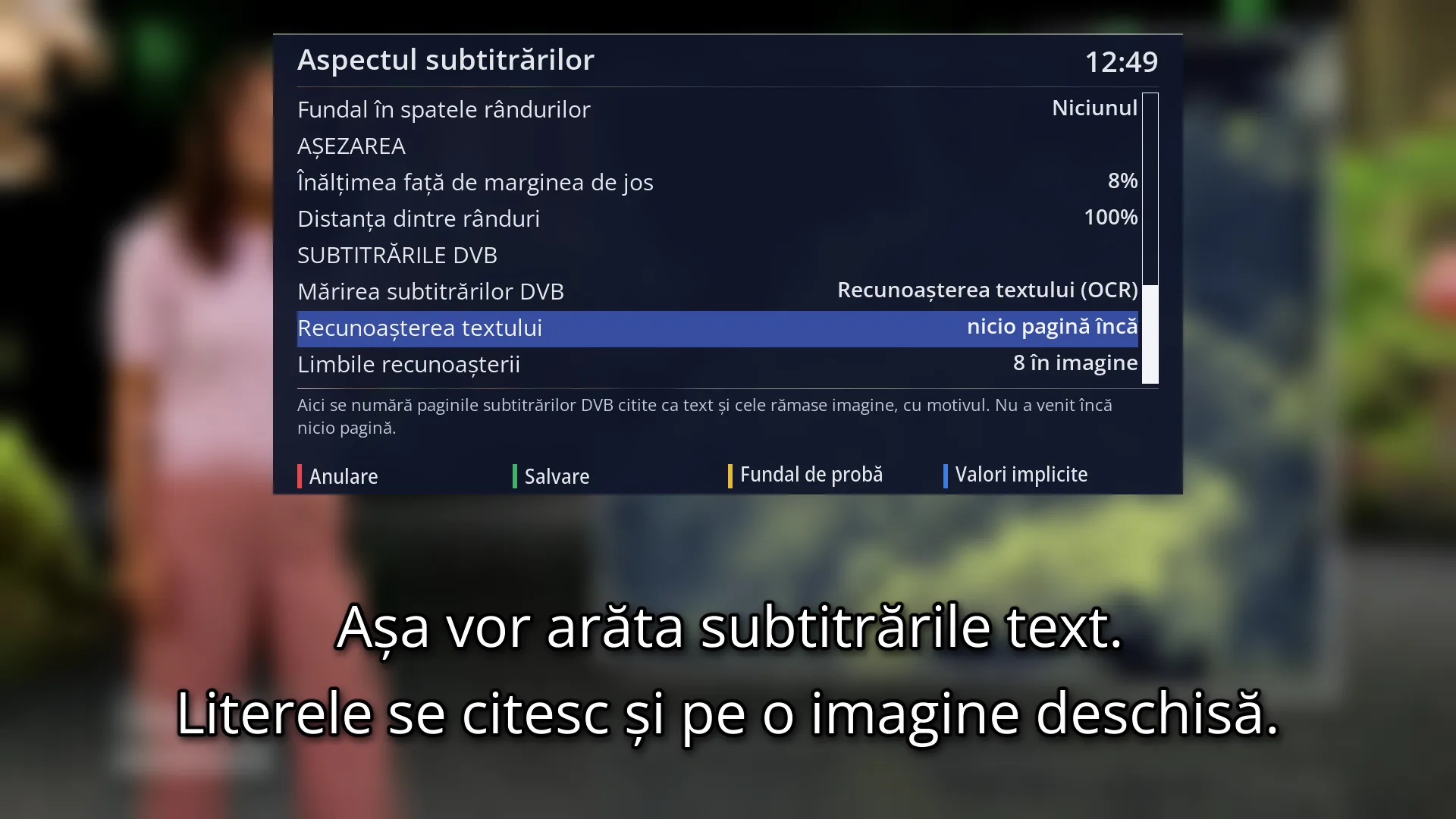
Path: Main menu > Settings > Audio & Sound Tracks > Subtitle appearance, group “DVB SUBTITLES”, row “DVB subtitle scaling” (MENU 6 4 5).
The language list: on the same screen, row “Recognition languages”, OK.
Text recognition also starts by itself when subtitle translation needs it (the “Also DVB subtitles (images)” row in “Subtitle translation”).
When you use SUBT to choose a DVB subtitle in a language without a model, the receiver asks whether to download the model.
In the web interface: the /ocr-limbi page (the languages) and the /subtitrari page (the same scaling choice).
What you see on the screen
In “Subtitle appearance”, at the end of the list, there is the “DVB SUBTITLES” group. The “DVB subtitle scaling” row only appears if the receiver has the recognition service and at least one model. Otherwise DVB subtitles are enlarged cleanly and there is nothing to choose.
With recognition switched on, below it you see “Text recognition” (for example “120 as text, 8 as picture”) and “Recognition languages” (for example “8 in the image, 2 downloaded”). Below the list is the help for the selected row.
At the top of the “Text recognition languages” screen, a sentence tells you how many languages there are and where new models go (to the USB stick or disk, or to the internal memory, with the free space).
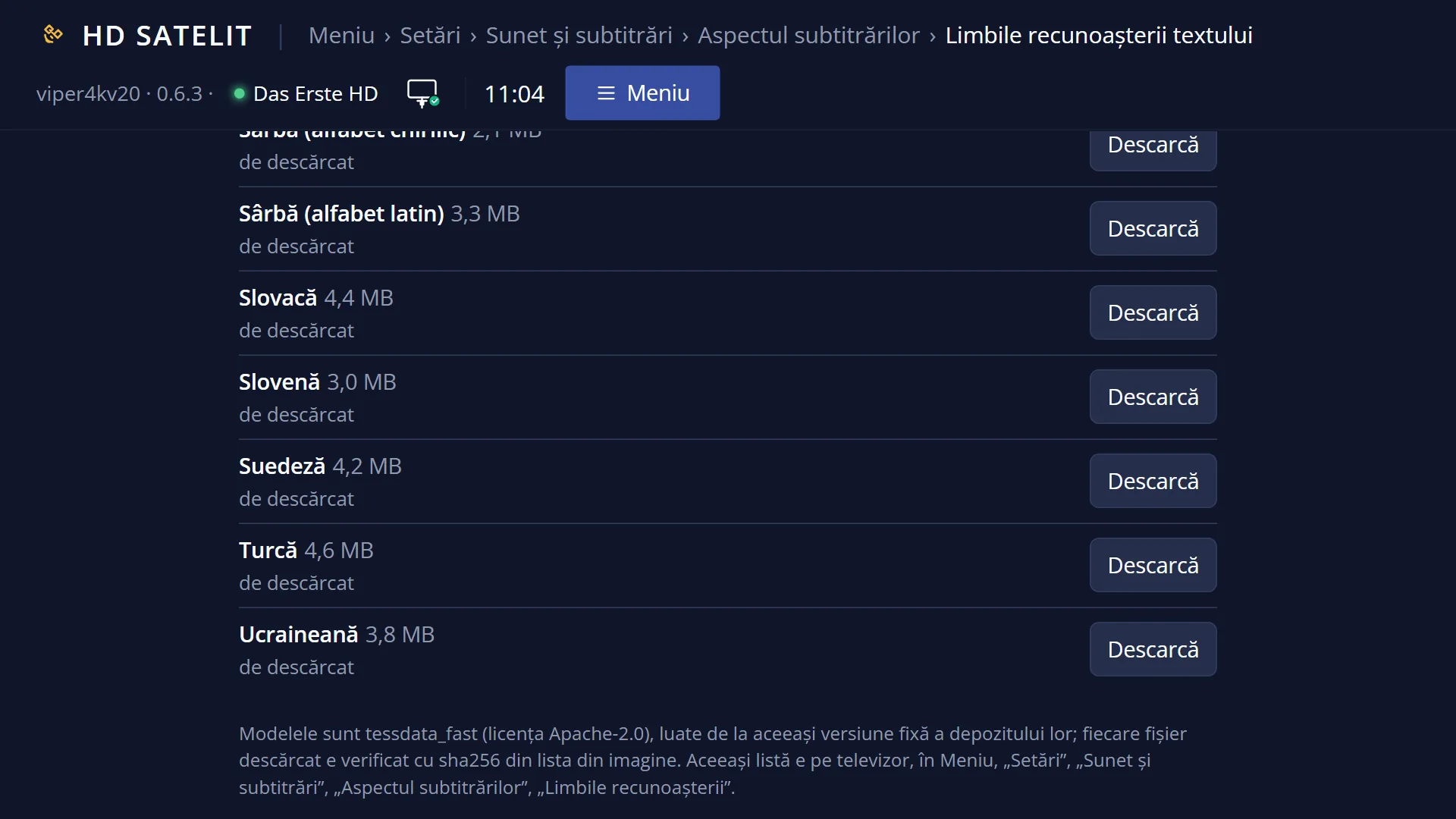
The list shows the languages in the image first, then the downloaded ones, then those to download, each group sorted by name. Each row shows the language name, the model size and the status: “in the image”, “downloaded”, “missing, the stick is not plugged in”, “to download”, “waiting in line”, “downloading” (with the percentage), “deleting” or “download failed”.
If you chose “Don't ask again for this language” for some languages, the first row is “Ask again for:” followed by their names.
Below the list: an explanation of the selected row (where the download goes and how much space is there), then, in yellow, how the last download or deletion ended, and at the bottom “OK: download, stop or delete the model EXIT: close”.
Rows and settings
| Row | Values | Default | What it does |
|---|---|---|---|
| DVB subtitle scaling | Clear (smooth edges), Text recognition (OCR) | Clear (smooth edges) | Clear: the broadcaster's image is enlarged to the size of the screen, with smooth edges. Text recognition: the letters are read and drawn with the look set above. When the text is uncertain, the image stays, enlarged cleanly. Press GREEN (Save) to keep it. When DVB subtitles look too small or blurred, or you want to translate them. |
| Text recognition | no page yet, “120 as text, 8 as picture” | no page yet | Information row, only with recognition switched on: how many pages were read as text and how many stayed as images. Below the list: “Read as text: ... of ...”, why pages stayed as images (too late, uncertain text, no model for the language, service off, too many at once, no letters, other reasons), the average time per page and, when the broadcaster has not declared the language, the guessed language. OK resets the counter to zero. When you want to find out why a subtitle stays as an image. |
| Recognition languages | “8 in the image”, “8 in the image, 1 downloaded”, “8 in the image, 2 downloaded” | 8 in the image | Information row, only with recognition switched on. OK opens the language list: those in the image, those downloaded and those available to download, with the size of each. When you want a language that is not in the image (for example English) or want to delete a downloaded one. |
| A language in the “Text recognition languages” list | in the image, downloaded, missing, the stick is not plugged in, to download, waiting in line, downloading, deleting, download failed | in the image for the 8 languages in the image, to download for the others | OK on a language to download: the download starts (to the USB stick or disk; without them, you are asked about the internal memory). OK on one that is downloading: you are asked whether to stop it. OK on a downloaded one: you are asked whether to delete it. OK on one whose USB stick is missing: “Download it again”, “Remove it from the list” or “Not now”. On a language in the image, OK does nothing: it works without a download. The download carries on even after you close the screen. When you watch channels with DVB subtitles in a language that is not in the image. |
| Ask again for: | The first row of the list, only when you have chosen “Don't ask again for this language”. OK makes the receiver ask you again when a subtitle appears in those languages. When you have changed your mind and want the model after all. | ||
| The question when you choose a subtitle (“Text recognition”) | Yes, download the model, Not now, Don't ask again for this language | It appears when you choose a DVB subtitle in a language without a model: “Subtitle language: ... To read the subtitles as text, the model for this language (... MB) is needed; it is downloaded from the internet. Download it?”. Yes opens the language list with the download started. When the broadcaster has not declared the language, the question starts with “Guessed subtitle language”. Answer “Yes” when you want that language's subtitle as text, and “Don't ask again” if you do not often watch channels in that language. |
Keys
| LEFT / RIGHT (in “Subtitle appearance”) | On “DVB subtitle scaling”: switches between “Clear (smooth edges)” and “Text recognition (OCR)”. |
| OK (in “Subtitle appearance”) | On “DVB subtitle scaling”: the list of values. On “Text recognition”: resets the counter to zero. On “Recognition languages”: opens the language list. |
| GREEN / RED (in “Subtitle appearance”) | GREEN keeps your choice. RED cancels the changes. |
| UP / DOWN (in the language list) | Moves the cursor to another language. The selected row is explained below the list. |
| LEFT / RIGHT (in the language list) | One page of the list up or down. |
| OK (in the language list) | Downloads, stops or deletes the model of the selected language, depending on its status. |
| EXIT (in the language list) | Closes the list. A download that has started carries on. |
| In questions: UP / DOWN, OK, EXIT | UP and DOWN choose the answer, OK confirms it, EXIT means no. When stopping or deleting, the cursor starts on “No”. |
Step by step
Making DVB subtitles clear, as text
- Open Menu > Settings > Audio & Sound Tracks > Subtitle appearance.
- Go down to “DVB subtitle scaling” and choose “Text recognition (OCR)”.
- Press GREEN. From now on, DVB subtitles in languages with a model appear as text, with the look chosen above.
Downloading English (or another language)
- Plug a USB stick or a disk into the receiver (the models on it are kept after an image update).
- In “Subtitle appearance”, press OK on “Recognition languages”.
- Choose the language, for example “English”, and press OK. The row shows “downloading” with the percentage, then “downloaded”.
- Without a USB stick or disk, the receiver asks whether to put the model in the internal memory. There it is lost when you update the image.
Problems and solutions
I cannot find the “DVB subtitle scaling” row.
The row only appears when the receiver has the text recognition service and at least one model. Without them, DVB subtitles are enlarged cleanly and there is nothing to choose.
The subtitle stays as an image, even though I switched on text recognition.
Look at the “Text recognition” row: the reason is shown below the list. “no model for the language”: download the language. “uncertain text”: the letters were not read reliably, so the image stays. “too late”: the page arrived too close to the moment it had to be shown.
The message “The channel did not declare the subtitle language and it cannot be guessed from the channel. The subtitles stay as a picture.” appears.
Without a language, the receiver does not know which model to use. The subtitle is shown as an image, enlarged cleanly.
A downloaded language shows “missing, the stick is not plugged in”.
The model is on the USB stick or disk that is not plugged in now. Plug it back in, or press OK and choose “Download it again” or “Remove it from the list”.
The download shows “download failed”.
The receiver has no internet or had no space to put the model. The yellow row below the list gives the reason. Try again with OK.
I am no longer asked whether to download a language.
You chose “Don't ask again for this language”. In the language list, press OK on the first row, “Ask again for:”.
DVD subtitles in an MKV film do not appear.
They do not work yet in this version. DVD subtitles from idx files and Blu-ray subtitles work.
Related topics
- Subtitle lettering and the rest of the screen: Menu > Settings > Audio & Sound Tracks > Subtitle appearance (on the web, /subtitrari).
- Subtitle translation (the “Also DVB subtitles (images)” row)
- Choosing a subtitle
- Matching web page: /ocr-limbi.