

System Language
English screenshots coming: some of the pictures below still show the receiver and the web interface in Romanian. The rows, keys and steps described on this page are the English ones.
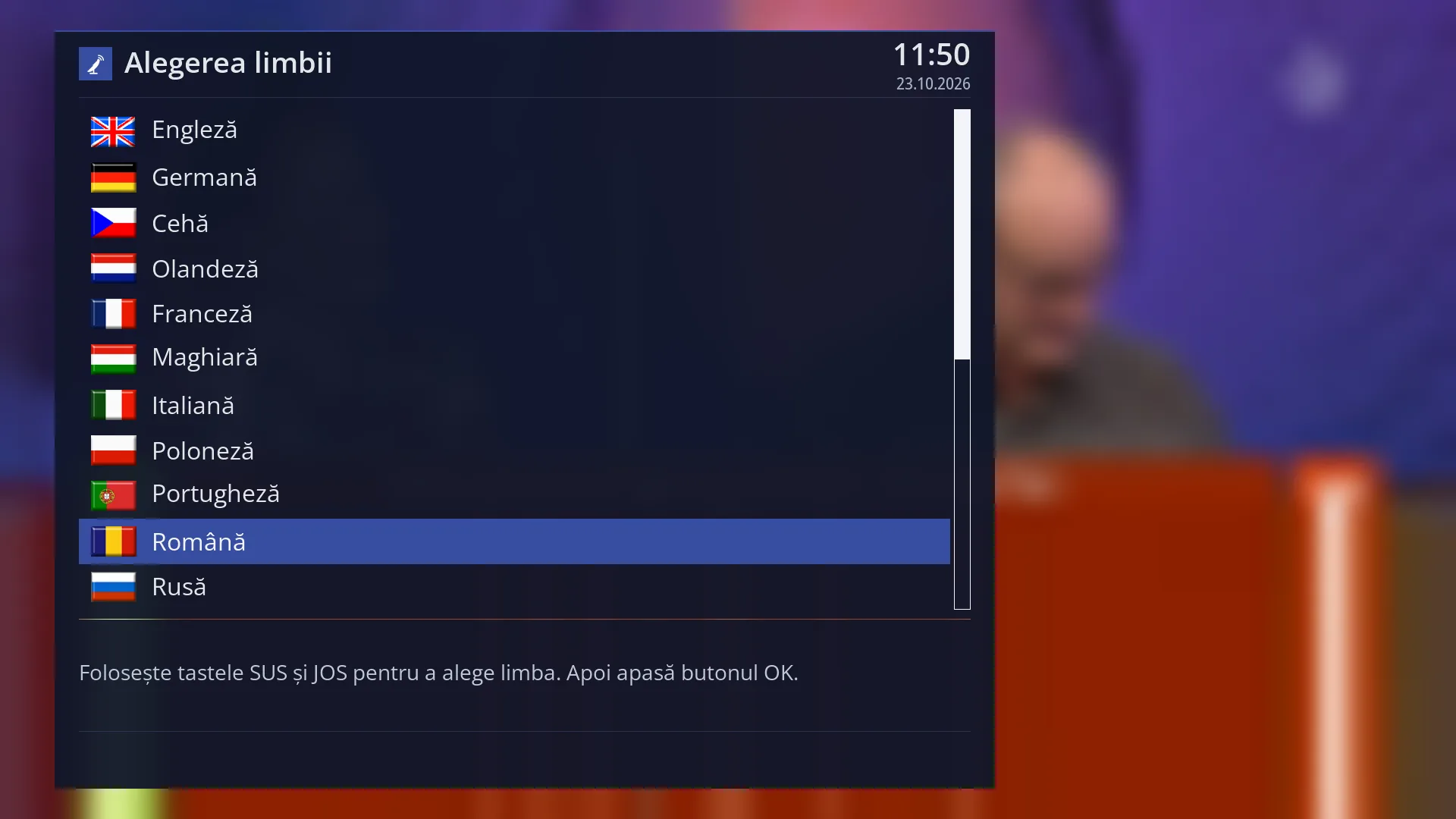
- 1 The 28 languages, with flag and name, written in the language of the selected row.
- 2 The language currently selected: Romanian.
- 3 The help text, in the language of the selected row: UP and DOWN select, OK confirms.
- 4 The title, also written in the language of the selected row.
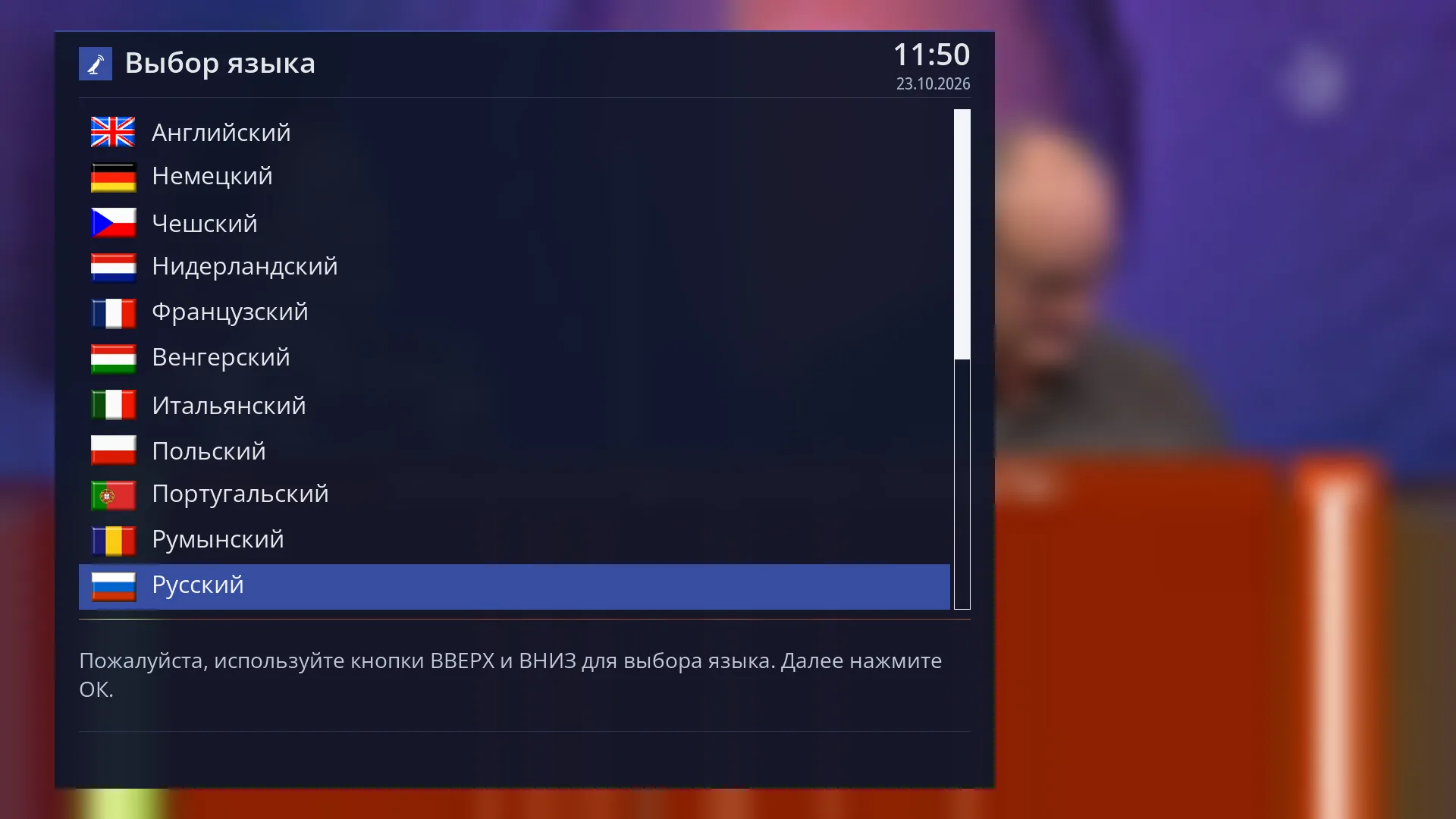
- 1 Selected row: “Русский”.
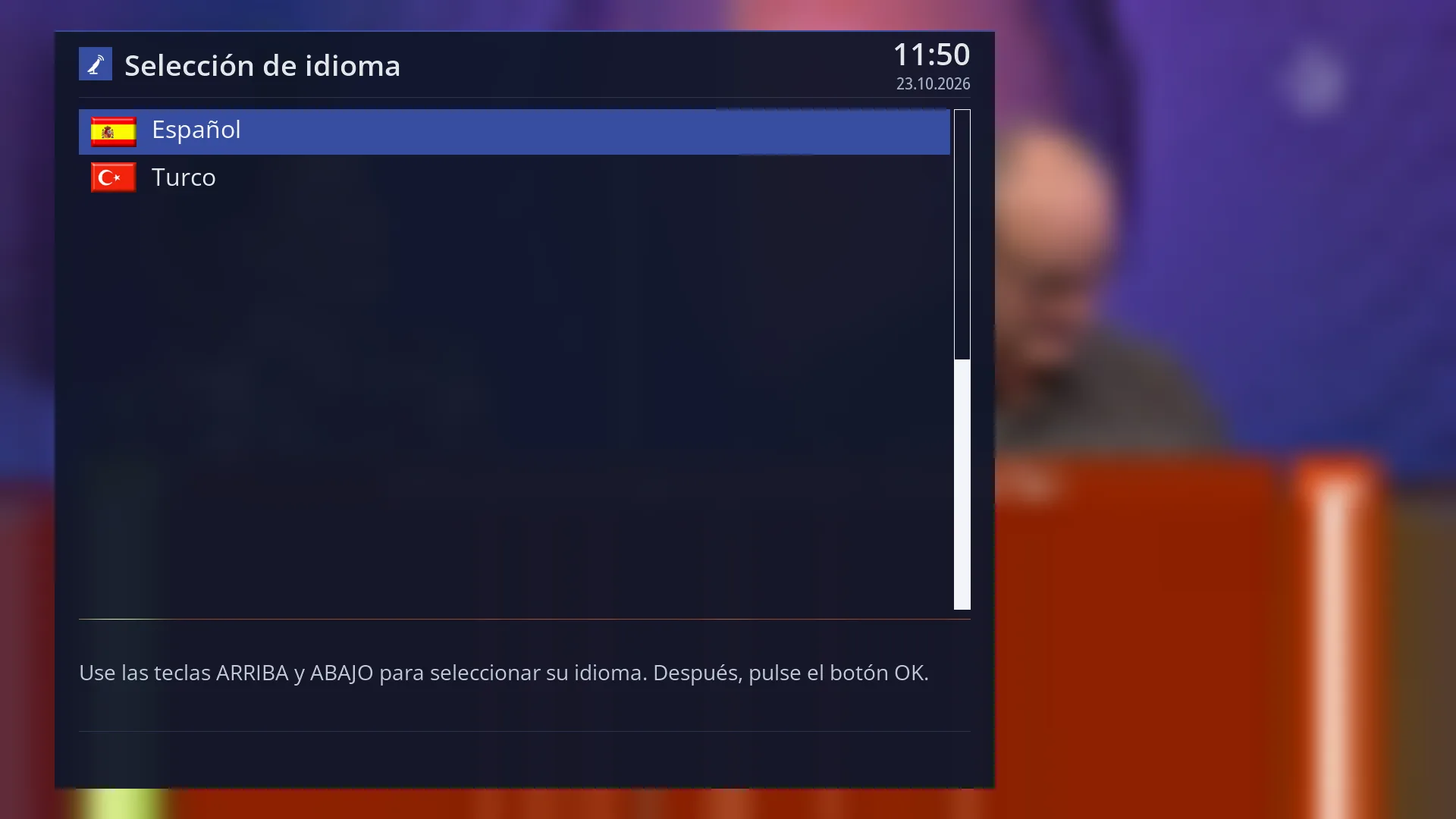
- 1 Selected row: “Español”.
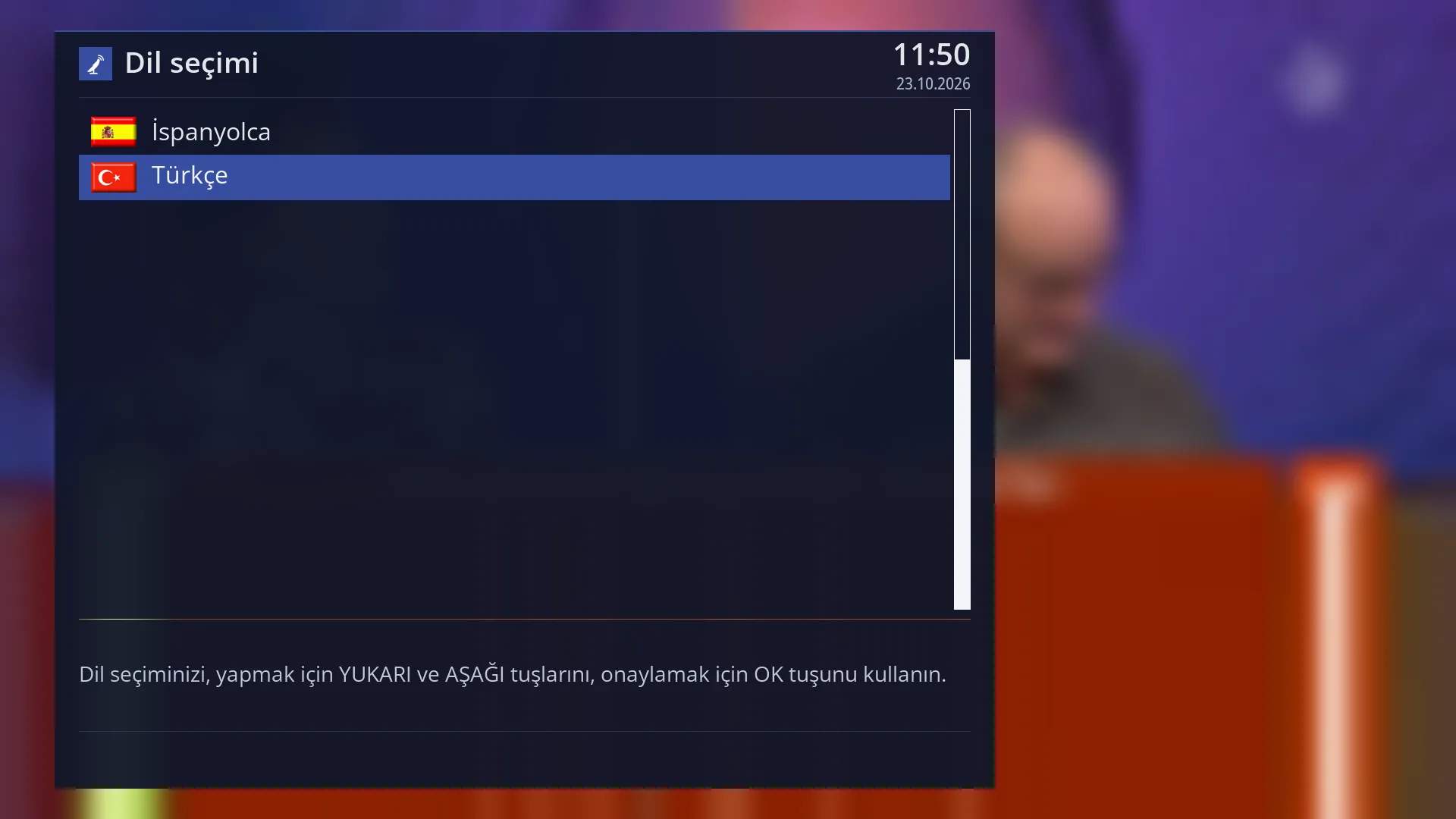
- 1 Selected row: “Türkçe”.
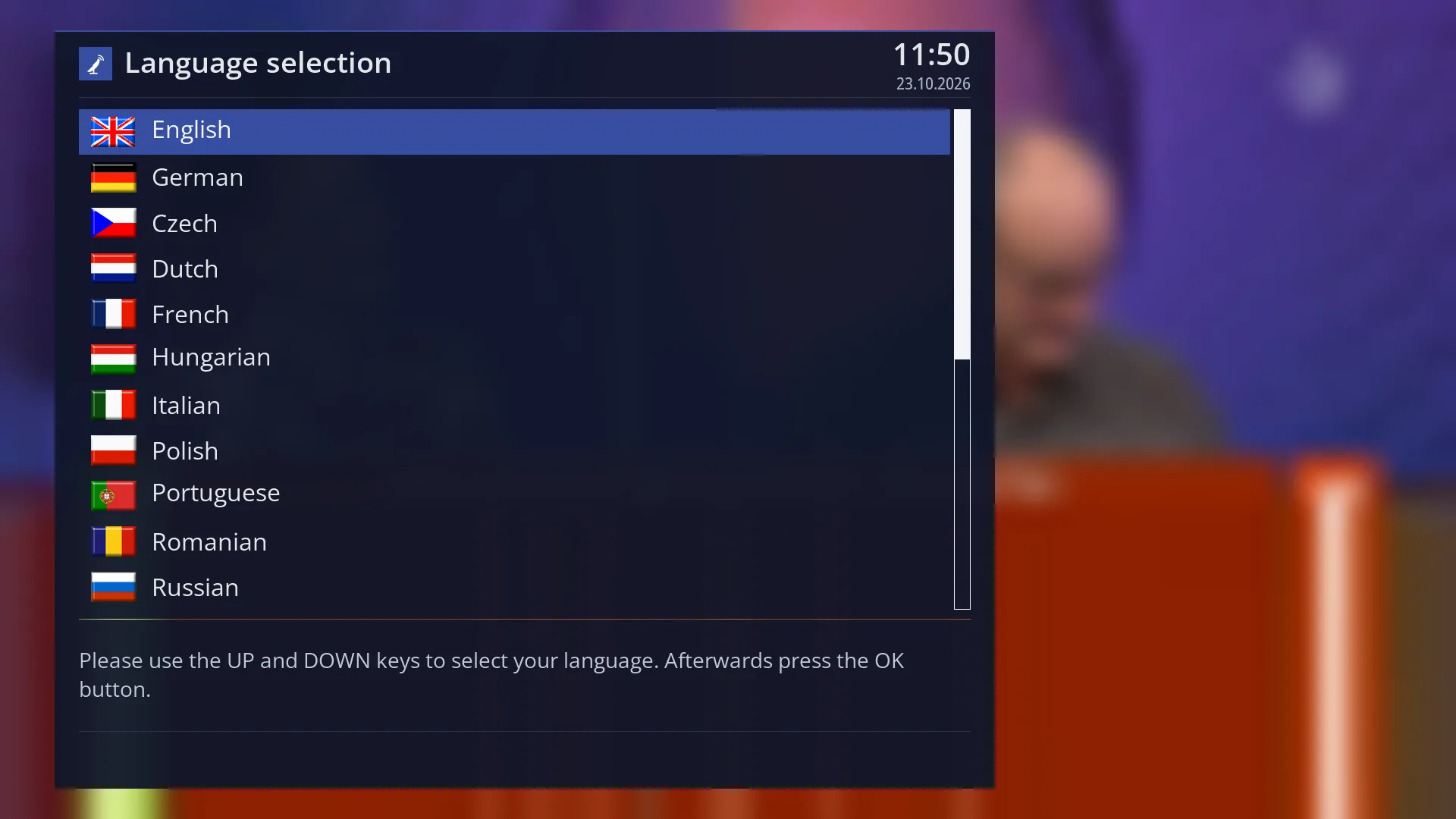
- 1 Selected row: “English”.
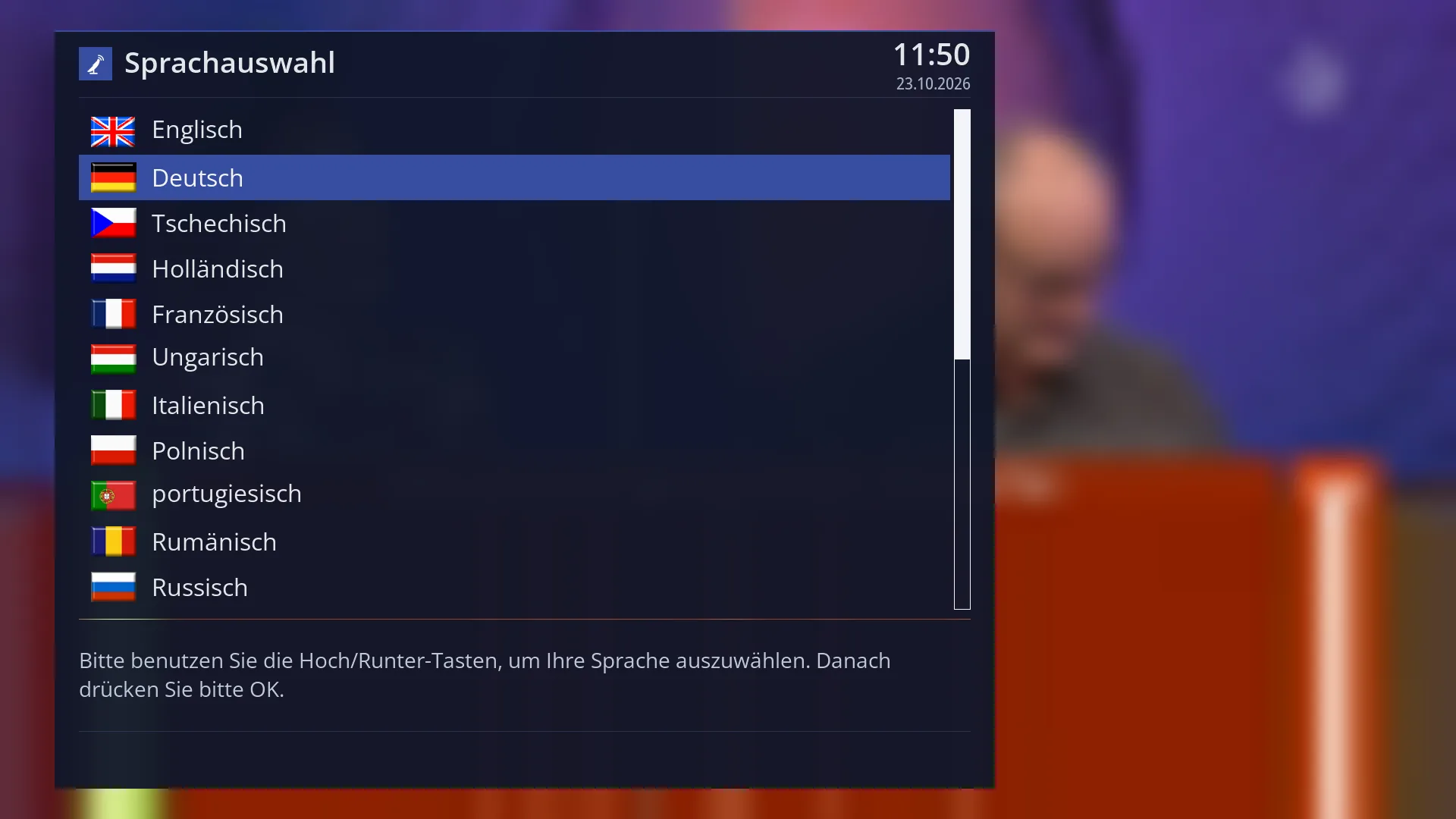
- 1 Selected row: “Deutsch”.
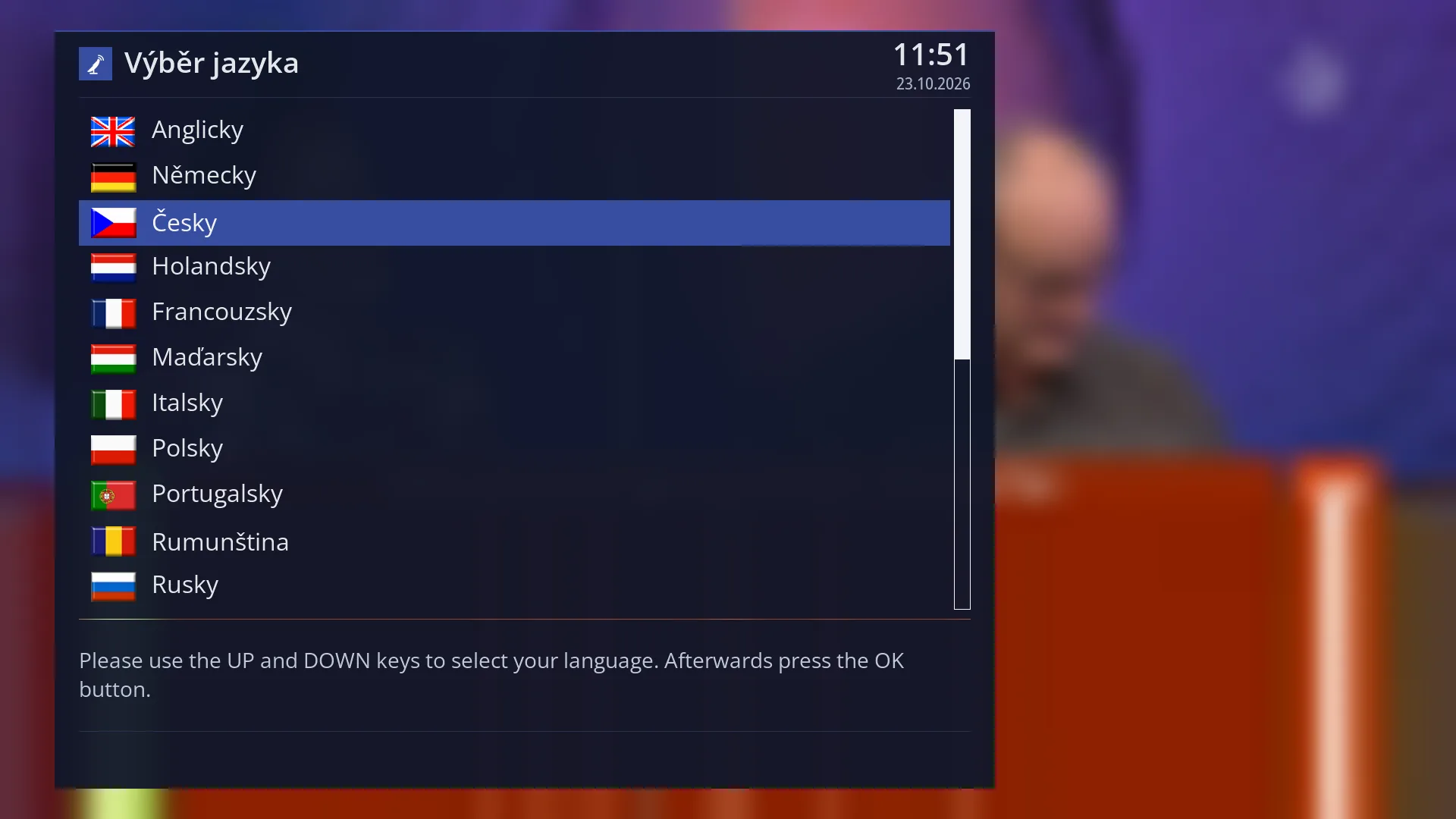
- 1 Selected row: “Česky”.
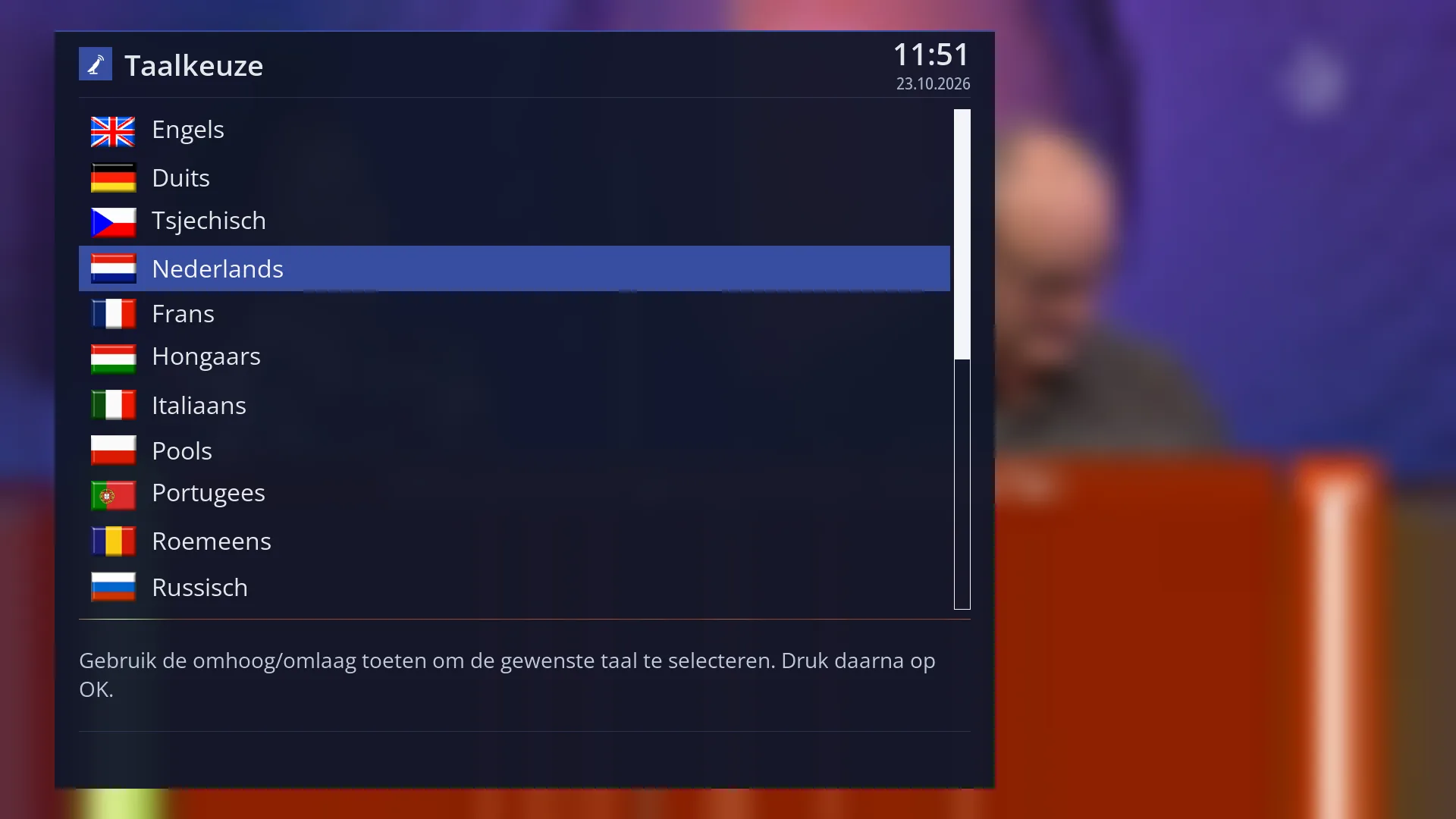
- 1 Selected row: “Nederlands”.
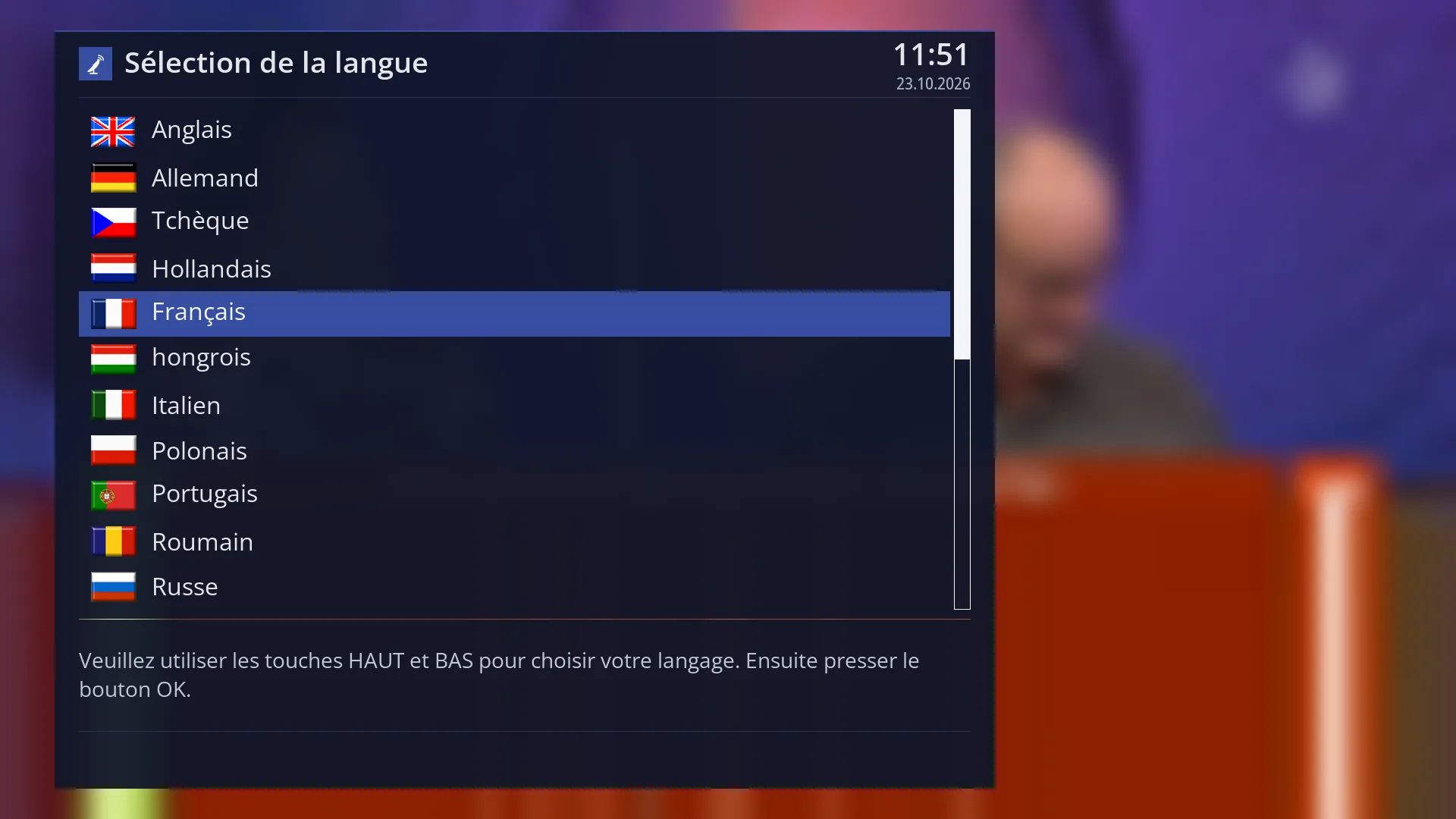
- 1 Selected row: “Français”.
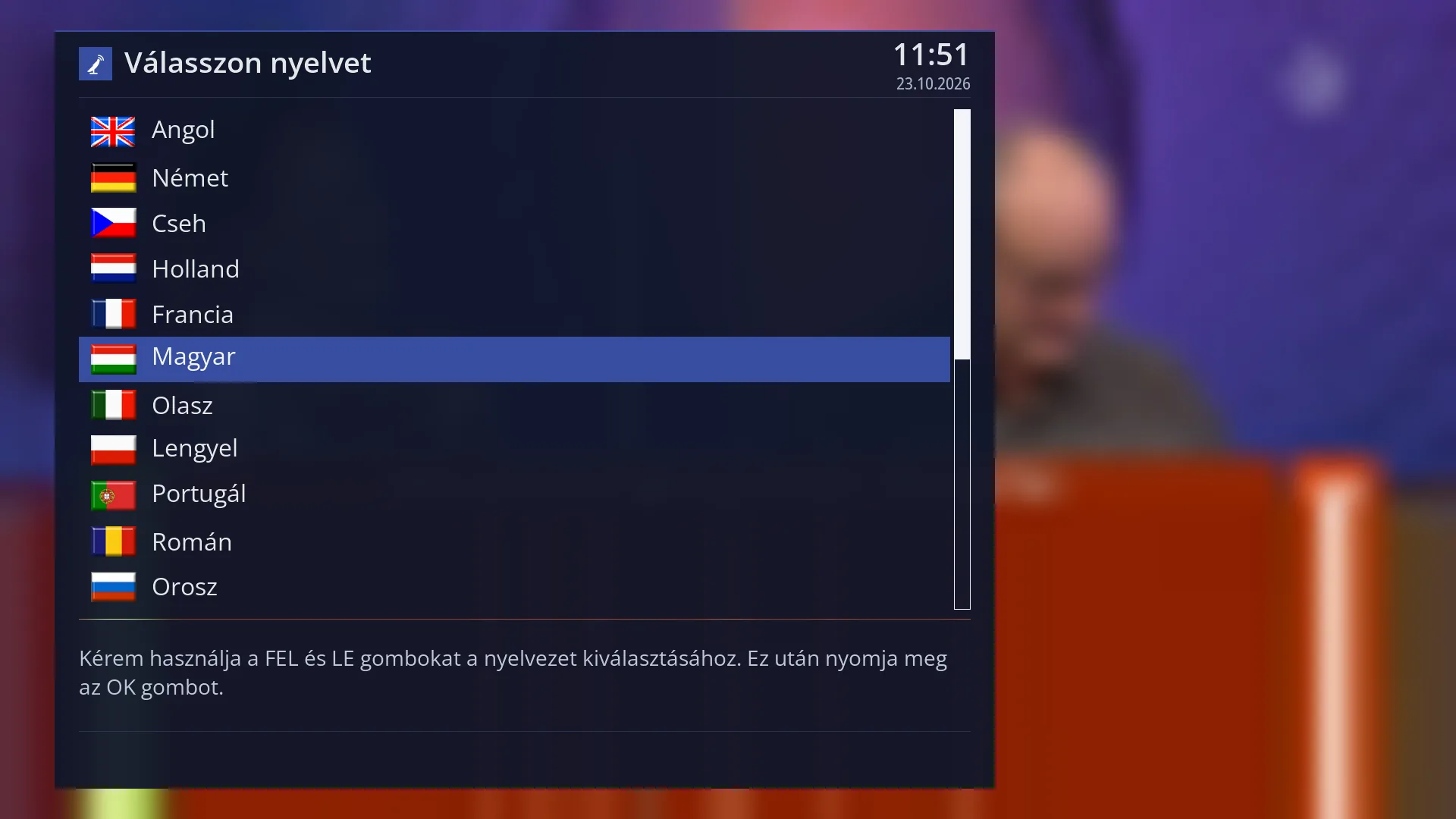
- 1 Selected row: “Magyar”.
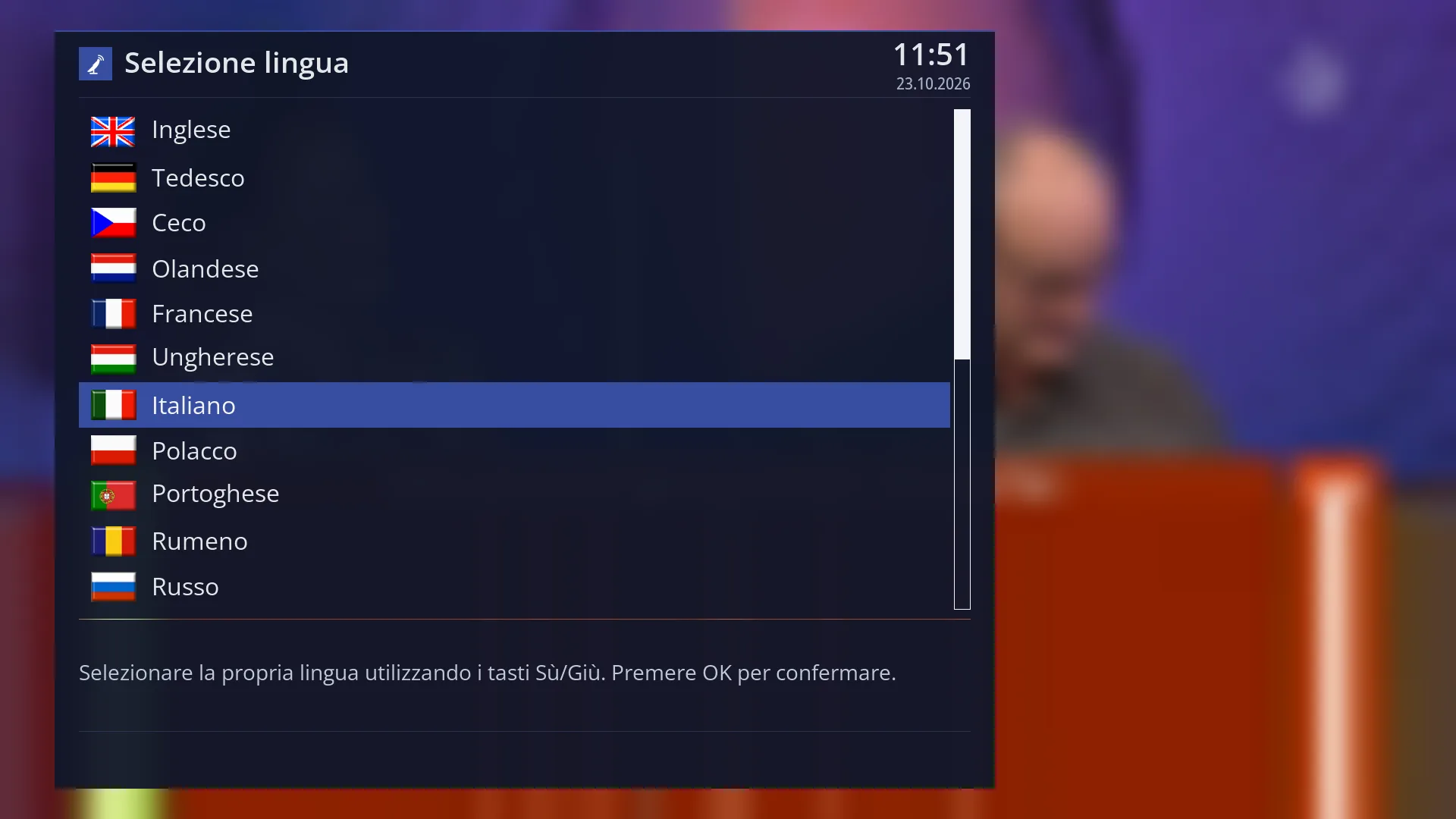
- 1 Selected row: “Italiano”.
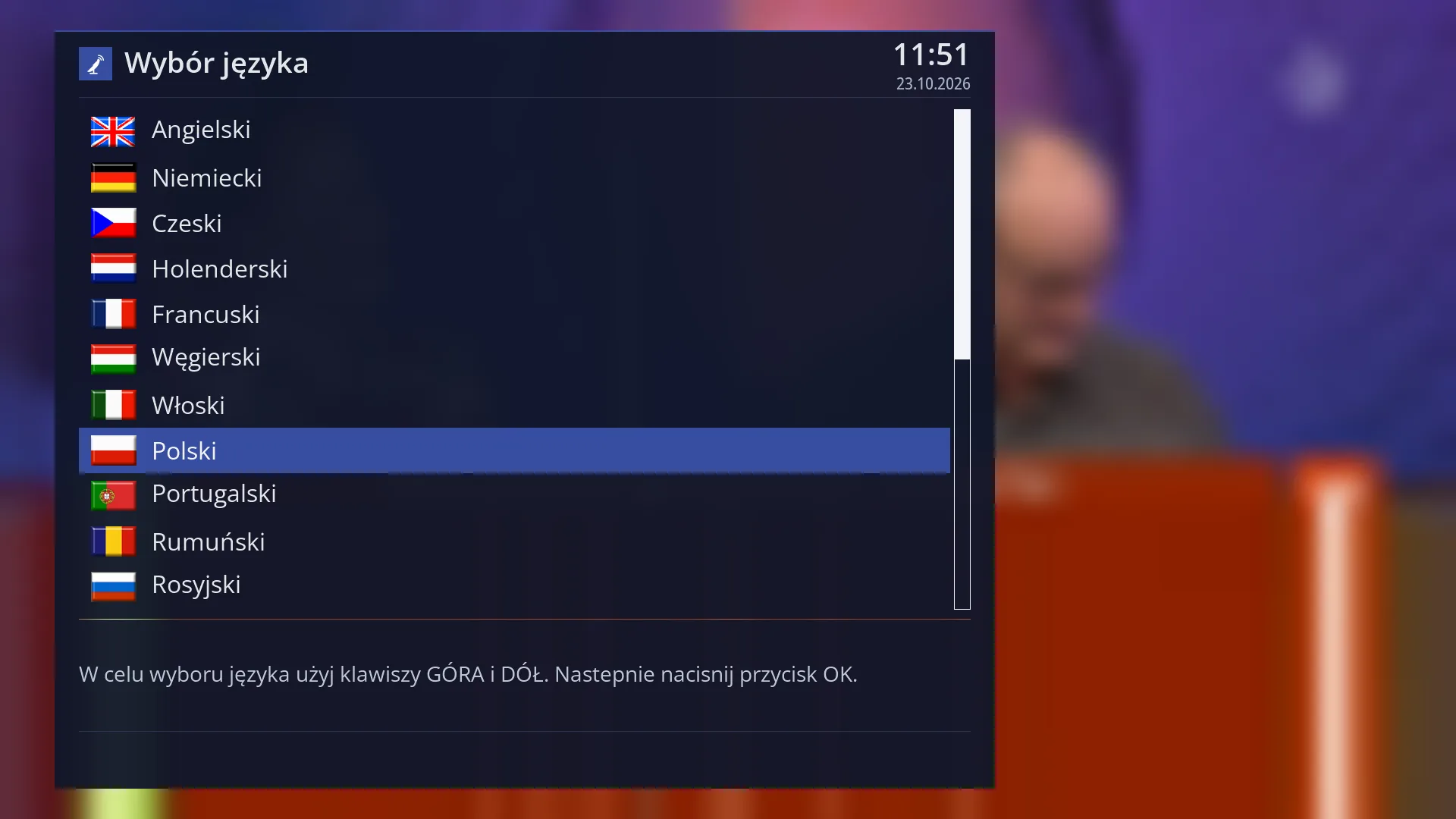
- 1 Selected row: “Polski”.
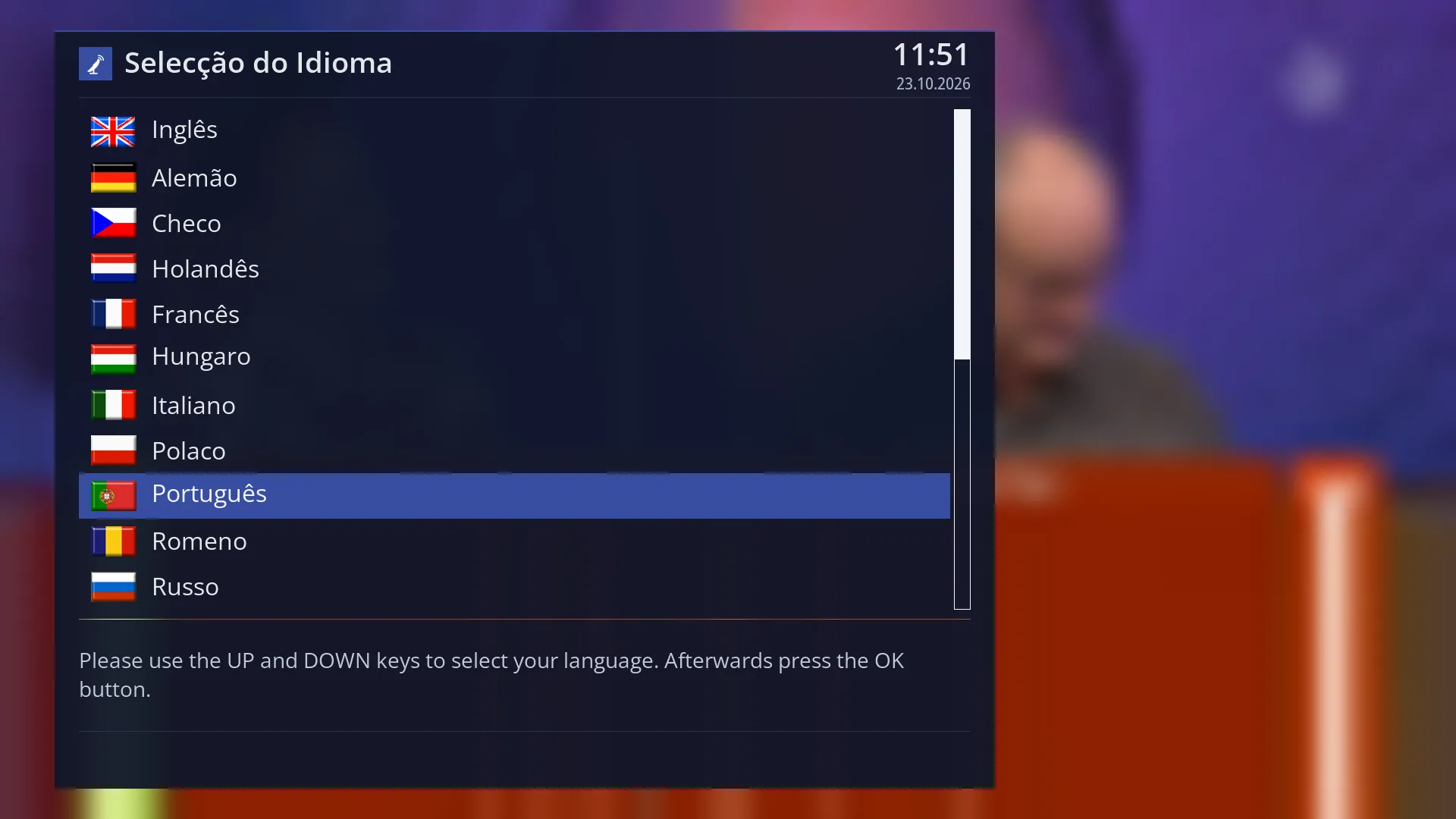
- 1 Selected row: “Português”.
What it is for
The “System Language” screen sets the language of all the receiver's menus, messages and screens.
The list has 28 languages, each fully translated, including all the HD Satelit texts: Romanian, English, German, French, Spanish, Italian, Hungarian, Czech, Polish, Portuguese, Dutch, Russian, Turkish, Slovak, Croatian, Serbian, Slovenian, Greek, Swedish, Danish, Norwegian, Finnish, Estonian, Lithuanian, Latvian, Catalan, Icelandic and Frisian. The receiver comes set to Romanian.
The language changes straight away, without a restart. Anything you open from then on appears in the new language, and screens that are already open change the next time you open them.
The language you choose here is also the “Receiver language” that other settings can use, for example when choosing the audio track and the subtitles.
How to get here
Path: Main menu > Settings > Interface & Appearance > System Language.
Keys on the TV: MENU 6 6 4.
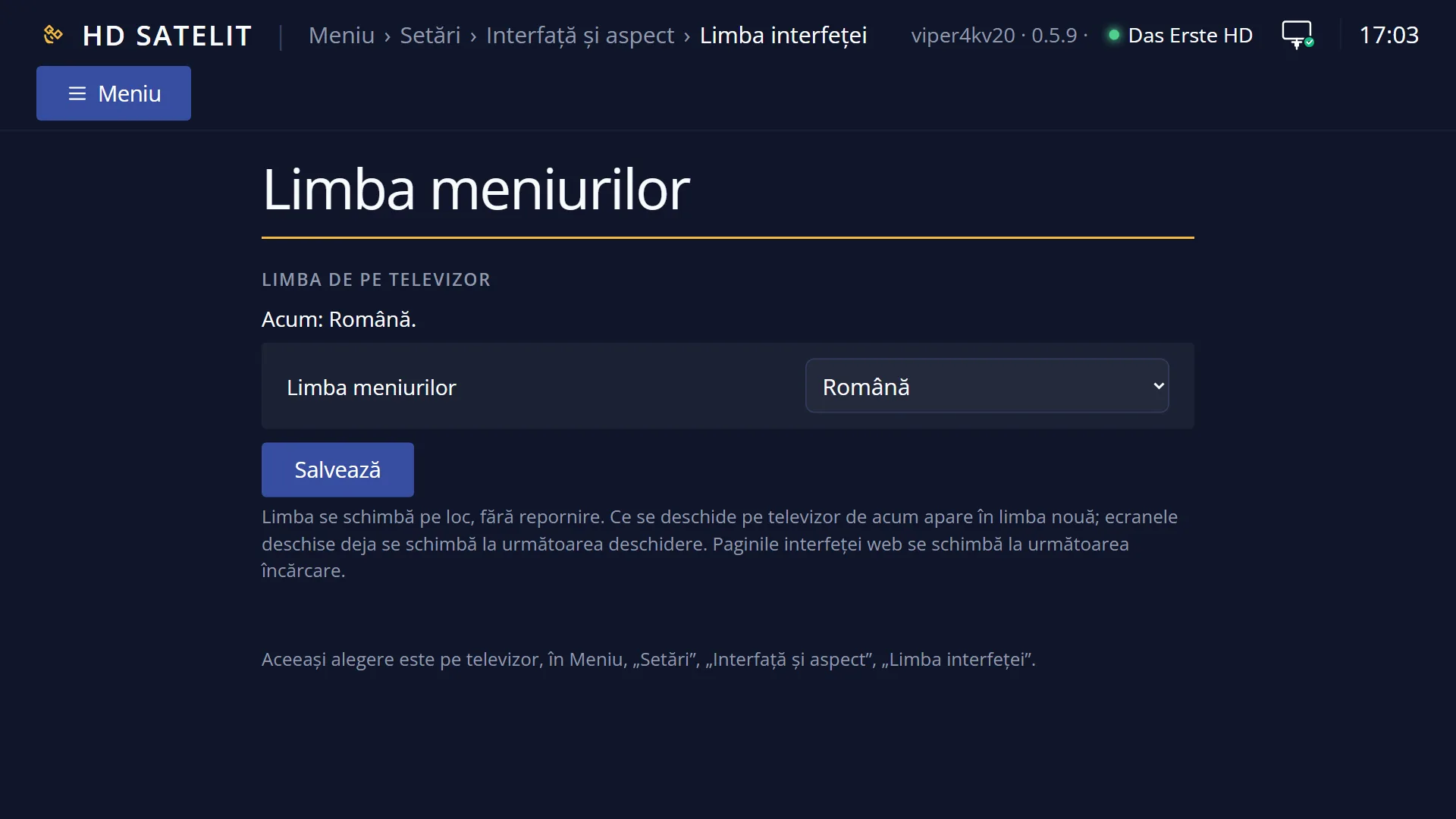
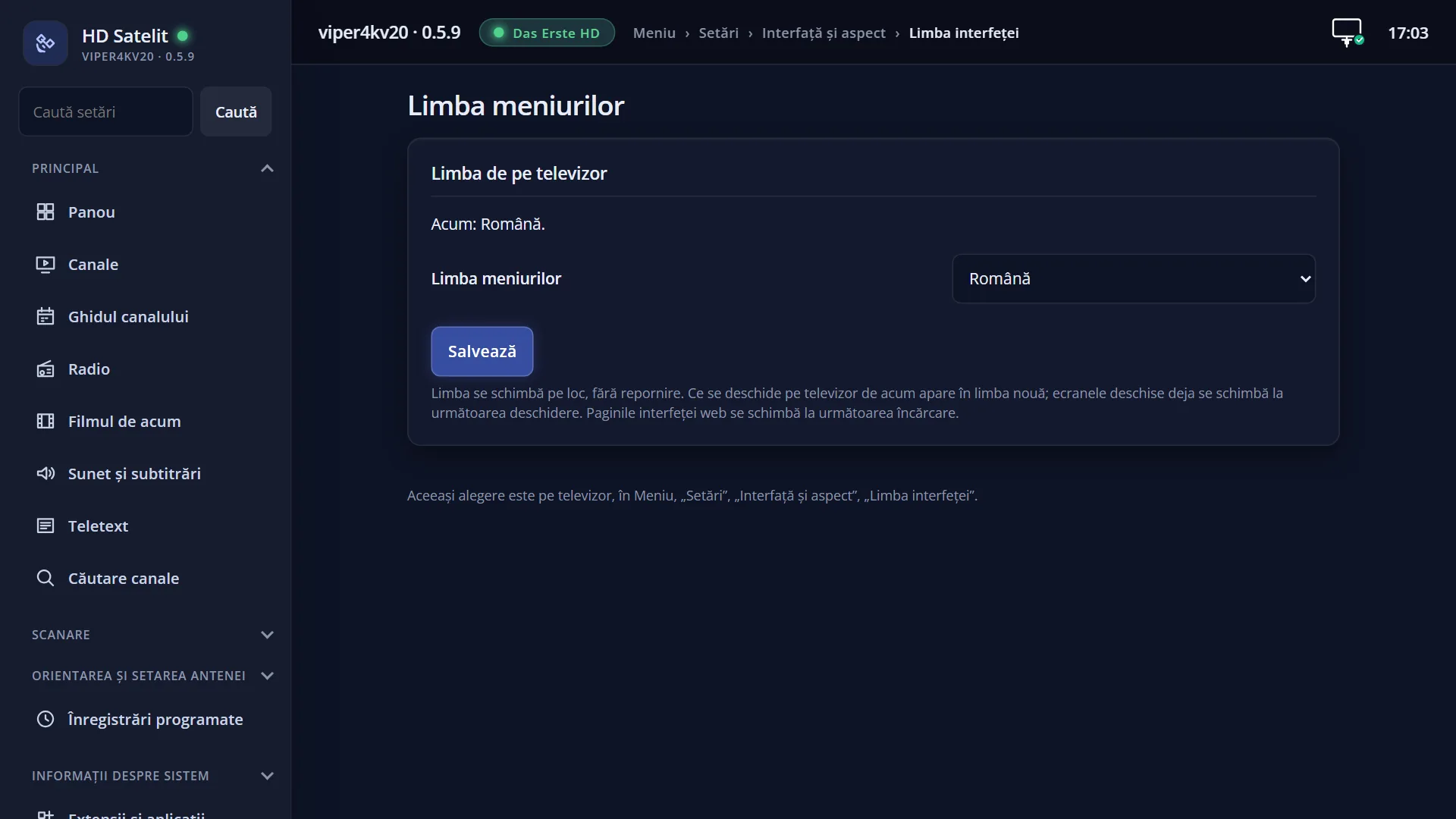
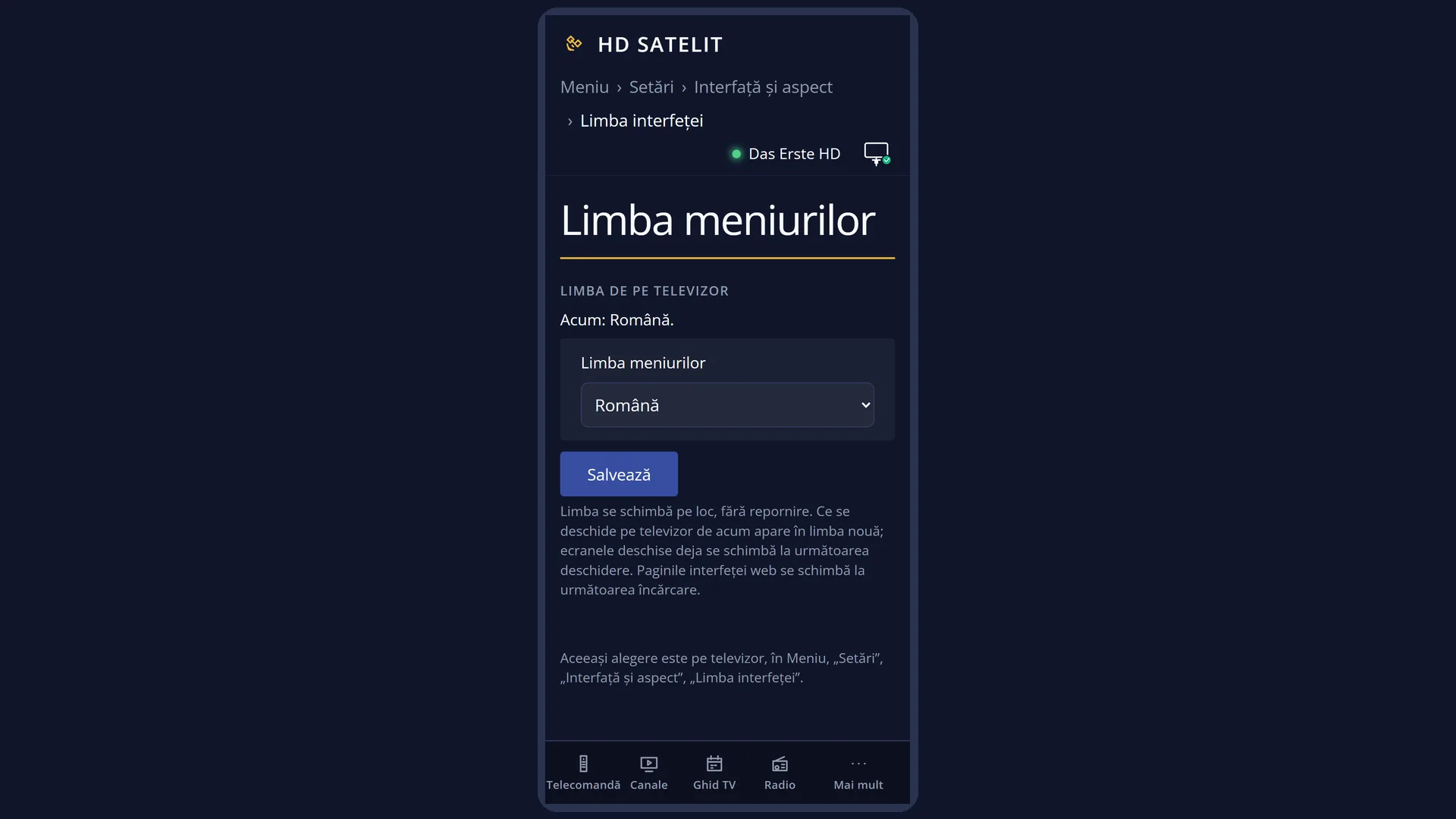
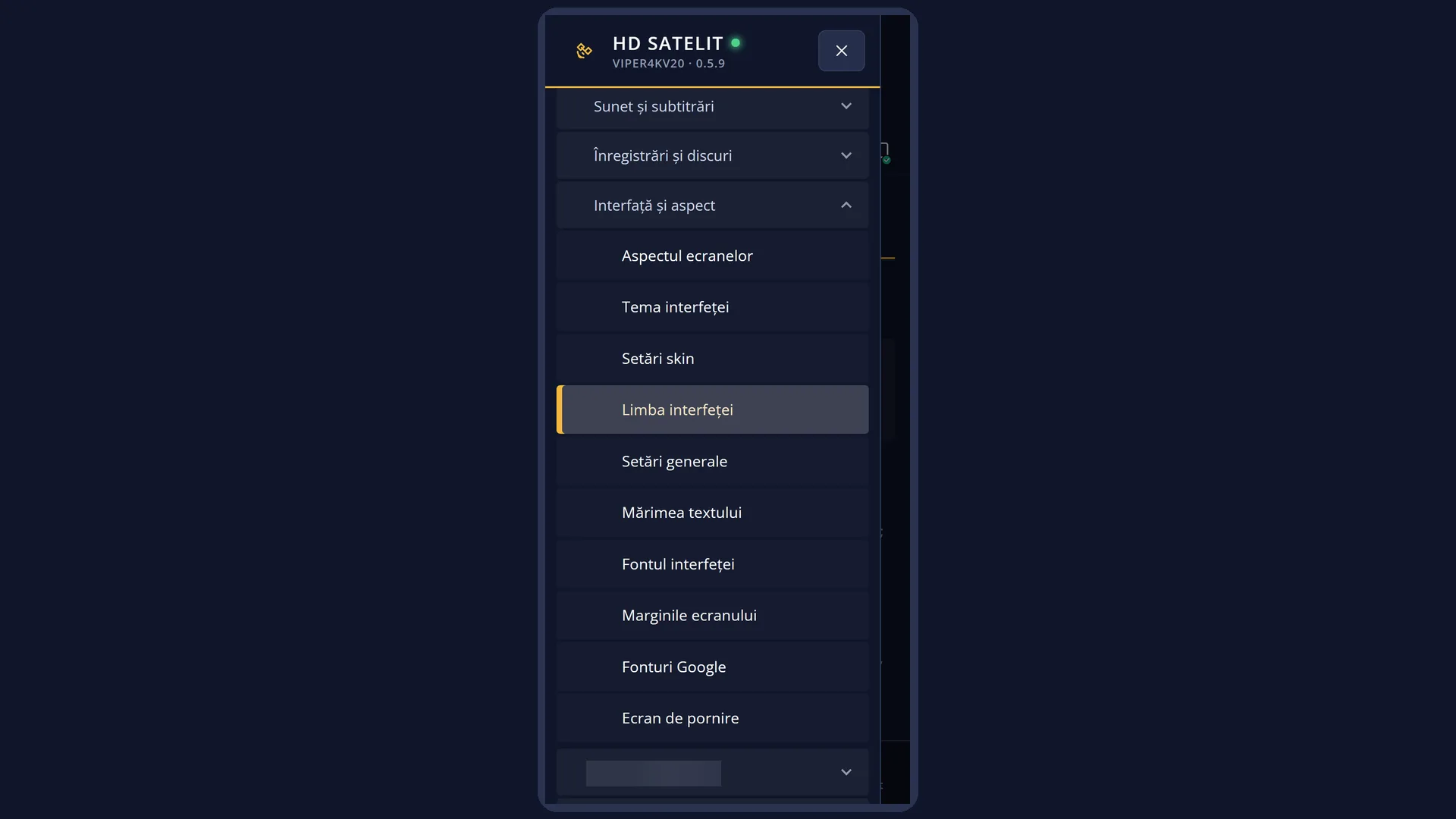
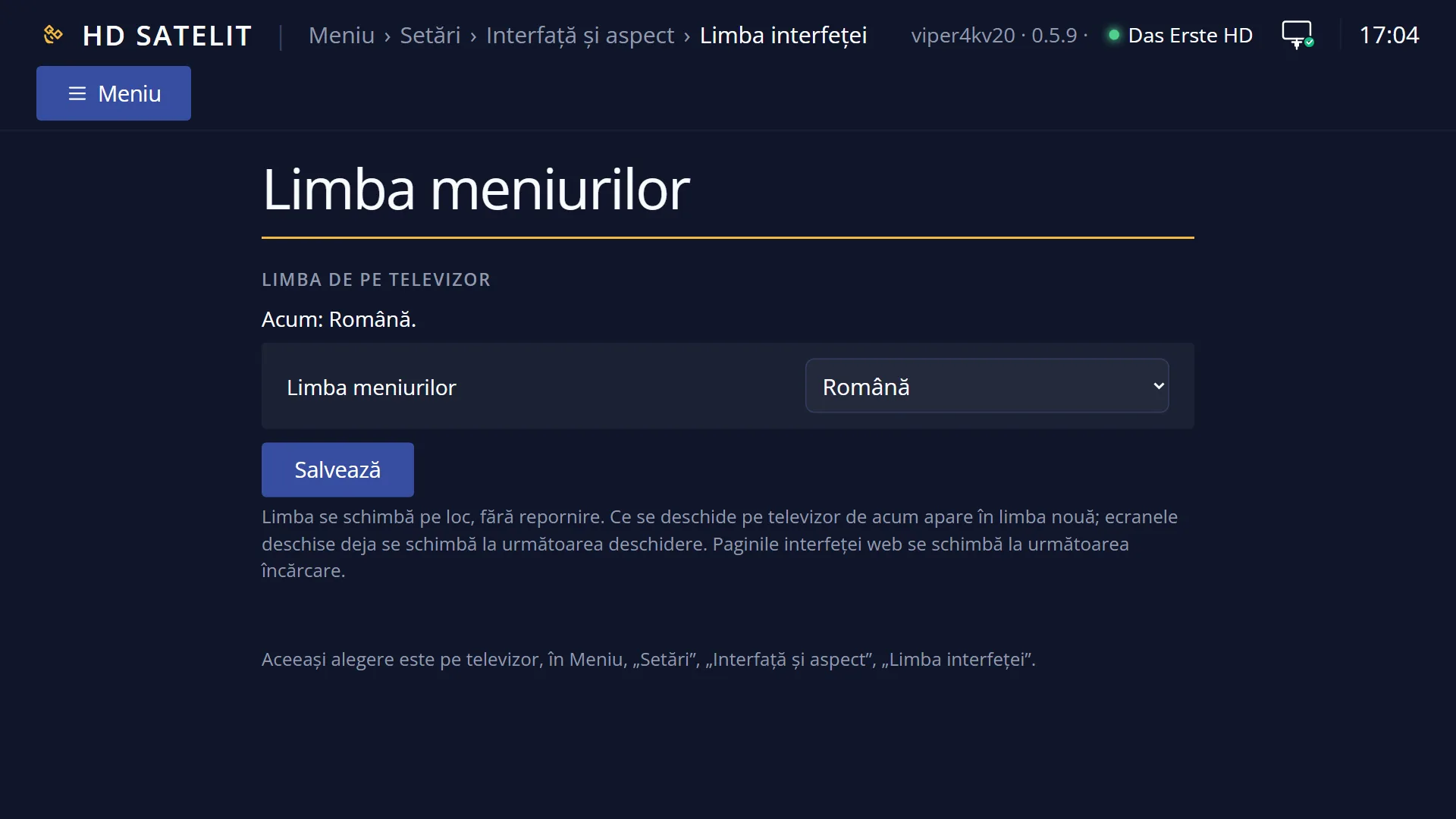
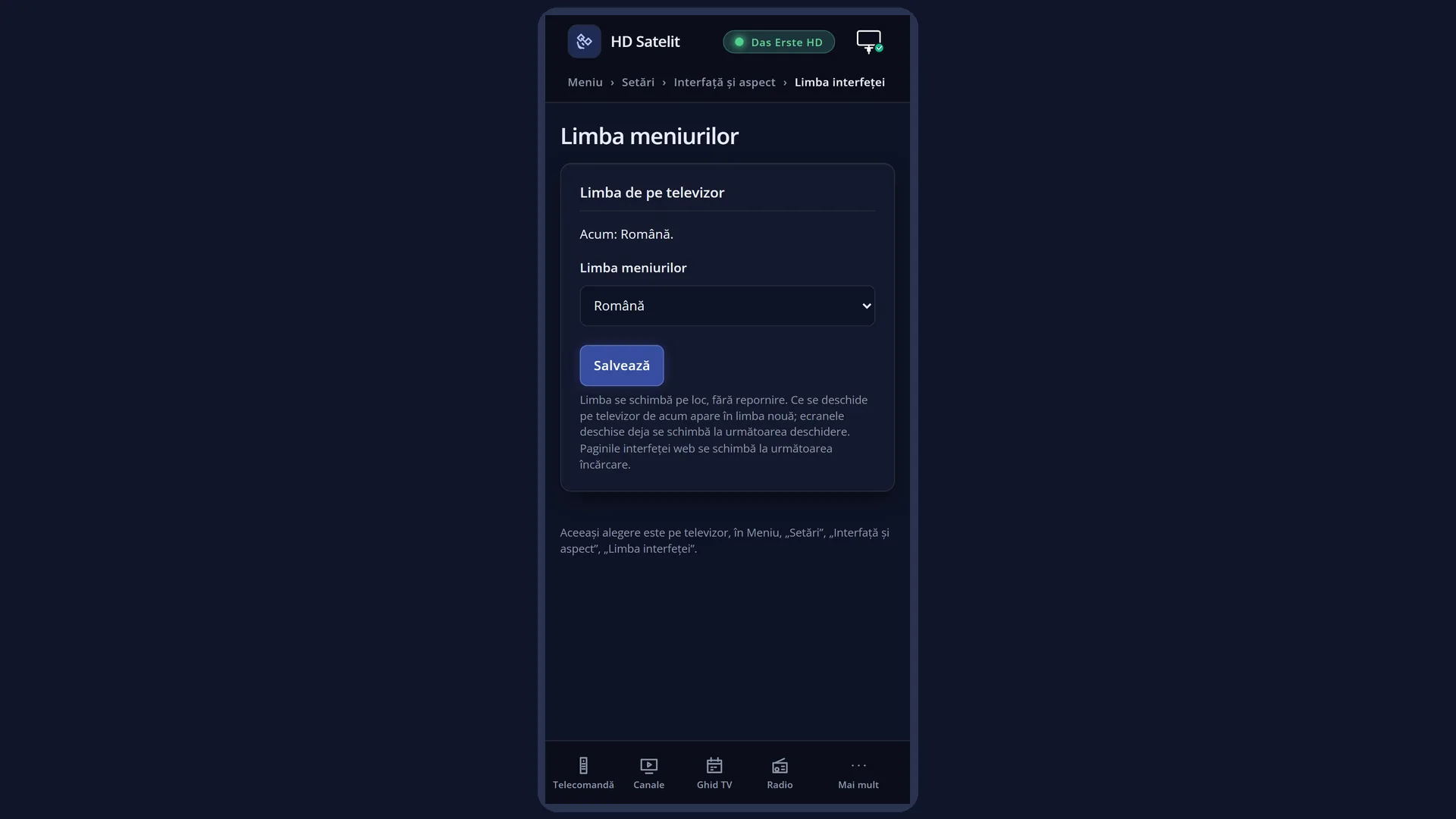
In the web interface: the /limba-interfata page (“Menu language”), with the same list and the same change.
You also choose the first language in the first-start wizard.
What you see on the screen
At the top: the screen title, the clock and the date. The title is written in the language of the selected row: in Romanian it reads “Alegerea limbii”, and when the cursor is on Russian, for example, it reads “Выбор языка”.
In the middle: the list of the 28 languages, each with its country's flag and its name. The language names are also written in the language of the selected row: with the cursor on Romanian you see “Engleză”, “Germană”, “Cehă” and so on; with the cursor on Russian, the same names in Russian.
The selected row has a blue background. When the screen opens, the cursor is on the language currently in use.
Below the list: the help text, also in the language of the selected row: “Use the UP and DOWN keys to select a language. Then press the OK button.”
The screen has no colour keys: you choose only with UP, DOWN and OK.
Rows and settings
| Row | Values | Default | What it does |
|---|---|---|---|
| Menu language (the list) | English, German, Czech, Dutch, French, Hungarian, Italian, Polish, Portuguese, Romanian, Russian, Spanish, Turkish | Romanian | The language of all the receiver's menus and messages. As you move the cursor, the title, the language names and the help text below the list appear in the language of the selected row. This makes it easy to find your language even if the menus are currently in a language you cannot read. When the receiver is used by someone who speaks another language, or when the menus have been switched to a foreign language by mistake. |
Keys
| UP / DOWN | Moves the cursor to another language. The list wraps round: from the last language, DOWN takes you to the first. The title, the language names and the help text switch to the language of the selected row. |
| LEFT / RIGHT | Jump one page up or down in the list. |
| OK | Selects the language on the selected row, applies it straight away and closes the screen. |
| EXIT | Closes the screen and restores the previous menu language. Note: the language the cursor was last on is remembered for the next start (see “Problems and solutions”). |
Step by step
Switch the menus to another language
- Press MENU 6 6 4.
- Use UP and DOWN to move the cursor to the language you want; the title and the language names already appear in it.
- Press OK. The screens you open from now on are in the new language.
Bring the menus back to Romanian when you can no longer understand them
- Press MENU, then 6, 6 and 4: the digit sequence is the same in every language.
- Use UP or DOWN to move the cursor to the Romanian flag; the title changes to “Alegerea limbii”.
- Press OK.
Problems and solutions
I left with EXIT, but after a restart the menus came up in another language.
The screen remembers the language the cursor was last on, even if you leave with EXIT; EXIT restores the language only until the next restart. Open the screen again, select your language and press OK. To avoid this, move the cursor back to your language before pressing EXIT, or leave by pressing OK on it.
I chose a language, but the menu I am in stayed in the old language.
Screens that are already open change only the next time you open them. Press MENU twice (this closes and reopens the menu).
I cannot understand anything on the screen and cannot find the language.
The digit sequence is the same in every language: MENU 6 6 4. In the list, Romania has the blue, yellow and red flag. You can also change the language from your phone, in the web interface, on the /limba-interfata page.
My language is not in the list.
The list contains only the fully translated languages, with all the texts of the image. Other languages will appear once they are completely translated.
Some words stay in English.
Some technical names (for example HDMI, DVB, Wi-Fi) stay the same in every language. If you see a whole sentence that is not translated, let us know.
Related topics
- Interface & Appearance (the submenu)
- Audio and subtitle language
- Interface font
- The first-start wizard (choosing the language)
- The matching web page: /limba-interfata.