

How busy the Wi-Fi is
Screenshots are being added: so far 2 from the receiver and 0 from the web interface; the aim is at least 5 of each, with arrows and frames, and, where a setting changes what you see, a before and after comparison.
English screenshots coming: some of the pictures below still show the receiver and the web interface in Romanian. The rows, keys and steps described on this page are the English ones.
What it is for
“How busy the Wi-Fi is” shows how many nearby Wi-Fi networks are on each 2.4 GHz channel (channels 1-13) and which channel is the most free for your router, with an explanation in simple words.
Open it when the Wi-Fi is slow or keeps dropping, or when the picture of internet channels often freezes. Often the router is on a channel full of your neighbours' networks. If you move it to the recommended channel, the connection settles down.
The screen changes nothing, neither on the receiver nor in the router: it only searches for networks and does the calculation. You change the channel yourself, on the router's page.
The receiver's Wi-Fi card only picks up 2.4 GHz networks, so the calculation is only for the 2.4 GHz band.
How to get here
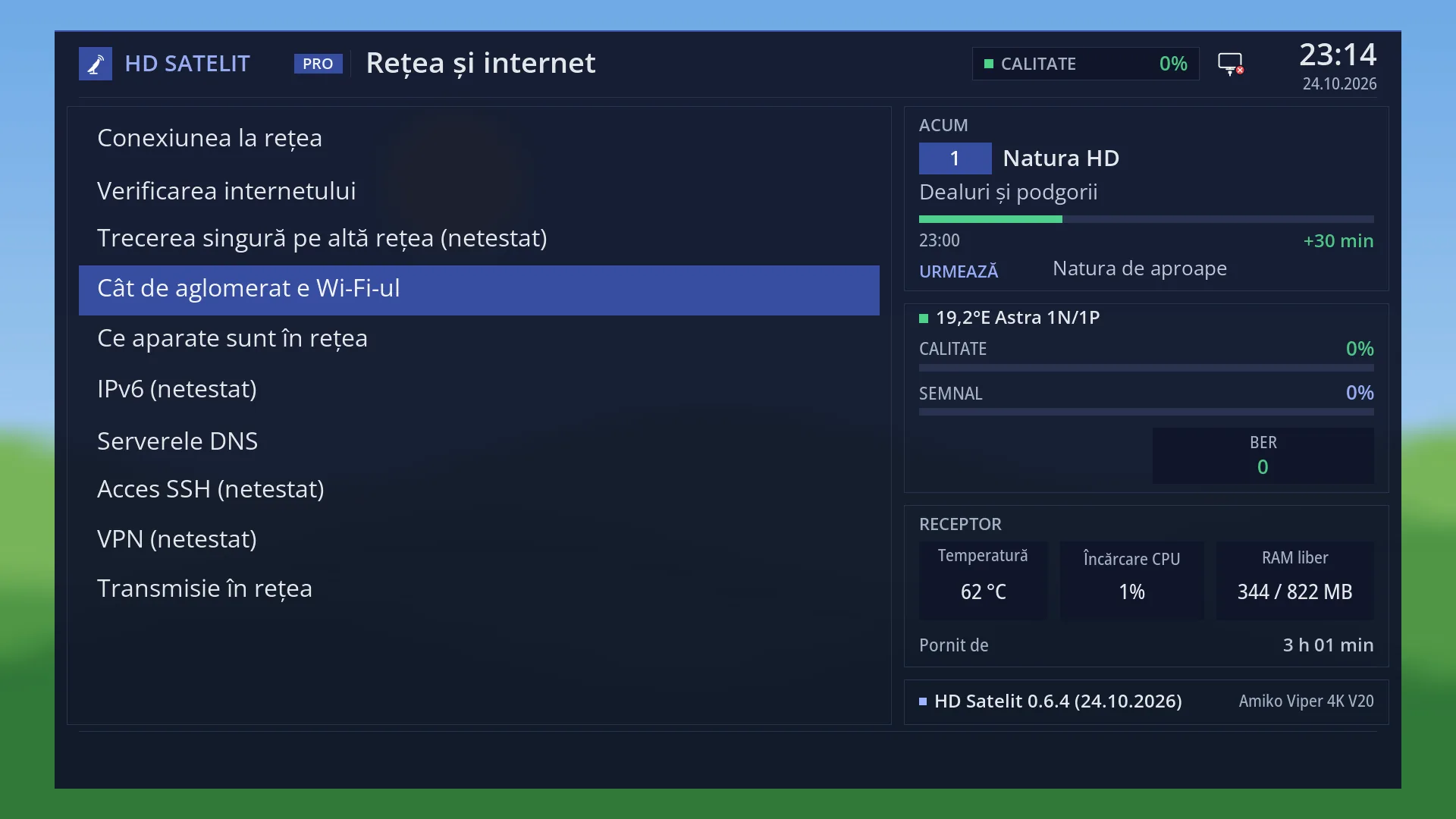
Path: Main menu > Settings > Network & Internet > How busy the Wi-Fi is (the fourth row).
Keys on the TV: MENU 6 9 4.
Also from the Wi-Fi card menu: MENU 6 9 1, “WLAN connection”, OK, the “How busy the Wi-Fi is” row.
In the web interface: the /wifi-canale page (and the “How busy the Wi-Fi is” button on the card for switching to another network, on /retea).
What you see on the screen
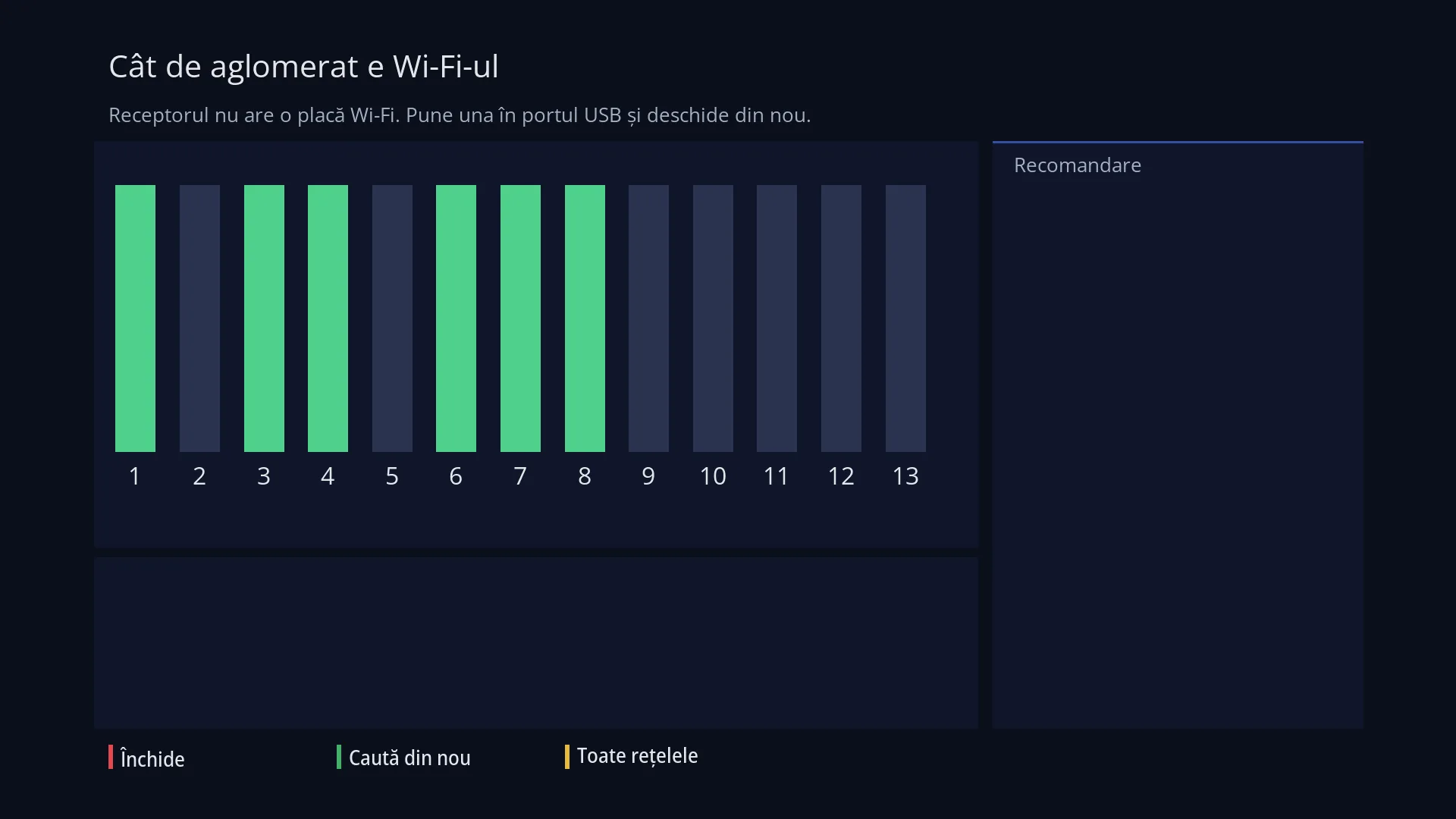
At the top, the title “How busy the Wi-Fi is” and, below it, “Looking for Wi-Fi networks...” while it searches, then “Networks found on 2.4 GHz: 14 · the receiver's Wi-Fi card only picks up 2.4 GHz”. The screen fills the whole TV.
On the left, the chart of channels 1-13: one bar for each channel. The height of the bar shows how loaded the channel is, counting the networks on neighbouring channels too (a channel overlaps with 4 on each side) and how strong they are. Colour: green = free, yellow = busy, red = very busy. Under each bar is the channel number (green for the recommended channel) and how many networks are on that exact channel. Above the bar, “recommended” appears on the most free channel and “your router” on the channel your router is on now.
Under the chart, the five strongest networks: the name, the channel, the signal (“very good”, “good”, “weak”, “very weak”) and “yours” next to your network.
On the right, the “Recommendation” box: in large text, “Channel 6” (for example) and, below it, the explanation: why that channel is good, which channel your router is on now and whether it is worth changing, why channels 1, 6 and 11 are chosen first and where you change the channel (on the router's page, in the 2.4 GHz Wi-Fi settings).
At the bottom, the keys: RED “Close”, GREEN “Search again”, YELLOW “All networks”. With YELLOW, the chart is replaced by the list of all networks found (“All networks heard (14)”), with the name, channel, signal and strength in dBm; the key then reads “Chart”.
Your network (and its other access points, for example the guest network of the same router) is not counted: the advice is about where to move your own router.
Rows and settings
| Row | Values | Default | What it does |
|---|---|---|---|
| A channel's bar | free (green), busy (yellow), very busy (red) | How loaded the channel is: a network weighs on its own channel and, less and less, on the 4 channels on either side. A network with a strong signal weighs more than one that is barely picked up. | |
| The recommended channel | 1 ... 13 | The most free channel. Channels 1, 6 and 11 do not overlap with each other, so they are chosen first, unless another one is much more free. Channels 12 and 13 are only recommended when they are much more free, because some phones and laptops cannot see them. When your router is on a busy channel: change it on the router's page. | |
| The explanation of the recommendation | “No other network is heard on channel 6 or the channels next to it.”, “Your router is already on this channel. No change is needed.”, “Your router is on channel 1, where 5 neighbouring networks are heard. On channel 6 it would be less crowded.”, “The receiver is not connected over Wi-Fi, so it does not know which network is yours: all networks heard are counted.” | Explains in words why the recommended channel is good and what to do. When the receiver is connected by cable, it does not know which network is yours, so it counts all of them. | |
| The Wi-Fi card | the first Wi-Fi card | The search is done with the receiver's Wi-Fi card. Without a Wi-Fi card, it says “The receiver has no Wi-Fi adapter. Plug one into the USB port and open again.”. In the web interface, if there are several Wi-Fi cards, the “The Wi-Fi card” list also appears. |
Keys
| GREEN (“Search again”) | Searches for nearby networks again and redraws the chart. |
| YELLOW (“All networks” / “Chart”) | Switches between the chart and the list of all networks found. |
| UP / DOWN, LEFT / RIGHT | Scroll page by page through the text on screen: the explanation of the recommendation or, in the list of all networks, the list. |
| OK, RED (“Close”) or EXIT | Close the screen. |
Step by step
Move the router to a freer channel
- Press MENU 6 9 4 and wait for the chart to appear.
- Read the “Recommendation” box: the recommended channel and whether it is worth changing.
- Open the router's page (usually at the router's address, in a browser) and, in the 2.4 GHz Wi-Fi settings, set the recommended channel instead of the automatic one.
- After the router has restarted, press GREEN: “your router” should appear above the new channel.
See all nearby networks
- On the chart screen, press YELLOW.
- Scroll through the list with UP / DOWN. Press YELLOW again to go back to the chart.
Do the same from your phone
- Open the web interface and go to /wifi-canale.
- Press “Search again”; the chart, the recommendation and the “The networks found” table appear on the same page.
Problems and solutions
It says “The receiver has no Wi-Fi adapter. Plug one into the USB port and open again.”
The receiver cannot find a Wi-Fi card. Plug a Wi-Fi card into the USB port (or check that the one plugged in is recognised) and open the screen again.
“The network search did not work. Try again.”
The Wi-Fi card did not respond. Press GREEN. If it still does not work, restart the network (MENU 6 9 1, the Wi-Fi card, “Restart network”).
My 5 GHz network does not appear.
The receiver's Wi-Fi card only picks up 2.4 GHz. The screen only helps with the router's 2.4 GHz band.
“your router” does not appear above any channel.
The receiver is connected by cable, so it does not know which network is yours. The calculation counts all networks; check on the router's page which channel it is on.
I changed the channel, but the chart still shows the old channel.
The router needs a few seconds to start on the new channel. Press GREEN after a minute.
All channels are yellow or red.
In blocks of flats with many networks, no channel is completely free. Choose the recommended channel (the least busy) or, if the router has it, use the 5 GHz band for phones and computers.
Related topics
- Network & Internet
- Network Connection Setup (WiFi networks, WiFi status)
- Which devices are on the network
- Matching web page: /wifi-canale.