

Changing the channel
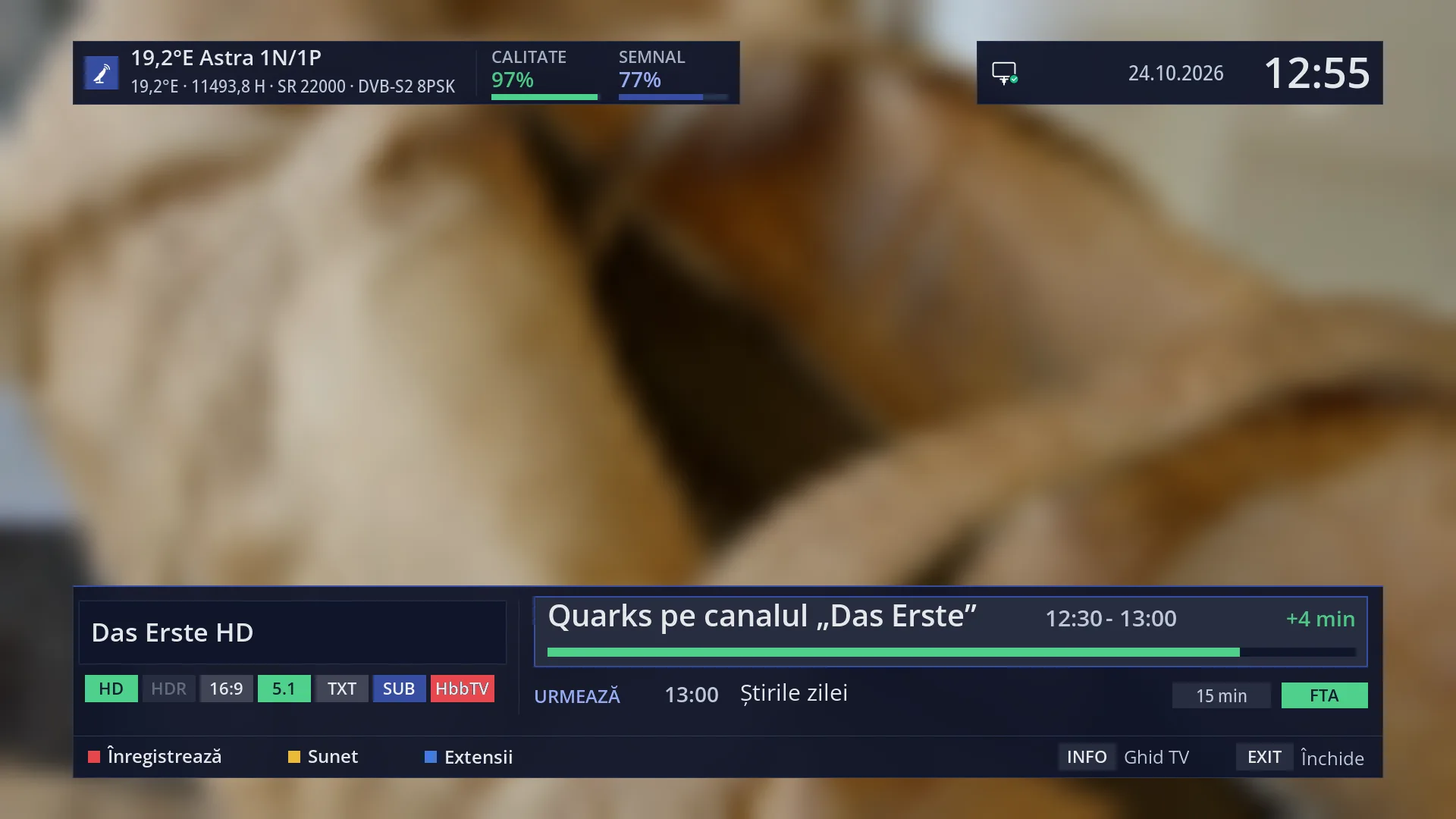
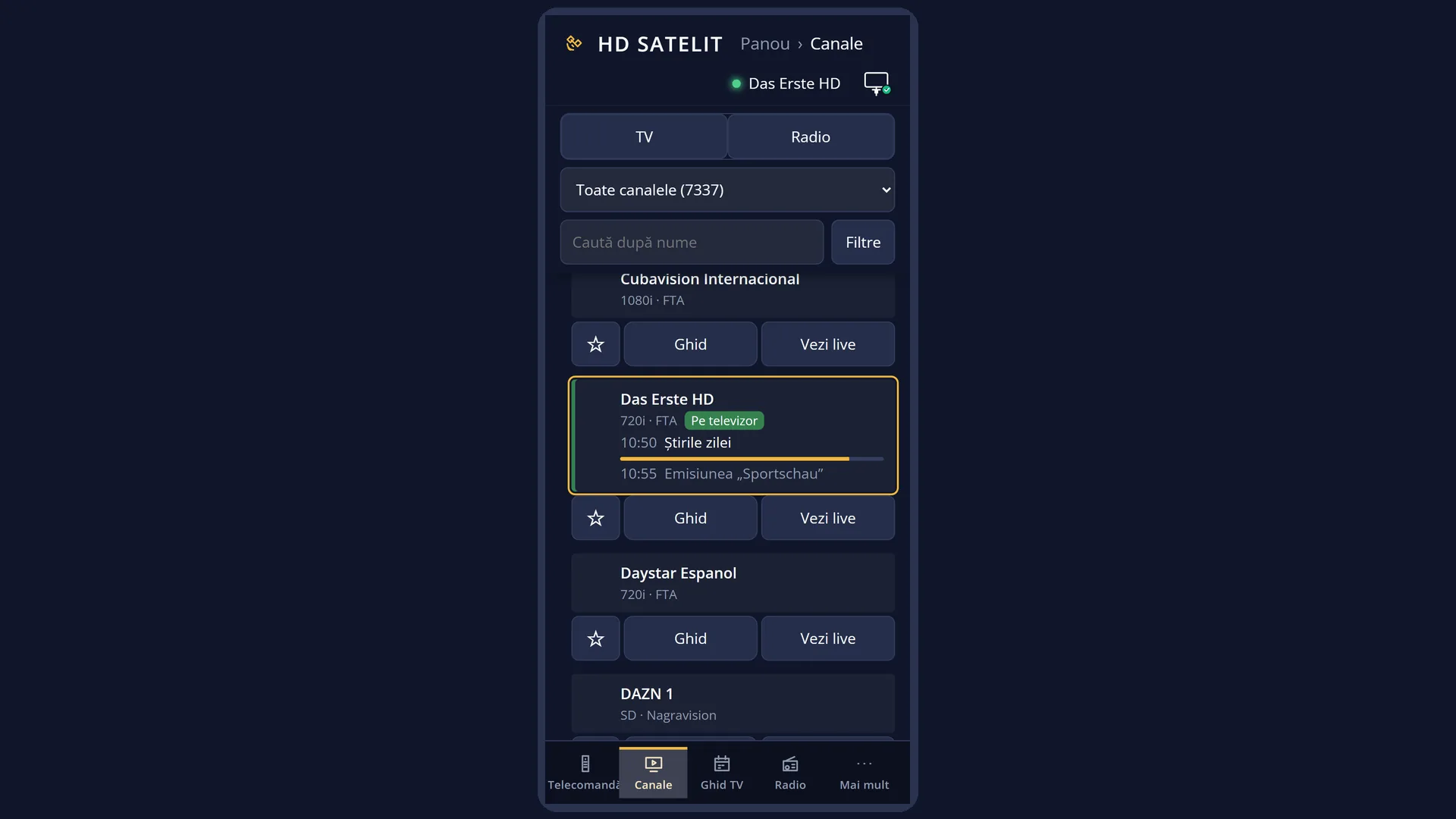
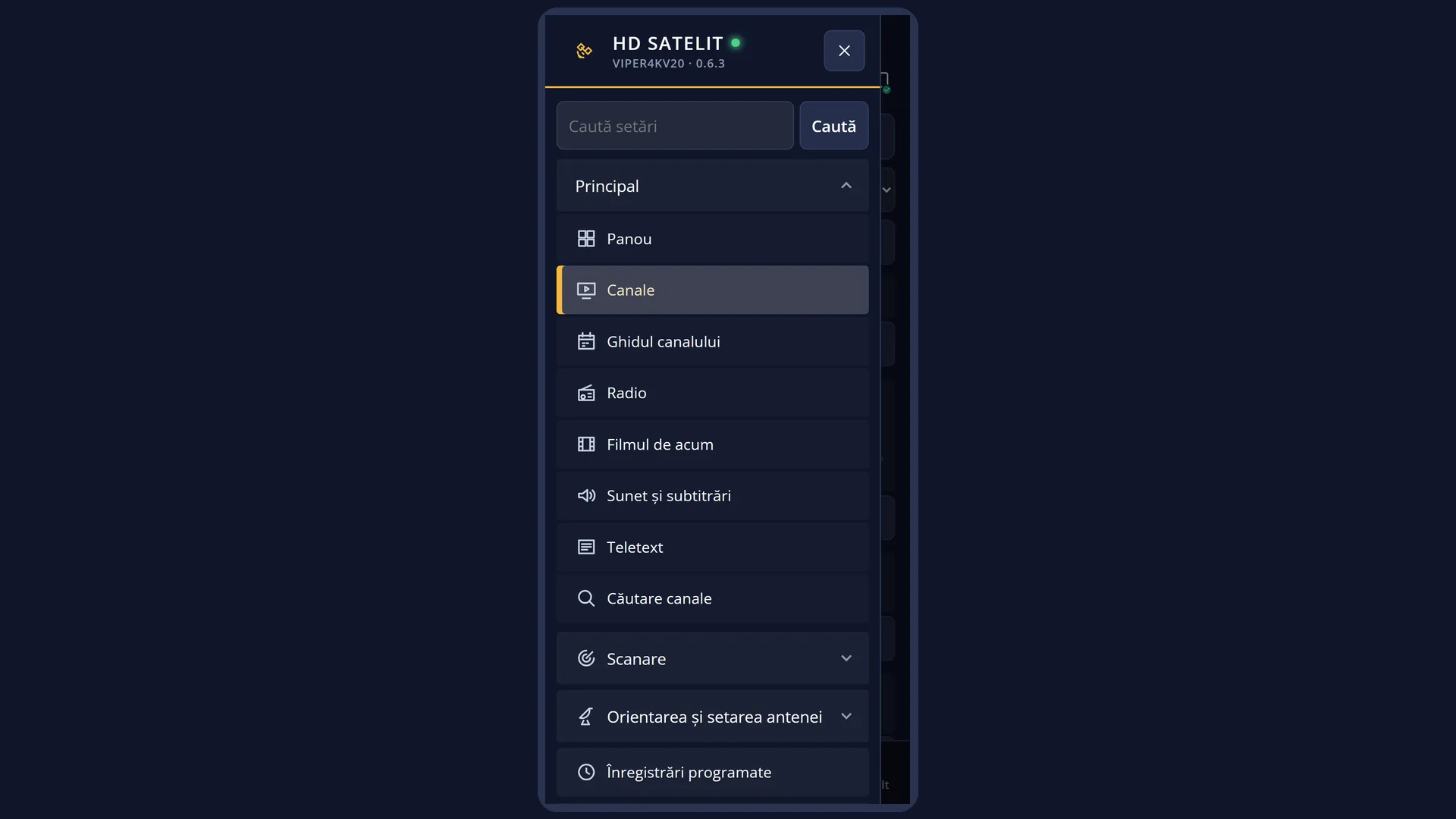
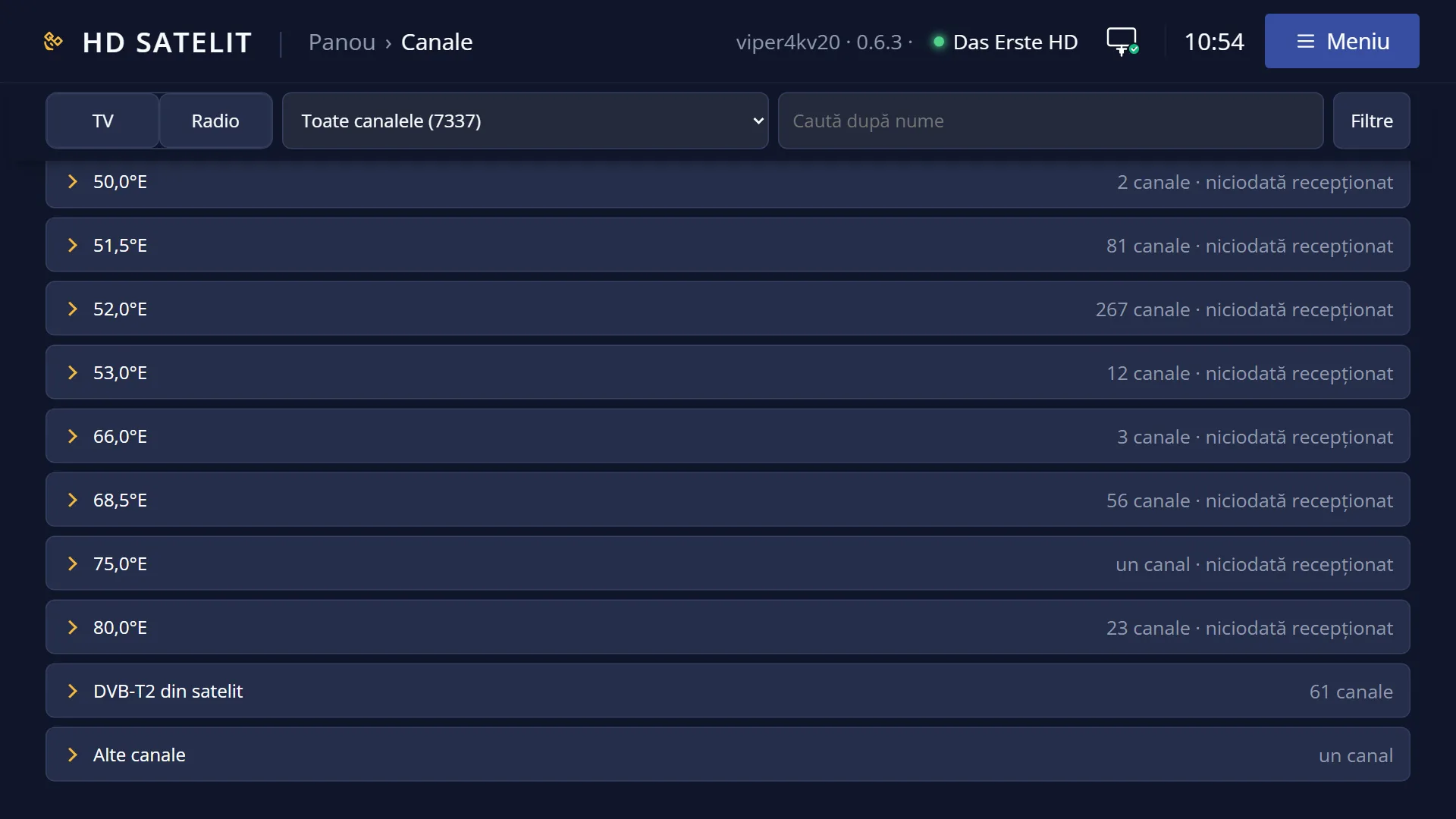
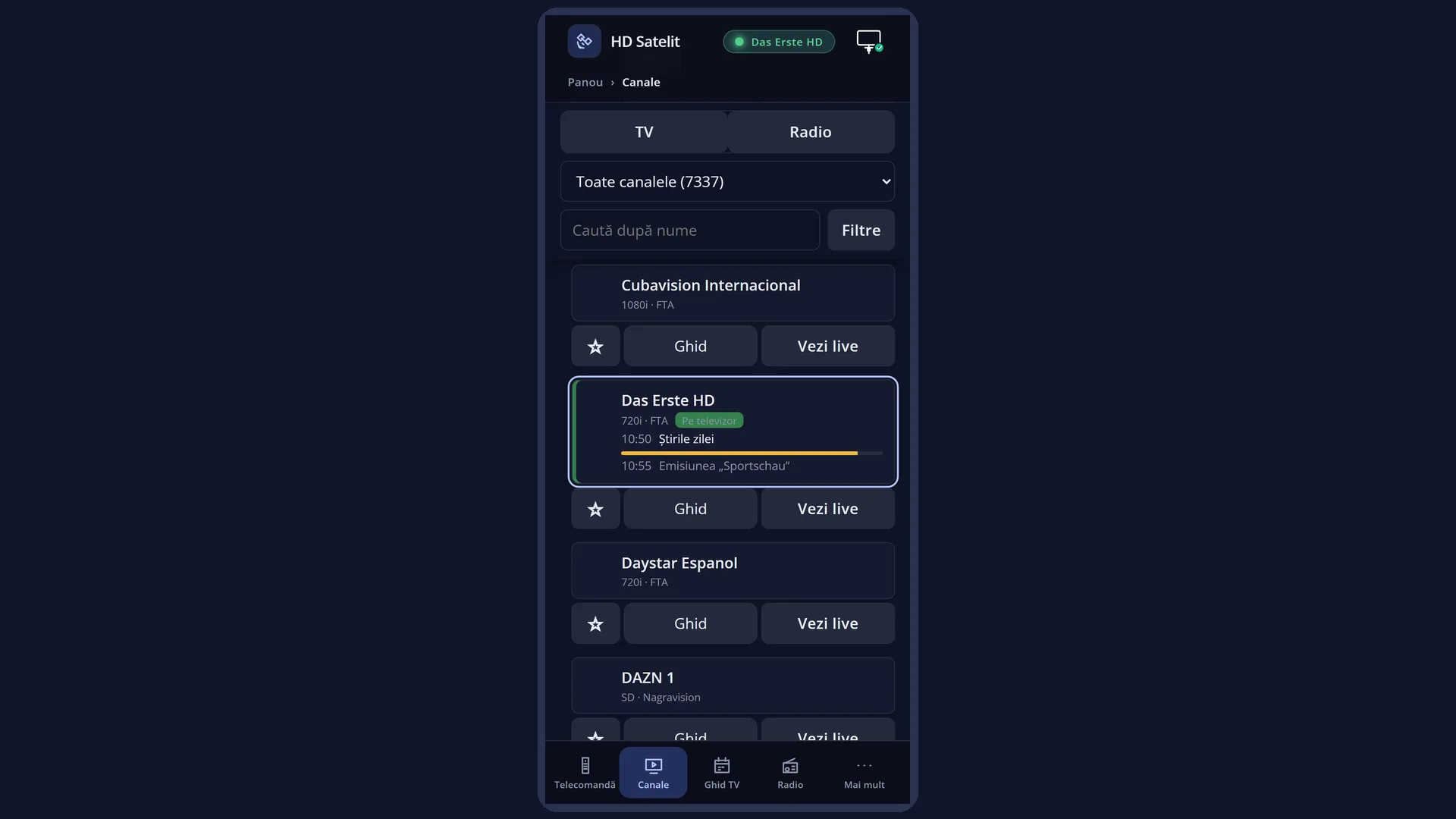
English screenshots coming: some of the pictures below still show the receiver and the web interface in Romanian. The rows, keys and steps described on this page are the English ones.
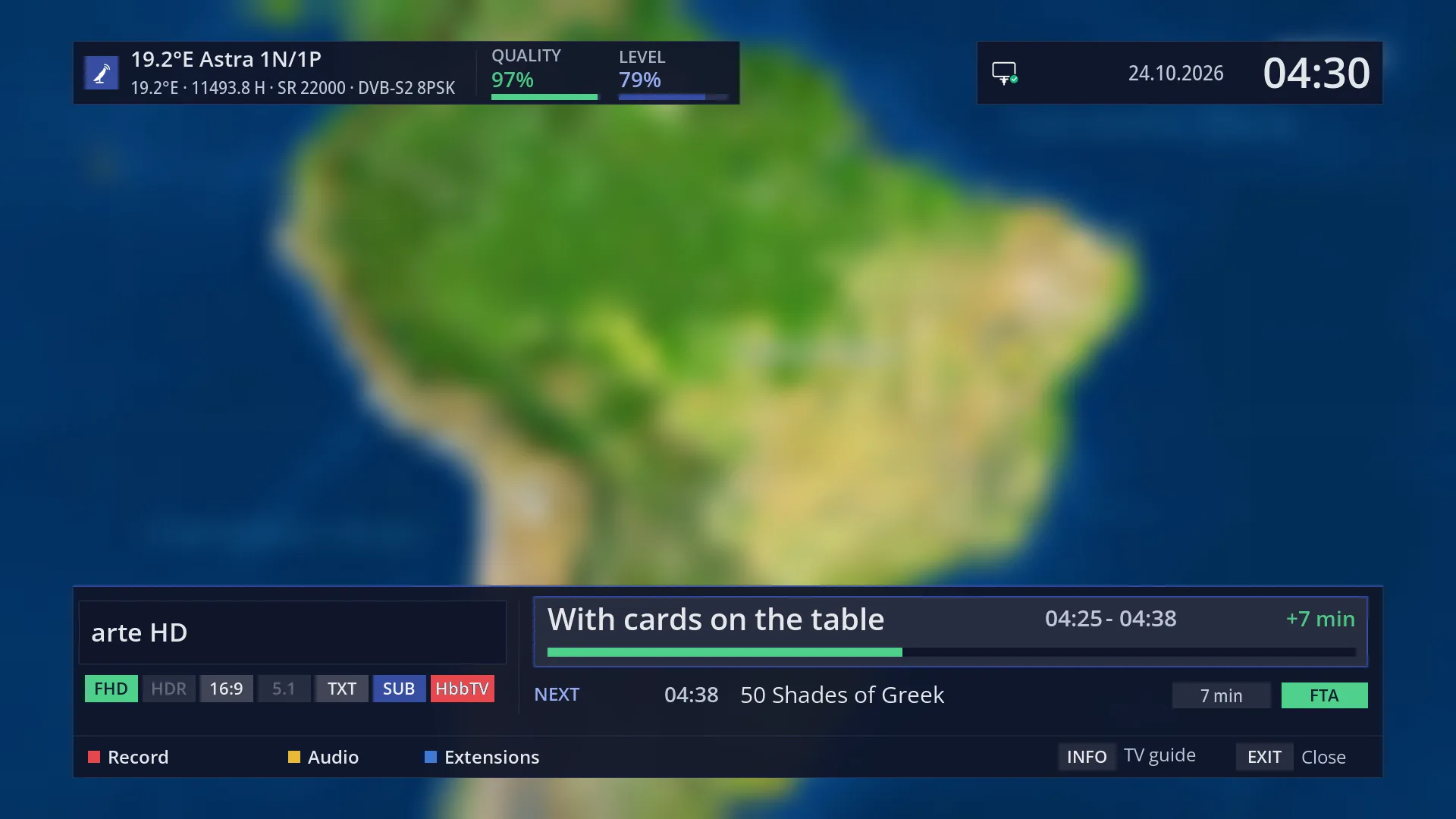
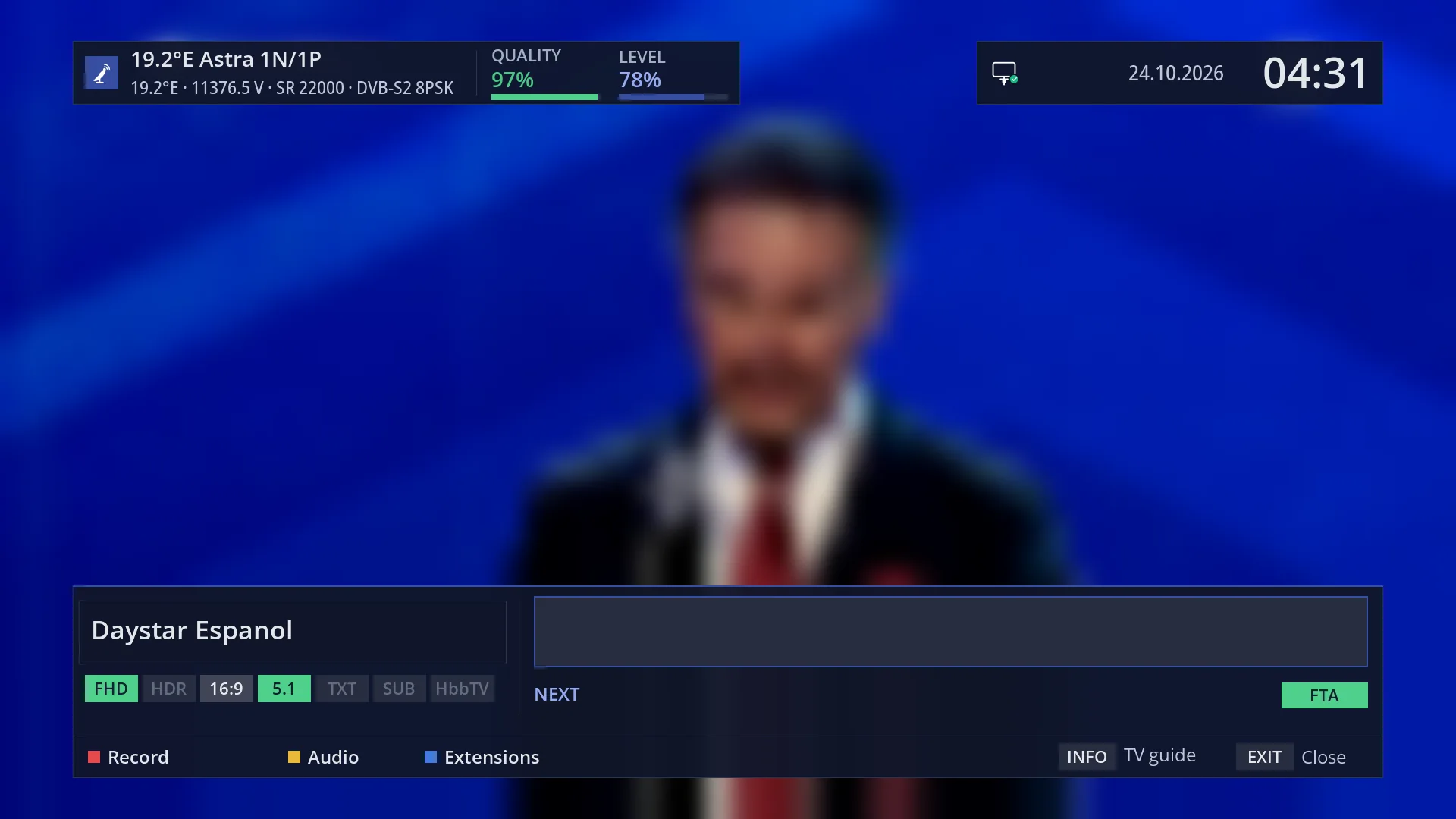
- 1 The number and name of the new channel.
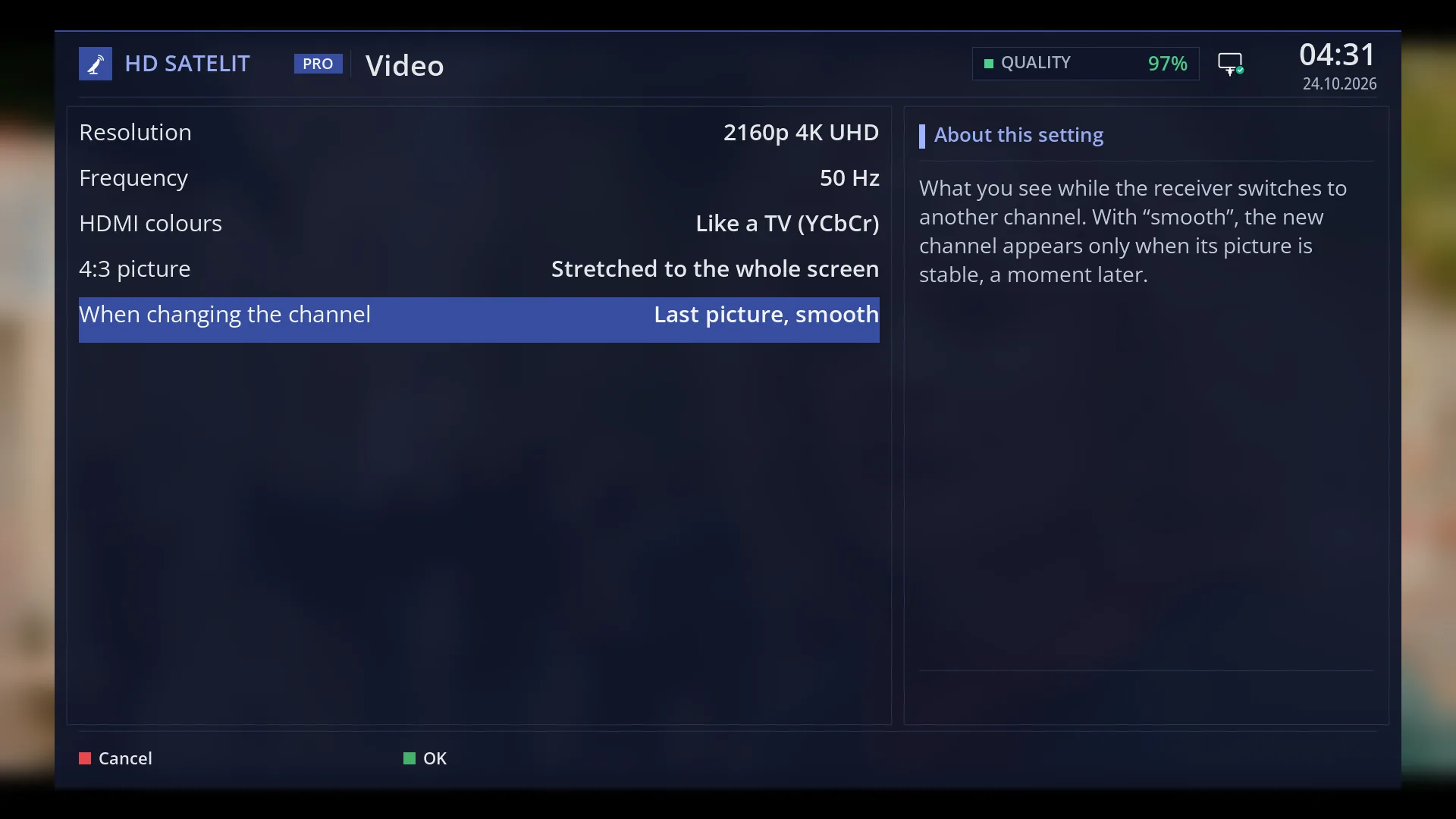
- 1 The selected row.
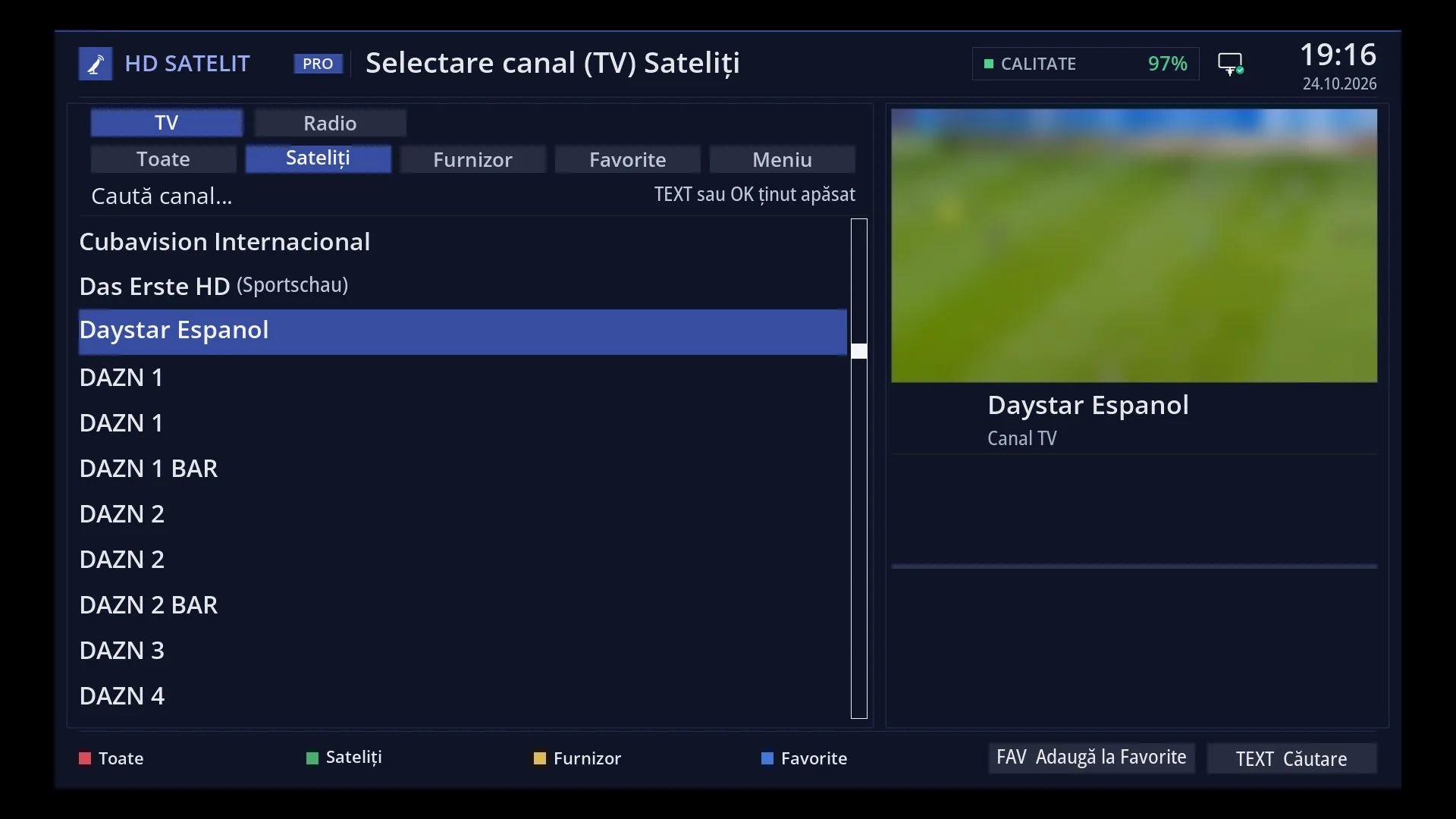
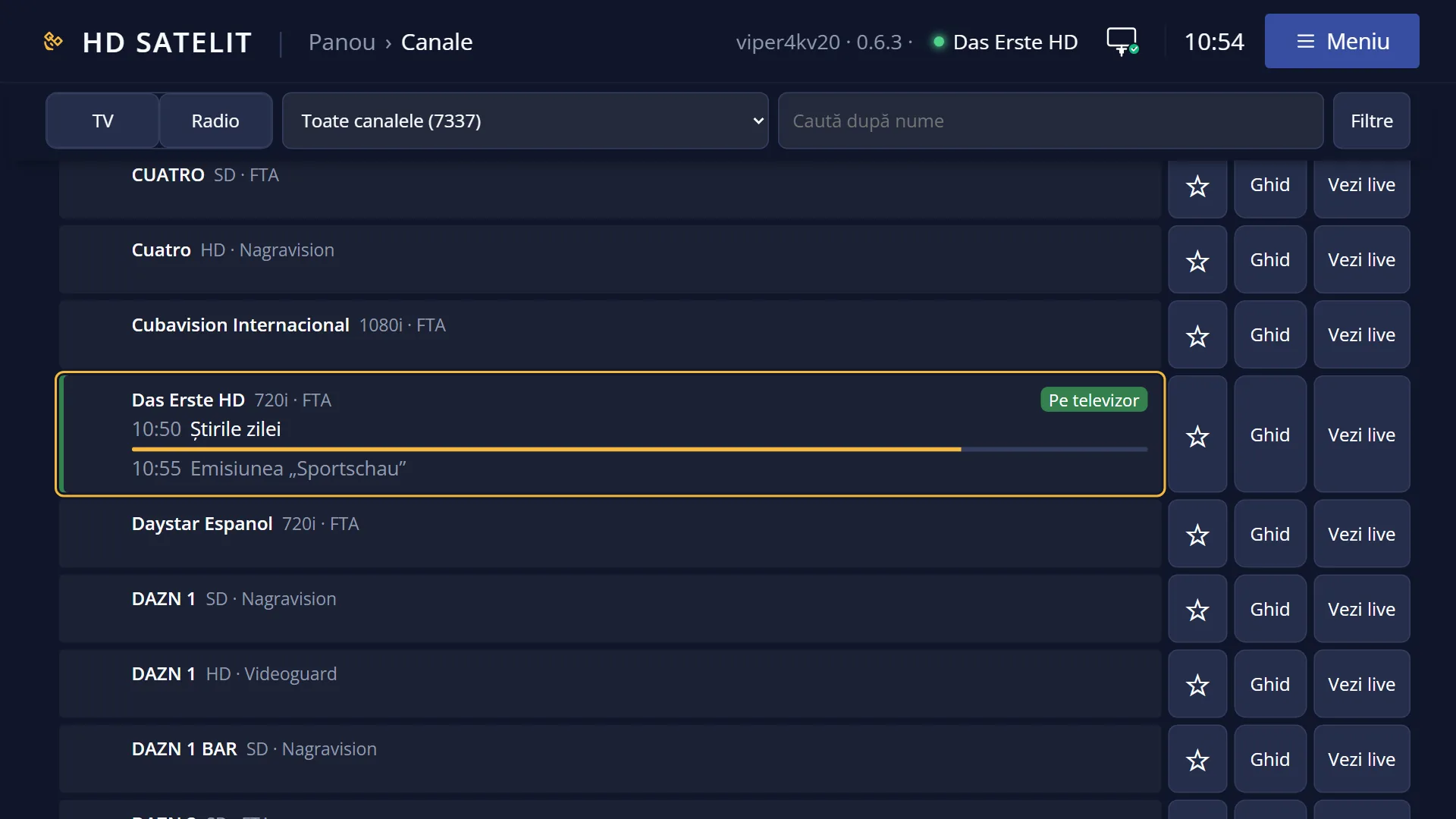
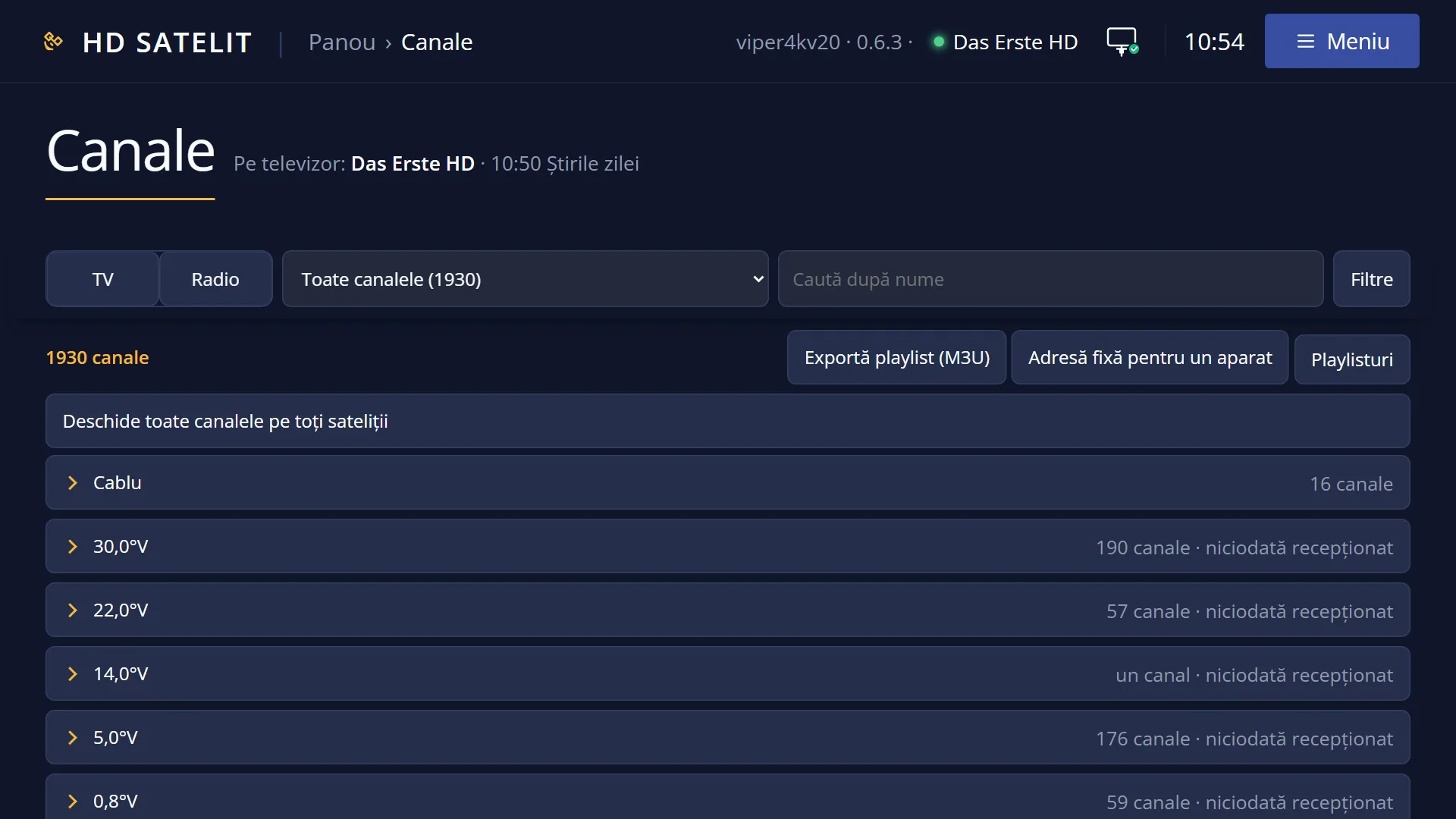
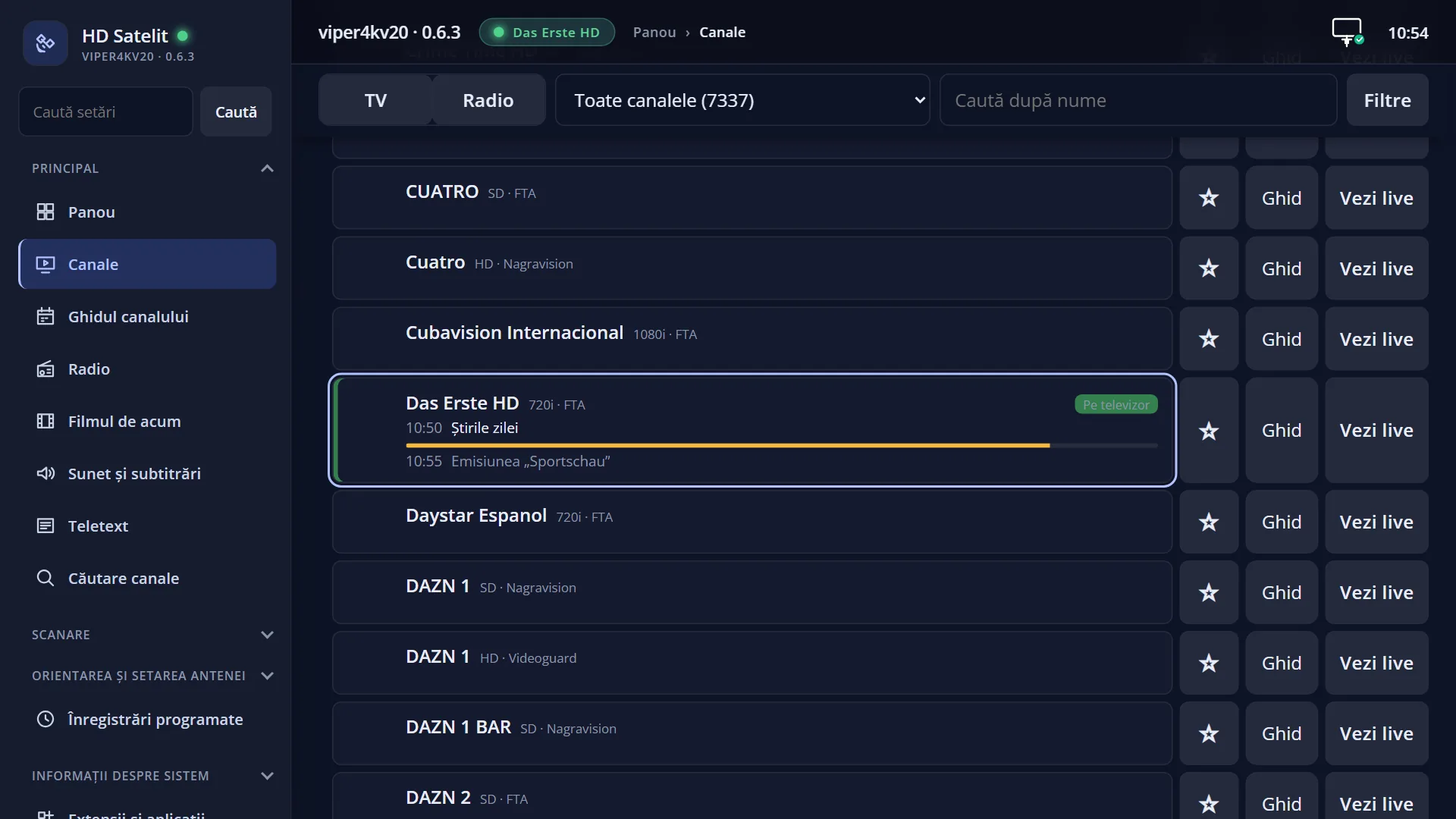
What it is for
This page explains all the ways you can change the channel from live TV, and what you see while the receiver switches to the new channel.
Channel changing is faster in this image: the channel number appears in the bar almost at once, even with large lists, and the picture starts sooner.
By default, while the receiver switches to another channel, the last picture of the previous channel stays on screen instead of a black screen. You can choose otherwise.
How to get here
LEFT / RIGHT or CH- / CH+: the previous / next channel in the current list.
Digits: the channel's number in the list.
0: the previous channel. < and >: back and forward through the channels you have watched.
UP / DOWN: open the channel lists (by default) or change the channel, depending on the “Up and down arrows while watching” setting.
From the channel list (DOWN, TV, Radio, FAV), from the programme guide, from the web interface (/canale) or from the phone app.
What you see on the screen
While you type the digits, the “Channel:” window appears at the top left with the number you typed. The digits also appear on the display on the front of the receiver.
The channel starts after 3 seconds without another digit, straight after the fourth digit, or when you press OK.
On the new channel the first info bar appears with its number and name, then hides by itself (by default after 8 seconds).
While the channel changes, the last picture of the previous channel stays on screen (by default) or the screen goes black, depending on the “When changing the channel” setting.
With “Volume remembered per channel” switched on (off by default), the volume jumps by itself to the level you last left the new channel at.
On a cable list in the provider's order, the digits take you to the number the provider gives (for example 23 for channel 23 of the network). A number the network does not have starts nothing.
Rows and settings
| Row | Values | Default | What it does |
|---|---|---|---|
| When changing the channel | Last picture, Black screen, Black screen, smooth, Last picture, smooth | Last picture | What you see while the receiver switches to another channel: the last picture of the previous channel or a black screen. With “smooth”, the new channel only appears once its picture is stable, a moment later. The row only appears when the video card offers this choice. It is in the “Video” screen (screen key 1) and in Menu > Settings > Video & Display Settings > Advanced Video Setup (MENU 6 3 1). On the web: /video. When you prefer a black screen between channels, or when you briefly see a corrupted picture as the new channel starts (then choose a “smooth” option). |
| Show infobar on channel change | yes, no | yes | Yes: the first bar appears by itself on every new channel. No: the channel changes without the bar. The row is in OSD Preferences (MENU 6 6 5), only with “Setup Mode” set to “Expert”. When you want nothing over the picture when you change the channel. |
| Change bouquets in quickzap | yes, no | no | Yes: at the end of a bouquet (for example Favourites), LEFT / RIGHT move into the neighbouring bouquet. No: they stay in the current bouquet. The row is in OSD Preferences (MENU 6 6 5). When you have several bouquets and want to go through all of them with the same keys. |
| Volume remembered per channel | yes, no | no | Yes: each channel starts at the volume you left it at. The row is in Menu > Settings > Audio & Sound Tracks > Volume and delay (MENU 6 4 2). When some channels are much louder than others. |
Keys
| LEFT / RIGHT | The previous / next channel, one per press. |
| CH- / CH+ | The previous / next channel. |
| Digits 1-9 | Open the “Channel:” window. You type the channel number. |
| OK (in the “Channel:” window) | Starts the channel with the number you typed, without waiting. |
| EXIT (in the “Channel:” window) | Cancels. You stay on the current channel. |
| 0 | The previous channel (you switch between the last two channels). |
| < / > | Back and forward through the channels you have watched. |
| UP / DOWN | Depending on the “Up and down arrows while watching” setting: the channel lists or the next / previous channel. |
Step by step
Switch to a channel by number
- Type the channel number, for example 1, 2.
- The “Channel:” window shows 12. Press OK, or wait 3 seconds.
- The channel starts and the first bar shows you its name.
Switch quickly between two channels
- Watch the first channel, then switch to the second.
- Press 0: you go back to the first. Press 0 again: back to the second.
Choose a black screen between channels
- Press screen key 1 (the “Video” screen) or open Menu > Settings > Video & Display Settings > Advanced Video Setup.
- For “When changing the channel”, choose “Black screen”.
- Save. From the next channel on, the screen is black between channels.
Problems and solutions
The digits do not change the channel but skip through the programme.
You are paused (timeshift): there the digits and LEFT / RIGHT skip forward and back. Stop the pause with STOP or TV and answer Yes to “Stop Timeshift?”.
I type a number and nothing starts.
The current list has no channel with that number. On a cable list in the provider's order, the number must be the provider's number.
LEFT / RIGHT do not leave Favourites.
By default, changing the channel stays in the current bouquet. Set “Change bouquets in quickzap” to “yes”, or choose another bouquet from the channel list.
When I change the channel, the screen stays black for a long time.
If the screen stays black for a few seconds, an explanation appears in the middle of it (no signal, channel moved, tuner busy and others) along with what you can do, with OK.
I briefly see the old or a corrupted picture when the new channel starts.
For “When changing the channel”, choose “Black screen” or a “smooth” option.
The new channel is much louder or quieter.
Switch on “Volume remembered per channel” and “Even volume across channels” (Volume and delay).
Related topics
- The first info bar
- Up and down arrows while watching
- Volume remembered per channel
- The black screen with explanations
- Video (screen key 1)
- Channel Selection
- Front display
- The web pages: /canale (you start a channel on the TV) and /video (what you see when changing the channel).