

Receiver menu on the web
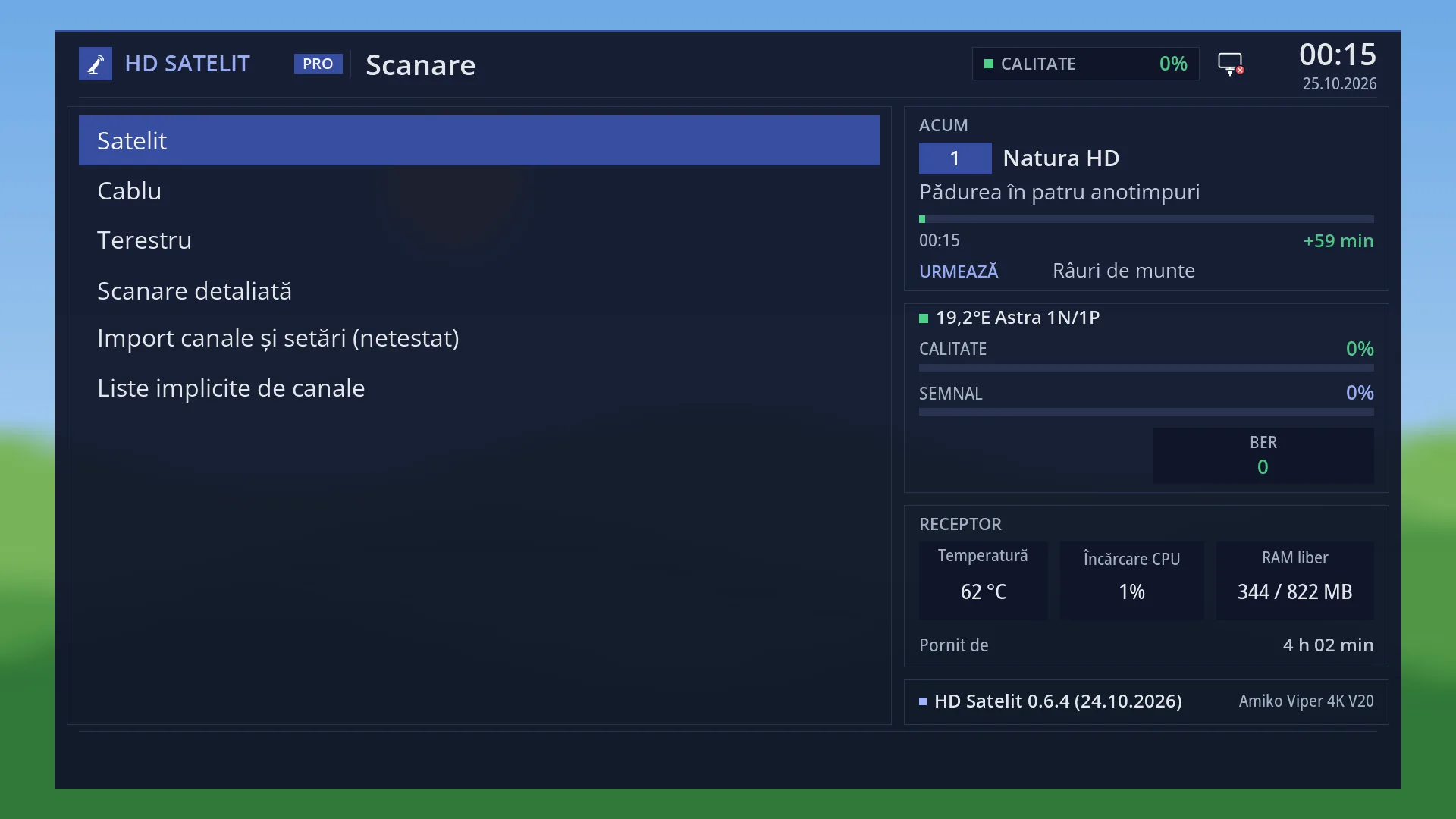
English screenshots coming: some of the pictures below still show the receiver and the web interface in Romanian. The rows, keys and steps described on this page are the English ones.
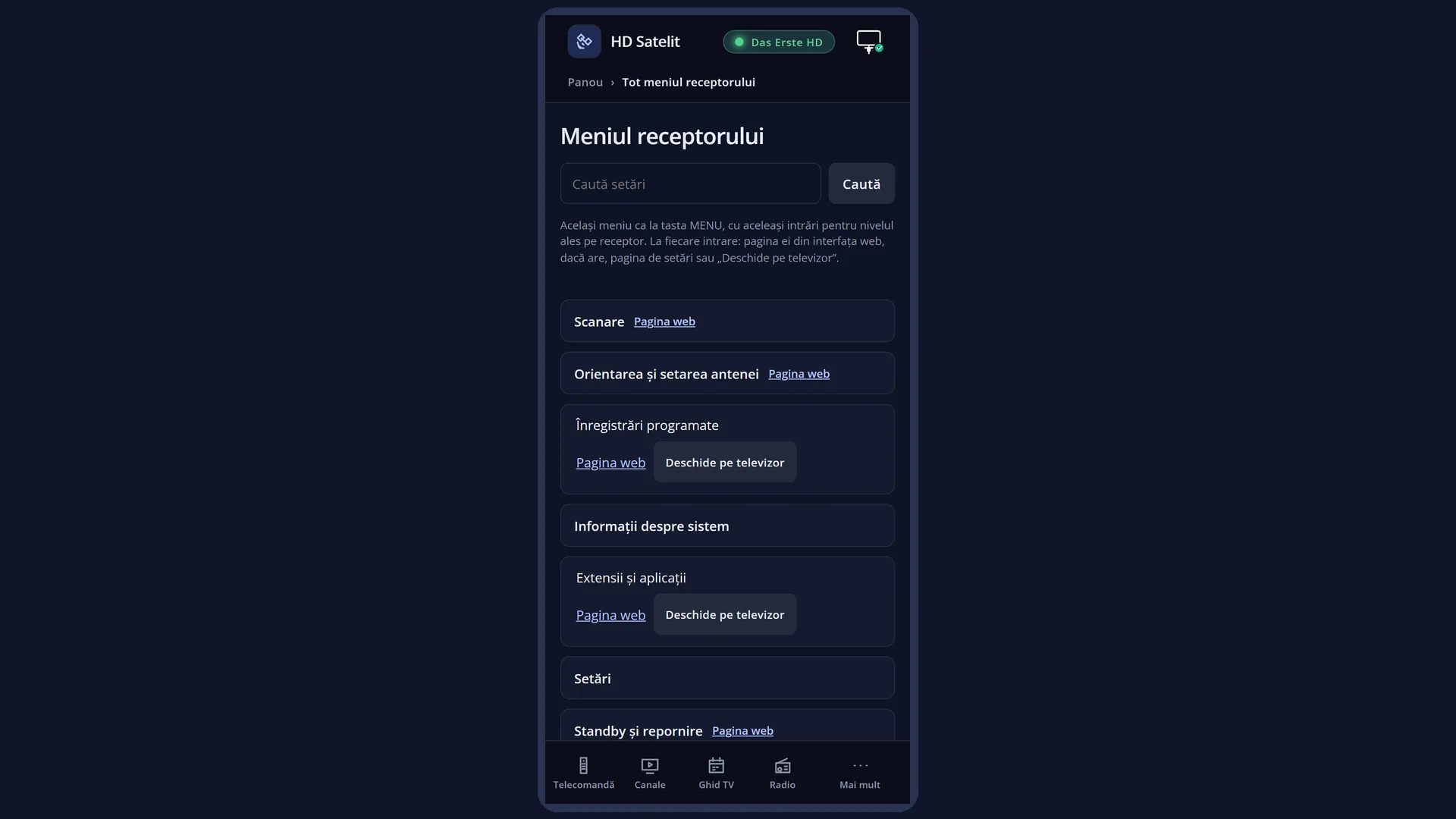
What it is for
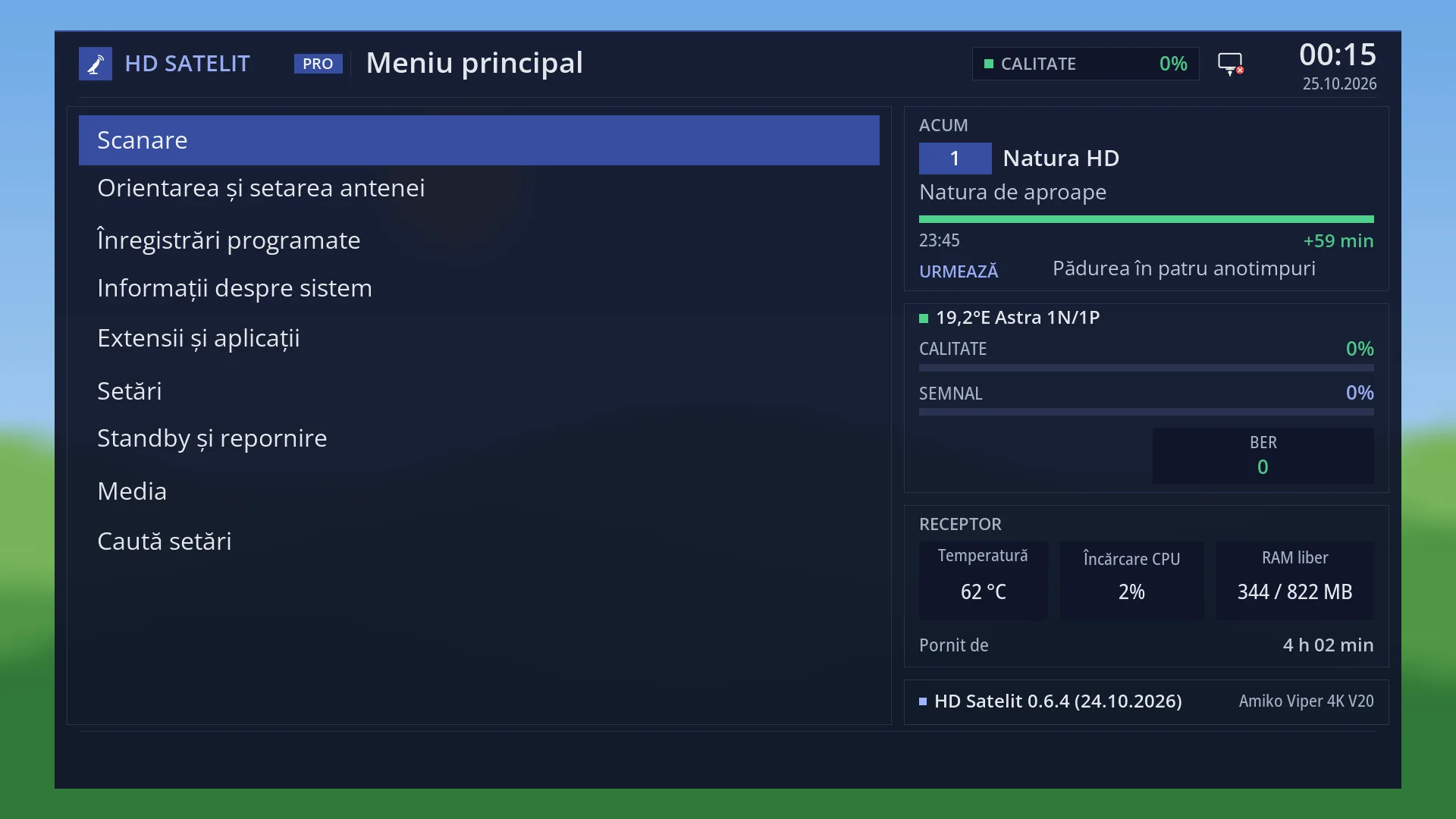
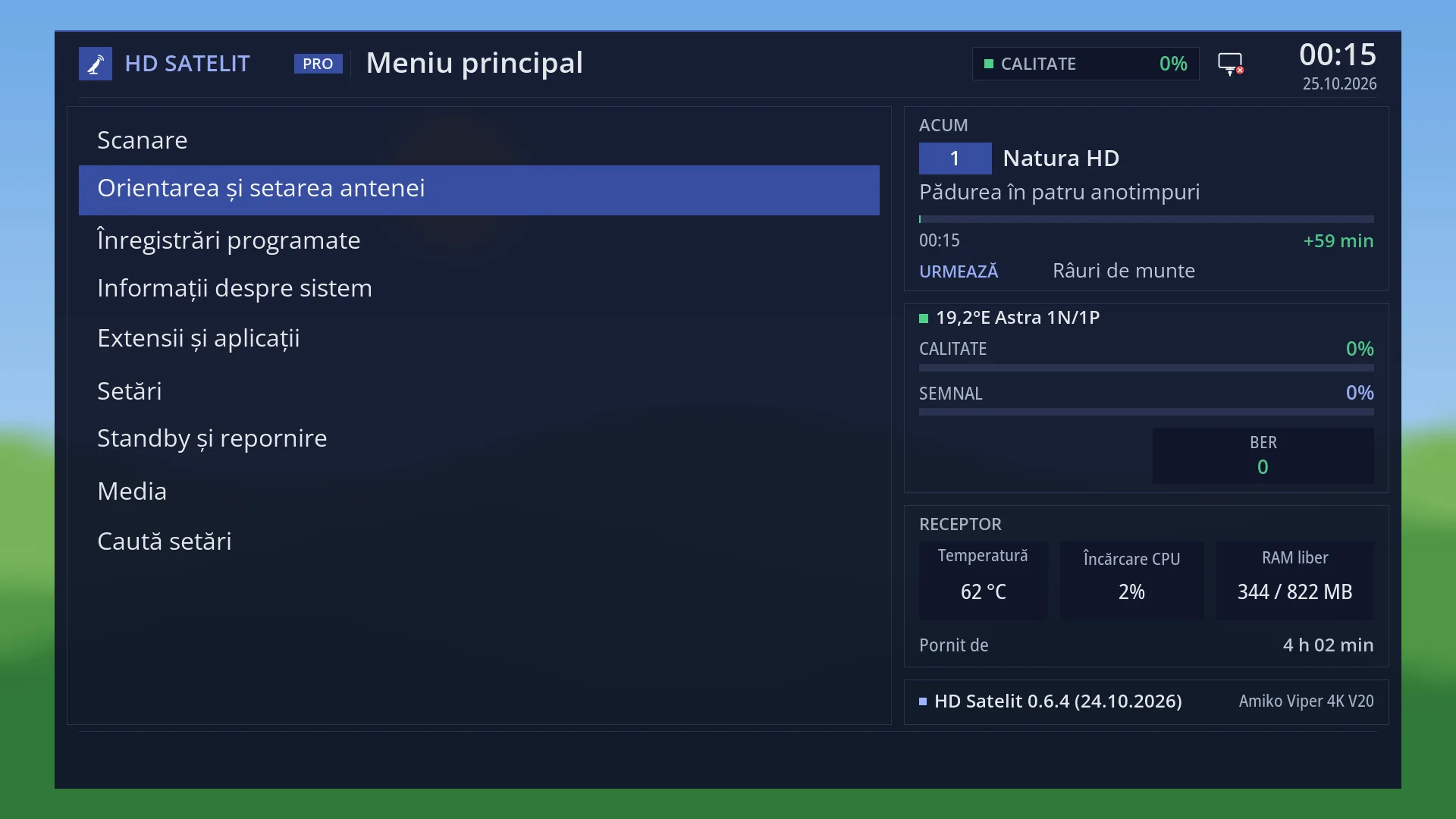
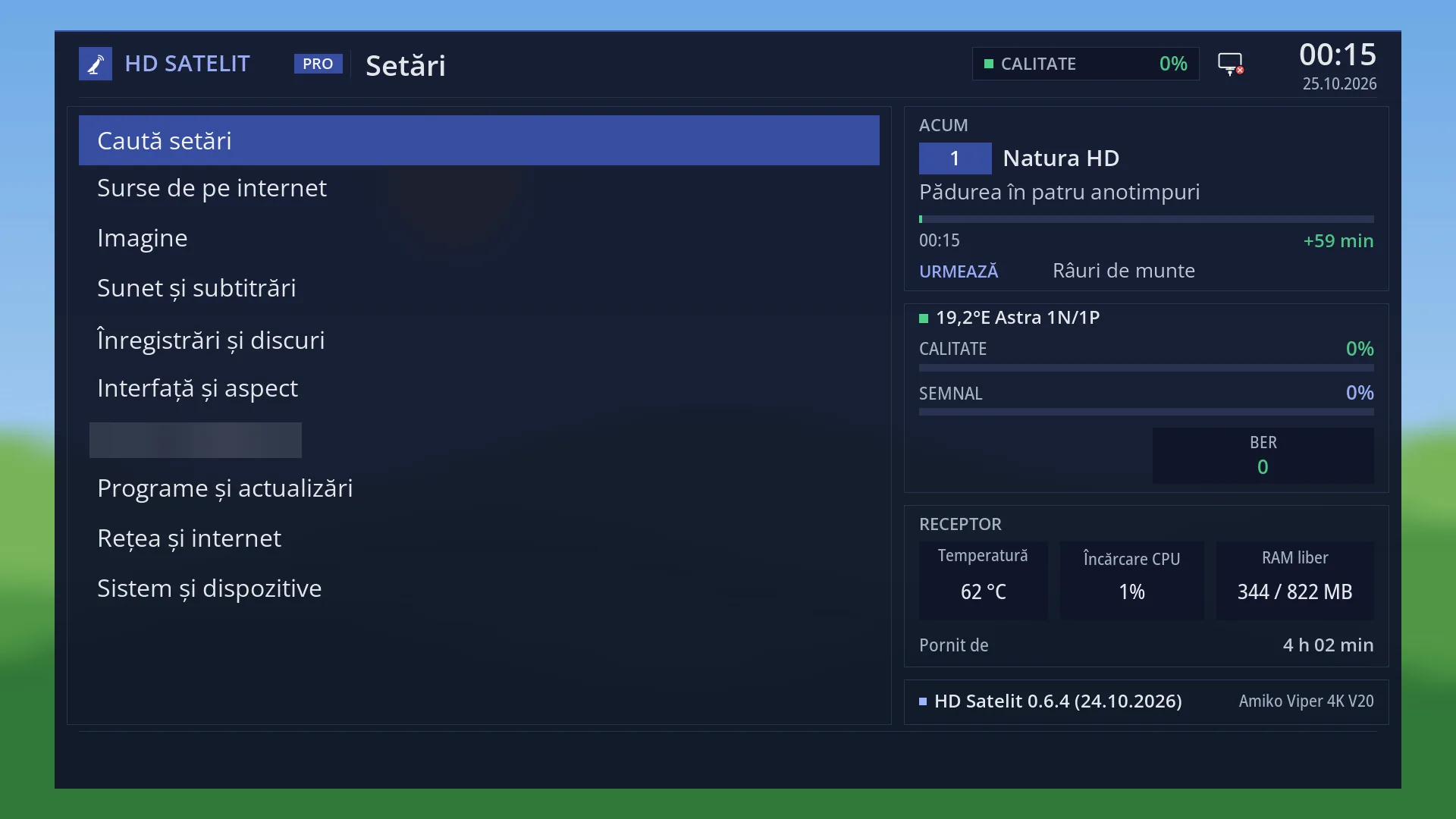
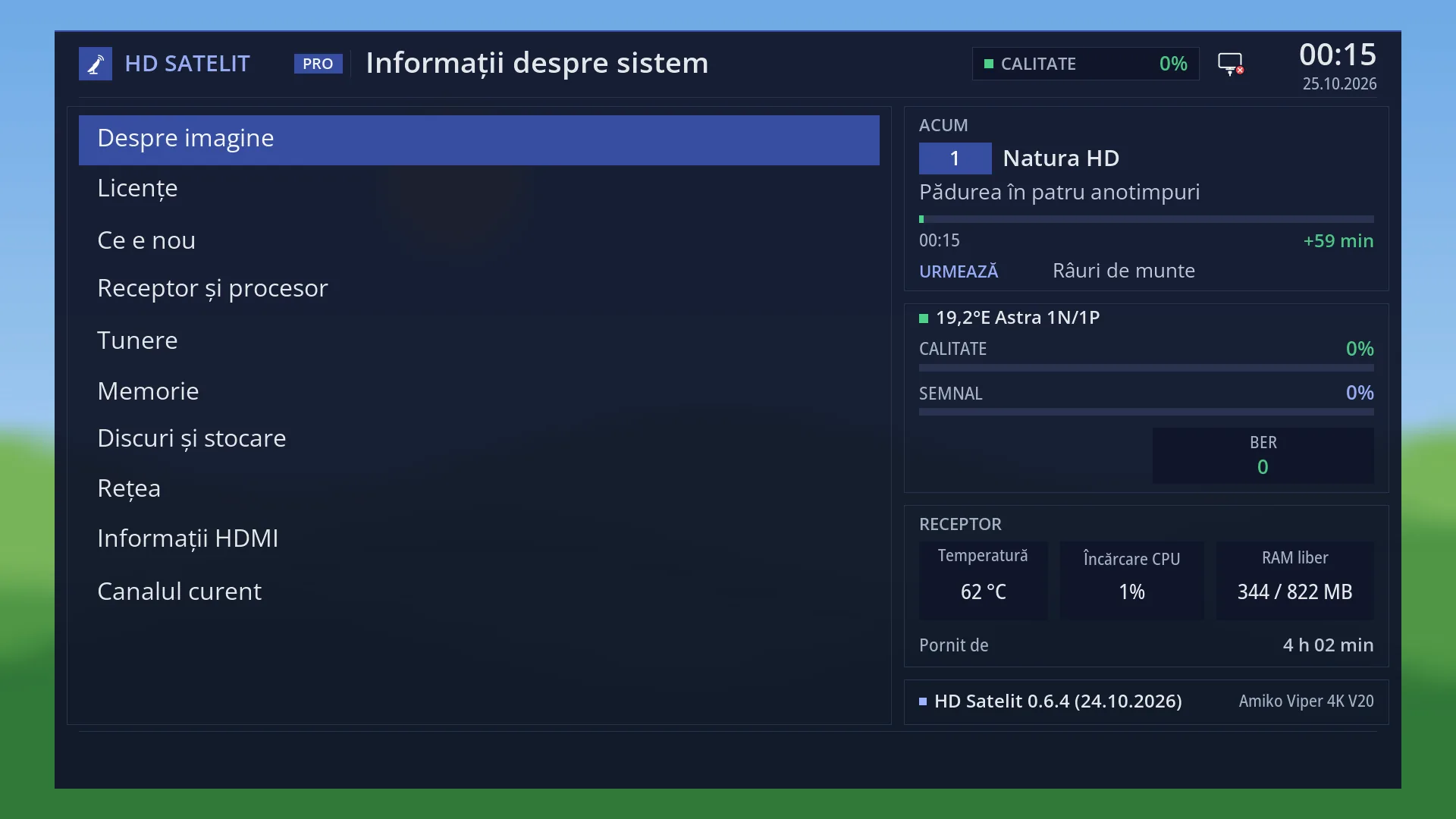
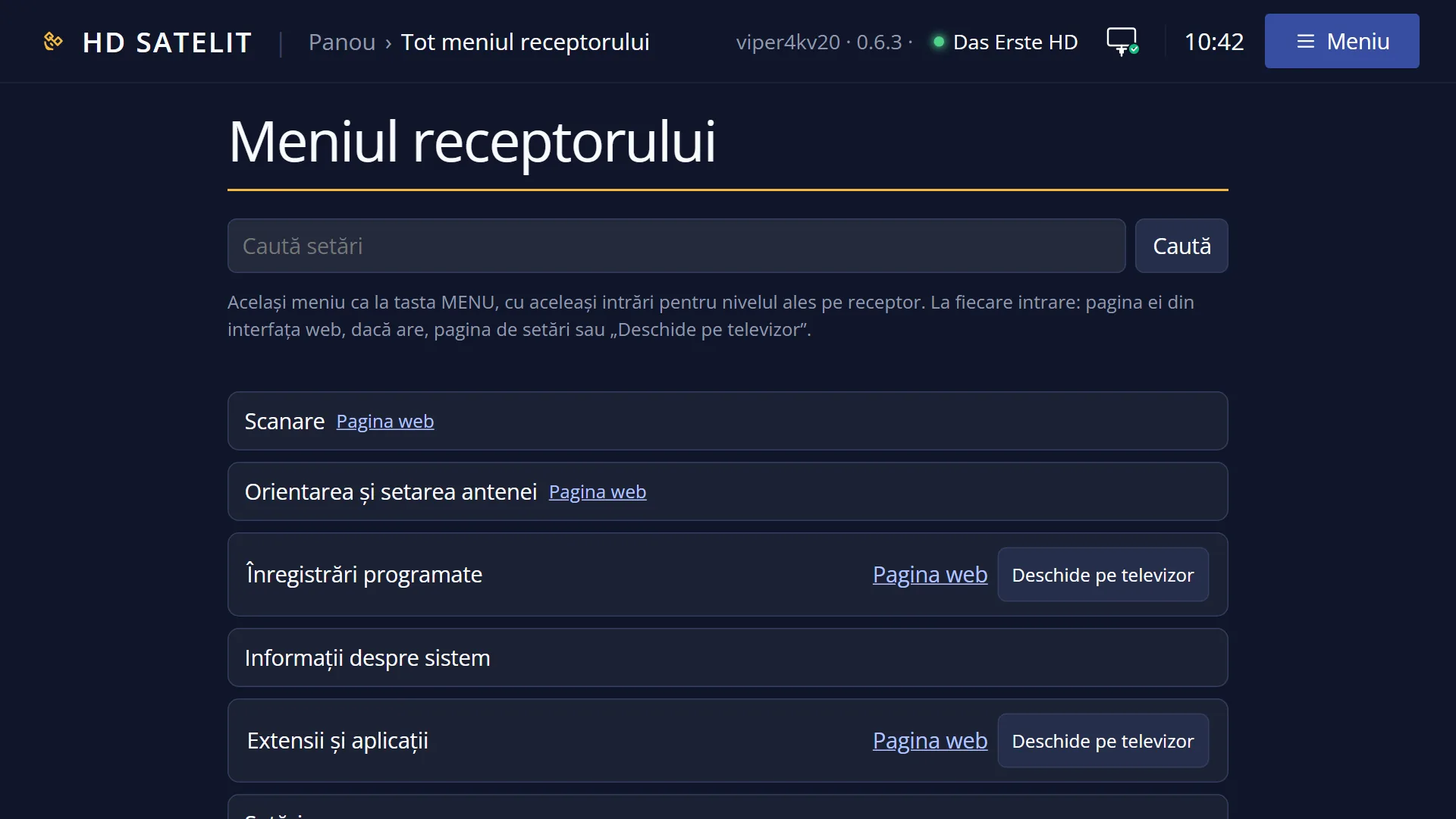
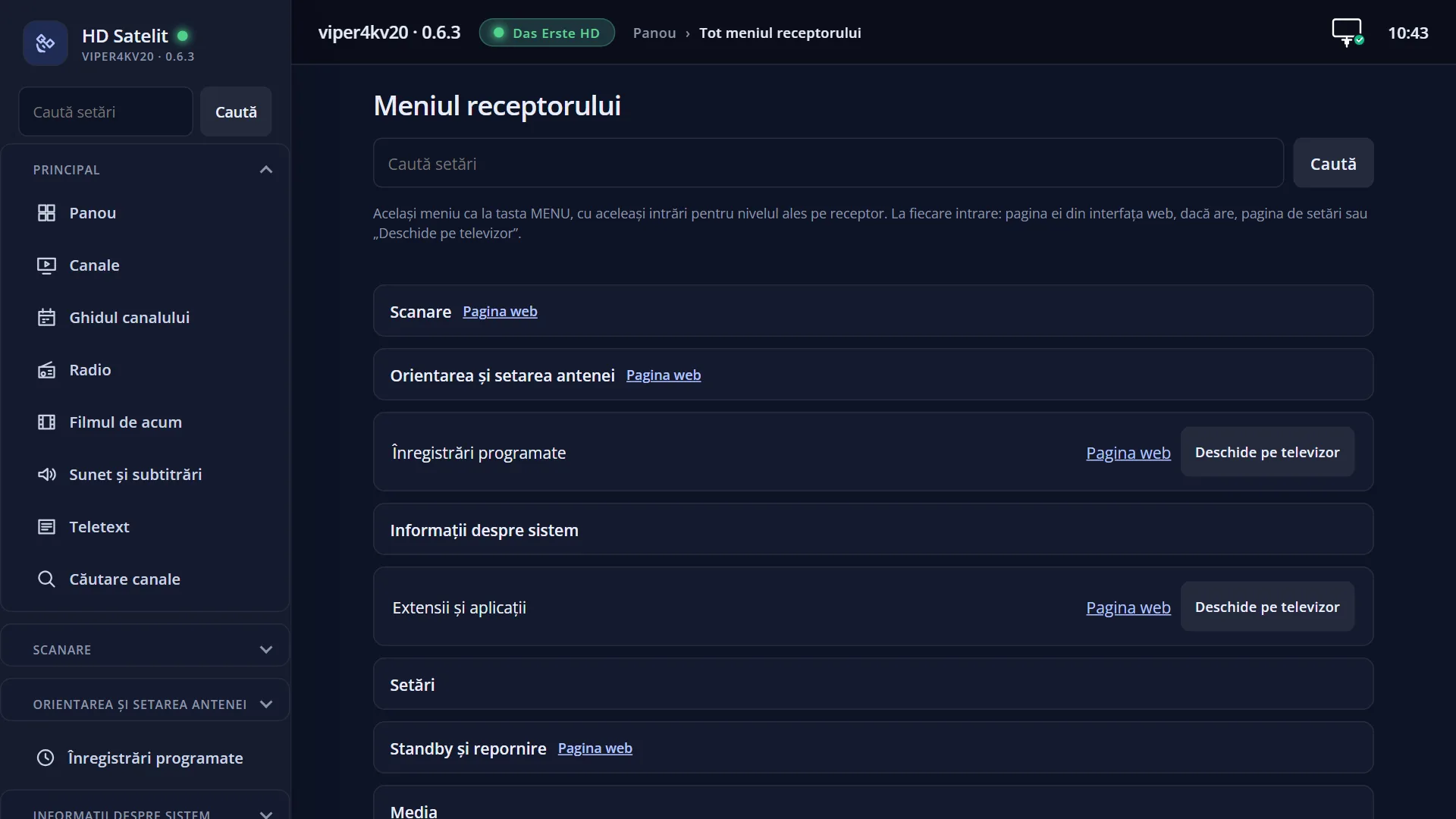
The “Receiver menu” page (/meniu) shows the whole MENU key menu in your browser. It has the same names, the same order and the same entries as on the TV, for the “Setup Mode” chosen on the receiver.
Each entry gives you somewhere to go: its own page in the web interface (with the same settings as on the TV), the generic settings page for simple settings screens, or “Open on the TV”, which puts the real screen on the TV. What you change on your phone shows on the TV, and the other way round: it is the same setting.
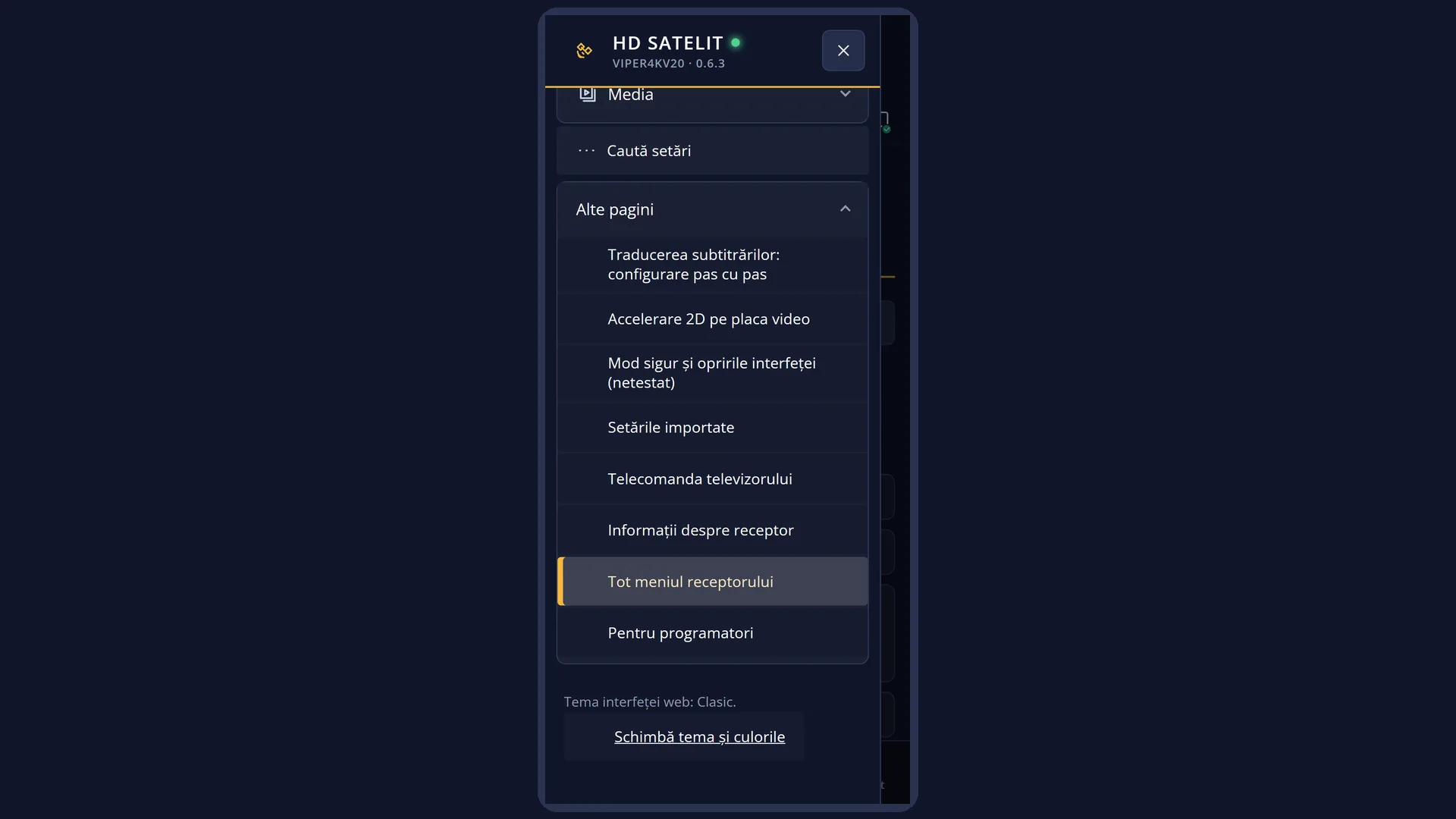
As well as this page, the “Menu” button in the header of every web page opens the same menu, by group. It also has the “Main” group (channels, guide, radio, films, sound, teletext, search) and, at the end, “Other pages”.
How to get here
In the web interface: the /meniu page.
From any web page: the “Menu” button in the header (on a phone, “More” in the bottom bar).
A specific entry: /meniu#i-<entry name>. For entries that only open on the TV, the links in the top menu take you there, with the group open and the row selected.
What you see on the screen
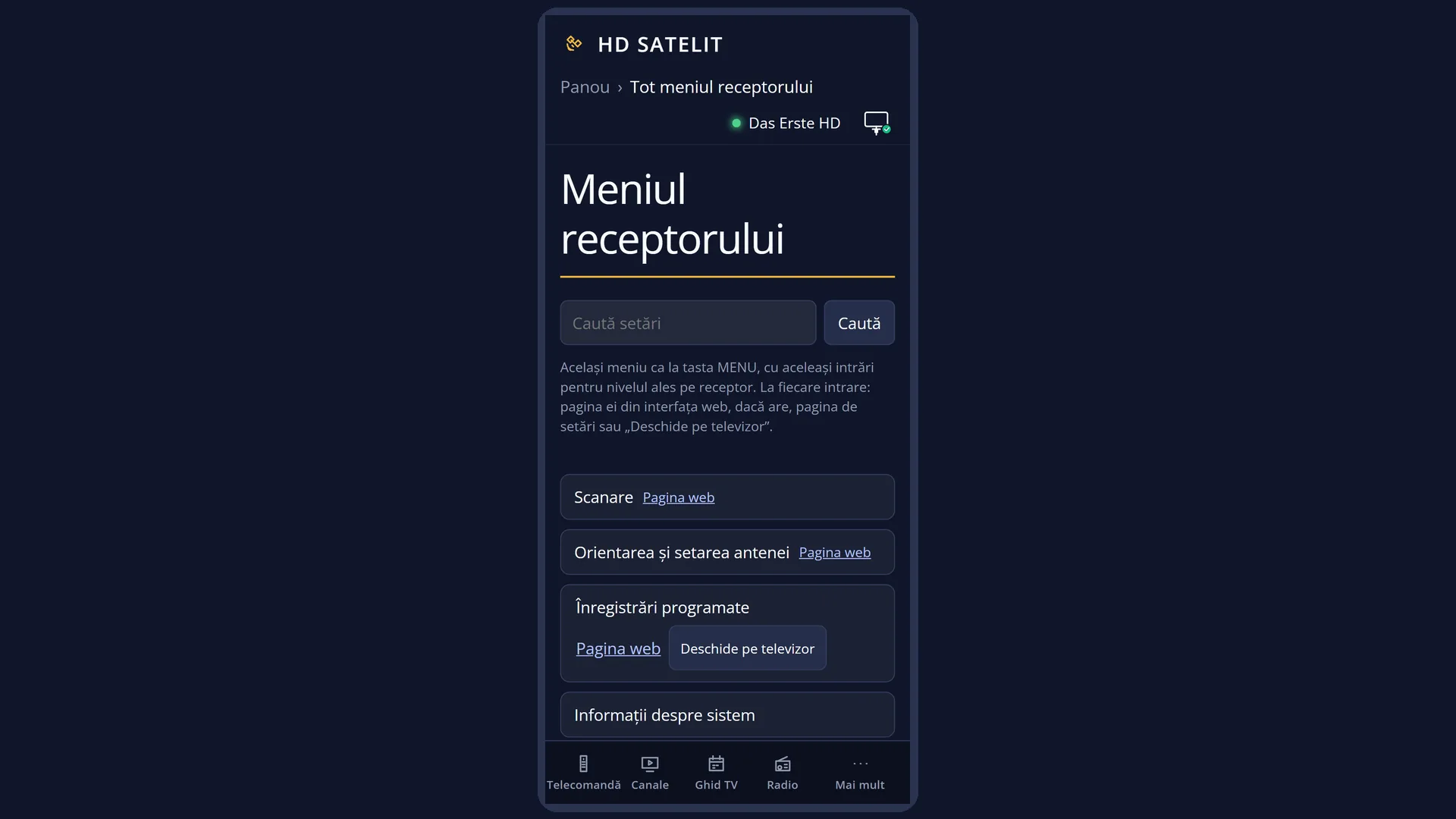
The title “Receiver menu”, the “Search settings” box with the “Search” button, and the note “The same menu as at the MENU key, with the same entries for the level chosen on the receiver. For each entry: its page in the web interface, if it has one, the settings page or “Open on the TV”.”.
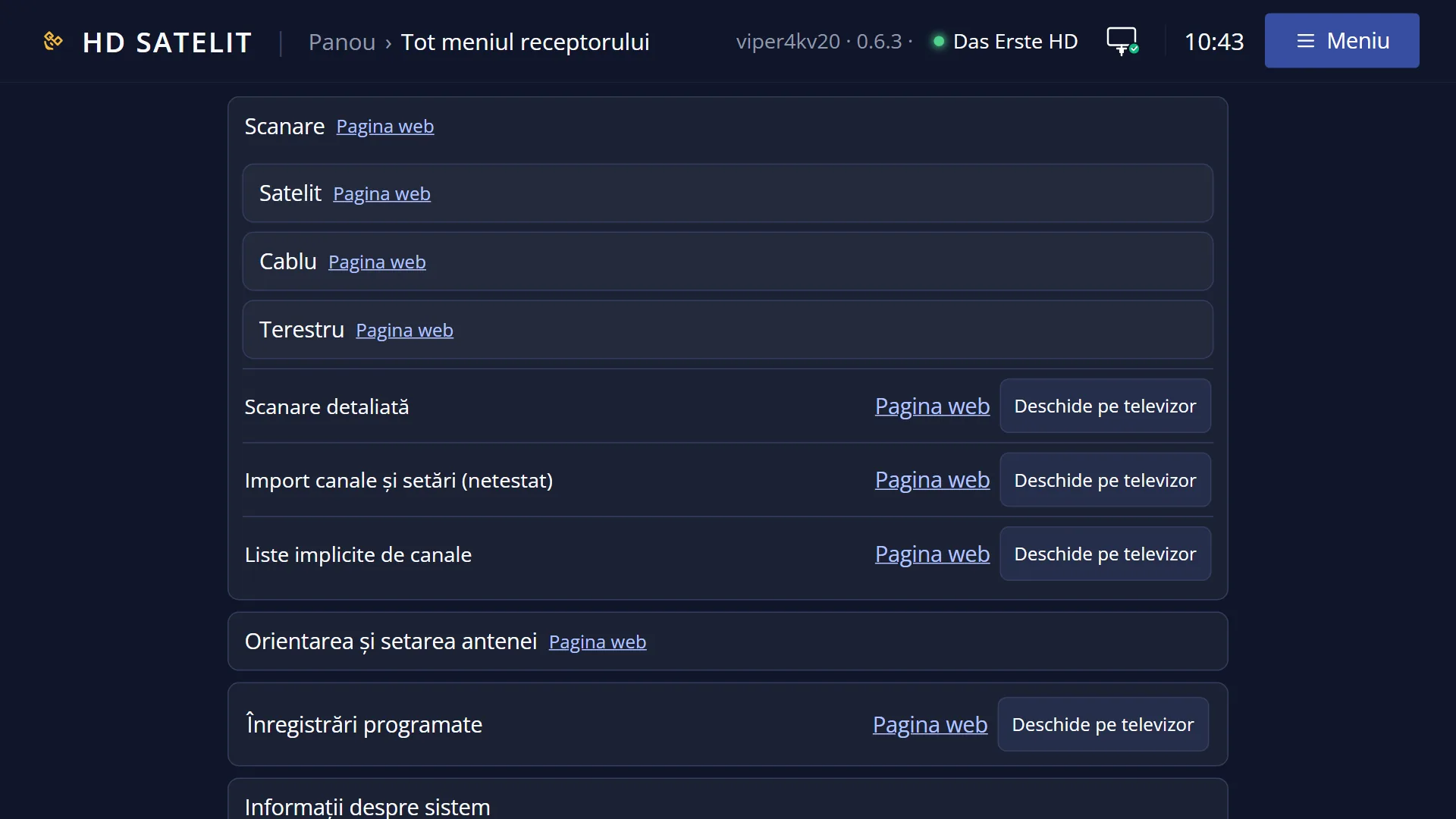
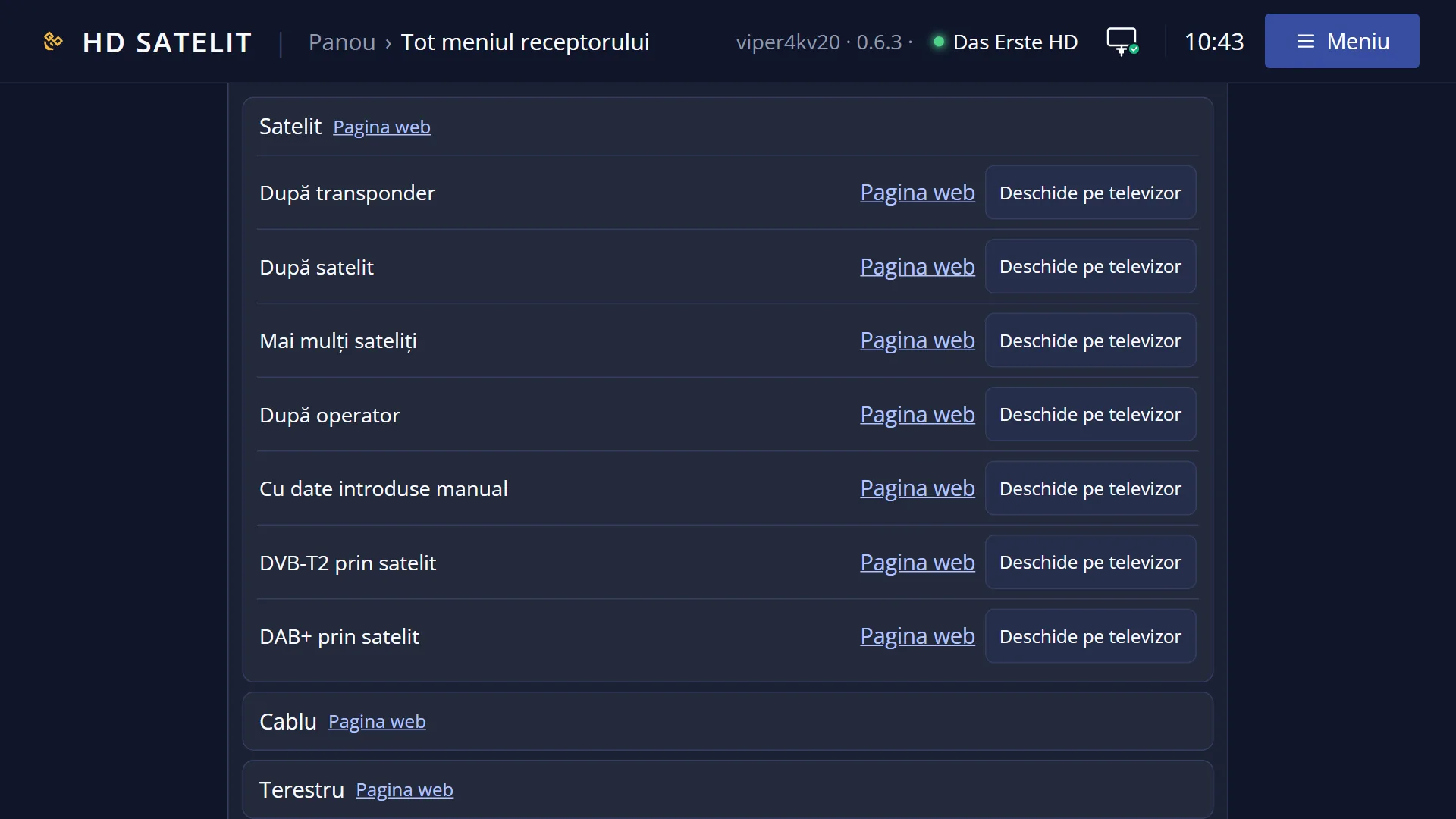
The menu groups (Channel scan, Dish alignment and setup, System Information, Settings and the others), each closed at first. Click a name to open it. Groups contain their subgroups, as on the TV (for example Settings > Network & Internet). A group name may have “Web page” next to it.
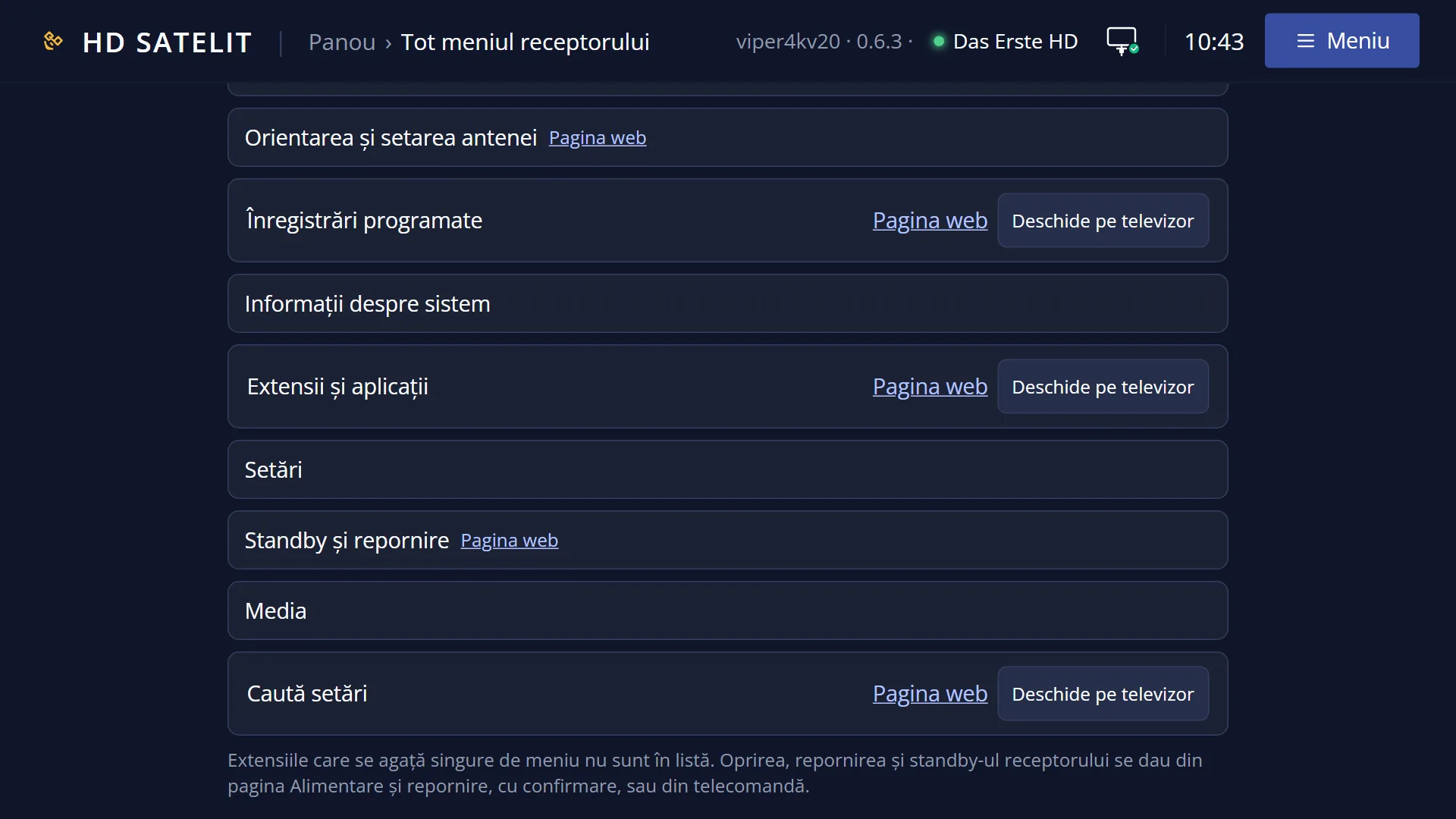
Each entry is one row: its name (with “(not tested)” or “(in progress)”, as on the TV) and, on the right, what you can do: “Web page”, “Settings on the web” and “Open on the TV”. Where an entry cannot be opened from the web, the row says why, for example “It opens only from the remote control.” or “Shutting down and restarting are done only from the remote control.”.
At the bottom, the note: “Extensions that attach themselves to the menu are not in the list. Shutdown, restart and standby of the receiver are given from the Power and restart page, with confirmation, or from the remote.”.
The message line at the top tells you what is happening: “Reading the menu...”, “Opening on the TV...”, “Opened on the TV: …”.
Rows and settings
| Row | Values | Default | What it does |
|---|---|---|---|
| Web page | Opens the entry's page in the web interface: the same settings and the same actions as the screen on the TV (for example /retea for Network Connection Setup). When you want to change a setting from your phone. | ||
| Settings on the web | For simple settings screens (those with rows and values, such as Internet check), opens the generic settings page (/setari?id=…), with the same rows, the same values and the same help text as on the TV. | ||
| Open on the TV | Puts the real screen on the TV, as if you had opened it with the remote. The page says “Opened on the TV: …” or, if there is a problem, “The screen did not open on the TV.”. From there you use it with the remote (or with the remote in the panel). When you want to work on a screen that has no web page of its own, or you want to see the screen on the TV. | ||
| Entries that cannot be opened from the web | “It opens only from the remote control.”, “Shutting down and restarting are done only from the remote control.” | Shutting down, restarting and standby do not start with one click in the menu, so the receiver does not switch off while someone is watching. They have their own page, Power and restart, where each action asks for confirmation. | |
| Which entries you see | Simple, Intermediate, Expert | Intermediate | As on the TV: “Setup Mode” in OSD Preferences decides how many entries you see, and entries for features the receiver does not have are missing. Plugins you have installed that add themselves to the menu do not appear here. When you cannot find an entry: set “Setup Mode” to Expert. |
Keys
| Click on a group name | Opens or closes the group. |
| Web page | Opens the entry's page. |
| Settings on the web | Opens the entry's settings page. |
| Open on the TV | Puts the screen on the TV. |
| Search | Searches all settings for the word you typed (the /cauta-setari page). |
| Menu (in the header of any page) | Opens the menu by group, from anywhere in the web interface. |
Step by step
Find a setting and change it from your phone
- Open /meniu (or press “Menu” in the header).
- Open the group, for example Settings, then Network & Internet.
- On the row you want, press “Web page” or “Settings on the web” and change the setting there. The TV uses it straight away.
Open a screen without a web page on the TV
- On /meniu, find the entry.
- Press “Open on the TV” and wait for “Opened on the TV: …”.
- Work on it with the remote in the panel. The panel picture shows the screen.
Search by a word
- Type the word in “Search settings” (for example “Subtitles”) and press “Search”.
- In the results, choose “Web page” or “Open on the TV”.
Problems and solutions
I cannot find an entry that is on someone else's TV.
The entries depend on “Setup Mode” (Menu > Settings > Interface & Appearance > OSD Preferences) and on which features the receiver has. Set Expert and reload the page.
“Open on the TV” does nothing.
Read the message at the top. If it says “The screen did not open on the TV.”, close what is open on the TV (EXIT on the panel remote) and try again.
I cannot switch off the receiver from the menu.
Shutting down, restarting and standby do not start with one click here. Use the Power and restart page, which asks for confirmation, or the remote.
A plugin I installed does not appear.
Plugins that add themselves to the menu are not in the list. Open them on the TV or from the Plugins & Applications page.
“The receiver menu cannot be read.” or “The receiver does not answer.”
Check that the receiver is switched on and on the same network, then reload the page.