

Licenses
English screenshots coming: some of the pictures below still show the receiver and the web interface in Romanian. The rows, keys and steps described on this page are the English ones.
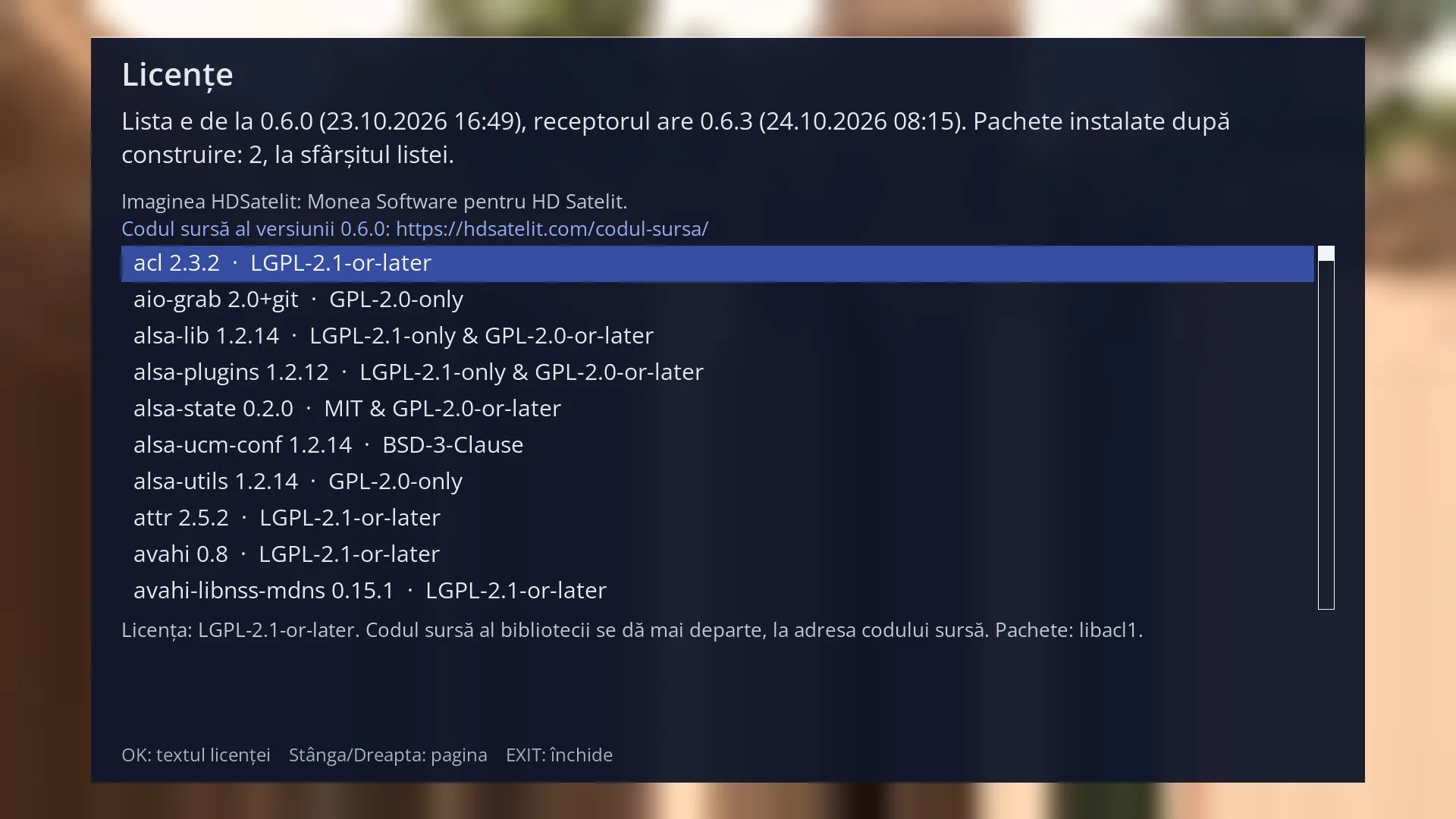
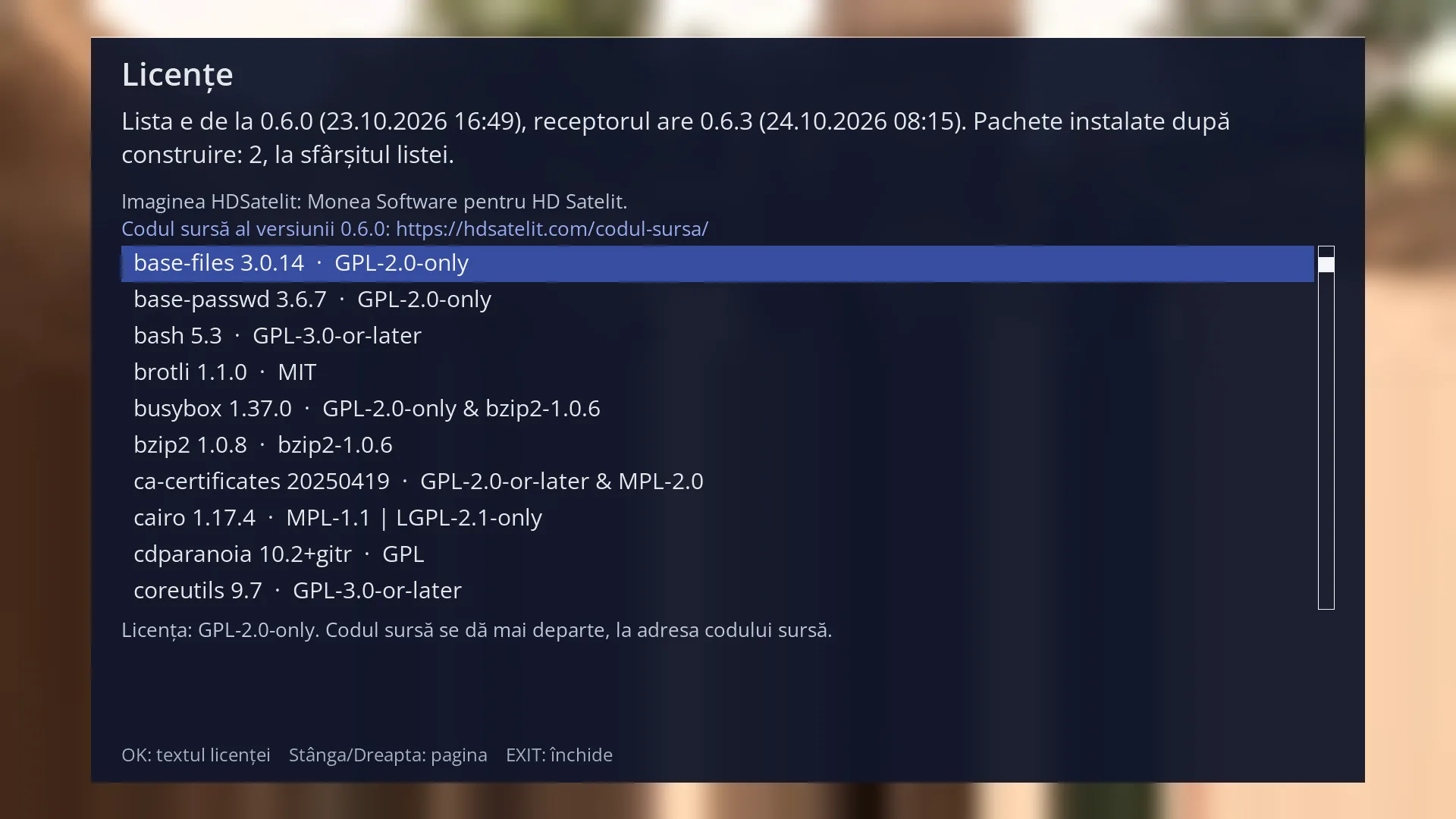
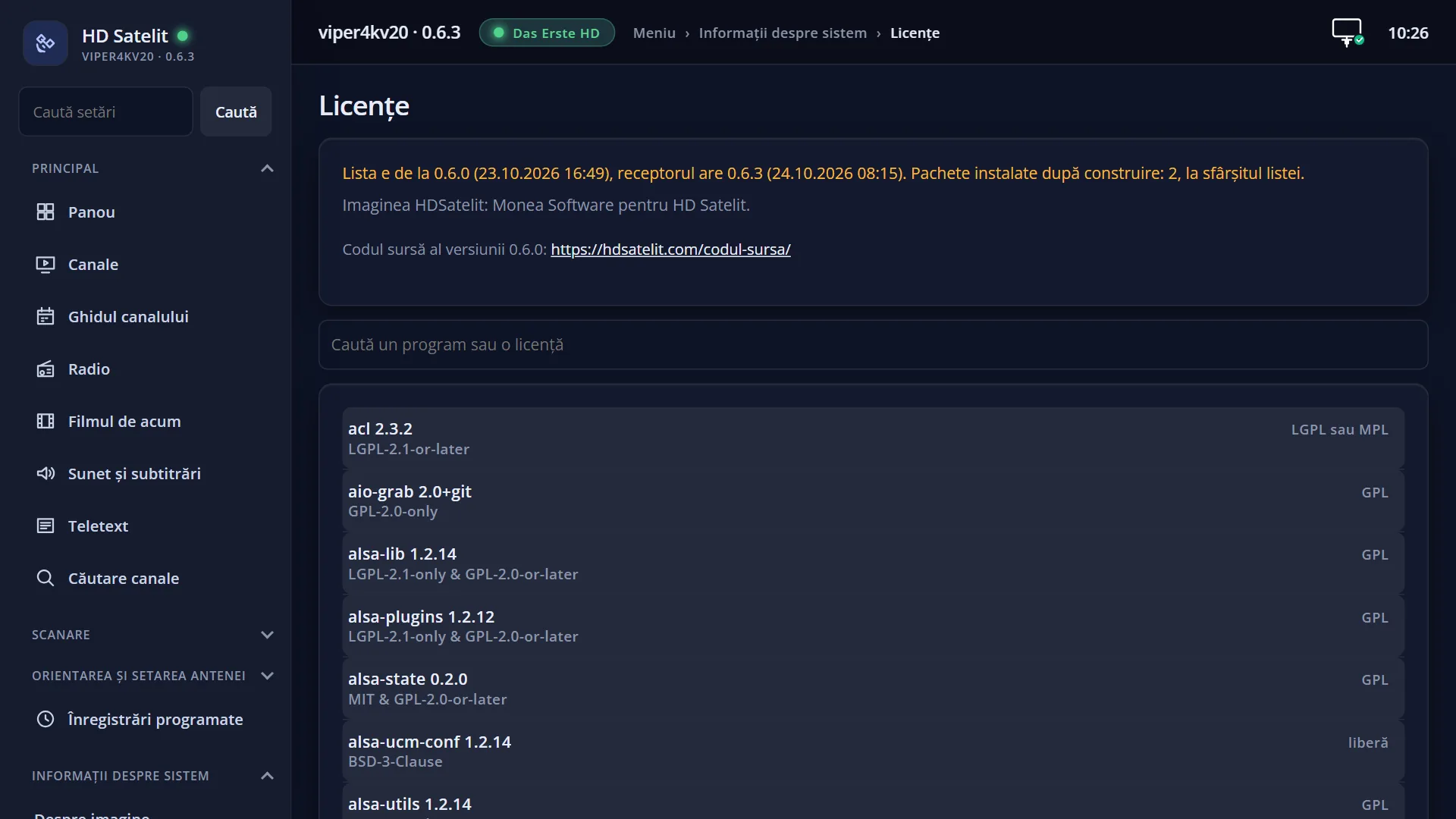
- 1 List status: how many programs it has or which version it is from.
- 2 Who the image belongs to.
- 3 The source code address for this version.
- 4 The programs, with version and licence. 10 per page.
- 5 The licence of the selected row and what it means.
- 6 OK licence text, LEFT and RIGHT page, EXIT closes.
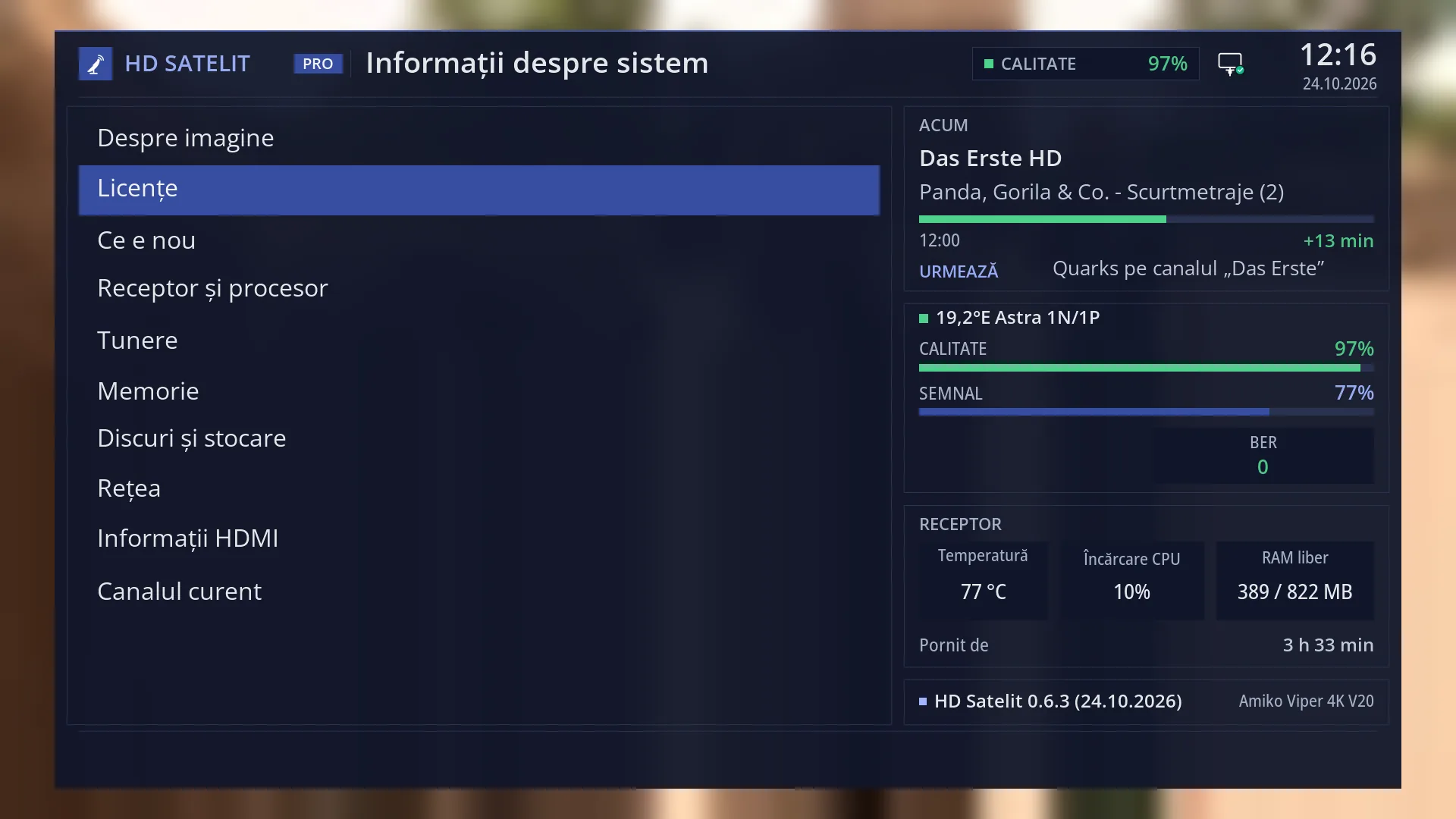
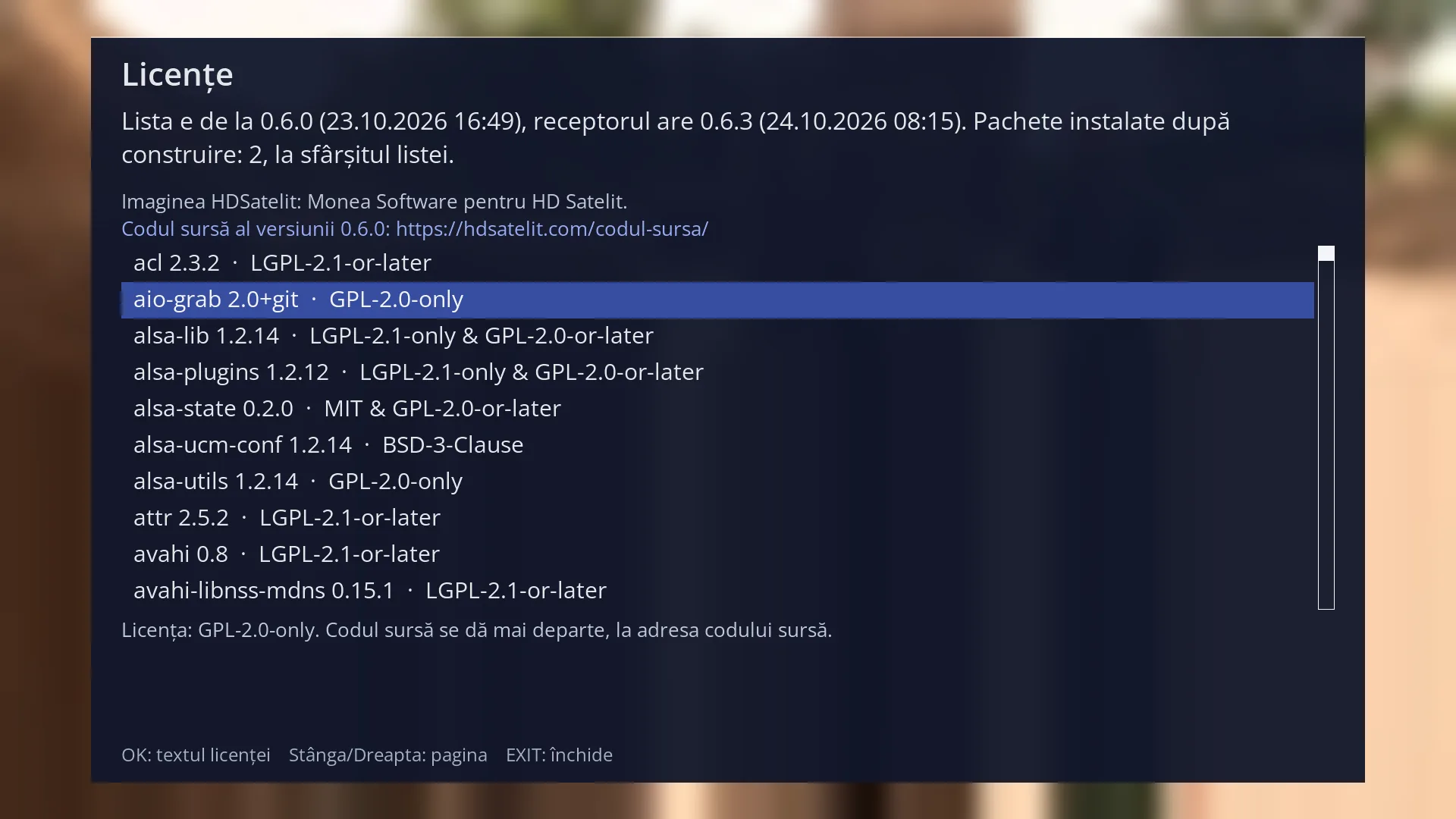
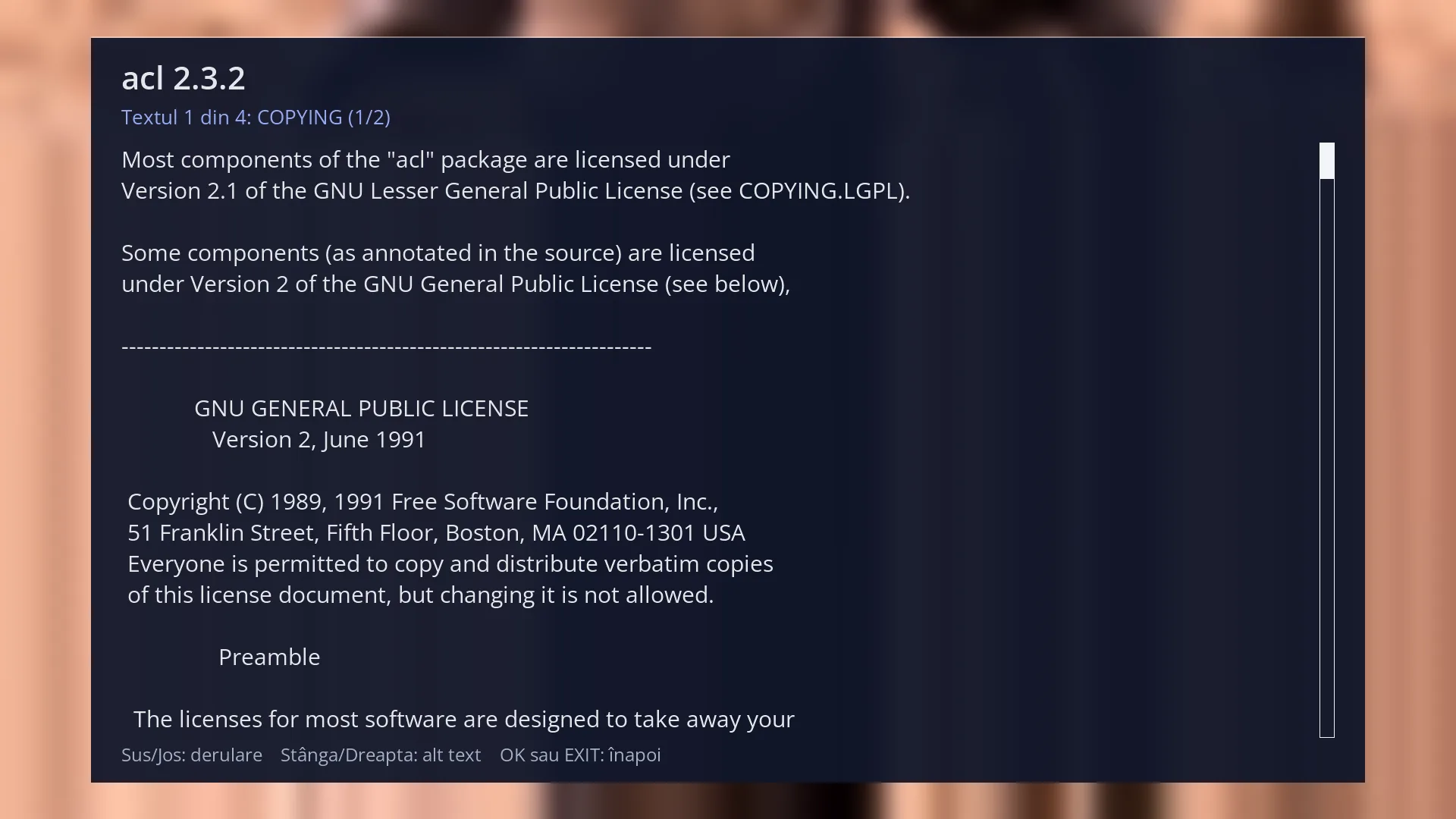
- 2 The licence of the selected row and what it means.
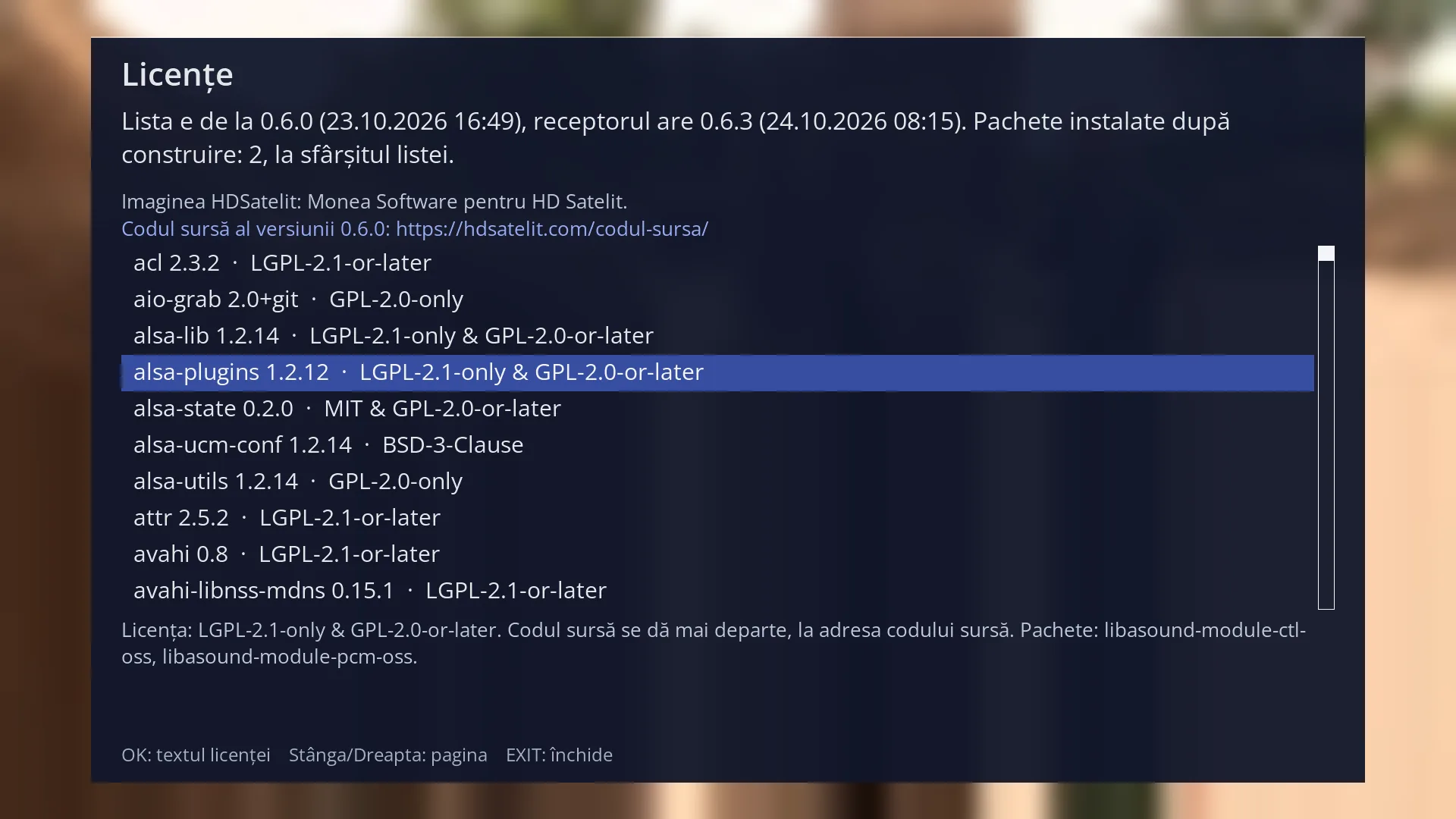
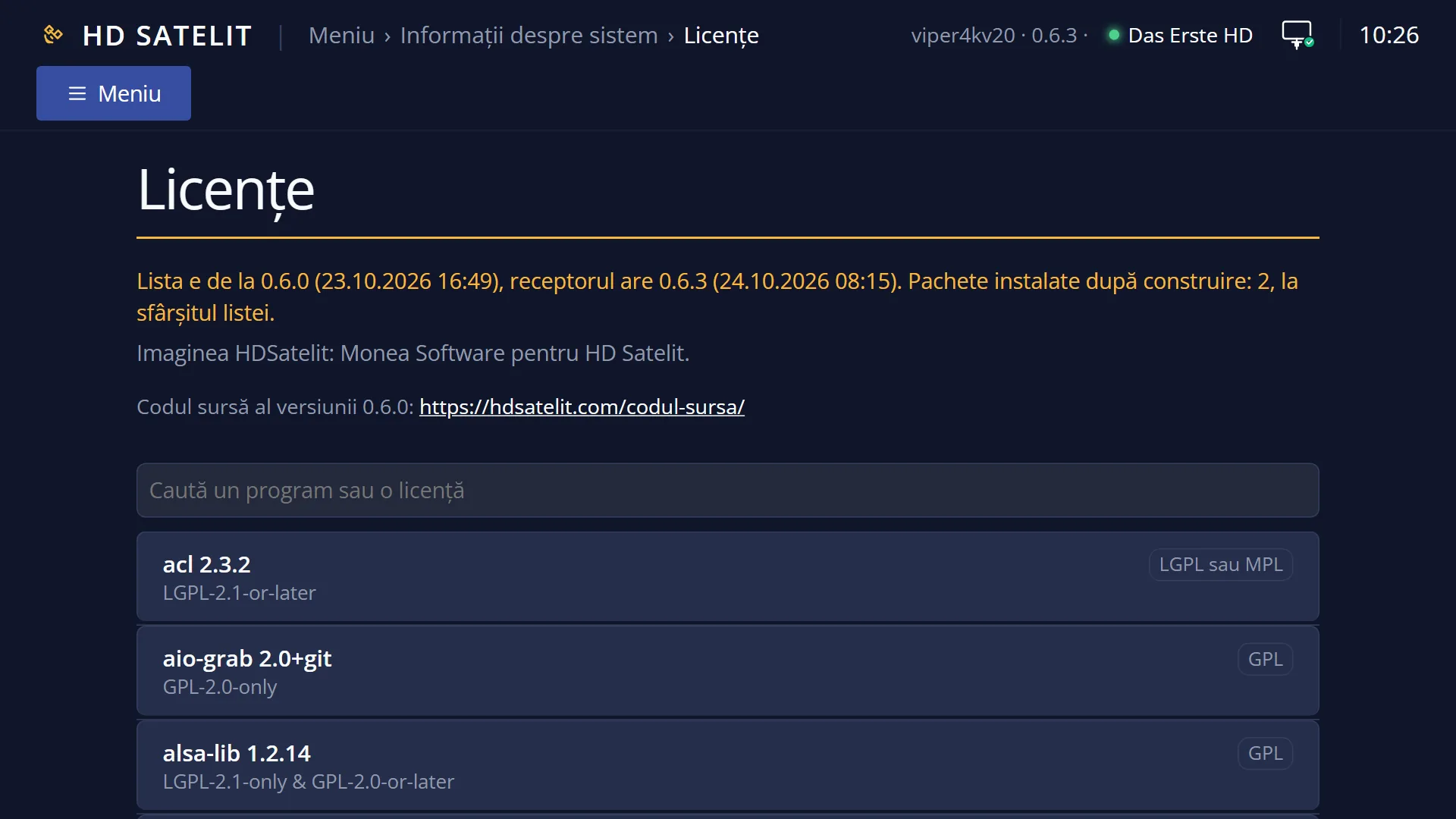
- 2 The licence of the selected row and what it means.
What it is for
“Licenses” lists every program in the image, each with its version and licence. It then lists the components from the receiver manufacturer's packages, the fonts and the channel lists, plus any packages installed after the image was built.
At the top you can see who the image belongs to and the source code address for this version, where anyone can get the code of the free programs.
Press OK on a row to open the full licence text. It is read directly from the receiver, with no internet needed.
Below the list, a short note explains what the licence of the selected row means (for example “The source code is passed on, at the source code address.”).
The same list, with a search, is in the web interface on the /licente page.
How to get here
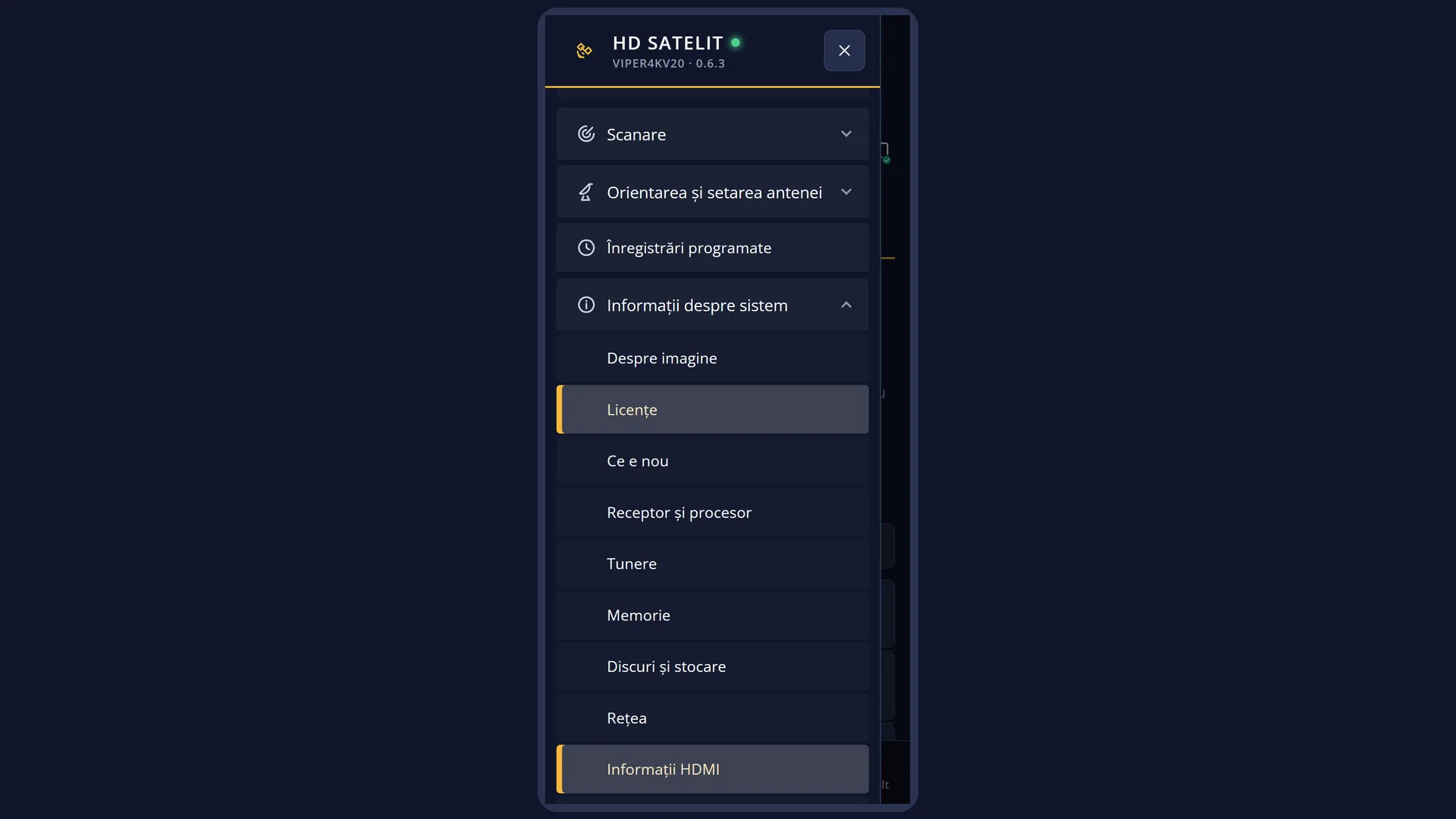
Path: Main menu > System Information > Licenses (the second row, below “About the image”).
Keys on the remote: MENU 4 2.
When the interface has started in safe mode, the submenu has an extra row at the top, “Safe mode”, and “Licenses” becomes the third row. In that case, press MENU 4 3.
In the web interface: the /licente page.
What you see on the screen
At the top, the title “Licenses”.
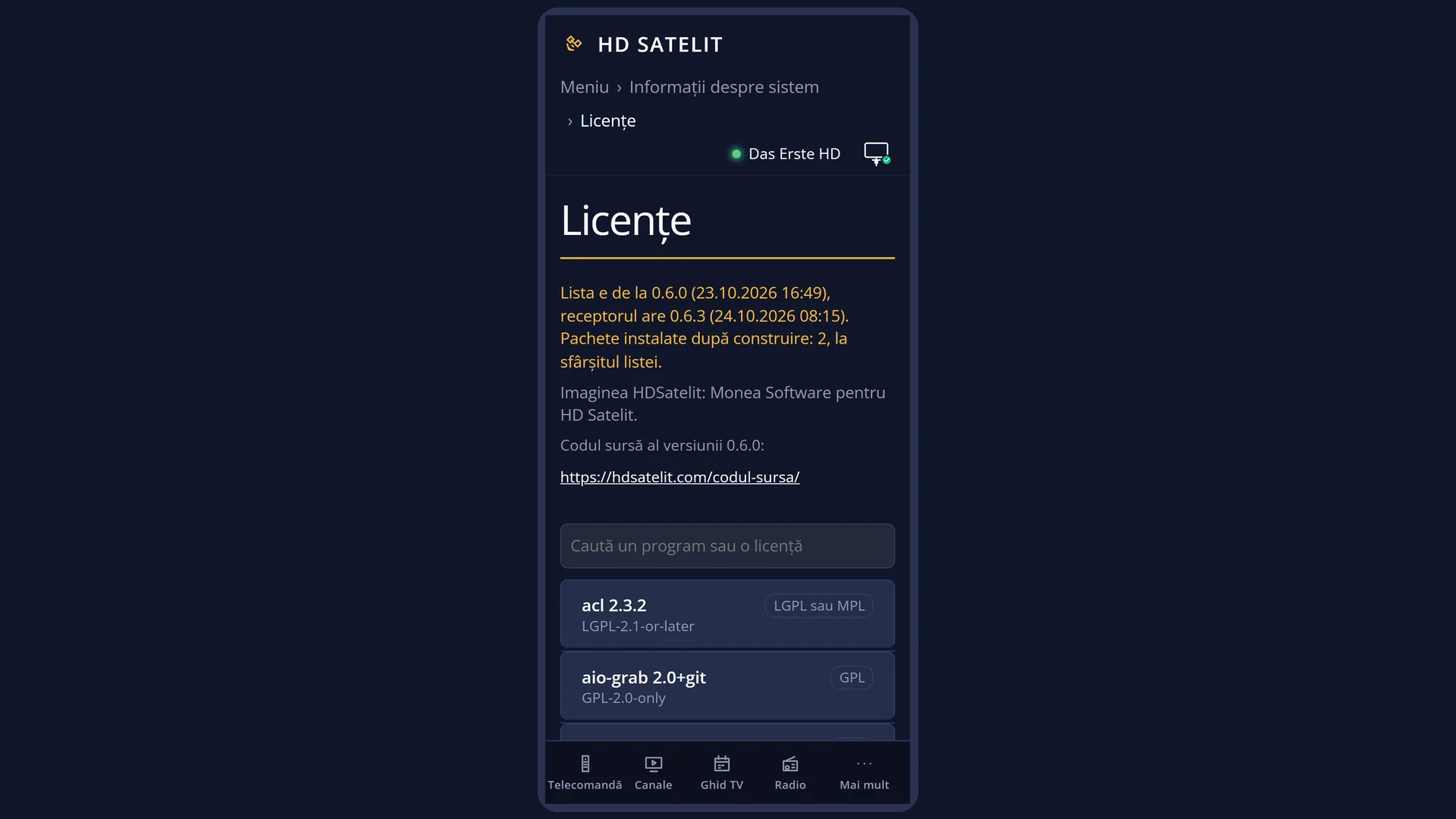
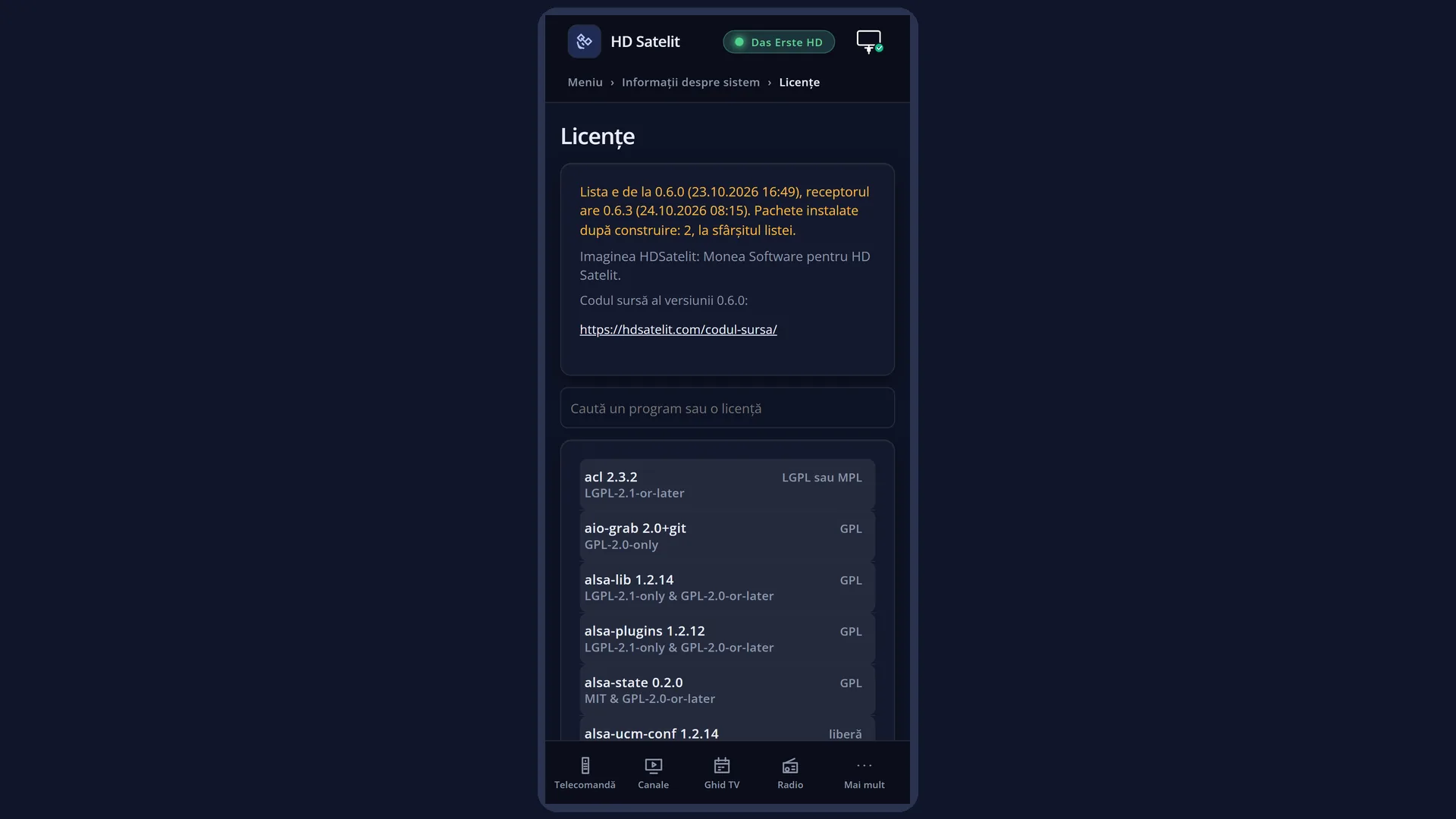
Below the title, the list status, on up to two lines. Usually this is “The programs in the image and their licenses. Programs: ..., maker components: ..., fonts: ...”. If the receiver has received updates since the image was built, it shows which version the list is from and which version the receiver has, for example “The list is from 0.5.0 (21.10.2026 15:36), the receiver has 0.5.9 (22.10.2026 17:20).”, and how many packages were installed after the build. While the list is being read, it shows “Reading the license list...”.
Below that, the line “The HDSatelit image: Monea Software for HD Satelit.” and, in light blue, the source code address: “Source code of version ...: https://hdsatelit.com/codul-sursa/”.
The list, 10 rows per page: the program name, version and licence, separated by “·”, for example “acl 2.3.2 · LGPL-2.1-or-later”. The selected row has a blue background. A row that is too long scrolls.
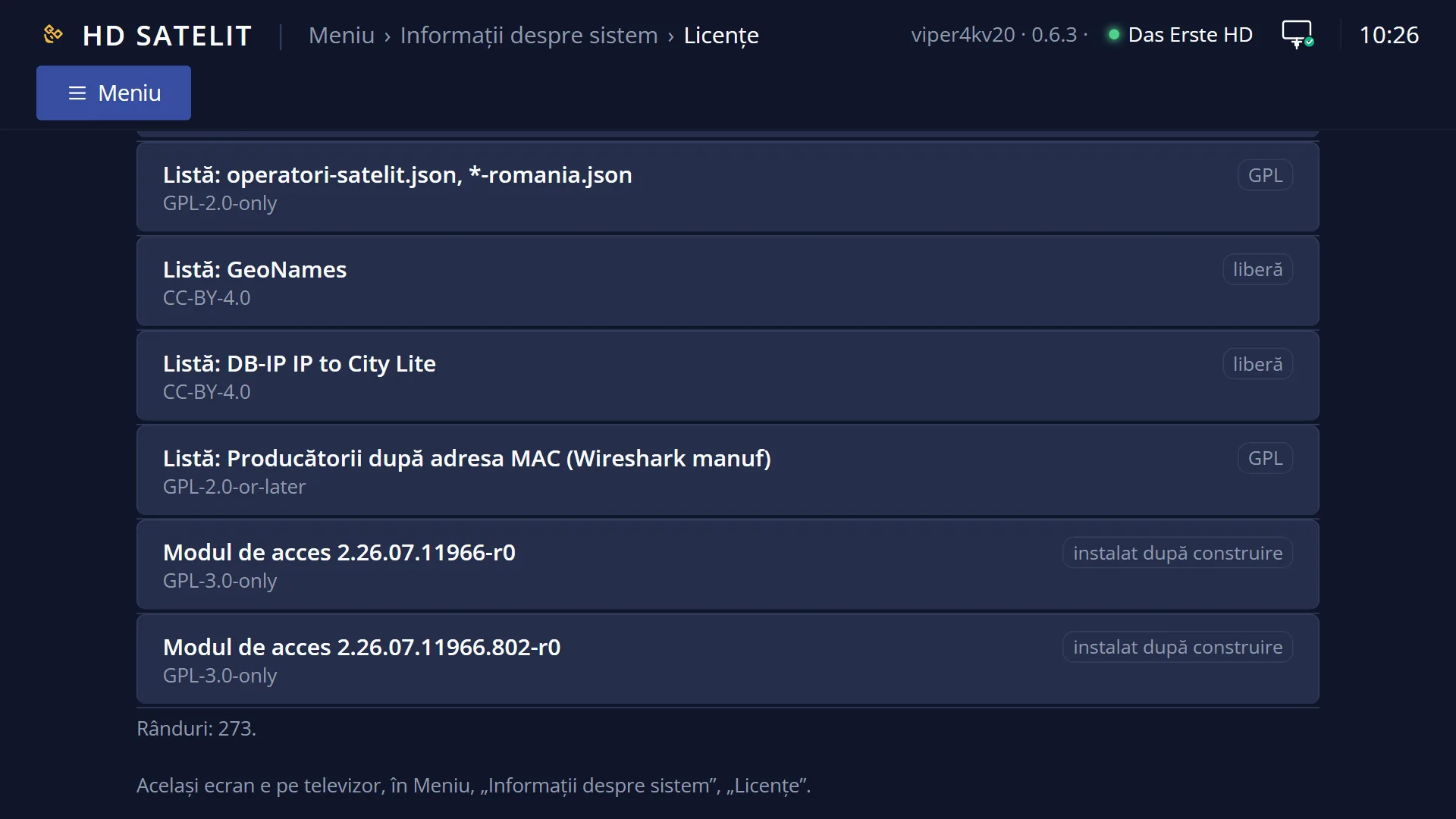
List order: first the text recognition models, if you have downloaded them for subtitles, then the programs (in alphabetical order), then the components from the manufacturer's packages (with “(in the manufacturer's package)” at the end), the fonts (“Font: ...”), the channel lists (“List: ...”) and, at the end, the packages installed after the build.
Below the list, the explanation for the selected row: the full licence, what it means in plain words and, where relevant, which packages the program contains or which row its font is on.
At the bottom, the keys: “OK: license text Left/Right: page EXIT: close”. The screen has no colour keys.
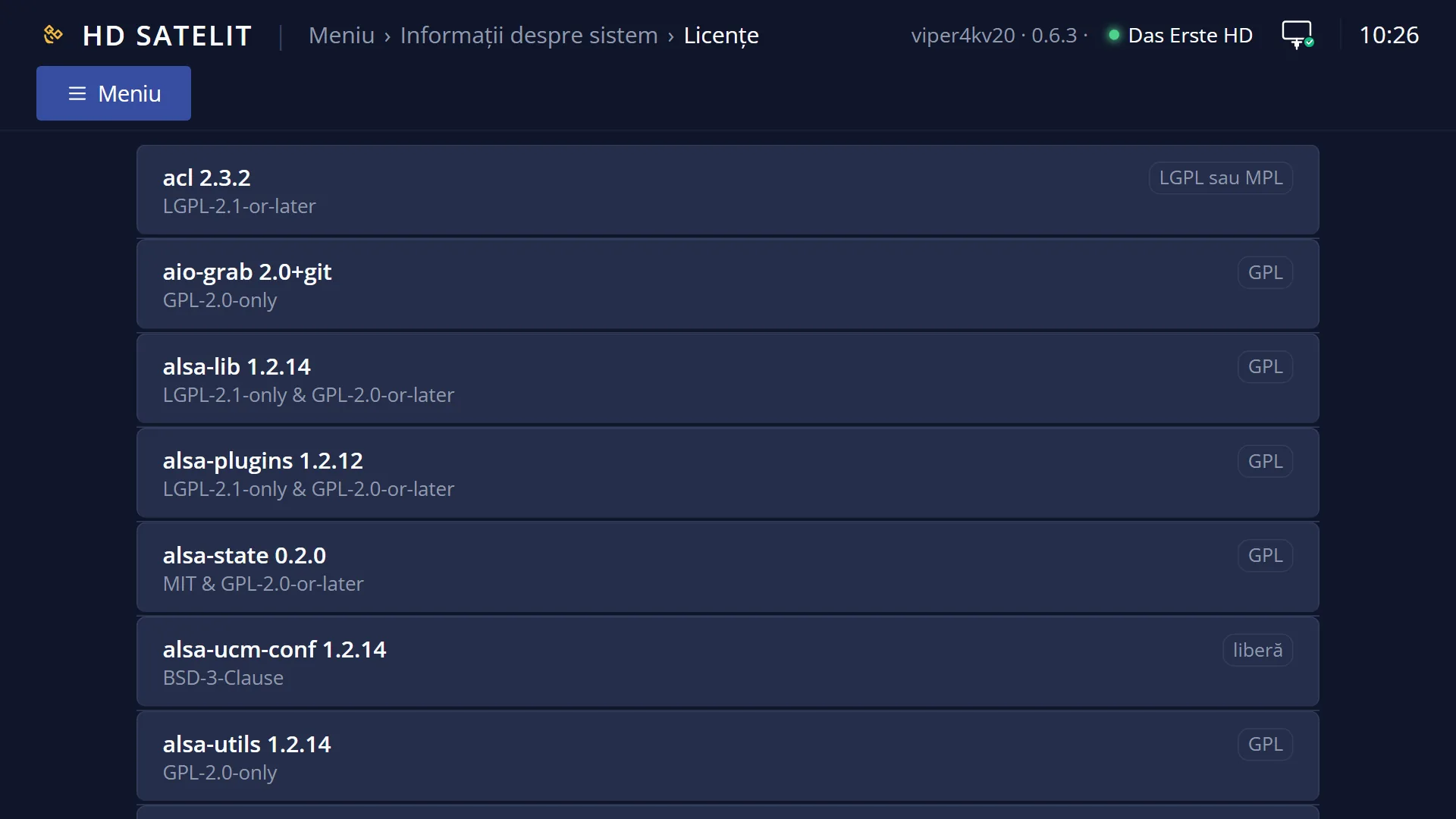
On the /licente web page: a box at the top with the same texts (the source code address is a link), the “Search for a program or a license” field, then the list. Click a row to open the explanation and the licence text below it. If there are several texts, a button appears for each one. Below the list you can see how many rows there are, for example “Rows: 12 of 340.” when you search. Packages installed after the build have the label “installed after the build”.
Rows and settings
| Row | Values | Default | What it does |
|---|---|---|---|
| Program row | Name, Version, licence | A program in the image, with its version and licence. The licence is shown with its usual name (for example GPL-2.0-only, MIT, BSD-3-Clause). Several licences are joined with “&”. If the licence is too long for the row, its short type is shown instead (see the next row). The full licence is below the list. For programs made by Monea Software for HD Satelit, the explanation says so. | |
| Licence type, in plain words | free, no conditions, free, binary only, LGPL or MPL, GPL, unknown, closed | What the licence means, shown below the list: “free, no conditions” can be used and passed on without any conditions; “free” is passed on with the licence text and the authors' names; “binary only” is passed on only as a ready-made program; “LGPL or MPL” and “GPL” mean the source code is passed on, at the source code address; “closed” is a program with no public source code; “unknown” is a licence that is not in the known list. | |
| Manufacturer components, fonts, channel lists | “(in the manufacturer's package)”, “Font: ...”, “List: ...” | The parts that are not programs of the image: the components that came with the receiver manufacturer's packages, the fonts in the image and the channel lists in the image. Each has its own licence and, below the list, a sentence about what it is. | |
| Packages installed after the build | the licence written in the package, “not written in the package” | none | Packages added to the receiver after the image was built (for example plugins you installed) appear at the end of the list, with the licence written in their package, without the licence text. Below the list it says “Installed after the image was built. The license is the one written in the package, without its text.”. |
| Source code address | “Source code of version ...: https://hdsatelit.com/codul-sursa/” | Where you can find the source code for this image version, for programs whose licences require it (GPL, LGPL, MPL). The address is written into the list when the image is built. If the list is missing, the screen still shows this address. | |
| Licence text (OK) | “Text 1 of 2: ...”, parts of up to 300 lines, an explanation, when the row has no text | Press OK on a row to open a new screen with the program name and version as the title and the full licence text. Below the title it shows which text it is (“Text 1 of 2: GPL-2.0-only”) and, for a long text, the part (“(1/3)”). A row with no licence text (a closed program, a package installed after the build) shows only its explanation: what it is, the licence and where it is stored. If the text is missing, it says “The text of this license is missing from the image.”. | |
| List status | “Reading the license list...”, the number of programs, components and fonts, “The list is from ..., the receiver has ...”, “The license list is missing from this image.”, “The license list in this image cannot be read.” | The list is created when the image is built. If the receiver has received updates since then, the top line says which version the list is from and which version the receiver has now. If the list is missing or cannot be read, a single line appears instead: “The licenses of the programs in the image are also at the address above.”. |
Keys
| UP / DOWN | Row above or below. The explanation below the list changes. |
| LEFT / RIGHT | Jump one page of 10 rows up or down. |
| OK | Opens the licence text of the selected row. |
| EXIT | Closes the screen. |
| In the licence text: UP / DOWN | Scrolls the text one page at a time. |
| In the licence text: LEFT / RIGHT | Previous or next part of a long text, then the previous or next text of the same row (if it has several). |
| In the licence text: OK or EXIT | Take you back to the list, on the same row. |
Step by step
Find out a program's licence
- Press MENU 4 2.
- Use UP / DOWN to move to the program (LEFT / RIGHT jump one page at a time).
- Read the licence and what it means below the list. Press OK to see the full text. OK or EXIT takes you back to the list.
Find out where the source code is
- Press MENU 4 2.
- The blue line at the top shows the source code address for this version: https://hdsatelit.com/codul-sursa/.
- Open the address on a computer or phone. On the /licente web page, the address is a link you can click.
Search for a program from your phone
- Open the receiver's web interface (for example http://192.168.1.50) and go to /licente.
- In “Search for a program or a license”, type a name or a licence, for example “GPL-3.0”.
- Tap the row found: the explanation and the licence text appear below it.
Problems and solutions
The screen stays on “Reading the license list...”.
The list is read in the background and takes a few seconds the first time you open it. Wait. If nothing changes, close the screen with EXIT and open it again.
It says “The license list is missing from this image.” or “... cannot be read.”
The licences are also at the source code address shown below. You can see the image version in Menu > System Information > About the image.
It says “The list is from 0.5.0 ..., the receiver has 0.5.9 ...”.
This is normal after updates: the list is created together with the image, and packages added later appear at the end of the list, with the licence written in them.
The row shows only “GPL” or “free”, not the full licence.
The licence was too long for the row. The full licence is below the list, under “License:”, and in the text you open with OK.
Pressing OK shows an explanation, not the licence text.
The row has no licence text in the image: it is a closed program or a package installed after the build, which has its licence written only inside it.
“The text of this license is missing from the image.” appears.
The text for this row did not make it into the image. The licence name is shown on the row, and you can find its text at the source code address.
The /licente web page says “Access allowed only from the local network.”
The page only opens from the receiver's home network. Connect your phone to the same Wi-Fi network.
Related topics
- About the image
- What's new
- System Information
- Plugins & Applications (the packages you install)
- Matching web page: /licente