

What you see at startup
English screenshots coming: some of the pictures below still show the receiver and the web interface in Romanian. The rows, keys and steps described on this page are the English ones.
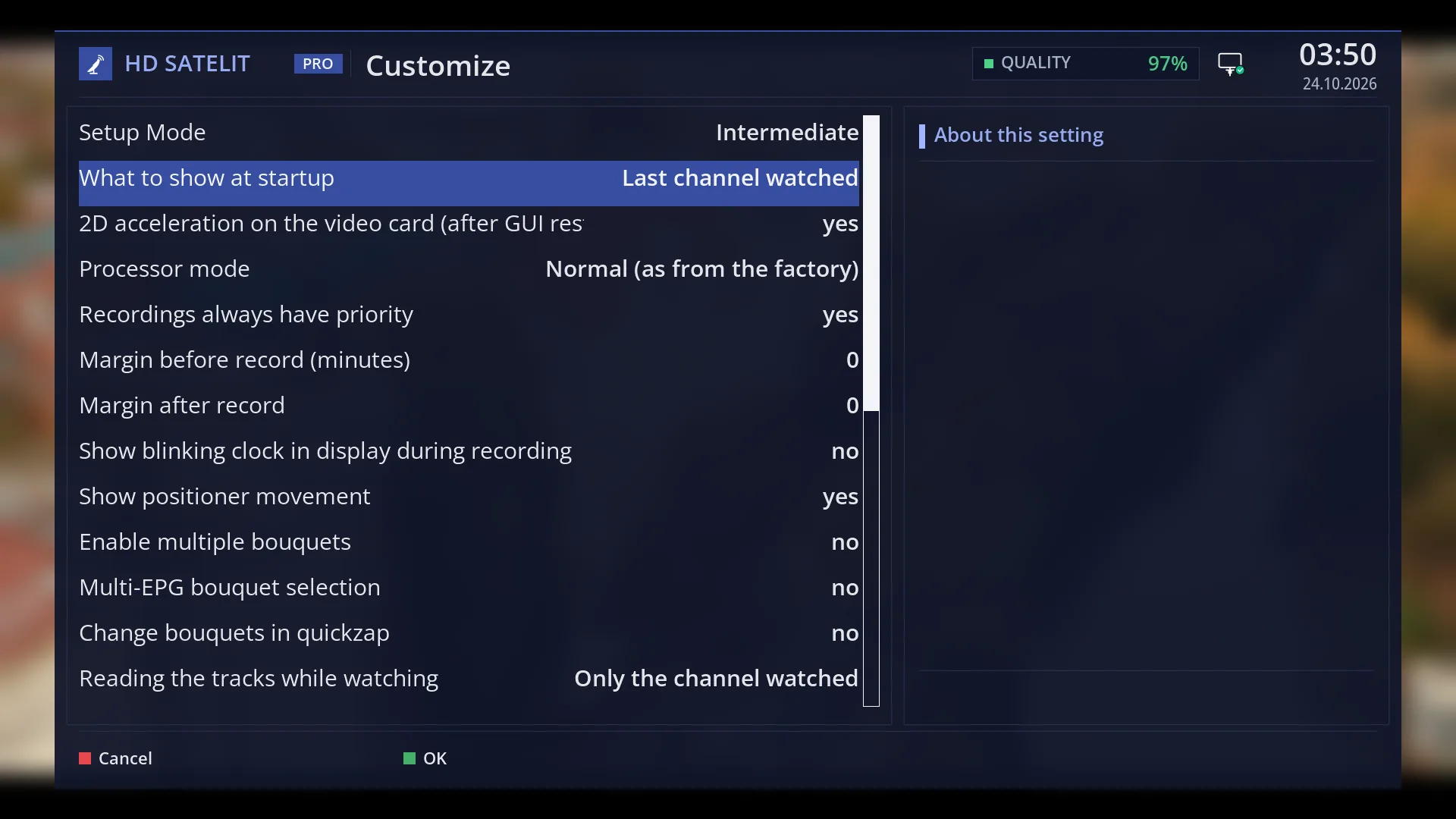
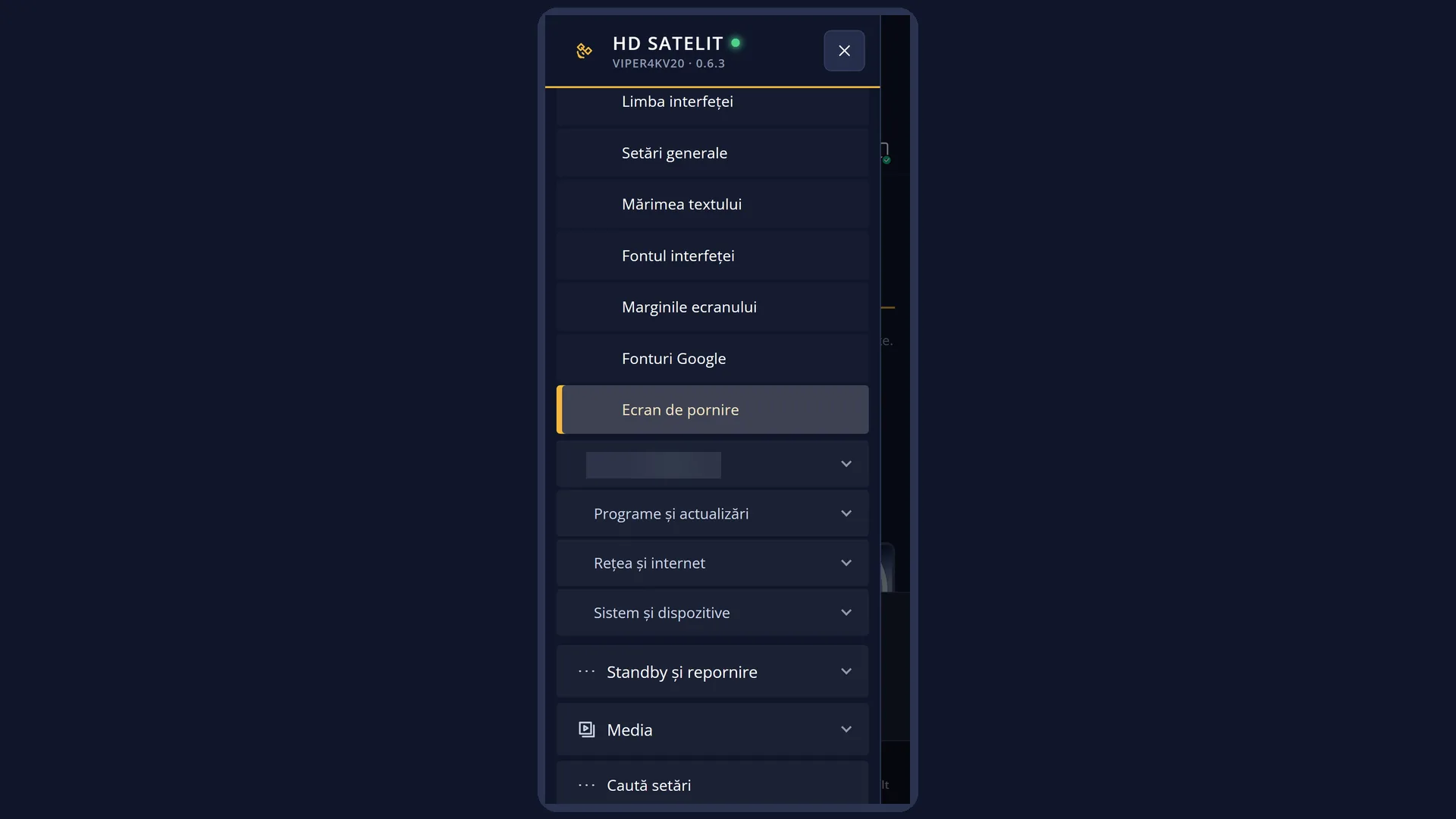
- 1 The selected row.
What it is for
This page explains what you see on the TV from the moment you switch on the receiver until the first channel appears, and what you can change about it.
While the interface loads, the screen shows the startup picture you chose from the gallery (or your own picture). On top of it, at the bottom centre, the receiver writes “HD Satelit” and the image version in a dark strip, for example “HD Satelit 0.5.9 · moneasoftware.com & hdsatelit.com”. After an update, this shows you that the new version has been installed.
When the interface is ready, the receiver automatically starts what you chose under “What to show at startup”. By default, this is the last channel you watched.
The startup picture appears every time the interface starts, so also after “Restart Interface”.
How to get here
Path: it appears by itself while the receiver starts (from the mains, from Deep Standby or after a restart).
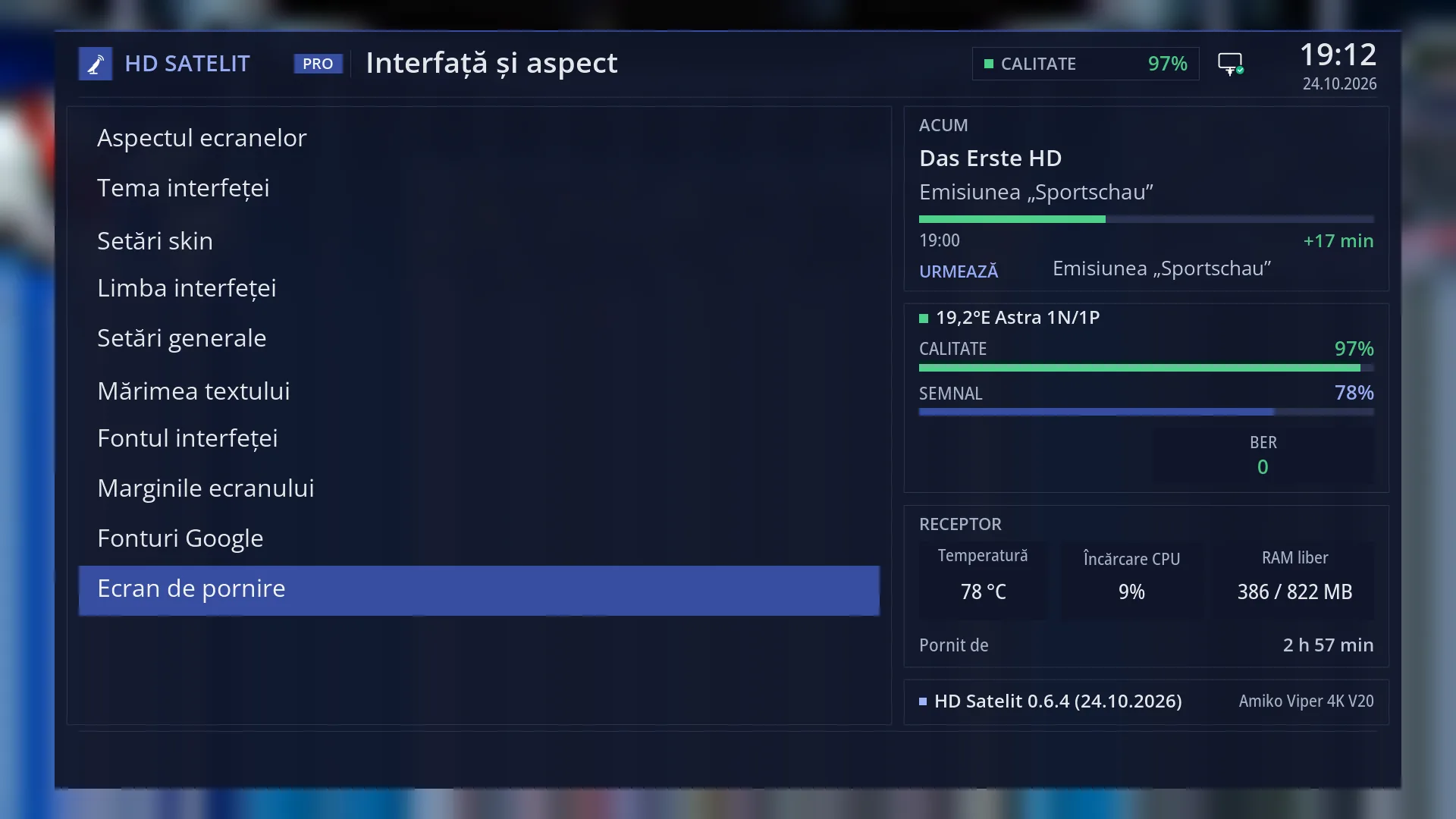
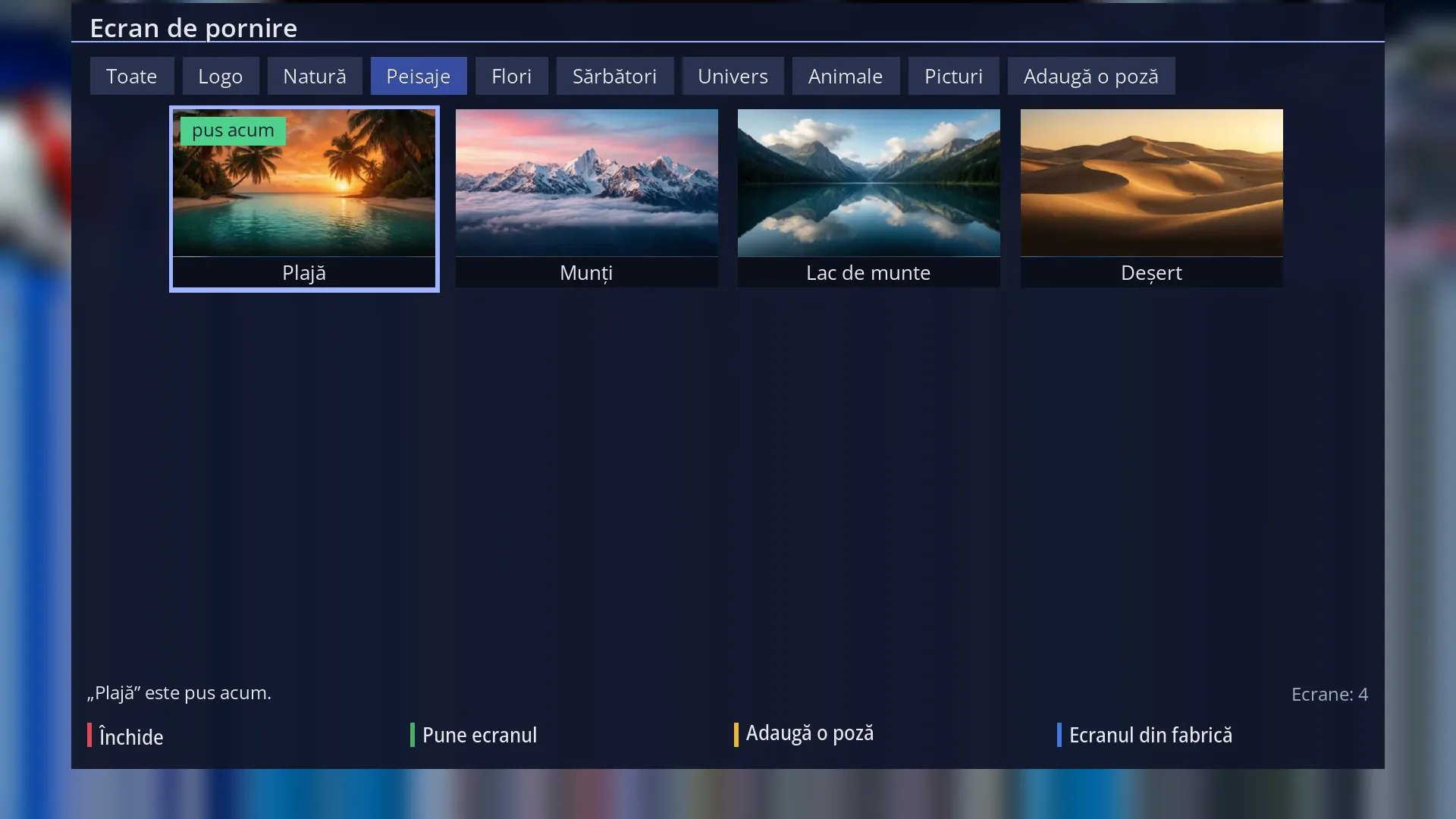
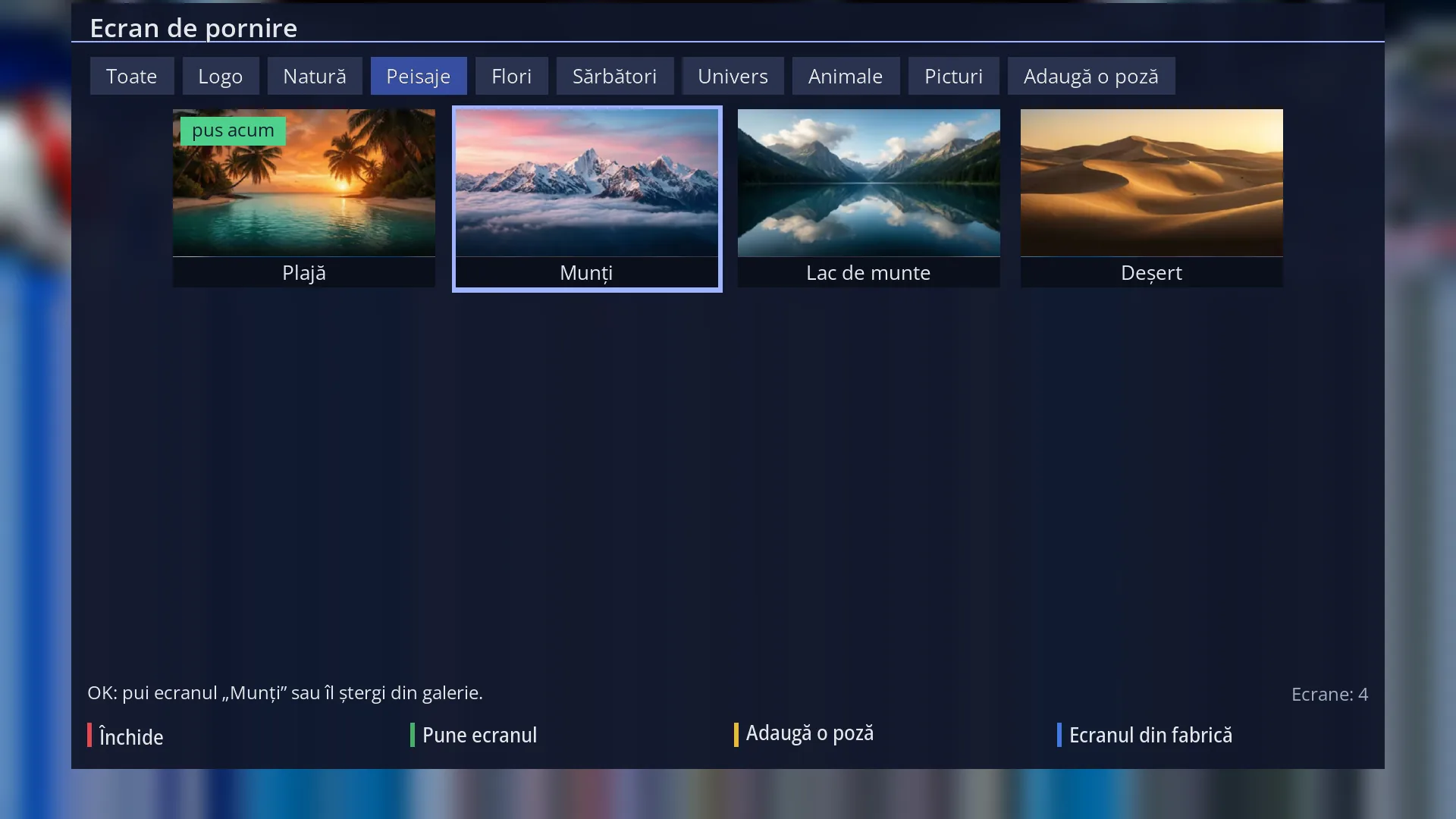
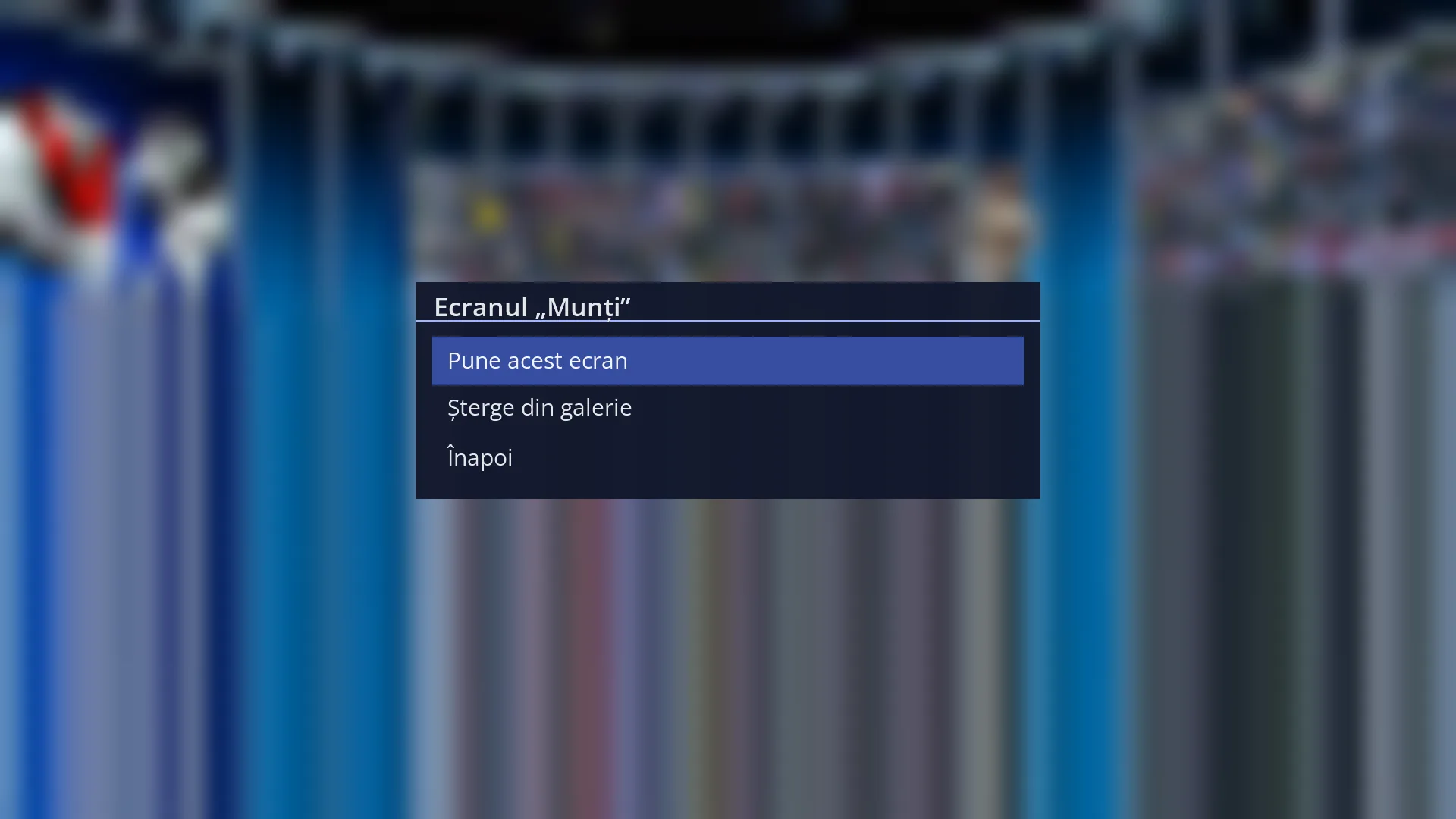
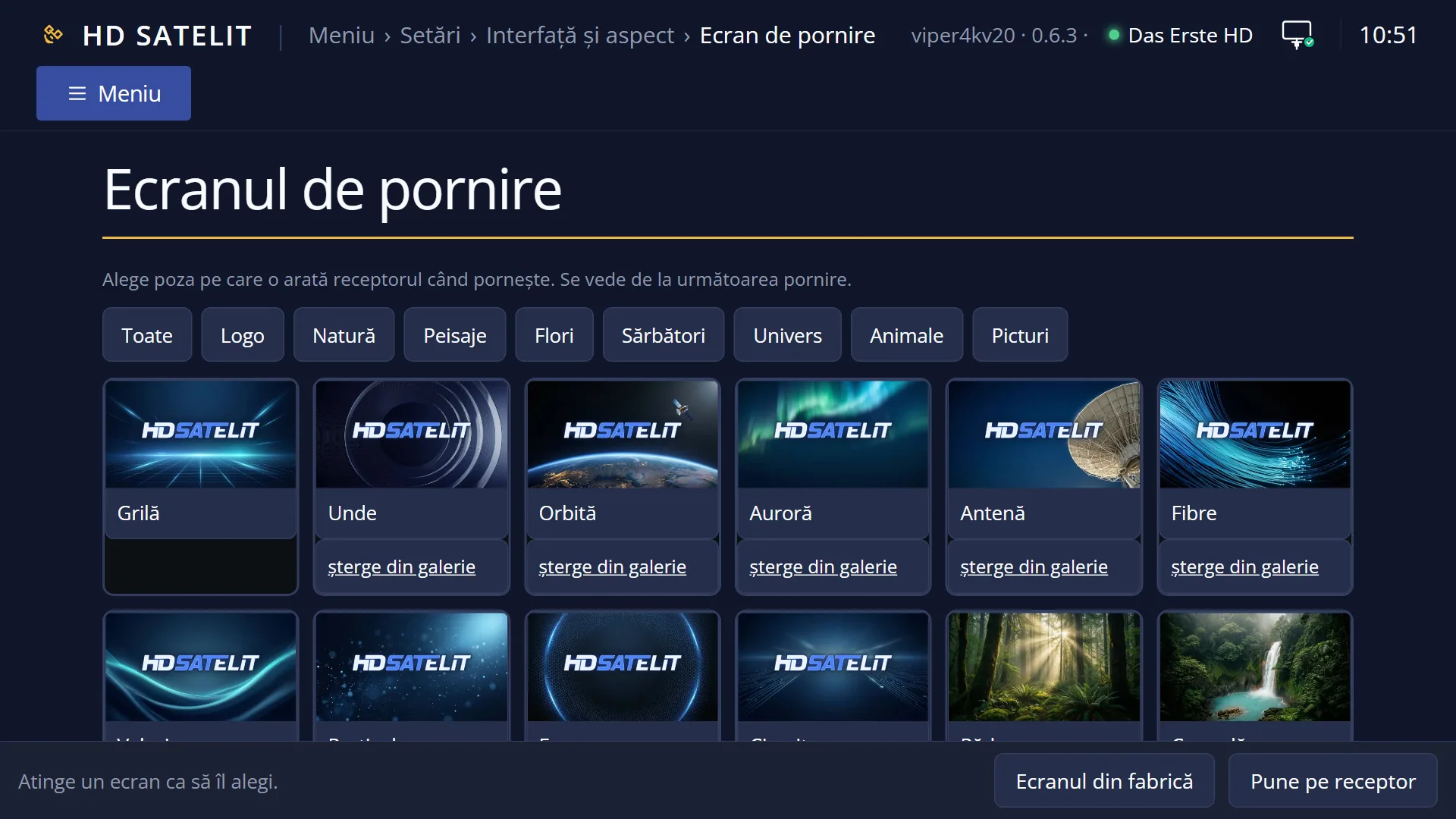
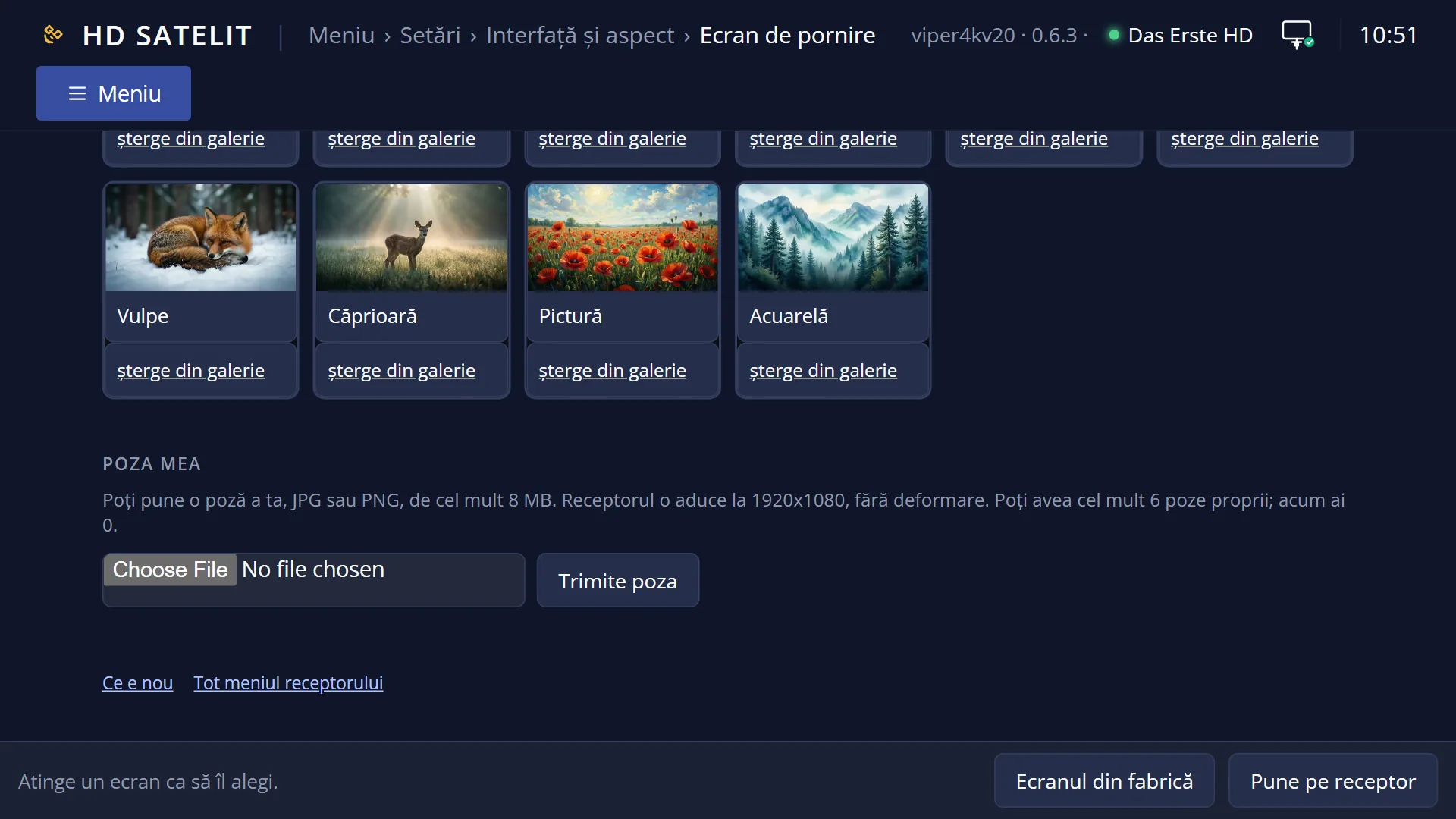
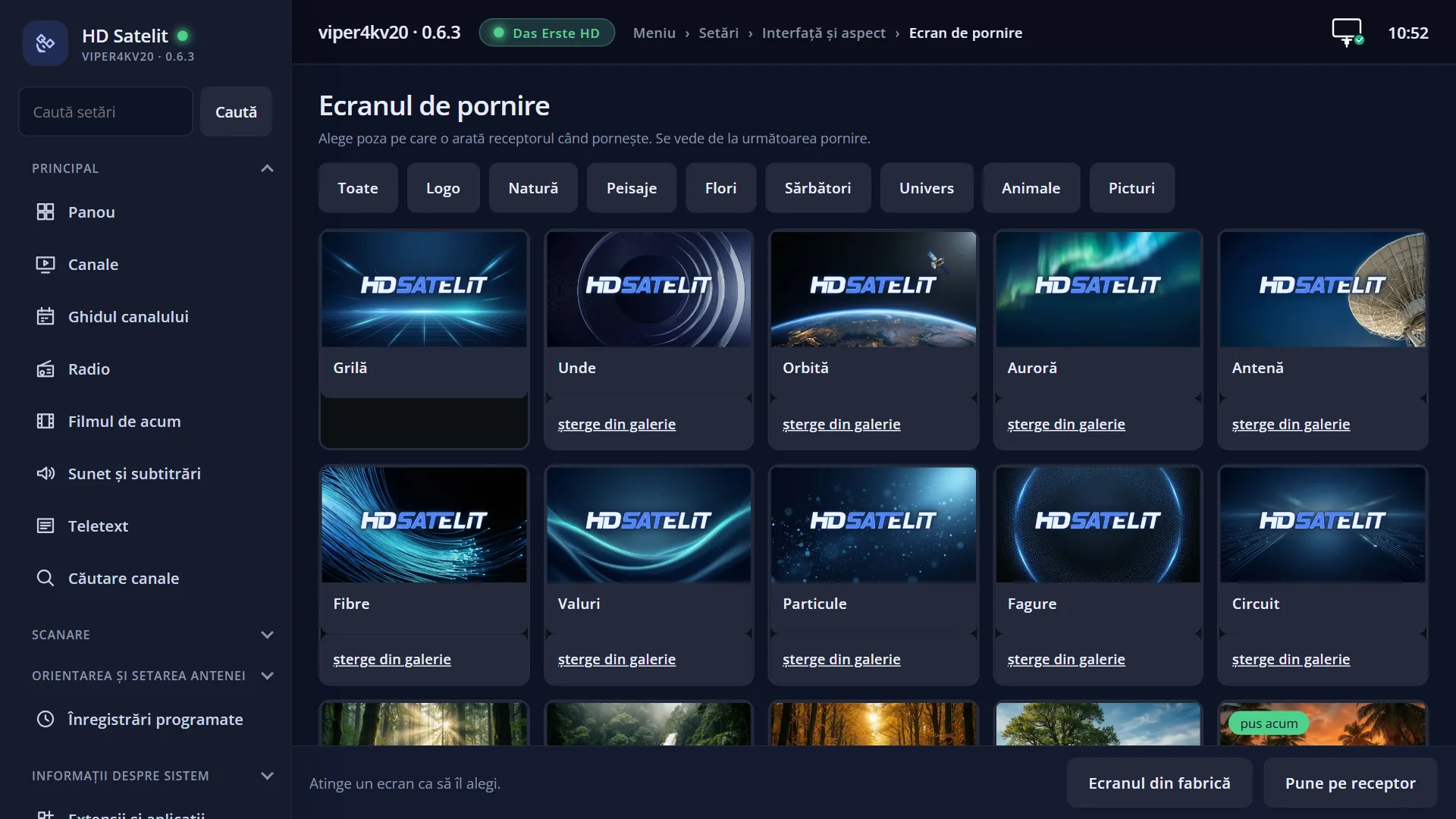
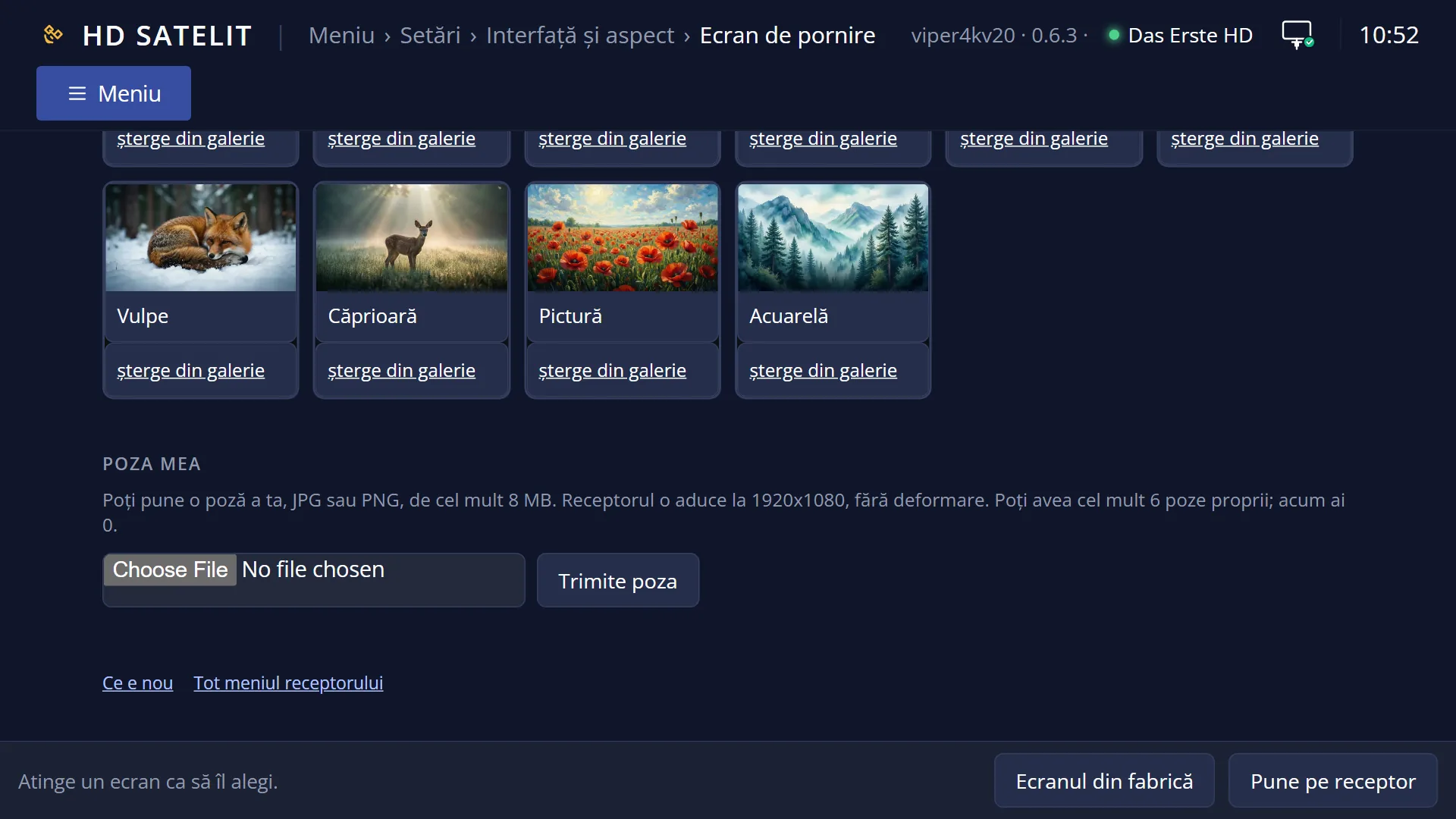
You choose the picture in Main menu > Settings > Interface & Appearance > Startup screen (MENU 6 6 UP OK) or in the web interface, on the /ecrane page.
You choose what starts after it in Main menu > Settings > Interface & Appearance > OSD Preferences, on the “What to show at startup” row.
What you see on the screen
The startup picture, full screen, with no text in it.
At the bottom centre, a dark, semi-transparent strip with the line “HD Satelit <version> · moneasoftware.com & hdsatelit.com”. The line disappears when the first screen of the interface appears.
Once the interface has started: the channel chosen under “What to show at startup”, or the channel list. The first time you start the receiver after an update, “What's new” opens by itself over the TV picture, with the changes in that version.
If the receiver has no channels, the message “No channel found. Go to Channel scan in the Menu.” appears and closes by itself after 10 seconds, followed by the empty channel list.
The first time the image starts (after a fresh flash, with no settings), the setup wizard opens instead of the channel.
Rows and settings
| Row | Values | Default | What it does |
|---|---|---|---|
| Startup picture | a picture from the gallery, a picture of your own (up to 6) | the gallery's default picture | The picture shown while the interface loads. You choose it in the “Startup screen” screen or on the /ecrane web page. When you want a different picture at startup. |
| What to show at startup (OSD Preferences) | Last channel watched, List of all satellites (also includes Cable/Terrestrial), Favourites, Radio, All channels | Last channel watched | Last channel watched: starts the channel you last watched straight away. The other options open the channel list on that group, so you can choose. If your choice leads to an empty list or to a channel that no longer exists (for example after a new scan), the receiver automatically tries the next one, in this order: last channel, satellites, all channels, Favourites, Radio. When you want to choose the channel each time, for example from a particular list. |
| Version line | “HD Satelit” with the image version, read from the receiver. It is not translated and cannot be turned off. If the version cannot be read, only the websites remain. |
Keys
| Any key (while the picture is showing) | Nothing: the interface has not started yet. Wait for the channel to appear. |
| OK or EXIT (on the “No channel found” message) | Close the message sooner. Otherwise it closes by itself after 10 seconds. |
| MENU 1 (after startup) | Opens Channel scan, when the receiver has no channels yet. |
Step by step
Changing the startup picture
- Press MENU 6 6, then UP and OK.
- Choose the picture and press GREEN.
- You will see the new picture at the next startup.
Choosing what starts after the picture
- Press MENU 6 6 5 (OSD Preferences).
- On the “What to show at startup” row, choose with LEFT and RIGHT, for example “Favourites”.
- Save with GREEN. The change takes effect from the next startup.
Problems and solutions
At startup the picture stays on screen for a long time and the channel is slow to appear.
The interface has a lot to load the first time it starts after an update or after you have installed many plugins. If it happens every time, look at System Information > What's new and at the receiver's logs.
No picture appears at startup, only a black screen.
Set the picture again in the “Startup screen” screen (for example BLUE, the default picture). If the image was written to a different receiver model from the one it was made for, the picture does not appear at all, and the receiver tells you why at startup.
After startup I see “No channel found. Go to Channel scan in the Menu.”
The receiver has no channels. Press MENU 1 (Channel scan) or bring in the channels from a copy on a USB stick (Channel scan > Import channels and settings).
At startup the channel list opens instead of a channel.
Either “What to show at startup” is not set to “Last channel watched”, or the last channel no longer exists after a scan. Choose a channel from the list. Next time, that channel starts.
I set a new picture, but the old one still appears at startup.
In the “Startup screen” screen, check that your picture has the “in use” label. After an image update, the receiver automatically puts back the picture you chose.
The version line shows an old version after an update.
The update did not finish or was not installed. See Menu > System Information > About the image and try the update again.