

Volume and delay
English screenshots coming: some of the pictures below still show the receiver and the web interface in Romanian. The rows, keys and steps described on this page are the English ones.
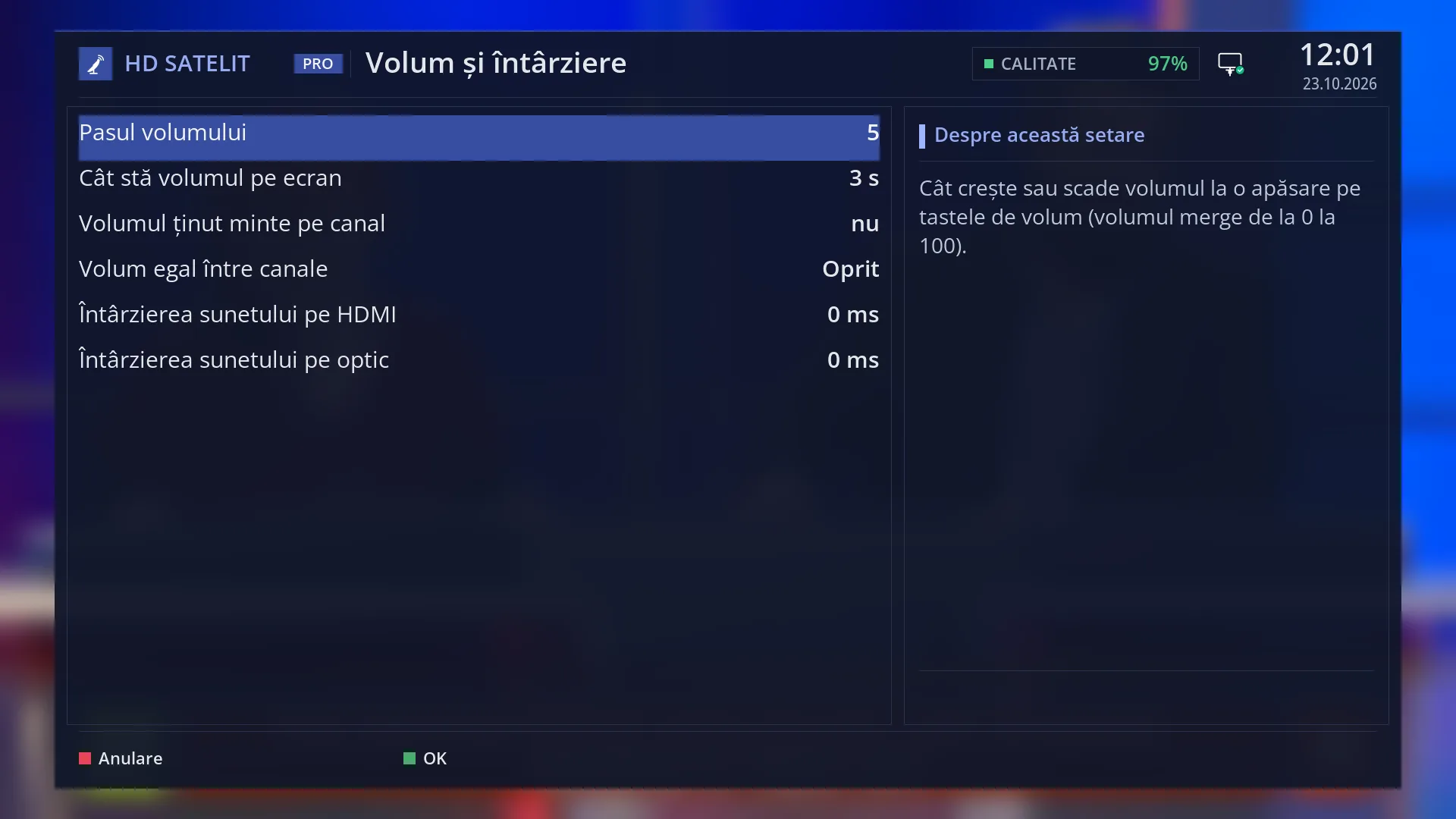
- 1 The volume step and how long the volume bar stays on screen.
- 2 The volume remembered per channel and even volume across channels.
- 3 The sound delay on HDMI and on the optical output.
- 4 The explanation of the selected row.
- 5 RED closes without saving, GREEN saves.
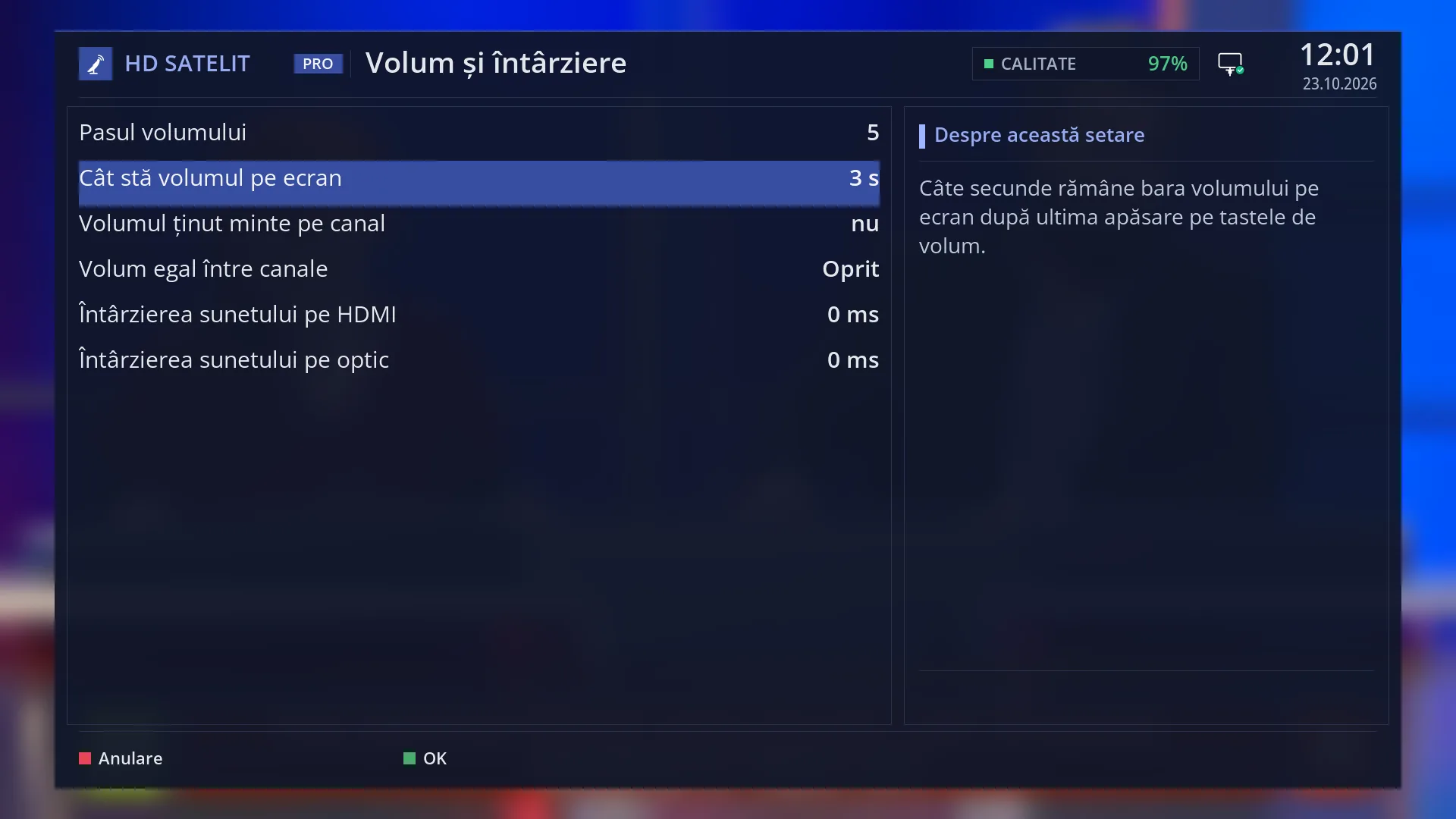
- 1 The selected row: “How long the volume stays on screen: 3 s”.
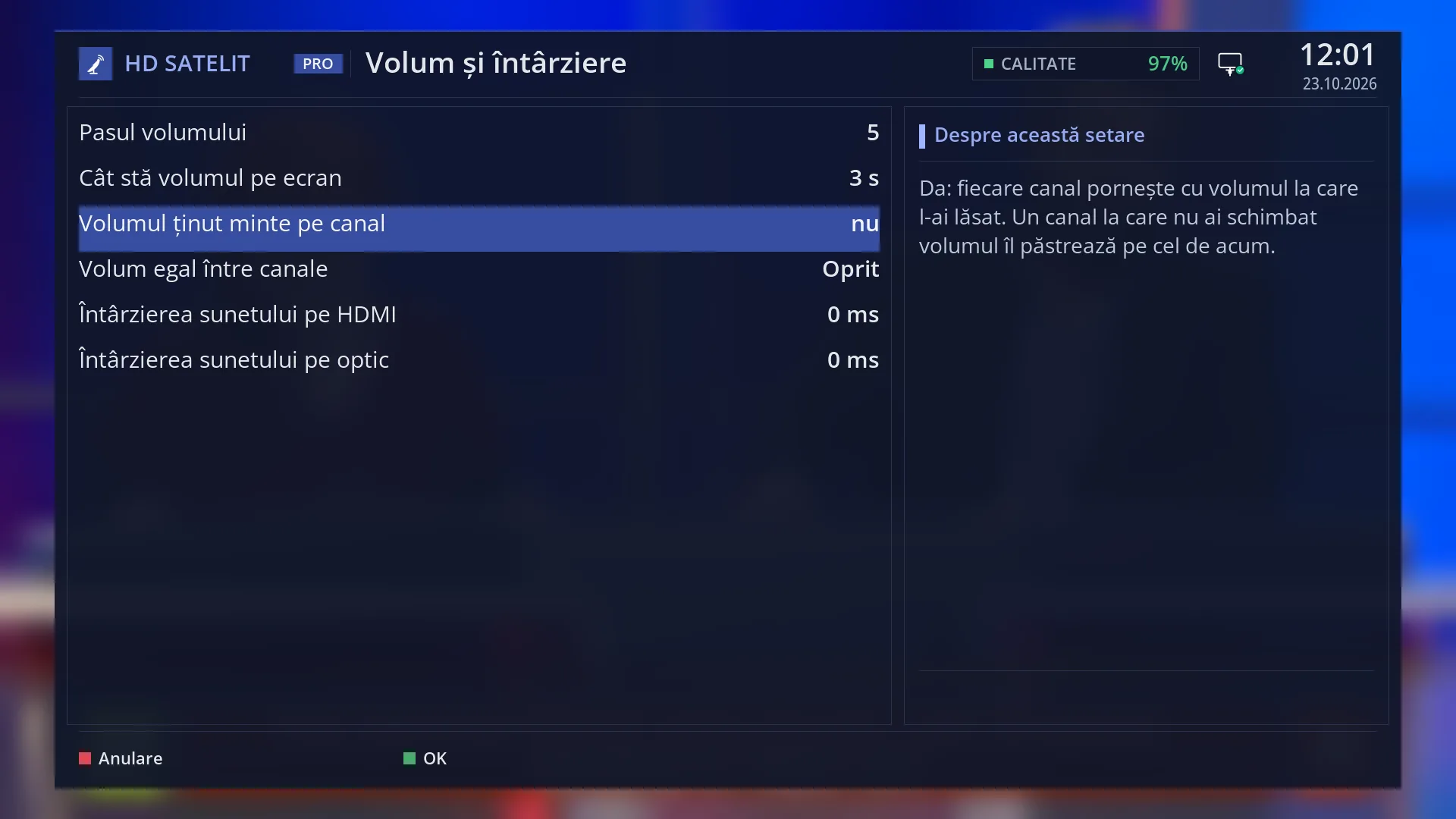
- 1 Yes: each channel starts with its own volume.
- 2 The explanation of the selected row.
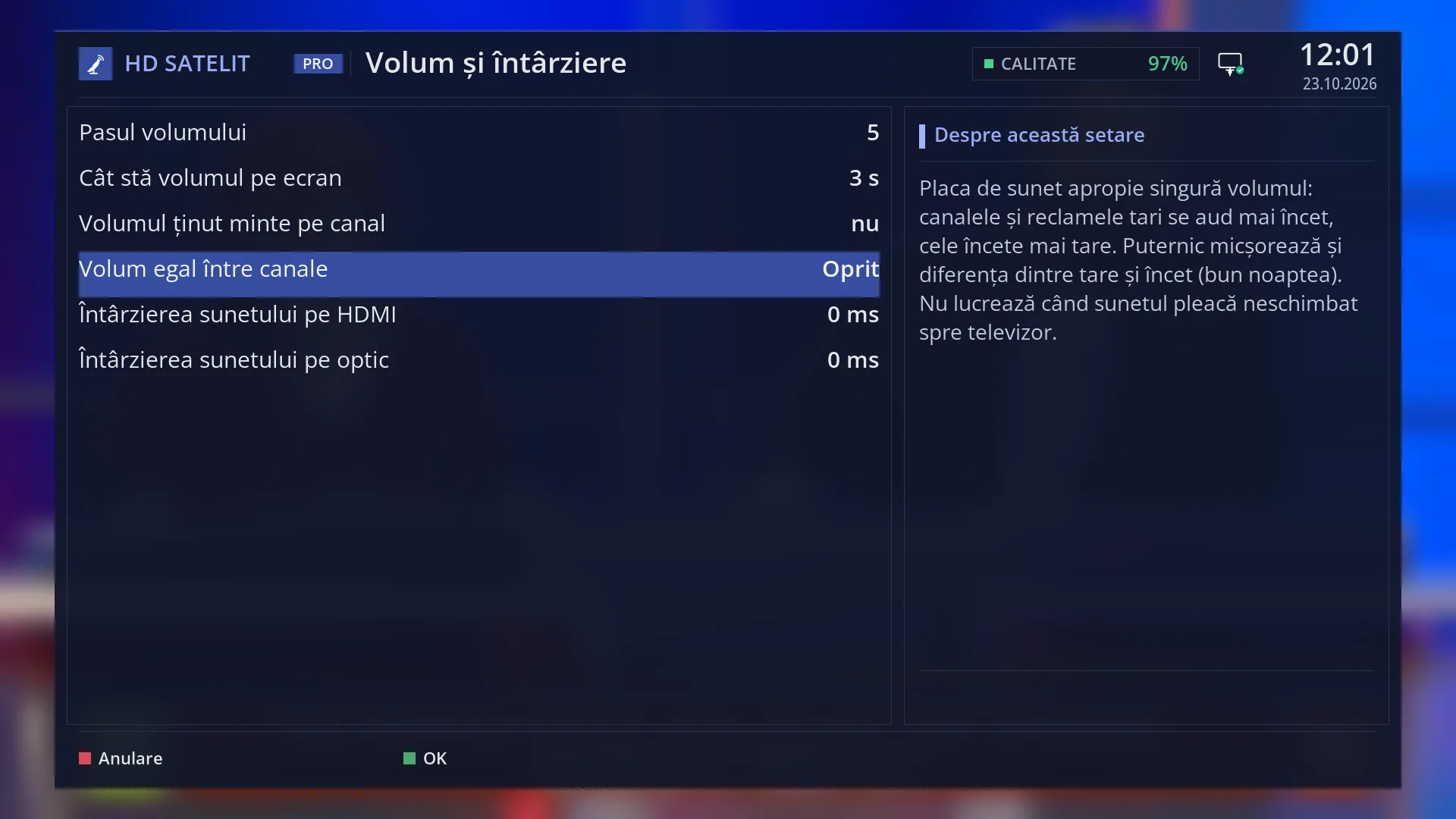
- 1 Off, Light or Strong.
- 2 What it does and when it doesn't work (sound passed through unchanged).
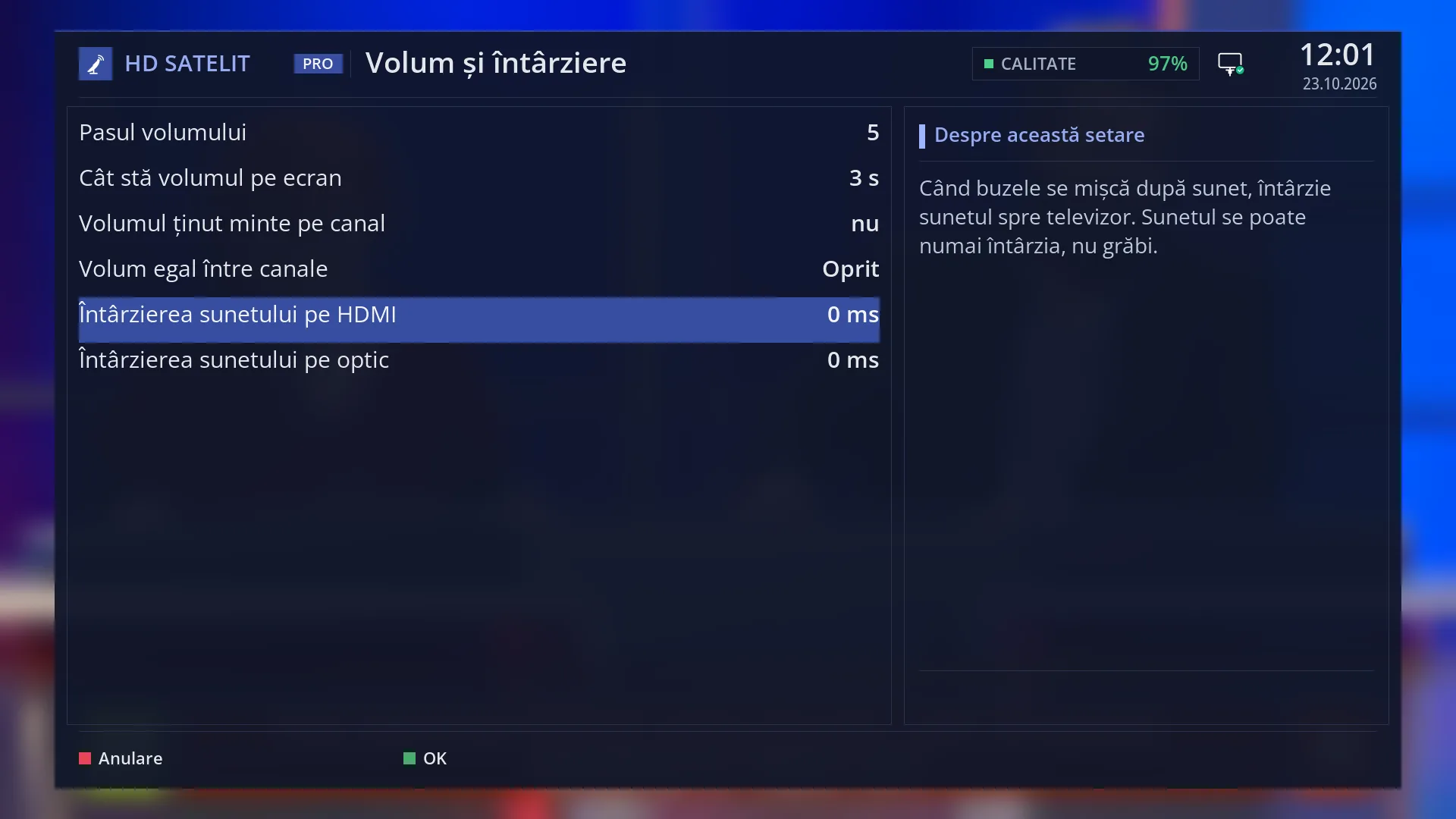
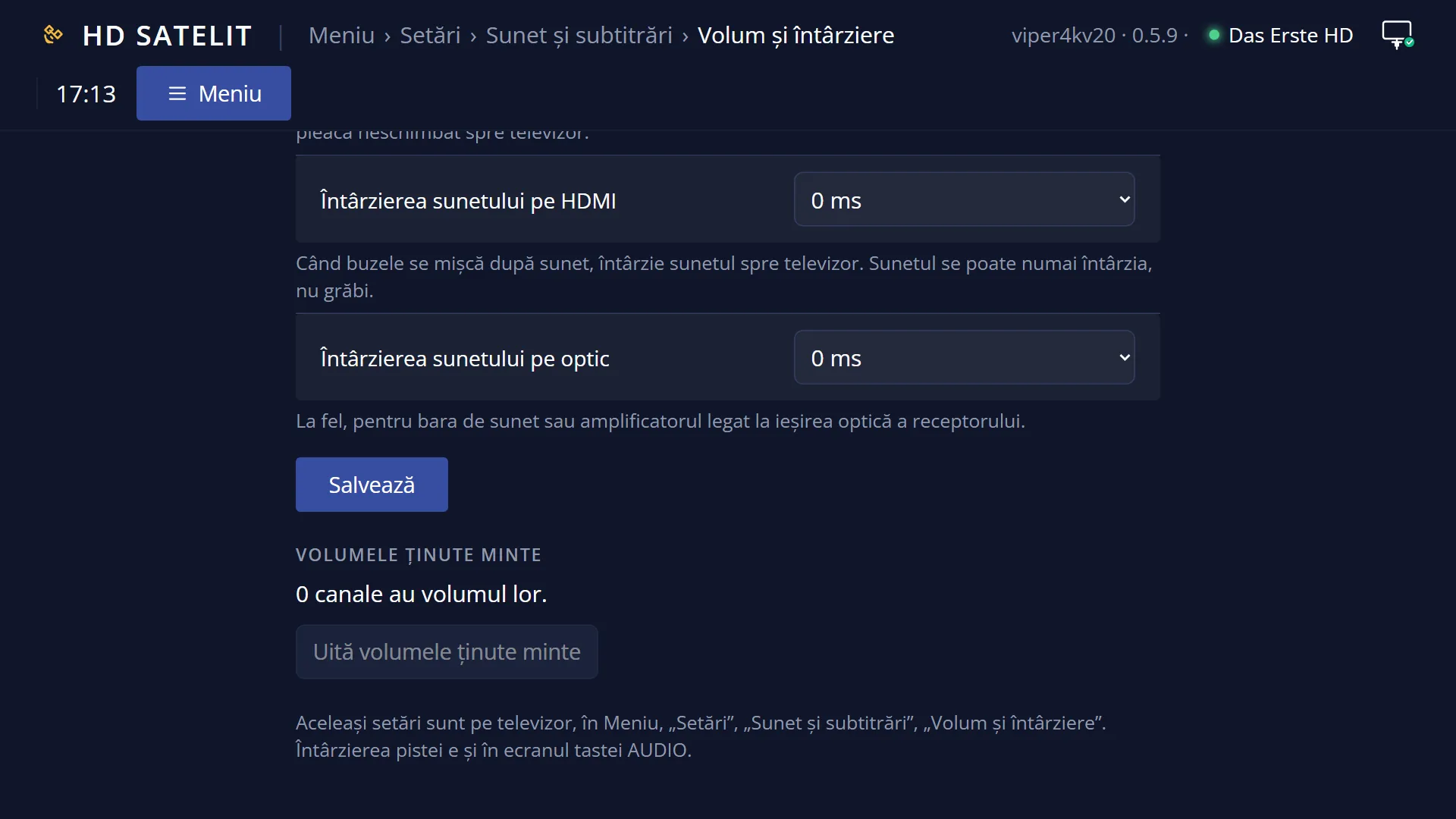
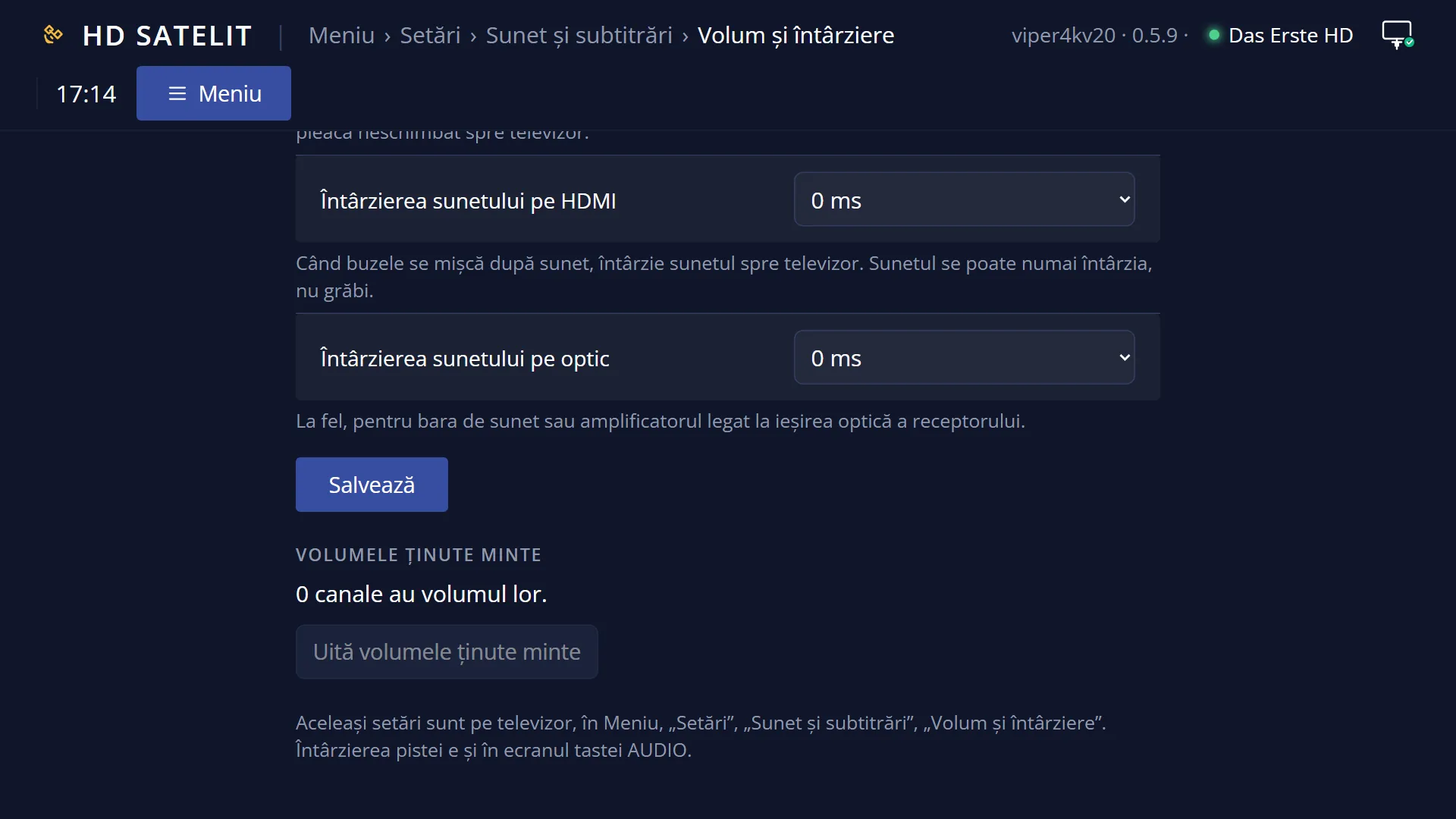
- 1 The selected row: “Sound delay on HDMI: 0 ms”.
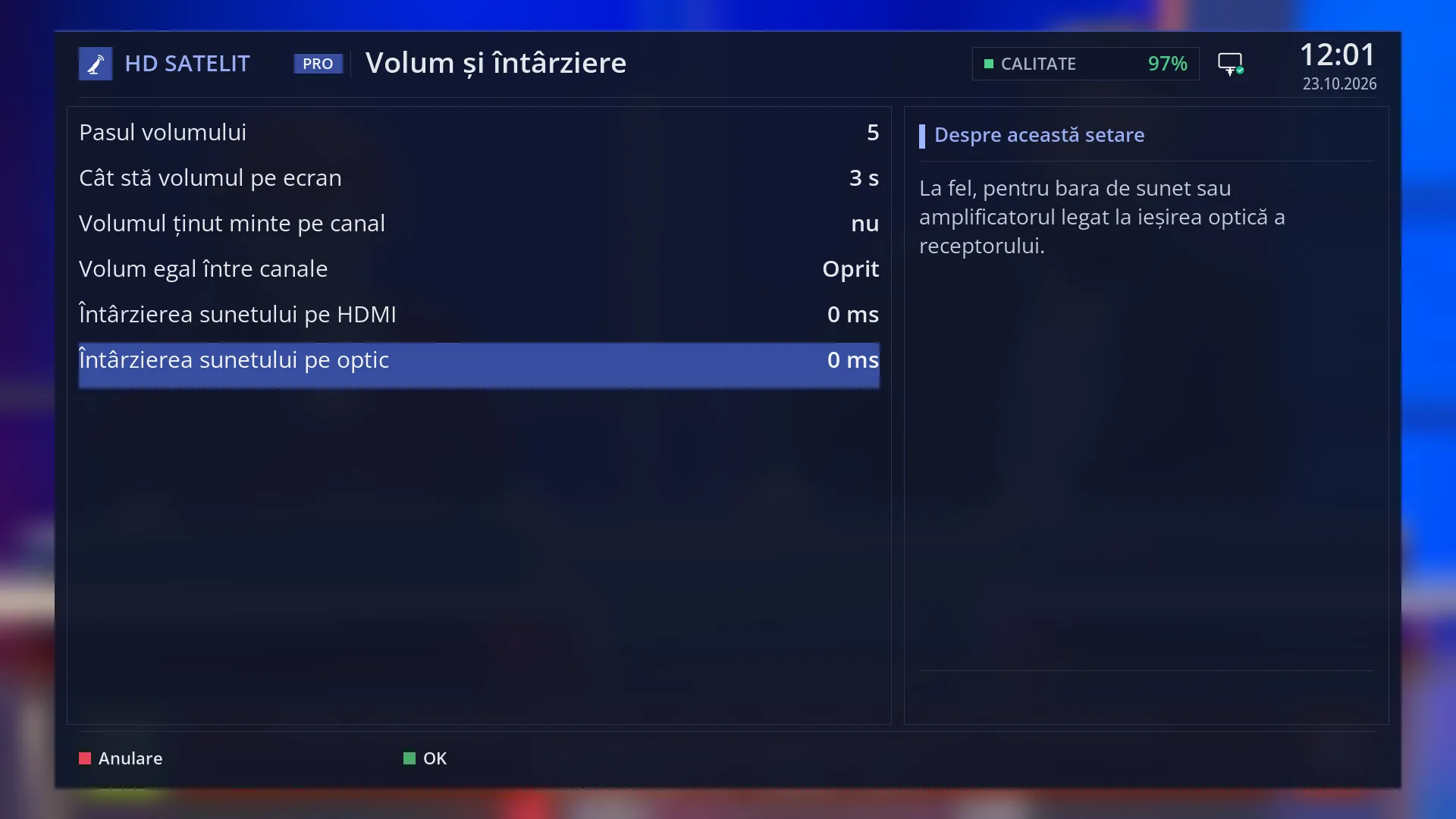
- 1 The selected row: “Sound delay on optical: 0 ms”.
What it is for
The “Volume and delay” screen sets how the receiver's volume behaves and keeps the sound in step with the picture.
The volume step sets how much the volume goes up or down with each press, and the volume bar can stay on screen for a longer or shorter time.
With the volume remembered per channel, each channel starts at the volume you left it at. “Even volume across channels” evens out the volume of channels and adverts by itself, so you don't have to reach for the remote every time you switch.
The sound delay fixes lips that move after the sound. You set it separately for the TV connected by HDMI and for the soundbar or amplifier connected to the optical output.
Out of the box, everything is off or at the usual factory values: step 5, bar for 3 seconds, no per-channel volume, no even volume, no delay.
How to get here
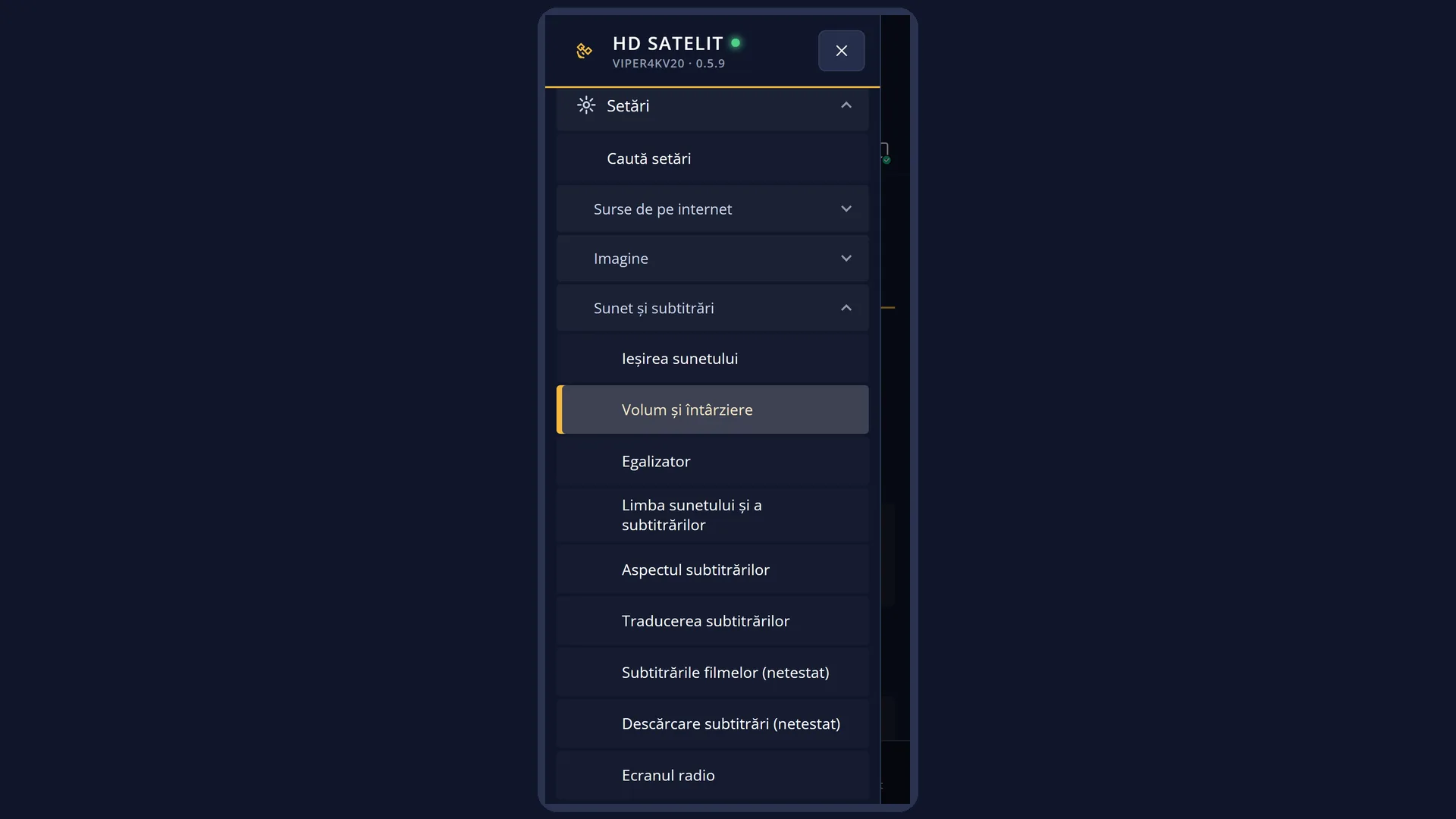
Path: Main menu > Settings > Audio & Sound Tracks > Volume and delay.
Keys on the remote: MENU 6 4 2.
From any menu: the TTX key (shown on screen as TEXT) opens “Search settings”; type “Volume” or “Delay”.
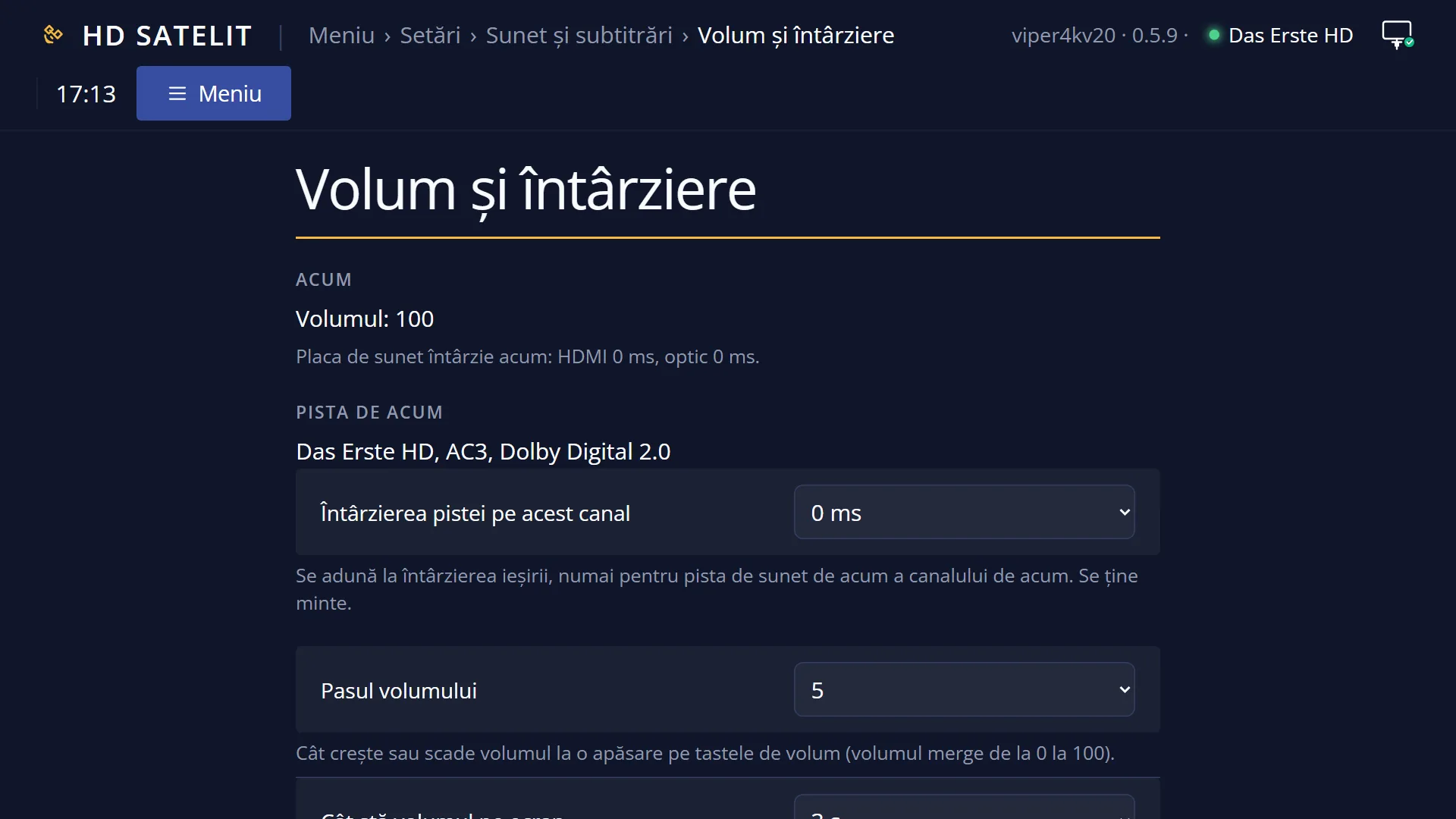
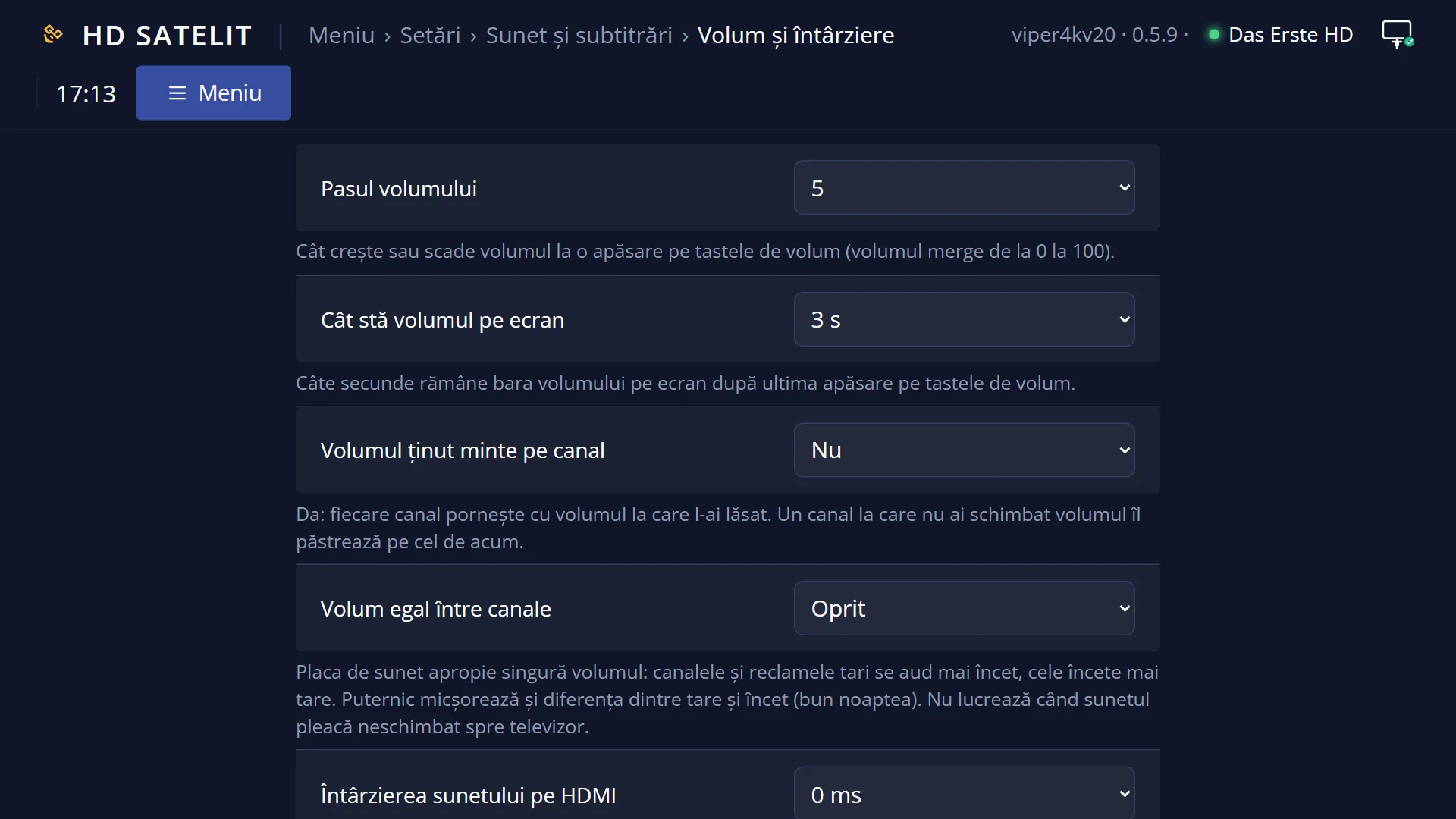
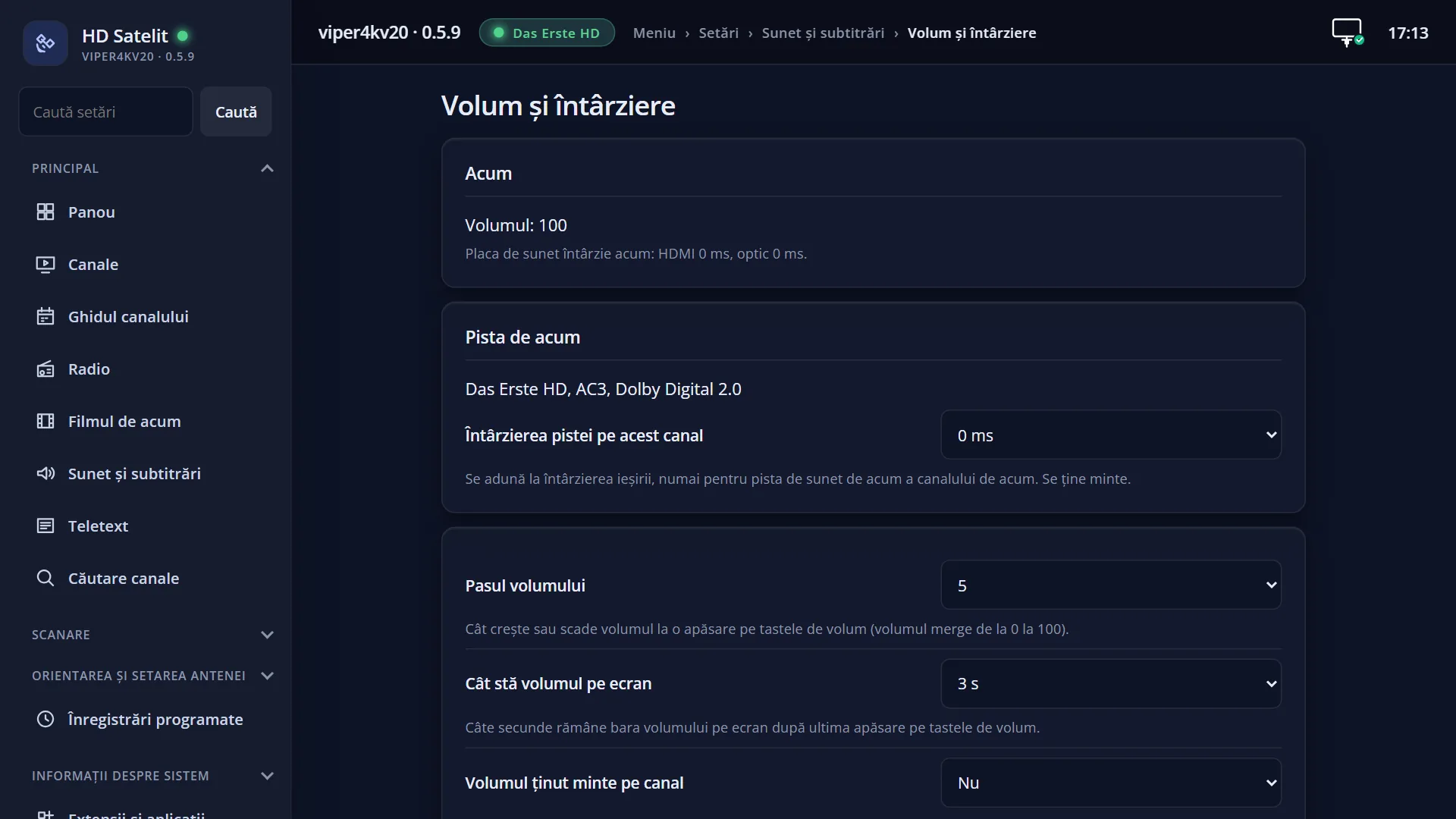
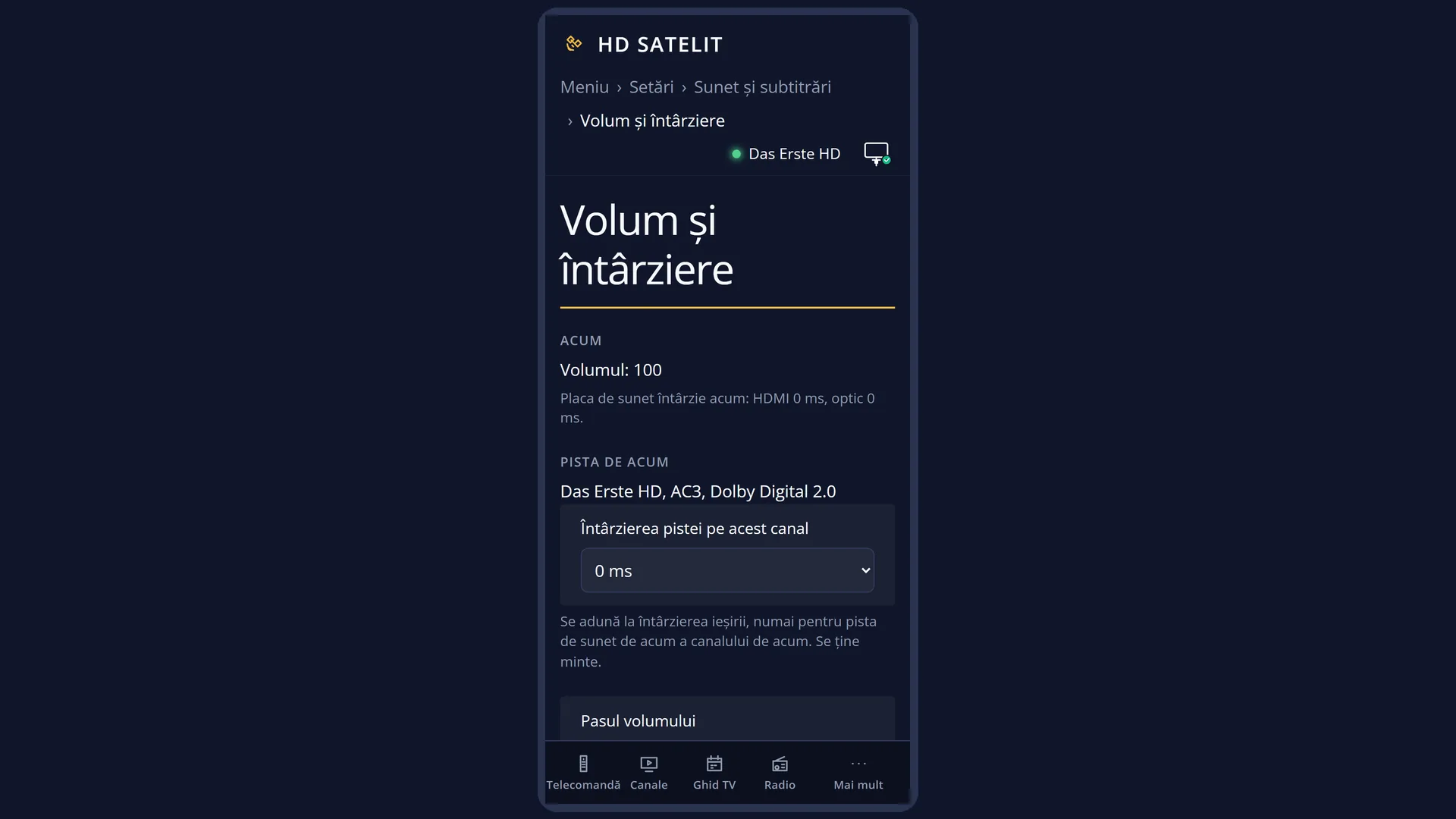
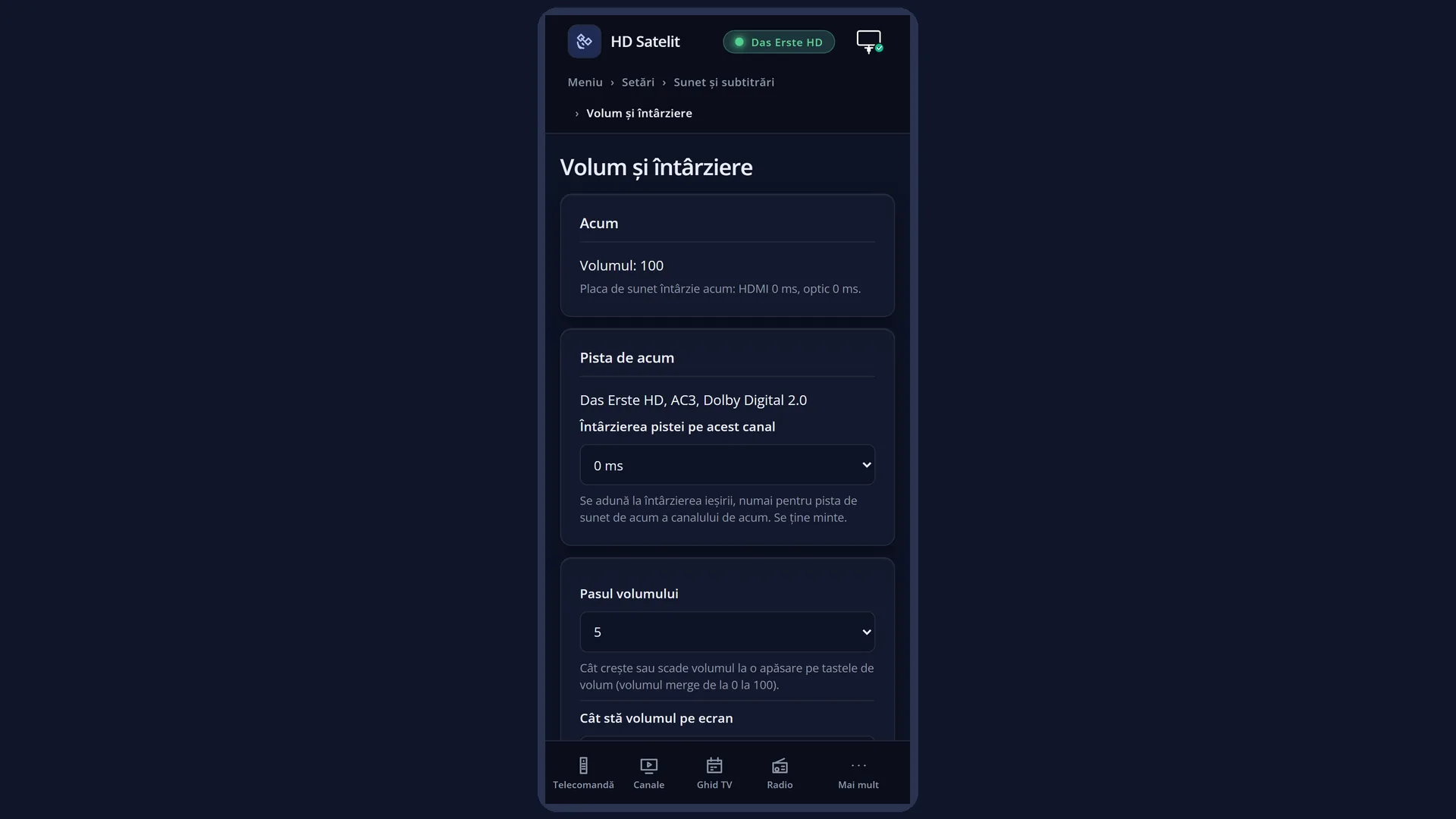
In the web interface: the /volum-intarziere page, with the same rows plus the current volume, the delay the sound chip is using, the current track and the remembered volumes.
What you see on the screen
At the top, the screen title: “Volume and delay”.
On the left, the rows: “Volume step”, “How long the volume stays on screen”, “Volume remembered per channel”, “Even volume across channels”, “Sound delay on HDMI” and “Sound delay on optical”, each with its value on the right.
On the right, the “About this setting” box explains the row the cursor is on.
At the bottom, the colour keys: RED “Cancel” and GREEN “OK”.
The even volume row and the two delay rows only appear if the receiver's sound chip supports them. The Amiko Viper 4K V20 does.
Rows and settings
| Row | Values | Default | What it does |
|---|---|---|---|
| Volume step | 1, 2, 3, 4, 5, 6, 7, 8, 9, 10 | 5 | How much the volume goes up or down with each press of the volume keys. The volume runs from 0 to 100, so with step 5 you go from zero to maximum in 20 presses, and with step 1 in 100. Choose a small step (1-3) if the volume jumps too much with one press, or a large one (8-10) if you want to reach the volume you want quickly. |
| How long the volume stays on screen | 1 s, 2 s, 3 s, 4 s, 5 s, 6 s, 7 s, 8 s, 9 s, 10 s | 3 s | How many seconds the volume bar stays on screen after the last press of the volume keys. Longer if you don't have time to read the volume, shorter if the bar gets in the way. |
| Volume remembered per channel | yes, no | no | Yes: each time you change the volume, the receiver remembers it for the current channel, and the channel starts at that volume next time. A channel where you haven't changed the volume keeps the current volume. No: the volume is the same on all channels. When some channels are always louder or quieter than others and you want to set each channel just once. |
| Even volume across channels | Off, Light, Strong | Off | The sound chip evens out the volume by itself: loud channels and adverts sound quieter, quiet ones louder. Light evens out the volume gently. Strong also reduces the difference between the loud and quiet parts of the same programme. It does not work when the sound is passed through unchanged (AC3, 5.1) to the TV or amplifier. Light when adverts are much louder than programmes. Strong late in the evening, when you don't want explosions in a film to wake anyone up but still want to hear the dialogue. |
| Sound delay on HDMI | 0 ms, 10 ms, 20 ms, ..., 500 ms | 0 ms | Delays the sound sent over HDMI to the TV, in steps of 10 milliseconds, up to 500 ms (half a second). The sound can only be delayed, not brought forward. When lips move after the sound: the sound arrives before the picture. Increase it a little at a time until they match. |
| Sound delay on optical | 0 ms, 10 ms, 20 ms, ..., 500 ms | 0 ms | The same, for the soundbar or amplifier connected to the receiver's optical output. When you listen through a soundbar connected by optical cable and its sound arrives before the picture. |
Keys
| UP / DOWN | Move the cursor to another row; its explanation appears on the right. |
| LEFT / RIGHT | Change the value of the row. For the delays, each press means 10 ms; if you hold the key down, the value keeps changing. |
| GREEN (OK) | Saves all rows and closes the screen. |
| RED (Cancel) or EXIT | Closes without saving. If you have changed anything, it first asks “Really close without saving settings?”; with Yes everything goes back to how it was, including the delay. |
| OK | Does nothing on these rows: you change the values with LEFT / RIGHT. |
Step by step
Matching the sound to the lips
- Switch to a channel where someone is speaking on screen, for example the news.
- Press MENU 6 4 2, then DOWN 4 times, to “Sound delay on HDMI” (or DOWN once more for optical, if you listen through a soundbar).
- Press RIGHT a little at a time (40-80 ms at once) and listen: you hear the delay straight away.
- When the lips and the sound match, press GREEN.
Each channel with its own volume
- Press MENU 6 4 2, then DOWN twice, to “Volume remembered per channel”.
- Press RIGHT so that “yes” appears, then GREEN.
- From now on, you set the volume once on each channel; the receiver sets it by itself next time.
Stopping adverts from being louder
- Press MENU 6 4 2, then DOWN 3 times, to “Even volume across channels”.
- Press RIGHT until “Light” (or “Strong” for the evening), then GREEN.
Problems and solutions
“Even volume across channels” makes no difference.
It does not work when the sound is passed through unchanged (AC3, 5.1) to the TV or amplifier. Check “Sound Output & Downmix” (MENU 6 4 1): when the receiver converts the sound to stereo, even volume works.
The sound arrives after the picture (the words lag behind the lips).
The receiver can only delay the sound, not bring it forward. Set the delay back to 0 ms; if the sound is still behind the picture, the delay comes from the TV or the soundbar (look for a sync setting on them).
I set a delay and it is still out of sync on just one channel.
On that channel, press AUDIO: the “Track delay on this channel” row (from −250 to +250 ms) is added to the delay set here, only for that channel's current audio track, and it is remembered.
A channel starts with the volume too low or too high.
With “Volume remembered per channel” set to yes, the channel starts at the volume you last left it at. Set it once on that channel. On the /volum-intarziere web page, the “Forget the remembered volumes” button deletes them all.
The web page says “A screen with the sound settings is open on the TV”.
While the “Volume and delay” screen or the AUDIO key screen is open on the TV, the web page changes nothing, so that the two don't clash. Close the screen on the TV, then try again.
I can't see the “Even volume across channels” row or the delay rows.
They only appear if the receiver's sound chip supports them. On the Amiko Viper 4K V20 they are all there.
Related topics
- Audio & Sound Tracks (the menu it opens from)
- Sound Output & Downmix (AC3, DTS, stereo)
- Equalizer (for radio stations)
- The matching web page: /volum-intarziere.
Differences between receivers
The “Even volume across channels”, “Sound delay on HDMI” and “Sound delay on optical” rows are only shown on receivers whose sound chip supports them. The Amiko Viper 4K V20, currently the only receiver, supports them all.