

Front display
English screenshots coming: some of the pictures below still show the receiver and the web interface in Romanian. The rows, keys and steps described on this page are the English ones.
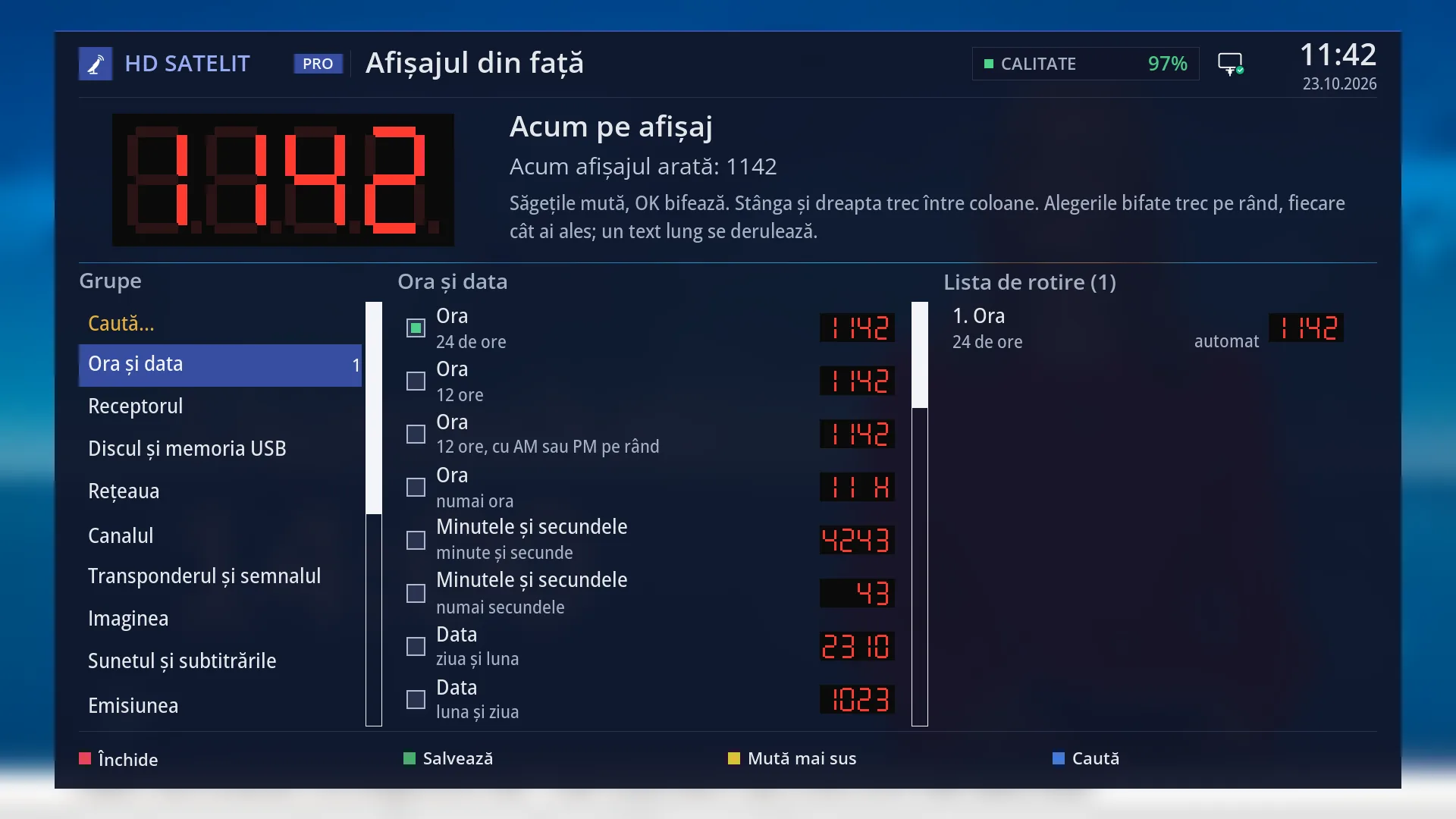
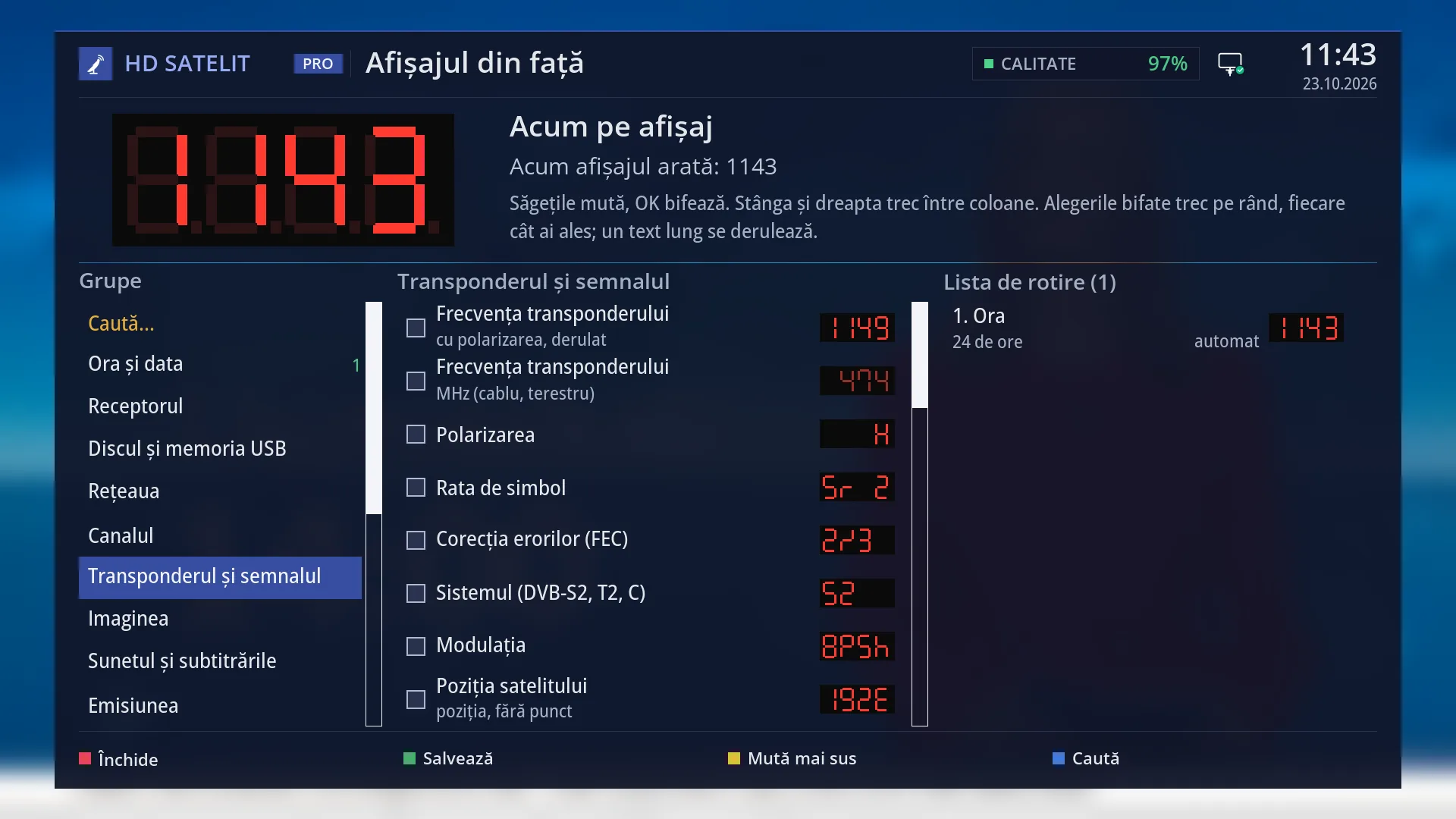
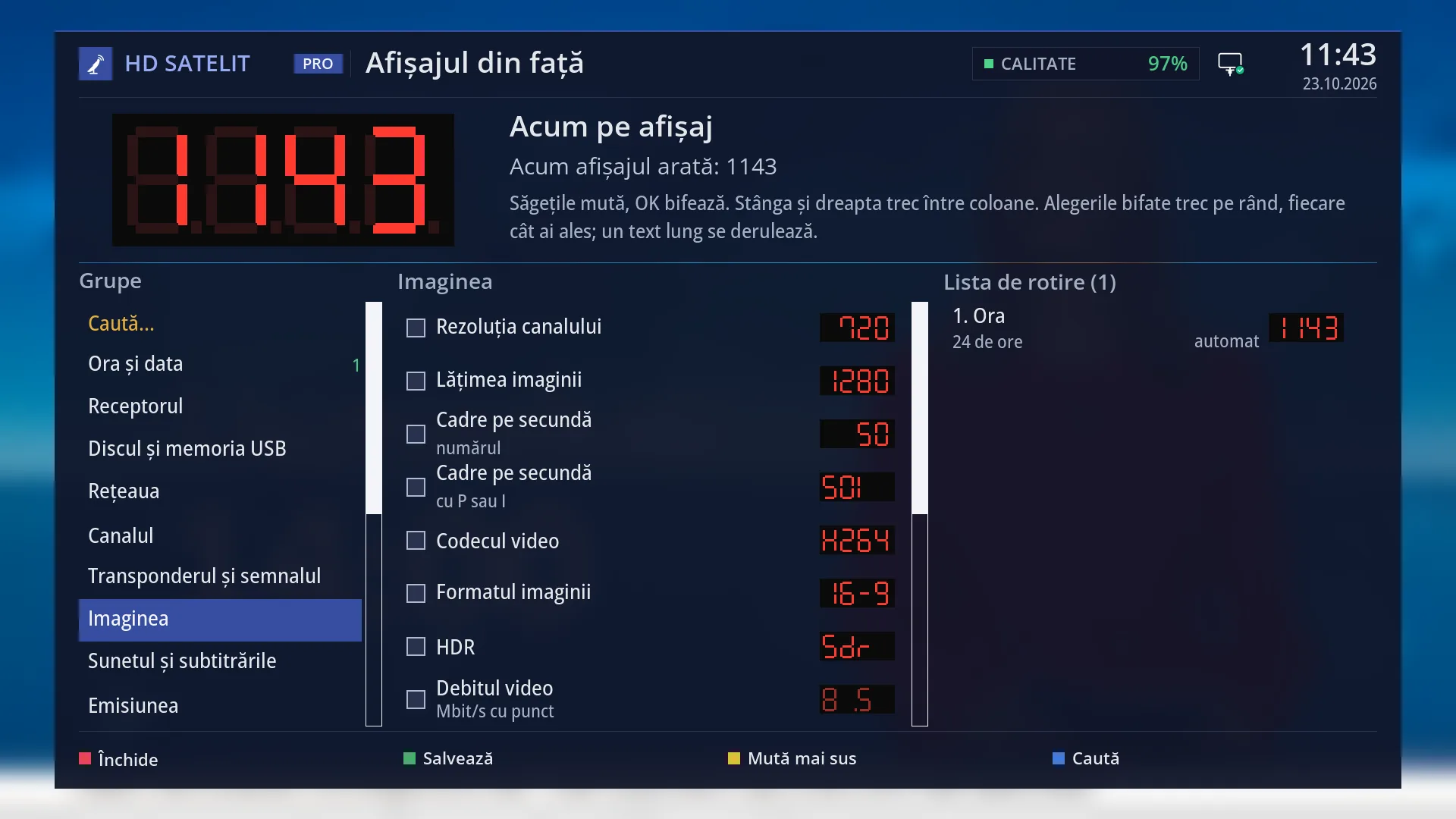
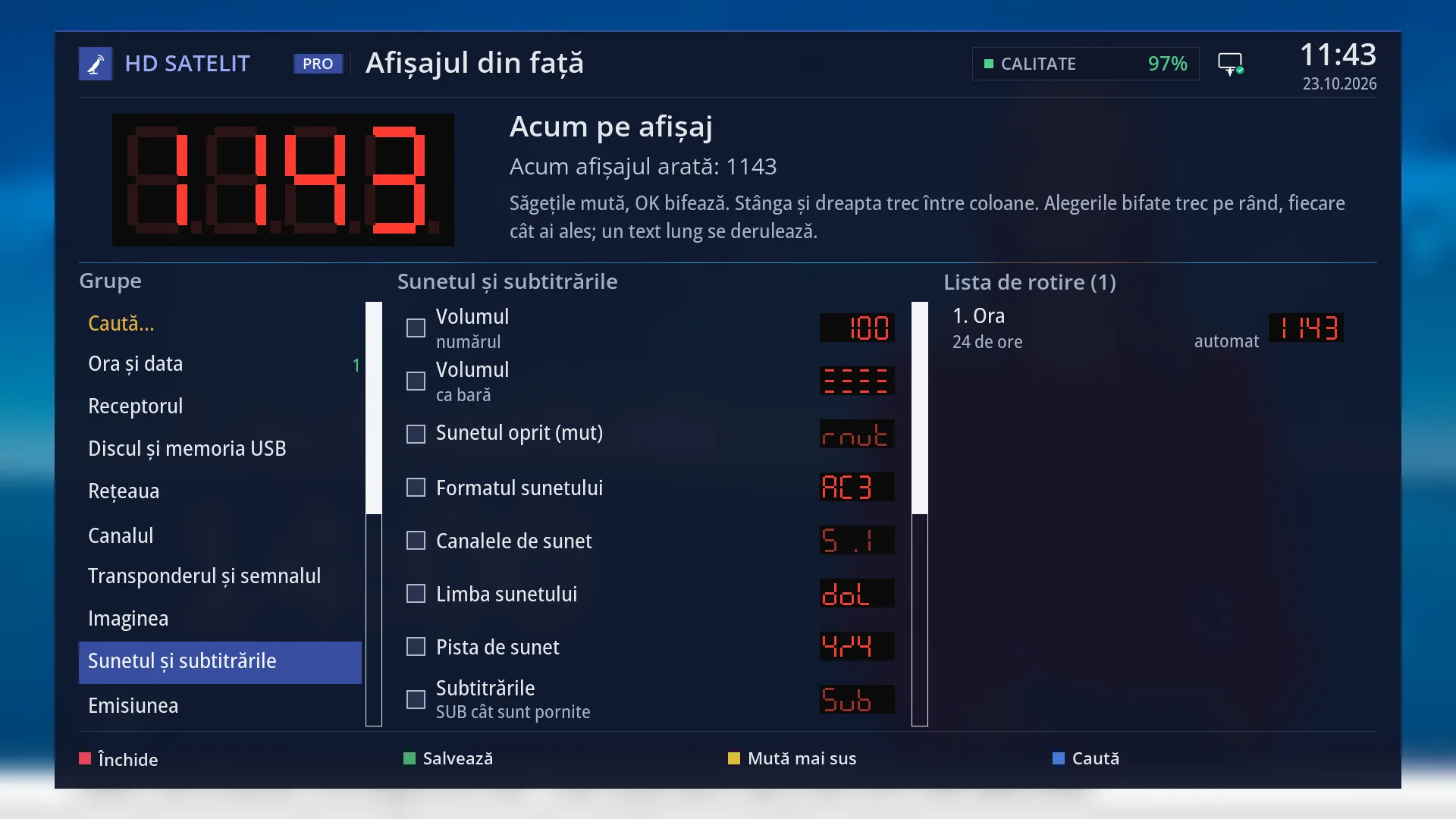
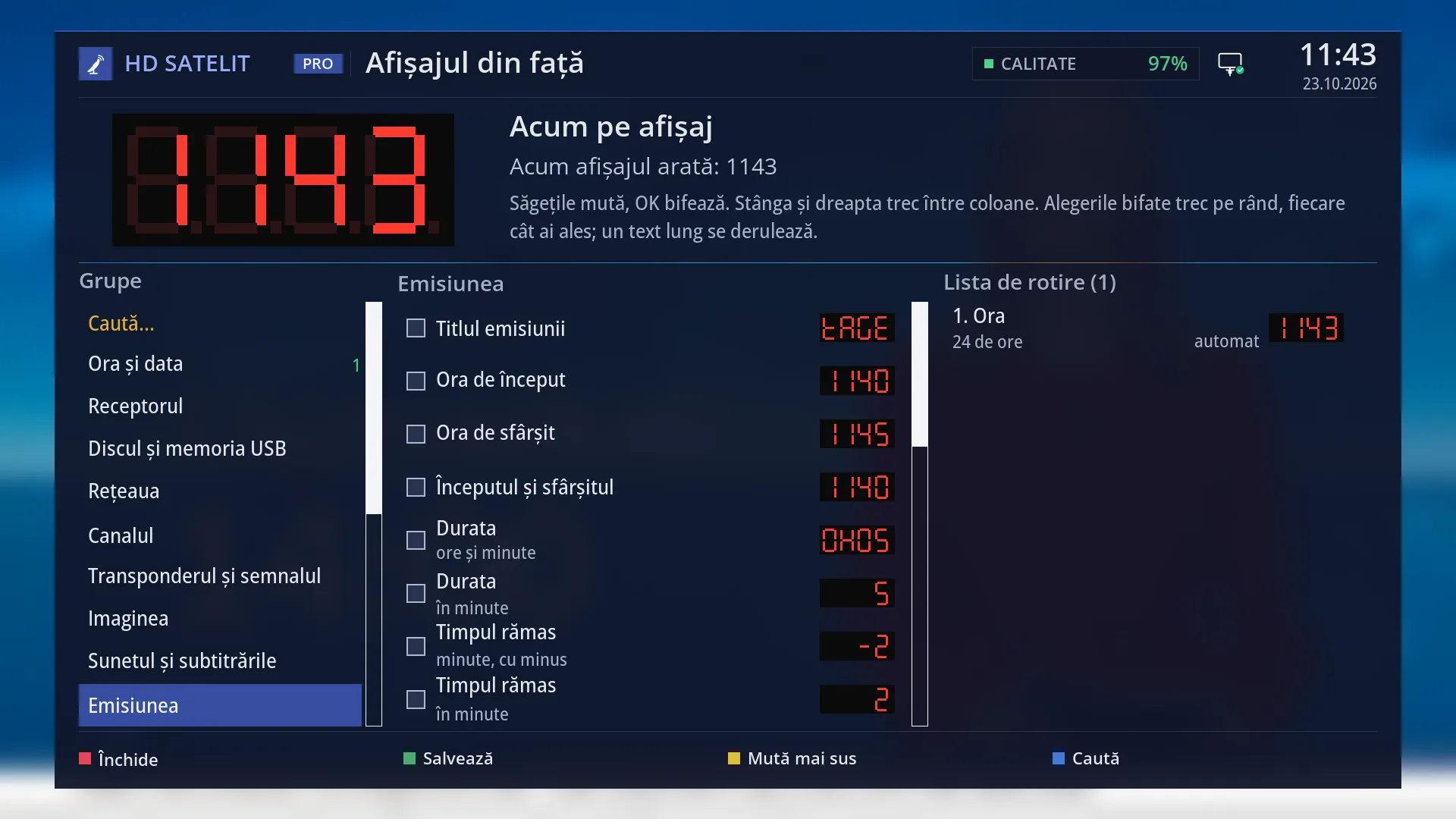
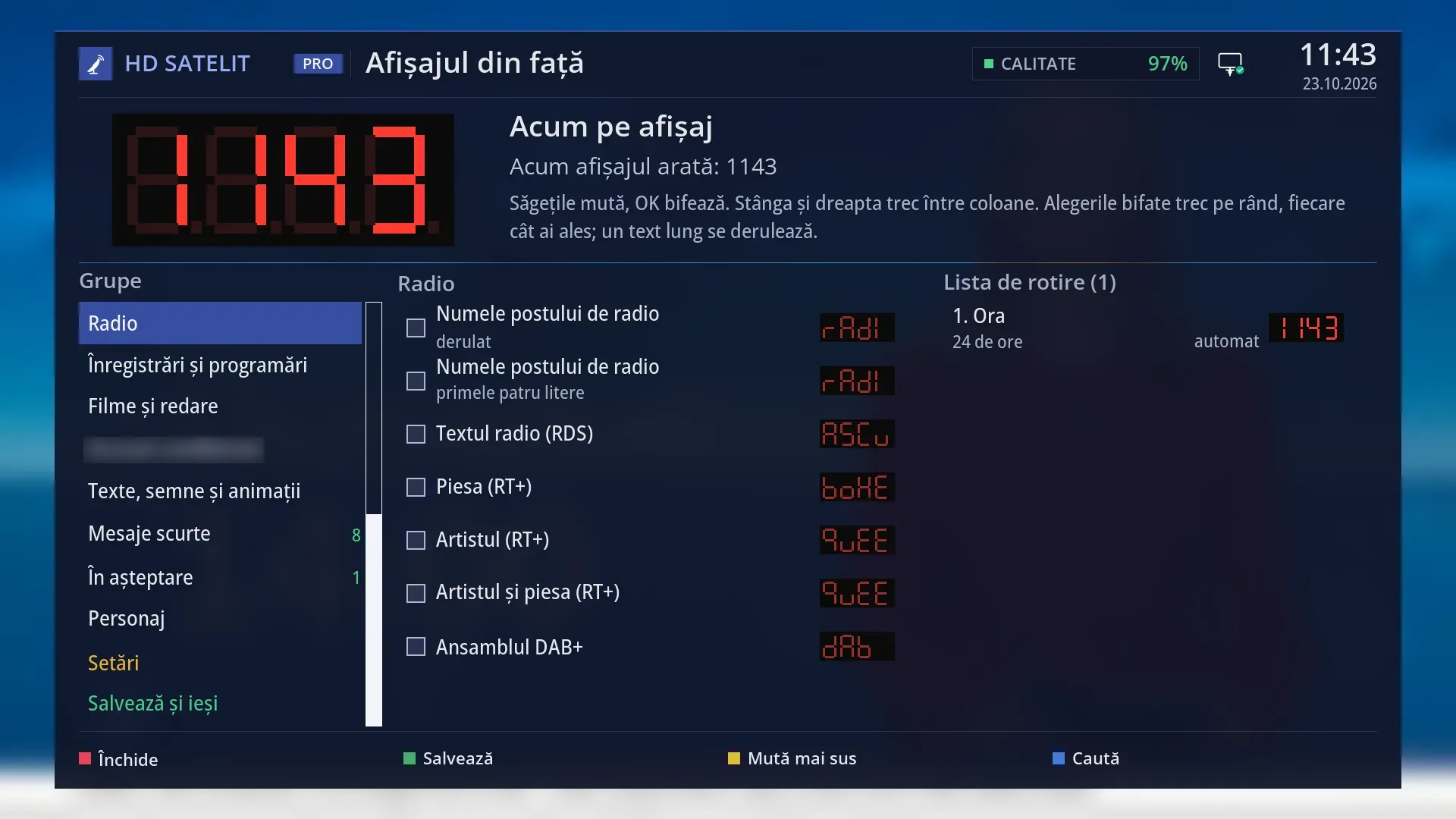
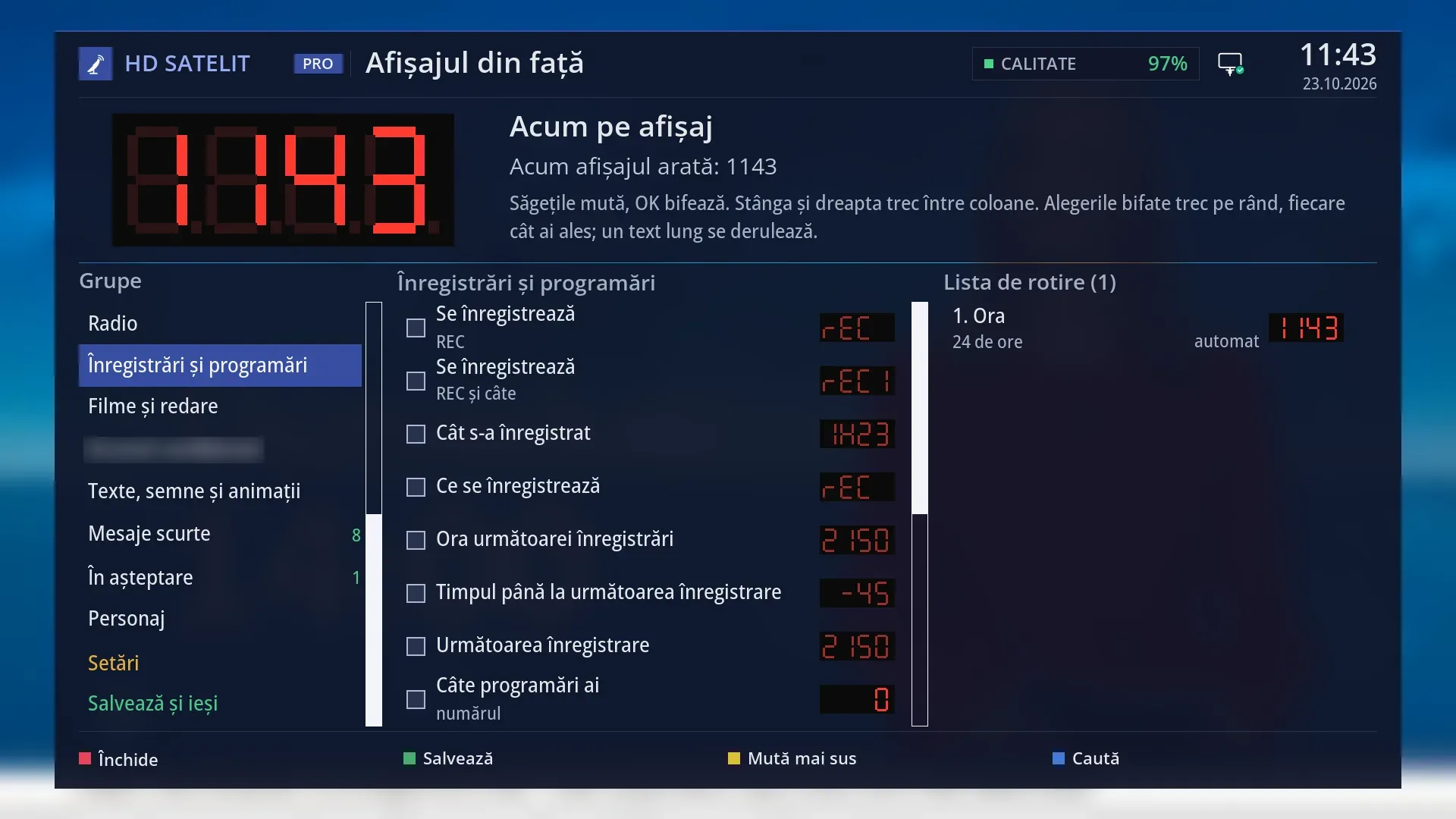
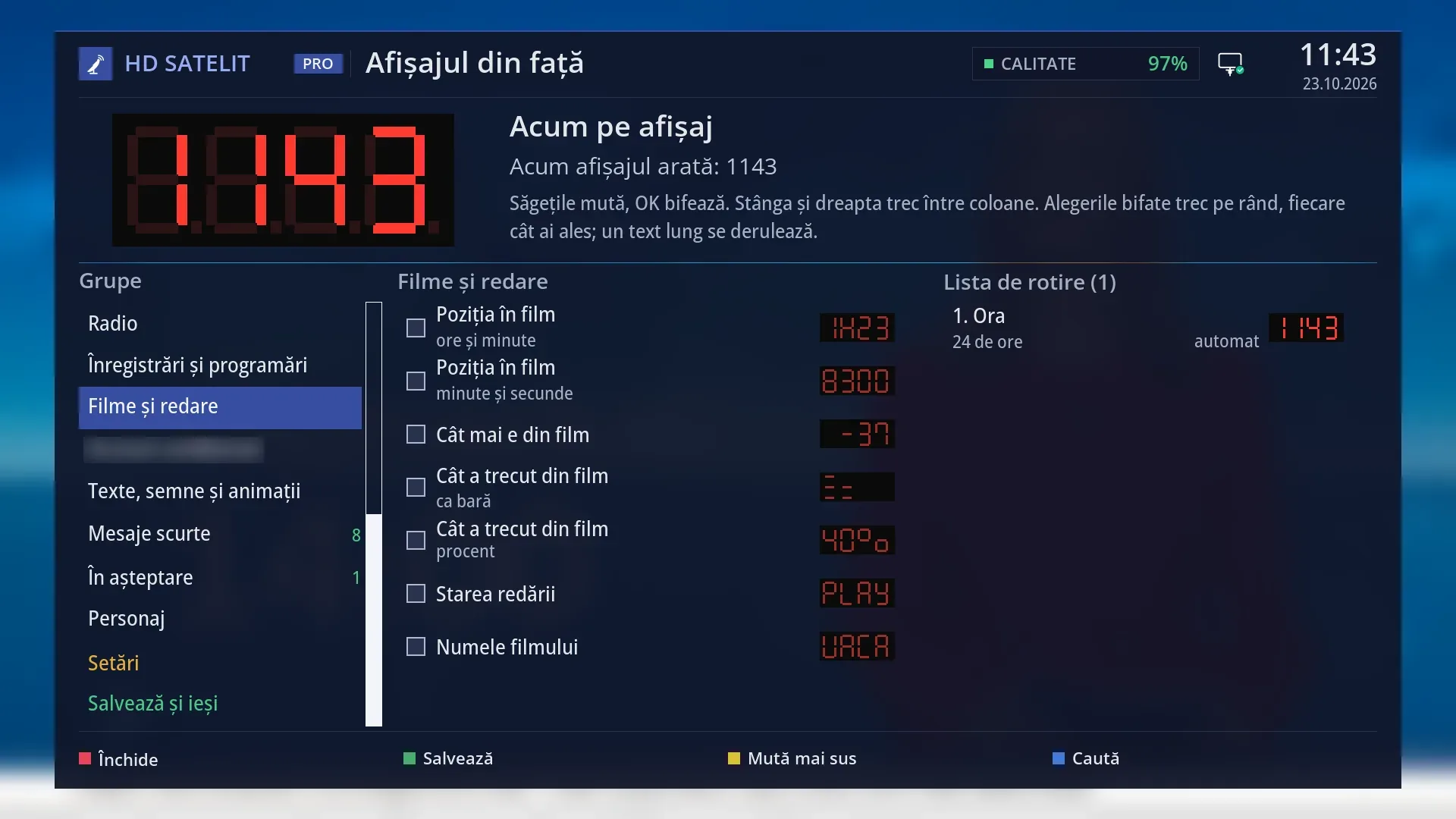
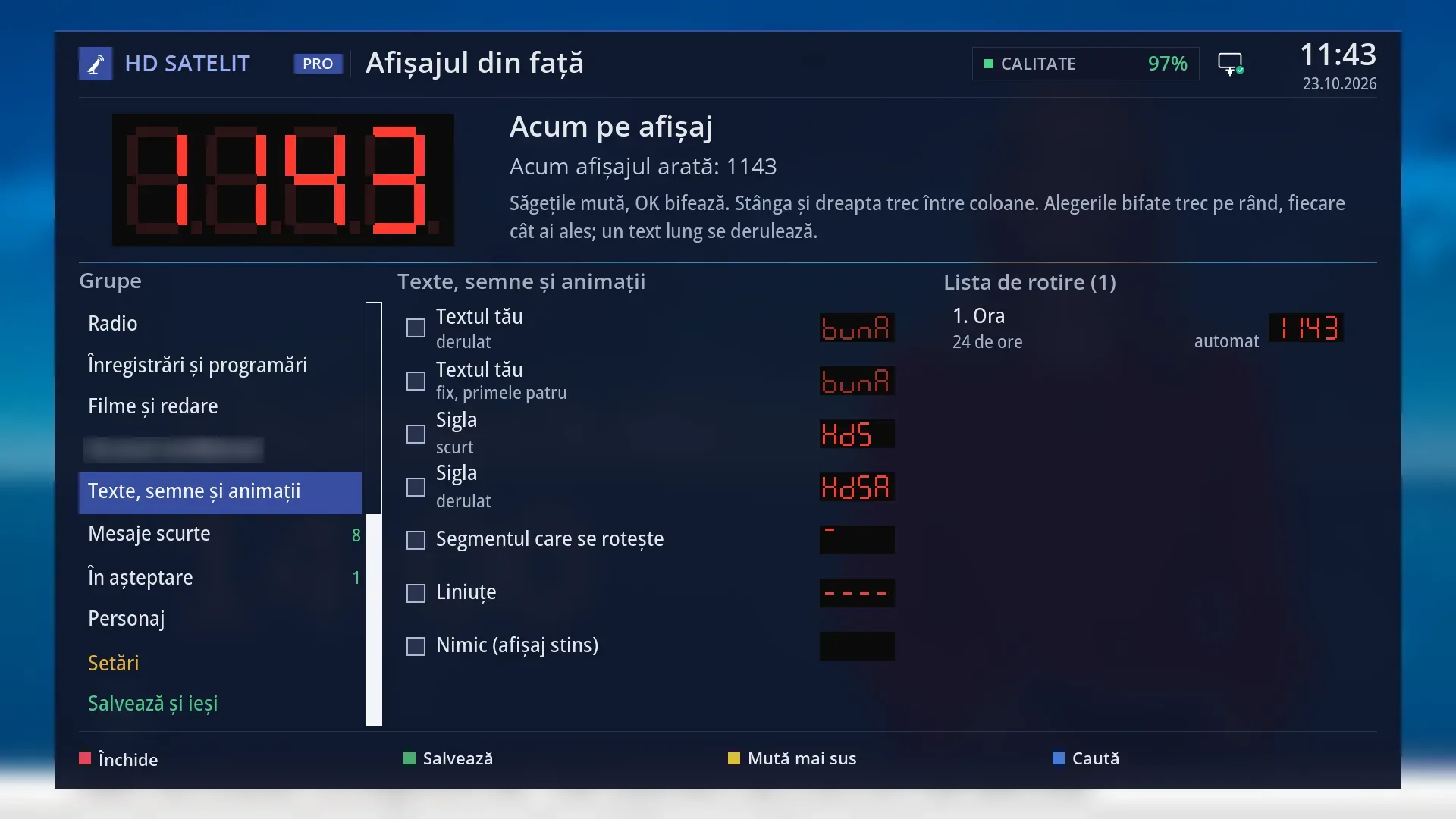
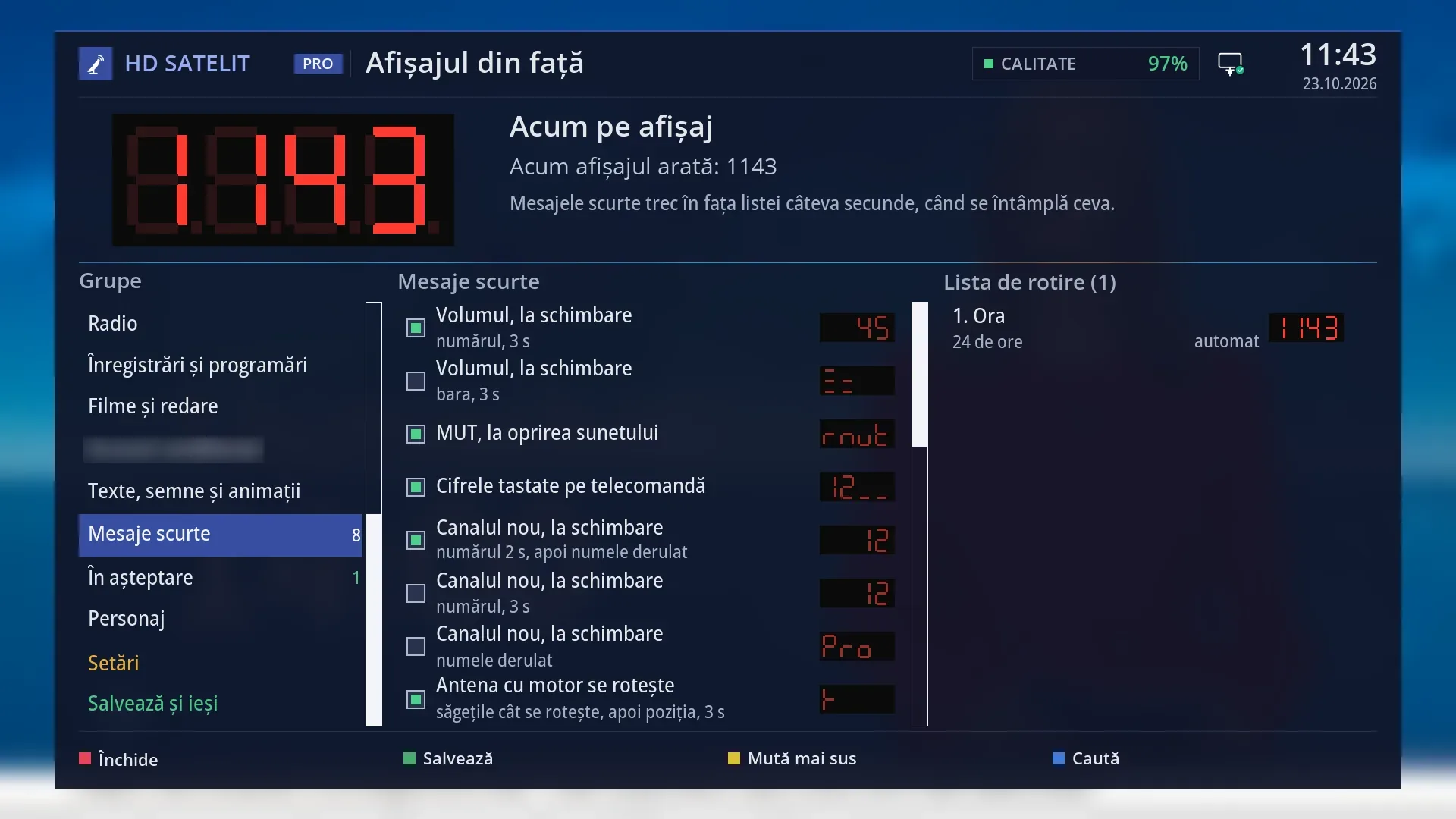
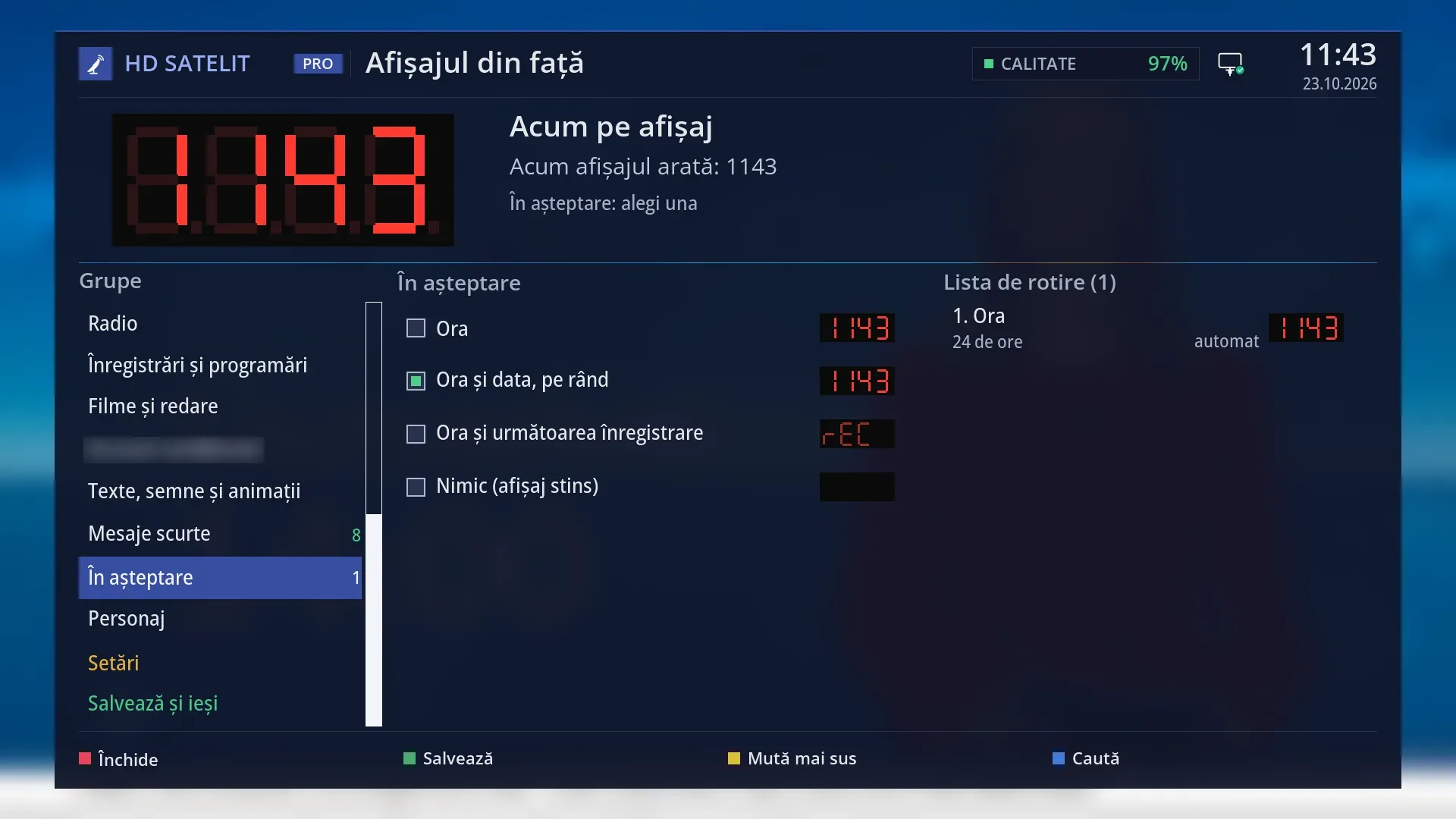
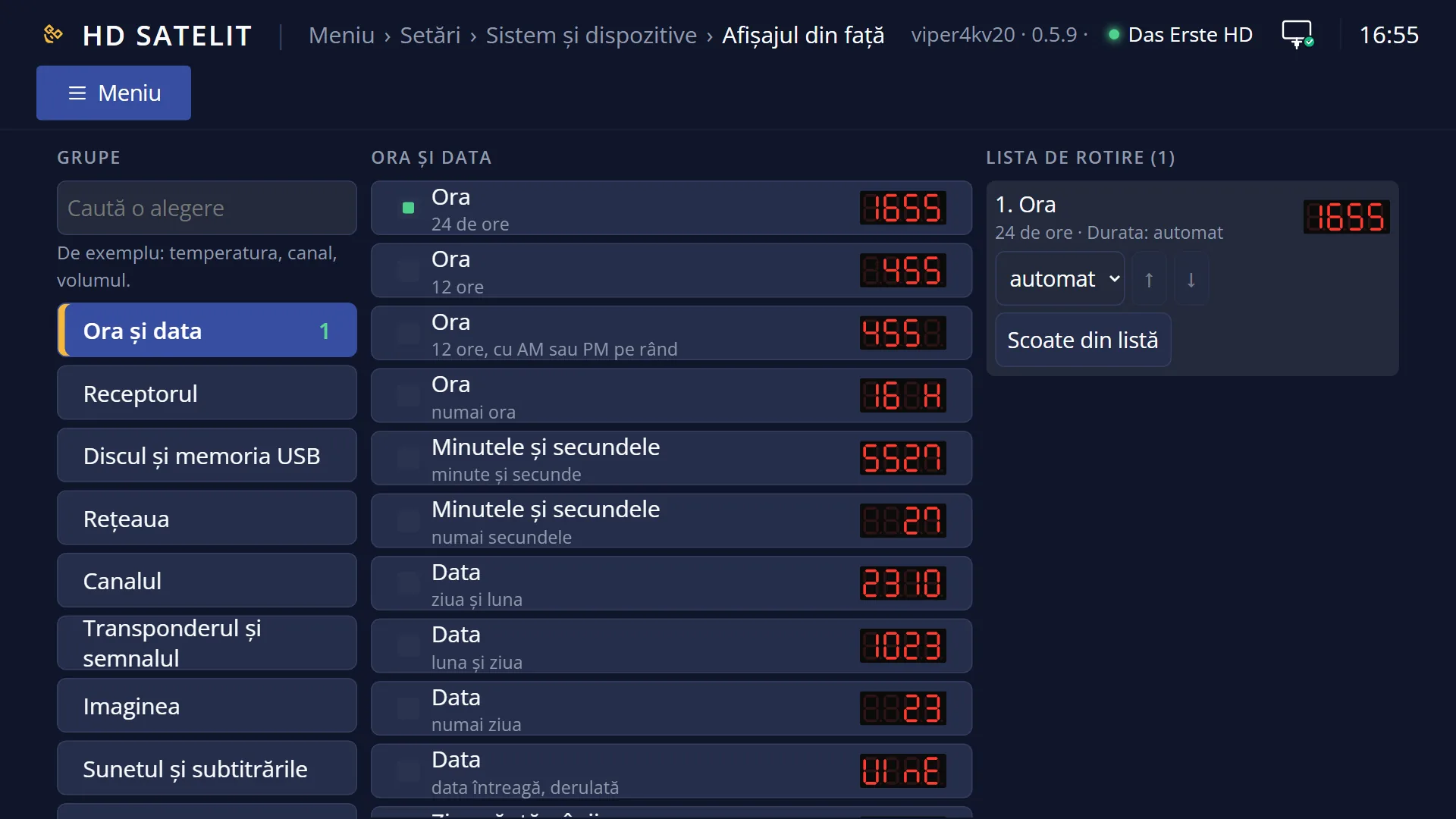
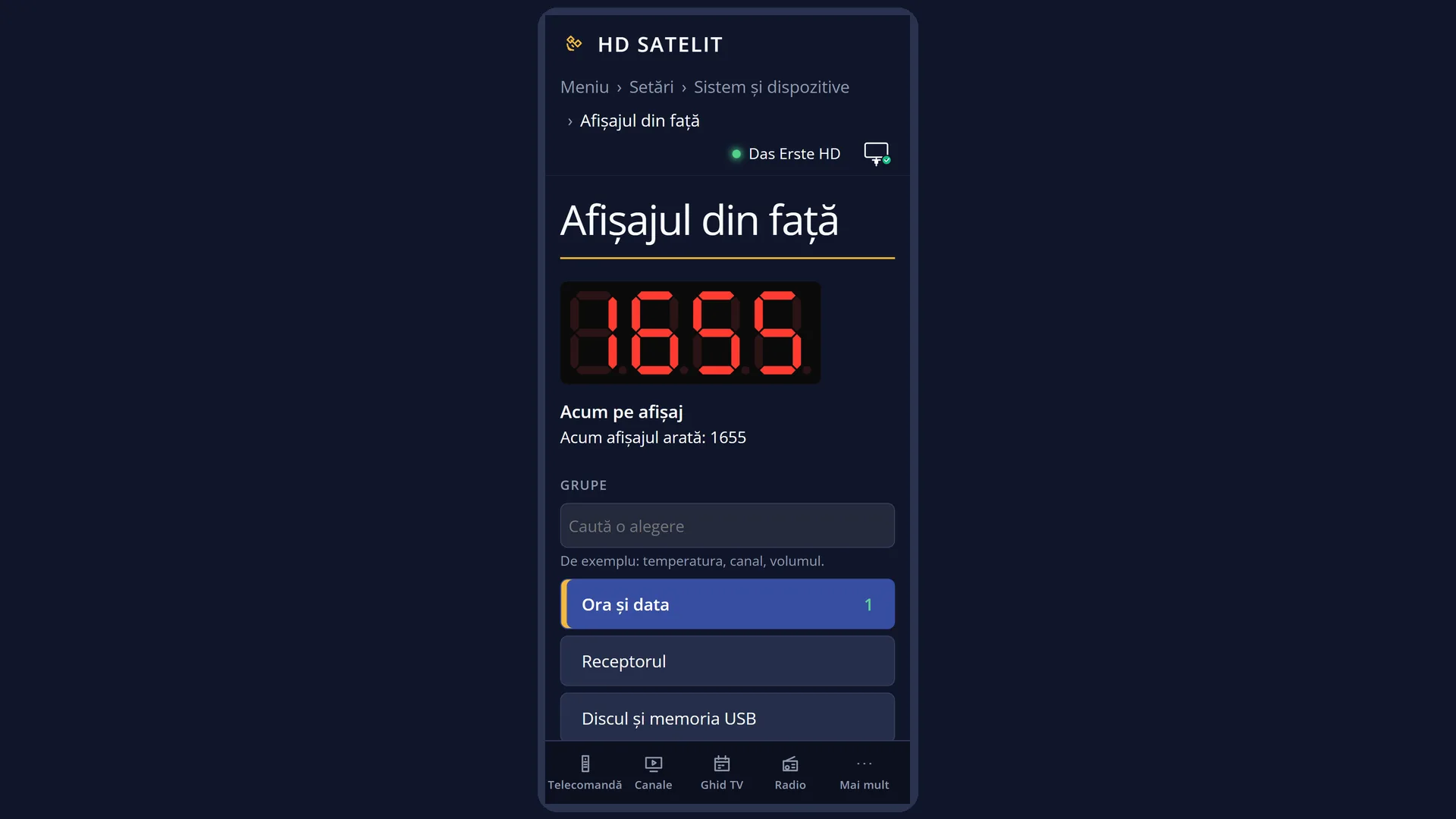
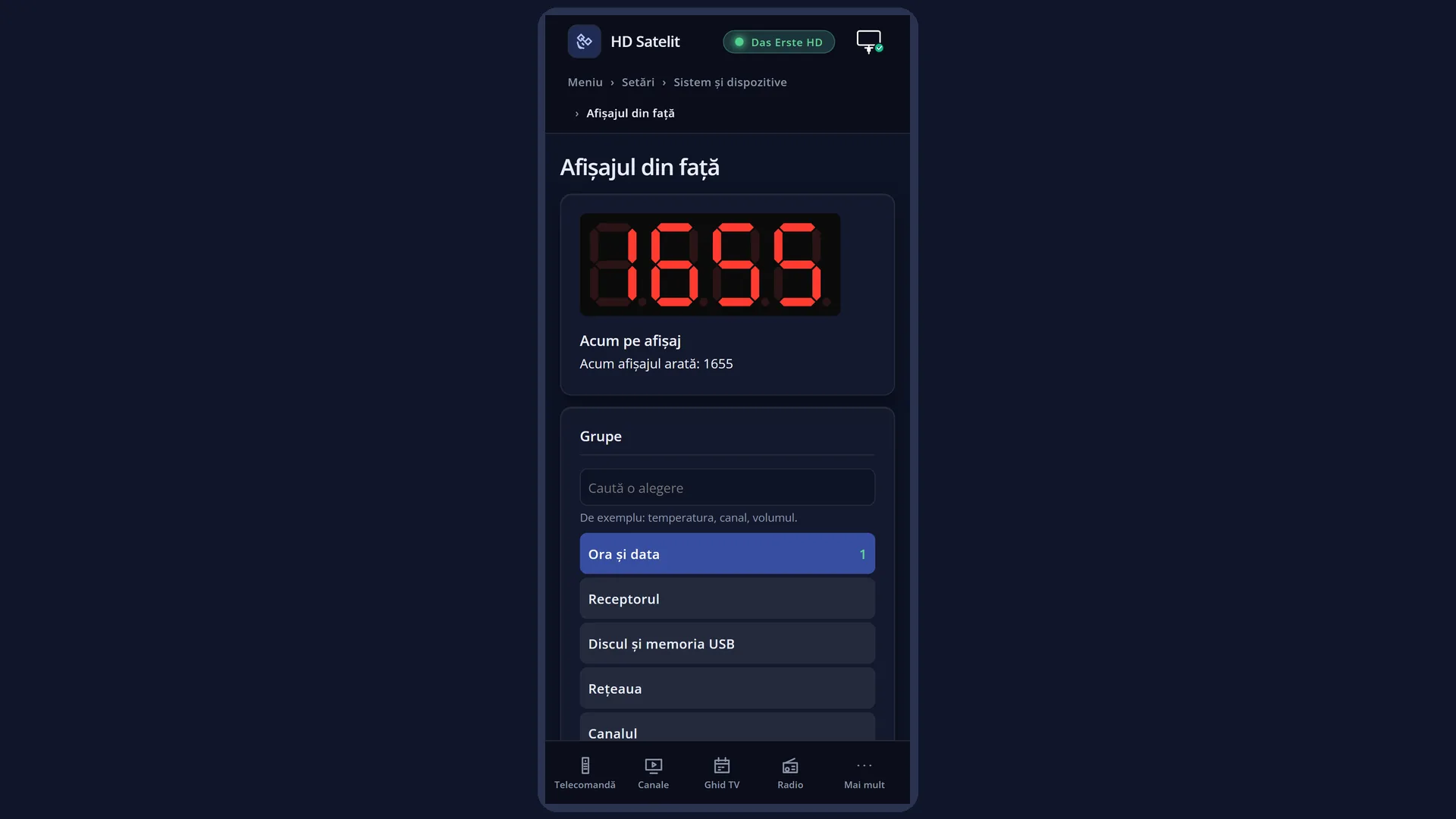
- 1 The exact drawing of the 4 digits for the selected row, animated as on the display.
- 2 The name of the selected row, the format and the note; on a group, what the display is showing now.
- 3 The groups, with “Search...”, “Character”, “Settings” and “Save and exit”; next to each group, how many choices are ticked.
- 4 The choices in the group: the tick, the name, the format and the small drawing.
- 5 The rotation list: what appears on the display, in order, with the duration.
- 6 RED Close, GREEN Save, YELLOW Move up, BLUE Search.
What it is for
“Front display” lets you choose what the 4 digits on the front of the receiver show: the time, the date, the channel, the signal, the temperature, the song on the radio, how much has been recorded and much more. There are 142 items in total, each in one or more formats.
The ticked items make up the “Rotation list”: the display shows them in turn, each for as long as you chose, and a long text scrolls across. An item that has no value right now (for example the song, when you are not listening to the radio) is skipped. By default the list contains only the time.
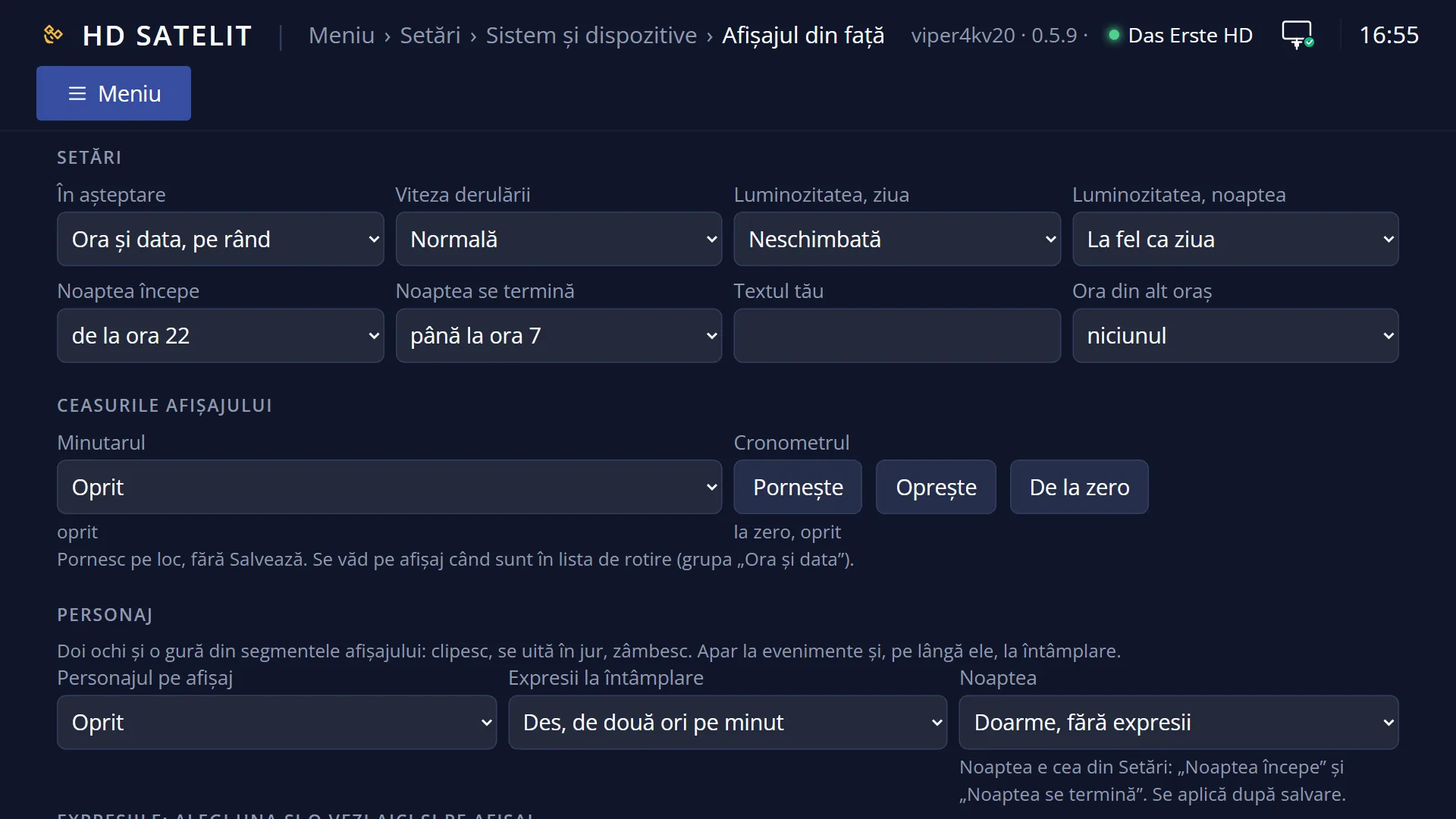
Here you also choose the short messages that appear for a few seconds in front of the list (the volume, the digits you type, the new channel, a recording that starts), what the display shows in standby, the scrolling speed, the brightness by day and at night, a text of your own, the time in another city, a countdown timer and a stopwatch.
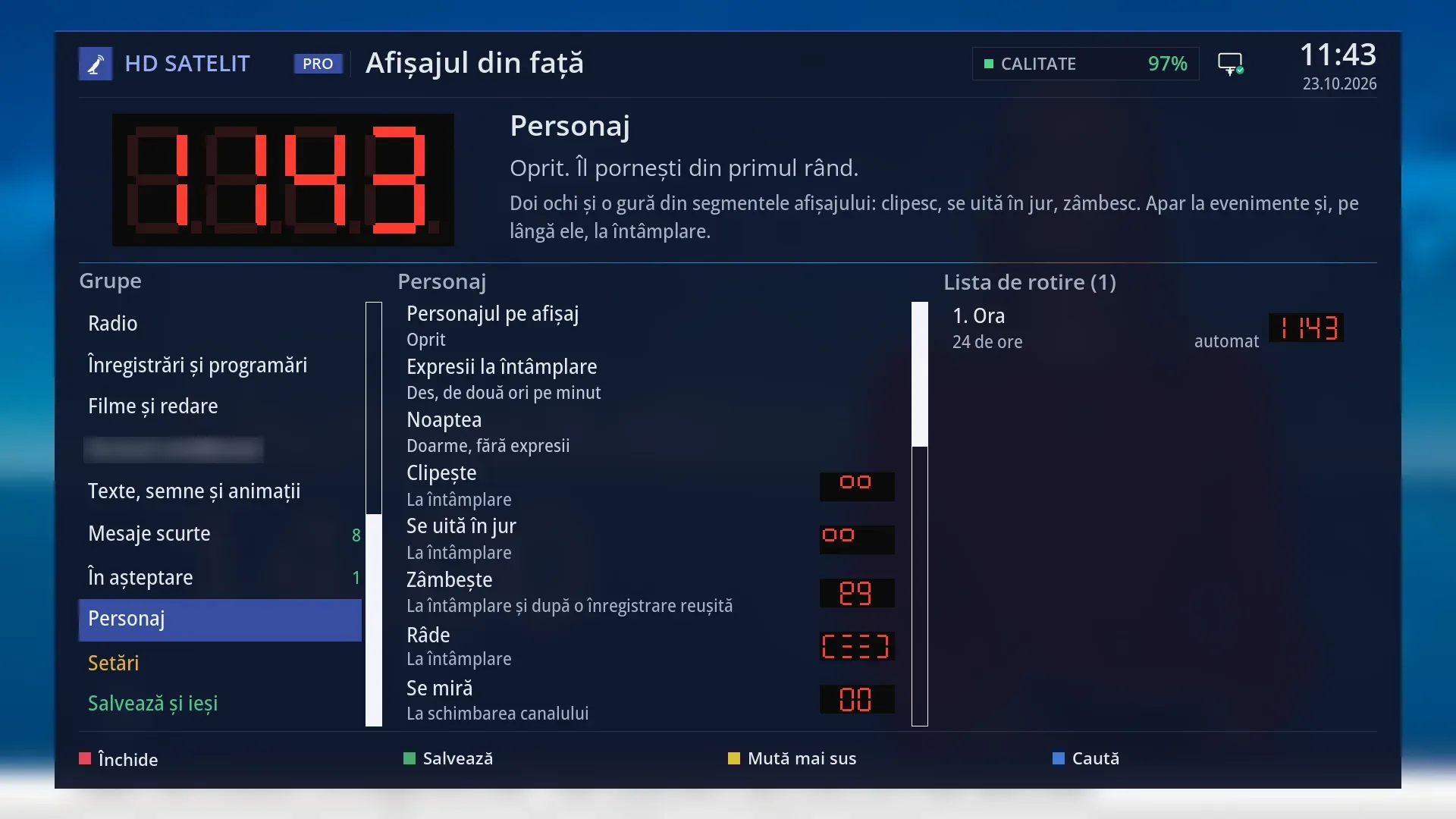
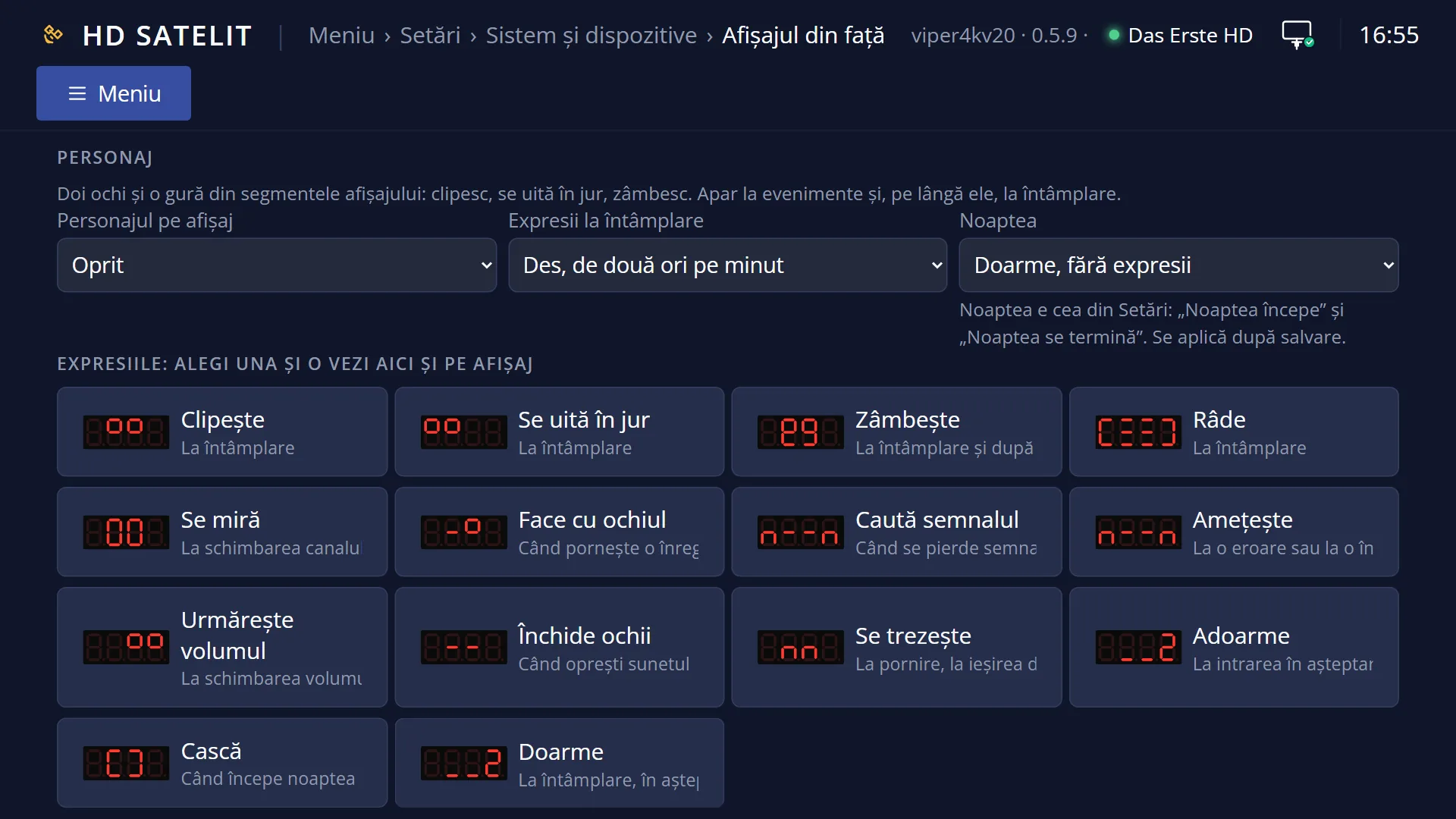
“Character” mode draws two eyes and a mouth on the display using the segments. They blink, look around and smile, on events and at random.
The real display shows your choices even before you save, so you can see straight away what they look like. If you exit without saving, it goes back to what it was.
How to get here
Path: Main menu > Settings > System & Devices > Front display.
Keys on the remote: MENU 6 UP OK 4 (“System & Devices” is the last row in Settings, so press UP from the first row and OK, then 4).
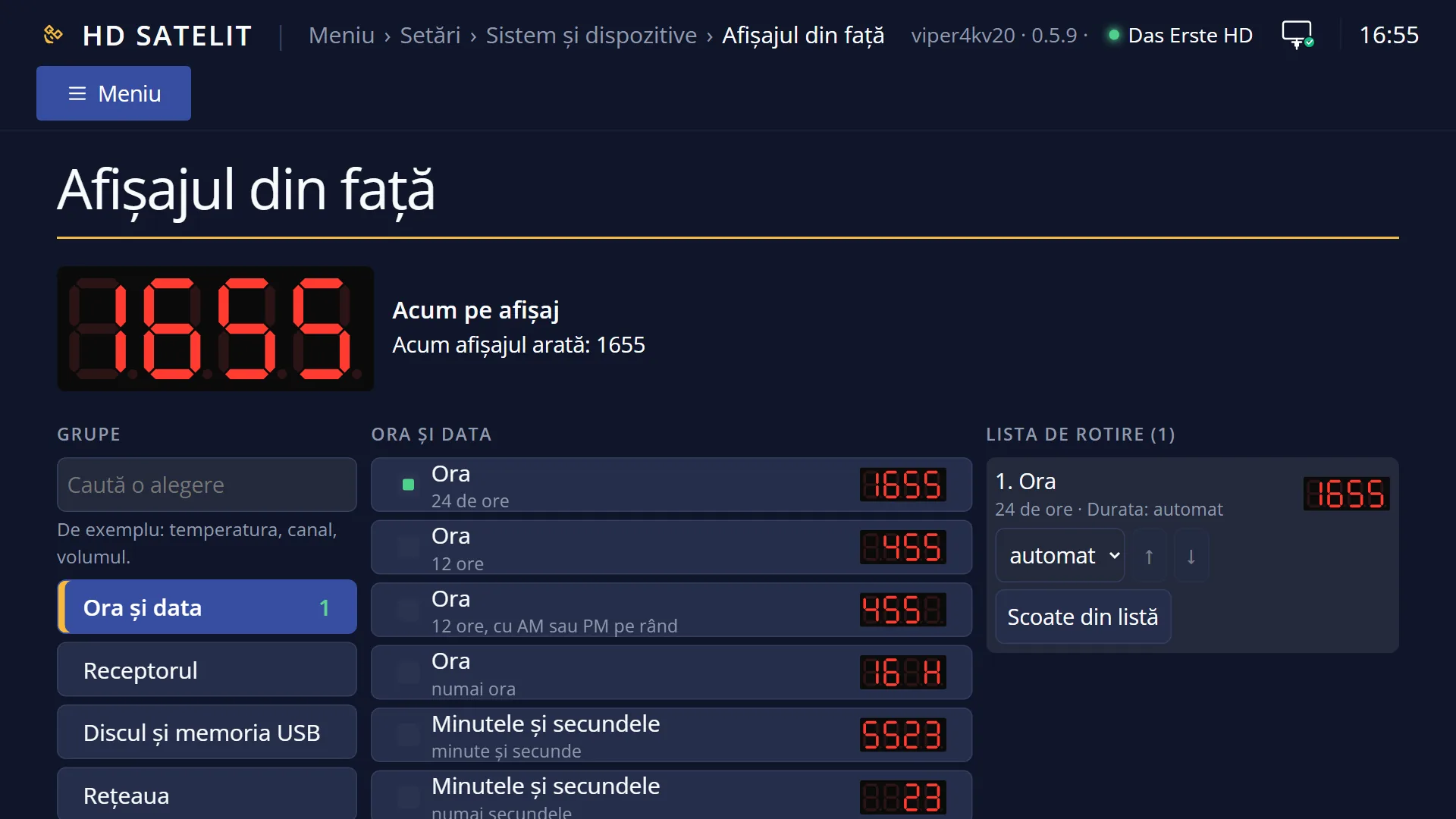
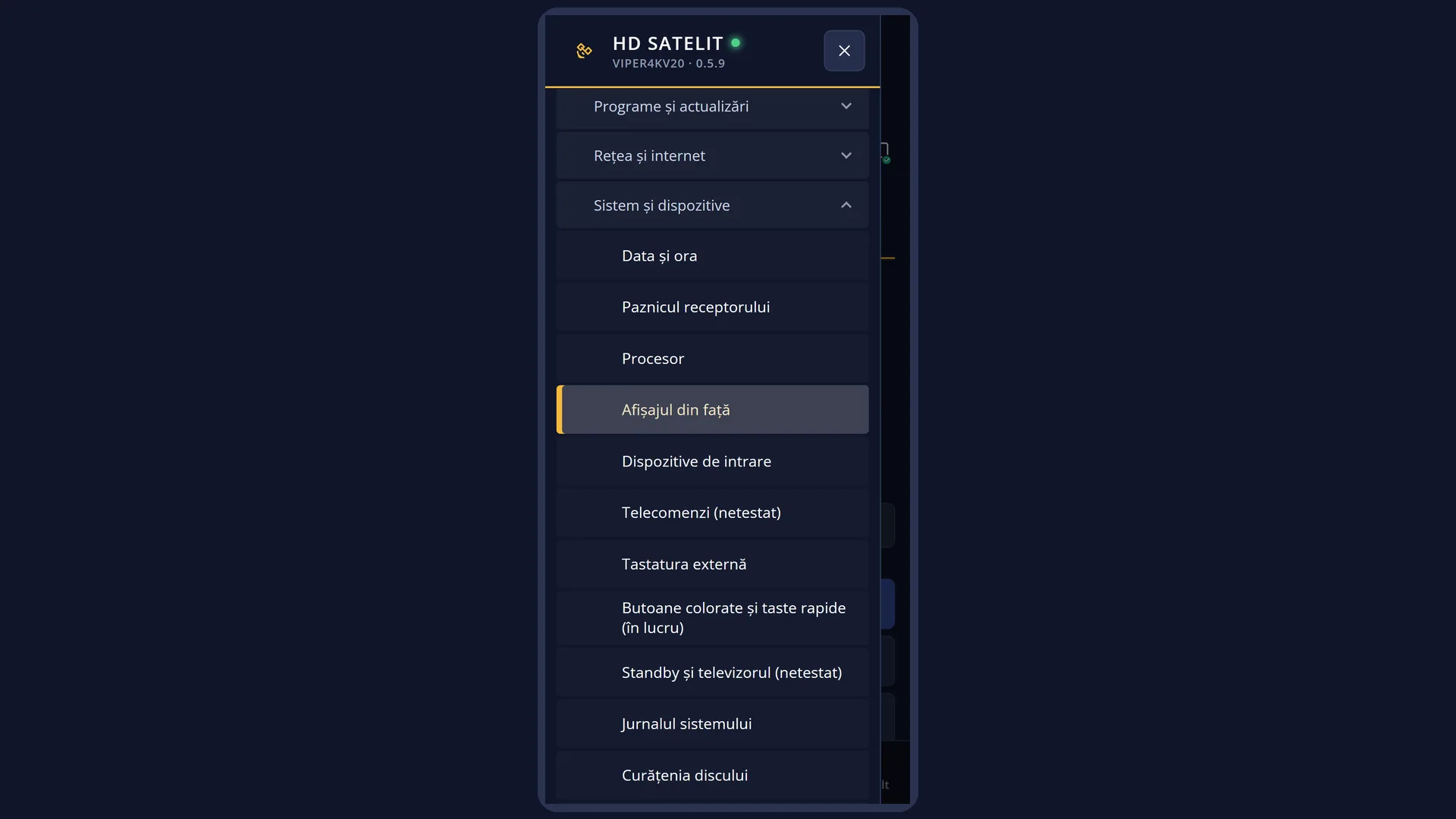
In the web interface: the /afisaj page, with the same groups, choices, rotation list, settings, clocks and character, each with an exact drawing of the 4 digits.
What you see on the screen
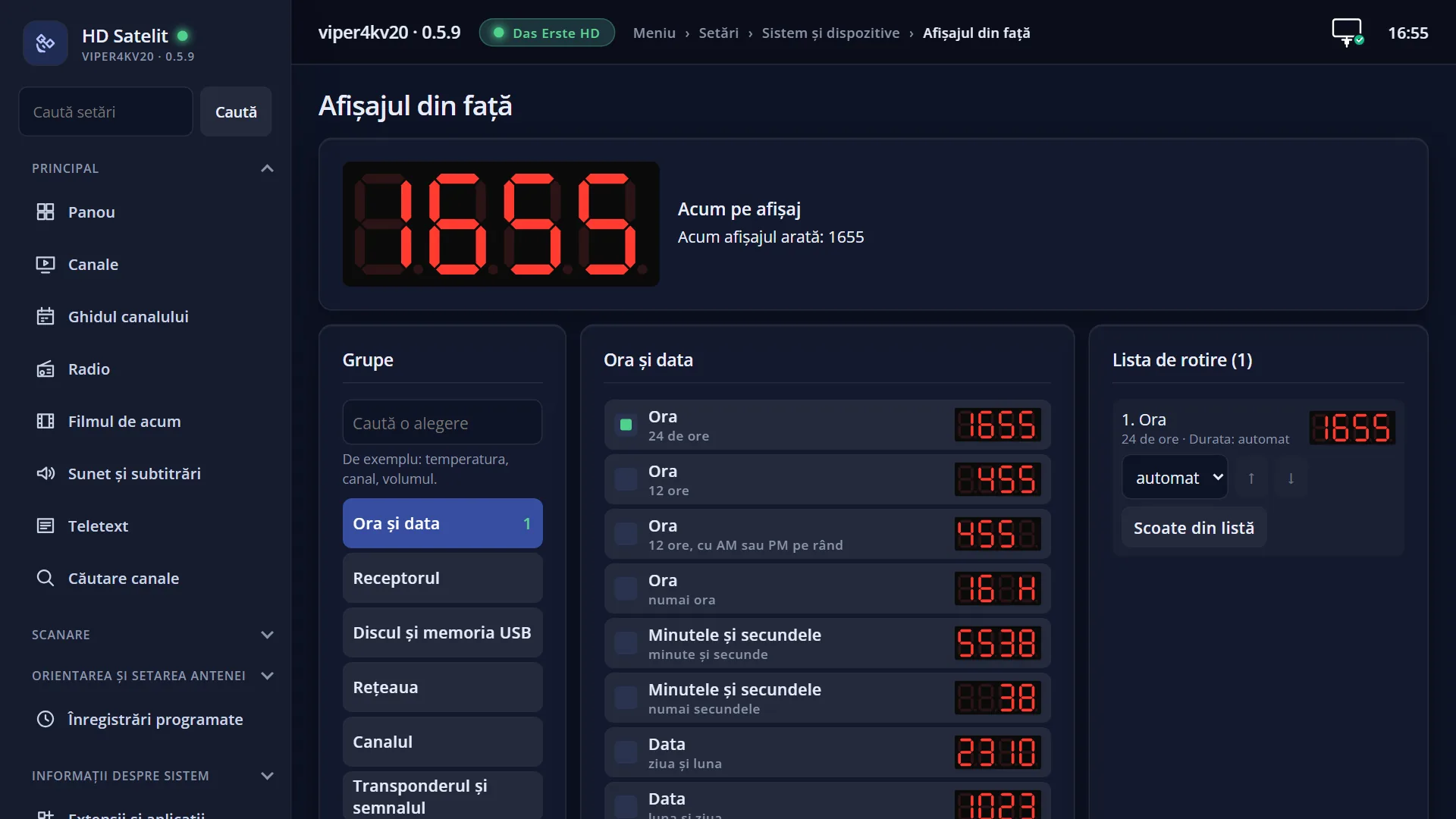
At the top: the title “Front display”, the clock and the date. In the Pro theme you also see “HD SATELIT” with the “PRO” label, the signal quality and the network icon.
At the top left: a large drawing of the 4 digits, with the lit segments in red, exactly as on the display, and animated (scrolling, alternating). To its right: the name of the selected row, the format and a note. When a row in the groups column is selected, this area shows “Now on the display” and “The display now shows: ...”.
Below are three columns. The first, “Groups”: “Search...”, then the groups of items (“Time and date”, “Receiver”, “Disk and USB memory”, “Network”, “Channel”, “Transponder and signal”, “Picture”, “Sound and subtitles”, “Programme”, “Radio”, “Recordings and timers”, “Films and playback”, “Texts, signs and animations”, “Short messages”, “In standby” and others), then “Character”, “Settings” and “Save and exit”. Next to a group is the number of ticked choices in it.
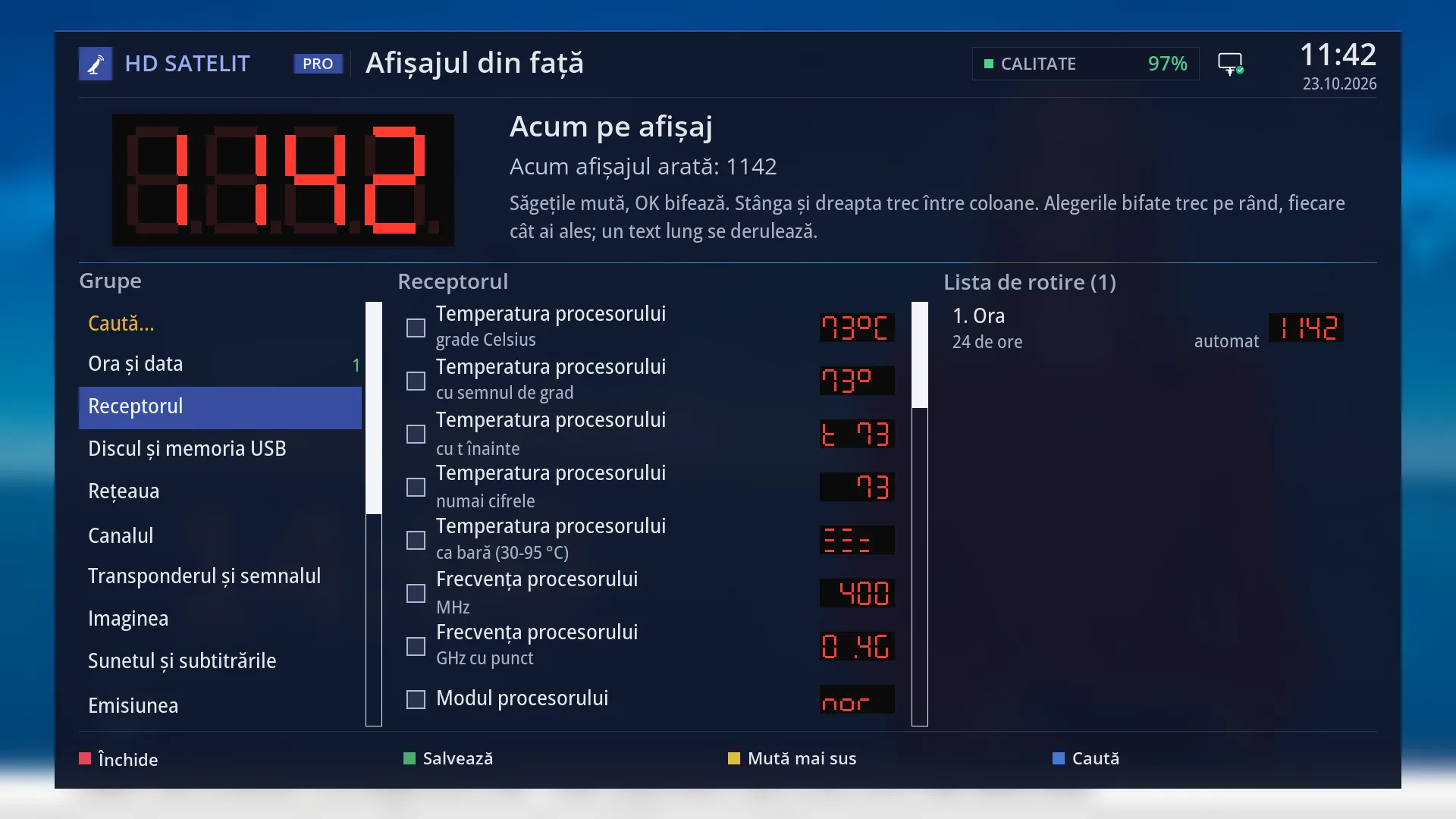
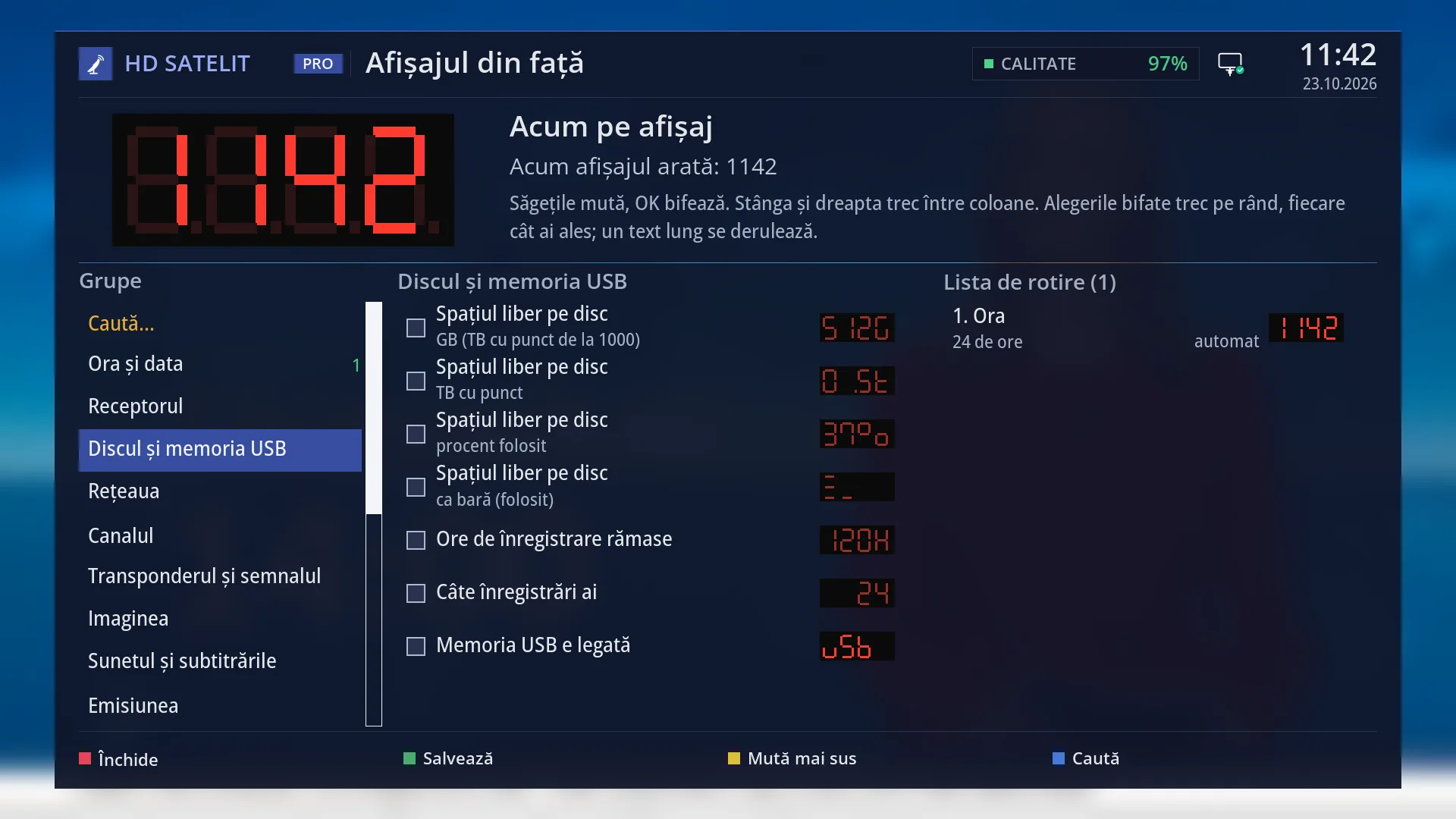
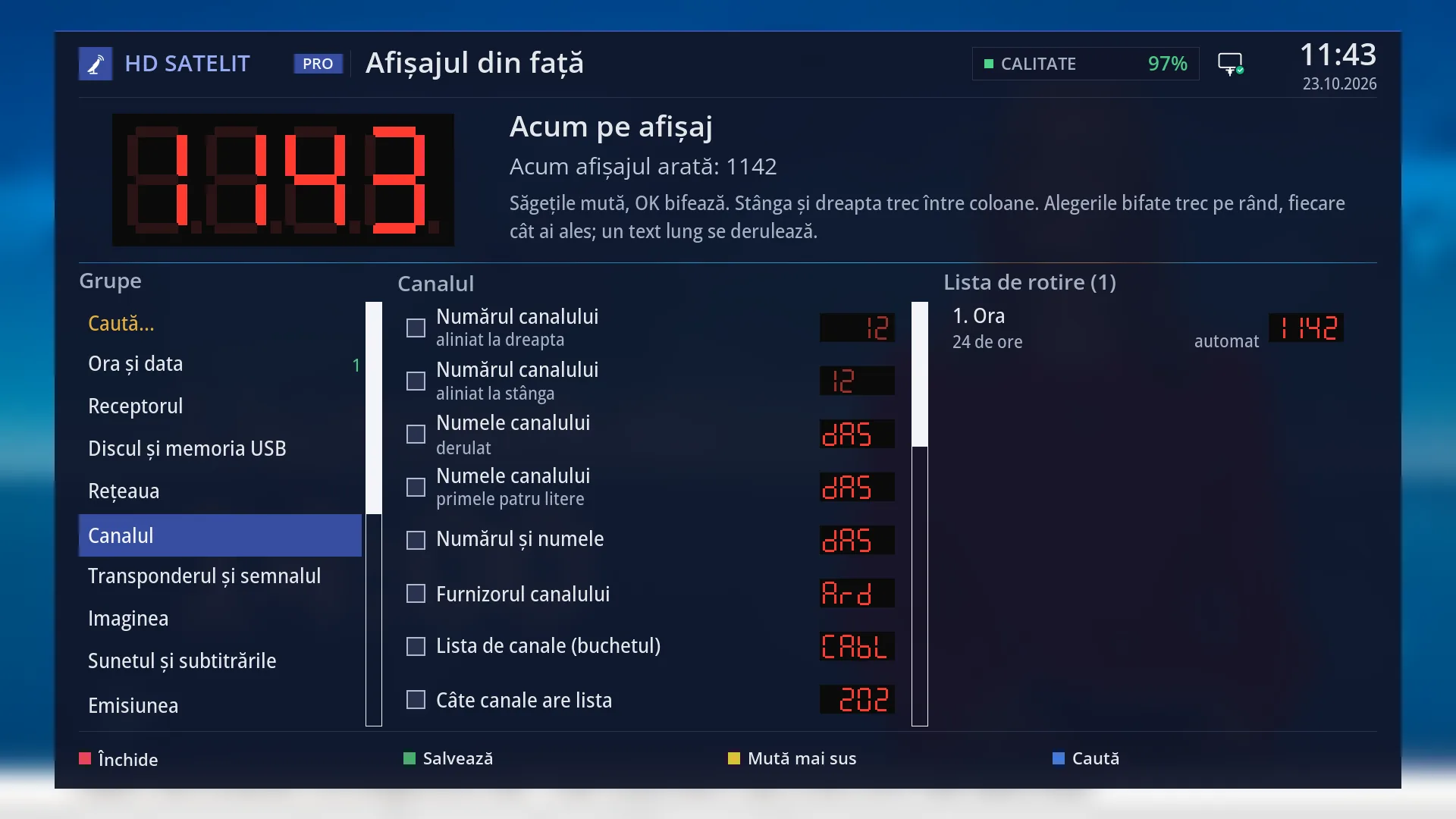
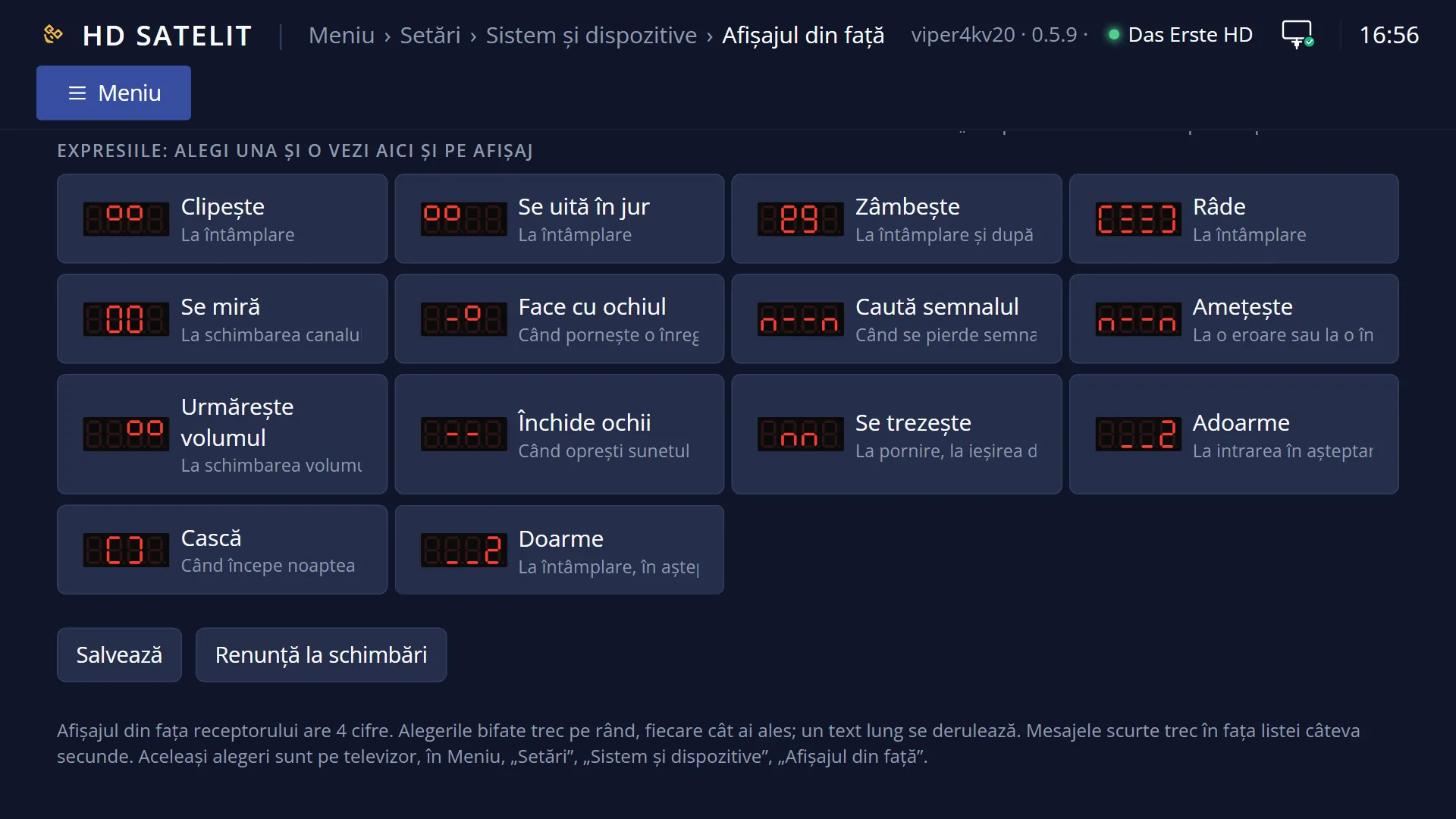
The second column, with the group name at the top: its choices, each with a tick box, the name on the first line, the format on the second (for example “Time” and “24-hour”) and a small drawing of the current value. When an item has no value right now, the drawing is an example and appears faded.
The third column, “Rotation list (N)”: the ticked choices, numbered in the order they appear, with the format and the duration (for example “automatic”) on the second line, and the small drawing.
At the bottom, the keys: RED “Close”, GREEN “Save”, YELLOW “Move up”, BLUE “Search”.
Rows and settings
| Row | Values | Default | What it does |
|---|---|---|---|
| The choices in the item groups | ticked (in the rotation list), not ticked | only “Time”, “24-hour” | OK on a choice adds it to the end of the rotation list (“Added to the end of the rotation list.”) or removes it (“Removed from the rotation list.”). The same item can have several formats (for example the time: 24-hour, 12-hour, 12-hour with AM or PM in turn, hour only). Each format is a separate row. The list holds at most 24 choices. When you want the display to show something other than the time: the temperature, the channel name, the end time of the programme, the song on the radio. |
| Rotation list (right column) | Move up, Move down, Duration: automatic, 2, 3, 5, 8, 10, 15 or 30 s, With the ... label first, 1 s / Without the label first, Remove from the list | a single choice, the time, with automatic duration | OK on a choice in the list opens a small list: you can move it up or down, choose its duration, put a short one-second label before it (only for items that have one) or remove it. The “automatic” duration keeps a text that fits on the display for 5 seconds, and a long one for as long as the scrolling takes. A single choice in the list stays on the display all the time. When none of the choices has a value right now, the display shows the time. The same happens when the list is empty. When you want a different order or want an item to stay on the display longer. |
| Short messages | on, with the chosen format, off | on: the volume, MUTE, the digits you type, the new channel (the number, then the name), the motorised dish, a recording that starts, the channel scan, the image update | A short message appears for a few seconds in front of the list when something happens, then the display goes back to the list. You can also choose: an error message, the interface starting, a USB memory being connected, the signal being lost. OK turns the message on or off (“The message is on.” / “The message is off.”). Messages are not shown in standby. When a message gets in your way or you want to be told about something else. |
| In standby | Time, Time and date, in turn, Time and next recording, Nothing (display off) | Time | What the display shows while the receiver is in standby. You choose only one (“This is how the display looks in standby.”). When the light from the display bothers you at night (choose “Nothing”) or you want to see when the next recording starts. |
| Scrolling speed (Settings) | Fast, Normal, Slow, Very slow | Normal | How fast a long text moves across the 4 digits. When you do not have time to read the channel names or, on the contrary, the wait is too long. |
| Brightness, daytime (Settings) | Unchanged, Level 1 of 7, ..., Level 7 of 7 | Unchanged | How bright the display is during the day. “Unchanged” leaves the display brightness as it is. When the display is too bright or too dim. |
| Brightness, at night (Settings) | Same as daytime, Level 1 of 7, ..., Level 7 of 7 | Same as daytime | The brightness during the night hours, chosen below. When the receiver is in the bedroom and you want the display dimmer at night. |
| Night starts / Night ends (Settings) | from 18, 19, 20, 21, 22, 23 or 0 hours, until 5, 6, 7, 8 or 9 hours | from 22 hours, until 7 hours | The night hours, for the night brightness and for the character. When you go to bed or get up at different times. |
| Your text (Settings) | not set, a text of up to 60 characters | not set | OK opens the on-screen keyboard (“Your text on the display (scrolling if long)”). The text appears on the display when the “Your text” choice (group “Texts, signs and animations”) is in the rotation list. When you want a greeting or a name on the display. |
| Time in another city (Settings) | none, the cities in the time zone list | none | The city whose time you can put on the display. Its time appears when “Time in another city” (group “Time and date”) is in the rotation list. When you have family or friends in another time zone. |
| Countdown timer (Settings) | Off, 1, 2, 3, 5, 10, 15, 20, 30, 45, 60, 90 or 120 minutes | Off | A countdown, started or stopped straight away, without saving. It shows on the display when “Countdown timer” (group “Time and date”) is in the rotation list. When you are cooking or want to know when something ends. |
| Stopwatch (Settings) | Start, Stop, From zero | at zero, stopped | A stopwatch, started, stopped or reset to zero straight away, without saving. It shows when “Stopwatch” (group “Time and date”) is in the rotation list. When you want to measure how long something takes. |
| Character on the display (Character) | Off, On | Off | Turns on “Character” mode: an expression appears like a short message on events (start-up, standby, a new channel, signal lost, an error, a recording, the volume, night-time) and at random, then the display goes back to what it was showing. A real short message takes priority. When you want a more cheerful display. |
| Random expressions (Character) | Often, twice a minute, Once a minute, Every few minutes, Rarely, about every quarter of an hour, Only on events | Once a minute | How often an expression appears without any event. When the character moves too often or too rarely. |
| At night (Character) | Sleeps, no expressions, Stays awake | Sleeps, no expressions | During the night (the hours set in Settings), the character sleeps: no expressions, except “Yawns” at the start of the night. “Stays awake” lets it move at night too. When you want expressions at night as well. |
| Expressions (Character) | Blinks, Looks around, Smiles, Laughs, Is surprised, Winks, Looks for the signal, Gets dizzy, Follows the volume, Closes its eyes, Wakes up, Falls asleep, Yawns, Sleeps | Each expression shows when it appears (for example “Is surprised”: when you change channel; “Winks”: when a recording starts). With the cursor on it, the large drawing shows it frame by frame. OK plays it once on the real display, even with the character turned off. When you want to see what an expression looks like. |
Keys
| UP / DOWN | Move the cursor within the current column. |
| LEFT / RIGHT | Move between the columns: groups, choices, rotation list. |
| OK | Does what the row is for: on a group, it opens its choices; on a choice, it ticks it or removes it; on a setting, it opens its values; on the rotation list, it opens moving, duration, label and removal; on an expression, it plays it once on the display; on “Search...”, it opens the keyboard; on “Save and exit”, it saves. |
| CH+ / CH- (and < >) | Jump one page up or down in the current column. |
| GREEN (Save) | Saves everything and closes the screen. |
| YELLOW (Move up) | Moves the selected choice in the rotation list up one place. |
| BLUE (Search) | Opens the “Search for a choice (e.g. temperature, channel)” keyboard. The choices found appear in the middle column, under “Found for ...”. |
| RED (Close) / EXIT | Closes the screen. If you changed something, it asks “You changed the display. Save?”: “Yes, save”, “No, leave it as it was” or “Back to the choices”. |
| HELP | Shows the list of keys for this screen. |
Step by step
Show the time and the temperature on the display, in turn
- Press MENU 6 UP OK 4.
- Move the cursor to the “Receiver” group and press OK (or RIGHT).
- Select “Processor temperature” and press OK. It appears in the rotation list, after the time.
- Press GREEN. From now on the display shows the time and the temperature, in turn.
Turn the display off at night, in standby
- MENU 6 UP OK 4, then the “In standby” group.
- Select “Nothing (display off)” and press OK.
- Press GREEN.
Make a choice stay on the display longer
- Press RIGHT until you reach the “Rotation list”.
- Select the row and press OK, then “Duration: 10 s” (or another).
- Press GREEN.
Problems and solutions
I ticked an item, but the display does not show it.
An item with no value right now is skipped (for example the song, when you are not listening to the radio, or the recording time, when nothing is being recorded). In that case the small drawing on the screen is faded: it is only an example.
“The rotation list can have at most 24 de choices.” appears.
Remove the choices you do not need from the list (OK on them in the right column, “Remove from the list”).
I exited and the display went back to what it was.
What you change shows on the display as a preview, but it is kept only after GREEN (or “Yes, save” when you exit).
My text does not appear on the display.
Writing the text in Settings is not enough: also tick the “Your text” choice in the “Texts, signs and animations” group, so that it goes into the rotation list.
The brightness has not changed.
The brightness is applied after saving. Also check the night hours: at night, “Brightness, at night” is used.
The note at the top says “The display does not accept the text. Restart the receiver.”.
The display is not responding. Restart the receiver from Power & Restart.
I do not have the “Front display” entry in the menu.
The entry appears only on receivers that have a front display.
Something appears on the display for a few seconds and then disappears.
It is a short message (the volume, the new channel, the digits you type). If it gets in your way, turn it off in the “Short messages” group.
Related topics
- System & Devices (the submenu)
- Date & Time Settings
- Standby and TV
- Matching web page: /afisaj.
Differences between receivers
The entry appears only on receivers that have a front display. On the Amiko Viper 4K V20 the display has 4 seven-segment digits and 7 brightness levels.