

Subtitle translation
English screenshots coming: some of the pictures below still show the receiver and the web interface in Romanian. The rows, keys and steps described on this page are the English ones.
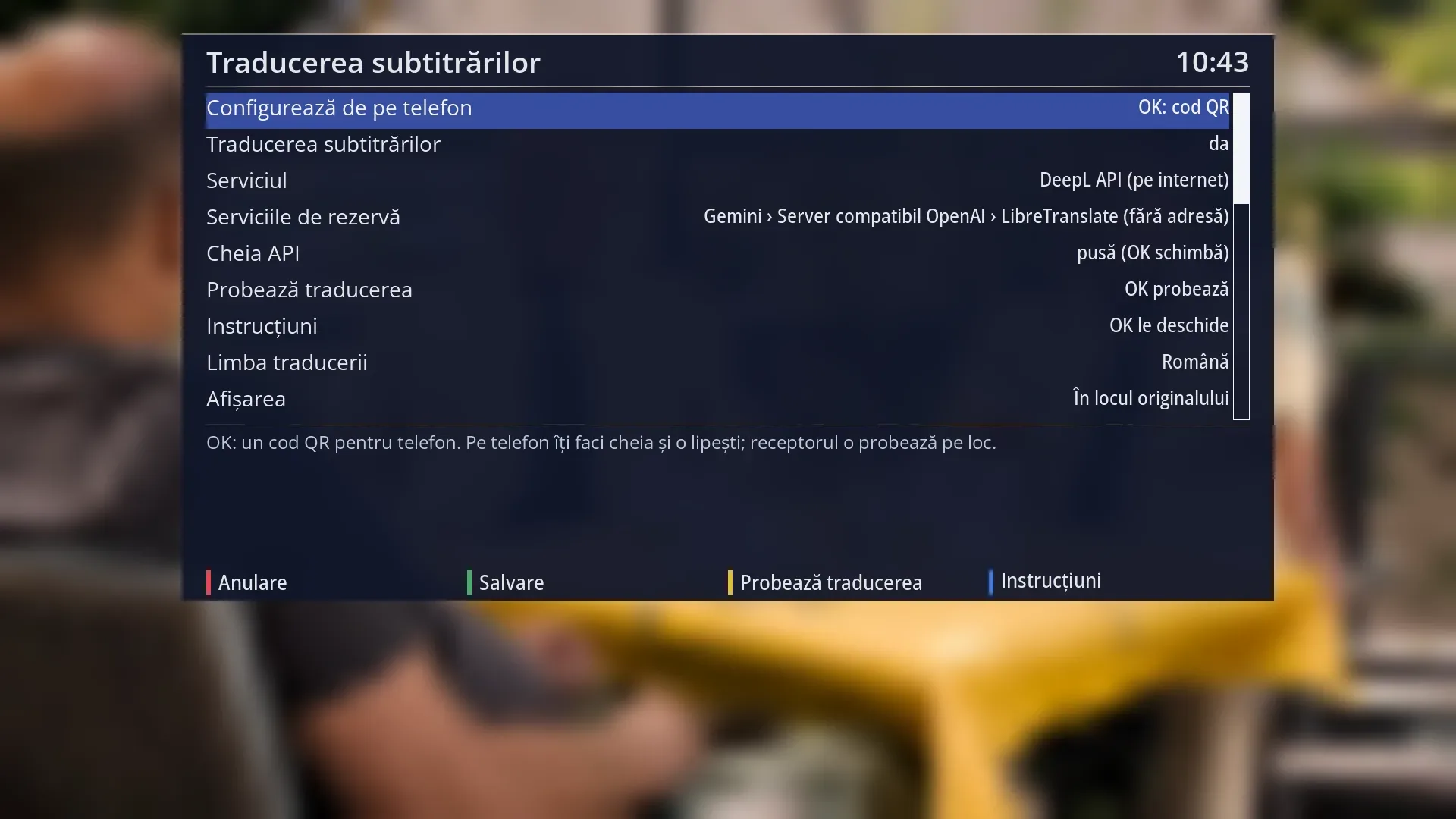
- 1 Screen title: “Subtitle translation”.
- 2 The first rows: the QR code for the phone, translation on or off, and the chosen service.
- 3 The service rows (backups, key, address, model), the test, the instructions and the translation choices; you see the rest by scrolling.
- 4 Help for the selected row: what it does, what is missing and what leaves the receiver; after a test, its result.
- 5 The colour keys: RED “Cancel”, GREEN “Save”, YELLOW “Test the translation”, BLUE “Instructions”.
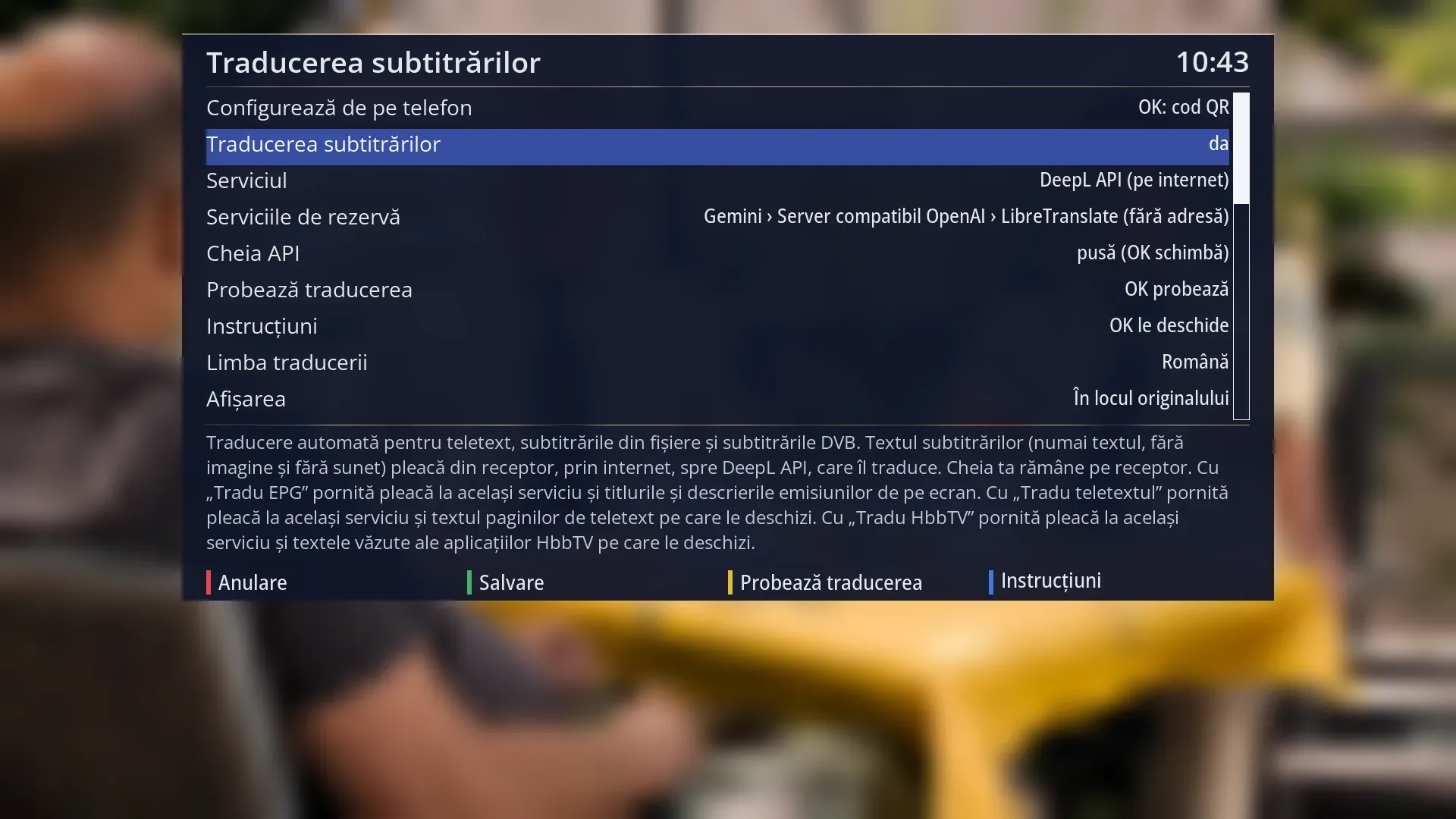
- 1 The selected row: “Subtitle translation: yes”.
- 2 What the selected row does: shown here, below the list.
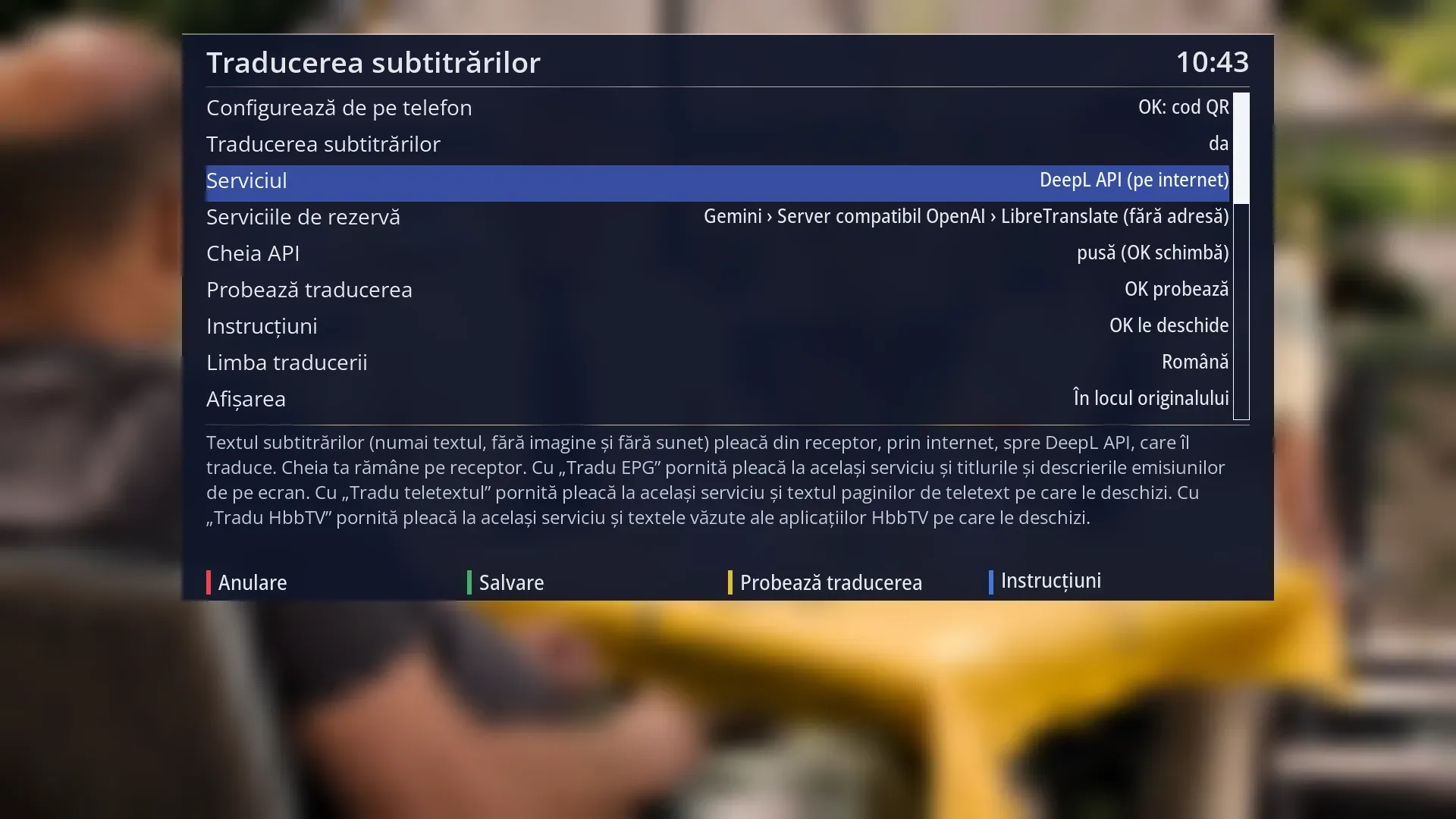
- 1 The selected row: “Service: DeepL API (online)”.
- 2 What the selected row does: shown here, below the list.
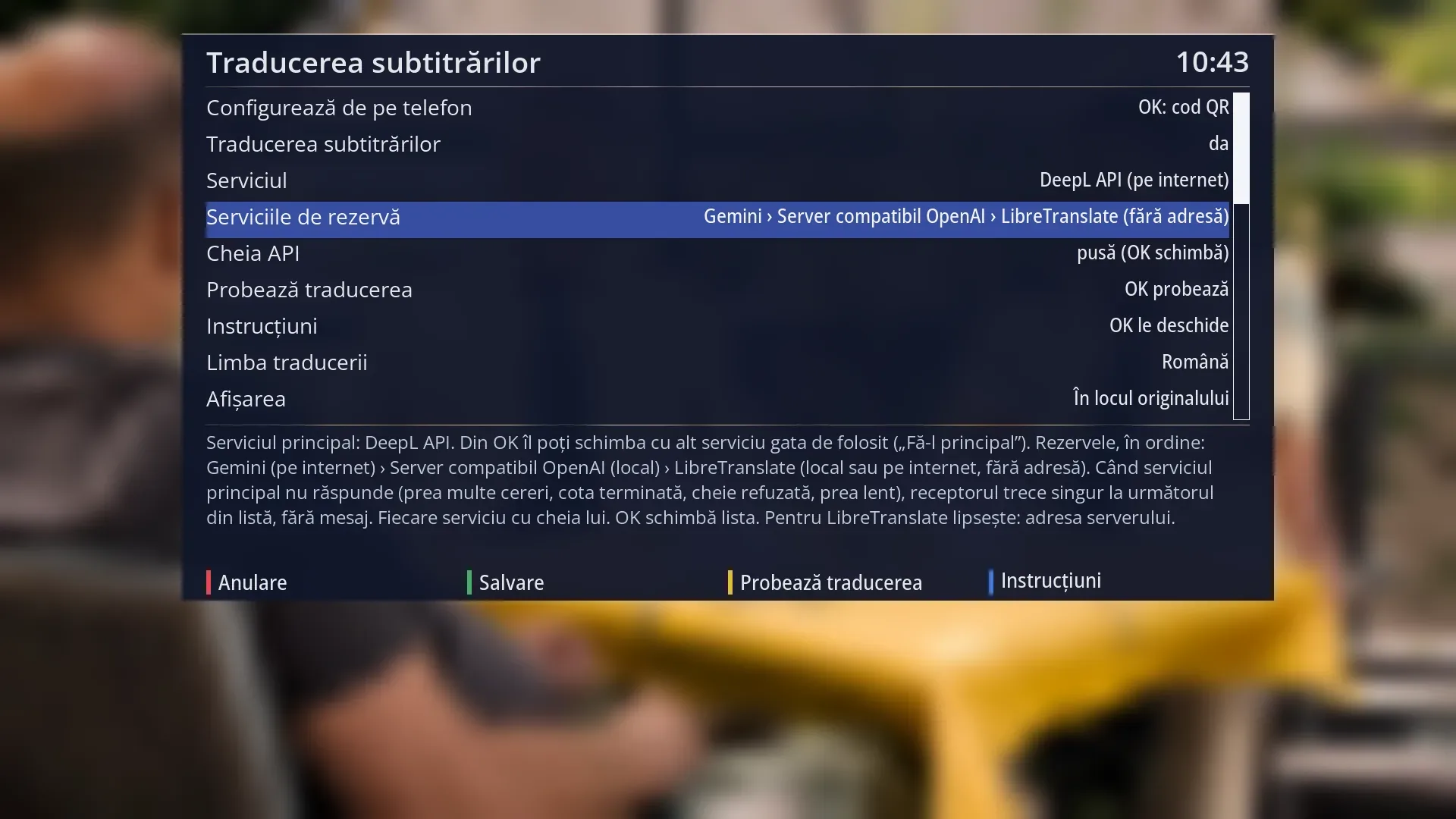
- 1 The selected row: “Backup services: Gemini › OpenAI-compatible server › LibreTranslate (no address)”.
- 2 What the selected row does: shown here, below the list.
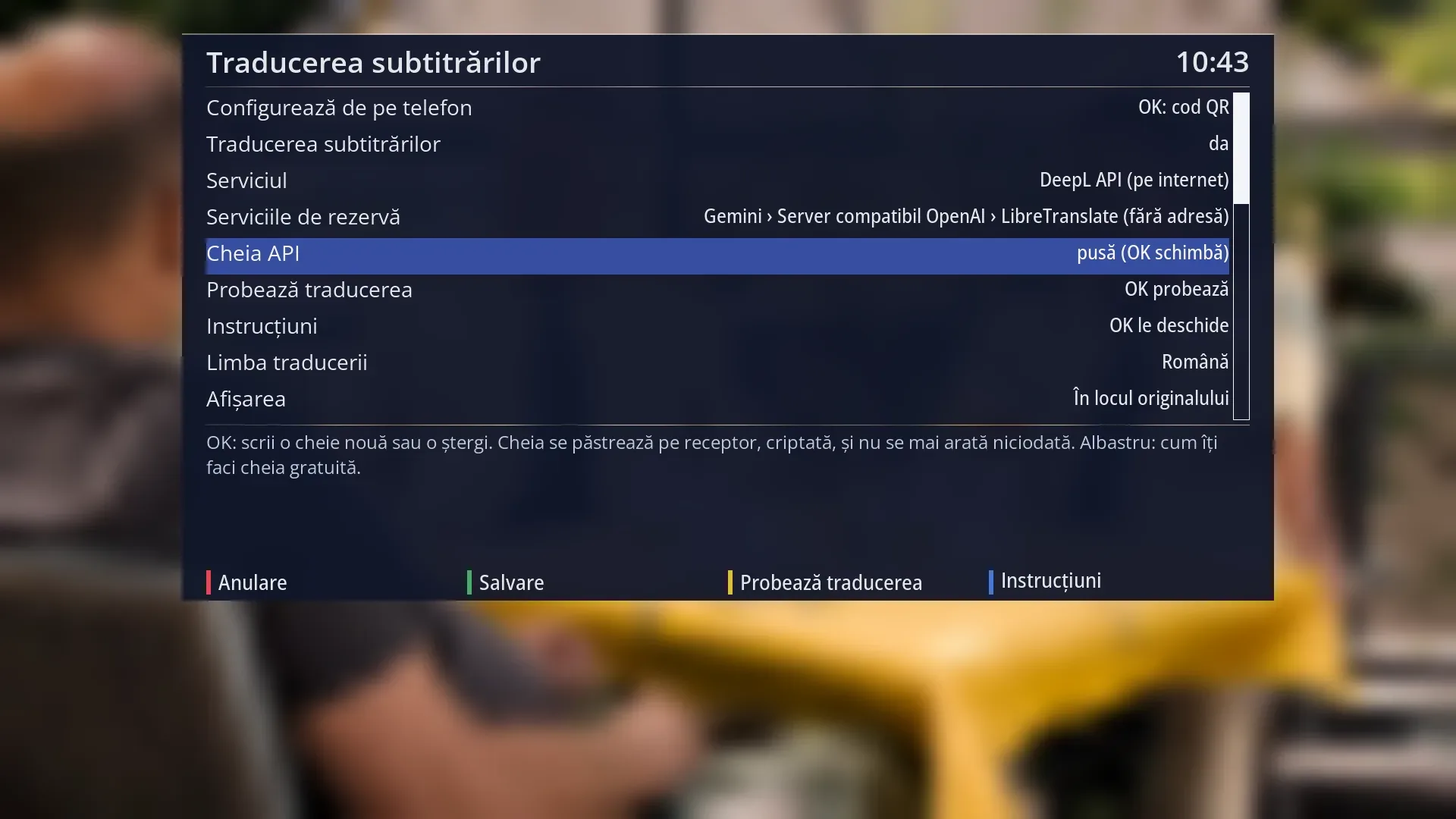
- 1 The selected row: “API key: set (OK changes it)”.
- 2 What the selected row does: shown here, below the list.
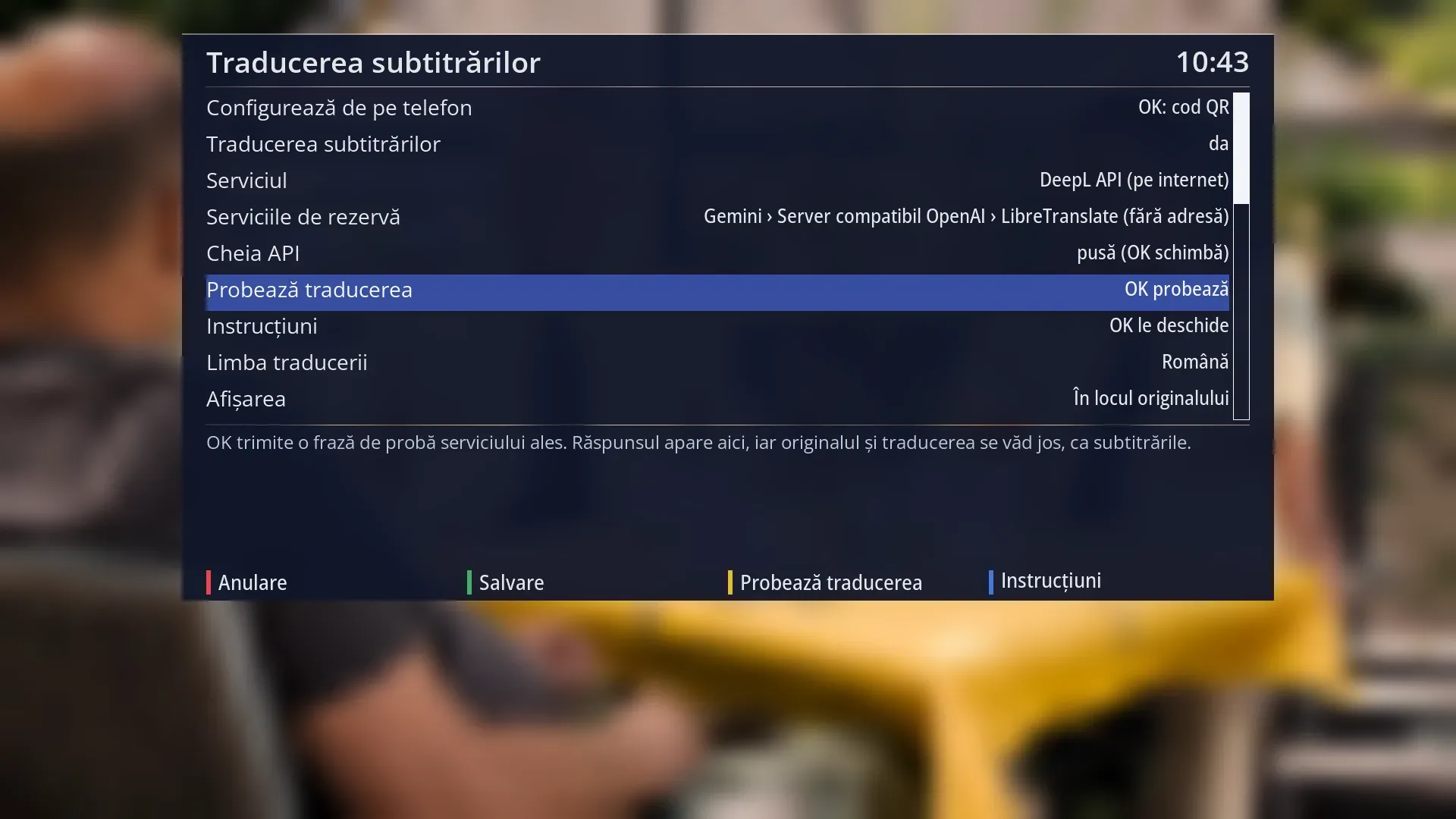
- 1 The selected row: “Test the translation: OK tests it”.
- 2 What the selected row does: shown here, below the list.
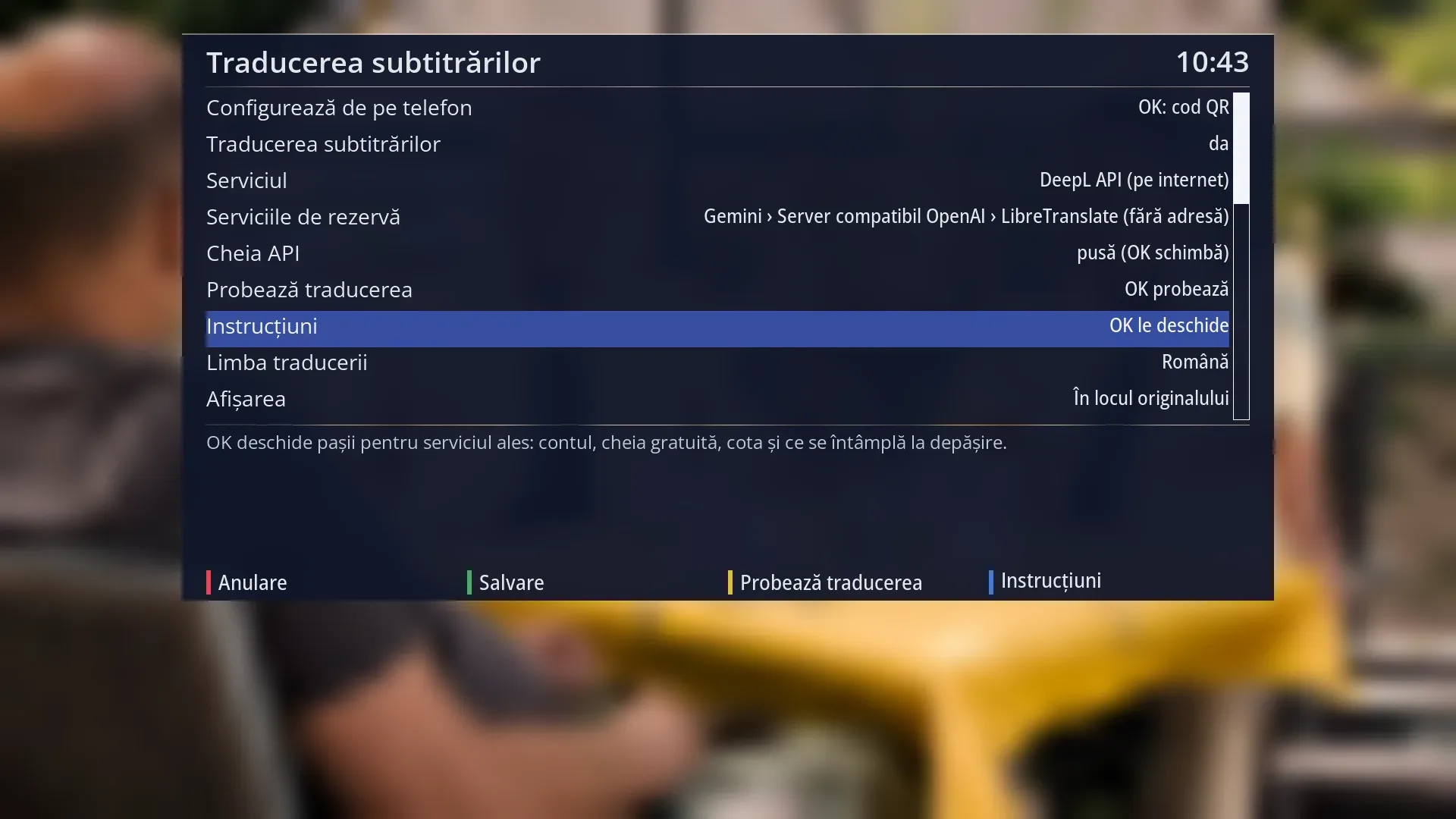
- 1 The selected row: “Instructions: OK opens them”.
- 2 What the selected row does: shown here, below the list.
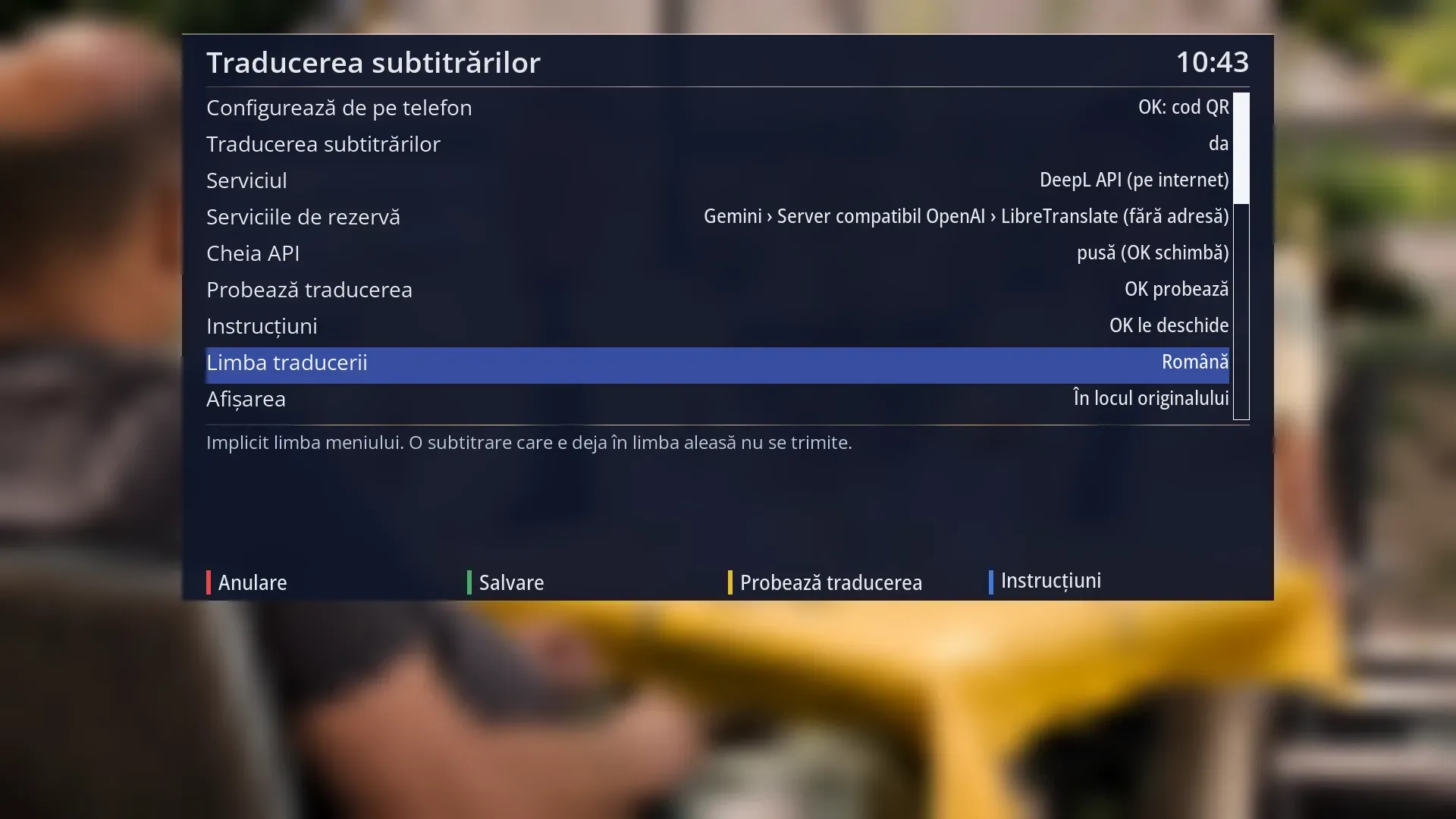
- 1 The selected row: “Translation language: Romanian”.
- 2 What the selected row does: shown here, below the list.
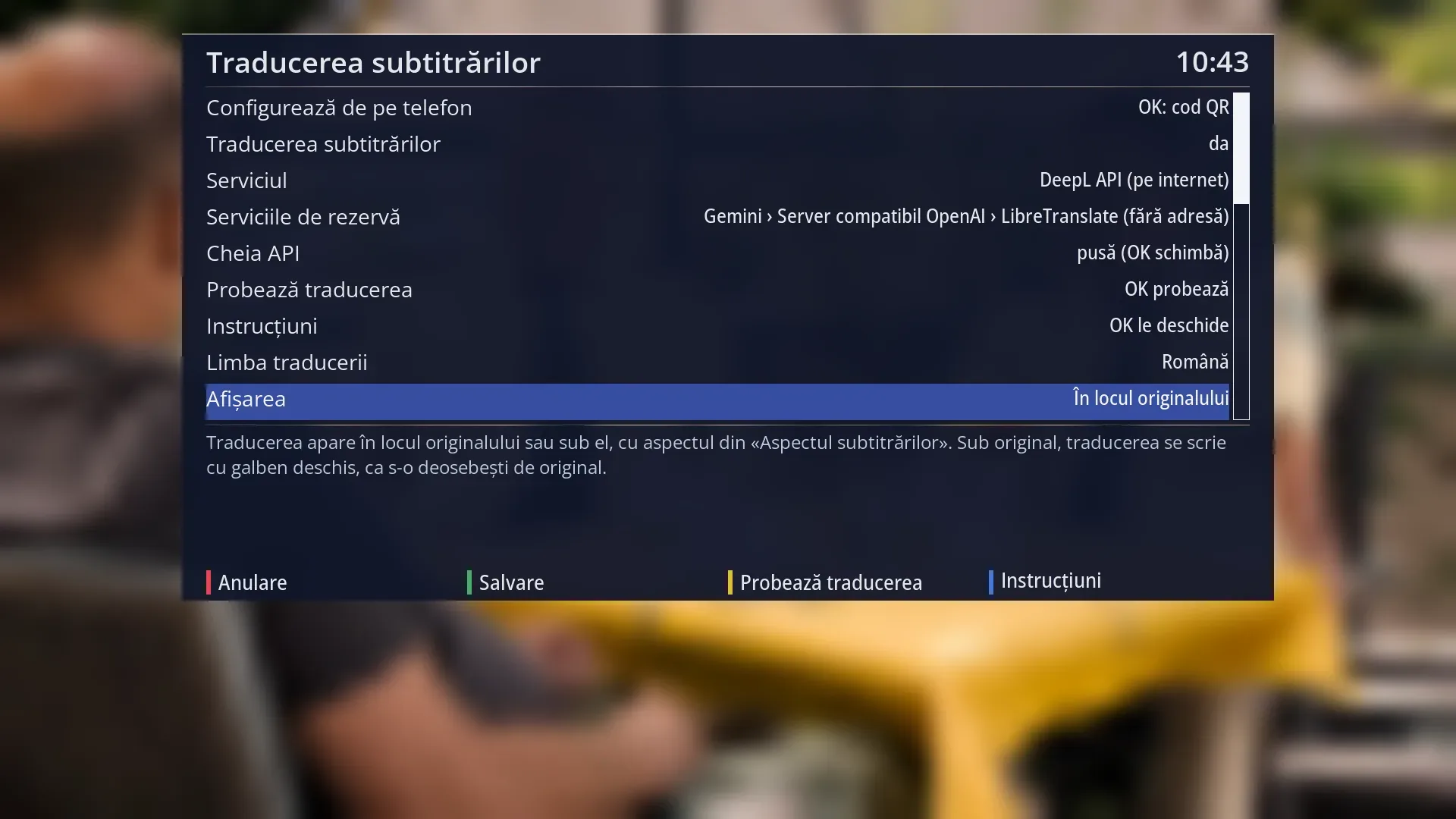
- 1 The selected row: “Display: Instead of the original”.
- 2 What the selected row does: shown here, below the list.
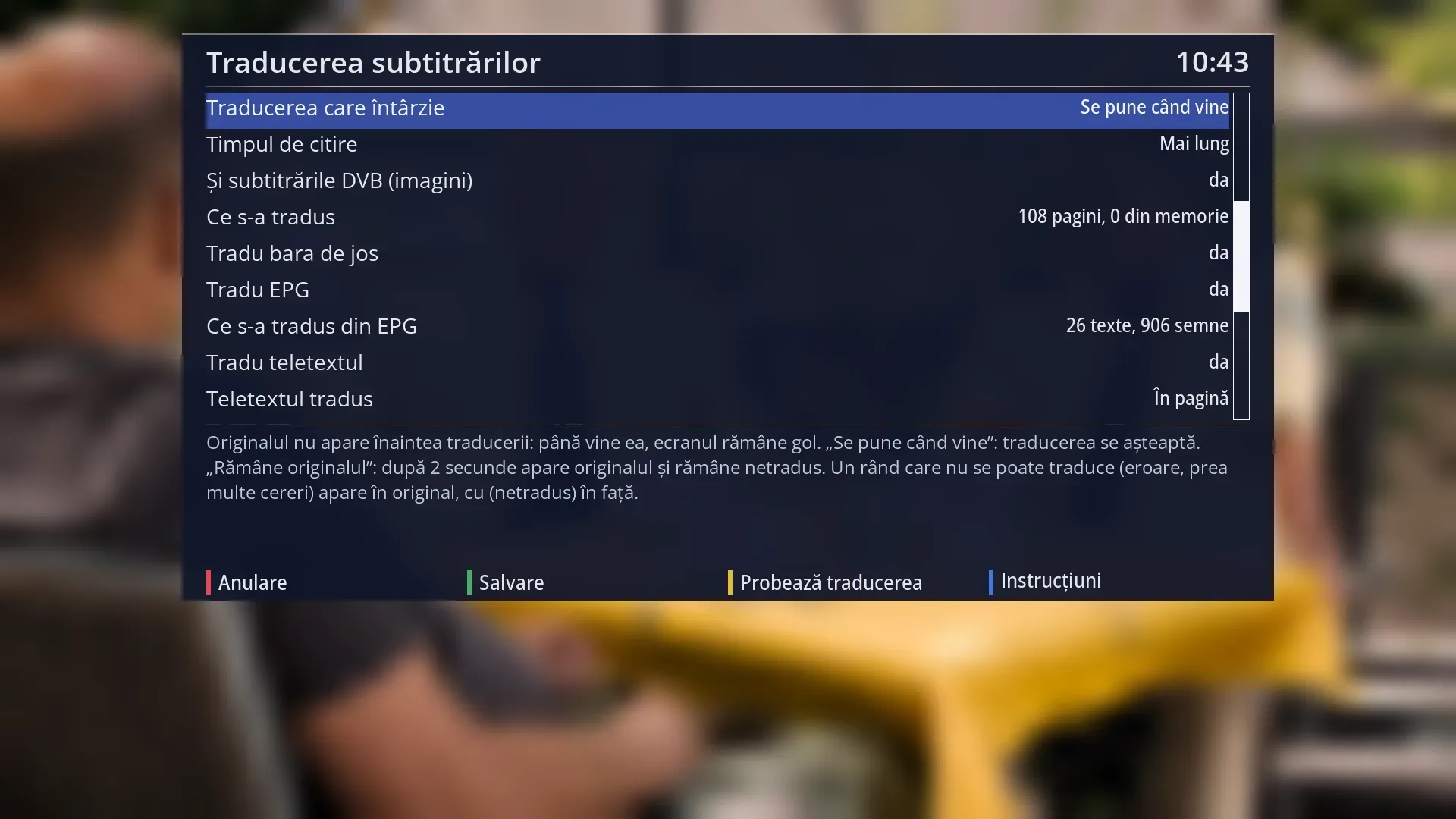
- 1 The selected row: “Late translation: Shown when it arrives”.
- 2 What the selected row does: shown here, below the list.
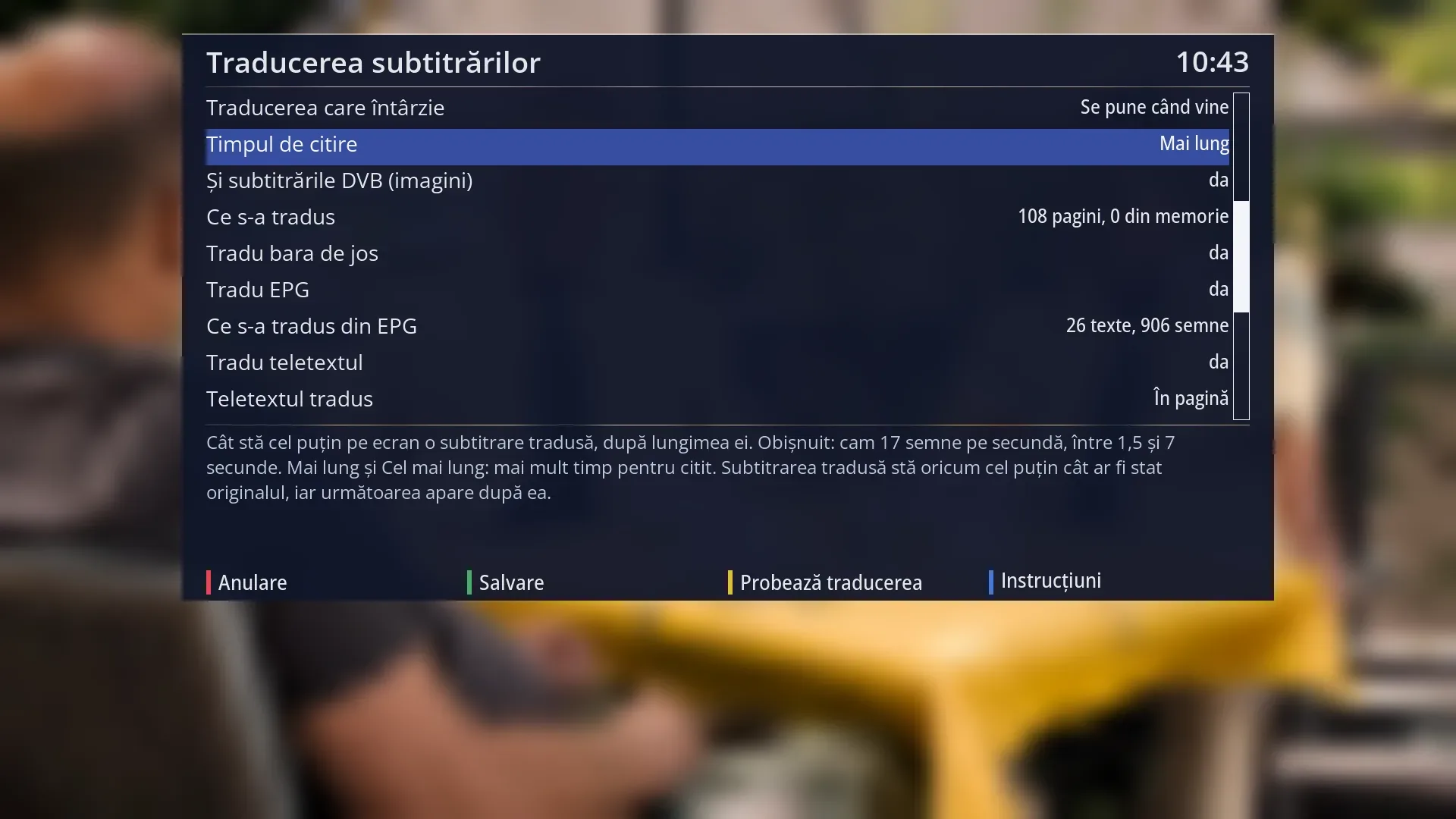
- 1 The selected row: “Reading time: Longer”.
- 2 What the selected row does: shown here, below the list.
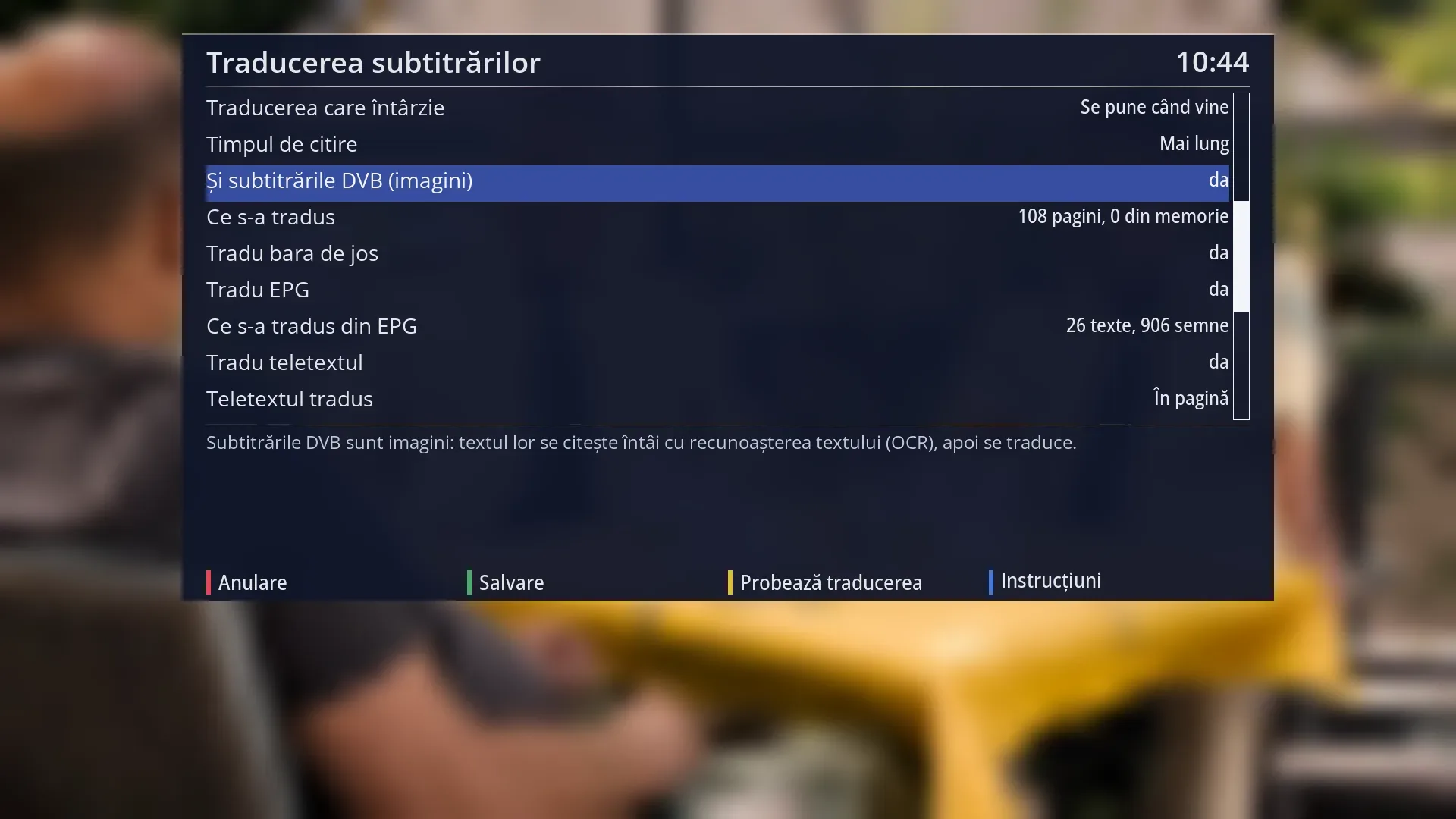
- 1 The selected row: “Also DVB subtitles (images): yes”.
- 2 What the selected row does: shown here, below the list.
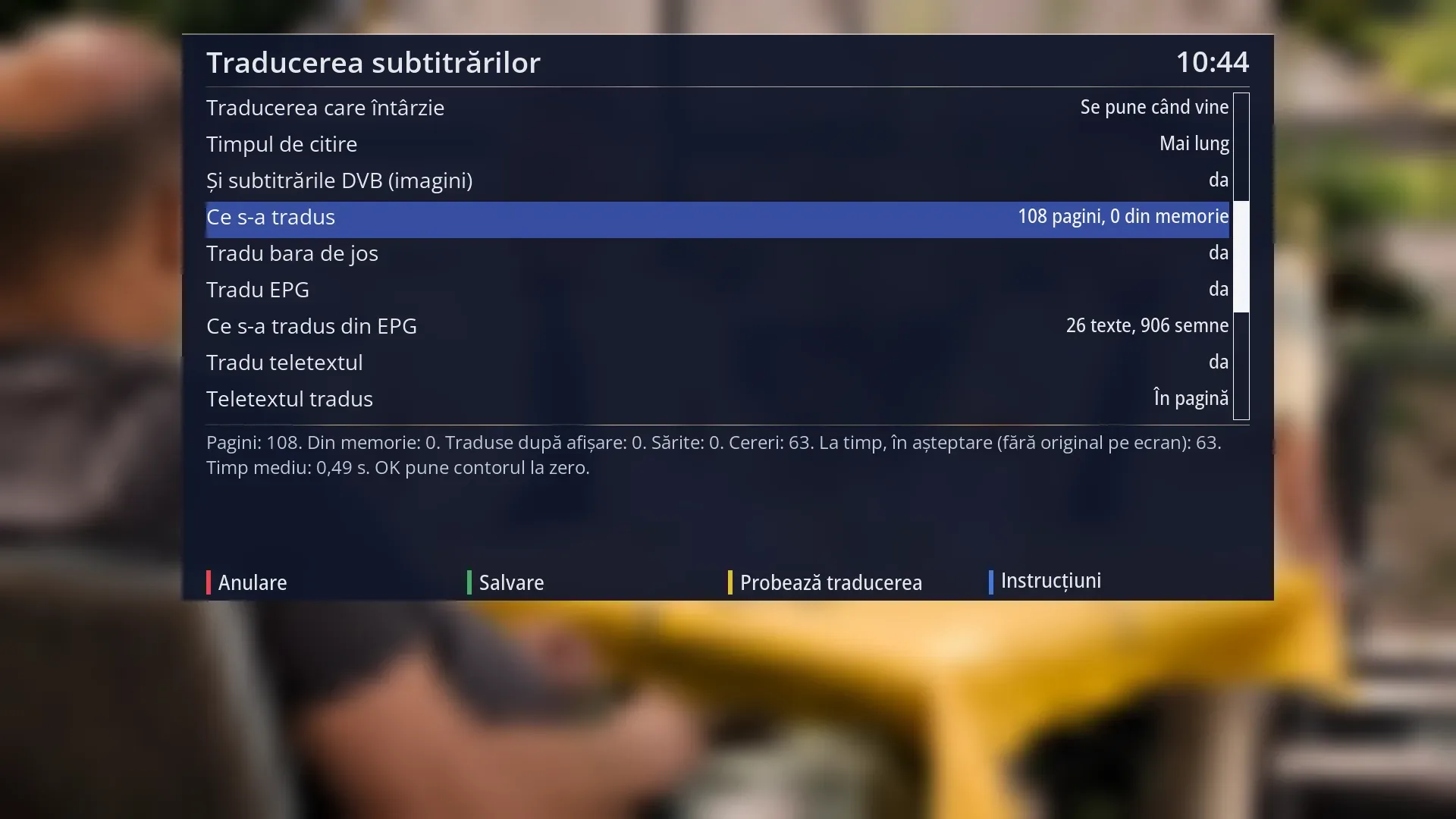
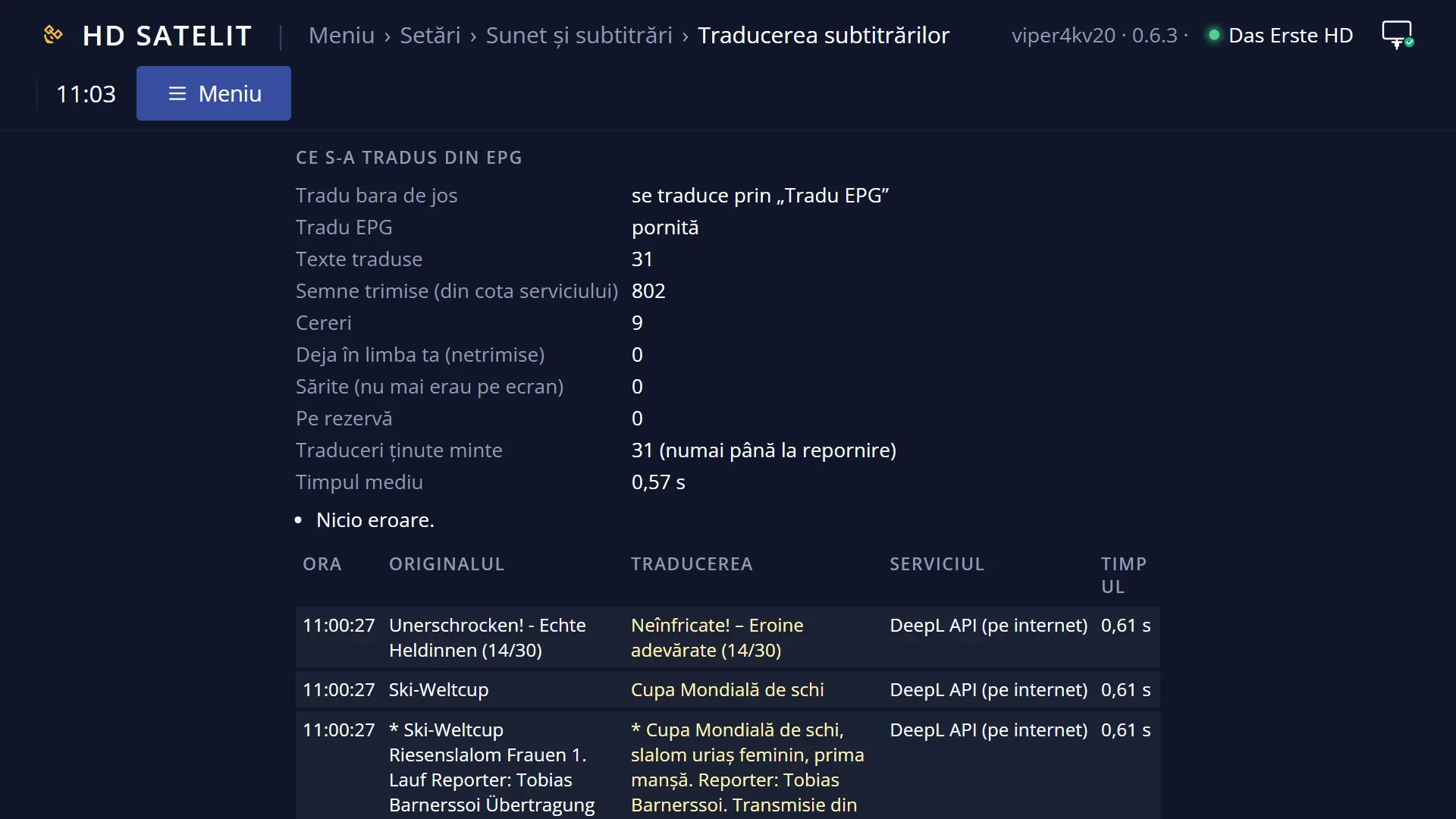
- 1 The selected row: “What was translated: 108 pages, 0 from memory”.
- 2 What the selected row does: shown here, below the list.
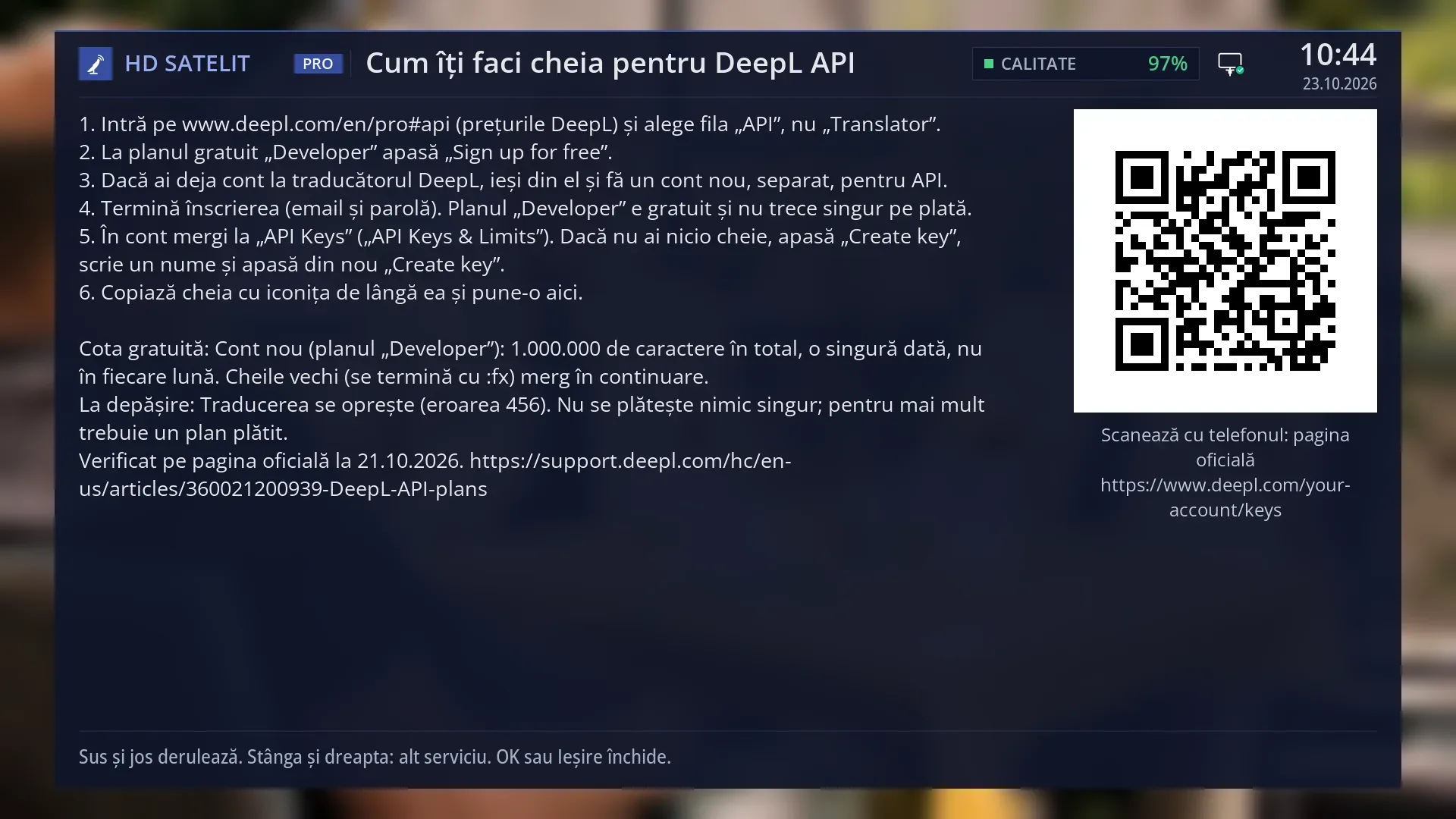
- 1 The steps: the account, the free key, the quota and what happens when you go over it.
- 2 The QR code to the key's official page.
- 3 UP and DOWN scroll, LEFT and RIGHT switch to another service.
What it is for
The receiver translates subtitles into your language by itself: teletext subtitles, subtitles from film files and DVB subtitles read as text. This is also where you turn on translation of the bottom bar, the programme guide, teletext and HbbTV applications.
The translation is done by a service you choose: an online one (Azure Translator, Gemini, DeepL API, Groq, Cloudflare Workers, Google Cloud Translation), a server in your home (LibreTranslate, an OpenAI-compatible server such as Ollama) or your own address. Most of them need a free key, which you create on the service's website.
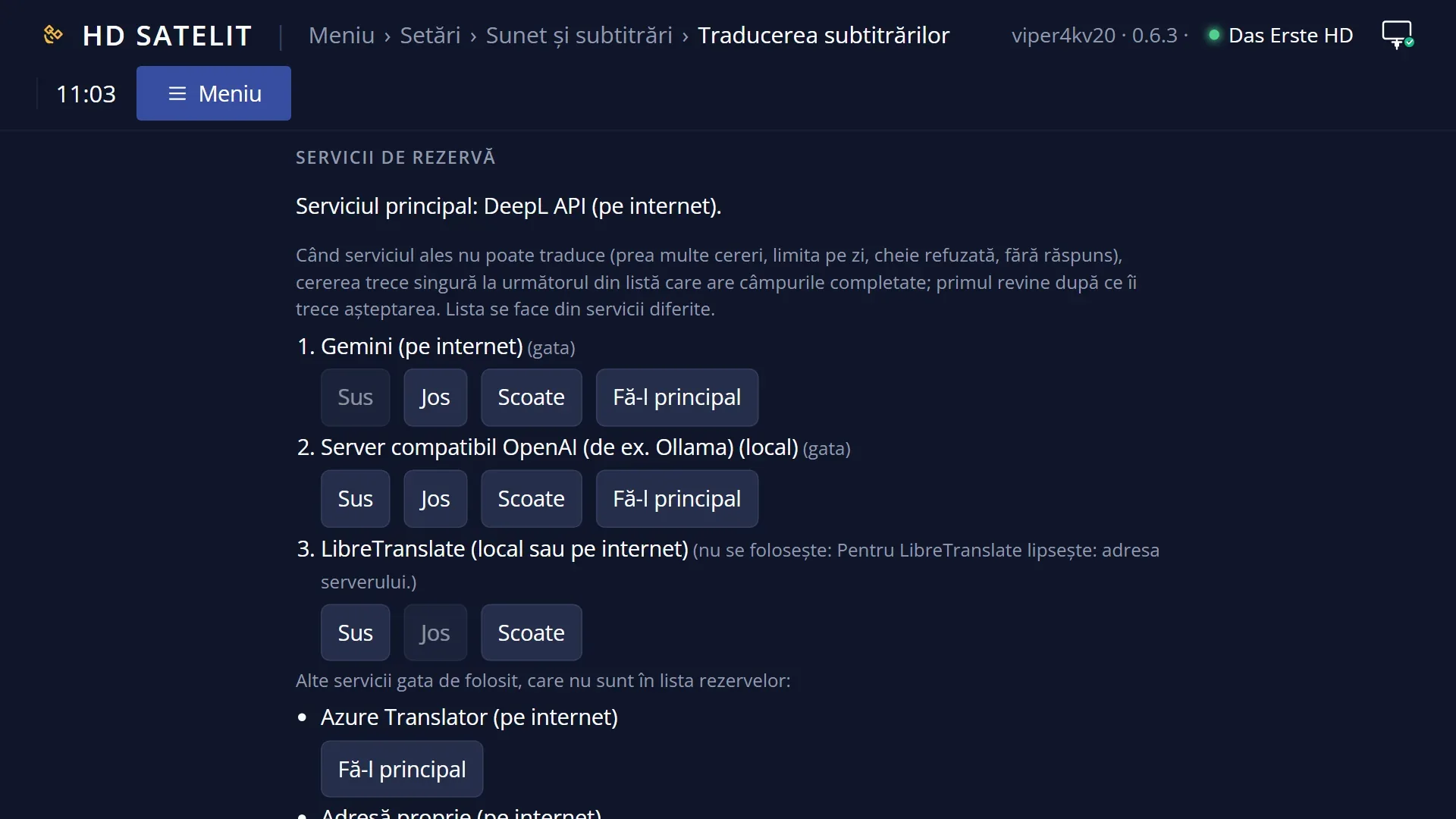
When the chosen service does not respond (too many requests, quota used up, key rejected, too slow), the receiver switches to the backup services by itself, in order, without a message.
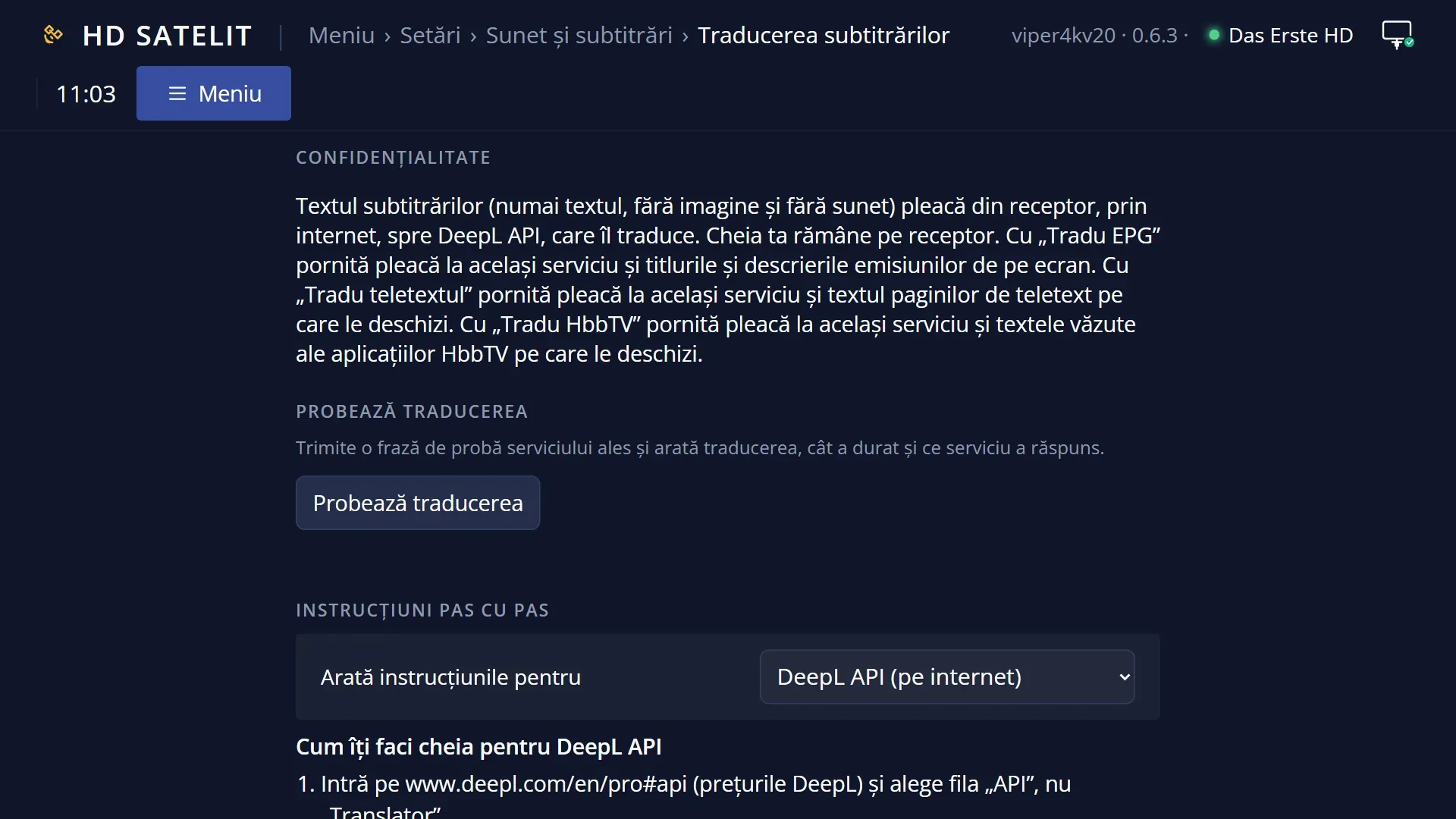
Only the subtitle text leaves the receiver, with no picture and no sound, and it goes to the chosen service. With a server in your home, nothing leaves your home. The keys are stored on the receiver, encrypted, and are never shown again.
The easiest way to set it up is from your phone: the first row shows a QR code that opens the receiver's step-by-step page on your phone.
How to get here
Path: Main menu > Settings > Audio & Sound Tracks > Subtitle translation.
Keys on the remote: MENU 6 4 6.
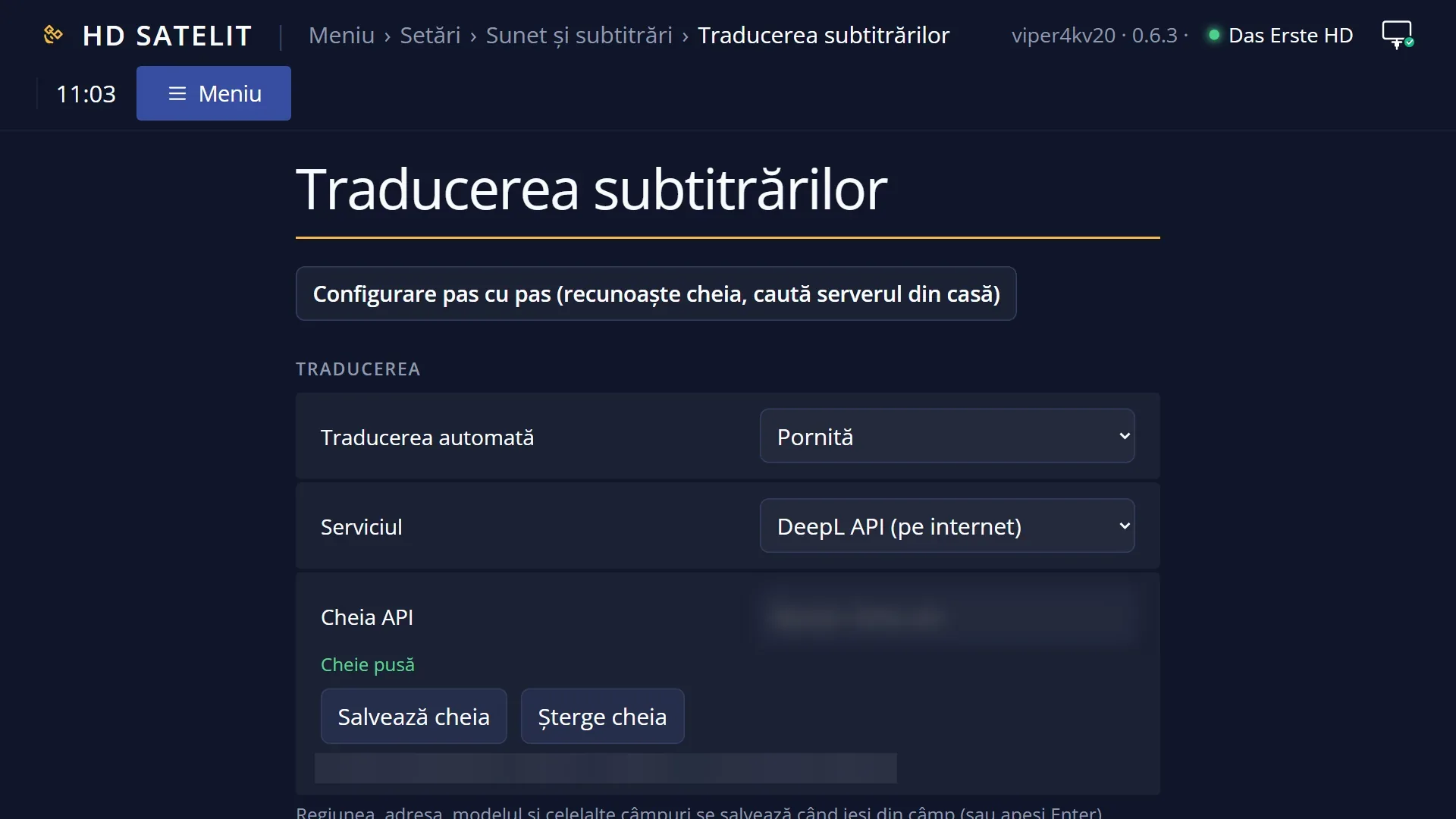
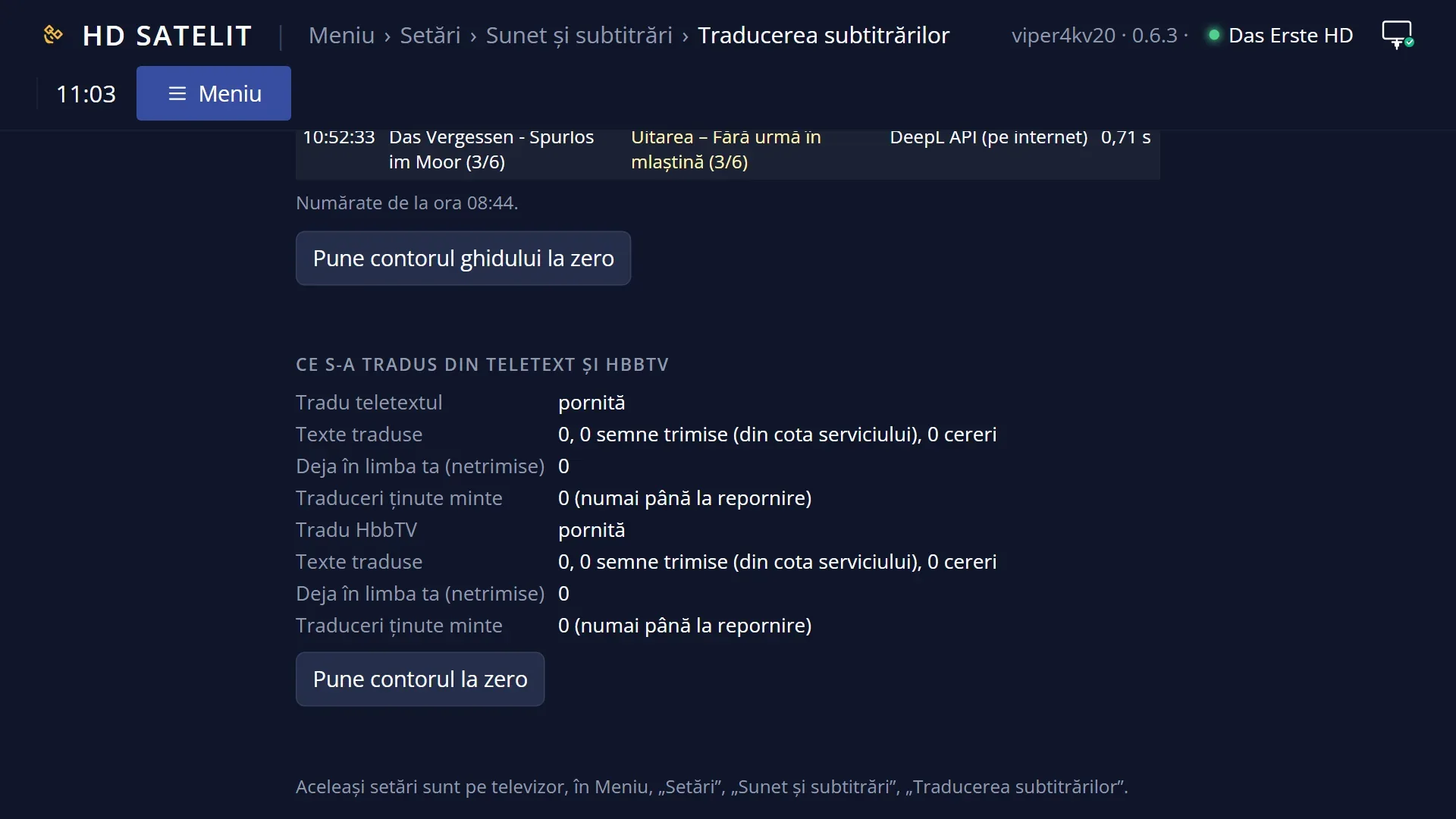
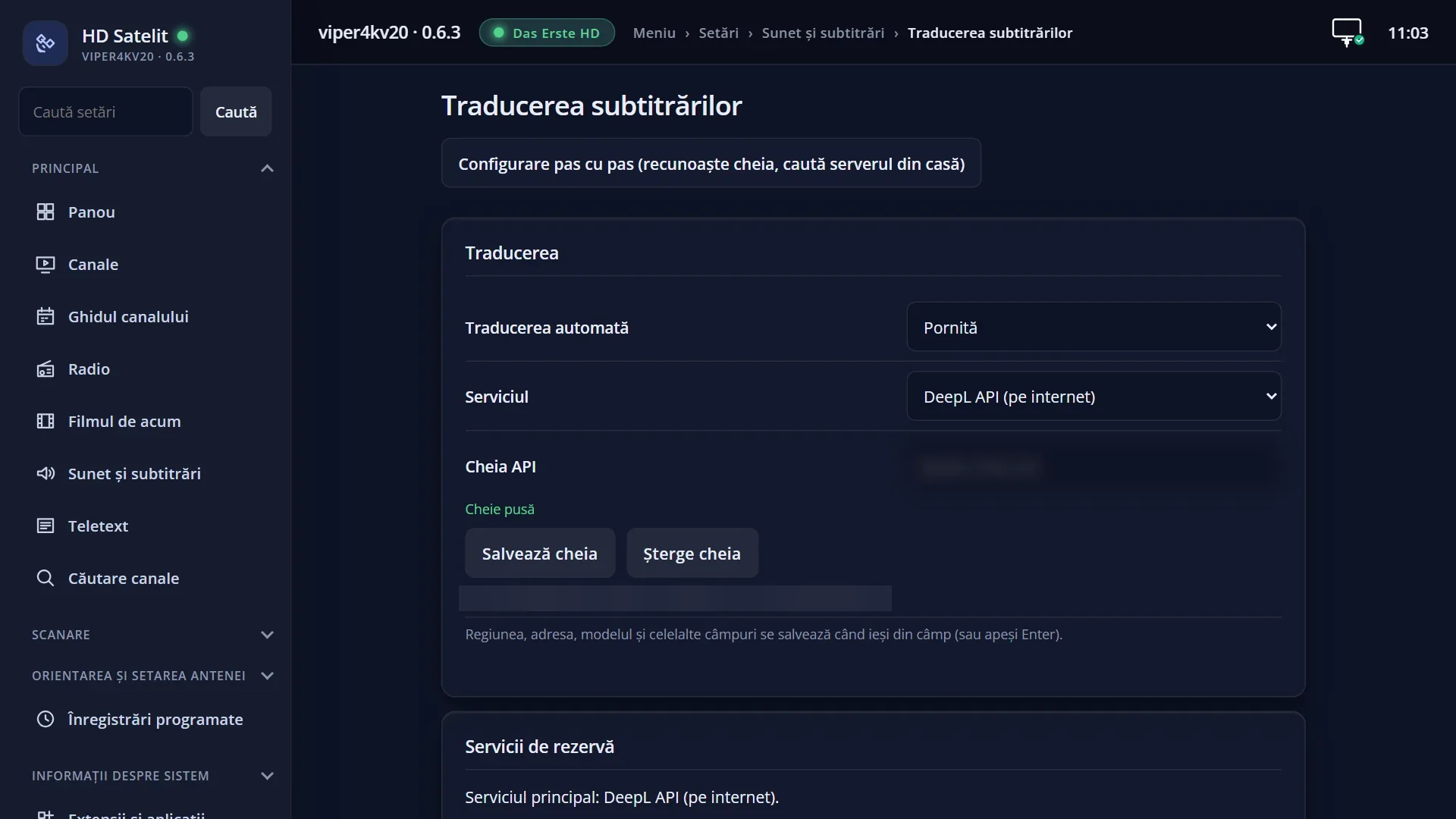
In the web interface: the /traducere-subtitrari page, and step-by-step setup on your phone at /traducere-configurare (it also opens from the QR code on the screen).
What you see on the screen
A panel at the top of the screen, with the title “Subtitle translation” and the clock. Below it you can see the programme, so you can see the test translation where the subtitles will appear.
The list of rows: nine fit at once, and you see the rest by scrolling. The service rows (key, region, address, model) change with the chosen service.
Below the list, a box with help for the row the cursor is on: what it does, what the chosen service is missing (“Missing for DeepL API: API key.”) and what leaves the receiver. After a test, the result also appears here.
At the bottom, the colour keys: RED “Cancel”, GREEN “Save”, YELLOW “Test the translation”, BLUE “Instructions”.
During the test, the original and the translation appear at the bottom of the screen, drawn like real subtitles.
Rows and settings
| Row | Values | Default | What it does |
|---|---|---|---|
| Set up from your phone | OK: QR code | OK opens the “Set up from your phone” window, with a large QR code. You scan it with your phone's camera and the receiver's page opens, already connected: you choose the service, create your key and paste it, and the receiver tests it straight away. The code can be used only once and is valid for 5 minutes, then a new one appears. The first time you turn on translation: a long key is much easier to paste on a phone than to type with the remote. | |
| Subtitle translation | no, yes | no | Turns on automatic translation for teletext, subtitles from files and DVB subtitles. With it on, a subtitle that can be translated is chosen automatically on any channel. When you want translated subtitles. It is saved with GREEN (Save). |
| Service | Azure Translator (online), Gemini (online), LibreTranslate (local or online, depending on the address), OpenAI-compatible server (e.g. Ollama) (local or online, depending on the address), DeepL API (online), Groq (online), Cloudflare Workers (online), Google Cloud Translation (online), Own address (local or online, depending on the address) | Azure Translator | The main translation service. Below the list, each one has a short description: Azure “Recommended for daily subtitles”; Gemini “The easiest to start, no card; it may stop if you watch a lot”; Groq “Free and fast; daily limit, enough for a few films”; Cloudflare Workers “Free; enough for a few films a day”; home servers “No limit, slower on ordinary computers”. With Google Cloud, use beyond the free quota is charged automatically (the instructions say so). When you choose another service or have a translation server at home. |
| Backup services | the list of services, in order, with what each one is missing (“no key”, “no address”, “no model”), none (OK adds one) | Gemini, LibreTranslate, OpenAI-compatible server | The services tried in turn when the main one does not respond; those without complete details are skipped. OK opens the choices: “Add:”, “Move up:”, “Remove:” and, for a service that is ready, “Make it main:”. When you want translation to keep working even after the main service has used up its daily quota. |
| Search the home network (LibreTranslate and OpenAI-compatible server only) | OK searches | Finds the translation server in your home by itself (LibreTranslate or Ollama), enters it and tests it, with the time measured. If it finds several servers, you choose from a list. When you have started a translation server on a computer at home and do not know its address. | |
| API key (with Own address: Header value (the key)) | set (OK changes it), missing (OK to type it), not needed (only if the server asks), set for another server (OK enters it again), must be entered again (OK to type it) | missing | The key for the chosen service. OK opens the choice “Type the new key” / “Delete the key”. The key is stored on the receiver, encrypted, and is not shown again. For servers with an address, the key is sent only to the server it was entered for. After you create your free key (BLUE shows how) or when the service rejects it. |
| The region (only if the resource is not Global) (Azure only) | Global, West Europe, North Europe, Germany West Central, France Central, Sweden Central, UK South, Switzerland North, Switzerland West | Global | The region of the Translator resource in your Azure account. OK opens the list. You find it in the portal, on the Translator resource: Overview › Location. When your Azure resource is not Global and the test says the key is rejected. |
| Server address (LibreTranslate and OpenAI-compatible server only) | the address you typed, missing (OK to type it) | missing | The address of the translation server, for example http://192.168.1.50:5000 (LibreTranslate) or http://192.168.1.50:11434 (Ollama). OK opens the keyboard. The receiver's own address is not accepted, and http:// works only on your home network. When the server in your home has a different address. |
| Cloudflare account ID (Cloudflare Workers only) | the ID you typed, missing (OK to type it) | missing | The account ID, 32 letters and digits, from the Cloudflare dashboard, under “Account ID”. OK opens the keyboard; a wrong ID is not accepted. When you first set up the Cloudflare Workers service. |
| Model (Gemini, Groq, Cloudflare Workers and OpenAI-compatible server) | Gemini: gemini-3.5-flash-lite, Groq: openai/gpt-oss-20b, openai/gpt-oss-120b, Cloudflare Workers: @cf/google/gemma-4-26b-a4b-it, @cf/openai/gpt-oss-20b, @cf/meta/llama-4-scout-17b-16e-instruct, OpenAI-compatible server: typed by you (for example gemma3:4b) | the first in each list; for the OpenAI-compatible server, empty | The model the service uses to translate. With Groq and Cloudflare, OK opens the list of suggested models (with “Type another model”); with the others, it opens the keyboard. When translation is too slow or the service no longer offers the model. |
| Address (template), Method, Request body (template), Body type, Header name (optional), Response type, Path of the translation in the response (Own address only) | Method: GET, POST, Body type: JSON, Form (POST only), Response type: JSON, Plain text, Path of the translation in the response: JSON only | Method GET, Body type JSON, Response type JSON; the rest empty | These describe a translation server of your choice. In the address and the body, the placeholders {text}, {sursa} and {tinta} are replaced on every request. The path says where the translation is in the JSON response (for example translatedText or data.0.text). BLUE shows an example. They are easier to type from the web page. Only if you have a translation server that is not in the list. |
| Test the translation | OK tests it | Sends a test sentence to the chosen service. The answer appears below the list (“Test worked (...): ...” or “Test failed: ...”), and the original and the translation are shown at the bottom, like subtitles. YELLOW does the same. After you have entered the key, the address or the model. | |
| Instructions | OK opens them | Opens the steps for the chosen service: the account, the free key, the quota and what happens when you go over it, with a QR code to the key's official page. BLUE does the same. When you do not know where to get the key. | |
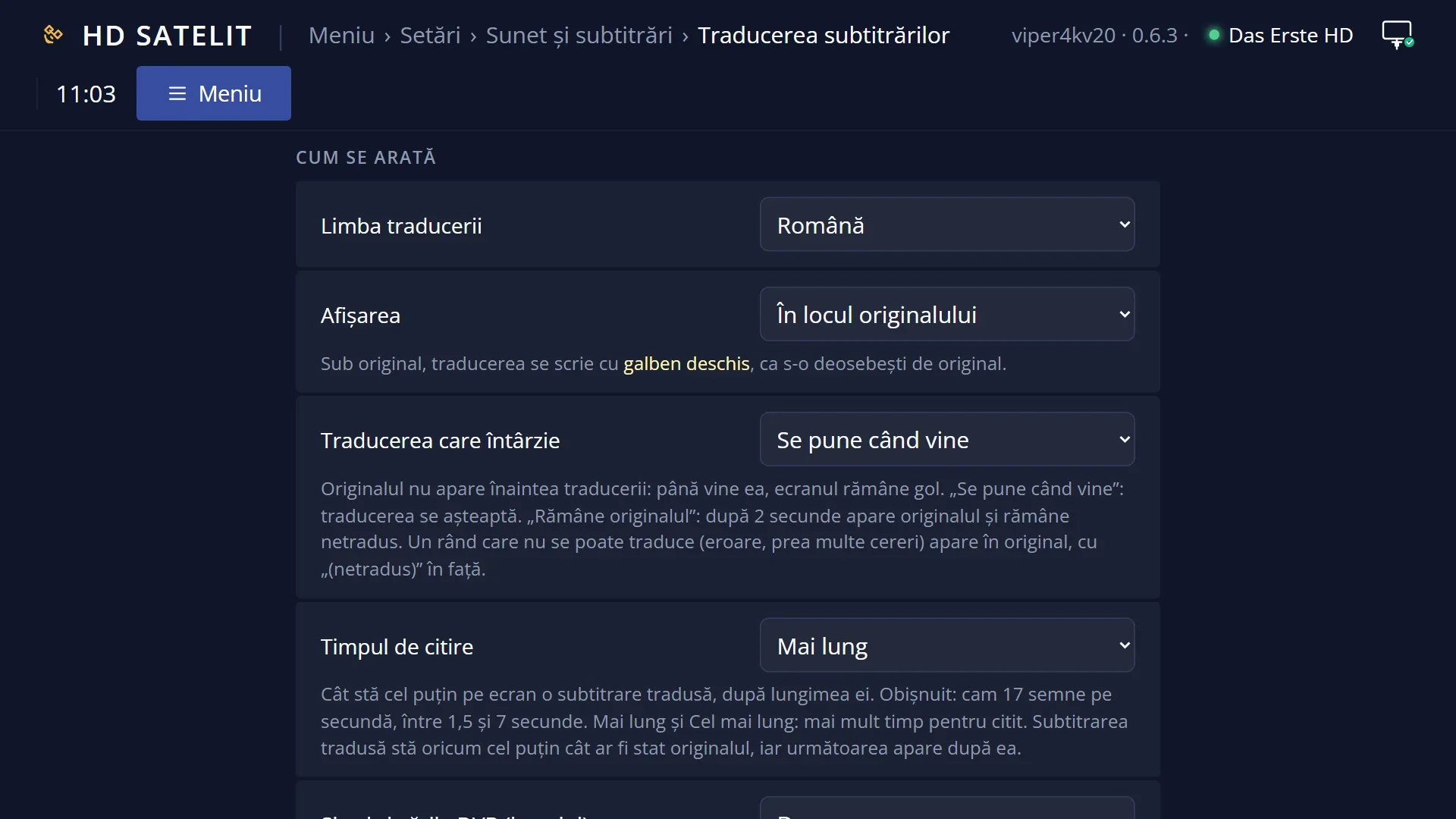
| Translation language | Menu language, 41 languages (Romanian, English, German, French, Italian, Spanish, Hungarian and others, up to Thai) | Menu language | The language to translate into. A subtitle that is already in the chosen language is not sent. When you want the translation in a language other than the menu language. |
| Display | Instead of the original, Below the original | Instead of the original | The translation appears instead of the original or below it, with the look set in “Subtitle appearance”. Below the original, the translation is written in light yellow, so you can tell it apart from the original. When you are learning a language or want to compare the translation with the original. |
| Late translation | Shown when it arrives, The original stays | Shown when it arrives | The original does not appear before the translation: until the translation arrives, the screen stays empty. “Shown when it arrives”: the receiver waits for the translation. “The original stays”: after 2 seconds the original appears and stays untranslated. A line that cannot be translated appears in the original, with “(not translated)” in front. Switch to “The original stays” when the service is slow and you prefer the original on time. |
| Reading time | Normal, Longer, Longest | Normal | The minimum time a translated subtitle stays on screen, based on its length. Normal: about 17 characters per second, between 1.5 and 7 seconds. Longer and Longest give more time for reading. The translated subtitle always stays at least as long as the original would have, and the next one appears after it. When you cannot finish reading the translation. |
| Also DVB subtitles (images) | yes, no | yes | DVB subtitles are images: their text is first read with text recognition (OCR), then translated. Set it to “no” if you want only teletext and files translated. |
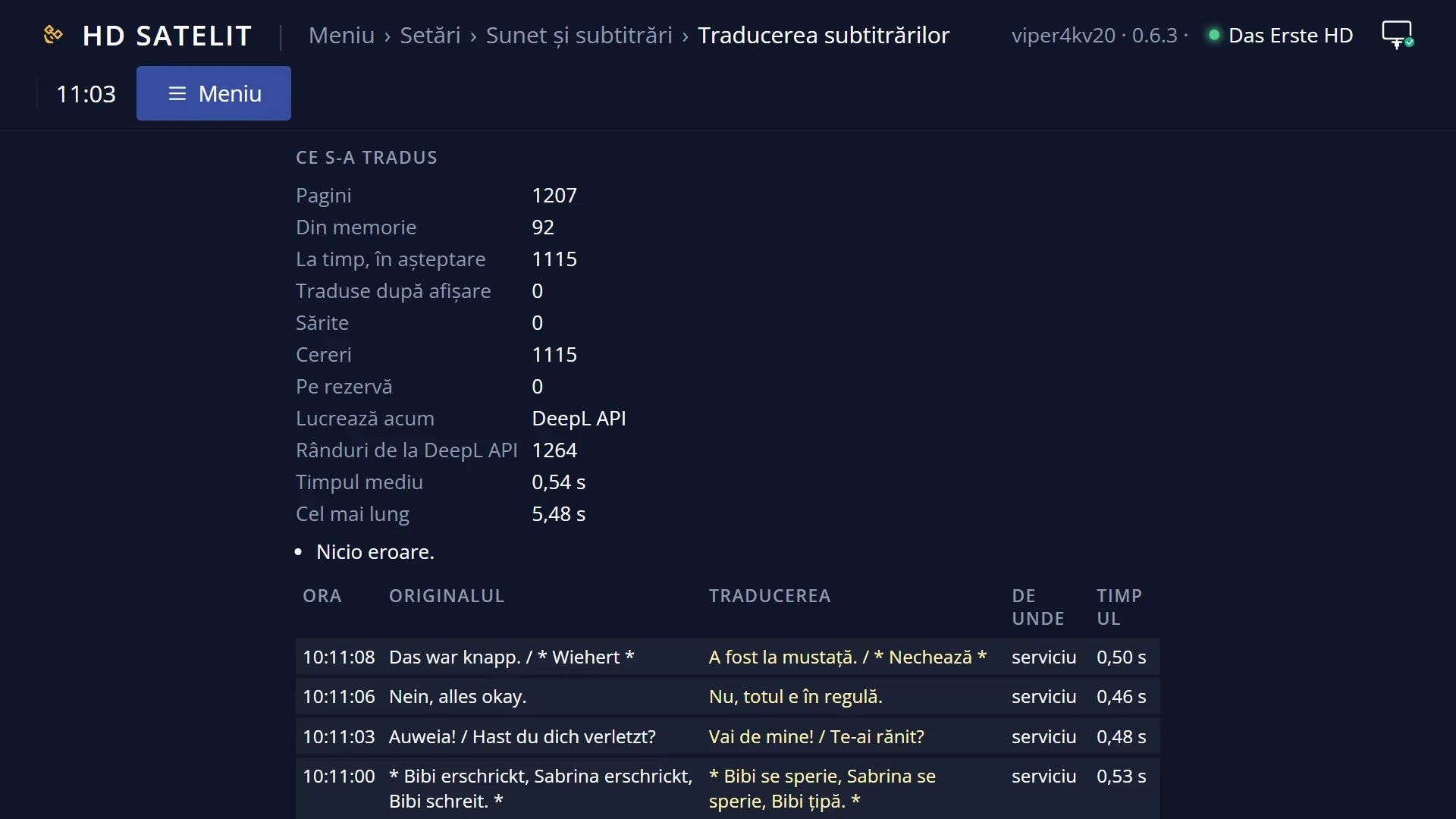
| What was translated | nothing yet, “12 pages, 3 from memory” | nothing yet | Read-only row: how many subtitle pages have been translated and how many came from memory. Below the list: pages translated after they were shown, skipped pages, requests, average time, errors and the last error. OK resets the counter to zero. When you want to see whether translation works and how fast it is. |
| Translate the bottom bar | yes, no | yes | Translates the titles of the current and next programme on the bottom bar, only while subtitle translation is on. It uses very little of the quota: each title is requested only once. INFO on the bar shows the original text. Set it to “no” if you always want the bar titles in the original. |
| Translate EPG | no, yes | no | Translates the titles and descriptions of programmes on screen (bottom bar, second bar, programme guide, programme details). It uses up the service's quota, which is why it is off by default. In the programme details, INFO shows the original text. When you watch foreign channels and want the programme guide in your language. |
| What was translated from the EPG | off, nothing yet, “40 texts, 3200 characters” | off | Read-only row: how much has been sent for translation from the programme guide. Below the list: the details, how many translations are remembered and where. OK resets the counter to zero. When you want to know how much of the quota the programme guide uses. |
| Translate teletext | no, yes | no | Translates the teletext pages you open. The page appears first in the original, then translated; in teletext, AUDIO shows the original. It uses up the service's quota, which is why it is off by default. When you read the teletext of foreign channels. |
| Translated teletext | On the page, In a panel | On the page | On the page: the translated lines replace the original ones, with the same colours; anything that does not fit is cut off with “…”. In a panel: the original page, smaller, on the left, and the full translation on the right. When the page translations get cut off. |
| Translate HbbTV | no, yes | no | Translates the texts you see in HbbTV applications (RED key): only the texts on screen, not addresses, code or input fields. The page appears first in the original. Applications opened over https stay in the original for now. It uses up the quota, which is why it is off by default. When you use the HbbTV applications of foreign channels. |
| What was translated from teletext and HbbTV | off, nothing yet, “25 texts, 1800 characters” | off | Read-only row: how much has been sent for translation from teletext and HbbTV. Below the list: the details for each and the last error. OK resets the counter to zero. When you want to know how much of the quota teletext and HbbTV use. |
Keys
| UP / DOWN | Move the cursor between rows; the row help below the list changes. |
| LEFT / RIGHT | Change the row's value (service, language, display and the other choices). |
| OK | Does what the row says: the QR code, the key, the keyboard for addresses and models, the list of regions or models, the network search, the test, the instructions, resetting a counter. On the other rows it opens the list of values. |
| GREEN | “Save”: keeps the settings and closes the screen. Keys are saved as soon as you type them. |
| RED | “Cancel”: closes without asking, and the rows go back to how they were. A key you typed stays set, except the key for a server with an address whose address was not saved. |
| YELLOW | “Test the translation”: sends a test sentence to the chosen service; the result appears below the list and at the bottom of the screen. |
| BLUE | “Instructions”: the steps for the chosen service (account, free key, quota, what happens when you go over it). |
| EXIT | With no changes, it closes. With changes, it asks “You changed the translation settings. Save them?”: “Yes, save”, “No, leave it as it was” or “Back to the choices”. |
| In “Instructions”: UP / DOWN, LEFT / RIGHT, OK / EXIT | UP and DOWN scroll the text, LEFT and RIGHT switch to another service's instructions, OK or EXIT close. |
| In “Set up from your phone”: OK / EXIT | Close the QR code window (the code stops working once it is closed). |
Step by step
Turning on translation from your phone
- Open Menu > Settings > Audio & Sound Tracks > Subtitle translation (MENU 6 4 6).
- On the first row, “Set up from your phone”, press OK. A QR code appears.
- Scan the code with your phone's camera (the phone must be on the same network as the receiver). On the phone, choose the service, create your free key and paste it; the receiver tests it straight away.
- “Phone connected” and the test result appear on the TV. Press OK, then set “Subtitle translation” to “yes” and press GREEN.
Turning on translation with the remote
- In “Service”, choose the service (Azure Translator by default).
- Press BLUE and follow the steps to create your free key.
- On “API key”, press OK, choose “Type the new key” and type the key.
- Press YELLOW: “Test worked” should appear below the list.
- Set “Subtitle translation” to “yes” and press GREEN.
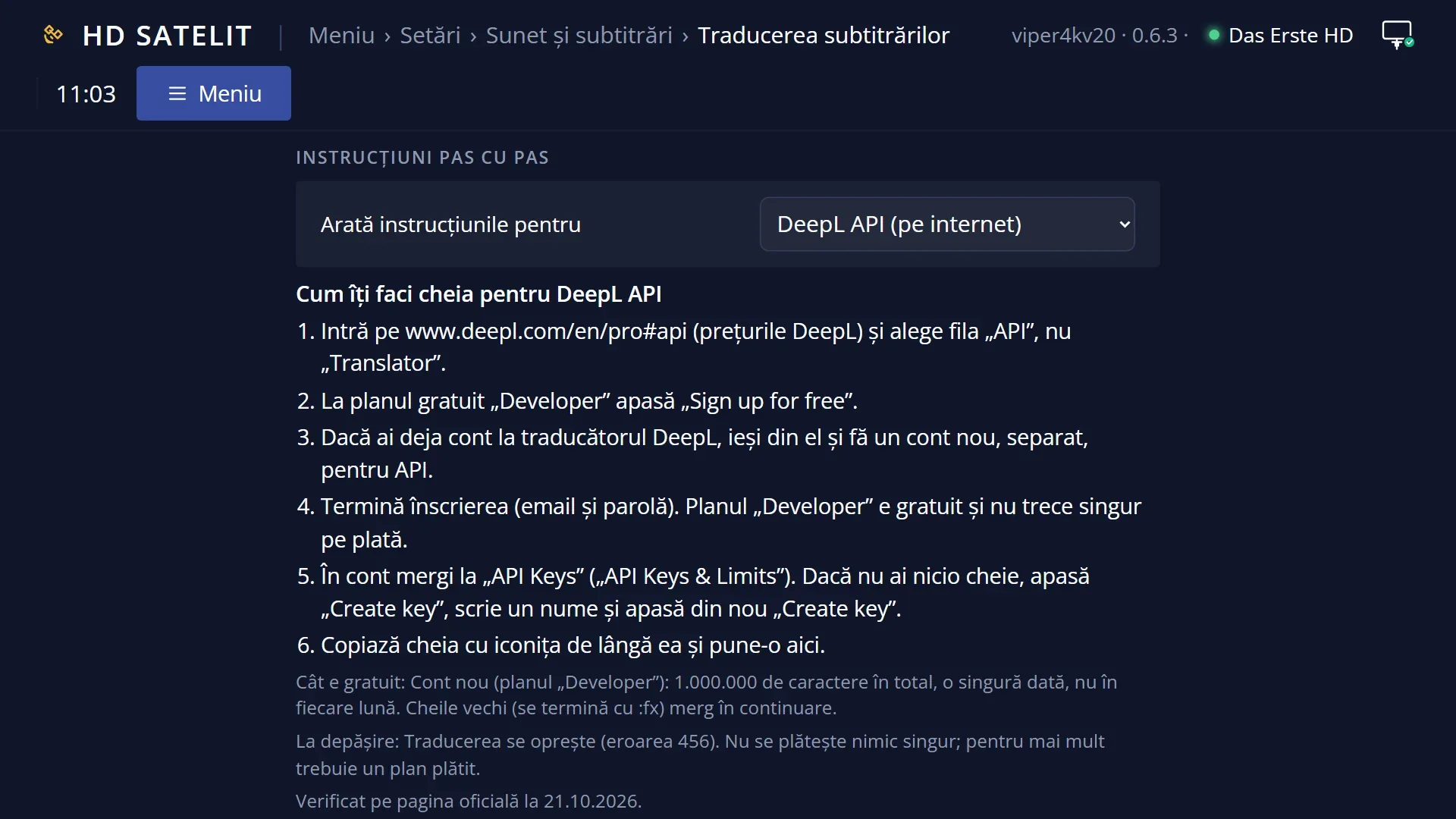
Creating your DeepL API key (the free “Developer” plan)
- Open the sign-up for the free DeepL API plan: https://www.deepl.com/en/checkout?productId=api-developer&billingPeriod=yearly&isTrial=false&is_api=true (on the receiver, the QR code under BLUE “Instructions” opens the same page).
- Log in to your DeepL account or create a new one. A DeepL translator account has no API keys until you add this plan: the keys address sends you back to the account page.
- Fill in the country, first name, last name and address (street, postal code, city).
- Press “Verify email”, then the “Verify email” button in the email you get from DeepL. Do not close the page.
- Press “Start building for free”. The key appears at the “Get API key” step.
- You can always find your keys here: https://www.deepl.com/en/your-account/keys (the “API Keys & Limits” tab): copy the key with the icon next to it, or make a new one with “Create key”.
- Put the key in the receiver, at “API key” (or paste it from your phone with “Set up from your phone”).
- The plan is free only for 1,000,000 characters in total, once, not every month. What each plan includes: https://www.deepl.com/en/pro-api.
Seeing the translation below the original
- In “Display”, choose “Below the original”.
- Press GREEN. The original appears on screen, with the translation below it in light yellow.
Problems and solutions
Below the list it says “Missing for ...: API key.” (or the address, the model).
The chosen service is missing what is shown there. Fill in the row with OK; BLUE shows where to get the key.
The TV shows “Subtitle translation does not work yet. ... Fill it in under Menu › Settings › Audio & Sound Tracks › Subtitle translation.”
None of the services in the list has all its details. Enter the key for the main service or for a backup and test it with YELLOW.
“Test failed” or the service “rejected the key”.
The key is wrong, expired or set for another region (with Azure, check “The region”). Type the key again. After three rejections in a row, the receiver stops using the key and tries it again by itself once an hour.
“... has reached the free limit per day (or per month).” appears.
The service has used up its free quota. Translation resumes when the limit is renewed; to keep it working until then, add backup services.
“Subtitle translation is arriving too late: the server responds in ..., on average.” appears.
The service (usually a home server on an ordinary computer) is too slow for subtitles. Choose an online service or a smaller model.
The screen has no subtitle for a few moments.
That is by design: the original does not appear before the translation. If you want the original on time, set “Late translation” to “The original stays”.
Some lines appear with “(not translated)” in front.
The line could not be translated in time (error, too many requests). See “What was translated” for the last error.
The server address is not accepted.
The receiver's own address (127.0.0.1, localhost, 0.0.0.0, 169.254.x or the receiver's IP) cannot be a translation server; type the address of the computer running the server. For a server on the internet, use https://.
The QR code says “The receiver has no network connection, so the page cannot be opened on the phone.”
The receiver is not connected to the network. Connect it (cable or Wi-Fi) and open the code again.
DeepL logs you out or sends you back to the account page when you look for the keys.
Your account is a translator account and does not have the API plan yet. Add the free “Developer” plan: https://www.deepl.com/en/checkout?productId=api-developer&billingPeriod=yearly&isTrial=false&is_api=true (the steps above, “Creating your DeepL API key”). After that, your keys are at https://www.deepl.com/en/your-account/keys.
Related topics
- Translated subtitle on screen (how the translation looks)
- Translated teletext
- DVB subtitles read as text
- Choosing the subtitle to translate: Menu > Settings > Audio & Sound Tracks > Audio and subtitle language, the row “Automatically translate from any available subtitle”.
- Matching web page: /traducere-subtitrari; step-by-step setup on your phone: /traducere-configurare.