

Subtitle appearance
English screenshots coming: some of the pictures below still show the receiver and the web interface in Romanian. The rows, keys and steps described on this page are the English ones.
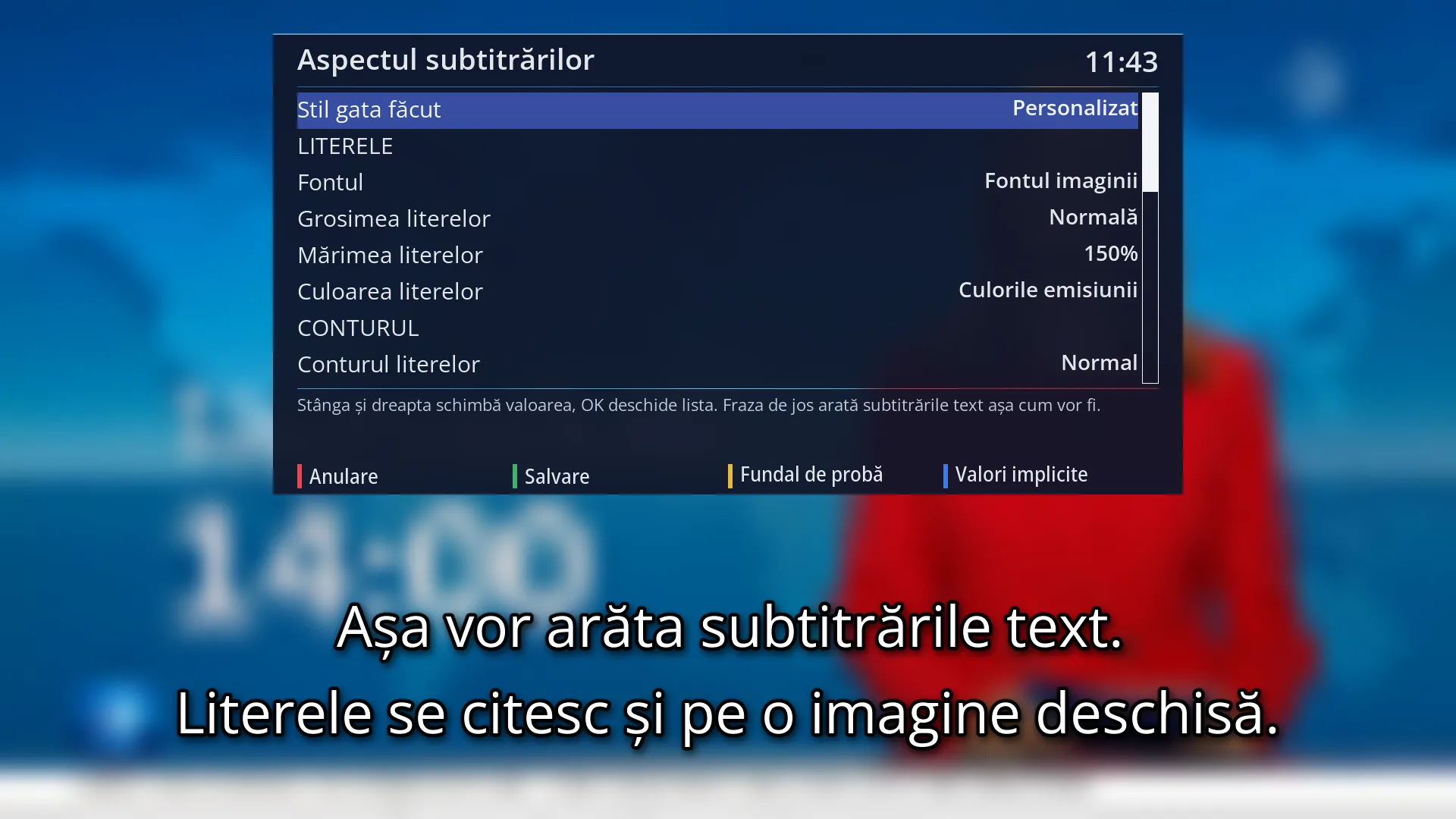
- 1 “Ready-made style”: a complete look from one choice.
- 2 The settings, in groups; the headings in capitals are skipped.
- 3 Help for the selected row.
- 4 RED Cancel, GREEN Save, YELLOW Test background, BLUE Defaults.
- 5 The test sentence, drawn exactly like real subtitles.
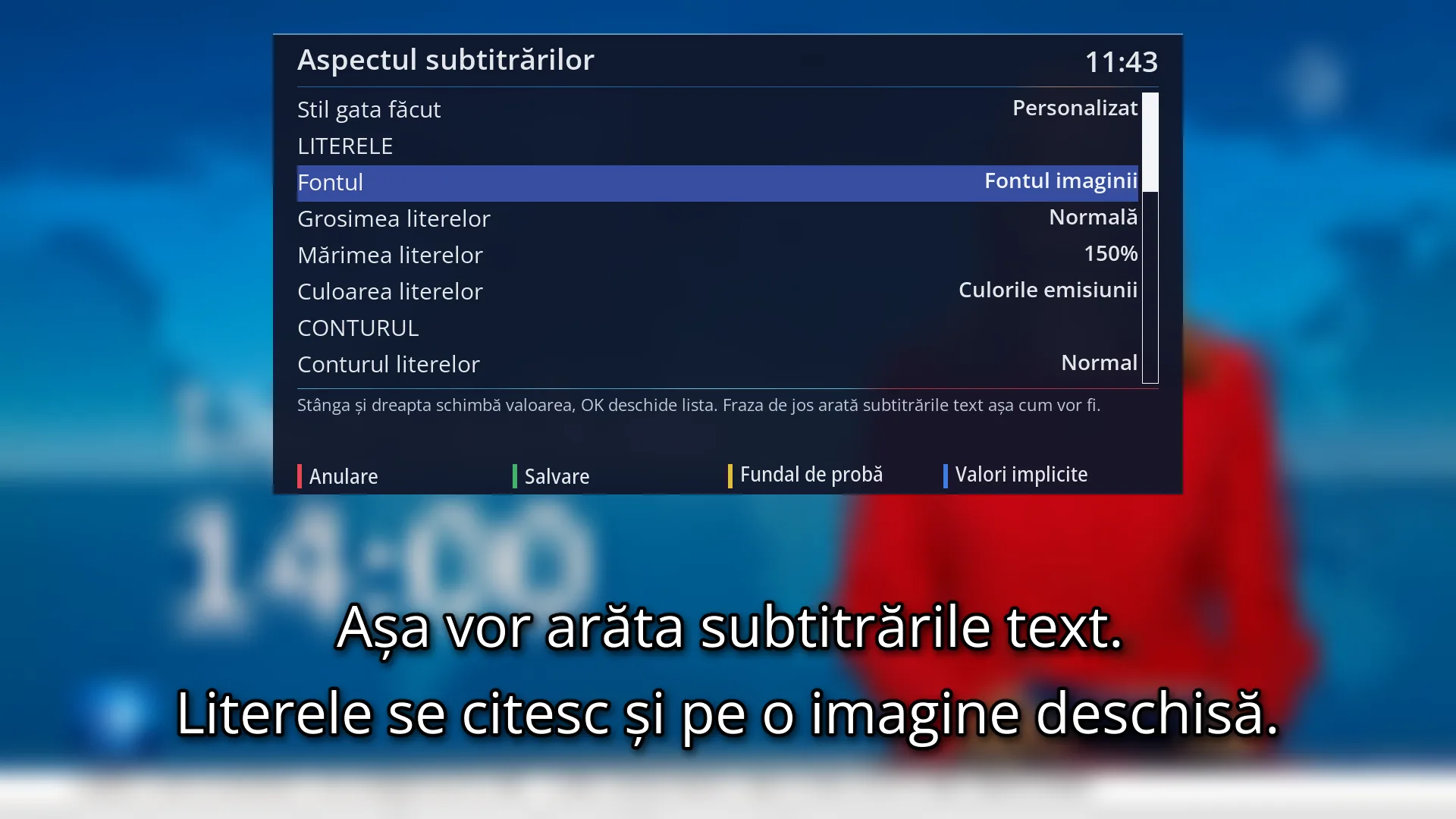
- 1 Selected row: “Font: The image's font”.
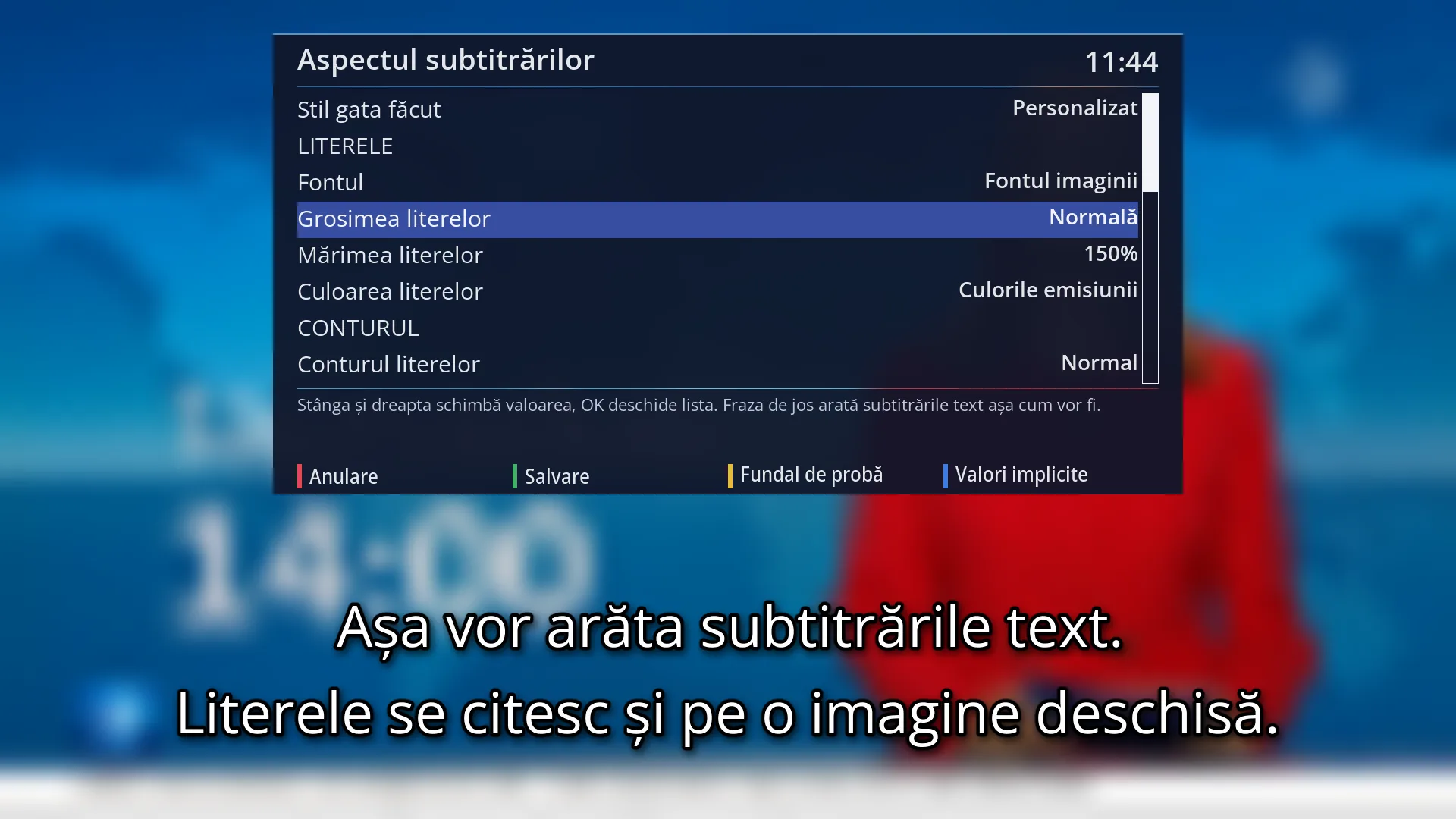
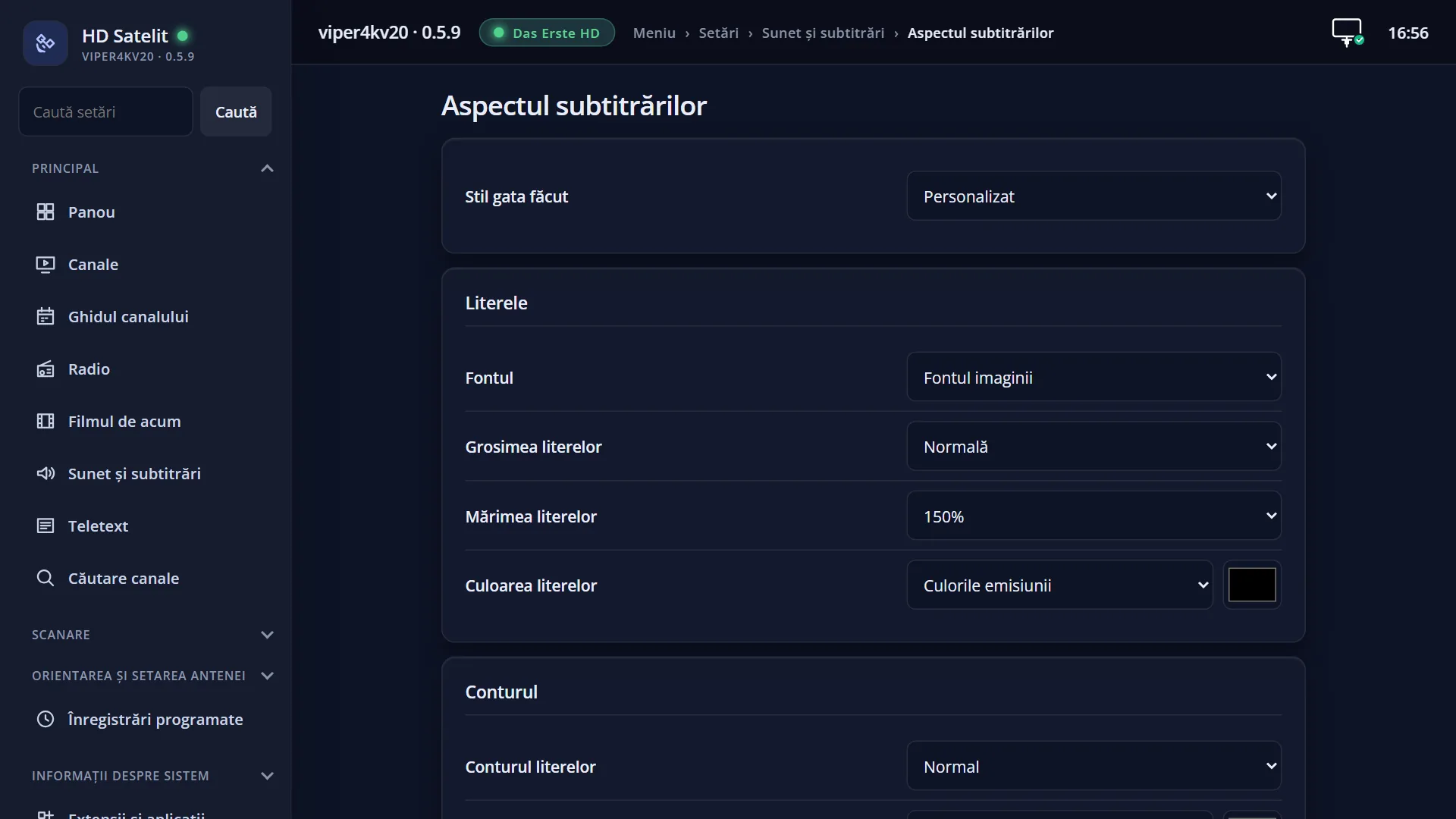
- 1 Selected row: “Letter weight: Normal”.
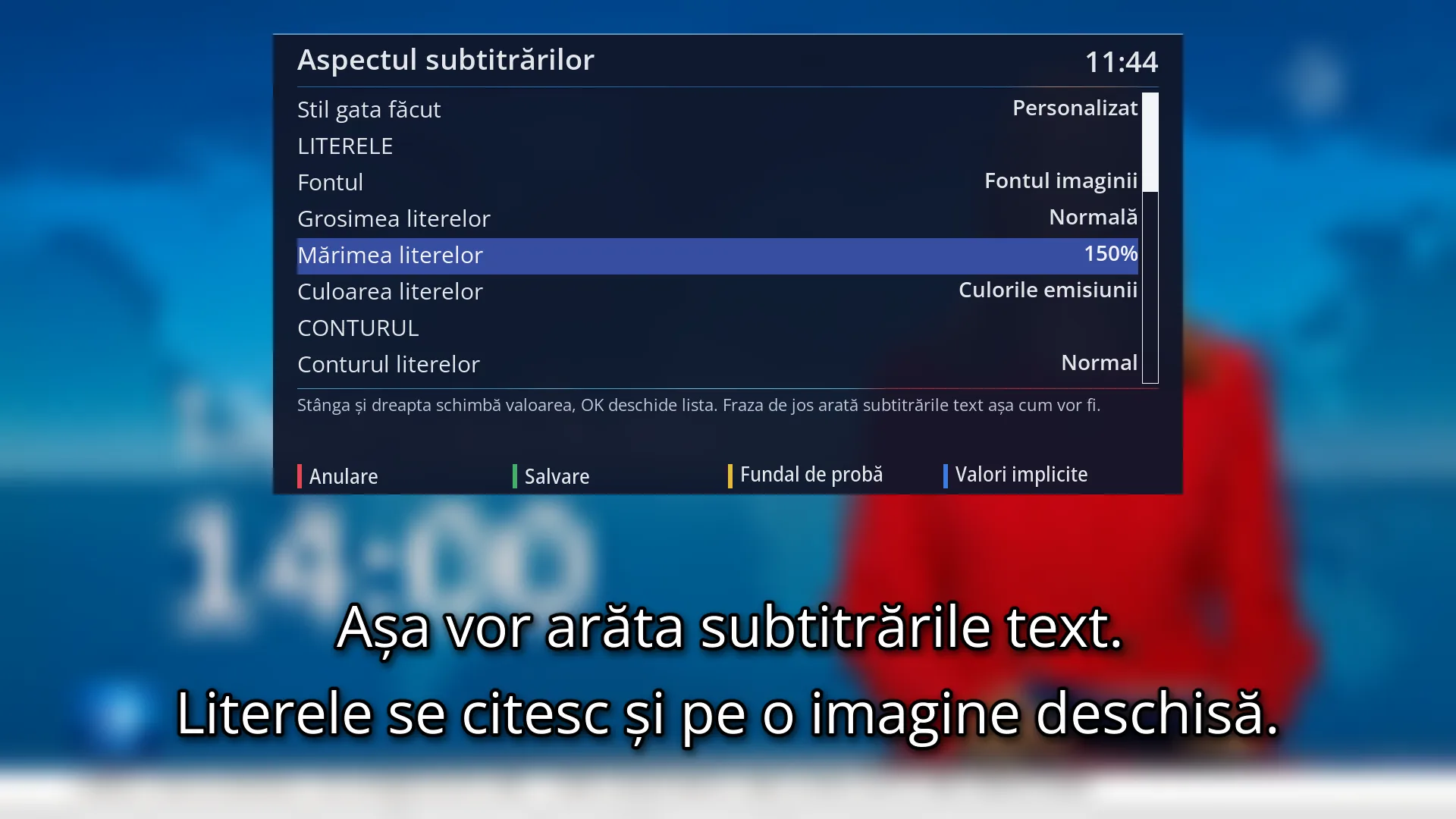
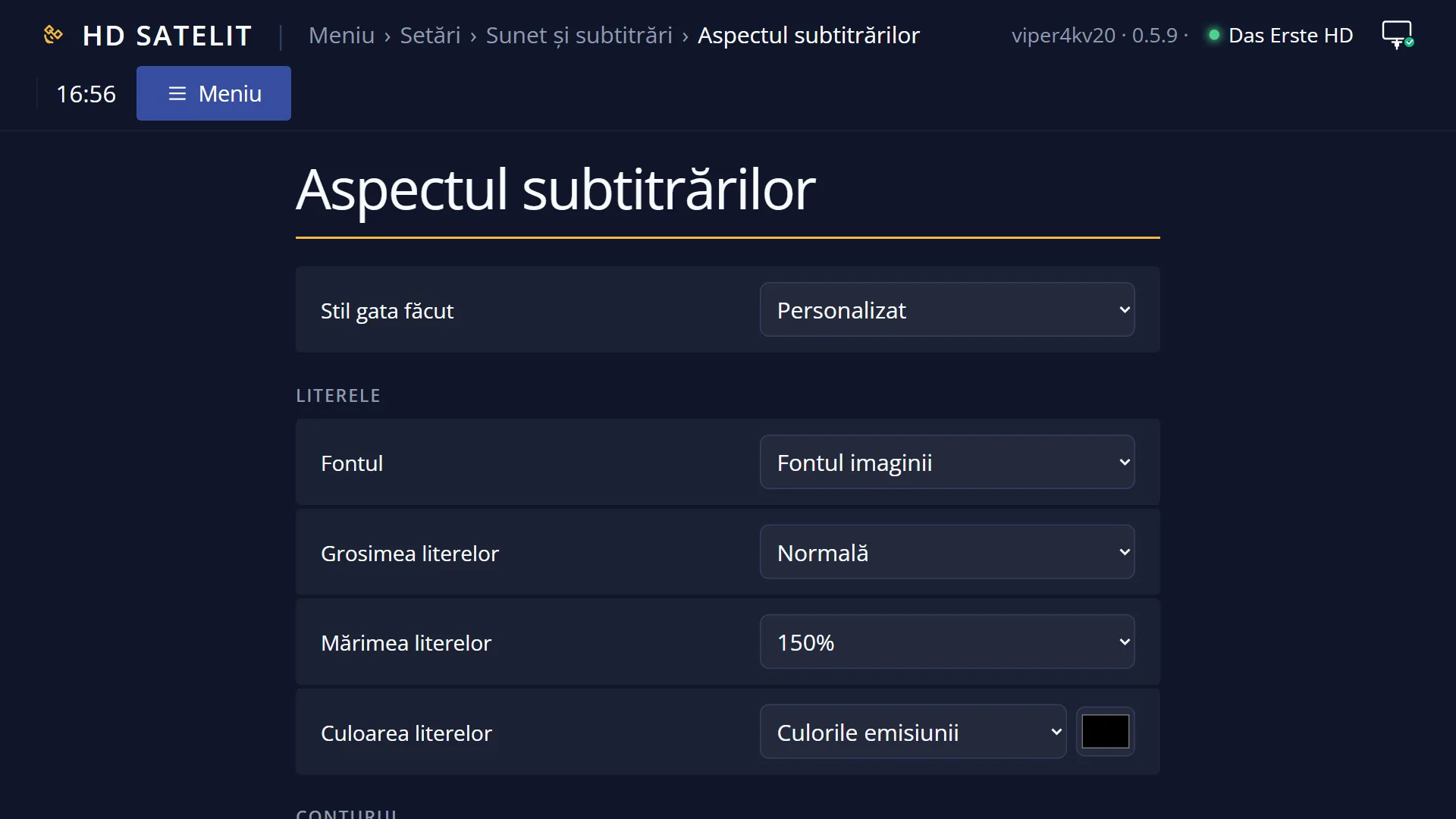
- 1 Selected row: “Letter size: 150%”.
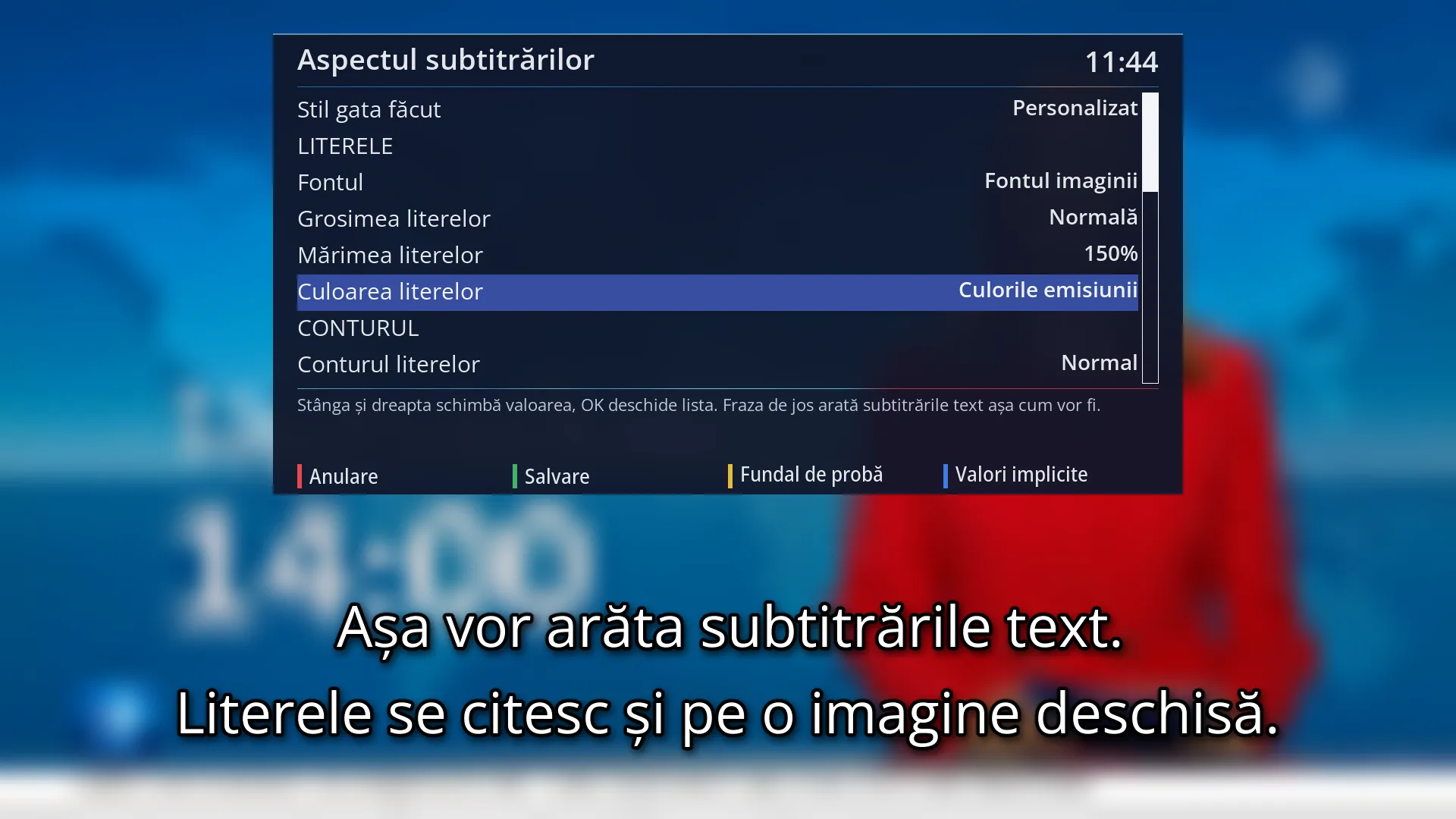
- 1 Selected row: “Letter color: The broadcast's colors”.
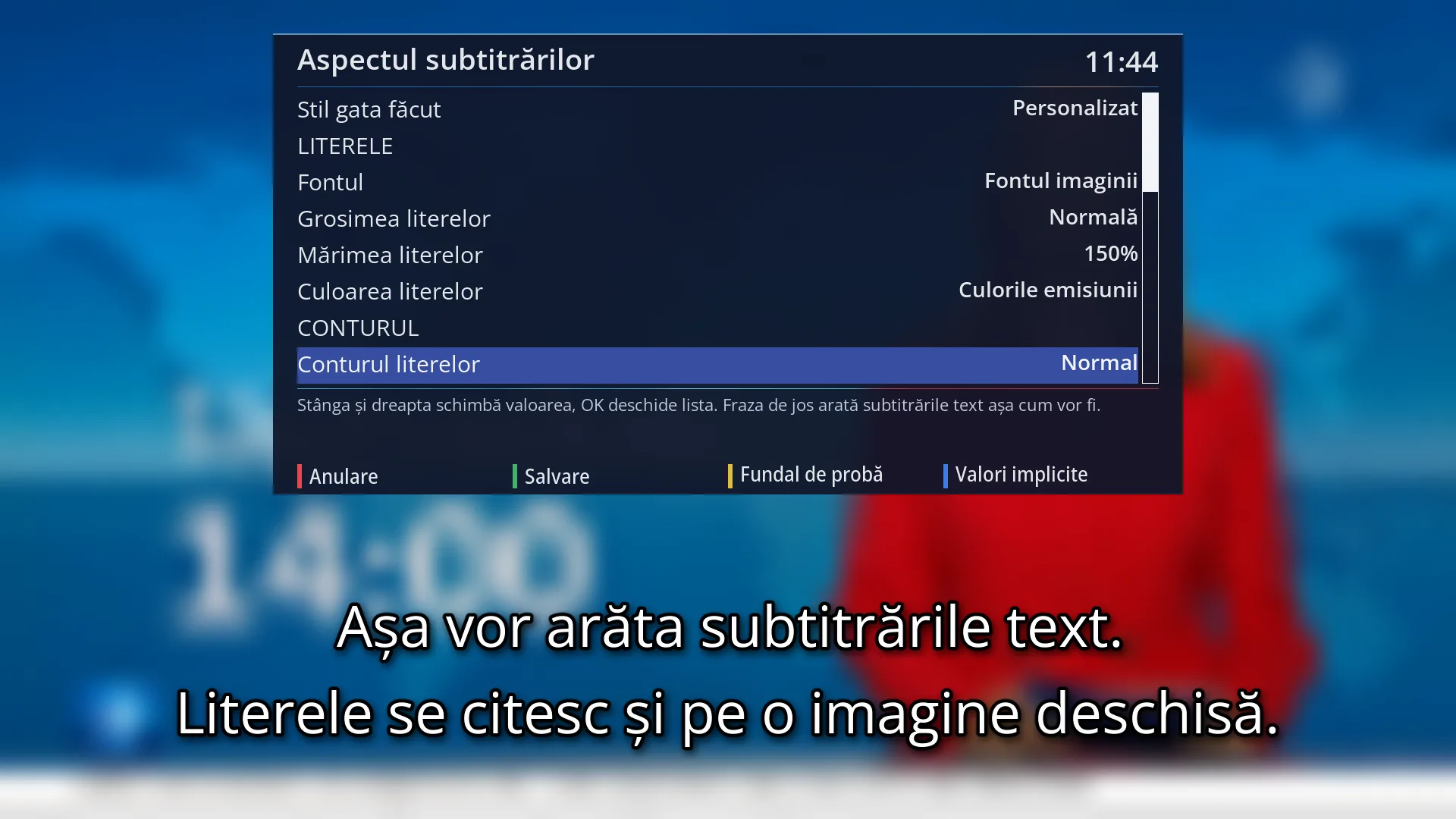
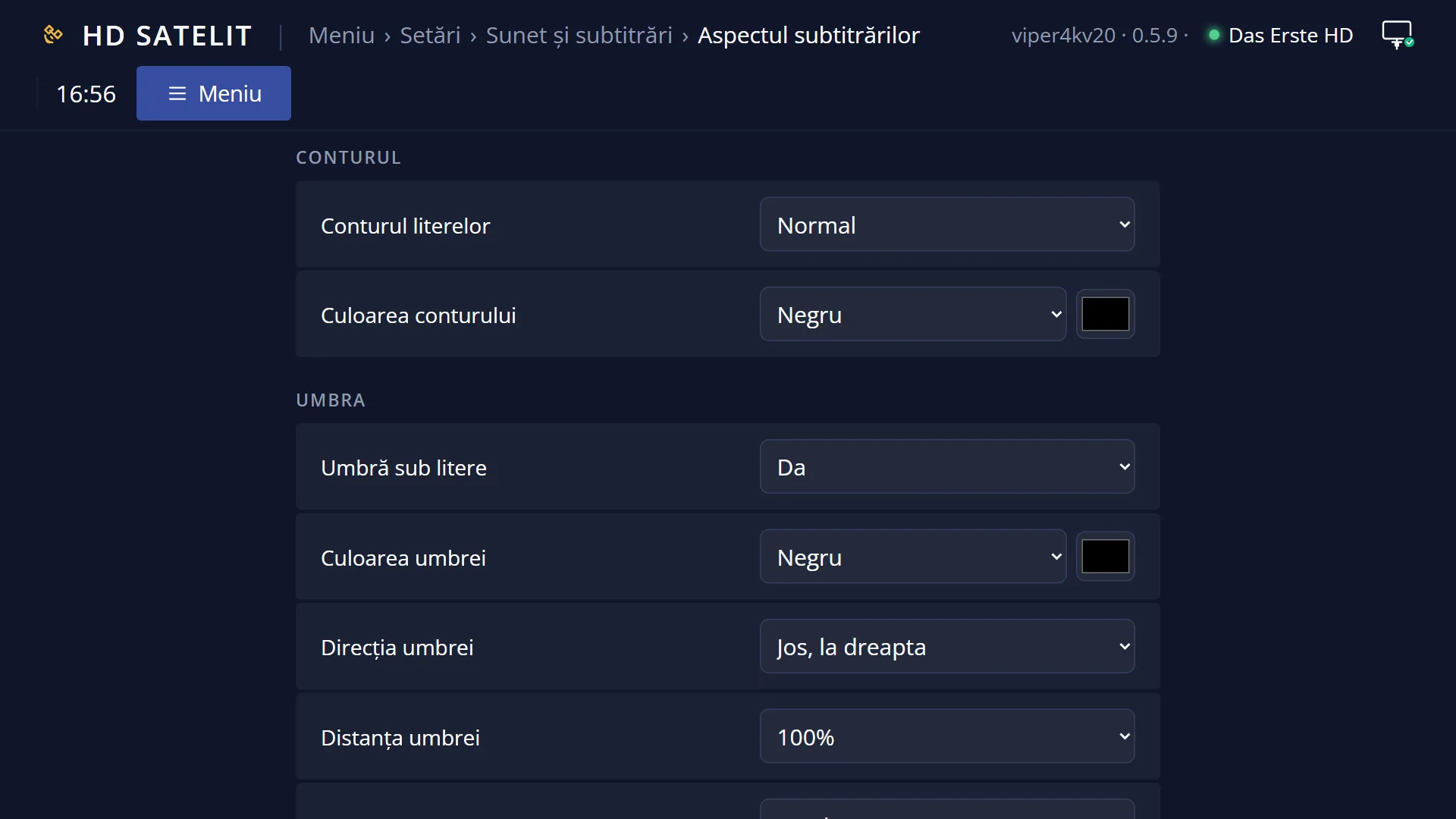
- 1 Selected row: “Letter outline: Normal”.
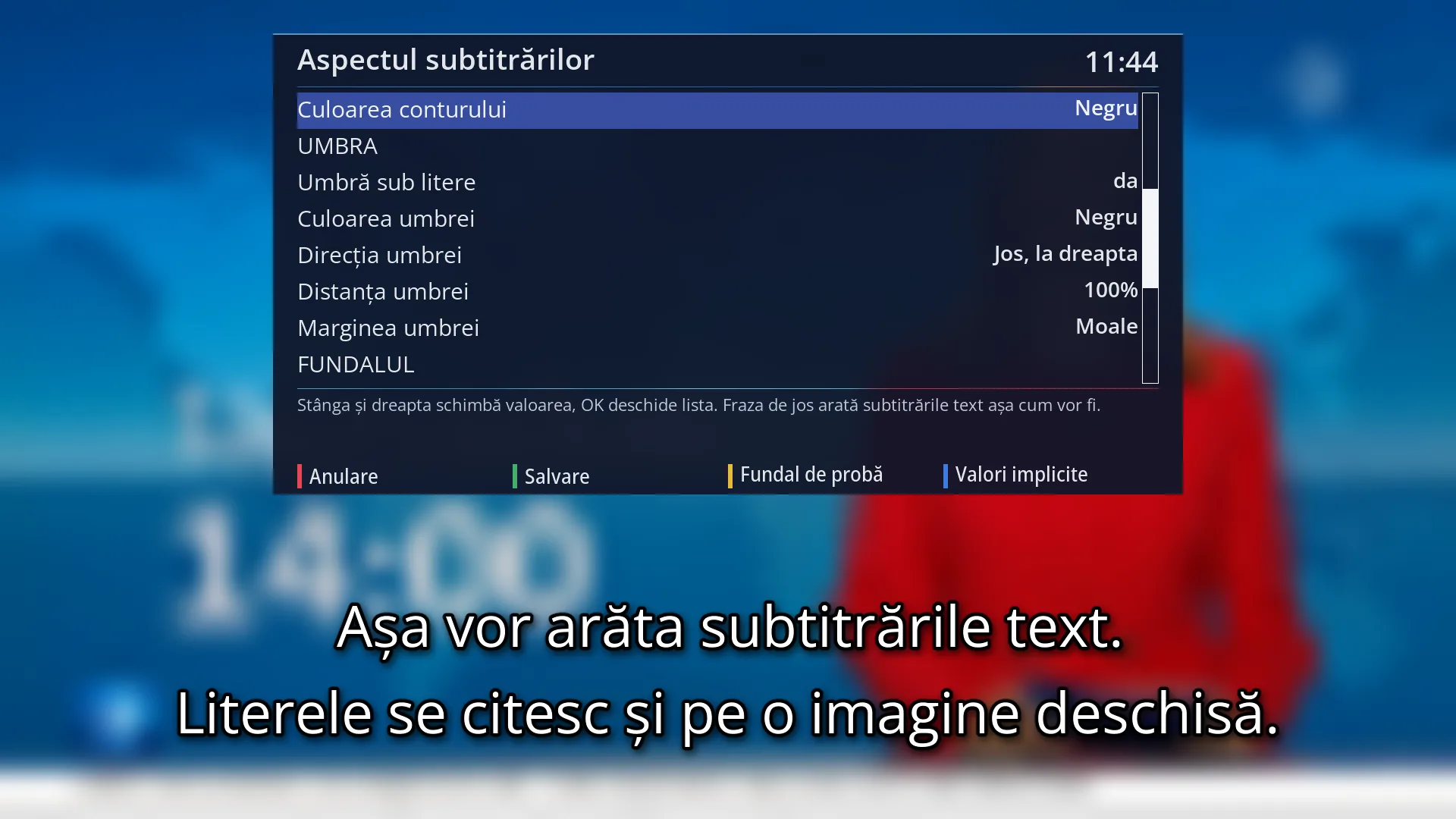
- 1 Selected row: “Outline color: Black”.
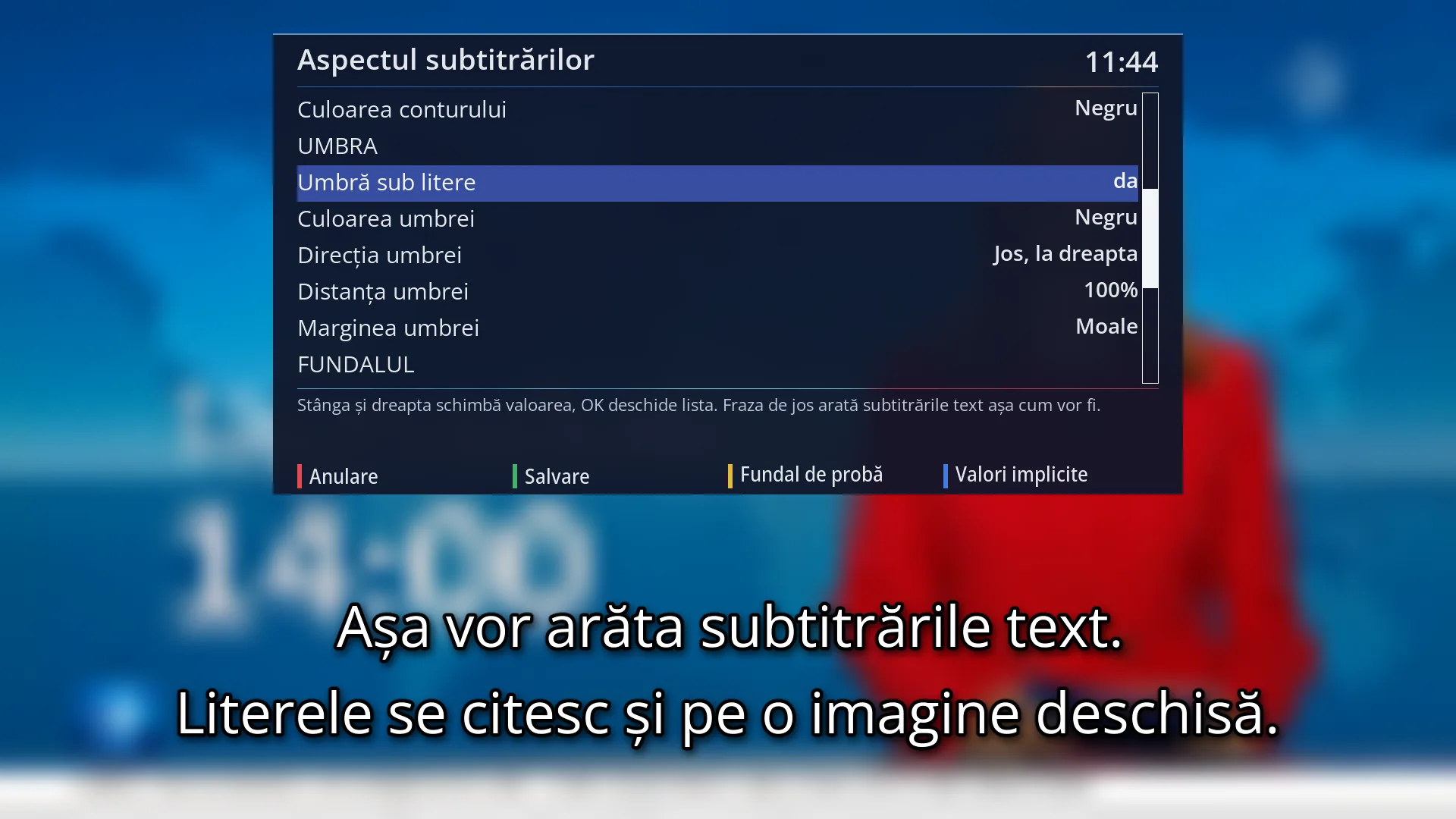
- 1 Selected row: “Shadow under the letters: yes”.
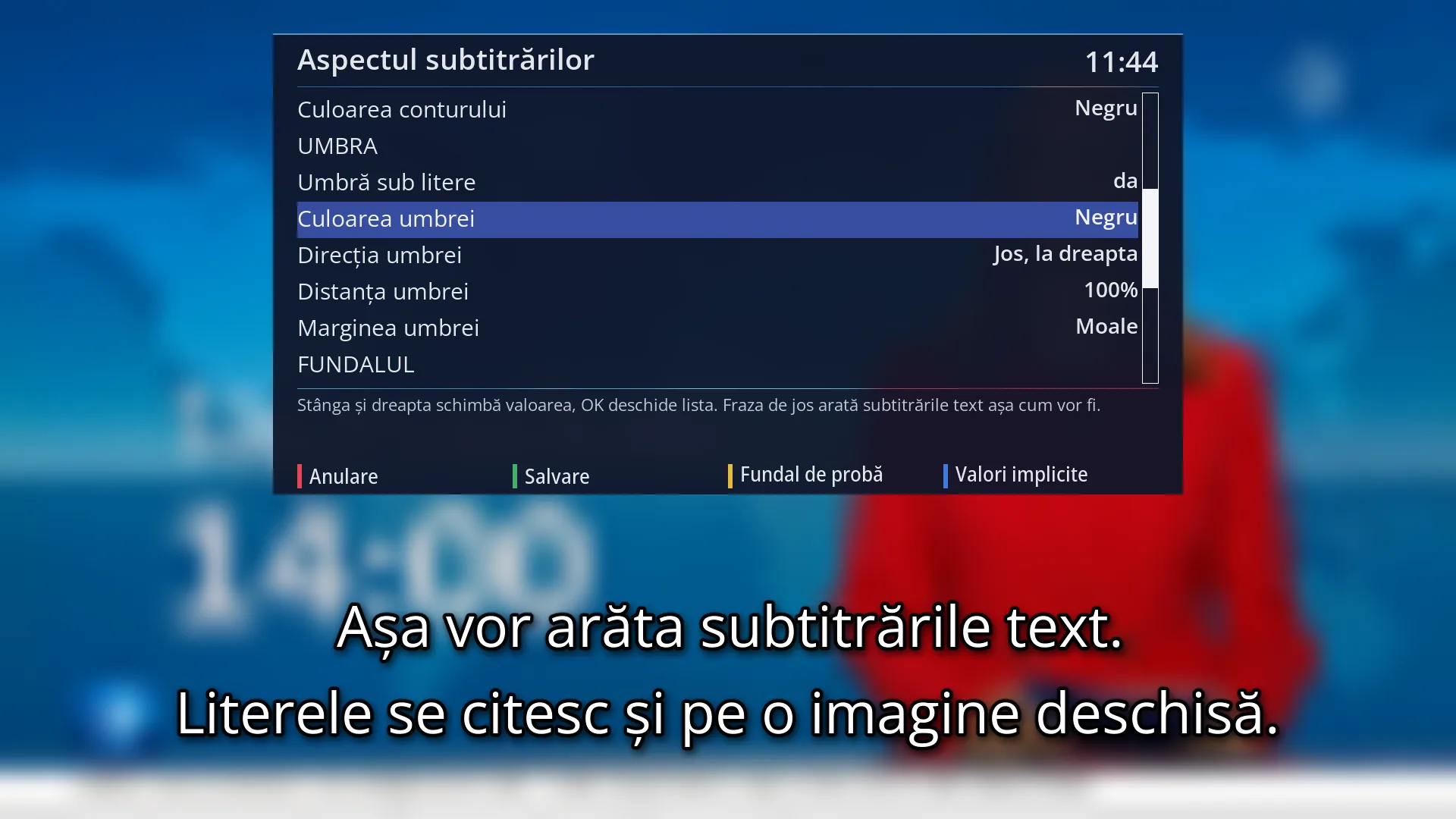
- 1 Selected row: “Shadow color: Black”.
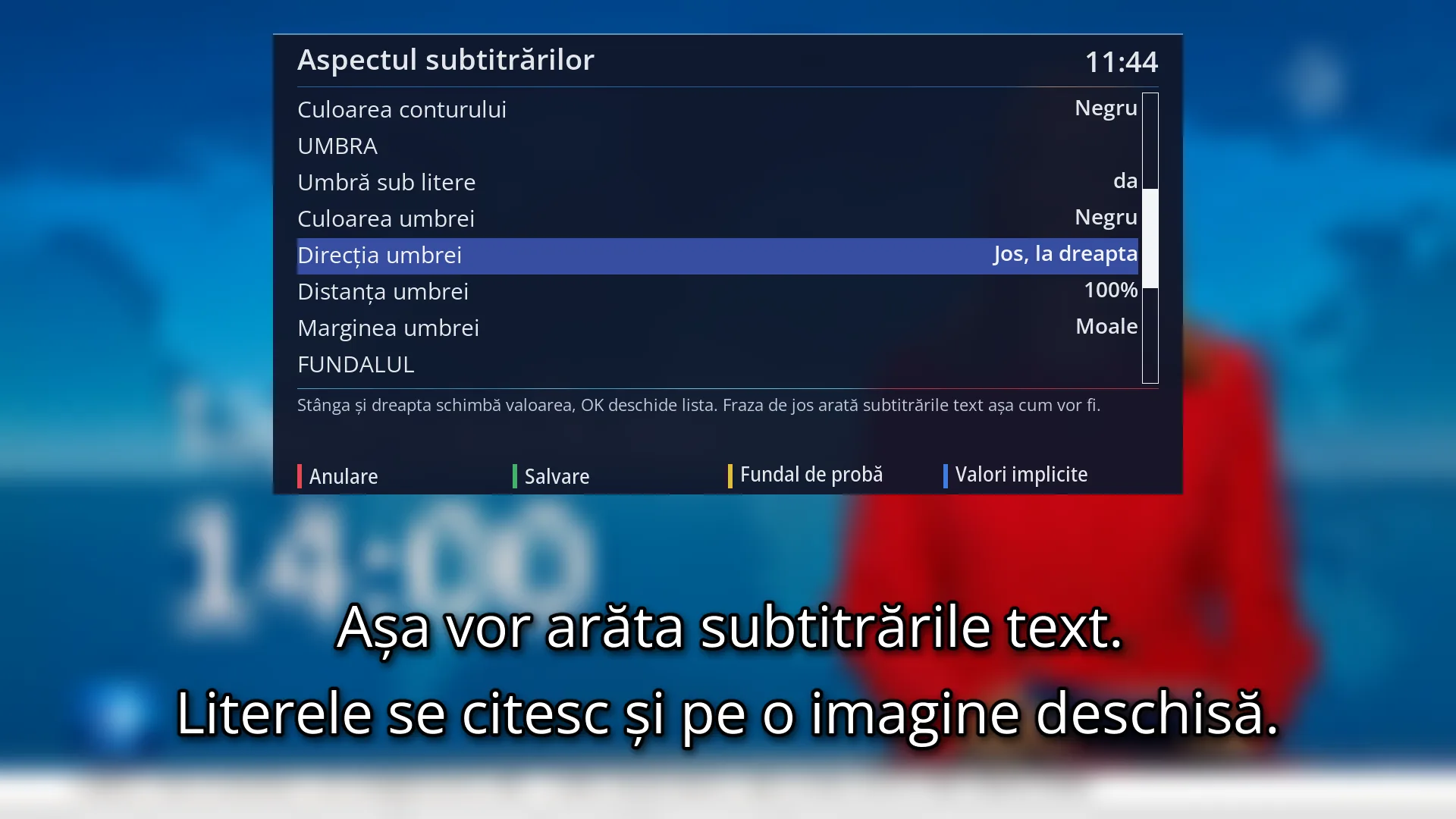
- 1 Selected row: “Shadow direction: Down and right”.
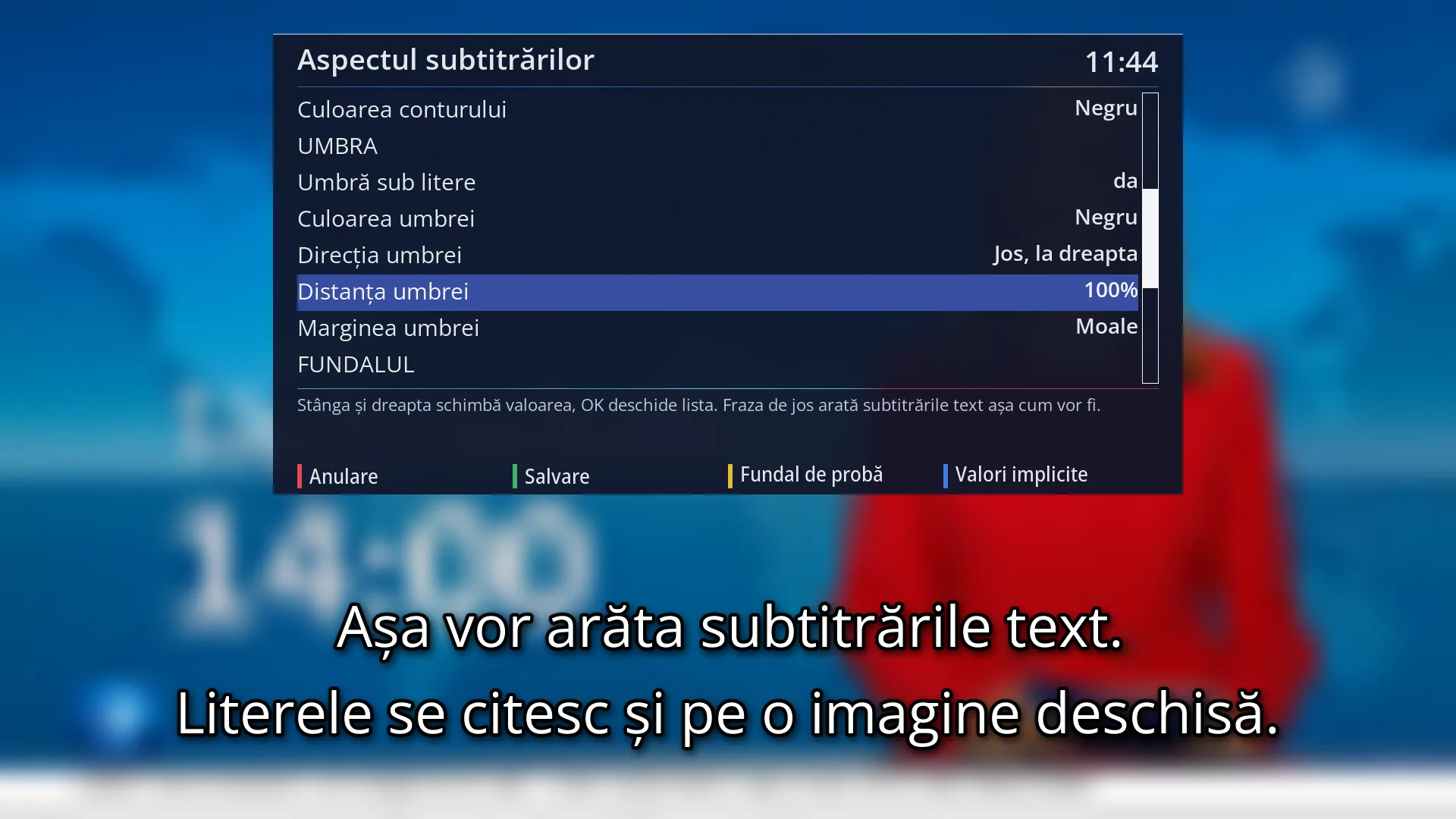
- 1 Selected row: “Shadow distance: 100%”.
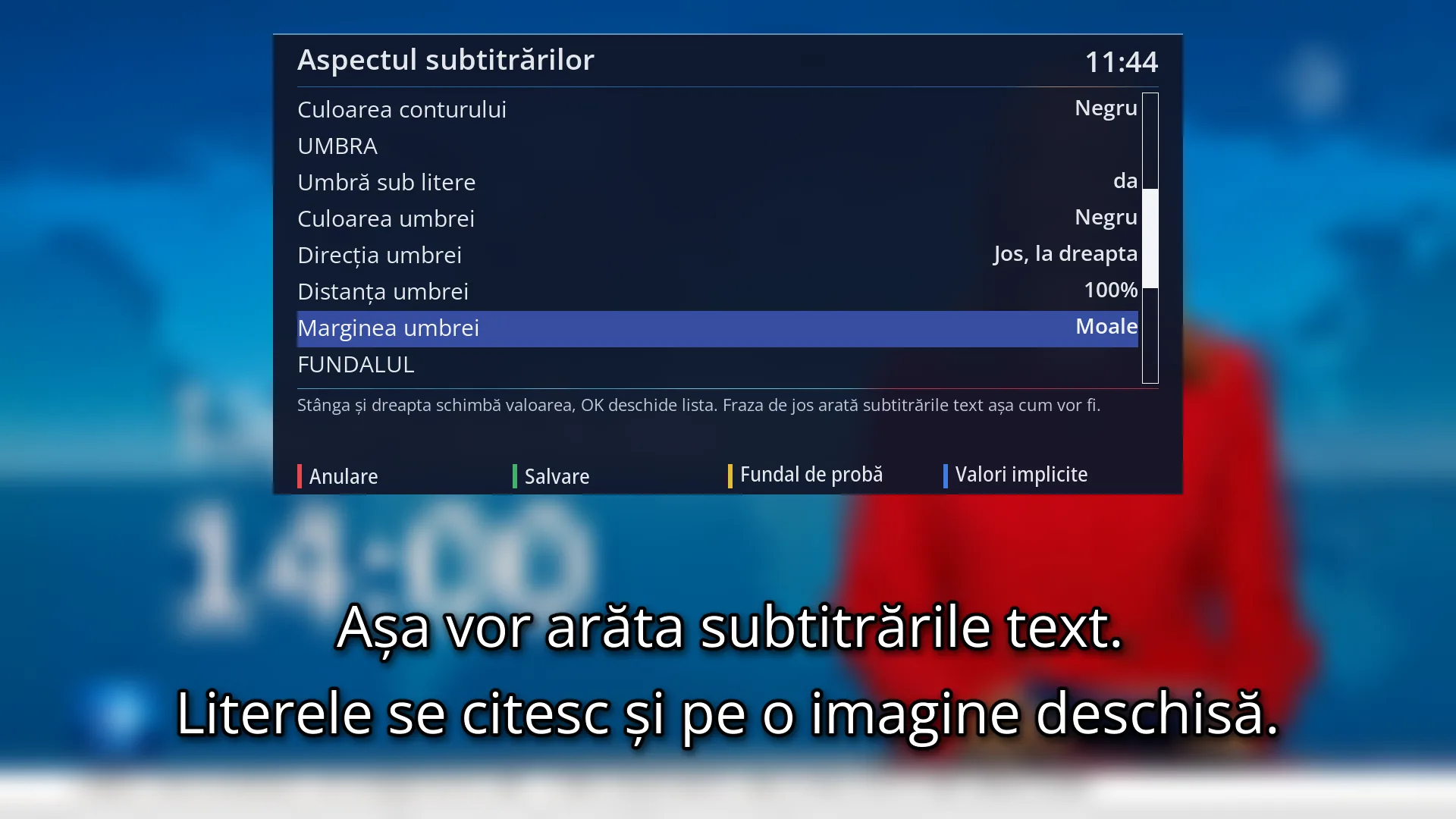
- 1 Selected row: “Shadow edge: Soft”.
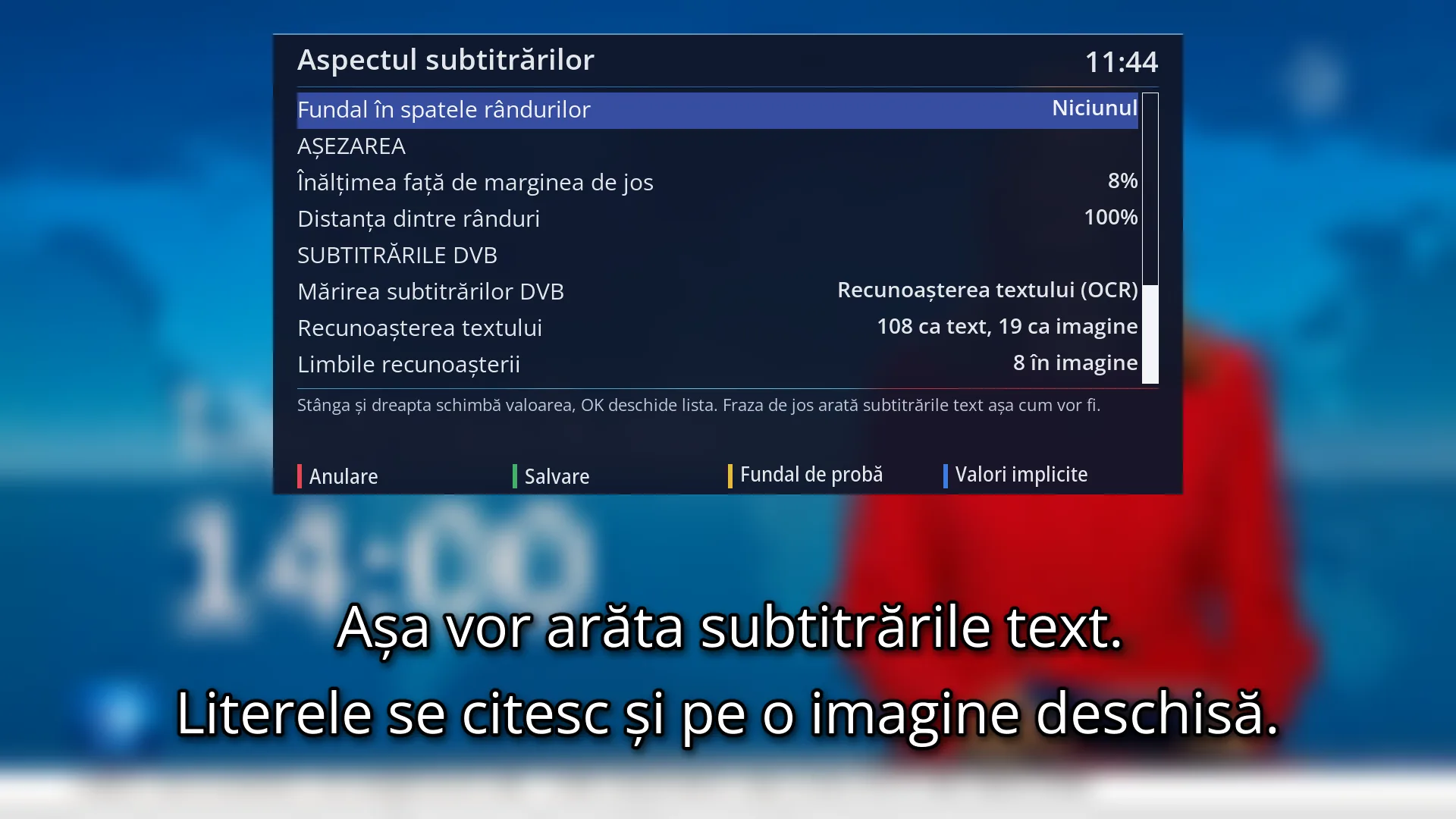
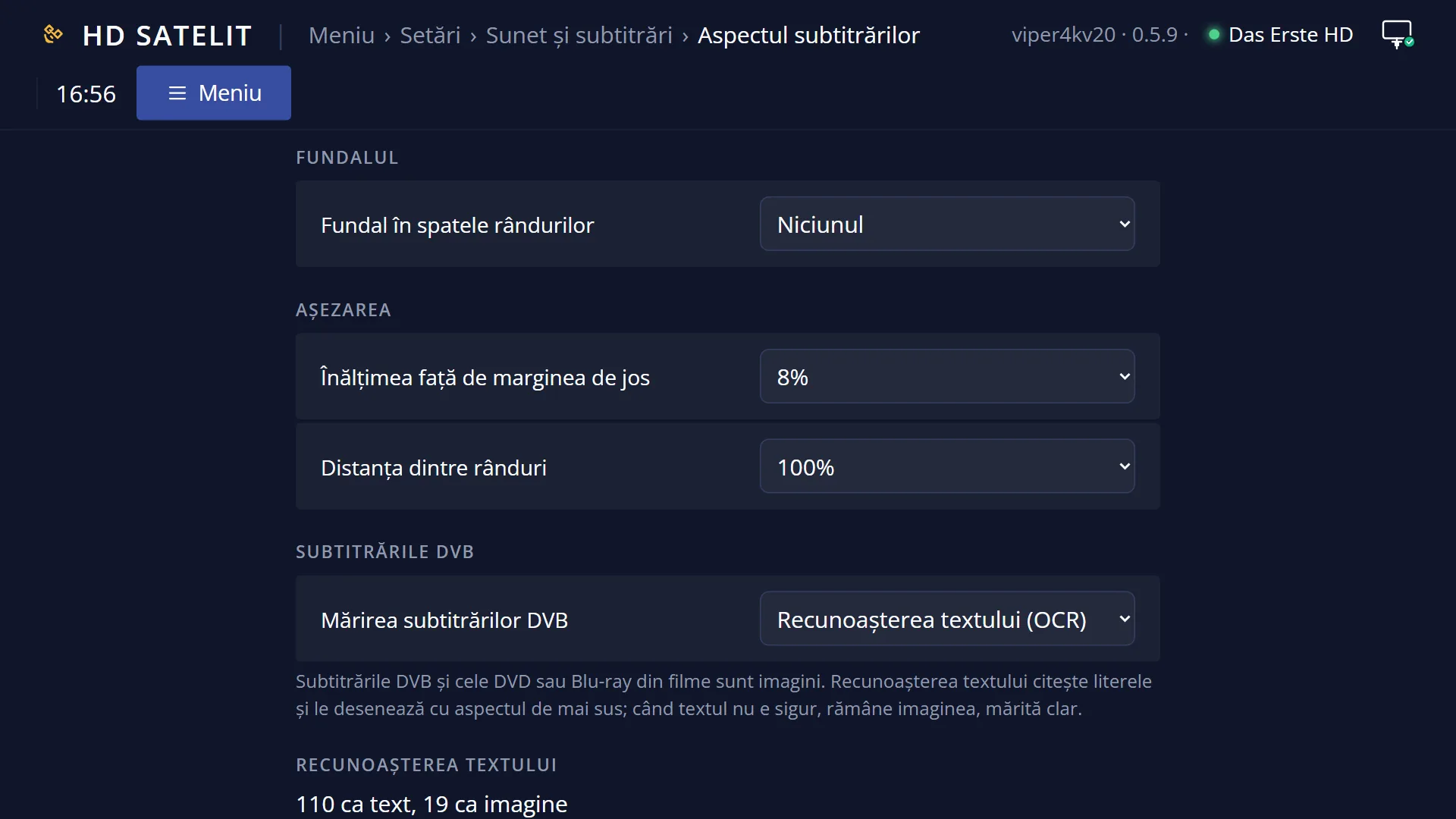
- 1 Selected row: “Background behind the lines: None”.
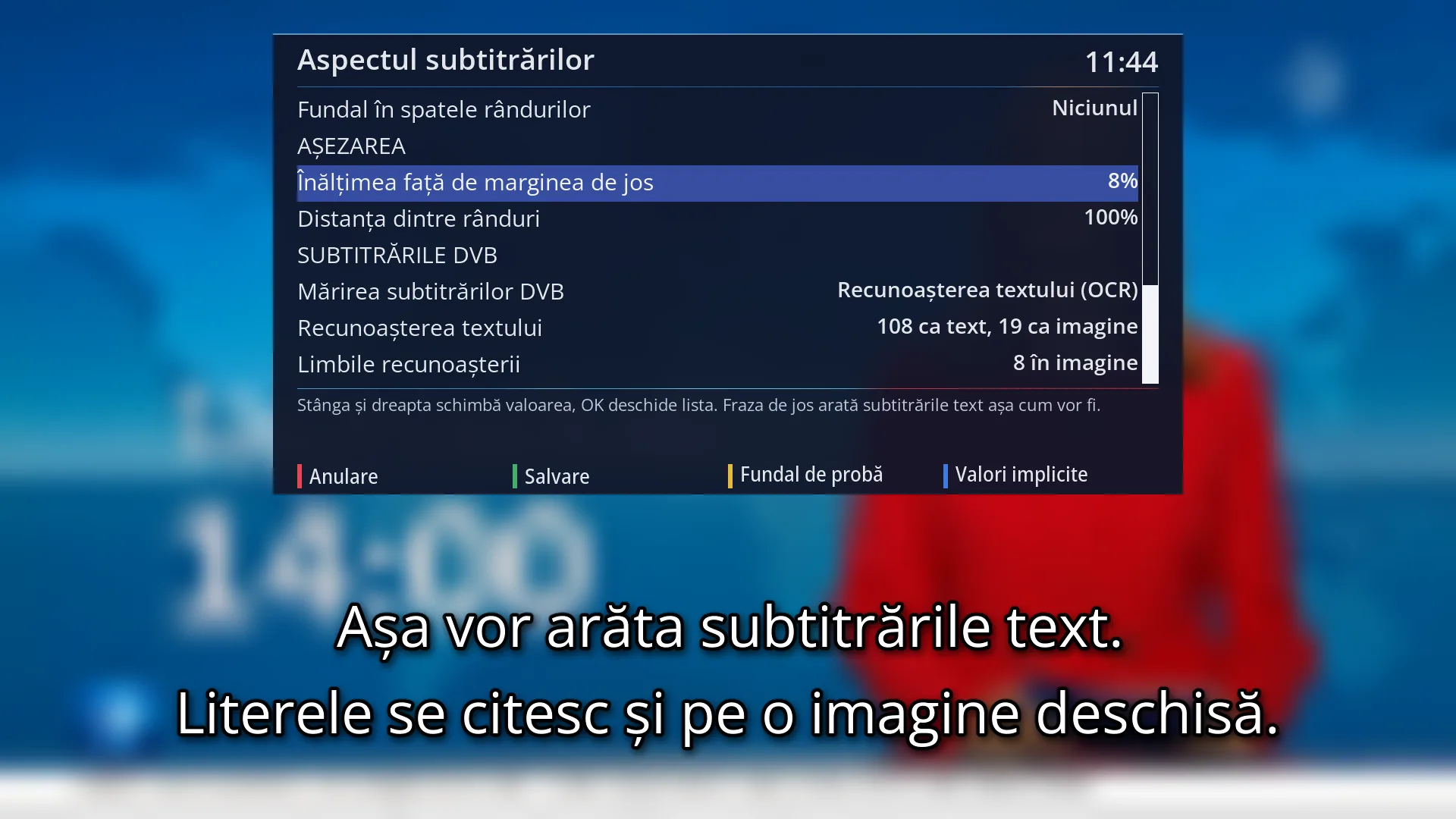
- 1 Selected row: “Height above the bottom edge: 8%”.
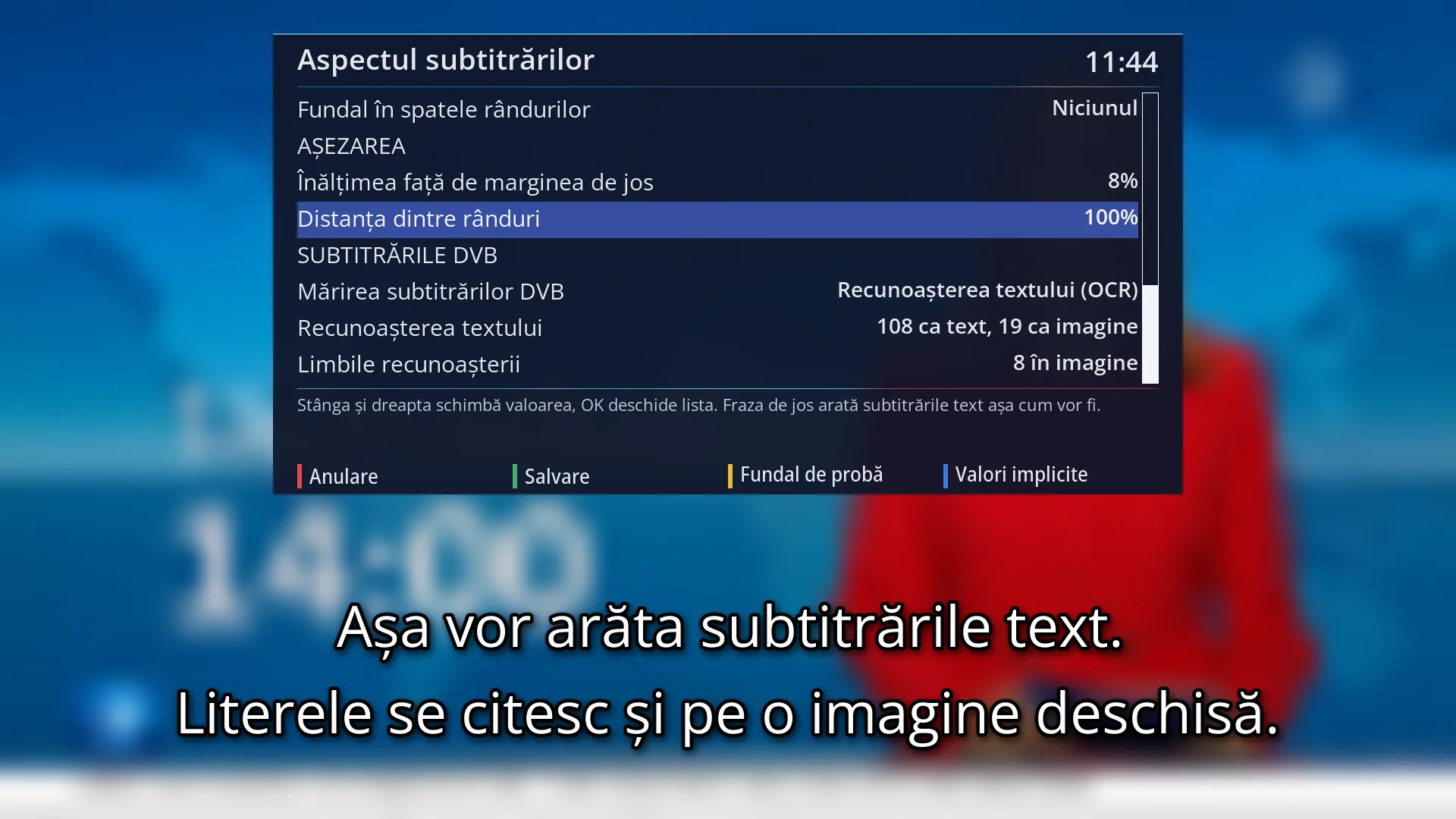
- 1 Selected row: “Line spacing: 100%”.
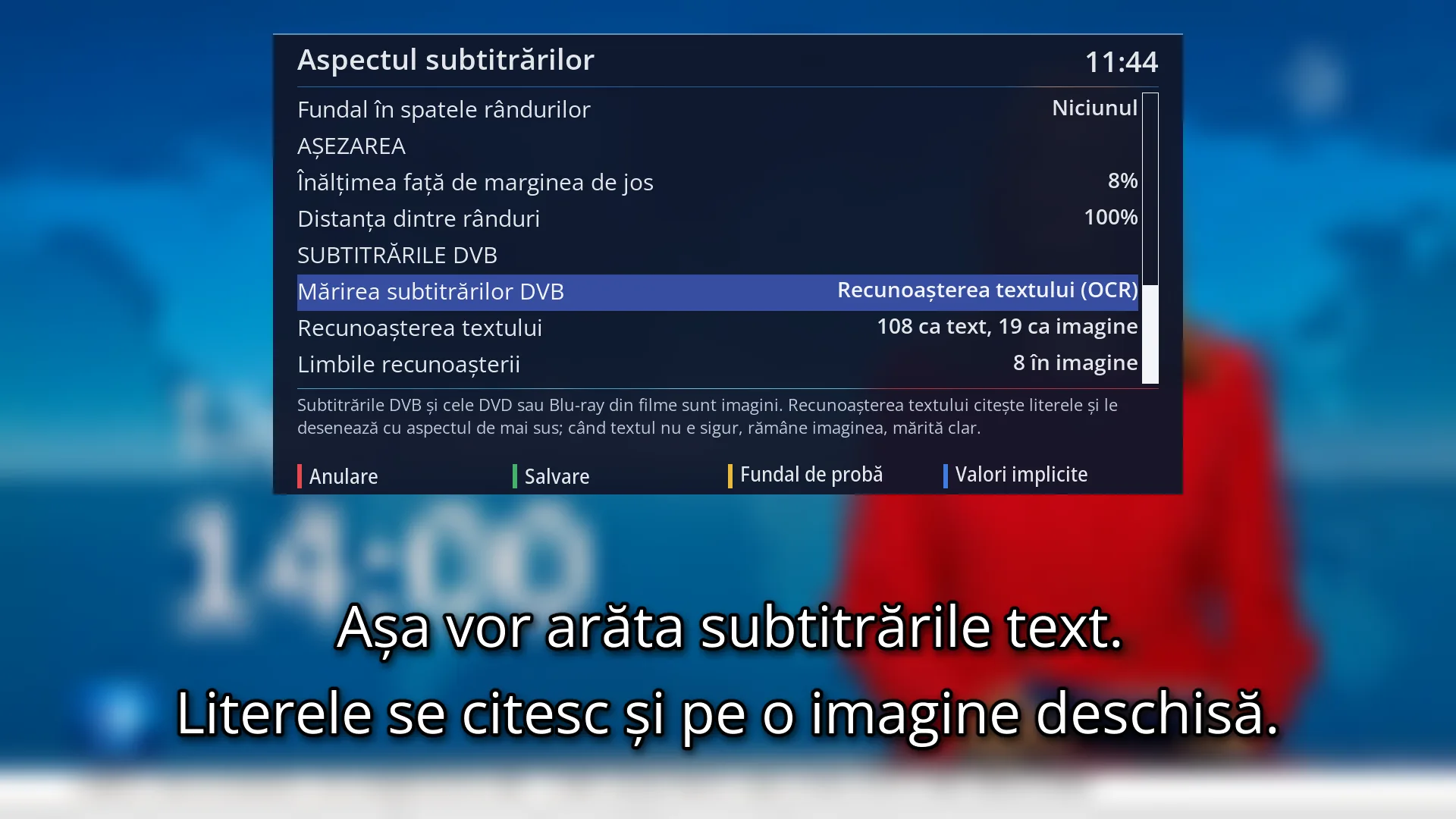
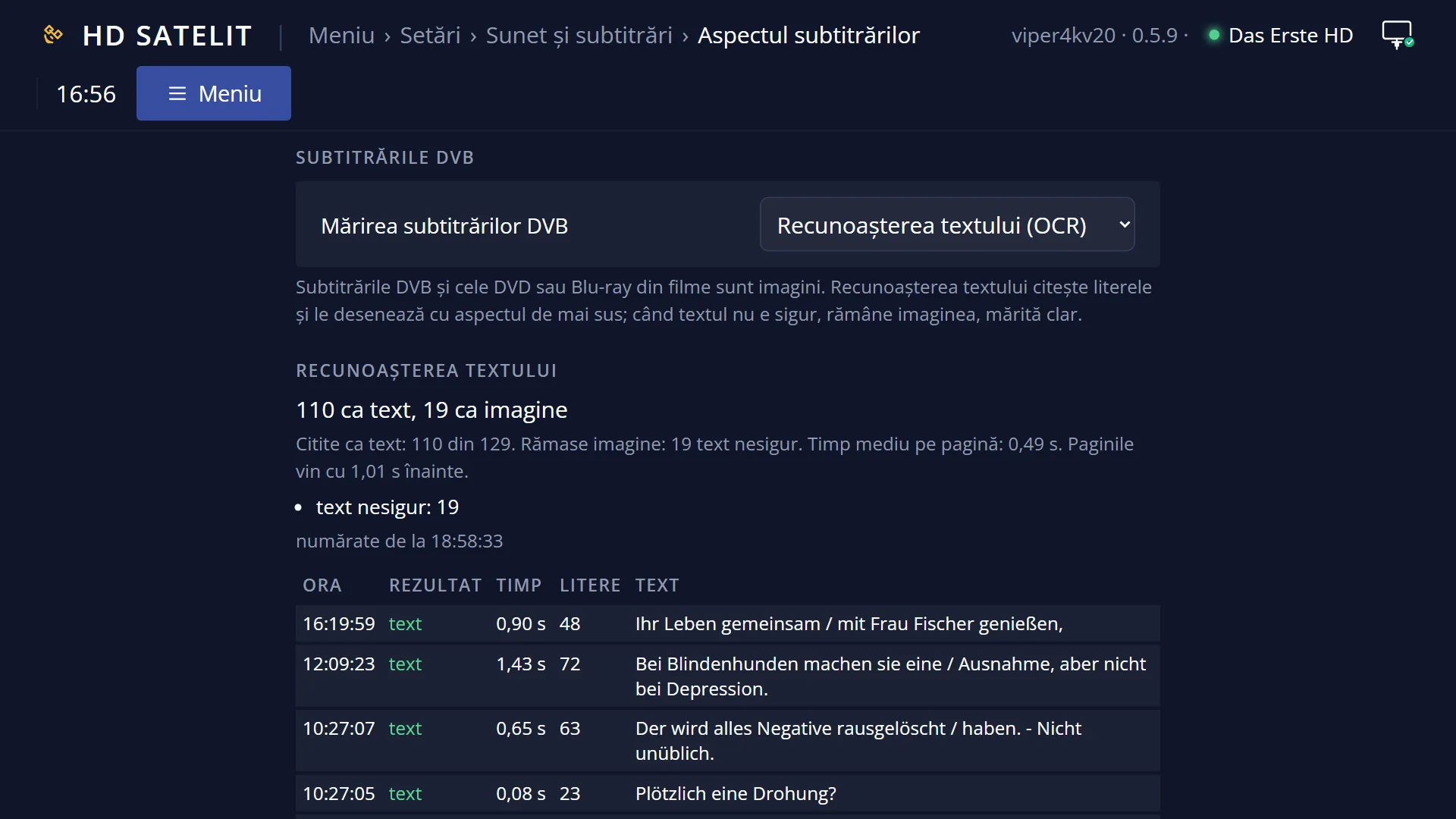
- 1 Selected row: “DVB subtitle scaling: Text recognition (OCR)”.
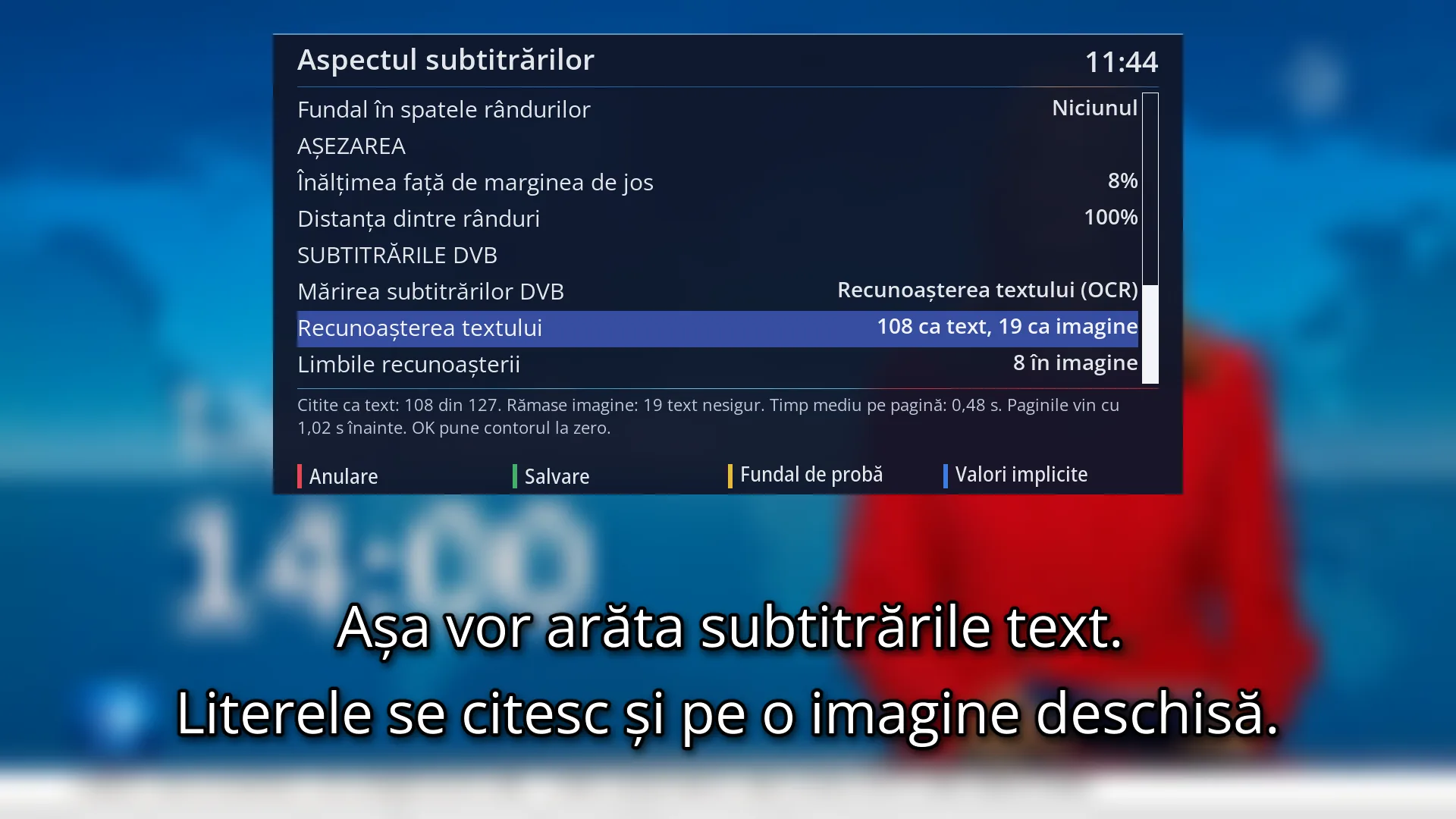
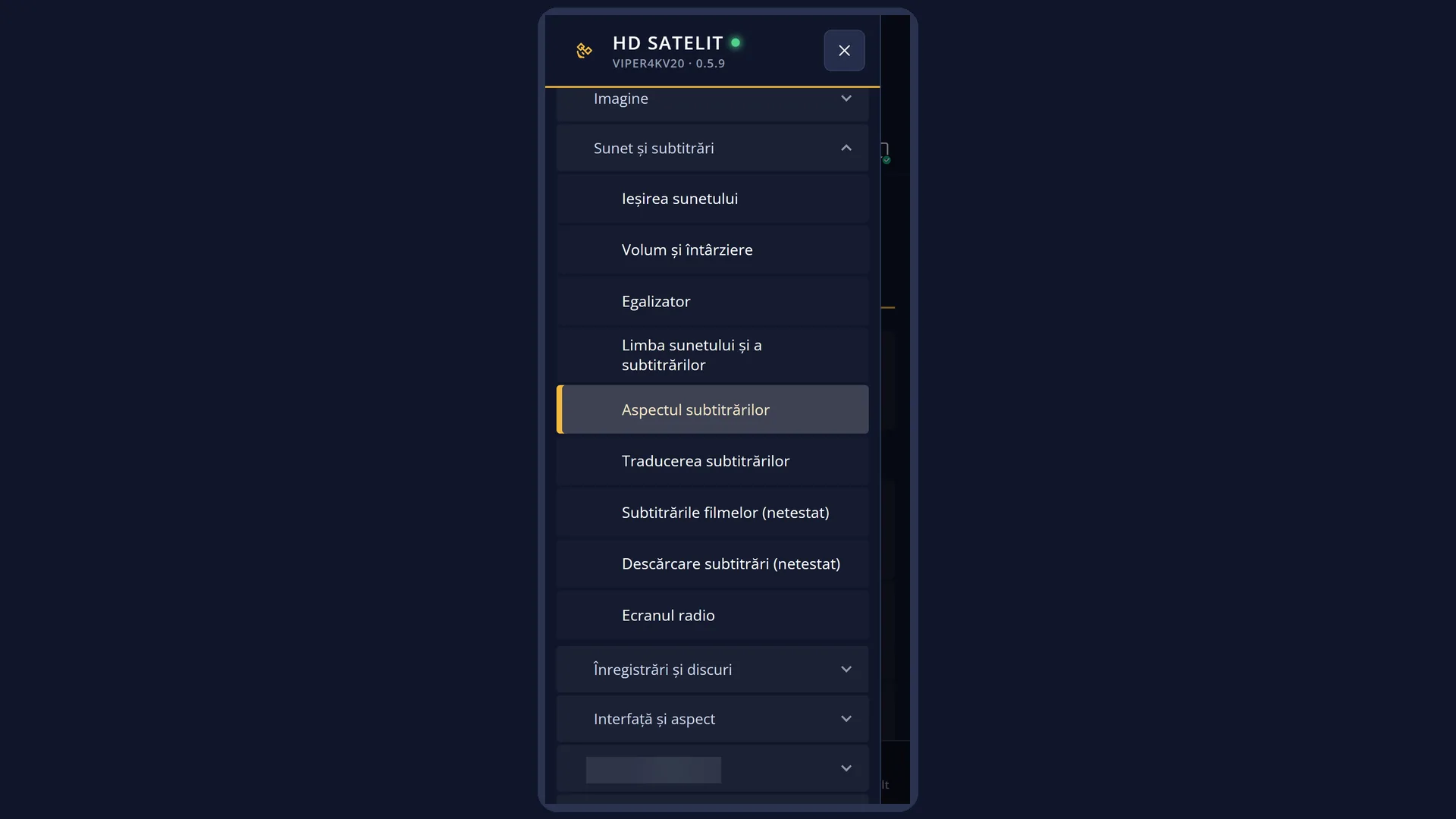
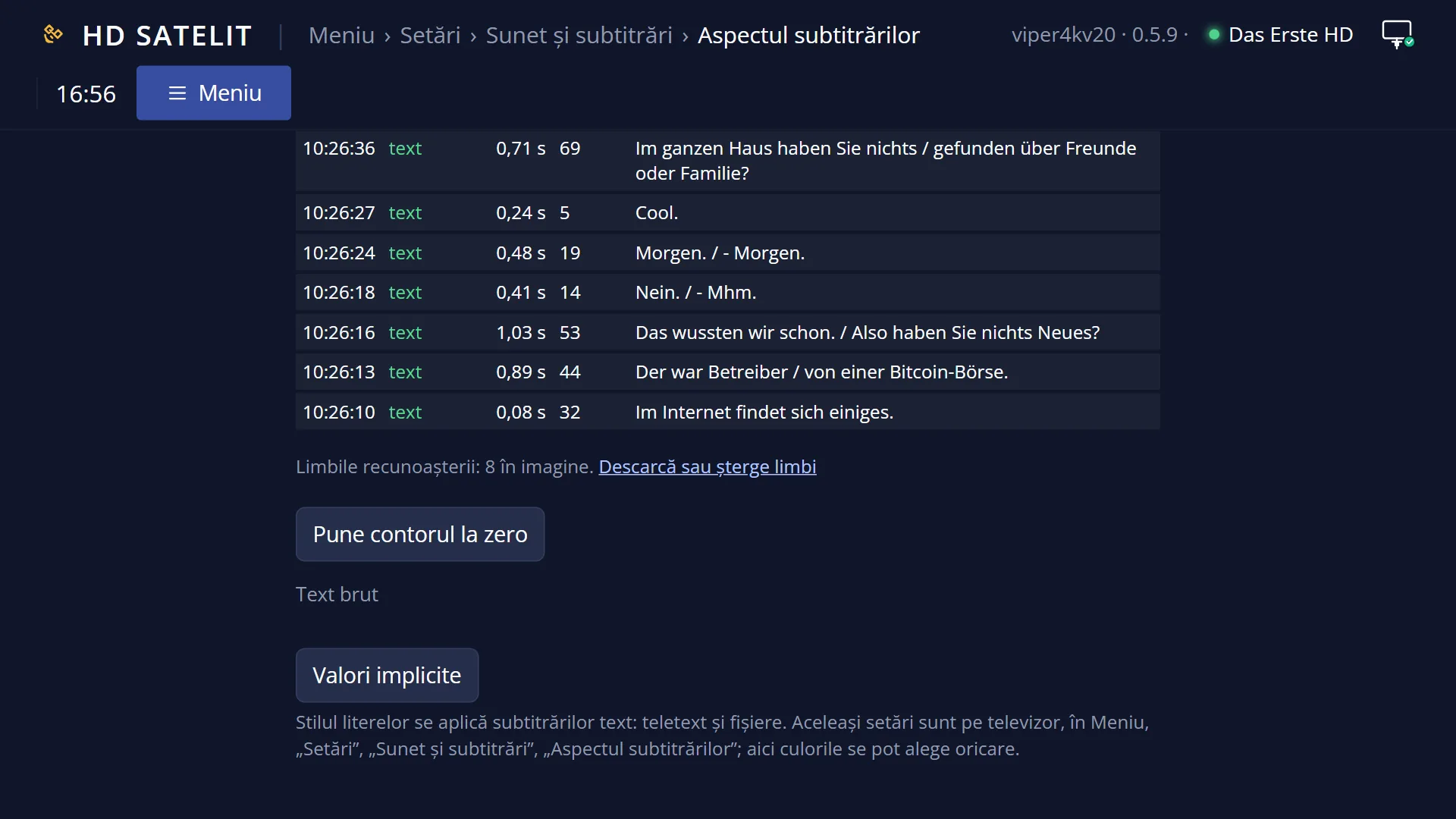
- 1 Selected row: “Text recognition: 108 as text, 19 as picture”.
What it is for
“Subtitle appearance” sets how subtitles shown as text look: teletext subtitles, subtitles from files next to films, and text read from DVB subtitles (text recognition). You choose the font, the weight, size and colour of the letters, the outline, the shadow, the background behind the lines and where they sit on the screen.
DVB subtitles shown as images stay as the channel sends them. For these, only the “DVB subtitle scaling” row matters: it can turn them into text with the appearance you set here.
While you choose, a test sentence sits at the bottom of the screen, drawn exactly like real subtitles over the channel picture: “This is how text subtitles will look. The letters can be read even on a bright picture.” You see every change straight away.
There are also eight ready-made styles, for example “Yellow, with outline” or “White on a black box”, which you can then adjust by hand.
How to get here
Path: Main menu > Settings > Audio & Sound Tracks > Subtitle appearance.
Keys on the remote: MENU 6 4 5.
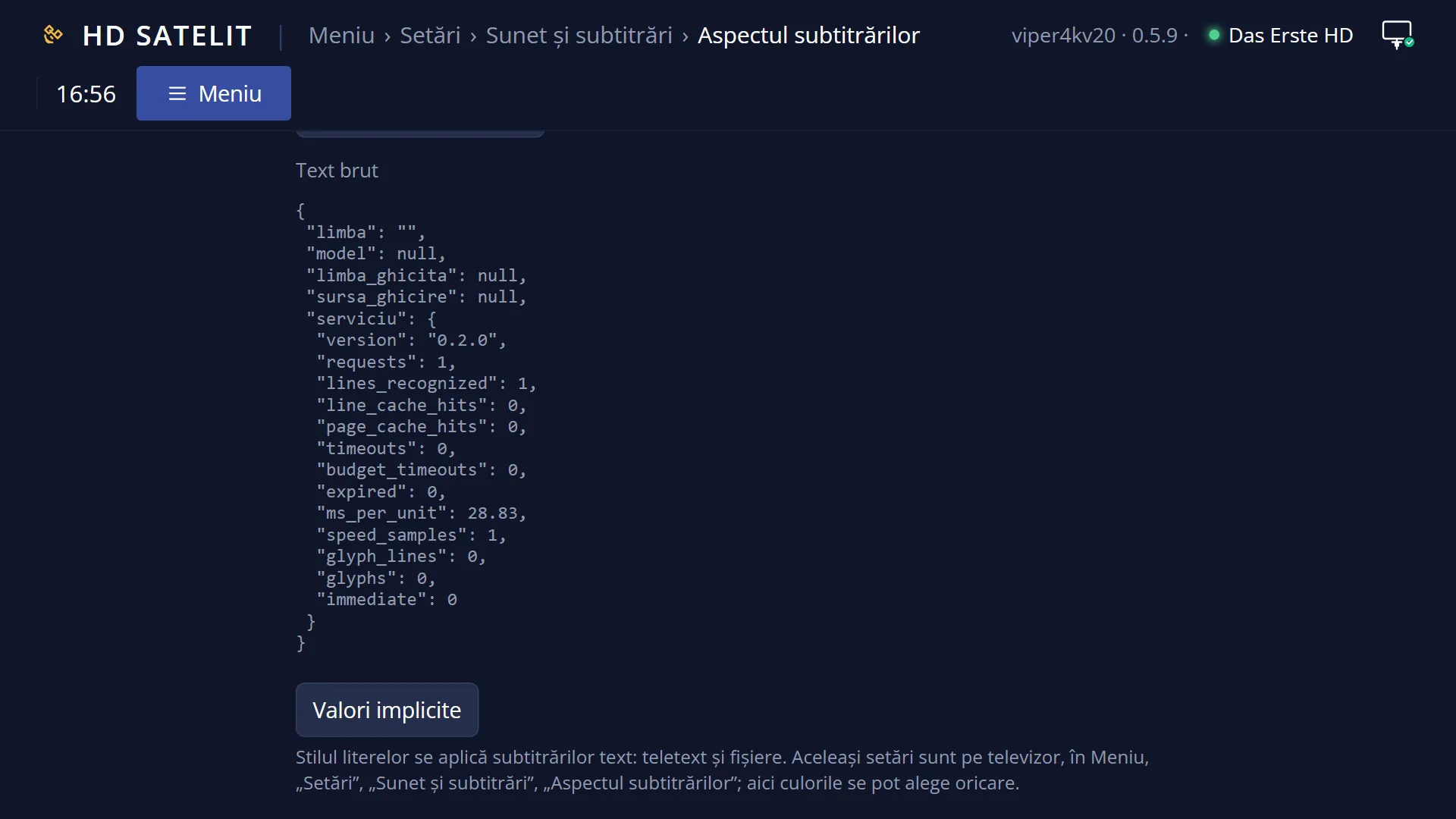
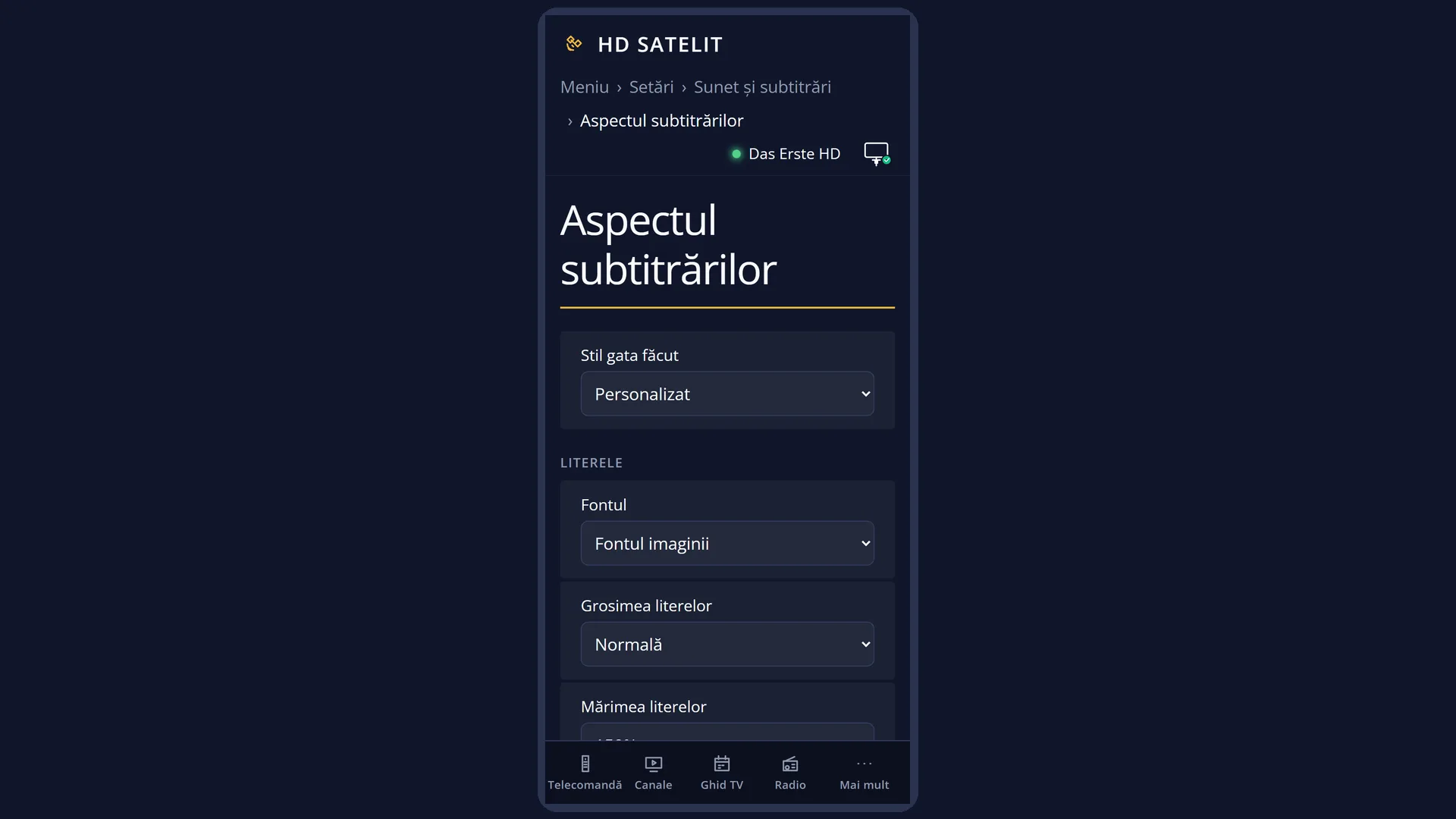
In the web interface: the /subtitrari page, with the same choices, grouped the same way. There you can pick any colour, not only one from the palette.
What you see on the screen
At the top, a window titled “Subtitle appearance” with the clock. At the bottom, over the channel picture, the test sentence on two lines.
In the window, the list of settings, in groups with headings in capitals: “LETTERS”, “OUTLINE”, “SHADOW”, “BACKGROUND”, “POSITION” and, when there is something to choose, “DVB SUBTITLES”. You cannot select the headings: UP and DOWN skip over them. Eight rows fit on the screen; press DOWN to see the rest.
Some rows only appear when they have an effect: the outline colour only with an outline; the shadow colour, direction, distance and edge only with a shadow; the background colour and opacity only with a background.
Below the list, the help text: “Left and right change the value, OK opens the list. The sentence below shows the text subtitles as they will be.” On the “DVB subtitle scaling” row, it explains what that row does.
At the bottom, the keys: RED “Cancel”, GREEN “Save”, YELLOW “Test background” and BLUE “Defaults”.
Rows and settings
| Row | Values | Default | What it does |
|---|---|---|---|
| Ready-made style | Custom, Classic (as at the start), Yellow, with outline, White, thick outline, no shadow, White on a black box, White on a band, on each line, Hard shadow, no outline, Large and bold, for easy reading, Discreet, smaller | Classic (as at the start) | Sets all the style settings in one go, except the font and the height above the bottom edge. If you then change a setting by hand, the row shows “Custom”. When you want a good look quickly, without choosing row by row. |
| Font | The image's font, The image's font, narrow, Tiresias Infofont, Tiresias PCfont, fonts downloaded from “Google Fonts”, marked “(downloaded)” | The image's font | The shape of the letters. The Tiresias fonts only appear when their package is in the image. Next to their name it says “(no ă, ș, ț)”, because they do not have the Romanian letters. Any text the chosen font cannot write in full stays in the image's font. When you want narrower letters, easier reading or a downloaded font. |
| Letter weight | As in the image (teletext in bold), Normal, Bold, Extra bold | As in the image (teletext in bold) | How thick the letters are. When the letters look thin from a distance. |
| Letter size | 60%, 70%, ..., 200% (in steps of 10) | 100% | The size of the letters compared with the usual subtitle size. When you sit far from the TV or the subtitles cover too much of the picture. |
| Letter color | The broadcast's colors, White, Yellow, Cream, Orange, Red, Pink, Magenta, Purple, Blue, Light blue, Cyan, Green, Light green, Light gray, Gray, Dark gray, Black | The broadcast's colors | “The broadcast's colors” keeps the colours sent by the channel. A colour from the palette makes all subtitles the same colour. A colour chosen on the web page that is not in the palette appears as “Other color (#...)”. When you want all subtitles in the same colour, for example yellow. |
| Letter outline | None, Thin, Normal, Thick, Very thick | Normal | The line around each letter that separates it from the picture. When the letters get lost on a bright picture. |
| Outline color | the palette, from White to Black | Black | The colour of the outline. The row only appears when an outline is selected. Rarely; for example a dark outline on light letters. |
| Shadow under the letters | yes, no | yes | A shadow under each letter. OK switches directly between yes and no. Turn it off if you want cleaner letters with a thick outline. |
| Shadow color | the palette, from White to Black | Black | The colour of the shadow. The row only appears when the shadow is on. Rarely. |
| Shadow direction | Up, Up and right, Right, Down and right, Down, Down and left, Left, Up and left | Down and right | Which side of the letter the shadow falls on. To taste. |
| Shadow distance | 50%, 100%, 150%, 200%, 300% | 100% | How far from the letter the shadow falls, compared with the usual distance. Higher for a shadow that is easy to see from a distance. |
| Shadow edge | Hard (sharp edge), Soft, Very soft | Soft | How smooth the edge of the shadow is. Hard for a crisp look, very soft for a calm one. |
| Background behind the lines | None, On each line, One box for all lines | None | A band behind each line, or a single box behind all the lines. When subtitles are hard to read on very busy pictures. |
| Background color | the palette, from White to Black | Black | The colour of the band or box. The row only appears when a background is selected. Rarely. |
| Background opacity | 10%, 20%, ..., 100% (in steps of 10) | 60% | How much the background covers the picture: 100% is solid, low values let the picture show through. The row only appears when a background is selected. When the background covers too much or too little. |
| Height above the bottom edge | 2%, 3%, ..., 25% | 8% | How high the last line of the subtitle sits, as a percentage of the screen height. When the TV cuts off the bottom edge or the subtitles cover the channel's own text. |
| Line spacing | 80%, 90%, 100%, 110%, 125%, 150% | 100% | How much space there is between the lines of a subtitle. When the lines run into each other or, on the contrary, take up too much space. |
| DVB subtitle scaling | Clear (smooth edges), Text recognition (OCR) | Clear (smooth edges) | DVB subtitles and DVD or Blu-ray subtitles in films are images. Clear enlarges them with smooth edges. Text recognition reads the letters and draws them with the appearance set above; when the text is uncertain, the image stays, clearly enlarged. The row (with the “DVB SUBTITLES” group) only appears when text recognition is in the image. When it is on, the rows “Text recognition” (how many pages were read as text and how many stayed as images; OK resets the counter to zero) and “Recognition languages” (OK opens the list of languages) also appear. When you want DVB subtitles with the same letters as the other subtitles. |
Keys
| UP / DOWN | Moves the cursor to another row; group headings are skipped. |
| LEFT / RIGHT | Changes the value of the row; the test sentence changes straight away. |
| OK | Opens the list of all values for the row, with the current one selected. On “Shadow under the letters” it switches directly between yes and no; on “Text recognition” it resets the counter to zero; on “Recognition languages” it opens the list of languages. |
| GREEN (Save) | Keeps all the settings and closes the screen. |
| RED (Cancel) / EXIT | Closes without keeping the changes; the subtitles go back to how they looked before. |
| YELLOW (Test background) | Puts a light background (half white, half grey) behind the test sentence, on which the shadow, outline and background are easy to see. Press it again (“No test background”) to remove it. Use it when no channel is working or the picture is dark. |
| BLUE (Defaults) | Restores all the original values. You see them straight away, but they are only kept after GREEN. |
Step by step
Making subtitles larger and yellow
- Press MENU 6 4 5.
- On “Ready-made style”, press OK and choose “Large and bold, for easy reading”.
- Look at the sentence at the bottom. If you like, adjust “Letter size” with LEFT and RIGHT.
- Press GREEN.
Putting a black band behind the subtitles
- MENU 6 4 5, then DOWN to “Background behind the lines”.
- Choose “On each line” and adjust “Background opacity”.
- Press GREEN.
Raising the subtitles when the TV cuts off the bottom edge
- MENU 6 4 5, then DOWN to “Height above the bottom edge”.
- Press RIGHT until you see the whole test sentence.
- Press GREEN.
Problems and solutions
I changed the appearance, but DVB subtitles look the same.
DVB subtitles are images and stay as the channel sends them. To give them the appearance set here, choose “Text recognition (OCR)” under “DVB subtitle scaling”.
I do not have the “DVB subtitle scaling” row.
The row only appears when text recognition is in the image (its service and at least one language). Otherwise the only choice is clear scaling, so the row is not shown.
I cannot find “Shadow color” or “Background color”.
They only appear when they have an effect: first turn on the shadow, or choose a background.
The test sentence is hard to see.
Press YELLOW for the test background, especially when no channel is working or the picture is dark.
With the Tiresias font, ă, ș and ț are missing.
The Tiresias fonts do not have the Romanian letters (it says so next to the name). Text they cannot write in full stays in the image's font. Choose another font for Romanian subtitles.
I left the screen and the appearance went back to what it was.
Changes are only kept after GREEN (Save). RED or EXIT cancels them.
I want a font that is not in the list.
Download it from Settings > Interface & Appearance > Google Fonts. It then appears here with “(downloaded)” next to its name.