

Remote Control Setup
Screenshots are being added: so far 2 from the receiver and 6 from the web interface; the aim is at least 5 of each, with arrows and frames, and, where a setting changes what you see, a before and after comparison.
English screenshots coming: some of the pictures below still show the receiver and the web interface in Romanian. The rows, keys and steps described on this page are the English ones.
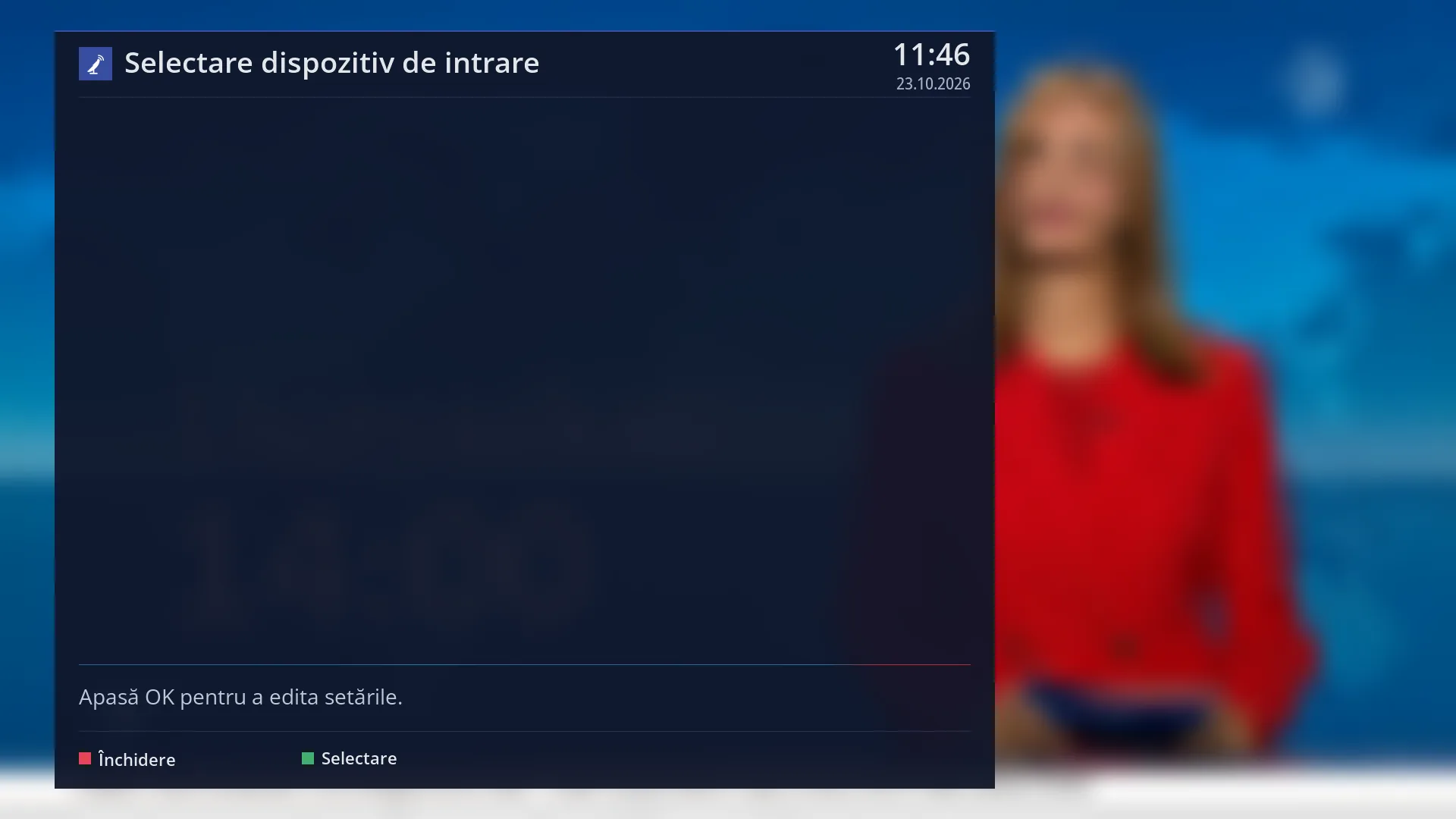
- 1 The list of devices found at startup (empty here: nothing connected via USB).
- 2 “Press OK to edit the settings.”
- 3 RED Close, GREEN Select (opens the device settings).
What it is for
“Remote Control Setup” sets how keys repeat when you hold them down, for each input device the receiver finds at startup: a remote, a keyboard or a mouse connected via USB.
Two values matter: how long the receiver waits before repeating starts, and how often the key then repeats. For example, with a longer delay, a slightly longer press on DOWN no longer skips two rows.
The first screen is the list of devices. Press OK on one to open its settings.
Key codes, the key test and using a different remote are not here but in “Remote controls”.
How to get here
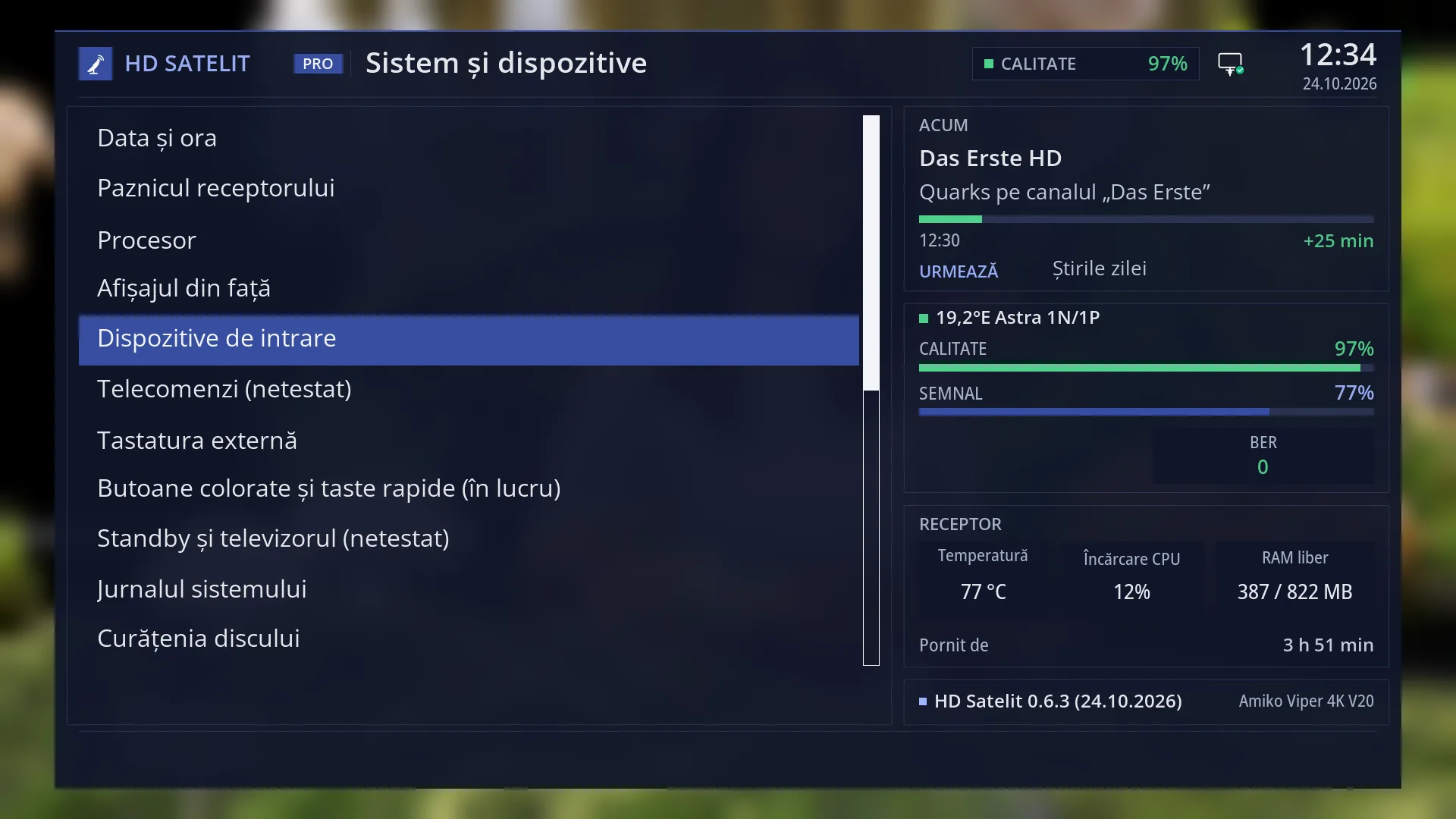
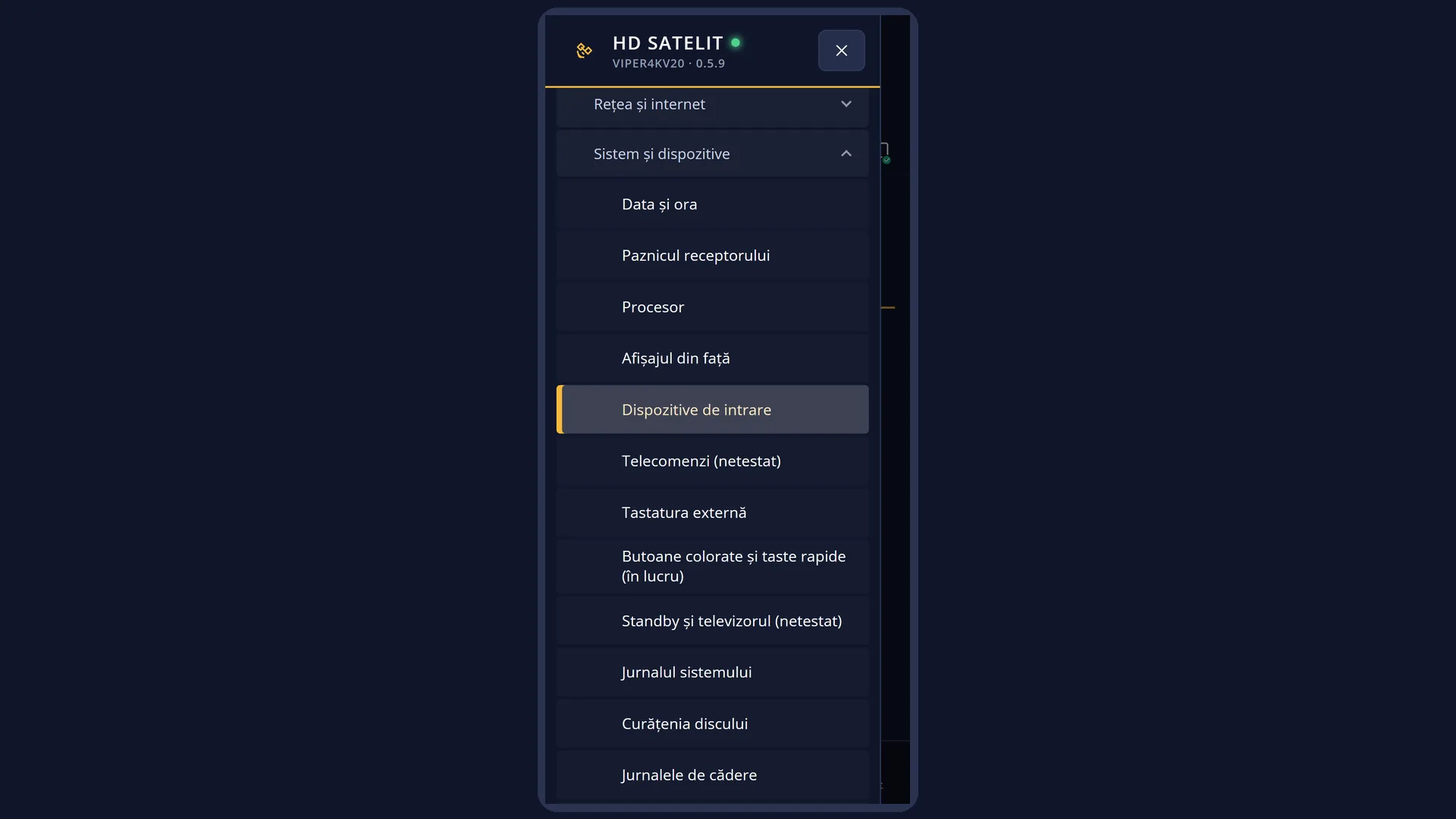
Path: Main menu > Settings > System & Devices > Remote Control Setup.
Keys on the remote: MENU 6 UP UP UP OK 5 (“System & Devices” is the third row from the bottom in Settings).
The row appears in the Intermediate (factory default) and Expert setup modes. In Simple mode it is hidden.
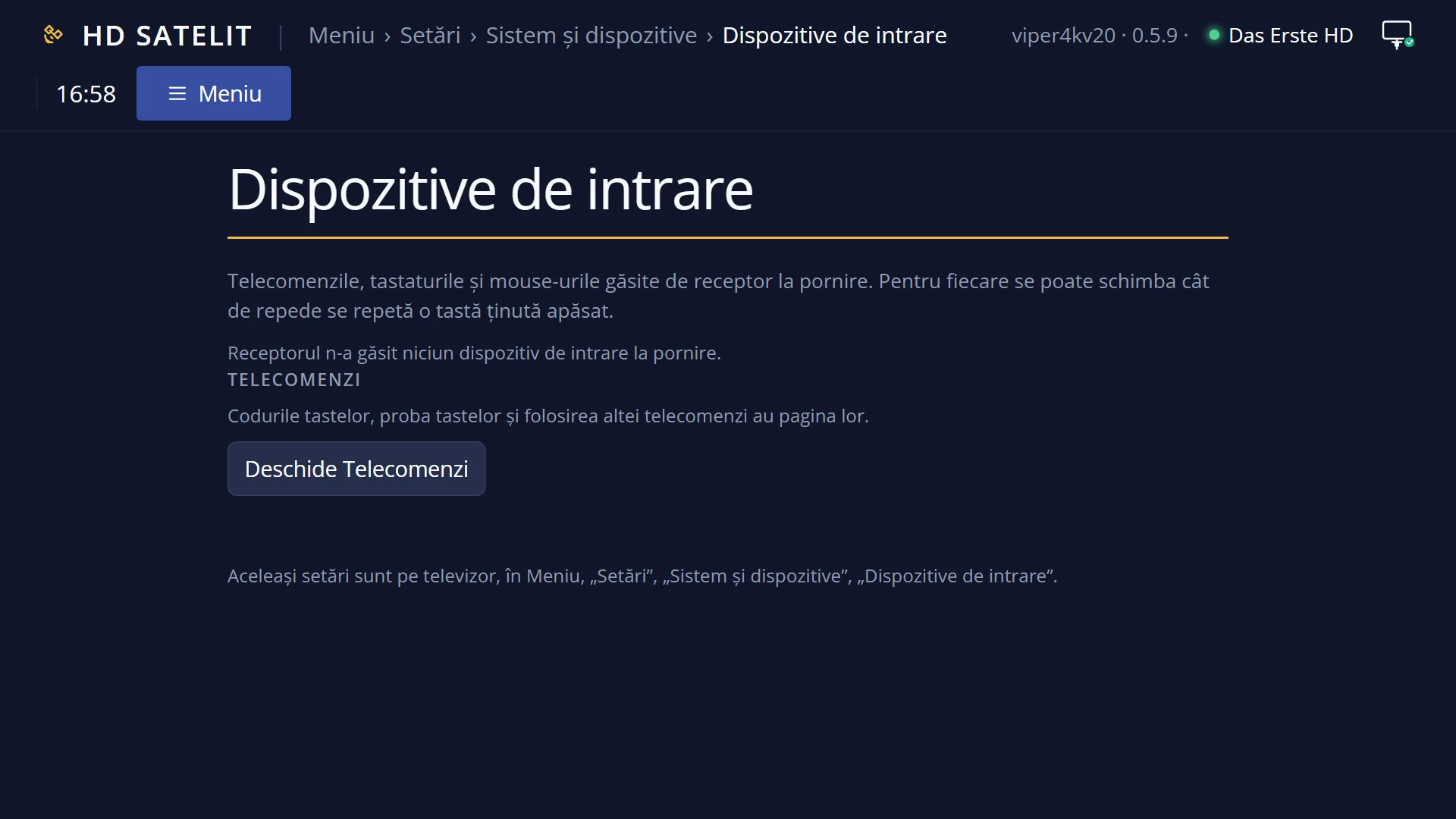
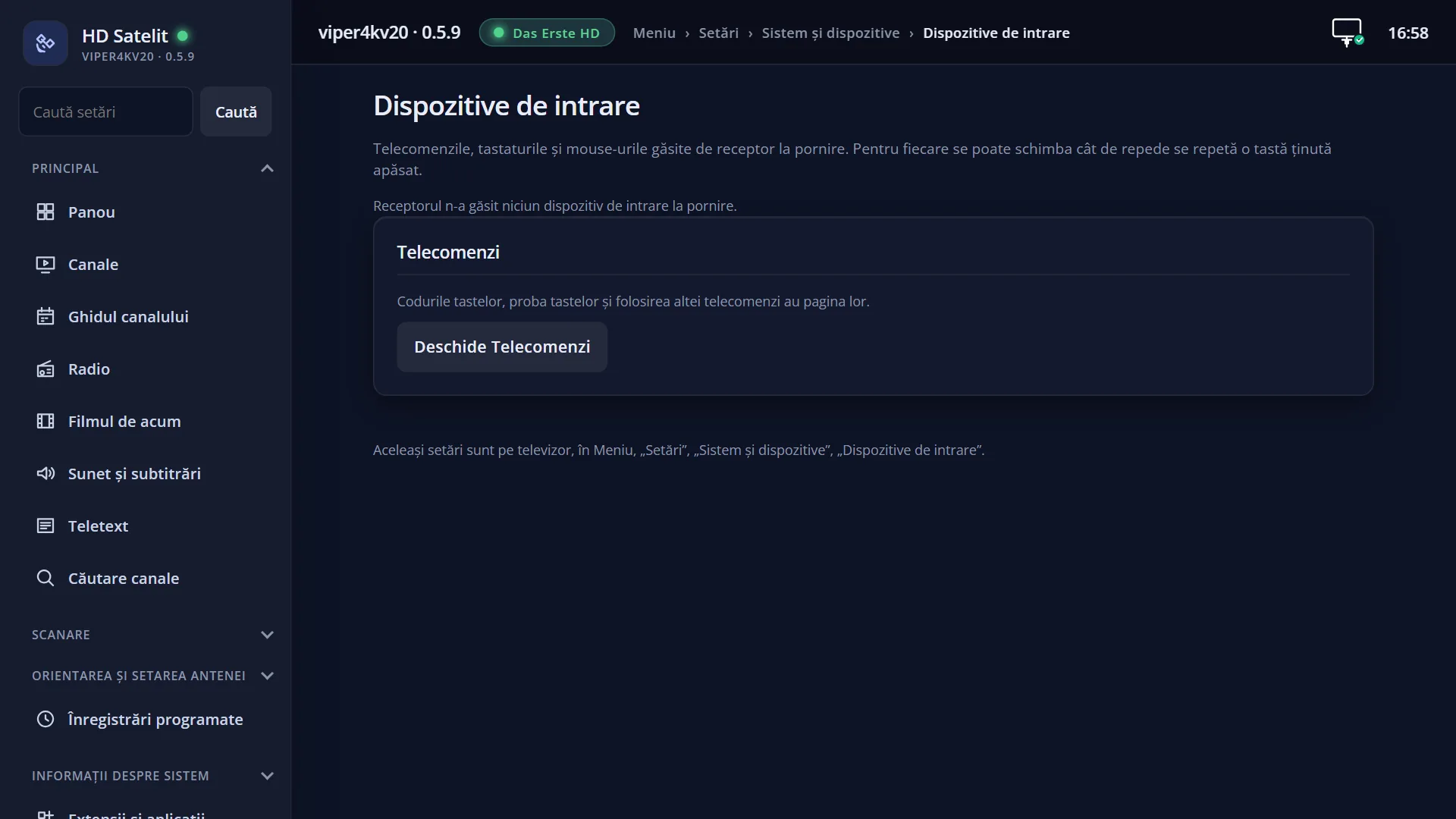
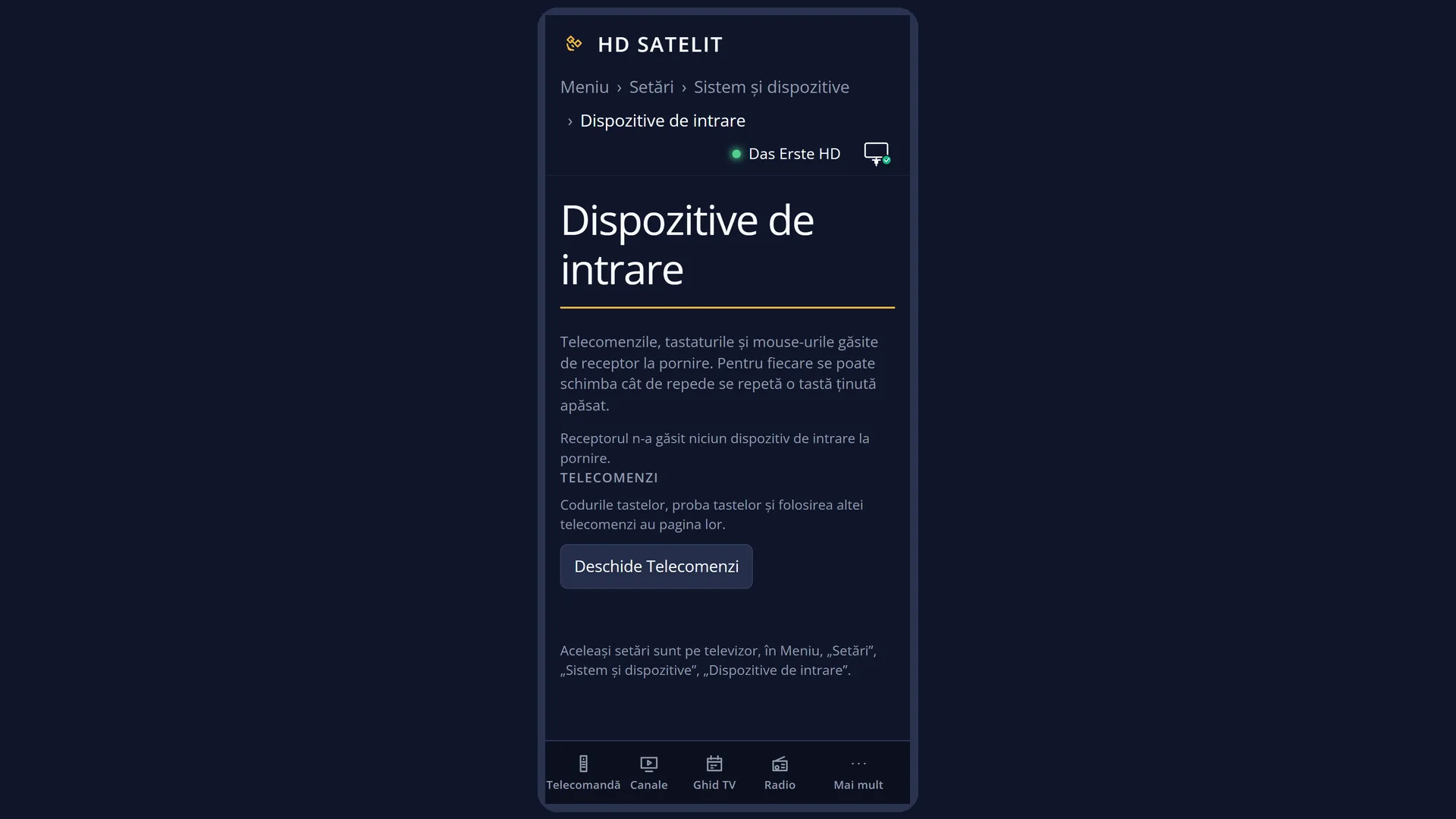
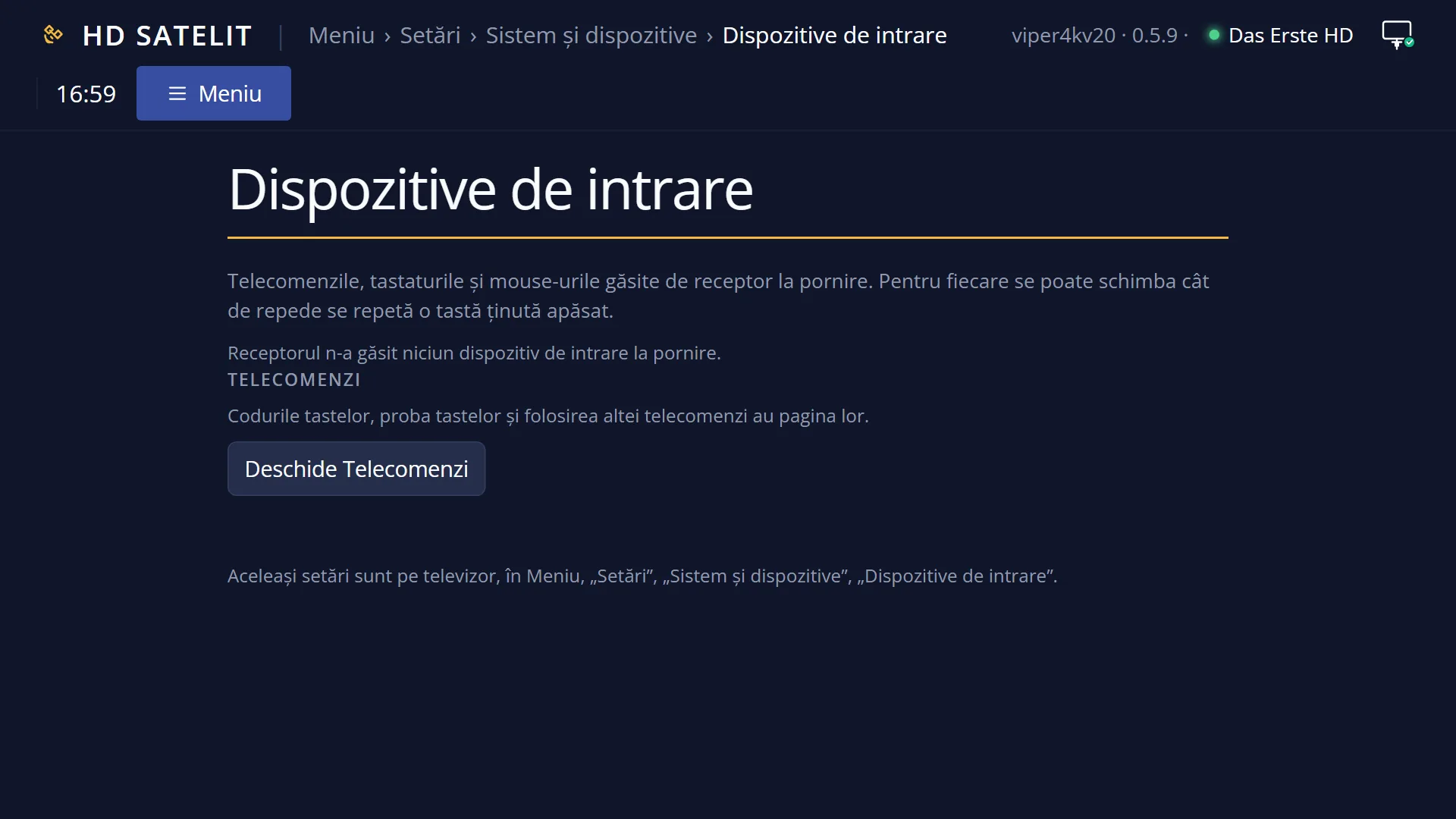
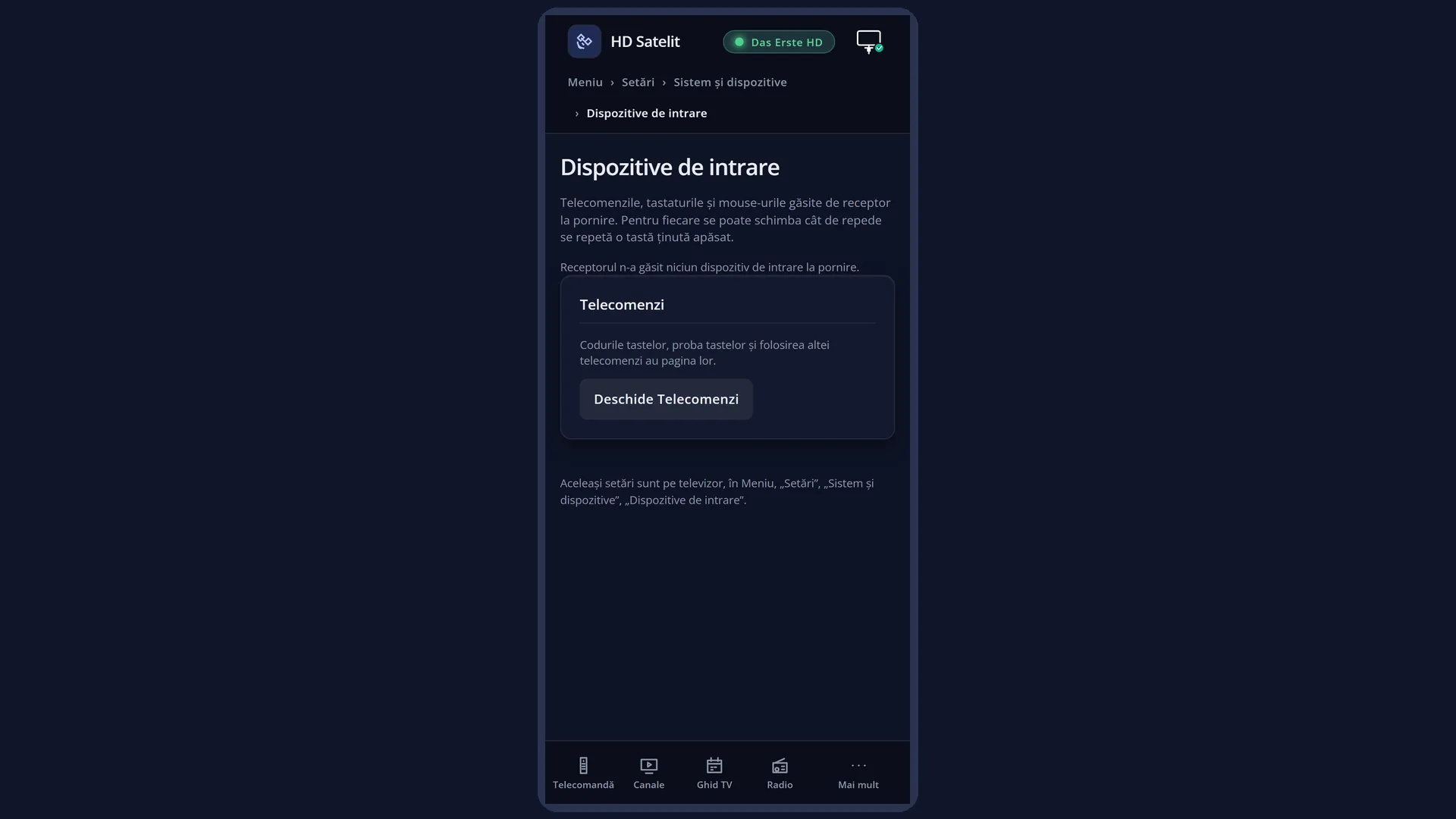
In the web interface: the /dispozitive-intrare page, with one box for each device and the same settings.
What you see on the screen
First screen: at the top, the title “Select input device”, the clock and the date. In the middle, the list of devices found at startup. At the bottom, “Press OK to edit the settings.” and the keys RED “Close” and GREEN “Select”.
On the Amiko Viper 4K V20, with no keyboard or mouse connected via USB, the list may be empty (see “Problems and solutions”).
The second screen, “Input device setup”, opens when you press OK on a device. It shows the row that turns the settings on and, when that row is set to yes, the interval and the delay, each with a slider. The rows are still written in English. Below the list: “Current device: ...” on the first row or “Current value: ... ms” on the others. At the bottom, RED “Cancel” and GREEN “OK”.
Rows and settings
| Row | Values | Default | What it does |
|---|---|---|---|
| Change repeat and delay settings? (in the web interface: “Change the repeat interval and delay?”) | yes, no | no | Yes: you set the key repeat for this device yourself, and the two rows below appear. No: the interval and the delay go back to the factory values. When keys repeat too fast or too slowly. |
| Interval between keys when repeating: (in the web interface: “The interval between keys when repeating”) | 0 ... 500 ms, in steps of 10 | 100 ms | How much time passes between two repeats of a key you hold down. Lower: it repeats more often. Increase it when the list moves too fast while you hold UP or DOWN. |
| Delay before key repeat starts: (in the web interface: “Delay before repeating starts”) | 0 ... 5000 ms, in steps of 100 | 700 ms | How long you must hold the key before it starts to repeat. Increase it when a slightly longer press moves two steps instead of one. |
Keys
| In the list: UP / DOWN | You choose the device. |
| In the list: OK or GREEN (Select) | Opens the settings of the chosen device. |
| In the list: RED (Close) / EXIT | Closes the screen. |
| In the list: HELP | Shows what the keys on this screen do. |
| In the settings: UP / DOWN | Moves the cursor to another row. |
| In the settings: LEFT / RIGHT | Changes the value: yes / no or the slider, by its step (10 ms for the interval, 100 ms for the delay). |
| In the settings: GREEN (OK) | Asks “Use this input device settings?”. With Yes, it saves them and closes. If you do not answer within 20 seconds, the question closes by itself. |
| In the settings: RED (Cancel) / EXIT | Closes without saving. If you changed something, it first asks “Really close without saving settings?”. |
Step by step
Stop the list from moving too fast
- Press MENU 6 UP UP UP OK 5, choose the device and press OK.
- Set the first row to yes, then increase the interval (for example to 200 ms) and the delay (for example to 900 ms).
- Press GREEN and choose Yes.
Restore the factory values
- Open the device settings.
- Set the first row to no: the interval and the delay go back to 100 and 700 ms.
- Press GREEN and choose Yes.
Problems and solutions
The list of devices is empty.
The list only contains adjustable input devices found when the receiver started. A keyboard or mouse connected after startup only appears after you restart the receiver. In that case the web page says “The receiver found no input device at startup.”.
The rows are in English.
The texts of these rows are not translated yet. On the web page /dispozitive-intrare the same rows are in Romanian.
I cannot see the interval and delay rows.
They only appear when the first row is set to yes.
I set 0 ms and the keys repeat non-stop.
Very low values make the repeat too fast. Set the first row to no to go back to the factory values.
I cannot find the entry in the menu.
It only shows in the Intermediate and Expert setup modes: Menu > Settings > Interface & Appearance > OSD Preferences, the “Setup Mode” row.
Related topics
- Remote controls (key codes, the test, a different remote)
- External Keyboard
- System & Devices (the submenu)
- Matching web page: /dispozitive-intrare.