

Phone apps
Screenshots are being added: so far 3 from the receiver and 7 from the web interface; the aim is at least 5 of each, with arrows and frames, and, where a setting changes what you see, a before and after comparison.
English screenshots coming: some of the pictures below still show the receiver and the web interface in Romanian. The rows, keys and steps described on this page are the English ones.
What it is for
Besides the web interface, the receiver also responds to the usual phone and computer apps made for Enigma2 receivers: remote control apps, Kodi (with its add-on for Enigma2 receivers), VLC, Home Assistant and others. They can see the channels, change the channel, send key presses, show the programme guide, set timers, show and play recordings, and fetch the m3u lists, the channel logos and a screenshot.
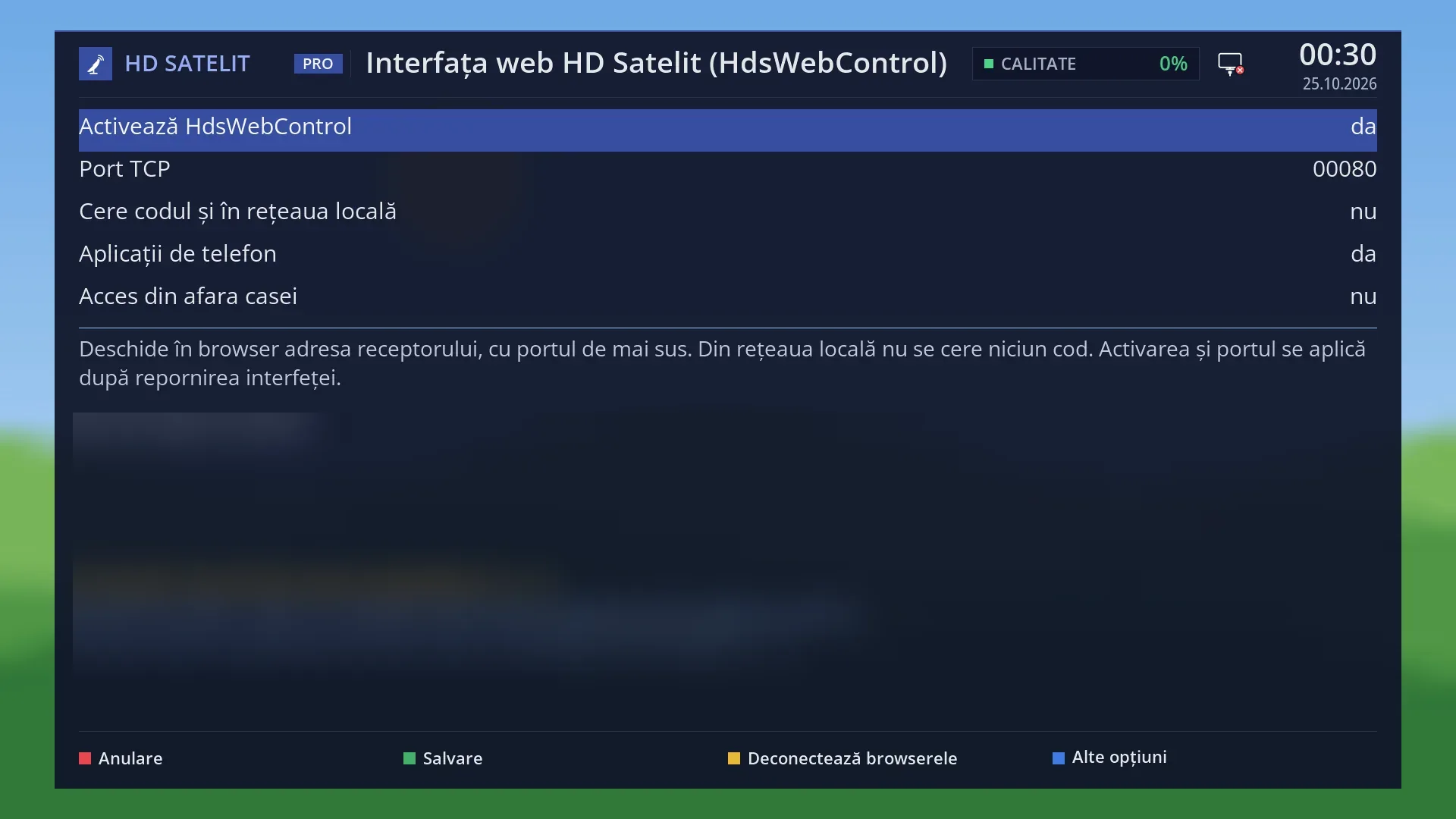
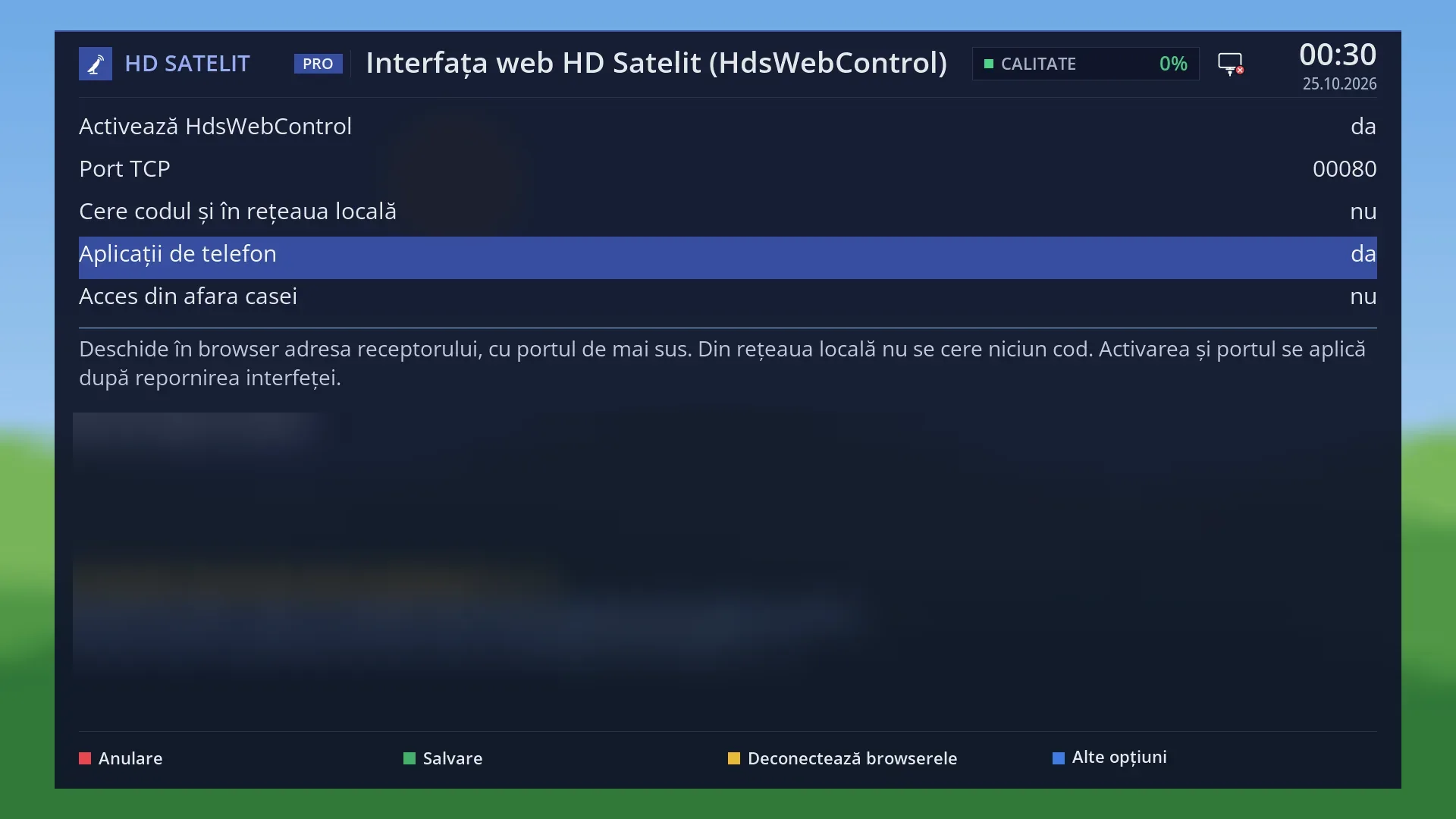
Responding to apps is switched on by default (“Phone apps” set to yes) and, at home, the app does not need a password: you only enter the receiver's address. Whatever the app has in its user name and password fields does not matter at home.
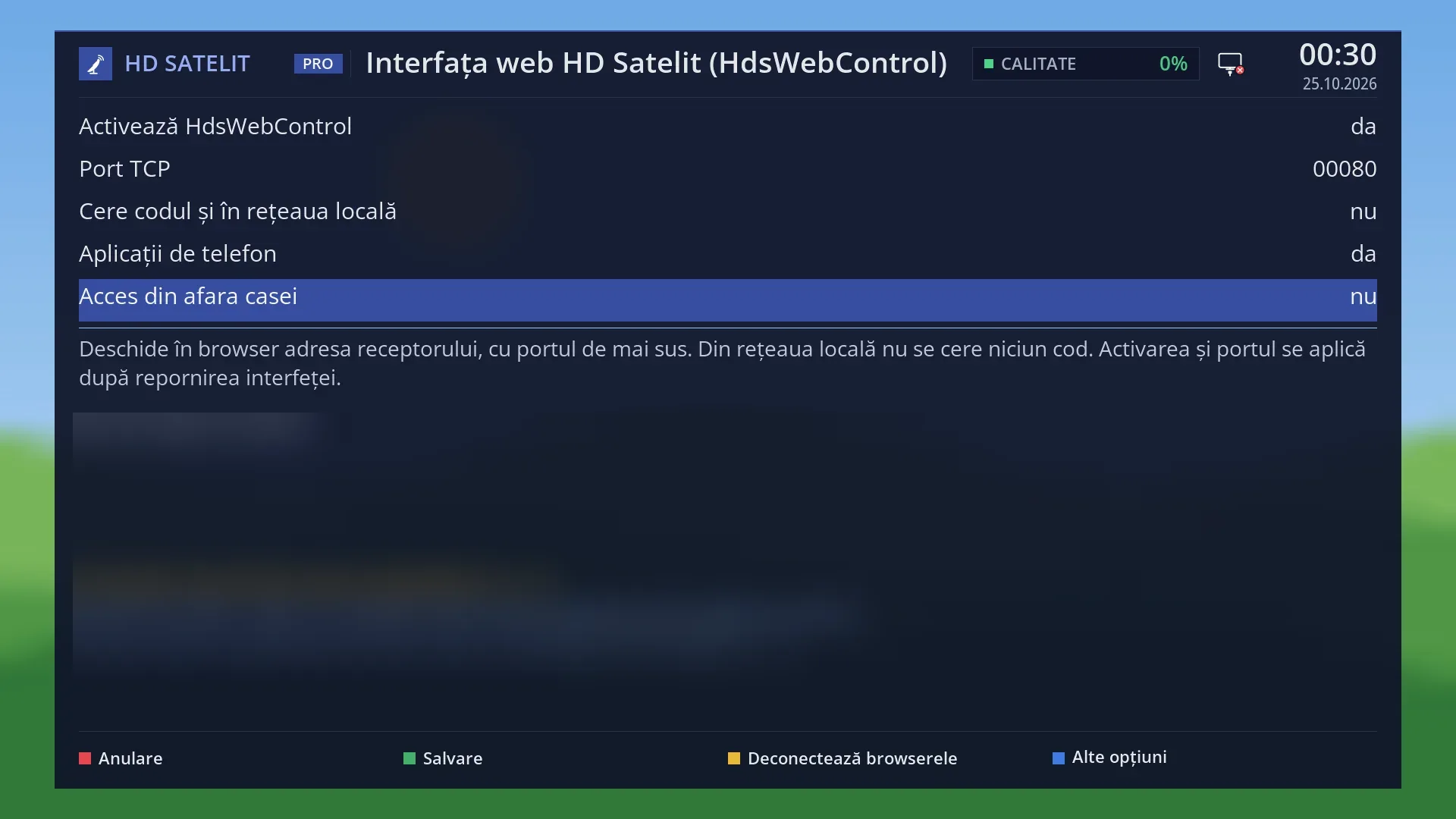
From outside the home, the apps only work if you switch on “Access from outside the home”, and only with the user root and the password for apps, a separate password created by the receiver. Even then, the pages of the web interface do not open from outside the home.
A few things cannot be done from the apps: powering off completely, restarting the receiver, and deleting, moving or renaming recordings.
How to get here
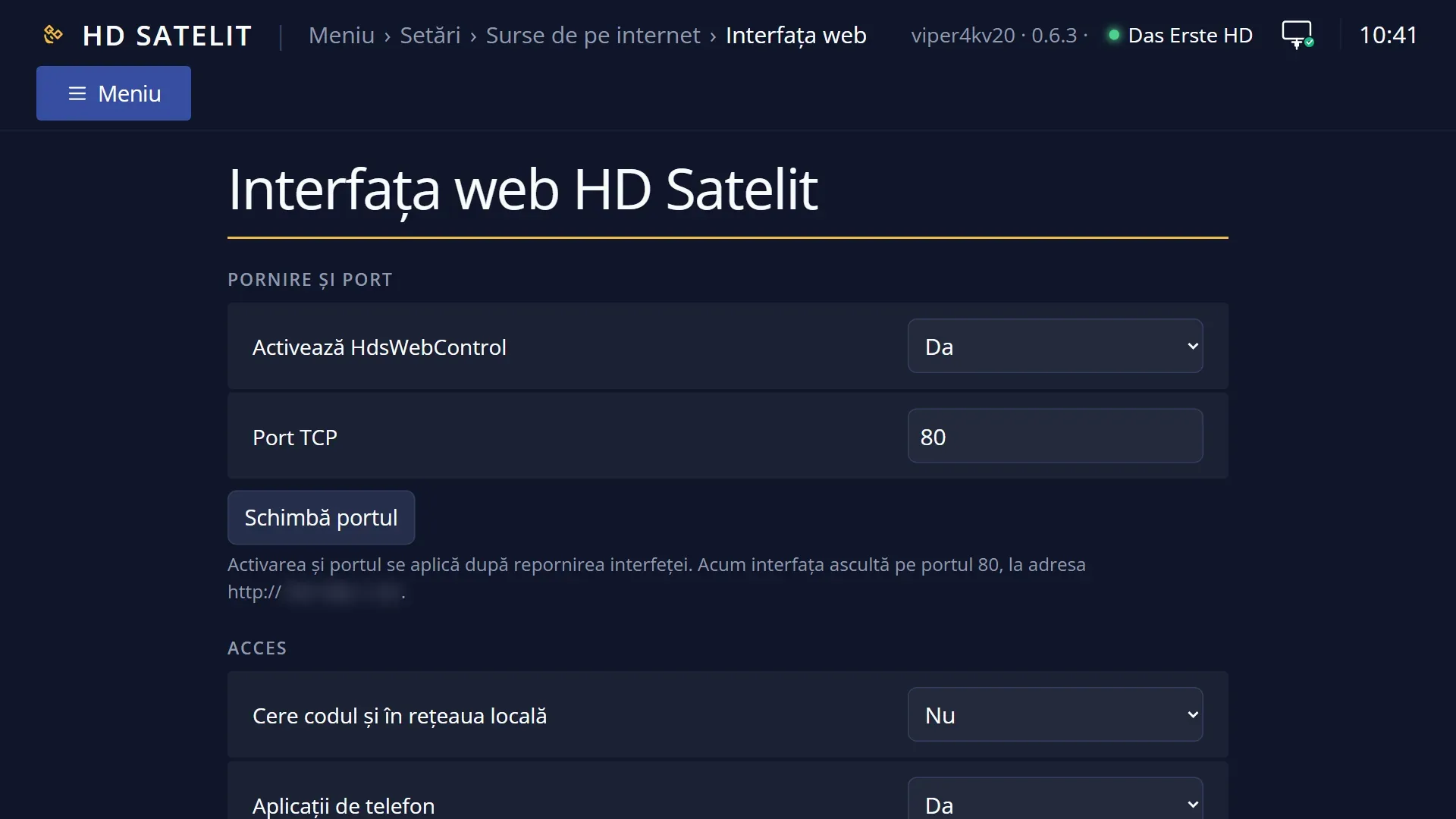
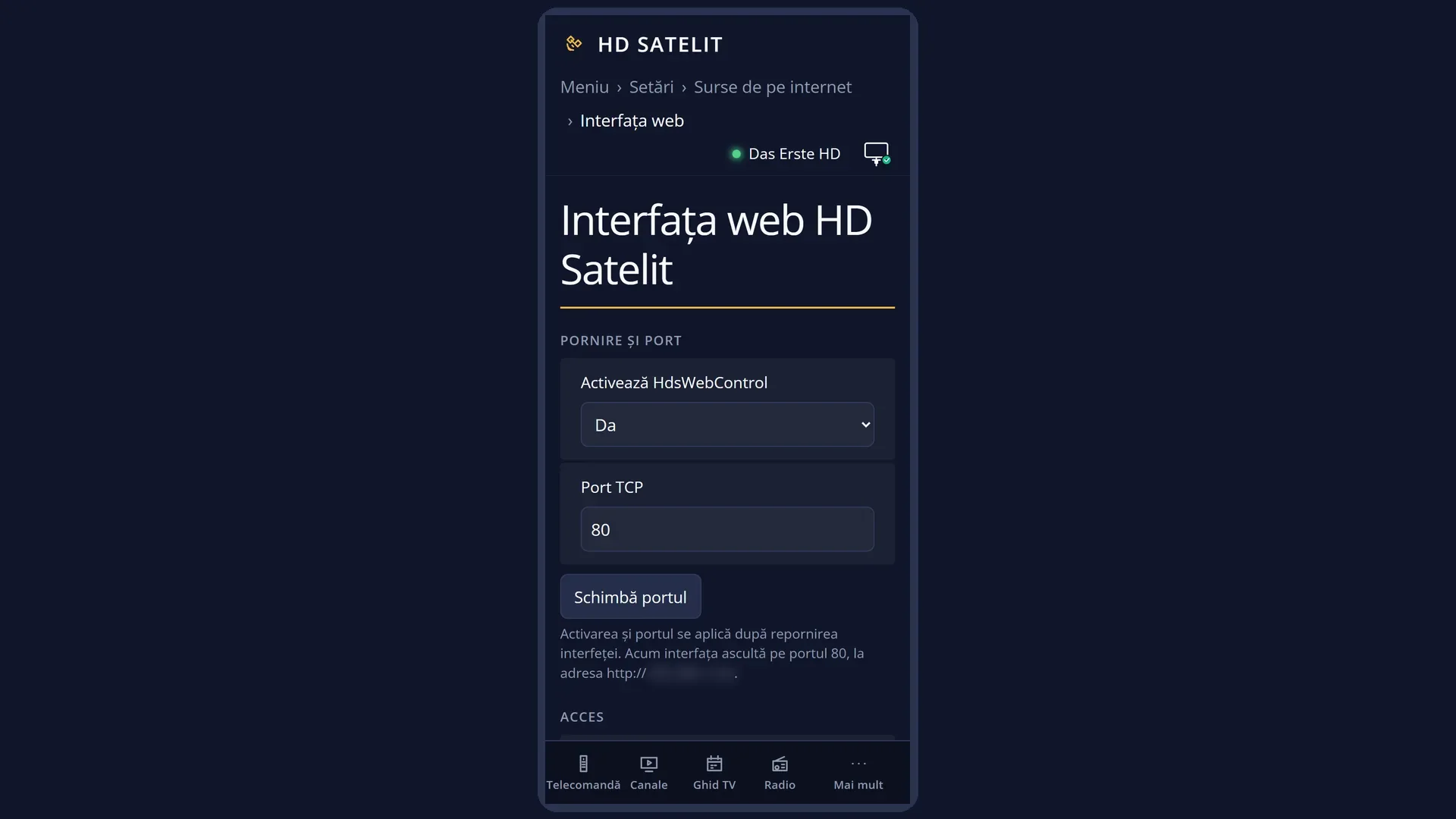
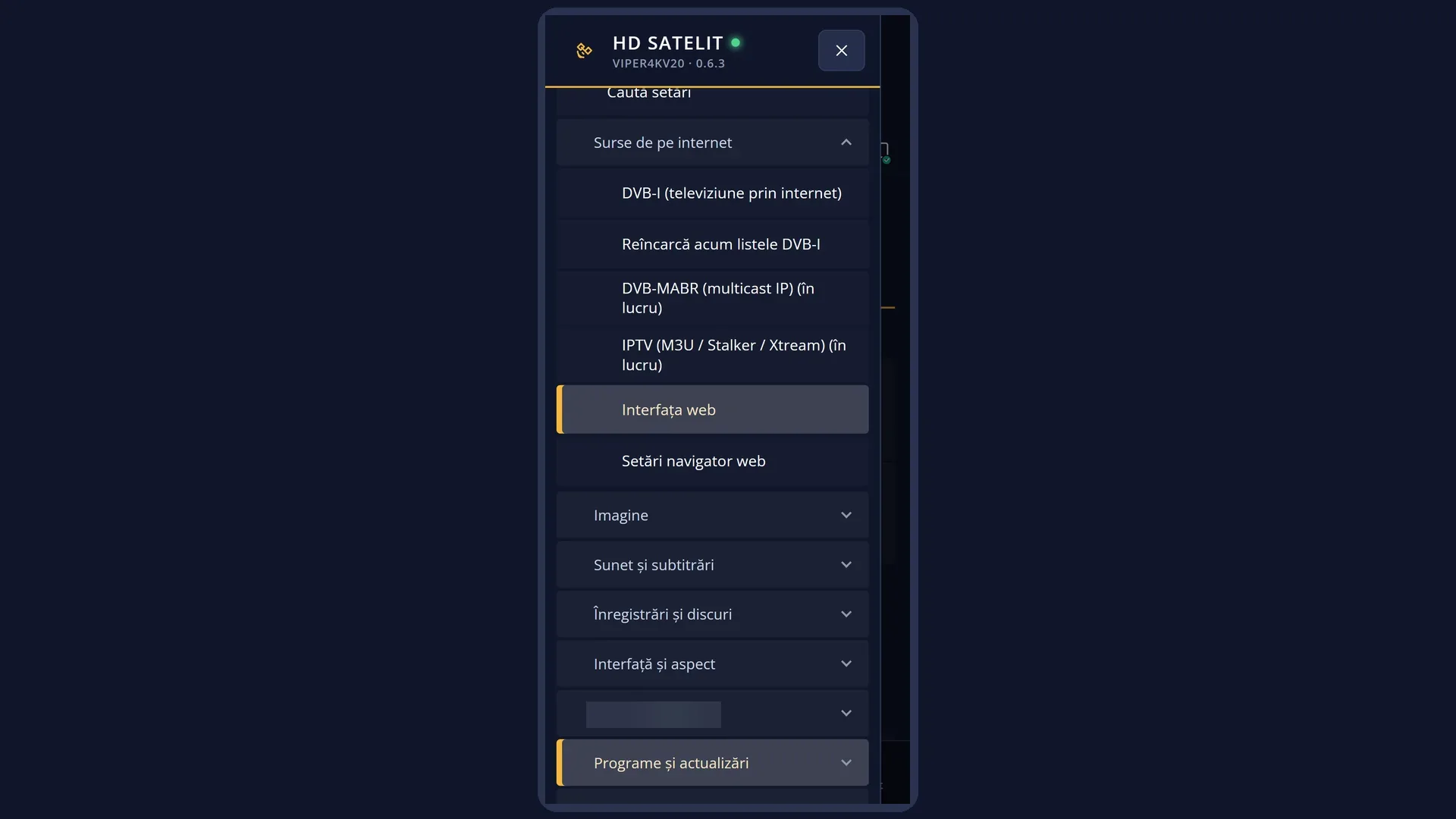
In the app, when you add the receiver: the receiver's address (for example 192.168.1.50 or hdsatelit.local) and port 80. The address is shown on the TV in Menu > Settings > Internet Sources > HdsWebControl (Web Interface) (MENU 6 2 5).
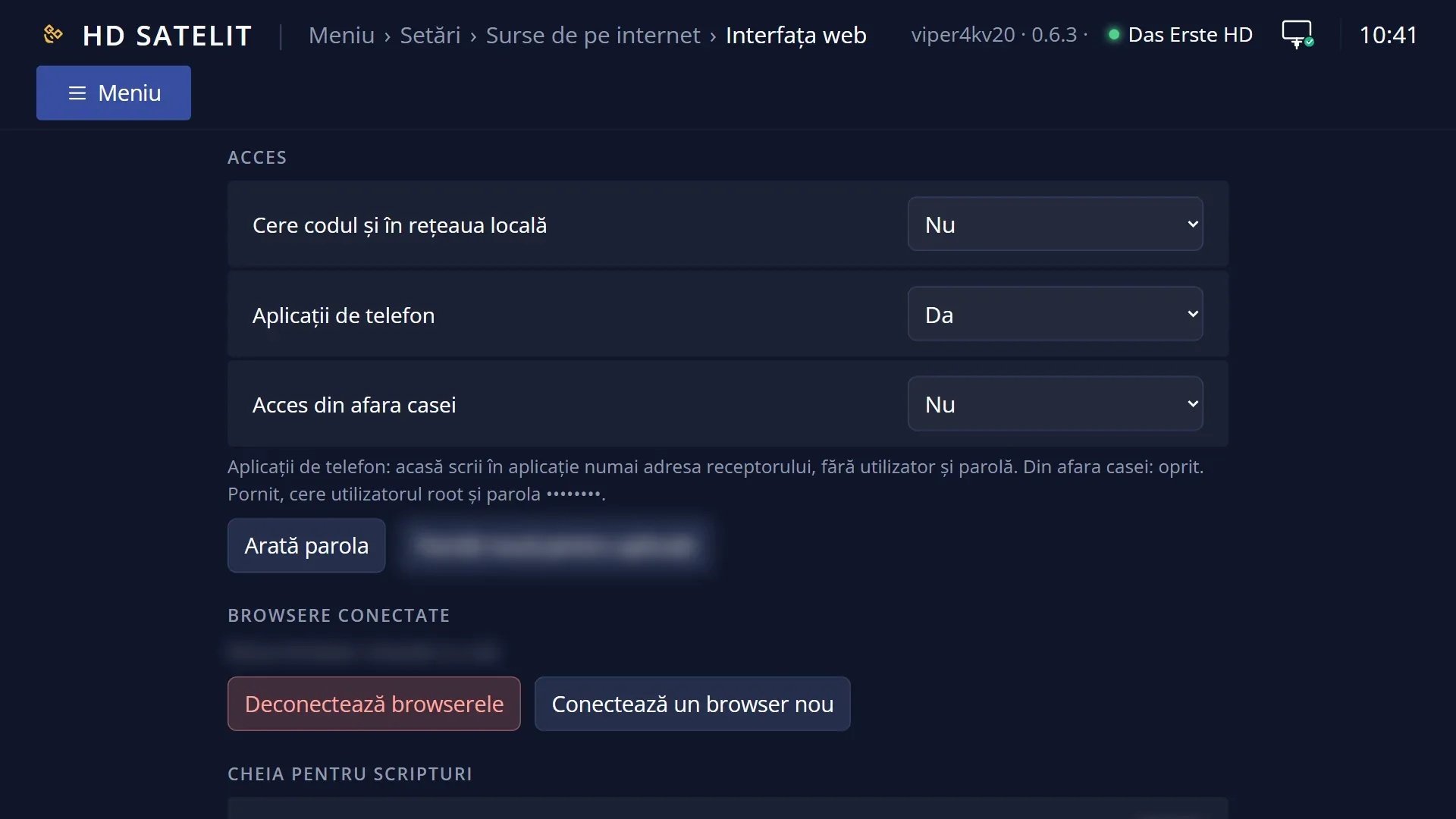
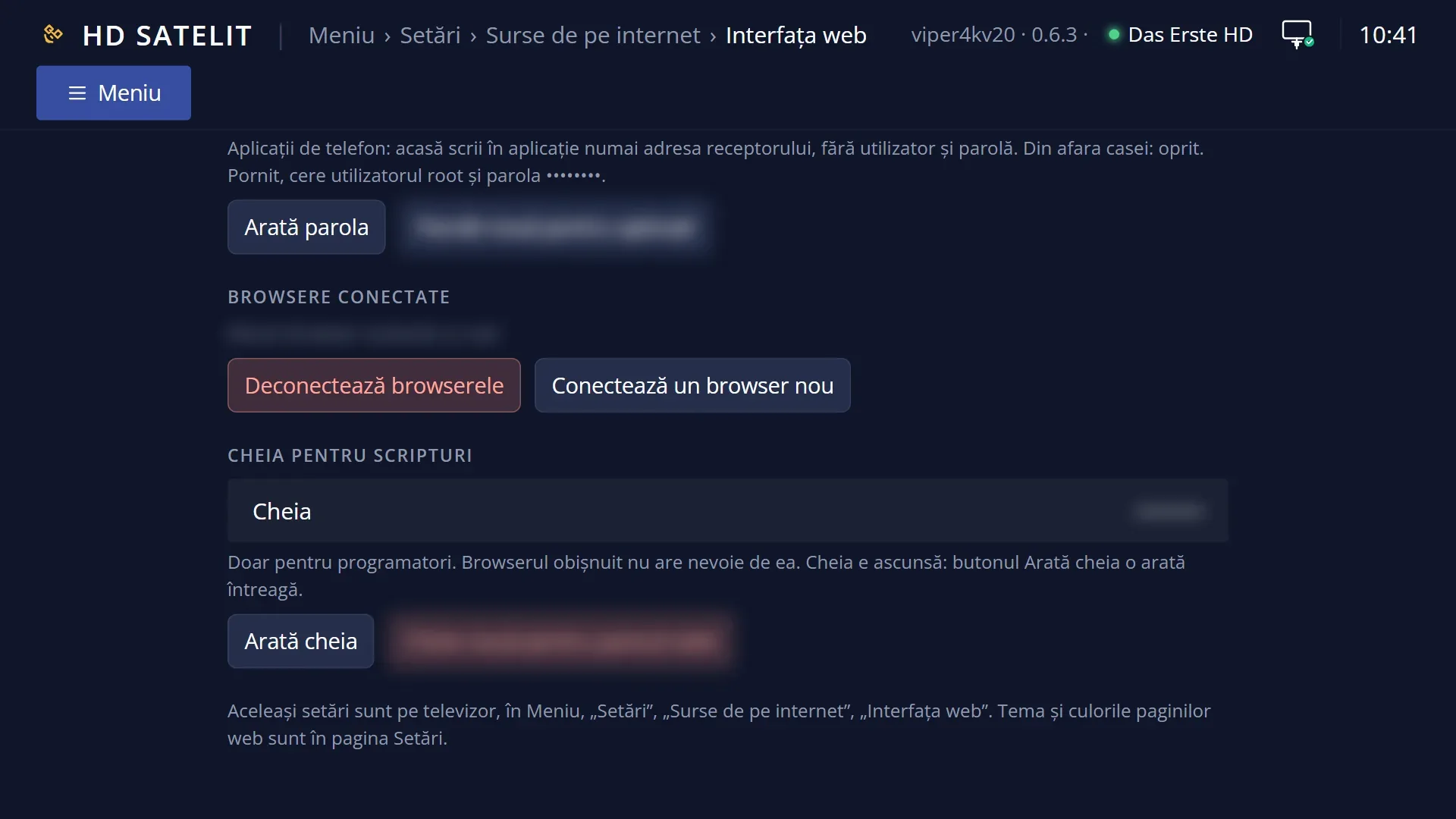
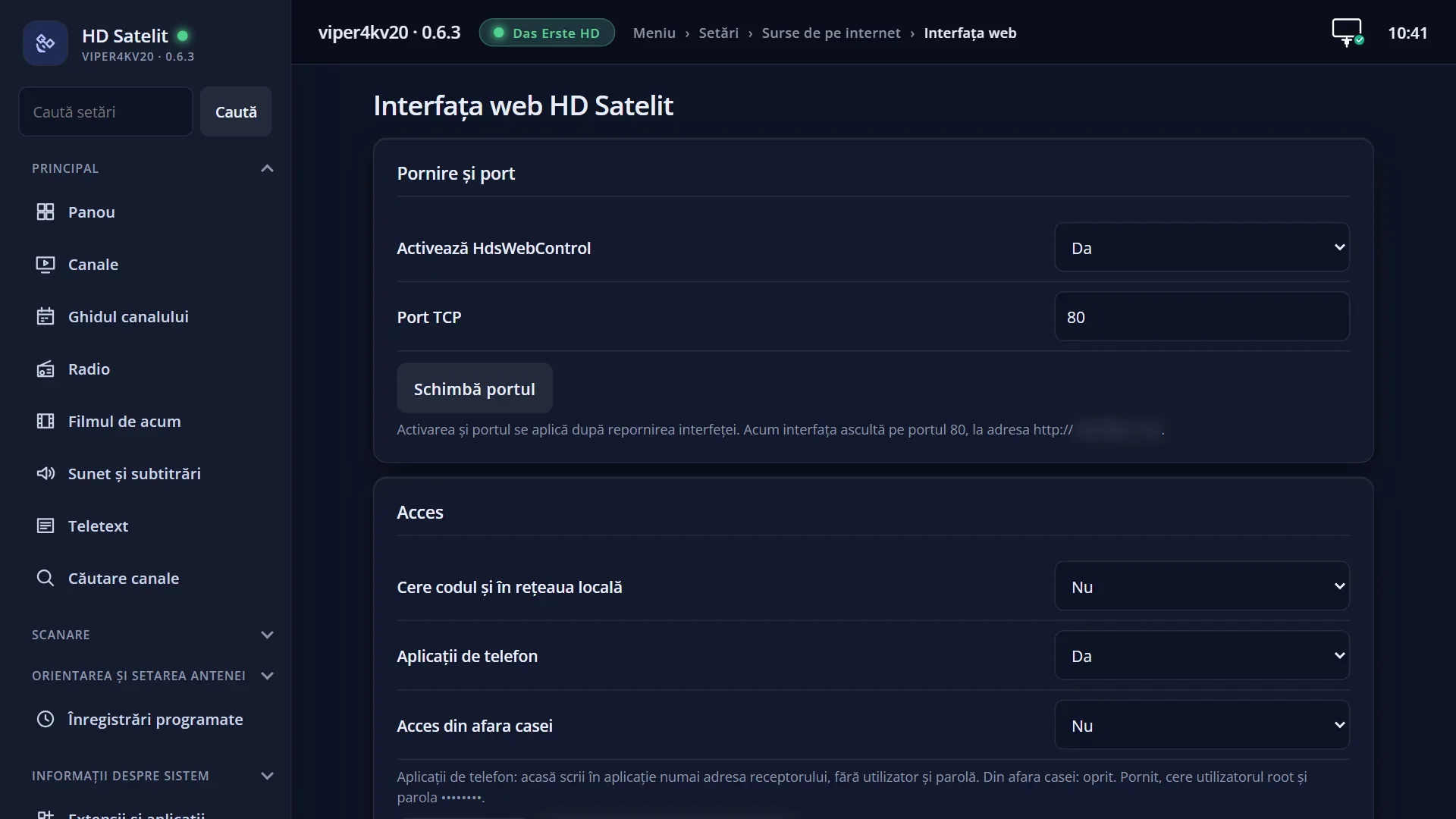
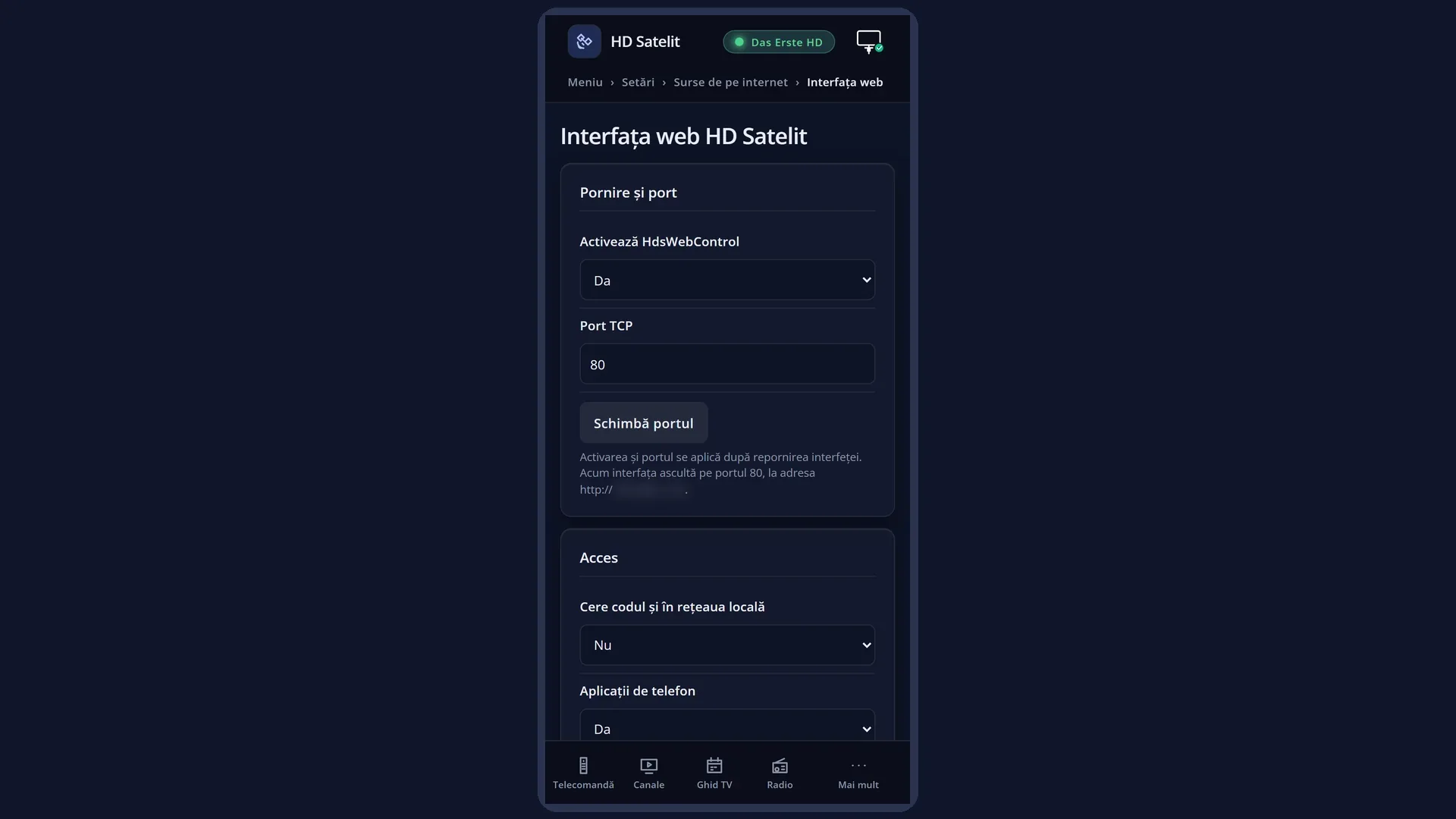
Settings for responding to apps: on the TV, the same Web interface screen (the rows “Phone apps” and “Access from outside the home”, BLUE > “New password for apps”); in the web interface, the “Access” tab in /interfata-web and the “Web interface” box in /setari.
What you see on the screen
On the TV, when a new app connects for the first time: “Phone app connected to the receiver: Kodi (...)”, with the name of the app and, in brackets, the address of the phone or device it runs on.
At the bottom of the Web interface screen on the TV: what you enter in the app at home (“at home, enter only the receiver's address in the app, without user name and password”) and from outside the home (the user root and the password for apps), then “Connected: …”, the apps seen so far, with their addresses. The same lines are in the “Access” tab in /interfata-web and in the “Web interface” box in /setari.
Note: in this version, the password for apps is shown in plain text in these places (on the TV, in /interfata-web and in /setari). Do not let anyone else read them. If someone has seen it, create a new one with “New password for apps”.
After five wrong passwords in a row from the same address, the TV shows “Wrong password 5 times from … : its requests have been blocked for 5 minutes. You can see the correct password on the web interface screen.”.
Rows and settings
| Row | Values | Default | What it does |
|---|---|---|---|
| Phone apps | yes, no | yes | Yes: the receiver responds to apps. No: it does not respond to them at all. No, unless you do not use apps like these. |
| At home: no password | From your home network, using the receiver's address or its name (for example hdsatelit.local), the app gets in without a password. With “Ask for the code on the local network too” switched on, the app also needs the user root and the password for apps at home. | ||
| Access from outside the home | no, yes | no | Yes: apps also get a response from outside your home network, but only with the user root and the password for apps. For the request to reach the receiver, your router must forward the port to it. Only if you want to use the app when you are not at home. |
| Password for apps | 12 letters and digits, in groups of 4 | created by the receiver the first time | The password asked of apps from outside the home (and at home, when the code is required). It is separate from the administrator password in “SSH access”. It is kept after a new version too, through the settings copy restored on the same receiver. “New password for apps” changes it and clears the list of apps seen; apps with the old password get no response until you enter the new password in them. When someone else has got hold of it. |
| What the apps can do | the channels and changing the channel, the remote keys, the volume, standby, a message on the TV, the programme guide, timers (add, change, delete), the list of recordings and playing them, m3u lists, logos, screenshot | The same rules as in the web interface: timers are set with the same checks, and a recording requested in a folder that is not on one of the receiver's disks goes to the usual location. Recordings can be played on the phone, but they cannot be deleted, moved or renamed from the apps. Powering off completely and restarting cannot be done from here. |
Keys
| Phone apps (the row on the TV or on the web) | Switches responding to apps on or off. |
| Access from outside the home | Lets apps reach the receiver from outside the home too, with a password. |
| BLUE > “New password for apps” (on the TV) or the “New password for apps” button (on the web) | Creates a new password, after asking you first. |
Step by step
Connecting a phone app at home
- On the TV (MENU 6 2 5), check that “Phone apps” is set to yes and read the receiver's address.
- In the app, add a new receiver with its address (for example 192.168.1.50) and port 80. You can leave the user name and password as they are.
- The TV shows “Phone app connected to the receiver: …”. That is all.
Using the app from outside the home
- On the TV, MENU 6 2 5: set “Access from outside the home” to yes and press GREEN.
- In your router, forward an outside port to port 80 of the receiver.
- In the app, enter your internet address, the port you chose, the user root and the password for apps (you can see it on the Web interface screen).
Changing the password for apps
- MENU 6 2 5, BLUE, “New password for apps”, Yes.
- Enter the new password in every app that connects from outside the home.
Problems and solutions
The app cannot find the receiver.
Check the address and the port (80), and that “Phone apps” is set to yes. The phone must be on the same network. Try the numeric address instead of hdsatelit.local.
At home, the app asks for a password.
“Ask for the code on the local network too” is switched on, or the app uses a different name for the receiver than its address or its name. Enter the user root and the password for apps, or switch off the code row.
The TV shows “Wrong password 5 times from …”.
An app has the old or a wrong password. Enter the correct password in it (from the Web interface screen) and wait 5 minutes.
It does not work from outside the home.
All three are needed: “Access from outside the home” set to yes, the port forwarded by the router to the receiver and, in the app, the user root with the password for apps.
I cannot delete a recording from the app.
Deleting, moving and renaming recordings cannot be done from the apps. Use the list of recordings on the TV or the Films and recordings page in the web interface.
The list of recordings in the app is empty or out of date.
The disk did not respond in time (for example a USB disk in standby). Try again after a few seconds.