

Web browser
Screenshots are being added: so far 2 from the receiver and 9 from the web interface; the aim is at least 5 of each, with arrows and frames, and, where a setting changes what you see, a before and after comparison.
English screenshots coming: some of the pictures below still show the receiver and the web interface in Romanian. The rows, keys and steps described on this page are the English ones.
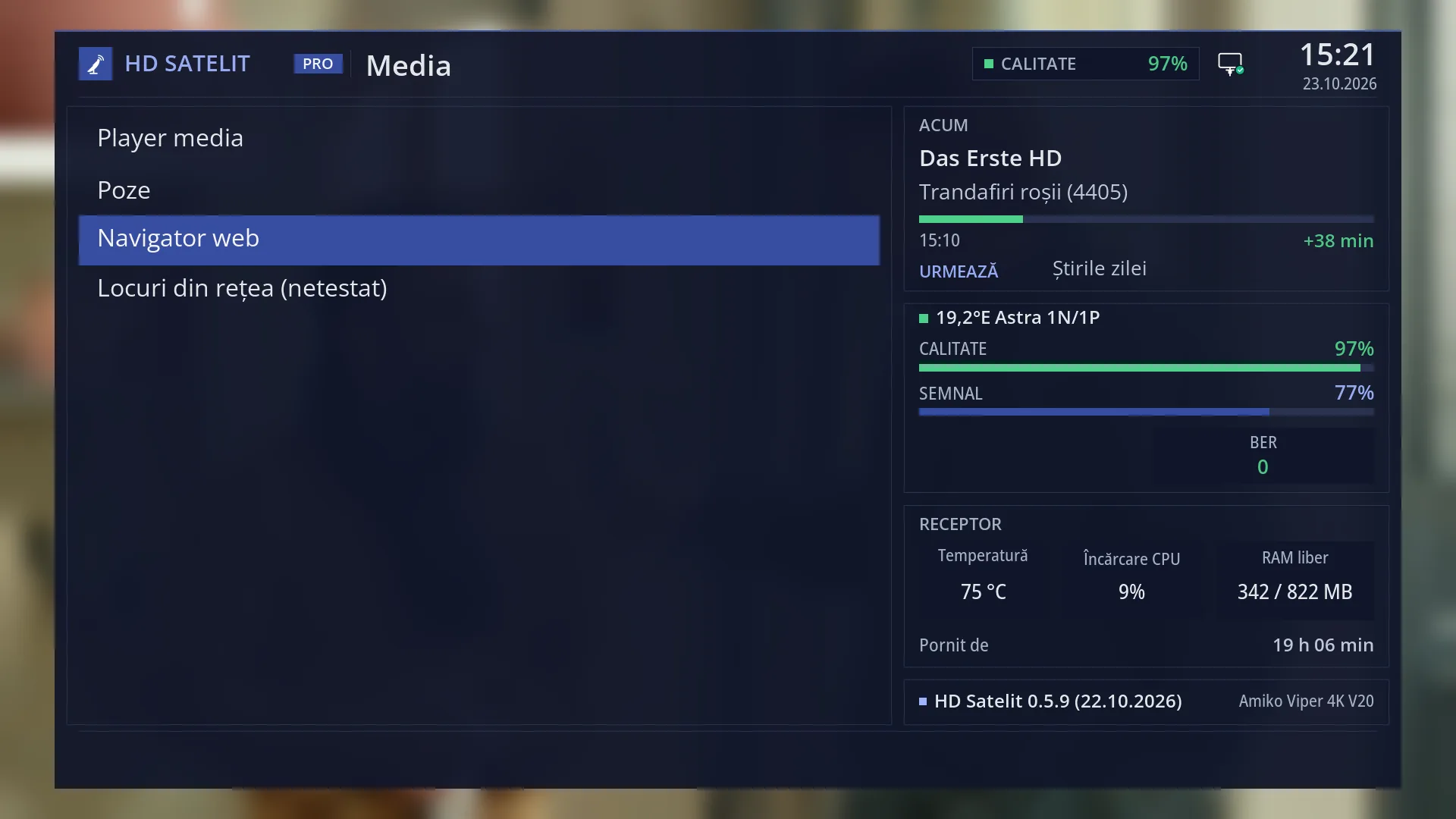
- 1 The selected row.
What it is for
The web browser opens web pages on the TV, using the remote: news sites, the weather, the page of a device in your home, any ordinary page.
You move around the page with the arrow keys: a coloured frame shows the link, button or field you are on, and OK presses it. For pages that are hard to use with the arrow keys, there is also a pointer, like a mouse pointer, which you turn on with BLUE.
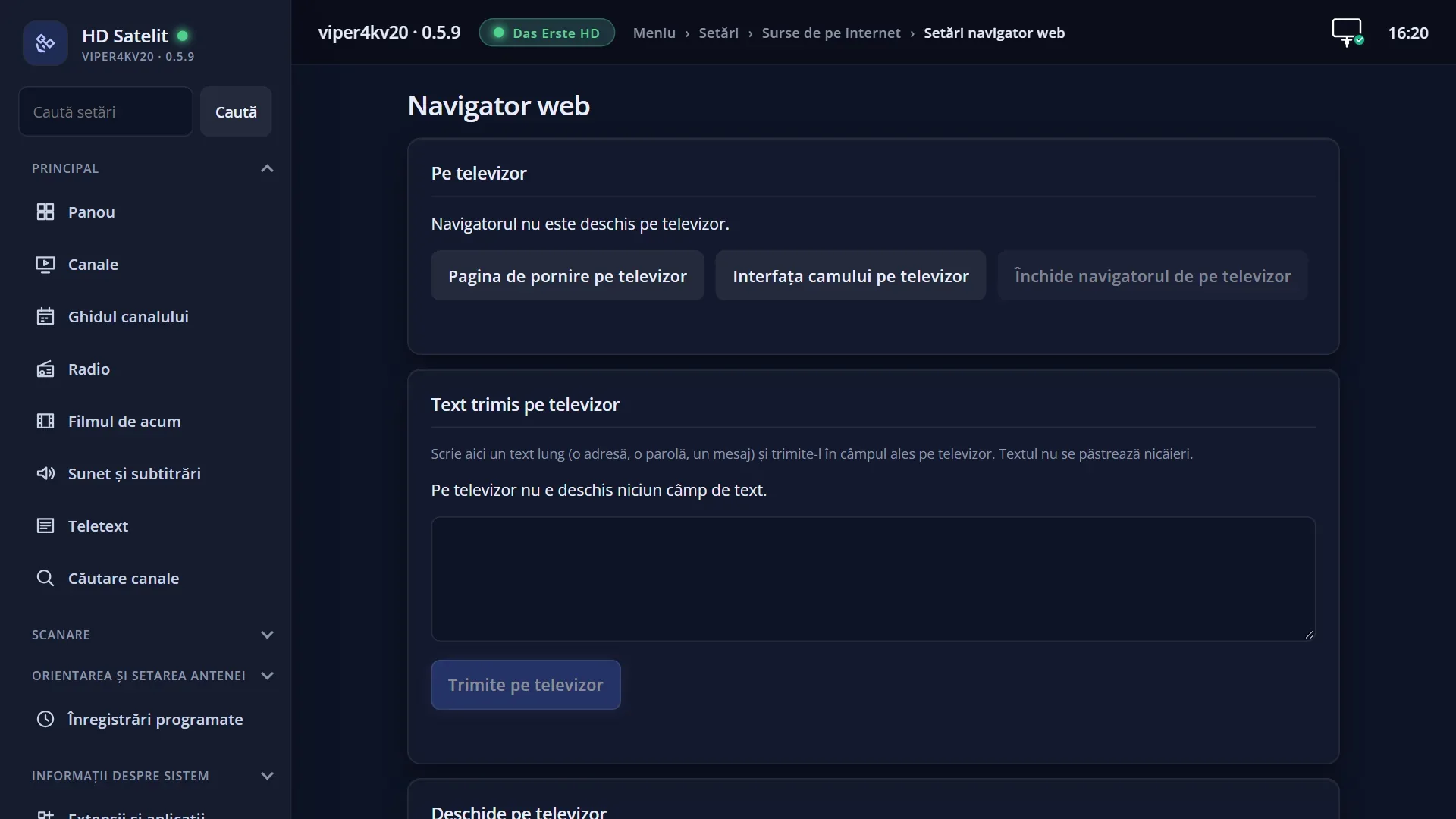
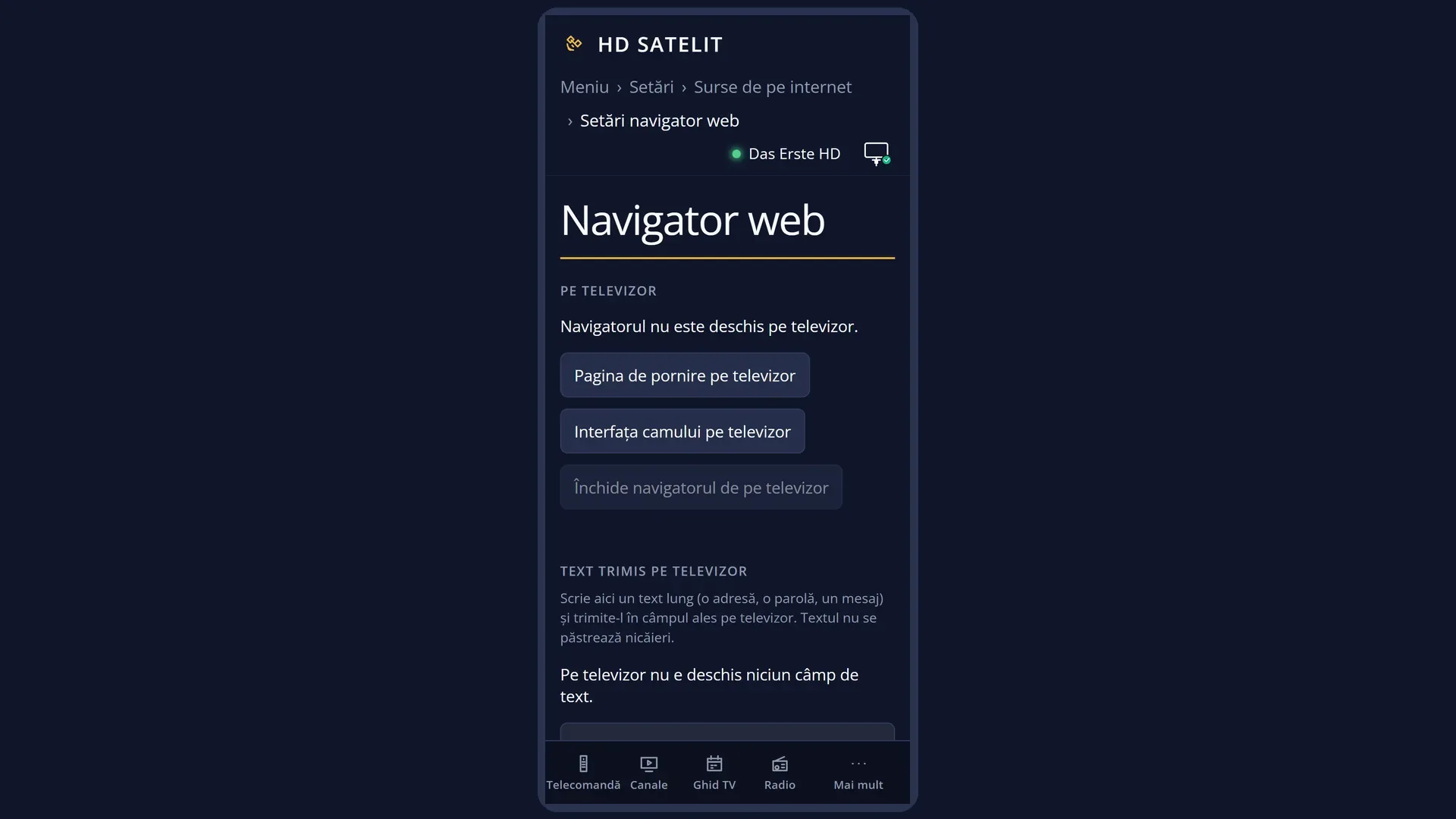
You type text with the on-screen keyboard or, more easily, from your phone: on the /navigator web page you type the address, password or message and press “Send to the TV”. The text goes into the selected field on the TV.
The browser only starts when you open it and stops completely when you close it, so it does not take up memory while you are not using it. The receiver needs an internet connection for pages on the internet.
How to get here
Path: Main menu > Media > Web browser.
Keys on the remote: MENU 8 3.
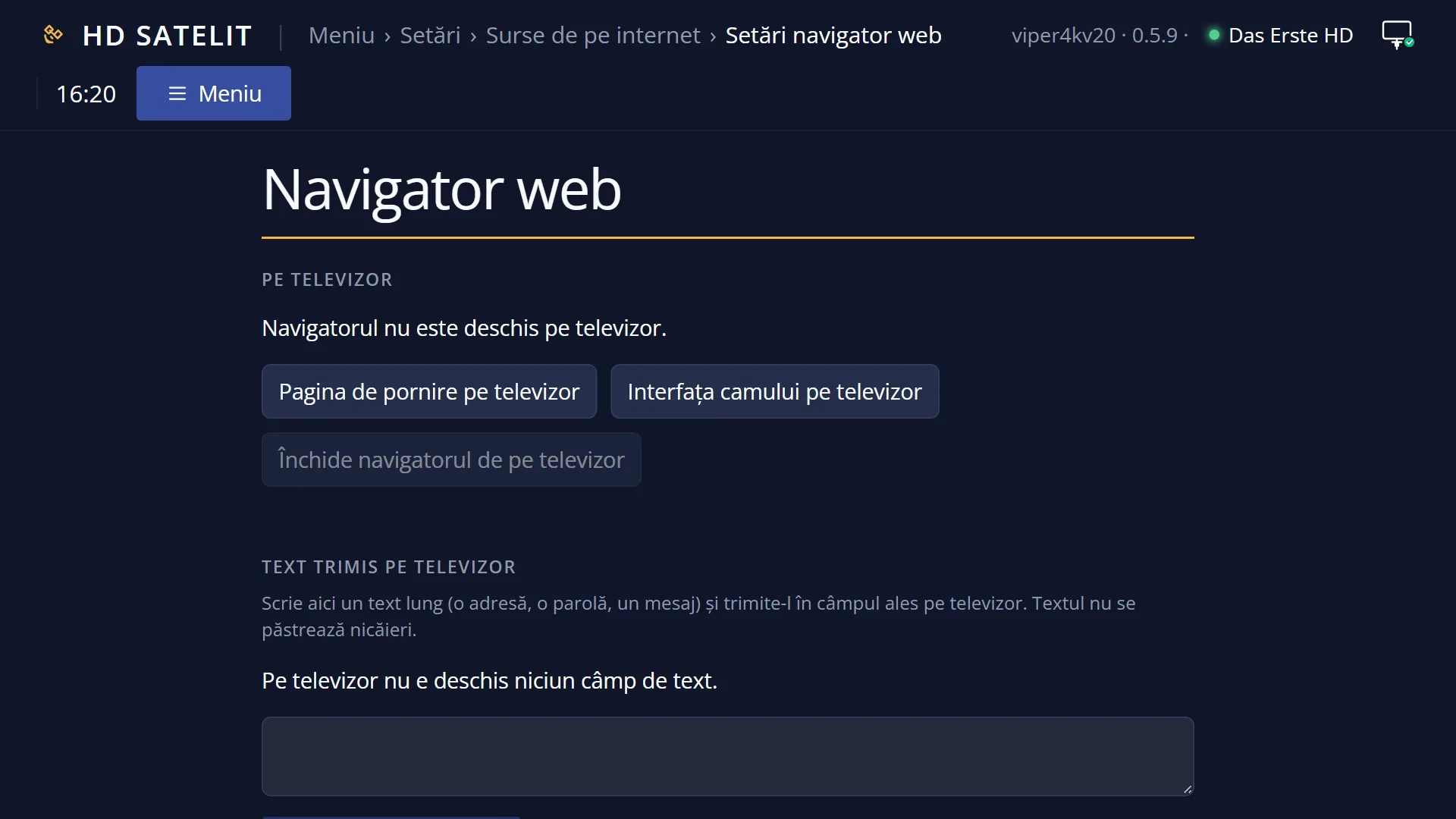
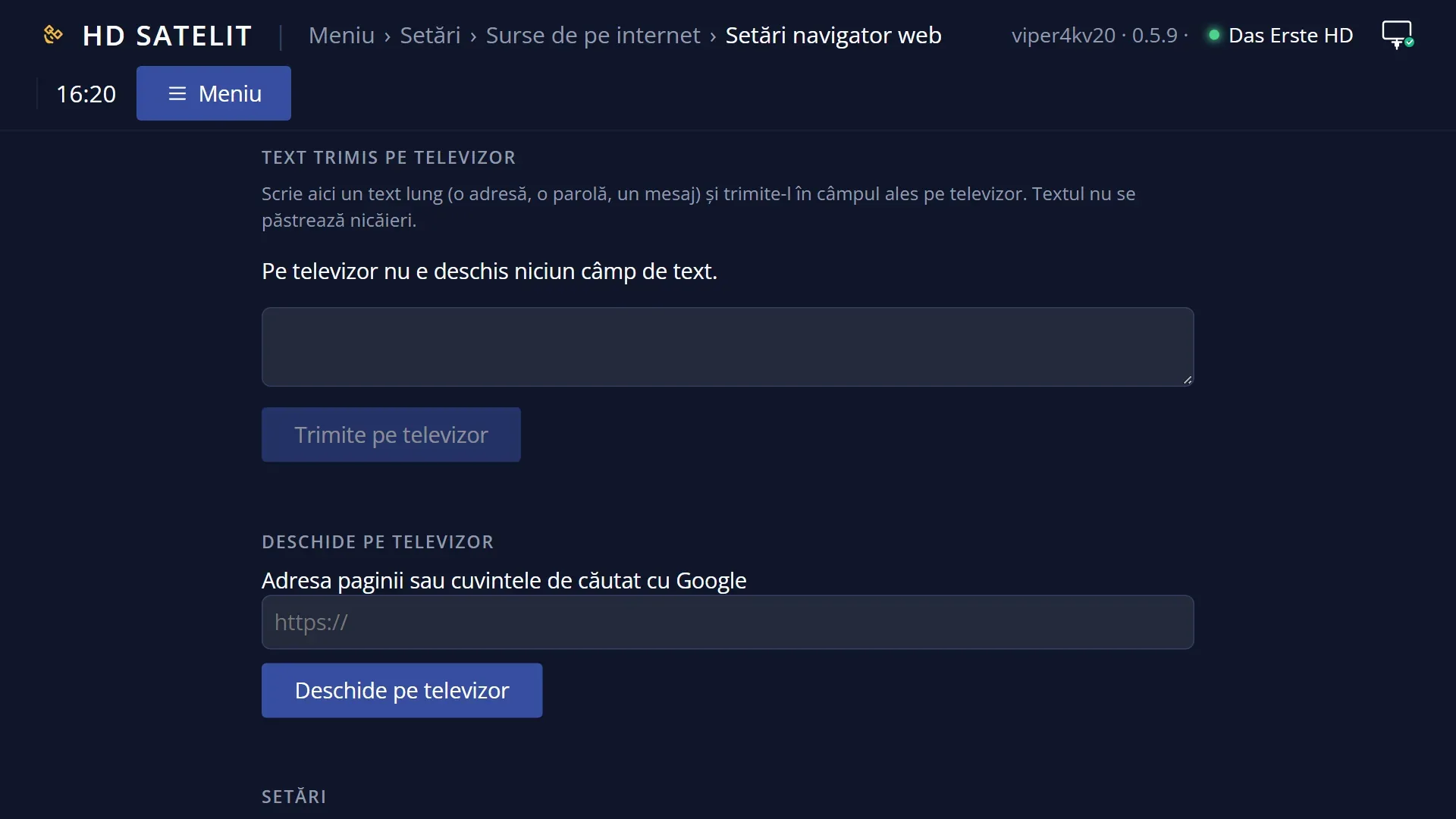
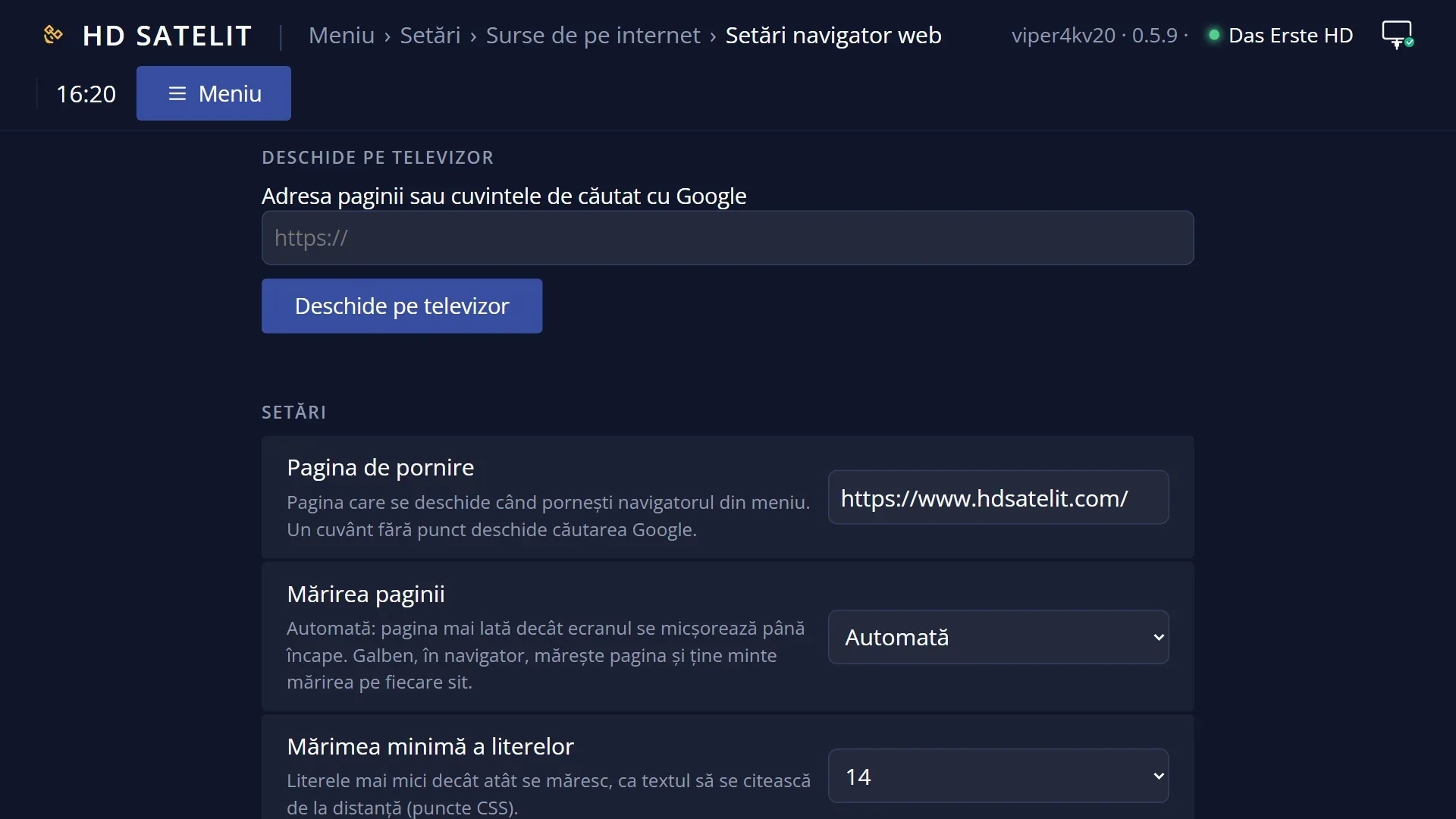
In the web interface: the /navigator page, the “Open on the TV” box (type the address or the words to search for and press the button) or the “Start page on the TV” button.
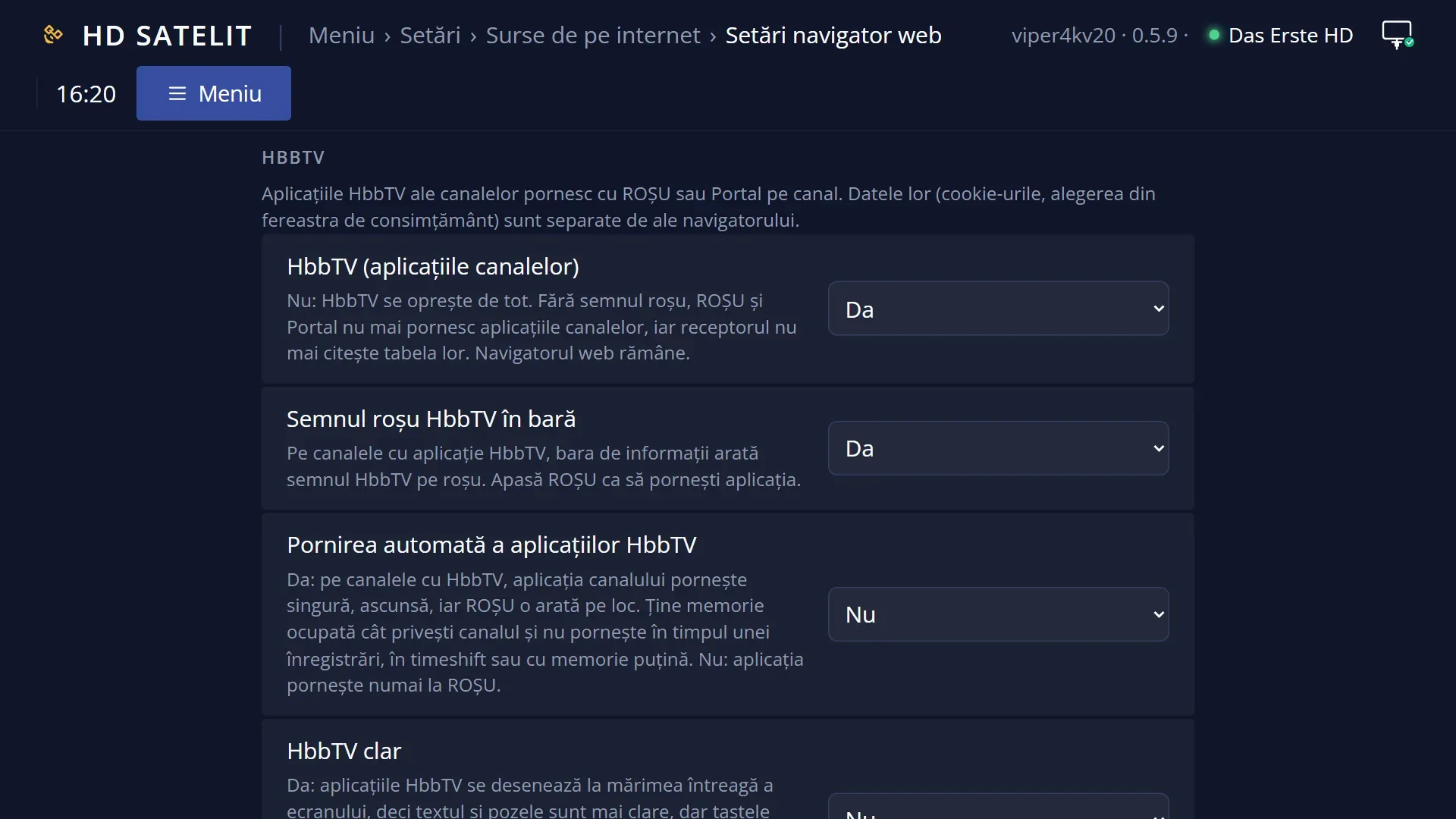
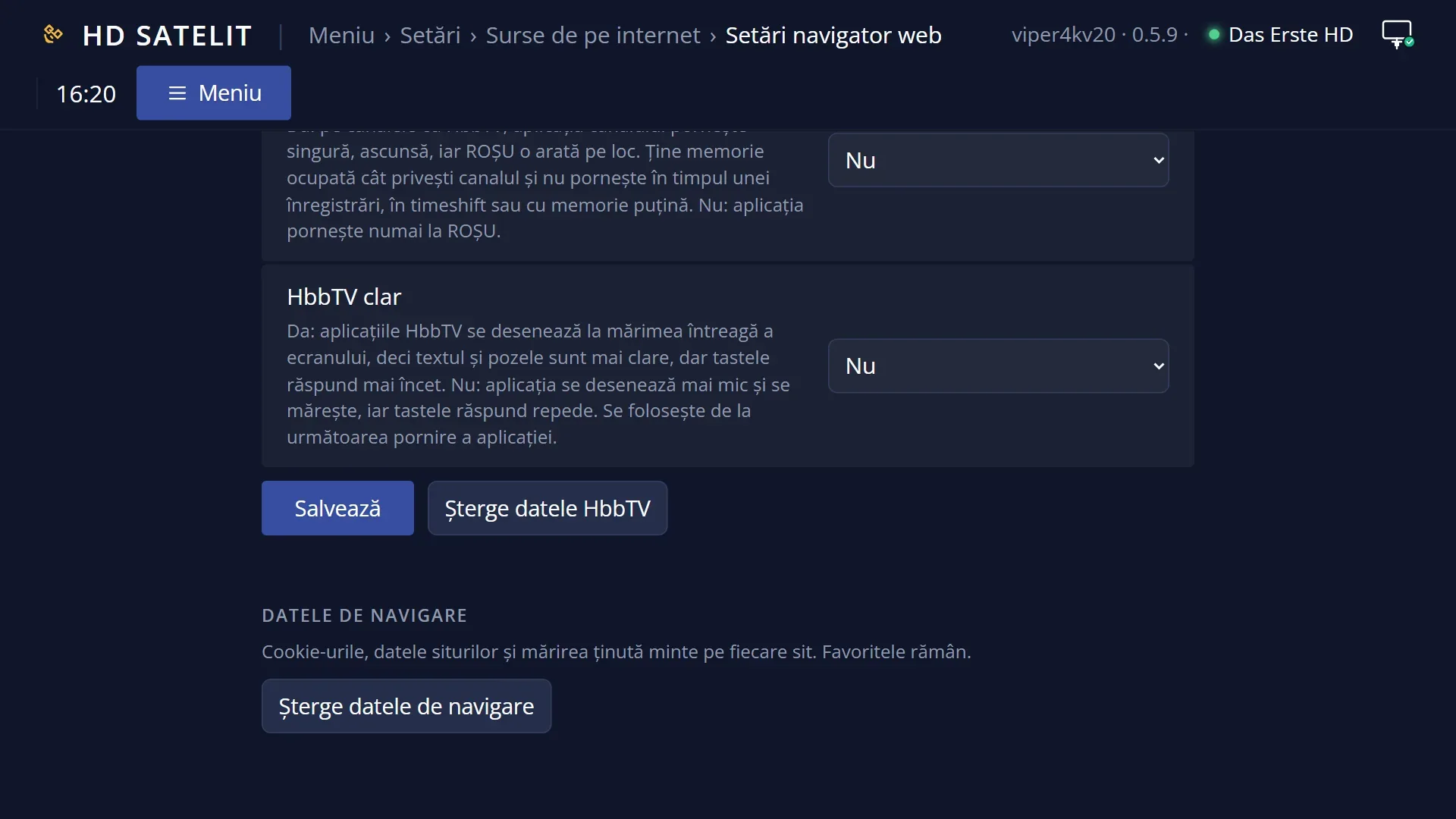
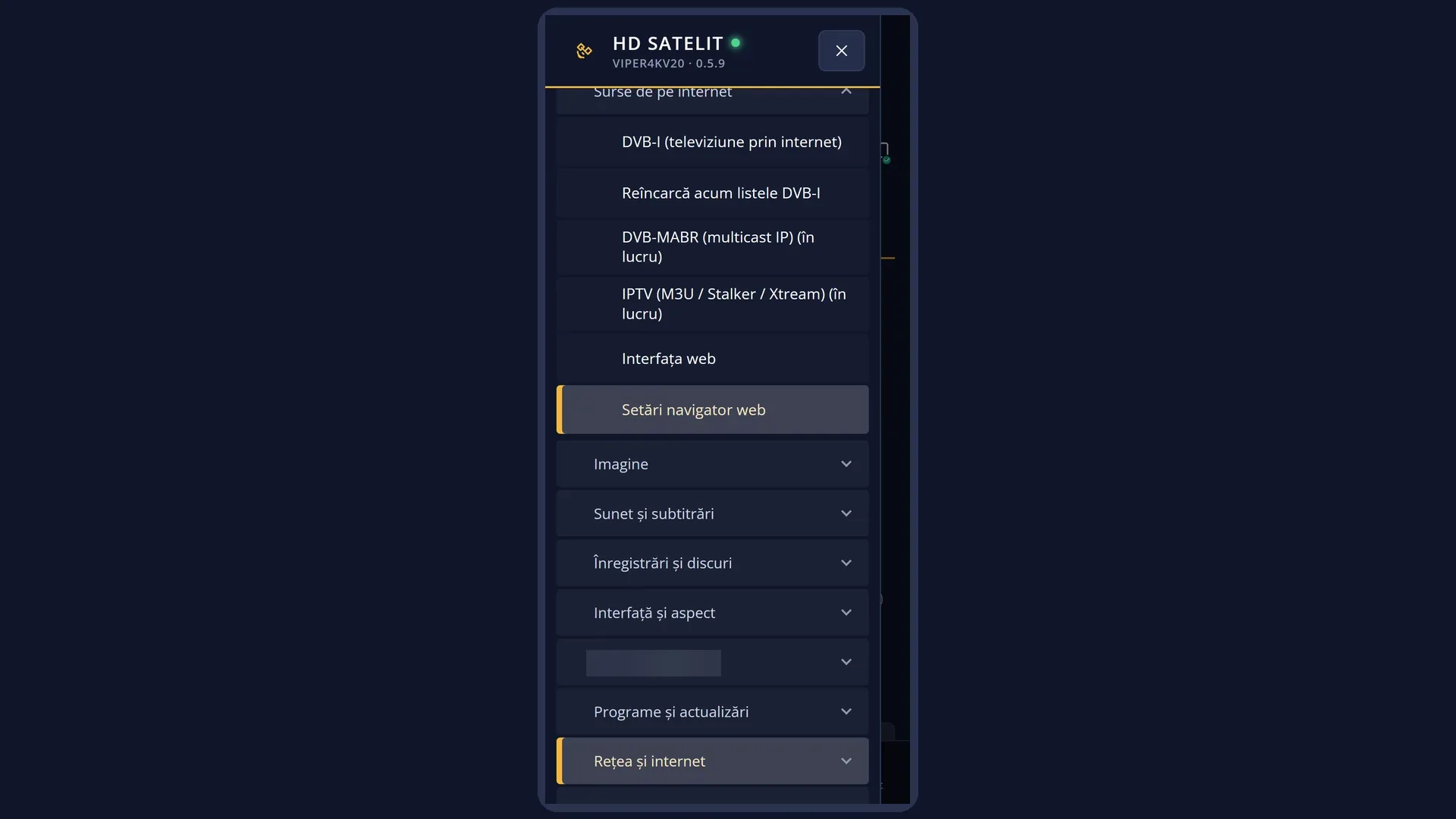
Its settings are in Menu > Settings > Internet Sources > Web browser settings (MENU 6 2 6).
What you see on the screen
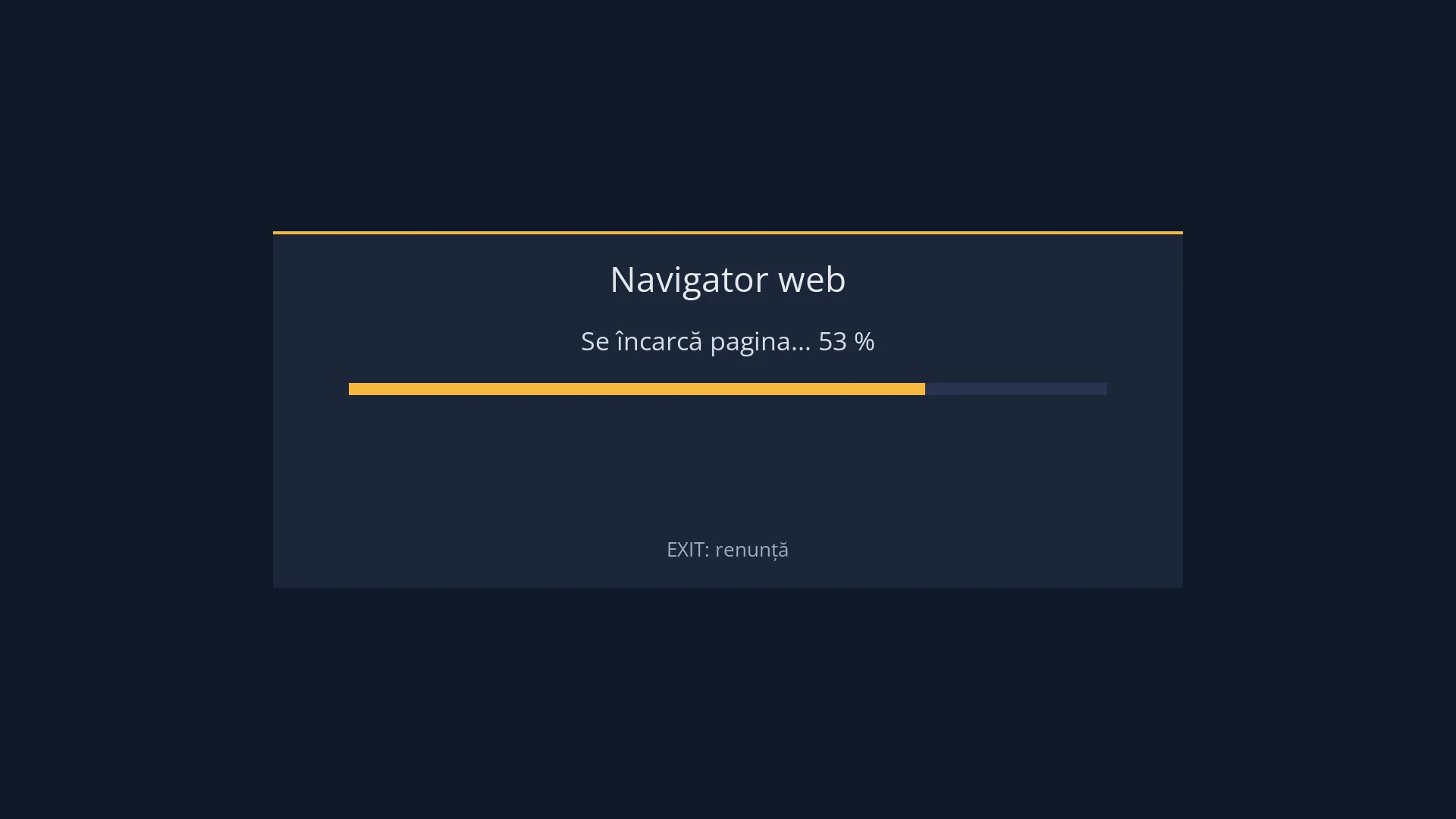
While it starts, you see a dark screen with a box in the middle: the title “Web browser”, the current step (“Starting the browser...”, with “The first start can take about 10 seconds.”, then “Loading the page... 53 %”), a yellow bar that fills up and, at the bottom, “EXIT: cancel”.
Then the page fills the whole screen. The element you are on has the frame around it (yellow and pulsing by default). You choose its colour and shape in the settings.
When needed, short help texts appear at the bottom centre: “OK or TEXT: type” while you are on a text field, “No text field on the screen” after TEXT on a page with no fields, and, with the pointer on, “Pointer: the arrows move it, OK clicks, BLUE returns to the selection”.
Windows requested by the page are opened by the receiver, on top of it: the keyboard (with dots instead of letters for passwords), questions from the page, the list for a choice (“Choose”), the user name and password a site asks for, and “Leave the page? What you typed in it may be lost.”.
The browser menu (MENU) is a list over the page, titled “Web browser”: “Back to the page”, “New address or Google search”, “Favourites”, “Add the page to favourites”, “Start page”, “Previous page (back)”, “Next page (forward)”, “Reload the page”, “Send the form (Enter)”, “Type on the page (TEXT)”, “Pointer (BLUE)”, “Zoom in”, “Zoom out”, “Normal zoom”, “Browser settings” and “Close the browser”.
Rows and settings
| Row | Values | Default | What it does |
|---|---|---|---|
| Menu: Back to the page | Closes the menu and takes you back to the page, like EXIT. | ||
| Menu: New address or Google search | Opens the “Page address or words to search with Google” keyboard, showing the current address. Type an address (https:// is added automatically) or a few words to search for with Google. RED does the same. When you want a different site. | ||
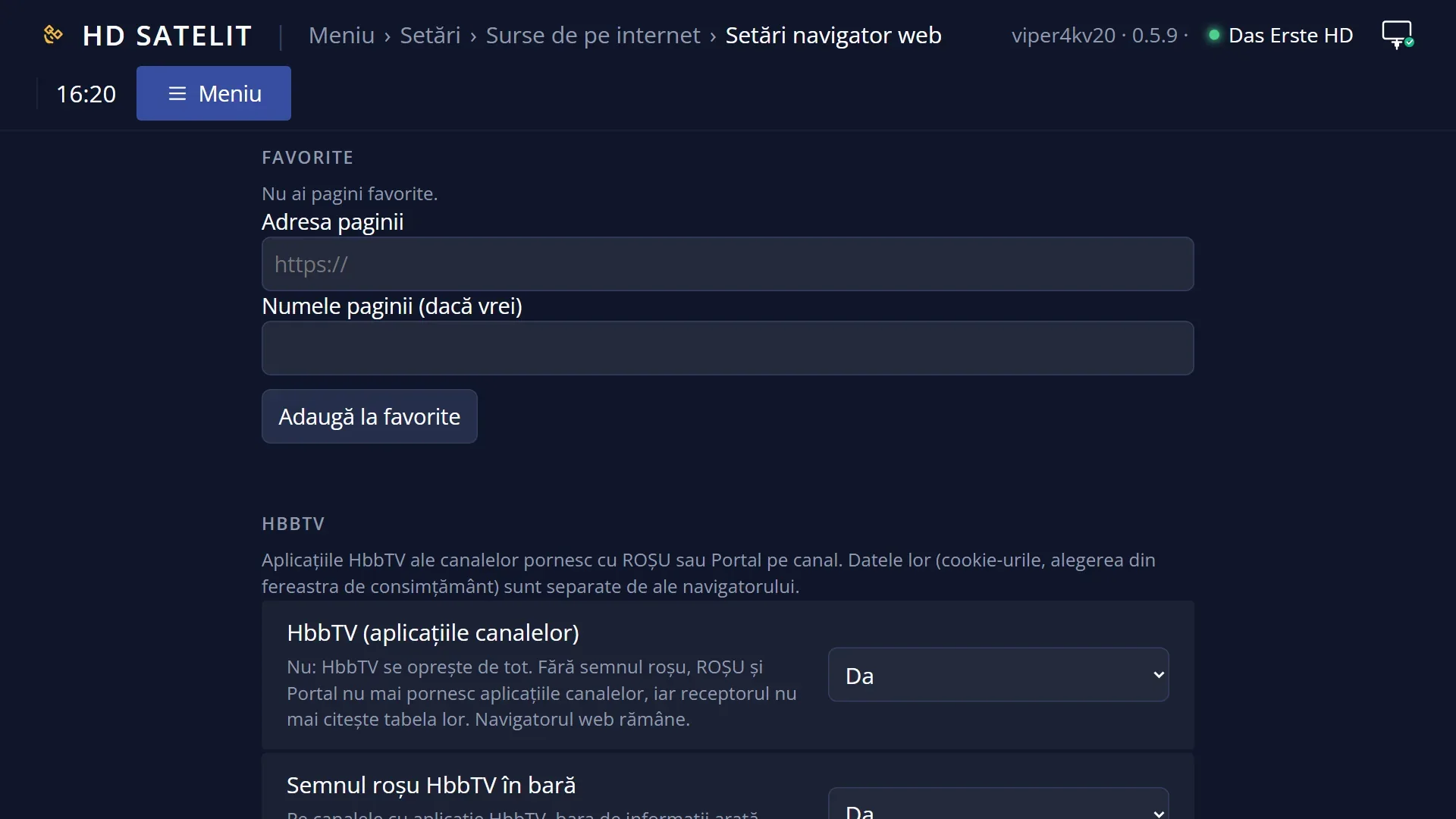
| Menu: Favourites / Add the page to favourites | “Favourites” opens your list of pages (OK: “Open” or “Remove from favourites”). GREEN does the same. “Add the page to favourites” adds the current page to the list (“The page was added to favourites.”), up to 100 pages. For pages you visit often. | ||
| Menu: Start page | Opens the start page set in the settings. | ||
| Menu: Previous page (back) / Next page (forward) / Reload the page | Take you to the page you visited before, to the one after it, or load the current page again. Reload, when the page did not load properly. | ||
| Menu: Send the form (Enter) | Sends the form you typed in, like the Enter key on a computer, for pages that have no send button. After you have typed a search on a site. | ||
| Menu: Type on the page (TEXT) / Pointer (BLUE) | The first opens the keyboard for the selected field (or for the first field on the screen), like TEXT. The second turns the pointer on or off, like BLUE. If you cannot find the keys on the remote. | ||
| Menu: Zoom in / Zoom out / Normal zoom | 100 %, 125 %, 150 %, 175 %, 200 % | the zoom set in the settings | Zoom the page in or out by one step. The zoom is remembered for that site. “Normal zoom” forgets the site's zoom and uses the one from the settings. When a site's text is too small or the page does not fit. |
| Menu: Browser settings / Close the browser | “Browser settings” opens the settings. A frame change made there shows immediately; zoom, fonts and rendering apply from the next start. “Close the browser” stops it and takes you back to where you were. |
Keys
| The arrow keys | Move the selection (the frame) to the link, button or field in that direction. The page scrolls by itself. With the pointer on, they move the pointer (faster the longer you hold them), and at the edge of the screen they scroll the page. |
| OK | Presses the selected element (opens the link, presses the button). On a text field it opens the keyboard. With the pointer on, it clicks where the pointer is. |
| TTX (shown as TEXT on screen) | Opens the keyboard for the selected field. If you are not on a field, it opens it for the first text field on the screen. |
| CH+ / CH- | Scroll the page up or down by one screen. |
| RED | Address bar: the “Page address or words to search with Google” keyboard. |
| GREEN | The list of favourite pages. |
| YELLOW | Zooms the page in by one step (100, 125, 150, 175, 200 %, then back to 100 %) and remembers the zoom for that site. |
| BLUE | Turns the pointer (the mouse-like arrow) on or off. |
| MENU / INFO | Open the browser menu. |
| EXIT | Takes you back to the previous page. On the first page it opens the menu titled “Close the browser?”, with the cursor on “Close the browser”. |
| POWER | While the browser is on screen, it closes it (it does not put the receiver in standby). |
| Digits 0-9 | Go to the page, as on a computer keyboard (some sites use them). |
| EXIT (while starting) | Cancels: the browser stops before the page appears. |
Step by step
Opening a page
- Press MENU 8 3 and wait for the start page to appear.
- Press RED, type the address (for example the site name, with a dot) and confirm on the keyboard.
- Move to the link with the arrow keys and press OK. EXIT takes you back.
Typing a password or a long text from your phone
- On the TV, move the frame to the text field.
- On your phone, open the /navigator web page and go to the “Text sent to the TV” box.
- Type the text and press “Send to the TV”: the text appears in the field on the TV.
Closing the browser
- Press EXIT until you reach the first page. “Close the browser?” appears.
- Press OK on “Close the browser”. Quicker: MENU, then “Close the browser”, or POWER.
Problems and solutions
It says “The page did not open: the network connection is not working.” or “… the address no longer exists on the internet.”.
First message: the receiver cannot reach the internet. Check the connection. Second message: the address is wrong or the site no longer exists. Check what you typed.
It says “The receiver does not have enough free memory for the browser.”.
The browser needs free memory. Stop timeshift or the recording in progress, or restart the interface (Menu > Power & Restart), then try again.
It says “The page used too much memory and the browser was closed.” or “The browser stopped responding and was closed.”.
The page is too heavy for the receiver. Open the browser again and try the site's mobile version, if it has one.
It says “The page did not load within 30 seconds.” or “The browser did not start within 20 seconds.”.
The internet is too slow or the site is not responding. Check the receiver's connection and try again.
I cannot reach a button with the arrow keys.
Press BLUE to turn on the pointer. Move the pointer onto the button and press OK. Press BLUE again to return to the selection.
The page text is too small.
Press YELLOW a few times. The zoom is remembered for that site. For all sites, change “Page zoom” or “Minimum font size” in the settings.
I pressed POWER and the receiver did not go into standby.
While the browser is on screen, POWER closes it. Press POWER once more after it has closed.
The browser does not open and it says “The browser is missing from this image.”.
The browser package is missing from the receiver. Install the image again or update it.
Related topics
- Web browser settings
- The channel's HbbTV application (runs in the same browser)
- Media
- Text typed from your phone
- Matching web page: /navigator (browser status, “Text sent to the TV”, “Open on the TV”, settings, favourites).