

HDMI Information
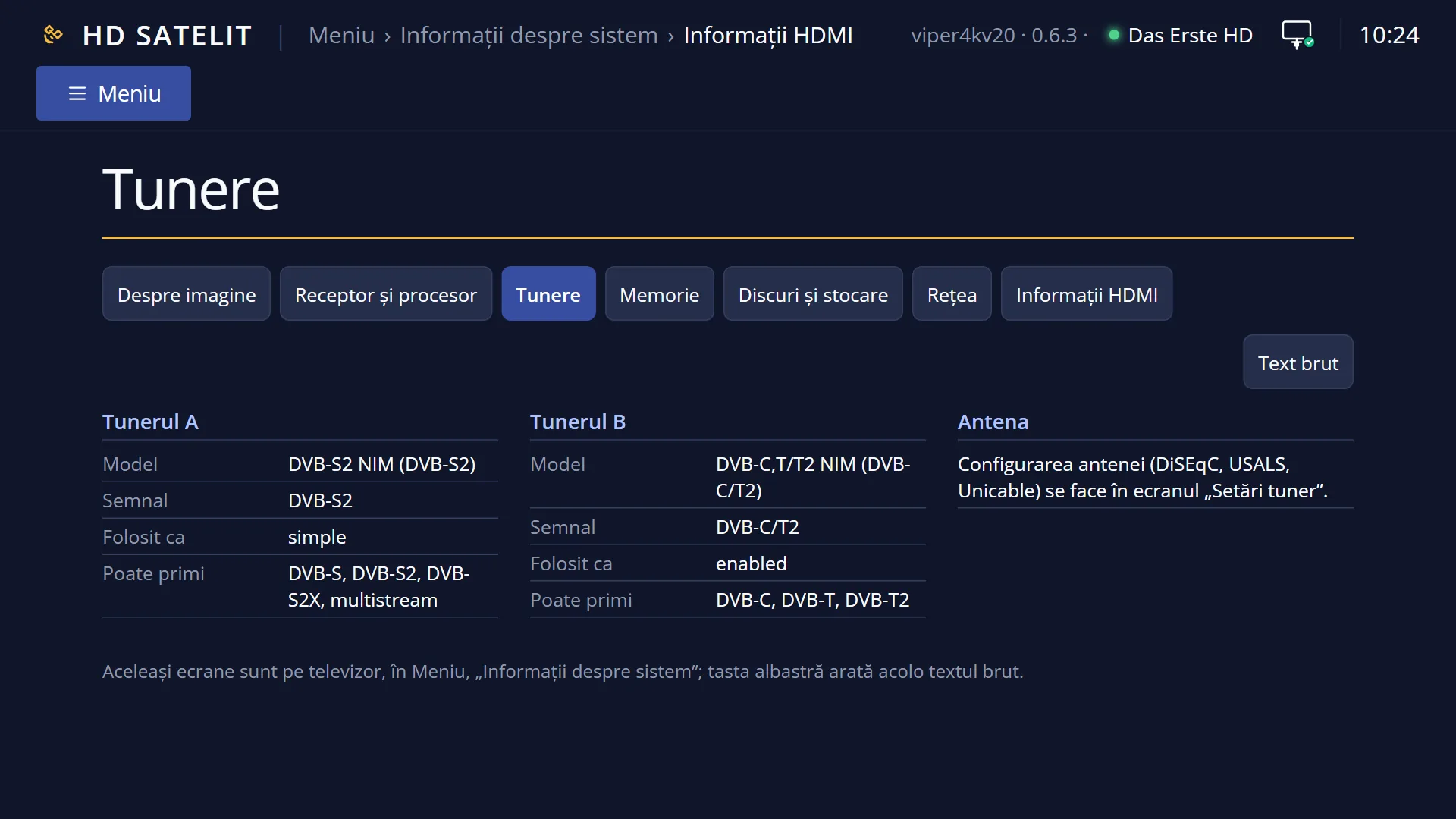
English screenshots coming: some of the pictures below still show the receiver and the web interface in Romanian. The rows, keys and steps described on this page are the English ones.
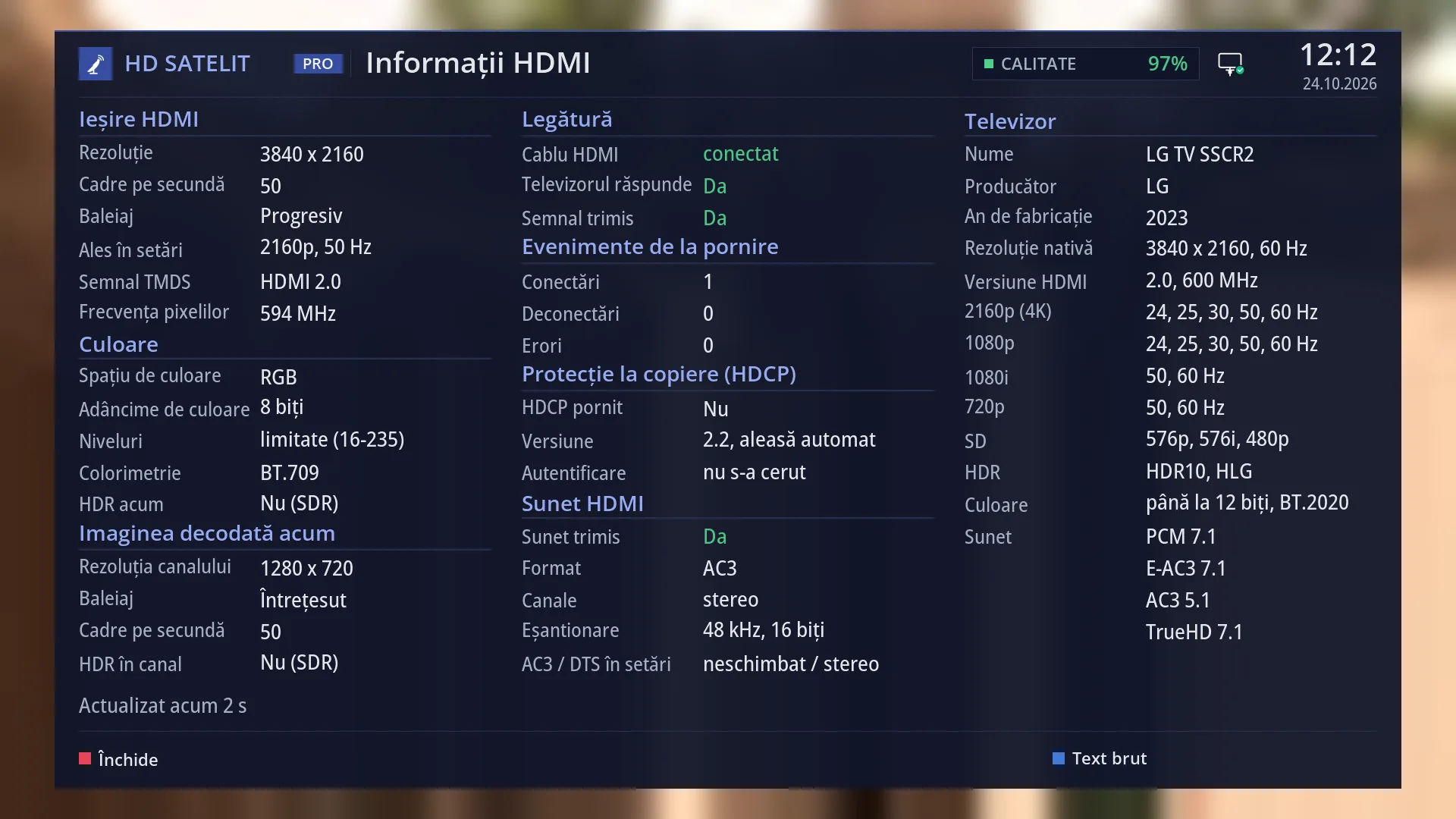
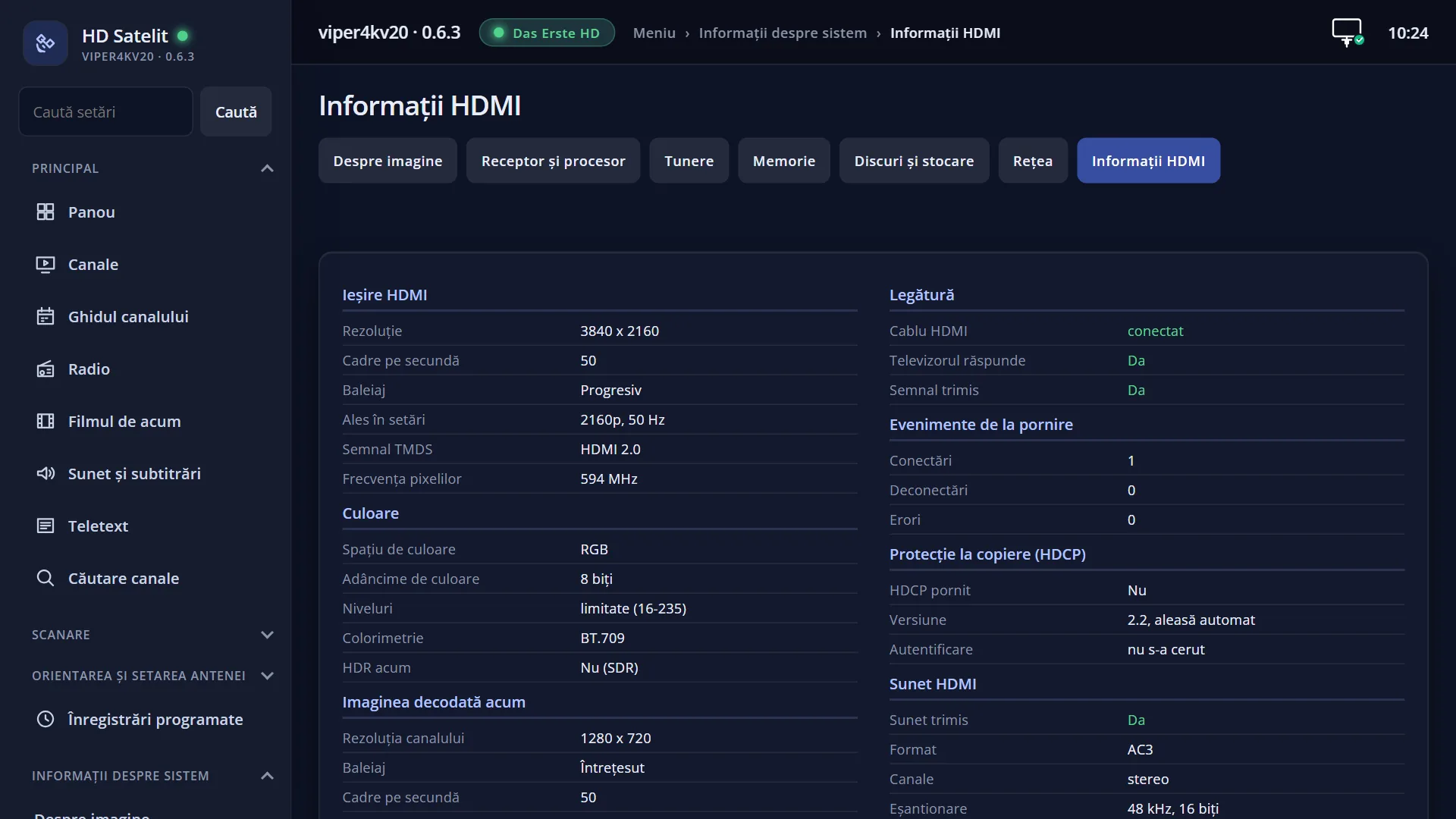
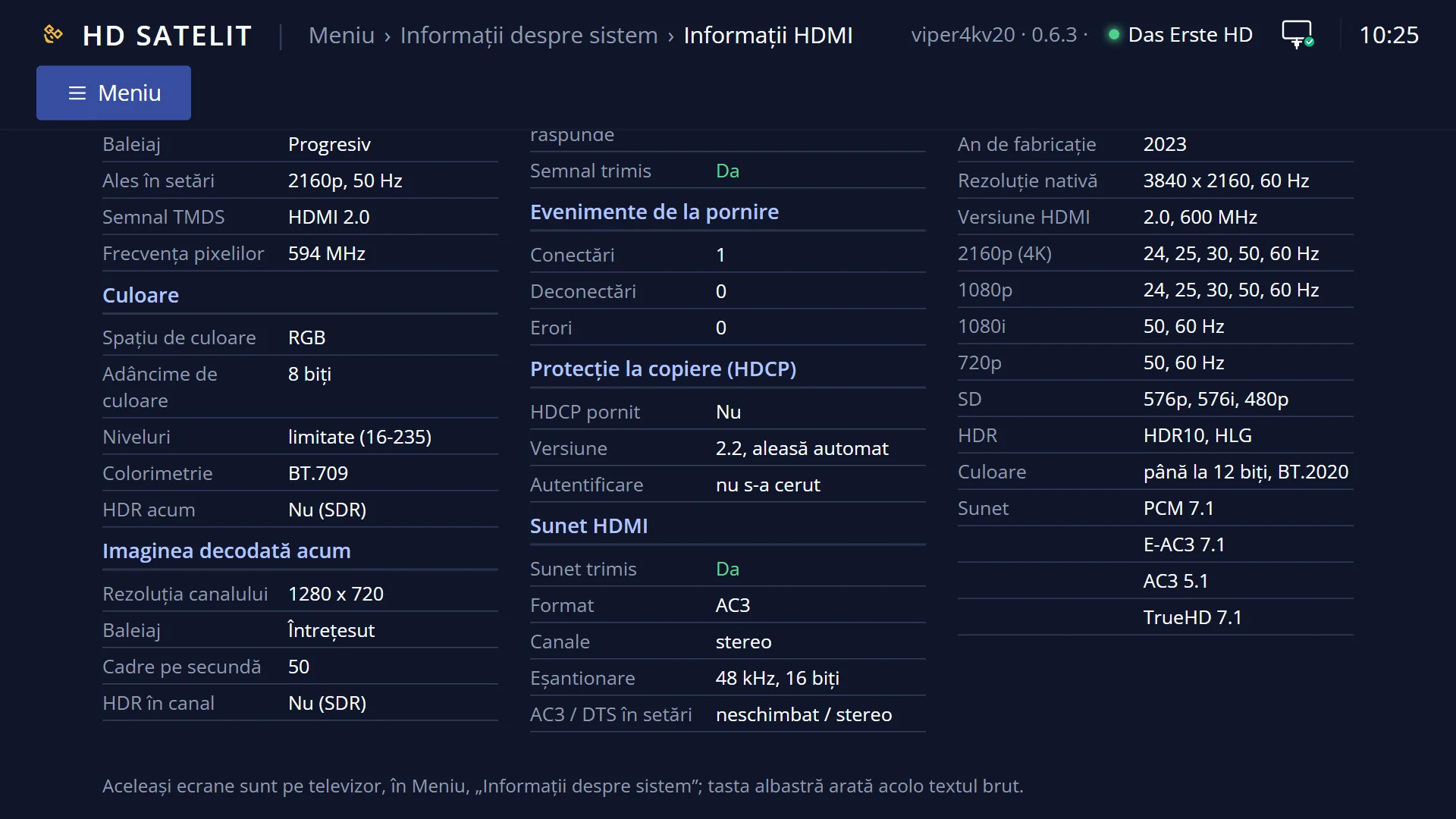
- 1 What goes out over HDMI: the resolution, the frames, what you chose in the settings, the colour, the decoded picture.
- 2 The link, the events, the copy protection and the audio sent.
- 3 The TV: its name and which resolutions, HDR, colours and audio it accepts.
- 4 How recent the reading is. The data is read again every two seconds.
- 5 RED closes the screen.
- 6 BLUE shows the raw driver text.
What it is for
“HDMI Information” shows, in plain terms, what the receiver sends over the HDMI cable and what the TV accepts. For the output you see the resolution and frames per second, the colour, HDR, the copy protection of the link (HDCP) and the audio. For the TV you see its name, resolutions, HDR and the audio formats it accepts.
Open it when the picture or sound is not what you expect. For example, you chose 4K and the TV receives something else, the screen flickers or stays black for a few seconds, surround sound does not play on your audio system, or you want to know whether your TV supports HDR.
The data is read again automatically every two seconds while the screen is open. The screen only shows information. It does not change anything.
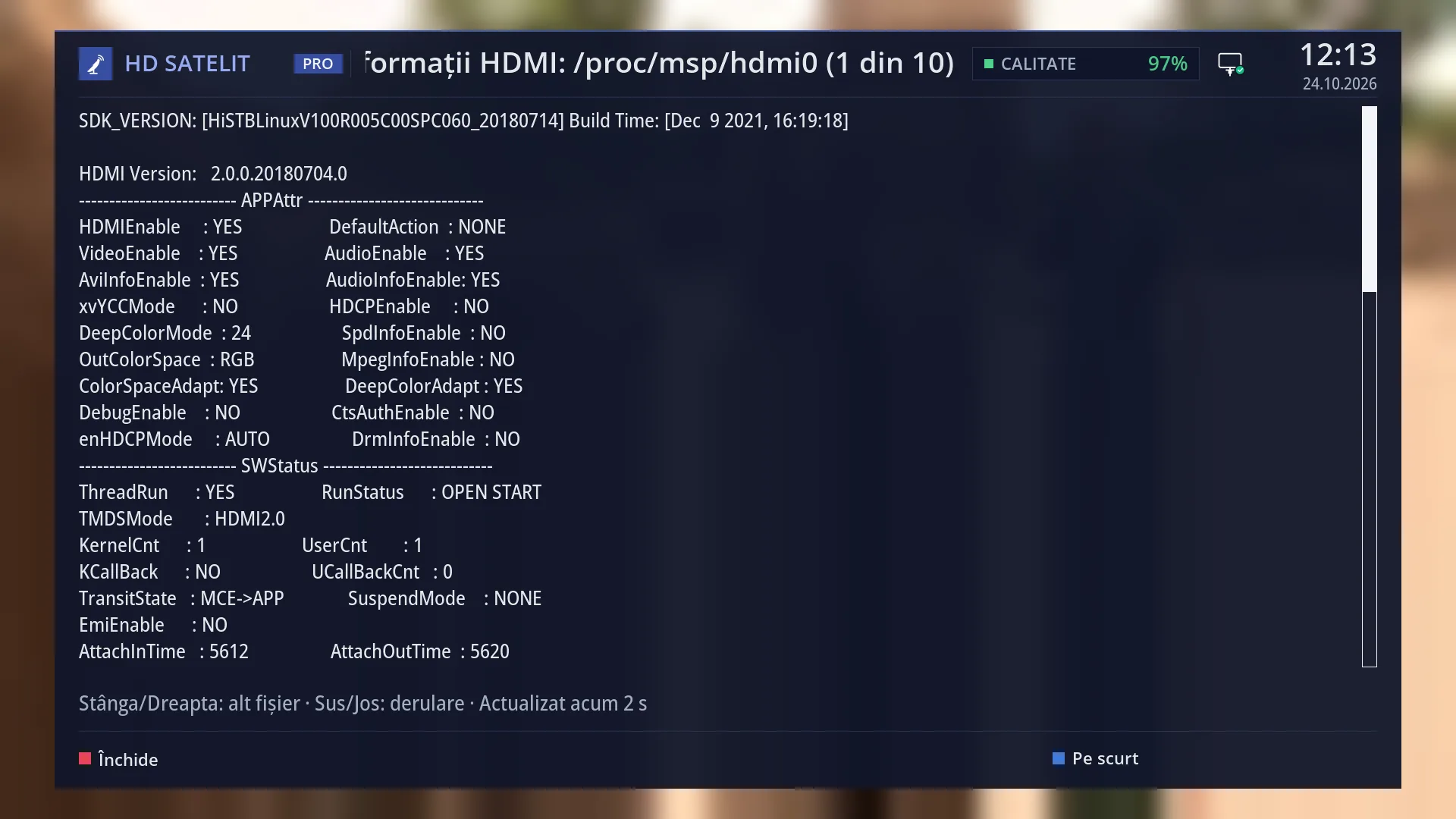
For advanced users, the BLUE key shows the full text from the HDMI driver, across several files.
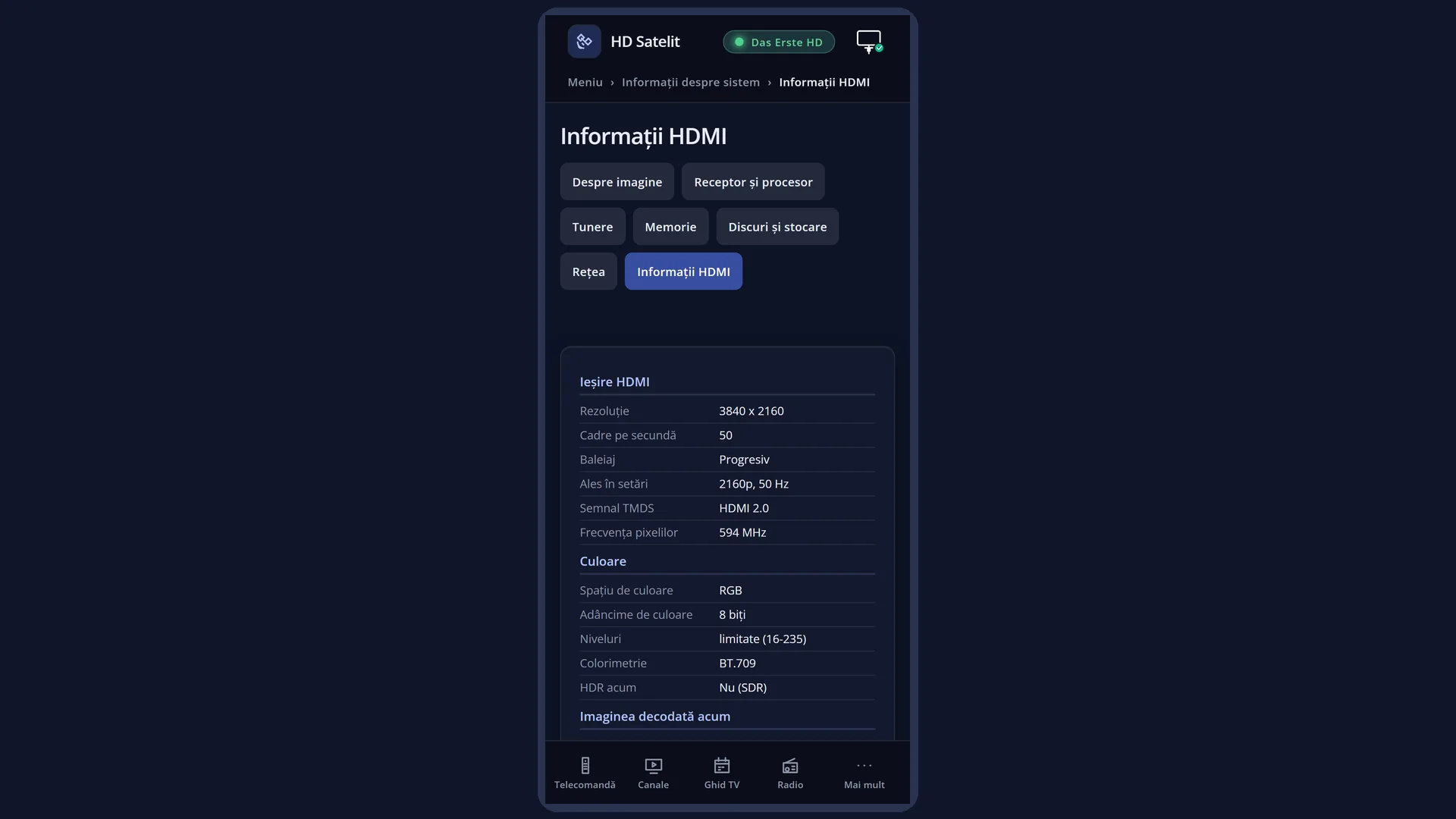
The same groups are in the web interface, on the /informatii/hdmi page.
How to get here
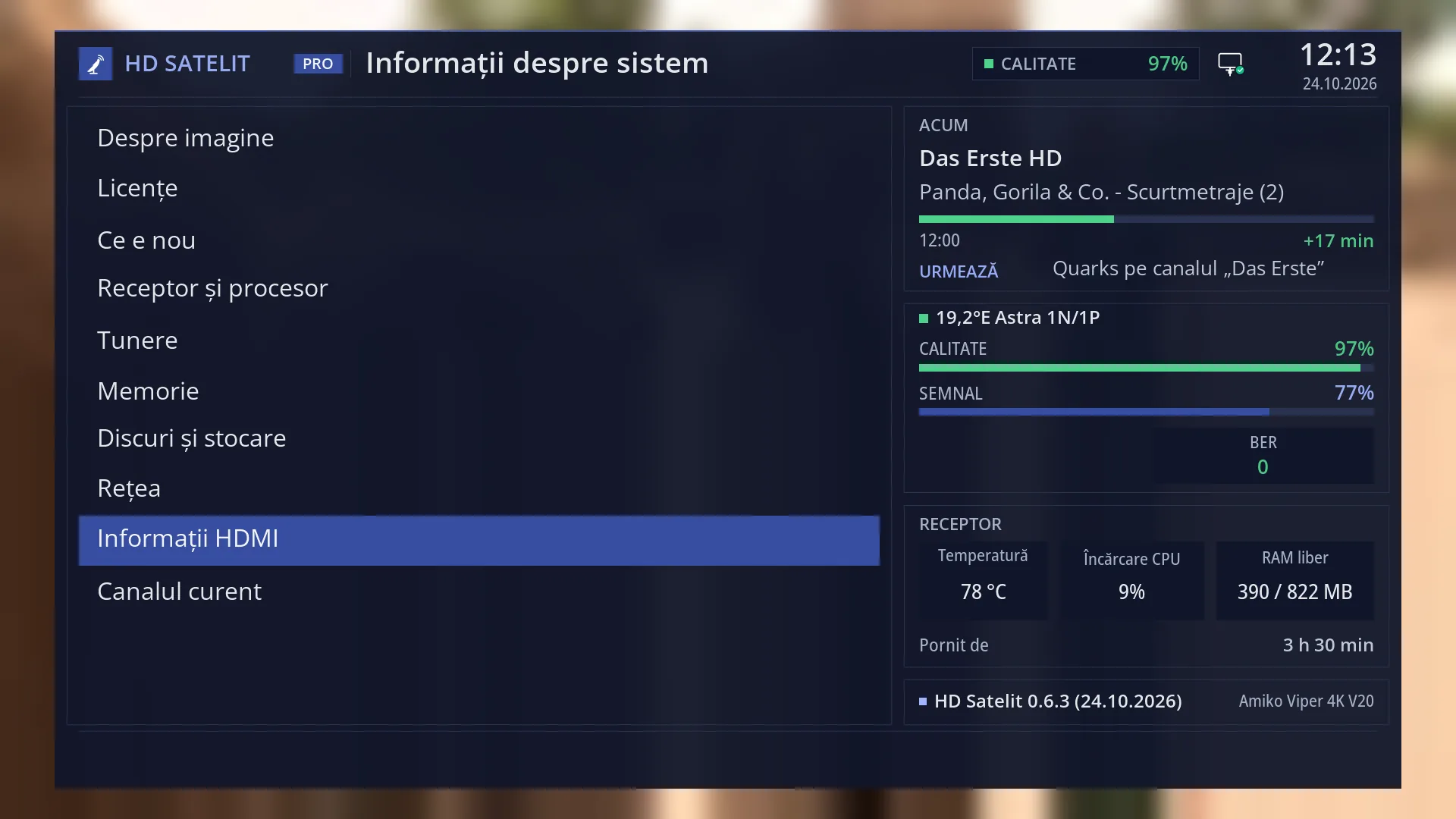
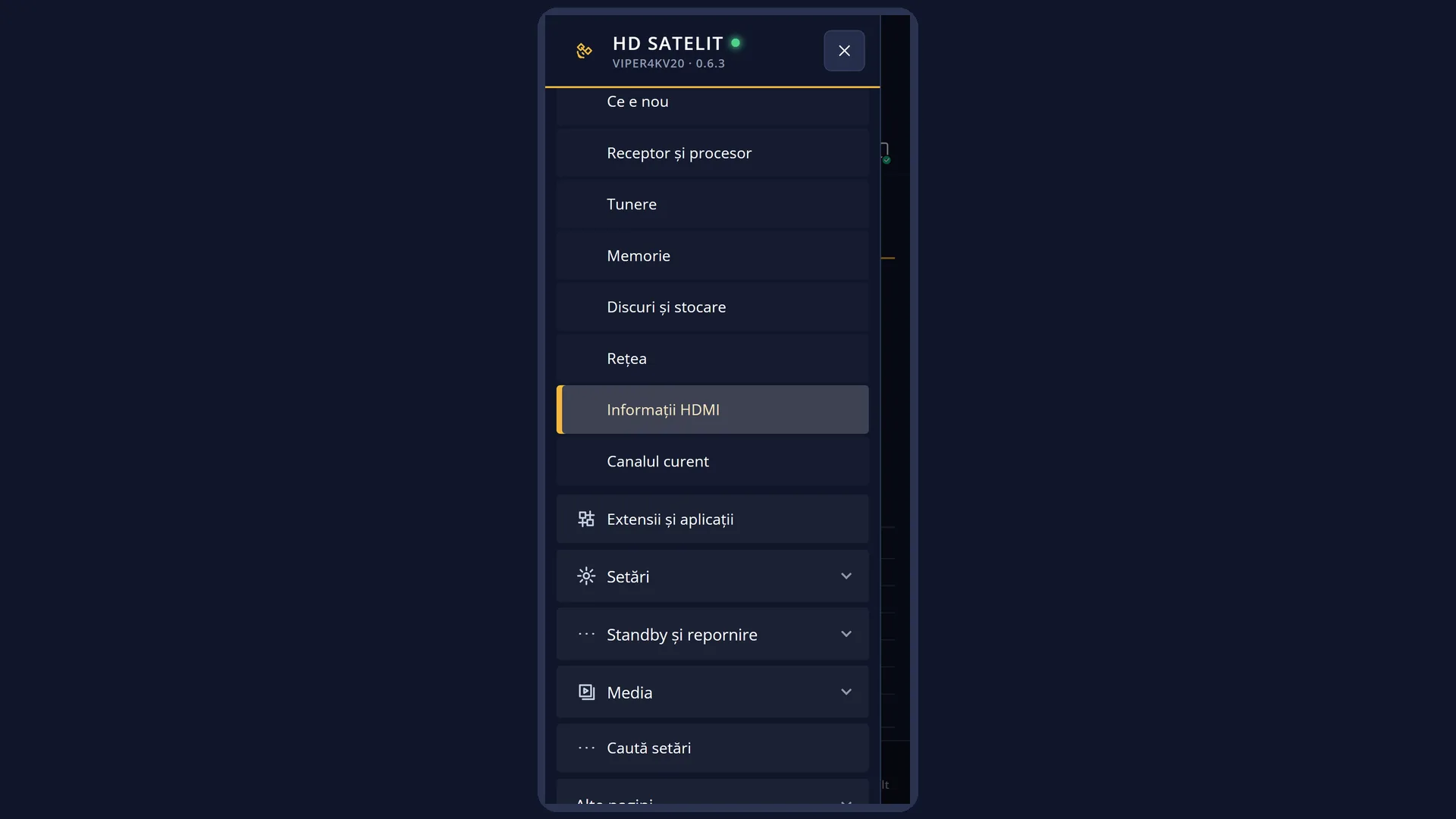
Path: Main menu > System Information > HDMI Information (the ninth row).
Keys on the remote: MENU 4 9.
When the interface has started in safe mode, the submenu has an extra row at the top, “Safe mode”, and “HDMI Information” becomes the tenth row. In that case, press MENU 4 UP UP OK.
In the web interface: the /informatii/hdmi page (the “HDMI Information” tab of the information pages).
What you see on the screen
At the top, the title “HDMI Information”.
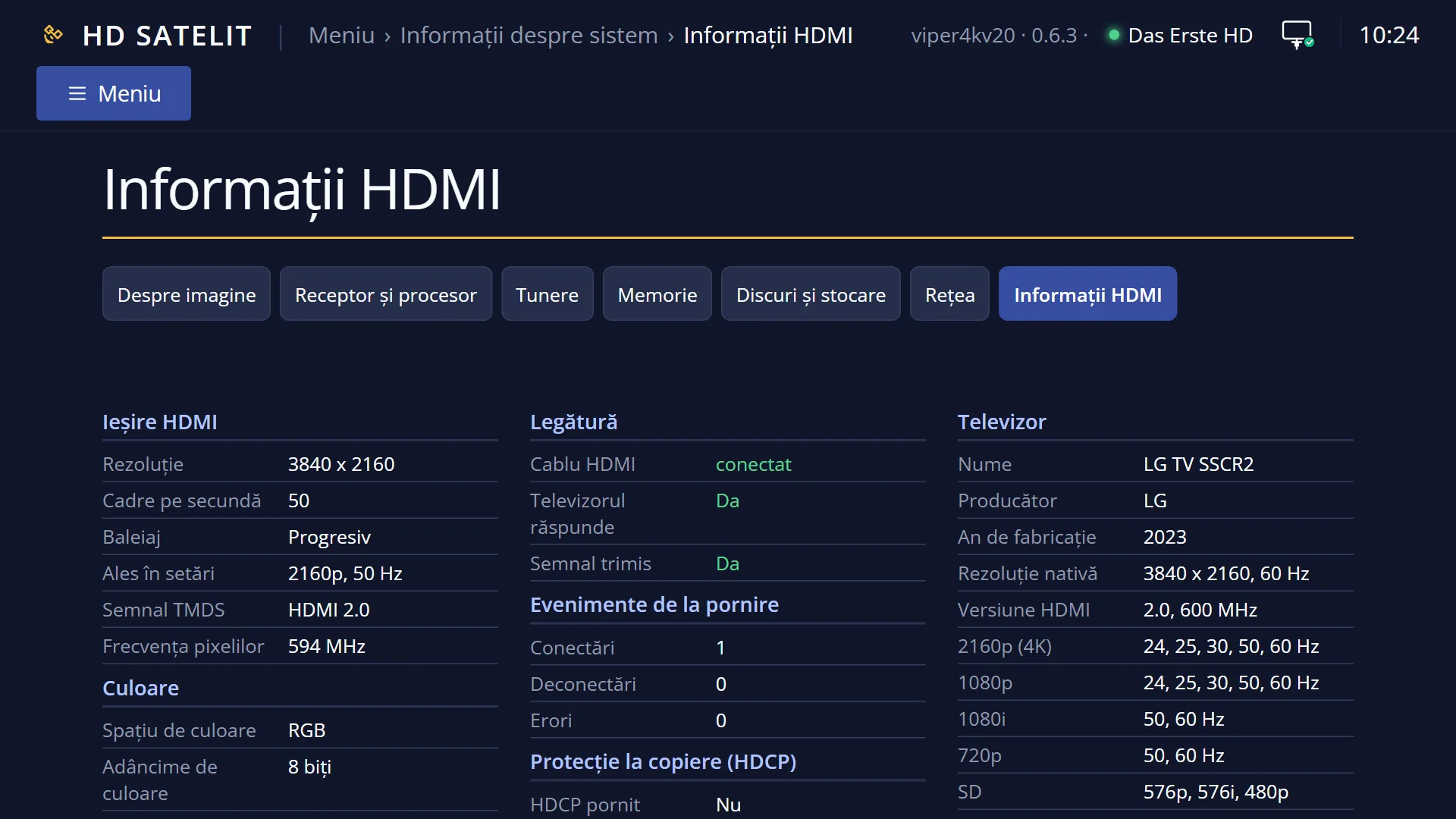
Three columns, each with groups that have a blue title and a line underneath. On the left: “HDMI output”, “Colour” and “Picture decoded now”. In the middle: “Link”, “Events since startup”, “Copy protection (HDCP)” and “HDMI audio”. On the right: “TV”.
In each group, the label is on the left in light grey and the value is on the right. The colour of the value tells you the status: green is good (for example “connected”, “Yes”), yellow needs attention, red is a problem (for example “not connected”, “No, output is off”), and a grey “unknown” means the receiver could not read that value.
Text that is too long is not cut off: it continues on the row below. When the rows do not fit on one screen, the columns have several pages.
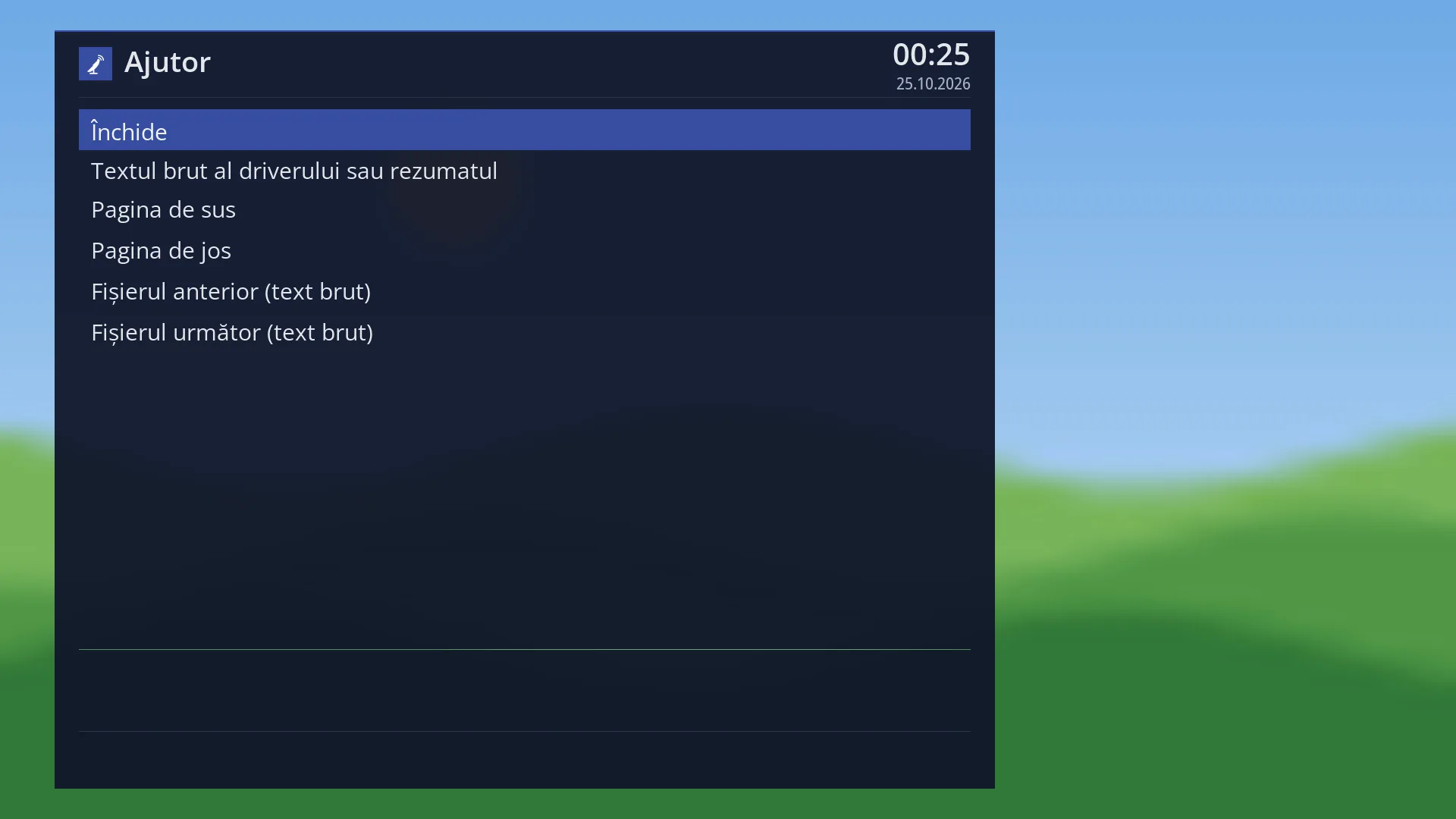
Below the columns, the row “Updated 2 s ago” shows how recent the reading is (it changes between 1 and 2 seconds). When there are several pages, the row starts with “Up, Down, CH+ and CH-: other page (page 1 of 2)”.
At the bottom, the colour keys: RED “Close” and BLUE “Raw text” (in the raw text, “In short”).
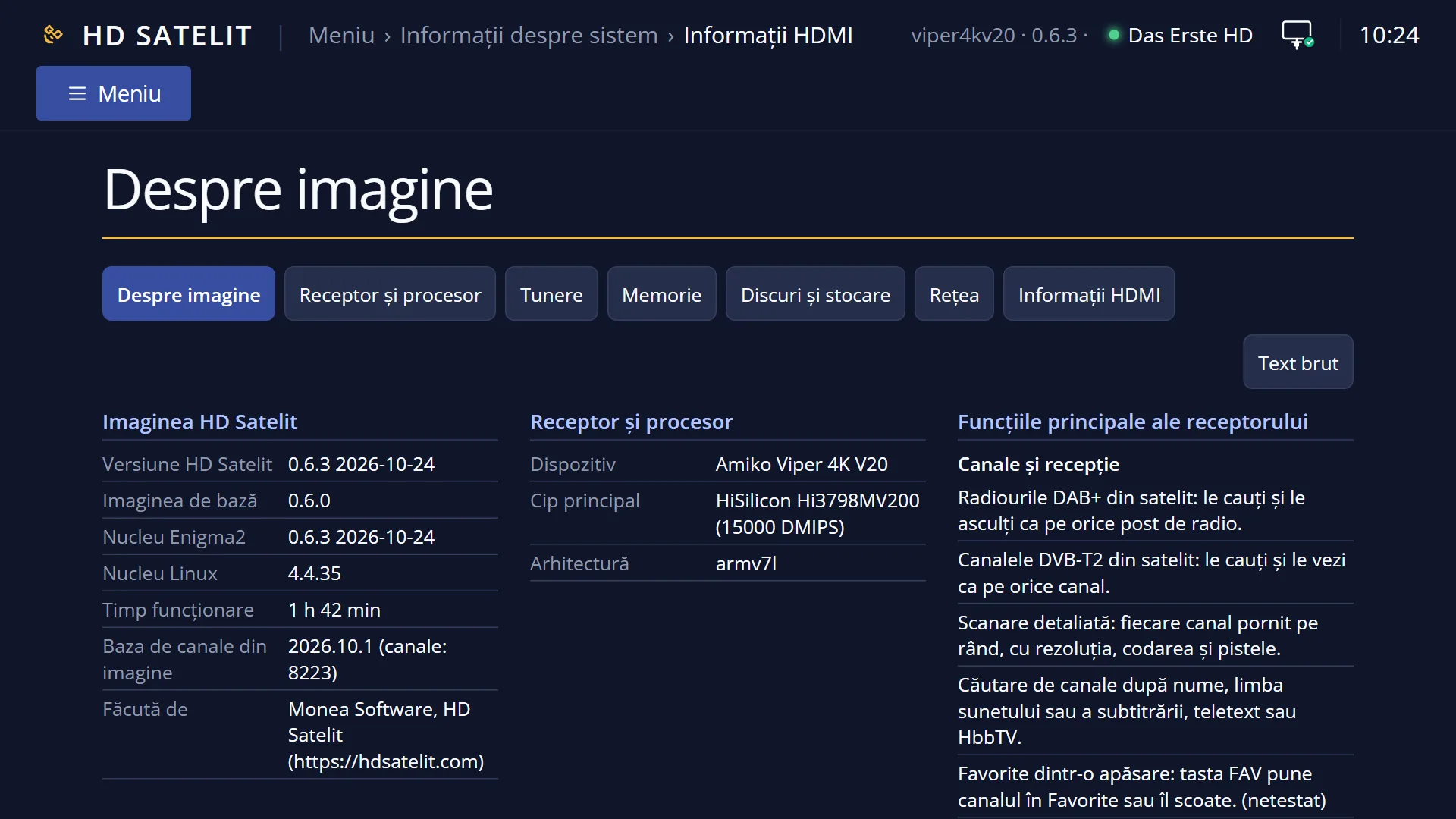
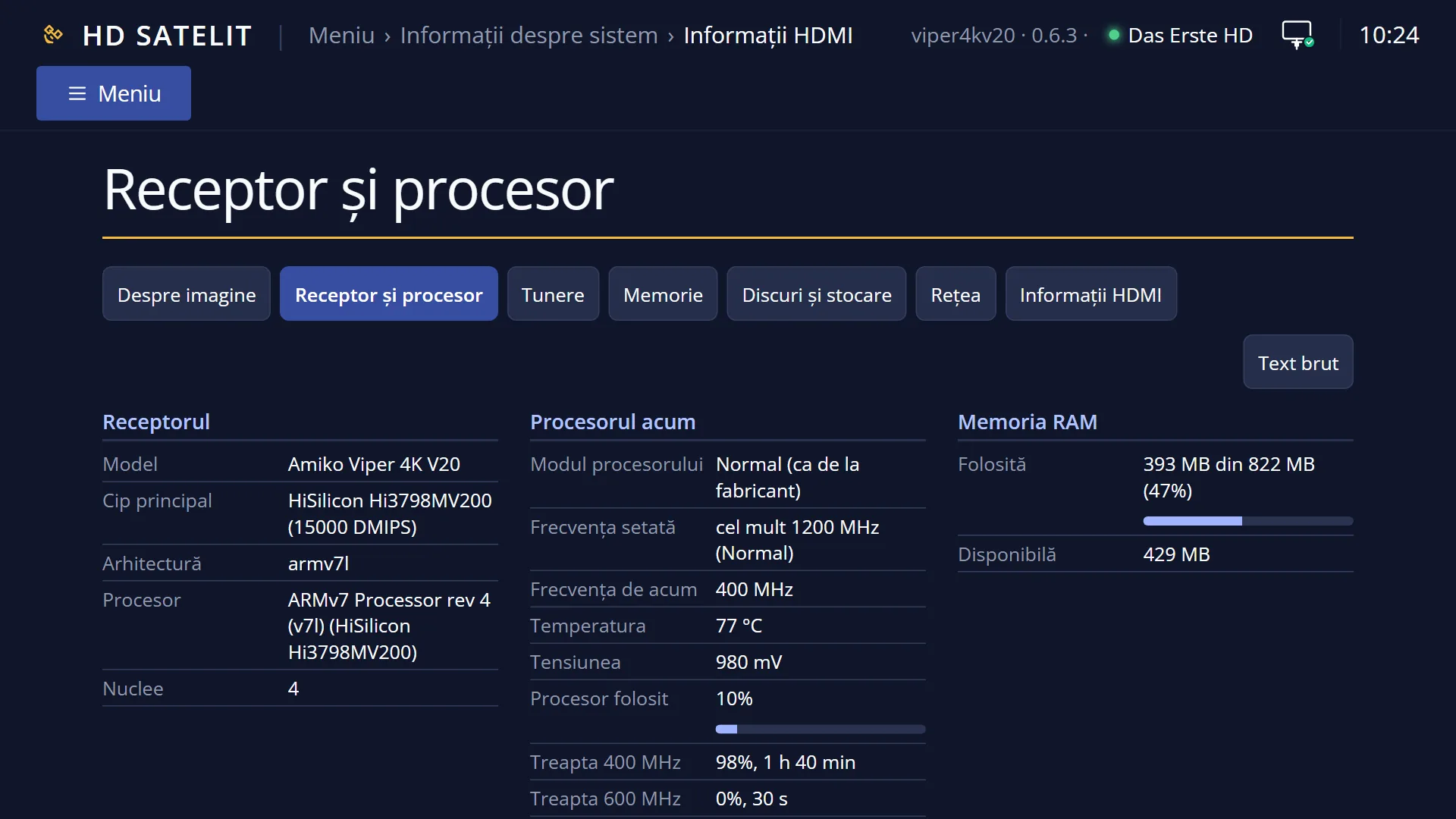
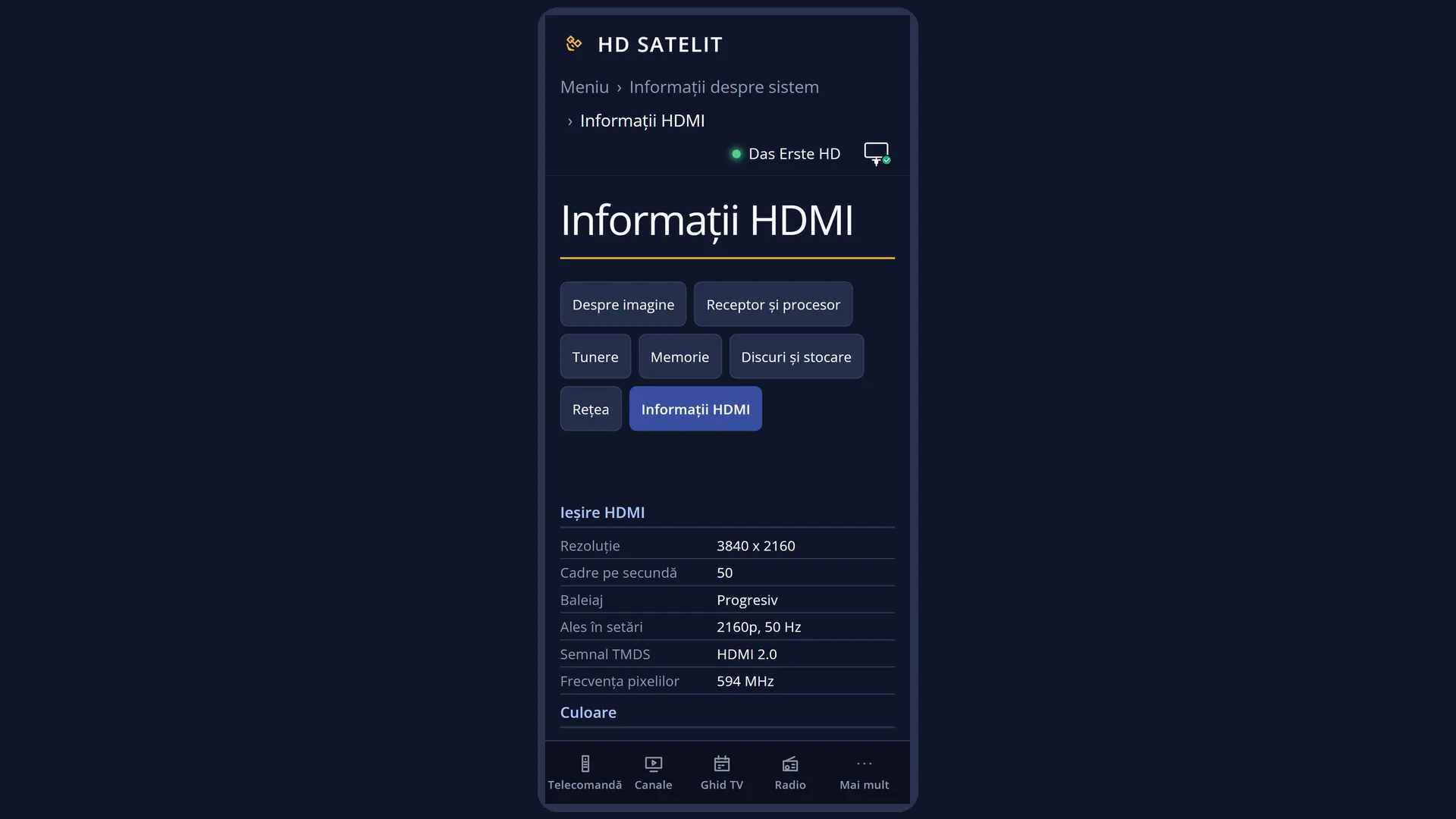
On the /informatii/hdmi web page: at the top, the tabs of the information pages (“About the image”, “Device & Hardware”, “Tuner Overview”, “Memory Status”, “Storage & Disks”, “Network Status”, “HDMI Information”), then the same groups with the same colours, side by side on a computer and one below the other on a phone. The page is read again automatically every five seconds. The raw driver text is only available on the TV.
Rows and settings
| Row | Values | Default | What it does |
|---|---|---|---|
| HDMI output: Resolution, Frames per second, Scan | for example 3840 x 2160, 1920 x 1080, 1280 x 720, 50, 59,94, 60, Progressive, Interlaced | What the TV receives now: the picture size in pixels, the number of frames per second and the type of scan. For interlaced (for example 1080i), the number of fields is also shown: “25 (50 fields)”. You change the resolution in the picture settings (Menu > Settings > Video & Display Settings). | |
| HDMI output: Chosen in settings | for example “2160p, 50 Hz”, yellow when the output is different | The video mode chosen in the settings. When the resolution or scan of the output is not the one you chose, the value is yellow. Usually this means the TV does not accept the chosen mode and the receiver sends a different one. The frequency (50 or 60 Hz) can differ without turning yellow, because the receiver matches it to the channel automatically. When you see yellow: choose a mode in the settings that the TV accepts (the “TV” column). | |
| HDMI output: TMDS signal, Pixel clock | HDMI 1.4, HDMI 2.0, DVI, no audio, for example 594 MHz | The type of link in use now and how fast it sends the picture's pixels. 4K at 50 or 60 frames needs HDMI 2.0 (594 MHz). “DVI, no audio” means the connected screen is a monitor without audio over HDMI. | |
| Colour: Colour space, Color depth, Levels, Colorimetry, HDR now | RGB, YCbCr 4:4:4, YCbCr 4:2:2, YCbCr 4:2:0, 8 bits, 10 bits, 12 bits, limited (16-235), full (0-255), BT.709, BT.2020, No (SDR), HDR10, HLG, Dolby Vision | How the colour is sent: its type (RGB or YCbCr), how many bits each colour has, the level range (TVs usually use “limited (16-235)”), the colour gamut (BT.709 for HD, BT.2020 for 4K HDR) and whether the output is HDR right now. | |
| Picture decoded now: Channel resolution, Scan, Frames per second, HDR in channel | for example 1280 x 720, 1920 x 1080, 720 x 576, “no picture”, Progressive, Interlaced, No (SDR), HDR, HDR10, HLG | The picture as it arrives in the channel, before the receiver scales it up or down for the output. This lets you see, for example, that an HD channel at 1280 x 720 is output over HDMI at 3840 x 2160. “no picture” appears for a radio channel or when nothing is playing. In that case the “HDR in channel” row is not shown. | |
| Link: HDMI cable, TV responds, Signal sent | connected, not connected, Yes, No, “No, output is off”, “No, picture is off” | Whether the receiver detects the HDMI cable, whether the TV at the other end responds (a TV that is fully switched off may not respond) and whether the receiver is sending a picture now. | |
| Events since startup: Connections, Disconnections, Errors | a number, Errors, for example “2 (EDID 1, HDCP 1)” | How many times the TV has connected and disconnected since the receiver started, and how many errors there have been on the link. Errors are yellow when there are more than zero. The brackets show how many happened while reading the TV's data (EDID) and how many in the copy protection (HDCP). Many disconnections point to a faulty cable or socket. | |
| Copy protection (HDCP): HDCP on, Version, Authentication | Yes, No, 1.4, 2.2, “chosen automatically”, successful, not requested, failed (code) | HDCP is the protection that lets the TV and the receiver recognise each other over the HDMI cable. The rows show whether it is on, which version is used and whether the recognition succeeded. “not requested” is normal when no picture needs it. A red “failed” can cause a black screen or flickering. | |
| HDMI audio: Audio sent, Format, Channels, Sampling, AC3 / DTS in settings | Yes, “No, HDMI audio is off”, “No, audio is off”, PCM, AC3, E-AC3, DTS, mono, stereo, 5.1, 7.1, 48 kHz, 16 bits, stereo / unchanged / multichannel PCM | Whether audio is sent over HDMI and how: the format (PCM is normal audio, AC3, E-AC3 and DTS are surround), the number of channels and the sampling. The last row shows what is chosen in the audio settings for AC3 and DTS: “stereo” (converted to stereo), “unchanged” (sent as it arrives, for an audio system) or “multichannel PCM”. “not set” means the setting has not been sent yet since startup. You change how AC3 and DTS are sent in the audio settings. | |
| TV: Name, Manufacturer, Year of manufacture, Native resolution, HDMI version | the TV's name, for example LG, Samsung, Sony, the year, for example 3840 x 2160, 60 Hz, 1.4, 2.0, with the maximum frequency | What the TV reports about itself over the HDMI cable: its name, the manufacturer (an unknown manufacturer appears as “code ...”), the year, the resolution of its screen and the HDMI version, with the highest frequency it accepts. | |
| TV: 2160p (4K), 1080p, 1080i, 720p, SD, HDR, Colour, Audio | the supported frequencies, for example “24, 25, 30, 50, 60 Hz”, No, HDR10, HLG, Dolby Vision, for example “up to 12 bits, BT.2020”, the audio formats, for example “PCM 7.1”, “AC3 5.1” | Which video modes the TV accepts, by resolution, with their frequencies (“No” when it does not accept that resolution at all), which types of HDR it supports, how many colour bits it accepts and which audio formats it can play, with the number of channels (at most four rows, then “and others”). Use these rows to choose a mode in the settings that the TV really accepts. | |
| Raw text (BLUE) | several driver files, “In short” returns to the columns | For advanced users: the full text the HDMI driver gives about the link status, the picture sent, the audio sent, the TV's data and displays, plus the video and audio values of the image. The screen title shows the file being read and its position, for example “(1 of 10)”. LEFT and RIGHT switch to another file, UP and DOWN scroll. The text is read again every two seconds without jumping back to the top. When someone helping you asks for the driver text. |
Keys
| BLUE | “Raw text”: the full text of the HDMI driver. Press it again (“In short”) to return to the three columns. |
| UP / DOWN | The previous or next page of the columns (all three move together). In the raw text, scrolls the text. |
| CH+ / CH- | Same as UP and DOWN: another page (|<< and >>| do the same). |
| LEFT / RIGHT | Only in the raw text: the previous or next file. |
| PAGE+ / PAGE-, HOME / END | On a keyboard connected to the receiver: another page, the first or the last page. |
| RED, OK or EXIT | Close the screen. |
| HELP | Shows the list of keys for this screen. |
Step by step
Check whether the TV receives 4K
- Press MENU 4 9.
- In the left column, “Resolution” should be 3840 x 2160 and “Chosen in settings” should not be yellow.
- In the “TV” column, the “2160p (4K)” row shows the frequencies at which the TV accepts 4K. If it says “No”, the TV does not accept 4K on that socket: choose 1080p in the picture settings.
Find out why there is no surround sound on the audio system
- Start a channel or film with AC3 or DTS audio and press MENU 4 9.
- In “HDMI audio”, read “Format” and “Channels”. If they say “PCM” and “stereo”, the audio is being converted to stereo.
- Look at “AC3 / DTS in settings” and at the TV's “Audio” row (the formats it accepts). Set AC3 or DTS to “unchanged” in the audio settings if the TV or audio system supports them.
Find the cause of a screen that flickers or stays black
- Press MENU 4 9 and watch the middle column for a few seconds.
- If “Disconnections” goes up or “Errors” is yellow, change the HDMI cable or the TV socket.
- If “Authentication” shows a red “failed”, switch the TV off and on again, then check again.
Problems and solutions
“Chosen in settings” is yellow.
The output does not have the chosen resolution or scan, usually because the TV does not accept them. In the picture settings, choose a mode that the TV shows in the “TV” column.
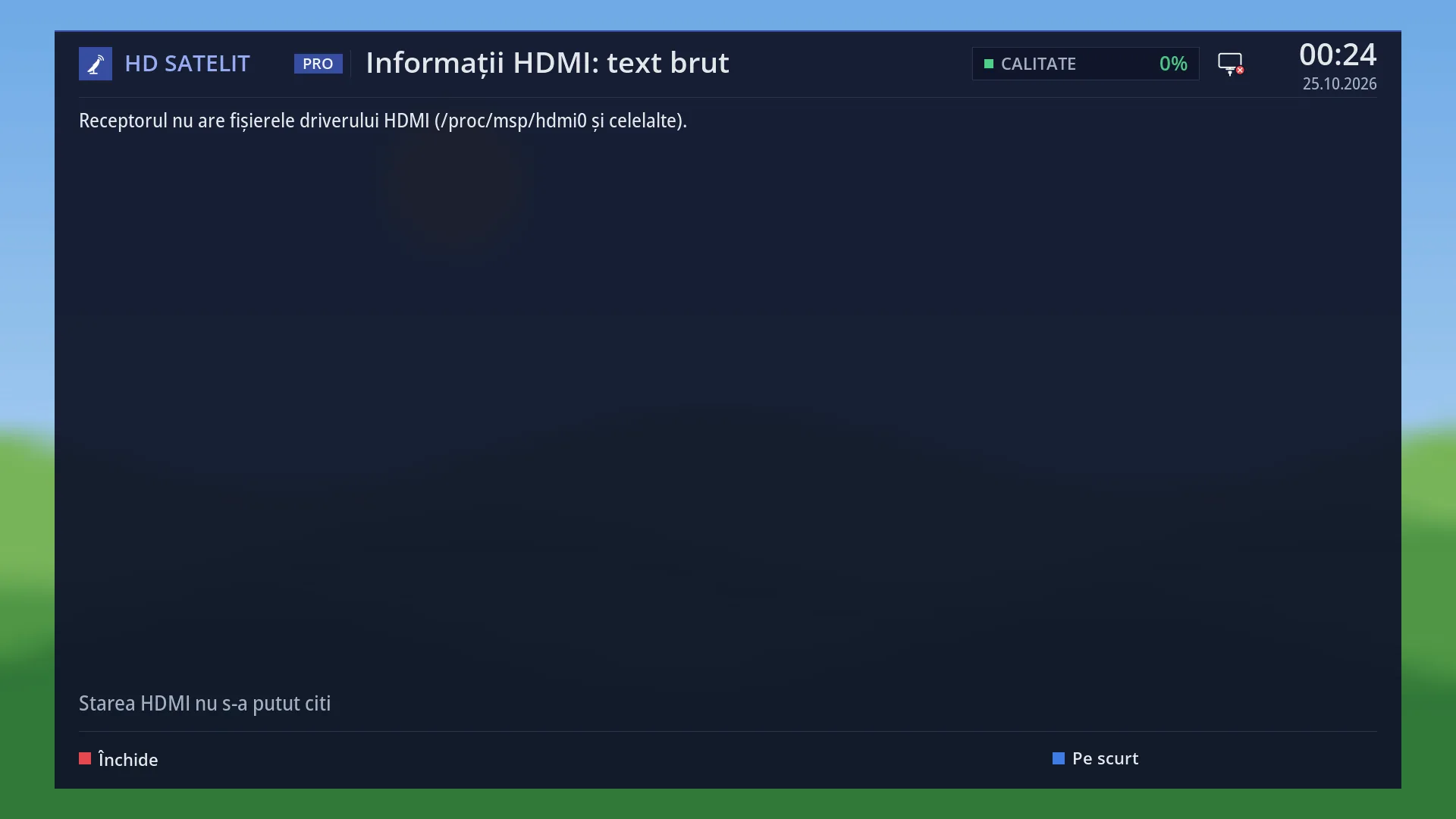
All values are “unknown” and the bottom says “Could not read the HDMI status”.
The receiver could not read the status of the HDMI output. Close the screen and open it again. If it stays the same, restart the interface.
The bottom says “..., the HDMI status can no longer be read” and the time keeps increasing.
The last good reading stays on screen, but it is no longer up to date. Close the screen and open it again.
“HDMI cable” shows a red “not connected”, even though the cable is plugged in.
Push the cable firmly in at both ends, and try another TV socket or another cable. Switch the TV on: some TVs that are fully switched off are not detected over the cable.
The “TV” column is full of “unknown”.
The receiver could not read the TV's data over HDMI. Switch the TV on, wait a few seconds and open the screen again. If it still does not work, change the cable.
“Picture decoded now” shows “no picture”.
A radio channel is playing, or nothing is. Start a TV channel.
I do not know what a row in the raw text means.
The raw text is for troubleshooting. The three columns show the same things in plain terms. Press BLUE (“In short”) to return to them.