

Web interface: settings on the receiver
English screenshots coming: some of the pictures below still show the receiver and the web interface in Romanian. The rows, keys and steps described on this page are the English ones.
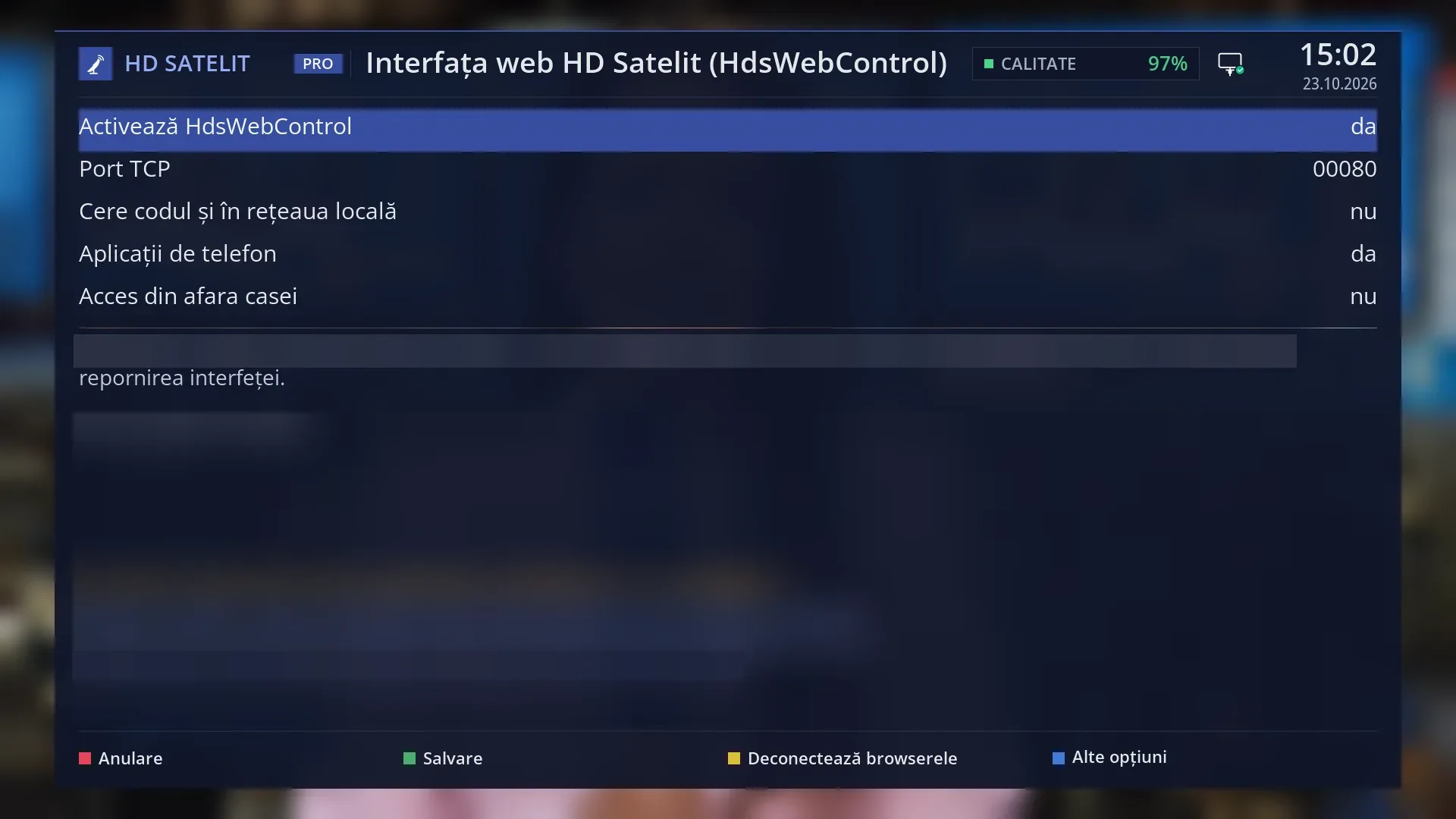
- 1 The five settings: enabling, the port, the code, phone apps, access from outside the home.
- 2 The address to open in the browser and whether a code is required.
- 3 The browsers connected with a code.
- 4 The key for scripts and what you type in the phone apps (blurred in the screenshot).
- 5 RED cancels, GREEN saves, YELLOW disconnects browsers, BLUE more options.
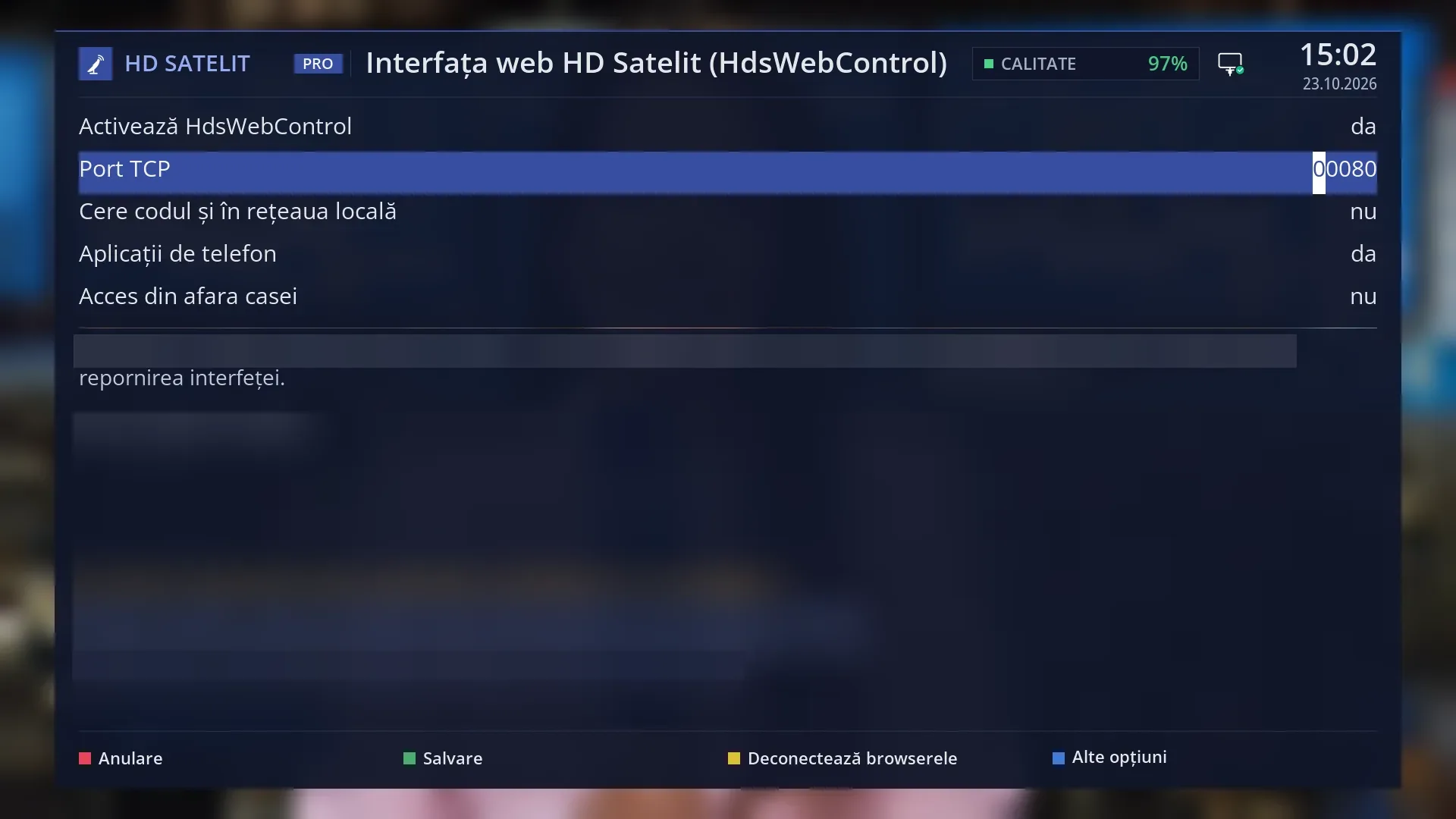
- 1 Selected row: “TCP port: 00080”.
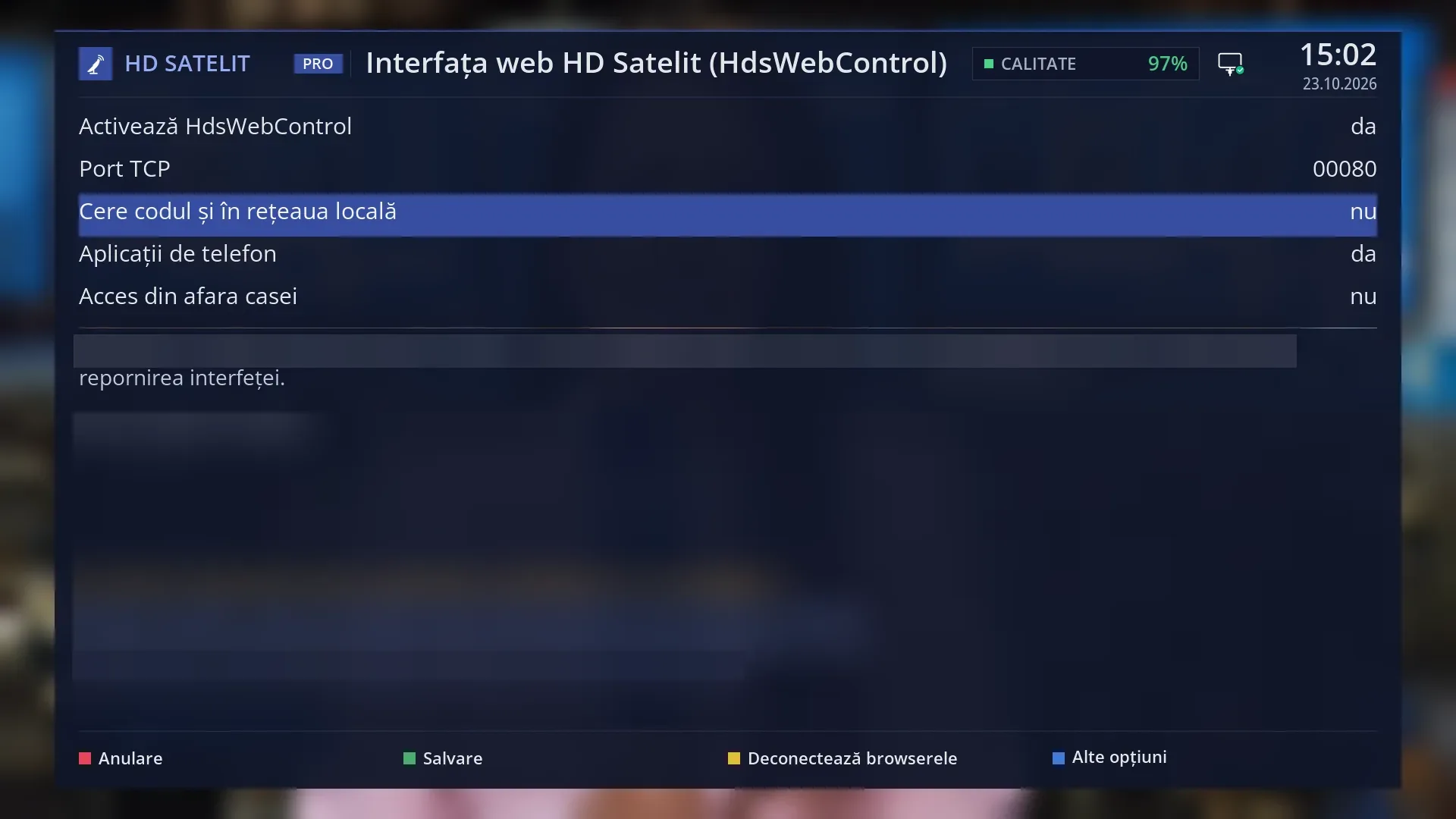
- 1 Selected row: “Ask for the code on the local network too: no”.
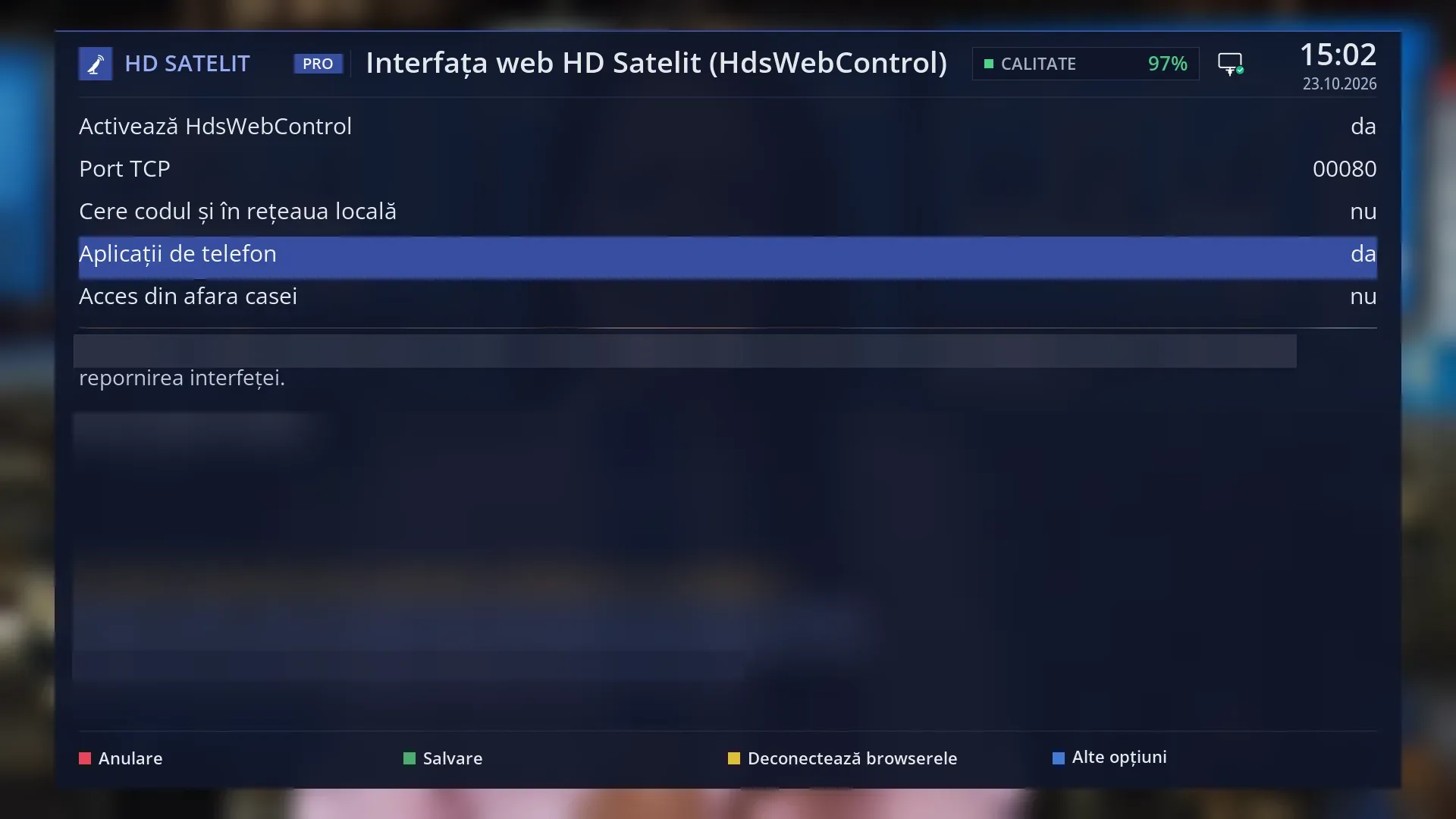
- 1 Selected row: “Phone apps: yes”.
- 1 Selected row: “Access from outside the home: no”.
What it is for
The HD Satelit web interface puts your receiver in the browser of a phone, tablet or computer at home: the remote, the screen picture, channels, the guide, recordings, teletext and almost all settings. On this screen on the TV you turn it on or off, choose the port, see which browsers are connected and disconnect them.
Here you also decide who gets in. By default, devices in your home get in without a code. With “Ask for the code on the local network too” turned on, each new browser is linked once with a 6-digit code shown on the TV. From outside the home the pages do not respond.
From here you also turn on responses to the usual phone apps for Enigma2 receivers (channels, remote, guide, recordings) and, if you want, to these apps from outside the home too, with their own password.
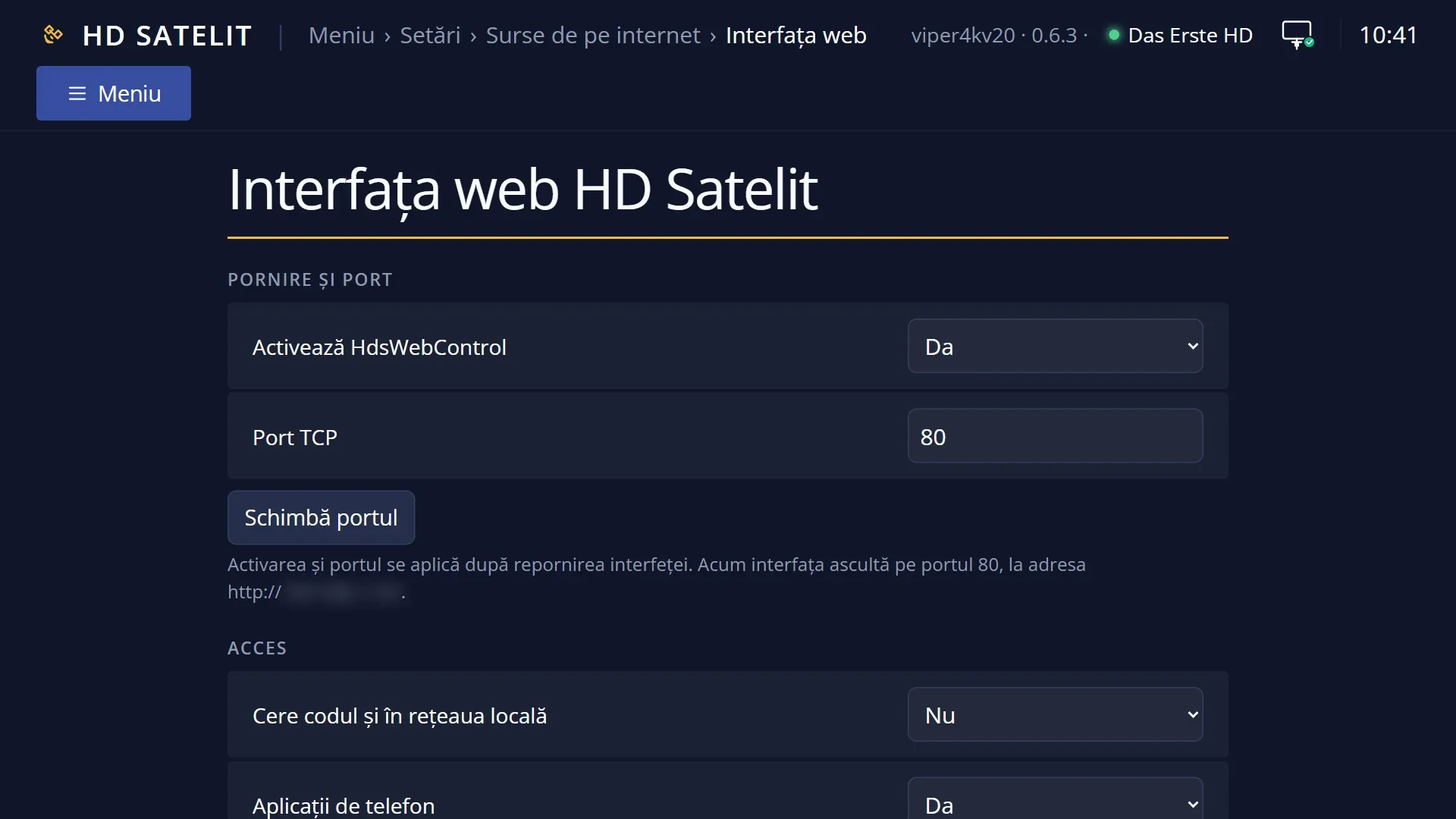
The same settings are also in the web interface, on the /interfata-web page (and in the “Web interface” box on /setari).
How to get here
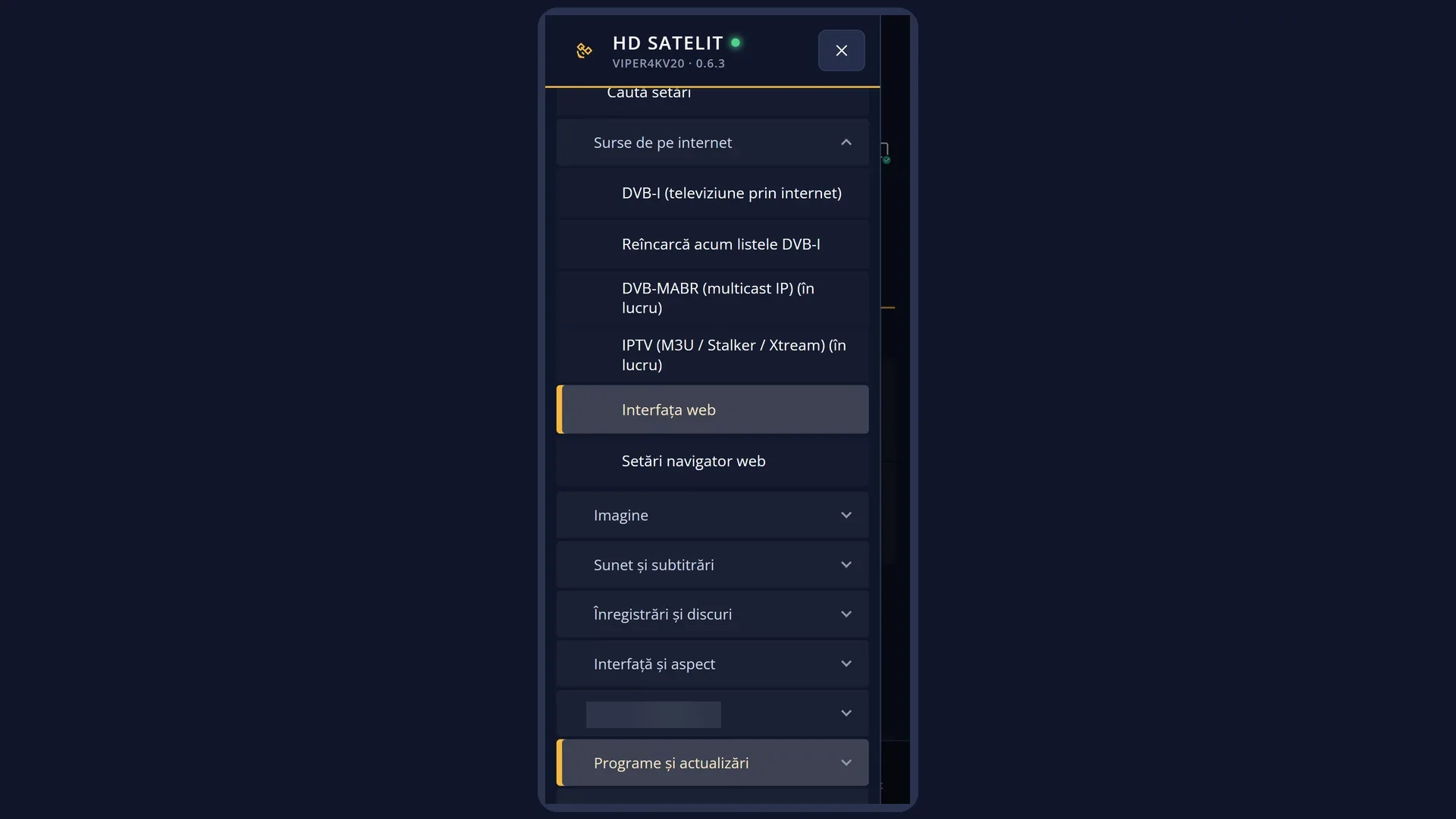
Path: Main menu > Settings > Internet Sources > HdsWebControl (Web Interface) (the fifth row).
Keys on the TV: MENU 6 2 5 (with “Setup Mode” on Intermediate, the default, or Expert; on Simple it is the fourth row: MENU 6 2 4).
In the web interface: the /interfata-web page.
What you see on the screen
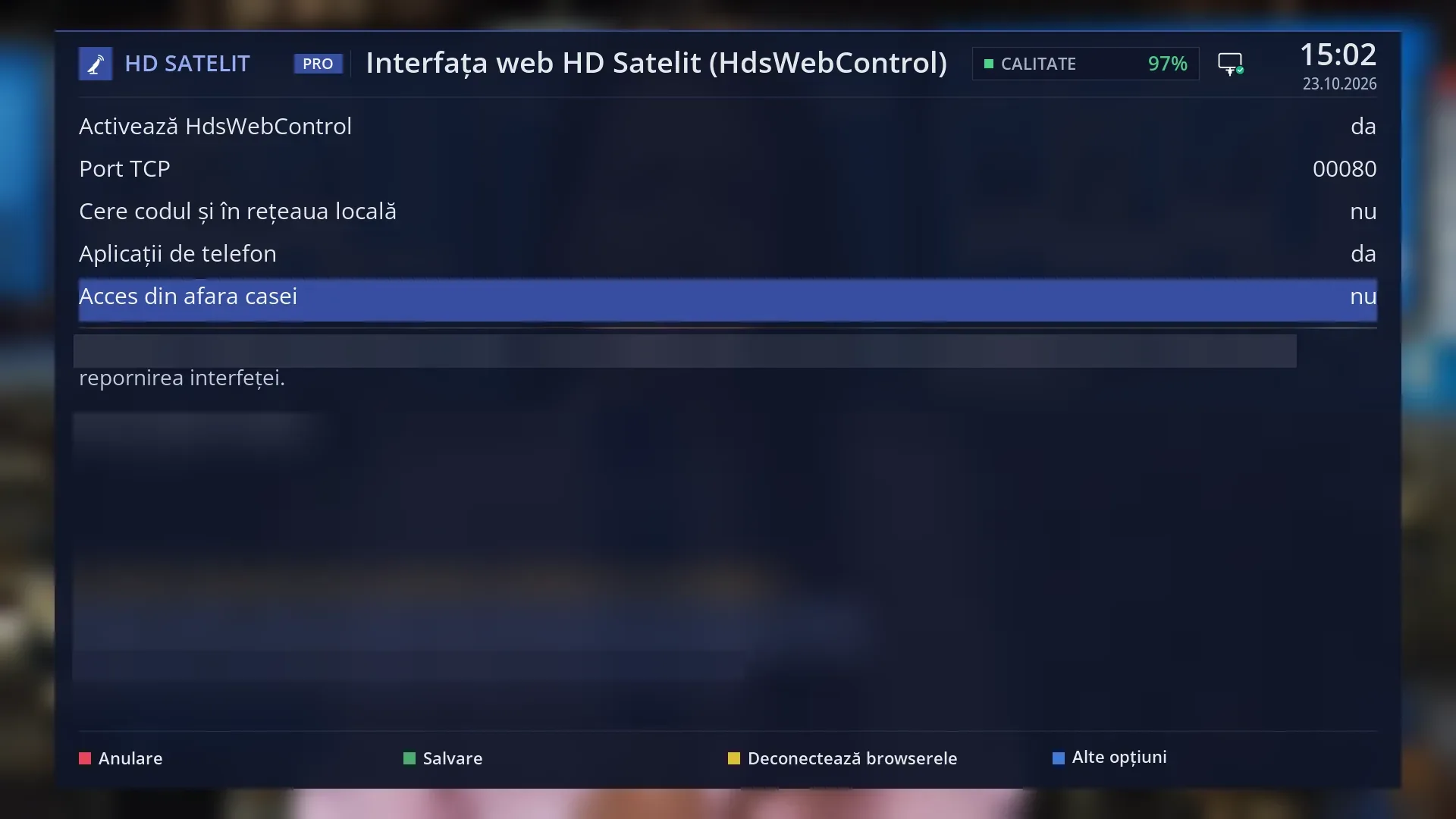
At the top, the title “The HD Satelit web interface (HdsWebControl)”.
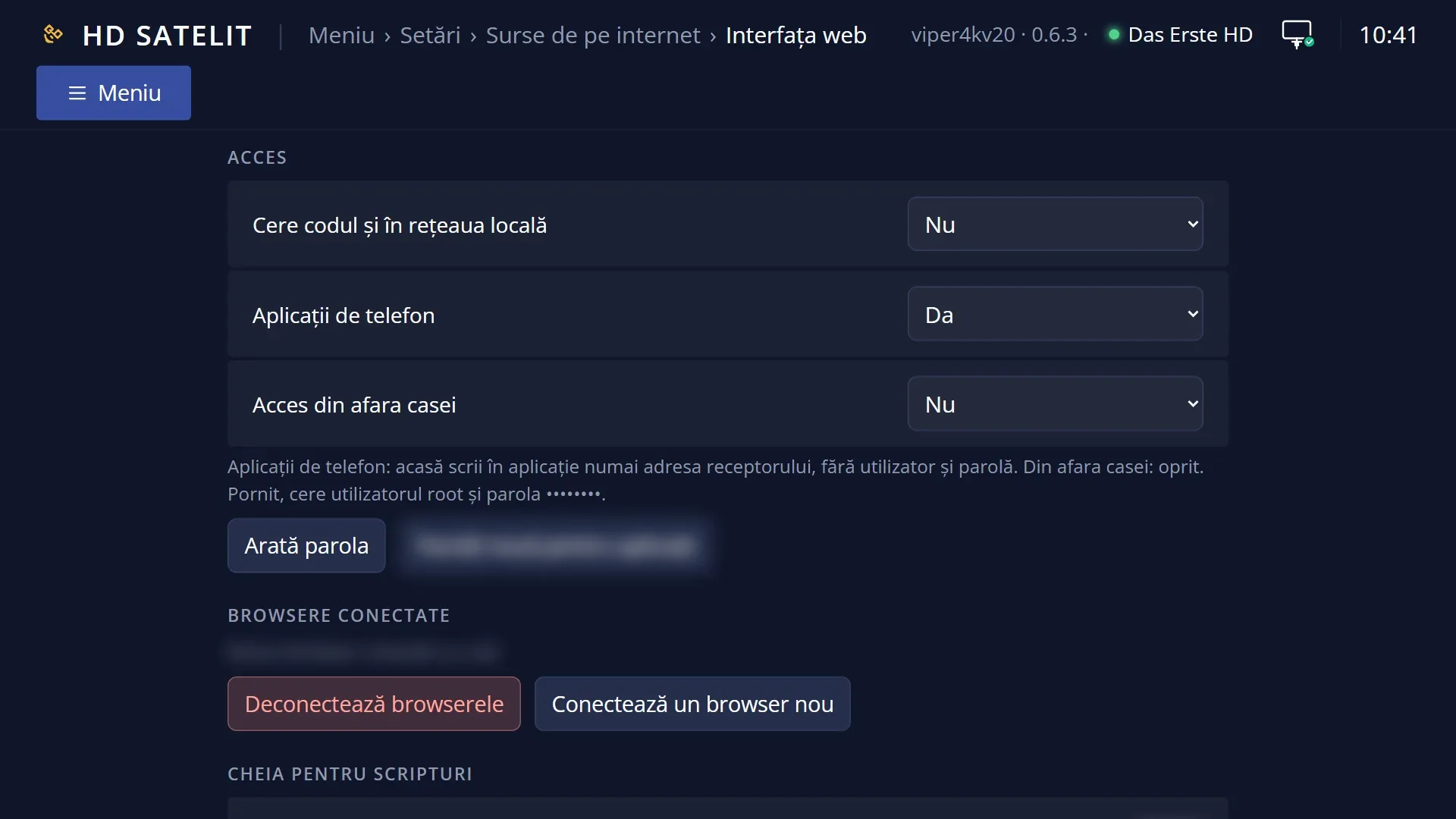
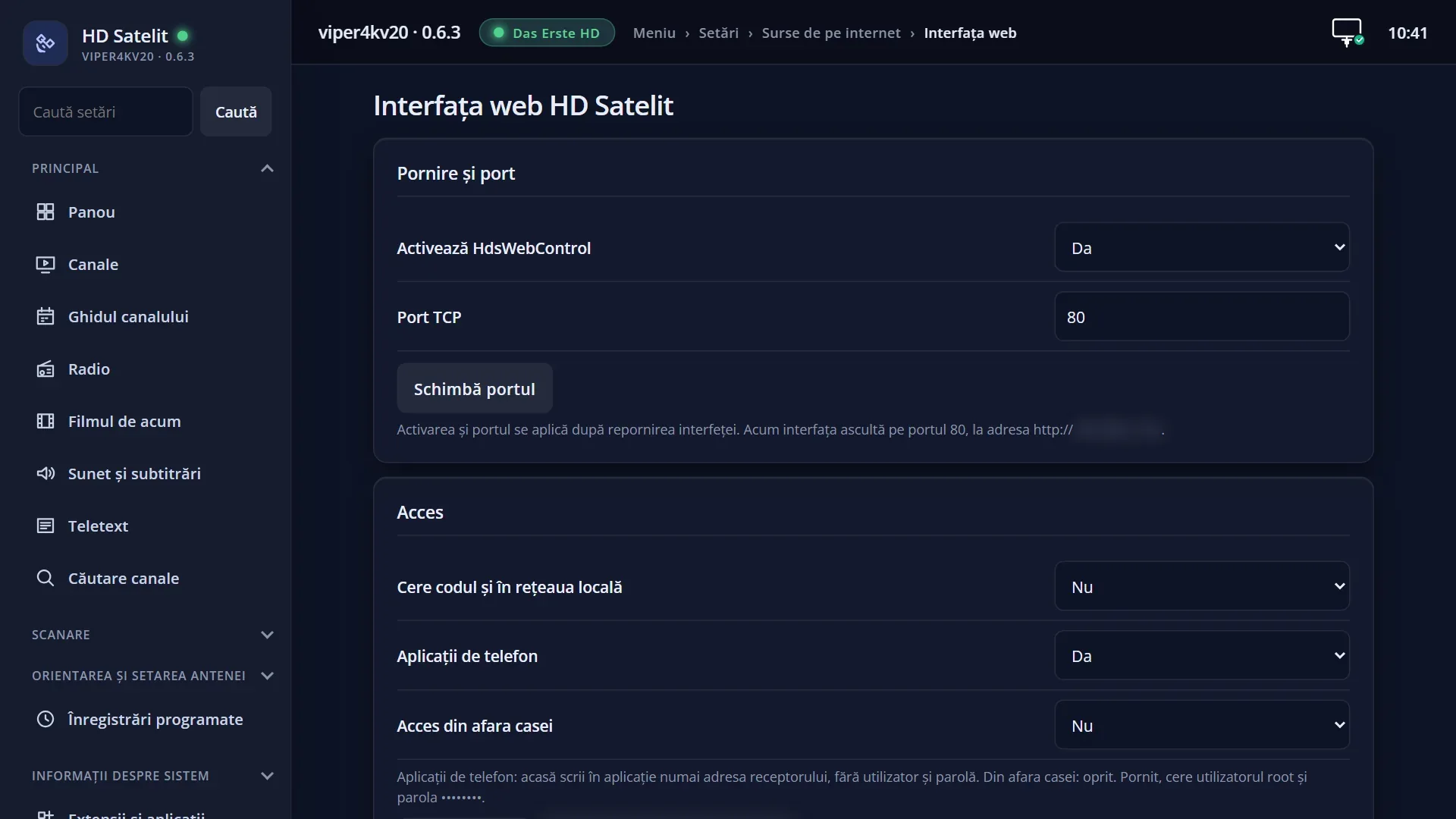
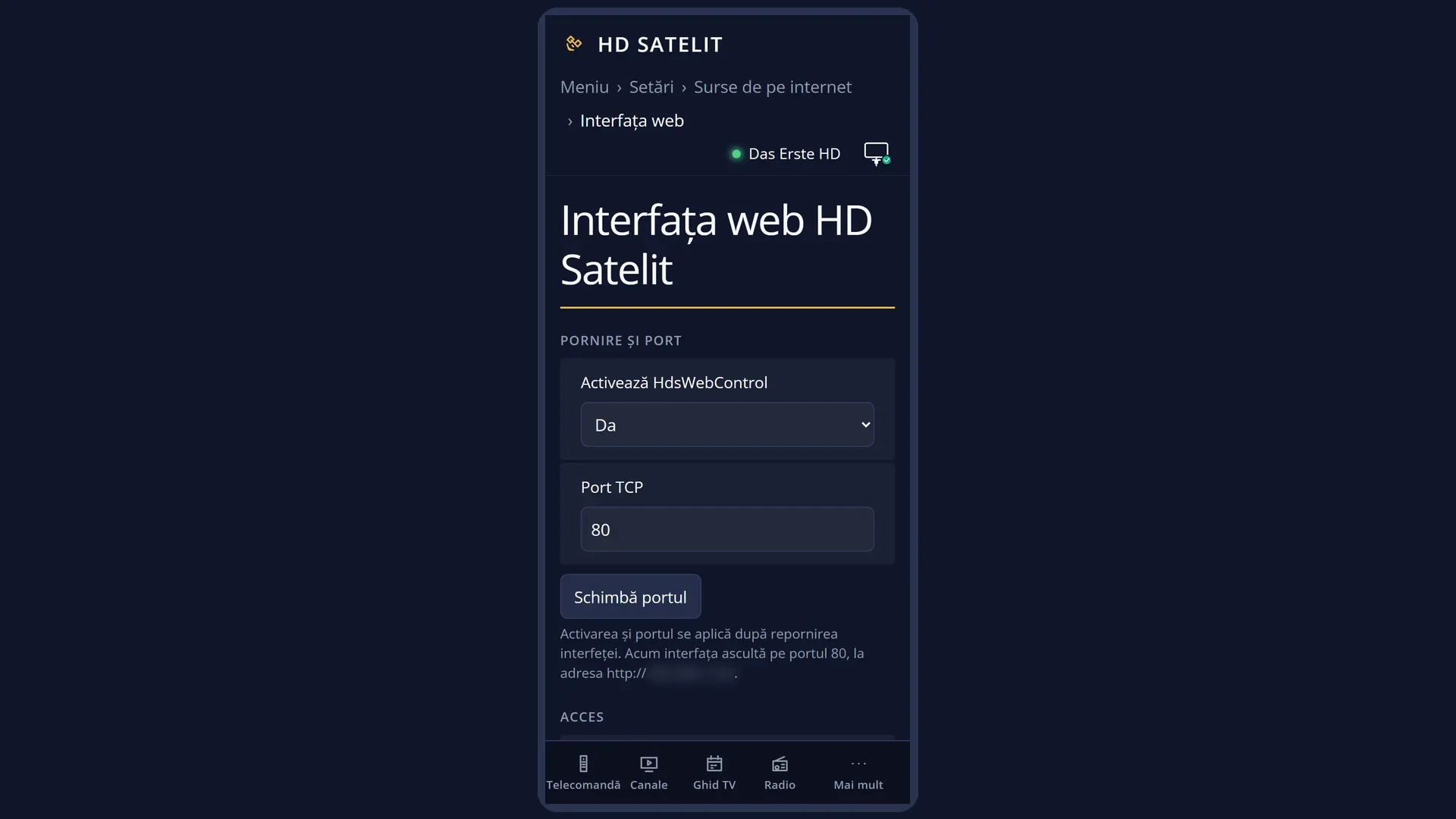
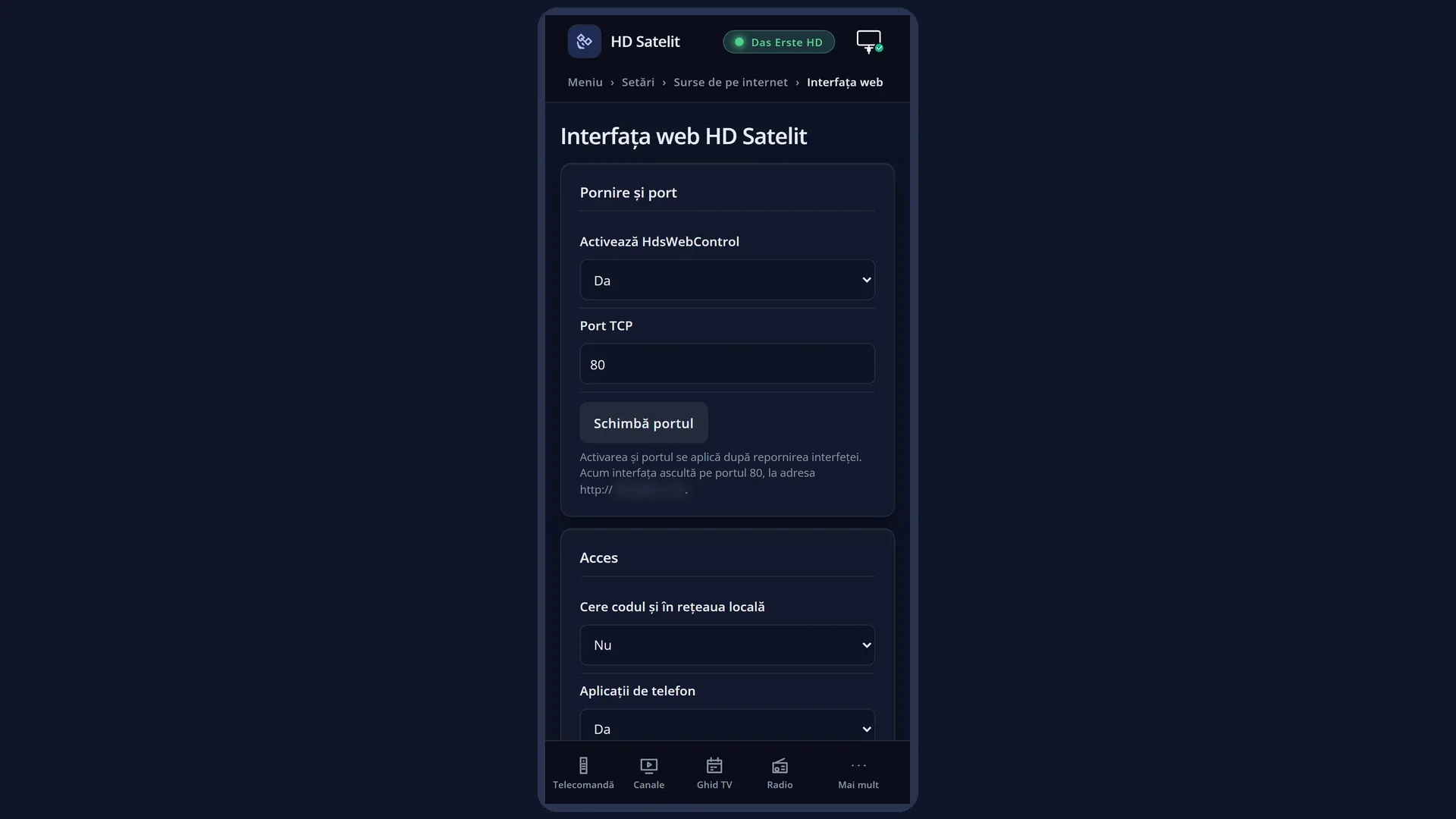
The five rows: “Enable HdsWebControl”, “TCP port”, “Ask for the code on the local network too”, “Phone apps” and “Access from outside the home”, each with its value on the right.
Below the rows, how to open the pages: “Open the address http://192.168.1.50 in a browser. No code is asked for from the local network. Enabling and the port apply after the interface restarts.” (with the code required: “The first time, a 6-digit code appears on the TV, which you type in the browser.”). The text changes at once when you change the code row.
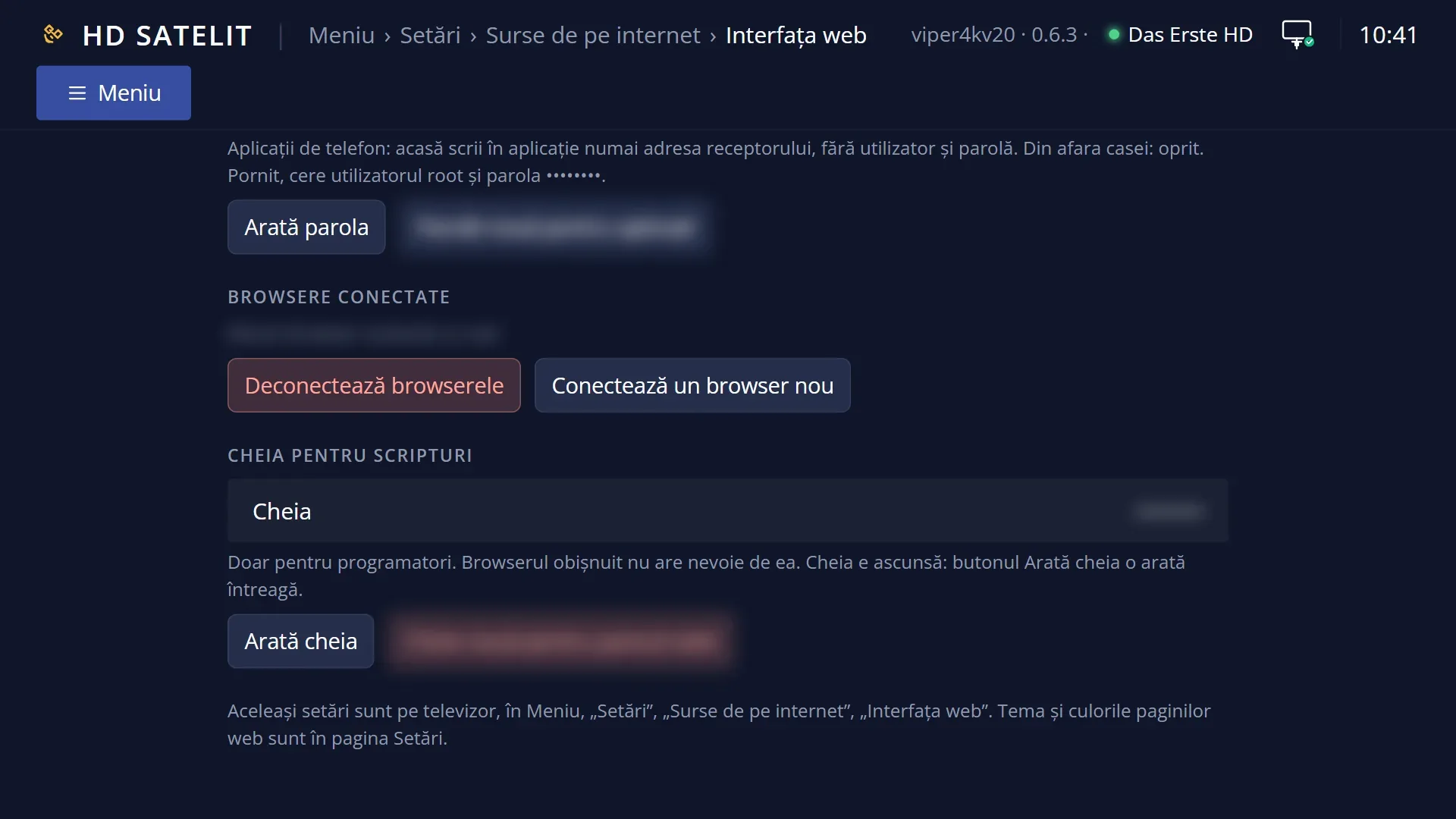
Then the browsers connected with a code: “Connected browsers (2):” and one row for each (the browser name, its address, how long it has been connected), at most five, then “and 3 more”. If there are none: “No browser connected.”.
Then, in small text, “Key for scripts (for programmers only)”, shown in full. A normal browser does not need it.
At the bottom, the rows about phone apps: what you type in the app at home (“at home you type only the receiver's address in the app, without user name and password”) and from outside the home (the user root and the password for apps), then the connected apps.
Note: in this version, the key for scripts and the password for apps are shown in plain text on this screen (the password also on the /interfata-web and /setari web pages). Do not let anyone else read them. If someone has seen them, create new ones from BLUE “More options”.
At the bottom, the keys: RED “Cancel”, GREEN “Save”, YELLOW “Disconnect browsers” and BLUE “More options”.
Rows and settings
| Row | Values | Default | What it does |
|---|---|---|---|
| Enable HdsWebControl | yes, no | yes | Turns the web interface on or off. No: after the interface restarts, the pages no longer respond (nor do the phone apps). No: only if you do not want the web interface at all. |
| TCP port | 80 ... 65535 | 80 | The port of the pages. With 80 the address is simple (http://hdsatelit.local or http://192.168.1.50), and the address with :8080 takes you to the same place. If port 80 is taken by another program, the interface starts on 8080 by itself. On screen the port is shown with five digits (00080). Only if another program needs port 80. |
| Ask for the code on the local network too | no, yes | no | No: devices in your home get in without a code. Yes: each new browser must be linked once with the 6-digit code shown on the TV, and phone apps then ask for the user root and the password for apps at home too. From outside your home network the pages do not respond anyway. Yes, if there are other people's devices on your network (for example a shared Wi-Fi network in a block of flats, or guests). |
| Phone apps | yes, no | yes | Yes: the receiver responds to the usual phone apps for Enigma2 receivers (channels, remote, guide, recordings, playlists). At home, you type only the receiver's address in the app. No: the apps no longer get a response. No, if you do not use such apps. |
| Access from outside the home | no, yes | no | Yes: phone apps also get a response from outside your home network (for example over mobile data, if the router forwards the port to the receiver), only with the user root and the password for apps. Even then, the web interface pages do not open from outside the home. Only if you want to use the phone app when you are not at home. |
| More options (BLUE) | Connect a new browser, New key for the web panel, New password for apps | Connect a new browser: shows a new code on the TV at once, in large digits (“12 34 56”), and removes any block caused by wrong codes (after five wrong codes, linking is blocked for 5 minutes, and at most 10 codes appear on the TV in 15 minutes). The window closes by itself when the browser connects, and OK or EXIT cancels the code. After one hour without a connection, the code expires. New key for the web panel: after a confirmation question, creates a new key for scripts and disconnects all phones and browsers linked with a code. New password for apps: after a confirmation question, creates a new password. From outside the home, apps with the old password no longer get a response until you type the new password in them. When you link a new browser, or when the key or the password has reached someone else. | |
| Disconnect browsers (YELLOW) | After the question “Disconnect all browsers? Each one will need a code from the TV again.” (with No selected in advance), removes all browsers (and phones) linked with a code. When you have lost a phone or no longer know who is connected. |
Keys
| UP / DOWN | Select the row. |
| LEFT / RIGHT | Change the value of the selected row. The address text below changes with it. |
| 0 ... 9 | On “TCP port”: enter the port. |
| GREEN (“Save”) | Keeps the values and closes the screen. The code, the apps and access from outside the home take effect at once; enabling and the port after the interface restarts. |
| RED (“Cancel”) or EXIT | Close the screen and restore the previous values, without asking. |
| YELLOW (“Disconnect browsers”) | Disconnects all browsers and phones linked with a code, after a confirmation question. |
| BLUE (“More options”) | The list: “Connect a new browser”, “New key for the web panel”, “New password for apps”. |
Step by step
Opening the web interface on your phone
- Make sure the phone is on the same network as the receiver (the same Wi-Fi or router).
- In the phone's browser, type hdsatelit.local or the address shown on this screen (for example http://192.168.1.50).
- By default the page opens directly. If you have turned on “Ask for the code on the local network too”, a 6-digit code appears on the TV: type it in the page.
Asking for the code at home too
- Press MENU 6 2 5 and go to “Ask for the code on the local network too”.
- Set it to yes with LEFT / RIGHT and press GREEN.
- From now on, each new browser is linked once with the code from the TV. YELLOW disconnects all browsers at any time.
Linking a browser when the code no longer appears
- Press MENU 6 2 5, then BLUE, and choose “Connect a new browser”.
- The code appears in large digits on the TV. Type it in the page open in the browser.
- The code window closes by itself when the browser has connected.
Problems and solutions
The page does not open in the browser at all.
Check that the phone is on the same network as the receiver and that “Enable HdsWebControl” is set to yes. Try the address shown on this screen instead of hdsatelit.local. After changing the enable setting or the port, restart the interface (Power & Restart > Restart Interface).
I changed the port and the page no longer works at the old address.
The new port is used after the interface restarts. Type it in the address after a colon (for example http://192.168.1.50:8081).
The page asks for a code, but none appears on the TV.
Press BLUE, “Connect a new browser”: the code appears right on this screen and the block after wrong codes is removed too.
The phone app does not connect.
“Phone apps” must be set to yes. At home, you type only the receiver's address in the app; with “Ask for the code on the local network too” turned on, also the user root and the password for apps.
From outside the home the app gets no response.
Set “Access from outside the home” to yes, type the user root and the password for apps in the app, and the router must forward the port to the receiver. The web pages do not open from outside the home.
Someone has seen the password for apps or the key for scripts.
BLUE, then “New password for apps” or “New key for the web panel”. The new key also disconnects all browsers linked with a code.
The port is shown as “00080”.
It is the same port 80. The screen shows it with five digits.