

Processor
Screenshots are being added: so far 3 from the receiver and 8 from the web interface; the aim is at least 5 of each, with arrows and frames, and, where a setting changes what you see, a before and after comparison.
English screenshots coming: some of the pictures below still show the receiver and the web interface in Romanian. The rows, keys and steps described on this page are the English ones.
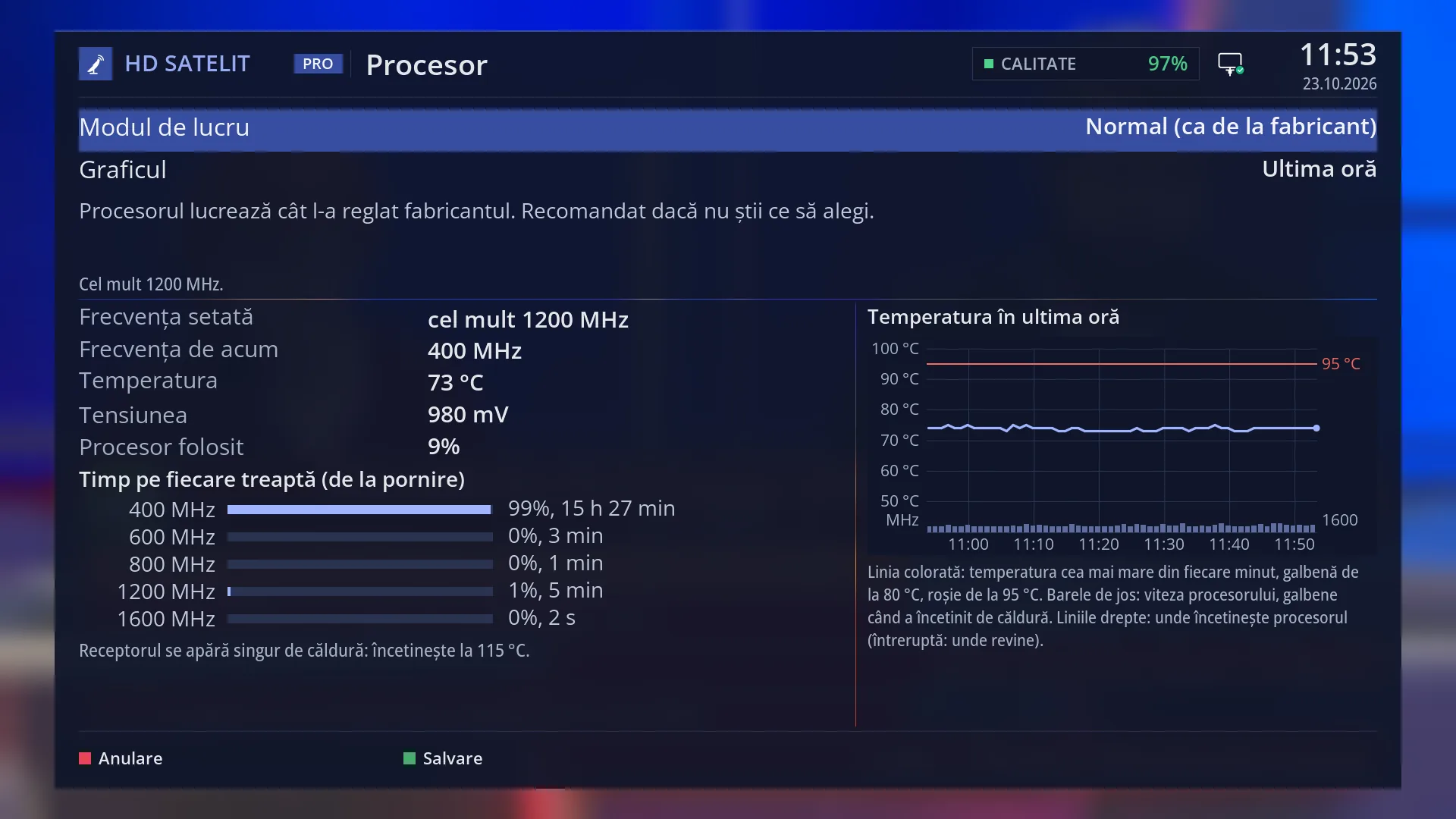
- 1 Working mode and how much time the chart shows.
- 2 What the chosen mode does, then in figures.
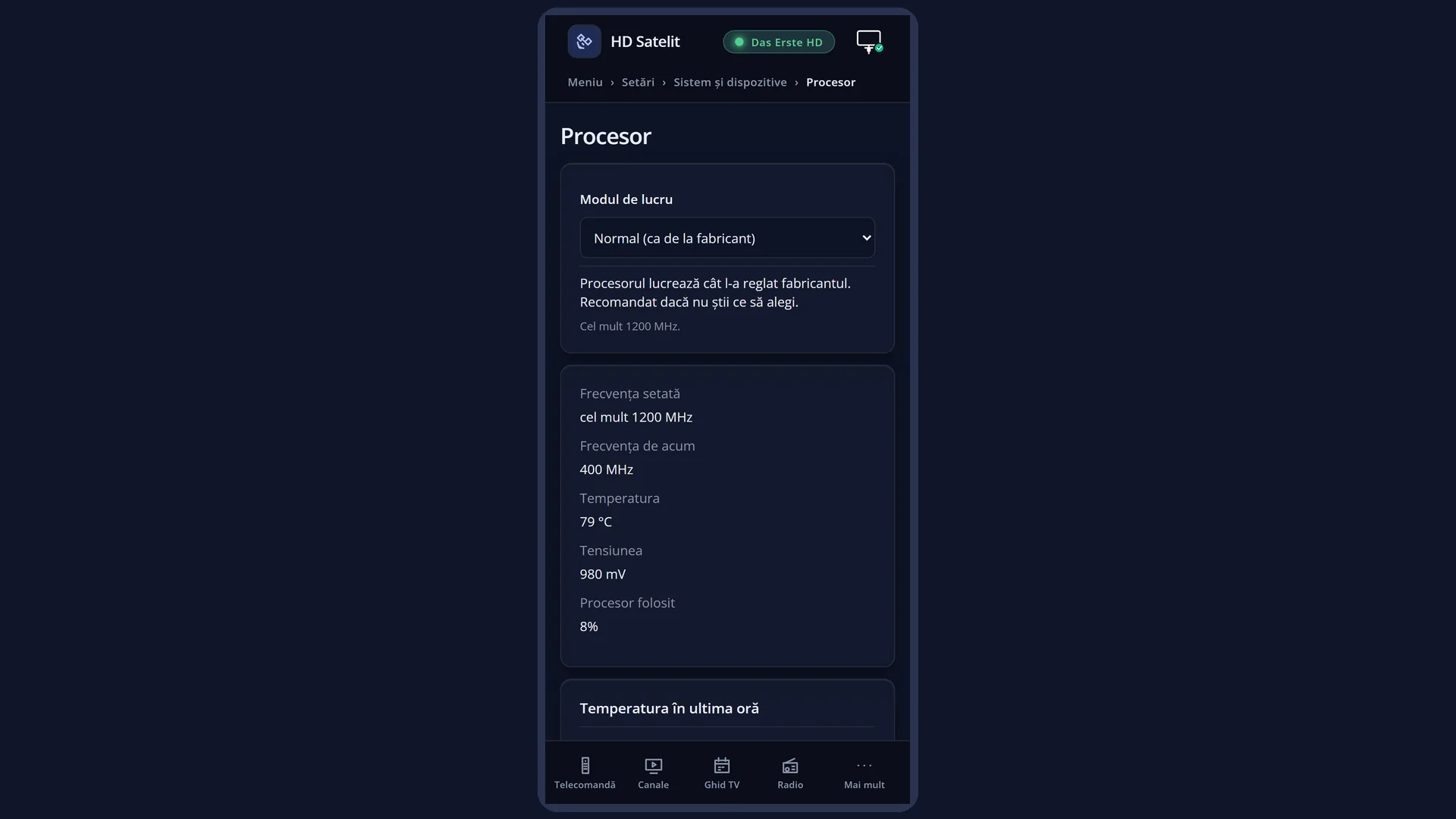
- 3 Set and current frequency, temperature, voltage, processor used.
- 4 Time on each speed step, since start-up.
- 5 The note: heat protection or why it is running slower now.
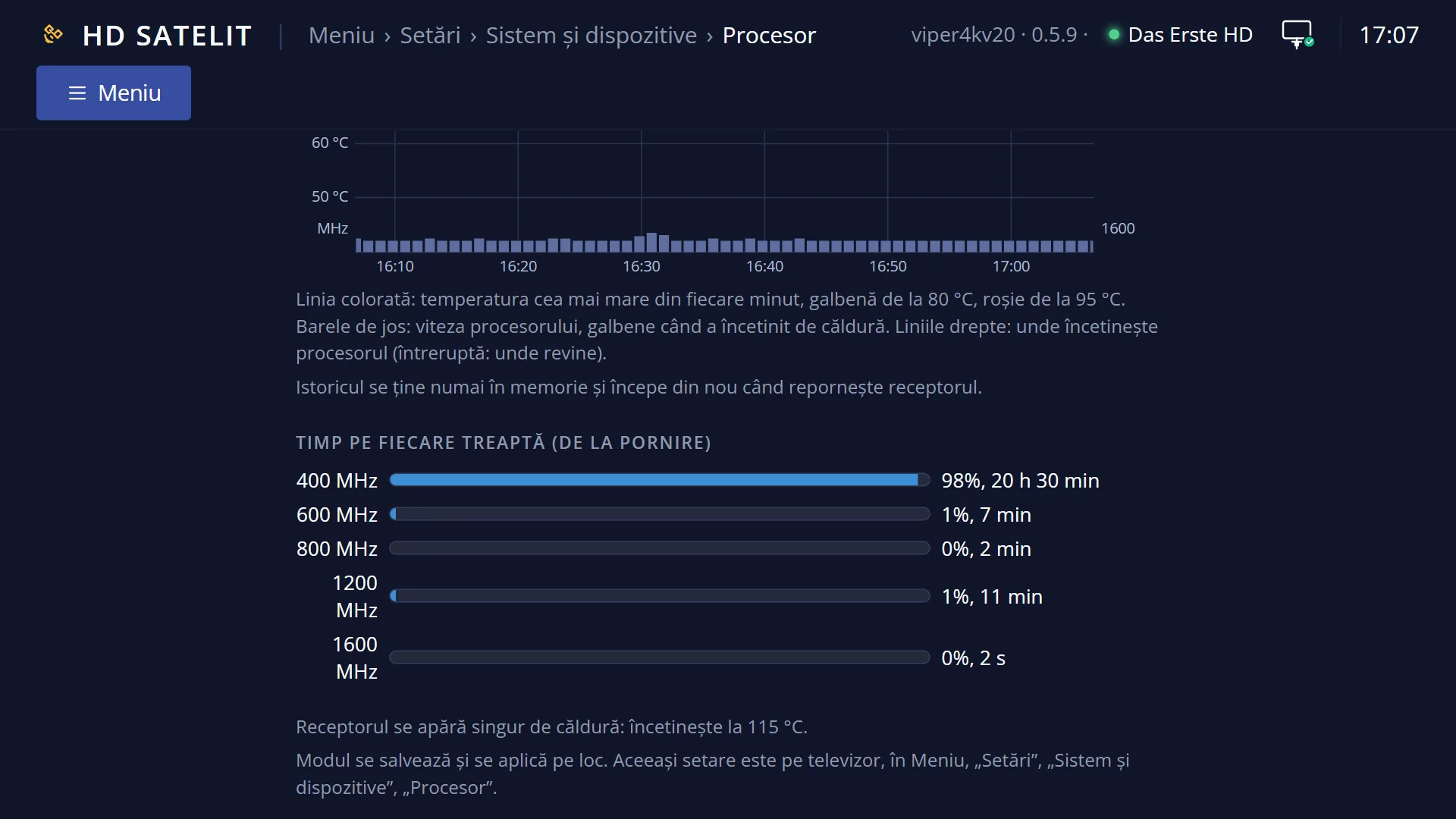
- 6 The temperature chart, with the speeds at the bottom and the legend.
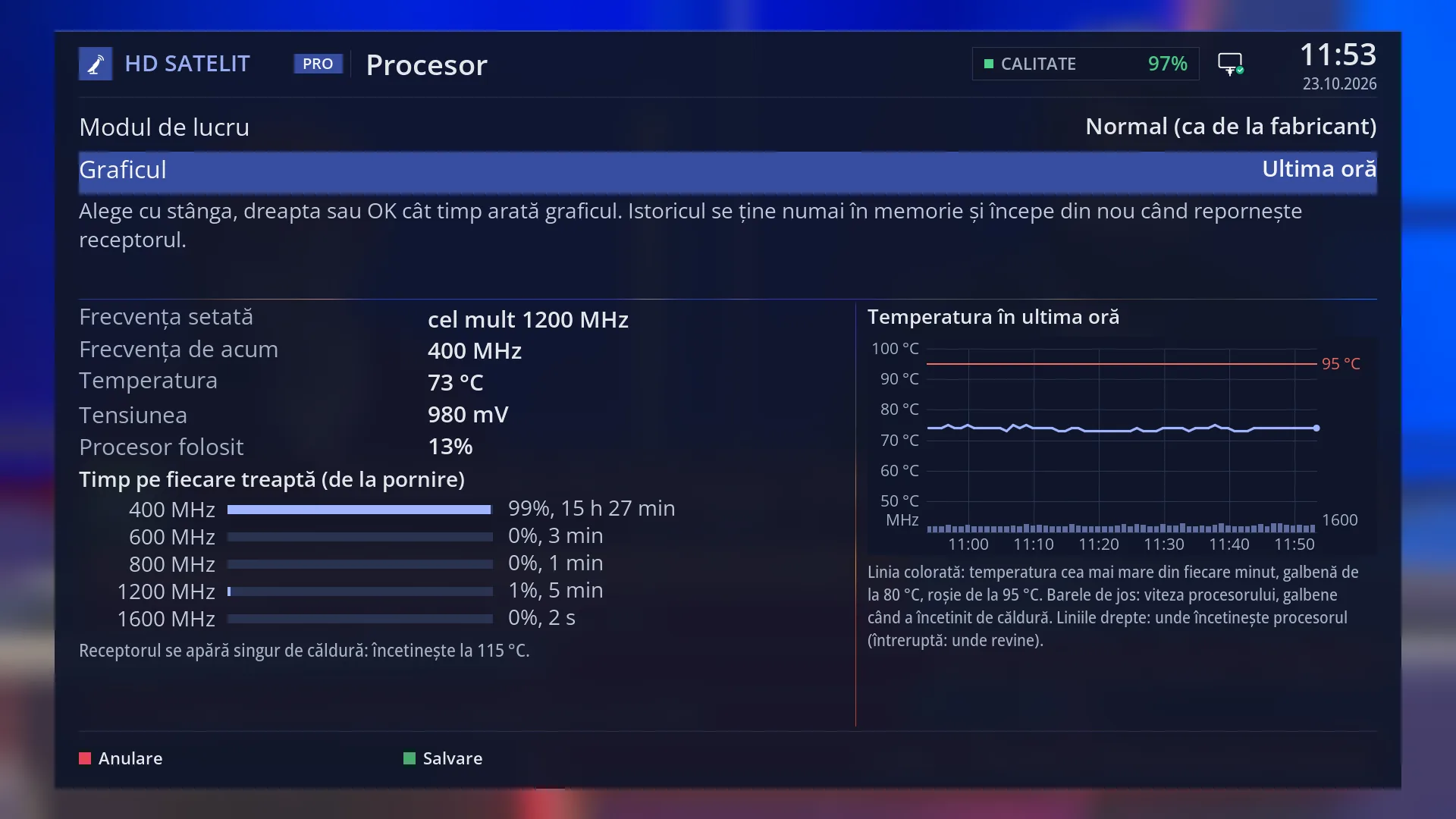
- 1 The selected row: “Chart: Last hour”.
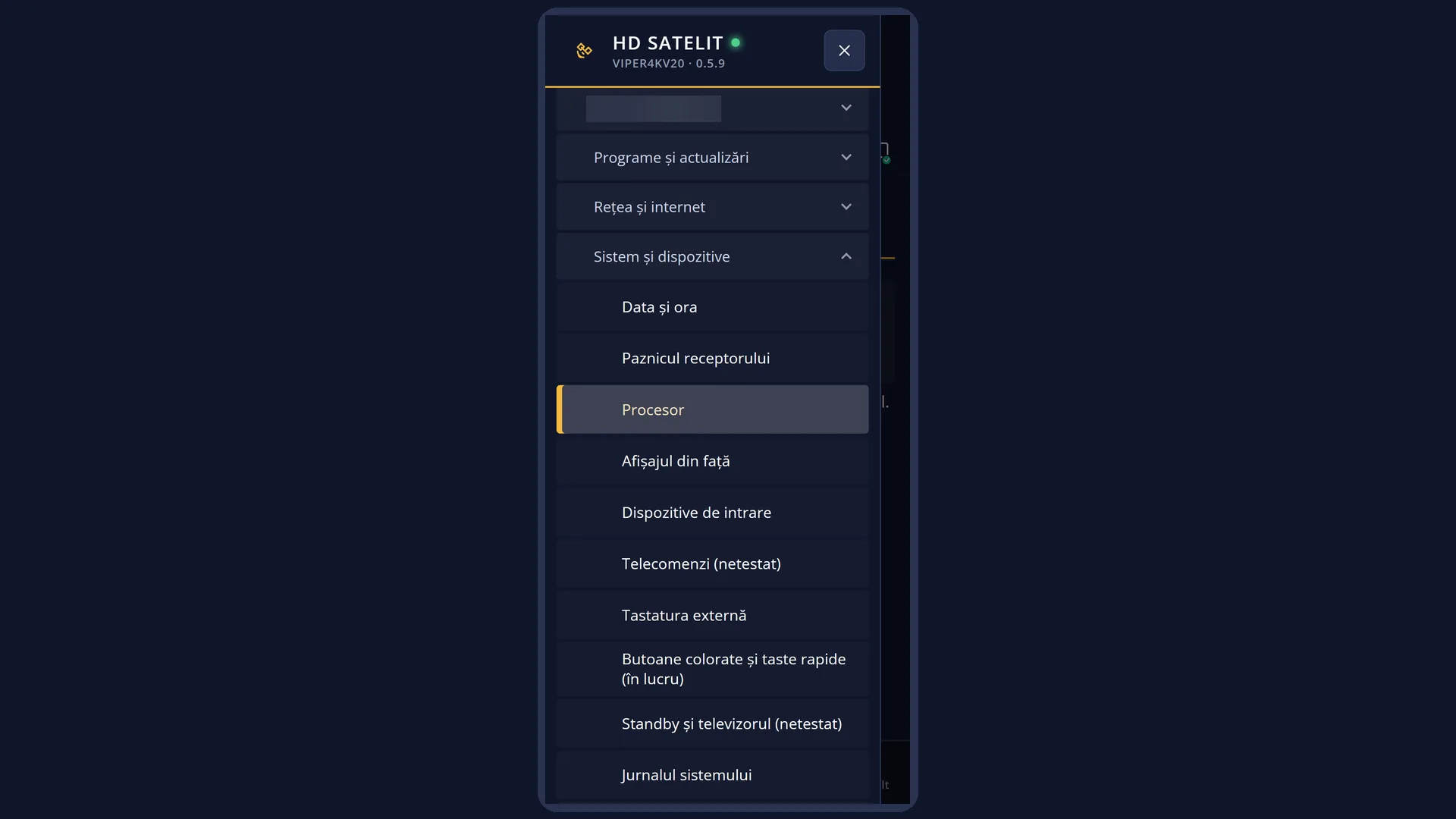
What it is for
The “Processor” screen shows how warm the receiver is and how fast the processor is working, with a temperature chart for the last hour. You also choose the processor's working mode here.
The mode sets how fast the processor is allowed to go. Normal (from the factory) matches the manufacturer's setting and is recommended if you are not sure what to choose. Cool keeps it slower and cooler. Automatic and Performance only appear where they make sense on your receiver.
In any mode, the receiver protects itself: if it reaches 95 °C, the processor slows down until it cools, and a message says so on screen. Picture and sound are not affected.
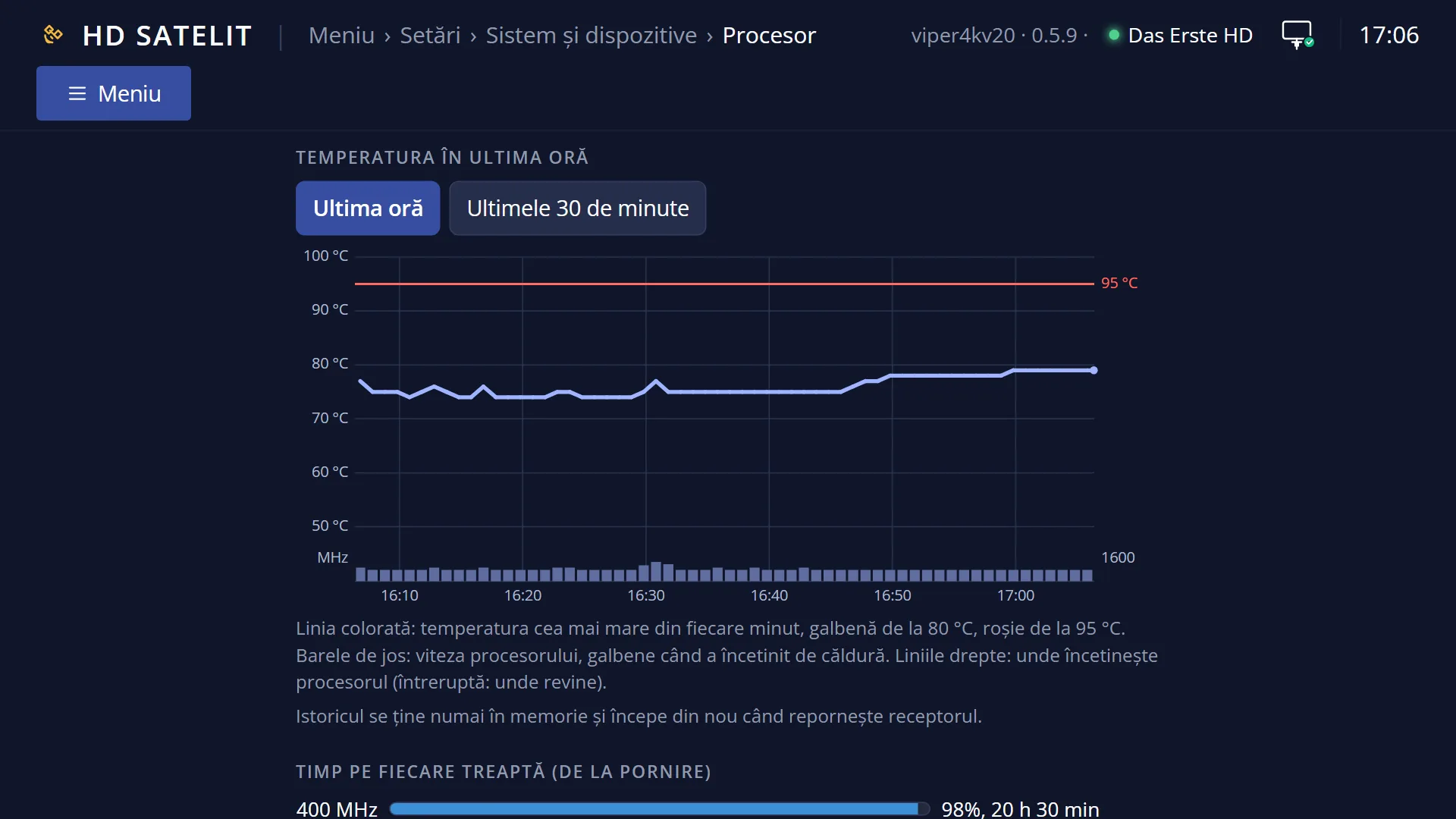
The chart helps you see whether the receiver is in a space that is too enclosed: a line rising towards yellow (80 °C) or red (95 °C) means it needs more air.
How to get here
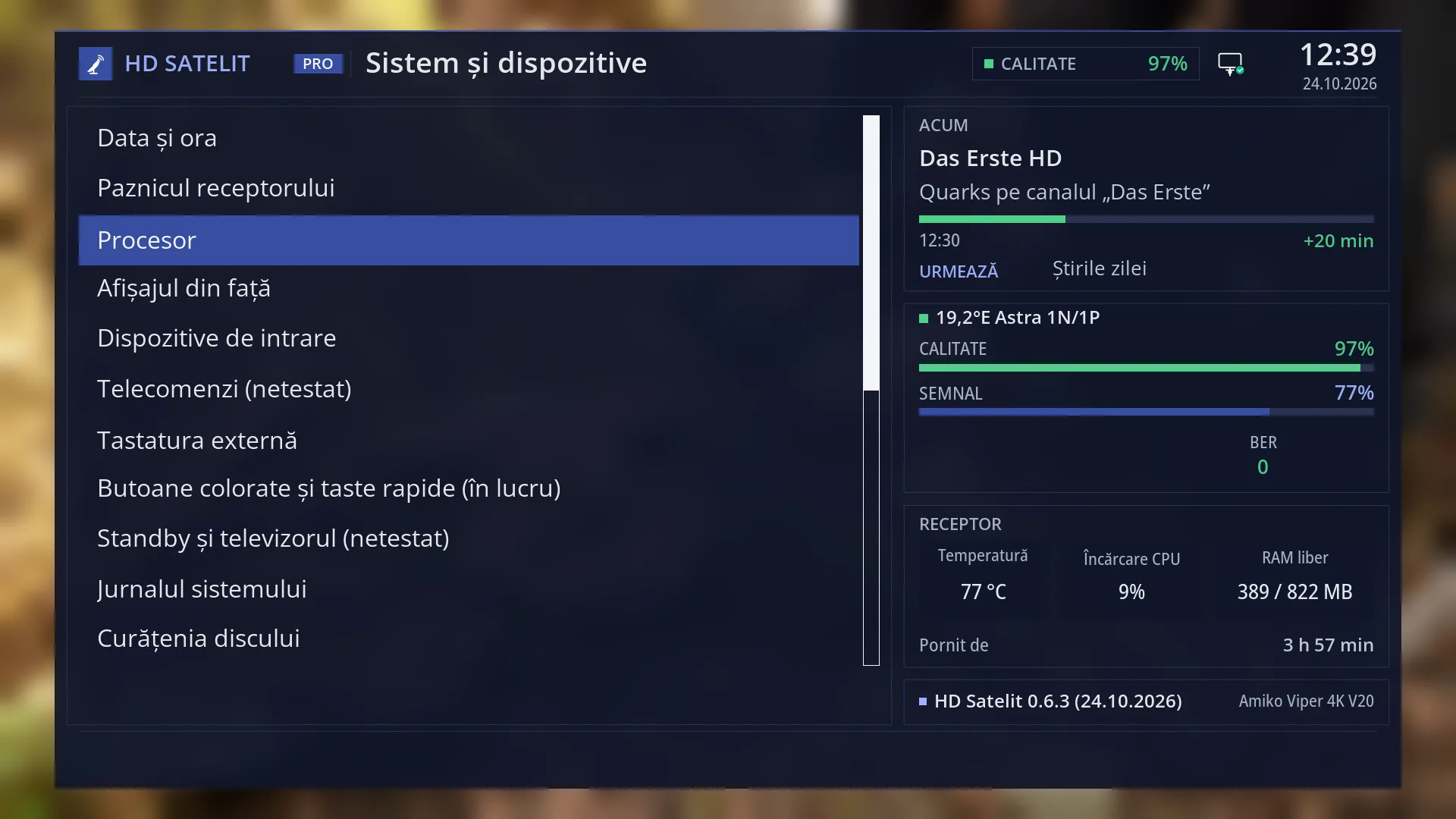
Path: Main menu > Settings > System & Devices > Processor.
Keys on the remote: MENU 6, then UP and OK (System & Devices), then 3.
You can also choose the same mode in the “Processor mode” row in OSD Preferences (MENU 6 6 5).
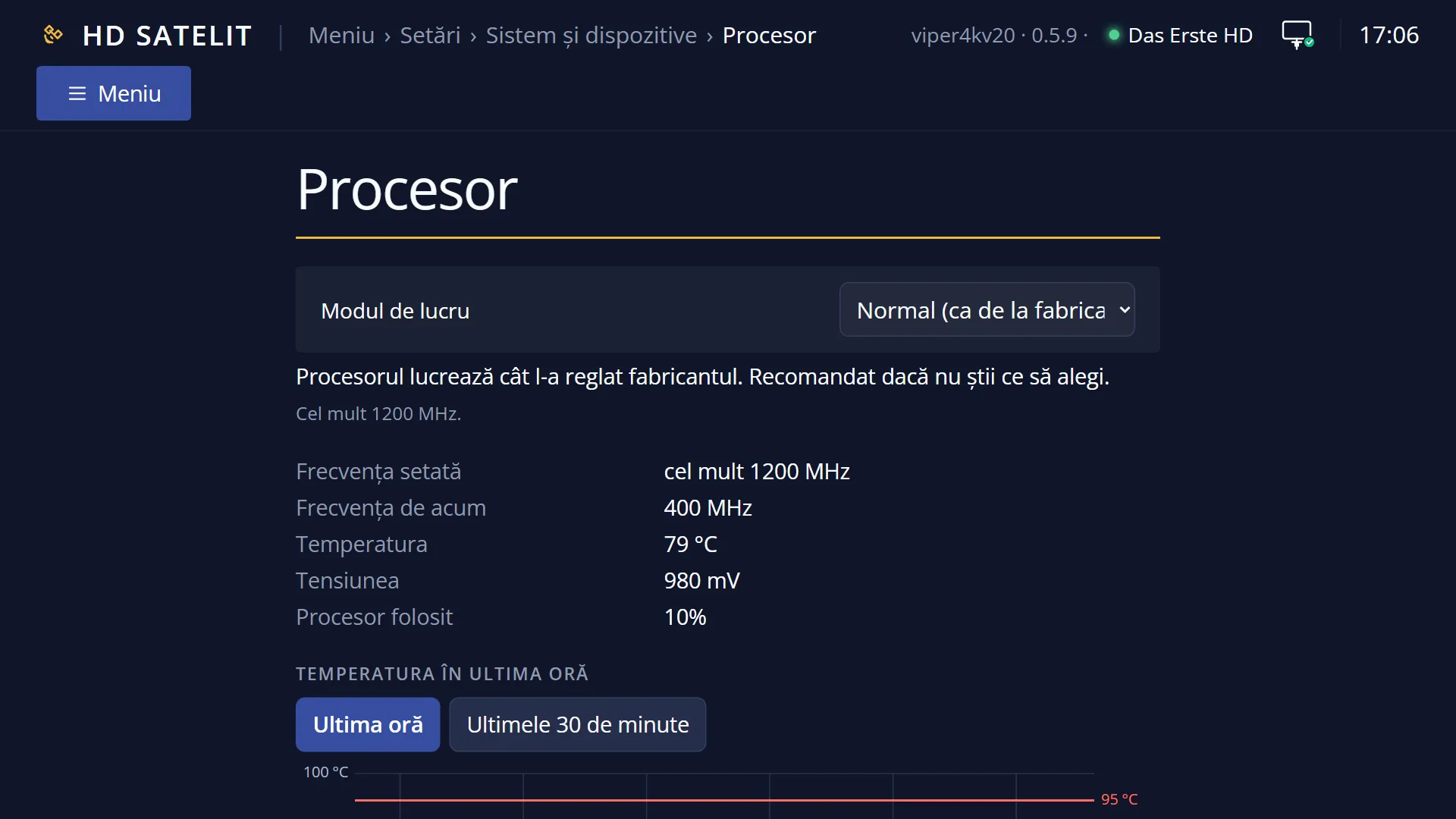
In the web interface: the /procesor page, with the mode, the readings, the chart and the time on each step.
What you see on the screen
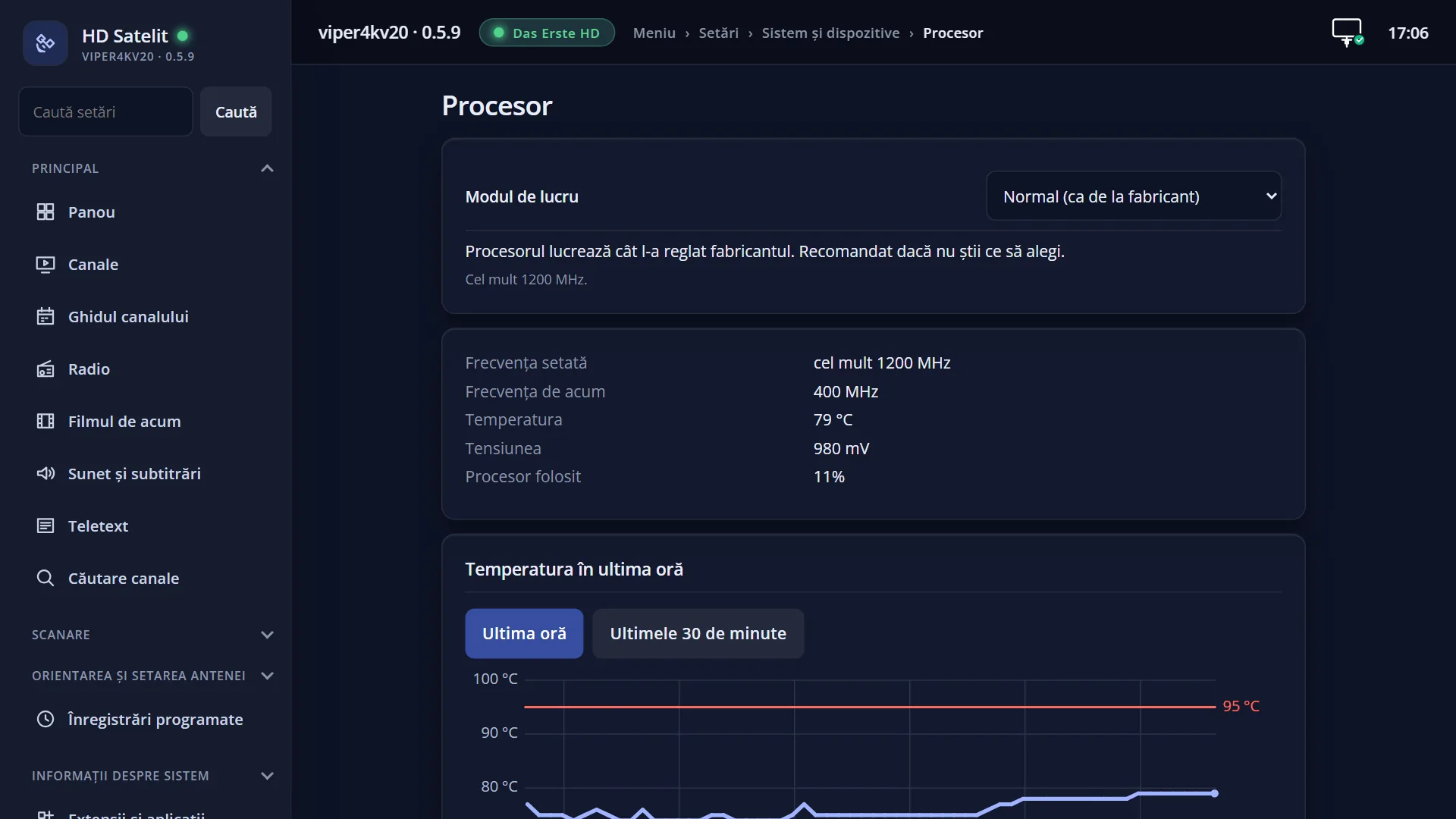
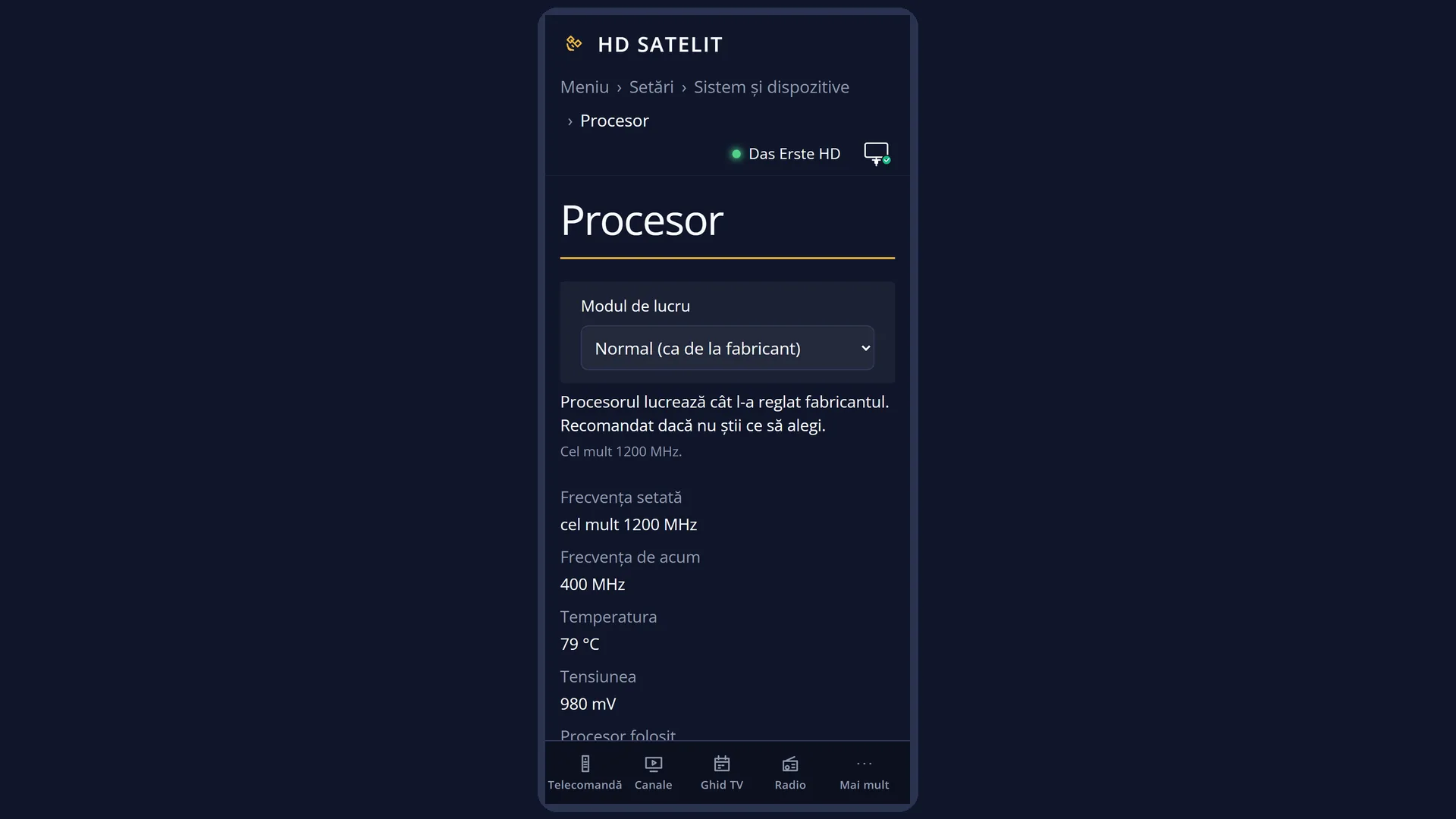
At the top, the title “Processor”. Below it, two rows: “Working mode” (for example “Normal (as from the factory)”) and “Chart” (“Last hour” or “Last 30 minutes”).
Below the rows, an explanation of the selected row and, in smaller text, what it means in figures, for example “At most 1200 MHz.”.
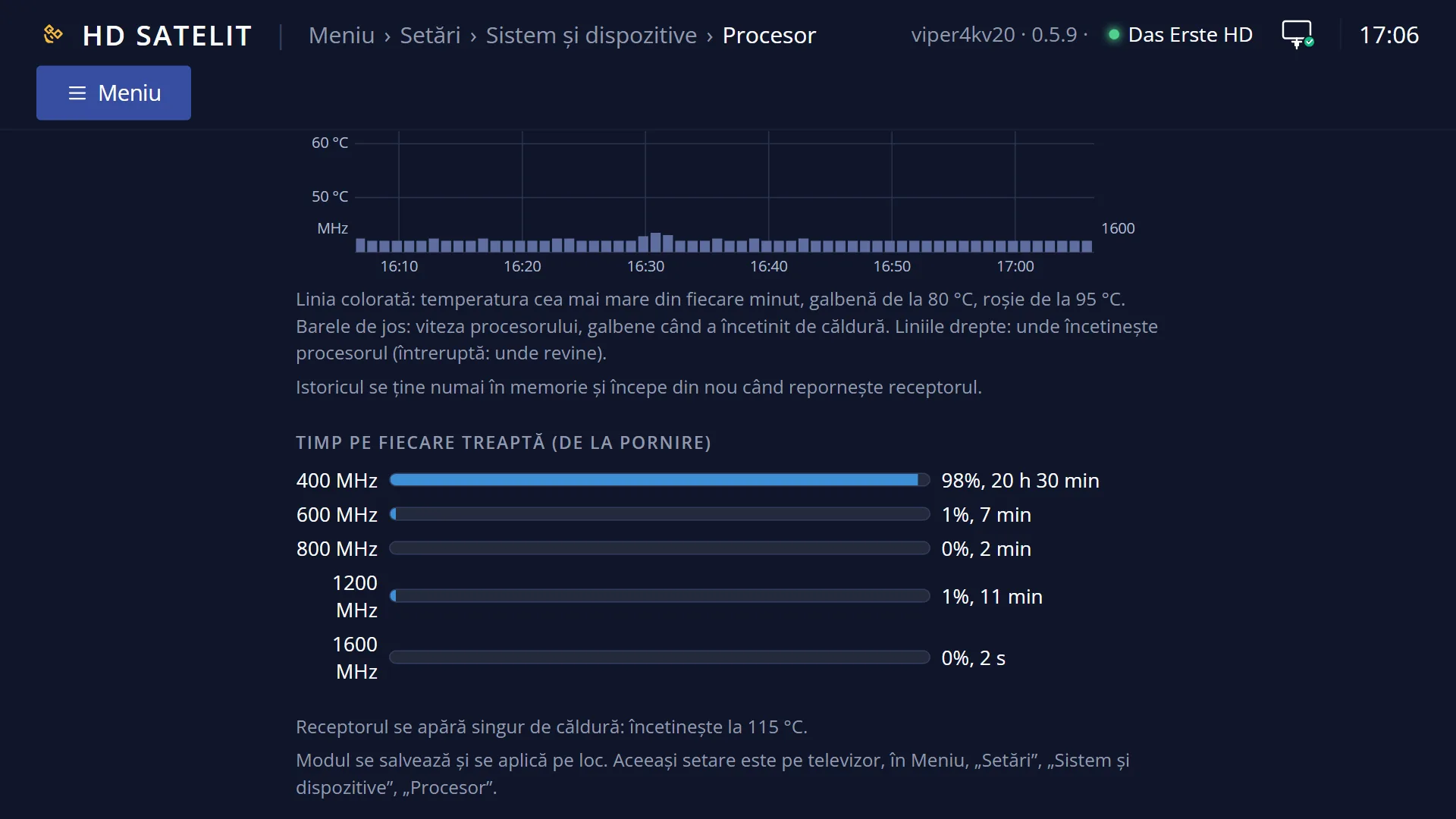
On the left, the readings, updated every second and a half: “Set frequency” (how high it can go), “Current frequency”, “Temperature” (yellow from 80 °C, red from 95 °C), “Voltage”, “Processor used”, then “Time on each step (since start-up)”, with a bar, the percentage and the duration for each speed.
Below the readings, a grey note (for example “The receiver protects itself from heat: it slows down at 115 °C.”) or, in yellow, why the processor is running slower now. Once it has cooled, a green note says “The receiver has cooled down. The processor works at its usual speed again.”.
On the right, “Temperature in the last hour”: a line for the highest temperature in each minute, bars for the processor speed at the bottom (yellow when it slowed down because of heat), straight lines where the processor slows down, the times underneath and a legend.
At the bottom, the keys: RED “Cancel” and GREEN “Save”.
Rows and settings
| Row | Values | Default | What it does |
|---|---|---|---|
| Working mode | Normal (as from the factory), Cool, Automatic, Performance | Normal (as from the factory) | Normal: the processor works as the manufacturer set it. Cool: it works more slowly, so the receiver heats up less when it has a lot to do; menus and channel changes may be a little slower. Automatic: the receiver decides by itself, fast while it is cool, slower when it warms up. Performance: as fast as it can; when the receiver reaches 85 °C, the processor runs slowly until it cools to 78 °C. The list only shows the modes possible on the receiver; Performance only appears after the receiver passes the heat test, and the note below the readings says so. Cool if the receiver is in a cabinet or often gets warm. Leave Normal if you have no problem. |
| Chart | Last hour, Last 30 minutes | Last hour | How much time the chart on the right shows. This is not a setting: your choice is kept until the interface restarts. The chart history is lost when the receiver restarts. Last 30 minutes, to see more clearly what happened recently. |
Keys
| UP / DOWN | Move between “Working mode” and “Chart”; the explanation below changes. |
| LEFT / RIGHT | On “Working mode”, you choose another mode and read what it does, without applying it. On “Chart”, you switch immediately between the last hour and the last 30 minutes. |
| OK | On “Working mode”, saves and applies the chosen mode, like GREEN, and closes the screen. On “Chart”, switches to the other choice. |
| GREEN (Save) | Saves and applies the mode immediately, from any row, and closes the screen. If the mode cannot be set, the screen stays open and shows the reason in yellow. |
| RED (Cancel) or EXIT | Closes without changing the mode. |
Step by step
Make the receiver run cooler
- Press MENU 6, UP, OK, then 3.
- On “Working mode”, press LEFT or RIGHT until you reach “Cool”; read the explanation.
- Press GREEN. The mode is applied immediately.
Check whether the receiver gets too hot
- Open the screen (MENU 6, UP, OK, 3) after the receiver has been running for at least an hour.
- Look at the line on the chart: if it stays below the yellow line (80 °C), everything is fine.
- If it often rises towards 95 °C, leave more free space around the receiver or choose Cool.
Problems and solutions
The message “The receiver has got warm. The processor works more slowly until it cools down.” appeared on screen.
The receiver has gone past the heat limit and is protecting itself; picture and sound are not affected. Leave some air around it. The message appears at most once every 5 minutes.
I cannot find the Performance mode.
It only appears after the receiver passes the heat test. Until then, the note below the readings says “Performance mode (... MHz) appears after the receiver passes the heat test.”.
I chose a faster mode, but the frequency does not go up straight away.
For the first 3 minutes after start-up, the processor stays at the manufacturer's speed, for safety. Also, if the temperature cannot be read, the speed does not go above the manufacturer's.
The receiver switched to Normal by itself.
It does this after it has shut down unexpectedly twice in a row with the processor sped up, and it tells you so on screen. Stay on Normal or try Cool.
The screen says “On this receiver the processor frequency cannot be read or changed.”.
The receiver does not report the processor speed, so you cannot choose anything. On the Amiko Viper 4K V20 the whole screen works.
The chart is almost empty.
The history starts when the receiver starts; after a receiver restart, the chart fills up again, minute by minute.
Related topics
Differences between receivers
The modes in the list depend on the receiver: Cool needs a step below the manufacturer's speed, Automatic and Performance need the temperature to be readable, and Performance also needs a step above the manufacturer's speed that has passed the heat test. On a receiver that does not report the processor speed, the “Processor” entry does not appear in the menu.