

DVB-I Setup (TV over Internet)
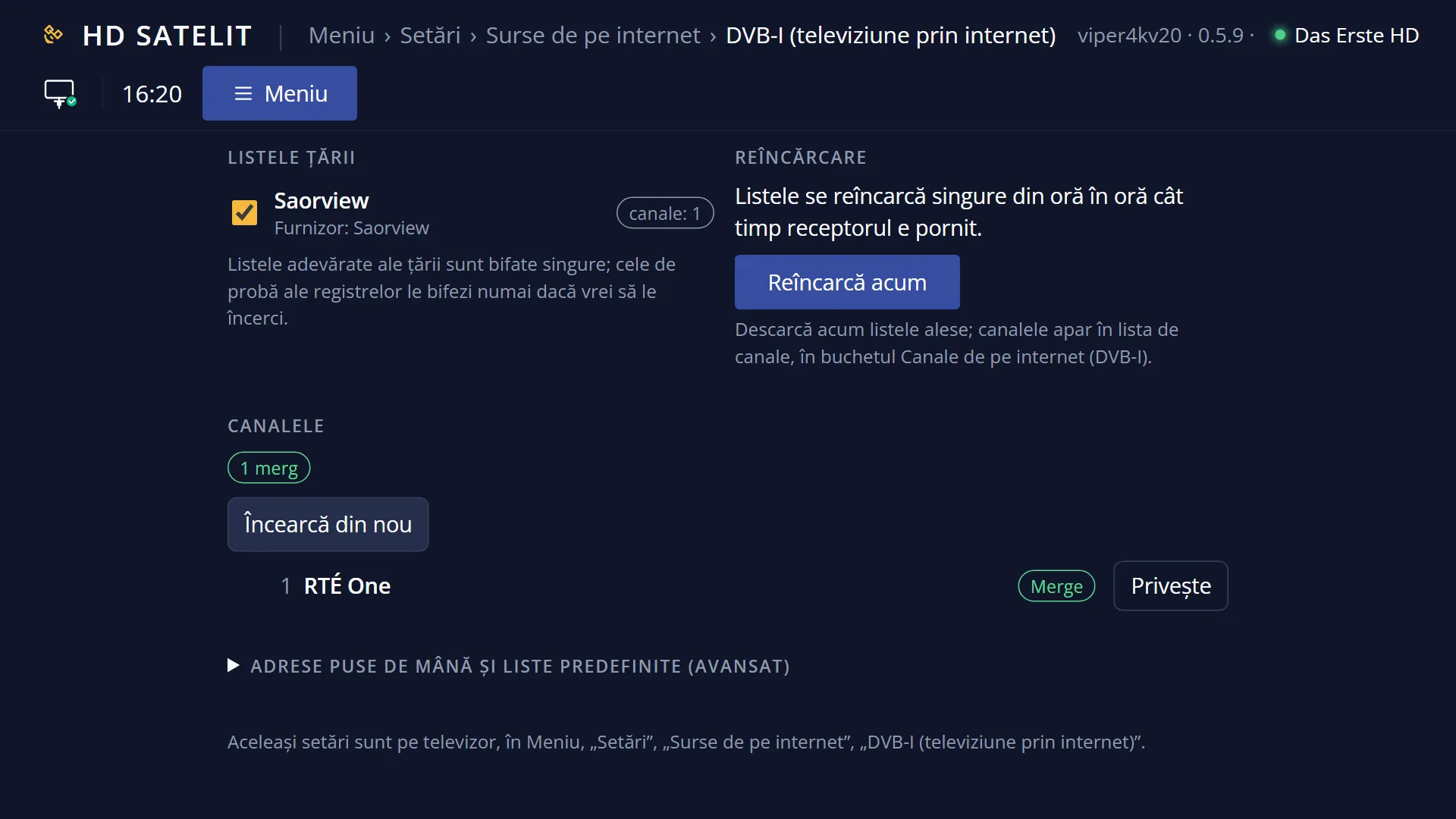
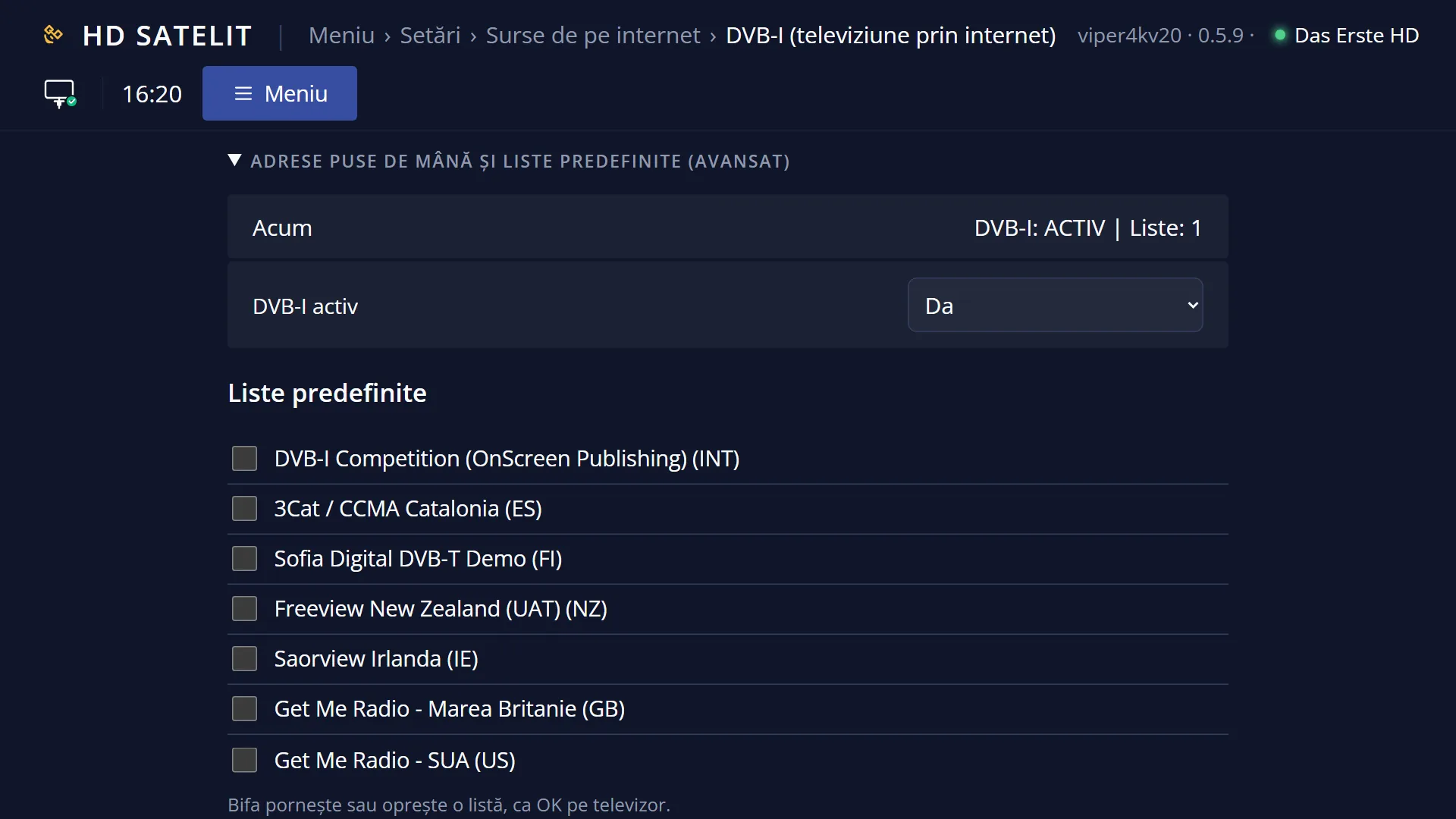
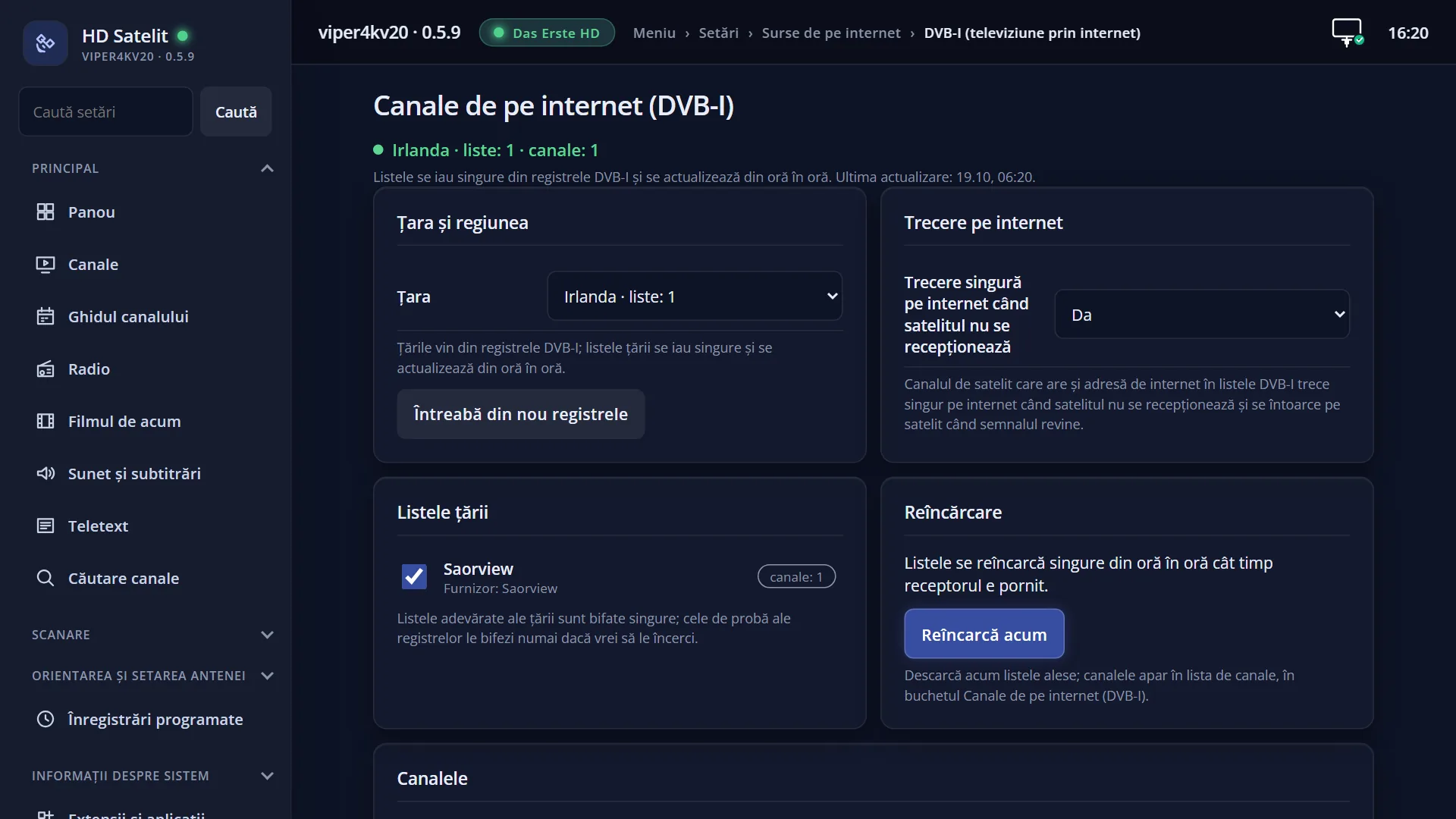
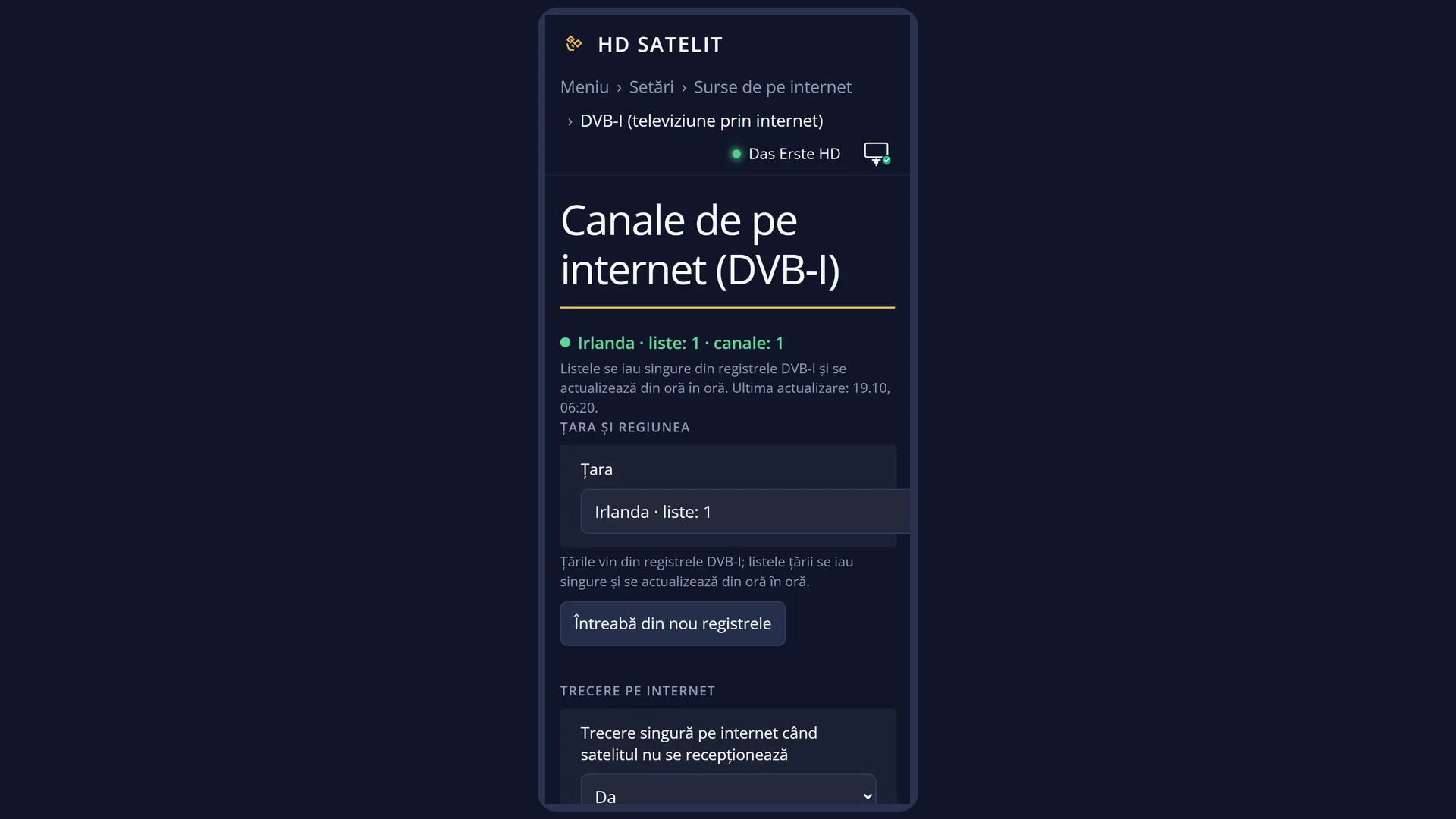
English screenshots coming: some of the pictures below still show the receiver and the web interface in Romanian. The rows, keys and steps described on this page are the English ones.
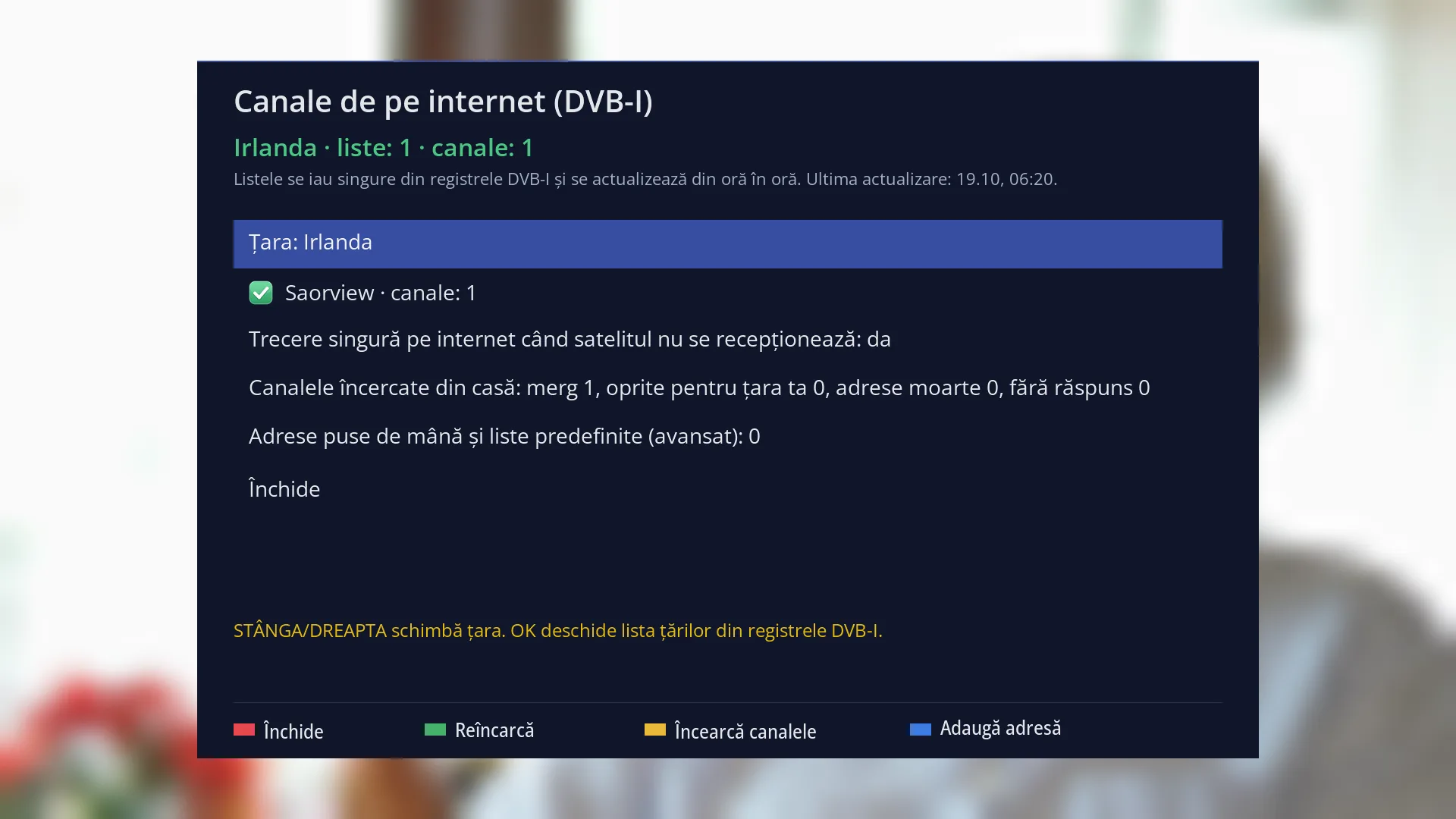
- 1 The status, in colour (green working, yellow waiting, red not working), and what is happening now.
- 2 Country: LEFT / RIGHT change it, OK opens the list of countries.
- 3 One of the country's lists, ticked, with how many channels it gave.
- 4 The automatic switch to the internet when the satellite is not received.
- 5 The channels tested from your home: how many work and how many do not.
- 6 The manually added addresses and predefined lists (advanced).
- 7 What the selected row does.
- 8 RED closes, GREEN reloads, YELLOW tests the channels, BLUE adds an address.
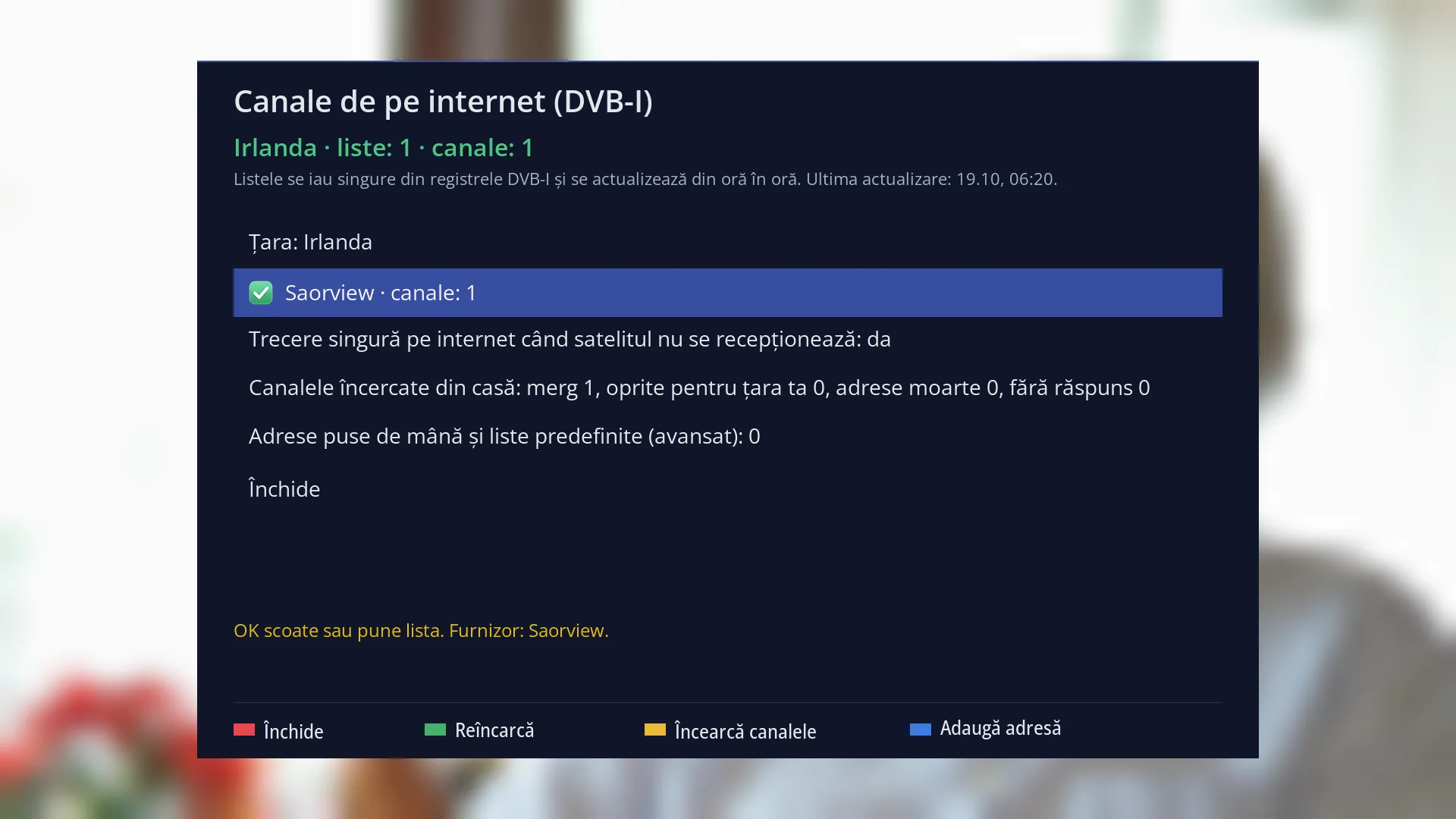
- 1 The selected row: “Saorview · channels: 1”.
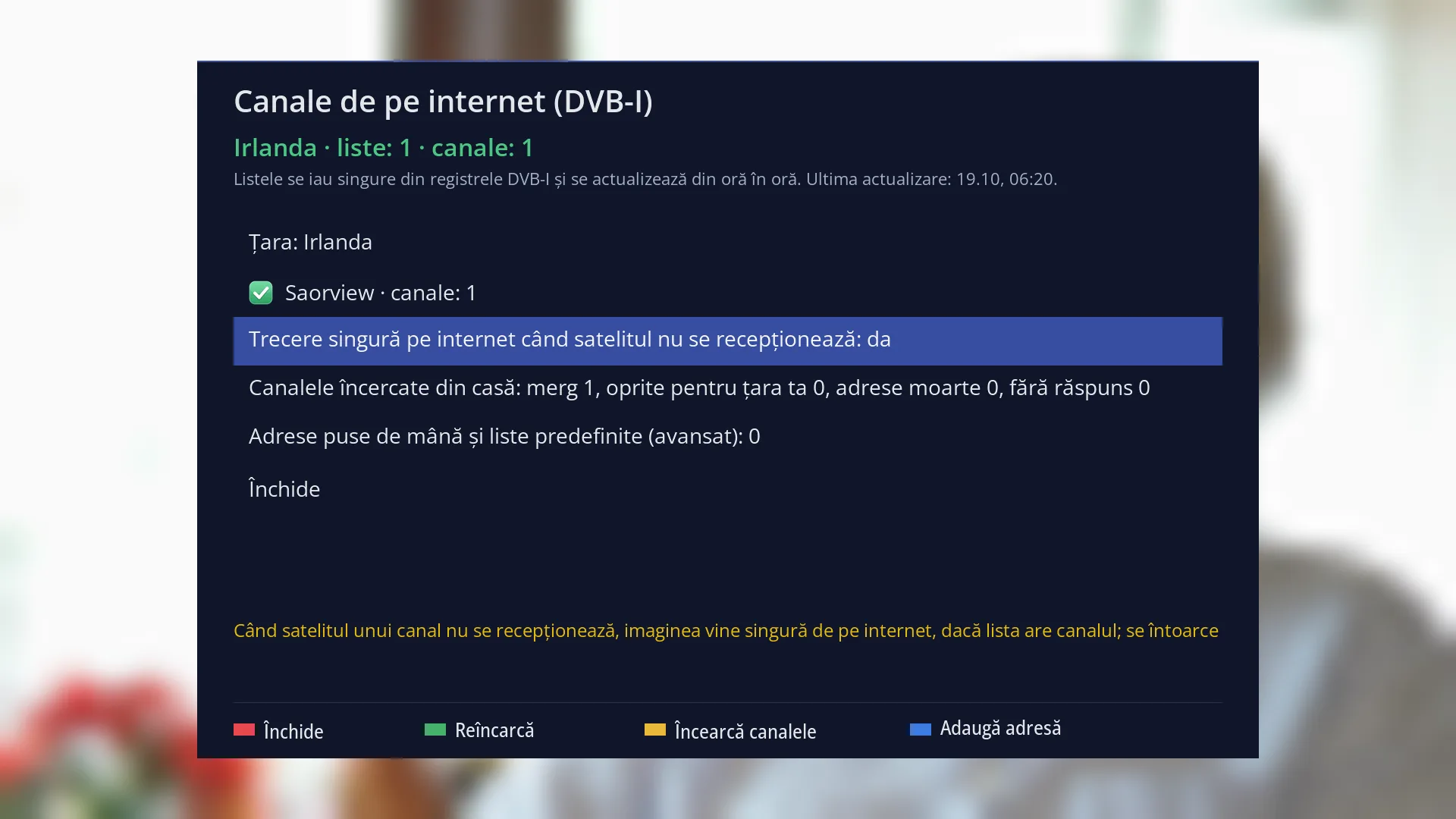
- 1 The selected row: “Automatic switch to the internet when the satellite is not received: yes”.
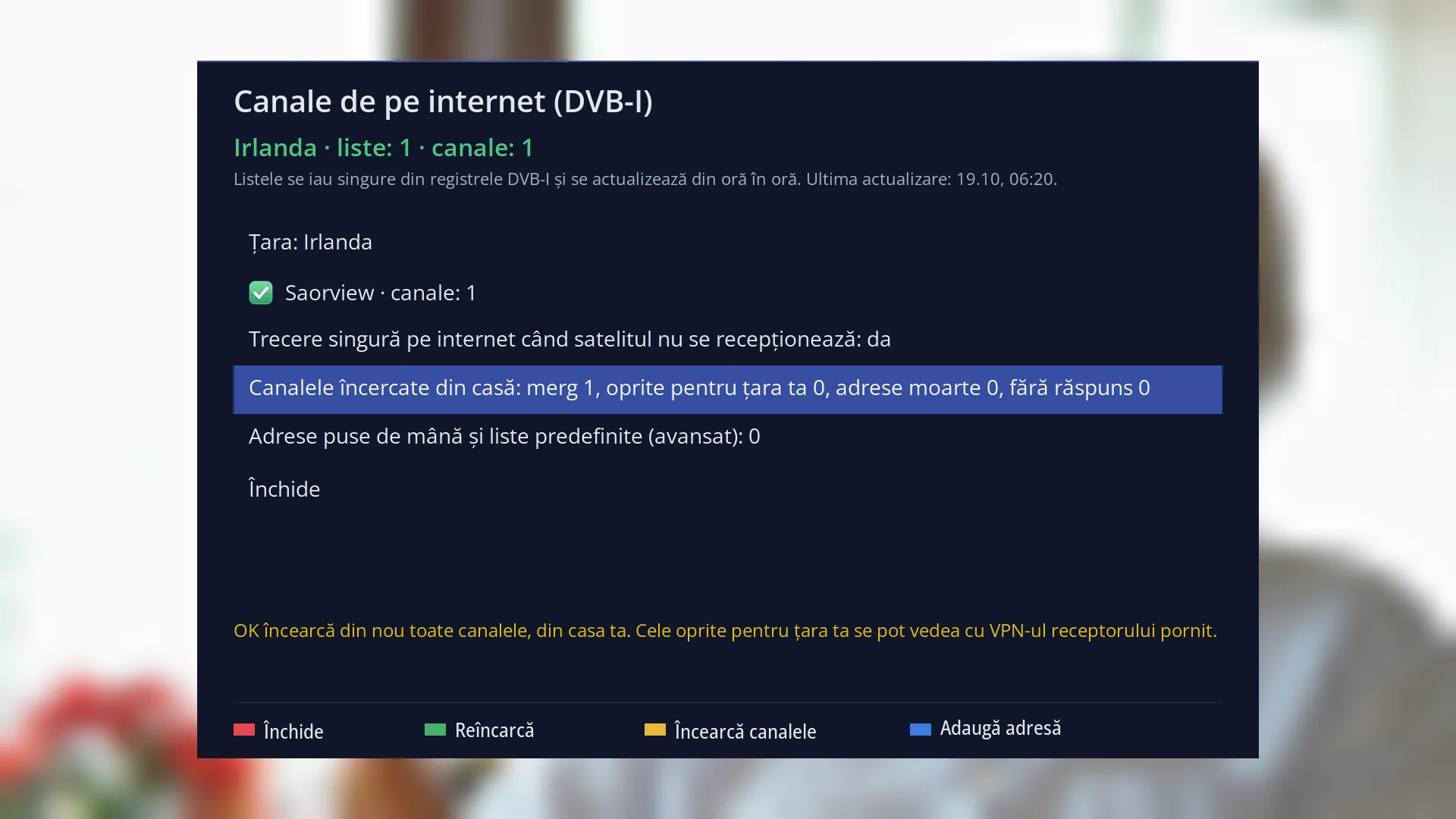
- 1 How many channels work from your home, how many are blocked for your country, and how many have a dead address or do not respond.
- 2 What OK does on the selected row.
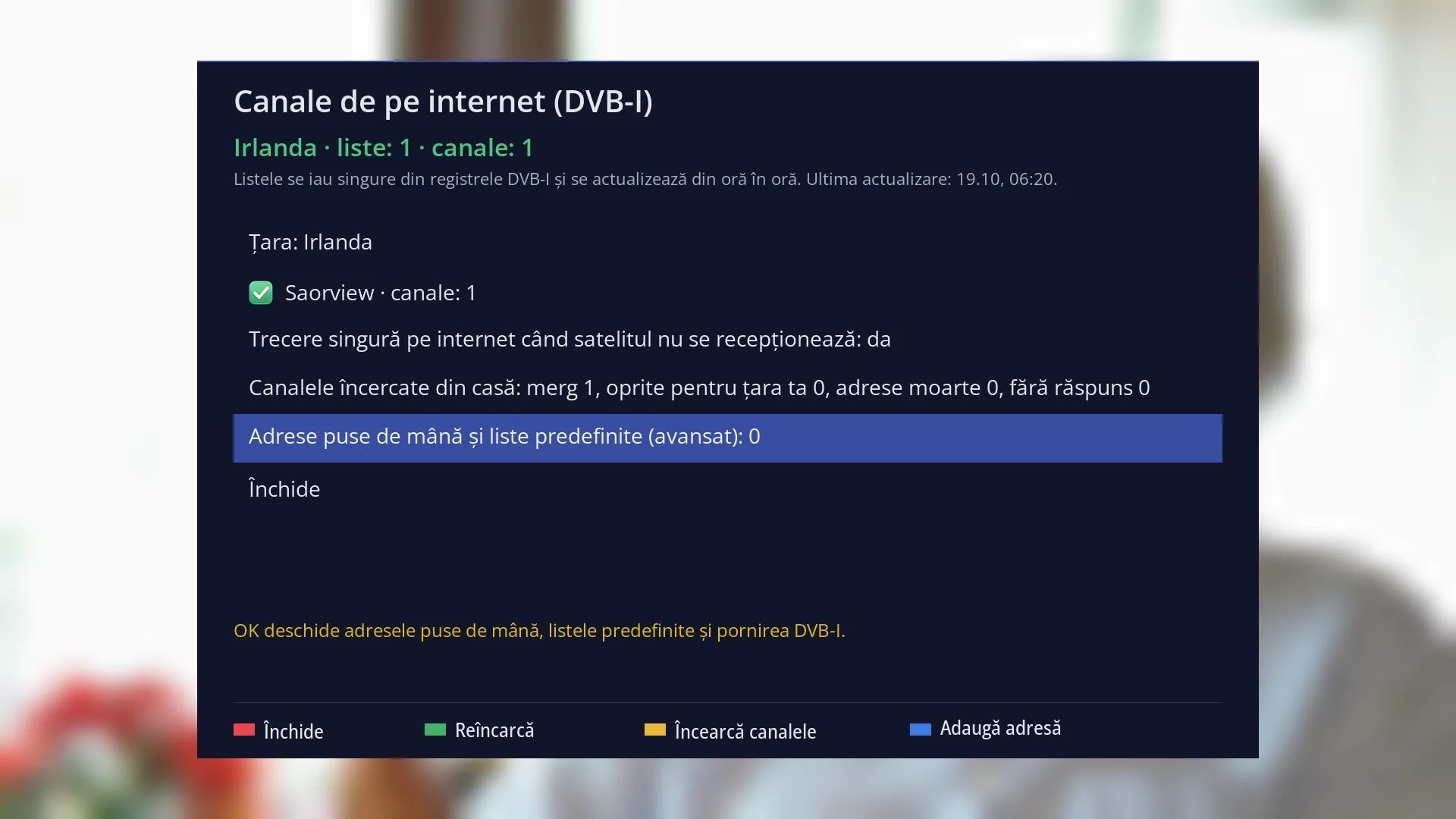
- 1 The selected row: “Addresses entered by hand and predefined lists (advanced): 0”.
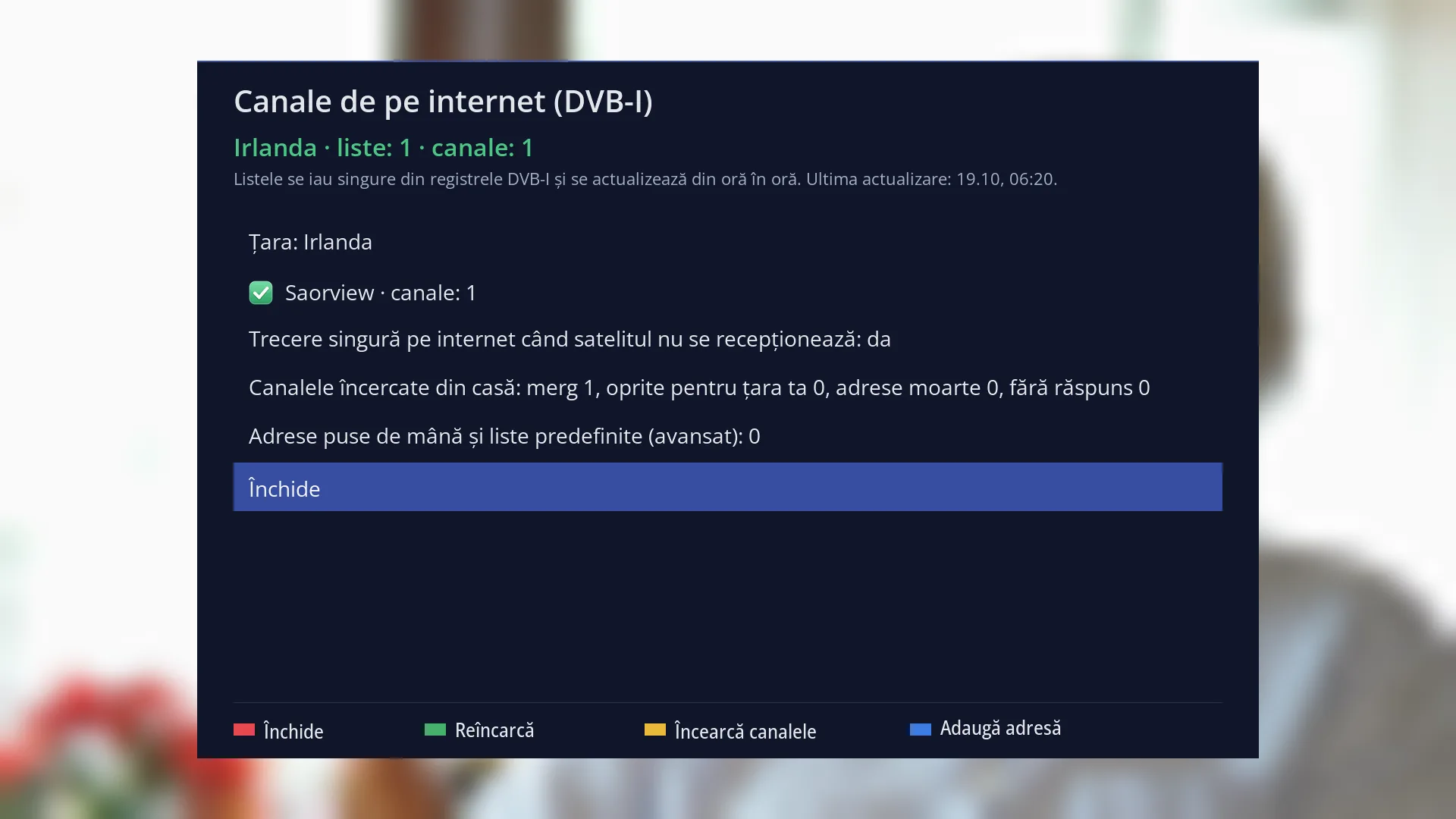
- 1 The selected row: “Close”.
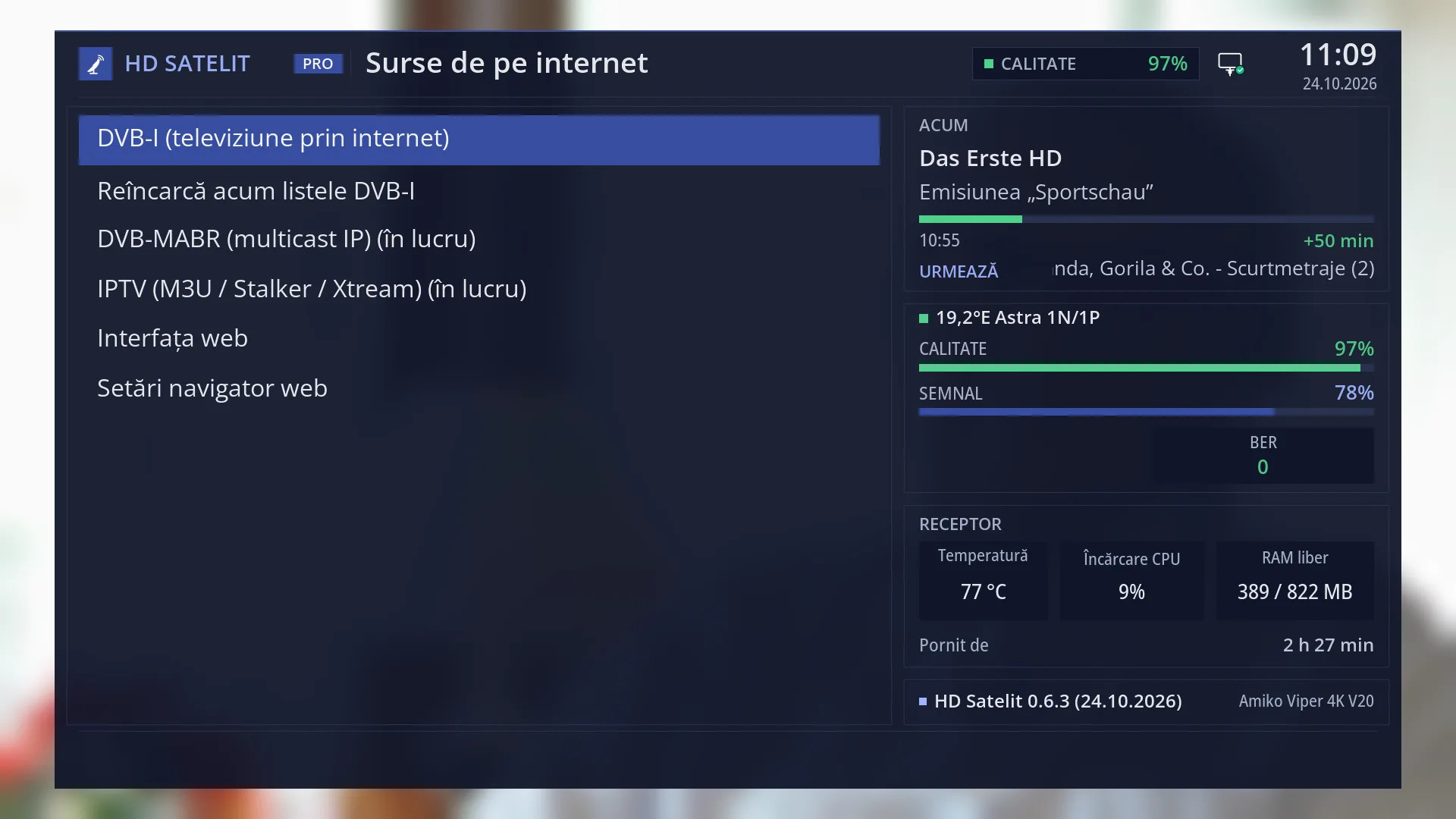
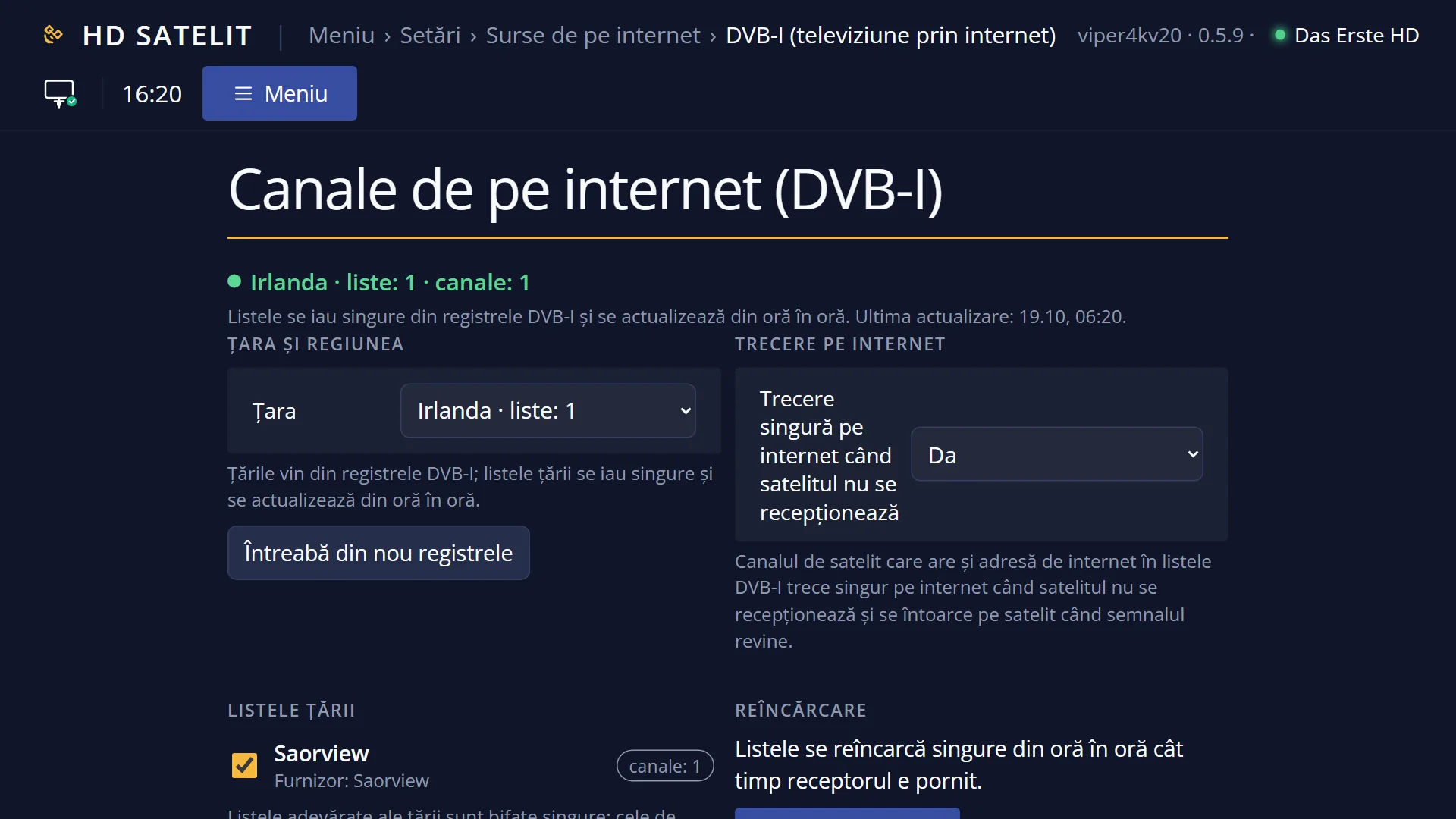
What it is for
DVB-I is TV over the internet built on a standard: TV stations publish their own channel lists, with the name, number and internet address of each channel. The receiver reads these lists and puts the channels in its channel list, just like the satellite channels.
On this screen you choose the country. Its channel lists are fetched automatically from the DVB-I registries (the places where the lists of all countries are collected), downloaded and updated every hour, with no scan and no dish. The channels appear in the channel list, in the “Internet channels (DVB-I)” bouquet, numbered as the TV station numbers them.
This is also where you turn the automatic switch to the internet on or off: when a satellite channel that also has an internet version can no longer be received (rain, snow, the dish has moved), the picture switches to the internet by itself and goes back to satellite when the signal returns.
The receiver tests each channel from your home and tells you which ones work, which are blocked for your country (the TV station only gives the channel to people in its own country; the receiver's VPN can help here) and which have a dead address.
The receiver needs an internet connection. With no country chosen and no manually added lists, DVB-I downloads nothing.
How to get here
Path: Main menu > Settings > Internet Sources > DVB-I Setup (TV over Internet).
Keys while watching TV: MENU 6 2 1.
From the channel list: pressing OK on the “Internet channels (DVB-I)” bouquet while it is empty also opens this screen, so you can choose the country.
In the web interface: the /dvb-i page (“Internet channels (DVB-I)”), with the same settings and a table of all channels.
What you see on the screen
At the top, the title “Internet channels (DVB-I)”.
Under the title, the status in large coloured text: green when everything works (for example “Ireland · lists: 1 · channels: 1”), yellow while reloading or when the country has no usable lists, red when no list could be downloaded, grey when you have not chosen a country or DVB-I is off.
Below it, in smaller text, a sentence saying what is happening: where the lists come from, the time of the last update (for example “Last update: today, 19:40”), how many lists failed to download, or what you need to do.
The list of rows: the country, the region (only if the country's lists have regions), the country's lists with their tick boxes, the automatic switch to the internet, the channels tested from home, the manually added addresses and “Close”. The selected row has a blue background.
Under the list, in yellow, what the selected row does (for example “LEFT/RIGHT changes the country. OK opens the list of countries from the DVB-I registries.”). Below that, a short message after you press a key, which disappears by itself after 15 seconds.
At the bottom, the four colour keys: RED Close, GREEN Reload, YELLOW Try channels, BLUE Add address.
The screen refreshes itself every second and a half, so the status and the numbers change straight away while the lists are downloading or the channels are being tested.
Rows and settings
| Row | Values | Default | What it does |
|---|---|---|---|
| Country: | No country, the countries that have lists in the DVB-I registries, in alphabetical order | No country | The country whose channel lists you want. LEFT and RIGHT go to the previous or next country; OK opens the list of countries, with how many lists each one has (for example “Germany · lists: 26”, or “only test lists”). The last row in the list, “No country (only manually added addresses)”, turns off the country's lists. The first time, so that you get channels; after that only if you want another country's channels. |
| Region: | the whole country, the regions in the country's lists | the whole country | Only appears when the country's lists have regions. The channel order and numbers follow the numbers the TV station gives for your region (the regional stations for your area go in their own places). LEFT and RIGHT change the region; OK goes to the next one. When you live in a region with its own stations and want its numbering. |
| The country's lists (for example “Saorview · channels: 1”) | ticked, unticked | the country's real lists ticked, the test lists unticked | One row for each of the country's lists, with a tick box in front. After a successful download, the row shows how many channels the list gave. The registries' test lists end in “(test list)”: their channels may not work. OK ticks or unticks the list; the explanation at the bottom says who provides it (“Provider: …”). When you do not want the channels of a list, or you want to try a test list. |
| Automatic switch to the internet when the satellite is not received: | yes, no | yes | Yes: on a satellite channel that also has an internet version in the DVB-I lists, when the tuner gets no signal for 6 seconds in a row, the picture switches to the internet by itself, with a 6-second message (“The satellite is not received: … now plays from the internet.”). Meanwhile the receiver keeps checking the satellite and switches back to it by itself when the signal returns. While the dish is rotating, it does not switch to the internet. No: the channel stays without a picture until the signal returns. Set it to “no” if your internet data is paid for or limited and you do not want it used without your knowledge. |
| Channels tried from home: working …, blocked for your country …, dead addresses …, no answer … | Shows what the receiver found out by testing each channel from your home: how many work, how many are blocked for your country (the TV station refuses your address), how many have a dead address (it no longer exists) and how many did not respond. While testing, the row shows “Trying the channels from home: 3 of 12”. With no channels it shows “no channel in the list”, and before the first test “not tested yet”. OK tests them all again, like YELLOW. After you turn the receiver's VPN on or off, or when a channel stops working. | ||
| Addresses entered by hand and predefined lists (advanced): … | 0 | The number shows how many custom addresses and ticked predefined lists you have. OK opens the “Manually added addresses and preset lists” screen: a few public test lists you can tick, your own DVB-I list addresses, and turning the whole of DVB-I on or off (see “Advanced screen” below). Only if you have the address of a DVB-I list that is not in the registries, or you want to turn DVB-I off completely. | |
| Close | Saves and closes the screen, like RED and EXIT. When you have finished. | ||
| Advanced screen: the “[✓] …” / “[ ] …” rows under “--- Predefined lists ---” | [✓] ticked, [ ] unticked | all unticked | A few public test lists from several countries, built into the receiver. OK ticks or unticks the list; its channels are added to the country's channels. When you want to see what DVB-I looks like without choosing a country. |
| Advanced screen: the “[URL] …” rows under “--- Custom URLs ---” | none | The DVB-I list addresses you have entered (64 at most). OK on an address removes it immediately, without asking. When an address no longer works. | |
| Advanced screen: “DVB-I: ACTIV | Lists: …” (YELLOW On/Off) | ACTIVE, INACTIVE | ACTIVE | The top row of the advanced screen shows whether DVB-I is on and how many lists are downloaded. YELLOW turns it off or on. When it is off, the status on the main screen shows “DVB-I off”, and from the next receiver start the lists are no longer downloaded automatically every hour. When you do not want any internet channels at all. |
Keys
| UP / DOWN | Moves the cursor to the row above or below; the yellow explanation at the bottom changes with the row. |
| LEFT / RIGHT | On “Country:”: the previous or next country. On “Region:”: the previous or next region. On the switch to the internet: toggles between yes and no. On the other rows they do nothing. |
| OK | Does what the row says: opens the list of countries, goes to the next region, ticks or unticks a list, changes the switch to the internet, tests the channels again, opens the advanced screen or closes. |
| RED (Close) | Saves and closes the screen. |
| GREEN (Reload) | Saves and downloads all chosen lists now (message “Reloading the DVB-I lists...”). If a reload is already running, it shows “A reload is already running.”. |
| YELLOW (Try channels) | Tests all the channels in the lists from your home, one by one (message “The channels are now being tried from your home, one by one.”). If testing is already running: “The channels are already being tried.”. |
| BLUE (Add address) | Opens the “Add DVB-I URL” window: OK or GREEN open the keyboard, you type the list address (it must start with http:// or https://), then the list is downloaded. RED or EXIT cancel. |
| EXIT | Saves and closes, like RED. |
| In the list of countries: OK or GREEN / RED or EXIT | OK or GREEN choose the country under the cursor; RED or EXIT go back without any change. |
| In the advanced screen: OK, RED, GREEN, YELLOW, BLUE | OK ticks a predefined list or removes a custom address; RED or EXIT go back; GREEN reloads the lists; YELLOW turns DVB-I on or off; BLUE adds an address. |
Step by step
Choose the country and get its channels
- Press MENU 6 2 1.
- On the “Country:” row, press OK. If the list is empty, it shows “Querying the DVB-I registries...”: wait a few seconds.
- Choose the country with UP / DOWN and press OK.
- At the top, “Reloading the DVB-I lists...” appears in yellow, then after a few seconds, in green, “… · lists: … · channels: …”.
- Press RED. The channels are in the channel list, in the “Internet channels (DVB-I)” bouquet.
Watch a channel blocked for your country
- On the “Channels tested from home” row, see how many are “blocked for your country”.
- Turn on the receiver's VPN with an address in the list's country (Menu > Settings > Network & Internet > VPN), for all traffic.
- The blocked channels are retested automatically after the VPN changes; you can also press YELLOW here.
Add the address of a DVB-I list you know
- Press BLUE.
- Press OK, type the full address (with https://) on the keyboard and confirm it.
- The list is added and downloaded, and the “Addresses entered by hand…” row shows a higher number.
Problems and solutions
The list of countries is empty or shows “No DVB-I registry returned any lists...”.
The receiver could not reach the registries: check the internet connection (Menu > Settings > Network & Internet). The message says which registries were asked and what each one replied. Leave the screen and come back a little later; on the /dvb-i web page there is also an “Ask the registries again” button.
At the top it shows, in red, “No list could be downloaded”.
The previous channels are kept. Check the internet and the receiver's clock: with the wrong time the lists do not download, and the reload window then shows “The clock is behind” or “The clock is ahead”; set the time in Settings > System & Devices > Date & Time Settings. Then press GREEN.
At the top it shows “… · no list chosen” in yellow.
The registries only have test lists for your country. You can tick one of the rows marked “(test list)” to try it; its channels may not work.
Many channels are “blocked for your country”.
The TV station only gives the channel to people in its own country. Turn on the receiver's VPN with an address in that country and choose to send all traffic through the VPN, not just the browser. The channels are then retested automatically.
I pressed GREEN and it shows “A reload is already running.”.
A reload started earlier (from the menu, from the web page or after changing the country) has not finished. Wait: the status at the top changes by itself when it finishes.
At the top it shows “DVB-I off”.
DVB-I was turned off in the advanced screen. Open “Addresses entered by hand and predefined lists (advanced)” and press YELLOW, so that the top row shows “DVB-I: ACTIVE”.
When adding an address, it shows “Invalid URL. It must start with http:// or https://”.
Type the full list address, starting with http:// or https:// and with no spaces. If it shows “There are too many addresses of your own. Delete one first.”, you have 64 addresses: remove one in the advanced screen.
I removed an address in the advanced screen by mistake.
OK on an address removes it immediately, without asking. Add it again with BLUE.
Related topics
- Internet channels (DVB-I) in the list
- DVB-I Reload Now
- Internet Sources
- VPN (for channels blocked for your country)
- Channel Selection
- Internet check
- Matching web page: /dvb-i (with “Watch” for each channel, in the browser).