

SSH access
Screenshots are being added: so far 0 from the receiver and 7 from the web interface; the aim is at least 5 of each, with arrows and frames, and, where a setting changes what you see, a before and after comparison.
English screenshots coming: some of the pictures below still show the receiver and the web interface in Romanian. The rows, keys and steps described on this page are the English ones.
What it is for
“SSH access” explains how you log in to the receiver from a computer over SSH, as administrator (the root account): with the password the receiver creates or with your SSH keys. It is for people who work on the receiver from a terminal. If you do not use SSH, there is nothing for you to do here.
The password is not a factory password that is the same on every receiver. The receiver creates a random password by itself the first time it starts and shows it on this screen, in large letters, until you say you have written it down. After that it is not shown anywhere. If you forget it, you create a new one.
From here you can also add SSH keys from a USB stick, delete them, see the login command with the receiver's address and, if you have a specific reason, turn on password-free login from your home network.
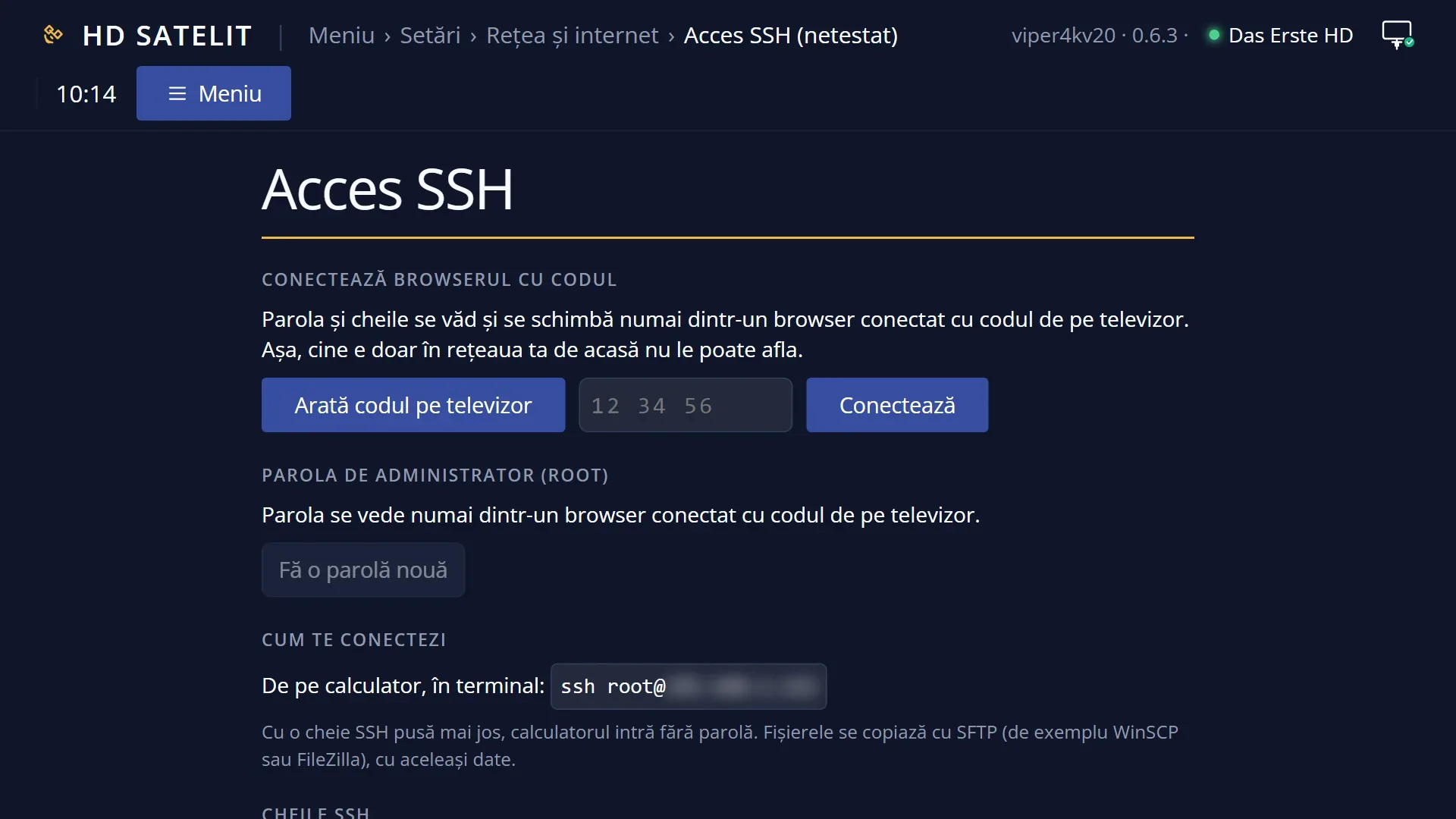
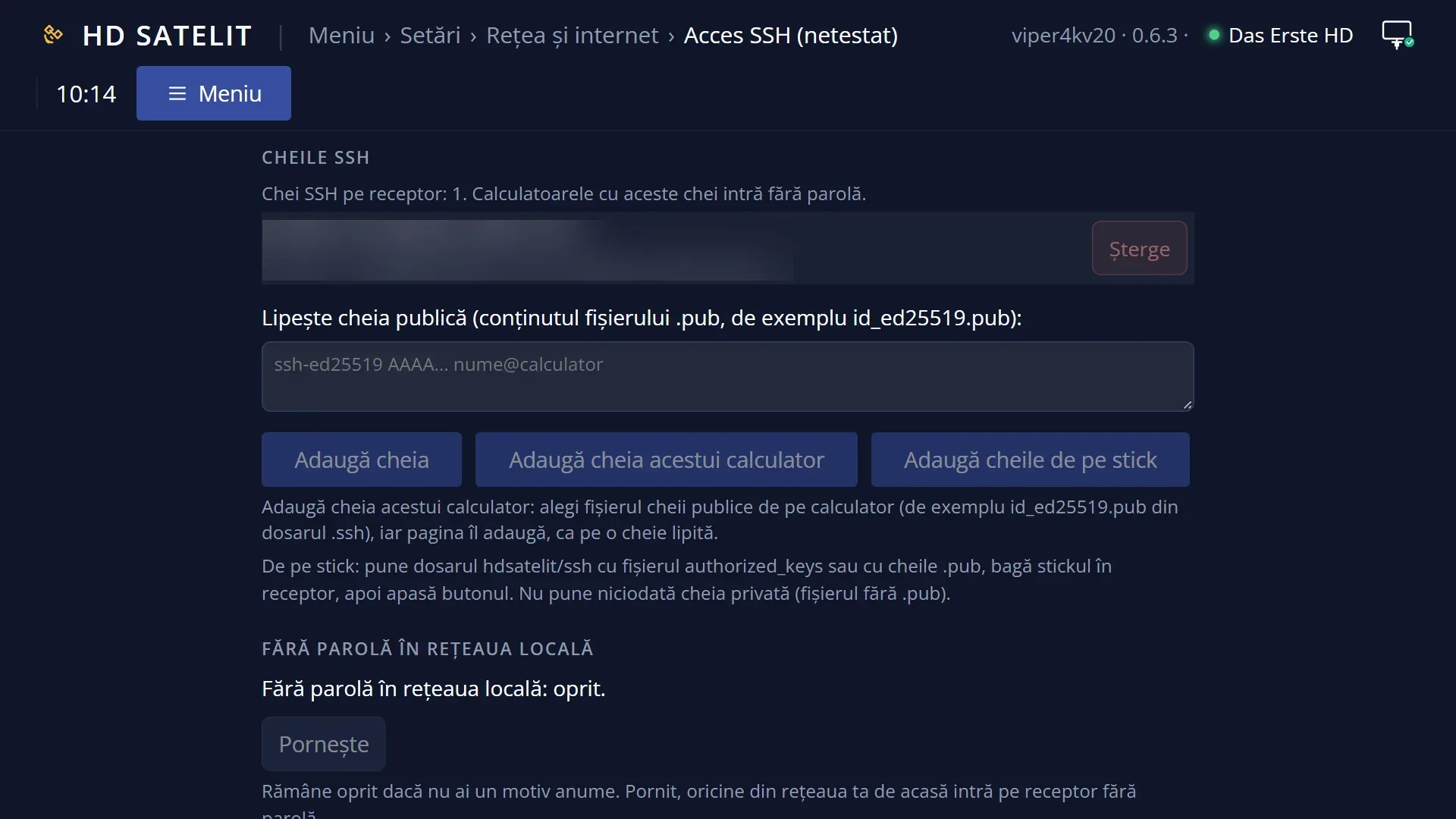
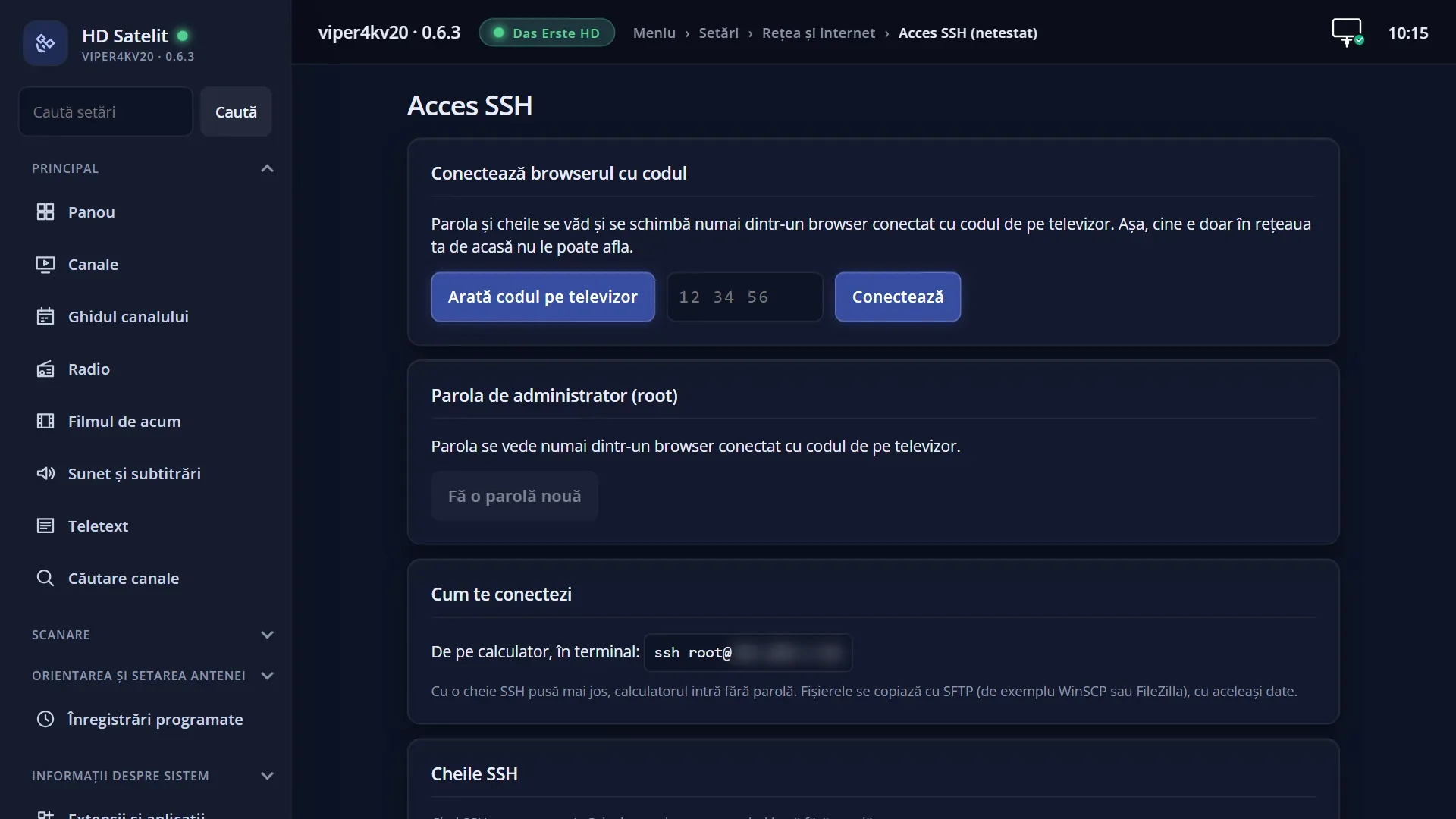
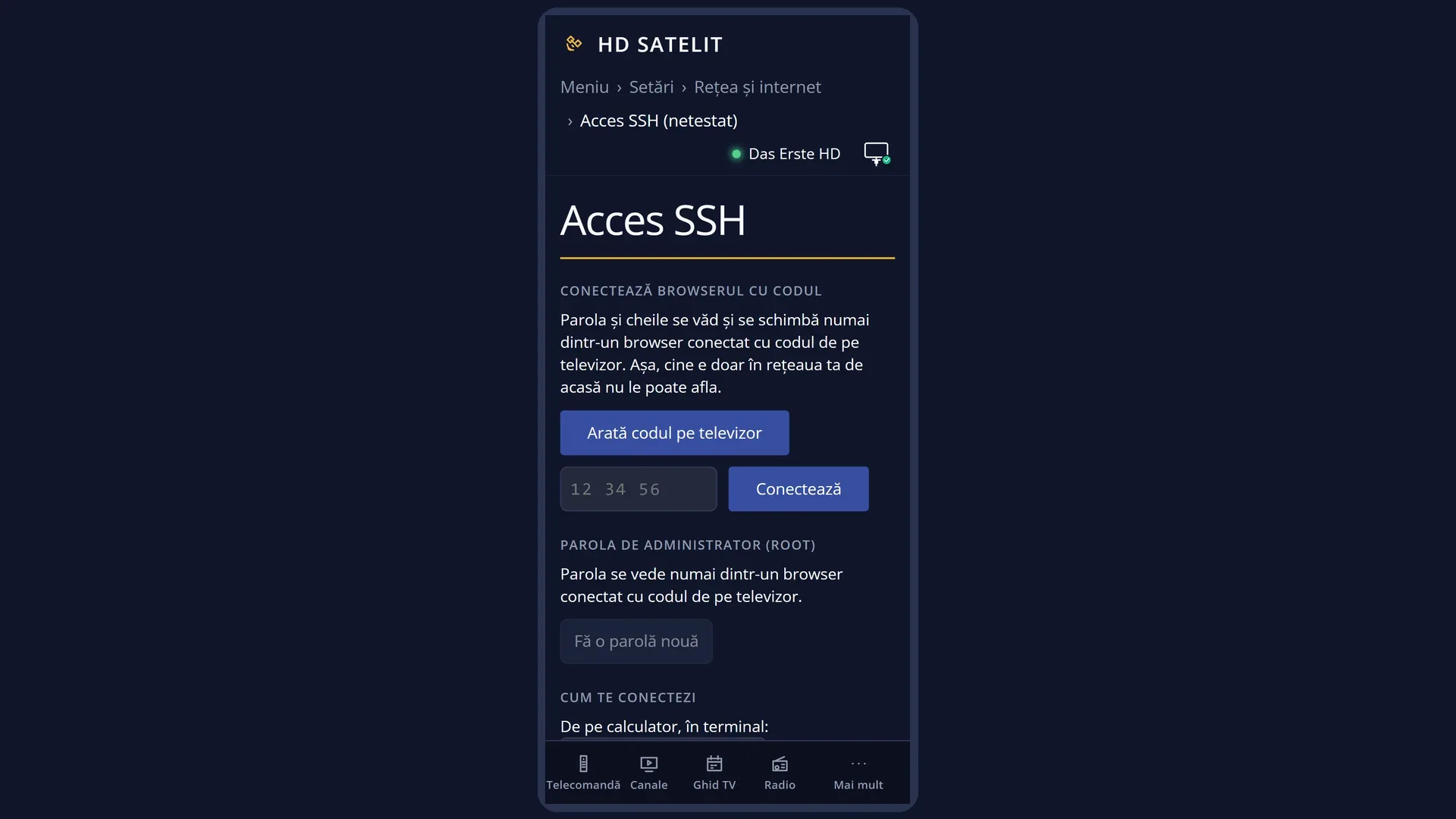
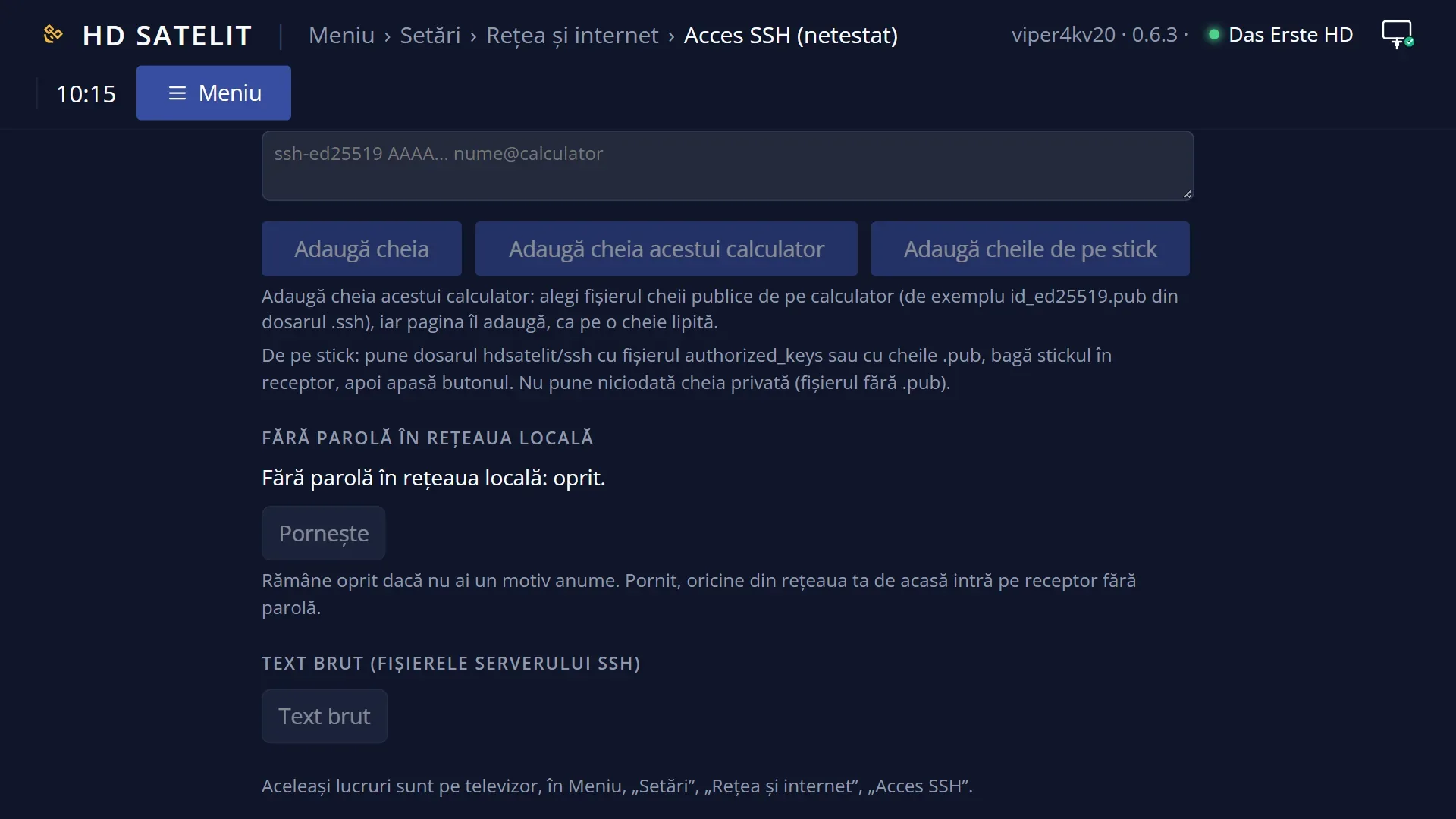
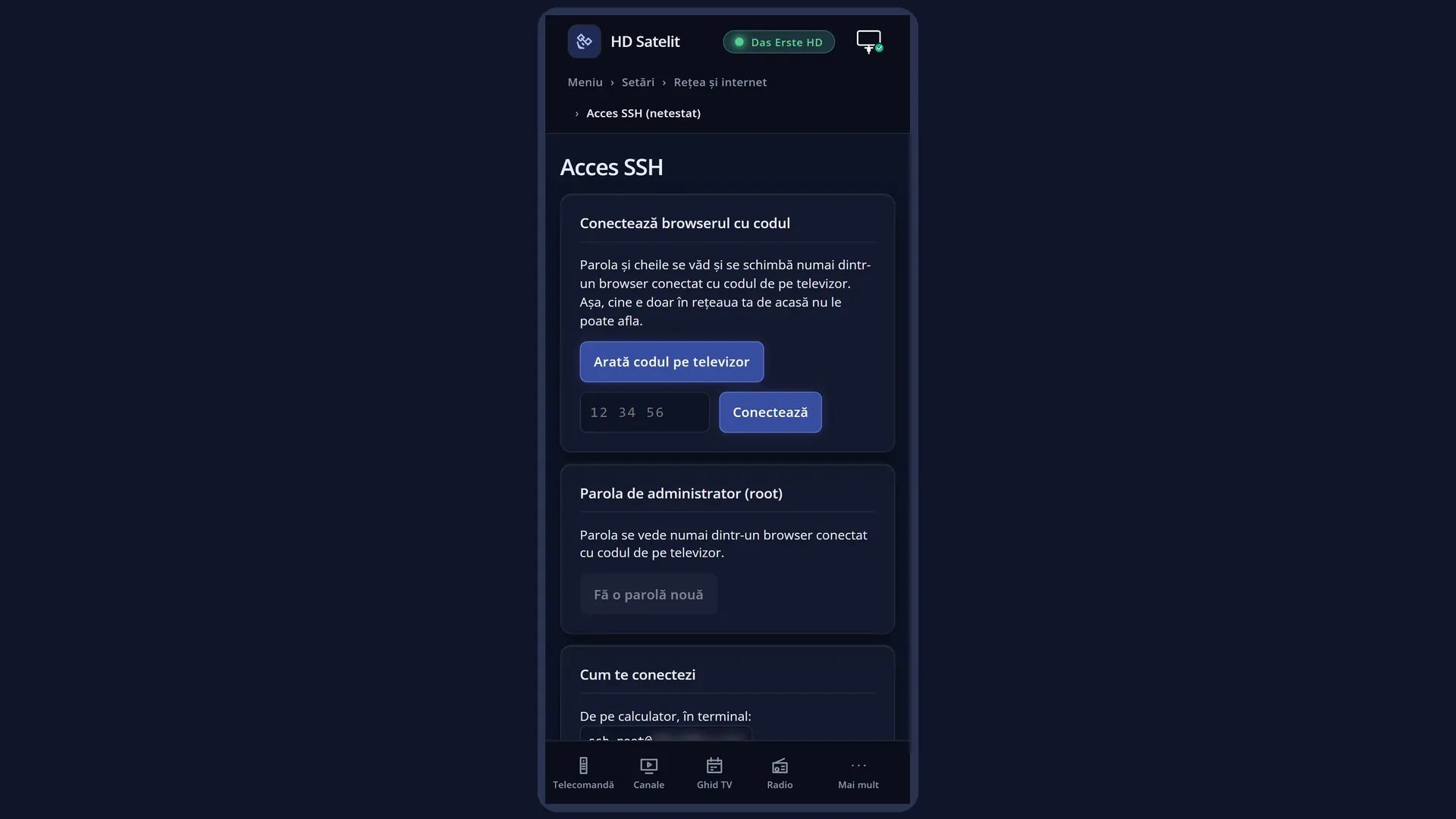
The same things are in the web interface, on the /acces-ssh page, where you can also paste a public key. There, the password and any change only work from a browser connected with the code shown on the TV.
How to get here
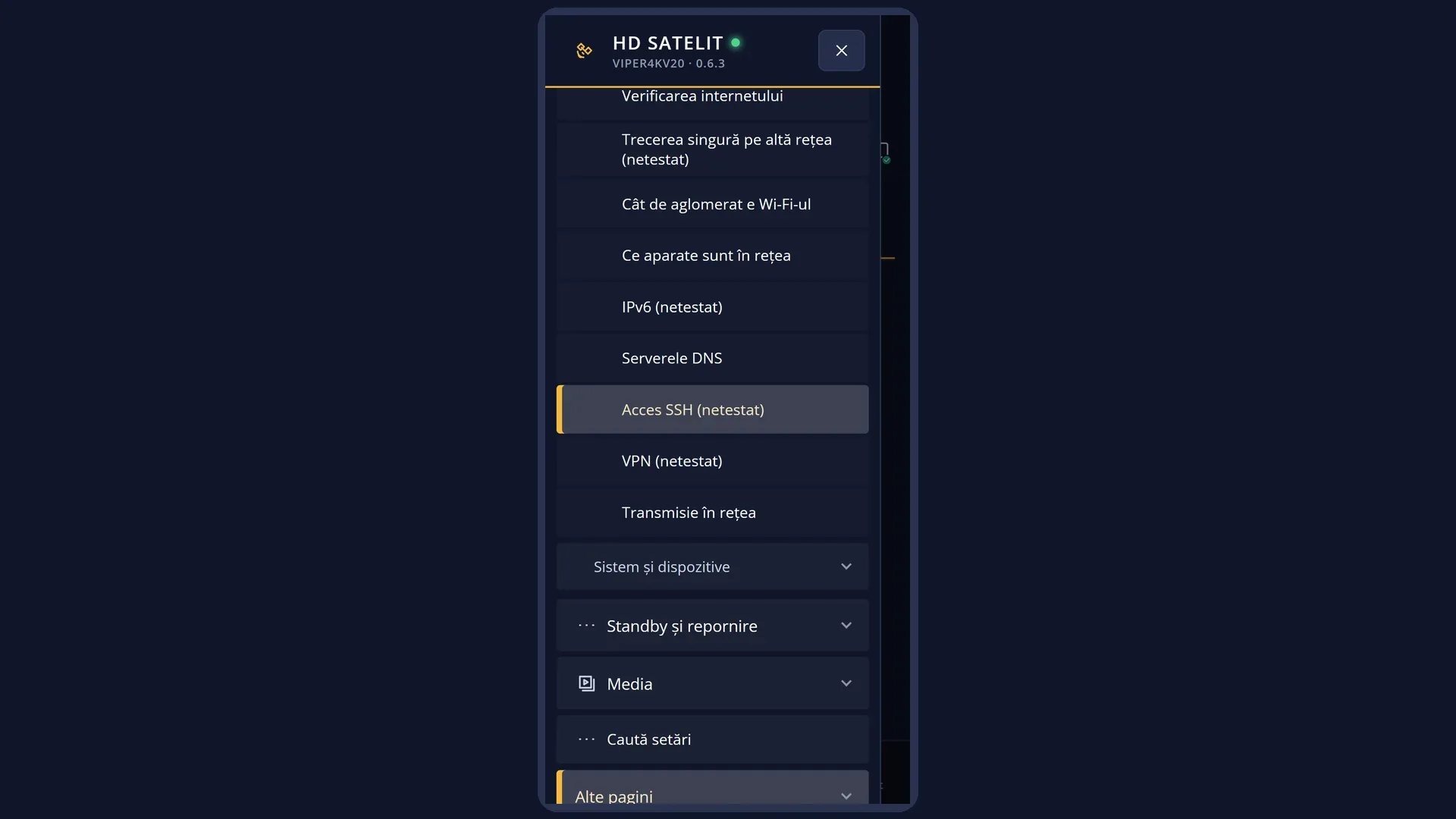
Path: Main menu > Settings > Network & Internet > SSH access (the eighth row).
Keys on the remote: MENU 6 9 8 (with “Setup Mode” set to Intermediate, the factory setting, or Expert; on Simple the row is the seventh: MENU 6 9 7).
In the web interface: the /acces-ssh page.
What you see on the screen
A window in the middle of the screen, titled “SSH access”.
Below the title, “Administrator password (root)” and, underneath, the password itself in very large letters, as long as you have not said you have written it down. After that, a short status appears in its place: “Set, no longer shown”, “No password”, “Being created...”, “Could not be created”, “Unknown” or “Key only”.
Below the password, what its status means, for example “Write down the password, then choose "I wrote down the password": after that it is no longer shown.” or “If you forgot the password, choose “Create a new password”.”.
Then the login command, with the receiver's address: “Connect from a computer with: ssh [email protected]”.
Then how many SSH keys the receiver has: “SSH keys on the receiver: 2. Computers with these keys log in without a password.” or “SSH keys on the receiver: none.”. When something is dangerous, a warning appears in red in place of this line, for example “Warning: “No password on the local network” is on. Anyone on your home network gets into the receiver.”.
Below that, the list of what you can do (see “Each row”). Under the list, in yellow, the explanation of the selected row and, further down, the result of the last command (for example “A new password was created. The old one no longer works.”).
Bottom right, the BLUE key “Raw text”.
Rows and settings
| Row | Values | Default | What it does |
|---|---|---|---|
| I wrote down the password, hide it | Only appears while the password is visible. After the question “Have you written down the password? After that it is shown neither here nor in the web interface.” (with “No” selected by default), the password text is deleted from the receiver. The password stays set and keeps working. After you have written the password down somewhere safe. | ||
| Create a new password (or “Create a password”) | The receiver creates a new random password and shows it on the screen. If a password already exists, it first asks “Create a new password? The current one will no longer work.”. While it works, it shows “Creating a new password...”. When you have forgotten the password or hid it without writing it down. | ||
| Add keys from USB stick | Put a “hdsatelit” folder on a USB stick, inside it an “ssh” folder, and in there your public keys (files ending in .pub or an authorized_keys file). Then insert the USB stick into the receiver and press OK. The receiver only accepts complete public keys (Ed25519, RSA of at least 2048 bits, ECDSA and hardware keys). A private key found on the USB stick is rejected and is not kept anywhere. At the end it shows, for example, “From USB stick, files read: 1. Keys added: 1. Already present: 0. Rejected: 0.”. When you want to log in from your computer without a password, using your key. | ||
| Delete key: <key name> | One row for each key on the receiver; its fingerprint is also shown under the list. OK asks “Delete the key …?”, then removes it: from then on, the computer with that key can only log in with the password. When you no longer use a computer or a key has ended up with someone else. | ||
| No password on the local network: off / on | off, on | off | On: anyone on your home network can log in to the receiver as administrator, without a password. From outside your home, the password or key is still needed. Turning it on first asks “Turn on login without a password? Anyone on your home network will get into the receiver.”; turning it off happens without a question. The password stays set either way. Leave it off unless you have a specific reason. |
| Raw text (SSH server files) | Shows, in fixed-width letters, the SSH server's settings files as they are on the receiver: server startup, password check, the “No password on the local network” rule, the SSH keys and the password log. The password itself does not appear here. At the bottom it says “Left/Right: other file · Up/Down: scroll · OK or EXIT: back”. When someone helping you asks you to check how the SSH server is set up. | ||
| Close | Closes the screen, like EXIT. |
Keys
| UP / DOWN | Select a row in the list; its explanation appears under the list. In “Raw text”: scroll the text. |
| LEFT / RIGHT | Jump one page of the list. In “Raw text”: go to the previous or next file. |
| OK | Does what the selected row says. Hiding the password, creating a new password, deleting a key and turning on password-free login first ask for confirmation, with “No” selected by default. While a command is running, OK shows “Wait for what you started before to finish.”. |
| BLUE (“Raw text”) | Opens or closes the raw text of the SSH server files. |
| EXIT | From “Raw text” it takes you back to the screen; otherwise it closes the screen. |
Step by step
Logging in to the receiver with the password for the first time
- Press MENU 6 9 8: the password is shown in large letters, under “Administrator password (root)”.
- Write it down somewhere safe. On your computer, in a terminal, type the command shown on the screen (for example ssh [email protected]) and, when asked, the password.
- Back on the receiver, choose “I wrote down the password, hide it”, press OK, then Yes: the password is no longer shown anywhere.
Logging in with your key, without a password
- On a USB stick, create the hdsatelit folder, inside it the ssh folder, and copy your public key (the .pub file) there.
- Insert the USB stick into the receiver, press MENU 6 9 8, choose “Add keys from USB stick” and press OK.
- Read the result under the list (“Keys added: 1.”). From now on your computer logs in without a password.
You have forgotten the password
- Press MENU 6 9 8 and choose “Create a new password”, then OK and Yes.
- Wait a few seconds: the new password appears in large letters. The old one no longer works.
Problems and solutions
I cannot see the password, it says “Set, no longer shown”.
You have already said you wrote it down, and its text has been deleted from the receiver. If you no longer have it, choose “Create a new password”.
The computer says the password is wrong.
Check upper and lower case letters. If you have created a new password in the meantime, the old one no longer works. You can create another one at any time with “Create a new password”.
“The folder hdsatelit/ssh with keys was not found on the USB stick.”
Create the hdsatelit folder on the USB stick, inside it the ssh folder, and put the .pub files there. Upper or lower case in the folder names does not matter.
“There is a private key on the USB stick. Leave only public keys (.pub) on it.”
You also copied the private key (the file without .pub). Delete it from the USB stick; the private key stays with you only.
“DSA keys are no longer accepted: they are too weak. Create an Ed25519 key.” or the RSA key is rejected.
Create a new key on your computer, Ed25519 (or RSA of at least 2048 bits), and add it again.
At the top it says in red “Warning: root has no password and anyone on the network gets into the receiver.”
The administrator account has no password. Choose “Create a password” to lock it.
I cannot see the password on the web page.
The password and any change only work from a browser connected with the code shown on the TV. Press “Show the code on the TV” and type the code into the page.
While “SSH access” is open, the remote on the web page does not work.
This is intentional: while the password is on the screen, the remote and the screenshot in the web interface only work from browsers connected with the code. Close the screen or connect the browser.