

Translated teletext
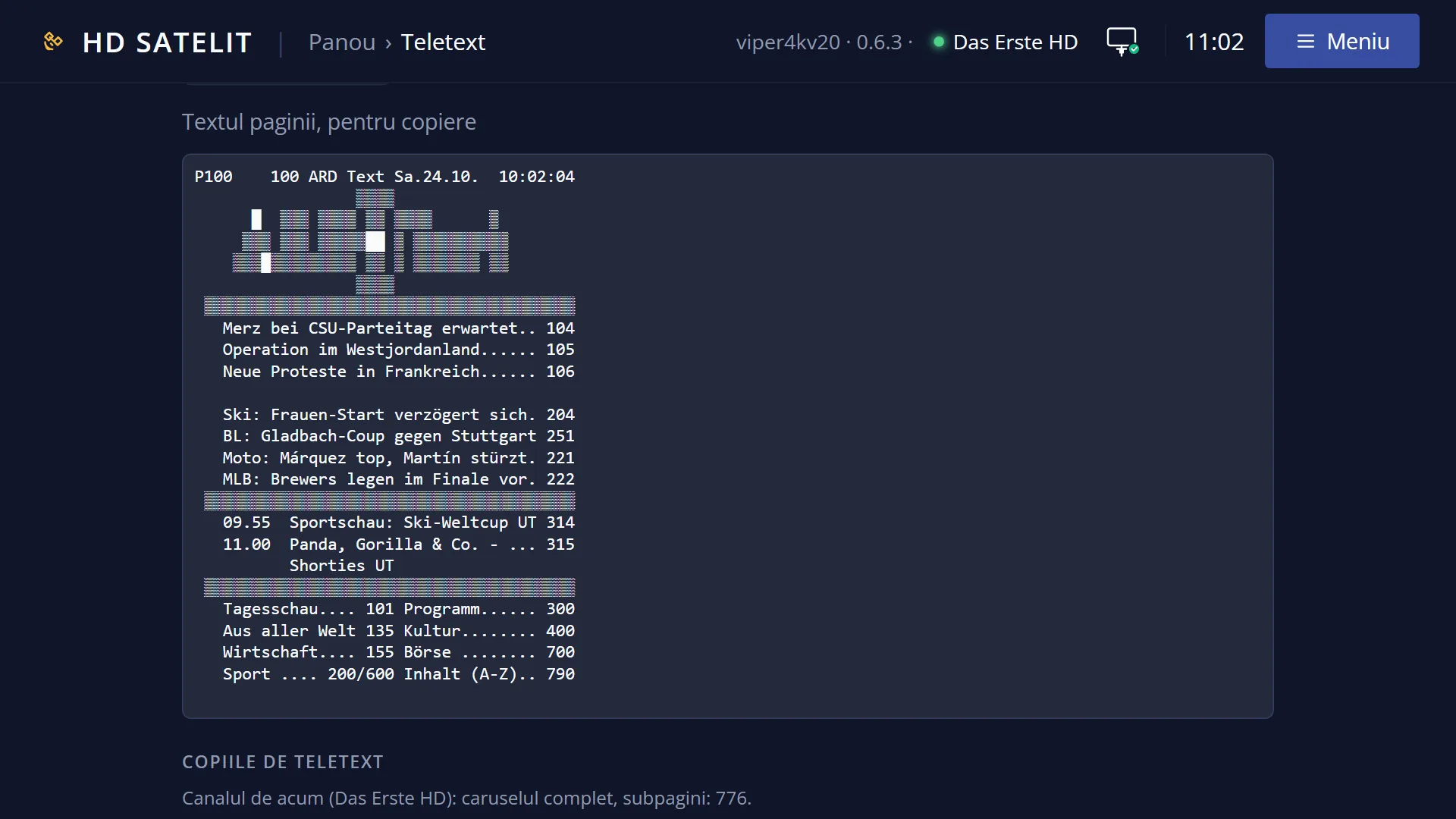
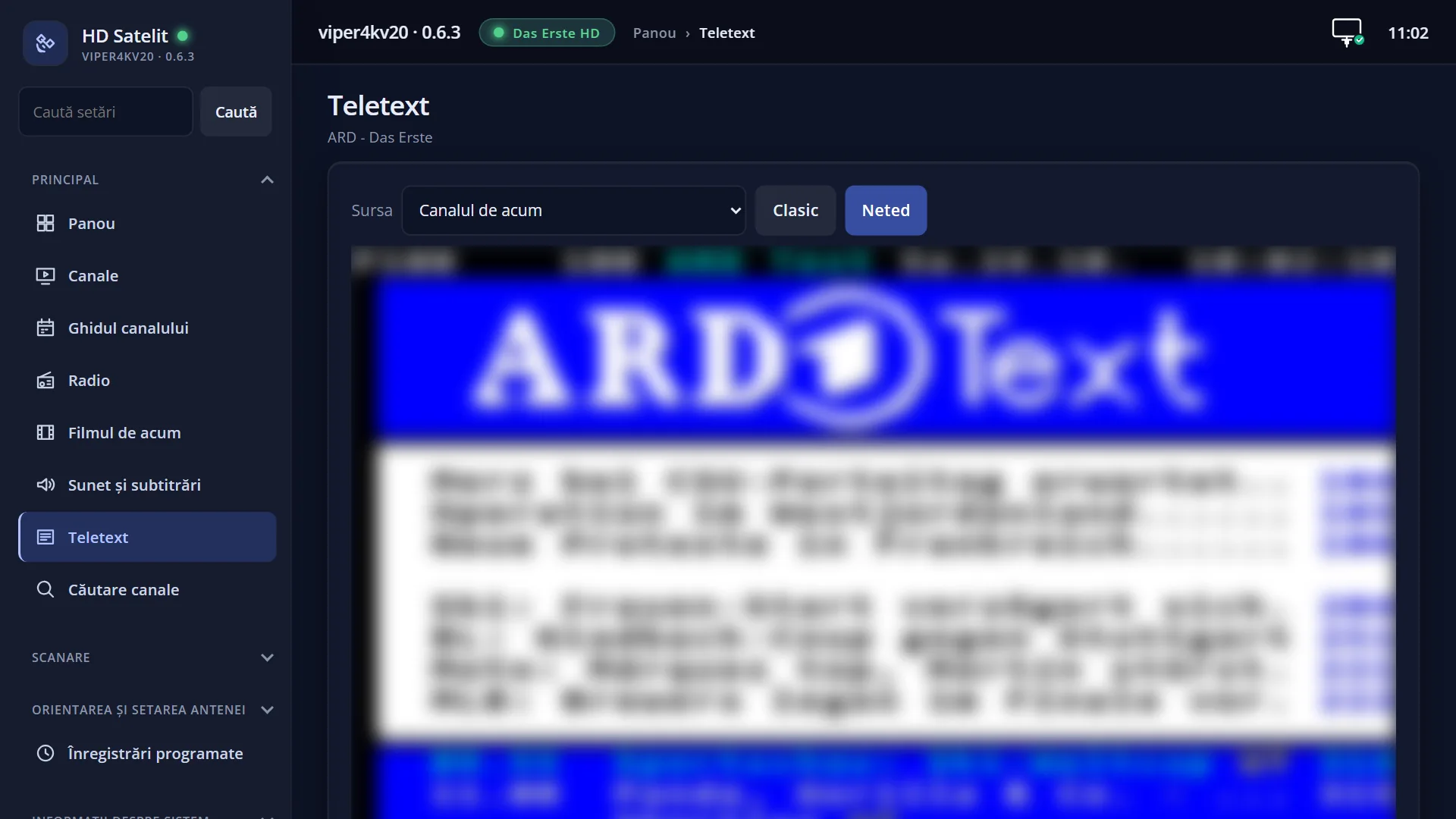
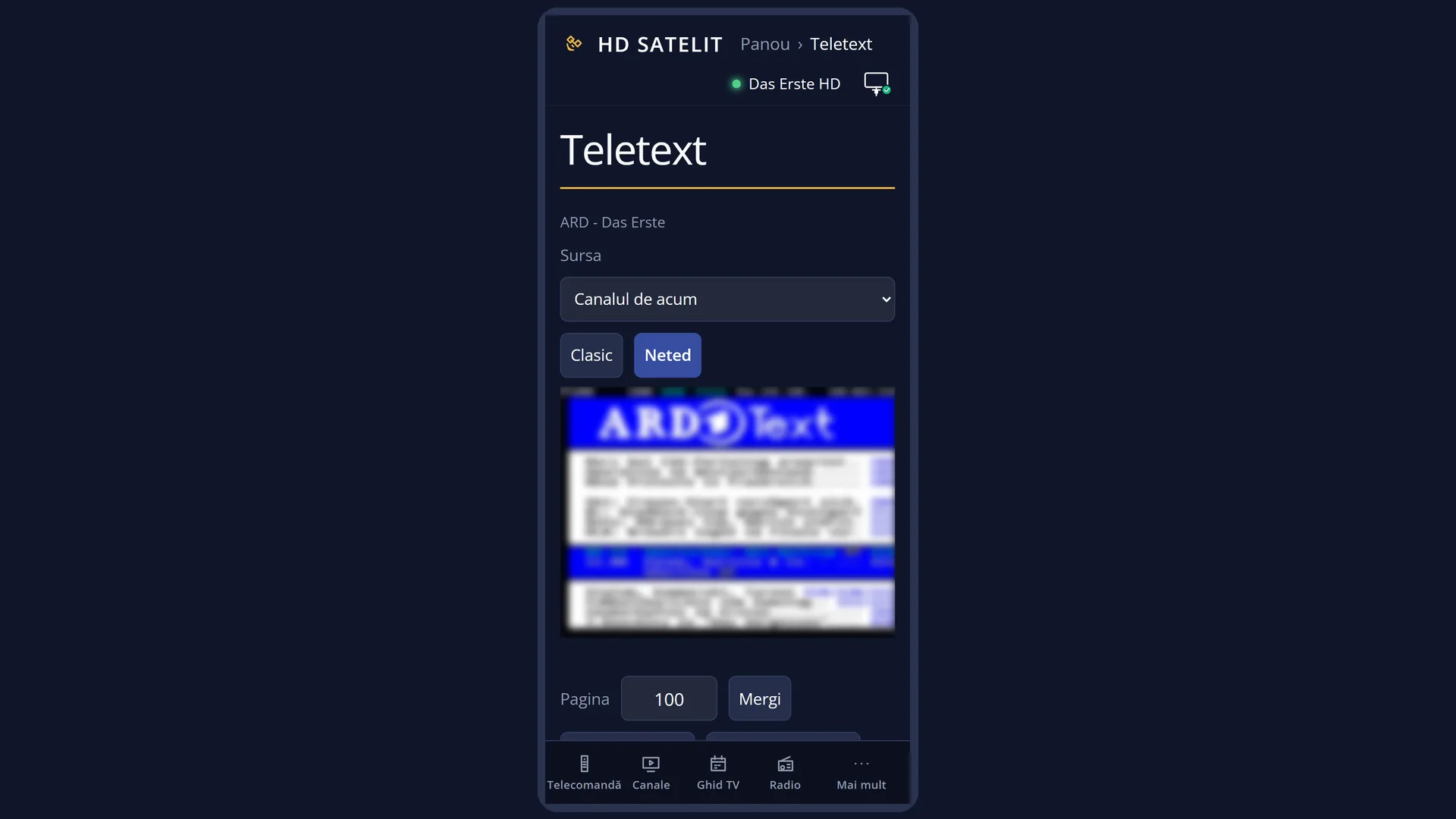
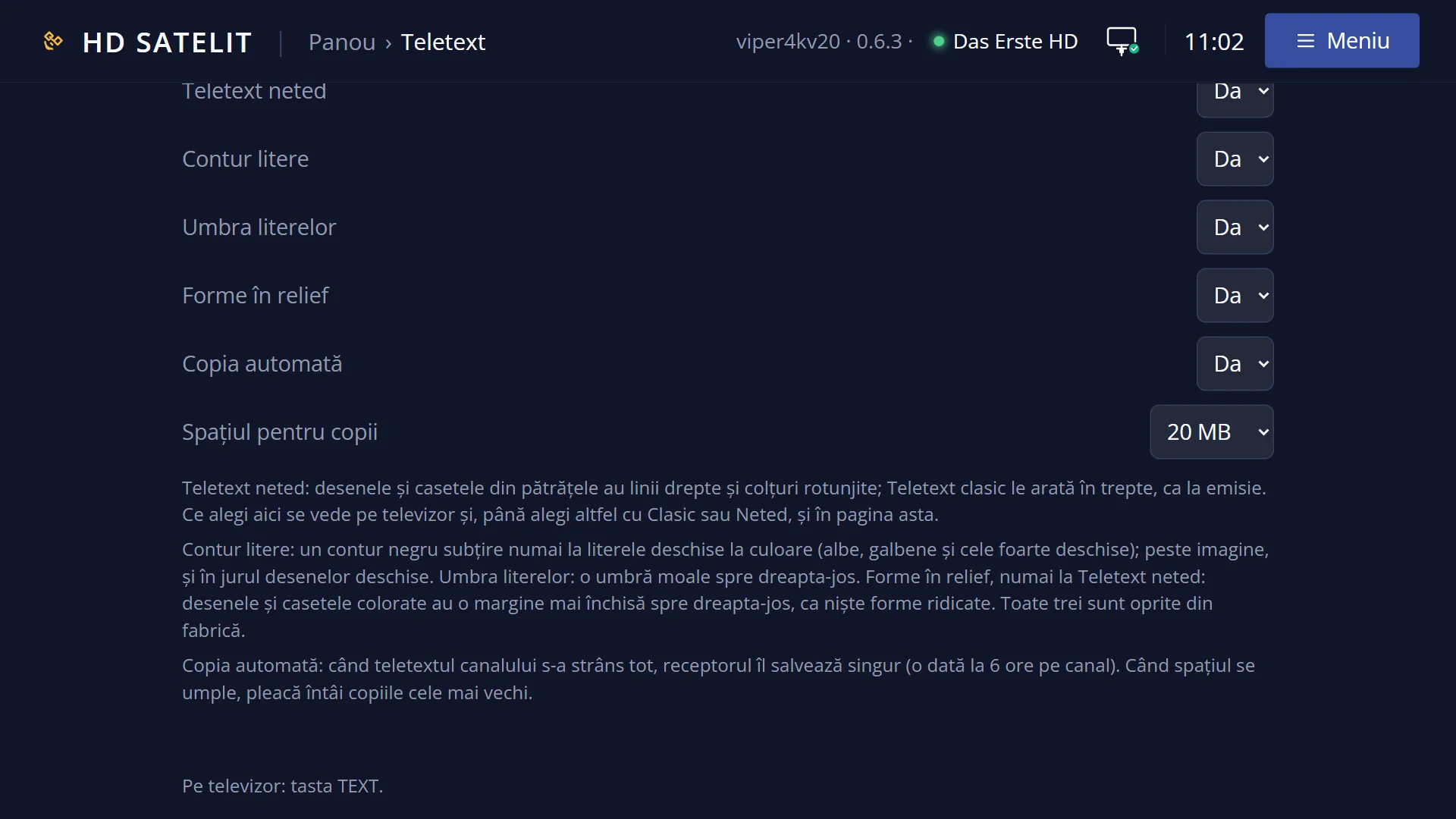
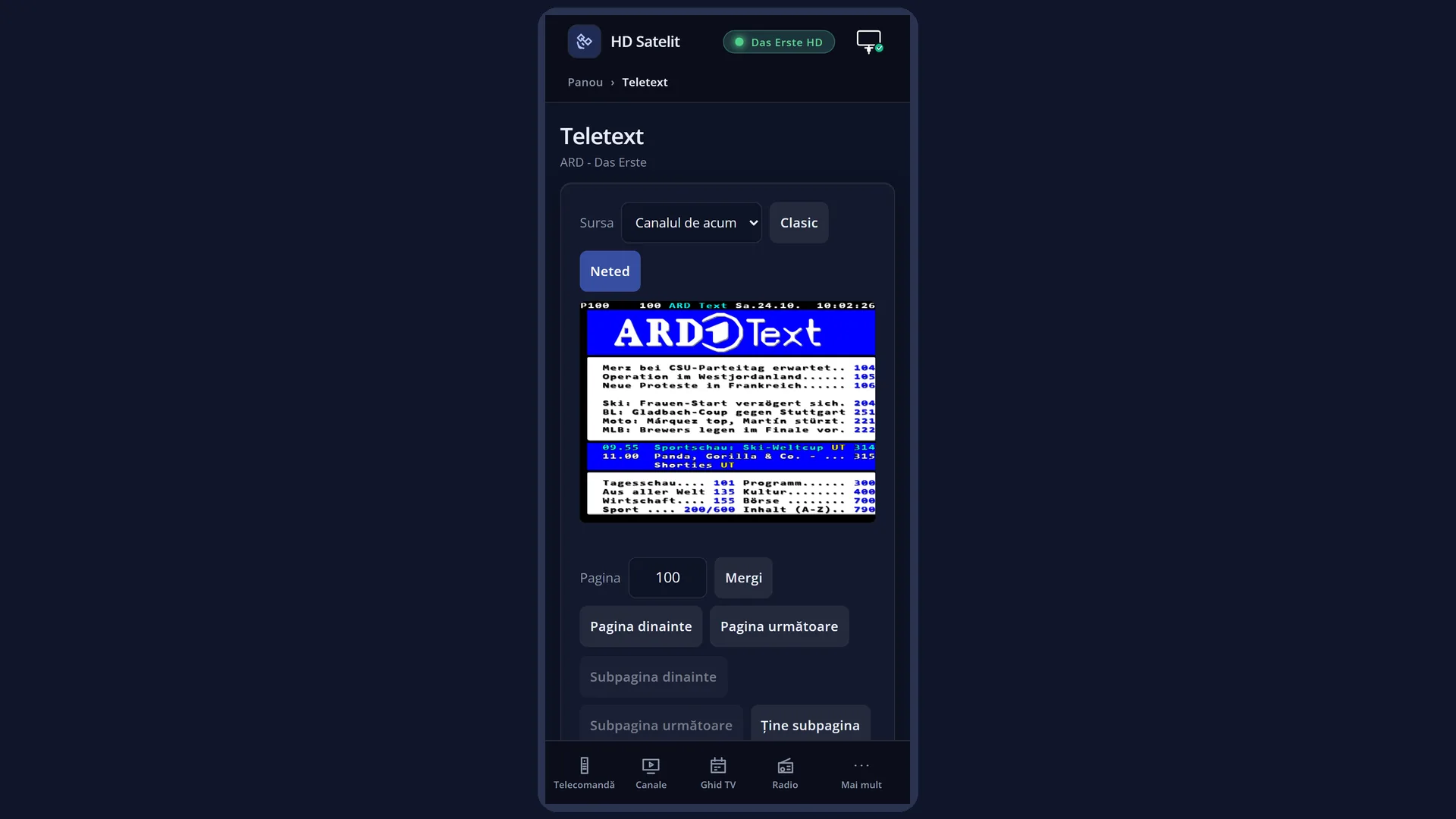
English screenshots coming: some of the pictures below still show the receiver and the web interface in Romanian. The rows, keys and steps described on this page are the English ones.
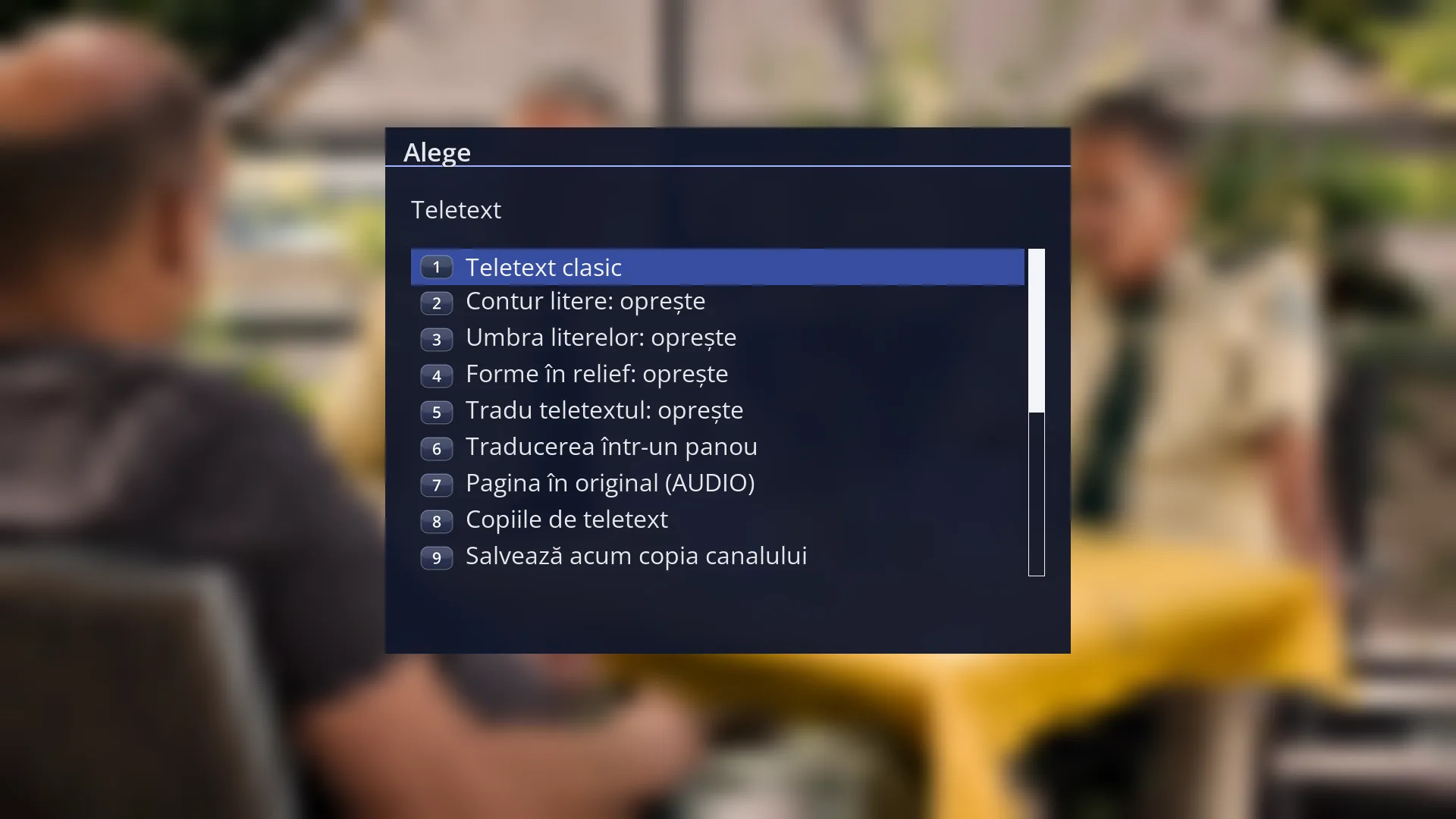
- 1 The selected row.
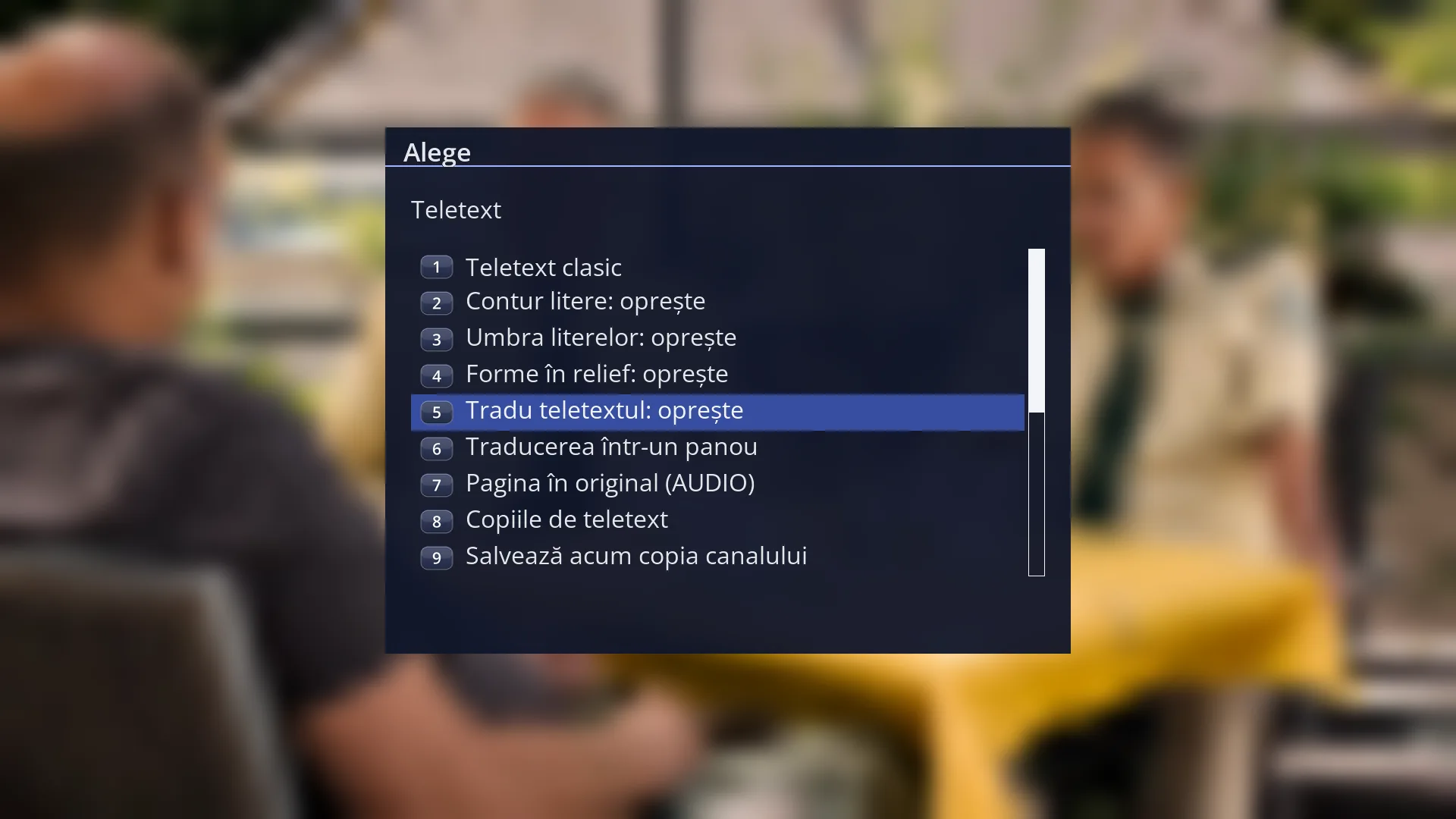
- 1 The selected row.
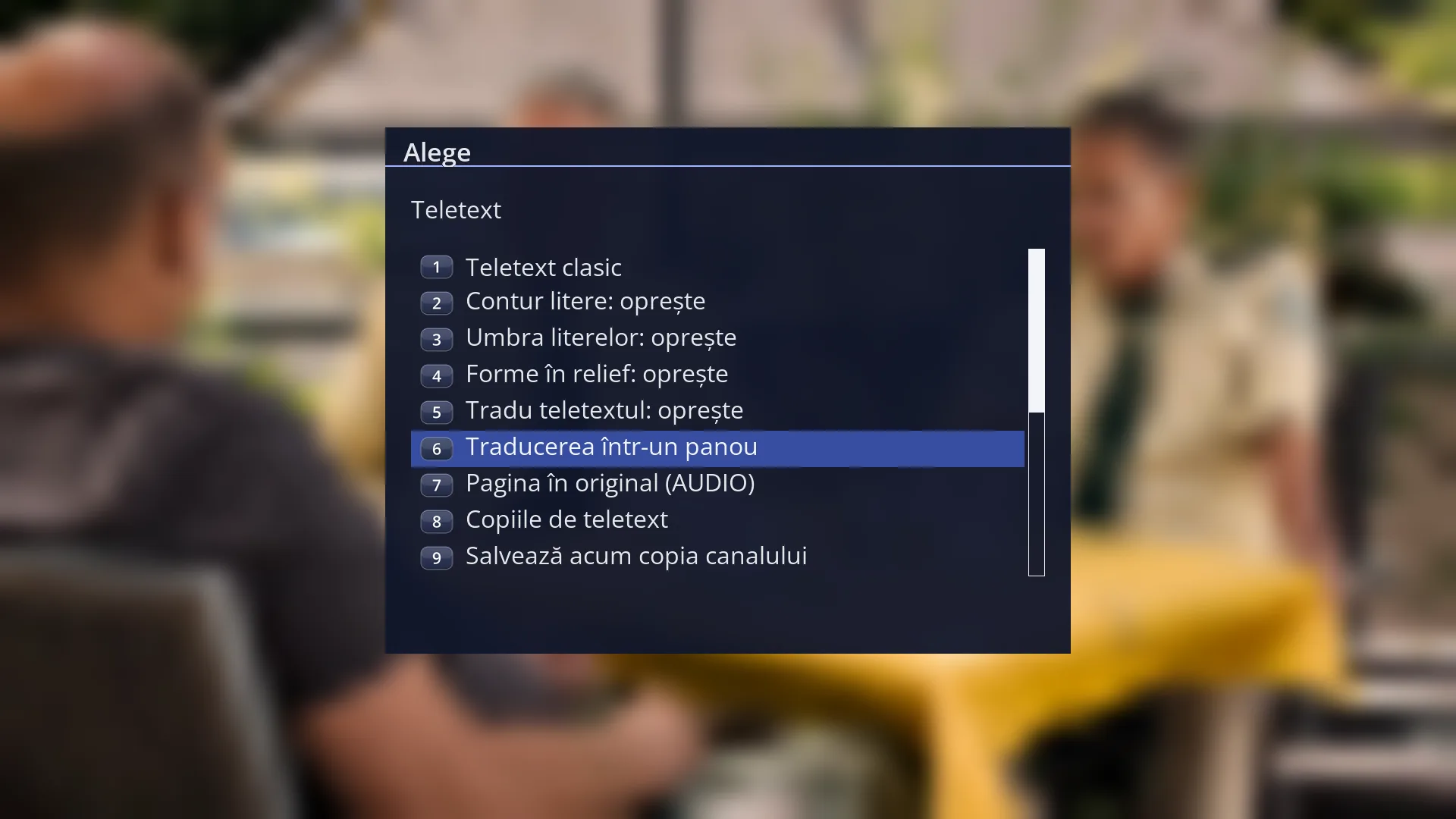
- 1 The selected row.
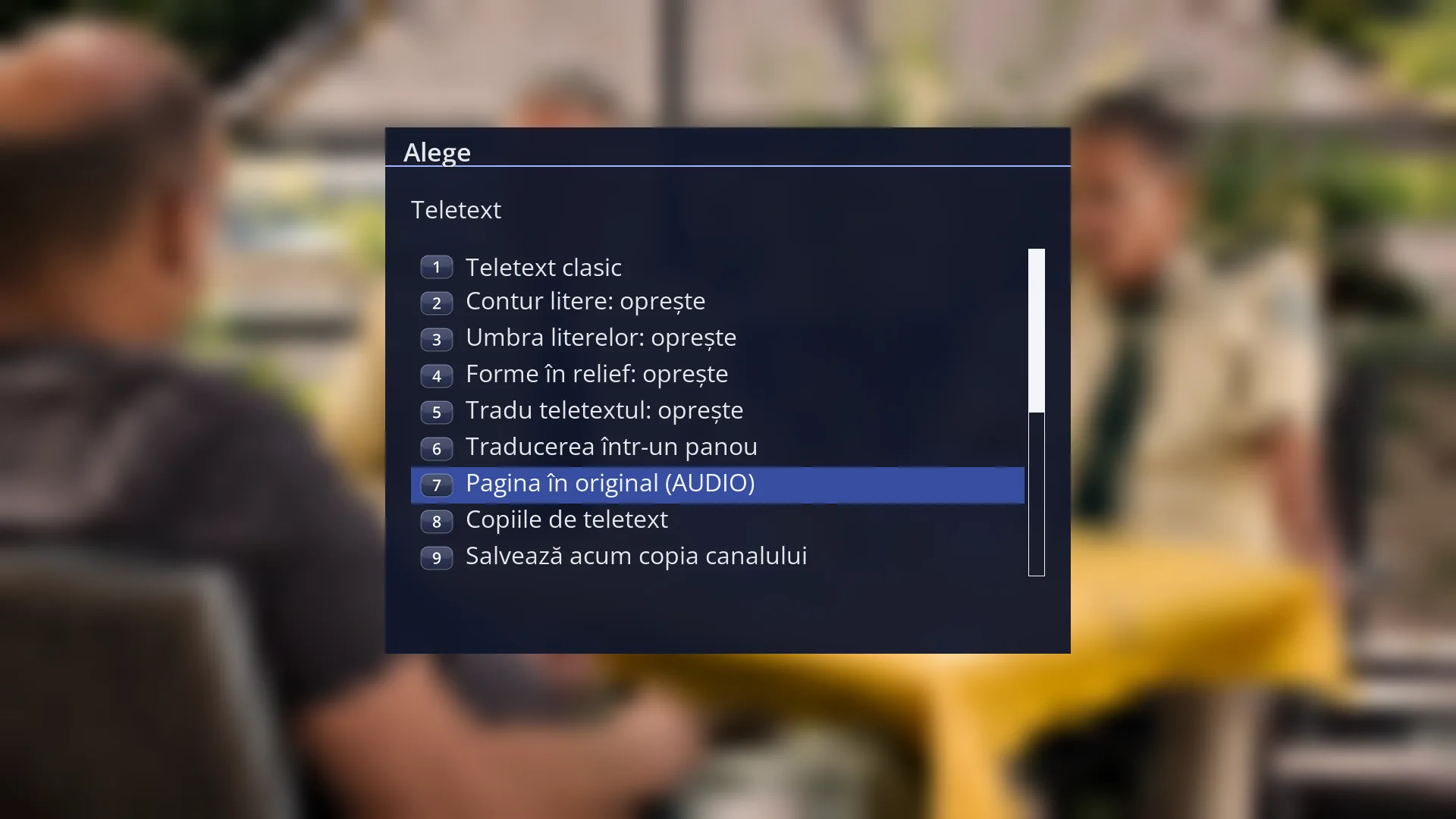
- 1 The selected row.
- 1 “Page in the original” and “AUDIO: translation”.
What it is for
Translates the teletext pages you open into the translation language (by default, the menu language), so you can read the teletext of a foreign channel.
It uses the translation service and key chosen in “Subtitle translation”. It also works when subtitle translation is turned off, but without a ready service nothing is translated.
The page first appears in the original, then translated once the translation arrives. A text translated once is remembered and not requested again, even on another page.
The lines of the page that contain letters are translated. These stay as they are: the header (page number, channel name, clock), the block graphics, hidden text, page numbers, times at the start of a line (for example 20:15), the dots leading to a page number and lines without letters (scores, figures).
It is off by default, because every new page uses up part of the translation service's quota. While it is on, the text of the pages you open is sent to the chosen service.
How to get here
Path: from teletext (TTX), MENU > “Translate teletext: turn on”.
Keys on the remote: TTX MENU.
Or: Main menu > Settings > Audio & Sound Tracks > Subtitle translation, the rows “Translate teletext” and “Translated teletext” (MENU 6 4 6), then GREEN (Save).
In the web interface: the /traducere-subtitrari page (the same choices).
What you see on the screen
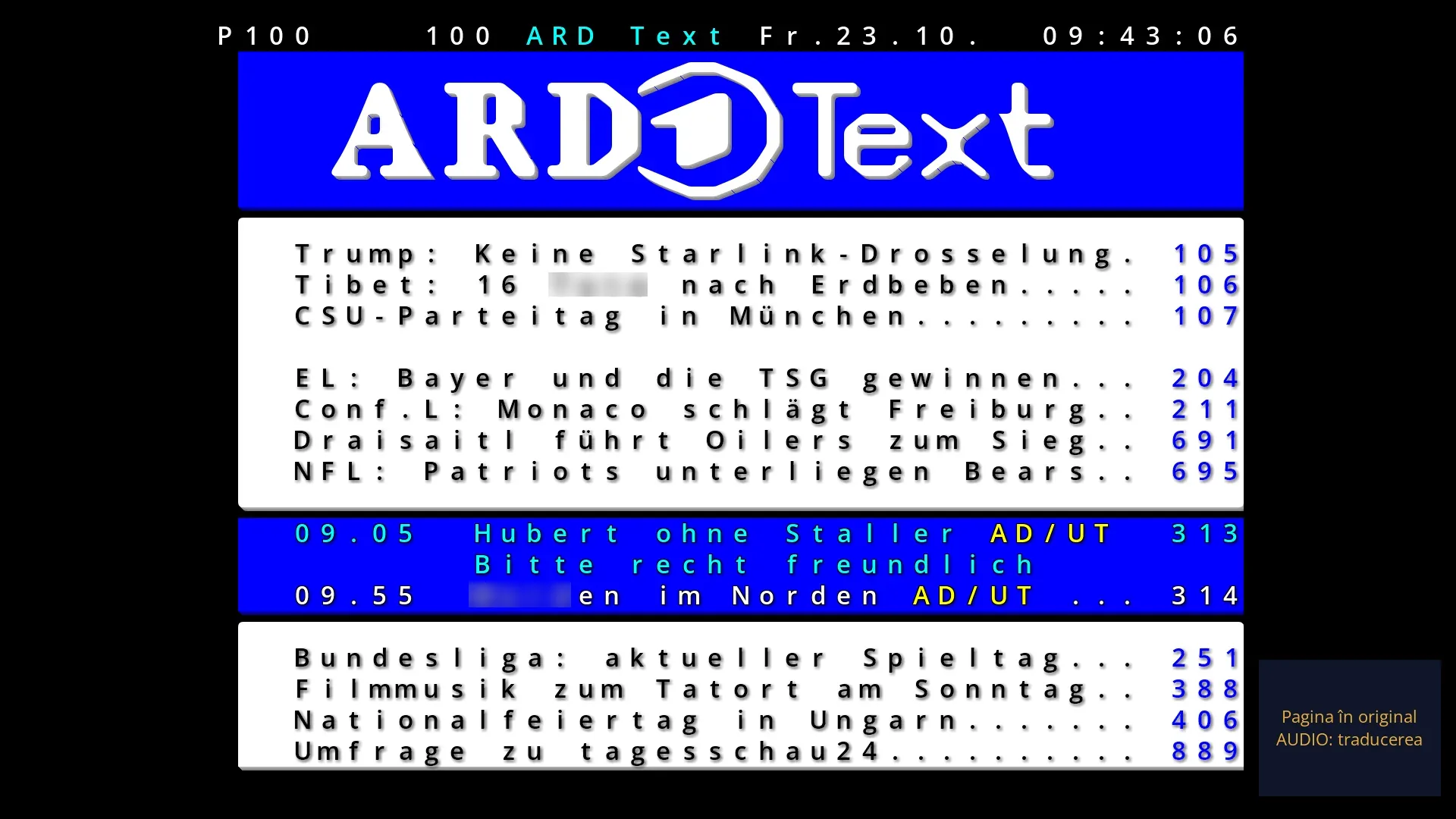
On the page (default): the translated lines replace the original ones, within the page's 40 columns, in the same colours. Text that does not fit continues on the empty lines below, and anything that still does not fit is cut at a word, with “…”.
In a panel: the original page, smaller, on the left, and the full translation in a panel on the right, in the largest letters that fit.
At the bottom right, a small two-line hint: the page status and the AUDIO key. The status can be “Page translated”, “Translating the page…”, “The page is already in your language”, “The page has no text to translate”, “Page in the original” or “No translation service is ready: Menu, Subtitle translation”; the second line is “AUDIO: original” or “AUDIO: translation”.
A page that changes while you are reading it stays in the original until its translation arrives.
Rows and settings
| Row | Values | Default | What it does |
|---|---|---|---|
| Translate teletext | no (in MENU the row says “Translate teletext: turn on”), yes (in MENU the row says “Translate teletext: turn off”) | no | Turns on the translation of teletext pages. In MENU it changes straight away (the message “Teletext translation on” or “off”); in “Subtitle translation” it changes after GREEN (Save). When you read the teletext of a channel in a language you do not know. Turn it off when you no longer need it, so you do not use up the service's quota. |
| Translated teletext | On the page, In a panel | On the page | On the page: the translation takes the place of the original text, in the same colours; anything that does not fit is cut with “…”. In a panel: the original page, smaller, on the left and the full translation on the right. In MENU the row is called “Translation in a panel” or “Translation on the page” and appears only when translation is on. Switch to the panel when the translation is longer than the original and gets cut, or when you want to see the original next to the translation. |
| Page in the original (AUDIO) / Page translated (AUDIO) | Page translated, Page in the original | Page translated | A MENU row, shown only when translation is on: shows the current page in the original or translated again, just like the AUDIO key. When you go to another page, it is translated again. When you want to check the translation against the channel's text. |
| What was translated from teletext and HbbTV (in “Subtitle translation”) | nothing yet | Read-only row: how many texts and how many characters have been sent for translation from teletext and from HbbTV applications. Below the list you see the details (texts translated, requests, already in your language, last error). OK resets the counter to zero. When you want to know how much of the service's quota teletext uses. |
Keys
| AUDIO | Shows the current page in the original (“Page in the original. AUDIO: translation.”) or translated again (“Page translated. AUDIO: original.”). |
| MENU | The “Teletext” window, with “Translate teletext”, “Translation in a panel” or “Translation on the page” and “Page in the original (AUDIO)”. |
| Digits, UP / DOWN, LEFT / RIGHT, the colour keys | The same as in normal teletext. Each new page first appears in the original, then translated. |
| EXIT | Closes teletext; the panel and the translation hint close with it. |
Step by step
Turning on teletext translation
- First choose a translation service and enter its key in Menu > Settings > Audio & Sound Tracks > Subtitle translation (the easiest way is from your phone, with “Set up from your phone”).
- Open teletext with TTX and press MENU.
- Choose “Translate teletext: turn on”. The page first appears in the original, then translated; at the bottom right the hint says “Page translated”.
Seeing the original next to the translation
- With translation on, press MENU in teletext.
- Choose “Translation in a panel”: the original page shrinks to the left and the full translation appears on the right.
- To go back, press MENU and choose “Translation on the page”. For a quick look at the original, press AUDIO.
Problems and solutions
The hint says “No translation service is ready: Menu, Subtitle translation”.
No translation service with all its details has been chosen (usually the key is missing). Open Menu > Settings > Audio & Sound Tracks > Subtitle translation, choose the service and enter the key, then test it with YELLOW (“Test the translation”).
The page stays on “Translating the page…” for a long time.
The service is slow to respond or the receiver has no internet. While it waits, the page stays in the original. Check the internet and test the service in “Subtitle translation”.
The hint says “The page is already in your language”.
The page is already in the translation language, so there is nothing to translate. You change the translation language in “Subtitle translation”, the “Translation language” row.
The hint says “The page has no text to translate”.
The page only has graphics, figures or page numbers, which stay as they are.
The translation ends with “…” and part of it is missing.
The translation is longer than the space on the page. Choose “Translation in a panel” from MENU, where the full translation appears.
AUDIO says “Teletext translation is off. Turn it on from MENU.”
Teletext translation is not on. Choose “Translate teletext: turn on” from MENU.
Related topics
- Teletext (pages, keys)
- The teletext MENU window
- The translation service, key and language
- Matching web page: /teletext (the pages in the browser); translation settings on the web: /traducere-subtitrari.