

Channel search
English screenshots coming: some of the pictures below still show the receiver and the web interface in Romanian. The rows, keys and steps described on this page are the English ones.
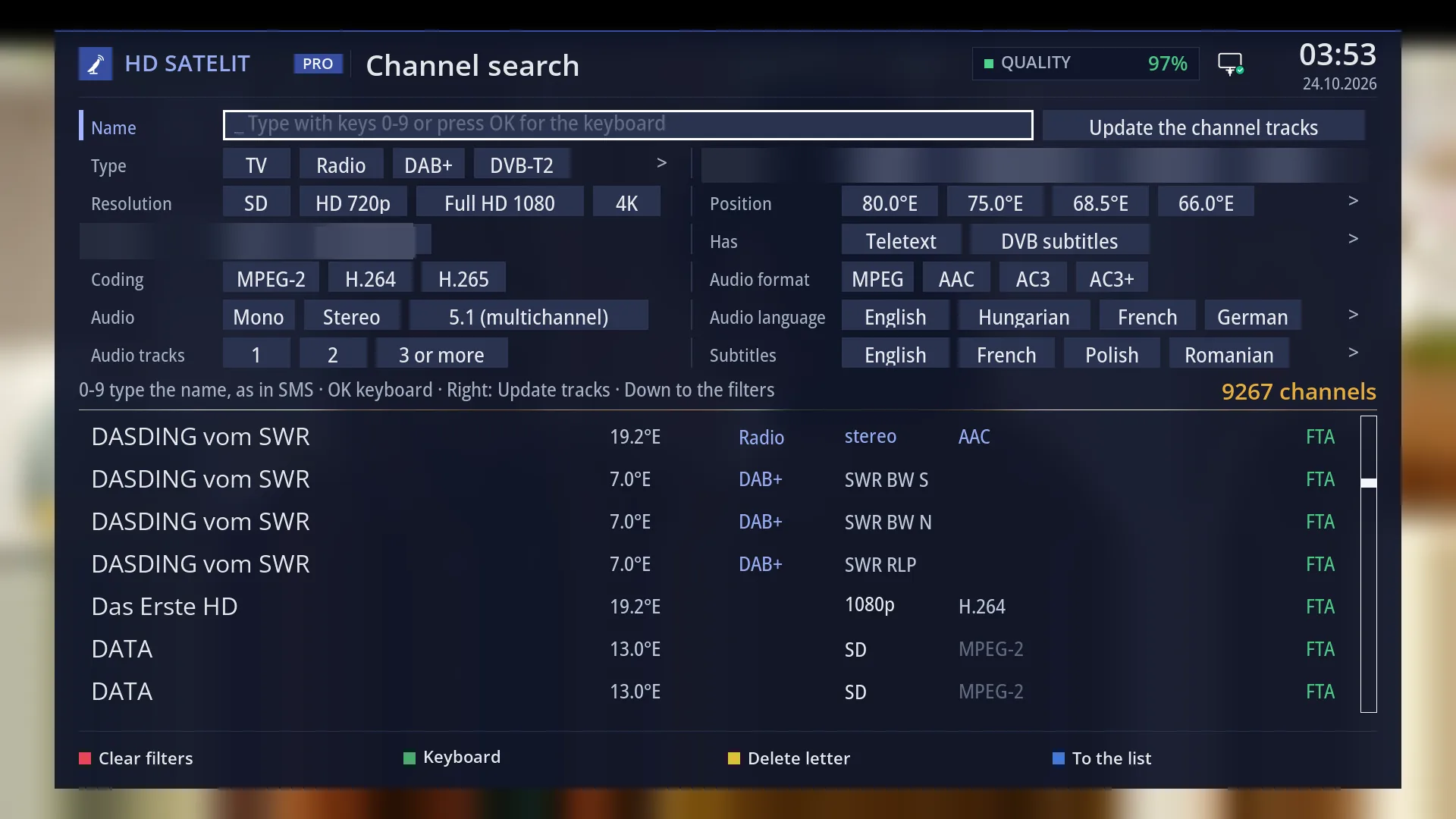
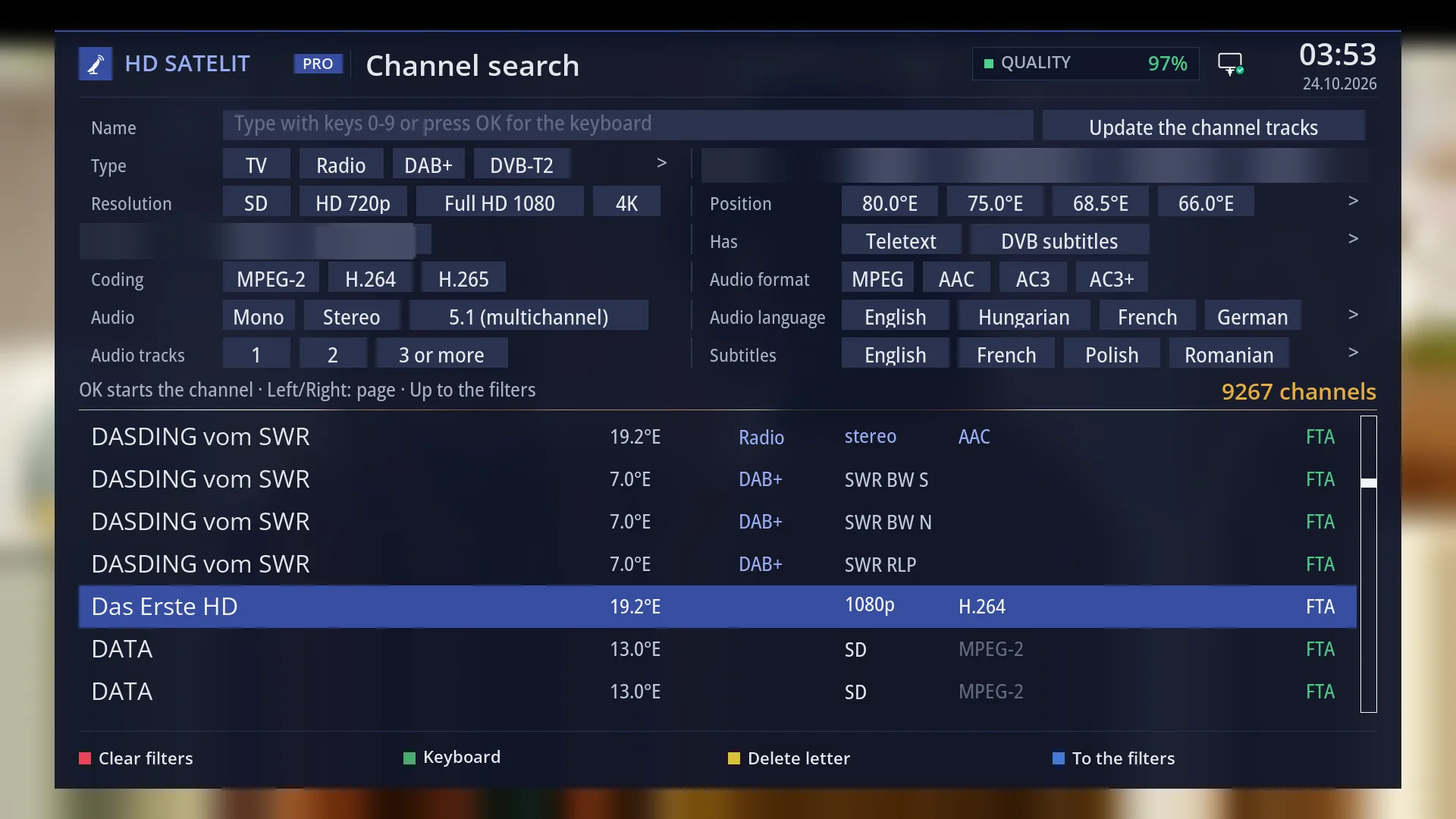
- 1 The selected channel. OK starts it and closes the search.
- 2 “OK starts the channel · Left/Right: page · Up to the filters”.
- 3 BLUE now reads “To the filters”.
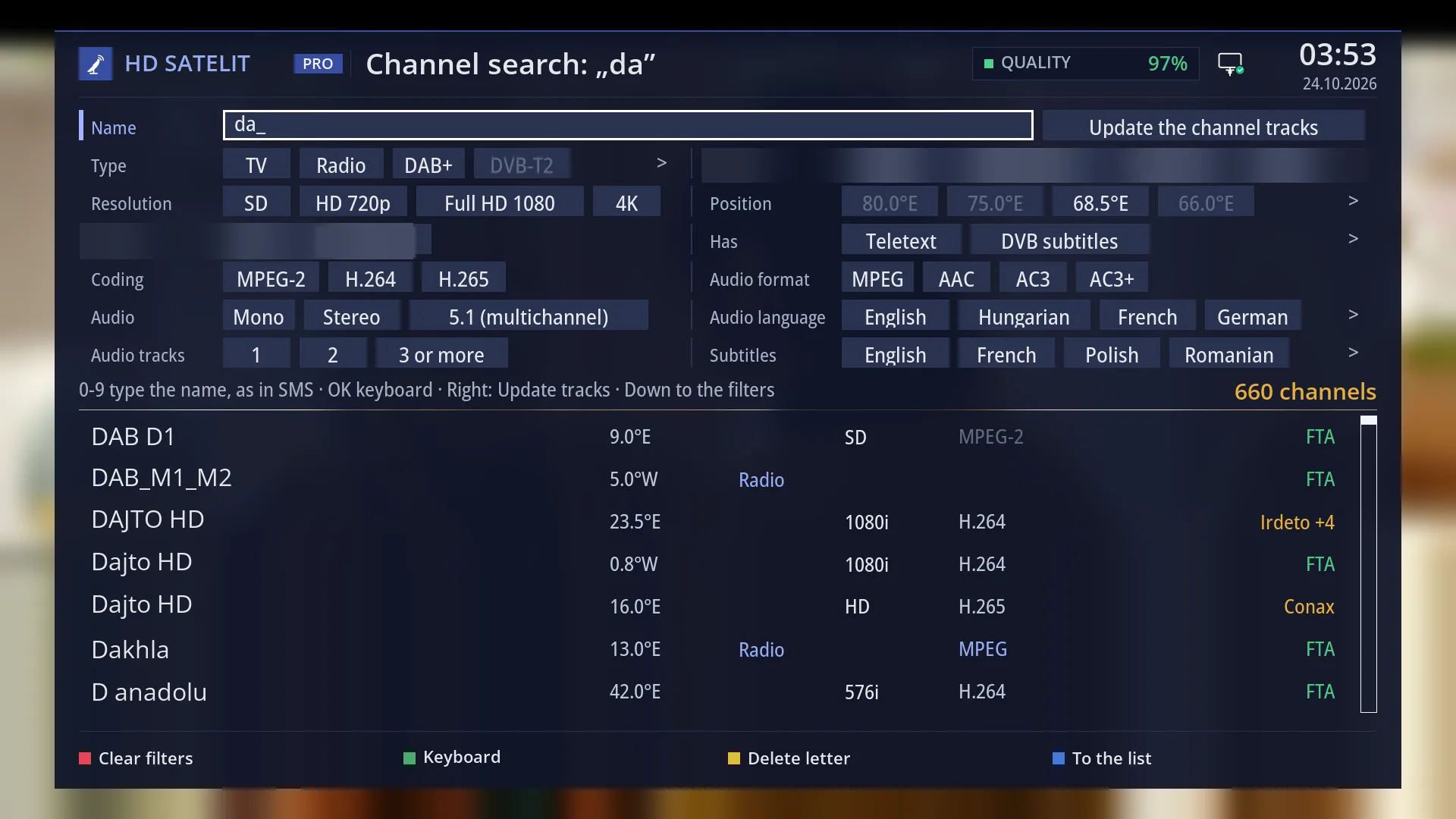
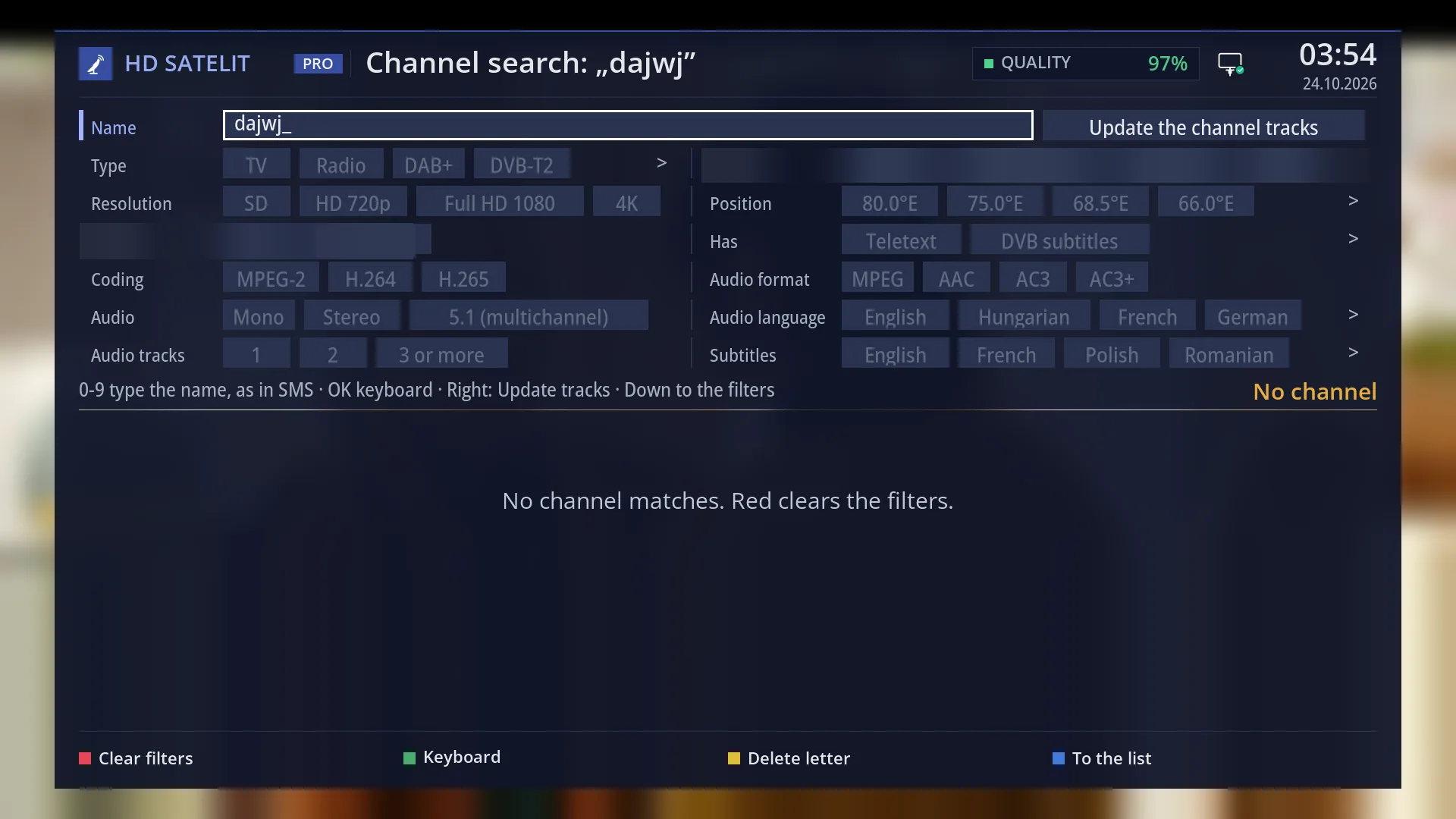
- 1 The message. RED starts a new search.
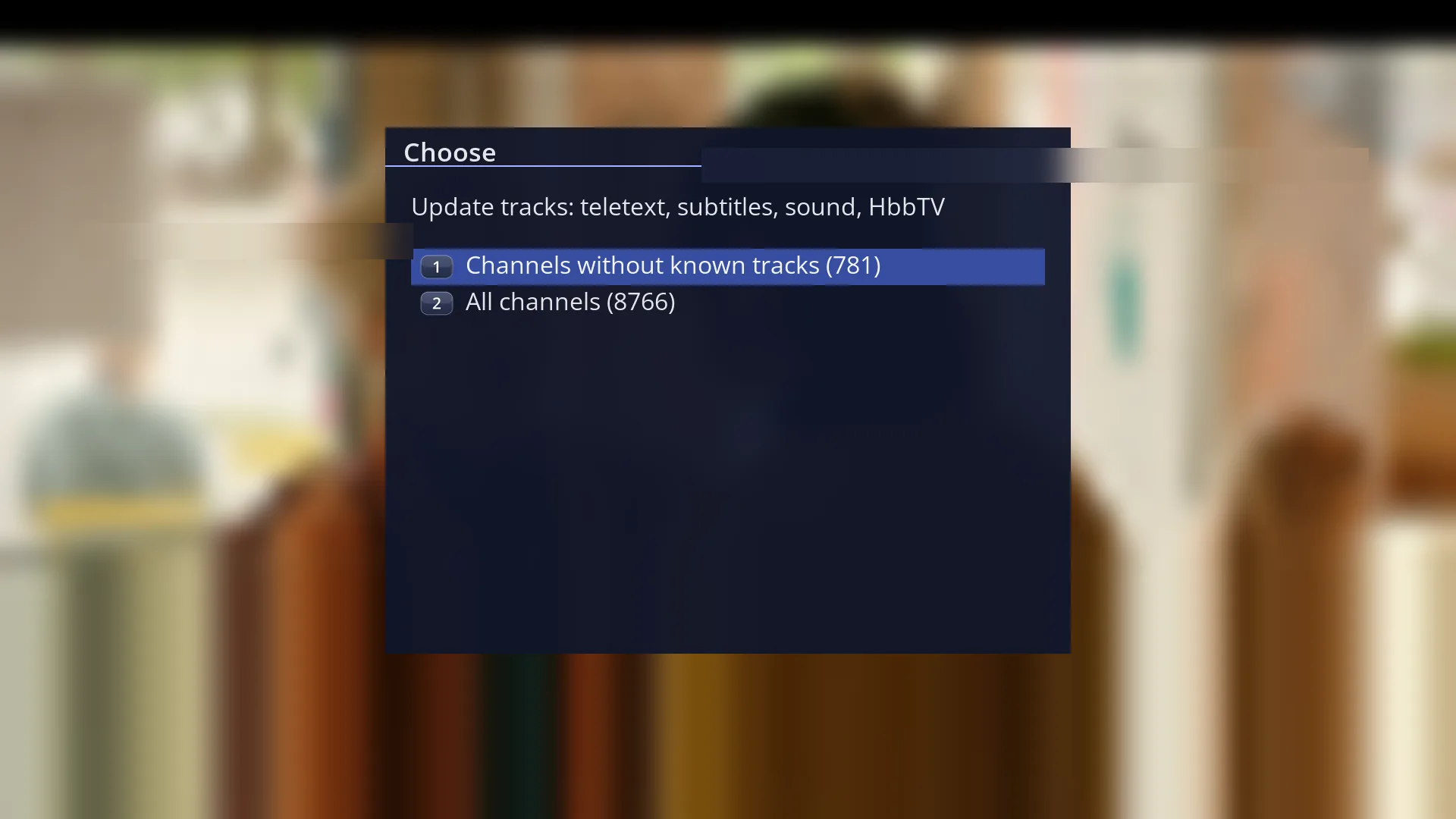
- 1 What the pass through the channels reads.
- 2 The channels found now, those without known tracks, or all of them, with their number.
What it is for
The search finds a channel by name, wherever it is on the receiver: on any satellite, on cable, terrestrial, DAB+, DVB-T2 or on the internet, whichever satellites are grouped in the list.
You type the name with the digits on the remote, as in a text message, with the on-screen keyboard or with a USB keyboard. Diacritics, spaces and symbols do not matter: “protv” finds “Pro TV”. Channels whose name starts with what you typed come first.
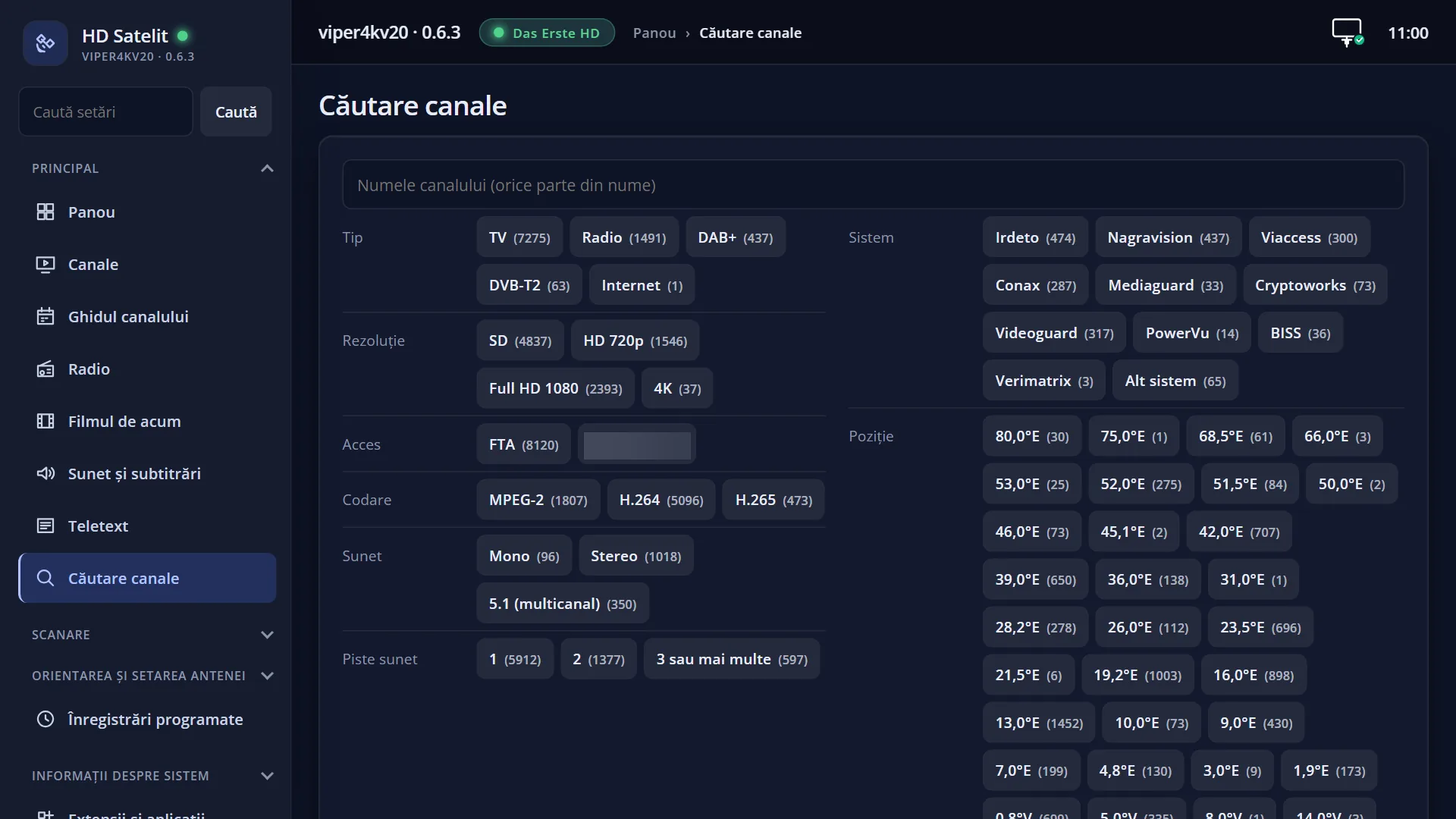
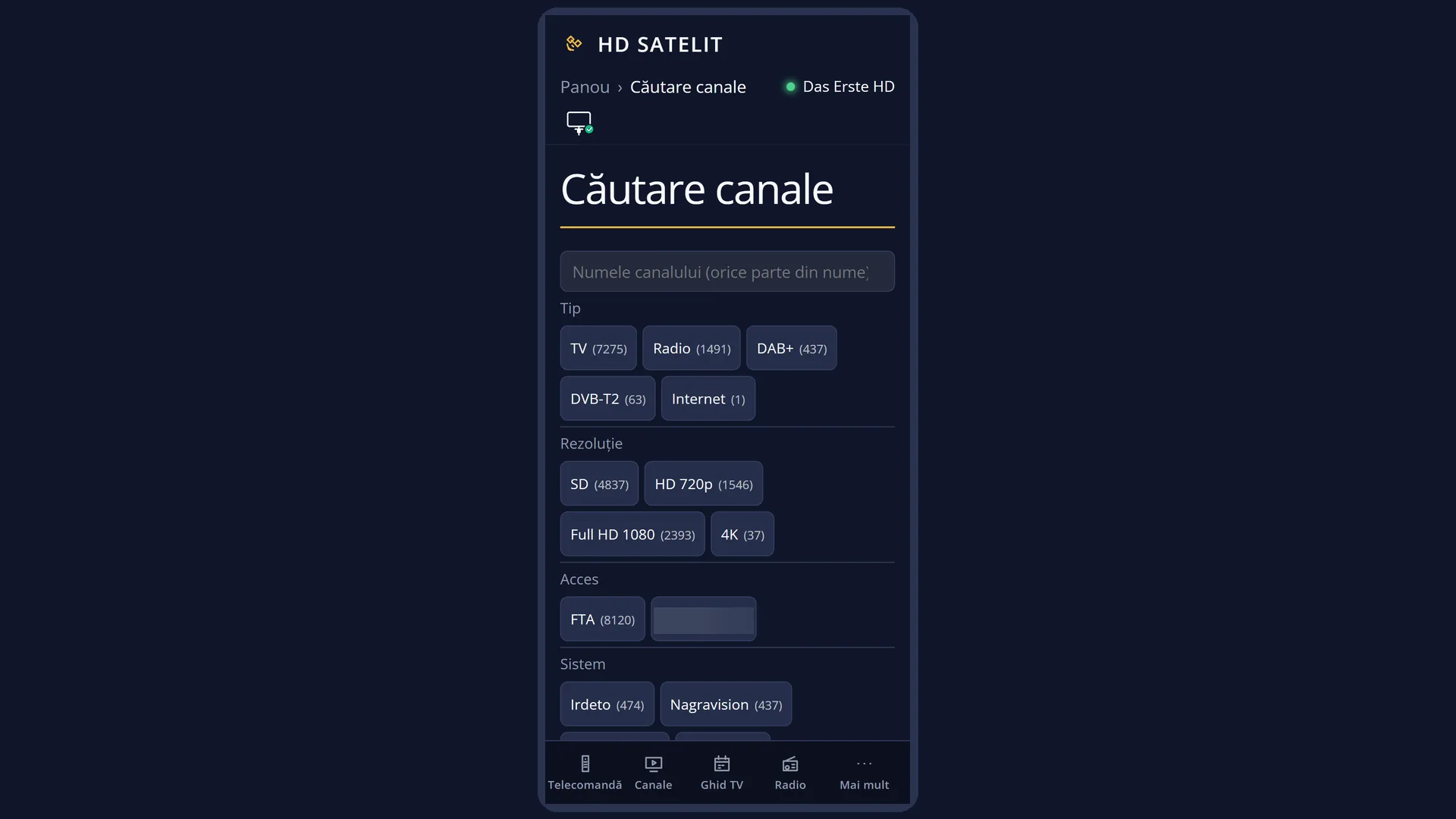
The filters narrow the list: the channel type, resolution, coding, satellite, teletext, subtitles, HbbTV, sound type, number of tracks and the audio and subtitle languages. For example: all Full HD channels with Romanian audio.
The search remembers where you left off: the text, the filters and the channel under the cursor. After you start a channel from it, the next time you open the channel list the search opens again by itself, with the cursor on that channel.
How to get here
The way there: from live TV, DOWN (the channel list), then TTX. Or hold OK anywhere in the list, or press UP to the “Search channel…” row and OK, or MENU and “Search channels”.
Keys from live TV: DOWN TTX (on the list screen the key is labelled “TEXT”).
From the radio list, the search starts with “Type” set to Radio and DAB+.
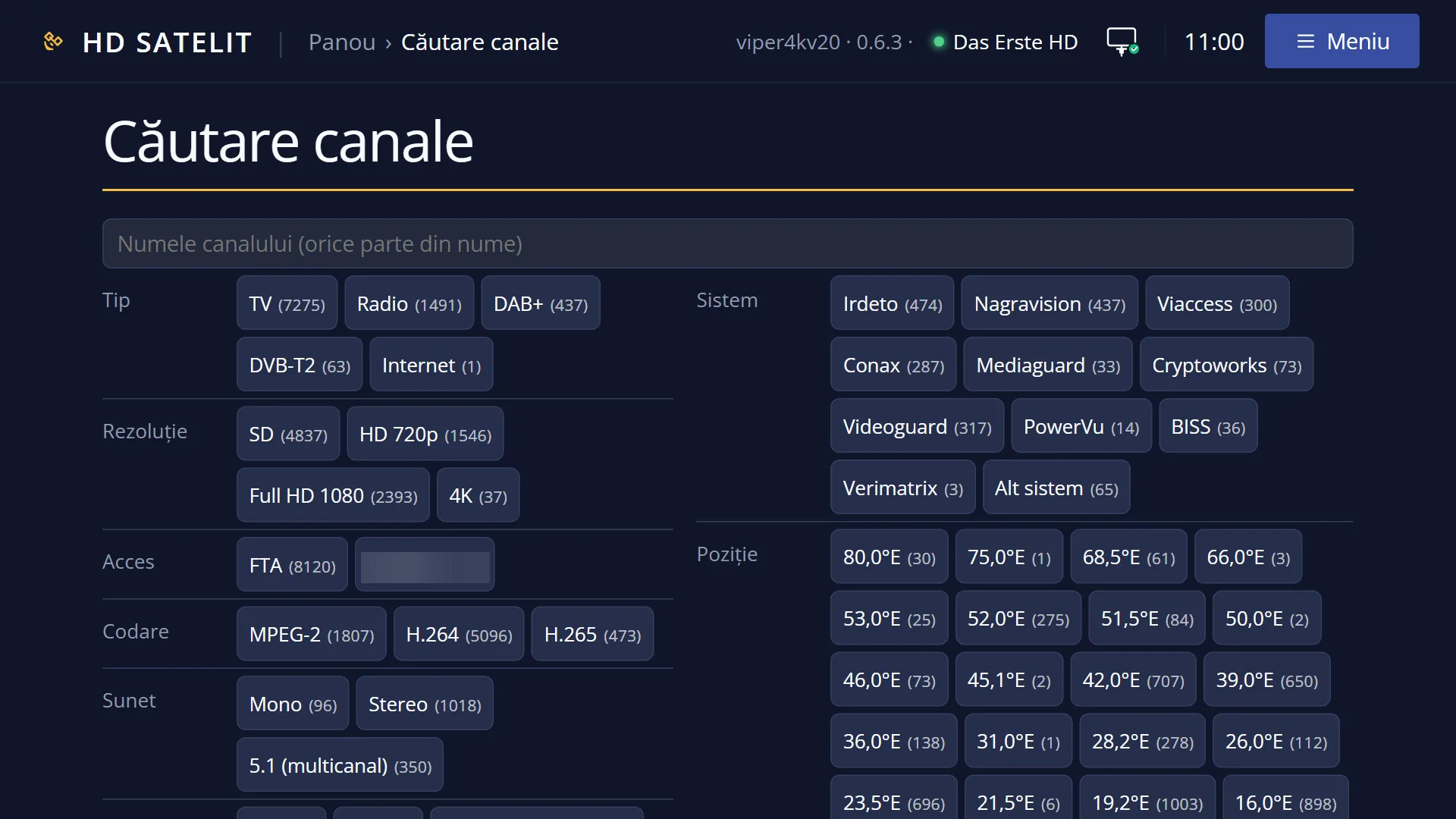
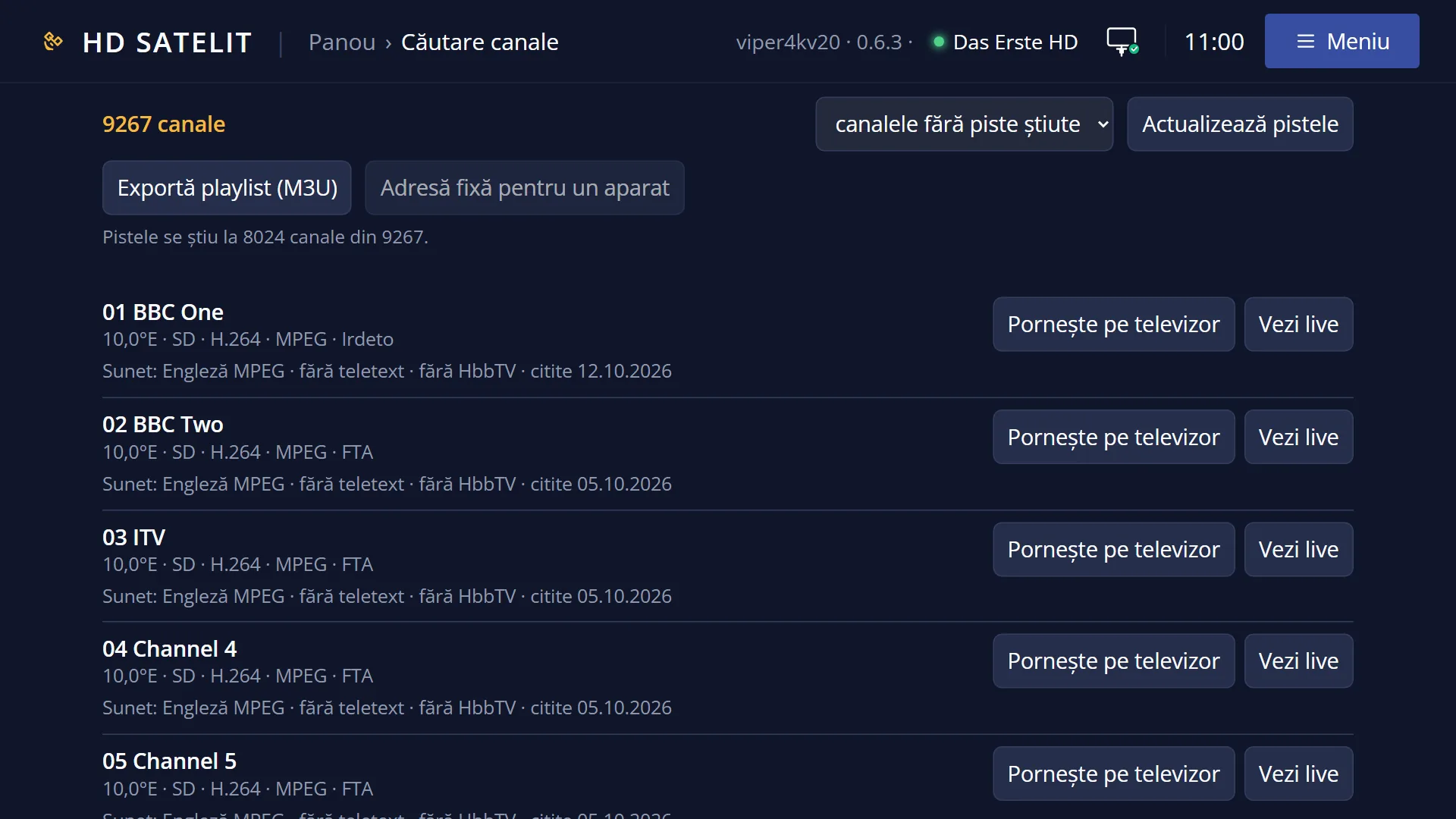
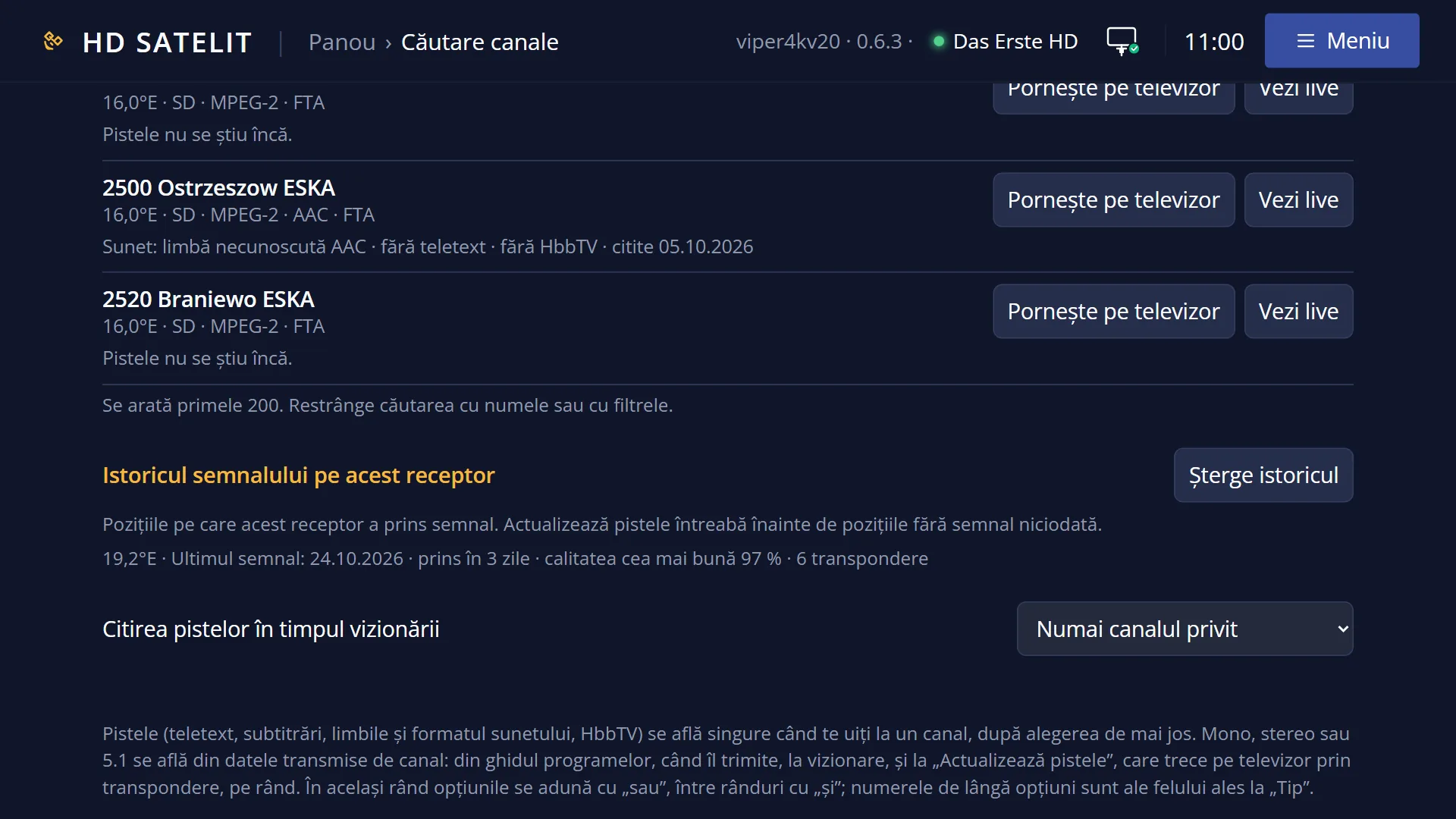
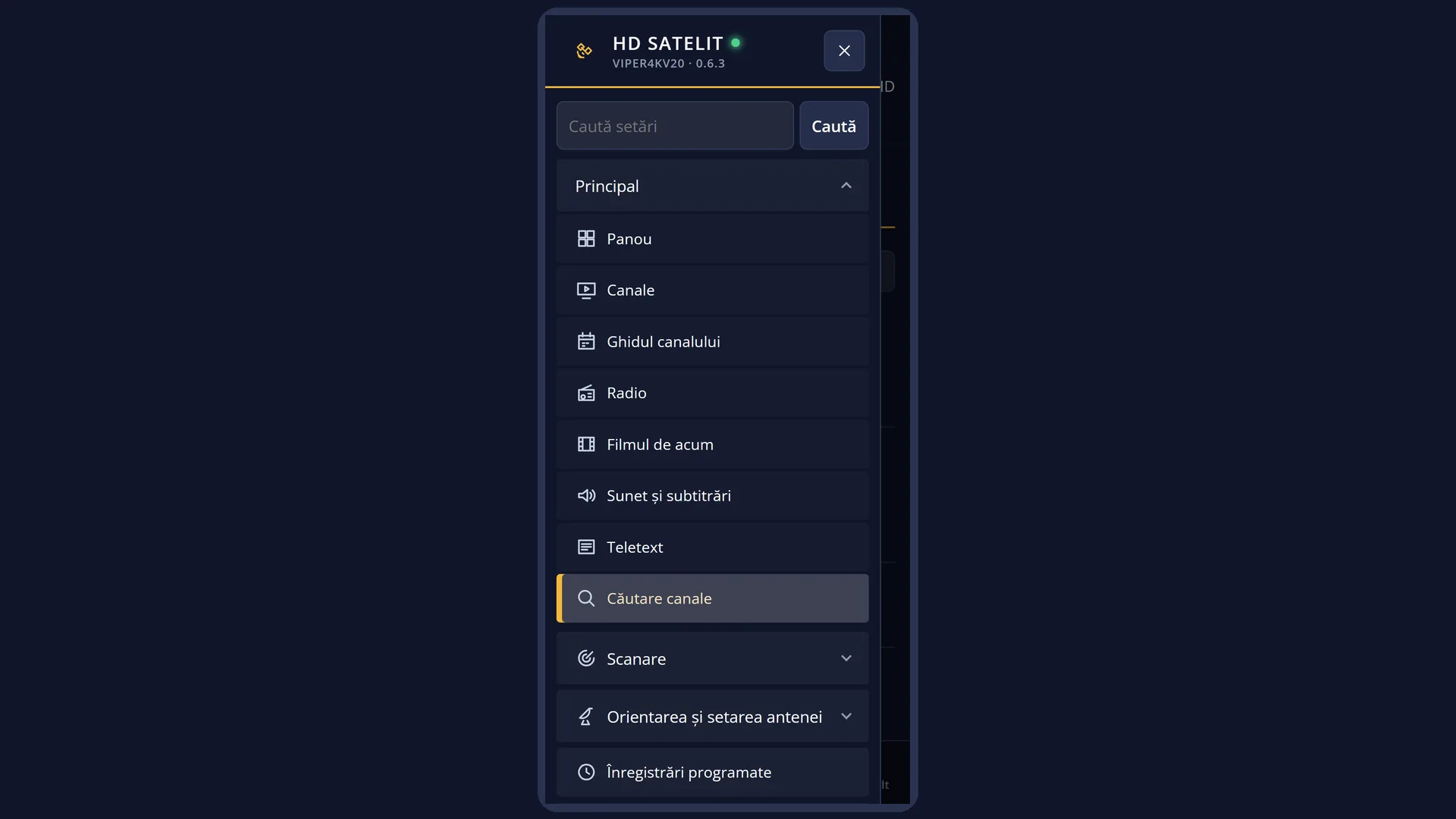
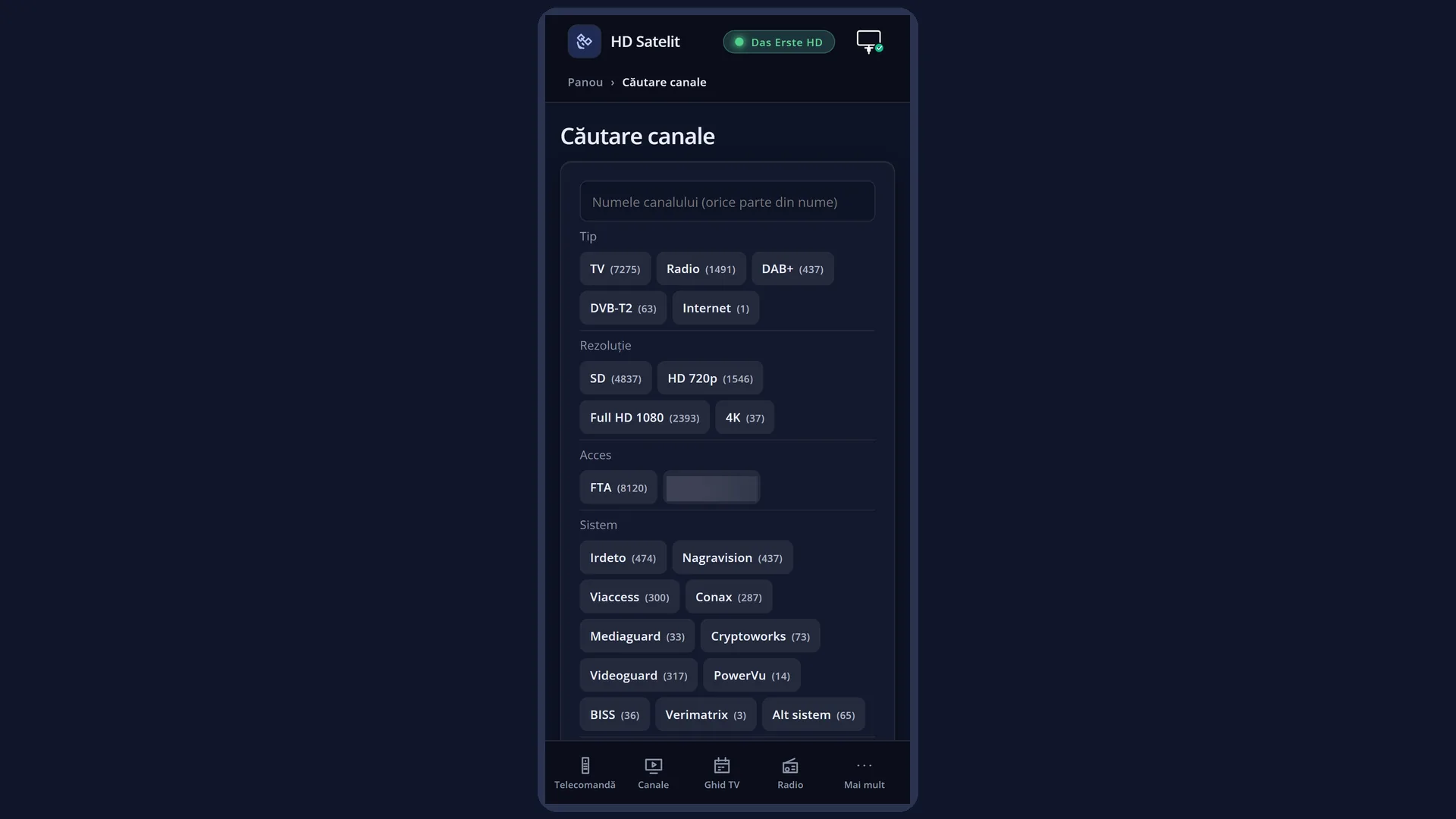
In the web interface: the /cautare page (the same filters, with the number of channels next to each option, “Watch live”, the playlist and the fixed address for a device in your home).
What you see on the screen
At the top, the title “Channel search”, followed by what you typed and the filters chosen (for example “Channel search: “sport”, HD 720p, Full HD 1080”). A title that is too long scrolls slowly.
The first row, “Name”: the box with the name you typed (when empty, it says “Type with keys 0-9 or press OK for the keyboard”) and, at the end of the row, the “Update the channel tracks” button.
Below it are the filters, in two columns: on the left the rows with few options (Type, Resolution, Coding, Audio, Audio tracks), on the right those with many (Position, Has, Audio format, Audio language, Subtitles). The chosen option has a solid background. An option in grey would leave no channel. The white frame shows the cursor. A row only appears when your channels have at least two values in it (the track rows, from one). When they do not all fit, the filter list continues on the next page.
Below the filters, on the left, is the hint: what the keys do on the row you are on. On the right, how many channels were found (“No channel”, “one channel” or their number).
At the bottom, the channels found: the name, the position (the satellite, cable or terrestrial), the type (TV, Radio, DAB+, DVB-T2), the resolution and the coding. For a radio station, the sound type and format appear instead of the resolution and coding. A coding in grey is inferred, not yet seen by the receiver on that channel.
When no channel matches: “No channel matches. Red clears the filters.” While the list is being prepared: “Preparing the channel list…”.
The keys at the bottom: RED “Clear filters”, GREEN “Keyboard”, YELLOW “Delete letter”, BLUE “To the list” (in the results: “To the filters”).
Rows and settings
| Row | Values | Default | What it does |
|---|---|---|---|
| Name | empty | Searches for the text anywhere in the channel name, ignoring diacritics, spaces and symbols. Names that start with it come first, then those with a word that starts with it, then the rest. When you know part of the channel name. | |
| Type | TV, Radio, DAB+, DVB-T2, Internet | nothing selected (from the radio list: Radio and DAB+) | Keeps only the channels of the chosen types. With only Radio and DAB+ chosen, the Resolution and Coding rows disappear. When you want only radio or only the DVB-T2 channels from satellite. |
| Resolution | SD, HD 720p, Full HD 1080, 4K | nothing selected | Keeps only the channels with the chosen resolution. The receiver finds out the exact resolution when you watch the channel. When you are looking for HD or 4K channels. |
| Coding | MPEG-2, H.264, H.265 | nothing selected | Keeps only the channels with the chosen video coding. When a device in your home only plays certain codings. |
| Position | the satellites on the receiver, Cable, Terrestrial | nothing selected | Keeps only the channels from the chosen positions. When you are looking for a channel on a single satellite. |
| Has | Teletext, DVB subtitles, Teletext subtitles, HbbTV | nothing selected | Keeps only the channels that have what you chose. This is only known for channels whose tracks have been read (watched or through “Update the channel tracks”). When you are looking for channels with subtitles or teletext. |
| Audio format | MPEG, AAC, AC3, AC3+, DTS, Other format | nothing selected | Keeps only the channels with an audio track in the chosen format. When you are looking for channels with AC3 sound for a sound system. |
| Audio | Mono, Stereo, 5.1 (multichannel) | nothing selected | Keeps only the channels with the chosen sound. The hint says for how many channels this is known. When you are looking for channels with 5.1 sound. |
| Audio tracks | 1, 2, 3 or more | nothing selected | Keeps only the channels with that many audio tracks (for example several languages). When you are looking for channels with audio in several languages. |
| Audio language / Subtitles | the languages found on your channels | nothing selected | Keeps only the channels with audio or subtitles, respectively, in the chosen language. When you are looking for films with Romanian audio or subtitles. |
| Update the channel tracks (the button next to Name, or MENU) | channels found now (N), channels without known tracks (N), All channels (N) | The receiver goes through the frequencies of the chosen channels one by one and reads the teletext, subtitles, audio and HbbTV of each. First it tells you how long it will take and asks for Yes. The screen shows “Reading the channel tracks” and “Transponder X of Y”. EXIT stops it and returns to the previous channel. YELLOW skips the current satellite. A pass stopped in the last 24 hours can be resumed (“Continue” or “Start over”). When the Has, Audio language or Subtitles rows find too few channels. | |
| Reading the tracks while watching (OSD Preferences) | Off, Only the channel watched, The whole transponder (not tested) | Only the channel watched | What the receiver notes by itself for the search (the audio and subtitle languages, teletext, HbbTV). Only the channel watched: what the receiver already knows. The whole transponder: it also reads the other channels on the same frequency. Off: nothing. “Update the channel tracks” works anyway. When you want more complete track filters without going through all the channels. |
Keys
| Digits 0-9 | They type the name as in a text message: 2 once for “a”, twice for “b”, three times for “c”, four times for “2”. The letter is fixed after one second or when you press another key. 0 and 1 type the digit directly. |
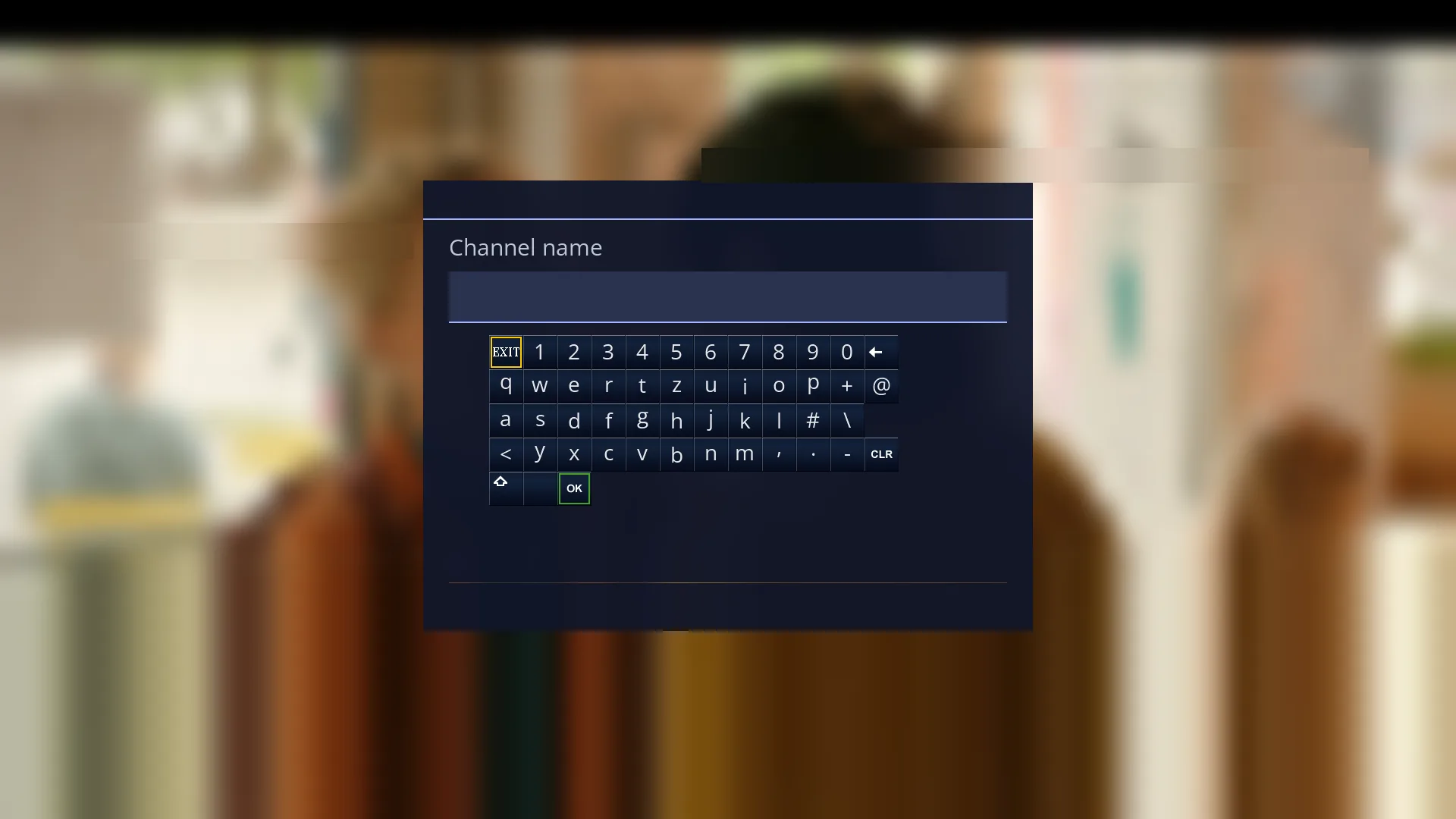
| OK | On “Name”: the on-screen keyboard (“Channel name”). On the “Update the channel tracks” button: the choice of channels to read. On an option: selects or deselects it. In the results: starts the channel and closes the search and the list. |
| UP / DOWN | The row above or below, in the same column. DOWN from the last filter row goes into the results. UP from the first result goes back to the filters. |
| LEFT / RIGHT | The option to the left or right. At the end of the row, one more press moves to the other column. On “Name”, RIGHT moves to the “Update the channel tracks” button, LEFT moves back. In the results: the page up or down. When held down, they go through the options of the row without jumping to the other column. |
| RED | “Clear filters”: clears the name and all filters and forgets the remembered search. The channel list no longer reopens it. |
| GREEN / TTX | “Keyboard”: the on-screen keyboard, for the name. |
| YELLOW | “Delete letter”: the last letter of the name. |
| BLUE | “To the list”: the cursor jumps to the channels found. There the key reads “To the filters” and takes you back to the top. |
| MENU | “Update the channel tracks”, like the button next to “Name”. |
| EXIT | Back to the channel list. The text and filters are kept for next time. |
| USB keyboard | Letters are typed directly into “Name”. Backspace deletes the last letter. |
Step by step
Finding a channel by name
- Press DOWN, then TTX.
- Type the start of the name with the digits, as in a text message (for “pro”: 7; a one-second pause so the letter is fixed; 7 7 7; then 6 6 6), or press OK and type with the on-screen keyboard.
- Press BLUE “To the list”, choose the channel with UP and DOWN and press OK. The channel starts.
Finding all Full HD channels with Romanian audio
- In the search, use DOWN to go to “Resolution”, RIGHT to go to “Full HD 1080”, and press OK.
- Go to “Audio language”, to “Romanian”, and press OK. The number on the right shows how many channels are left.
- Press BLUE and choose the channel. RED clears the filters when you have finished.
Filling in the channels' languages and subtitles
- In the search, press MENU (or RIGHT on “Name” and OK).
- Choose “channels found now”, “channels without known tracks” or “All channels”, then Yes when asked about the duration.
- Wait until the pass is finished (EXIT stops it). The Has, Audio language and Subtitles rows fill in by themselves.
Problems and solutions
It says “No channel matches. Red clears the filters.”
The name you typed or the filters you chose leave no channel. Delete a letter with YELLOW, remove a filter with OK or press RED for a new search.
It says “Preparing the channel list…”.
The receiver is reading the channel list (a few seconds, especially right after start-up). Wait: the search appears by itself.
The Has, Audio language or Subtitles rows find too few channels.
Tracks are only known for channels that have been watched or read. The hint says for how many (“Tracks known for ... of ...”). Use “Update the channel tracks” (MENU).
The Resolution and Coding rows are missing.
Only Radio and DAB+ are chosen under “Type”, and radio has no picture. Deselect them or also choose TV.
A filter row is missing completely.
Your channels have only one value in it (for example only MPEG-2), so there is nothing to choose. The row appears when there are at least two.
An option is shown in grey.
With it selected, no channel would remain, given the current name and filters. You can still select it.
When I open the channel list, the search opens by itself.
You started the last channel from the search. EXIT takes you to the normal list. RED in the search forgets it completely.
“Update tracks” says “Not possible during a recording: the tuner is busy.”
The pass through the channels needs a tuner. Start it after the recording has finished.
Related topics
- Channel selection (where the search opens from)
- Satellites collapsed into groups
- The “Reading the tracks while watching” setting: Menu > Settings > Interface & Appearance > OSD Preferences (on the web: /setari?id=usage).
- The matching web page: /cautare.