

Software update
English screenshots coming: some of the pictures below still show the receiver and the web interface in Romanian. The rows, keys and steps described on this page are the English ones.
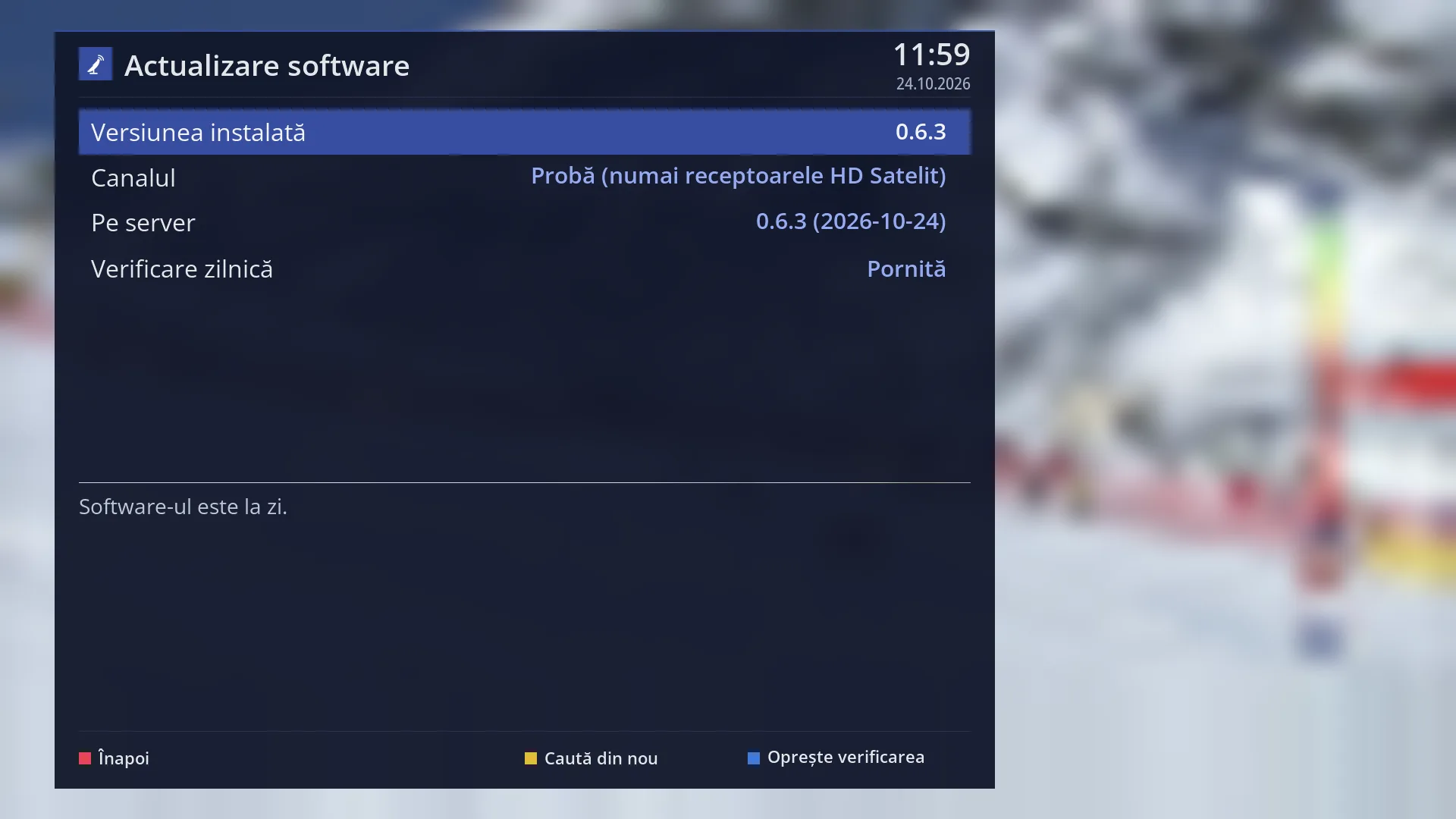
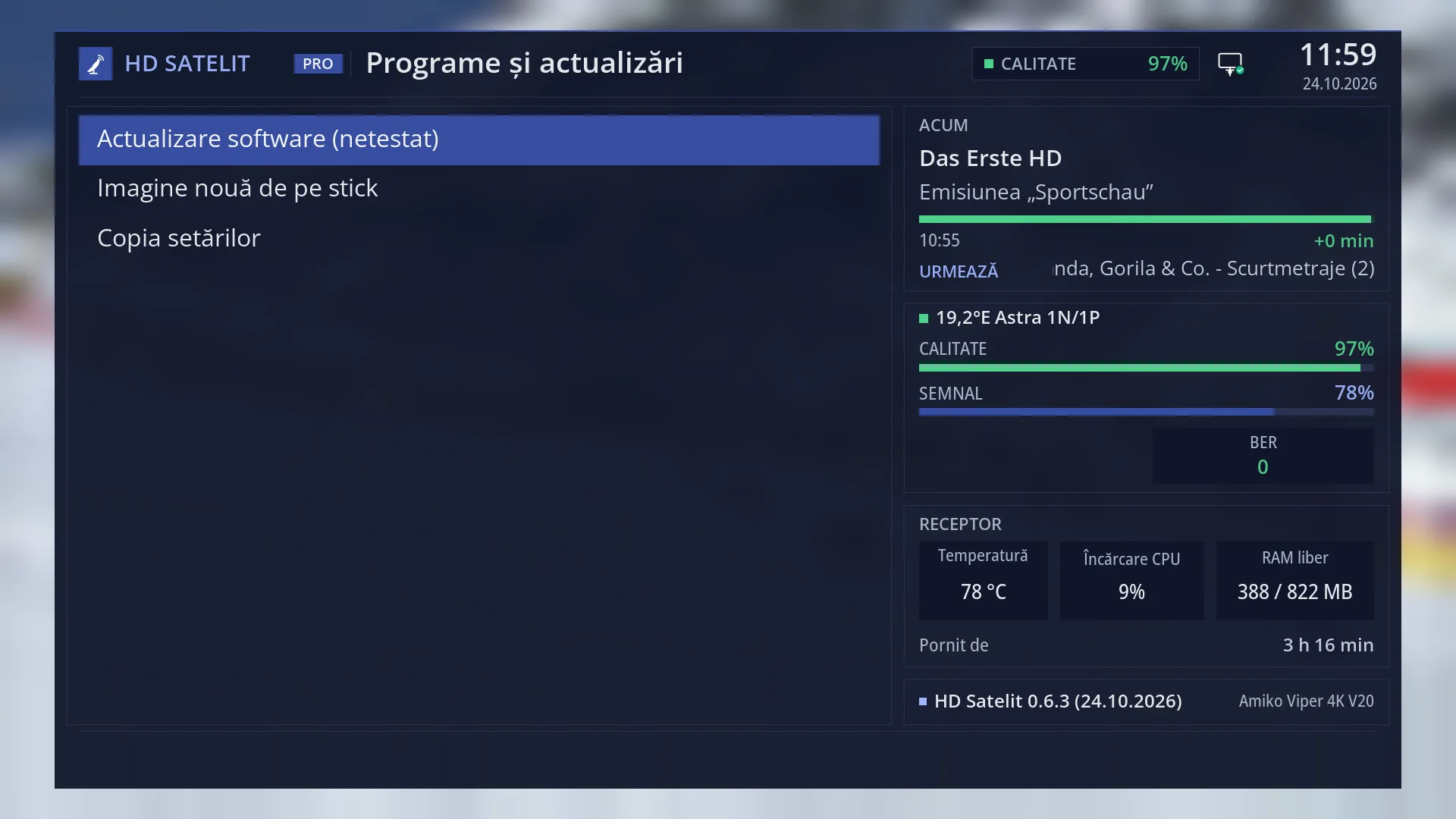
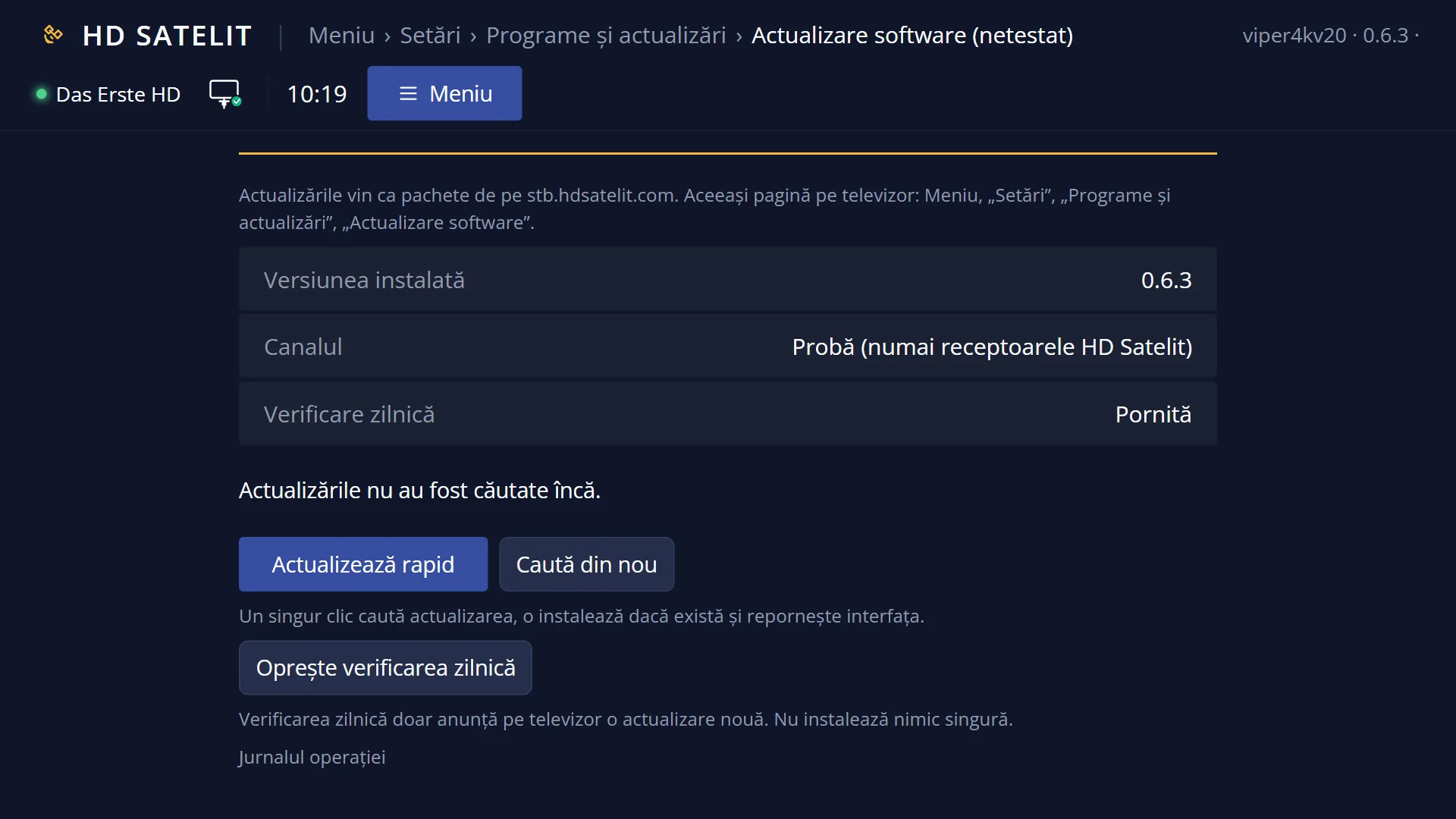
- 1 The version installed now.
- 2 The update channel (on ordinary receivers: Public).
- 3 The latest version on the HD Satelit server and its date.
- 4 The daily check: On or Off (OK or BLUE).
- 5 The search result: up to date, What's new or why it is not installed.
- 6 RED back, YELLOW search again, BLUE daily check; GREEN only when there is something to install.
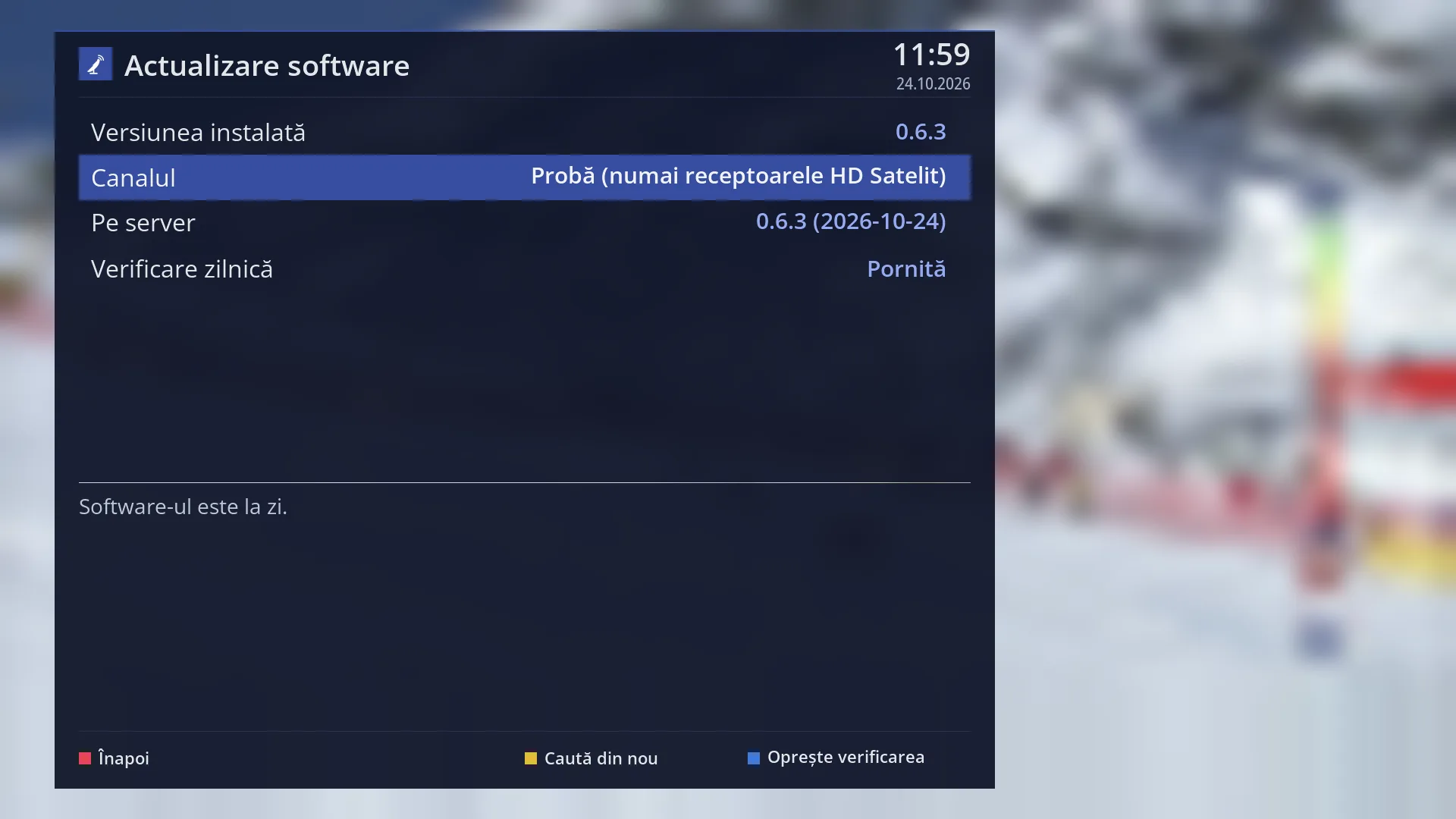
- 1 Channel: where the updates come from.
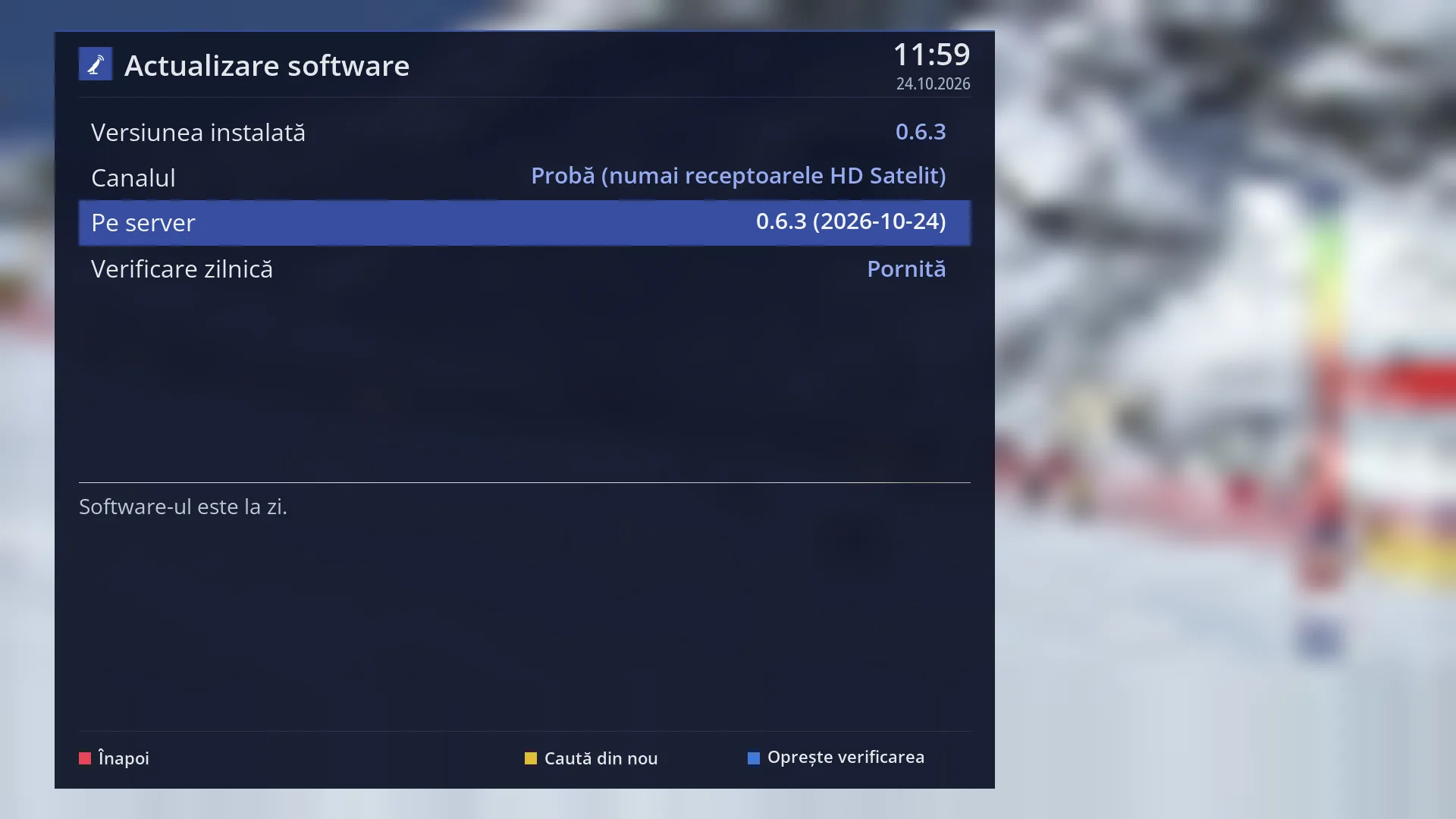
- 1 On the server: the published version and its date.
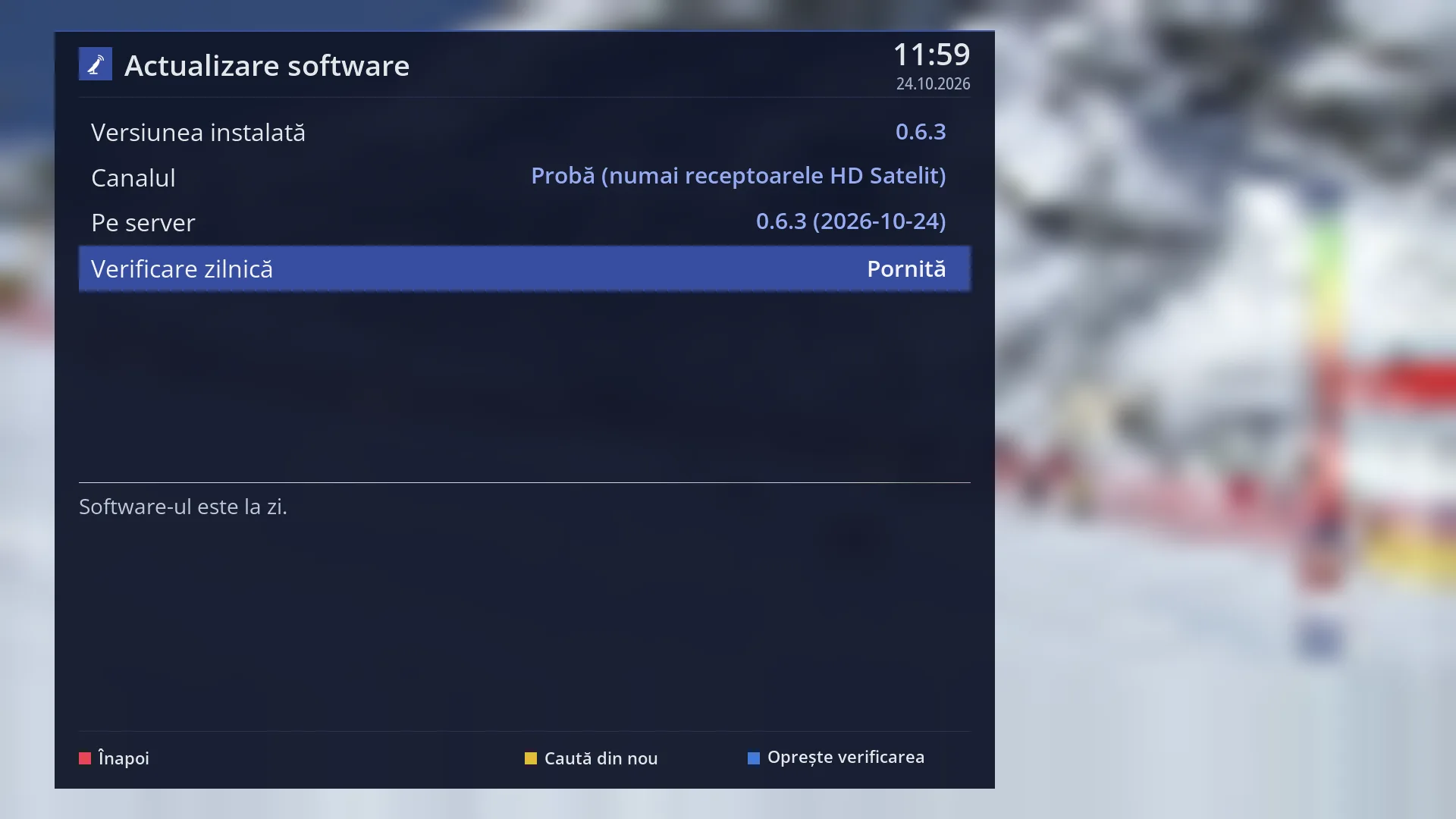
- 1 Daily check: OK turns it on or off.
What it is for
“Software update” brings new versions of the HD Satelit image over the internet, from the HD Satelit server, without a USB stick. This is how all new versions arrive after the first installation.
When you open the screen, the receiver searches by itself. It shows you which version you have, what is on the server, which packages would change and what the new version brings (“What's new”). It installs nothing until you press GREEN and answer Yes.
The receiver installs only what is signed by HD Satelit. The status on the server, the package list and each downloaded package are checked before installation. If anything does not match, nothing is installed.
When an update would change the receiver's kernel, drivers or core libraries, or has too many packages, the screen does not install it and tells you why. In that case you have to install the new image from scratch, from “New image from USB stick”.
After installation the interface restarts so that the new version takes effect.
The daily check, on by default, looks at the server once a day and tells you on the TV when a new version has appeared. It does not install anything by itself.
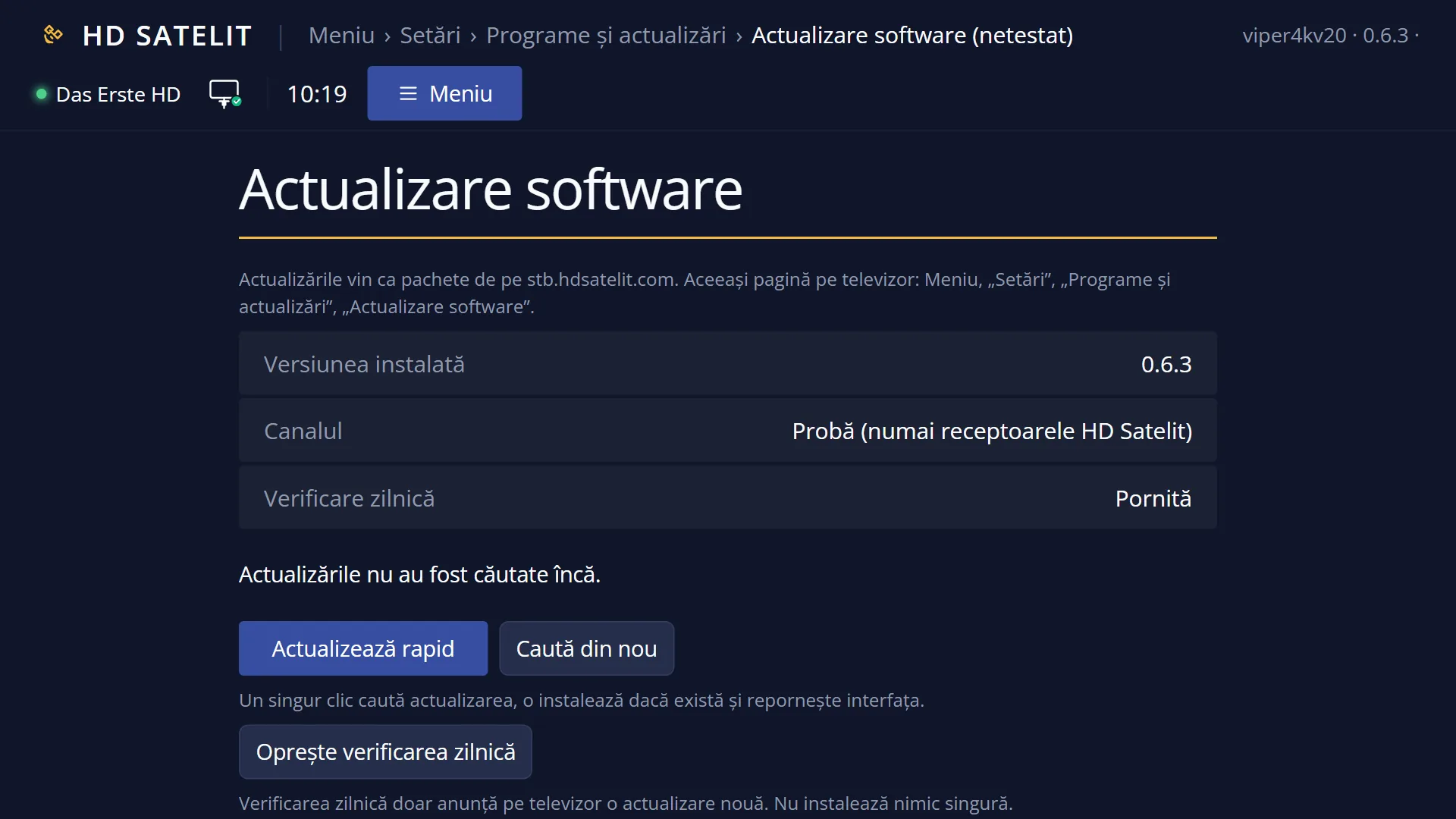
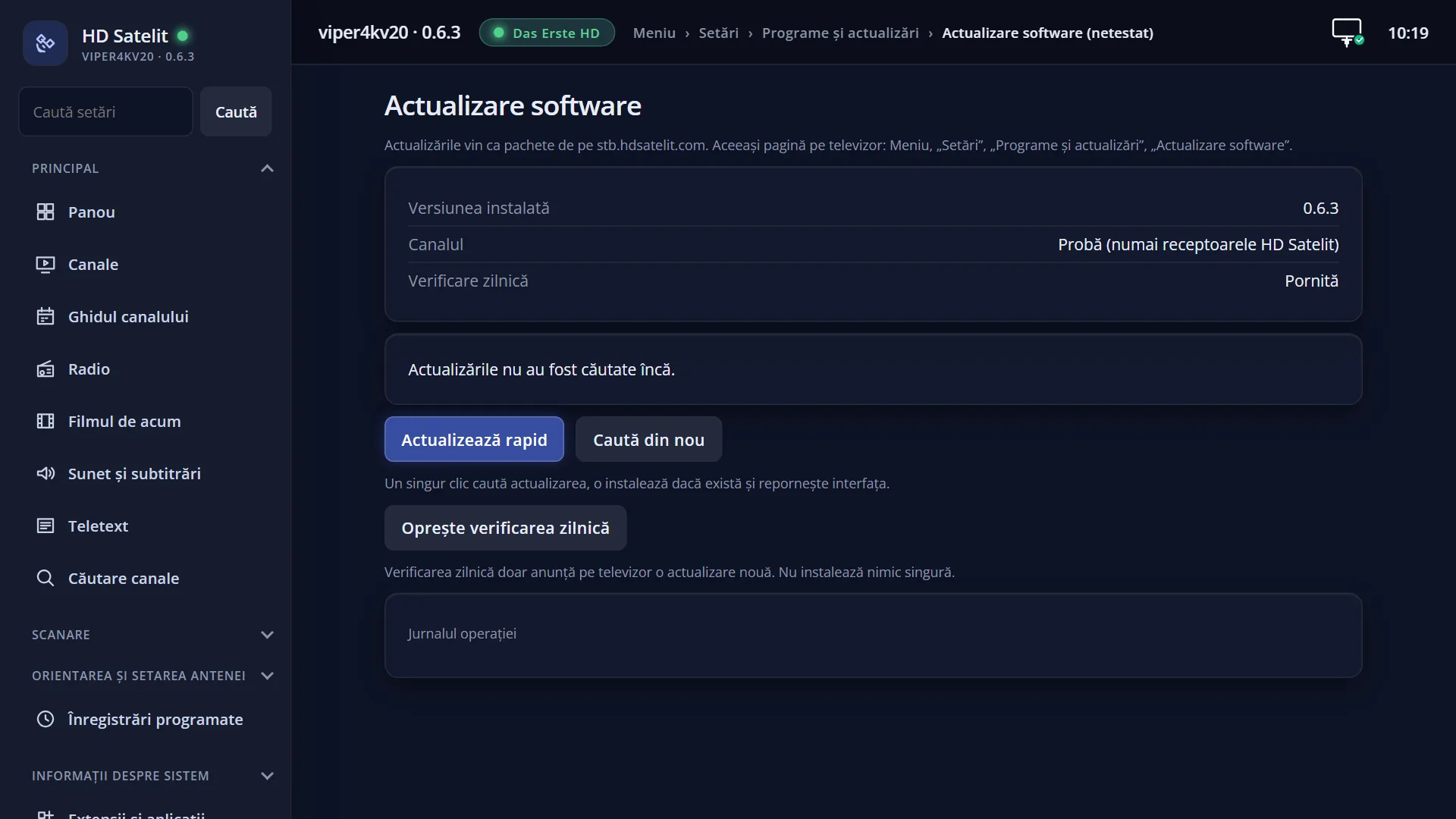
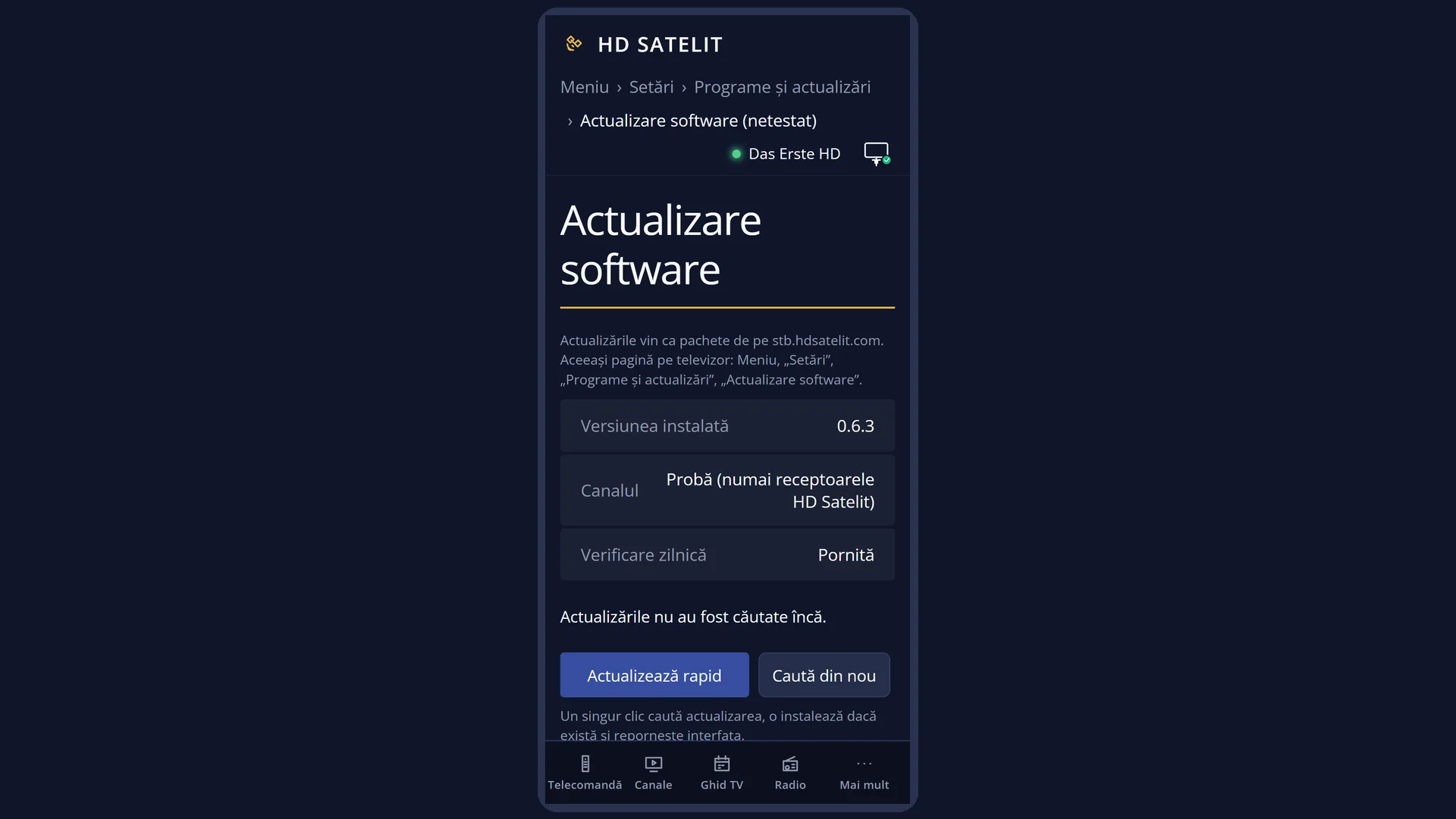
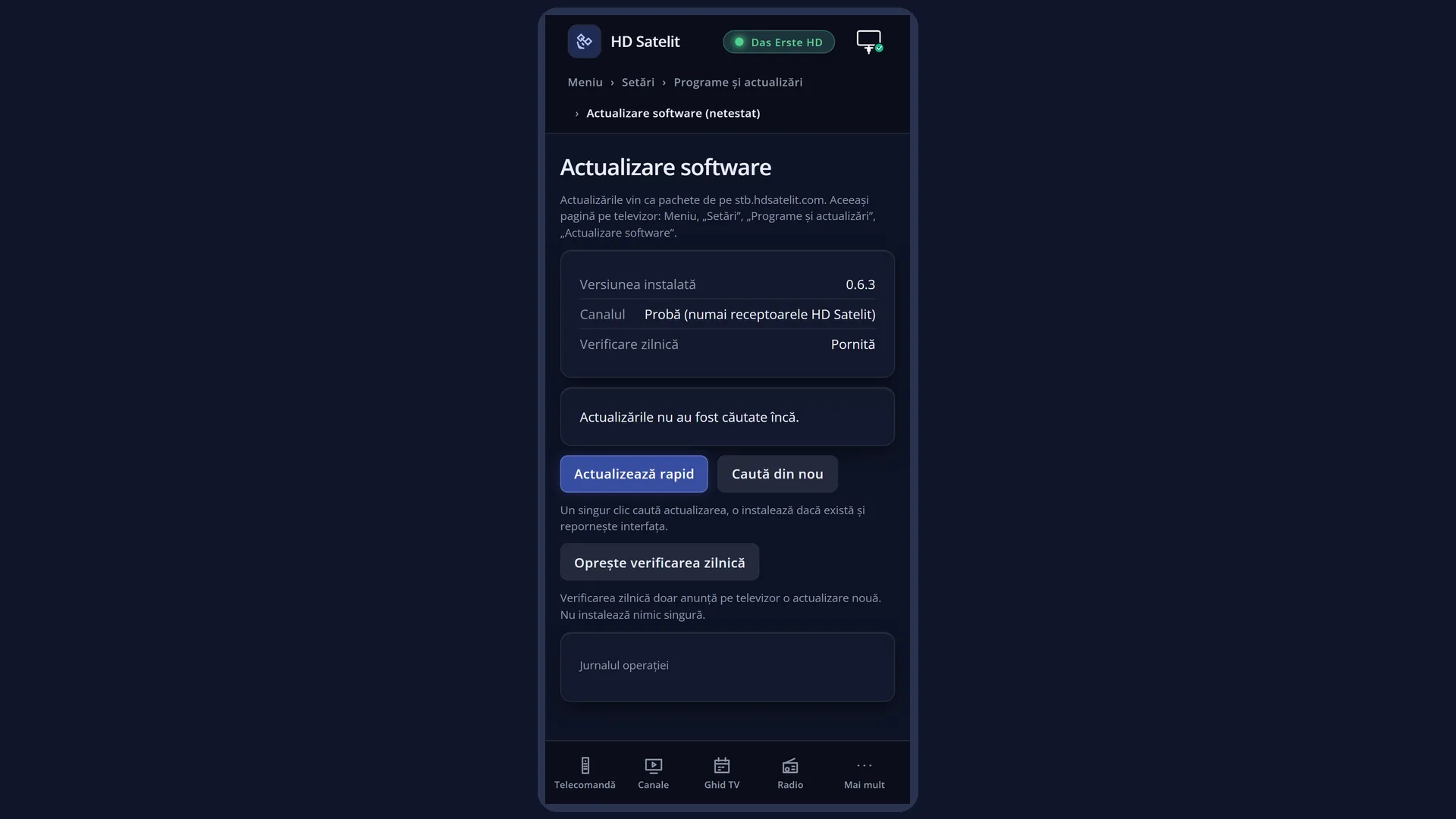
You can do the same in the web interface, on the /actualizari page. There the “Quick update” button searches, installs and restarts the interface with a single click.
How to get here
Path: Main menu > Settings > Software & Firmware > Software update (the first row).
Keys on the remote: MENU 6 8 1.
In the menu the row appears as “Actualizare software (not tested)”. The mark only means that the entry has not yet been tested on the receiver.
After the notice on the TV (“Software update: version … is available”): close the notice with OK and press MENU 6 8 1.
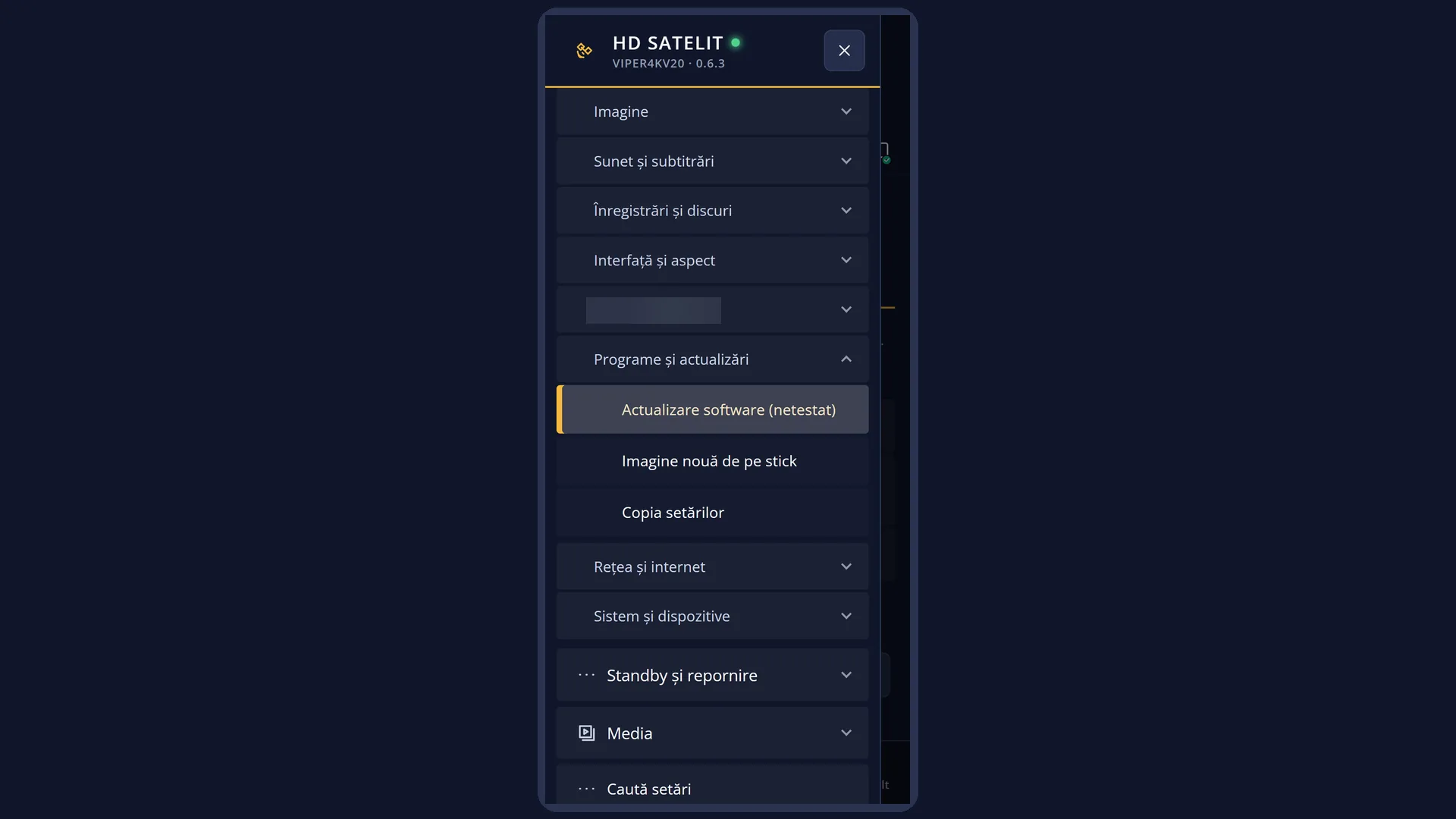
In the web interface: the /actualizari page, or /meniu, at “Software update”, with “Web page” or “Open on the TV”.
What you see on the screen
At the top, the title “Software update”, the time and the date.
The list of rows, with the name on the left and the value on the right: “Installed version”, “Channel”, “On the server”, “Daily check” and, only when there is something to install, “To install” with one row per package. Values shown dimmer (grey) are read-only: the package rows, “Base image” and the missing channel.
Below the line, the result text: “The software is up to date.”, or what is new in the version on the server, grouped by version (“What's new in 0.6.1:” and the bulleted rows), or why the update cannot be installed, or what went wrong. When the text does not fit, you page through it with LEFT / RIGHT, and underneath it says “Text above: page 1 of 3 (Left/Right or CH+/CH-)”.
The yellow status row: the step in progress or what comes next. While searching: “Reading the update status from the server...”, “Downloading the package list (opkg update)...”, “Comparing the packages...”. While installing: “Downloading and checking the packages...”, “Preparing the installation...”, then “Packages done: 3 of 12.” with the current package. When you can install: “GREEN: install version 0.6.1.”. After installation: “Restart the interface to use the update (GREEN).”.
At the bottom, the colour keys: RED “Back”, GREEN “Install” or “Restart” (only when they make sense), YELLOW “Search again” (only when nothing is running), BLUE “Turn off check” or “Turn on check”.
While it searches or installs, the screen updates by itself, step by step. You do not need to press anything.
Rows and settings
| Row | Values | Default | What it does |
|---|---|---|---|
| Installed version | the version number, for example 0.6.0, unknown | The version of the HD Satelit image now running on the receiver, the same one you see in “About the image”. After an update, the new version appears here. You cannot change it here. Only an update or a new image changes it. | |
| Base image | the number of the image written from the USB stick, for example 0.6.0 | The full image last written to the receiver from the USB stick, on top of which the updates were installed. The row appears only when the update on the server needs a new image, so that you can see which image you are on. | |
| Channel | Public, Test (HD Satelit receivers only), Test, without password, No update source | Public | Where the updates come from. “Public” is the channel for all receivers and comes with the image. “Test (HD Satelit receivers only)” is the channel HD Satelit uses to test versions, only on its own receivers. “Test, without password” means that this channel is set, but the receiver does not have its password. “No update source” (grey) means that the image on the receiver does not know where to get updates from. You do not choose it here. Each image gets its updates only from its own channel, made for it. |
| On the server | the version and its date, for example 0.6.1 (2026-11-02), no update | The latest version published on the HD Satelit server for your image, with its publication date. “no update” means that no update has been published for your image yet. The row appears only after a successful search. | |
| To install | one package, 340 KB, 12 packages, 4.6 MB | How many packages would change and how much there is to download. Below it, one row per package, with its name and “from … to …” (the current version and the new one). The rows appear only when the server has a newer version than yours. | |
| Daily check | On, Off | On | On: five minutes after the receiver starts and then once a day, the receiver checks the server. When a new version has appeared, it shows on the TV for 20 seconds: “Software update: version 0.6.1 is available. You install it from Software update.”. Each version is announced only once. When a version needs a new image, the notice says “Software update: for the HD Satelit news, the new image must be installed from scratch. Details in Software update.”. The check does not download packages and does not install anything. Off: it no longer checks by itself; you search yourself, from this screen. Turn it off if you do not want notices on the TV. You turn it on or off with OK on the row or with BLUE. |
| Search result (the text below the list) | The software is up to date., An update is available., The update cannot be installed from the menu., The update is not signed by HD Satelit; it is not installed., The receiver is not connected to the internet now, so updates cannot be searched for., The update server (…) did not respond., The search for updates failed. | What the search found. In the message about the server, the address of the HD Satelit server is in brackets. When there is an update to install, you see “What's new” here, that is the changes in all versions from yours up to the one on the server, in Romanian when the menu is in Romanian and in English in all other languages. When the update cannot be installed from the menu, you see the reasons (for example “The update changes the Linux kernel.”, “The update changes the receiver's drivers.”, “The update has too many packages for an installation from the menu.”) and then “The new image must be installed from scratch, from “New image from USB stick”. Installed from the menu over the current image, the update can make the receiver unstable, so it is not installed here.”. If there is an error, you also see its reason below the text. |
Keys
| GREEN | “Install”: asks “Install version 0.6.1 (12 packages, 4.6 MB)? At the end the interface must be restarted.” and installs if you answer Yes. The key appears only when there is an update that can be installed. After installation it becomes “Restart” and asks about restarting. |
| YELLOW | “Search again”: searches the server once more. It is not shown while a search or installation is running, or after an installation that is waiting for a restart. |
| BLUE | Turns the daily check off or on (“Turn off check” / “Turn on check”). It is saved immediately. |
| RED | “Back”: closes the screen. |
| OK | On the “Daily check” row it turns the check on or off, like BLUE. On the other rows it does nothing. |
| UP / DOWN | Moves the cursor to the row above or below (for example to the package rows, when there are many). |
| LEFT / RIGHT | Page through the text below the list (What's new, the reasons) when it does not fit in full. |
| CH+ / CH- and |<< / >>| | Same as LEFT / RIGHT: CH+ and |<< go to the page above, CH- and >>| to the page below. |
| EXIT | Closes the screen. A search or installation already started carries on in the receiver. When you open the screen again, you see how far it has got. |
Step by step
Installing a new version from the TV
- Press MENU 6 8 1. The screen searches by itself. Wait until the step in the yellow row disappears.
- If it says “An update is available.”, read “To install” and, below the list, “What's new” (page through it with LEFT / RIGHT).
- Press GREEN (“Install”) and answer Yes to “Install version …?”.
- Wait: the yellow row shows “Packages ready: … of …”. Do not switch off the receiver while it is installing.
- At “The update has been installed. Restart the interface now?” choose Yes. After the restart, “Installed version” shows the new version, and “What's new” may open by itself with its changes.
Updating from your phone with one click
- Open the receiver's web interface, for example http://192.168.1.50, and go to /actualizari.
- Press “Quick update” and confirm the question “Start the quick update? …”.
- The page shows the steps “Looking for the update”, “Installing version …”, “Restarting the interface” and waits until the interface is back (at most 4 minutes). At the end it says “Updated to …”, or “The software is up to date.” if there was nothing new.
- If a recording is running, the restart waits until it ends. The page says “The update has been installed. The interface restarts by itself after the recording.”.
Turning the daily notices off or on
- Press MENU 6 8 1.
- Press BLUE (or OK on the “Daily check” row).
- The row shows “Off” or “On”. Your choice is kept after a restart too.
Problems and solutions
It says “The update cannot be installed from the menu.” and “The new image has to be installed from scratch…”.
The update changes parts of the receiver that cannot be changed safely over the current image (the reasons are written above). First make a settings copy (MENU 6 8 3), then install the new image from the USB stick (MENU 6 8 2), as described in the installation section on the website. The screen deliberately has no “install anyway” option.
It says “The receiver is not connected to the internet now, so updates cannot be searched for.”.
The receiver has no connection to the router. Check the cable or the Wi-Fi in Settings > Network & Internet, then press YELLOW (“Search again”).
It says “The update server (…) did not respond.”, with the address of the HD Satelit server in brackets.
The internet is slow or the server did not respond in time. Try again in a few minutes with YELLOW. If web pages do not open on the receiver either, check the internet and the DNS servers.
It says “The update is not signed by HD Satelit; it is not installed.”.
What came from the server does not match the HD Satelit signature, so the receiver has installed nothing and nothing has changed. Search again later. If the message stays, do not install anything any other way, and tell HD Satelit.
It says “The image on the receiver does not have the update source.” or “Channel” shows “No update source”.
The image on the receiver does not know where to get updates from. Install the HD Satelit image from the website, from a USB stick. It comes with the update source.
It says “Another program is installing or downloading packages now. Try again after it finishes.”.
Something is being installed from “Plugins & Applications” (or from the plugins web page). Wait for it to finish, then press YELLOW.
The installation stopped with “The installation stopped with an error: …”.
The reason is given in the message (for example “There is no more room in the receiver's memory.” or “A file could not be downloaded from the server.”). If at least one package has changed, GREEN shows “Restart”: restart the interface, then search again with YELLOW. If there is not enough space, delete the plugins you do not use (Plugins & Applications) or restart the receiver (Menu > Power & Restart > Restart Box), then try again.
I answered No to the restart and now YELLOW no longer appears.
After an installation, nothing else starts from this screen until you restart the interface. Otherwise the new version does not take effect. Press GREEN (“Restart”) or go to Menu > Power & Restart > Restart Interface.
After answering Yes to the restart, “There are recordings running or starting in a few seconds. Are you sure you want to restart now?” appears.
A recording is running or starts within a few minutes. Yes restarts now, interrupting the recording. If you leave the question on the screen, the interface restarts by itself when the recording ends.
The question was “Restart the receiver now?”, not “Restart the interface now?”.
That is fine. Sometimes, after installation, the whole receiver restarts to free up its decoder memory. This happens only when no recording is running. No other message about this appears on the TV. It takes a little longer (in the web page: about two minutes).
It says “The package list and the status on the server are not from the same publication. Search again.”.
A version was being published on the server while you were searching. Press YELLOW after a minute.
I do not get the notice on the TV when a new version appears.
Check the “Daily check” row: it must be “On”. The notice comes five minutes after start-up or once a day, only when the receiver has internet, and only once for each version. You can always search yourself with MENU 6 8 1.
The web page says “The interface did not come back within 4 minutes. Check the receiver.”.
Look at the TV: it may be waiting for an answer to the restart question. If the receiver does not respond to the remote at all, restart it and open the page again after two minutes.