

Font Size
English screenshots coming: some of the pictures below still show the receiver and the web interface in Romanian. The rows, keys and steps described on this page are the English ones.
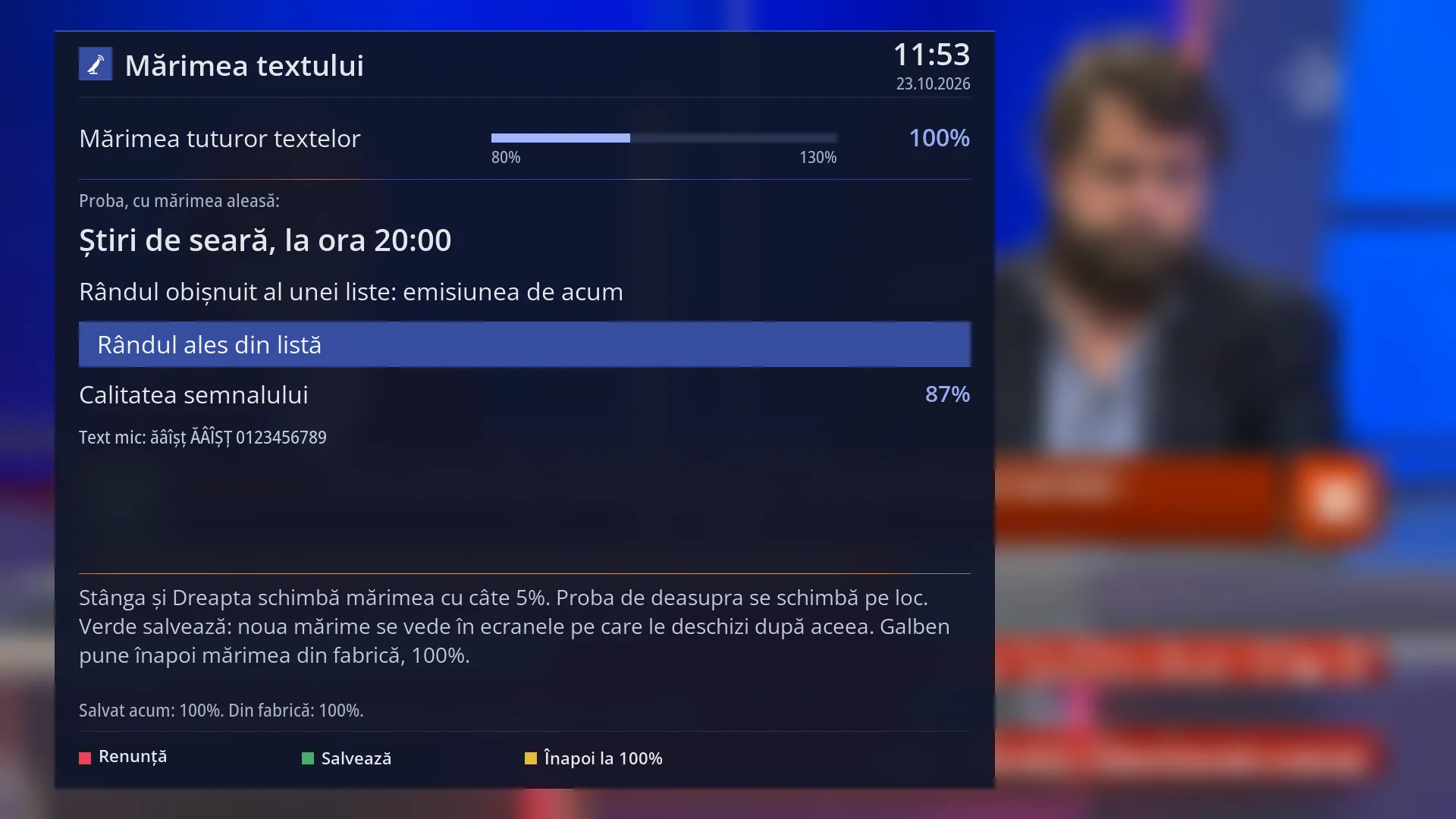
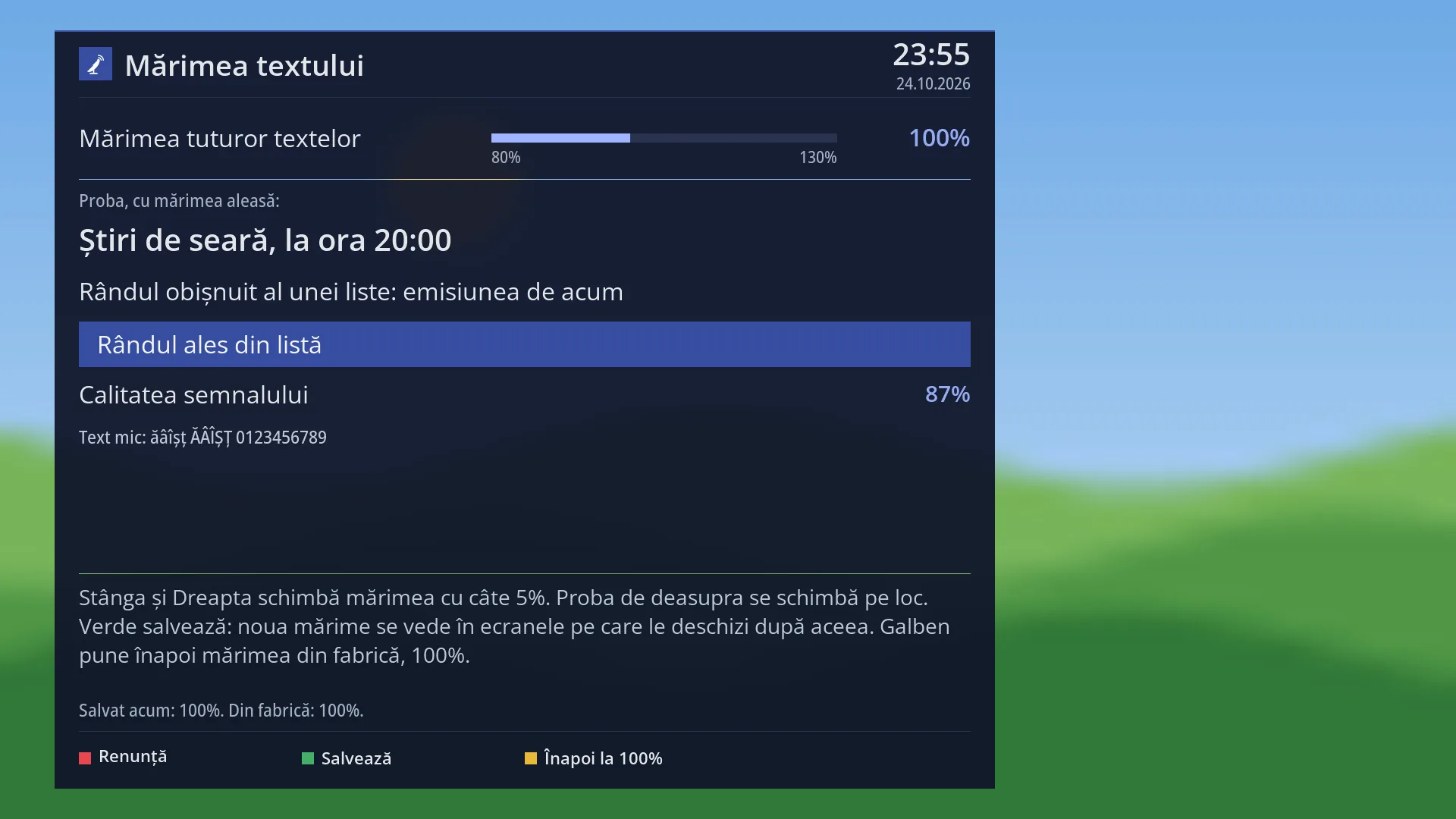
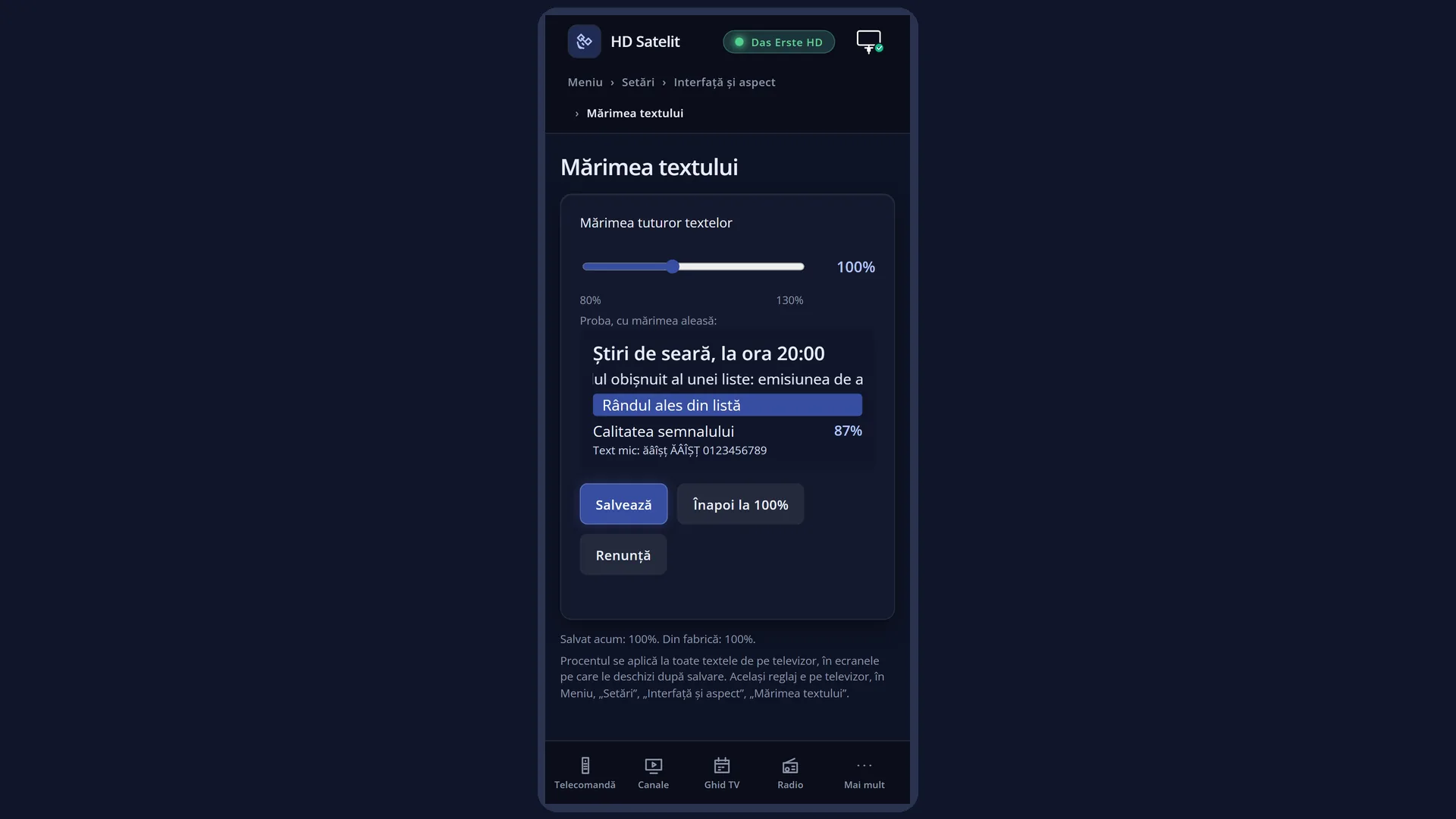
- 1 The slider from 80% to 130% and the chosen percentage.
- 2 The sample: title, list row, selected row, setting, small text. It changes straight away.
- 3 The screen help.
- 4 The status: what is saved and what is chosen now.
- 5 RED cancels, GREEN saves, YELLOW goes back to 100%.
What it is for
“Font Size” makes all the text on the receiver's screens larger or smaller: the menus, the lists, the info bar and the programme guide.
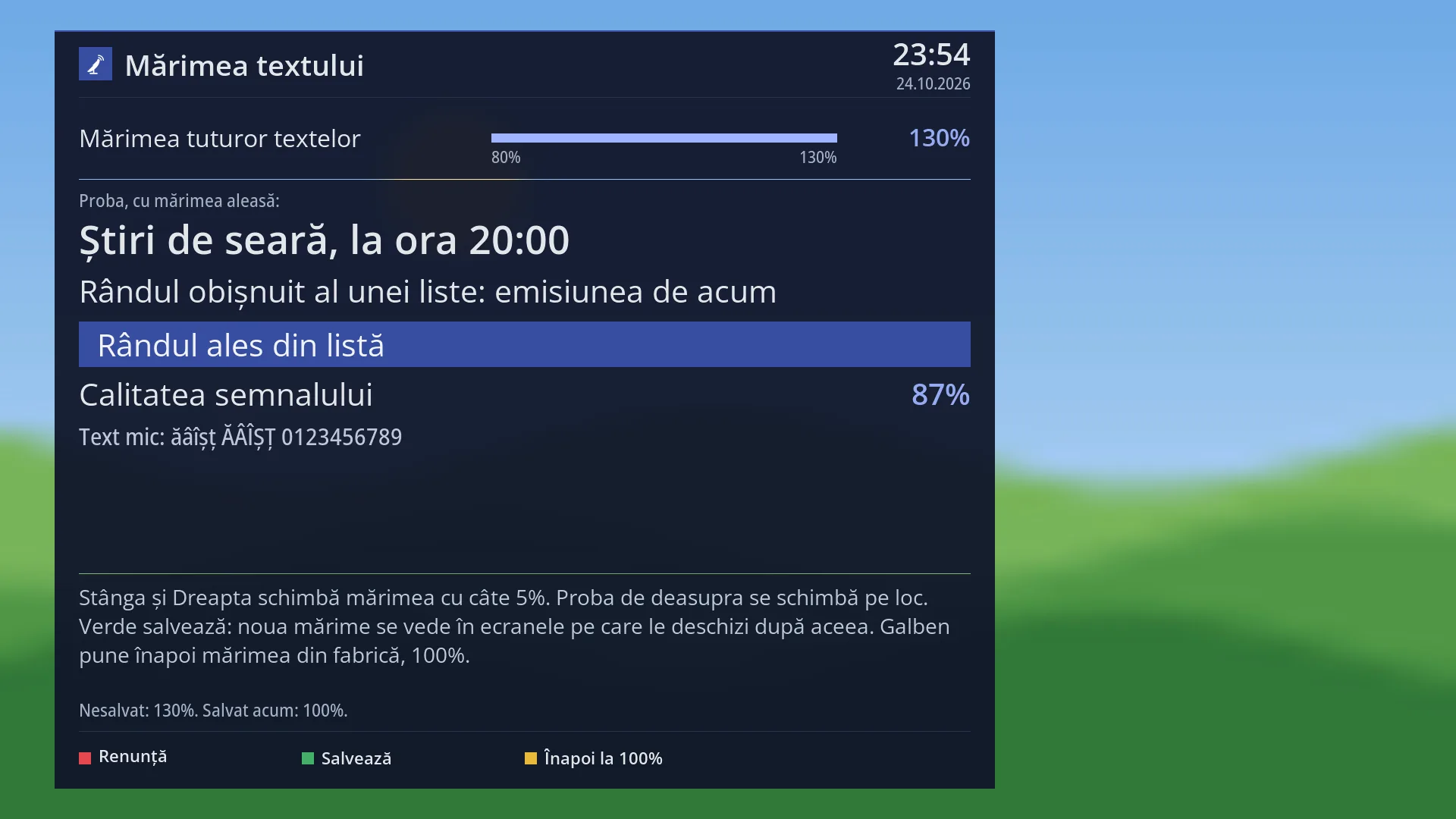
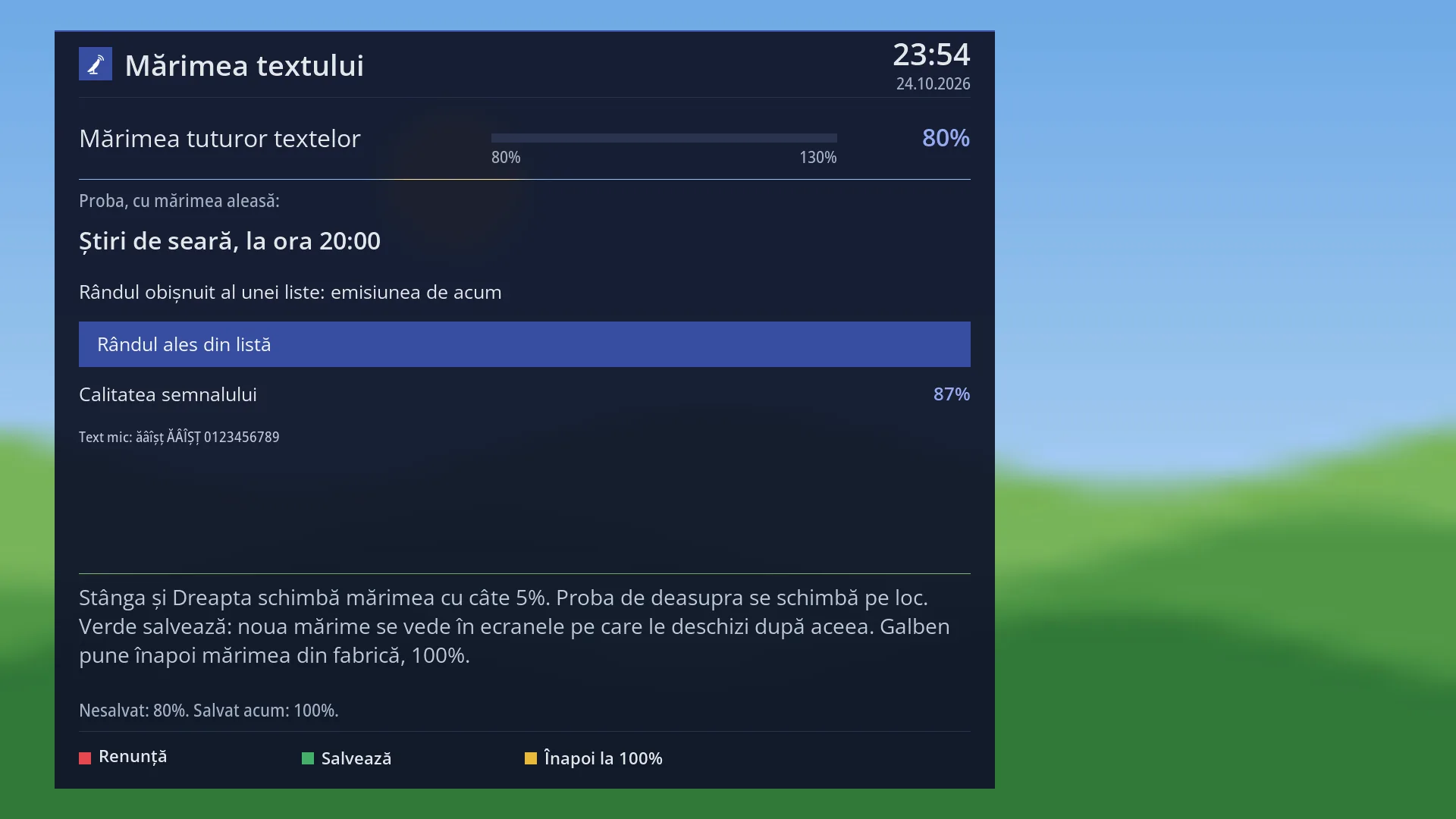
It is useful if you sit far from the TV or find text hard to read (130%), or if you want more information on the screen (80-90%).
There is a single setting, in percent, from 80% to 130% in steps of 5. The factory setting is 100%.
A sample on the screen changes size straight away as you adjust it, so you can see how the text will look before you save.
How to get here
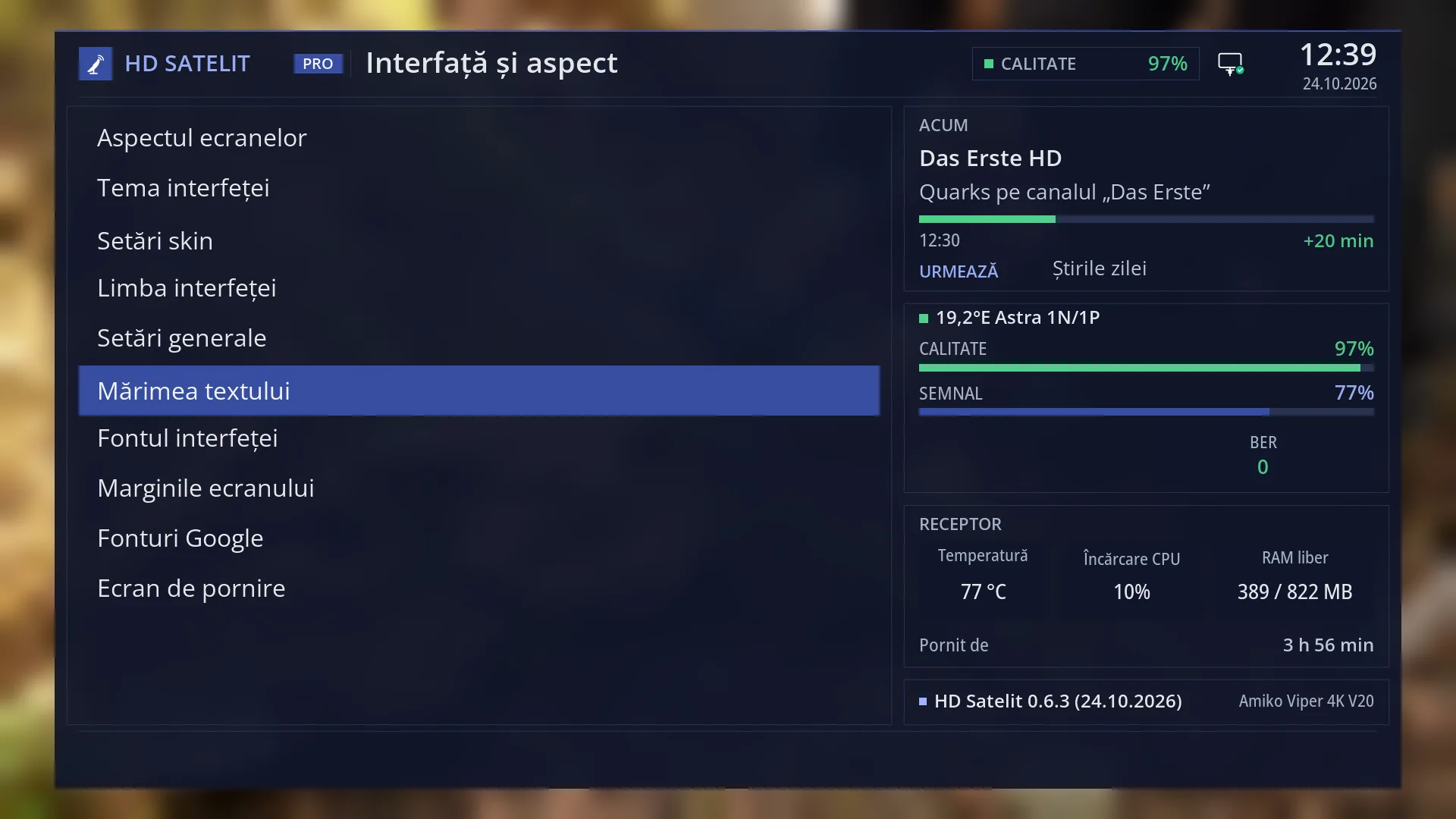
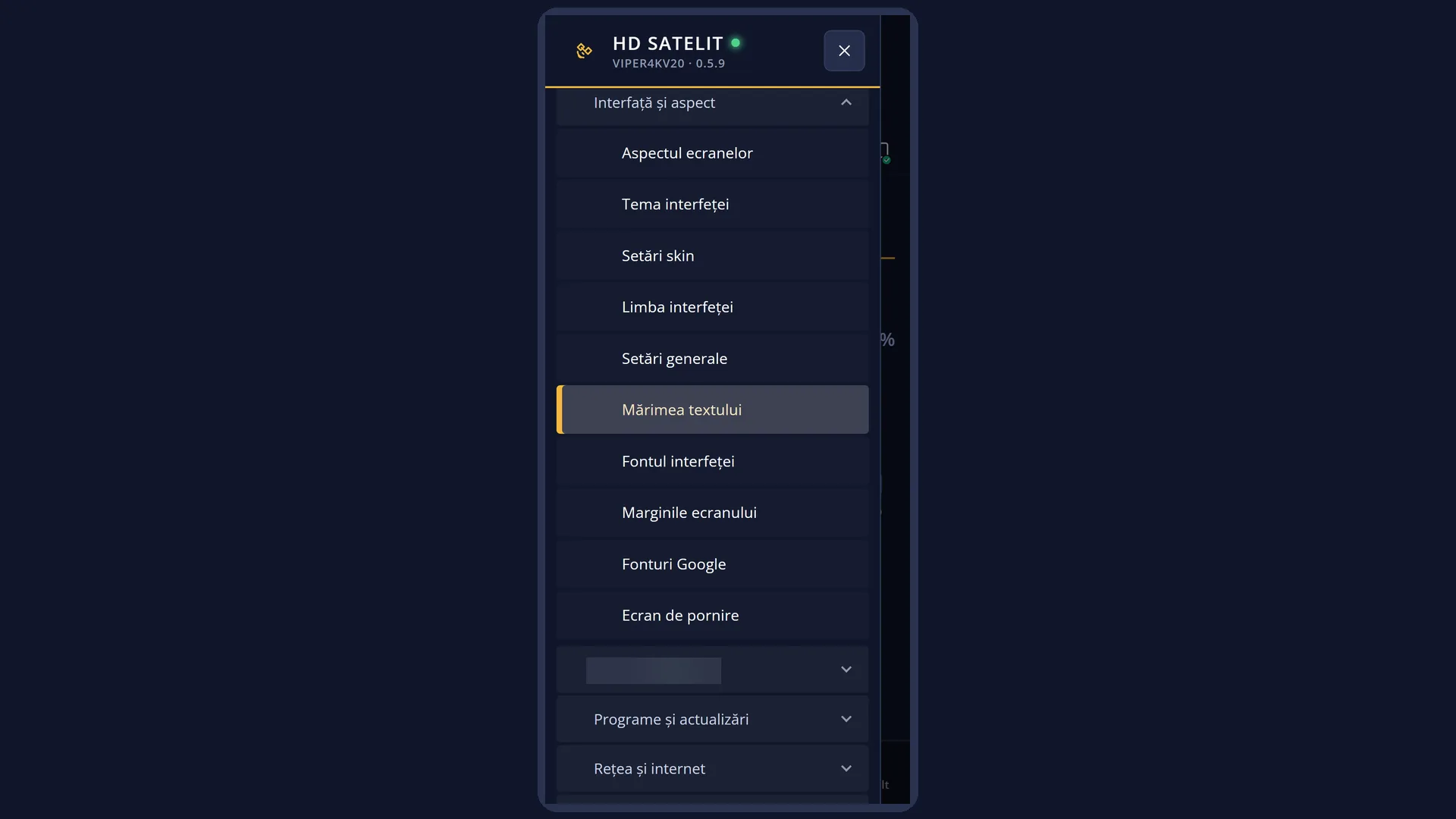
Path: Main menu > Settings > Interface & Appearance > Font Size.
Keys on the remote: MENU 6 6 6.
The “Font Size” row appears when “Setup Mode” is set to Intermediate (the factory setting) or Expert. It is hidden in Simple.
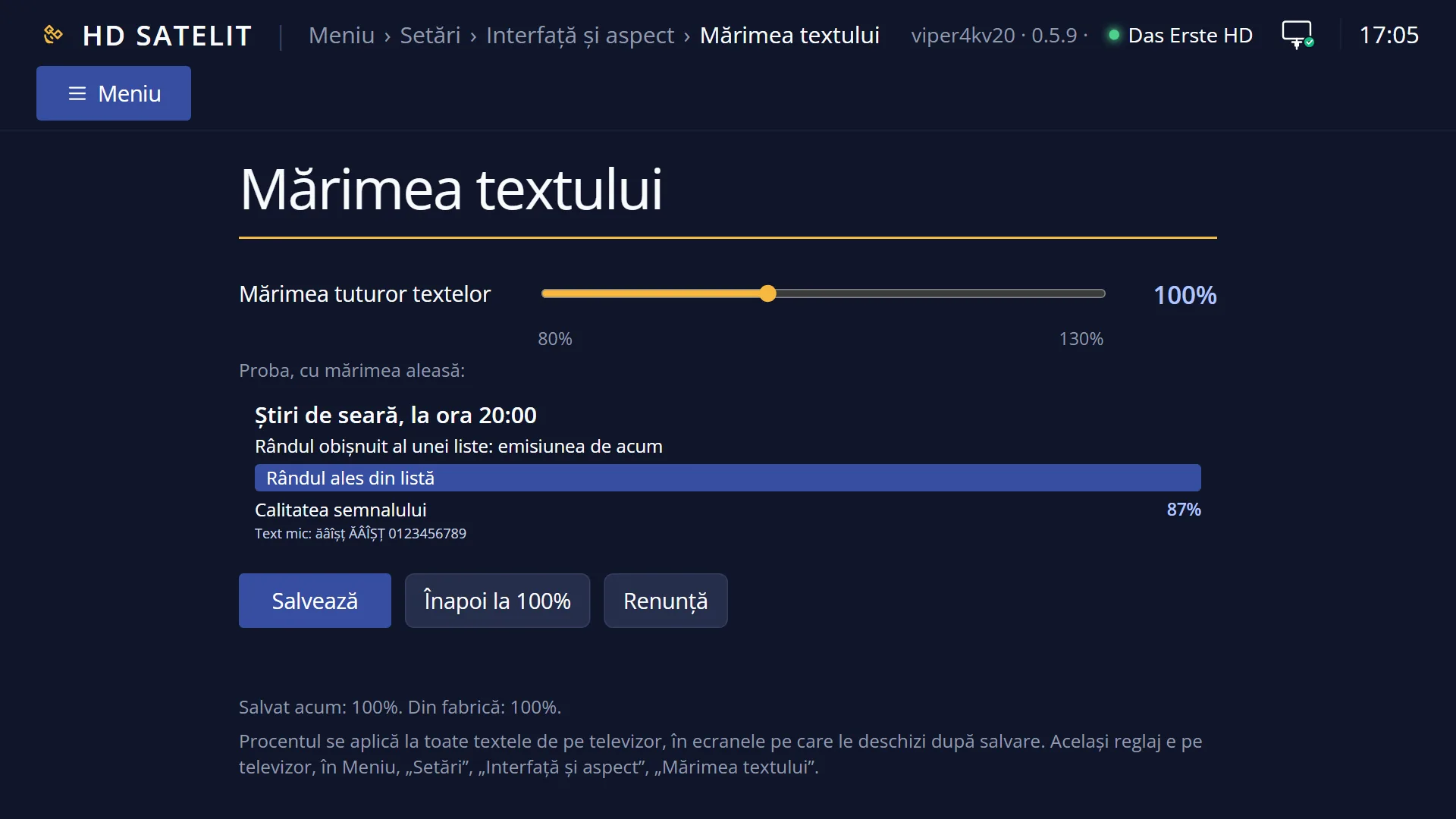
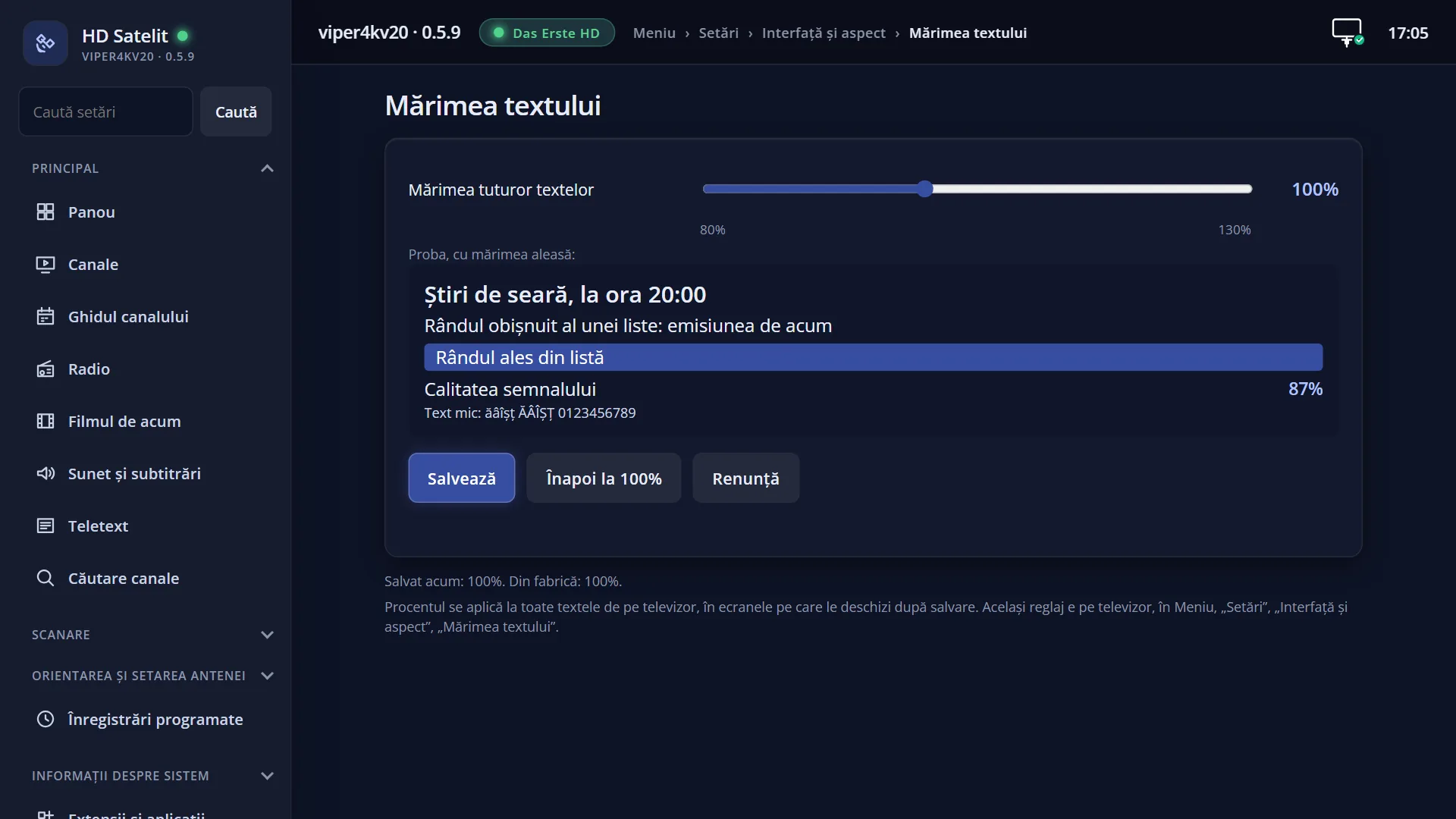
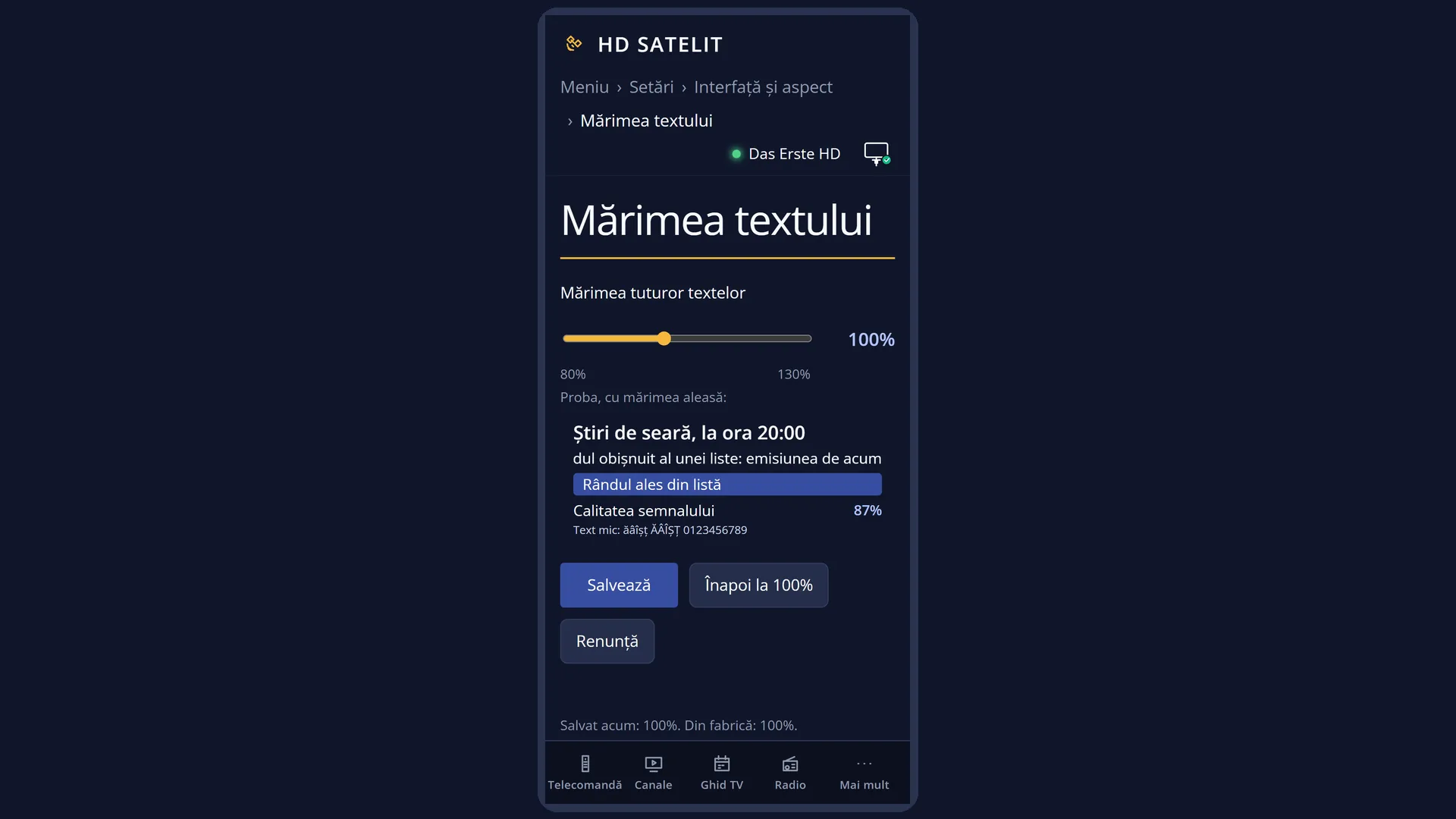
In the web interface: the /marime-text page, with the same setting and the same sample.
What you see on the screen
At the top: the title “Text size”, the clock and the date.
The “Size of all text” row with the slider: a bar that fills from 80% (empty) to 130% (full), with the end values written below it and the chosen percentage on the right.
Below the line: “Preview at the chosen size:” and six sample lines using the receiver's usual text: a title (“Evening news at 20:00”), a list row, a selected row with a blue background, a setting with its value (“Signal quality” 87%) and a small text with diacritics and digits. They grow and shrink straight away.
At the bottom: the screen help (“Left and Right change the size by 5%...”) and the status: “Saved now: 100%. Factory: 100%.” or, after a change, “Not saved: 120%. Saved now: 100%.”.
Colour keys: RED “Cancel”, GREEN “Save”, YELLOW “Back to 100%”.
Rows and settings
| Row | Values | Default | What it does |
|---|---|---|---|
| Size of all text | 80%, 85%, 90%, 95%, 100%, 105%, 110%, 115%, 120%, 125%, 130% | 100% | The percentage applied to all text on the screens. Below 100% the text gets smaller, above 100% it gets larger. Increase it if you find the text hard to read from the sofa. Decrease it if you want more text to fit on a line. |
Keys
| LEFT / RIGHT | Decrease or increase by 5%. Hold them down to keep changing. They stop at 80% and at 130%. |
| GREEN (Save) or OK | Saves the chosen size, applies it and closes the screen. |
| YELLOW (Back to 100%) | Sets the slider back to 100%, the factory size. It does not save: press GREEN afterwards. |
| RED (Cancel) or EXIT | Closes without saving and without asking. The previous size stays. |
| UP / DOWN | They do nothing here: the screen has only one setting. |
Step by step
Making the text larger
- Press MENU 6 6 6.
- Press RIGHT until you can read the sample easily from where you sit, for example 120%.
- Press GREEN. Open any menu: the text is larger.
Going back to the factory size
- Press MENU 6 6 6.
- Press YELLOW: the slider moves to 100%.
- Press GREEN.
Problems and solutions
I saved, but the menu behind still has the old text size.
The new size appears in screens opened after saving. Close the menu with MENU and open it again.
At 130% some text no longer fits.
The screens have fixed spaces for text, so at large sizes some long names may be cut off at the end. Try 115-120%.
I cannot find “Font Size” in Interface & Appearance.
The row is hidden when “Setup Mode” is set to Simple. Set it to Intermediate in OSD Preferences (MENU 6 6 5, first row).
I made the text larger, but the letters do not have the style I want.
You choose the letter style separately, in “Interface font” (MENU 6 6 7).