

System & Devices
English screenshots coming: some of the pictures below still show the receiver and the web interface in Romanian. The rows, keys and steps described on this page are the English ones.
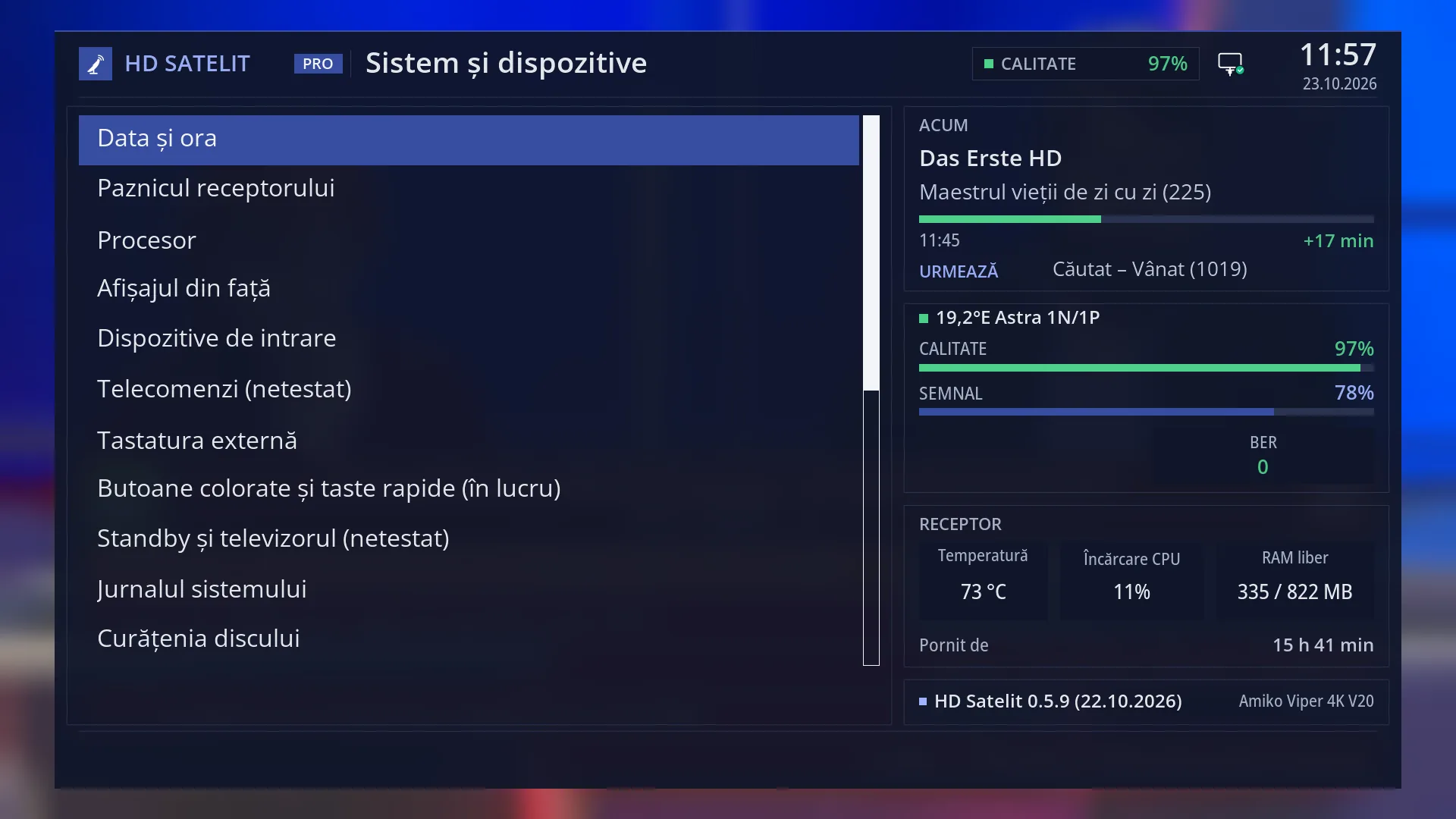
- 1 The menu title: “System & Devices”.
- 2 The clock, the watchdog, the processor, the front display.
- 3 The control devices: input devices, remotes, keyboard, quick keys.
- 4 Standby and TV, the log, the cleanup. The other rows are below.
- 5 Pro theme: the current channel, the signal, the receiver and the version.
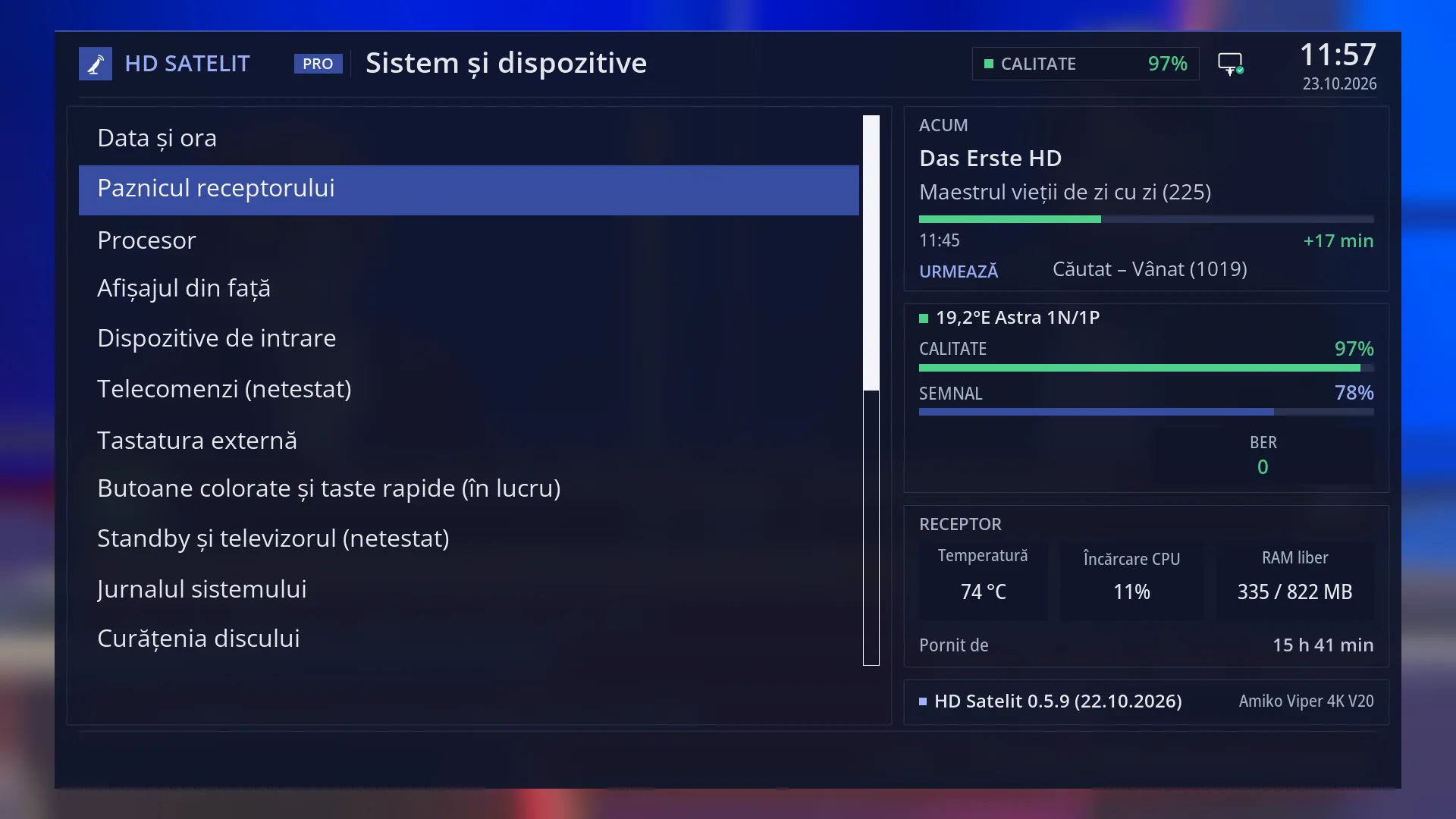
- 1 The selected row: “Receiver watchdog”.
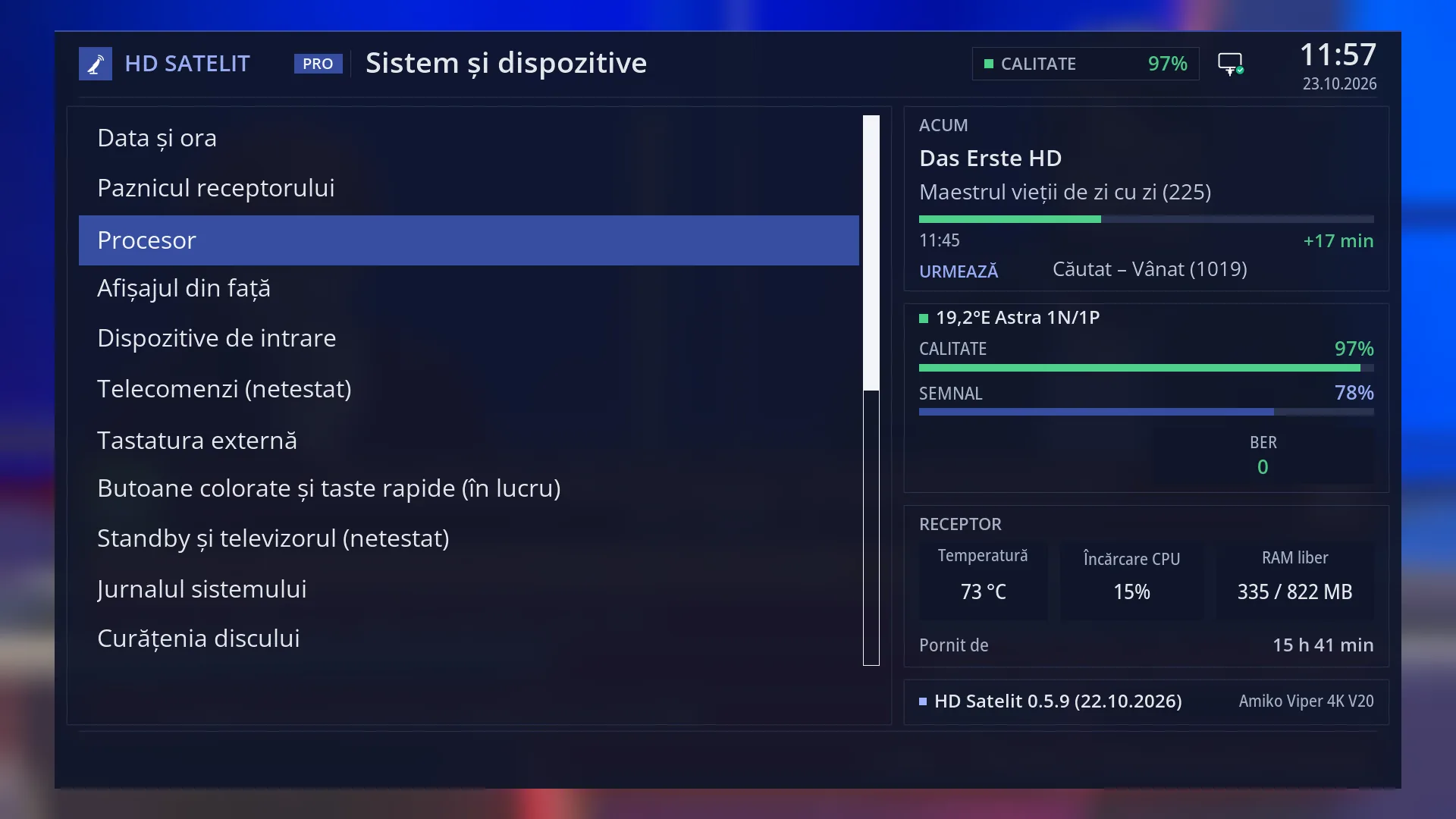
- 1 The selected row: “Processor”.
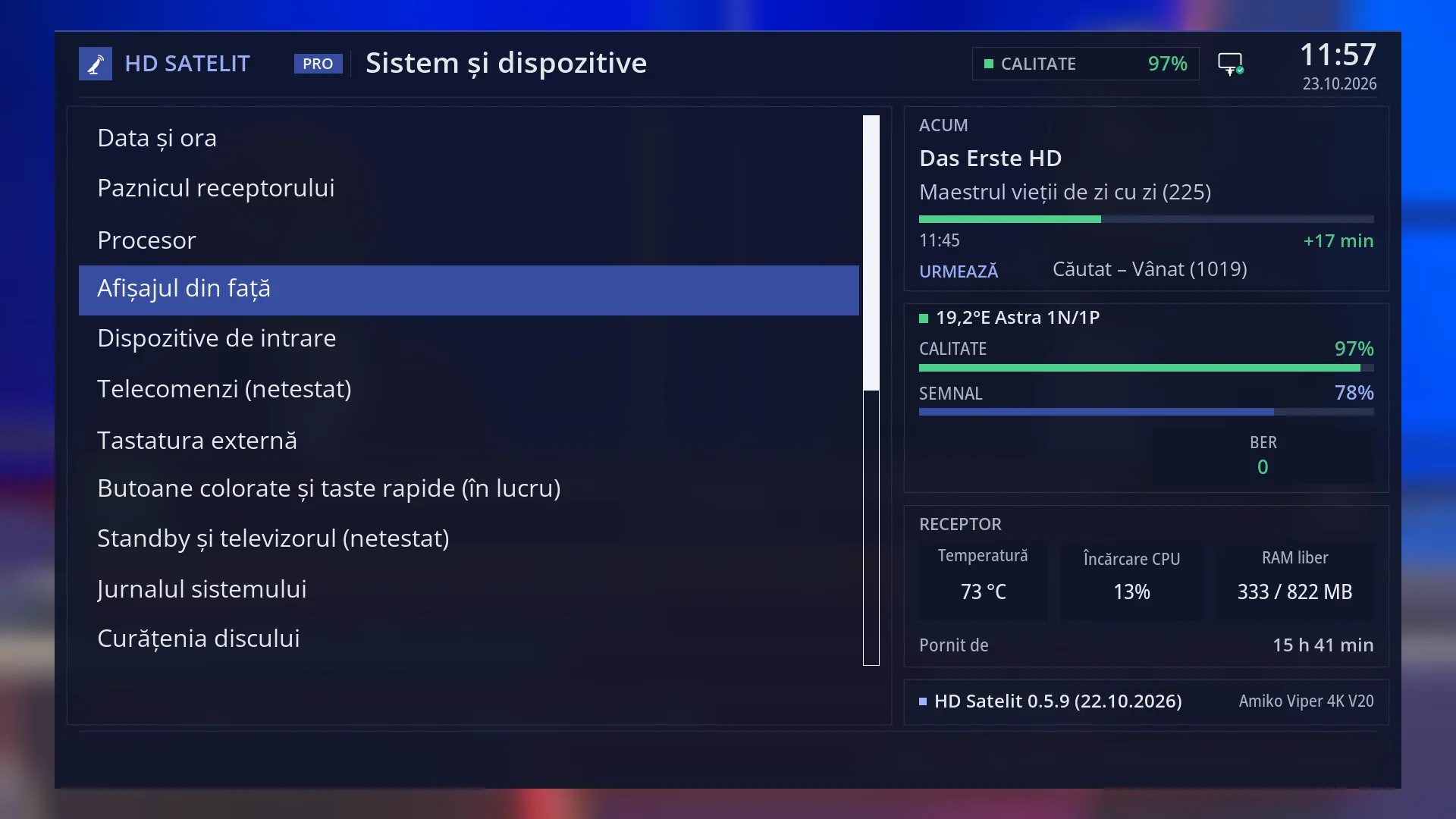
- 1 The selected row: “Front display”.
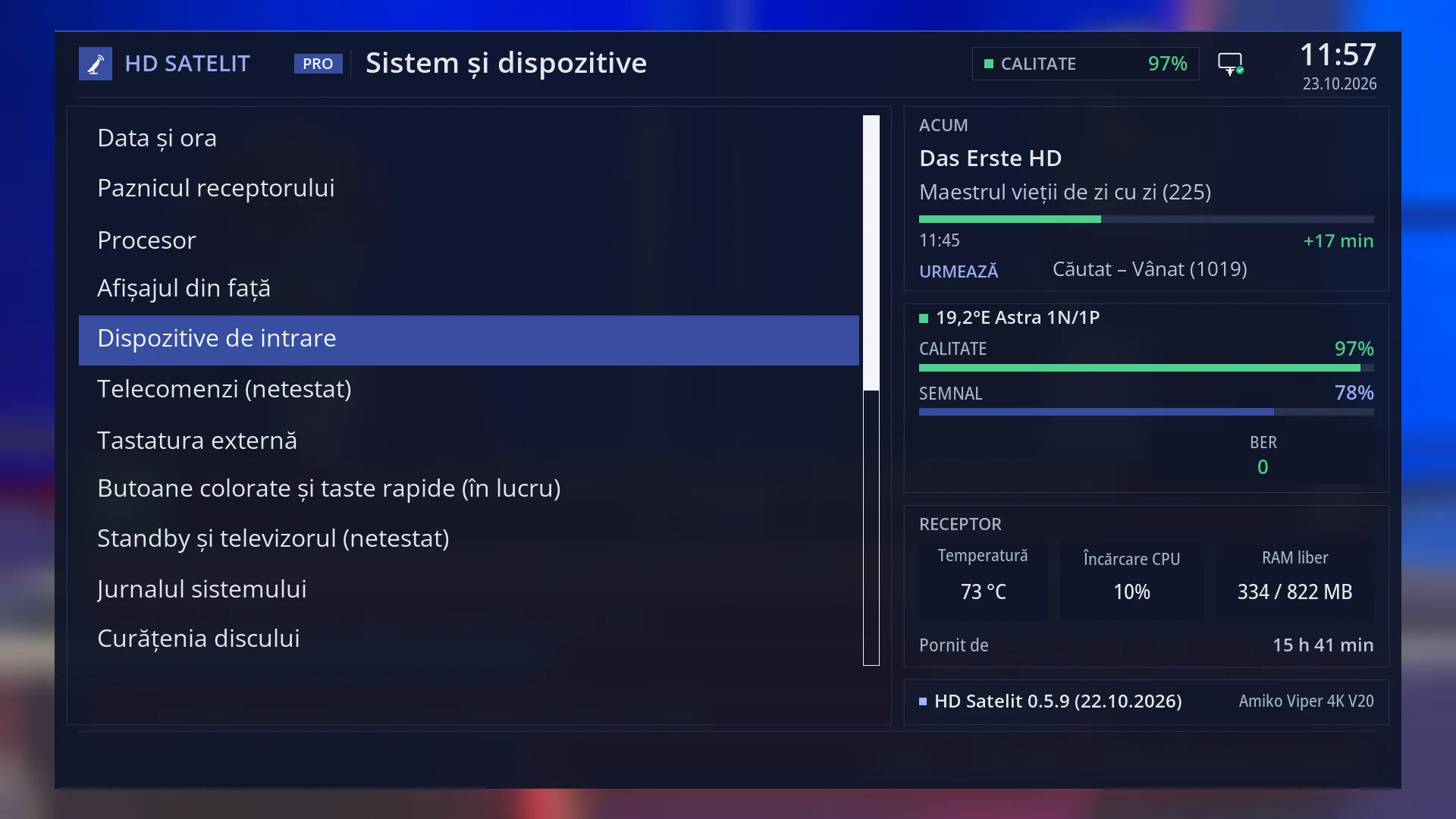
- 1 The selected row: “Remote Control Setup”.
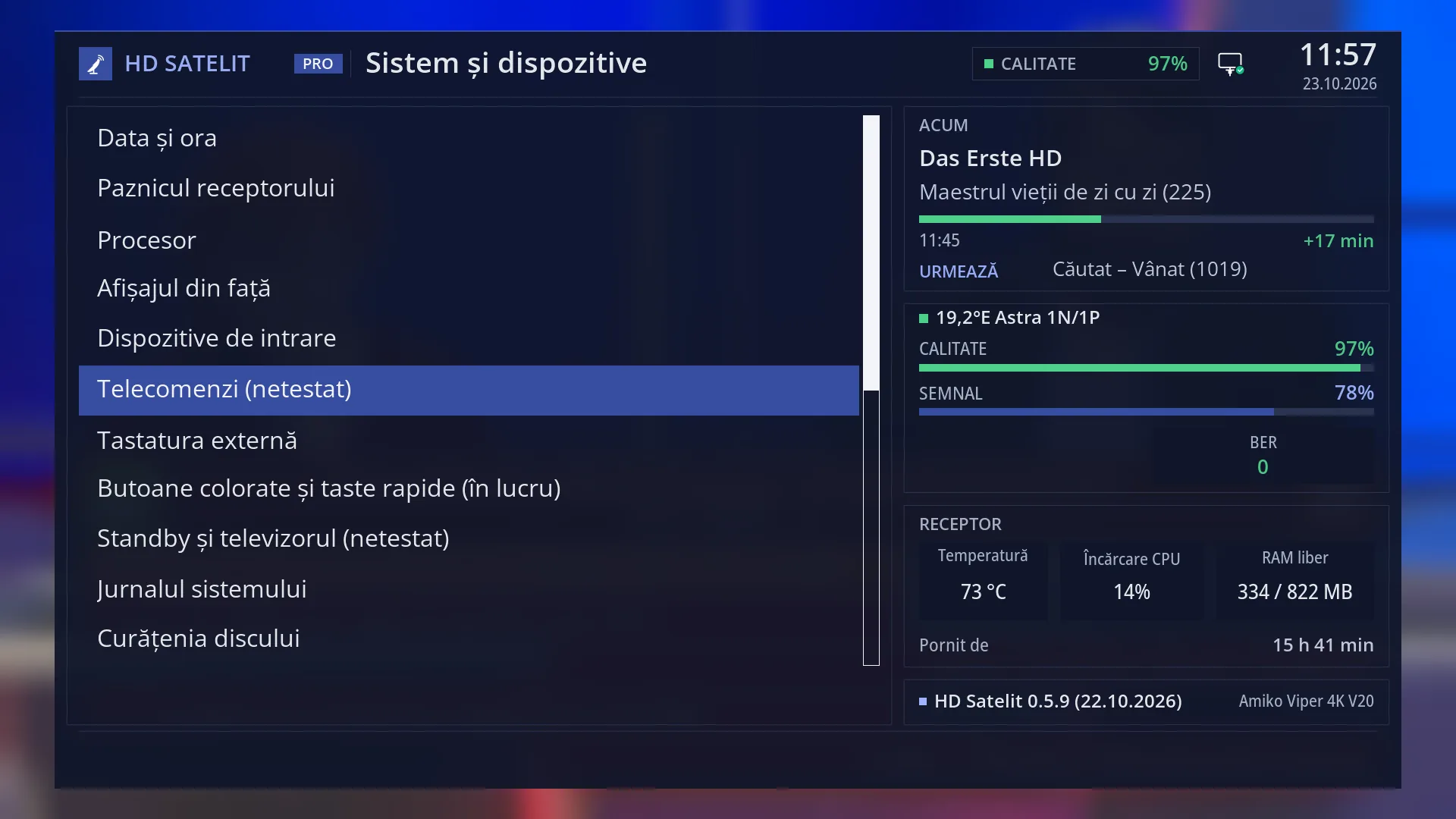
- 1 The selected row: “Remote controls (not tested)”.
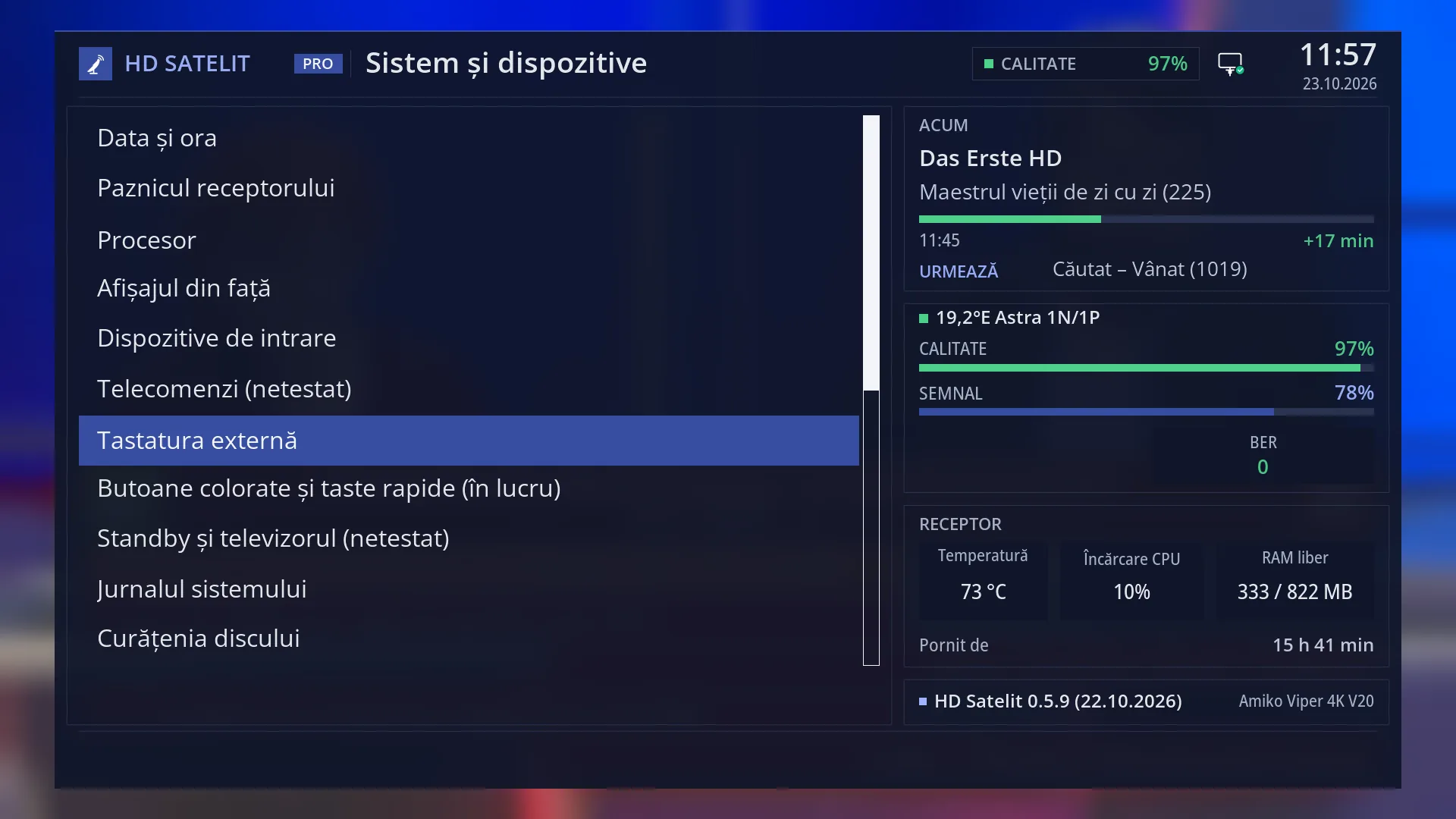
- 1 The selected row: “External Keyboard”.
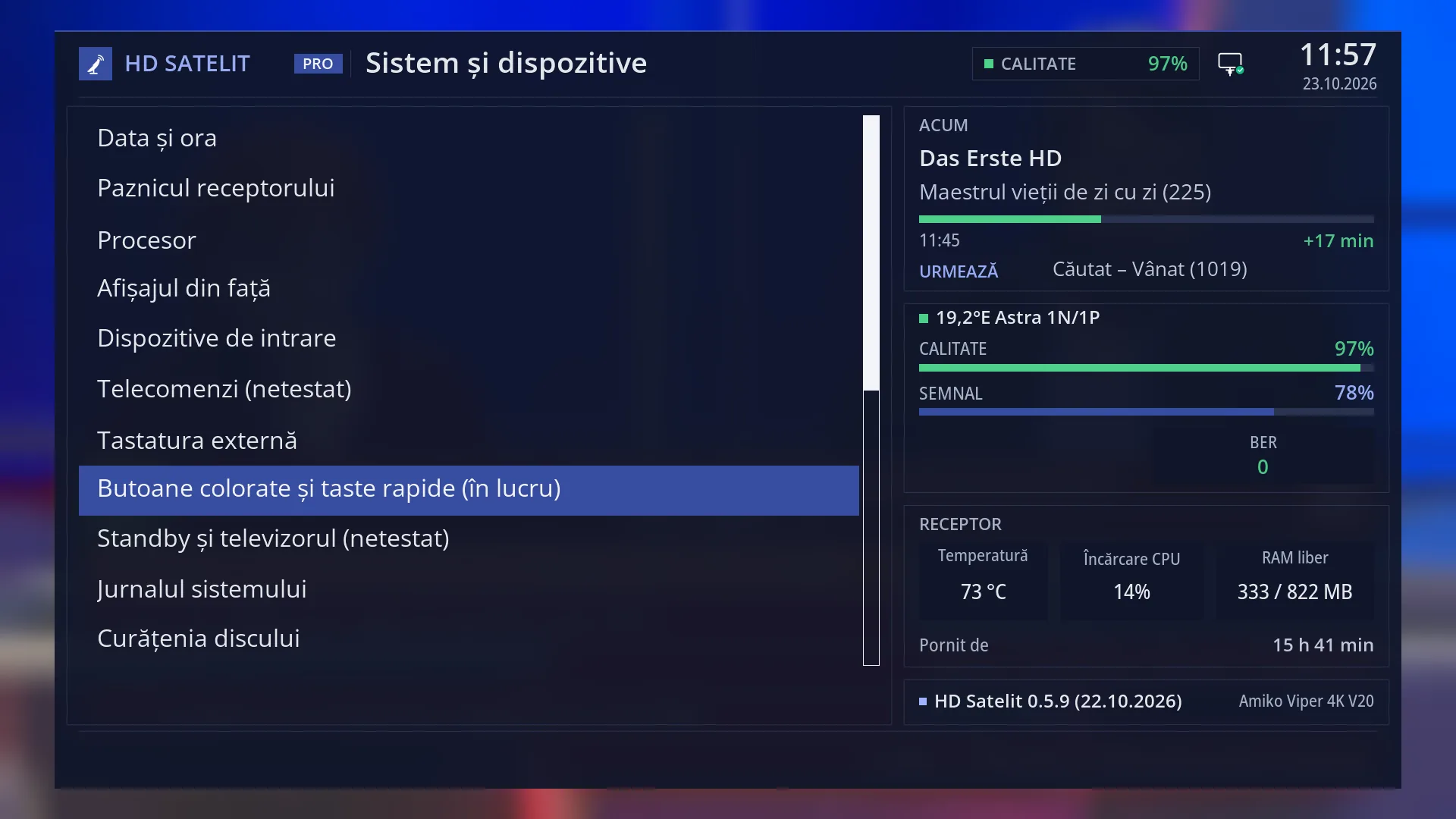
- 1 The selected row: “Buttons & Quick Keys (in progress)”.
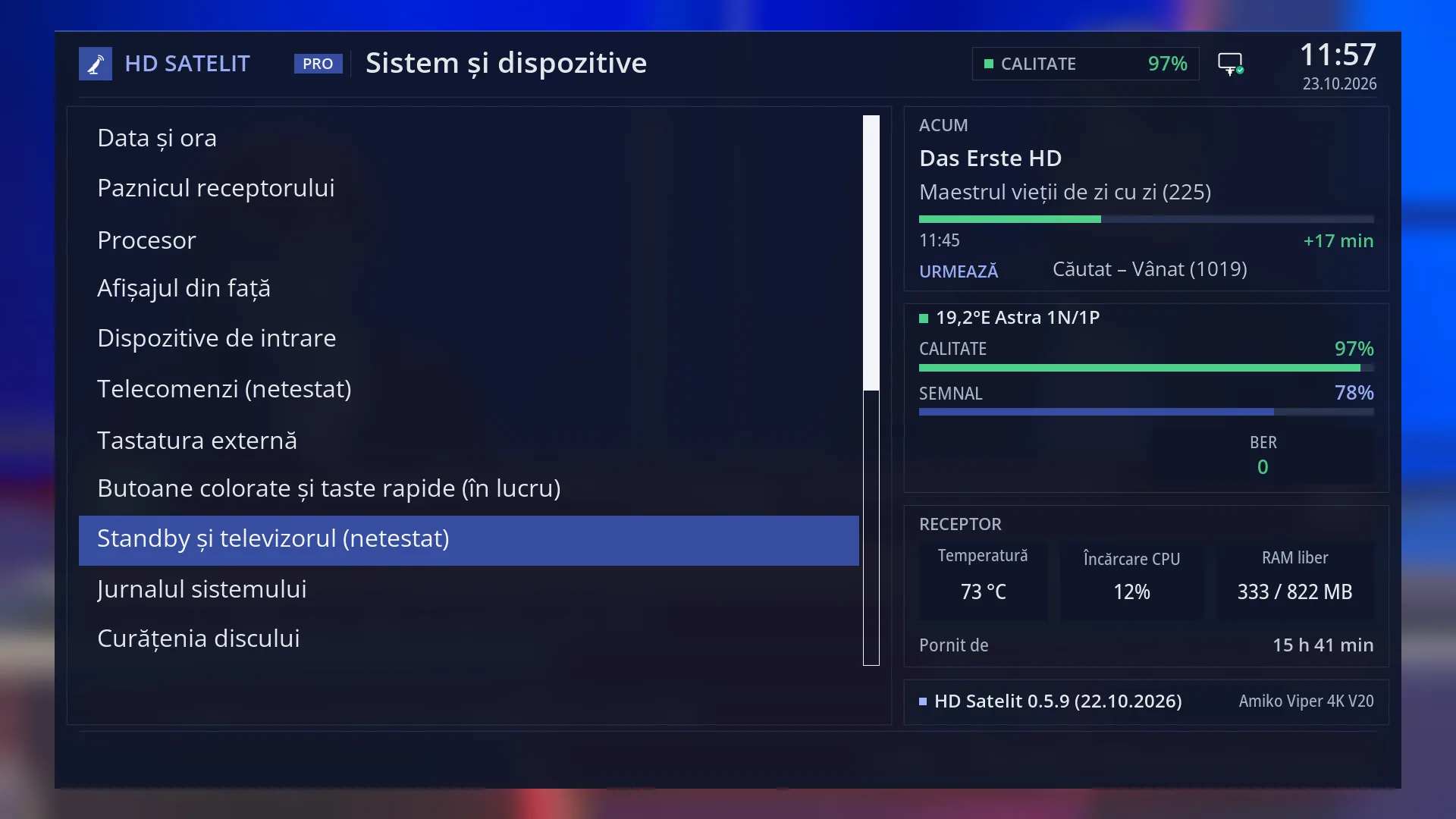
- 1 The selected row: “Standby and TV (not tested)”.
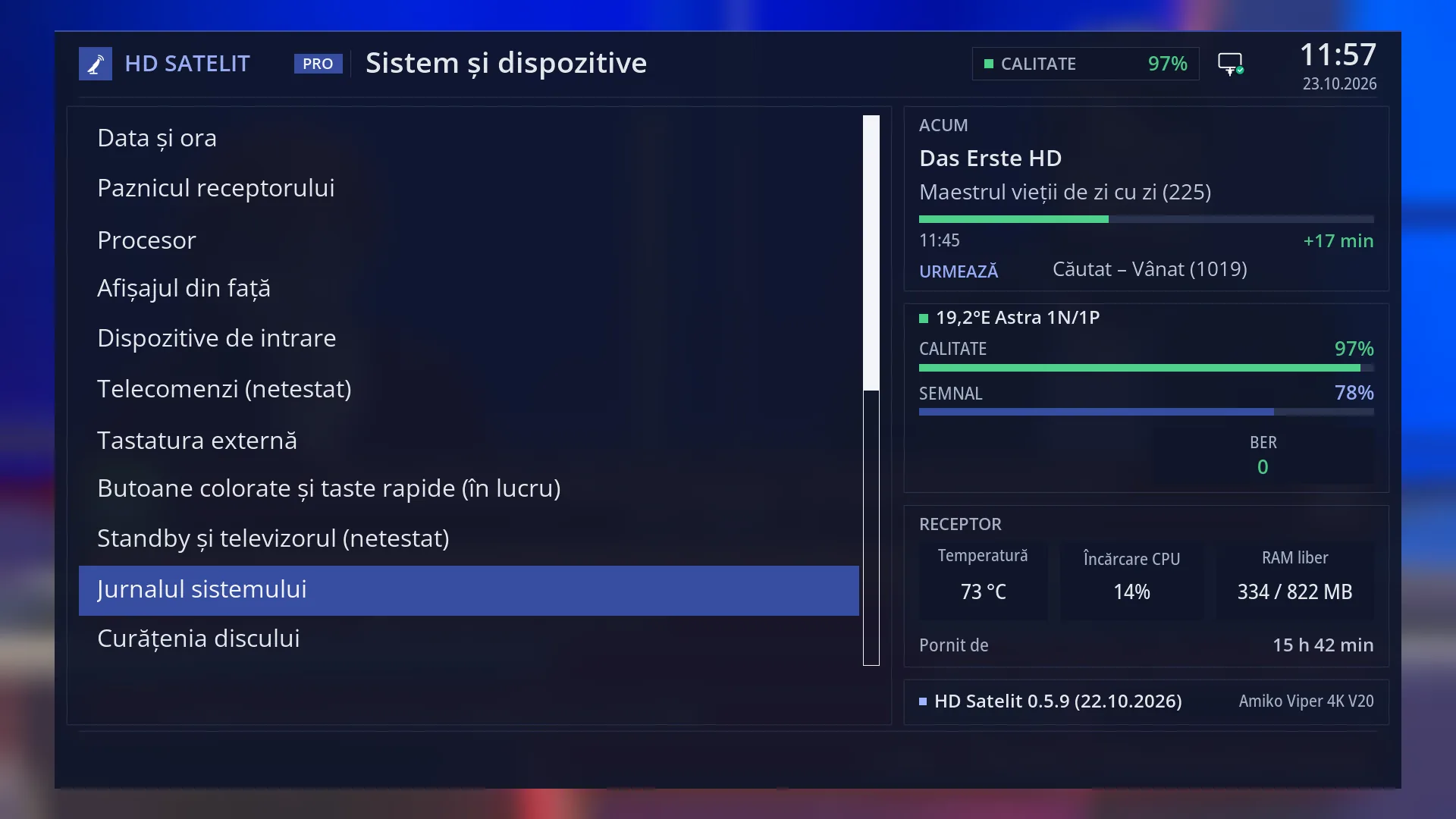
- 1 The selected row: “System Log Viewer”.
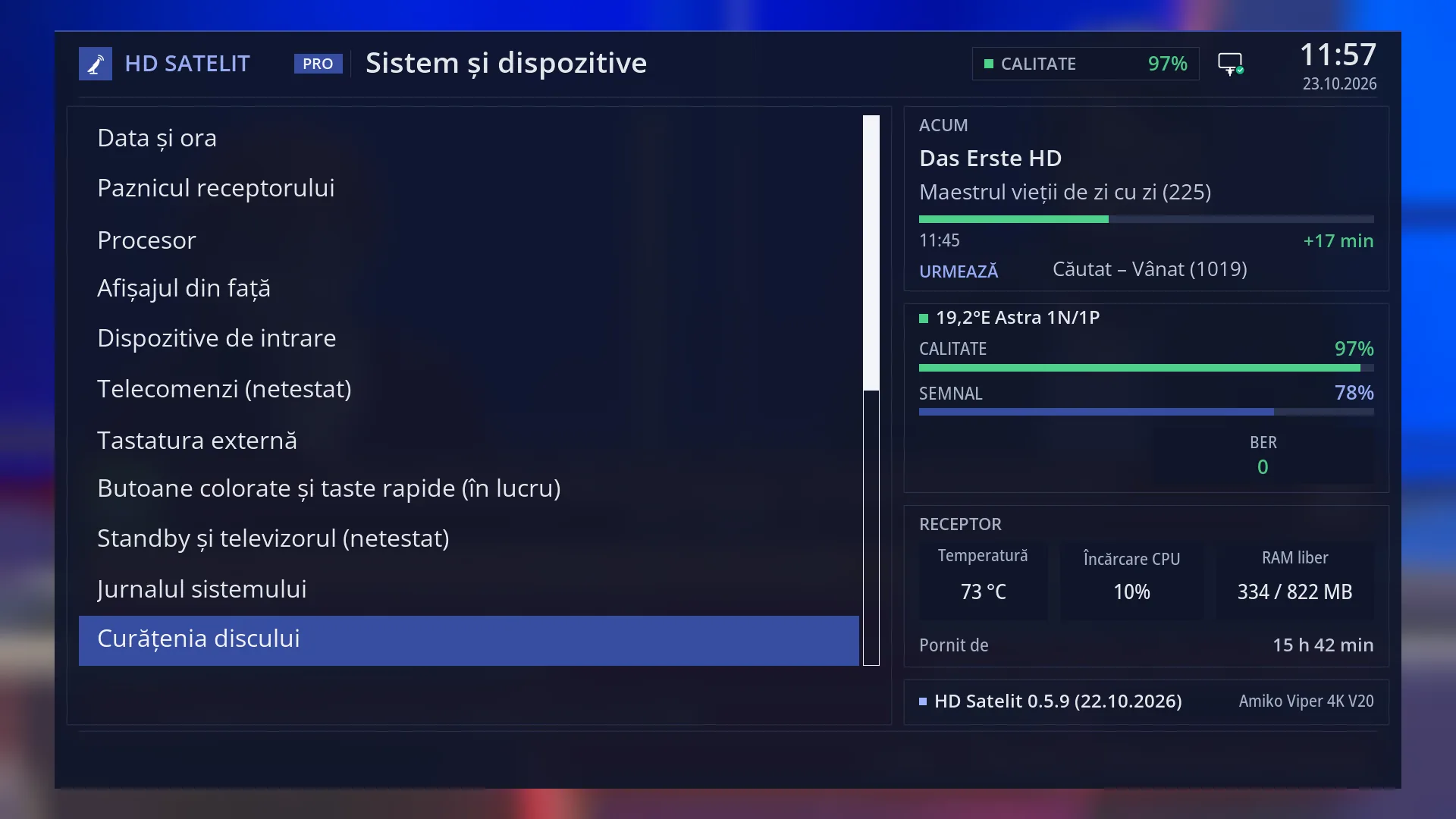
- 1 The selected row: “Disk space cleanup”.
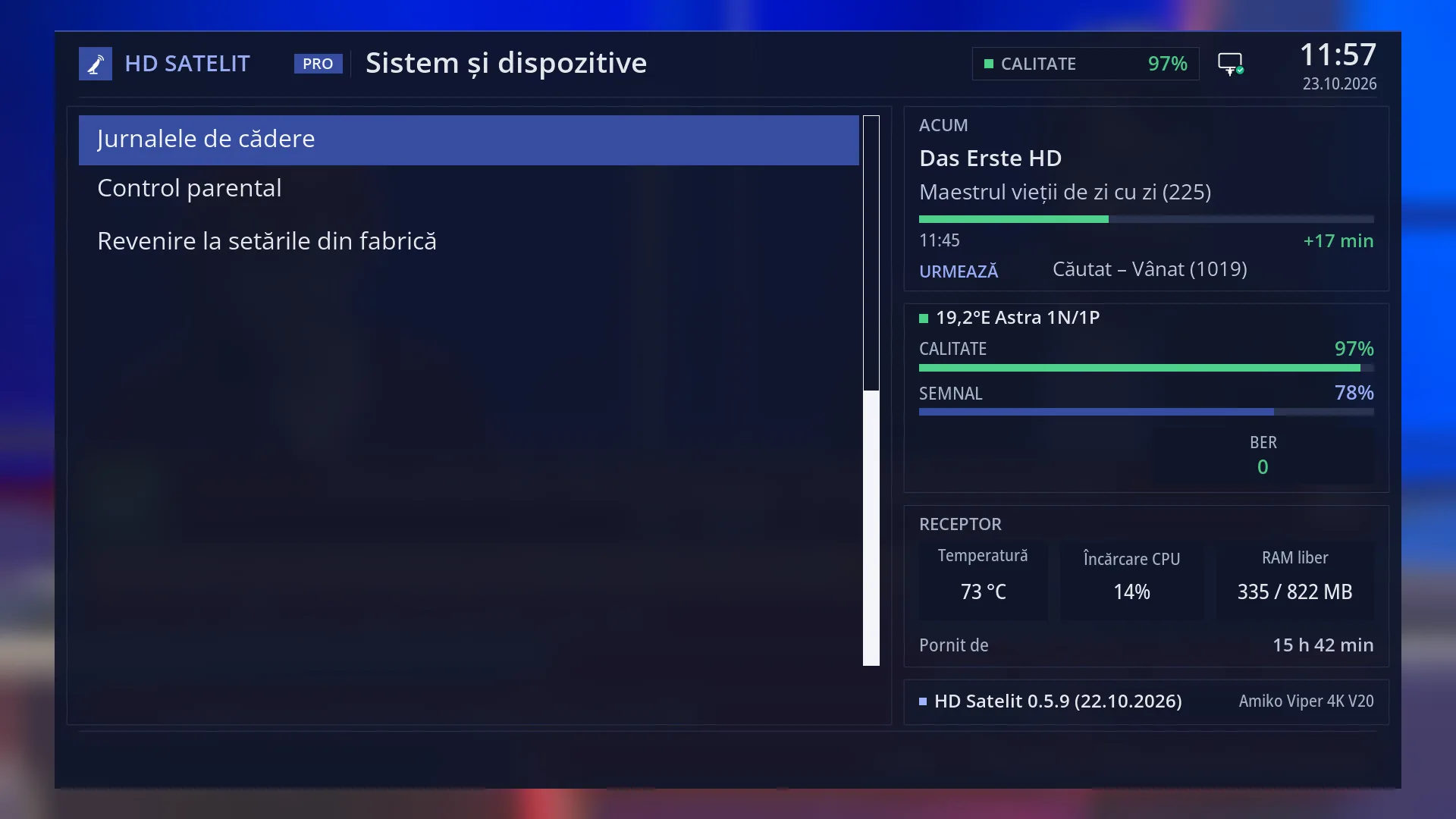
- 1 The selected row: “Crash logs”.
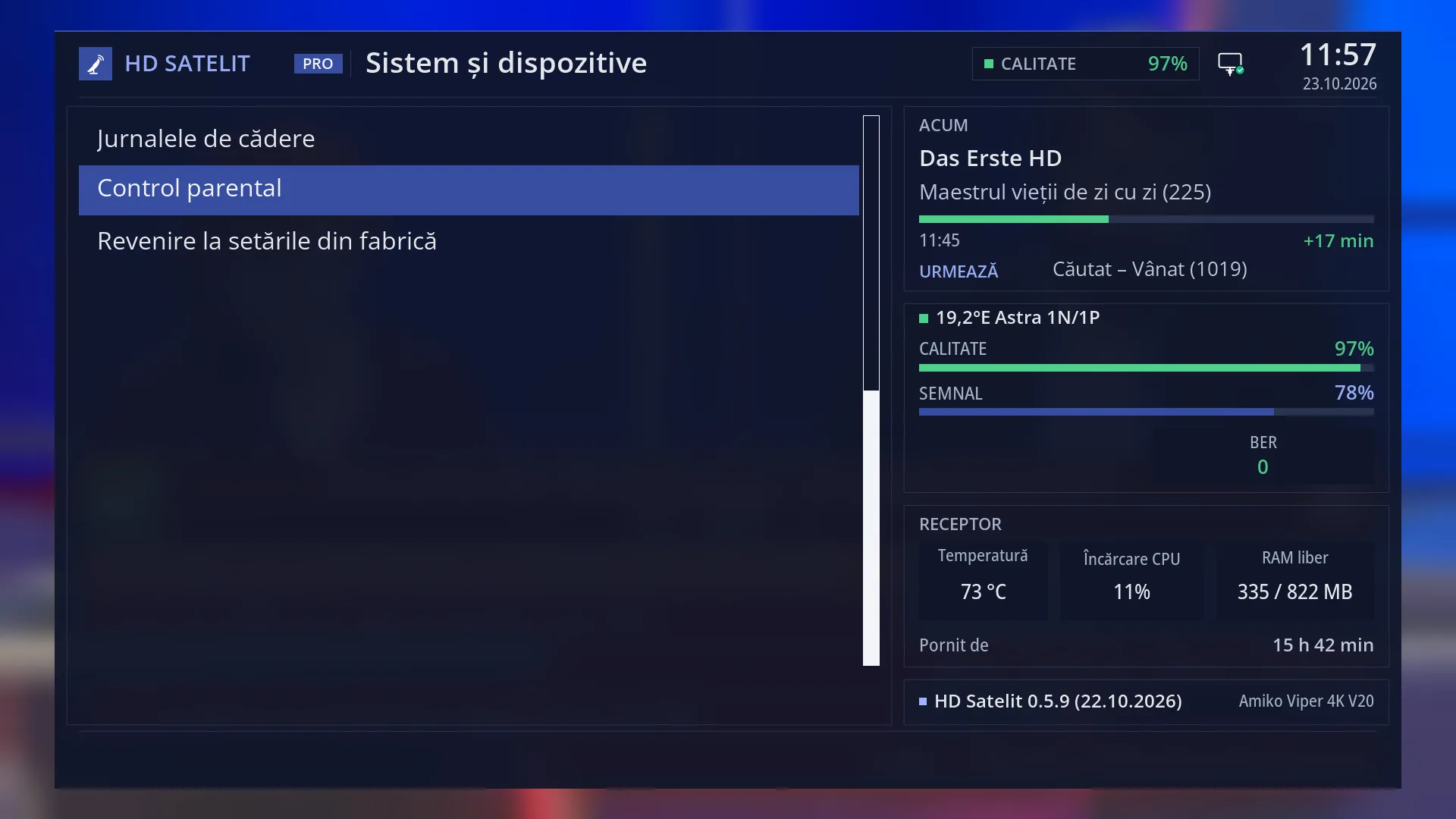
- 1 The selected row: “Parental Lock”.
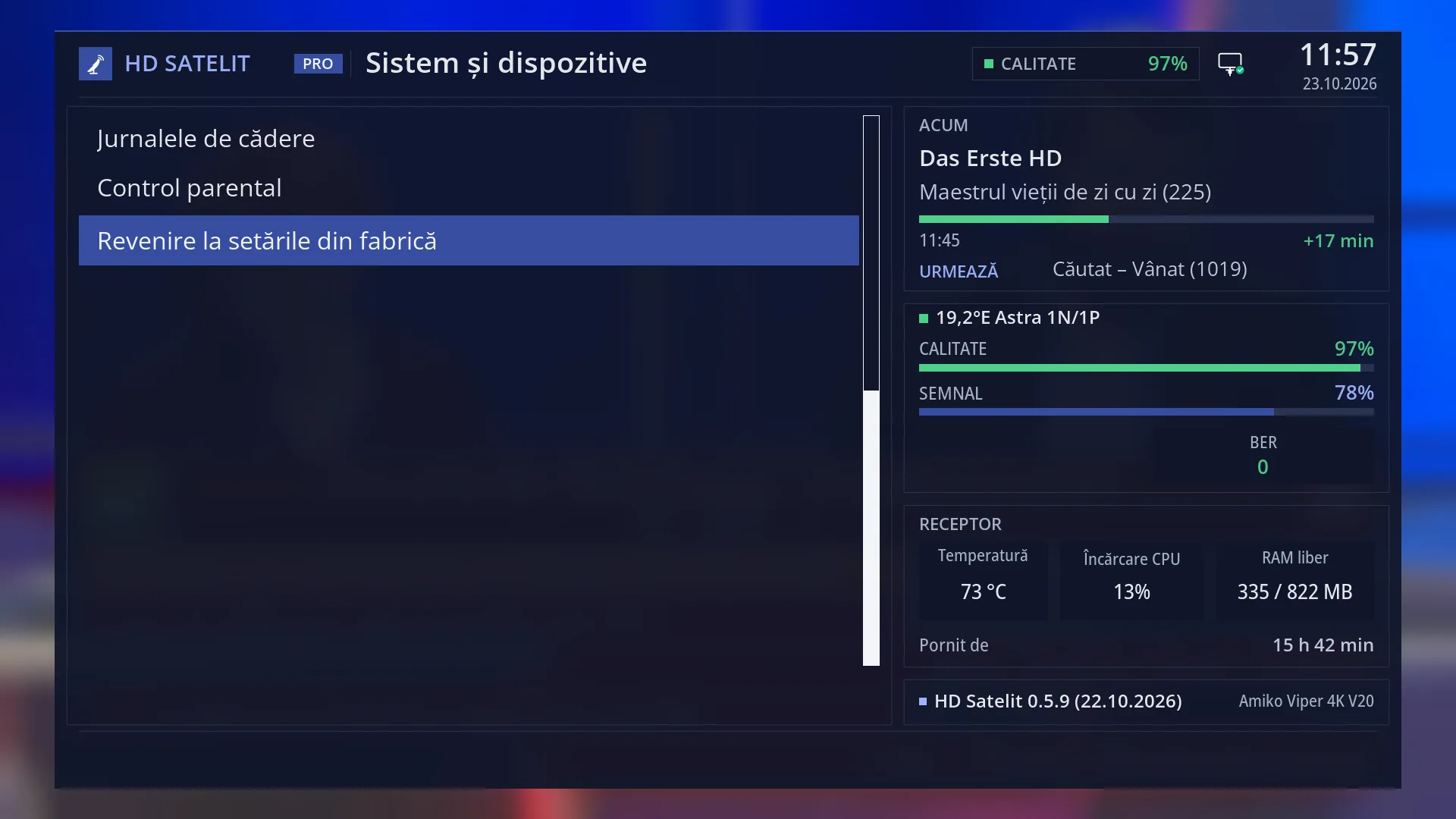
- 1 The last rows: the logs, parental control, the reset to factory settings.
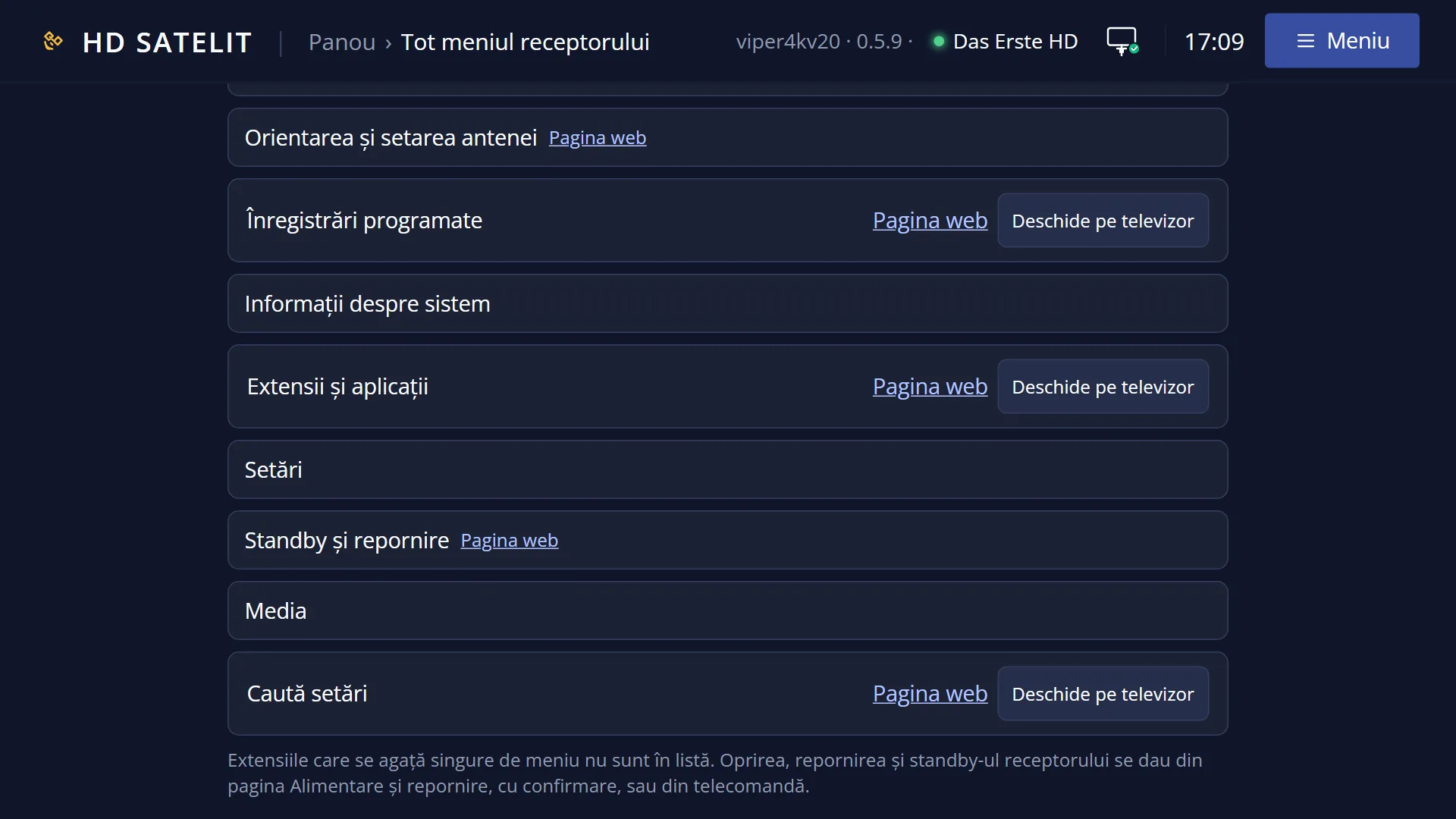
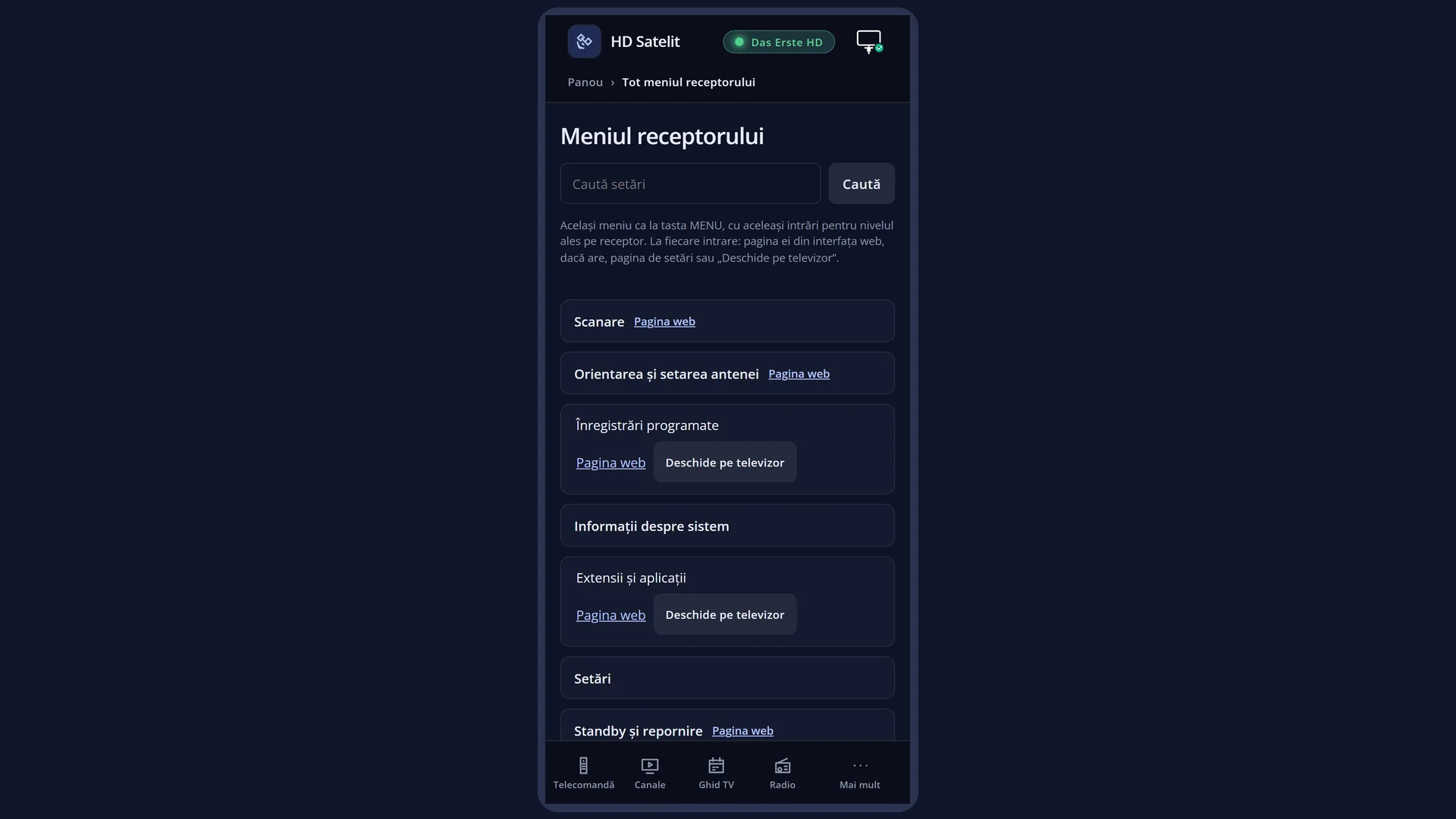
What it is for
“System & Devices” is the group of settings for the receiver itself: the clock, the watchdog, the processor, the front display, the remotes and keyboard, what happens to the TV in standby, the logs, parental control and the reset to factory settings.
Come here when the time is wrong, when you want to use a different remote or a keyboard, when the receiver gets hot, when you are looking for the reason something crashed, or when you want to start again from scratch with the settings.
Each row opens a separate screen with its own help page. The last one, “Reset to Factory Defaults”, asks you first.
How to get here
The path: Main menu > Settings > System & Devices.
With the remote: MENU 6, then UP and OK. System & Devices is the 10th row in Settings, so it has no digit. UP from the first row takes you straight to it.
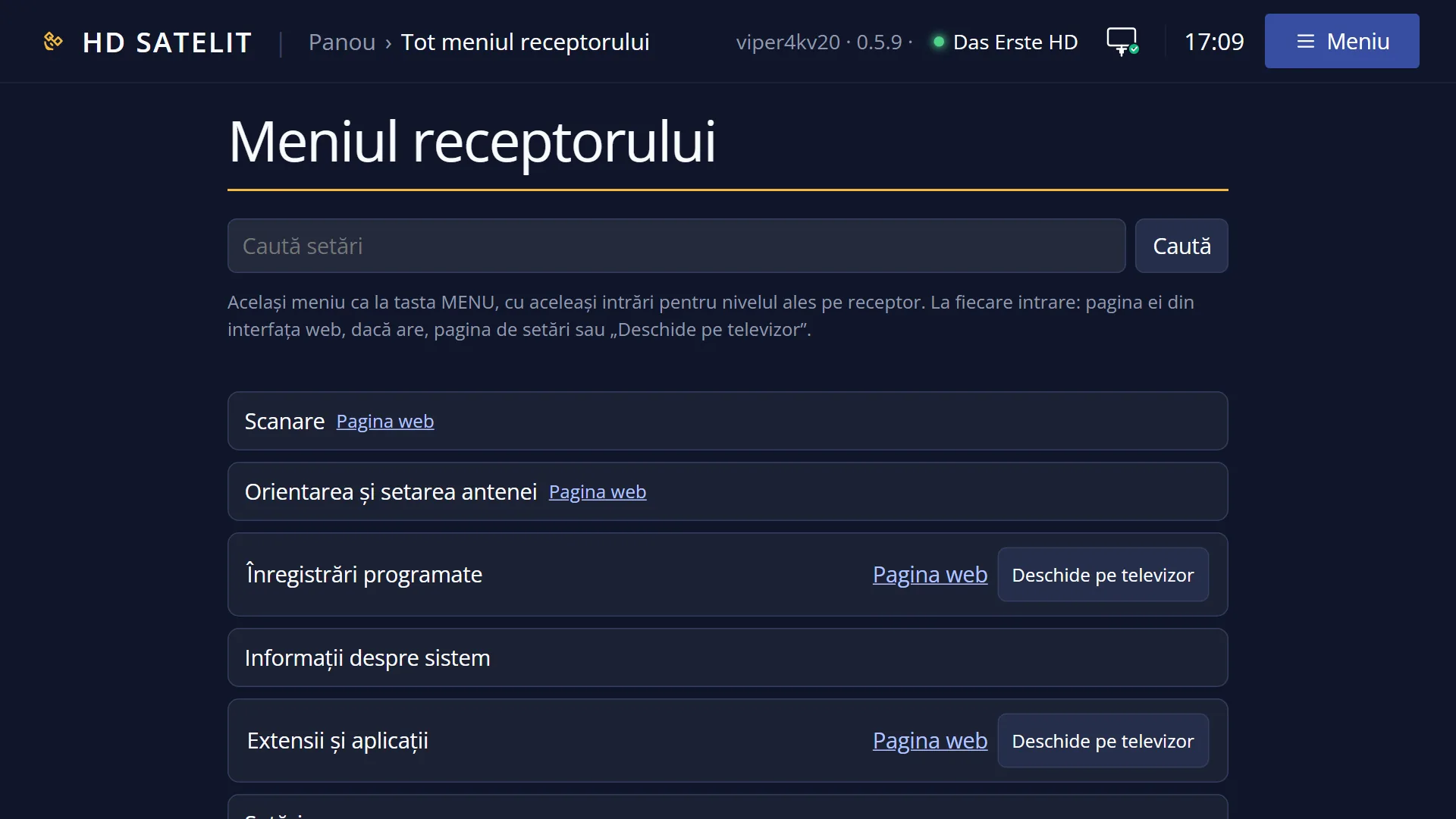
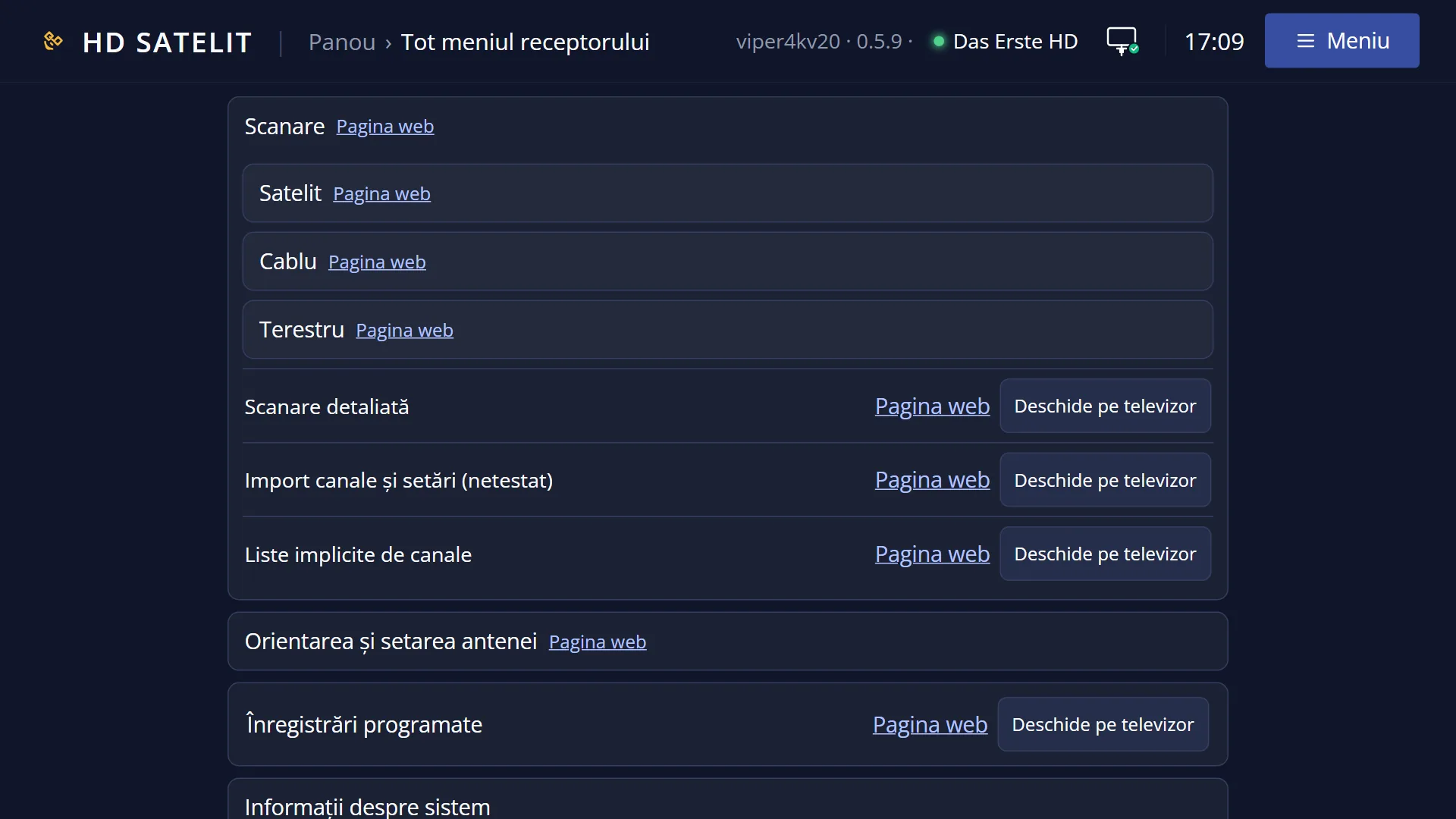
In the web interface: the /meniu page, the “Settings” group, then “System & Devices”, with a link to the web page of each screen.
What you see on the screen
At the top: the title “System & Devices”, the clock and the date. In the Pro theme you also see “HD SATELIT” with the “PRO” label, the signal quality and the network icon.
On the left, the list: Date & Time Settings, Receiver watchdog, Processor, Front display, Remote Control Setup, Remote controls, External Keyboard, Buttons & Quick Keys, Standby and TV, System Log Viewer, Disk space cleanup, Crash logs, Parental Lock and Reset to Factory Defaults.
11 rows fit on the screen. A bar at the edge of the list shows that there are more rows below. Only the first nine have a digit.
Some names have “(not tested)” next to them (Remote controls, Standby and TV: finished, but not yet tried on the receiver) or “(in progress)” (Buttons & Quick Keys: the function does not yet do everything it promises).
In the Pro theme, the right side shows the “NOW” box, the signal, “Receiver” (with the processor temperature and load) and the image version.
Rows and settings
| Row | Values | Default | What it does |
|---|---|---|---|
| 1 Date & Time Settings | The receiver's clock: where it gets the time from (internet or satellite) and the time zone. When the time or the date is wrong. | ||
| 2 Receiver watchdog | The watchdog that monitors the interface and restarts it by itself when it stops responding. When you want to see the state of the watchdog or adjust it. | ||
| 3 Processor | The processor temperature on a graph and its operating mode (Normal, Cool and, where available, Automatic or Performance). When the receiver gets hot or you want to see how hot it has been. | ||
| 4 Front display | What the digit display on the front of the receiver shows, in rotation, and its short messages. When you want the display to show the time, the channel or the temperature. | ||
| 5 Remote Control Setup | The remote, the mouse and other control devices connected to the receiver. When keys repeat too quickly or too slowly. | ||
| 6 Remote controls (not tested) | You test each key on a drawing of the remote, read the codes and pair a different remote. When a key does not work or you want to use a different remote. | ||
| 7 External Keyboard | The letter layout for a keyboard connected to the receiver. When the keyboard types different letters from the ones on the keys. | ||
| 8 Buttons & Quick Keys (in progress) | What the colour keys and quick keys open while you are watching. When you want a key to open something else. | ||
| 9 Standby and TV (not tested) | The HDMI output in standby, switching the TV off and on through CEC, the receiver name on the TV, the TV remote. When you want the TV to switch off and on together with the receiver. | ||
| System Log Viewer (10th row) | The messages the receiver writes while it works, for tracking down a problem. When something does not work and you want to see what happened. | ||
| Disk space cleanup (11th row) | Deletes temporary files and downloaded packages left over after installations. When the internal memory is filling up. | ||
| Crash logs (12th row) | The reports written when the receiver's interface crashed and restarted. When the receiver restarted by itself and you want to see why. | ||
| Parental Lock (13th row) | The PIN code and the channels or menus locked for children. When you want to lock some channels. | ||
| Reset to Factory Defaults (last row) | Deletes all settings, including the channel lists and the satellites, and puts back the factory ones. It first asks “Really go back to factory settings?”. If you choose Yes, the interface starts again, as on first start-up. Only when you want to start again from scratch. First make a copy of the settings (Settings > Software & Firmware > Settings copy). |
Keys
| UP / DOWN | Move the cursor to the row above or below. From the first row, UP takes you to the last one (Reset to Factory Defaults), and the other way round. |
| LEFT / RIGHT | Jump one page up or down (11 rows). |
| OK | Opens the selected screen. |
| 1 ... 9 | Open rows 1-9 directly (from Date & Time Settings to Standby and TV). Rows 10 onwards are chosen with the arrow keys and OK. |
| TTX (TEXT on screen) | Opens “Search settings”. |
| YELLOW | Switches the menu from a list to tiles or back. Your choice is remembered for all menus. |
| EXIT | Takes you back to Settings. |
| MENU | Closes the whole menu and takes you back to the TV. |
Step by step
Getting to a screen in the group
- Press MENU 6, then UP and OK.
- For rows 1-9, press the digit, for example 3 for Processor.
- For System Log Viewer, Disk space cleanup, Crash logs or Parental Lock, go to the row with DOWN and press OK. Reset to Factory Defaults is reached with UP from the first row.
Starting again from scratch with the settings
- First make a copy: MENU 6 8, then Settings copy.
- Press MENU 6, UP, UP, UP, OK, then UP (the last row, Reset to Factory Defaults) and OK.
- Read the question and choose Yes only if you want to lose all settings and channel lists.
Problems and solutions
The digits do not open the row I want.
Only the first nine rows have digits. If “Setup Mode” is set to Simple, some rows are missing and the numbers shift: set it to Intermediate (MENU 6 6 5).
I cannot see “External Keyboard”, “Remote Control Setup” or the crash logs.
They only appear when “Setup Mode” is set to Intermediate or Expert.
“Processor”, “Front display” or “Standby and TV” is missing.
They only appear on receivers that have the function. The Amiko Viper 4K V20 has all of them.
I chose “Reset to Factory Defaults” by mistake.
Nothing is deleted until you choose Yes at the question. Choose No or press EXIT.
Related topics
Differences between receivers
“Processor”, “Front display” and “Standby and TV” only appear on receivers that have the function. The Amiko Viper 4K V20 has all of them. On the V20 there is no fan row: the receiver has no fan.