

Film subtitles
English screenshots coming: some of the pictures below still show the receiver and the web interface in Romanian. The rows, keys and steps described on this page are the English ones.
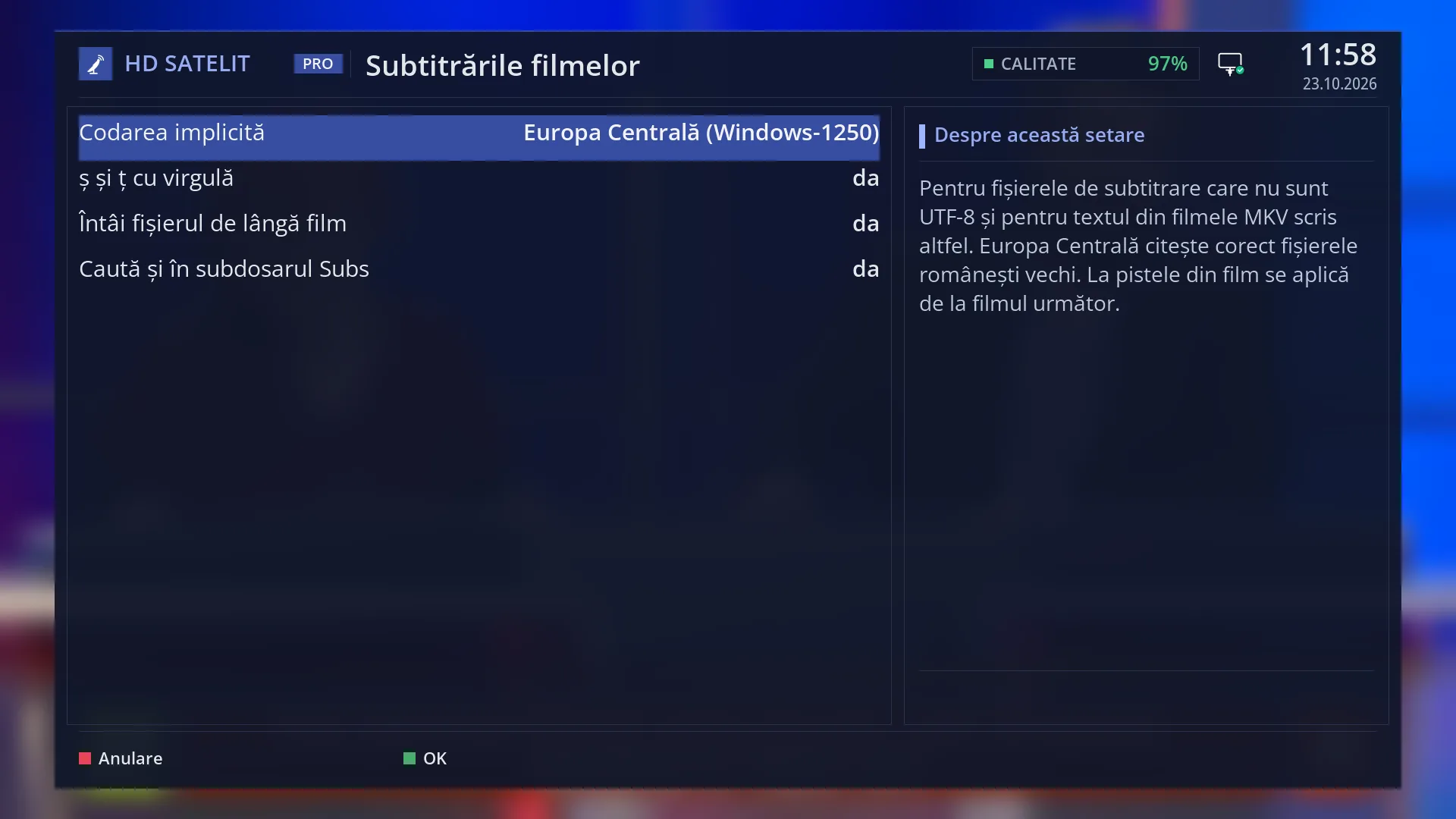
- 1 Screen title: “Film subtitles”.
- 2 Encoding of files that are not UTF-8; Central Europe for Romanian.
- 3 ș and ț with comma, the file before the track inside the film, searching in subfolders.
- 4 Explanation of the selected row.
- 5 RED closes without saving, GREEN saves.
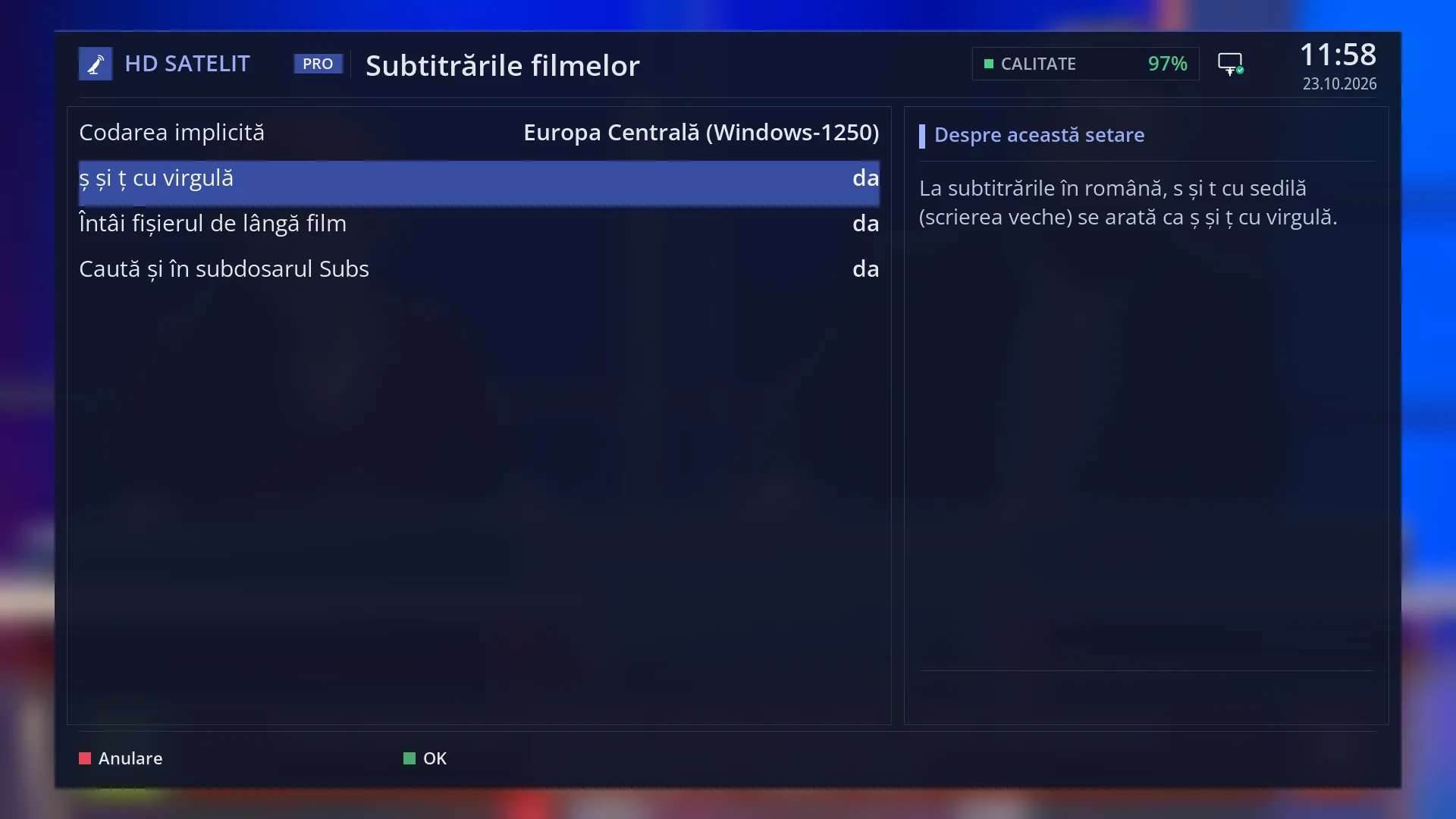
- 1 ş and ţ with a cedilla are shown as ș and ț with a comma.
- 2 Explanation of the selected row.
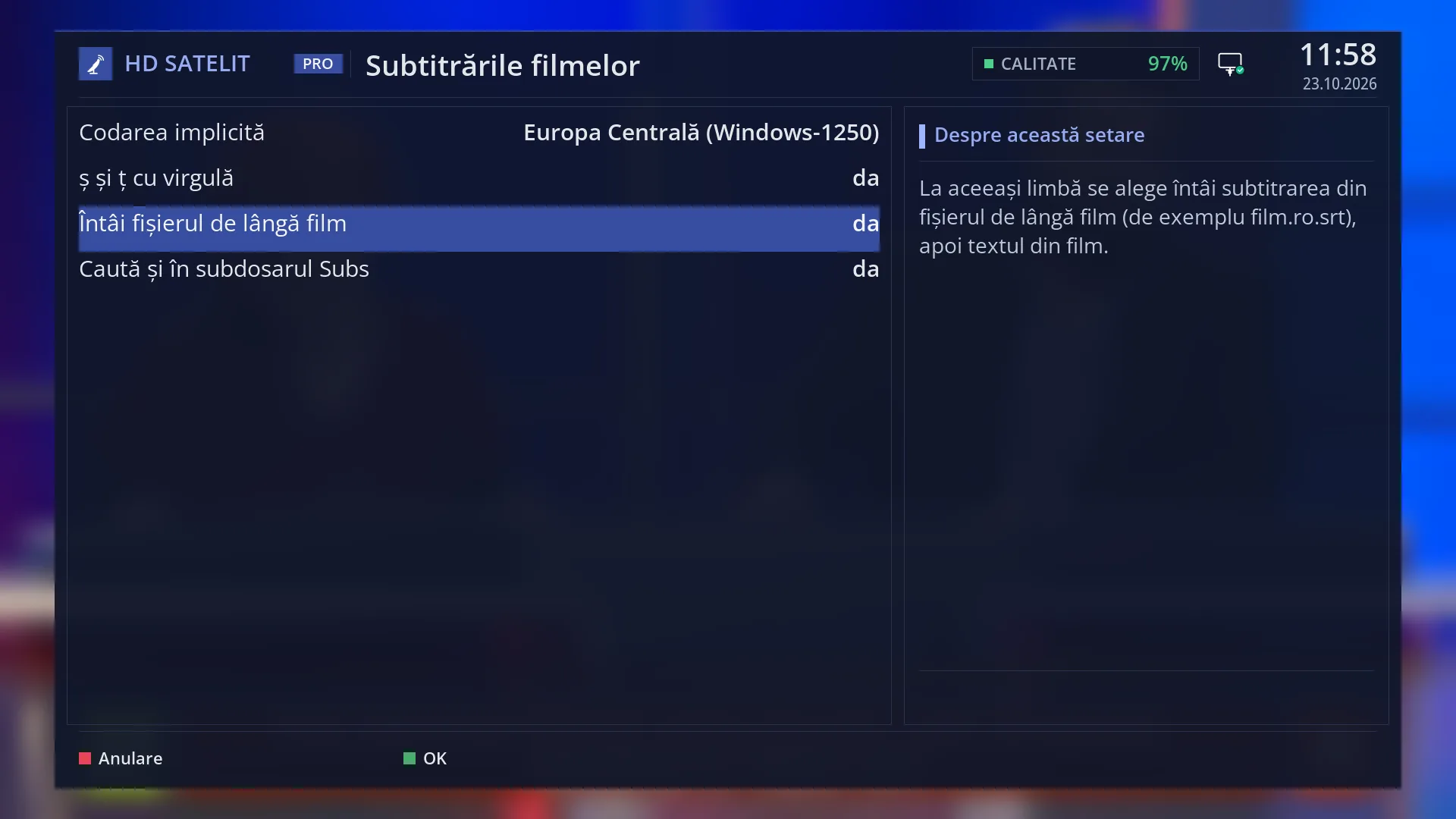
- 1 For the same language: the file next to the film before the track inside the film.
- 2 Explanation of the selected row.
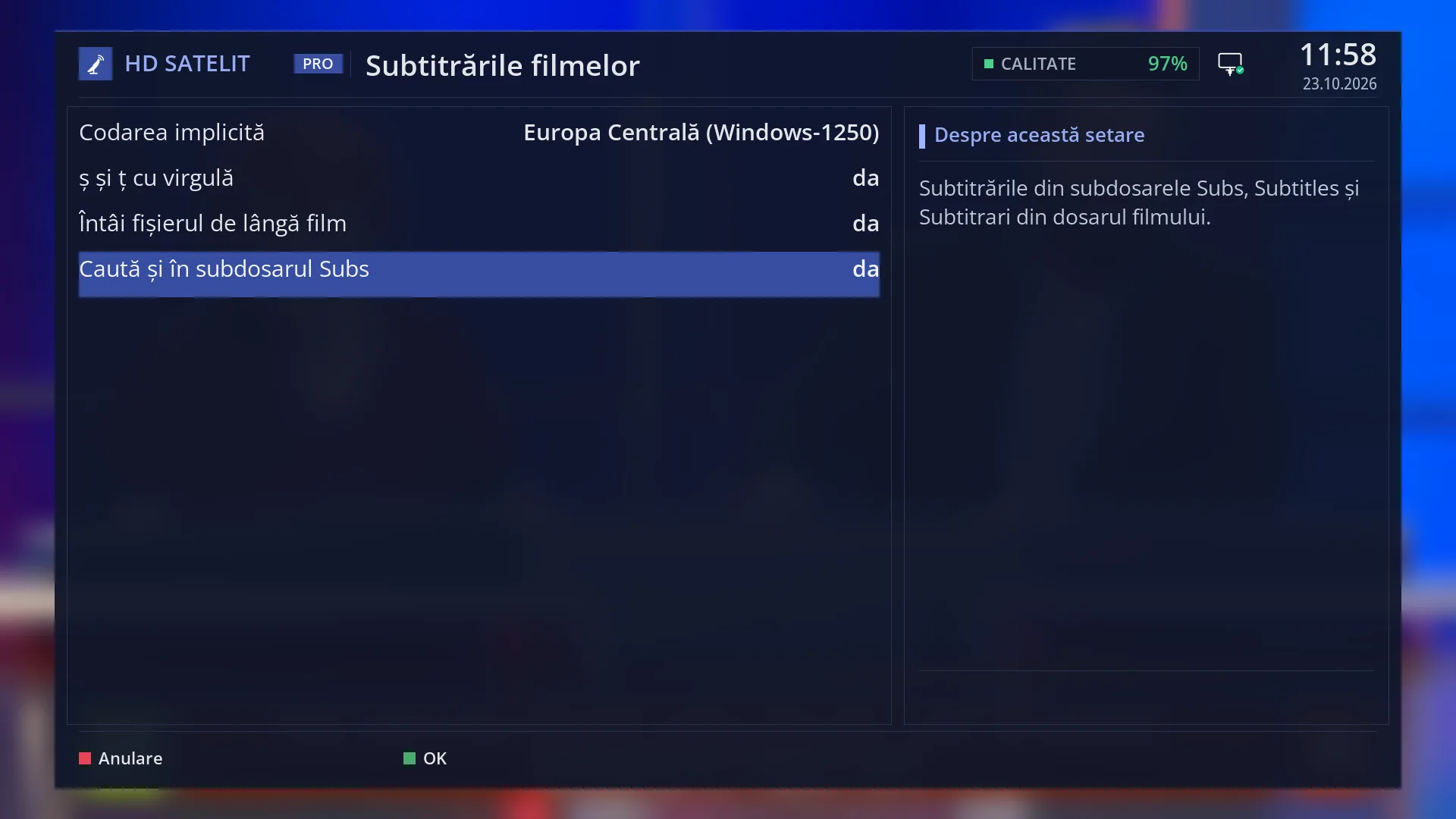
- 1 The film's Subs, Subtitles and Subtitrari subfolders.
- 2 Explanation of the selected row.
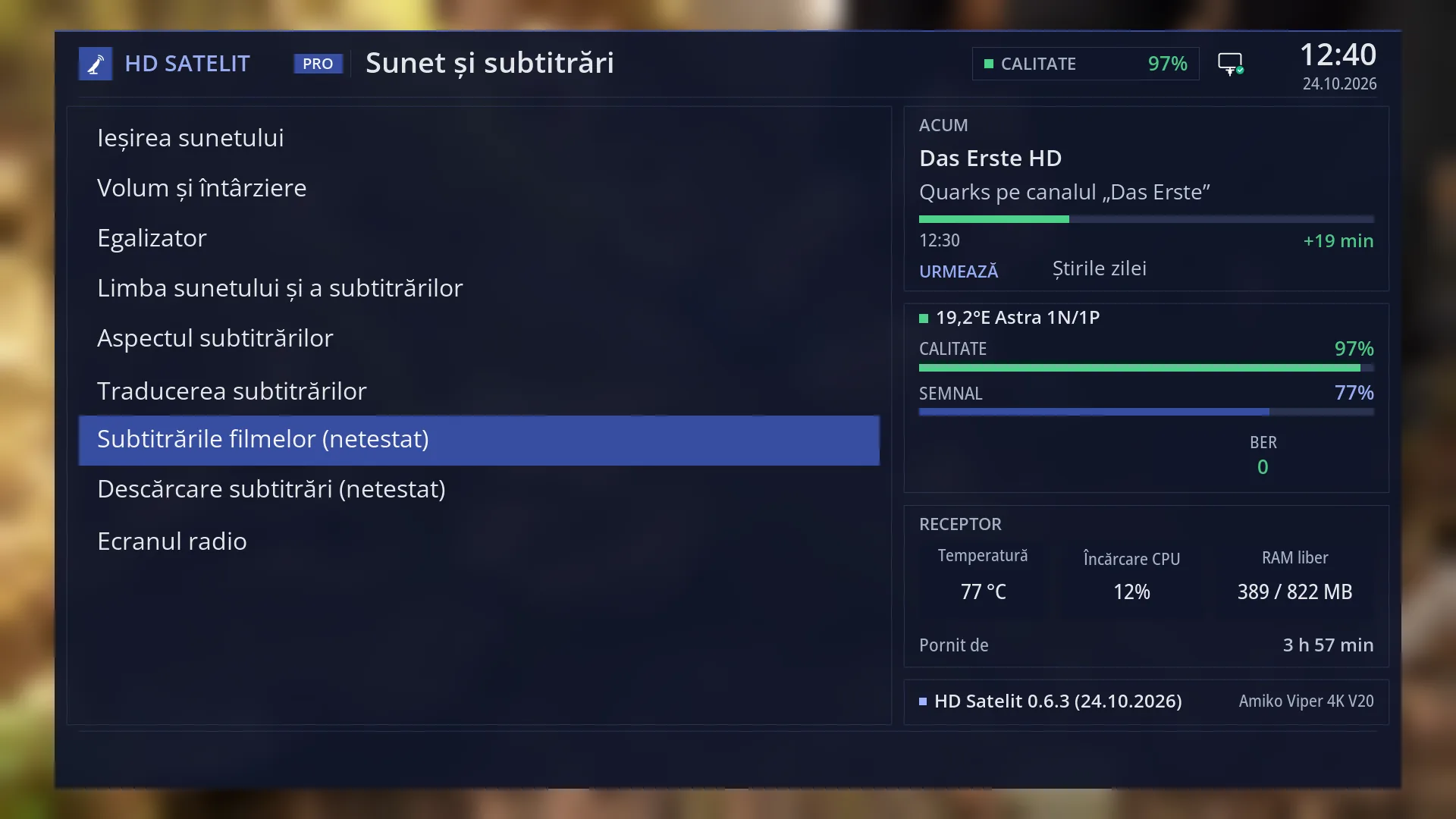
What it is for
The “Film subtitles” screen tells the receiver how to read the subtitles of films you play from a USB stick, a disk or the network: the files next to the film (for example film.ro.srt) and the subtitle text inside MKV films.
It fixes the most common problems with Romanian subtitles: the letters ă, î, ș, ț showing as strange symbols in old files, and ş, ţ with a cedilla instead of ș, ț with a comma.
Here you also choose whether, for the same language, the receiver starts the file next to the film or the subtitle inside the film first, and whether it also looks in the Subs, Subtitles or Subtitrari subfolders.
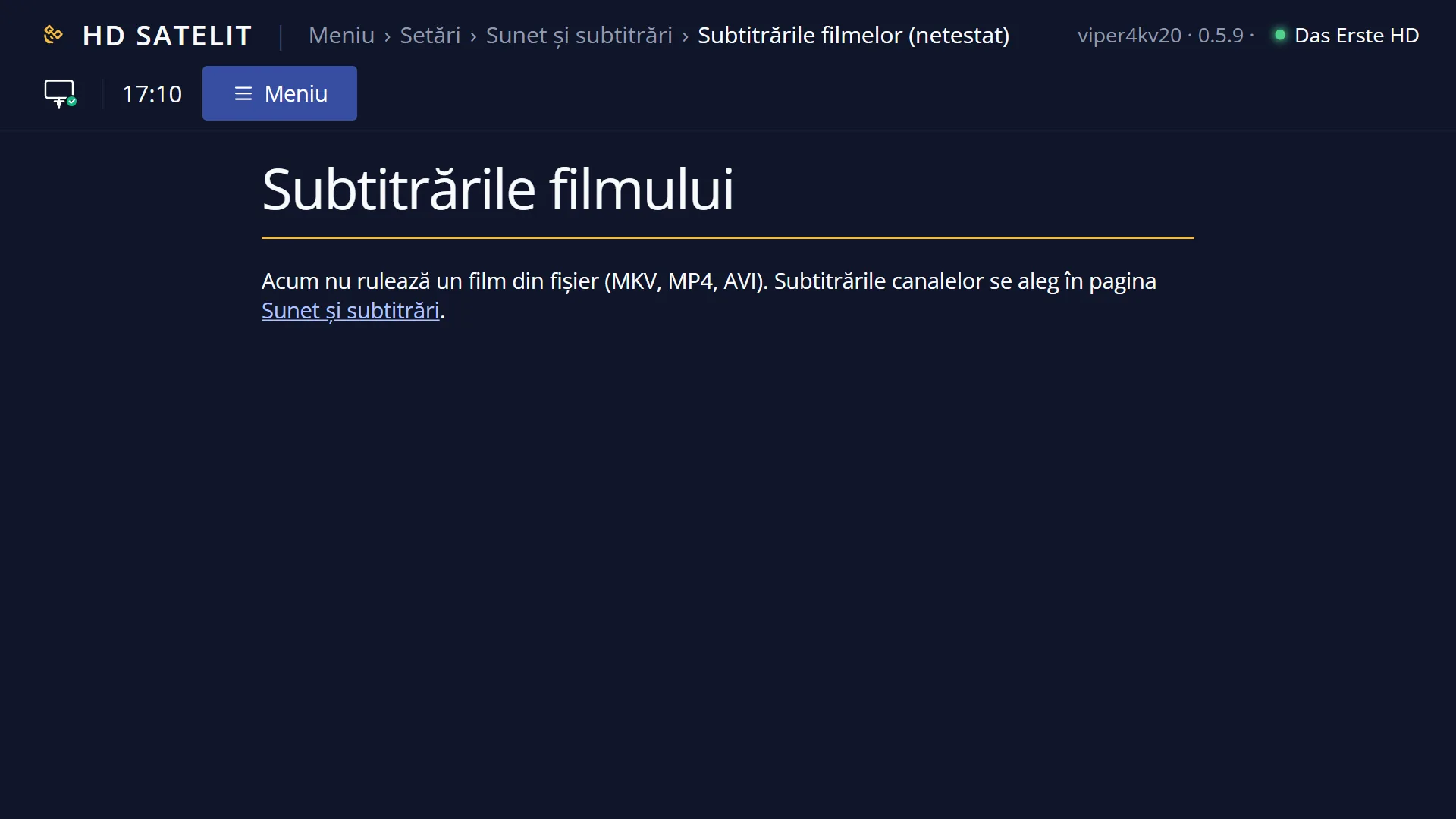
These settings apply to all films. For the film that is playing now, you choose the subtitle, the delay and the encoding of a file with the SUB key; those choices are remembered for that film.
How to get here
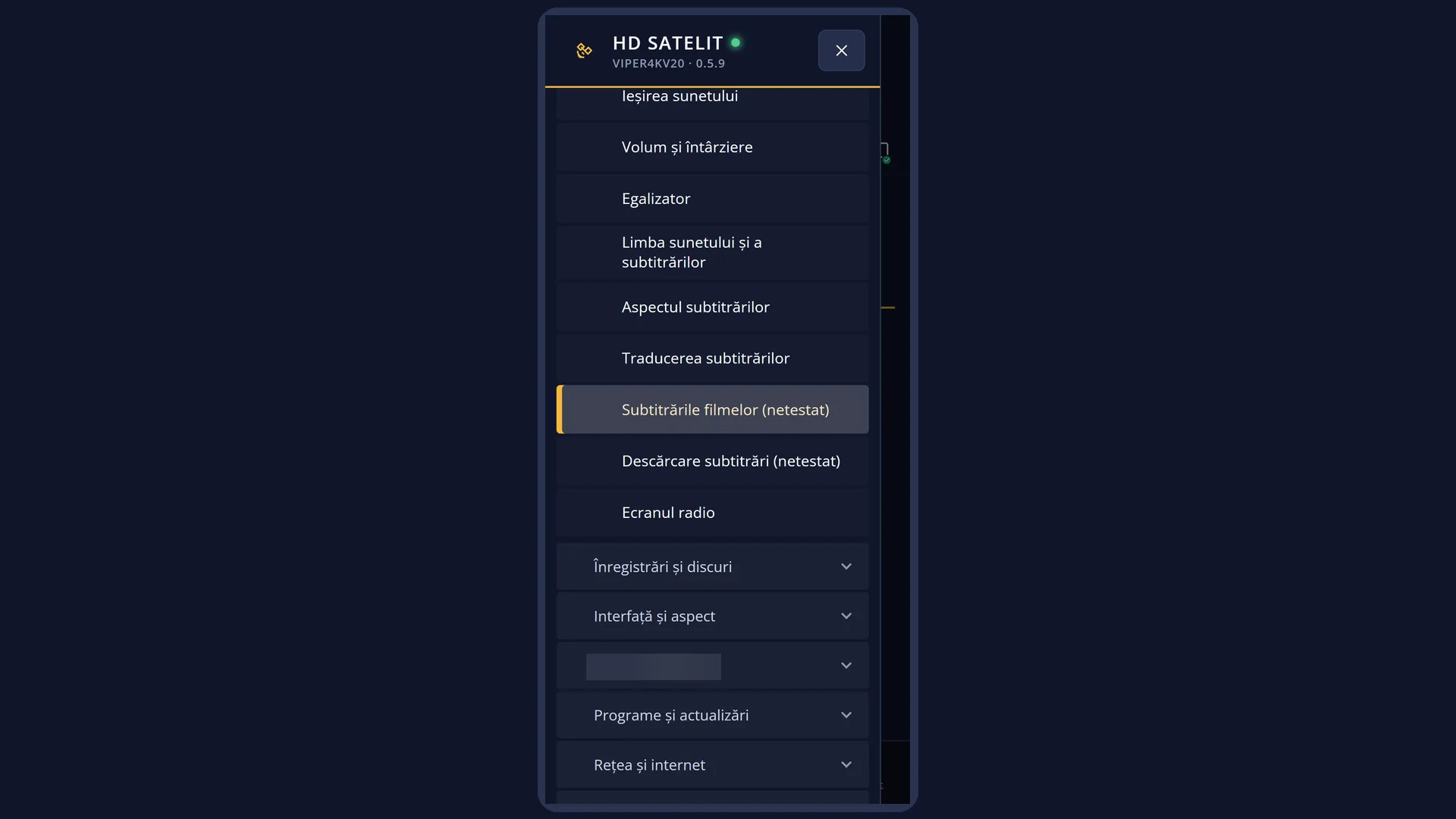
Path: Main menu > Settings > Audio & Sound Tracks > Film subtitles.
Keys on the remote: MENU 6 4 7.
In the menu, the row shows as “Film subtitles (not tested)”: the screen is ready, but it has not yet been tried on the receiver.
From any menu: the TTX key (TEXT on the screen) opens “Search settings”; type “comma” or “Encoding”.
In the web interface: the rows are on the page /setari?id=hds_subtitrari_filme; the page /subtitrari-film is for the film that is playing now (the subtitle, the delay, the file encoding) and links to these settings.
What you see on the screen
At the top, the screen title: “Film subtitles”.
On the left, four rows: “Default encoding”, “ș and ț with comma”, “File next to the film first” and “Also search the Subs subfolder”, each with its current value on the right.
On the right, the “About this setting” box with the explanation of the row the cursor is on. Text that does not fit changes page by itself every few seconds.
At the bottom, the colour keys: RED “Cancel” and GREEN “OK”.
The “Also search the Subs subfolder” row only shows when “Setup Mode” is Intermediate (the factory setting) or Expert.
Rows and settings
| Row | Values | Default | What it does |
|---|---|---|---|
| Default encoding | Central Europe (Windows-1250), Western Europe (ISO-8859-15), Cyrillic (Windows-1251), Greek (Windows-1253), Turkish (Windows-1254) | Central Europe (Windows-1250) | How the letters are read in a subtitle file that is not written in UTF-8, and in MKV films whose text is written differently. The receiver recognises UTF-8 and UTF-16 files by itself; it uses the encoding set here only for the others. Central Europe reads old Romanian files correctly (and also those written as ISO-8859-2 or ISO-8859-16: the Romanian letters have the same codes). When you often watch films with subtitles in another language written in old files: Russian or Bulgarian (Cyrillic), Greek, Turkish, French or German (Western Europe). For Romanian, leave Central Europe. |
| ș and ț with comma | yes, no | yes | Yes: in Romanian subtitles, s and t with a cedilla (ş, ţ, the old spelling) are shown as ș and ț with a comma below. No: the letters stay as they are in the file. Rarely. Set No only if you want to see the text exactly as it is in the file. |
| File next to the film first | yes, no | yes | Yes: when the film has a subtitle in your preferred language both in the file next to it (film.ro.srt) and inside it, the receiver starts the one from the file. No: it starts the one inside the film first. Set No if the subtitles inside your films are better than the downloaded files you keep next to them. |
| Also search the Subs subfolder | yes, no | yes | Yes: the receiver also looks for subtitle files in the Subs, Subtitles and Subtitrari subfolders of the film's folder, not only next to the film. No: only in the film's folder. The row only shows at Intermediate or Expert. Set No only if you do not want the receiver to start subtitles kept in subfolders by itself; otherwise leave yes. |
Keys
| UP / DOWN | Moves the cursor to another row; its explanation appears on the right. |
| LEFT / RIGHT | Changes the value of the row: another encoding, or yes / no. |
| GREEN (OK) | Saves all the rows and closes the screen. |
| RED (Cancel) or EXIT | Closes without saving. If you have changed something, it first asks “Really close without saving settings?”. |
| OK | Does nothing on these rows: you change the values with LEFT / RIGHT. |
Step by step
Romanian letters look wrong in a film's subtitles
- Press MENU 6 4 7 and check “Default encoding”: for Romanian it must be “Central Europe (Windows-1250)”.
- Press GREEN if you changed something, then start the film again.
- If it is still wrong, press SUB during that film and choose another encoding for the file: it is remembered only for that film.
You want the subtitle inside the film, not the file next to it
- Press MENU 6 4 7, then DOWN twice, to “File next to the film first”.
- Press LEFT so that “no” appears, then GREEN.
- Start the film again. For a single film, you can choose another subtitle at any time with the SUB key.
Problems and solutions
Strange symbols or small squares appear instead of ă, î, ș, ț.
The file is written in an old encoding. Leave “Default encoding” on Central Europe for Romanian. For a single file, choose the encoding with the SUB key during the film, or on the web page /subtitrari-film, where you see the first lines with the chosen encoding before you apply it.
I changed the setting and the current subtitle did not change.
These settings are read when a film starts. Stop the film and start it again.
The .srt file next to the film does not appear under the SUB key.
The file name must start with the film's name without the extension (film.mkv and film.srt, film.ro.srt). If the file is in the Subs subfolder, the “Also search the Subs subfolder” row must be set to yes.
I cannot see the “Also search the Subs subfolder” row.
The row only shows when “Setup Mode” is Intermediate or Expert. Change the level in OSD Preferences (MENU 6 6 5, first row).
The subtitle from the file starts, but I want the one inside the film.
Set “File next to the film first” to no. For the current film, choose it directly with the SUB key; the choice is remembered for that film.
Related topics
- Audio & Sound Tracks (the menu it opens from)
- Audio and subtitle language
- Subtitle appearance (size, colour, outline)
- The film's subtitles (the SUB key during a film)
- Downloading subtitles from the internet
- Matching web page: /setari?id=hds_subtitrari_filme, and /subtitrari-film for the current film.