

Disk space cleanup
English screenshots coming: some of the pictures below still show the receiver and the web interface in Romanian. The rows, keys and steps described on this page are the English ones.
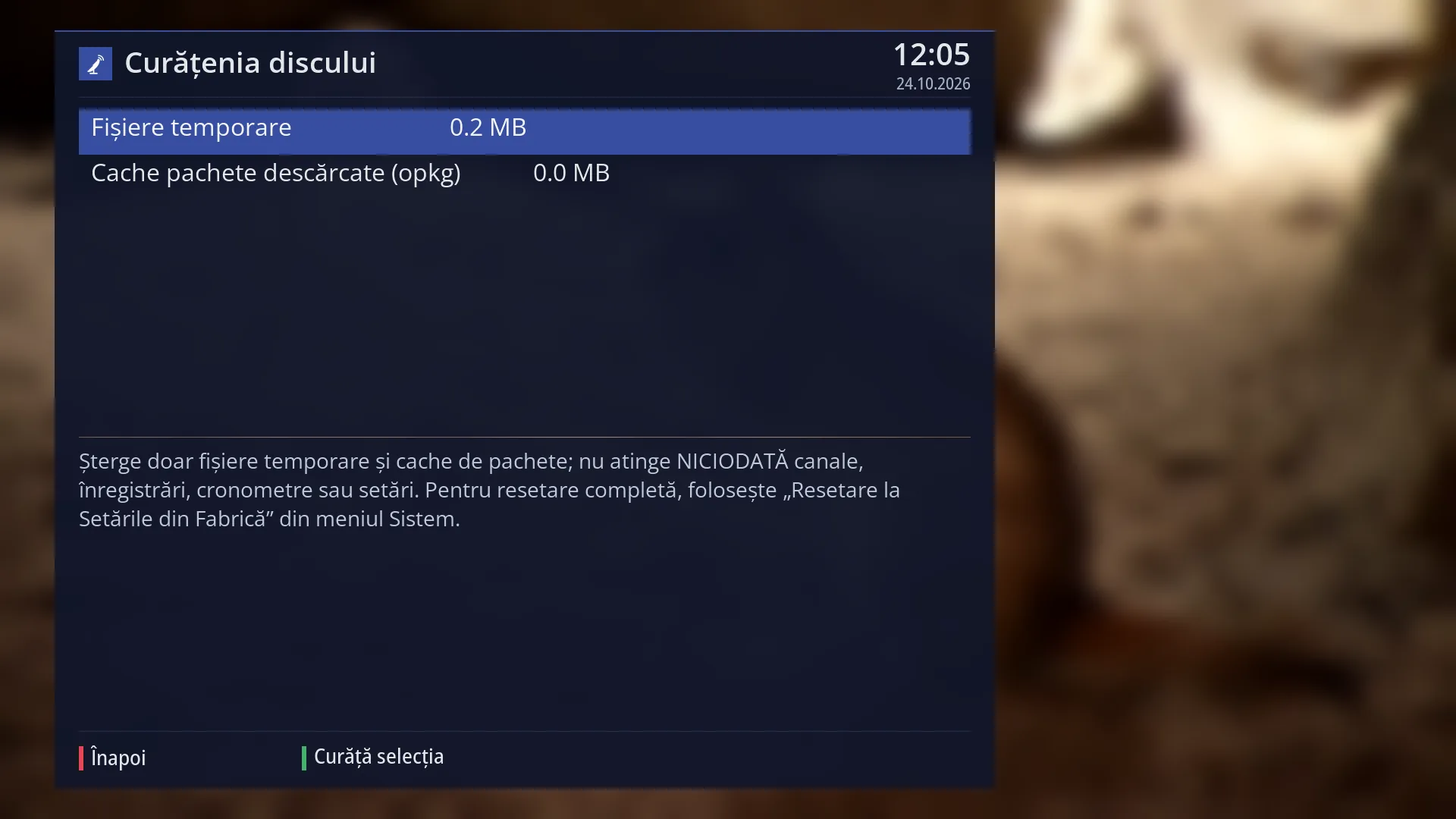
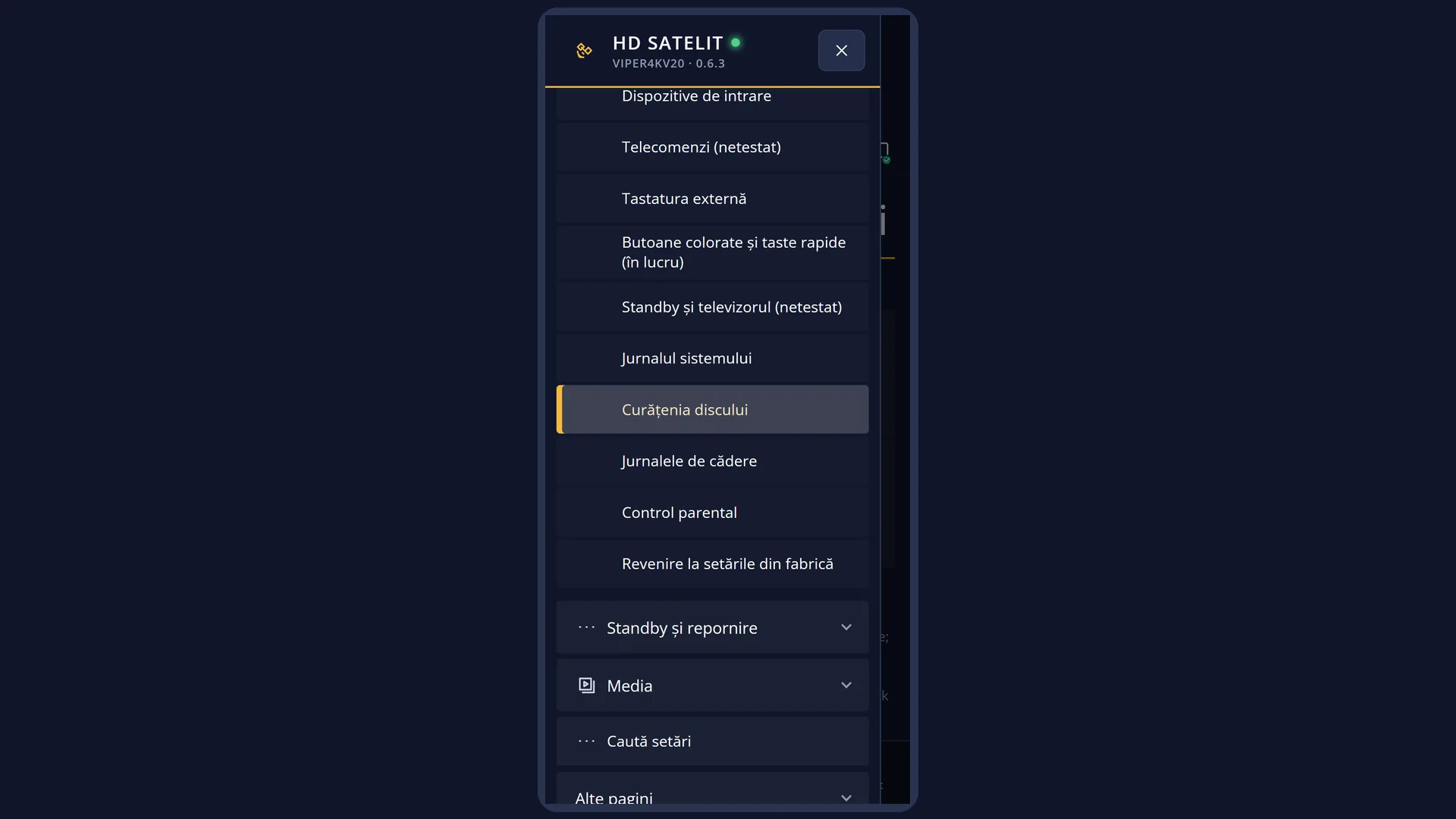
- 1 The selected row.
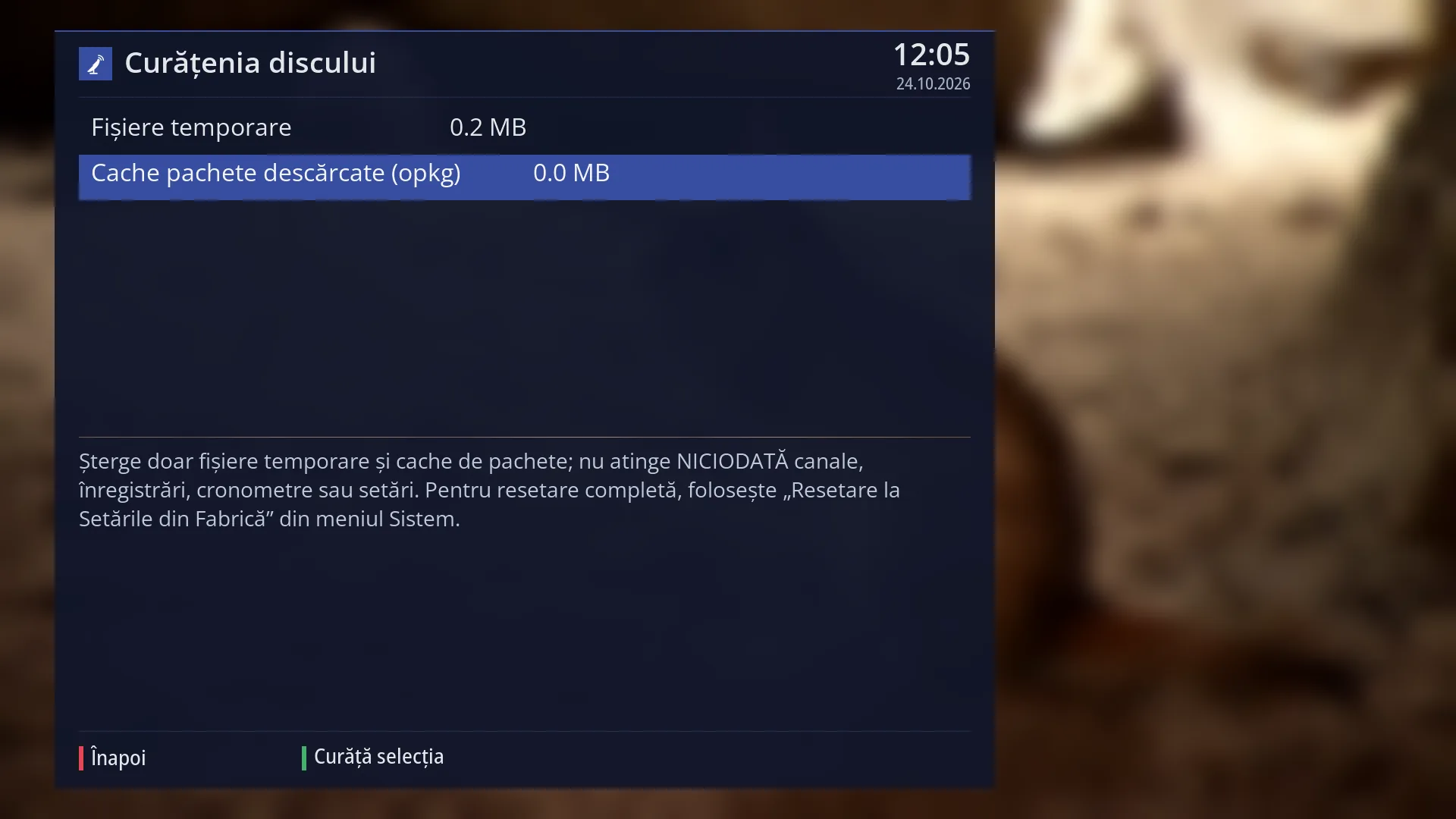
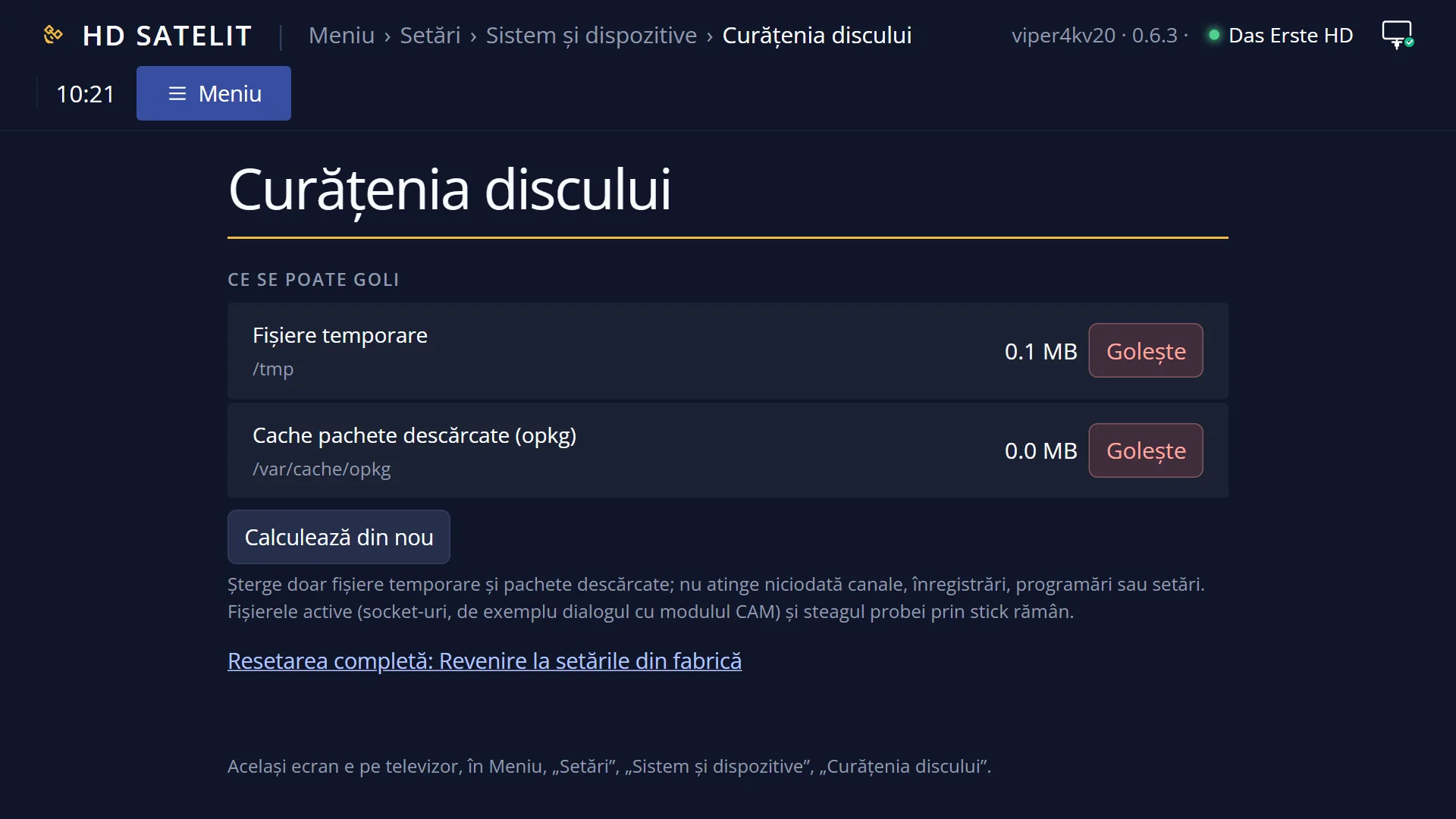
- 1 The selected row: “Cache of downloaded packages (opkg): 0.0 MB”.
What it is for
Disk space cleanup empties two places that hold files the receiver does not need to keep: temporary files and the software packages downloaded when you install plugins or update. Both are recreated automatically when they are needed.
It never touches channels, recordings, recording timers, logs or settings. To make the receiver as good as new, there is a separate option: Reset to Factory Defaults.
Although it is called “disk” cleanup, it does not touch the hard disk or USB stick with your recordings. It empties the receiver's temporary memory and the place in its memory where downloaded packages are kept. To free space on the disk, delete recordings.
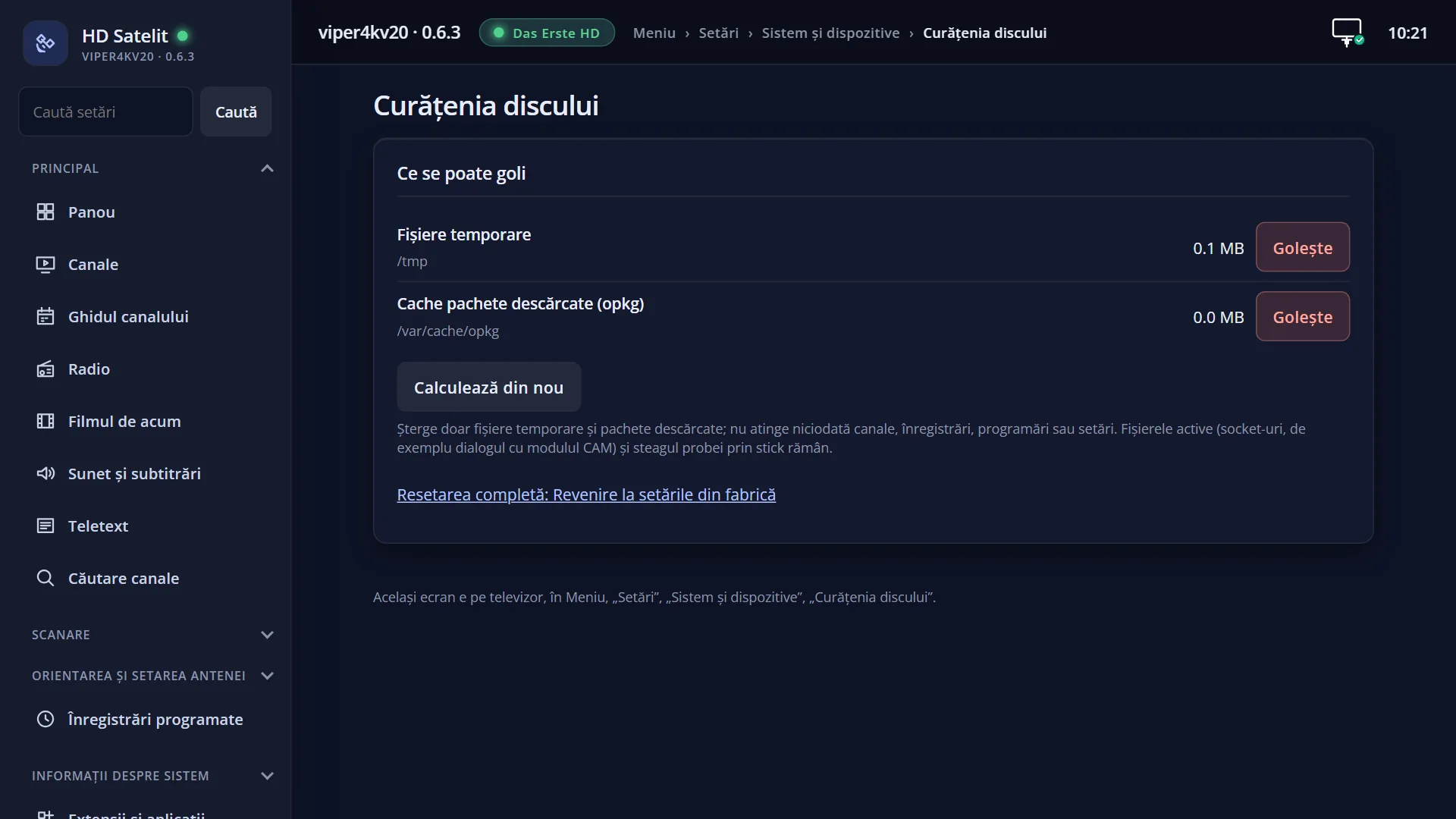
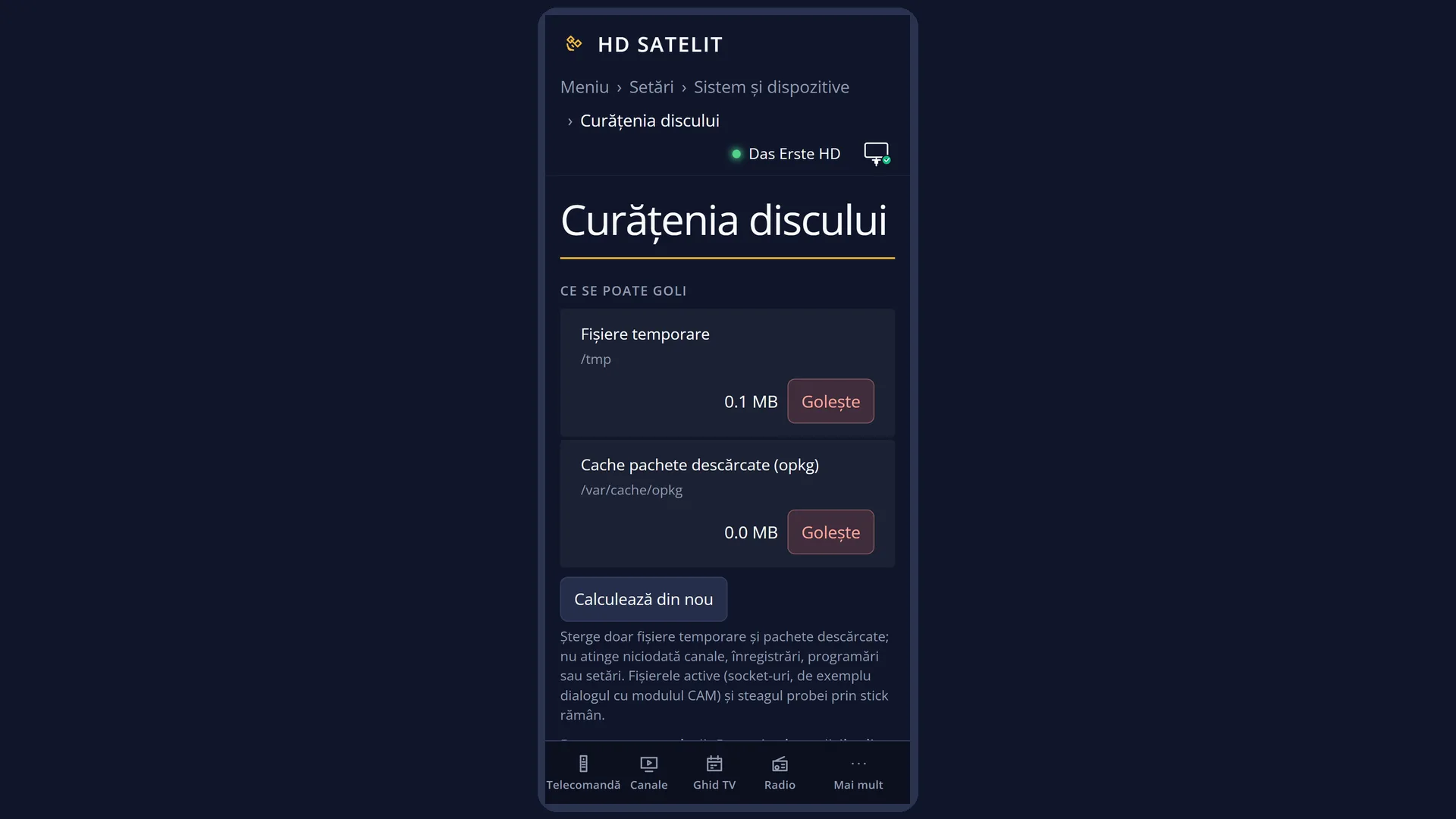
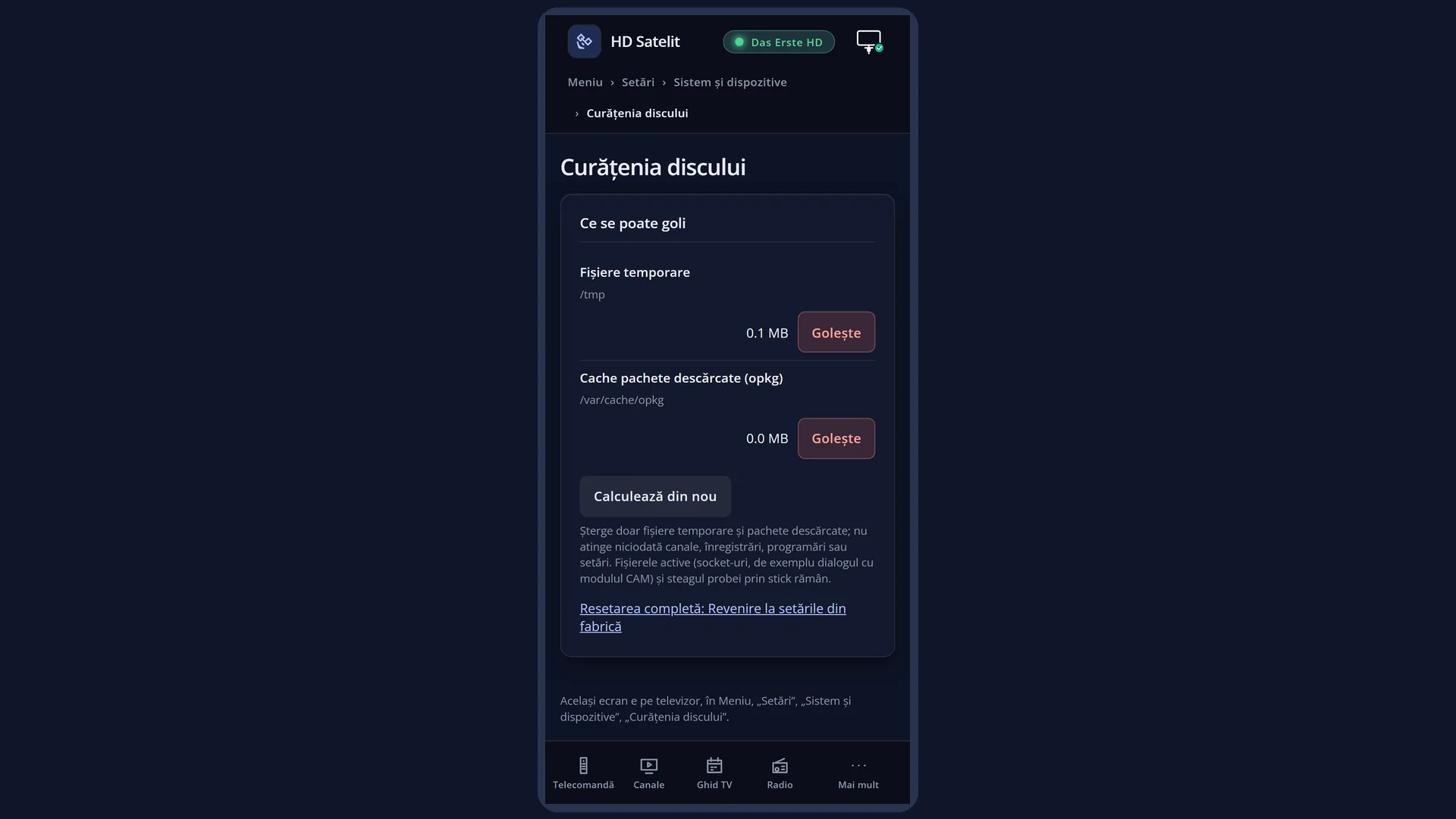
Each row shows how much space it takes up. You select the row, press GREEN and confirm. The same cleanup is available in the web interface, on the /curatenie page.
How to get here
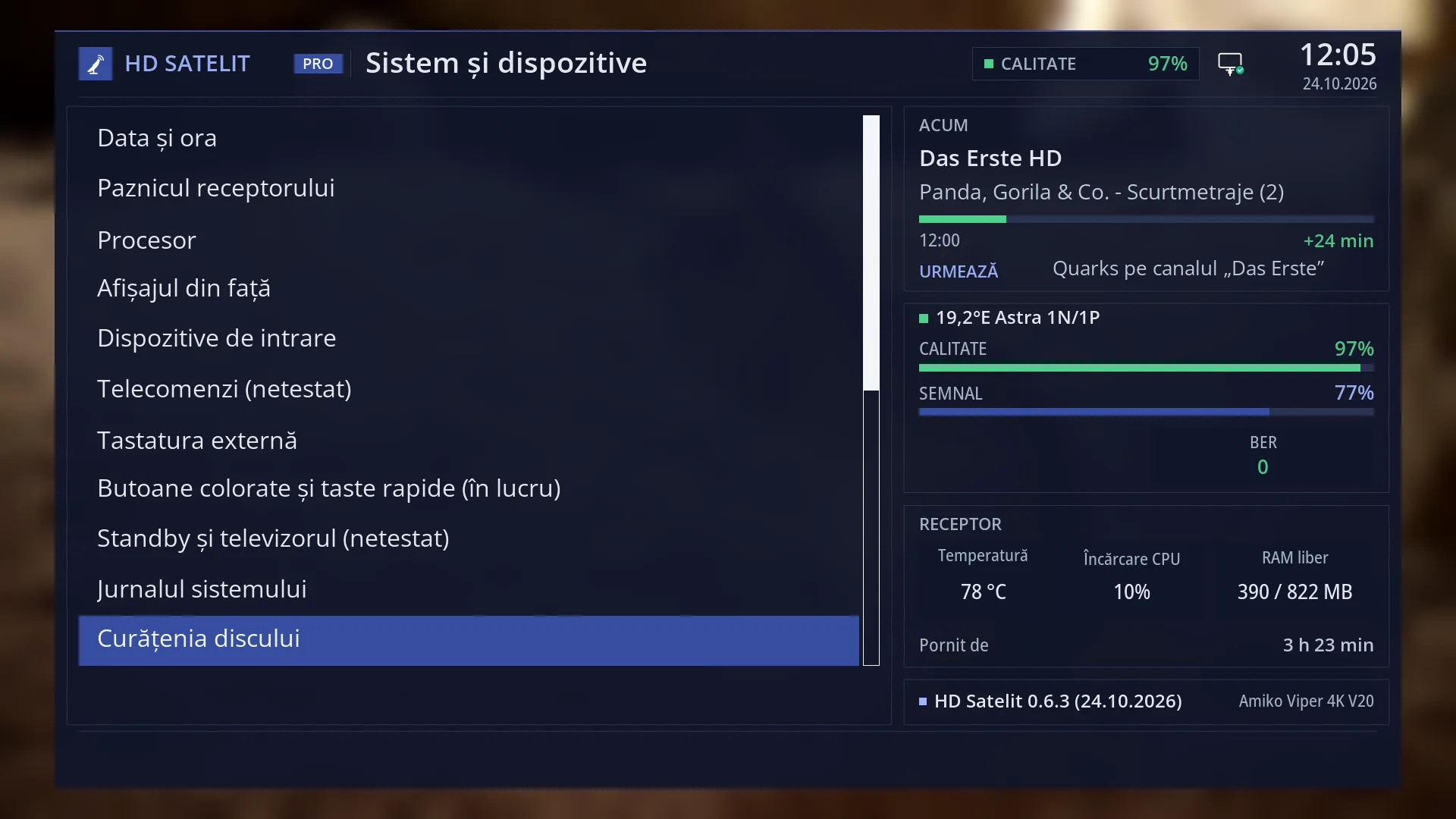
Path: Main menu > Settings > System & Devices > Disk space cleanup (the fourth row from the bottom).
Keys on the remote: MENU 6 UP UP UP OK UP UP UP UP OK.
The row is visible from the Intermediate menu level, which is the factory setting. With “Setup Mode” set to Simple, it is not shown.
In the web interface: the /curatenie page.
What you see on the screen
At the top, the title “Disk space cleanup”, with the time and date.
Two rows, each with its size in MB to one decimal place: “Temporary files” and “Cache of downloaded packages (opkg)”. The sizes are calculated when you open the screen and after each cleanup.
Below a line, the explanation: “Deletes only temporary files and the package cache; it NEVER touches channels, recordings, timers or settings. For a full reset, use “Reset to Factory Defaults” in the System menu.” In the menu, that row is called “Return to factory settings”.
At the bottom, the keys: RED “Back” and GREEN “Clean the selection”.
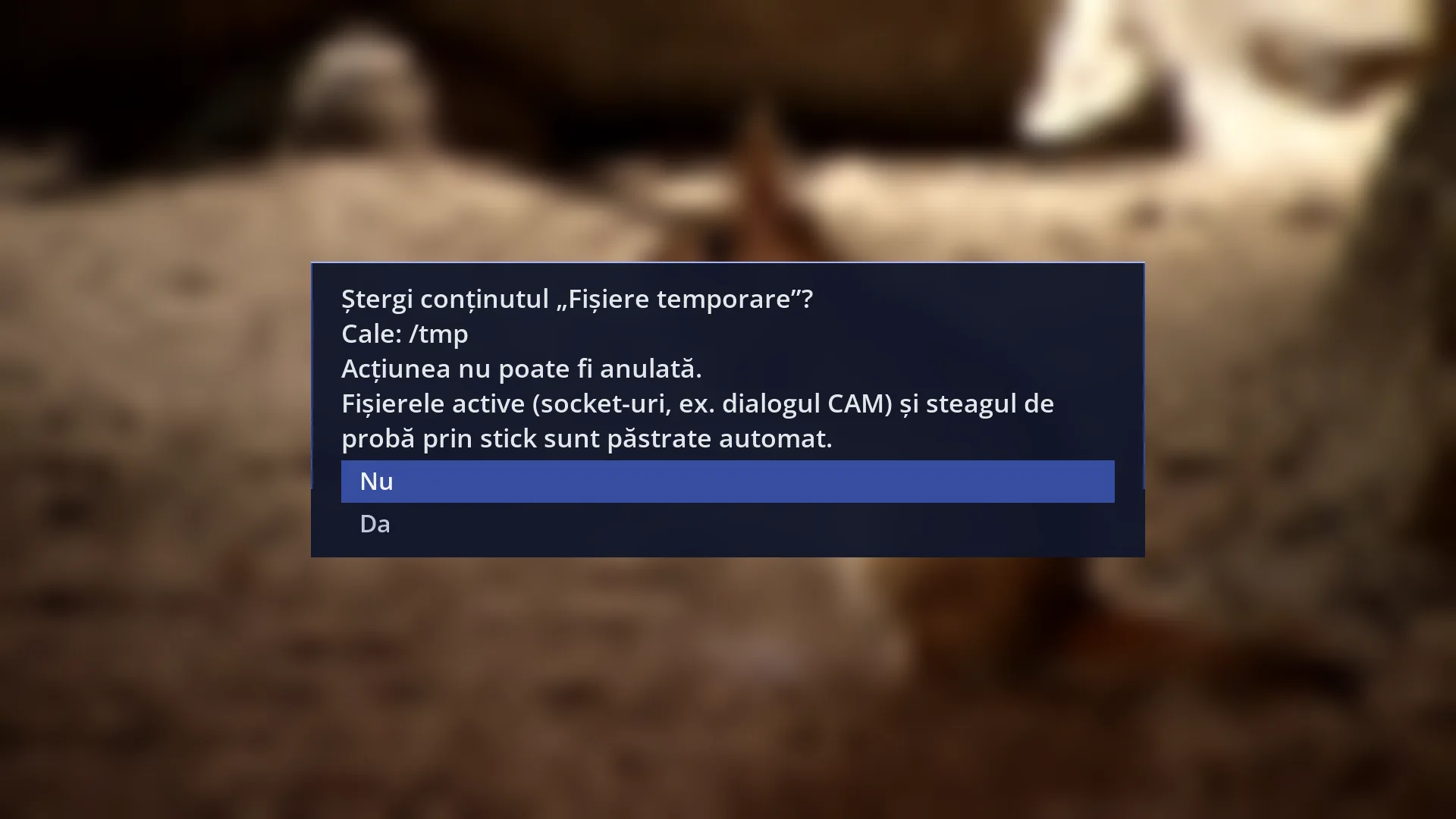
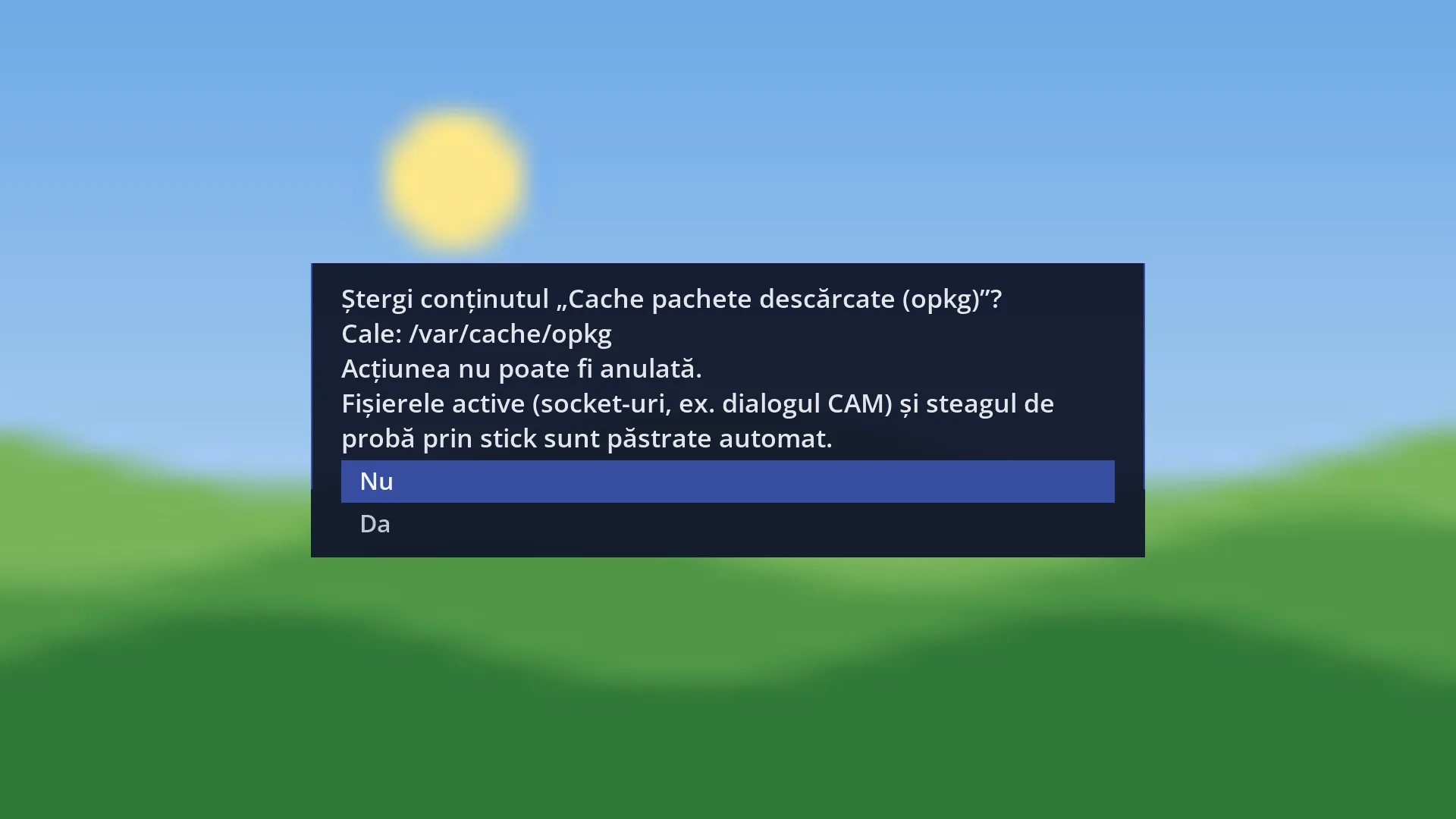
After GREEN, a question appears: what will be emptied, where, that the action cannot be undone and which files stay in place. After “Yes”, the result appears, for example ““Temporary files” cleaned: 12 files deleted, 1.5 MB freed.”
Rows and settings
| Row | Values | Default | What it does |
|---|---|---|---|
| Temporary files | size in MB | The working files that the receiver and its programs put in temporary memory while they run. This place is emptied anyway every time the receiver restarts. Open connections of programs that are running now and the marker for trying out the image from the USB stick stay in place. While the receiver is running, some features of the image also keep their working markers here (for example the count of unexpected shutdowns or the copy of the settings the interface started with). Emptying deletes these too. Rarely: only when the temporary memory is full and you cannot restart the receiver. Otherwise, restarting the receiver empties this place in the same way. | |
| Cache of downloaded packages (opkg) | size in MB | The software packages downloaded when you install a plugin or update. What is installed stays installed. If the receiver needs a package again, it downloads it again. The row usually shows 0.0 MB. When the row shows a large size, after many installations or after an update, to free space in the receiver's memory. | |
| The question before emptying | Yes, No | No | It starts with “Delete the contents of” and the name of the row, says where the files are and that the action cannot be undone. With “Yes”, the files are deleted. With “No” (the initial choice), nothing changes. |
| The result | how many files were deleted, how many MB were freed | After emptying, a message shows the name of the row, how many files were deleted and how much space was freed, and the sizes in the list are calculated again. A file that cannot be deleted (for example one in use at that moment) is skipped, without a message. If the place does not exist on the receiver, the message says so. |
Keys
| UP / DOWN | Selects the row to empty. |
| GREEN or OK | Clean the selection: empties the selected row, after a question. |
| RED or EXIT | Back to System & Devices, without emptying anything. |
Step by step
Emptying the downloaded packages
- Press MENU 6 UP UP UP OK, then UP four times and OK.
- Press DOWN to go to “Cache of downloaded packages (opkg)” and check how much space it takes up.
- Press GREEN. At the question, select “Yes” and press OK.
- Read the result and press OK. The size in the list is calculated again.
Seeing how much space temporary files take up, without deleting anything
- Open the screen with MENU 6 UP UP UP OK UP UP UP UP OK.
- Read the sizes on the right of the rows.
- Leave with EXIT.
Emptying from your phone
- Open the receiver's web interface (for example http://192.168.1.50) and go to /curatenie.
- Press “Clear” next to the row you want, then confirm in the box that appears.
- The page shows the result and the new sizes. “Calculate again” recalculates them at any time.
Problems and solutions
After emptying, temporary files do not go down to 0.0 MB.
Files in use at that moment and files kept on purpose stay, and running programs quickly create new working files. This is normal.
“The folder … does not exist on this system.” appears.
That place does not exist on your receiver, so there is nothing to empty.
I do not have more space for recordings after the cleanup.
The cleanup does not touch the hard disk or USB stick with your recordings. Free space by deleting old recordings in Films and recordings.
I want to make the receiver as good as new.
The cleanup does not delete settings or channels. Use Reset to Factory Defaults, the last row in System & Devices.
I want to delete old logs.
The cleanup does not touch logs. You delete them one by one in System Log Viewer and Crash logs.
The “Disk space cleanup” row is missing from the menu.
It appears from the Intermediate level. Set “Setup Mode” (OSD Preferences) to Intermediate or Expert.