

Buttons & Quick Keys
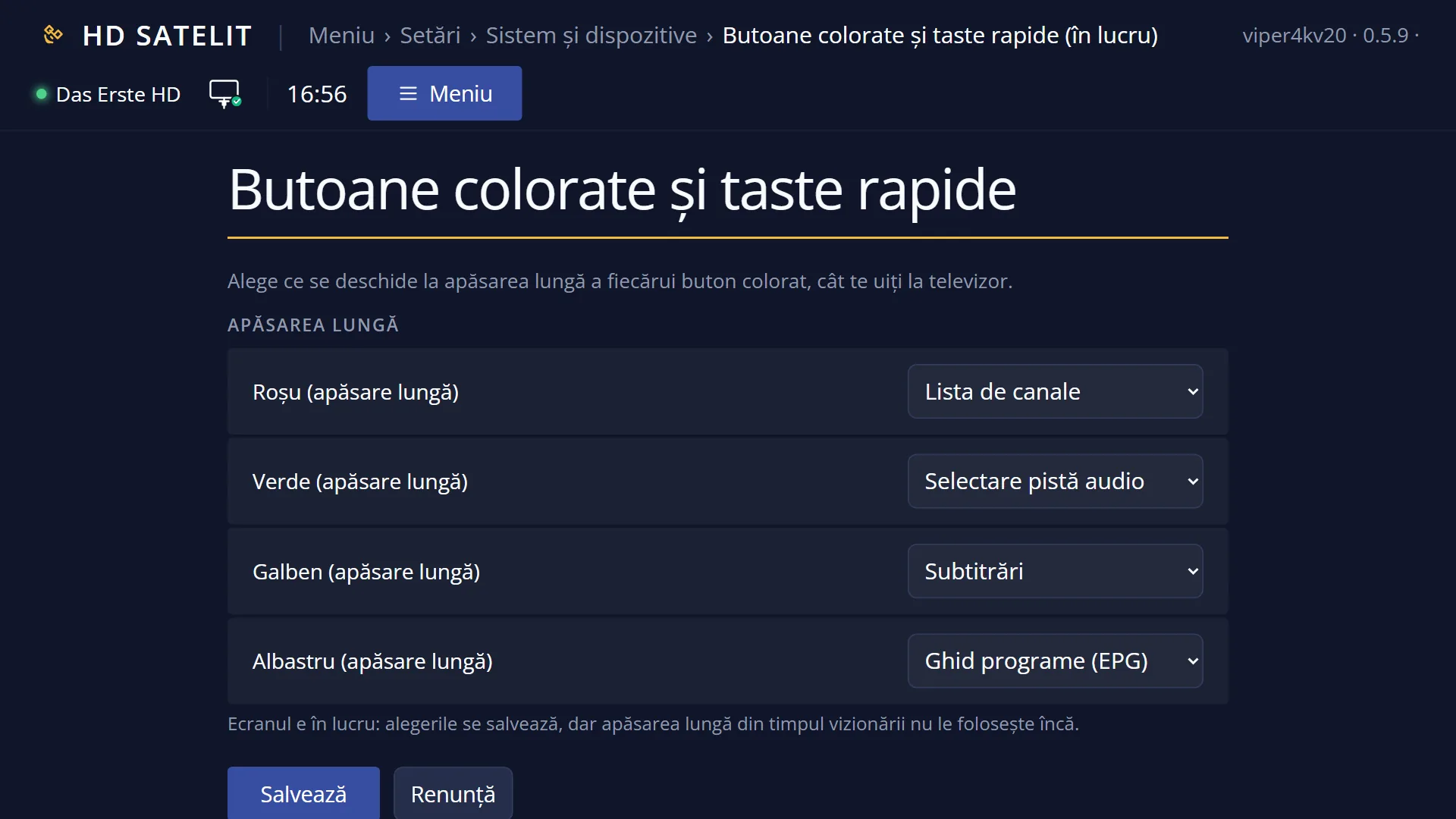
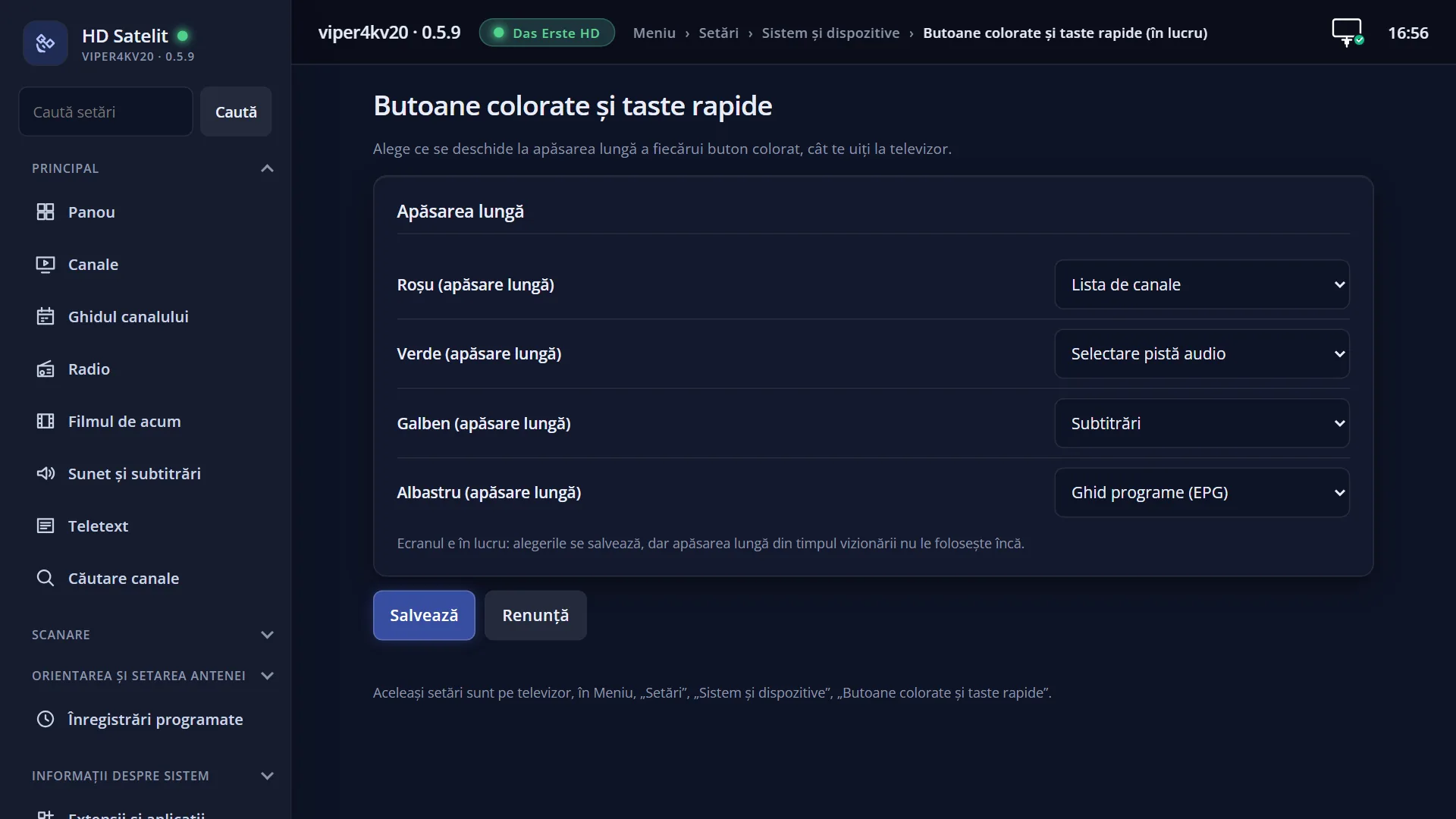
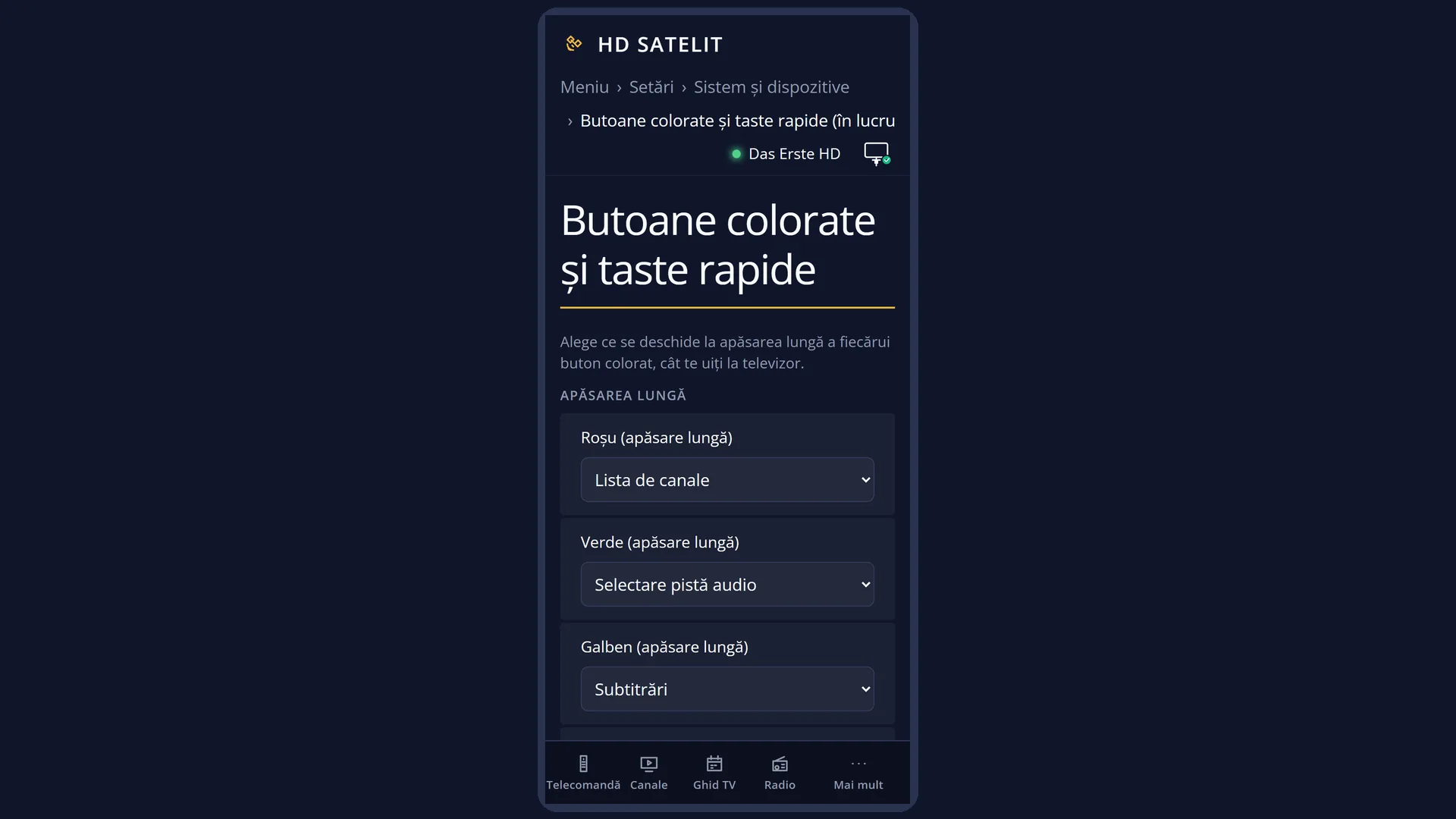
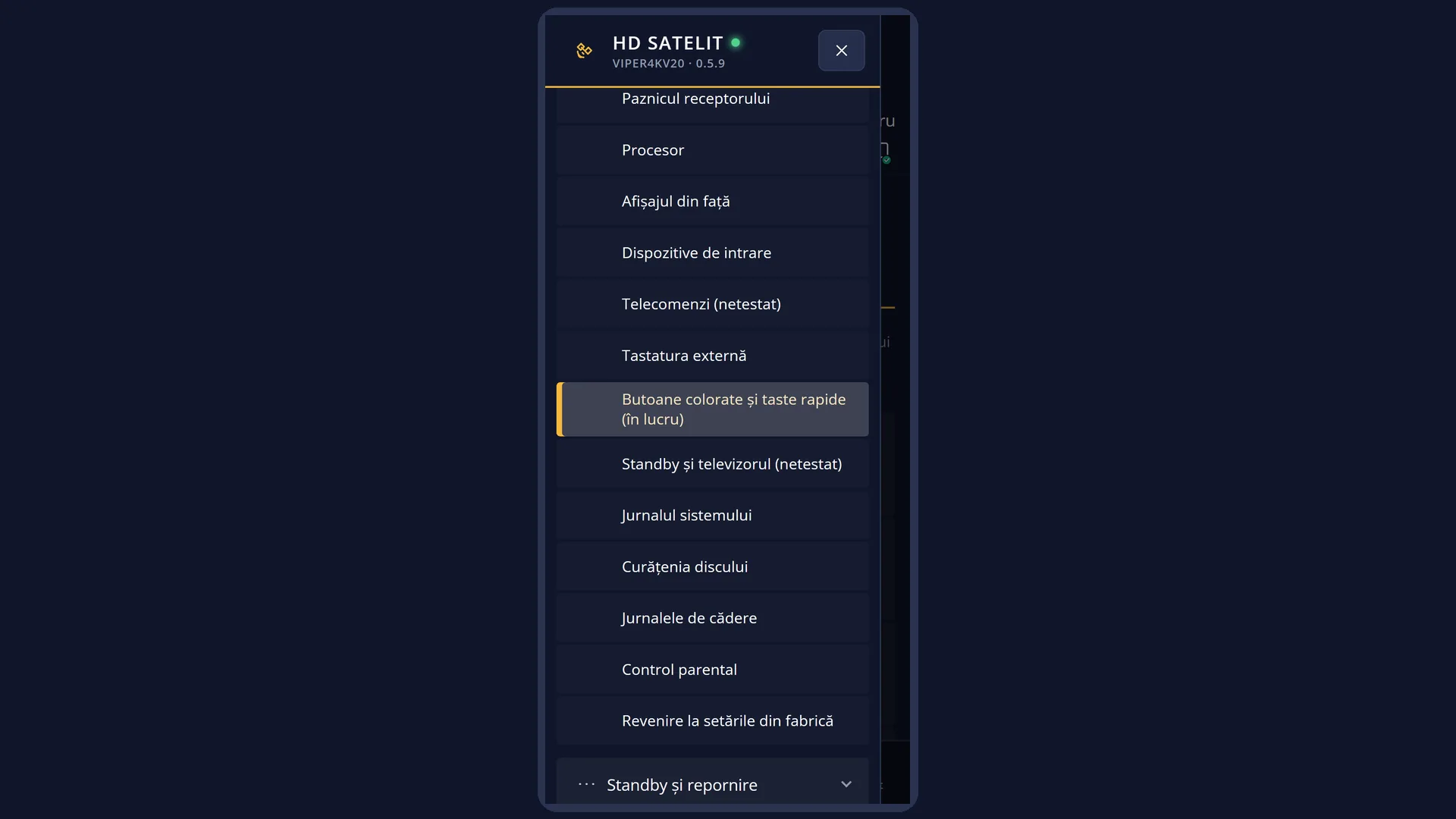
Screenshots are being added: so far 0 from the receiver and 6 from the web interface; the aim is at least 5 of each, with arrows and frames, and, where a setting changes what you see, a before and after comparison.
English screenshots coming: some of the pictures below still show the receiver and the web interface in Romanian. The rows, keys and steps described on this page are the English ones.
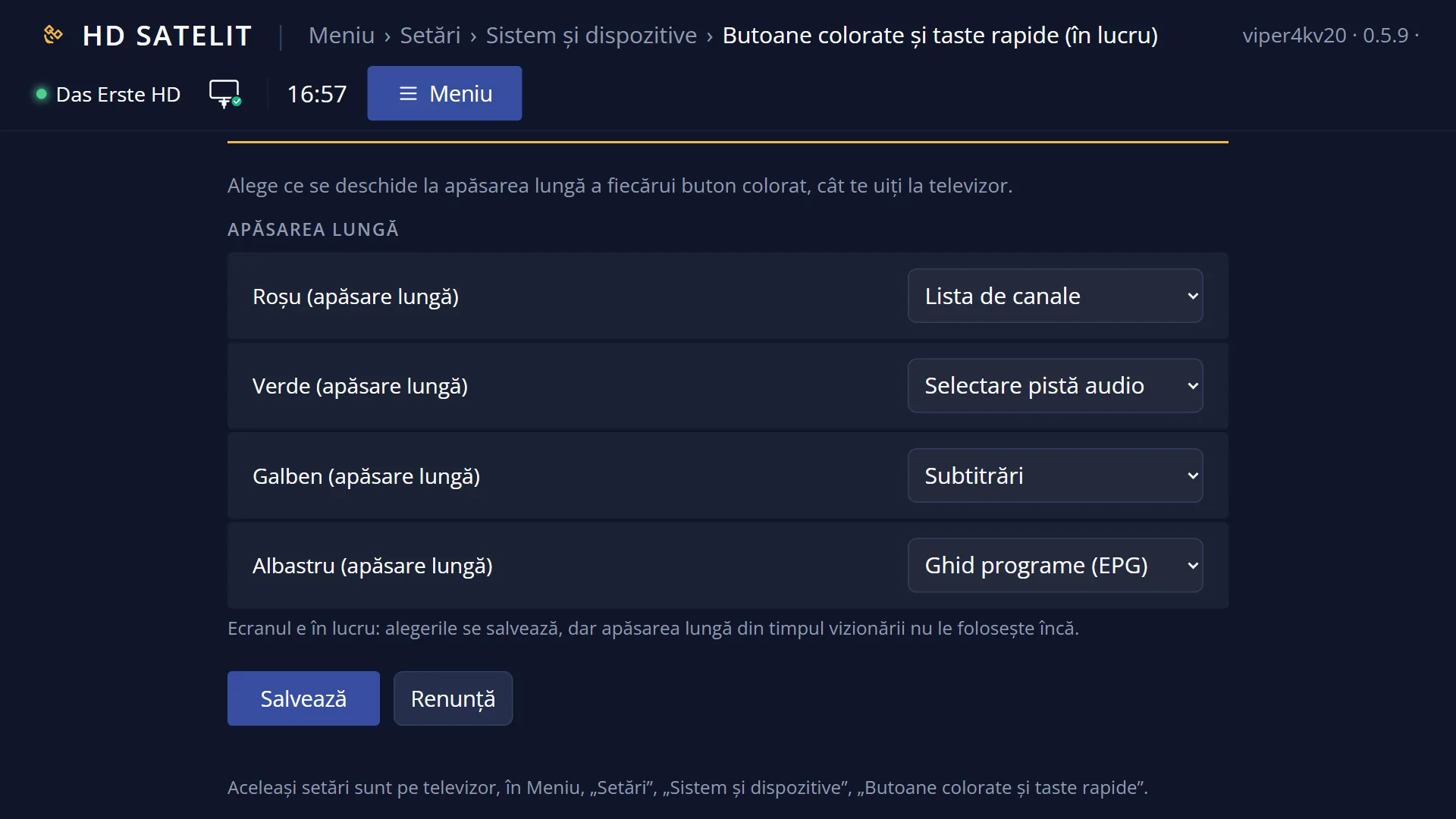
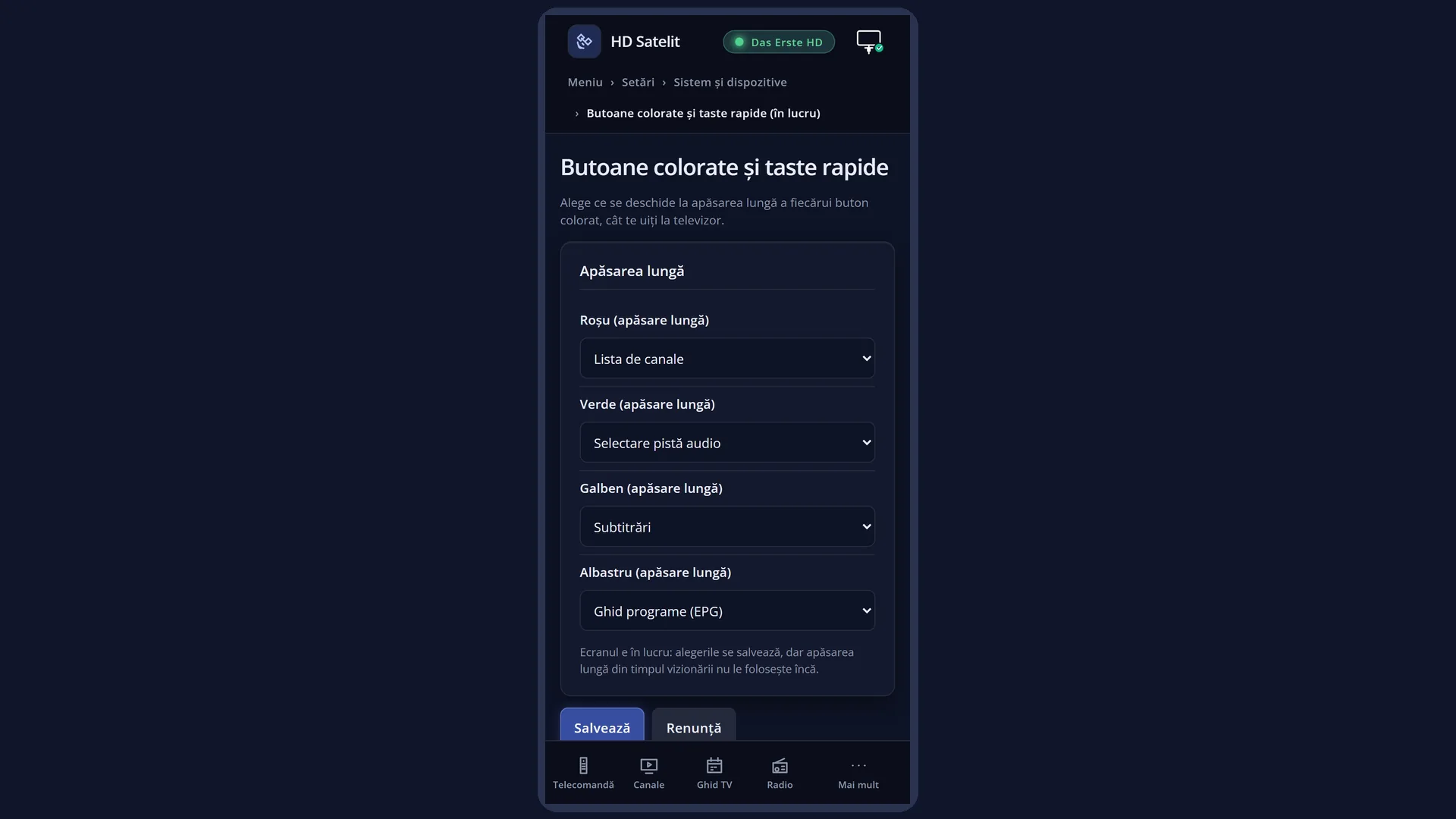
What it is for
“Buttons & Quick Keys” lets you choose what opens when you give each colour button (red, green, yellow, blue) a LONG press while you watch TV: the programme guide, the menu, the channel list, the audio track, subtitles and more.
Note: this screen is still a work in progress (in the menu, its name is followed by “(in progress)”). Your choices are saved, but the long press while you watch does not use them yet. For now, they do not change what the buttons do.
Your choices are kept and will work once the part that detects the long press is ready.
How to get here
Path: Main menu > Settings > System & Devices > Buttons & Quick Keys.
Keys on the remote: MENU 6 UP UP UP OK 8 (“System & Devices” is the third row from the bottom in Settings).
The row appears in the Intermediate (factory default) and Expert setup modes. In Simple mode it is hidden.
In the web interface: the /taste-rapide page (“Colored buttons and quick keys”), section “Long press”.
What you see on the screen
At the top: the title “Colored buttons and quick keys”, the clock and the date.
The list has four rows: “Red (long press)”, “Green (long press)”, “Yellow (long press)” and “Blue (long press)”, each with the chosen action on the right.
Below the list: “Choose what opens on a LONG press of each colored button while watching TV.”
At the bottom, the keys: RED “Cancel” and GREEN “Save”.
Rows and settings
| Row | Values | Default | What it does |
|---|---|---|---|
| Red (long press) | Nothing, Program guide (EPG), Main menu, Extension list, System information, Audio track selection, Subtitles, Channel list | Channel list | What a long press on RED will open. For now it is saved but does not work. When you want a different shortcut on this button. |
| Green (long press) | the same eight actions | Audio track selection | What a long press on GREEN will open. For now it is saved but does not work. The same. |
| Yellow (long press) | the same eight actions | Subtitles | What a long press on YELLOW will open. For now it is saved but does not work. The same. |
| Blue (long press) | the same eight actions | Program guide (EPG) | What a long press on BLUE will open. For now it is saved but does not work. The same. |
Keys
| UP / DOWN | Moves the cursor to another button. |
| LEFT / RIGHT | Steps through the eight actions for the selected button. |
| GREEN (Save) | Saves your choices and closes the whole menu. |
| RED (Cancel) / EXIT | Restores your previous choices and closes the screen. |
| OK | Opens nothing on these rows: you change the choice with LEFT and RIGHT. |
Step by step
Choosing the shortcuts for later
- Press MENU 6 UP UP UP OK 8.
- For each button, choose the action with LEFT and RIGHT.
- Press GREEN. Your choices stay saved and will work once the long press is ready.
Problems and solutions
I hold down a colour button and what I chose does not open.
That is how it works for now: the screen is a work in progress, and the long press while you watch does not use your choices yet. The buttons do what they did before.
After GREEN, the whole menu closed.
That is by design: it takes you back to TV. Press MENU to go in again.
I cannot find the entry in the menu.
It only shows in the Intermediate and Expert setup modes: Menu > Settings > Interface & Appearance > OSD Preferences, row “Setup Mode”.
Related topics
- System & Devices (the submenu)
- Remote controls
- Matching web page: /taste-rapide.