

Check Disk Health
Screenshots are being added: so far 3 from the receiver and 6 from the web interface; the aim is at least 5 of each, with arrows and frames, and, where a setting changes what you see, a before and after comparison.
English screenshots coming: some of the pictures below still show the receiver and the web interface in Romanian. The rows, keys and steps described on this page are the English ones.
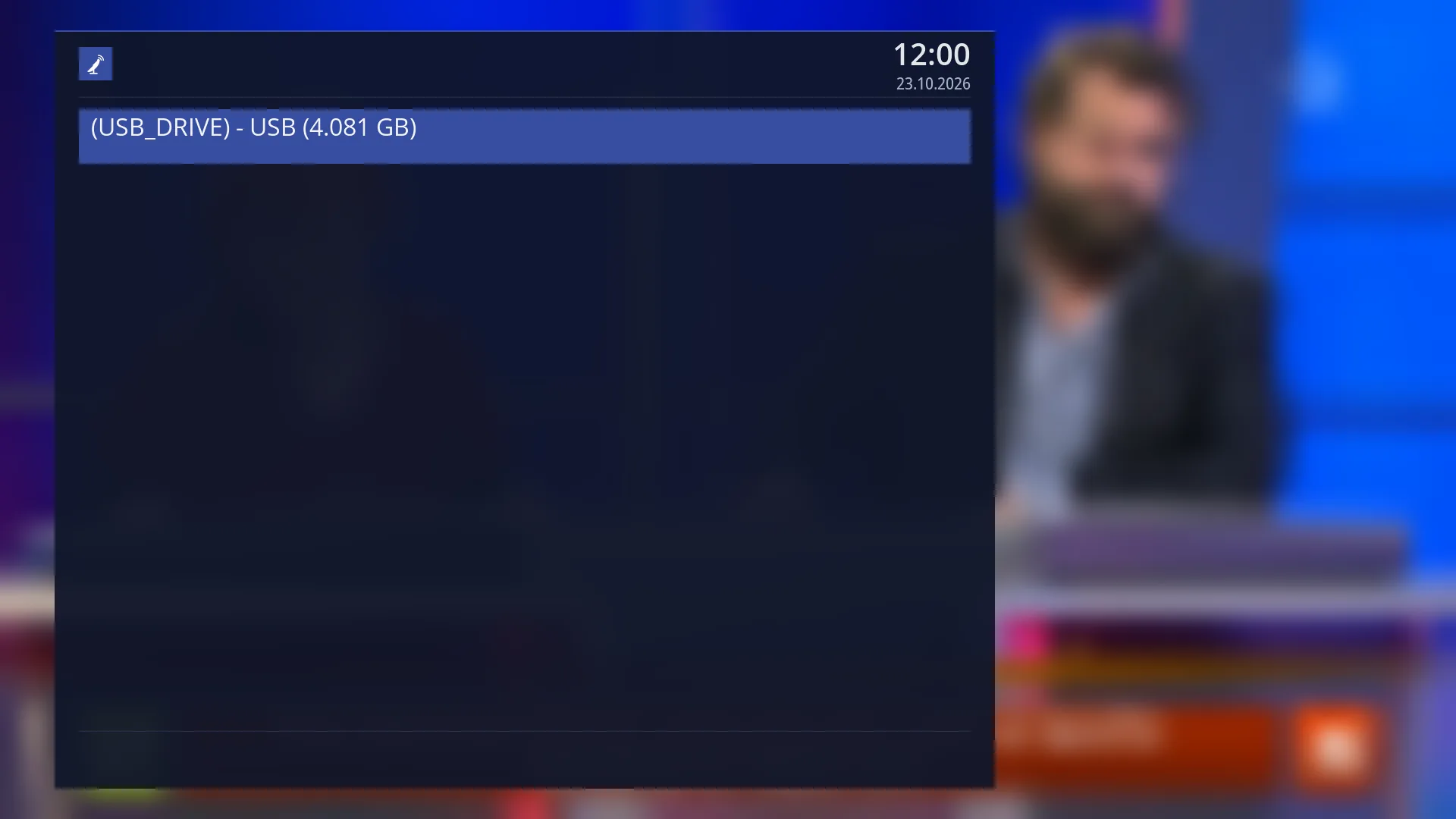
- 1 A disk in the list: name, connection and size; OK opens it.
- 2 The other hard disks and USB sticks, if connected.
- 3 The list screen has no title.
What it is for
“Check Disk Health” finds and repairs errors in the file system of a hard disk or USB stick connected to the receiver. The data on the disk stays: this is not formatting.
Use it when a disk behaves strangely: recordings that no longer open, missing files, a disk that no longer mounts. This happens especially after the power was cut during a recording.
The receiver checks each ext2, ext3, ext4 or FAT partition, then mounts the disk again exactly as it was before. While the check runs, the disk is not mounted: recordings and timeshift cannot write to it. On a large disk the check can take a few minutes.
The receiver's internal memory and the disk the system starts from do not appear in the list.
How to get here
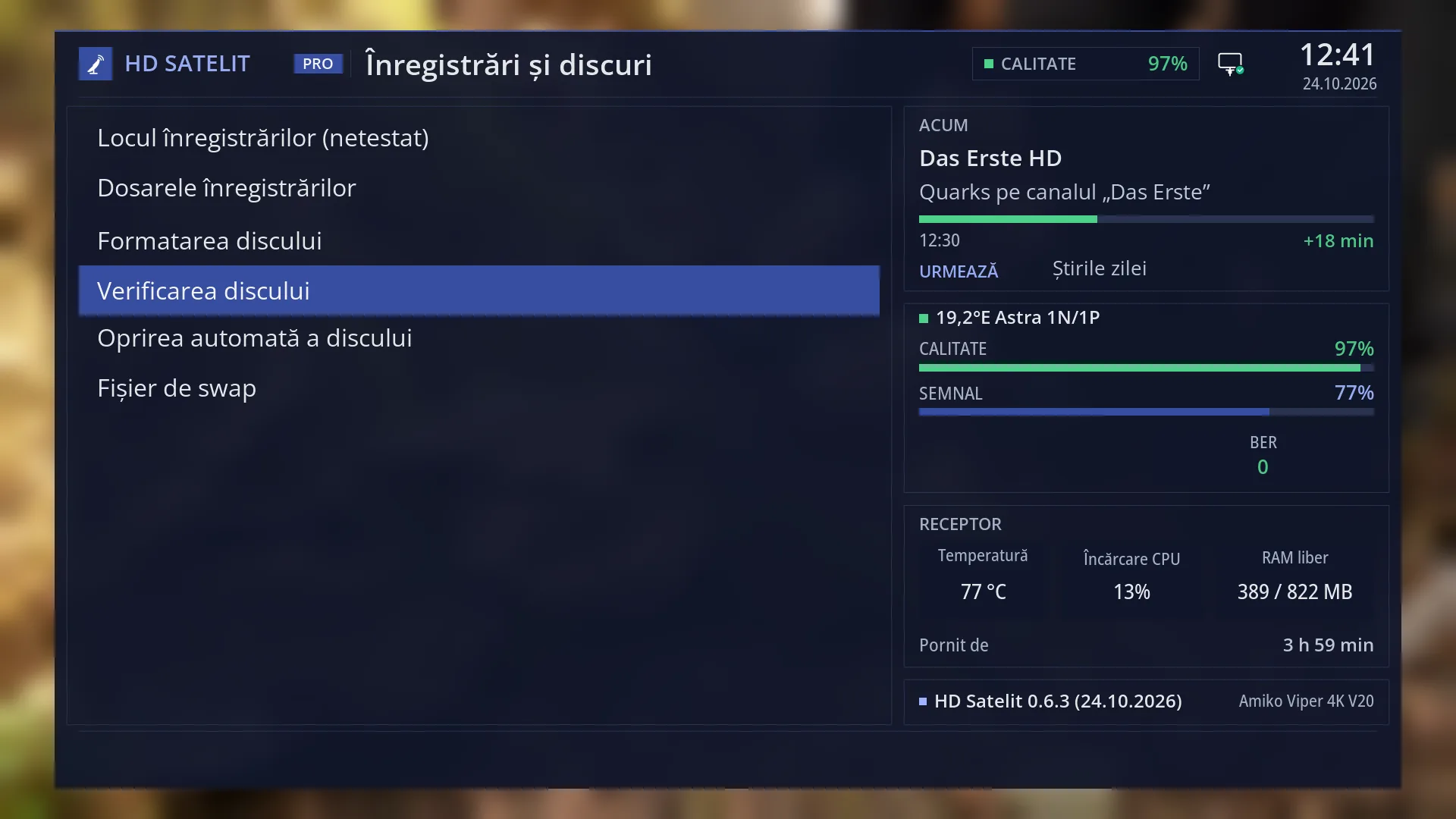
Path: Main menu > Settings > Recording & Storage Setup > Check Disk Health.
Keys on the TV: MENU 6 5 4.
The “Check Disk Health” row appears when “Setup Mode” is set to Intermediate (the factory setting) or Expert. With Simple it is missing.
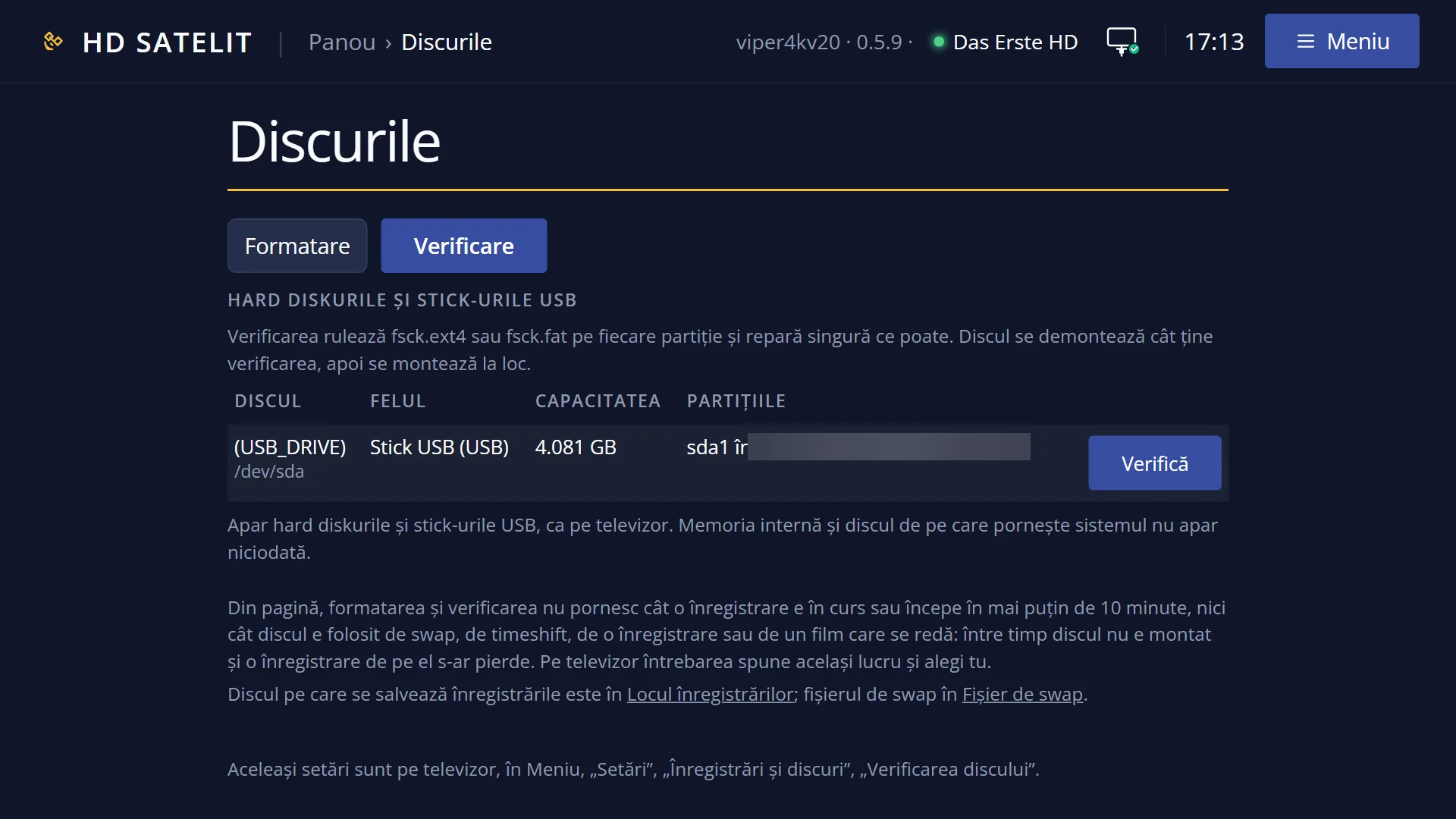
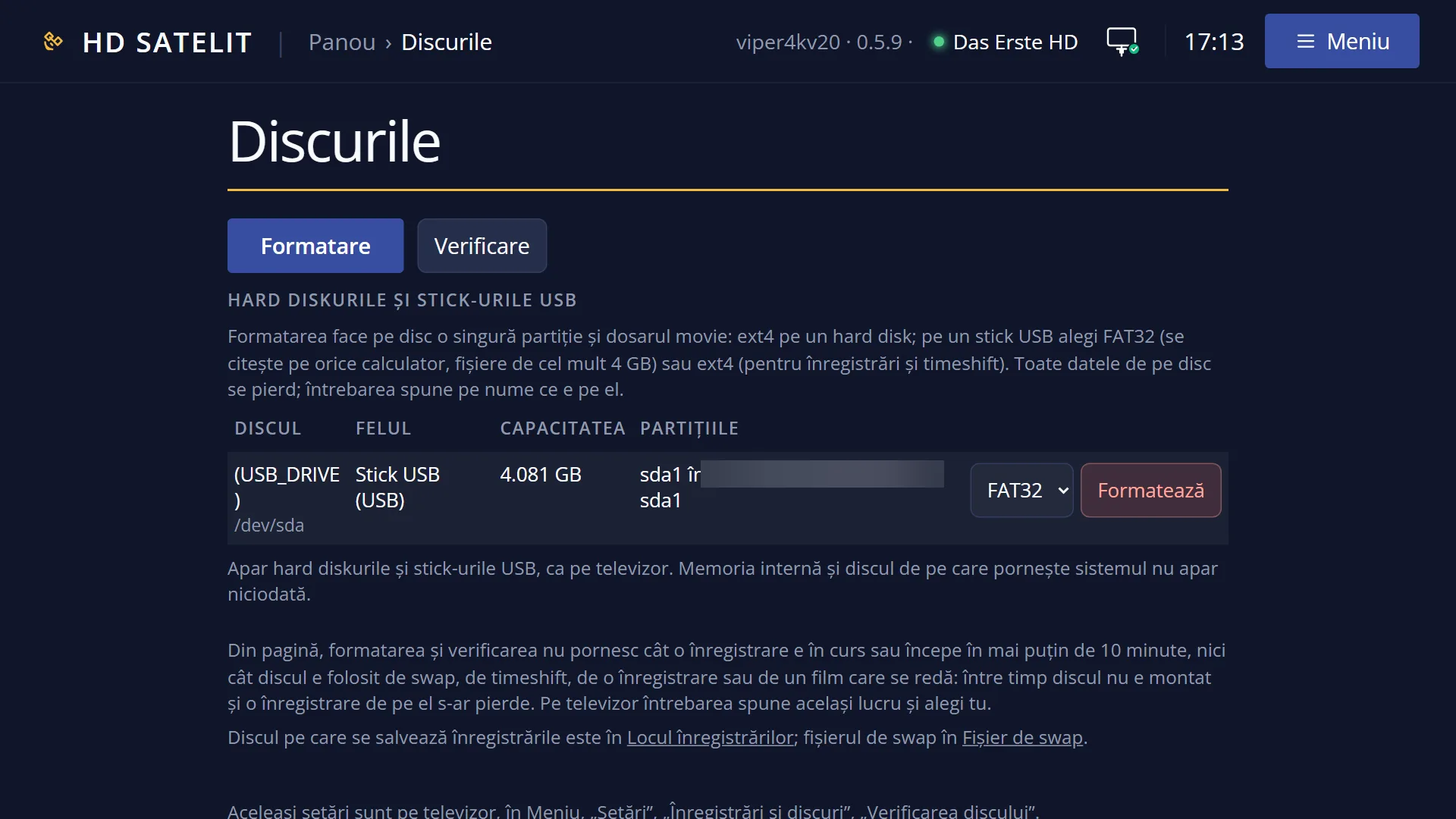
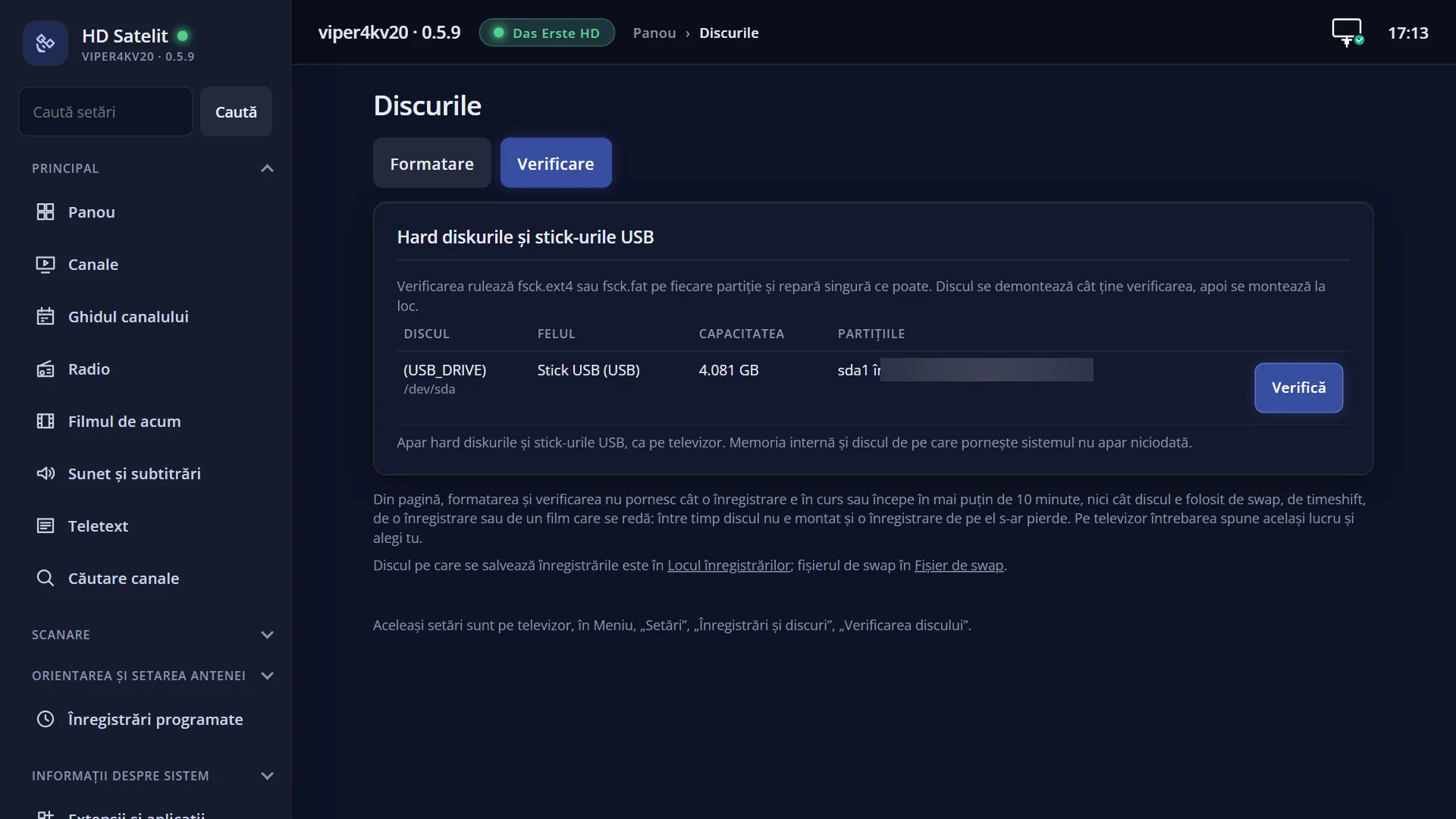
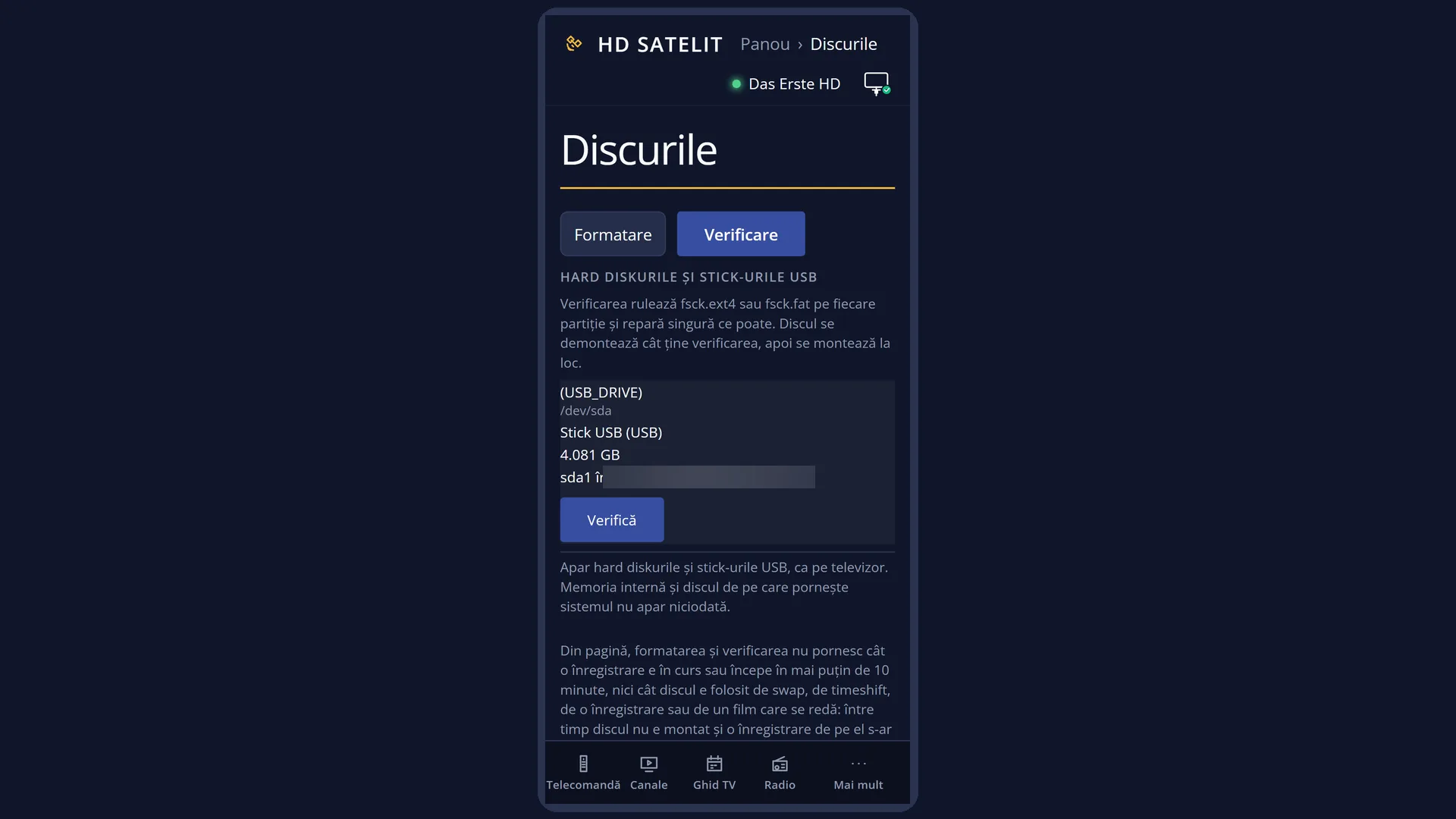
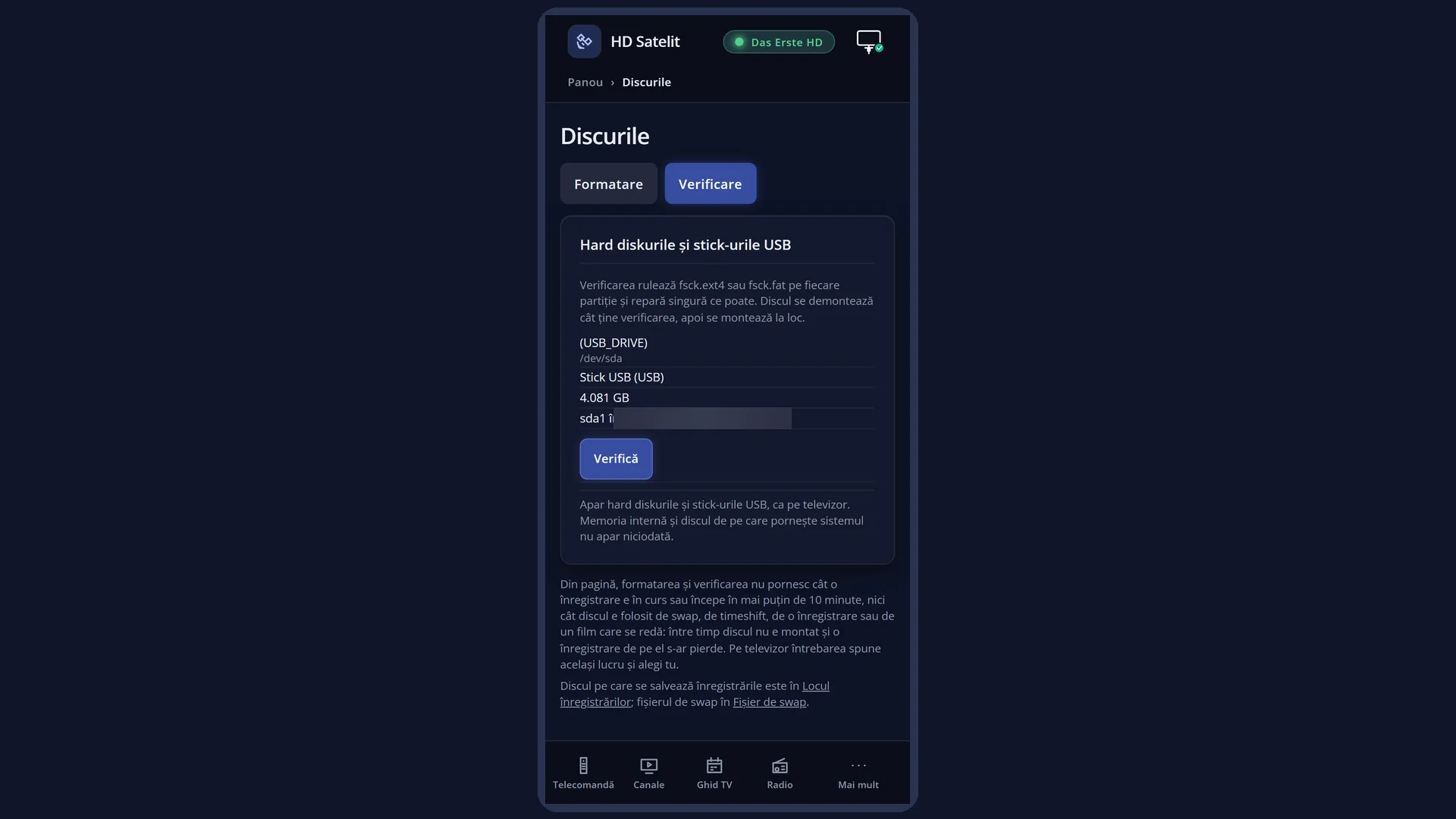
In the web interface: the /discuri page, “Check” tab (/discuri?f=verificare).
What you see on the screen
The first screen is the list of hard disks and USB sticks, one row per disk, with the name, the connection and the size, for example “(USB_DRIVE) - USB (4.081 GB)”. With no disk connected it shows “No hard disk and no USB stick found.”.
The list screen has no title: at the top you only see the logo, the time and the date.
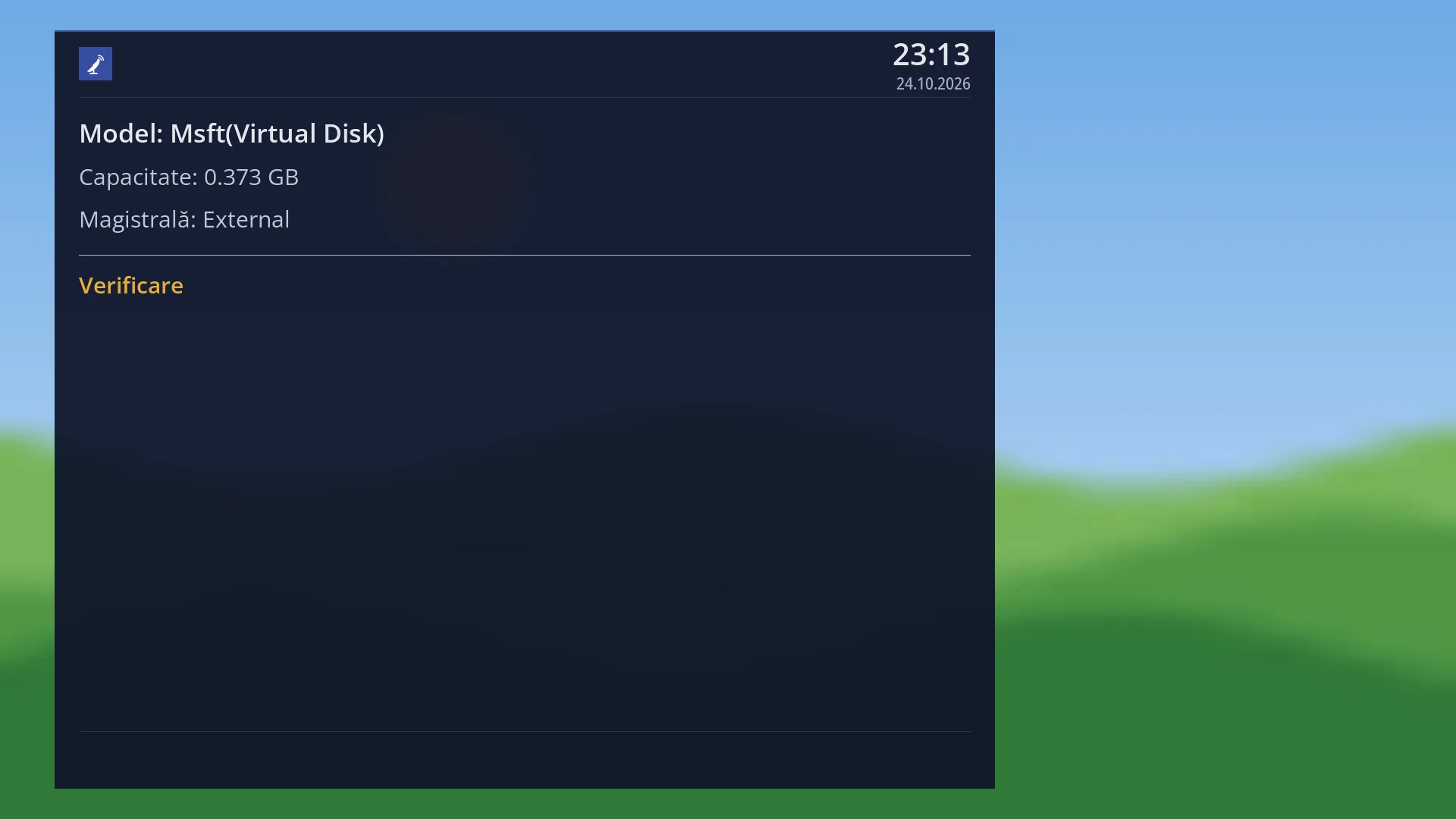
After you press OK on a disk: a screen with “Model:”, “Capacity:”, “Bus:” and “Check” in yellow. From here you start the check with the RED key.
Then the question “Check the file system on ...? It may take a long time.” appears, with the details: the model, the capacity, where each partition is mounted, the fact that the disk is unmounted while the check runs, and what is using it now (a recording, timeshift, a film that is playing). The answers are “Cancel” (the factory choice) and “Yes, check”.
While it works: “Checking Filesystem...”. At the end, the screen closes if everything is fine. Otherwise “Unable to complete filesystem check.” appears, with the error.
Rows and settings
| Row | Values | Default | What it does |
|---|---|---|---|
| A disk in the list | OK opens the disk screen, where RED starts the check after the question. When the disk has problems, or after the power was cut during a recording. | ||
| The question “Check the file system on ...?” | Cancel, Yes, check | Cancel | It tells you what will happen and what is using the disk now. Only “Yes, check” starts the job. Choose “Yes, check” only after you have read the details. If a recording is running or starts soon, it is better to wait. |
Keys
| UP / DOWN | In the list you choose the disk; in the question you choose the answer. |
| OK | In the list it opens the disk screen; in the question it selects the answer under the cursor. |
| RED | On the disk screen (the one with “Check” in yellow) it starts the check: the question appears first. |
| LEFT / RIGHT | In the question it scrolls the details text when it is long. |
| EXIT | Closes the current screen; in the question it means Cancel. |
Step by step
Checking a USB stick or a disk
- Stop any recordings and timeshift that write to the disk.
- Press MENU 6 5 4, choose the disk and press OK.
- Press RED. Read the question, then choose “Yes, check” with DOWN and press OK.
- Wait until “Checking Filesystem...” disappears. If the screen closes by itself, everything is fine.
Problems and solutions
I pressed OK on the disk and nothing starts.
On the disk screen the check starts with the RED key, not with OK. OK and EXIT close that screen.
“Swap is active on this disk ...” appears.
With the swap file active on it, the disk cannot be unmounted. First turn off swap in “Swap File” (MENU 6 5 6), then run the check.
“A disk operation is already running. Wait for it to finish.” appears.
Another check or formatting is already running, started from the TV or from the web page. Wait for it to finish.
The error “The disk has no file system the receiver can check (ext2, ext3, ext4 or FAT).”.
The disk is formatted differently (for example NTFS or exFAT). The receiver cannot check it; check it on a computer.
The error “Filesystem contains uncorrectable errors”.
The receiver could not repair the disk. Copy what you can from it to a computer and format it in “Format Hard Drive”.
The error “Please Reboot”.
The check repaired something that needs a restart. Restart the receiver from Main menu > Power & Restart.
I cannot find “Check Disk Health”.
The row is missing when “Setup Mode” is set to Simple. Set it to Intermediate in OSD Preferences (MENU 6 6 5, first row).
Related topics
- Recording & Storage Setup (the menu it opens from)
- Format Hard Drive
- Swap File
- Hard Drive Standby
- Storage & Disks (the information)
- Matching web page: /discuri, “Check” tab.