

Parental Lock
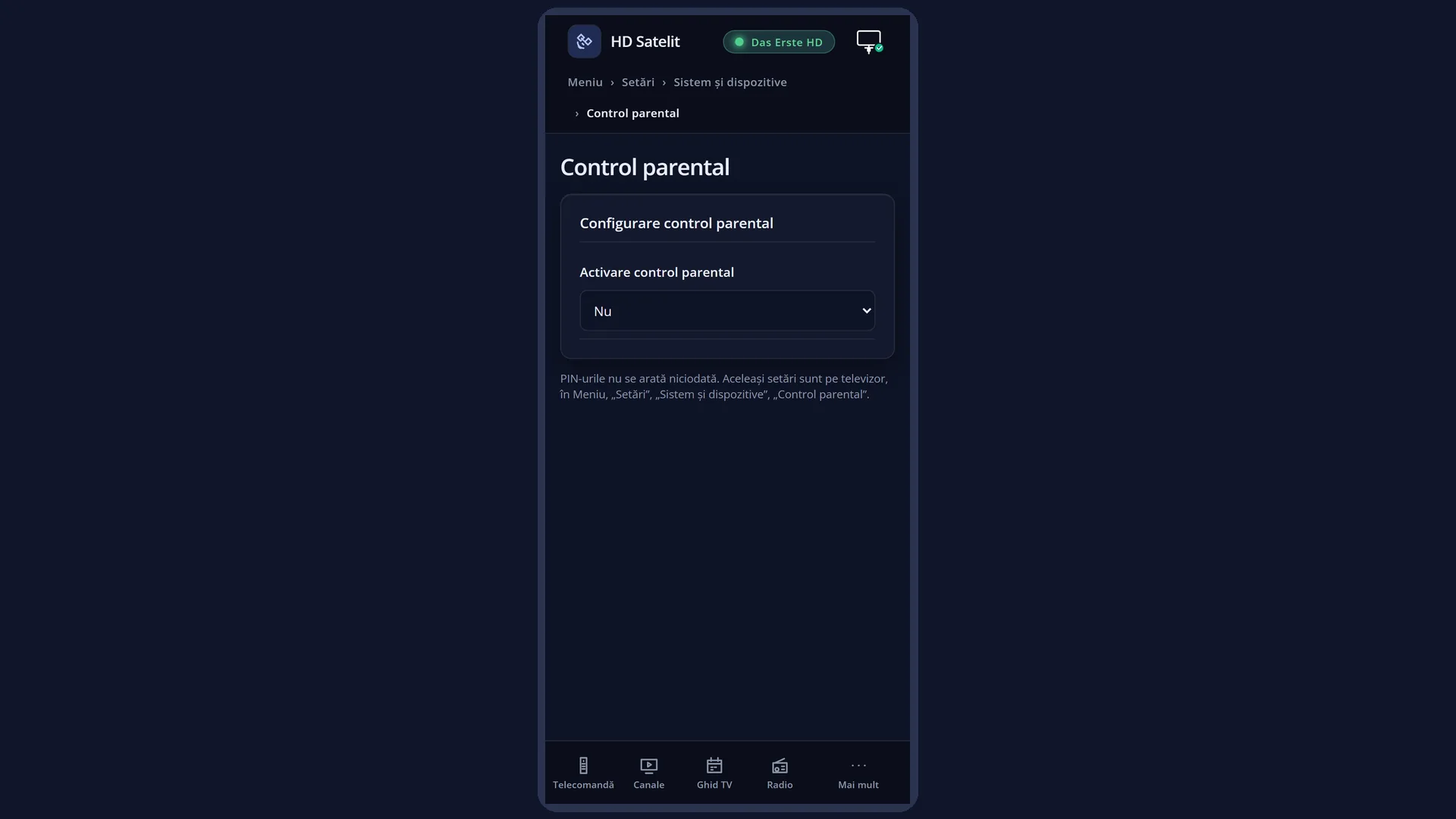
English screenshots coming: some of the pictures below still show the receiver and the web interface in Romanian. The rows, keys and steps described on this page are the English ones.
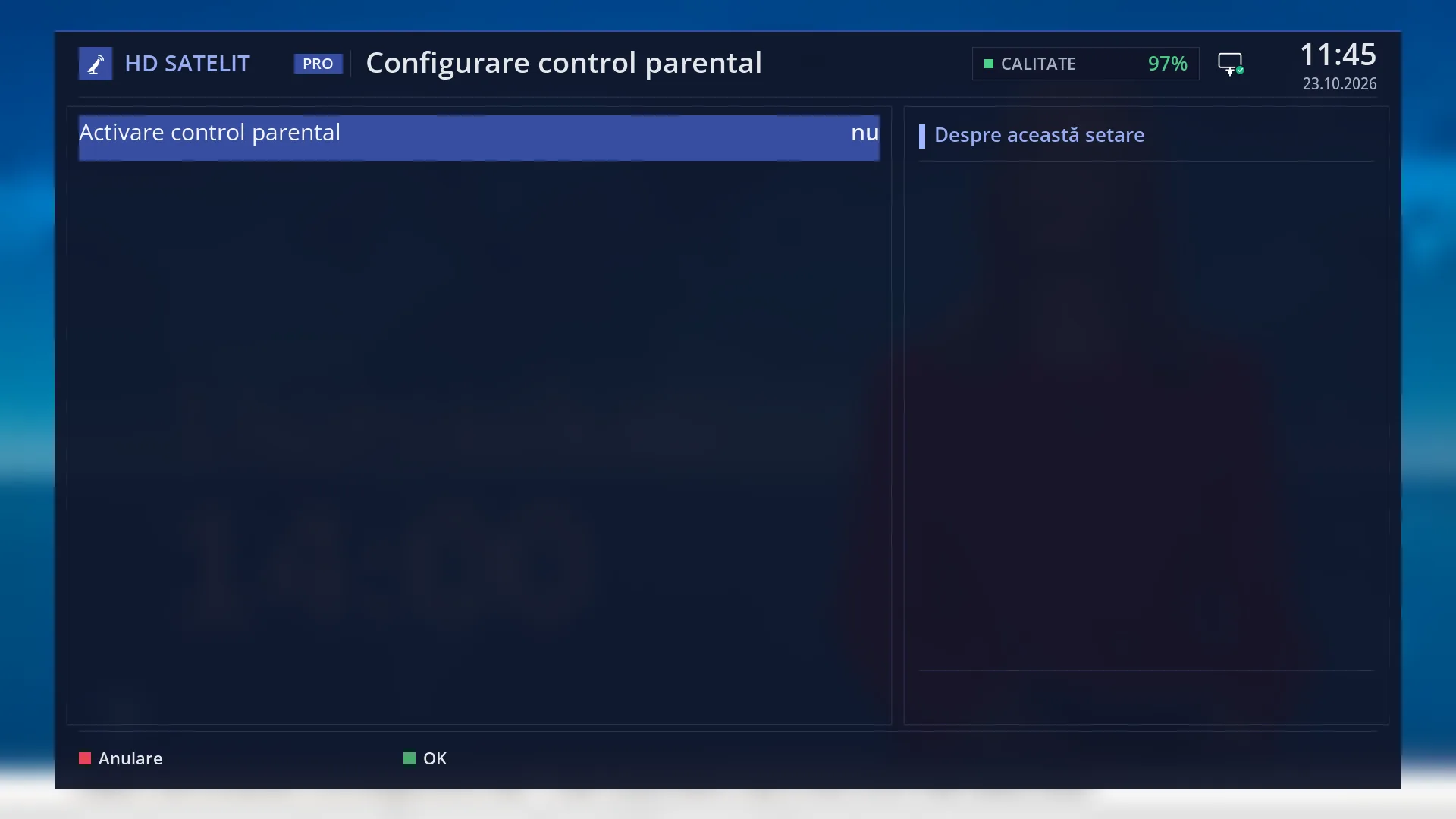
- 1 “Enable parental control”: set to yes, the other rows appear.
- 2 The protections, PINs and lists appear here, after you turn on the rows above them.
- 3 “About this setting”: empty for these rows.
- 4 RED and GREEN both save and close.
What it is for
“Parental Lock” puts a four-digit PIN on the channels or bouquets you choose, so a child cannot watch them without the PIN. You can also protect this screen with a second PIN, so nobody can turn parental control off.
It works in two ways: “blacklist” (the channels in the list ask for the PIN, the others play freely) or “whitelist” (only the channels in the list play freely, all the others ask for the PIN).
By default, parental control is off and there is no PIN. You create it yourself when you turn the protection on.
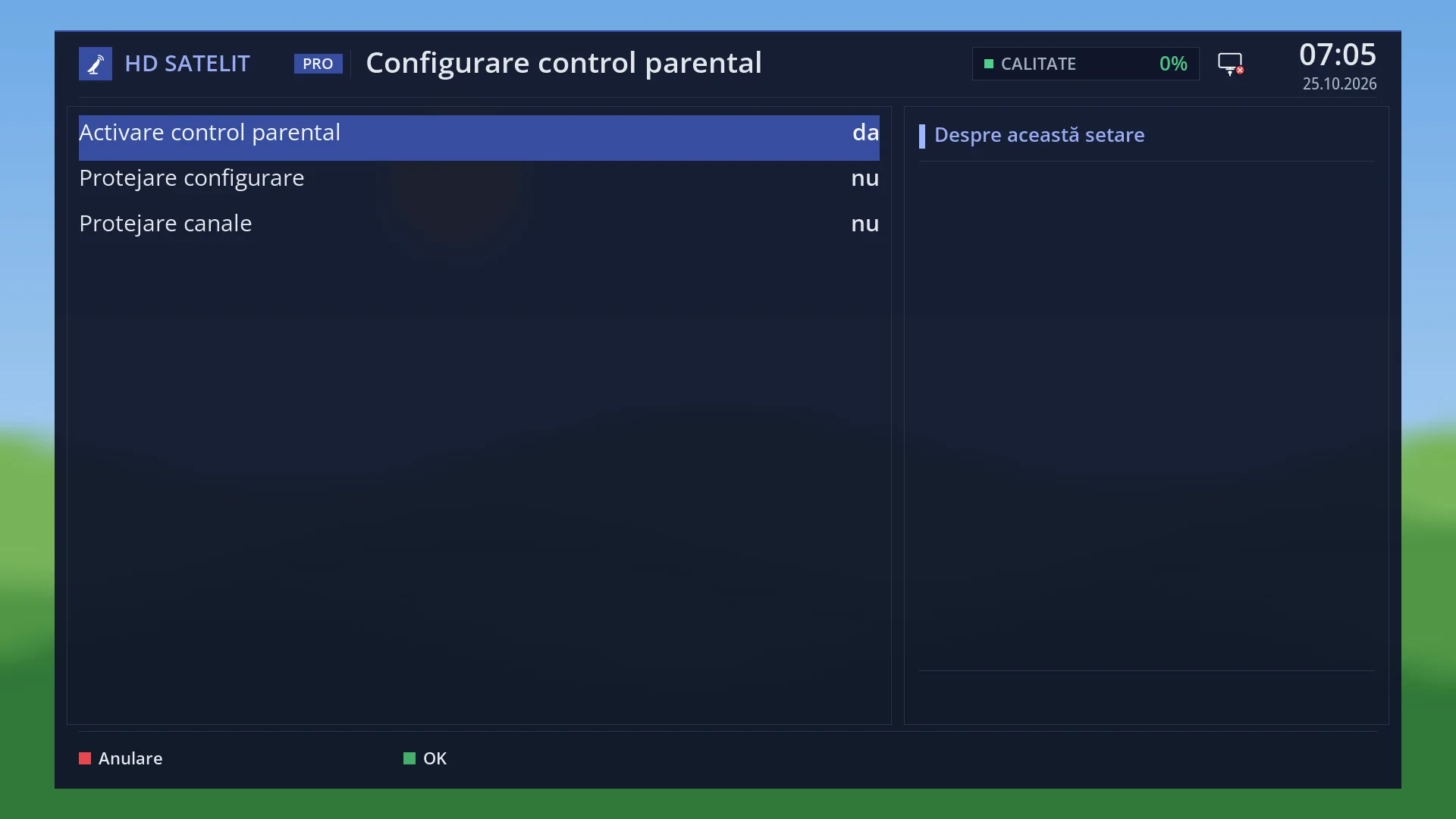
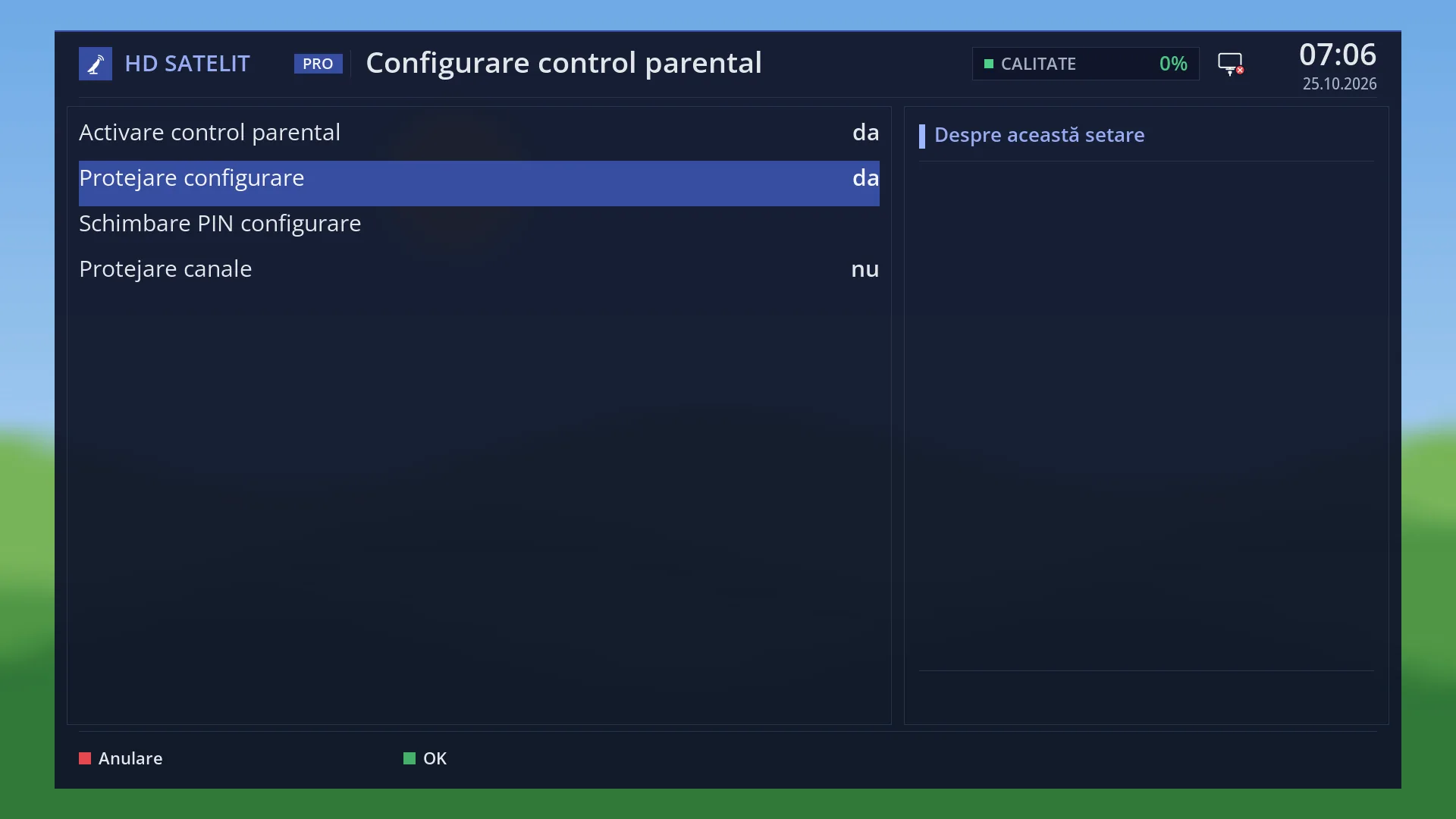
The rows appear one by one, after you turn on the row above: first “Enable parental control”, then the protections, then the PINs and the lists.
How to get here
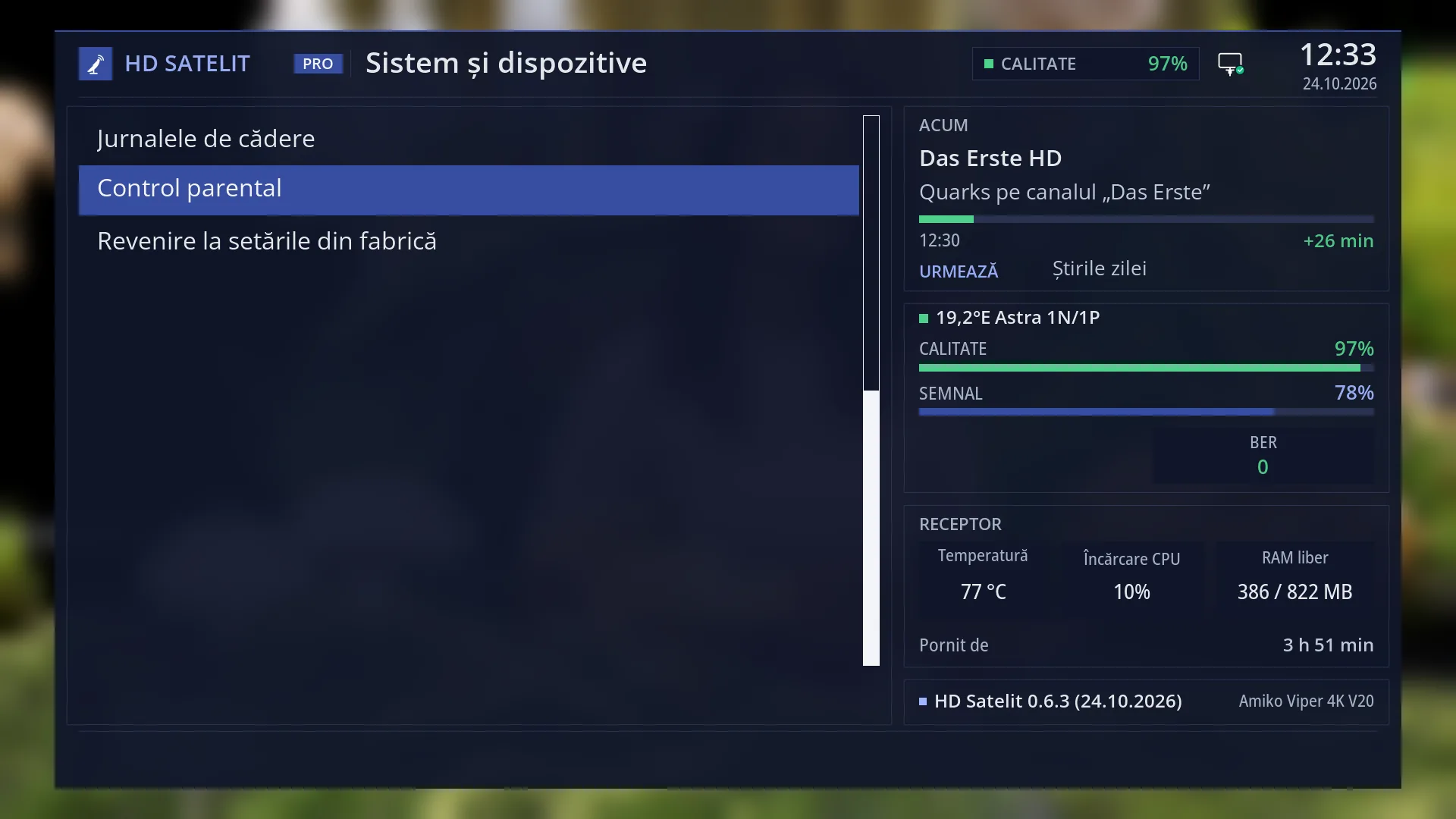
Path: Main menu > Settings > System & Devices > Parental Lock.
Keys on the remote: MENU 6 UP UP UP OK UP UP OK (“System & Devices” is the third row from the bottom in Settings, and “Parental Lock” is the second to last row in it).
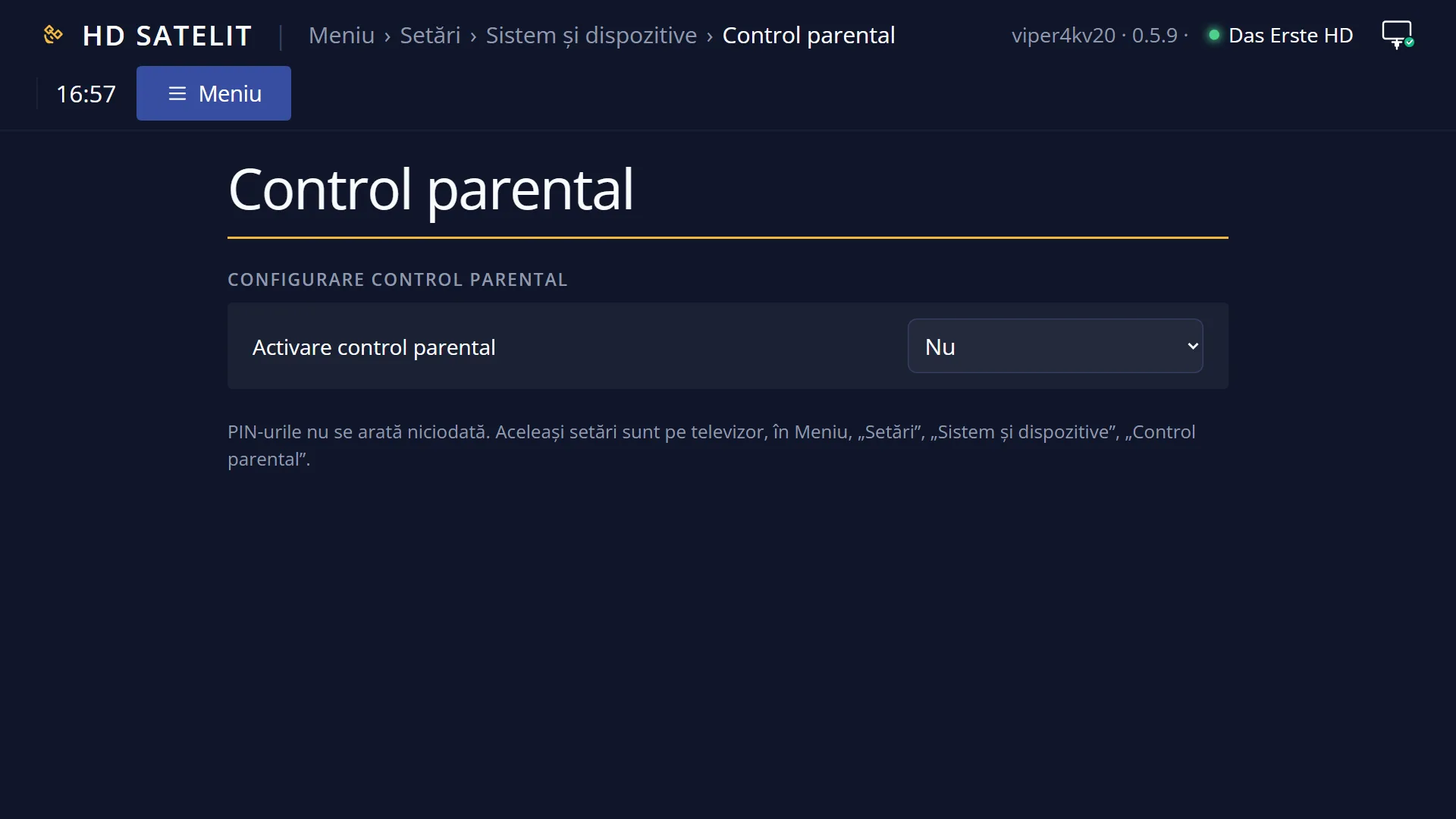
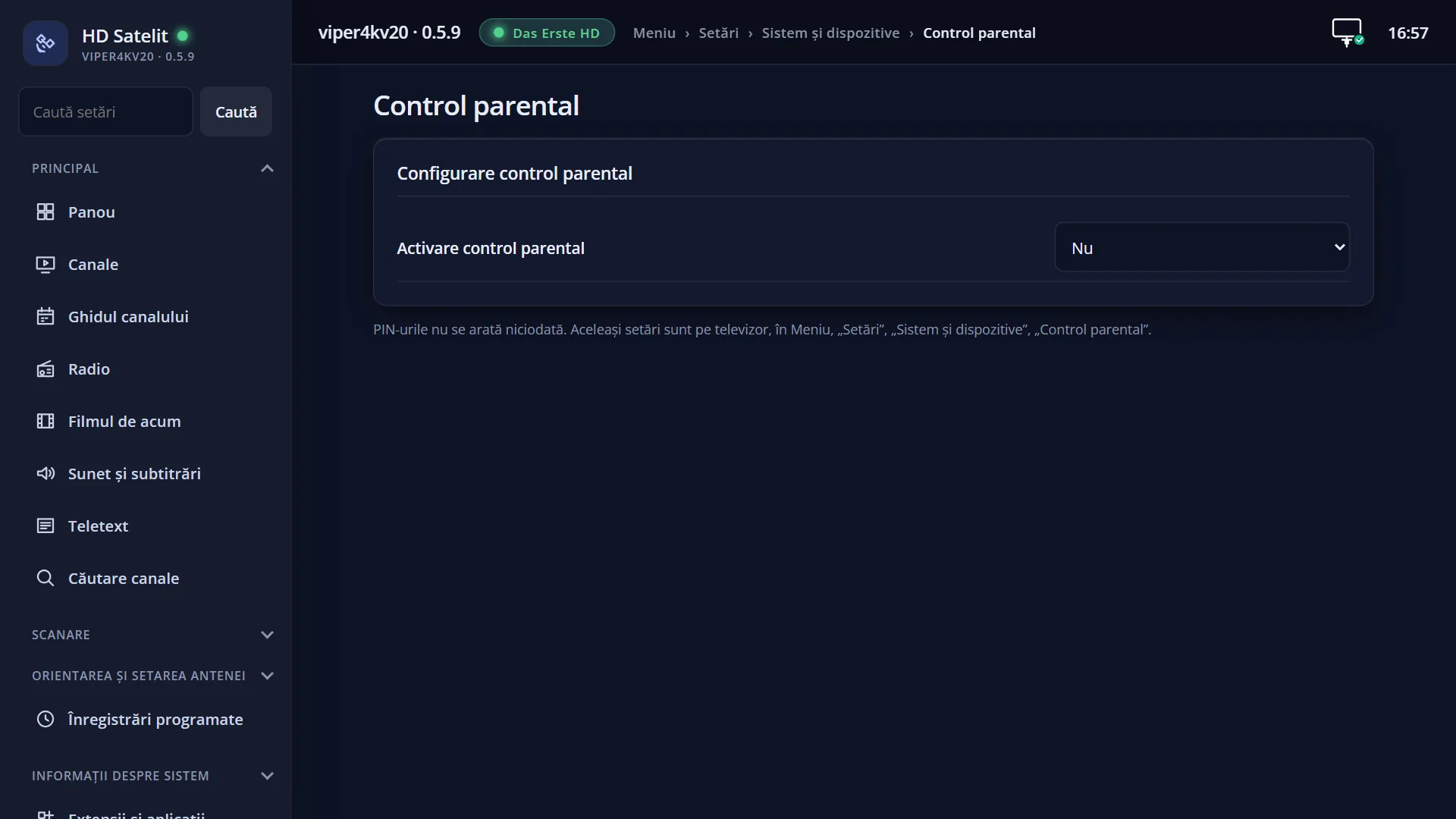
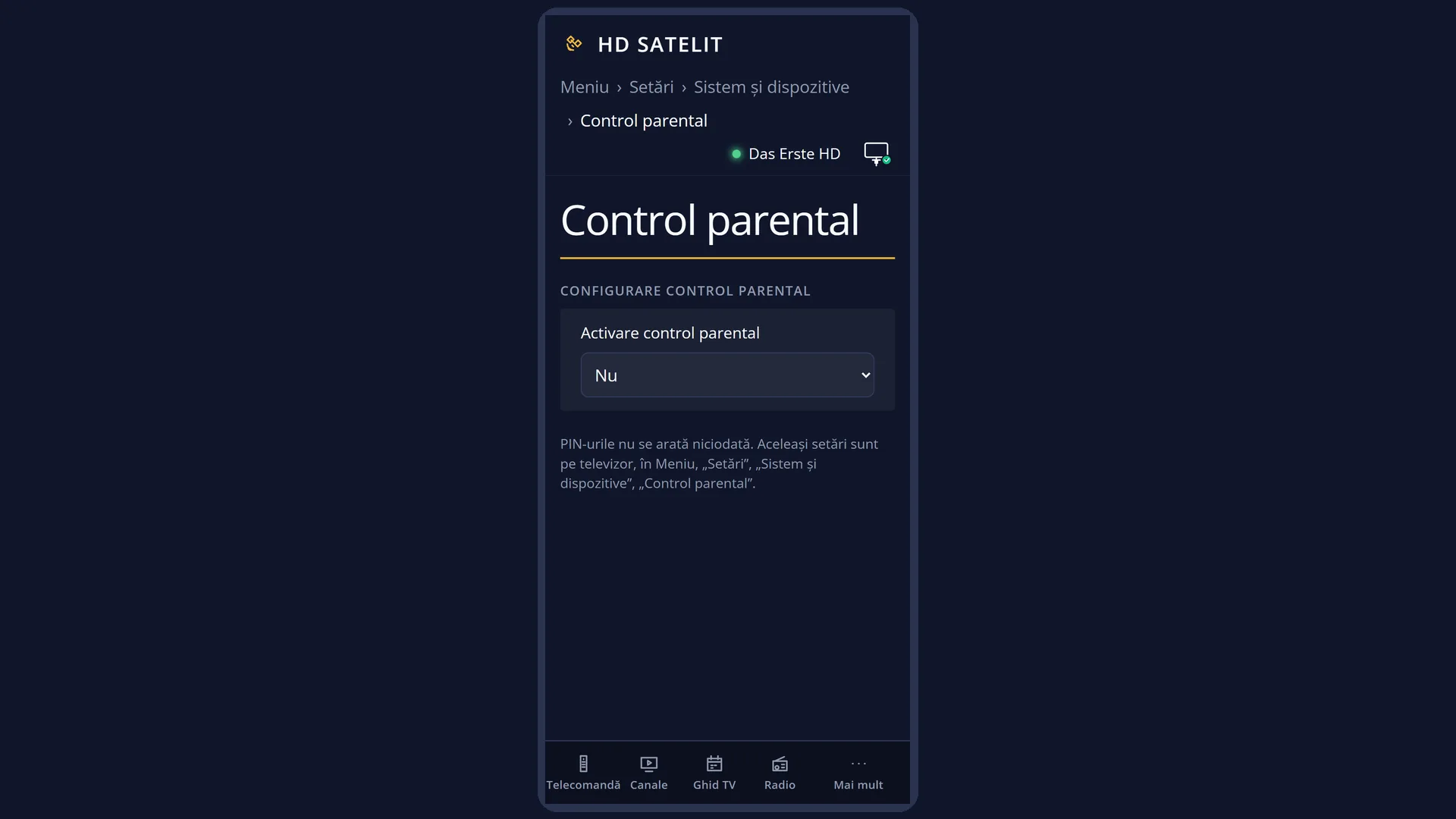
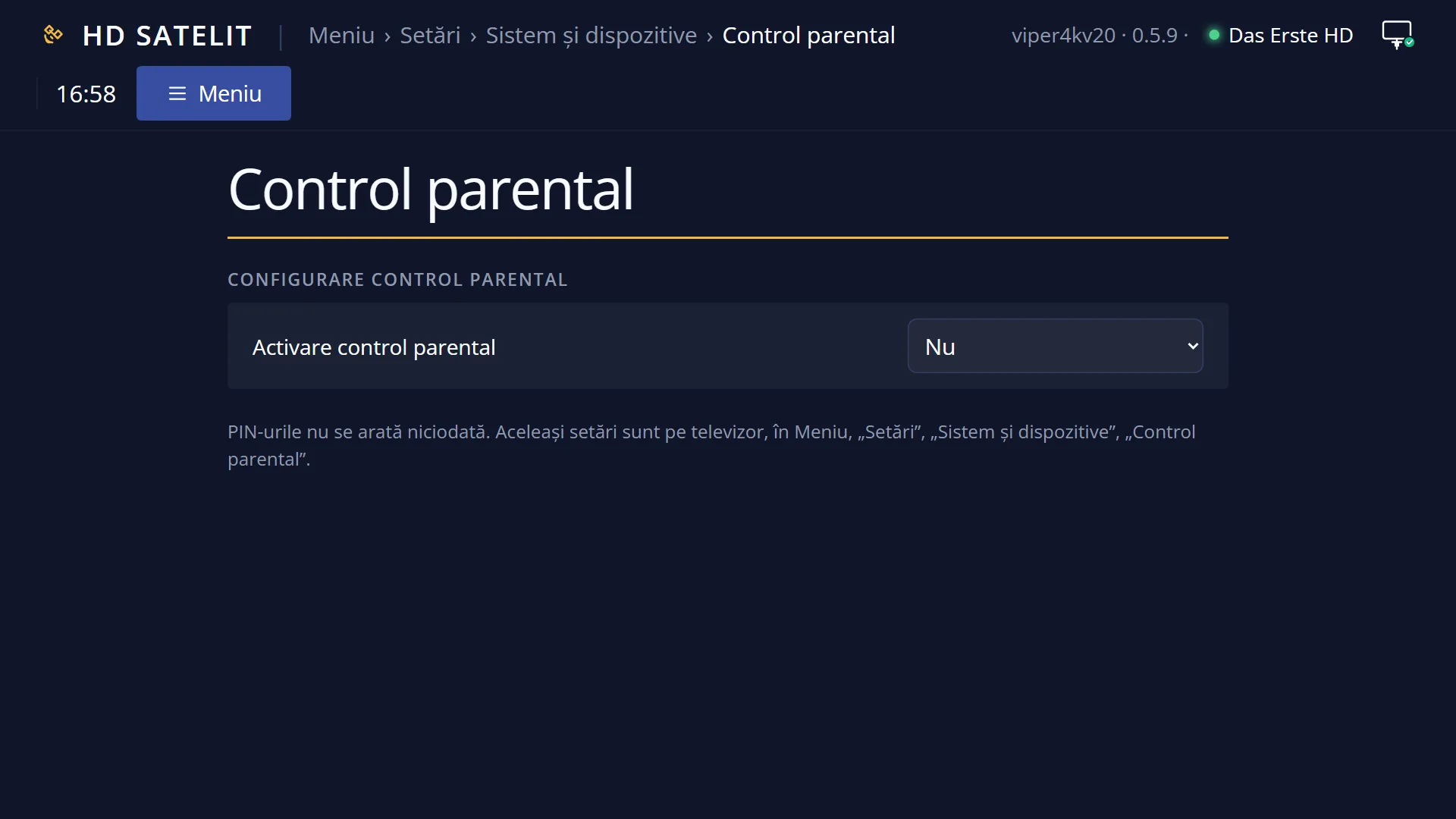
In the web interface: the /control-parental page, with the same rows, PINs and lists. When the screen is protected, the page first asks for the setup PIN.
When “Protect setup” is on, the screen asks you to “Enter pin code” when it opens.
What you see on the screen
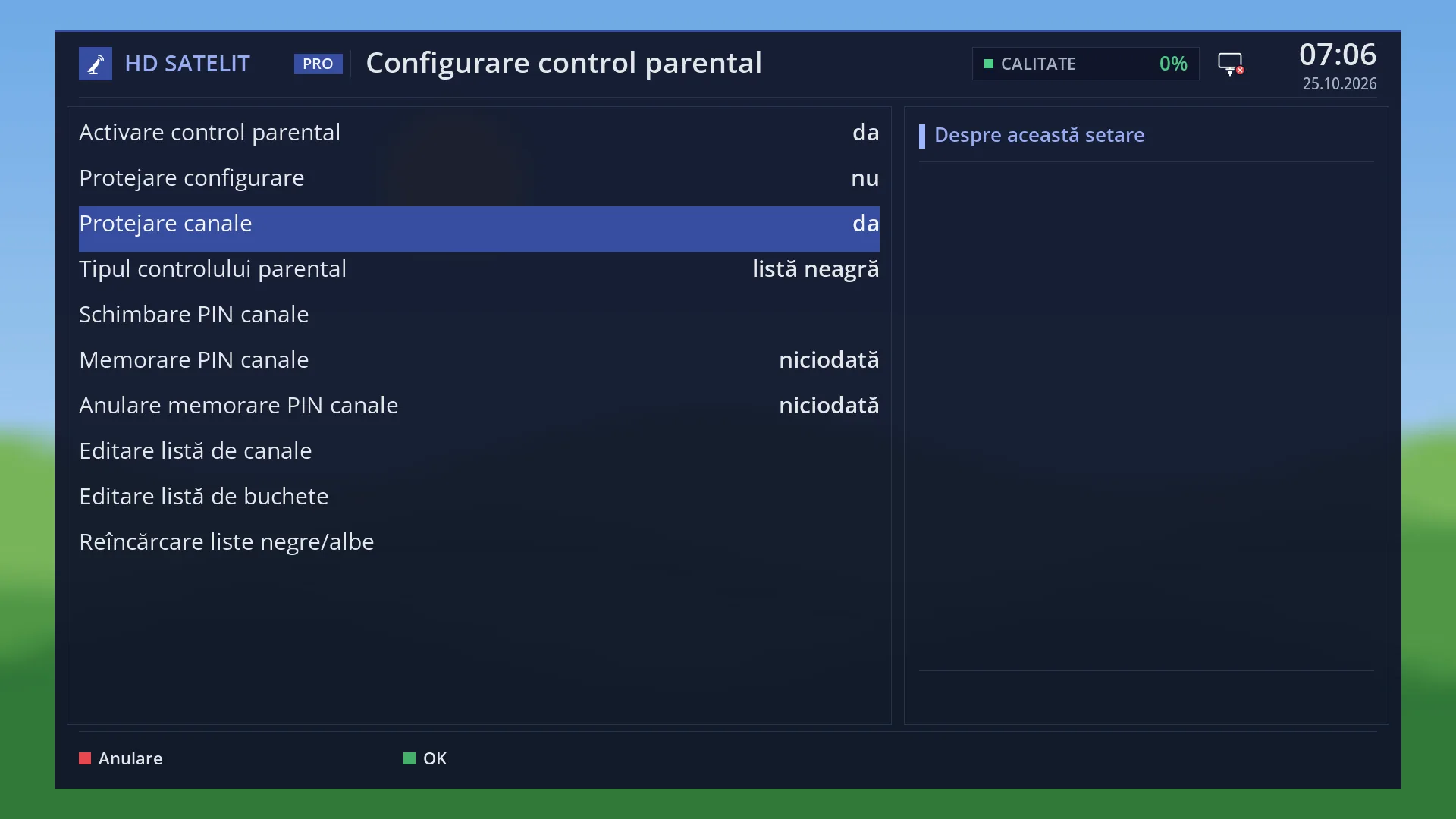
At the top: the title “Parental control setup”, the clock and the date. In the Pro theme you also see “HD SATELIT” with the “PRO” label, the signal quality and the network icon.
On the left, the list of rows. By default there is only one: “Enable parental control: no”. Set to yes, “Protect setup” and “Protect services” appear. With these on, the rows for the PINs and the lists appear.
On the right, the “About this setting” box. For these rows it is empty.
At the bottom, the keys: RED “Cancel” and GREEN “OK”.
Rows and settings
| Row | Values | Default | What it does |
|---|---|---|---|
| Enable parental control | yes, no | no | Turns parental control on and shows the other rows. When you want to protect channels with a PIN. |
| Protect setup | yes, no | no | Yes: this screen (and changing the PINs) asks for the setup PIN when it opens, so nobody can turn parental control off. The other menus stay open. When your child knows the way around the menu. |
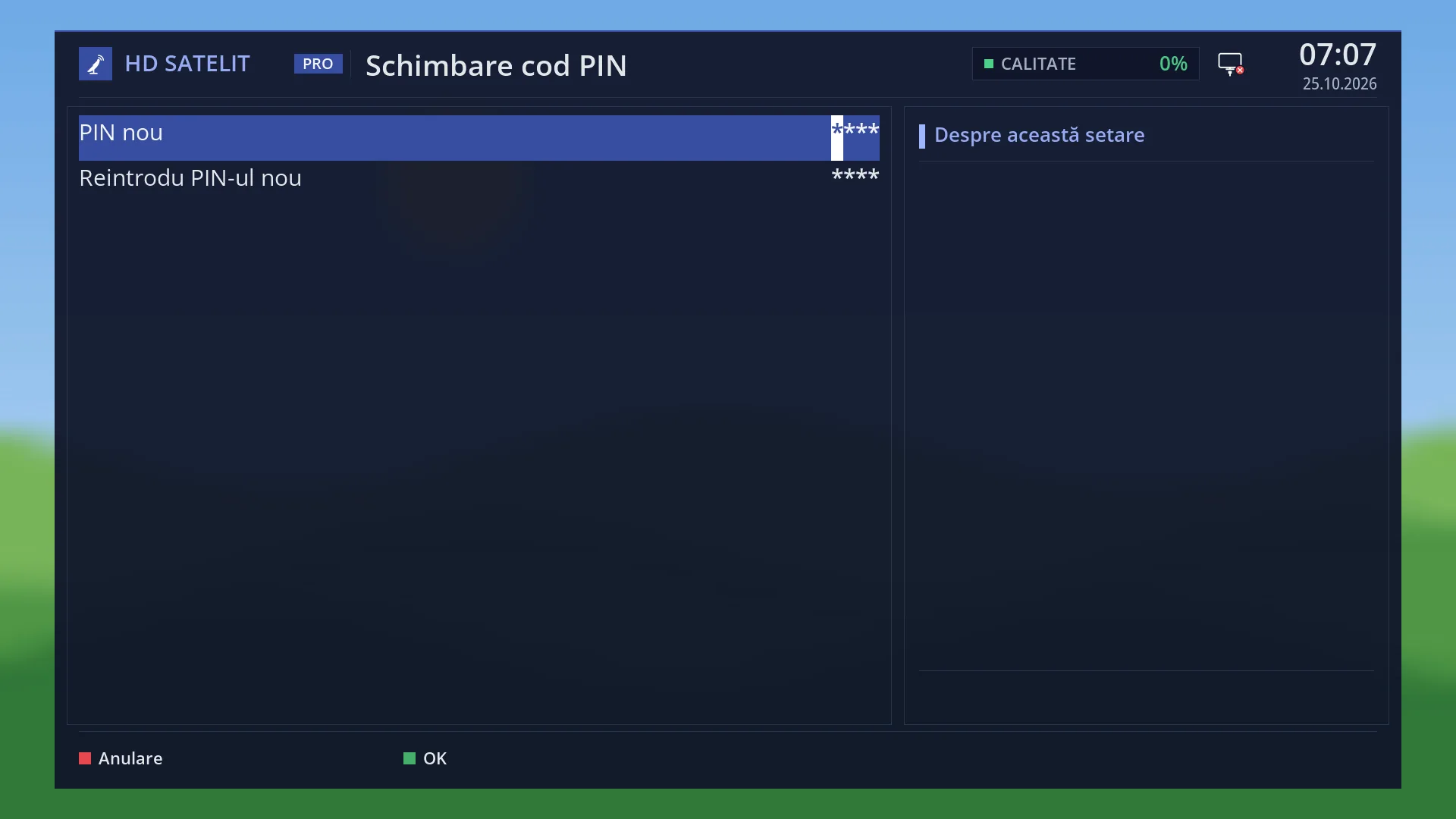
| Change setup PIN | no PIN | OK opens “Change pin code”: first the old PIN (if there is one), then “New PIN” and “Reenter new PIN”, four digits each. It appears only when “Protect setup” is set to yes. When you create the PIN for the first time or want a different one. | |
| Protect services | yes, no | no | Yes: channels and bouquets, according to the list, ask for the channel PIN. When you want to protect channels. |
| Parental control type | blacklist, whitelist | blacklist | Blacklist: the marked channels ask for the PIN. Whitelist: only the marked channels play without the PIN. Whitelist when you want a child to watch only a few chosen channels. |
| Change service PIN | no PIN | Creates or changes the channel PIN, in the same way as the setup PIN. When you turn on channel protection or want a different PIN. | |
| Remember service PIN | never, 5 minutes, 30 minutes, 60 minutes, until standby/restart | never | How long, after a correct PIN, protected channels play without asking for it again. When you find it annoying to enter the PIN every time you switch to a protected channel. |
| Remember service PIN cancel | never, 5 minutes, 30 minutes, 60 minutes, until standby/restart | never | How long, after you have cancelled the PIN prompt on a protected channel, the receiver does not ask again. When you often pass protected channels and do not want the question every time. |
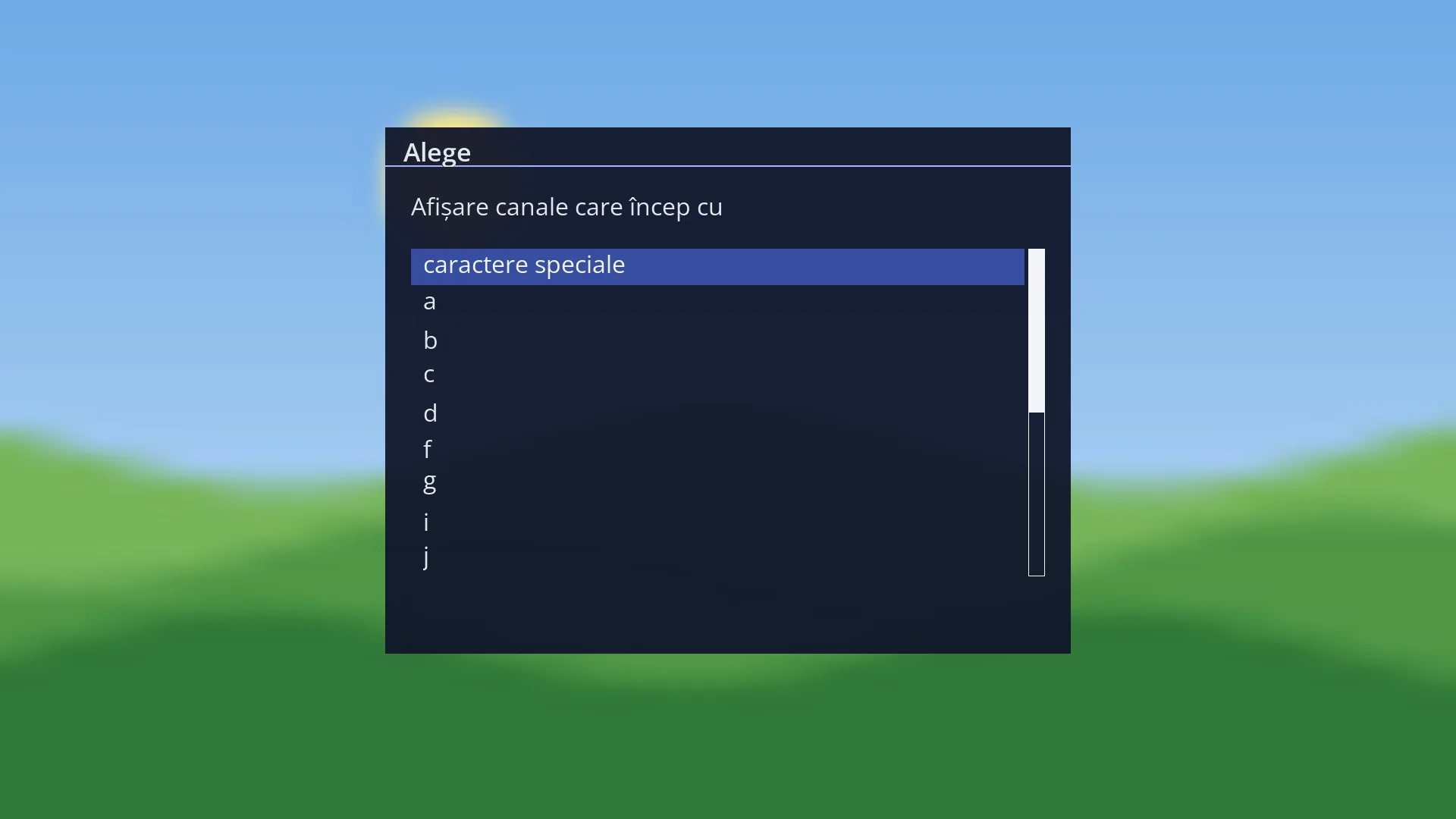
| Edit services list | empty list | OK first opens “Show services beginning with” (the letters, plus “special characters”), then the TV channels starting with that letter. OK on a channel marks it or removes it from the list. When you choose the protected channels (or, with a whitelist, the free ones). | |
| Edit bouquets list | empty list | OK opens the list of bouquets. OK on a bouquet marks it or removes it, with all its channels. When you want to protect a whole bouquet at once, for example the film bouquet. | |
| Reload Black-/Whitelists | OK reads the lists again, for example after the bouquets have changed. After you have changed the bouquets. |
Keys
| UP / DOWN | Moves the cursor to another row. |
| LEFT / RIGHT | Changes the value of the row. The rows below appear or disappear immediately. |
| OK | On a yes / no row or a row with choices, it moves to the next value. On the PIN and list rows, it opens their screen. |
| GREEN (OK), RED (Cancel) or EXIT | All three save and close the screen. If a protection is on without a PIN, it first asks whether you want to create the PIN now. If you choose “No”, the protection stays off. |
| In the channel and bouquet lists: OK | Marks or removes the selected channel (bouquet). |
| In the channel and bouquet lists: EXIT | For channels, it takes you back to the letter selection (from there, another EXIT saves the list and leaves). For bouquets, it saves the list and leaves. |
| Digits (for the PIN) | You enter the four digits of the PIN. |
Step by step
Protect a few channels with a PIN
- Press MENU 6 UP UP UP OK UP UP OK.
- Set “Enable parental control” to yes, then “Protect services” to yes.
- On “Change service PIN”, press OK and enter the new PIN twice.
- On “Edit services list”, press OK, choose the letter, then press OK on each channel you want to protect. Press EXIT twice.
- Press GREEN. From now on, the chosen channels ask for the PIN.
Stop anyone from turning the protection off
- On the same screen, set “Protect setup” to yes.
- On “Change setup PIN”, press OK and create the setup PIN (it can be different from the channel PIN).
- Press GREEN. Next time, the screen asks for the PIN when it opens.
Problems and solutions
I have forgotten the PIN.
Without the setup PIN, the screen no longer opens, not even in the web page. A reset to factory defaults (Settings > System & Devices > Reset to Factory Defaults) deletes the PINs, but also all your other settings.
After three wrong PINs I cannot try again.
Wait 15 minutes from the last attempt. Then you have three more attempts.
When I leave, it asks “No valid setup PIN found...”.
You turned on a protection without creating the PIN. Answer Yes and create it now. If you answer No, the protection stays off.
I pressed RED (“Cancel”), but the changes were kept.
On this screen, both RED and EXIT save. To undo, change the rows back and leave again.
I cannot see the rows with the PINs and lists.
They appear only after you turn on the rows above: first “Enable parental control”, then “Protect setup” or “Protect services”.
Channels play without a PIN, even though they are in the list.
Check “Parental control type” (with a whitelist, the channels in the list are the free ones) and “Remember service PIN” (after a correct PIN, channels play freely for a while).
“Protect setup” does not protect the other menus.
That is correct: it protects only the parental control screen and changing the PINs, so that the protection cannot be turned off.
Related topics
- System & Devices (the submenu)
- Reset to Factory Defaults
- Channel selection (the channel list)
- Matching web page: /control-parental.