

Date & Time Settings
English screenshots coming: some of the pictures below still show the receiver and the web interface in Romanian. The rows, keys and steps described on this page are the English ones.
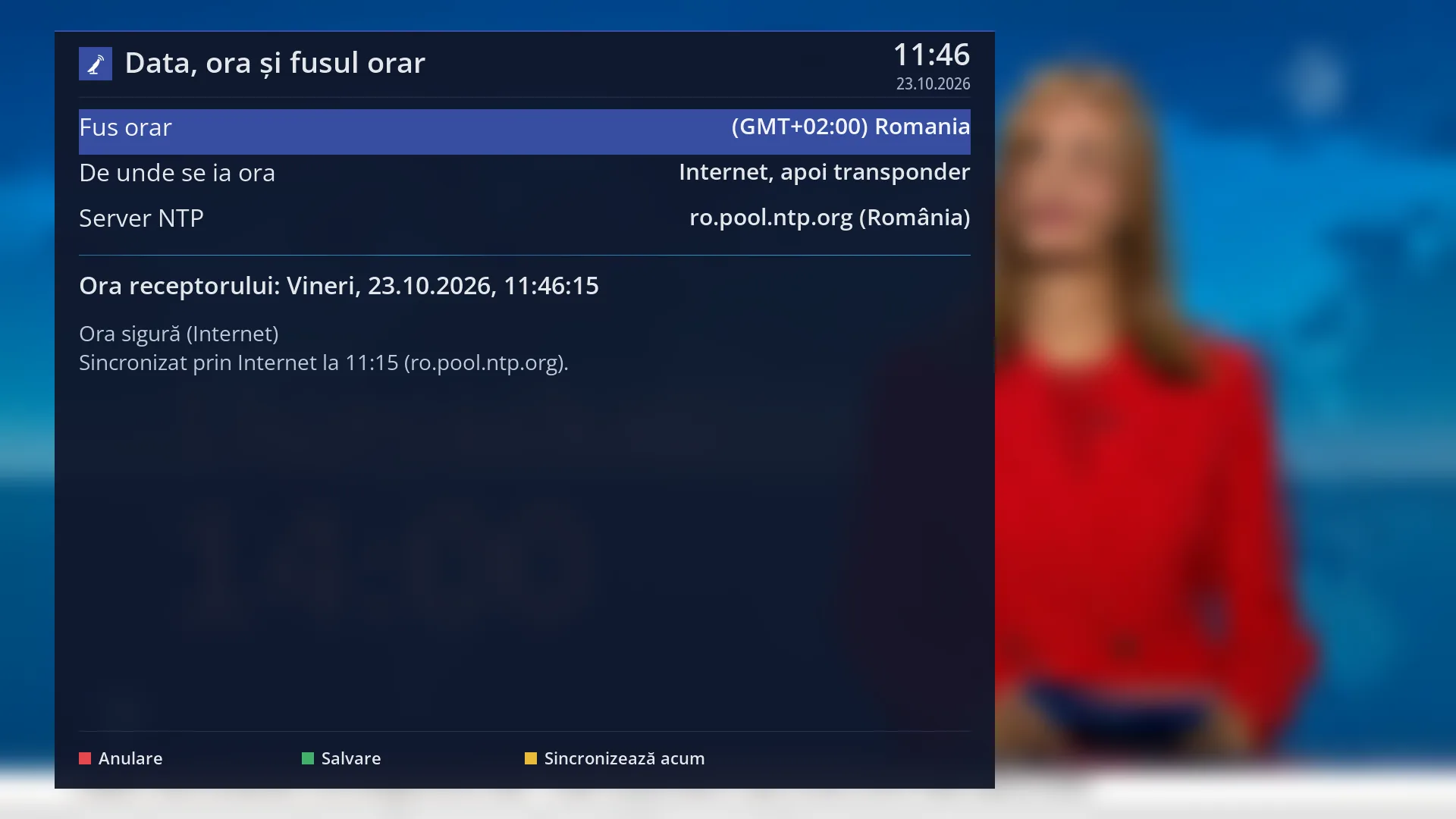
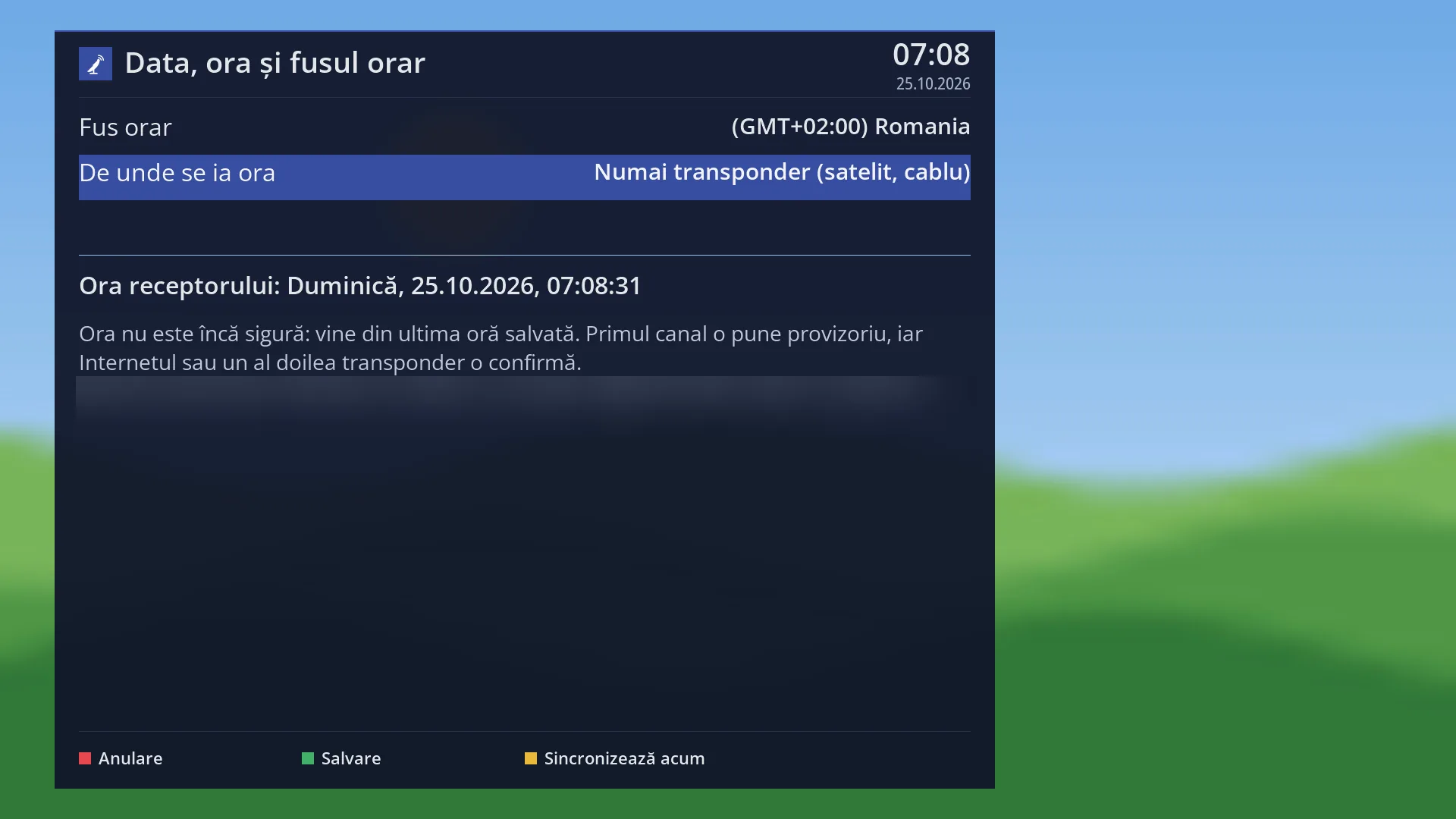
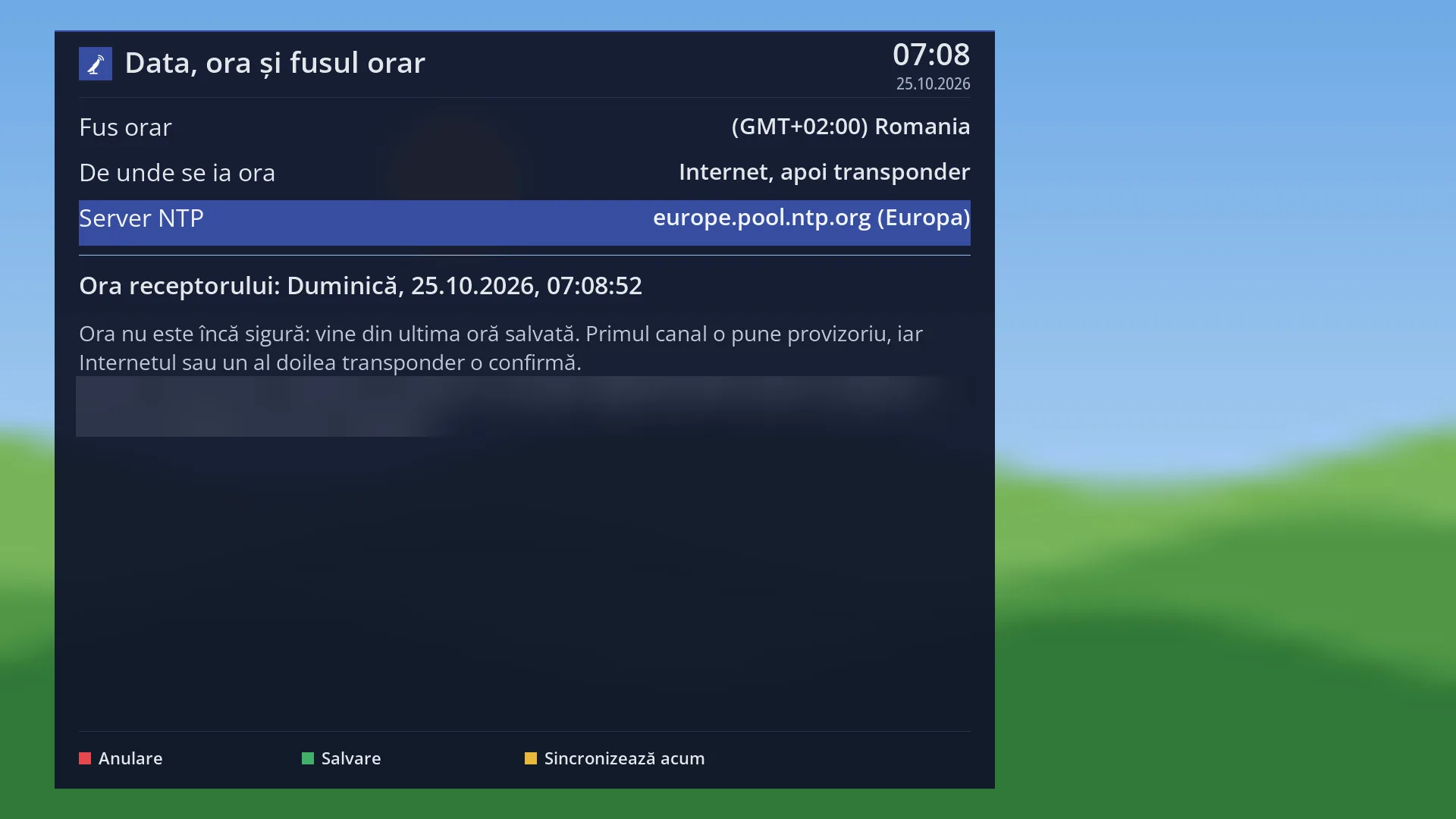
- 1 “Time zone”: local time, switching between summer and winter time by itself.
- 2 Where the time comes from and the internet server.
- 3 The receiver's current time, updating every second.
- 4 How reliable the time is and the last synchronisation.
- 5 RED Cancel, GREEN Save, YELLOW Sync Now.
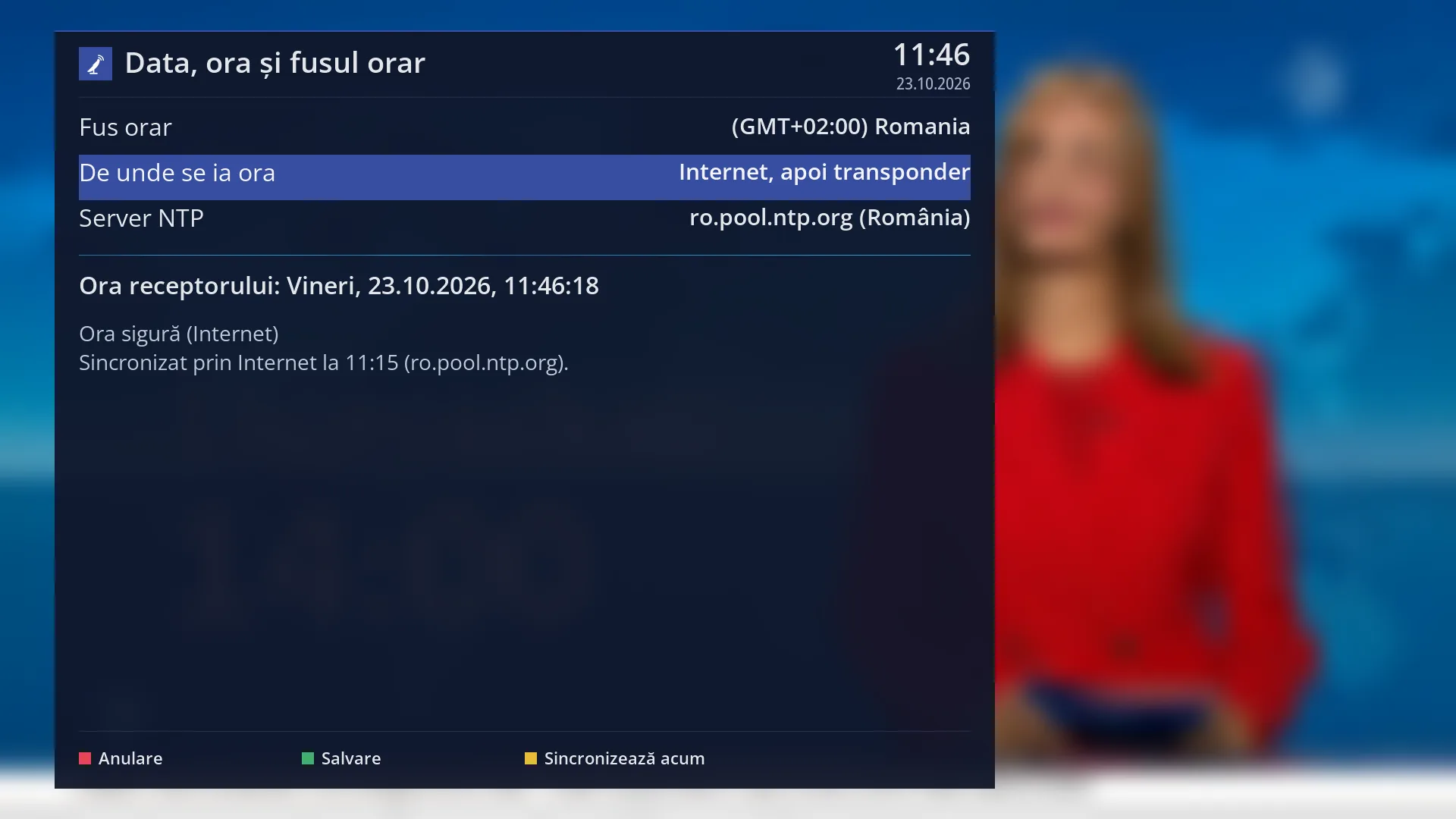
- 1 Selected row: “Time Sync Source: Internet, then transponder”.
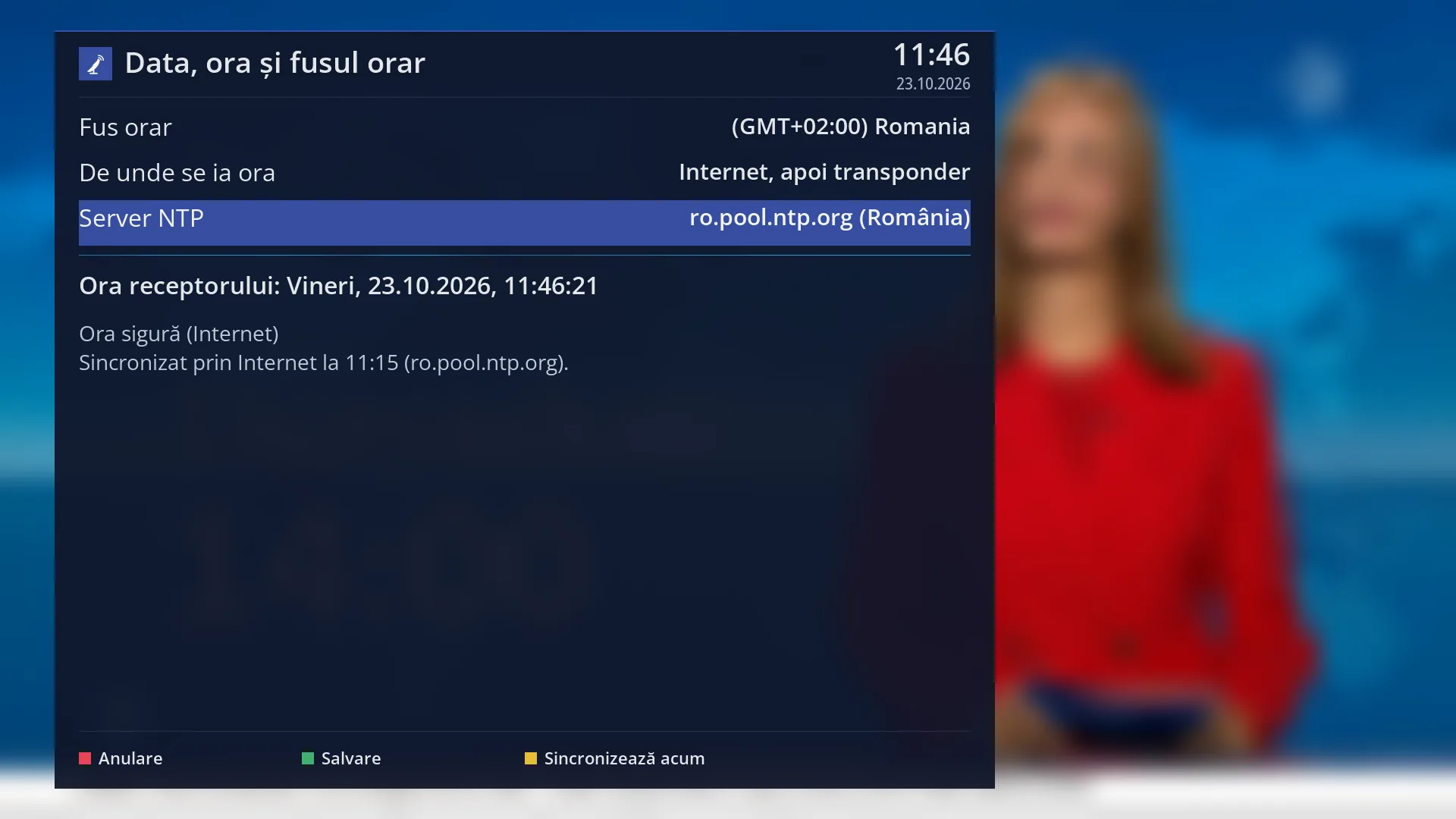
- 1 Selected row: “NTP Server: ro.pool.ntp.org (Romania)”.
What it is for
The “Date, Time & Timezone Setup” screen sets the time zone and where the receiver gets its time from: the internet, the transponder signal or both.
The receiver has no battery-backed clock of its own. At startup it uses the last saved time, then takes the time from the internet (NTP) and, until that works, from the transponder of the channel. The time matters for the programme guide, timers and the sleep timer.
The screen also shows the receiver's current time, how reliable it is (for example “Confirmed time (Internet)” or “Provisional time (from one transponder)”) and when it last synchronised. Press YELLOW to set it straight away.
How to get here
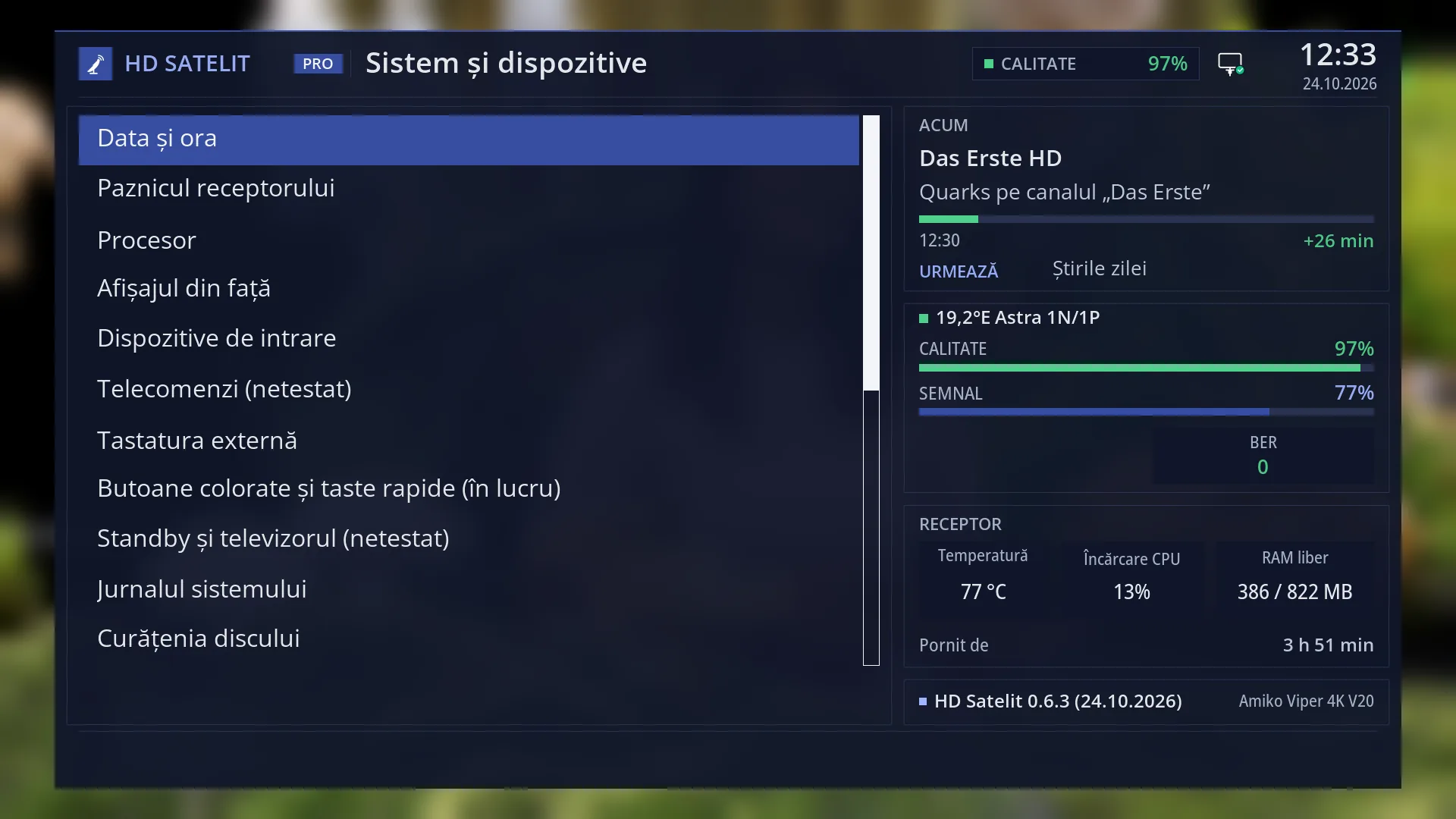
Path: Main menu > Settings > System & Devices > Date & Time Settings.
Keys on the remote: MENU 6 UP OK 1 (“System & Devices” is the last row in Settings).
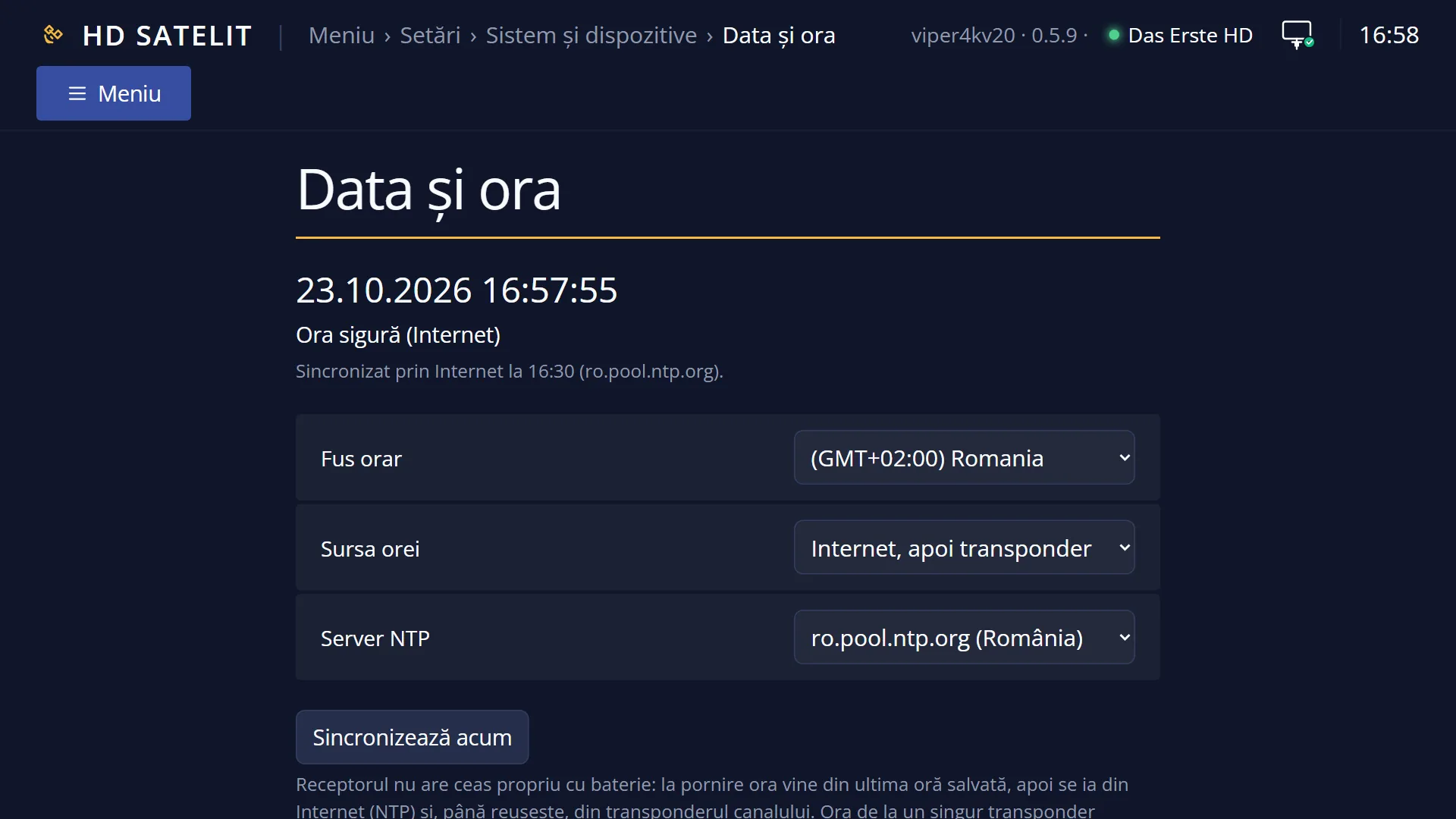
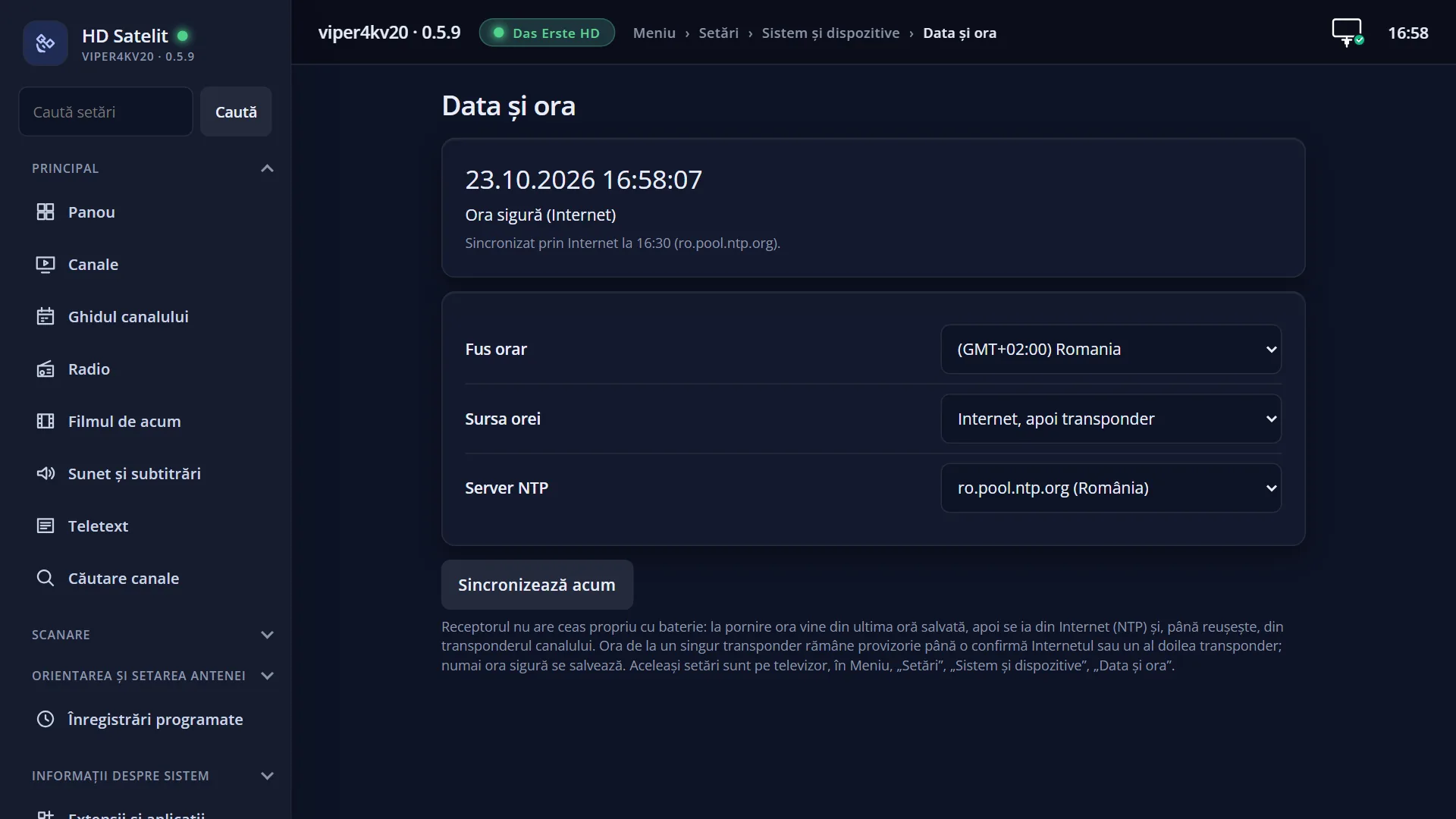
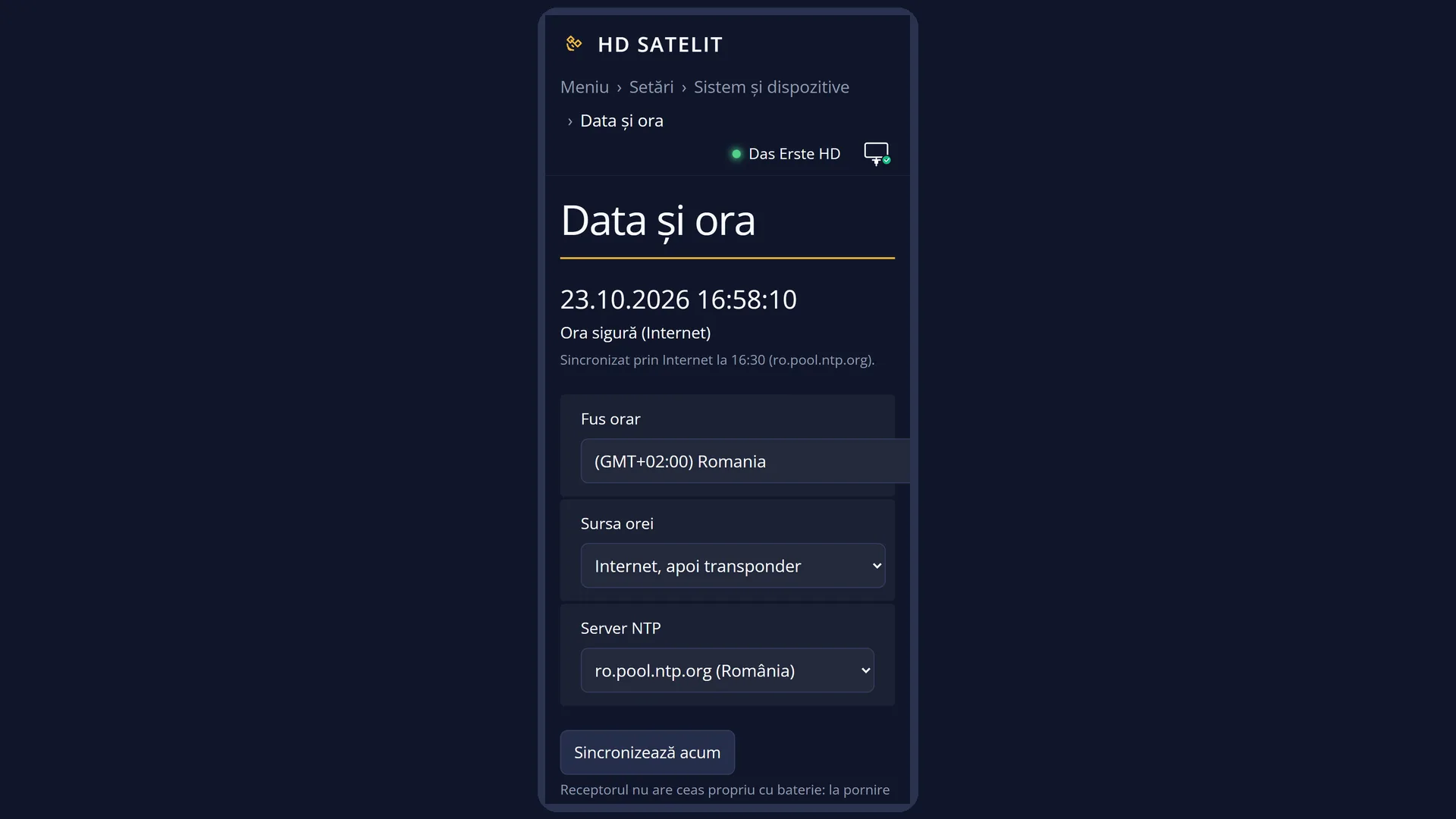
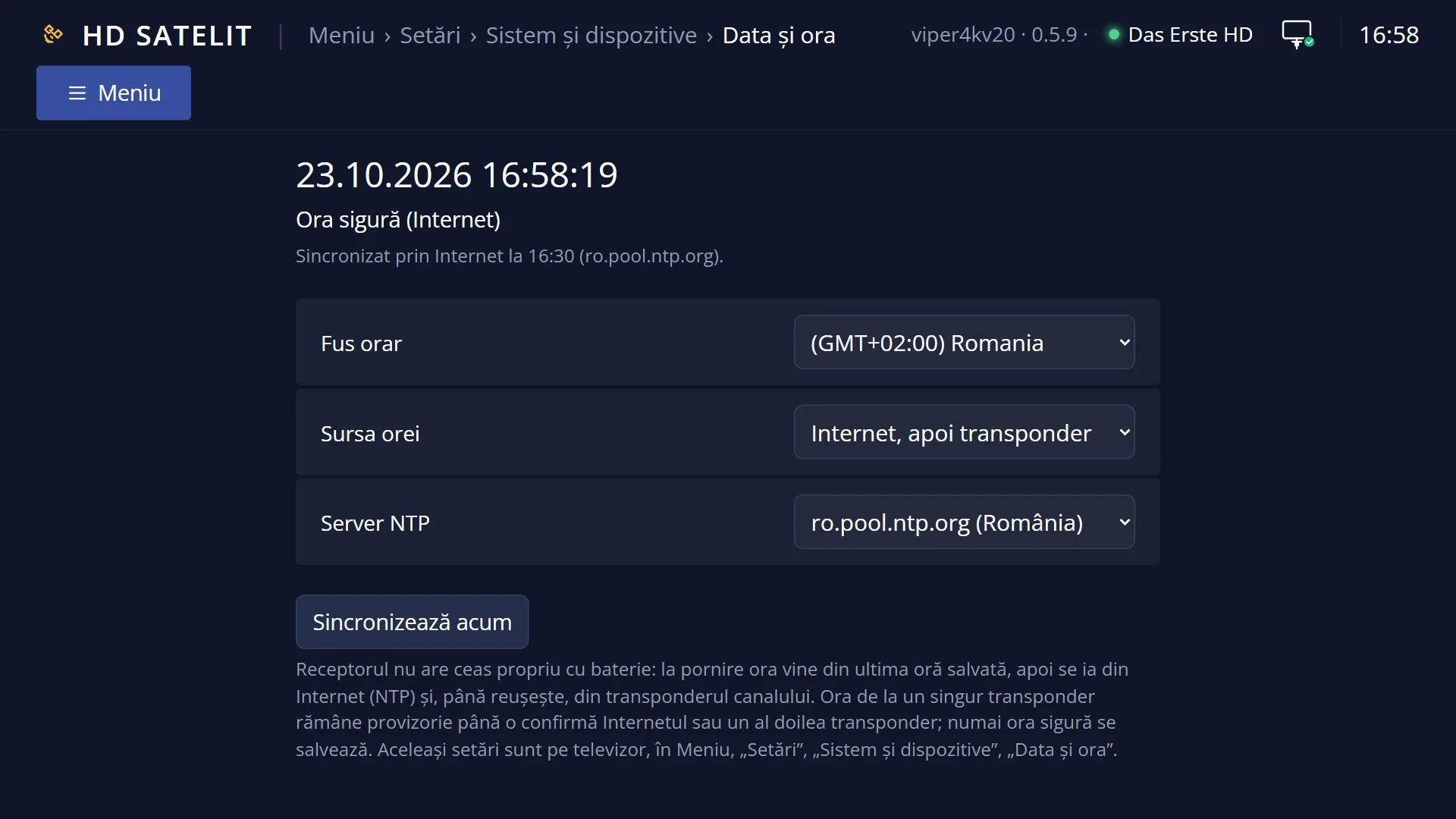
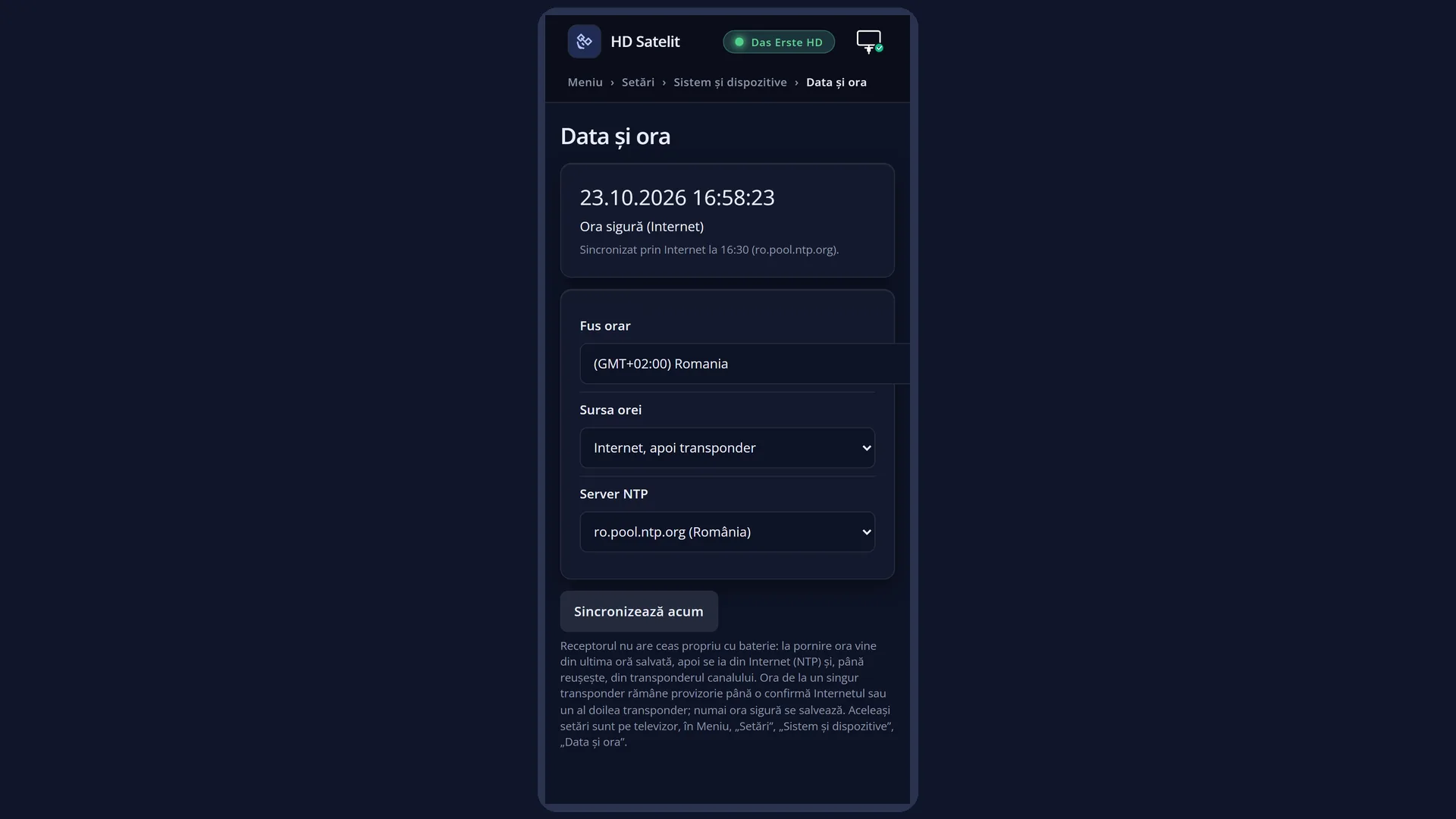
In the web interface: the /ceas page (“Date and time”), with the same rows and the “Sync Now” button.
What you see on the screen
At the top, the title “Date, Time & Timezone Setup”, the clock and the date.
At the top of the list, the rows: “Time zone” (for example “(GMT+02:00) Romania”), “Time Sync Source” and, only when the time also comes from the internet, “NTP Server”.
Below the list, in bold, “Receiver time:” with the day, date and time, updating every second.
Underneath, the time status: how reliable it is and where it comes from, then the last synchronisation (for example “Synchronized over the Internet at 11:15 (ro.pool.ntp.org).”, with how far the clock moved) or why it failed. After YELLOW, the synchronisation message is also shown.
At the bottom, the keys: RED “Cancel”, GREEN “Save” and YELLOW “Sync Now”.
Rows and settings
| Row | Values | Default | What it does |
|---|---|---|---|
| Time zone | the world's time zones, for example “(GMT+02:00) Romania” | (GMT+02:00) Romania | Local time: the receiver keeps universal time and shows it according to the chosen time zone, switching between summer and winter time by itself. At startup, with internet access, the receiver sets the time zone by itself based on the location of the connection. When the time is wrong by one or more whole hours, or you live in another country. |
| Time Sync Source | Internet, then transponder, Internet only (NTP), Transponder only (satellite, cable) | Internet, then transponder | Internet, then transponder: the time is taken from the internet and, while the internet has not worked recently, from the channel signal. Internet only: the transponder no longer changes the clock. Transponder only: without the internet, the time comes when you tune to a channel. Choose “Internet only” if a station sends the wrong time, or “Transponder only” if the receiver has no internet access. |
| NTP Server | ro.pool.ntp.org (Romania), europe.pool.ntp.org (Europe), pool.ntp.org (Global), time.cloudflare.com, time.google.com | ro.pool.ntp.org (Romania) | The internet server the time is taken from. The row only appears when the time also comes from the internet. When synchronisation fails with the chosen server. |
Keys
| UP / DOWN | Moves the cursor to another row. |
| LEFT / RIGHT | Changes the value of the row. The “NTP Server” row appears or disappears depending on “Time Sync Source”. |
| GREEN (Save) / OK | Saves, applies the time zone immediately and closes the screen. Note: OK does not open a list, it saves and closes. |
| RED (Cancel) / EXIT | Closes without saving and without asking. |
| YELLOW (Sync Now) | Saves the rows and sets the time immediately from the internet. The message appears below the time (for example “Synchronizing the time with ro.pool.ntp.org.”). With “Transponder only”, it tells you that the time is taken when you tune to a channel. |
Step by step
The time is wrong: set it right
- Press MENU 6 UP OK 1.
- Check “Time zone” (for Romania, “(GMT+02:00) Romania”).
- Press YELLOW and wait for the message below the time, then press GREEN.
A channel puts your time wrong
- MENU 6 UP OK 1, the “Time Sync Source” row.
- Choose “Internet only (NTP)” with LEFT or RIGHT.
- Press GREEN.
Problems and solutions
The time is wrong by one or two whole hours.
The time zone is wrong. Choose yours in “Time zone” and press GREEN.
The time is wrong by a few minutes or more, with no pattern.
Press YELLOW to set it from the internet. If it says the server did not respond, check the internet connection or choose another NTP server.
It says “Provisional time (from one transponder)”.
The time comes from a single channel and may be wrong if the station sends a bad time. It becomes confirmed through the internet or after a second transponder reports the same time.
After a power cut, the time is out of date.
The receiver starts with the last saved time. It corrects itself from the internet or from the first channel. If you do not want to wait, press YELLOW.
I chose another time zone, but after a restart it changed back.
At startup, with internet access, the receiver sets the time zone by itself based on the location of the connection (with a VPN running, based on the VPN's country). Choose your time zone again after each restart or turn off the VPN at startup.
I cannot see the “NTP Server” row.
It only appears when the time also comes from the internet. Choose “Internet, then transponder” or “Internet only (NTP)”.
I pressed OK and the screen closed.
Here OK saves and closes, like GREEN. You change the values with LEFT and RIGHT.
Downloads from the internet give certificate errors.
Usually the receiver's clock is behind. Press YELLOW here, then try again.
Related topics
- System & Devices (the submenu)
- Front display (the time on the display)
- Sleep Timer
- Scheduled recordings
- Matching web page: /ceas.