

Advanced Video Setup
English screenshots coming: some of the pictures below still show the receiver and the web interface in Romanian. The rows, keys and steps described on this page are the English ones.
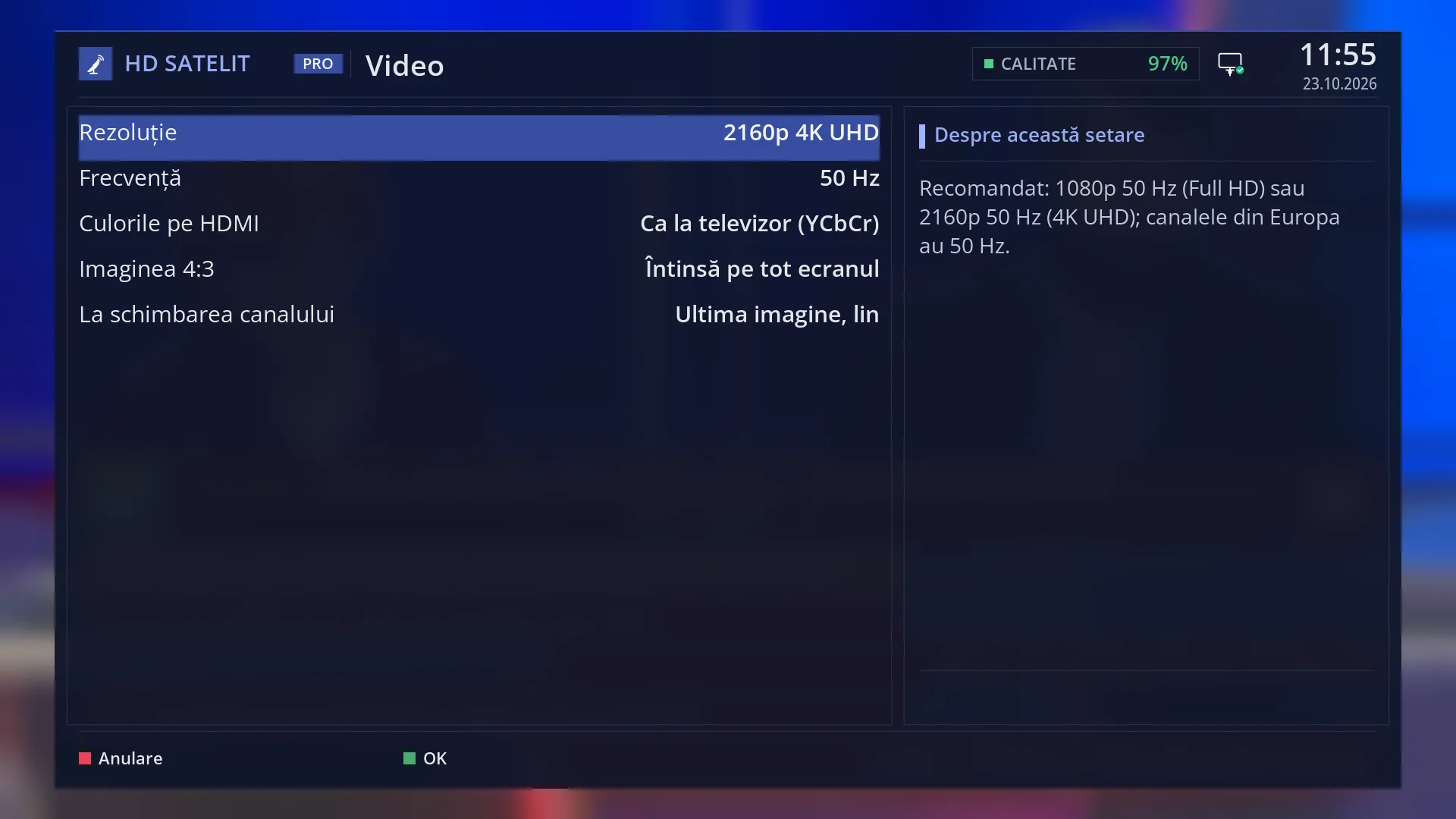
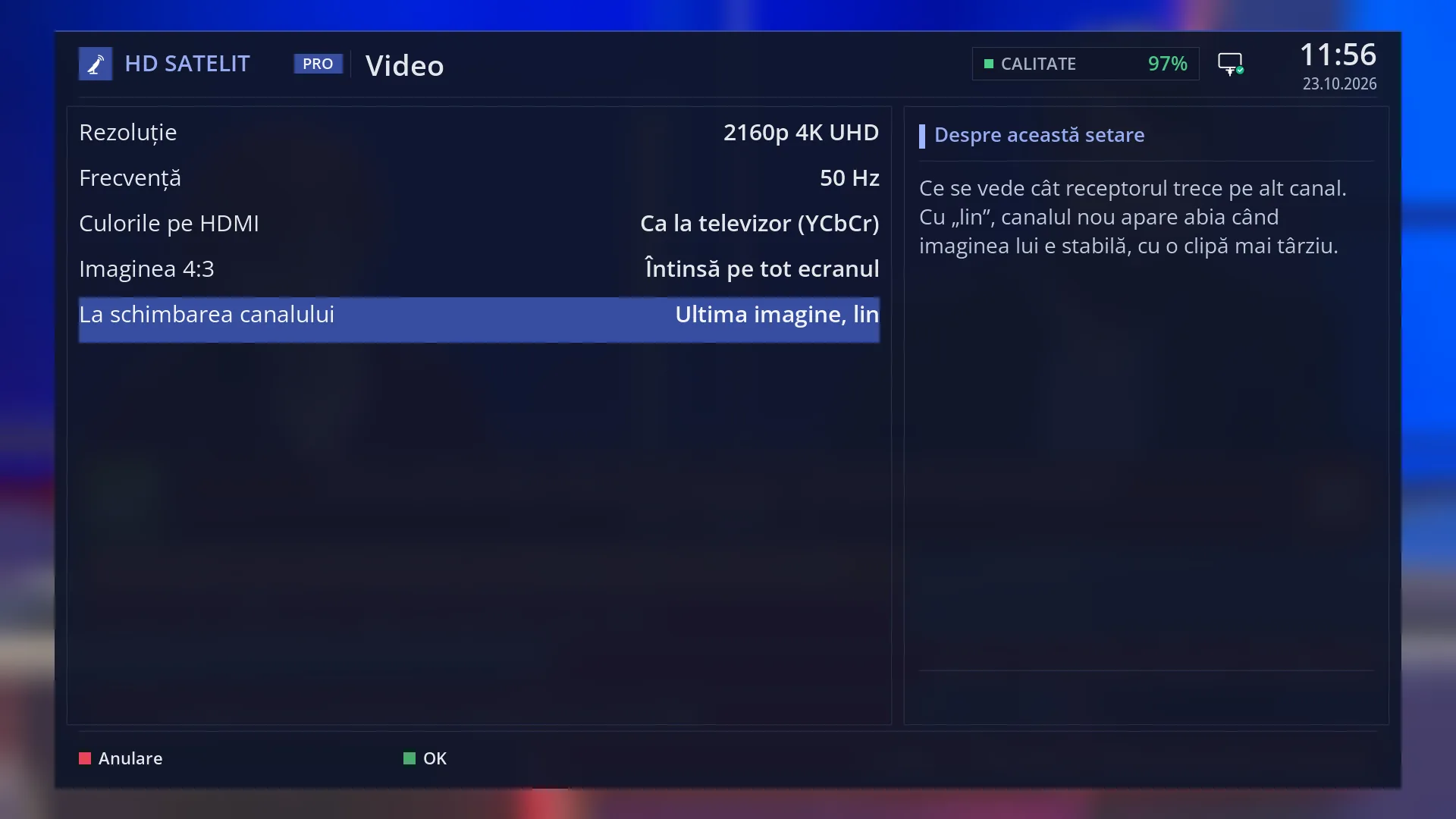
- 1 The screen title: “Video”.
- 2 The resolution and frequency of the picture over HDMI.
- 3 The HDMI colours, the 4:3 picture and what you see when changing channel.
- 4 The recommendation or explanation for the selected row.
- 5 RED cancels, GREEN (or OK) tries and saves.
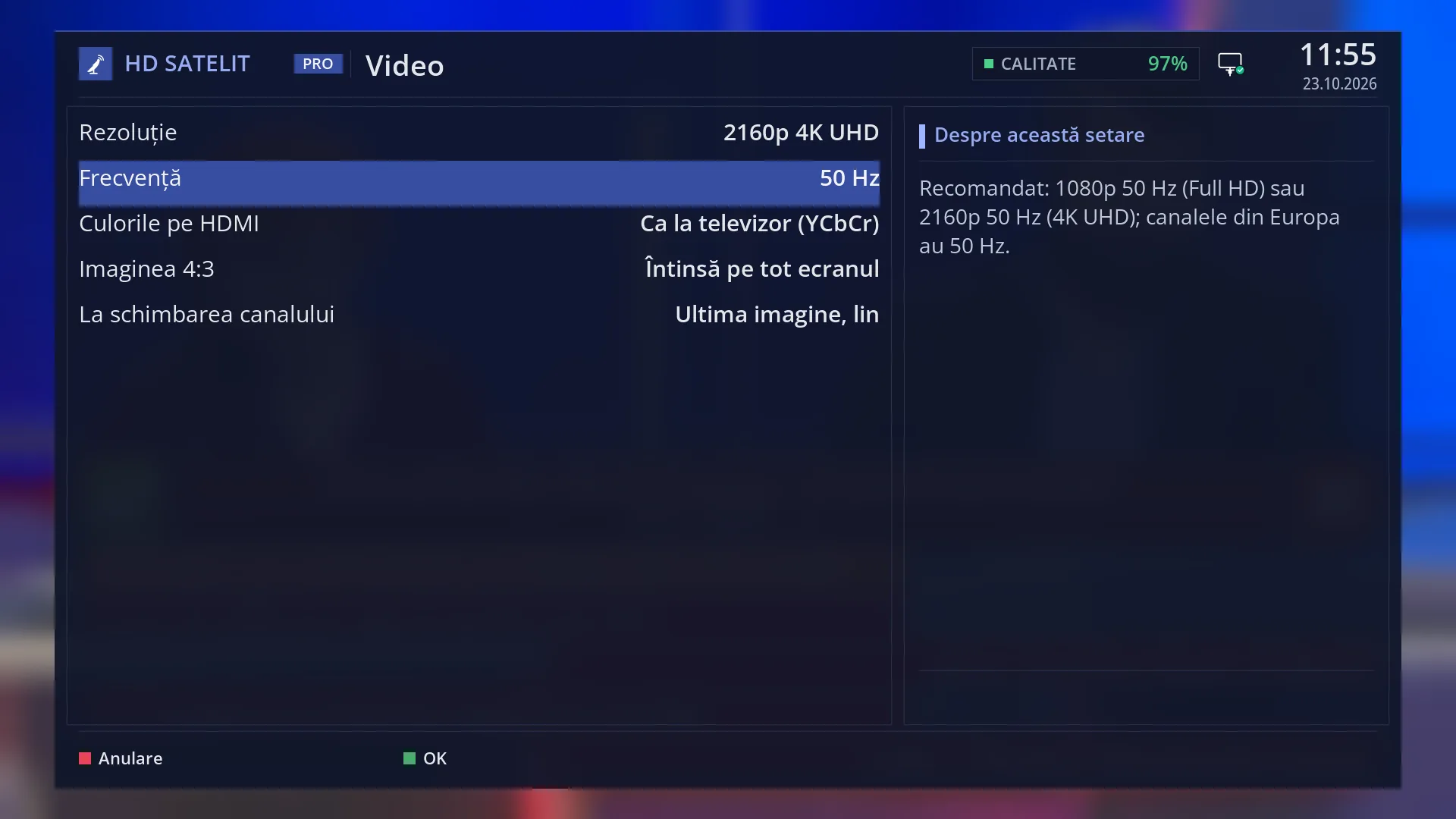
- 1 The selected row: “Frequency: 50 Hz”.
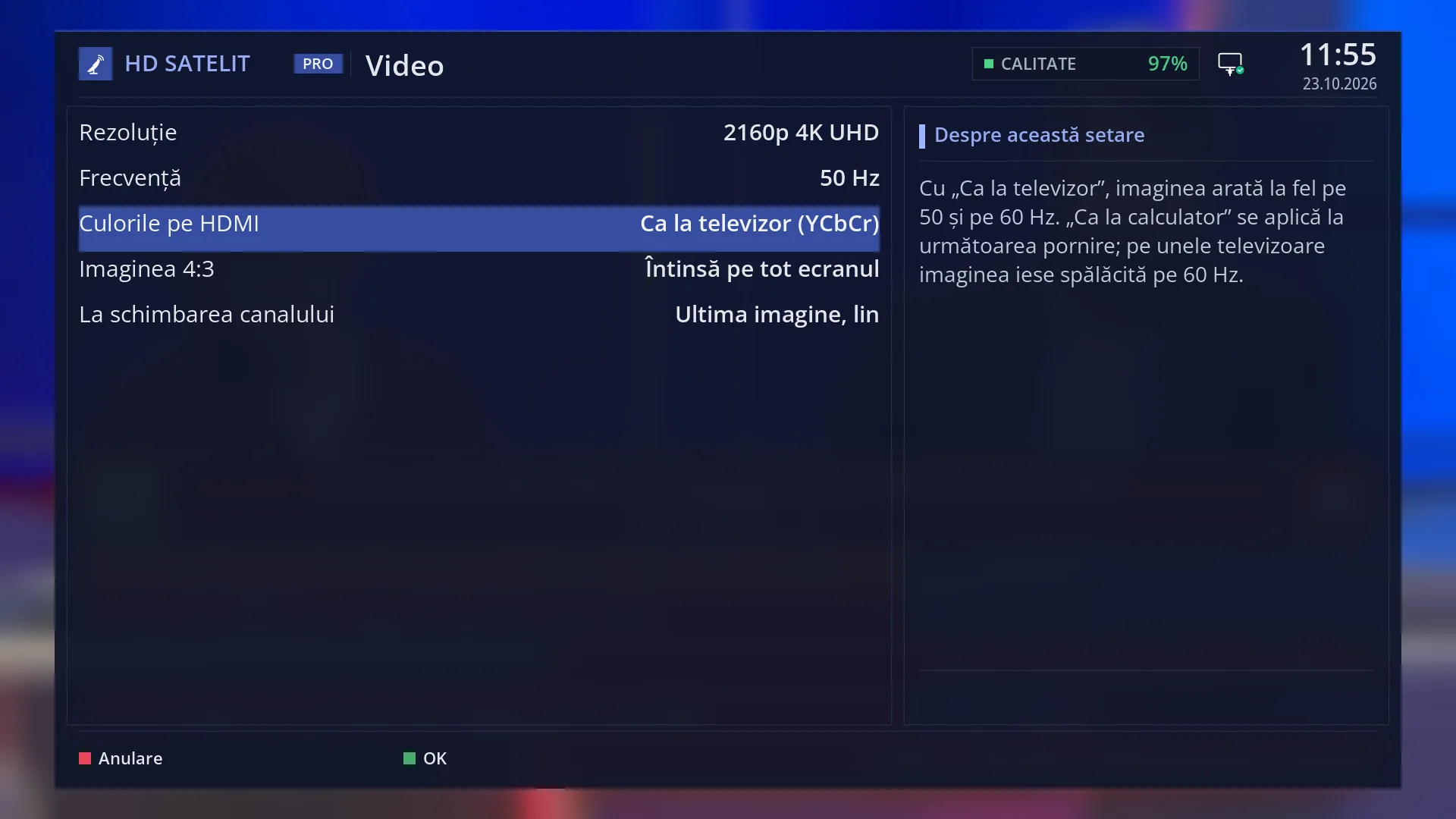
- 1 Like a TV (YCbCr) or Like a computer (RGB).
- 2 Why “Like a TV” looks the same at 50 and 60 Hz.
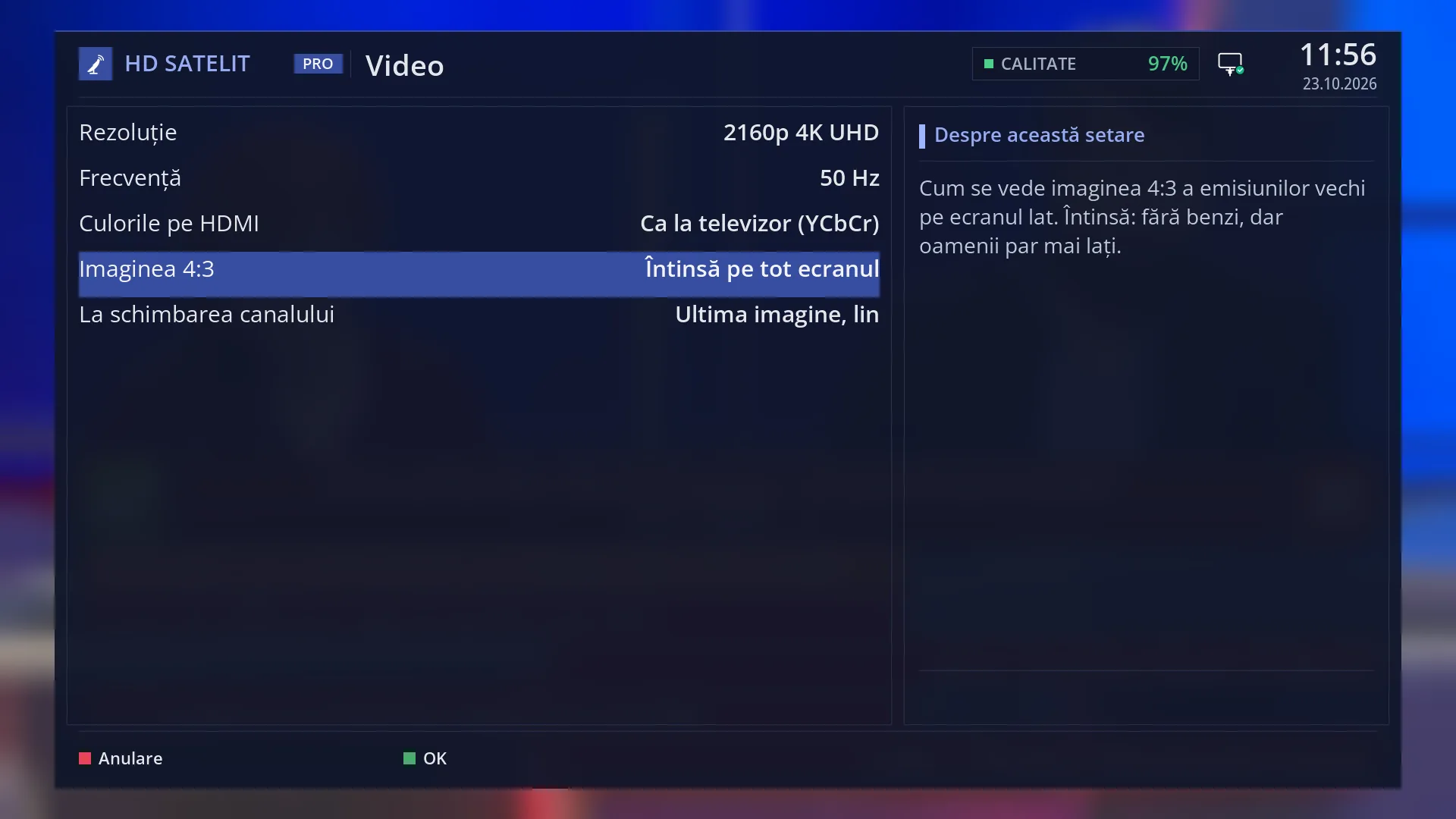
- 1 How the 4:3 picture is shown on a widescreen TV.
- 2 The explanation of the row.
- 1 The selected row: “When changing the channel: Last picture, smooth”.
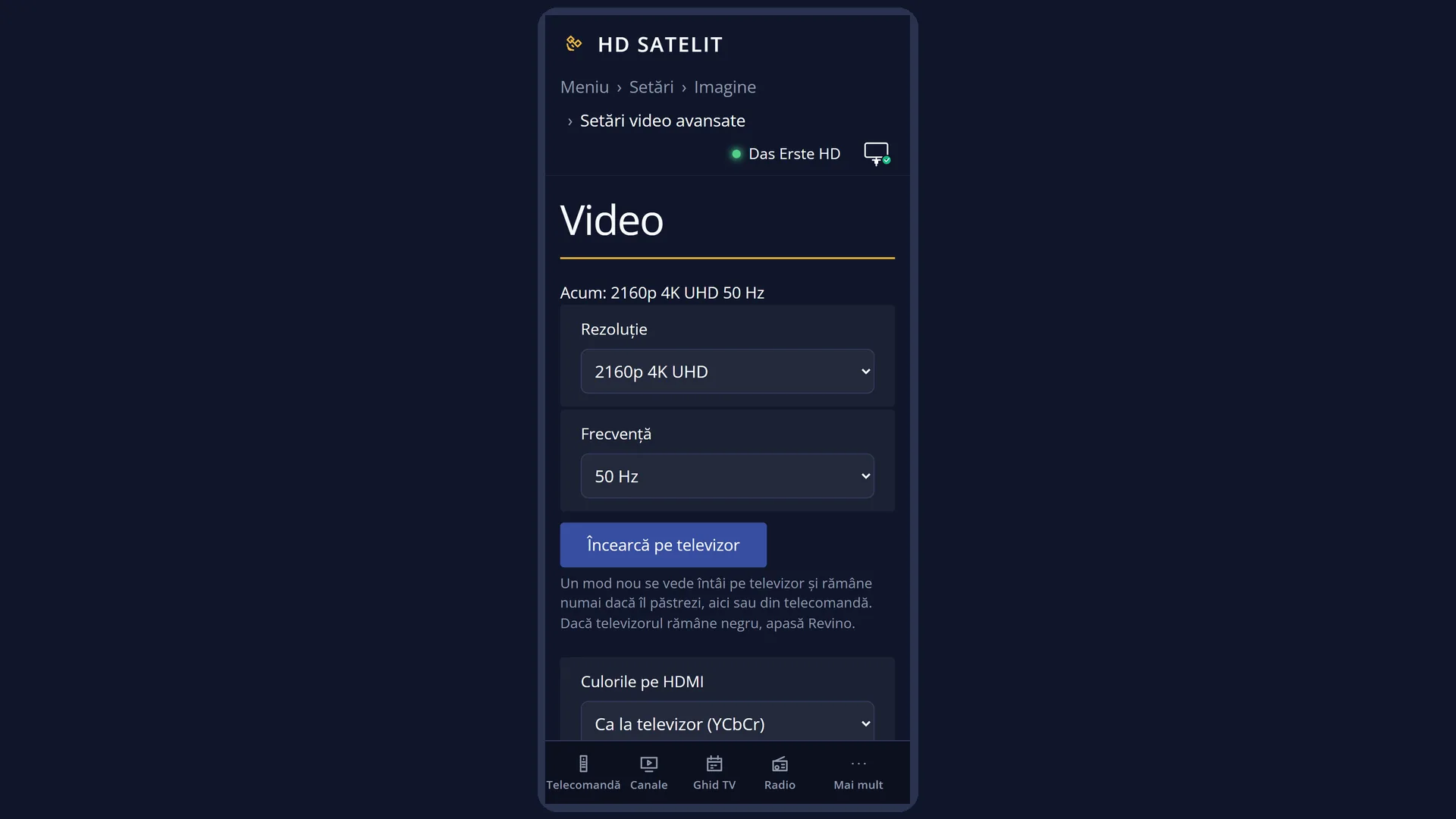
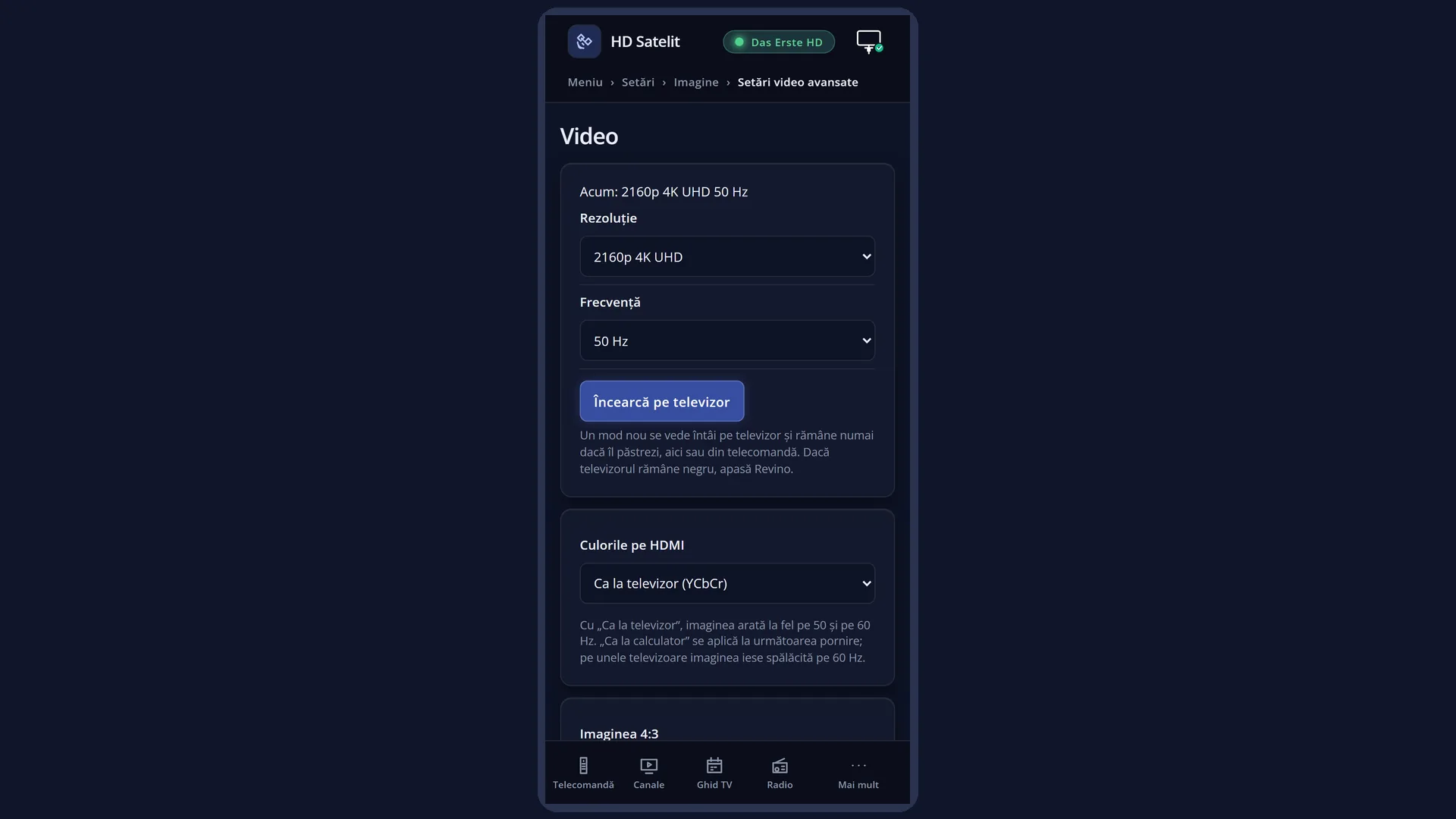
What it is for
“Advanced Video Setup” sets the picture the receiver sends to the TV over HDMI: the resolution (for example 1080p Full HD or 2160p 4K UHD), the frequency (50 Hz, 60 Hz or by channel), the HDMI colours, how the 4:3 picture of old programmes is shown and what you see while you change channel.
The resolution list only contains what the connected TV accepts, read again every time you open the screen, plus whatever was selected before.
A new resolution or frequency appears on the TV straight away, and the receiver asks “Does the picture look right?”. If you do not answer within 20 seconds (for example because the TV has stayed black), the previous setting comes back by itself.
Recommended: 1080p 50 Hz (Full HD) or 2160p 50 Hz (4K UHD). Channels in Europe use 50 Hz.
How to get here
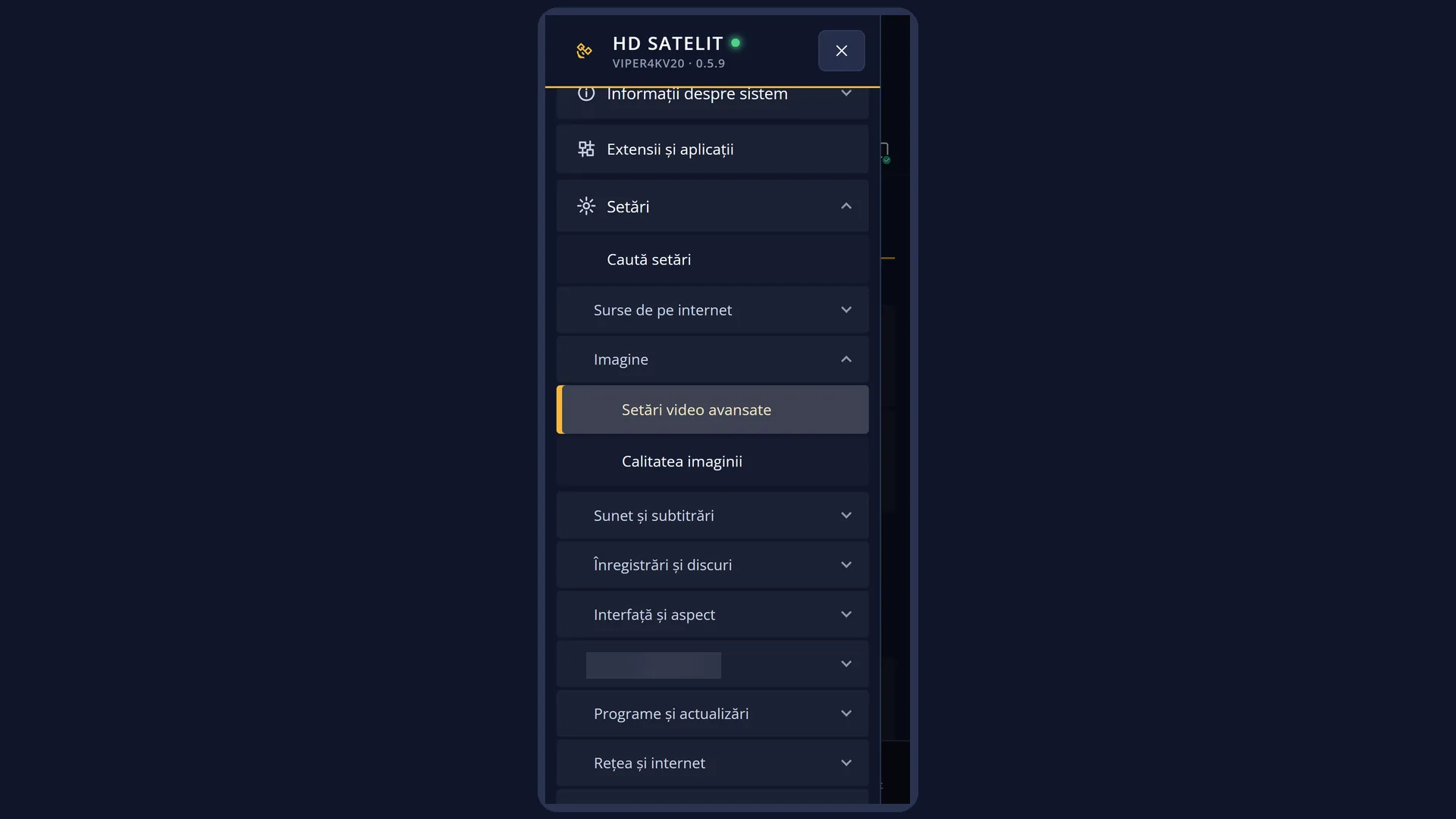
Path: Main menu > Settings > Video & Display Settings > Advanced Video Setup.
Keys on the remote: MENU 6 3 1.
From any menu: the TTX key (TEXT on screen) opens “Search settings”. Type “Resolution” or “Frequency”.
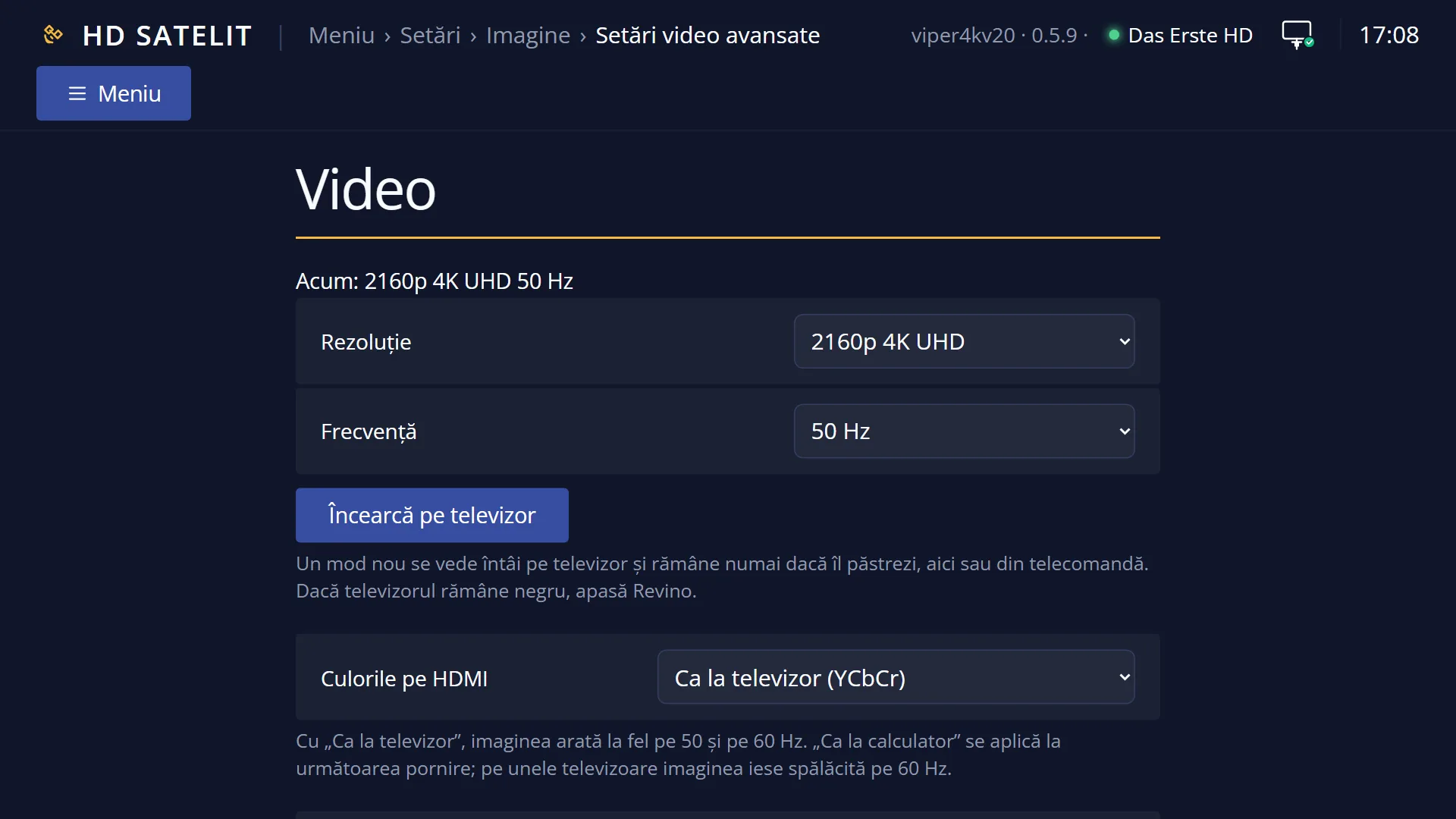
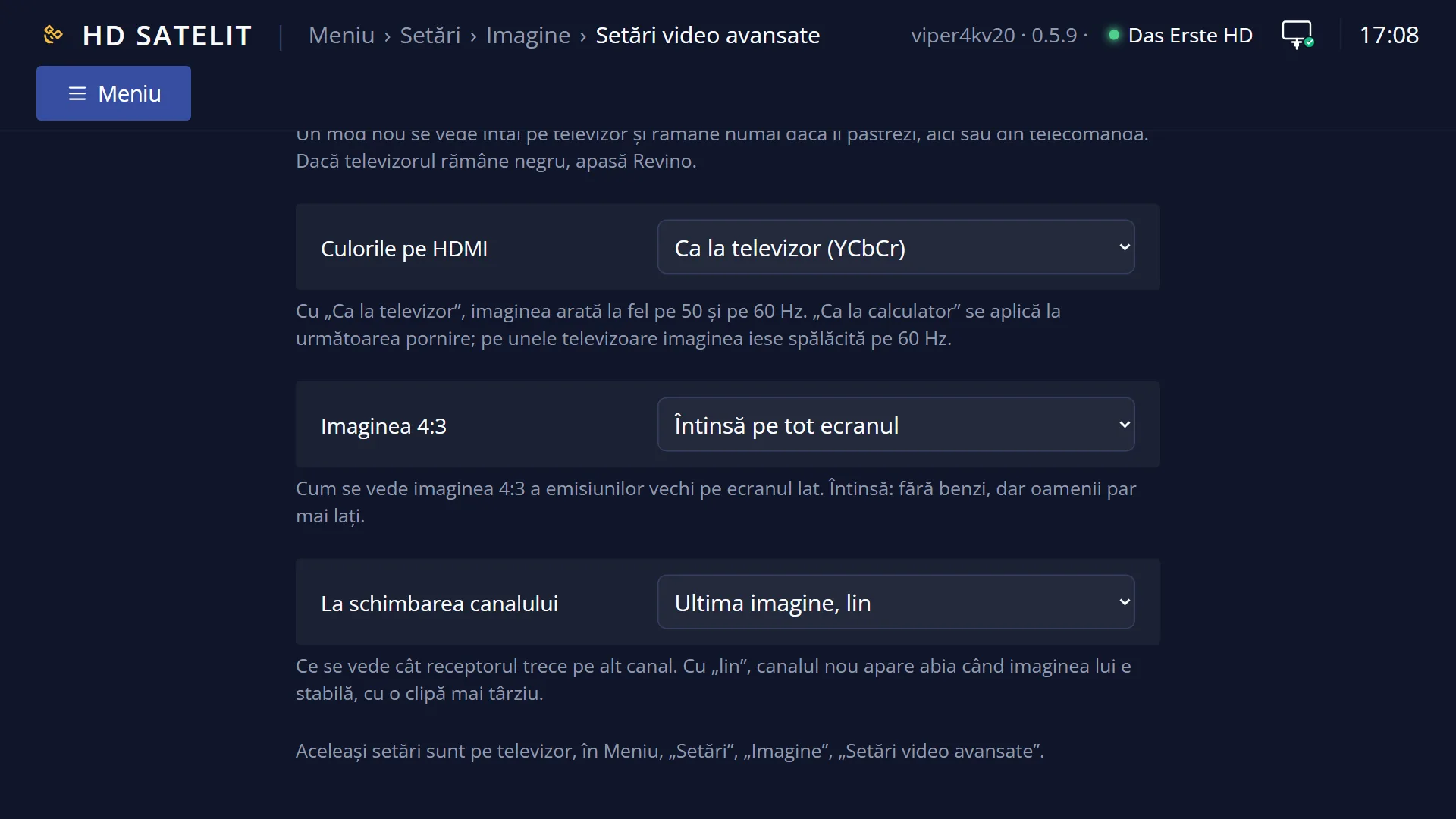
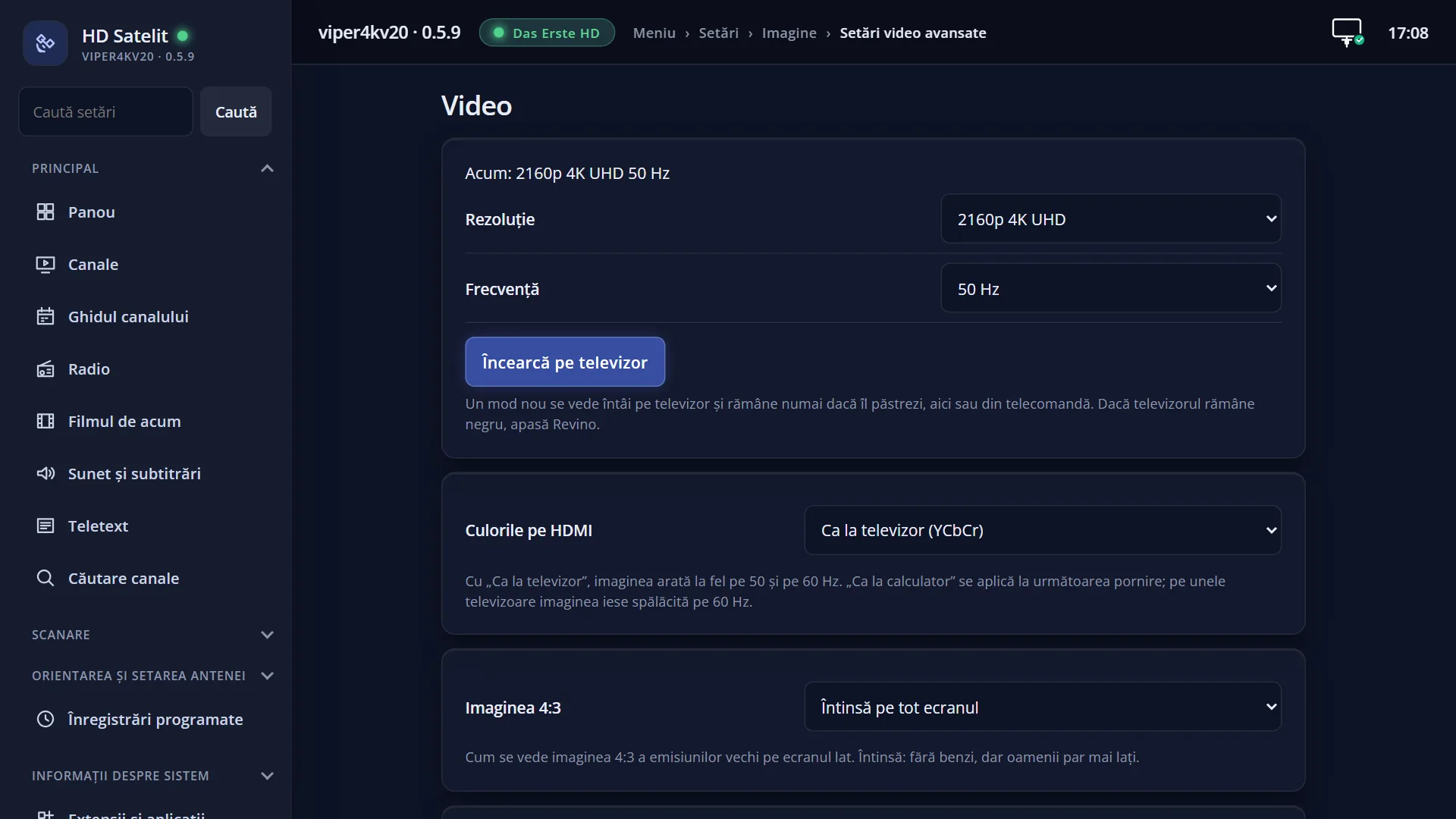
In the web interface: the /video page, with the same rows and the “Try on the TV” button, followed by “Keep” or “Go back”.
What you see on the screen
At the top, the screen title: “Video”. In the menu the row is called “Advanced Video Setup”, but it is the same screen.
On the left, the rows: “Resolution”, “Frequency”, “HDMI colours”, “4:3 picture” and “When changing the channel”, each with its value on the right.
On the right, the “About this setting” box: on Resolution and Frequency it shows the recommendation (“Recommended: 1080p 50 Hz (Full HD) or 2160p 50 Hz (4K UHD)...”), on the other rows what they do. With the frequency set to “Automatic by channel”, it says here that the TV resynchronises on every channel with a different frequency.
At the bottom, the colour keys: RED “Cancel” and GREEN “OK”.
After a new resolution or frequency: the “Does the picture look right?” window, with the seconds left (“Without an answer the previous setting comes back in ... s.”).
Rows and settings
| Row | Values | Default | What it does |
|---|---|---|---|
| Resolution | 2160p 4K UHD, 1080p Full HD, 1080i Full HD, 720p HD, 576p SD, 576i SD, only those the TV accepts | 1080p Full HD (50 Hz), if the TV accepts it | How many pixels the picture sent to the TV has. 2160p for a 4K TV, 1080p for a Full HD one. When you have a 4K TV (2160p) or when the picture is blurred on a Full HD TV (1080p). |
| Frequency | 50 Hz, 60 Hz, 24 Hz, ..., Automatic by channel | 50 Hz | How many times per second the picture changes over HDMI, chosen from the frequencies of the selected resolution. Automatic by channel: the same resolution, with each channel's own frequency (50 Hz on European channels, 60 Hz or 24 Hz on others). On every channel with a different frequency the TV resynchronises, and on some TVs the picture can disappear for a few seconds or completely. Keep 50 Hz for channels in Europe. Use Automatic by channel only if you watch a lot of films or 60 Hz channels and your TV resynchronises quickly. |
| HDMI colours | Like a TV (YCbCr), Like a computer (RGB) | Like a TV (YCbCr) | How the receiver sends the colours. With “Like a TV”, the picture looks the same at 50 and 60 Hz. “Like a computer” takes effect the next time the receiver starts; on some TVs the picture looks washed out at 60 Hz. If the TV does not accept “Like a TV”, it gets “Like a computer”, and the box on the right says so. Rarely: only if the colours on your TV look better with “Like a computer”. |
| 4:3 picture | Whole, with black bars at the sides, Zoomed, cut at the top and bottom, Stretched to the whole screen, Stretched more towards the edges, Automatic | Whole, with black bars at the sides | How the 4:3 picture of old programmes is shown on a widescreen TV. Whole: with black bars on the left and right. Zoomed: fills the screen, but the top and bottom are cut off. Stretched: no bars, but people look wider. The list only shows the options the receiver has. When the black bars on old programmes bother you. |
| When changing the channel | Black screen, Last picture, Black screen, smooth, Last picture, smooth | Last picture | What you see while the receiver switches to another channel: a black screen or the last picture of the previous channel. With “smooth”, the new channel only appears once its picture is stable, a moment later. “smooth” if you see blocks or a broken picture for a moment when you change channel. |
Keys
| UP / DOWN | Move the cursor to another row; its explanation appears on the right. |
| LEFT / RIGHT | Change the value of the row. On Resolution, Frequency gets the frequencies of the new resolution. |
| OK or GREEN | Tries and saves. For a new resolution, frequency or “Like a TV”, it asks “Does the picture look right?”. Yes keeps it; No, or 20 seconds without an answer, puts the old one back. The other rows are saved without a question. |
| RED (Cancel) or EXIT | Closes without saving; the rows go back to what was saved. |
| Digits | They do nothing here. |
Step by step
Switch to 4K
- Press MENU 6 3 1. The cursor is on “Resolution”.
- Press LEFT or RIGHT until you reach “2160p 4K UHD” (it only appears if the TV accepts it). Frequency stays at 50 Hz.
- Press OK. If the picture looks fine, choose Yes at “Does the picture look right?”.
- If the TV stays black, do not press anything: the previous setting comes back within 20 seconds.
No black bars on old programmes
- Press MENU 6 3 1, then DOWN 3 times, to “4:3 picture”.
- Press RIGHT until you reach “Stretched to the whole screen” or “Zoomed, cut at the top and bottom”.
- Press OK.
Problems and solutions
After a new resolution the TV stayed black.
Do not press anything: within 20 seconds the receiver puts the previous setting back and shows “The new video setting was not confirmed. The previous setting is back.”.
I cannot see 2160p in the list.
The list only has the resolutions accepted by the TV that is connected now. Check the HDMI cable and the TV input (some TVs only accept 4K on certain HDMI inputs), then open the screen again.
“The receiver did not accept the new video mode.” appears.
The selected mode could not be set; the previous setting has come back. Choose another resolution or frequency.
At 60 Hz the picture looks washed out.
Set “HDMI colours” to “Like a TV (YCbCr)”: the picture then looks the same at 50 and 60 Hz.
I chose “Like a computer” and nothing changed.
It takes effect the next time the receiver starts. The receiver asks whether to restart now; you can answer Yes or wait for the next start.
Every time I change channel the picture disappears for a few seconds.
The frequency is set to “Automatic by channel”: the TV resynchronises on channels with a different frequency. Set Frequency to 50 Hz.
Related topics
Differences between receivers
The rows depend on what the receiver offers: on other receivers “HDMI color space”, “Color depth” and “HDR type” may also appear. On the Amiko Viper 4K V20 the screen has five rows: Resolution, Frequency, HDMI colours, 4:3 picture and When changing the channel. “4:3 picture” is missing when the “Aspect Ratio” row on the “Sound Output & Downmix” screen (MENU 6 4 1) says the TV is 4:3.