

External Keyboard
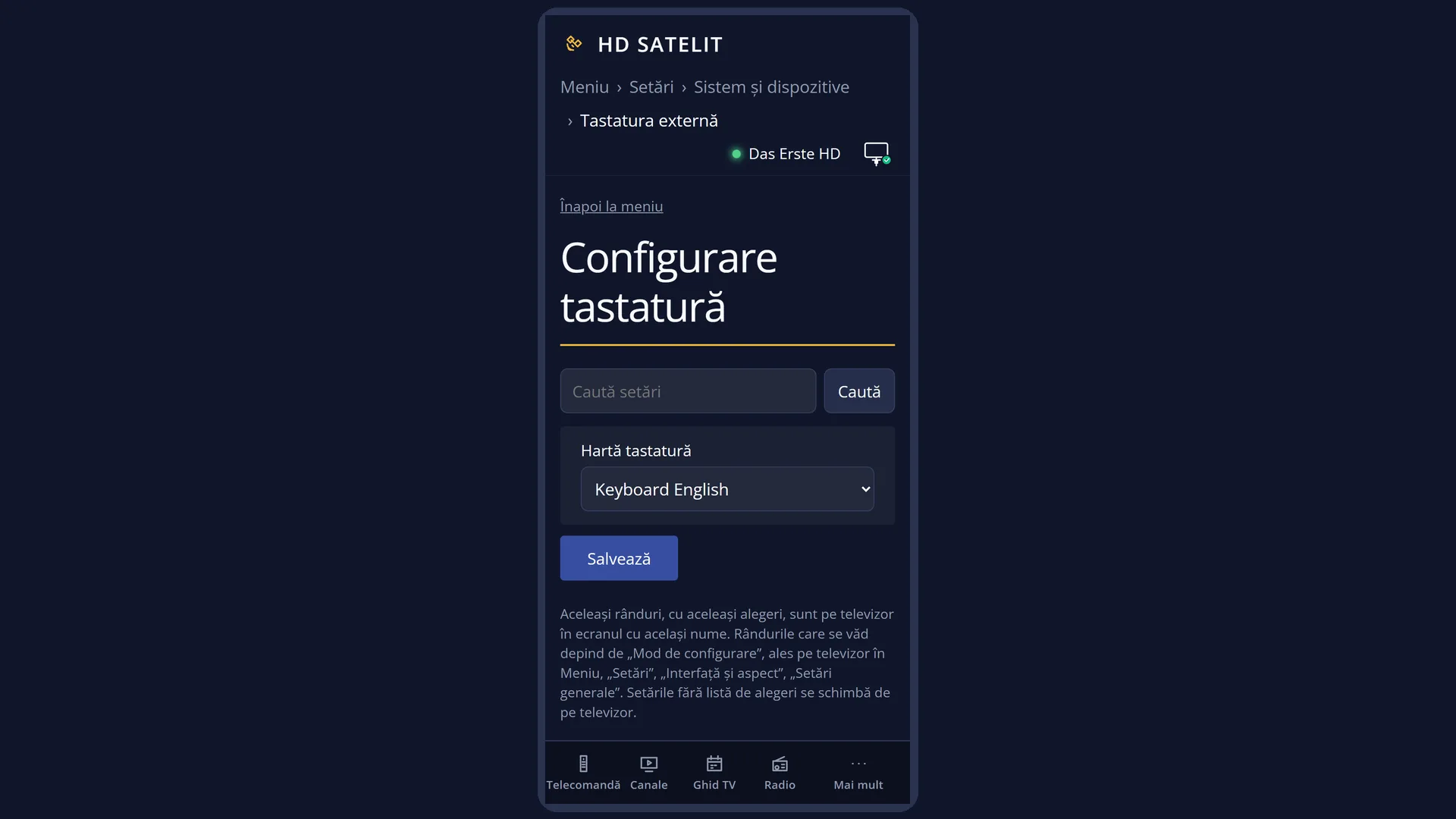
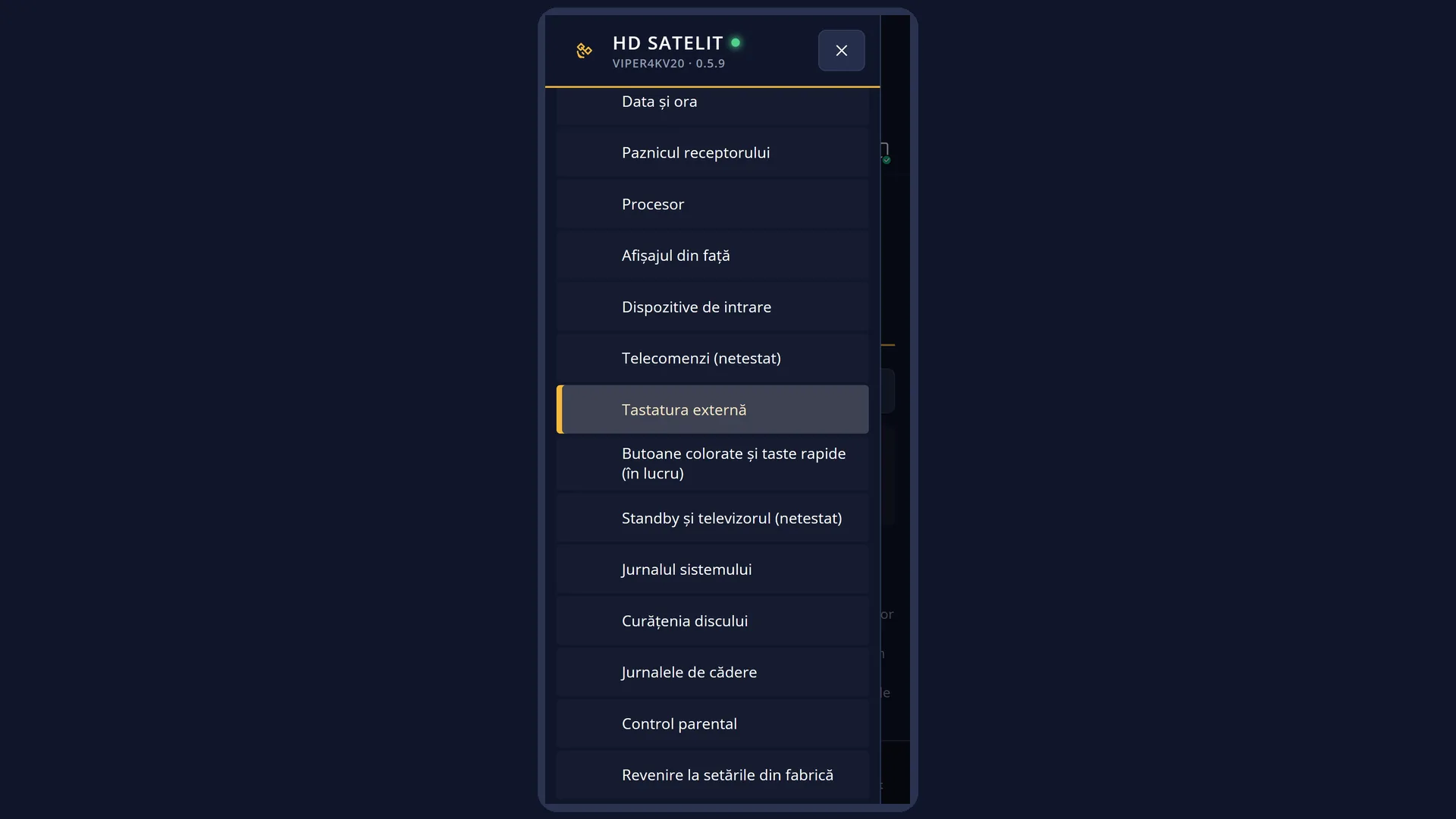
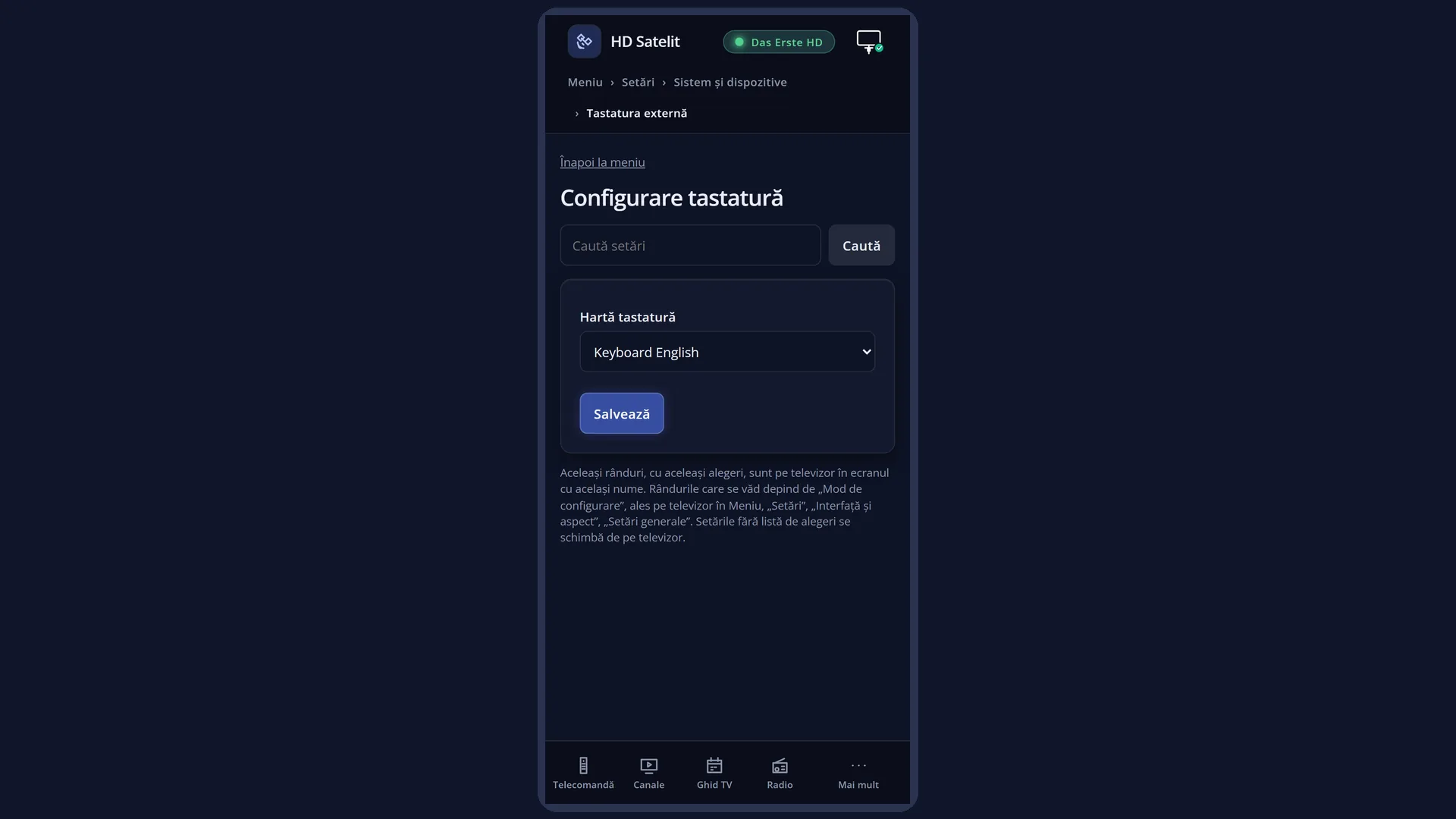
Screenshots are being added: so far 2 from the receiver and 5 from the web interface; the aim is at least 5 of each, with arrows and frames, and, where a setting changes what you see, a before and after comparison.
English screenshots coming: some of the pictures below still show the receiver and the web interface in Romanian. The rows, keys and steps described on this page are the English ones.
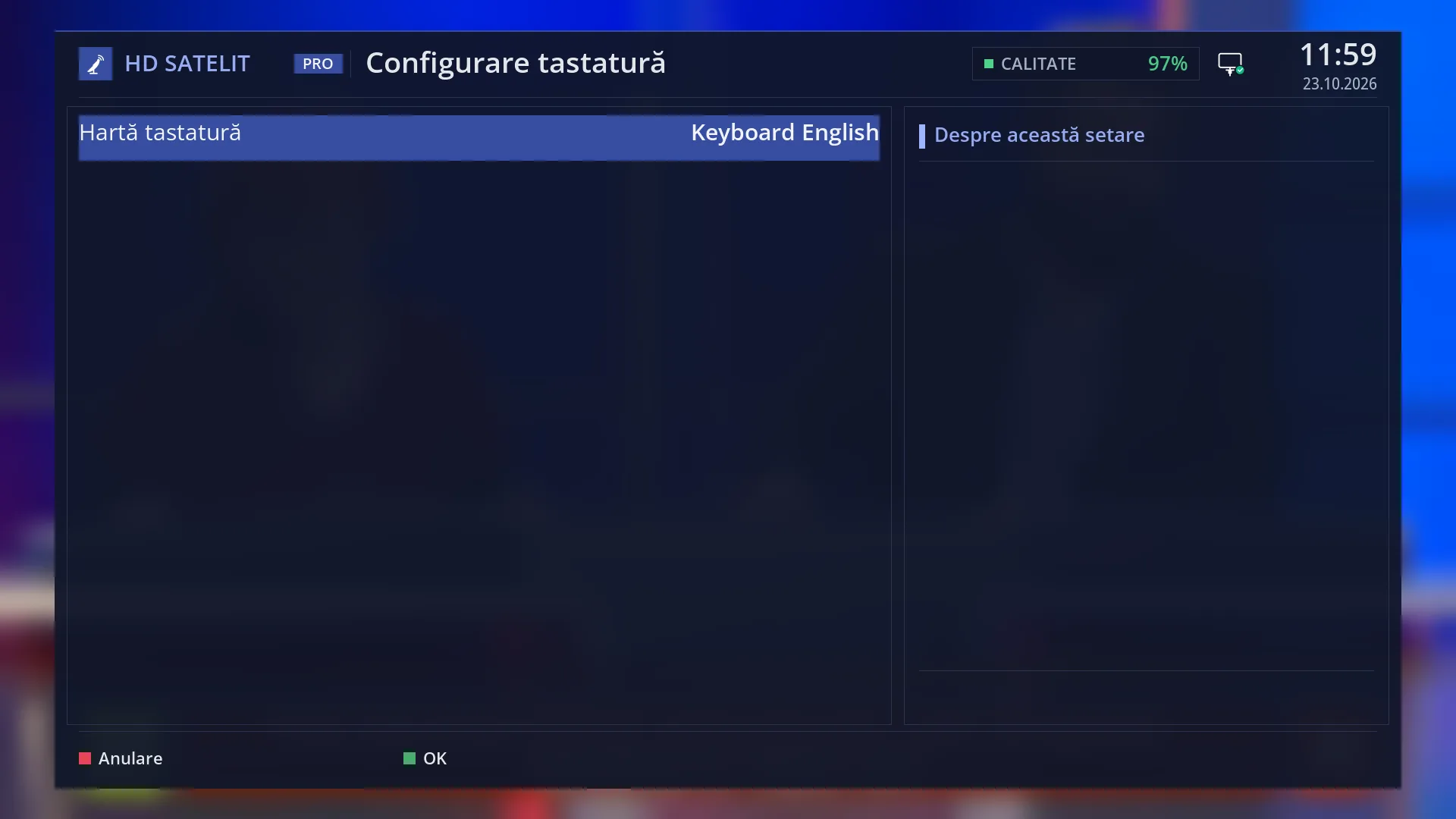
- 1 The screen title: “Keyboard Setup”.
- 2 The only row: “Keyboard Map”, with the chosen layout on the right.
- 3 “About this setting”: stays empty for this row.
- 4 RED closes without saving, GREEN saves.
What it is for
The “Keyboard Setup” screen sets the letter layout for a real keyboard connected to the receiver: by USB, through the small receiver of a wireless keyboard, or by Bluetooth.
With a keyboard you type much faster than with the digits on the remote, which work like texting on a phone. Use it for a Wi-Fi network name, a channel search, an address in the web browser or a folder name.
The layout only matters for letters and symbols. With “Keyboard English” the keys match a standard US keyboard. With the second choice, whose name ends in “Keyboard Deutsch”, they match a German one (Y and Z swapped, plus the letters ä, ö, ü). Choose the one that matches what is printed on your keys.
The keyboard does not need to be switched on in any setting: the receiver detects it by itself when you connect it. Keys that are also on the remote (the arrow keys, the digits, Enter) work the same as on the remote.
How to get here
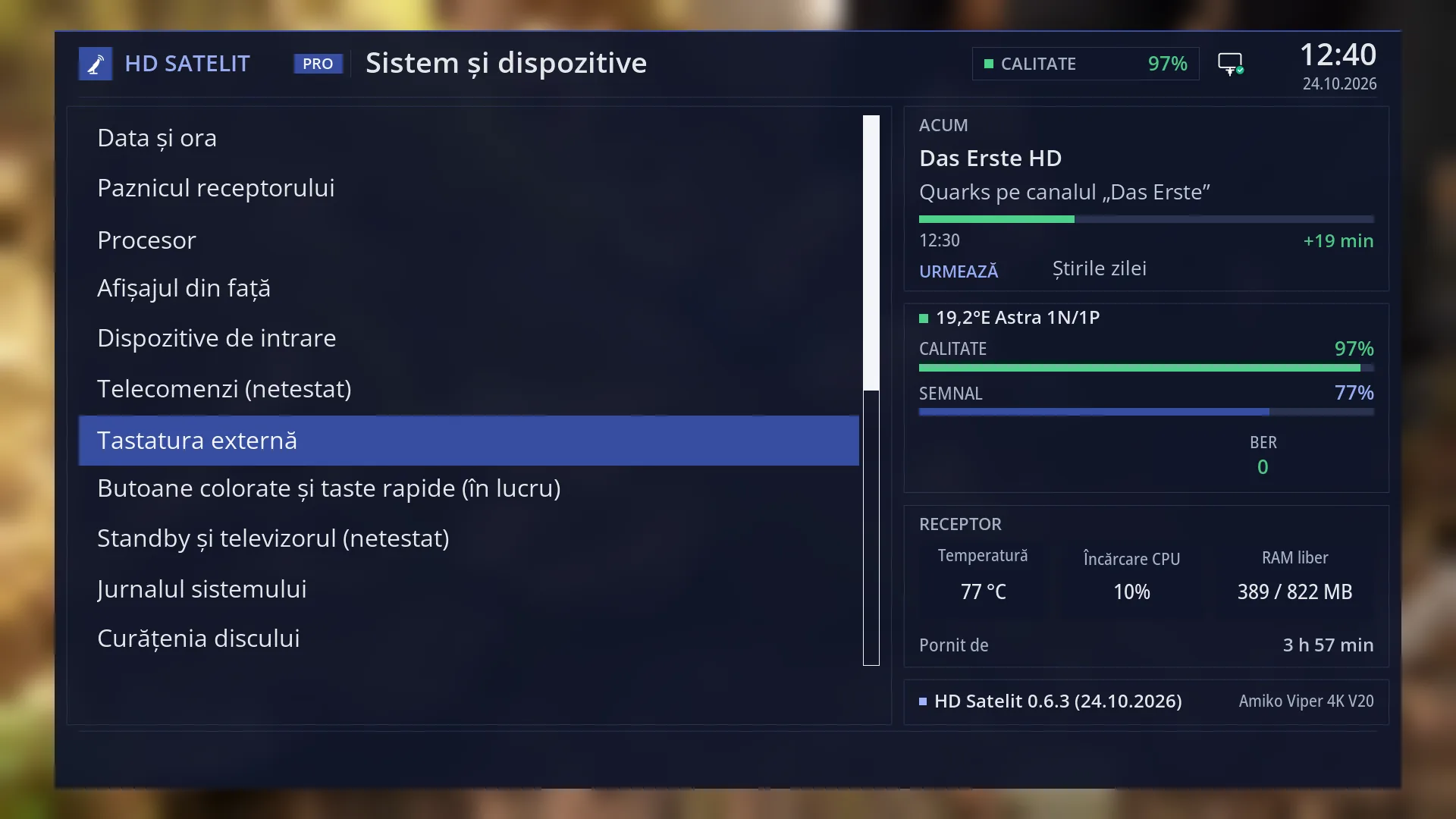
Path: Main menu > Settings > System & Devices > External Keyboard.
Keys on the remote: MENU 6, then UP three times (System & Devices is the third row from the bottom in Settings, with no number) and OK, then 7.
The “External Keyboard” row is shown when “Setup Mode” is Intermediate (the factory setting) or Expert. In Simple it is missing from the menu.
From any menu: the TTX key (shown on screen as TEXT) opens “Search settings”. Type “keyboard” and choose the “Keyboard Map” row.
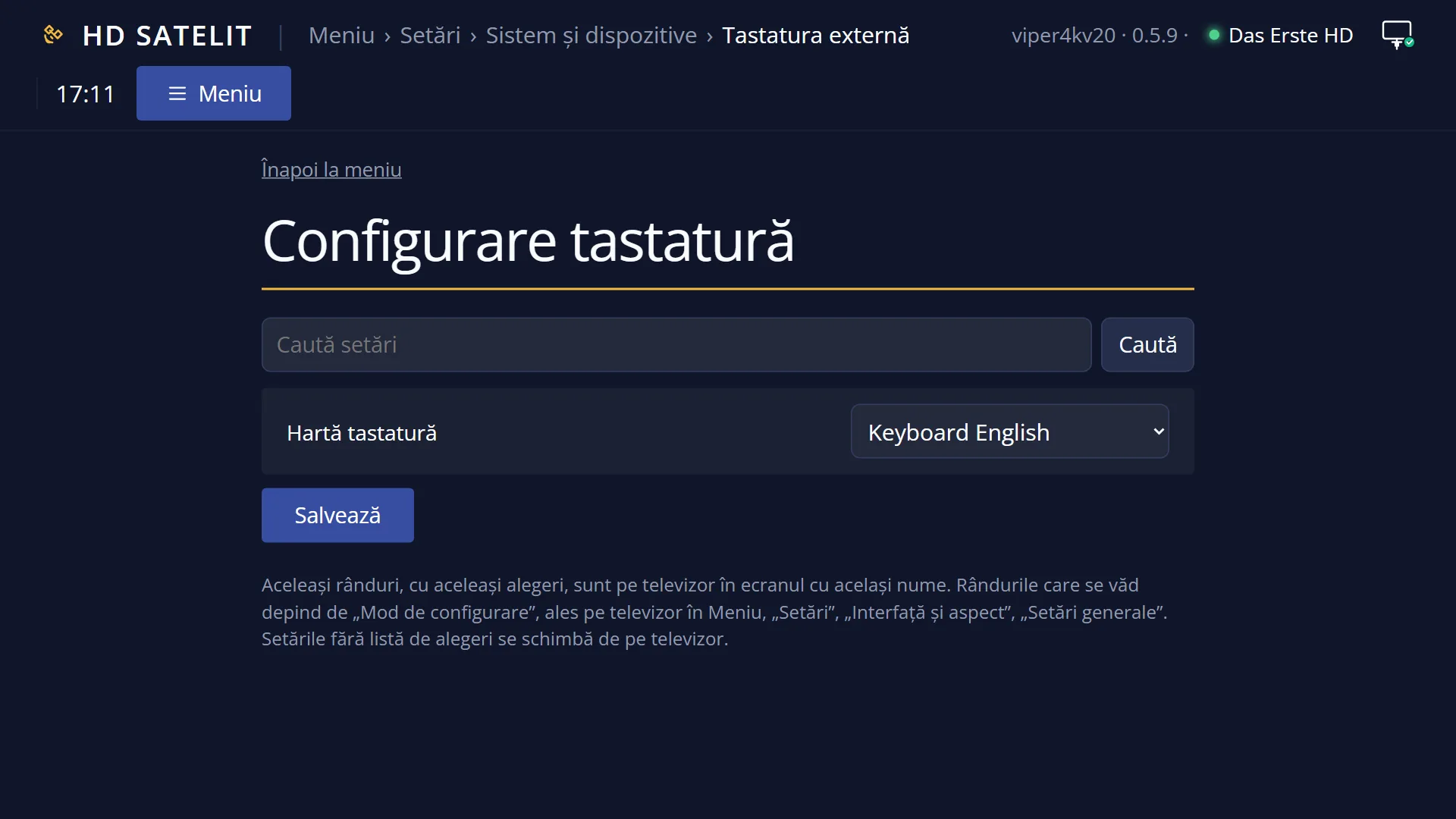
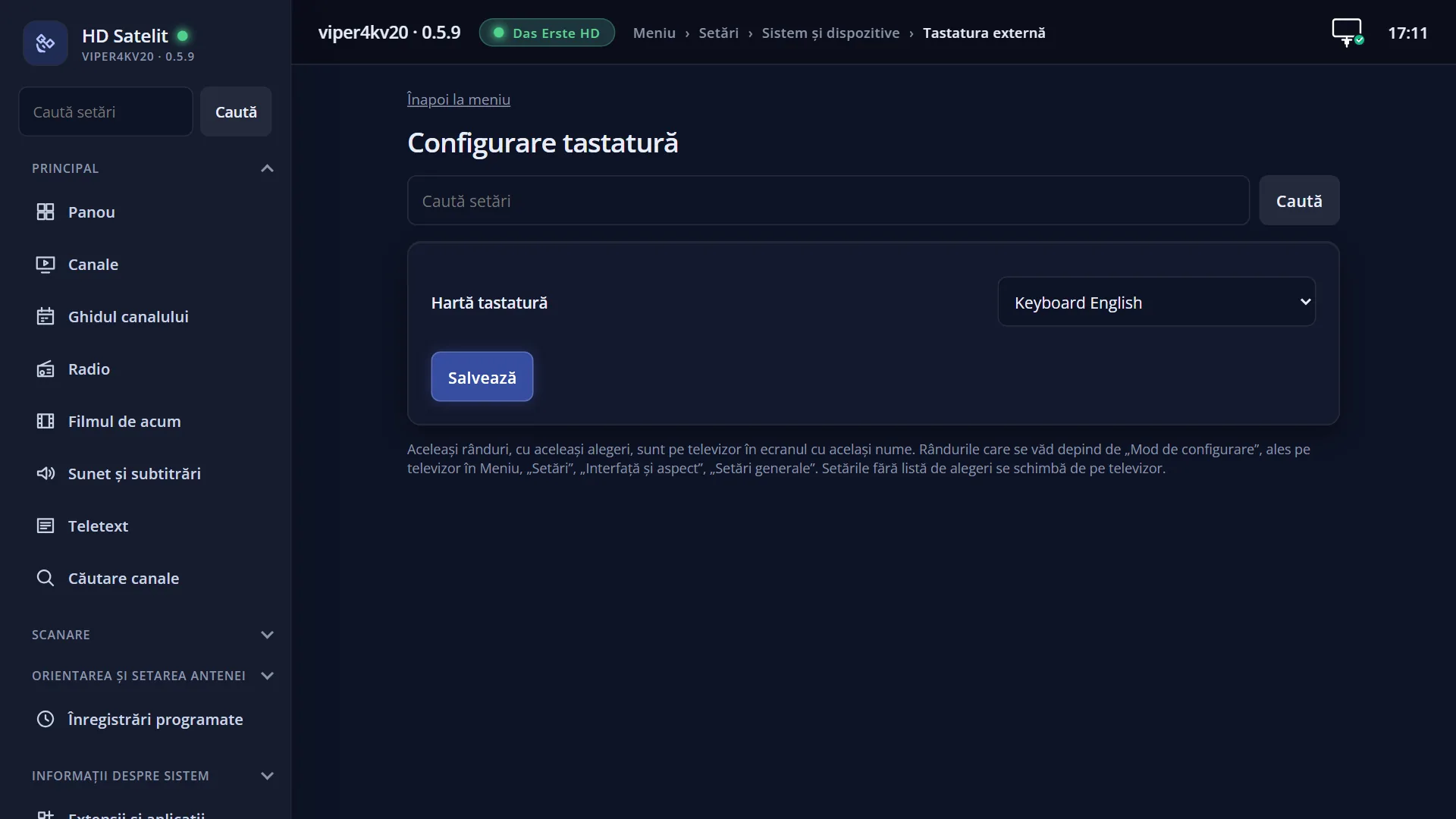
In the web interface: the page /setari?id=keyboard (titled “Keyboard Setup”), or /setari and then “External Keyboard”.
What you see on the screen
At the top, the screen title: “Keyboard Setup”. The menu name (“External Keyboard”) and the screen title are different, but it is the same screen.
On the left, a list with a single row: “Keyboard Map”, with the chosen layout on the right of the row (“Keyboard English” by default).
On the right, the “About this setting” box. This row has no text, so the box stays empty.
At the bottom, the colour keys: RED “Cancel” and GREEN “OK”.
With the Pro theme, the top of the screen also shows the signal quality of the current channel, the network icon, the time and the date.
Rows and settings
| Row | Values | Default | What it does |
|---|---|---|---|
| Keyboard Map | Keyboard English, … Keyboard Deutsch (German layout) | Keyboard English | Tells the receiver which letter each key on the connected keyboard means. Keyboard English: the US layout (QWERTY). … Keyboard Deutsch: the German layout (QWERTZ, with ä, ö, ü and ß). When the letters the keyboard types are not the ones on the keys, for example you press Z and Y appears. For a standard Romanian keyboard, with the letters in QWERTY order, stay on “Keyboard English”. |
Keys
| LEFT / RIGHT | Switch to the other keyboard layout. |
| GREEN (OK) | Saves the chosen layout and closes the screen. |
| RED (Cancel) or EXIT | Closes without saving. If you changed something, it first asks “Really close without saving settings?”. With Yes the layout goes back to the previous one. |
| OK | Does nothing on this row: the value only changes with LEFT / RIGHT. |
| On the keyboard: Enter, Esc, Backspace | Anywhere in the menus, Enter (including Enter on the numeric keypad) is OK and Esc is EXIT. Backspace is EXIT, but when you are typing text it deletes the letter to the left of the cursor. |
| On the keyboard: F1, F2, F3, F4 | The colour keys of the remote: F1 RED, F2 GREEN, F3 YELLOW, F4 BLUE. |
| On the keyboard: F5 (or the menu key next to the right Ctrl), F6, F7 | F5 and the menu key are MENU, F6 is INFO, F7 is EPG. |
| On the keyboard: Space, + and - on the numeric keypad | Space is OK in the menus and a space when you are typing text. + and - on the numeric keypad change the volume, and when you are typing text they are the + and - signs. |
Step by step
Connect a keyboard and test it
- Plug the keyboard (or its small wireless receiver) into a USB port on the receiver.
- Open a place where you can type, for example “Search settings” with the TTX key from a menu.
- Type a few letters on the keyboard. If the letters on the keys appear, there is nothing else to do.
Change the letter layout
- Press MENU 6, then UP and OK (System & Devices), then 7 (External Keyboard).
- On the “Keyboard Map” row, press RIGHT until the layout you want appears.
- Press GREEN to keep it.
- Test typing again, as in the step above.
Problems and solutions
I press Z and Y appears (or the other way round), and some symbols are not the ones on the keys.
The chosen layout does not match the keyboard. For a QWERTY keyboard choose “Keyboard English”, for a German QWERTZ one the choice ending in “Keyboard Deutsch”, then press GREEN.
I cannot find the “External Keyboard” row in System & Devices.
The row is missing when “Setup Mode” is set to Simple. Set it to Intermediate in OSD Preferences (MENU 6 6 5, first row), then press GREEN.
My keyboard does not have the Romanian accented letters (ă, î, ș, ț).
The list only has the US and German layouts. Type accented letters with the on-screen keyboard: on a text row, press OK on the remote. With the interface in Romanian, the on-screen keyboard has ă, â, î, ș and ț.
I pressed Enter on a text row and the on-screen keyboard did not open.
That is how it works: Enter on the keyboard types directly into the row, without the on-screen keyboard. OK on the remote opens it.
The keyboard does not type anything.
Unplug it and plug it back into the USB port. For wireless ones, check the batteries and the small receiver. Test it in a place where typing definitely works, such as “Search settings”.
Related topics
- System & Devices (the menu it opens from)
- Remote Control Setup (the remote, the mouse)
- OSD Preferences (Setup Mode)
- Search settings
- Matching web page: /setari?id=keyboard.