

Interface theme: Classic or Pro
Screenshots are being added: so far 3 from the receiver and 6 from the web interface; the aim is at least 5 of each, with arrows and frames, and, where a setting changes what you see, a before and after comparison.
English screenshots coming: some of the pictures below still show the receiver and the web interface in Romanian. The rows, keys and steps described on this page are the English ones.
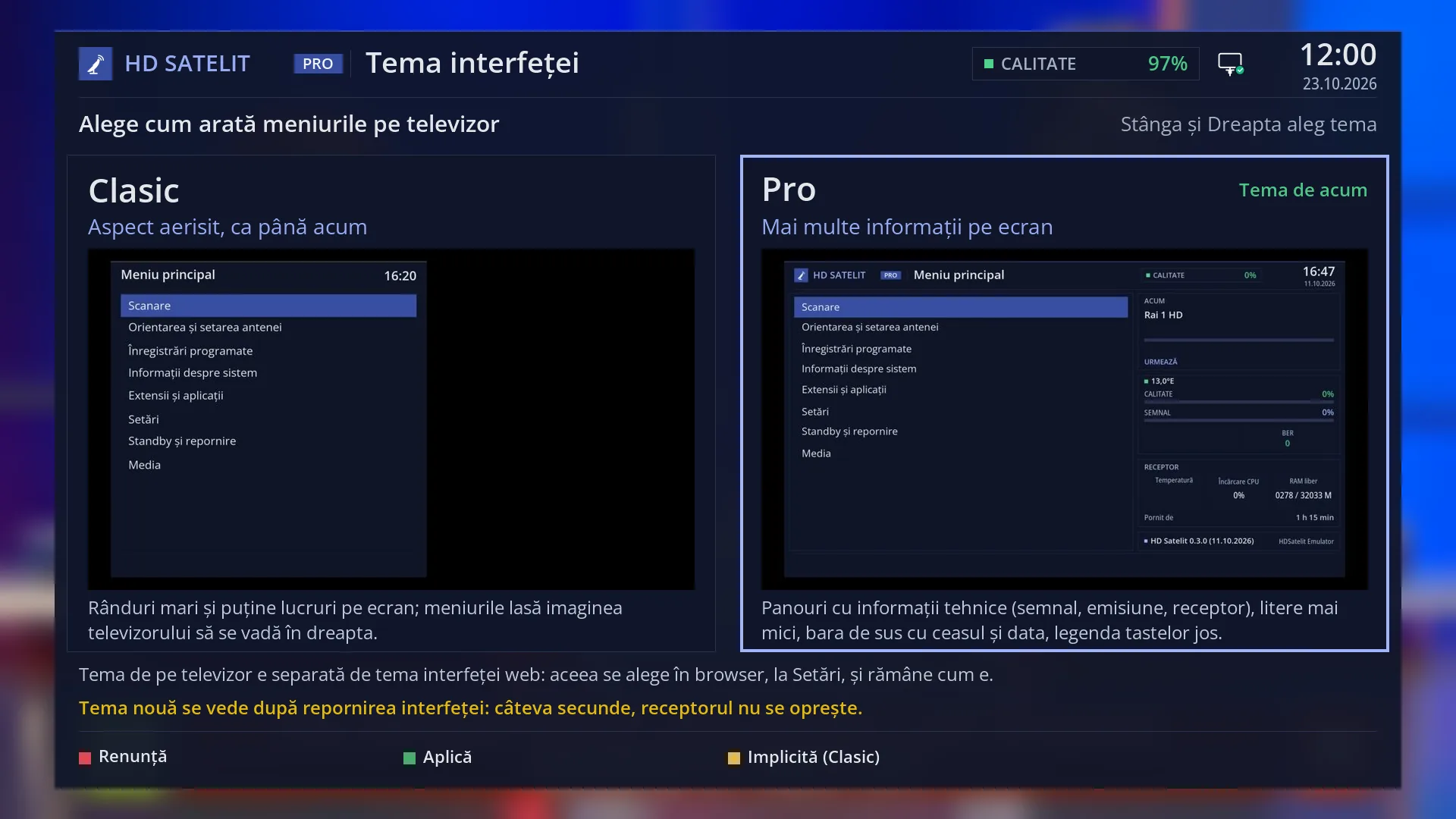
- 1 What you choose: how the menus look on the TV. Left and Right choose the theme.
- 2 The Classic theme: airy, with a picture of a menu and the description.
- 3 The Pro theme: more information. In the corner, the status (“Current theme”).
- 4 The note about the web page theme and the message about restarting.
- 5 RED cancels, GREEN applies, YELLOW moves the cursor to Classic.
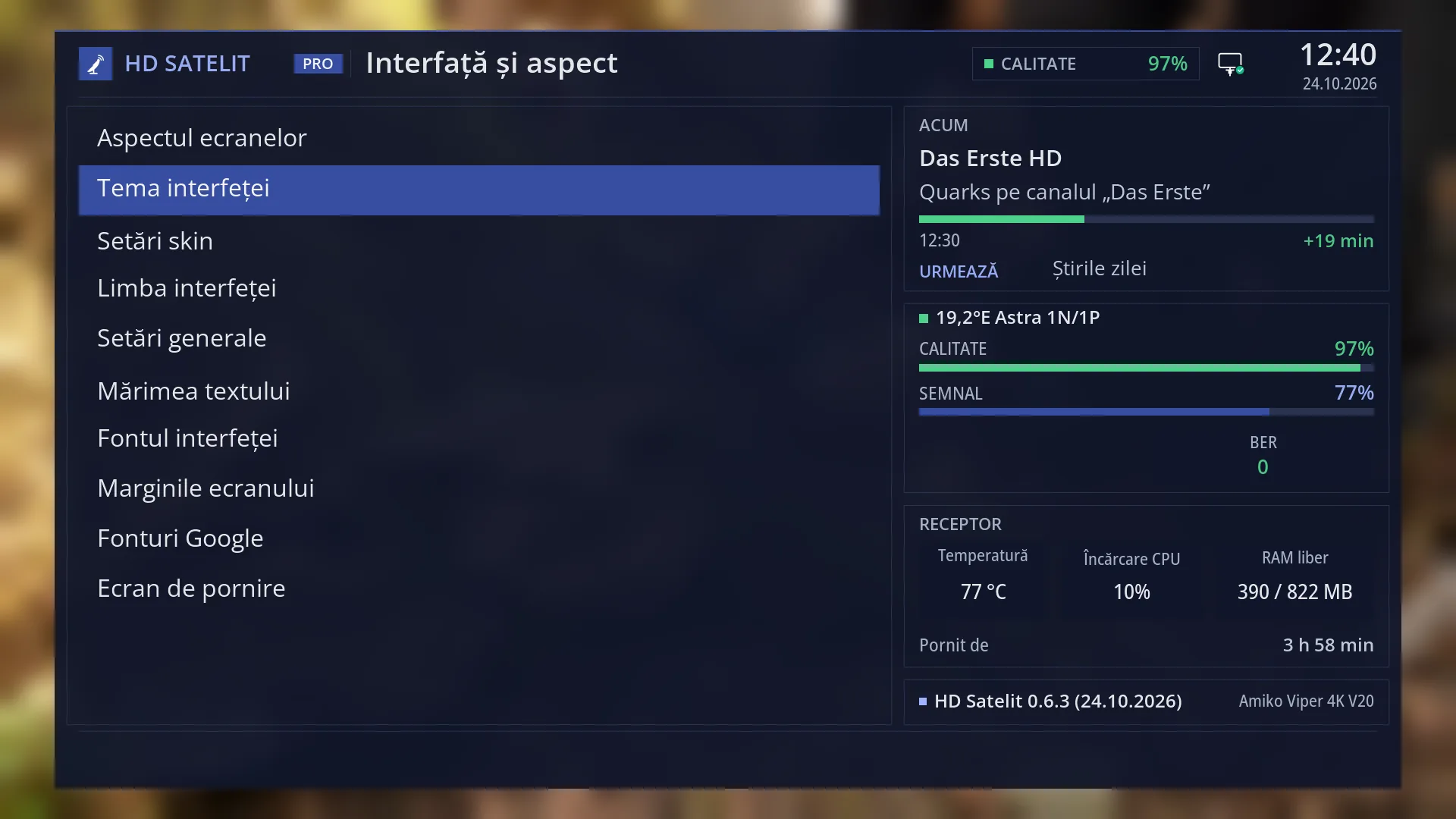
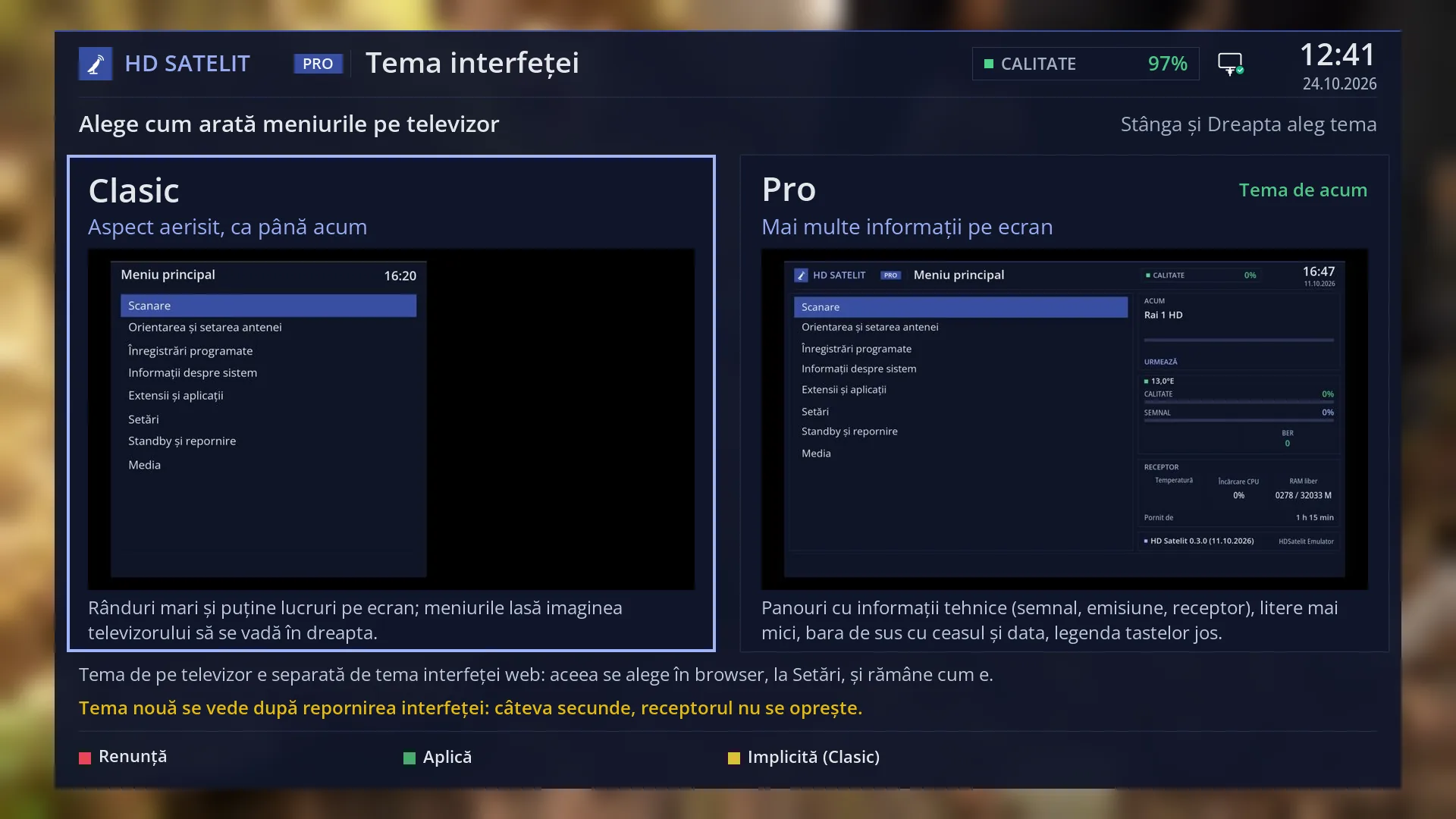
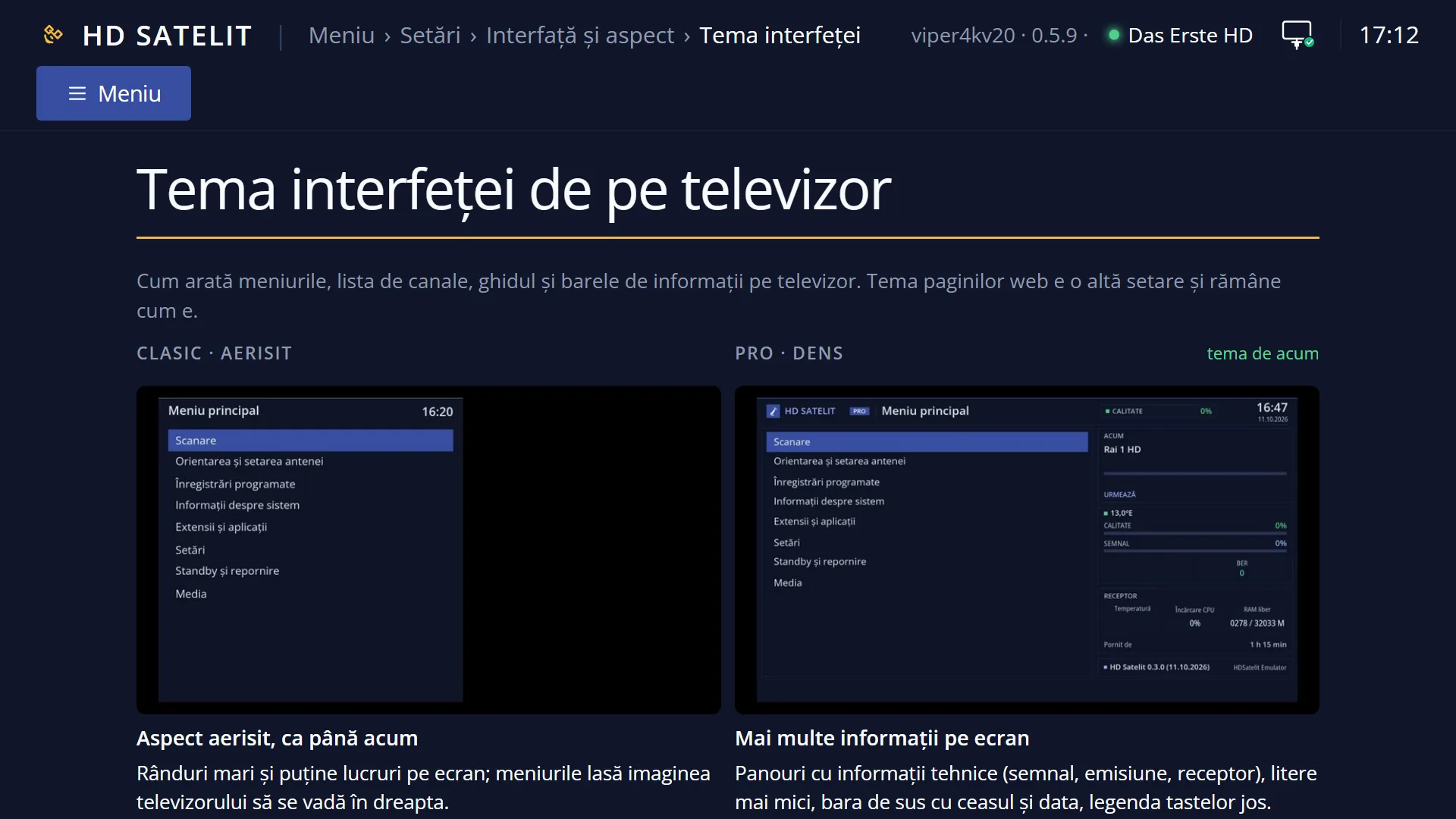
What it is for
“Interface theme” sets how the menus, the channel list, the programme guide and the info bars look on the TV: the Classic theme or the Pro theme.
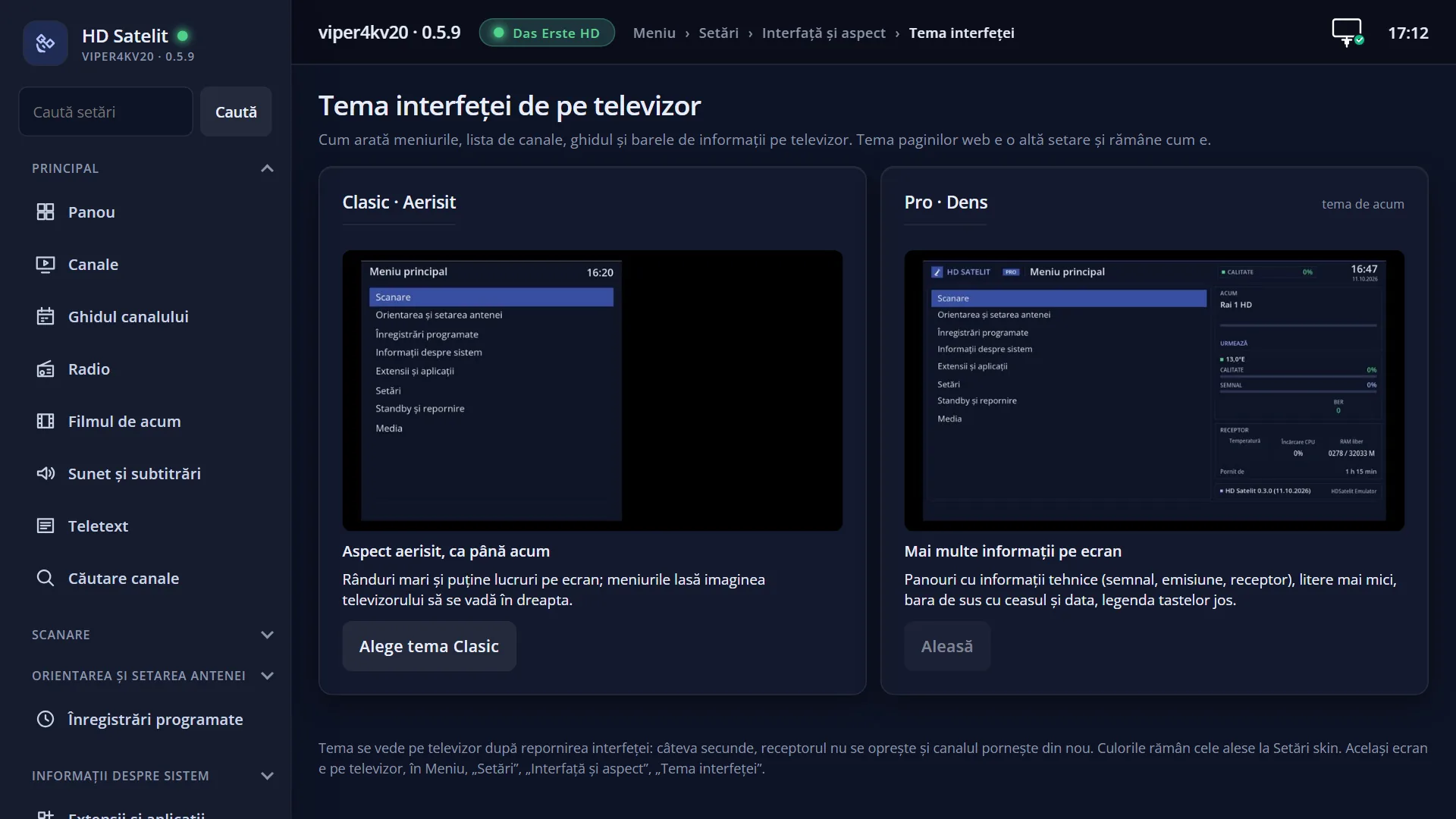
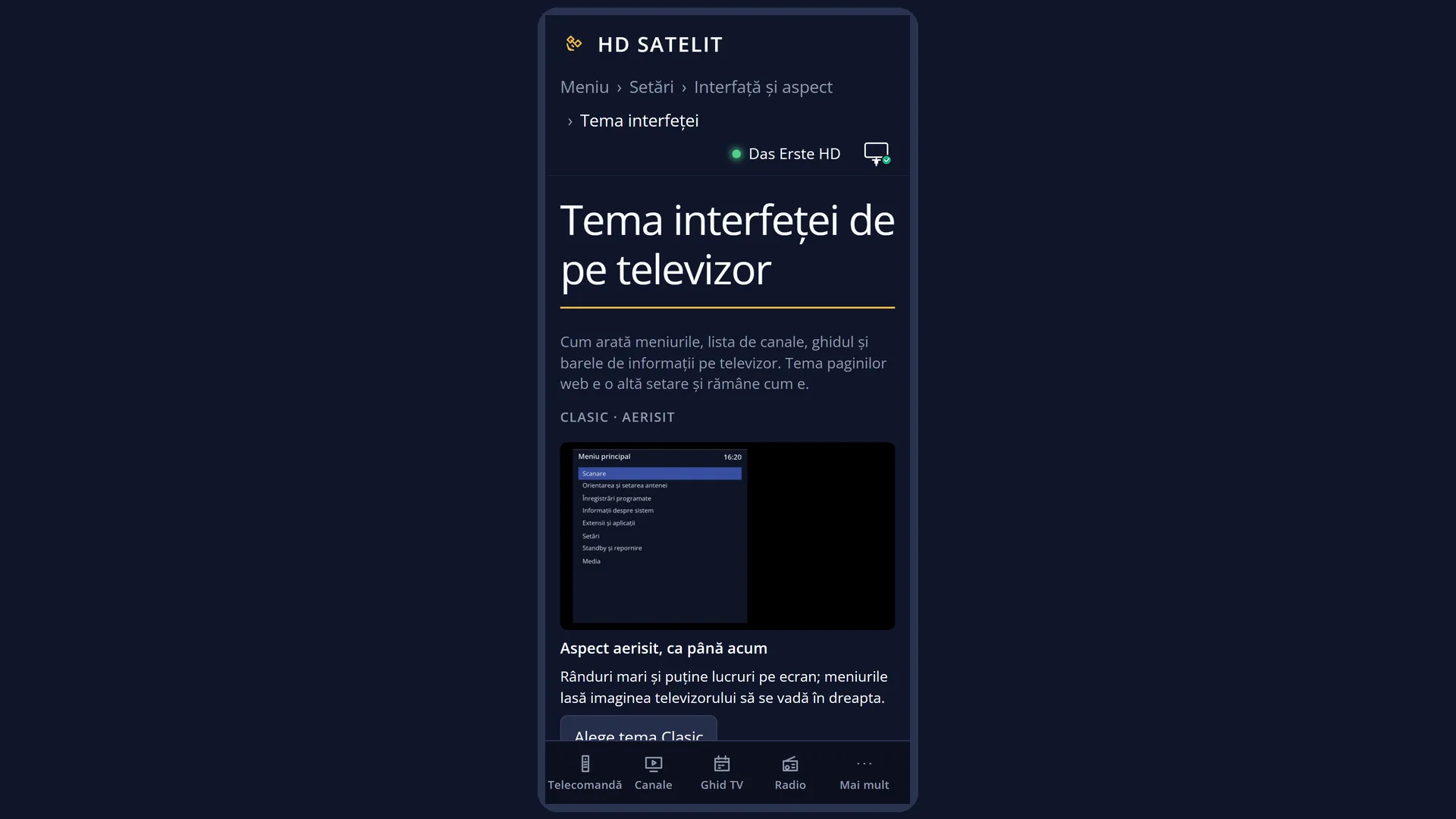
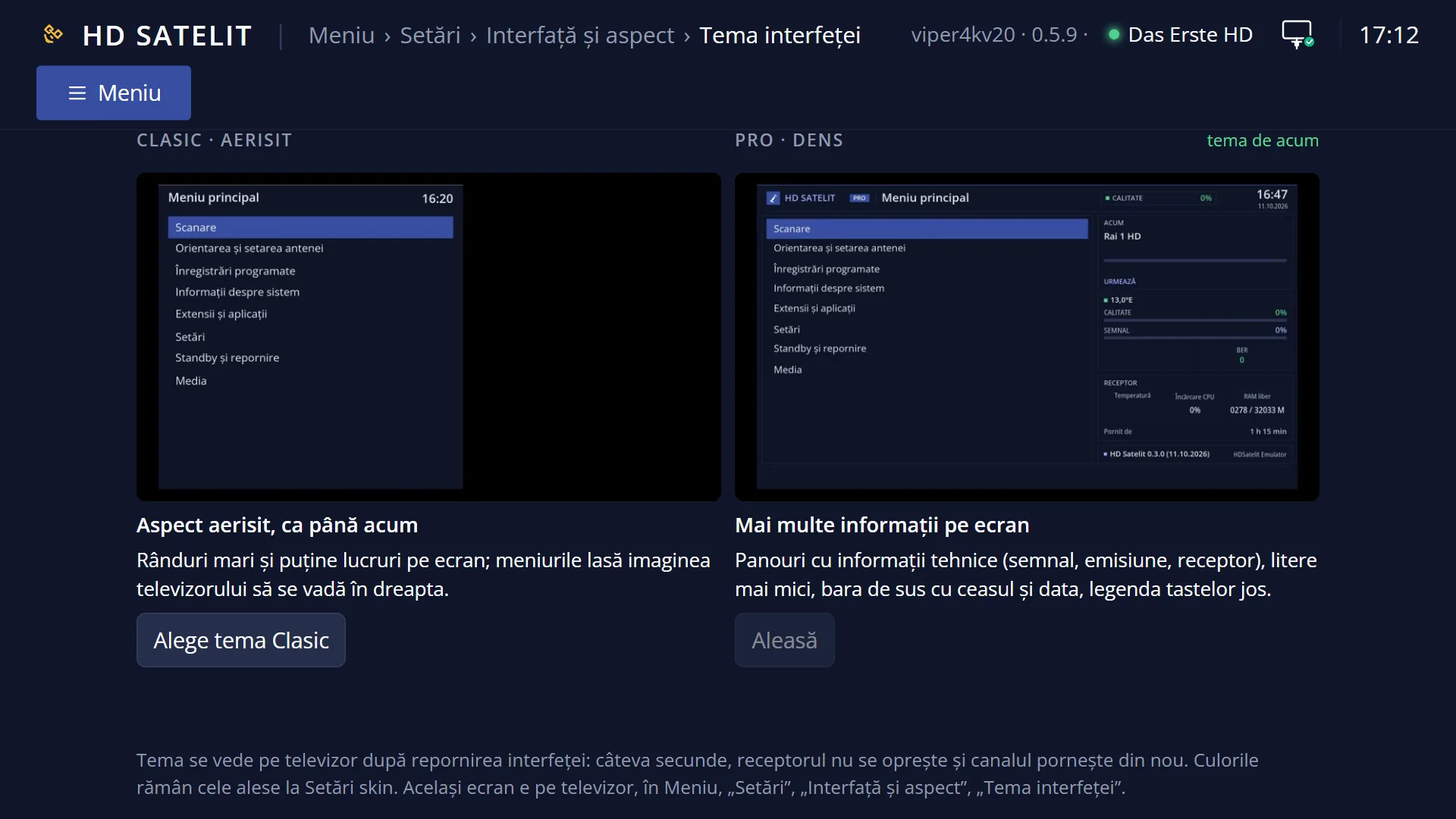
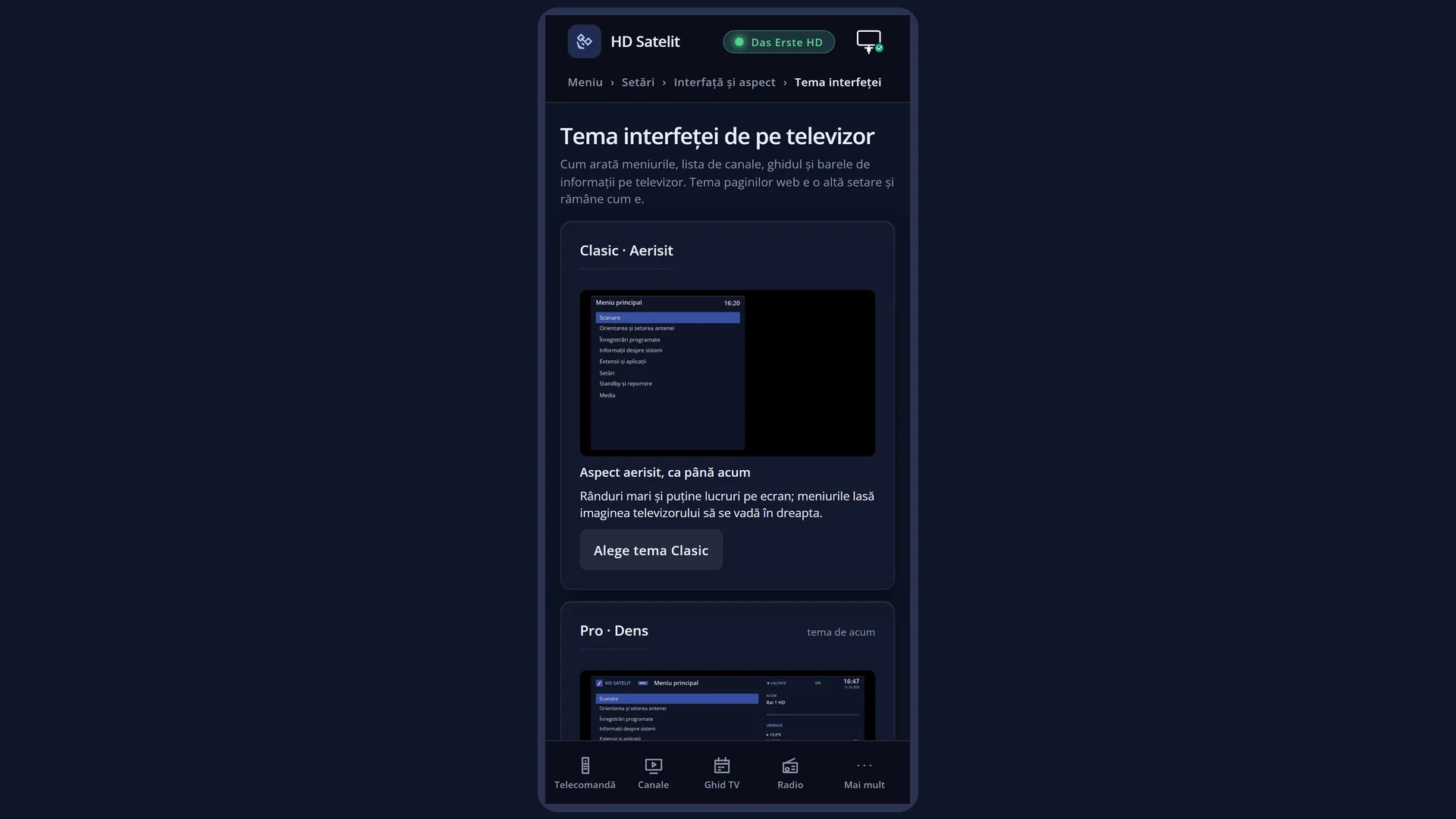
Classic (the factory setting) is airy: large rows and few things on screen, and the menus leave the TV picture visible on the right.
Pro is dense: panels with technical information (the signal, the programme, the receiver), smaller text, a bar at the top with the clock and date, and the key legend at the bottom. It is for people who want to see at a glance how reception is going.
The theme appears after the interface restarts, which takes a few seconds. The receiver does not switch off. The colours stay as chosen in “Skin settings”, and the theme of the web pages is a separate setting that you cannot change here.
How to get here
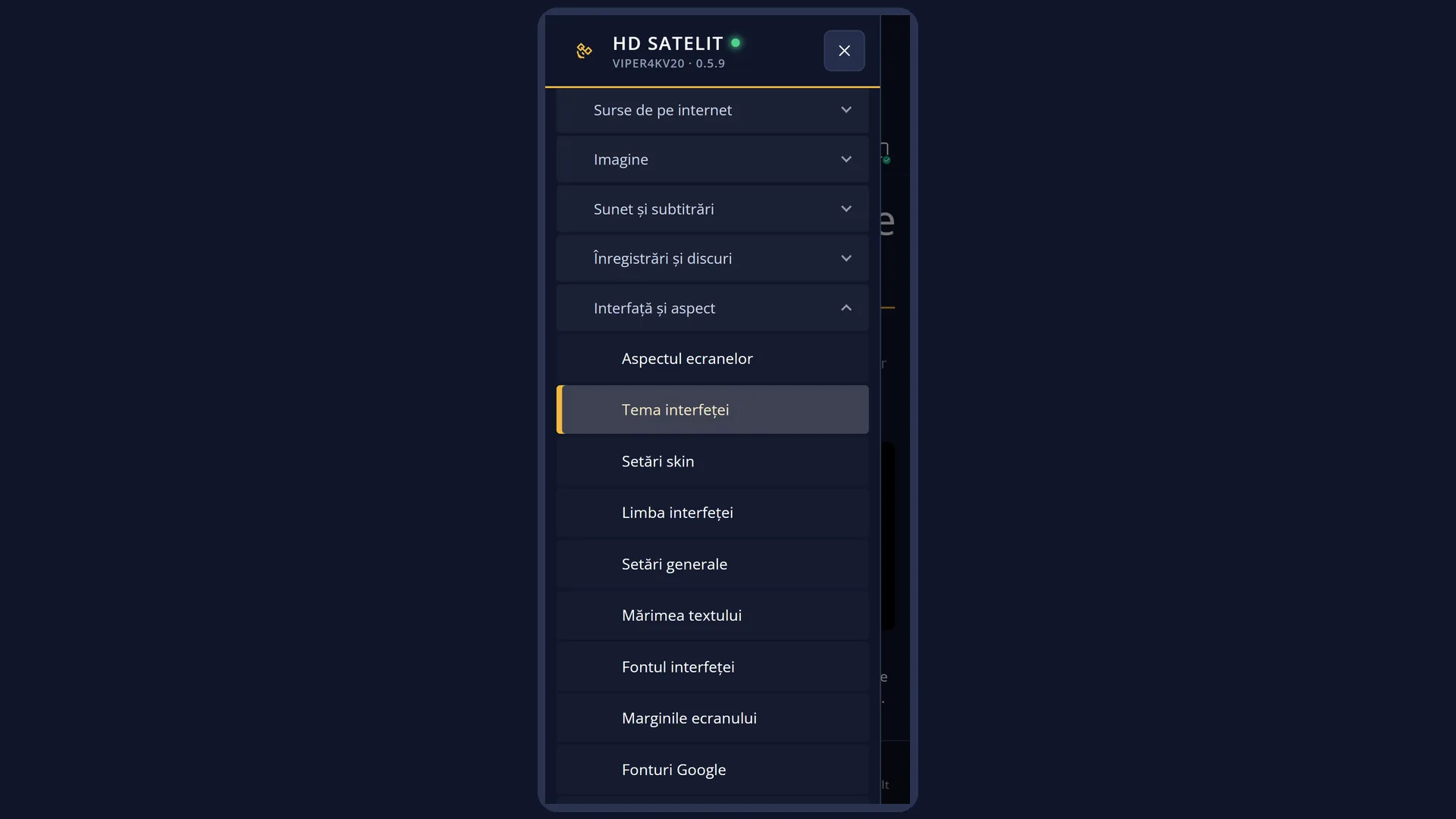
Path: Main menu > Settings > Interface & Appearance > Interface theme.
Keys on the remote: MENU 6 6 2.
In the web interface: the /tema-tv page (“TV interface theme”), with the two themes, their pictures and “Restart the interface now”.
What you see on the screen
At the top, the title “Interface theme”, below it “Choose how the menus look on the TV” and, on the right, “Left and Right choose the theme”.
Two cards side by side: Classic on the left, Pro on the right. Each one has its name, a short phrase (“Airy look, as before” or “More information on screen”), a picture of a menu in that theme and a description.
The card with the cursor on it has a bright frame. In the corner of each card you see its status: “Current theme”, “Chosen, after restart” or “On screen until restart”.
Below the cards, the note “The TV theme is separate from the web interface theme...” and a message, usually “The new theme shows after the interface restarts: a few seconds, the receiver does not turn off.”.
At the bottom, the keys: RED “Cancel”, GREEN “Apply”, YELLOW “Default (Classic)”.
Rows and settings
| Row | Values | Default | What it does |
|---|---|---|---|
| Interface theme | Classic, Pro | Classic | Classic: airy look, as before. Pro: more information on screen, with technical panels, smaller text and the key legend at the bottom. Pro, if you want to see the signal, the programme and the receiver status in every menu. Classic, if you want simple menus with large text. |
Keys
| LEFT / RIGHT | Moves the cursor to the Classic theme (left) or the Pro theme (right). |
| GREEN (Apply) or OK | Chooses the theme under the cursor and asks “... Restart it now?”. Yes restarts the interface, on the same channel. No keeps the chosen theme for the next restart. If the theme under the cursor is already the current one, the screen simply closes. |
| YELLOW (Default (Classic)) | Moves the cursor to the Classic theme, the factory one. Then GREEN applies it. |
| RED (Cancel) or EXIT | Closes without changing the theme. |
| UP / DOWN | Do nothing here. |
Step by step
Switch to the Pro theme
- Press MENU 6 6 2.
- Press RIGHT: the frame moves to the Pro card.
- Press GREEN, then Yes at the question. The interface starts again in a few seconds, with the Pro theme.
Go back to the Classic theme
- Press MENU 6 6 2.
- Press YELLOW (or LEFT): the frame moves to Classic.
- Press GREEN, then Yes.
Problems and solutions
I chose Pro and nothing changed.
The theme appears after the interface restarts. If you answered No to the question, restart the interface from Main menu > Power & Restart, or press GREEN again on this screen and choose Yes.
The card says “Missing from the skin”.
The installed HDSatelit skin does not have the Pro layout. In that case the message says “The Pro theme is missing from the installed skin. Update the HDSatelit skin.”. Do the update from Settings > Software & Firmware.
The message says the theme can only be chosen with the HD Satelit skin.
You have chosen a different skin in “Screen appearance”. First choose the HDSatelit skin there (MENU 6 6 1), then the theme.
I changed the theme and the web pages look the same.
The web page theme is separate: you choose it in the browser, at /setari, in the “Web interface look” box.