

Recording Locations
English screenshots coming: some of the pictures below still show the receiver and the web interface in Romanian. The rows, keys and steps described on this page are the English ones.
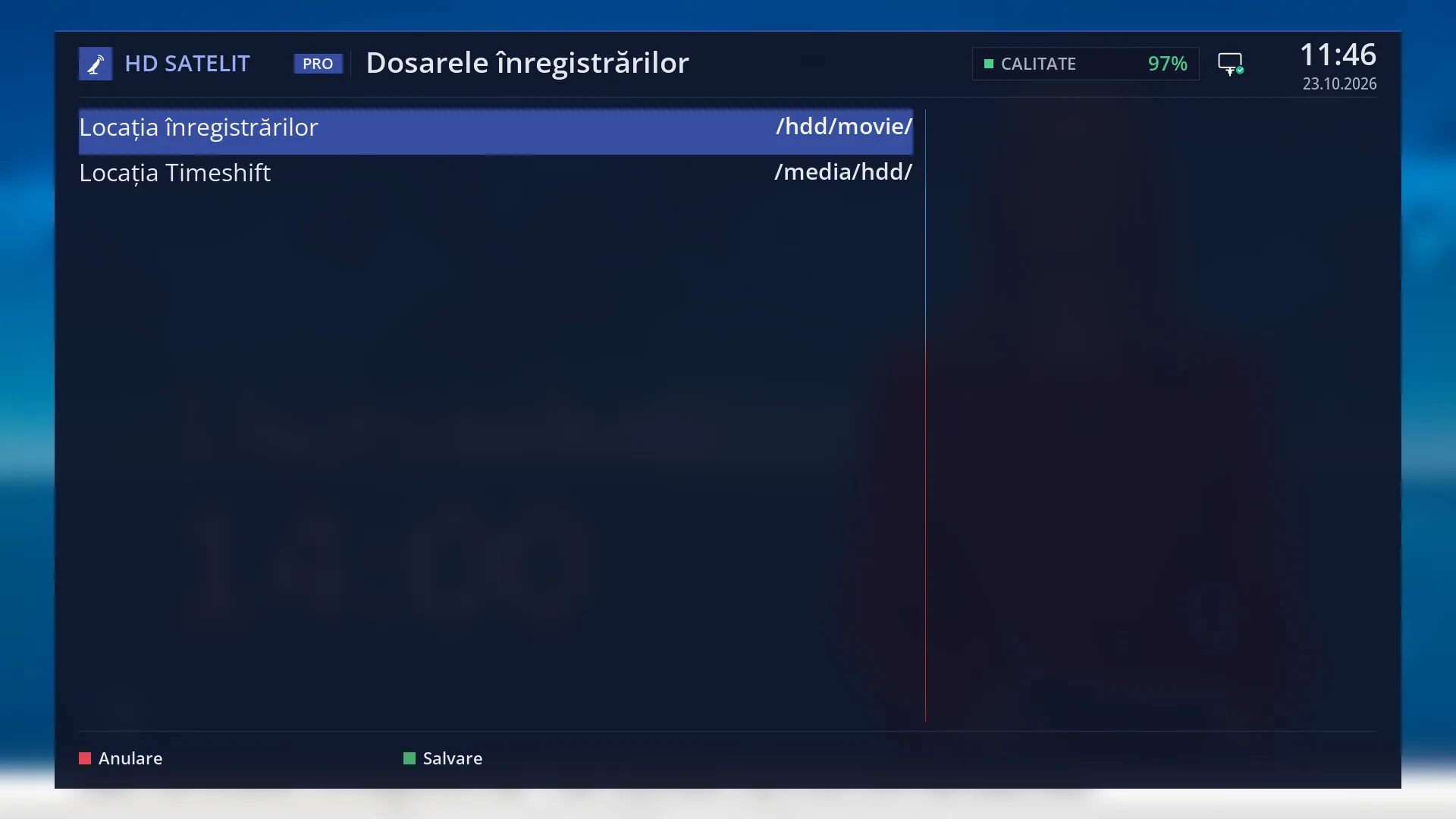
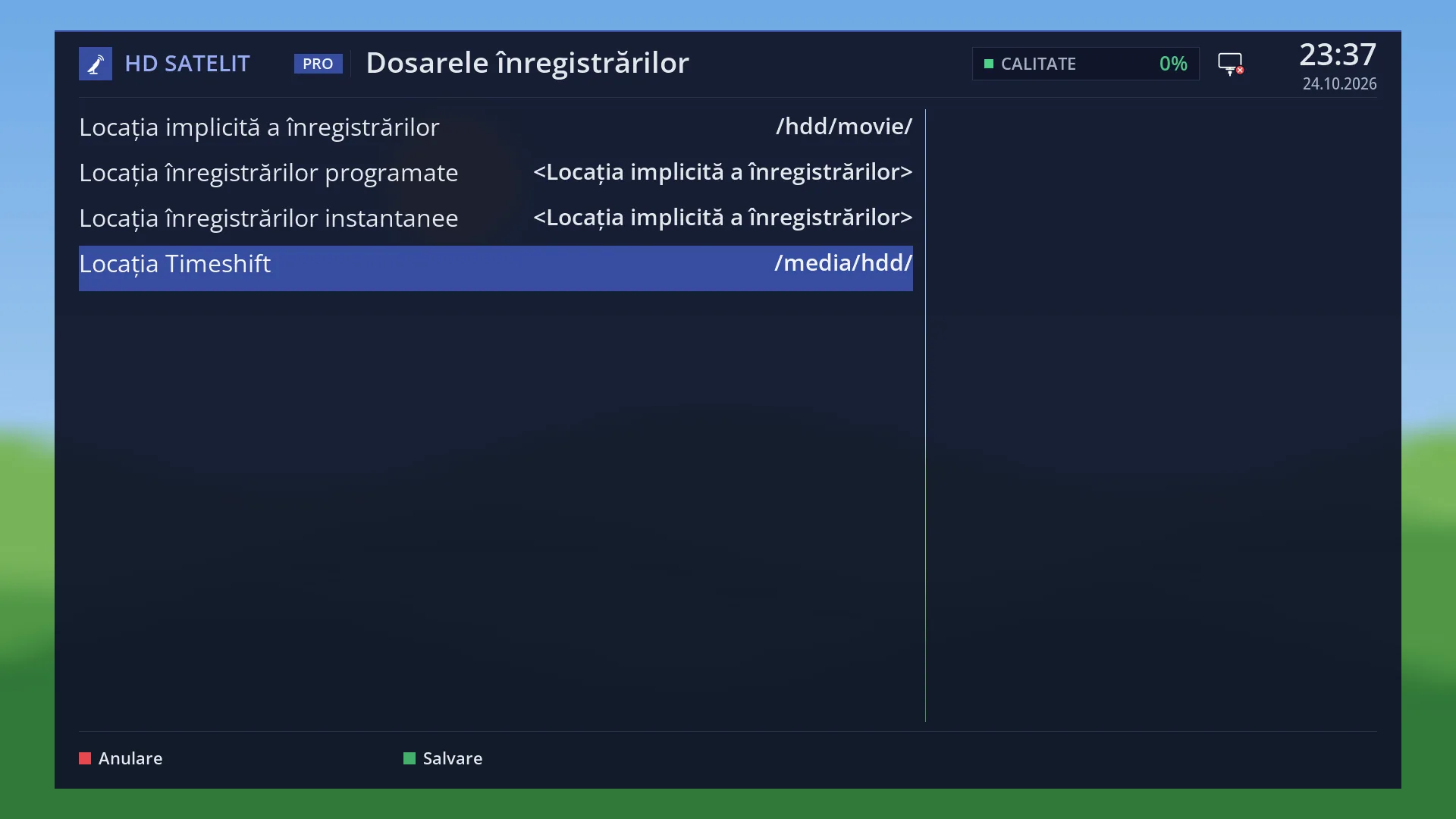
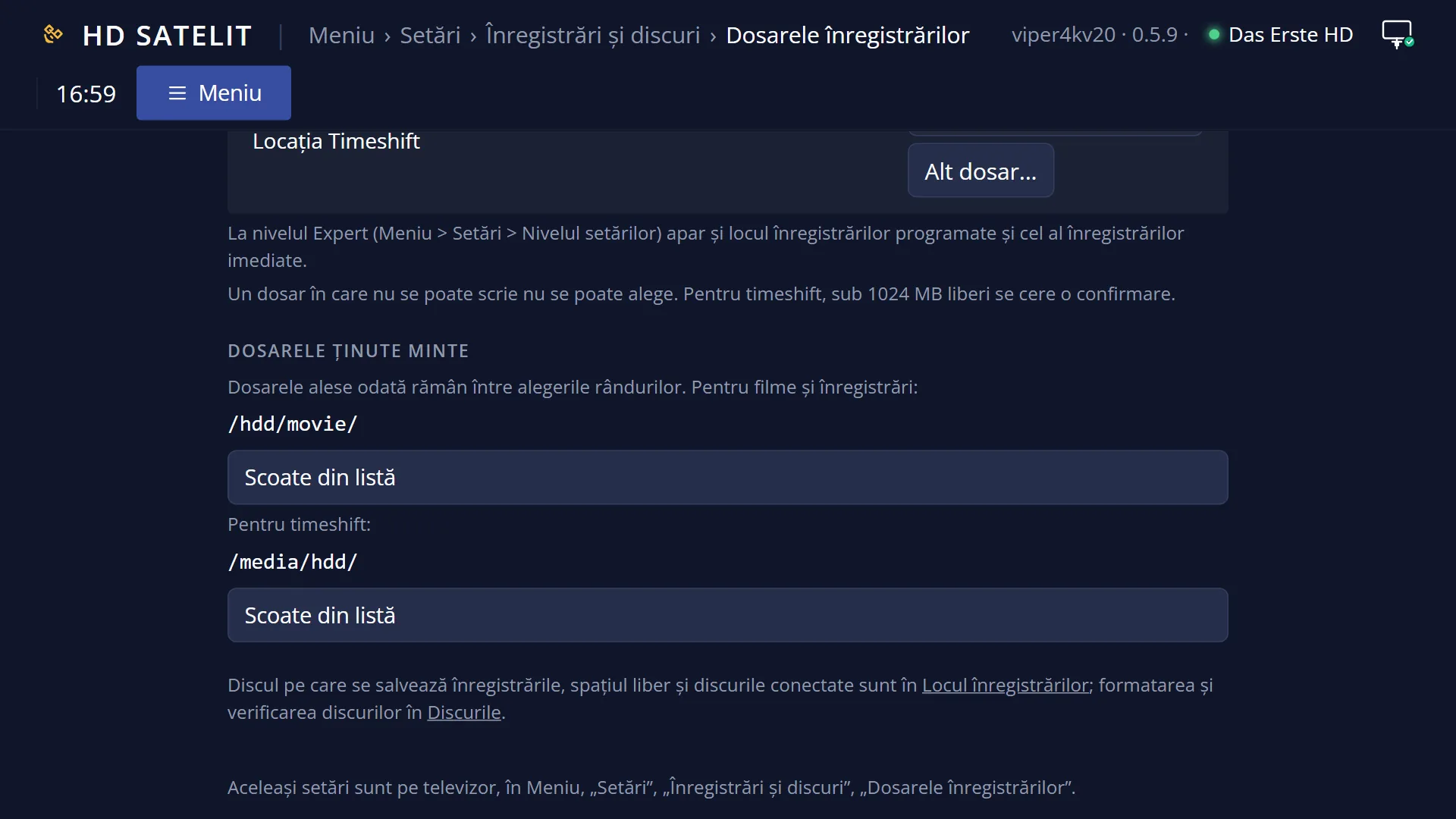
- 1 “Movie location” and the chosen folder, on the right.
- 2 “Timeshift location”: the live pause folder.
- 3 The screen title.
- 4 RED closes without saving, GREEN saves.
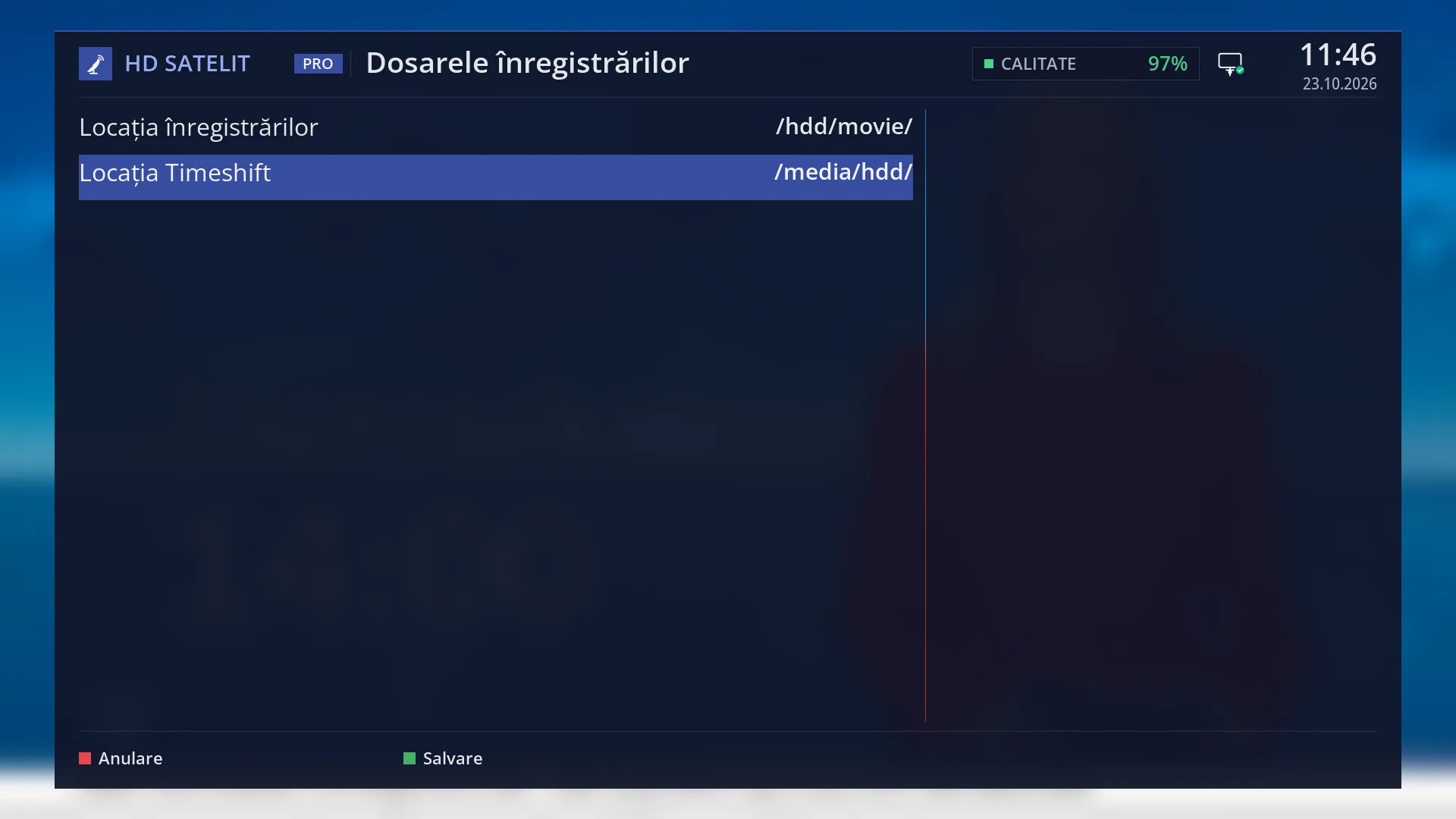
- 1 The selected row: “Timeshift location: media/hdd”.
What it is for
The “Recording Locations” screen shows the folder on the hard drive or USB stick where recordings are saved, and the folder the receiver uses for live pause (timeshift).
Open it when you have fitted a new hard drive, when you want recordings in a different folder (for example “Films” on a USB stick), or when live pause does not start because its folder no longer exists.
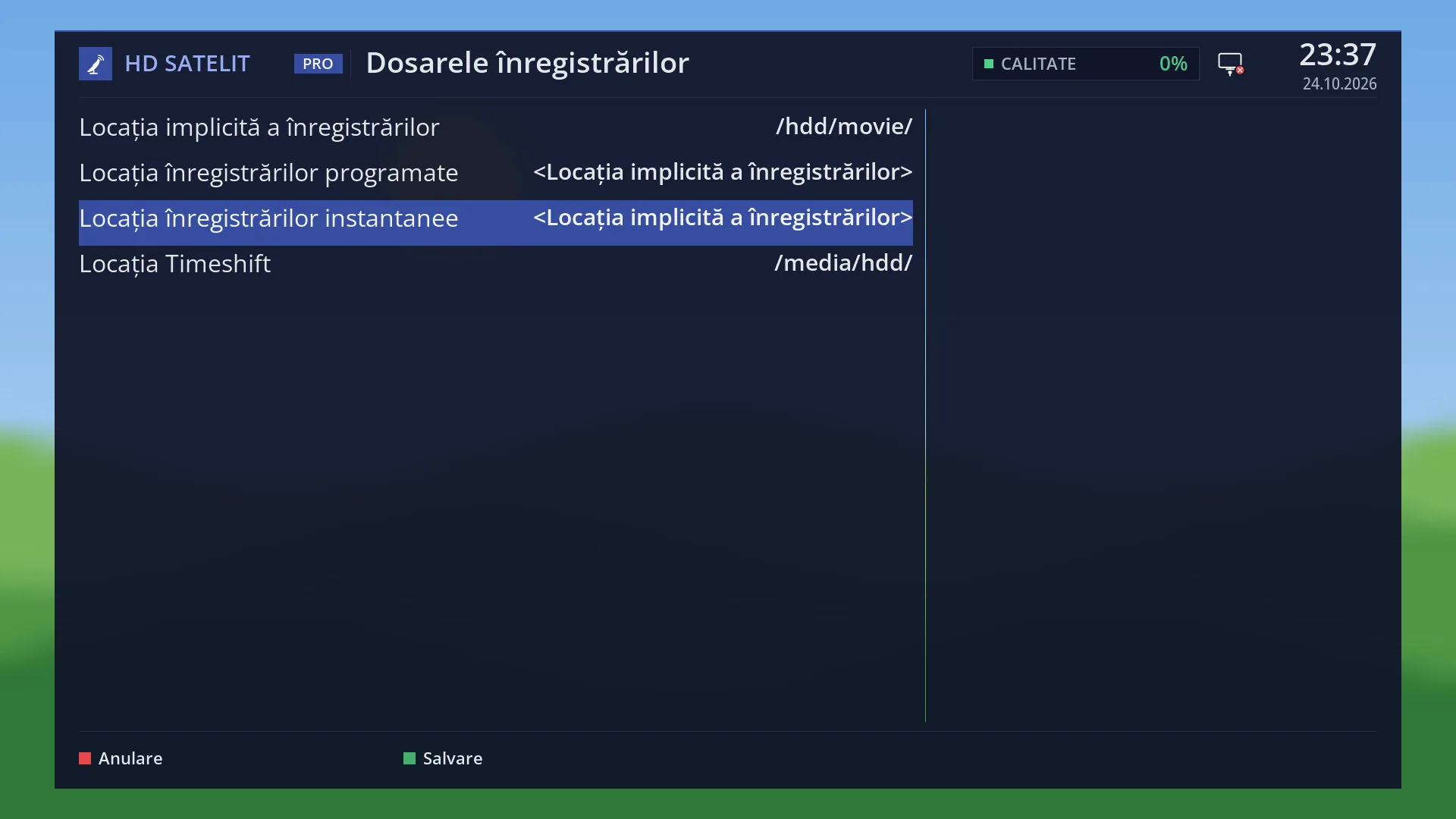
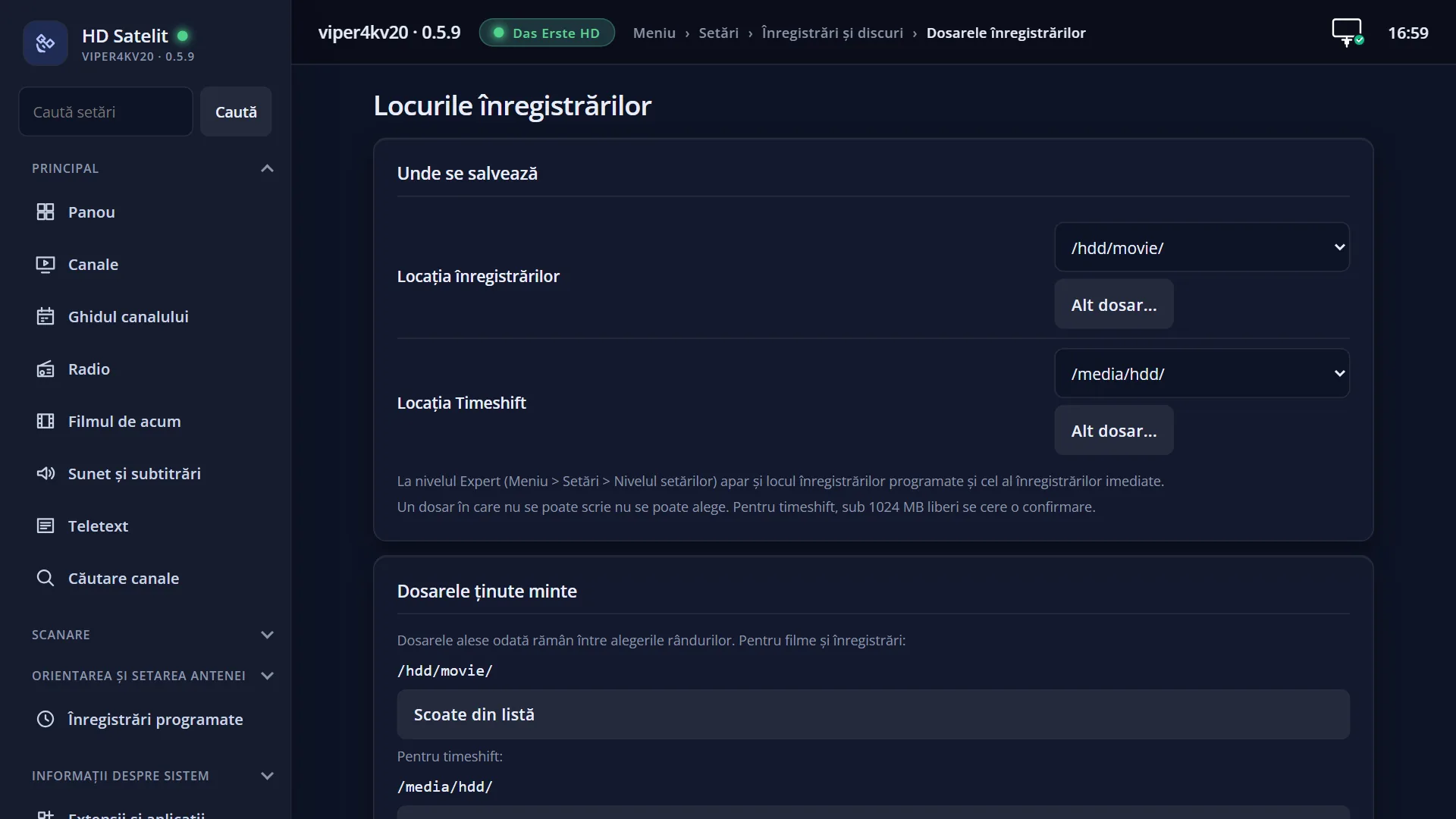
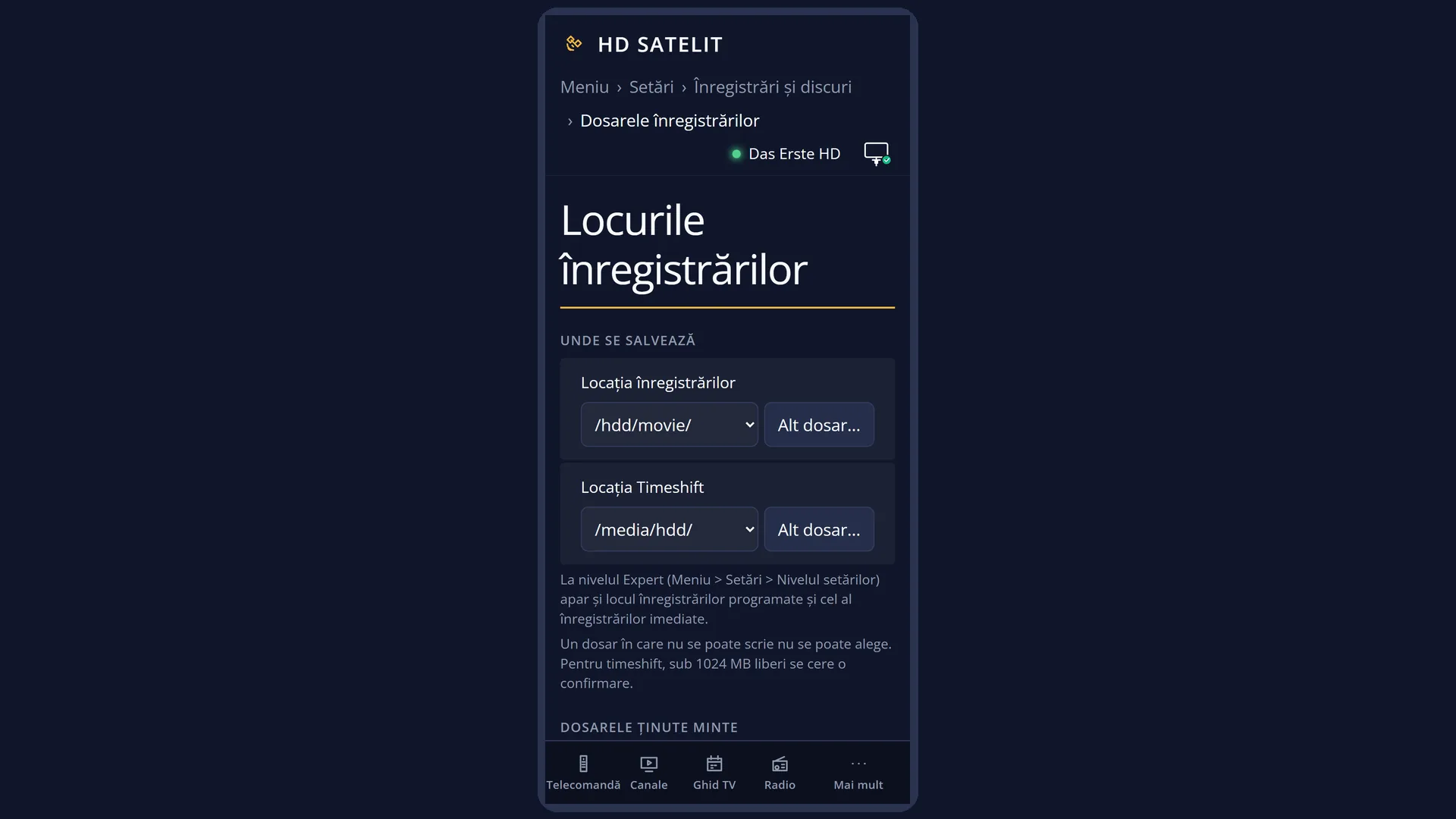
By default you see two rows: “Movie location” and “Timeshift location”. In the Expert setup mode, the first row splits into three: the default location, the location for timer recordings and the location for instant recordings.
Once you choose a folder, the receiver remembers it, so next time you can find it with LEFT and RIGHT without searching the drive again.
The drive used for saving and its free space are on another screen, “Recordings location”. Here you only choose the folder.
How to get here
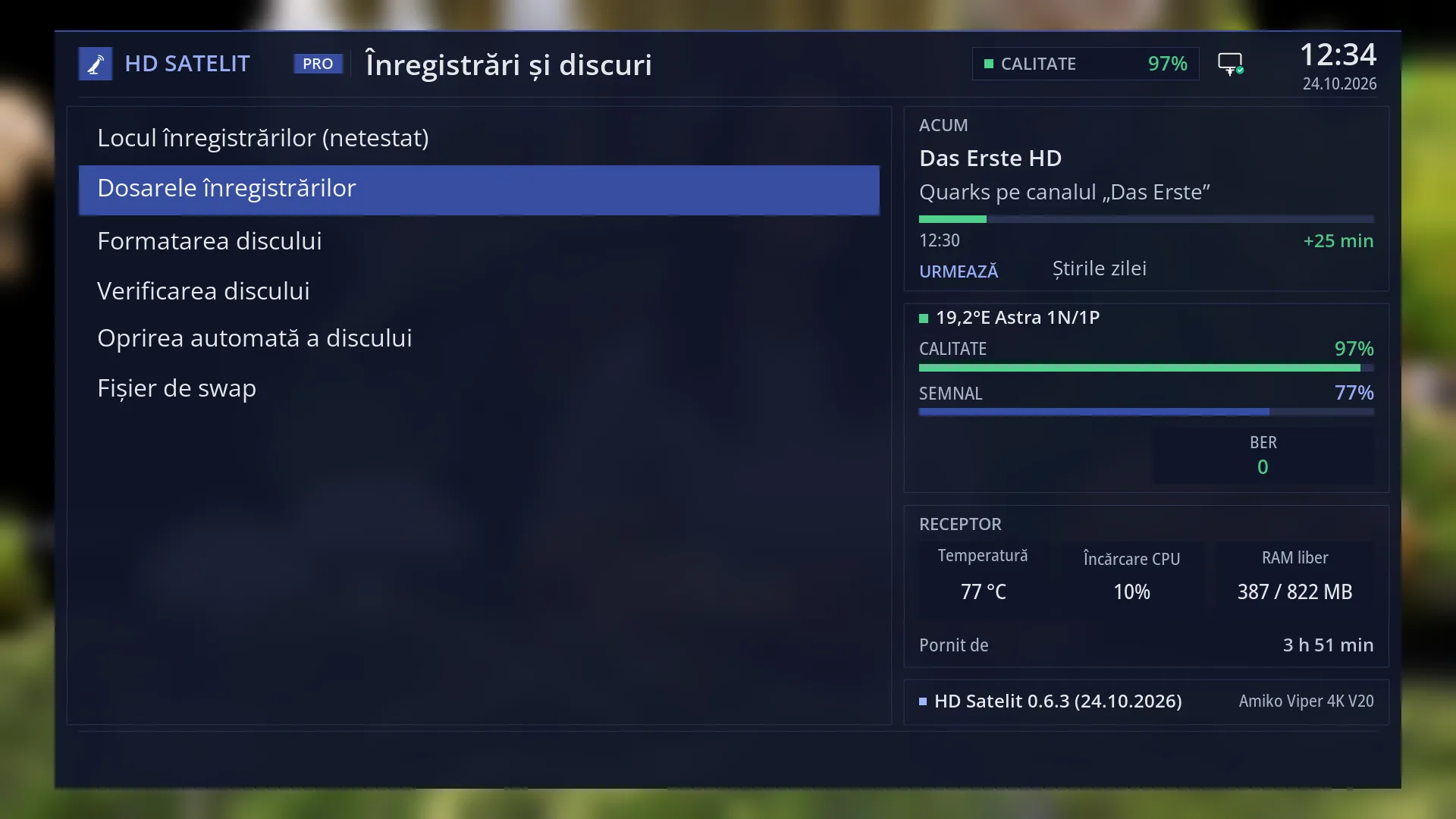
Path: Main menu > Settings > Recording & Storage Setup > Recording Locations.
Keys on the TV screen: MENU 6 5 2.
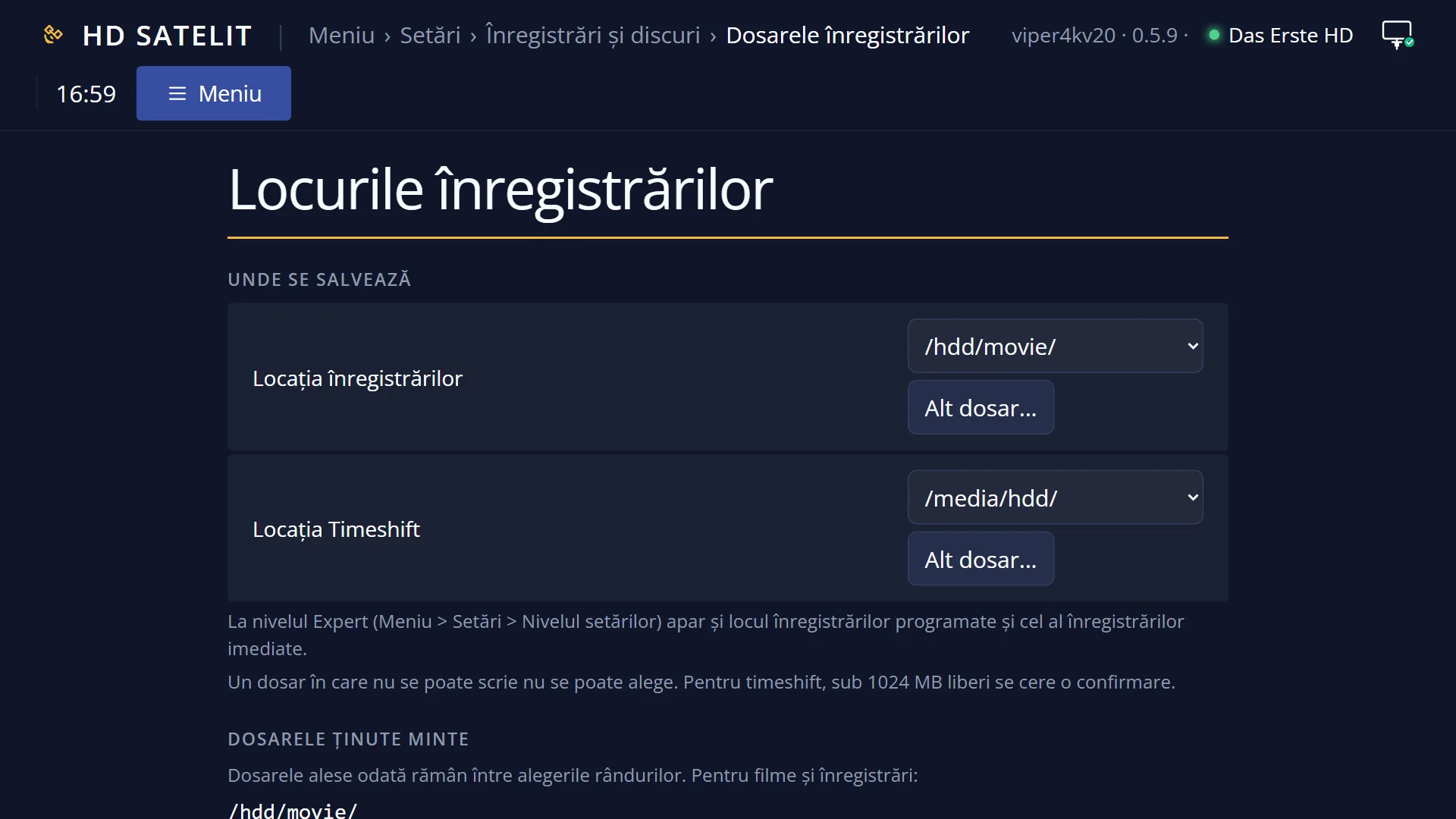
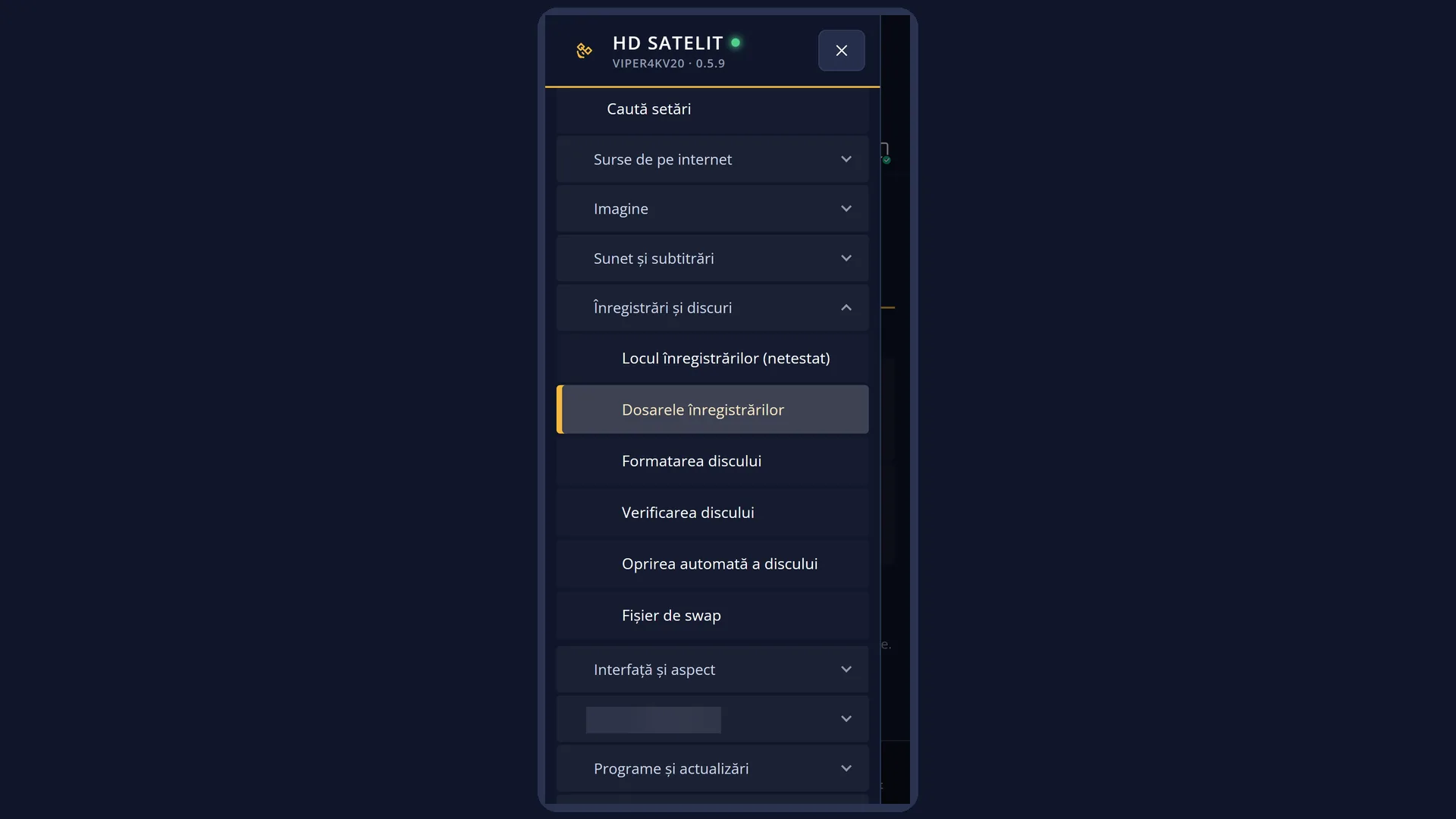
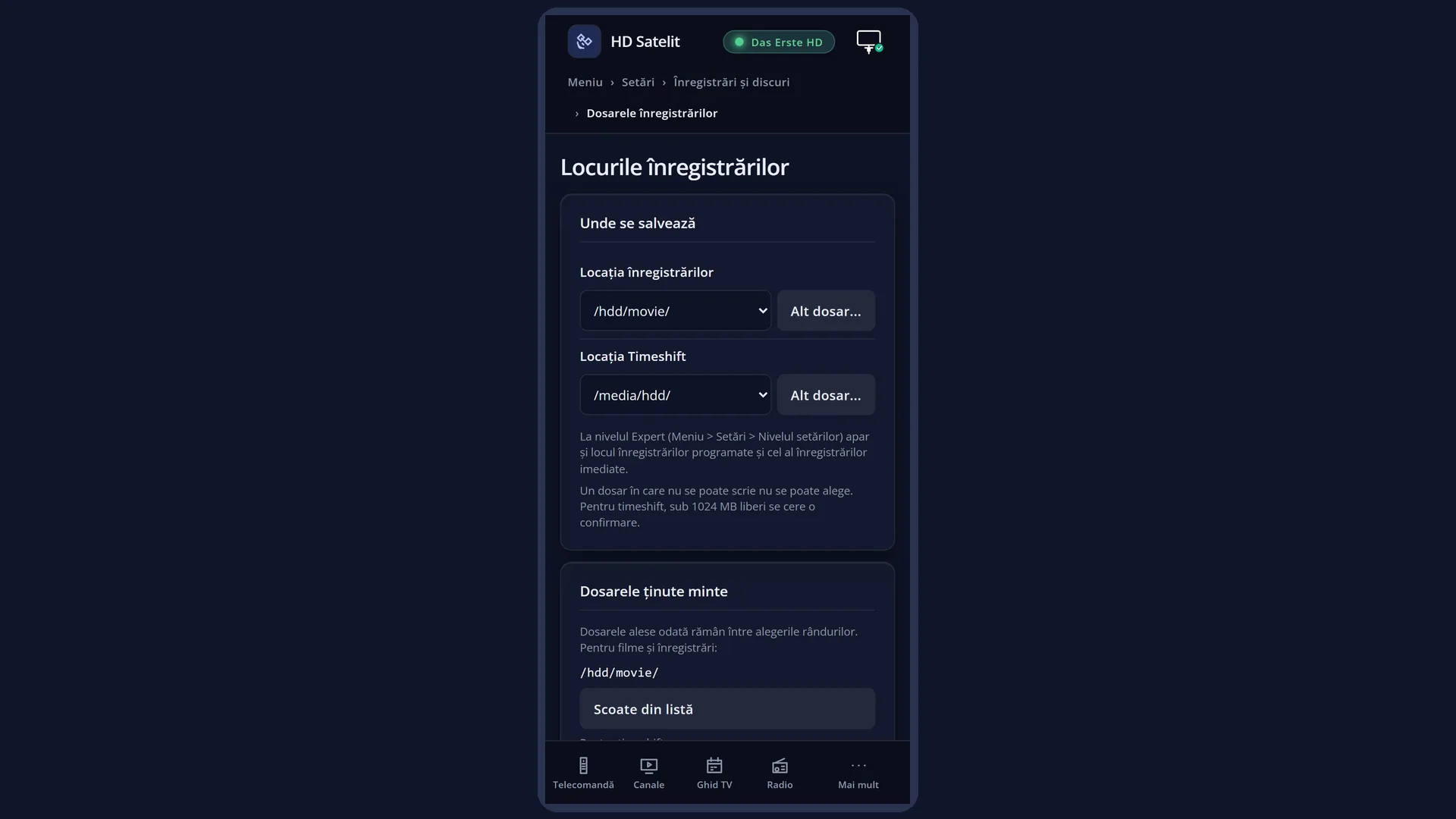
In the web interface: the /locuri-inregistrari page (“Recordings locations”), with the same rows, the same folder choice and the same checks.
What you see on the screen
At the top: the title “Recording Locations”, the clock and the date. In the Pro theme you also see “HD SATELIT” with the “PRO” label, the signal quality and the network icon.
On the left is the list of rows. At the far right of each row is the folder currently chosen, for example “/hdd/movie/” for recordings and “/media/hdd/” for timeshift. The selected row has a blue background.
At the bottom, the keys: RED “Cancel” and GREEN “Save”.
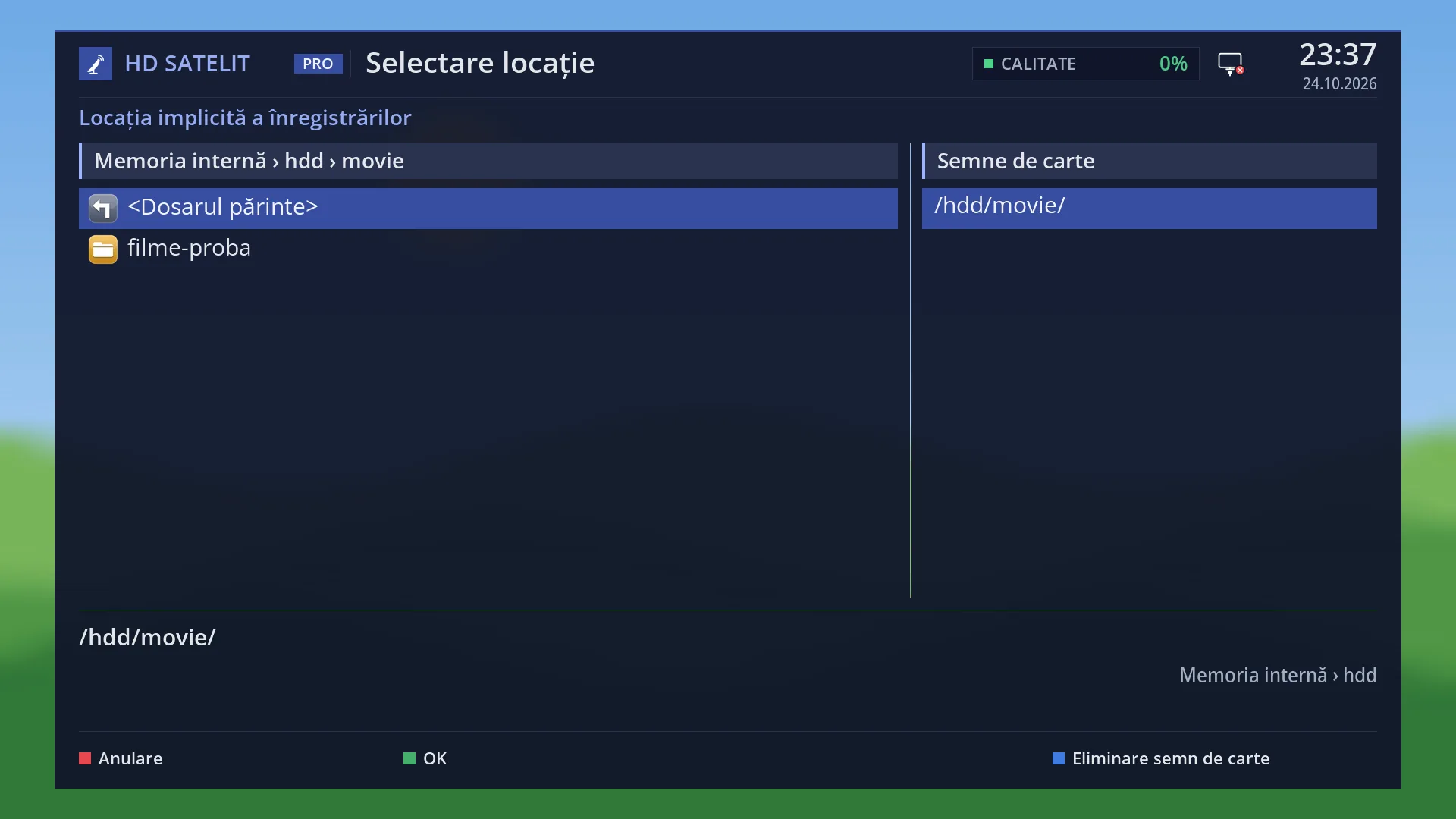
When you press OK on a row, the folder browser opens. At the top is the row's question (for example “Where to save temporary timeshift recordings?”), below it the path you are in, on the left the folders, on the right “Bookmarks” (the remembered folders), and at the bottom the folder that will be used and how much free space its drive has. The browser keys are RED “Cancel”, GREEN “OK” and BLUE “Add Bookmark” or “Remove Bookmark”.
If you choose a folder that cannot be written to, the message “Cannot write to the folder ... Select a folder that can be written to.” appears and the row keeps the previous folder.
Rows and settings
| Row | Values | Default | What it does |
|---|---|---|---|
| Movie location | Remembered folders, any folder chosen with OK in the browser | /hdd/movie/ | The folder where recordings are saved. The row looks like this in the Simple and Intermediate modes. In these modes, both timer recordings and recordings started instantly with the record key go here. When you have fitted a new hard drive or USB stick, or you want recordings in a particular folder. |
| Default movie location (Expert only) | Remembered folders, any folder chosen with OK in the browser | /hdd/movie/ | The same location as the row above, under another name. In Expert mode it is the base location, used by the other two rows when they are set to “<Default movie location>”. The same as the row above. |
| Timer record location (Expert only) | <Default movie location>, <Current movielist location>, <Last timer location>, Remembered folders, any folder chosen with OK | <Default movie location> | The folder a new timer recording suggests. <Default movie location> uses the base location. <Current movielist location> uses the folder last opened in the recordings list. <Last timer location> uses the folder of the last timer recording. When you want timer recordings to go to a different folder from the others. |
| Instant record location (Expert only) | <Default movie location>, <Current movielist location>, <Last timer location>, Remembered folders, any folder chosen with OK | <Default movie location> | The folder for recordings started instantly with the record key while you are watching. The choices mean the same as in the row above. When you want instant recordings kept separate from timer recordings. |
| Timeshift location | remembered folders for timeshift, any folder chosen with OK in the browser | /media/hdd/ | The folder where the receiver writes the programme while you pause live TV. If the chosen drive has 1024 MB free or less, the browser asks “There might not be enough space on the selected partition. Do you really want to continue?”. When live pause does not start, or you want it on a different drive from the recordings. |
Keys
| UP / DOWN | Moves the cursor to another row. |
| LEFT / RIGHT | Steps through the row's remembered folders (and, on the Expert rows for timer and instant recordings, through the three choices in < >). |
| OK | Opens the folder browser for the selected row, so you can choose any folder on the drives. |
| GREEN (Save) | Checks that the folder of the selected row can be written to, saves all rows and closes the screen. |
| RED (Cancel) / EXIT | Closes the screen without keeping the choices made with LEFT and RIGHT. |
| In the browser: UP / DOWN | Moves the cursor in the folder list or in “Bookmarks”. |
| In the browser: LEFT / RIGHT | Jumps one page up or down in the current list. |
| In the browser: OK | In the folder list, opens the selected folder. In “Bookmarks”, chooses the selected folder, like GREEN. |
| In the browser: GREEN (OK) | Chooses the folder under the cursor and takes you back to the screen. The folder is also added to “Bookmarks”. |
| In the browser: CH- / CH+ | CH- moves the cursor to “Bookmarks”, CH+ moves it back to the folder list. |
| In the browser: BLUE | In the folder list, adds the selected folder to “Bookmarks”. In “Bookmarks”, removes it after the question “Do you really want to remove your bookmark of ...?”. |
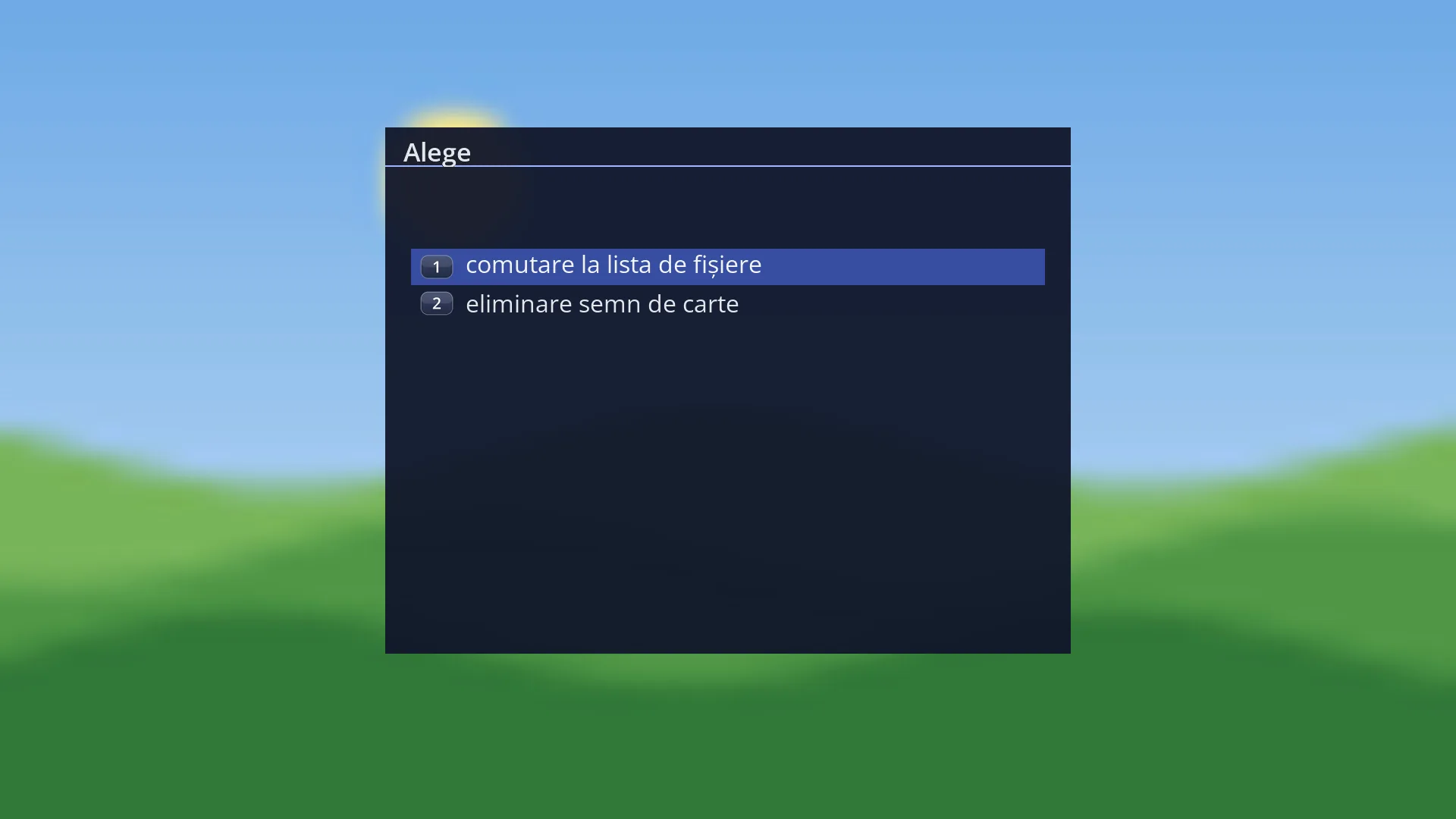
| In the browser: MENU | Opens a small list: switching between lists, adding or removing the bookmark, “create directory” (a new folder in the current folder) and “remove directory” (only an empty folder, after a question). |
| In the browser: digits | You type the first letters of a folder, as in a text message. The cursor jumps to the first folder that starts that way. |
| In the browser: RED / EXIT | Closes the browser without changing the folder. |
Step by step
Moving recordings to a USB stick
- Plug in the USB stick and press MENU 6 5 2.
- On “Movie location”, press OK. In the browser, select the USB stick with OK and open the folder you want (or create a new one: MENU, “create directory”).
- Press GREEN in the browser, then GREEN (Save) on the screen. New recordings go to the USB stick. Old ones stay where they were.
Putting live pause on another drive
- Press MENU 6 5 2 and move the cursor to “Timeshift location”.
- Press OK, choose the drive and the folder, then press GREEN. If the drive has little free space, confirm the question or choose another drive.
- Press GREEN (Save) to close the screen.
Removing a folder you no longer use from the list
- On the row you want, press OK, then CH- to move to “Bookmarks”.
- Move the cursor to the folder, press BLUE, then confirm. The folder stays on the drive. It just no longer appears among the choices.
- Press RED to leave the browser.
Problems and solutions
“Cannot write to the folder ...” appears.
The hard drive or USB stick is no longer plugged in, is full or is read-only. Plug it back in or choose another folder. You can prepare a new USB stick from “Format Hard Drive”.
I cannot see the rows for timer recordings and instant recordings.
They only appear in the Expert setup mode: Menu > Settings > Interface & Appearance > OSD Preferences, row “Setup Mode”.
The browser does not show some of the receiver's folders.
This is by design: system folders are hidden so that recordings do not end up there. Start from the list of drives and choose the hard drive or USB stick.
I chose a folder for timeshift and then left with Cancel, but the new folder was kept.
For “Timeshift location”, a folder chosen with GREEN in the browser is kept straight away. To go back, choose the old folder again.
I cannot delete a folder in the browser.
“remove directory” only deletes an empty folder. First move or delete the recordings in it, from the film list.
Old recordings do not show in the film list after I changed the folder.
They are still in the old folder. In the film list, choose the old folder or move them.