

Google Fonts
English screenshots coming: some of the pictures below still show the receiver and the web interface in Romanian. The rows, keys and steps described on this page are the English ones.
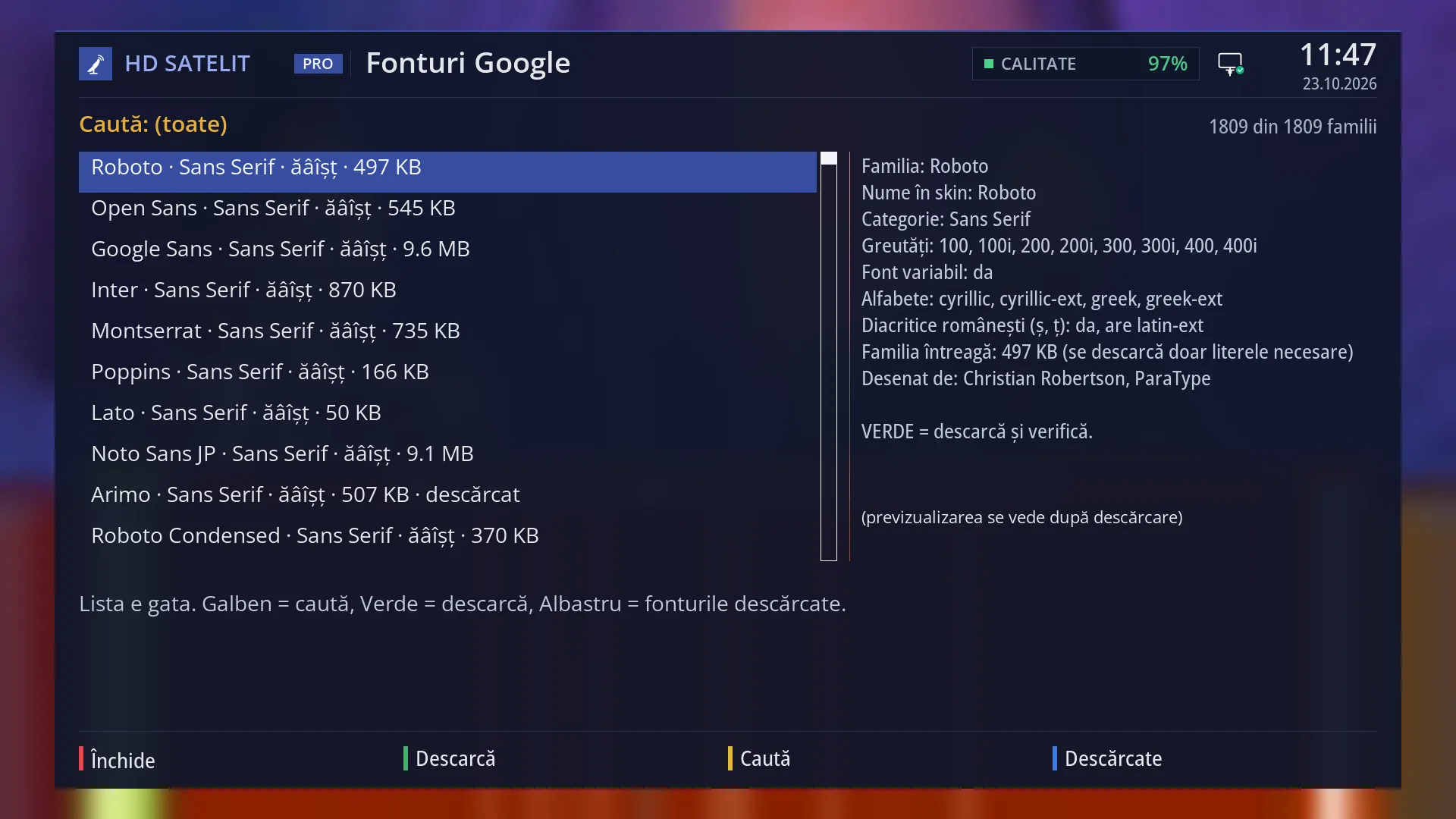
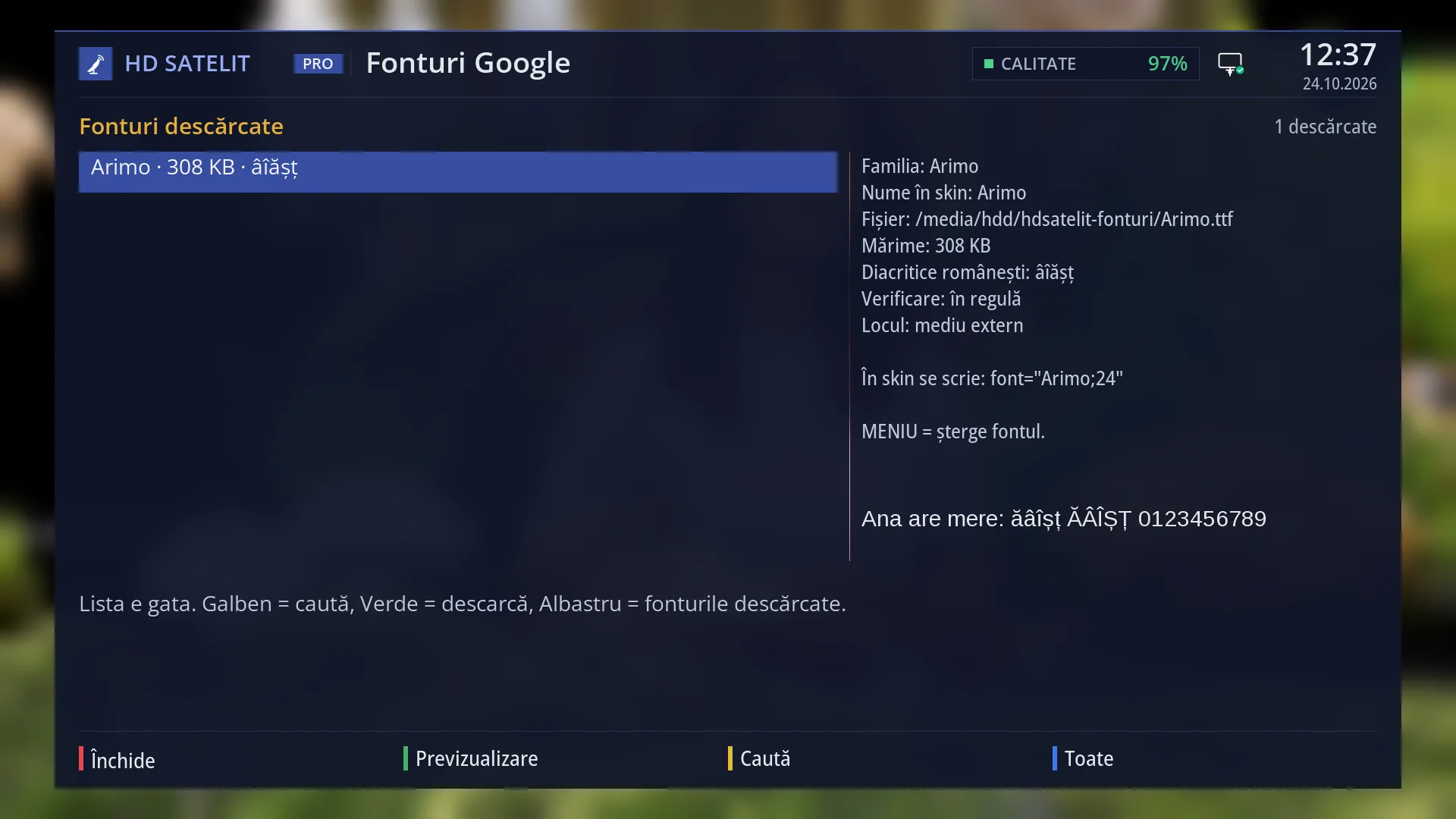
- 1 What you are searching for (yellow) and how many families are shown out of the total.
- 2 The families: name, category, diacritics, size and “downloaded”.
- 3 Details of the family under the cursor.
- 4 The sample, written in the font once it is downloaded.
- 5 The progress bar and the status: where the fonts are saved, what is downloading, the result.
- 6 RED Close, GREEN Download, YELLOW Search, BLUE Downloaded.
What it is for
“Google Fonts” downloads free fonts from Google Fonts straight to the receiver: more than 1800 families, with no account and no key.
You can then choose a downloaded font for subtitles in “Subtitle appearance”, on the “Font” row. If you make your own skin, you can also use it there, by its “Skin name”. The receiver's menus only use the four fonts in “Interface font”.
Before you download, you can see the family, the category, the weights, the alphabets, whether it has the Romanian diacritics (ș, ț) and how much space it takes. Only the regular style of the font is downloaded (not bold or italic), and only the letters the receiver needs (Latin, Cyrillic, Greek, Vietnamese), so a font ends up much smaller than the whole family.
Every downloaded file is checked before it is used. A file that is not a valid font is deleted and the receiver does not use it.
The fonts are saved to a USB stick or a disk, if one is connected (there they survive an image update). Without a disk, they go into the receiver's memory, and an image update deletes them.
How to get here
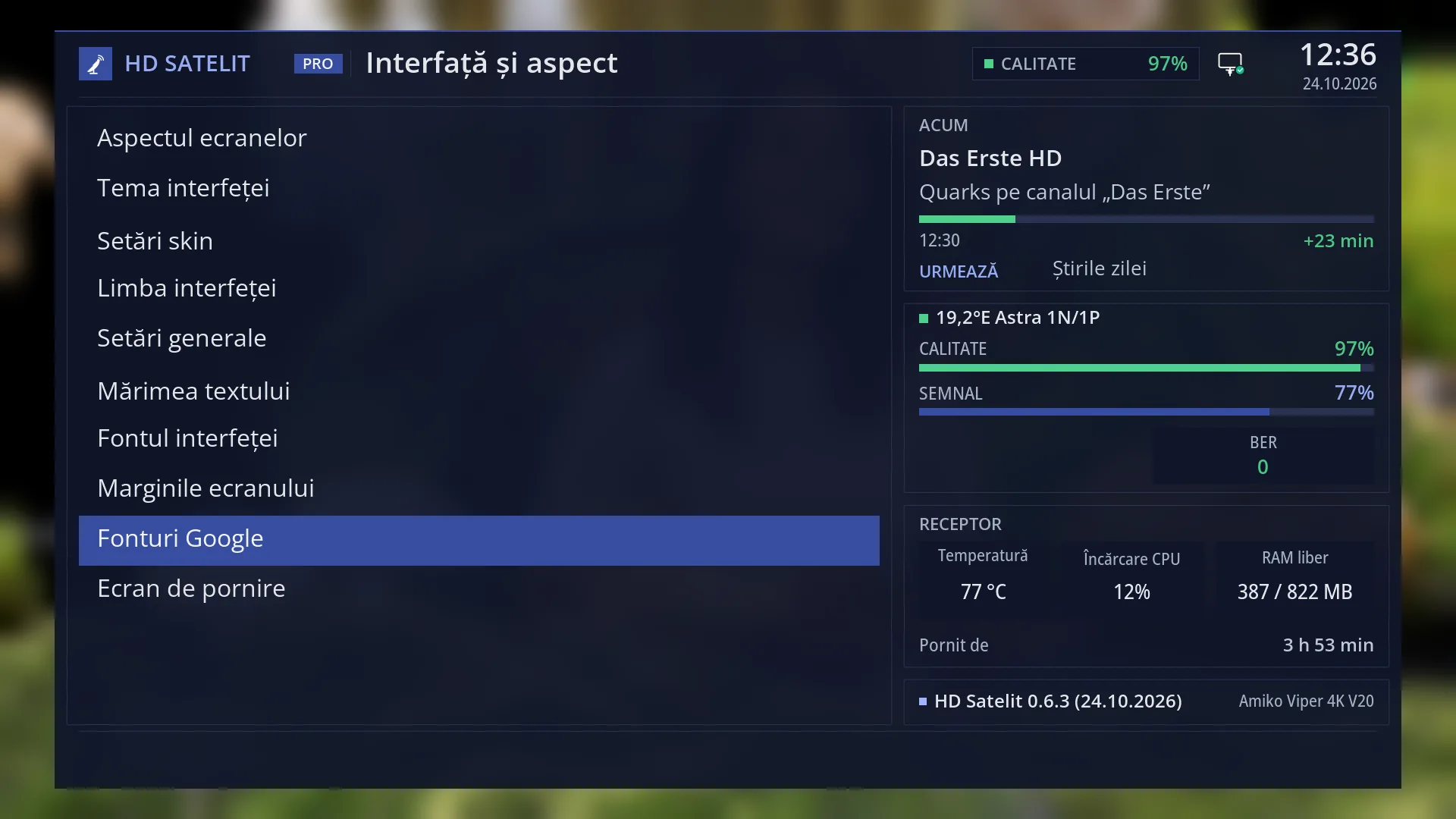
Path: Main menu > Settings > Interface & Appearance > Google Fonts.
Keys from the TV: MENU 6 6 9.
From “Interface font”, with the YELLOW key.
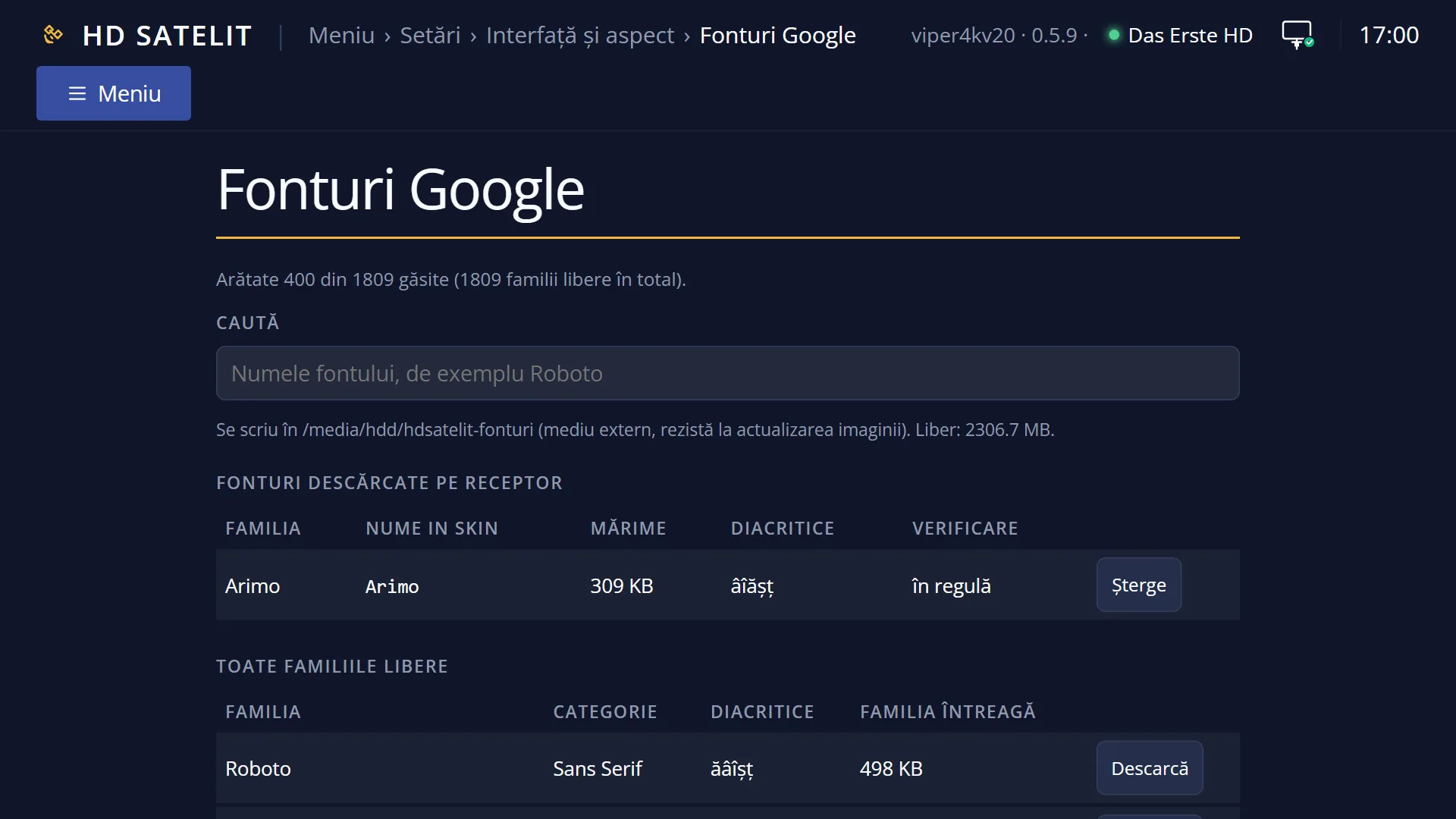
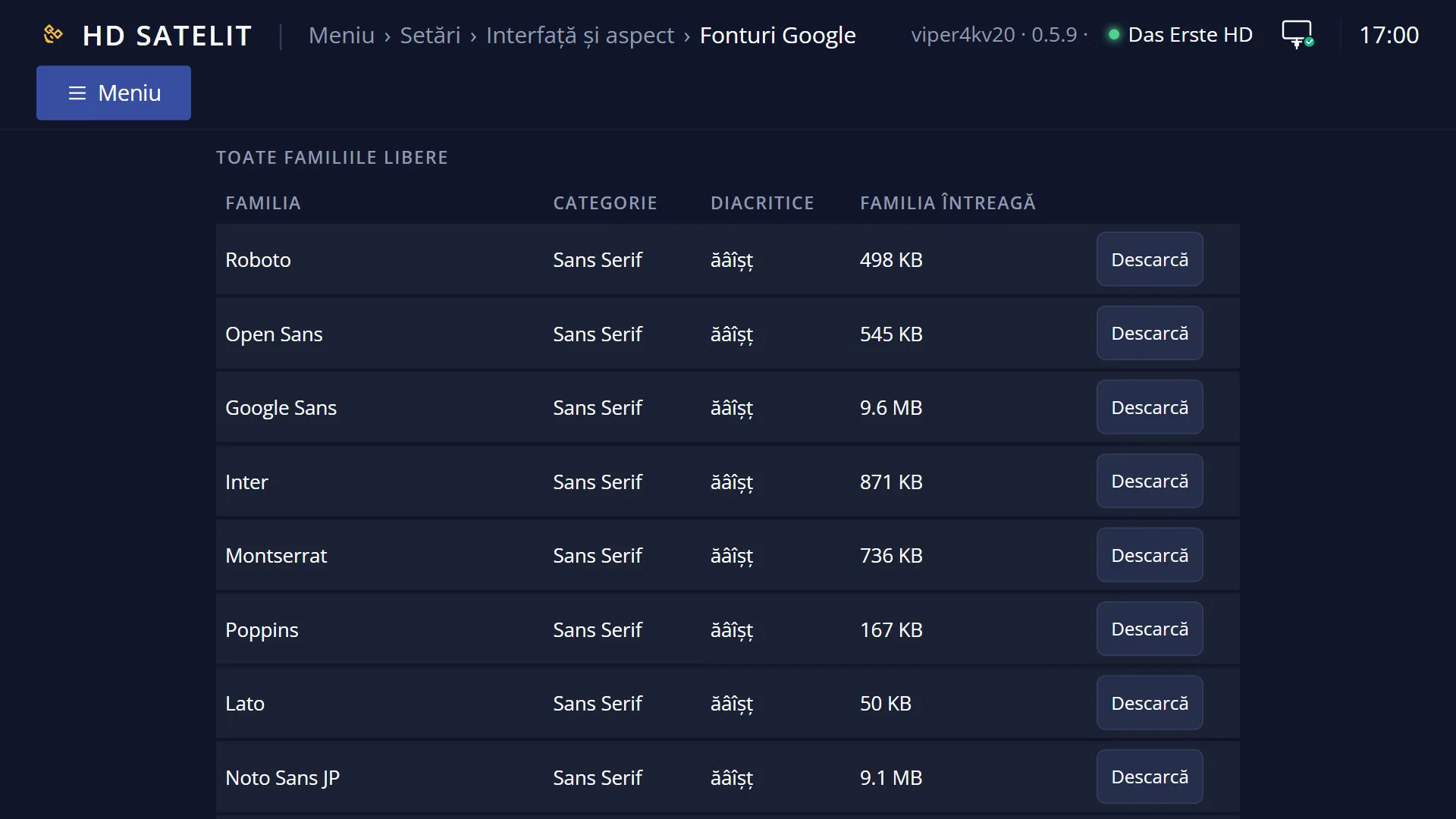
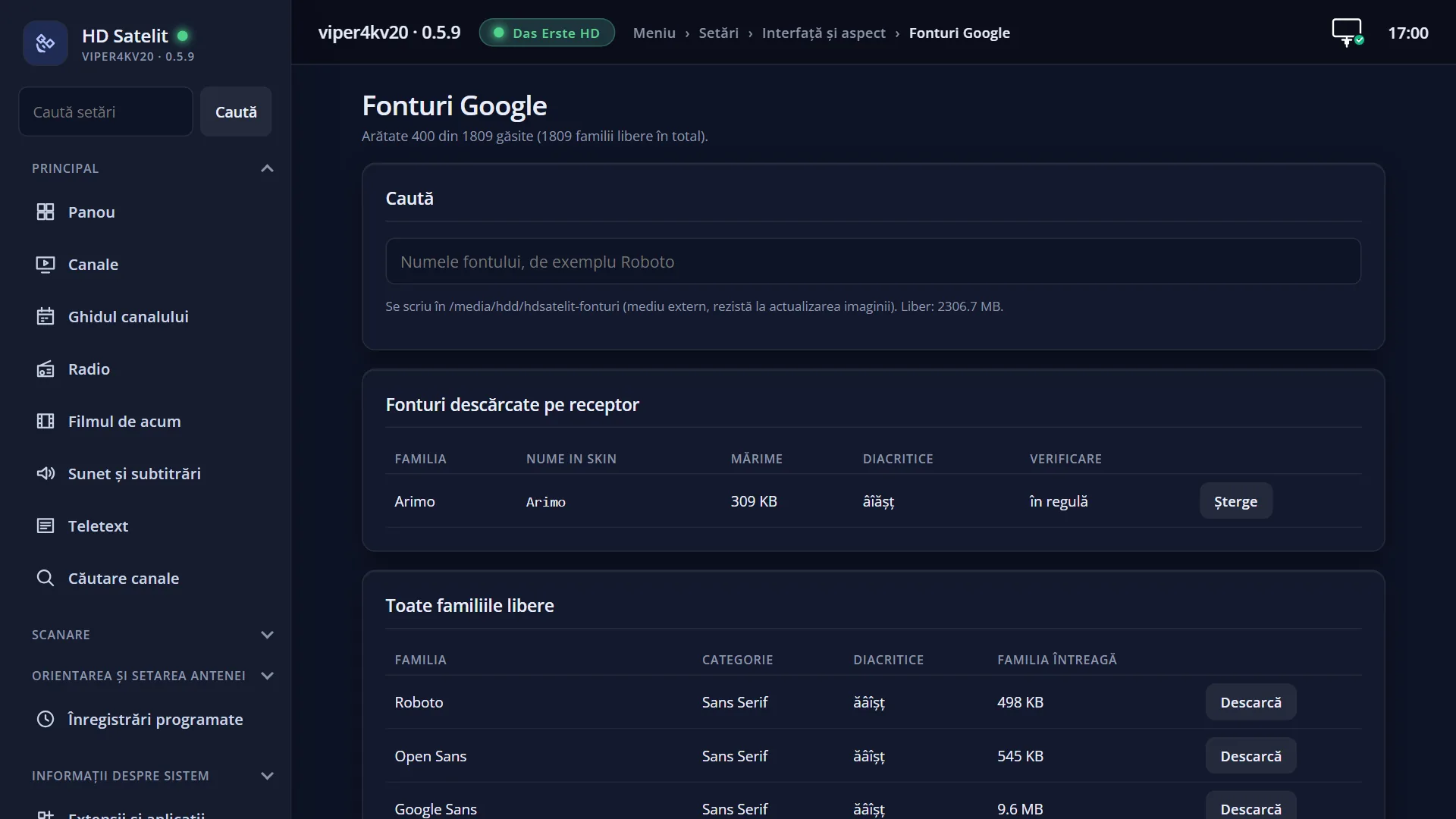
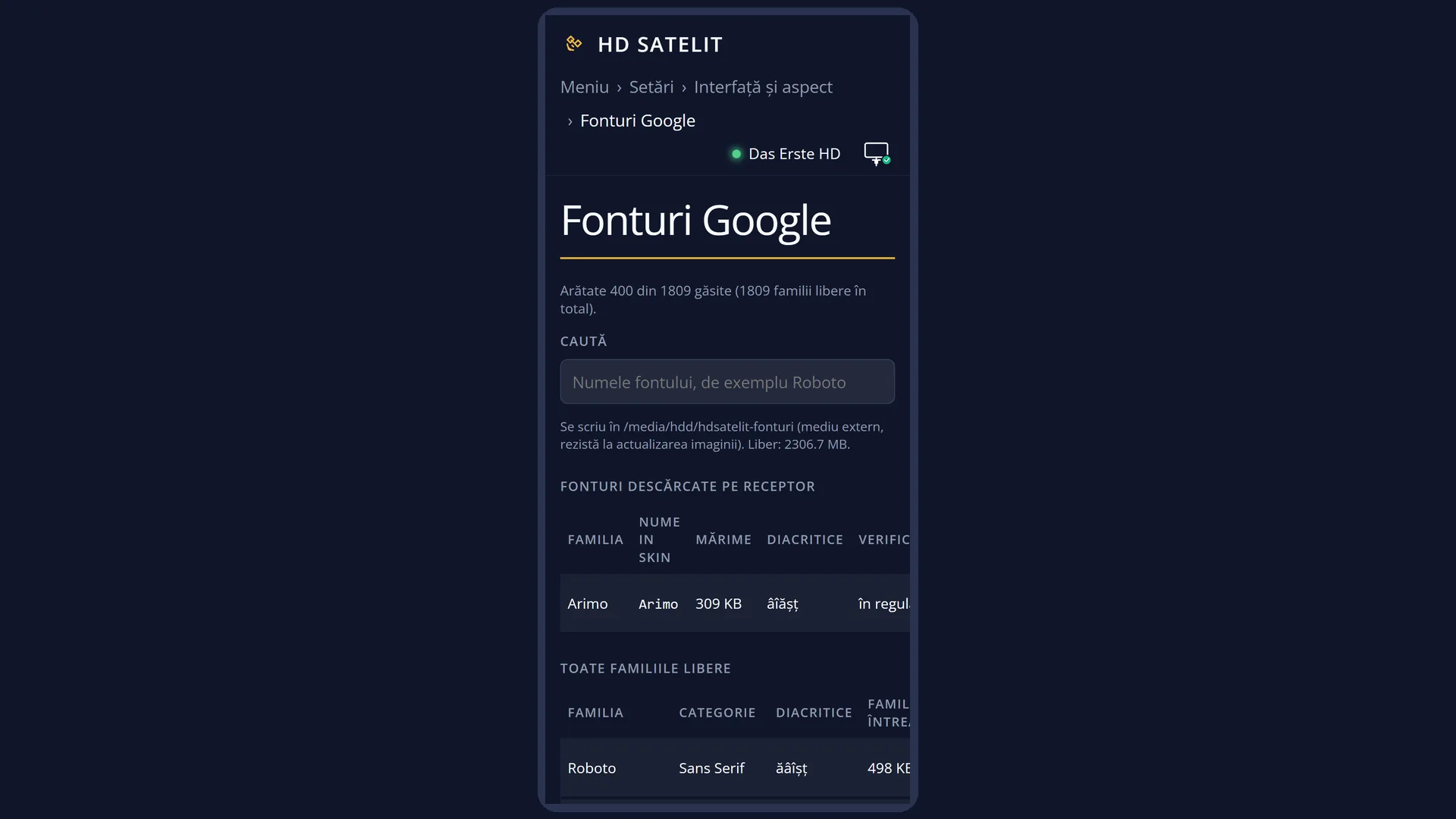
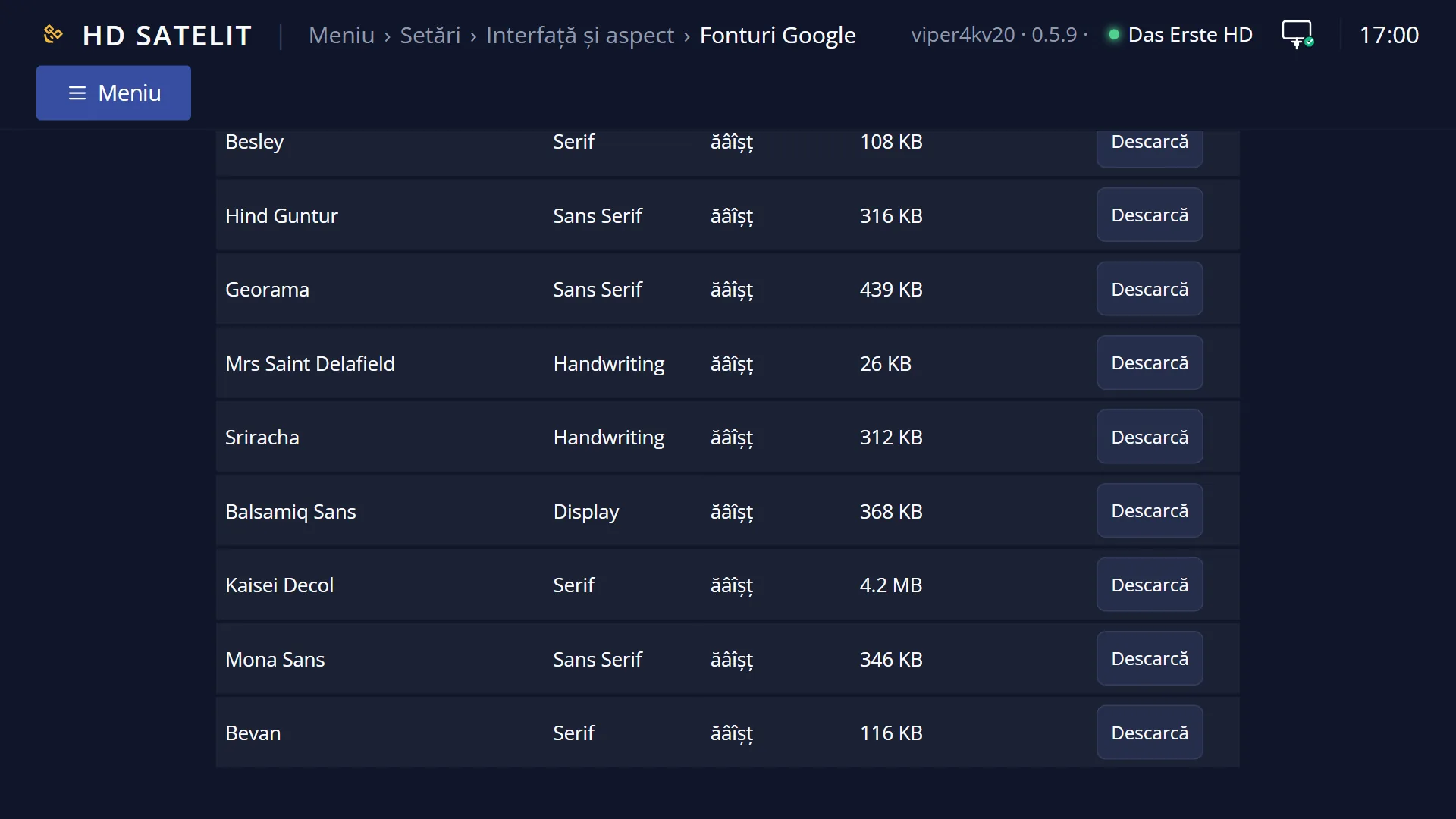
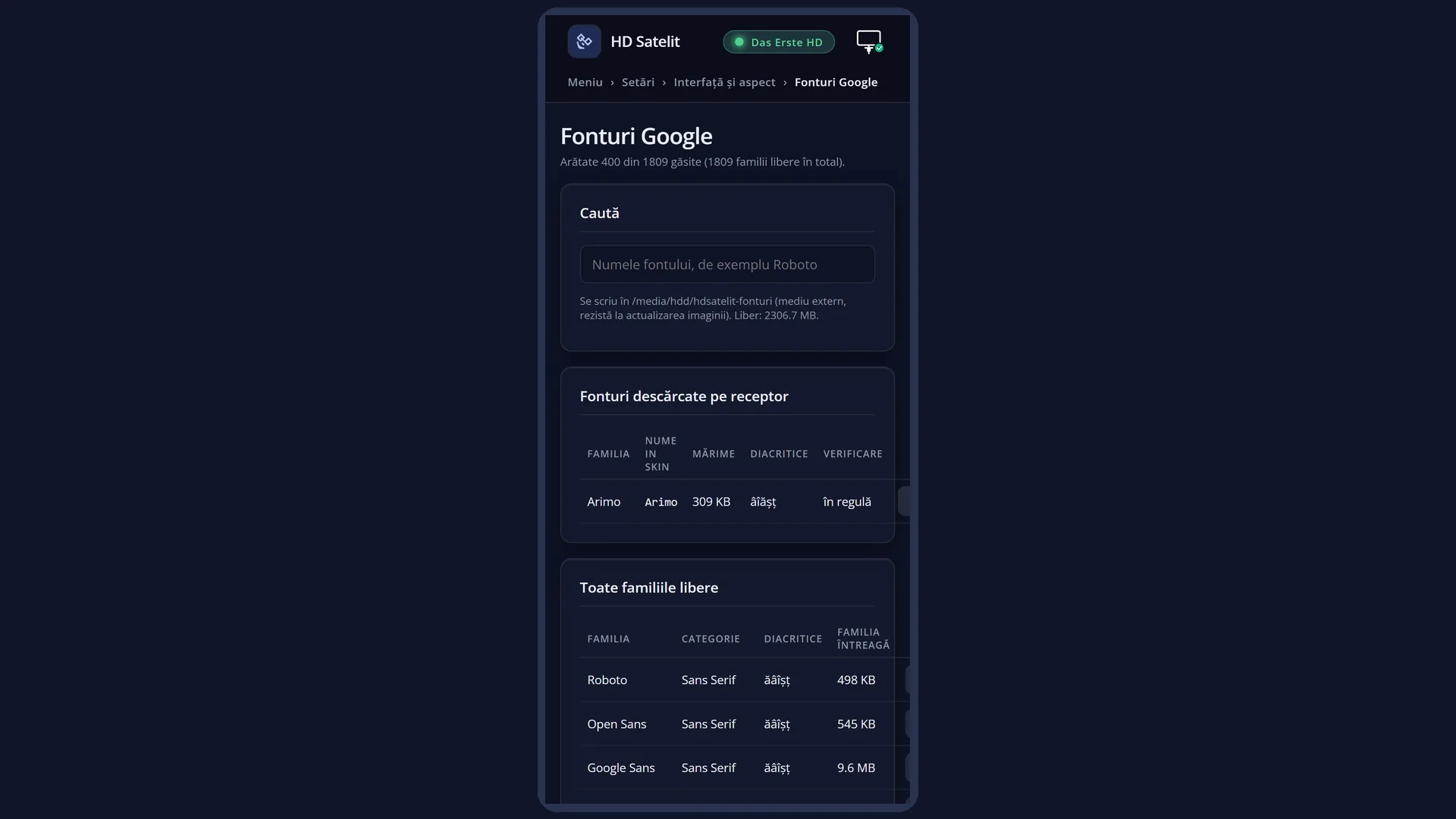
In the web interface: the /fonturi page, with the search, the downloaded fonts (with “Delete”) and all the families (with “Download”).
The receiver needs internet access: the list is fetched from Google and kept for 7 days.
What you see on the screen
At the top, in yellow, what you are searching for (“Search: (all)” or the text you typed) and, on the right, how many families are shown out of the total, for example “1809 of 1809 families”.
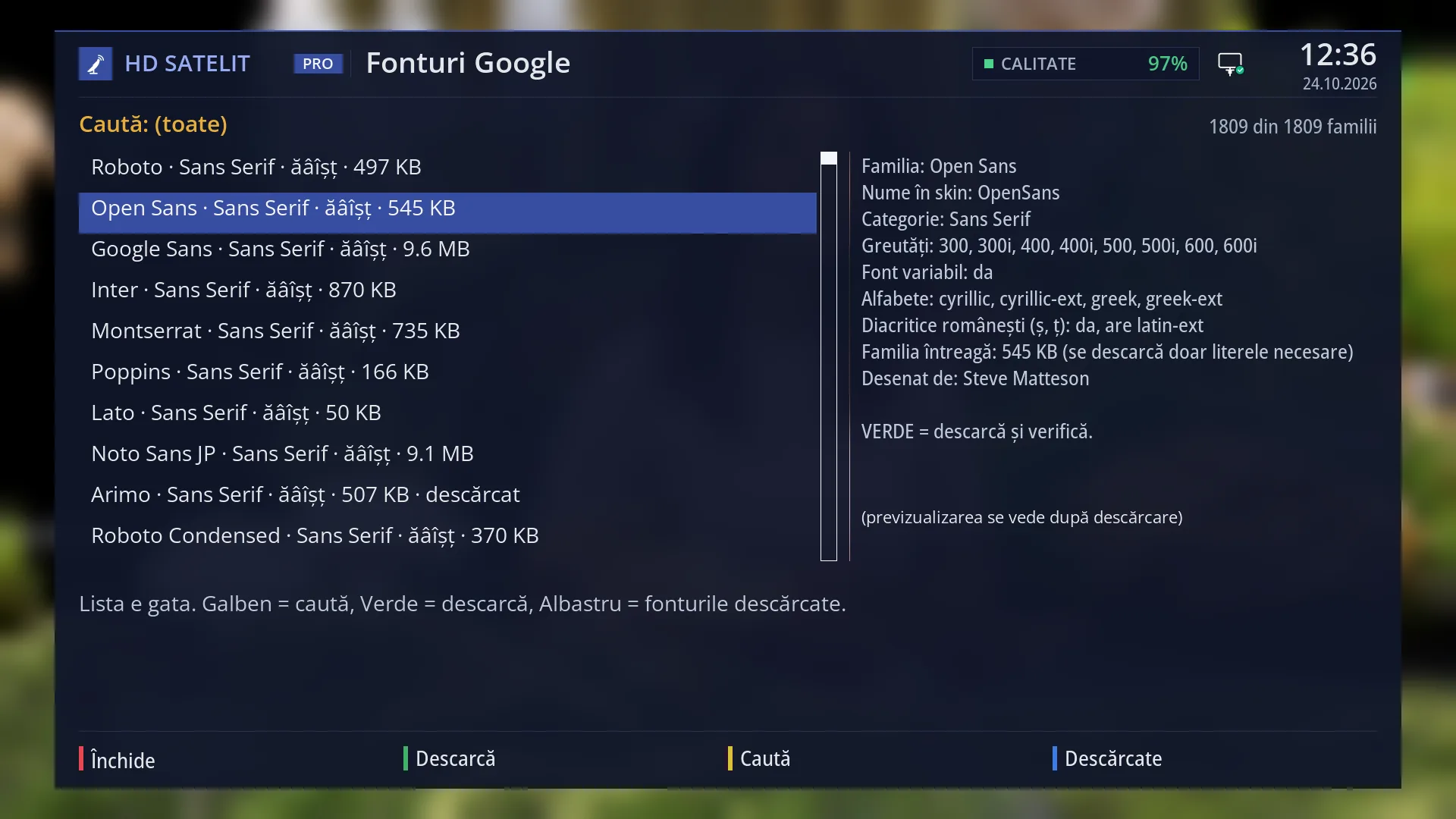
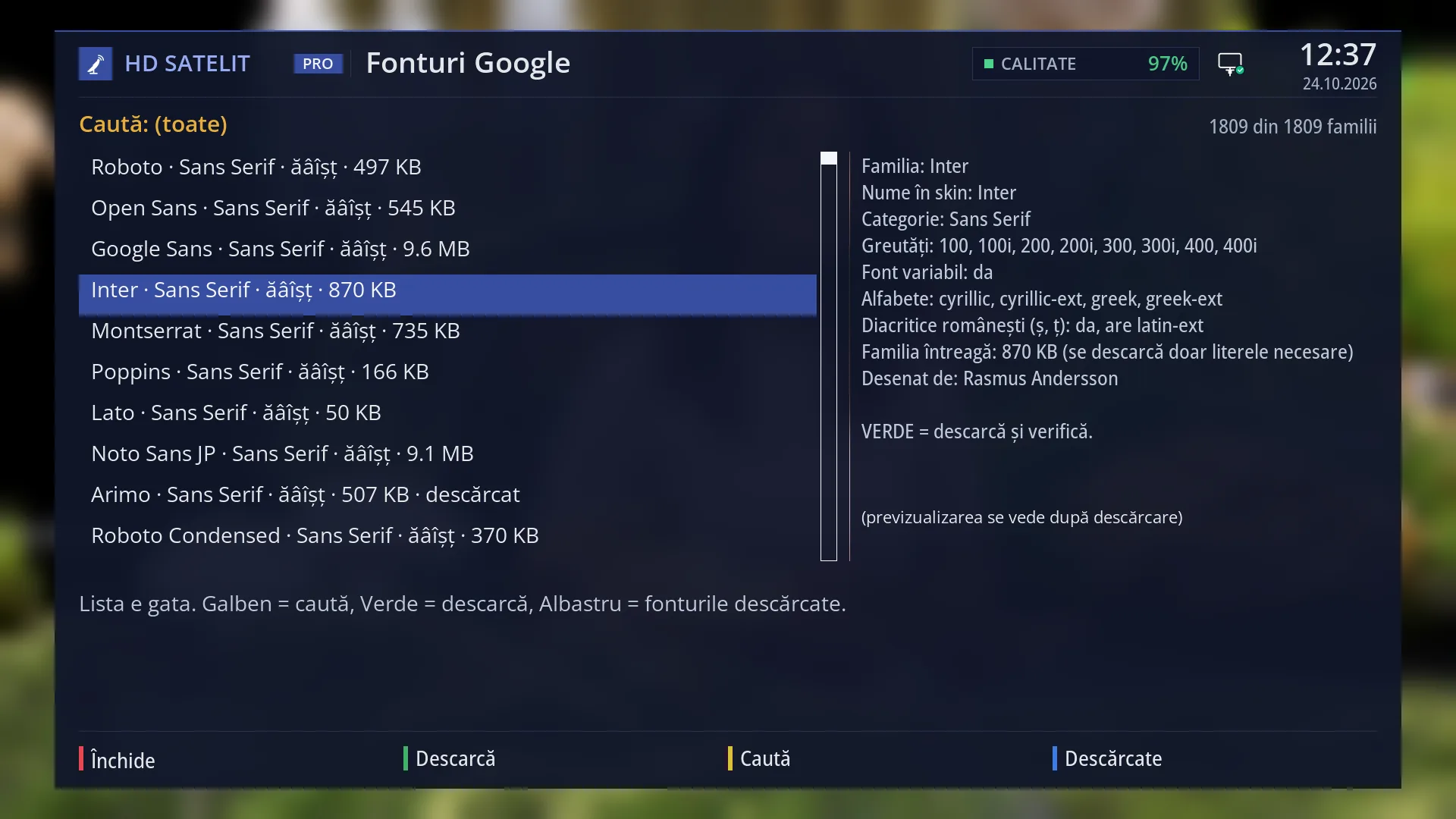
On the left, the list of families, most used first. Each row shows the name, the category (for example Sans Serif), “ăâîșț” if it has the Romanian diacritics (otherwise “-”), the size of the whole family and “downloaded” for those already on the receiver.
On the right, the details of the family under the cursor: “Family”, “Skin name”, “Category”, “Weights”, “Variable font”, “Alphabets”, “Romanian diacritics (ș, ț)”, “Whole family” and “Designed by”, then “GREEN = download and check.” or “Already downloaded.”. Below that, the sample “Ana are mere: ăâîșț ĂÂÎȘȚ 0123456789”, written in the font, but only once it is downloaded.
Below the list, the progress bar (only while downloading) and the status: where the fonts are saved, “The list is ready. Yellow = search, Green = download, Blue = downloaded fonts.”, how much has been downloaded, or the result.
At the bottom, the keys: RED “Close”, GREEN “Download”, YELLOW “Search”, BLUE “Downloaded”. In the list of downloaded fonts, GREEN becomes “Preview” and BLUE “All”.
Rows and settings
| Row | Values | Default | What it does |
|---|---|---|---|
| List of all families | all free families with Latin letters, only those that match the search | all, most used first | You choose the family to download. Colour fonts and fonts without Latin letters are not shown, because the receiver cannot draw them. When you want a different font for subtitles. |
| Search (YELLOW) | a name or part of a name | (all) | Opens the on-screen keyboard (“Font name”). The list keeps only the families whose name contains the text you typed, ignoring upper and lower case. Empty text shows all the families again. When you know the font name, for example Roboto. |
| Downloaded (BLUE) | All, Downloaded | All | Switches between the list of all families and the list of fonts already downloaded. In the downloaded list, each row shows the family, the size, the diacritics found in the file (or “no diacritics”) and “damaged” if the file is no longer valid. The details also show the location (external storage or the receiver's memory). MENU deletes the chosen font. When you want to see what you have downloaded or delete a font. |
| Downloading a font | up to 4 MB: no question, between 4 and 12 MB: with a question, over 12 MB: refused | The receiver first looks for the font's licence in Google's free repository (if it does not find it, it does not download), then fetches the file, with the progress bar. At the end it checks the file and makes it usable straight away, for example ““Roboto” downloaded (...), license SIL Open Font License 1.1, usable in a skin as Roboto.”. If there is not enough free space on the disk, it says “Not enough space”. When you have chosen the family. |
Keys
| UP / DOWN | Move the cursor in the list. The details on the right change immediately. |
| LEFT / RIGHT | Jump a page up or down in the list. |
| GREEN / OK | In the list of all families: downloads and checks the chosen family. In the downloaded list: shows the sample written in the font. |
| YELLOW (Search) | Opens the keyboard to search by name (only in the list of all families). |
| BLUE (Downloaded / All) | Switches between the list of all families and the list of downloaded fonts. |
| MENU | Only in the downloaded list: deletes the chosen font, after the question “Delete the font ...? A skin that uses it will be left without it.” (default “No”). |
| RED (Close) / EXIT | Closes the screen. While a download is running, the first press cancels it (“Cancelling the download...”) and nothing is left on the disk. |
Step by step
Download a font for subtitles
- Press MENU 6 6 9 and wait for “The list is ready”.
- Press YELLOW, type the font name (for example Roboto) and confirm.
- Choose the family (check that it has “ăâîșț”) and press GREEN. Wait for the message “... downloaded ...”.
- Open “Subtitle appearance” (MENU 6 4 5) and choose the font on the “Font” row. It appears with “(downloaded)” next to its name.
Delete a font you no longer need
- Press MENU 6 6 9, then BLUE (“Downloaded”).
- Choose the font and press MENU, then choose “Yes”.
- The font stops being used immediately. The file is deleted at the next start-up.
Problems and solutions
“The list could not be read: ...” appears.
The receiver cannot reach Google. Check the internet connection (Settings > Network & Internet). If the receiver has read the list in the last few days, it uses the saved copy.
A message about the server certificate or the receiver's clock appears.
If the receiver's clock is behind (for example after a power cut), secure downloads do not work. Check the date and time (Settings > System & Devices > Date & Time Settings), then try again.
“The font is ... Confirm the large download.” appears.
The font is over 4 MB. The receiver asks whether you still want to download it; large fonts fill up the memory. Fonts over 12 MB are not downloaded at all.
A message says the font cannot be found in the free google/fonts repository.
The font's licence cannot be confirmed, so the receiver does not download it. Choose another font.
The sample shows “(the preview shows after downloading)”.
A font can only be shown once it is on the receiver. Download it, then view the sample in the downloaded list (BLUE, then GREEN).
After an image update, the downloaded fonts are gone.
They were in the receiver's memory, which the update overwrites. Connect a USB stick or a disk before you download: the fonts are then saved on it and stay there.
The downloaded font does not appear in “Interface font”.
This is by design: the menus only use the four fonts that come with the image. Downloaded fonts are for subtitles.
A font shows “-” instead of “ăâîșț”.
The family probably does not have the letters ș and ț. Romanian subtitles would appear without diacritics, so choose another font.