

The translated subtitle on screen
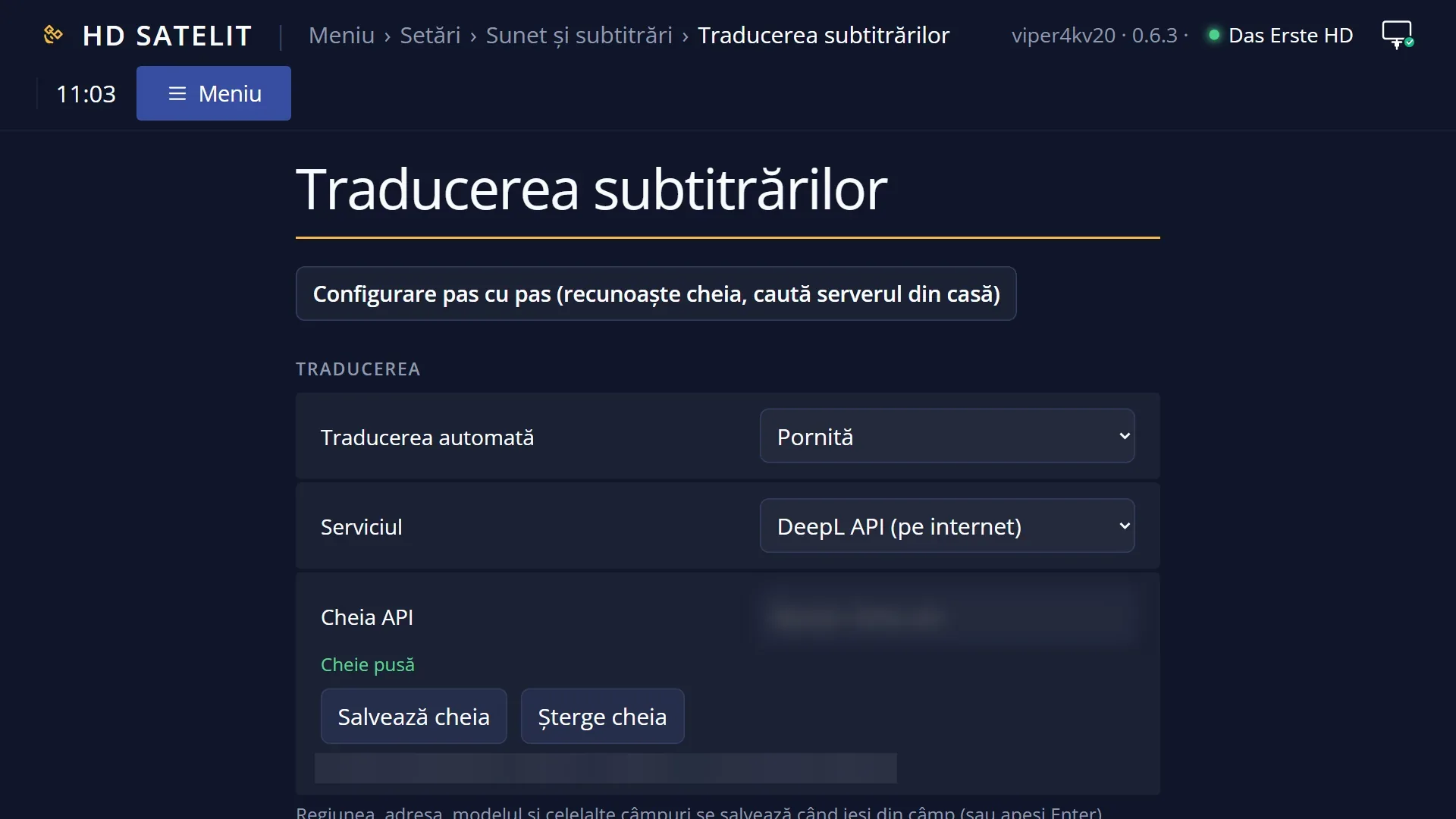
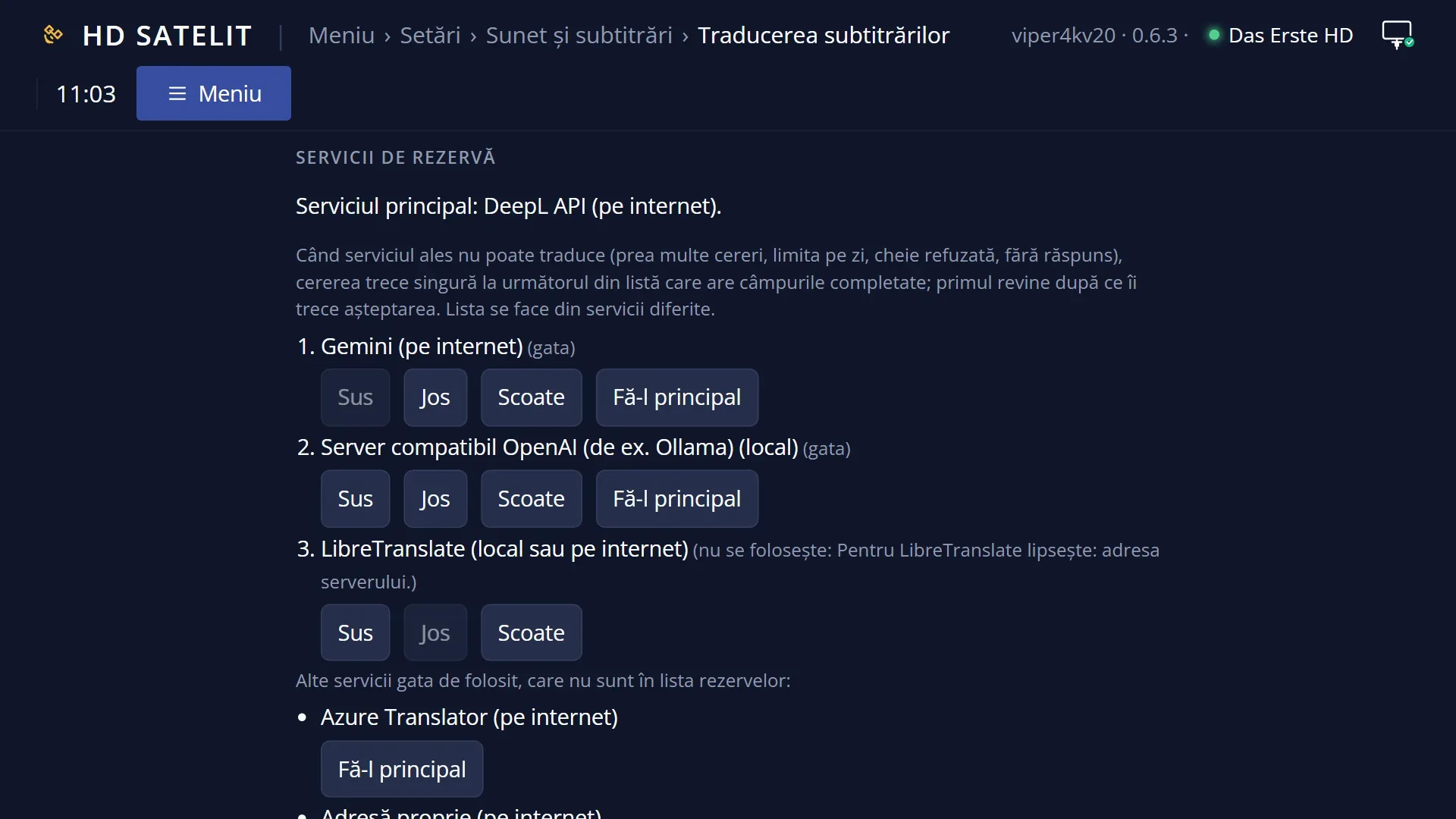
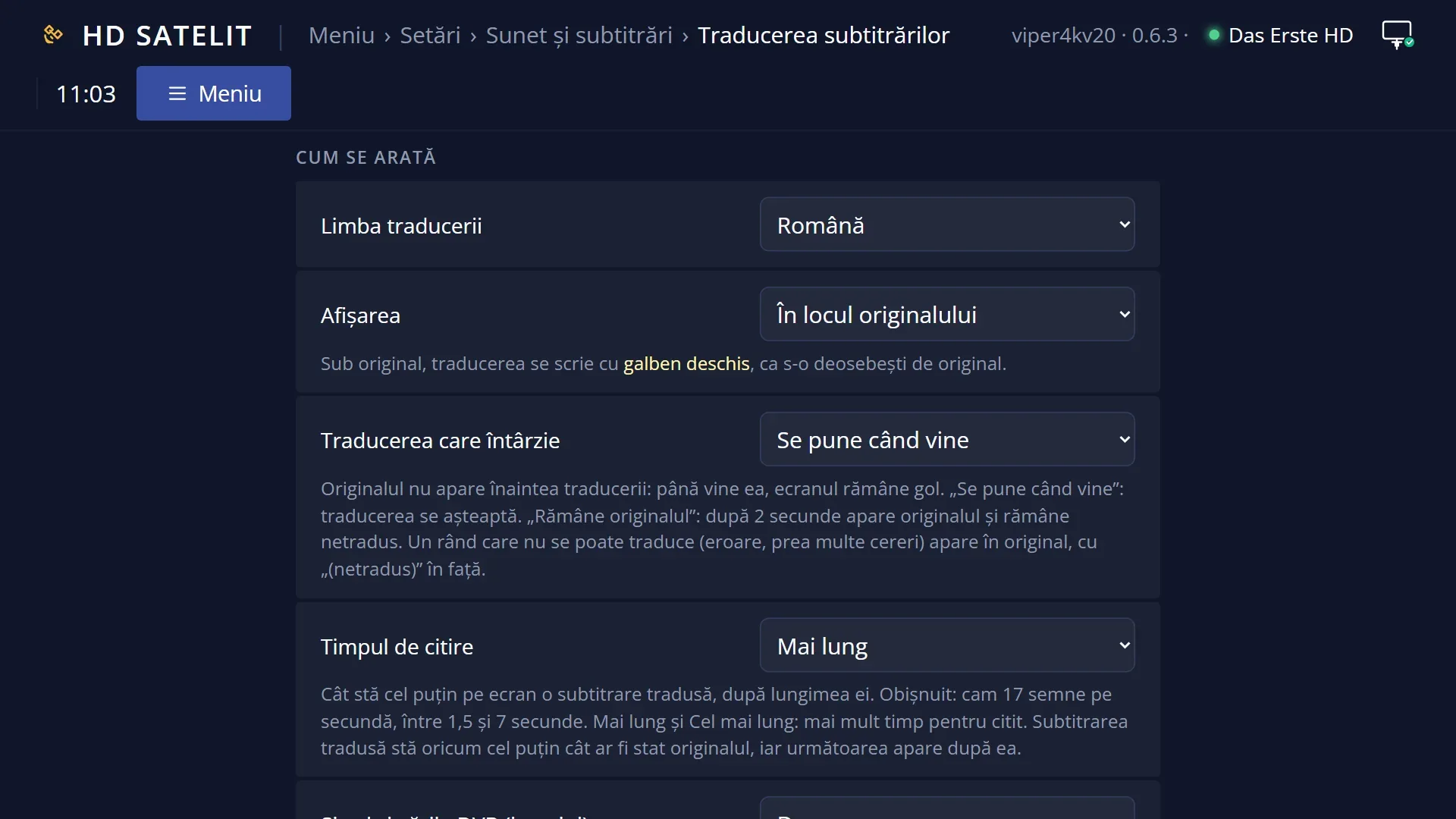
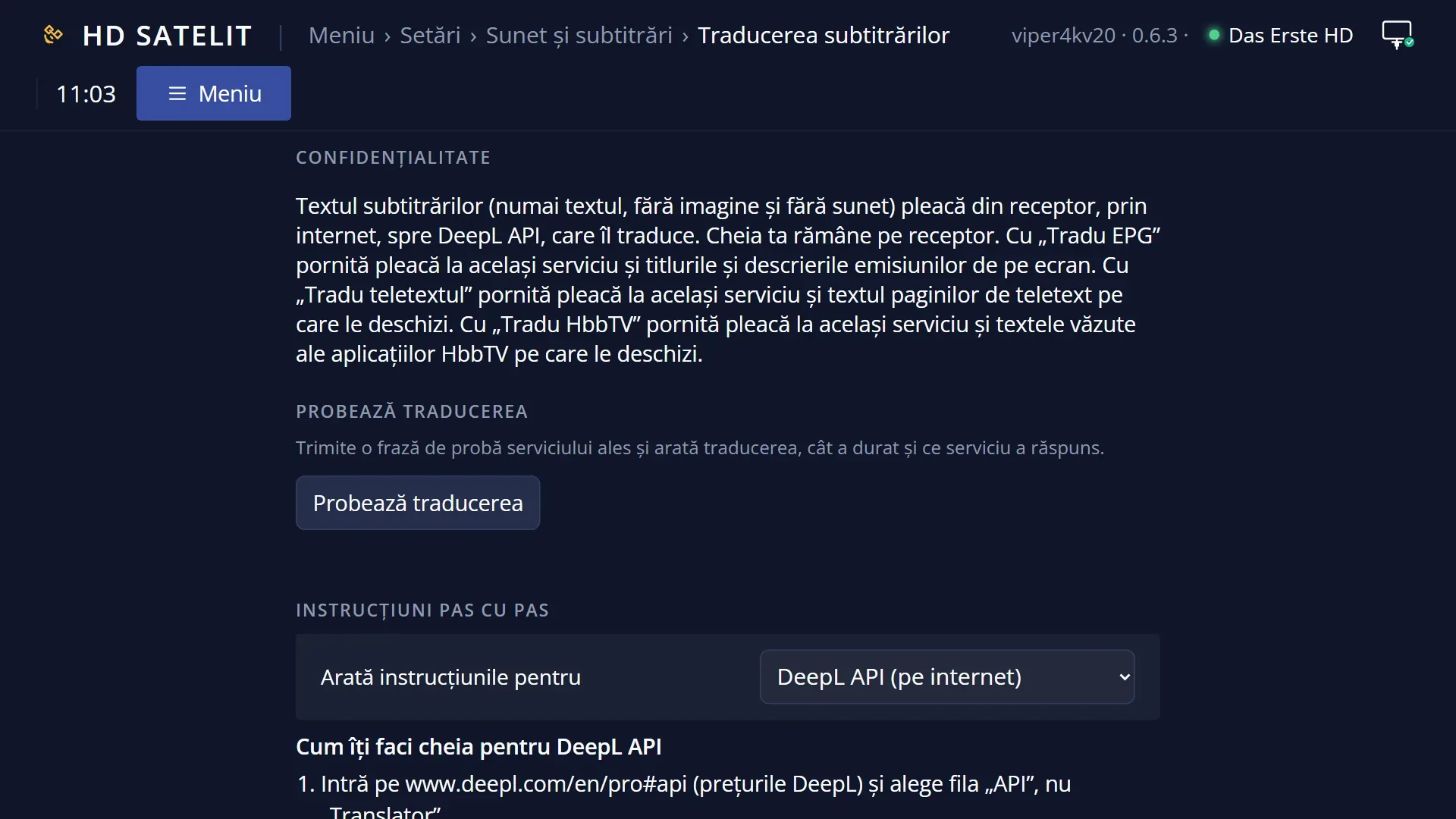
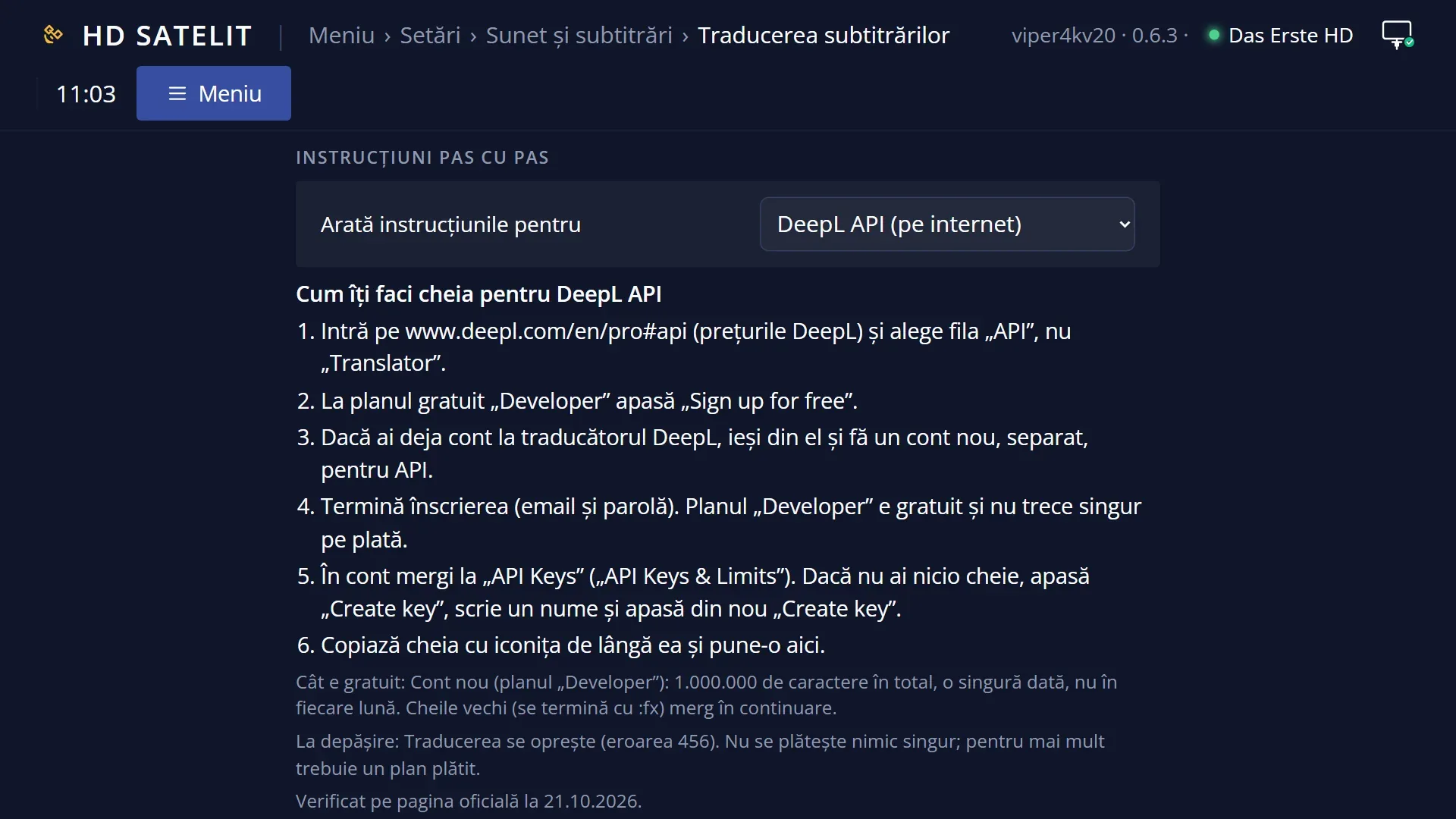
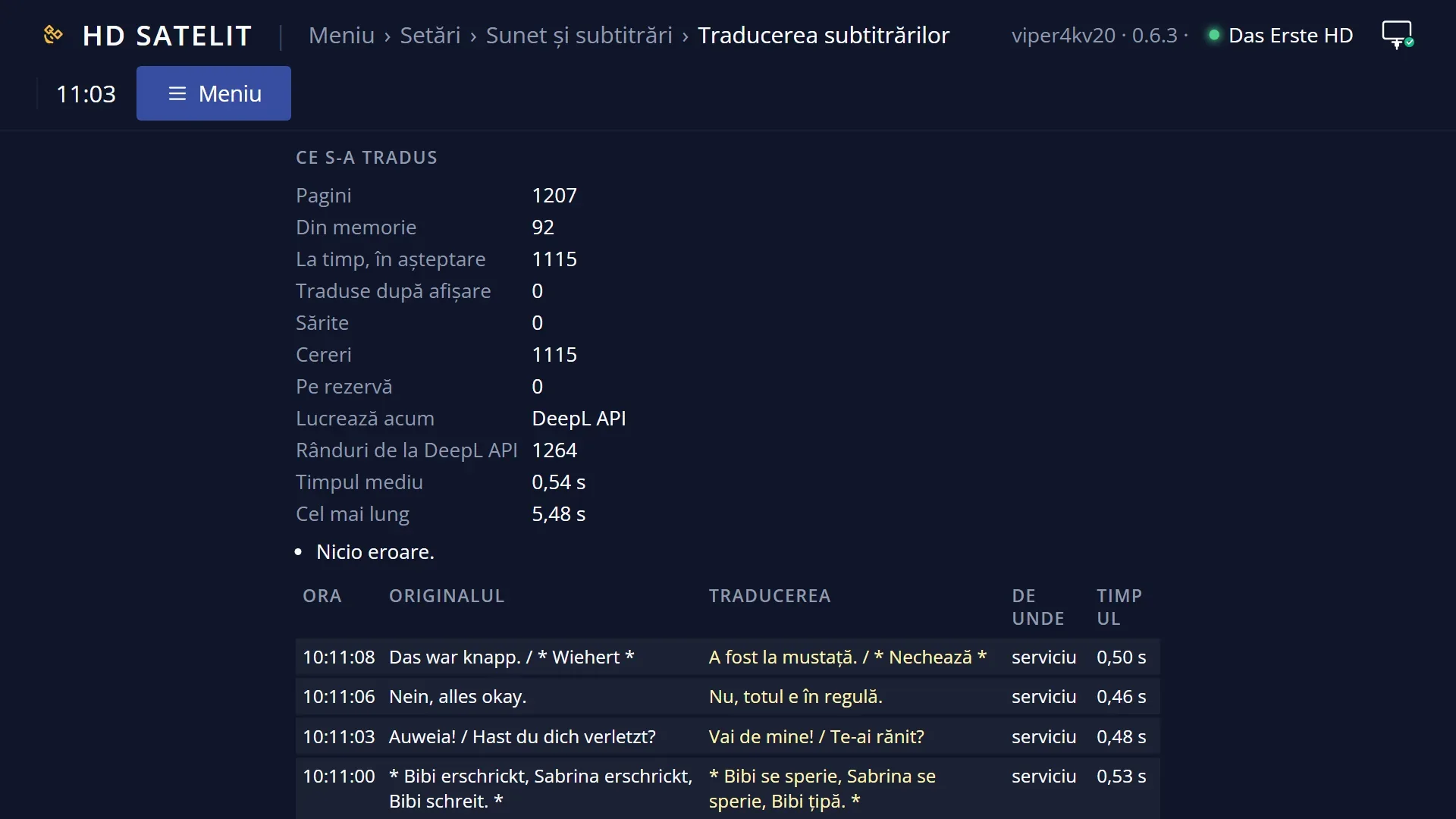
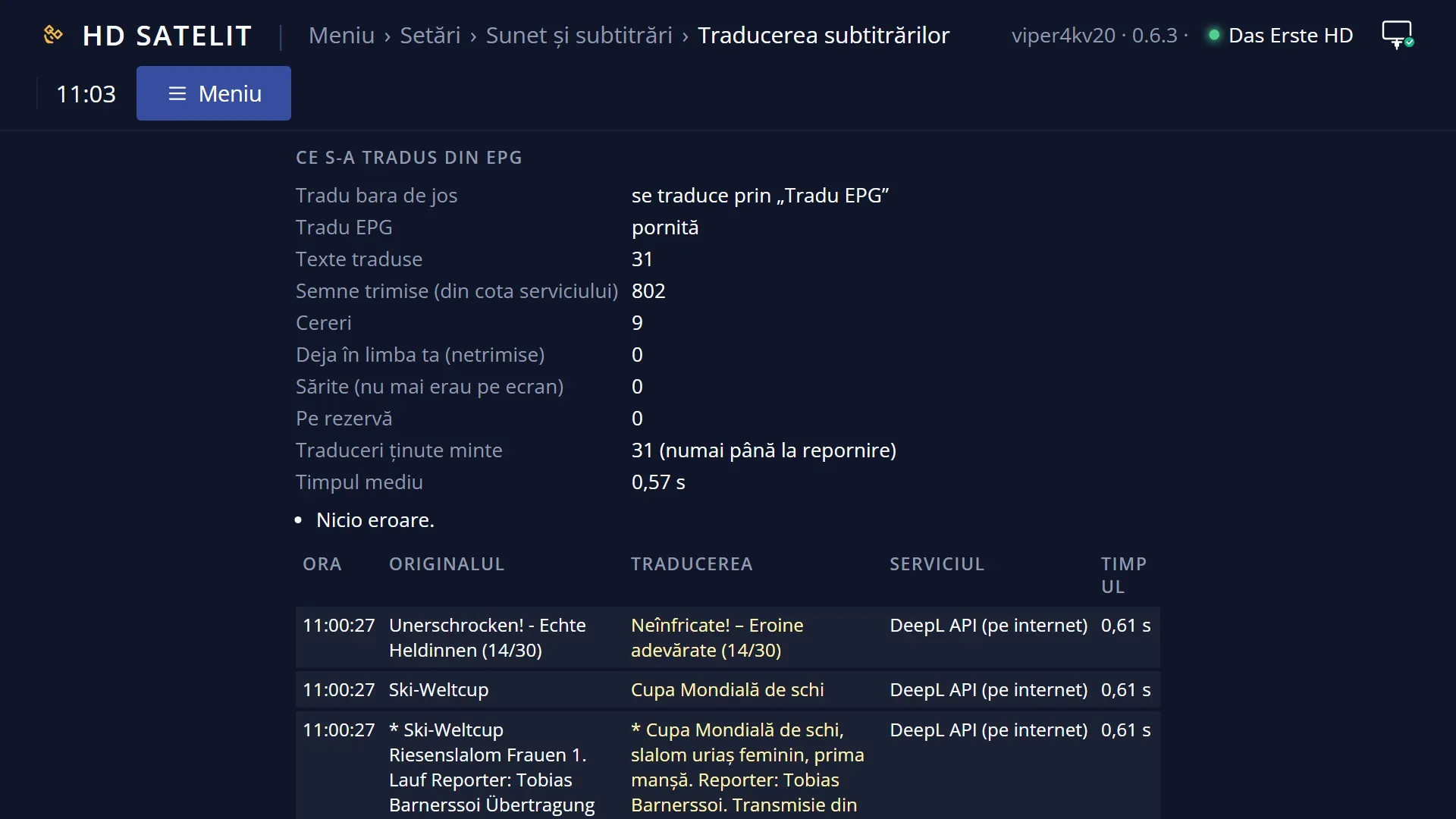
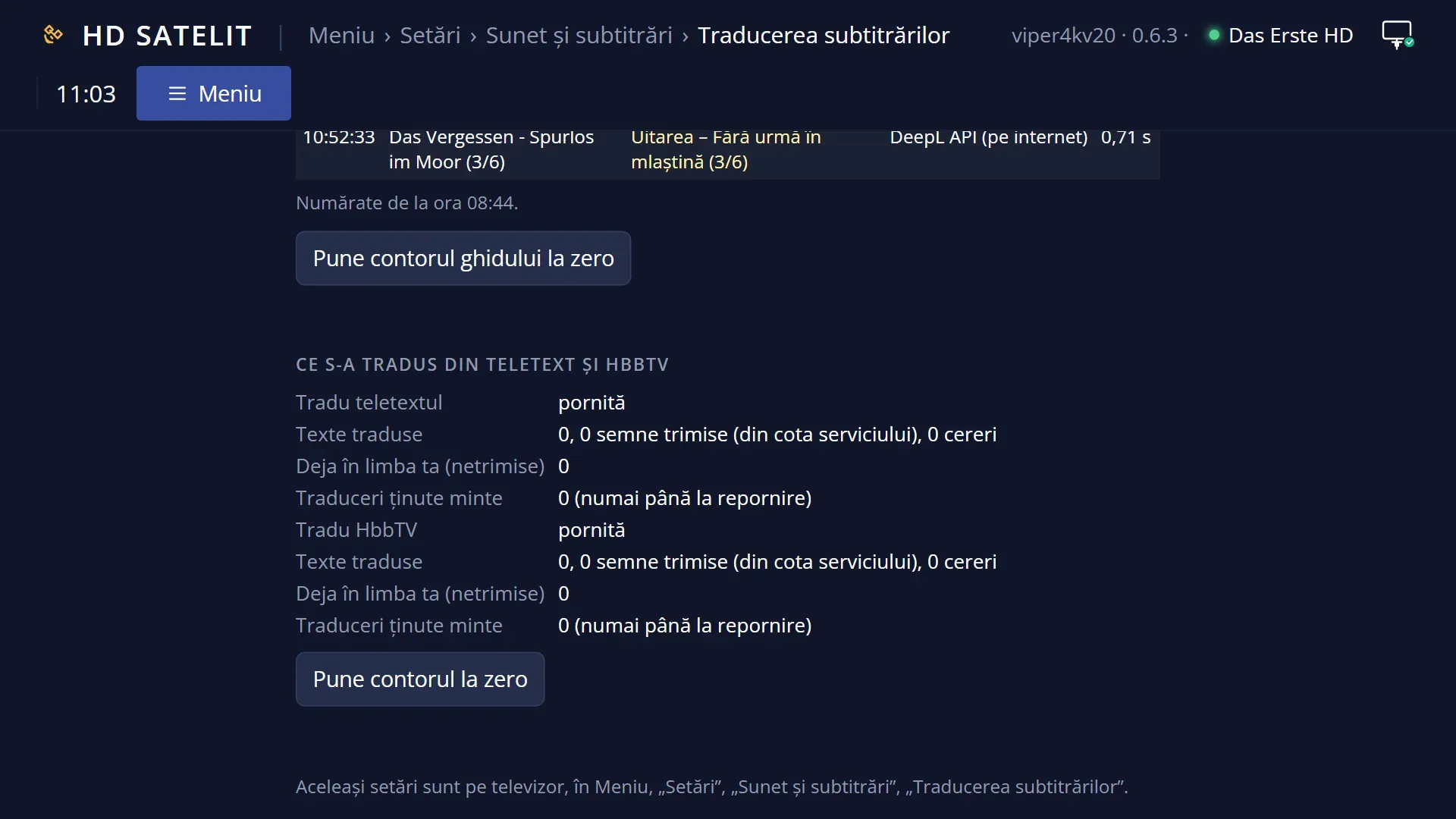
Screenshots are being added: so far 0 from the receiver and 9 from the web interface; the aim is at least 5 of each, with arrows and frames, and, where a setting changes what you see, a before and after comparison.
English screenshots coming: some of the pictures below still show the receiver and the web interface in Romanian. The rows, keys and steps described on this page are the English ones.
What it is for
This page shows how a translated subtitle appears on screen after you turn on “Subtitle translation”, and what the things you see mean.
Teletext subtitles, subtitles from film files and DVB subtitles read as text are translated. DVB subtitles that stay as images cannot be translated.
The translation appears instead of the original subtitle or below it, in the lettering chosen in “Subtitle appearance”. Below the original, the translation is shown in light yellow.
The original never appears before the translation: until the translation arrives, the subtitle area stays empty. A translation received once is remembered, so a repeated line appears translated straight away.
How to get here
Path: turn on translation in Main menu > Settings > Audio & Sound Tracks > Subtitle translation (MENU 6 4 6), then choose the subtitle with SUBT.
With translation turned on, a subtitle is chosen automatically on each channel: first one in the translation language (which needs no translation), otherwise teletext or a subtitle from a file, otherwise a DVB subtitle read as text, which is then translated.
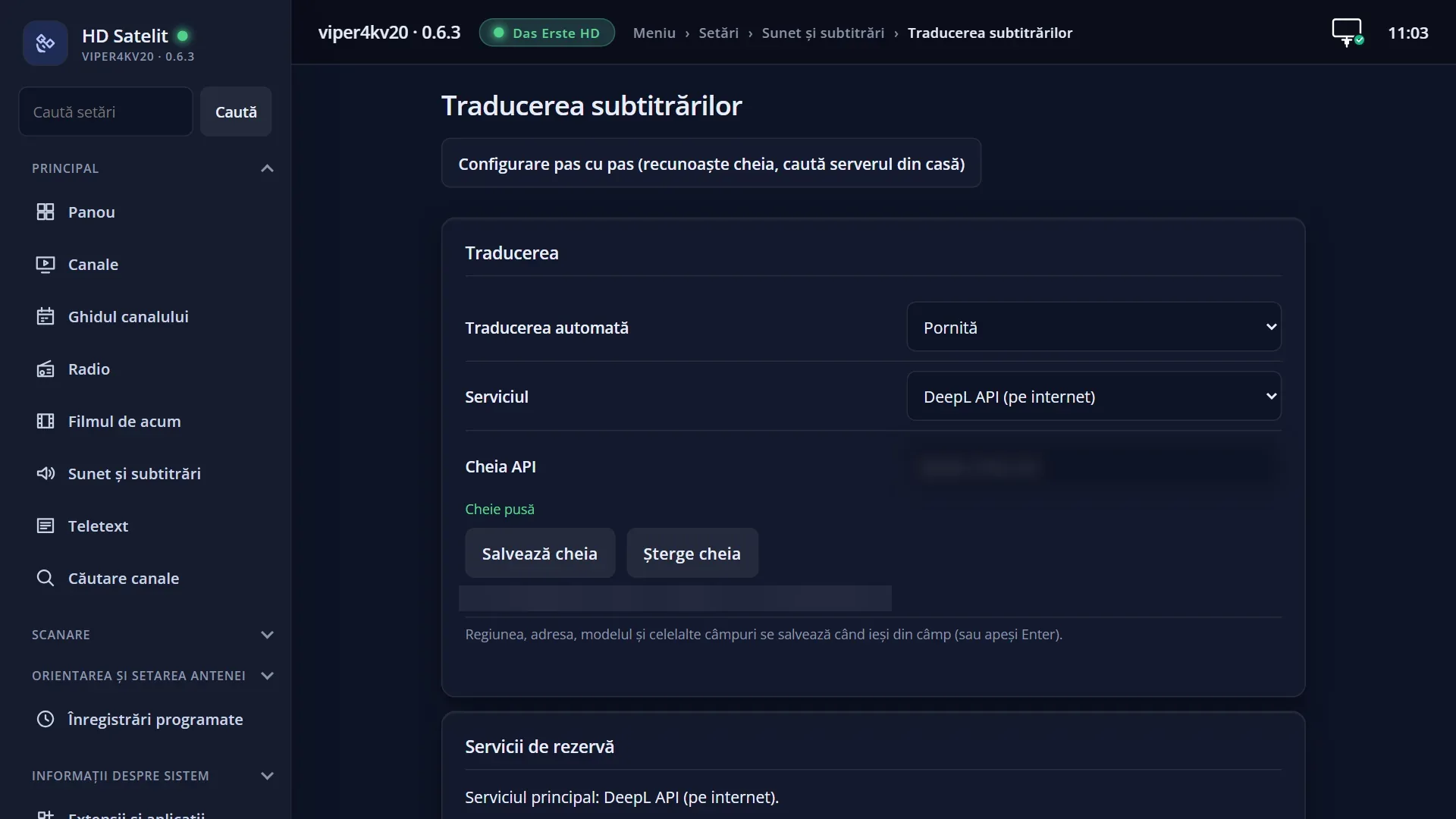
In the web interface: the /traducere-subtitrari page (the same settings).
What you see on the screen
The subtitle sits at the bottom, above the edge of the screen, at the height chosen in “Subtitle appearance”.
With “Display” set to “Instead of the original” (the factory setting), you see only the translation.
With “Display” set to “Below the original”, you see the original first, with the translation below it in light yellow.
A line that could not be translated (an error, too many requests, the service not responding) appears in the original, with “(not translated)” in front of it.
The subtitle area may stay empty for a few moments: the receiver waits for the translation instead of showing the original.
Each translated subtitle stays on screen at least as long as the original would have, and at least for the reading time you chose. The next one appears after it.
When something goes wrong, a message appears once and closes by itself or with OK: for example “Subtitle translation is not working yet.”, “... has reached the free limit per day (or per month).” or “Subtitle translation is arriving too late: ...”.
Rows and settings
| Row | Values | Default | What it does |
|---|---|---|---|
| Display (in “Subtitle translation”) | Instead of the original, Below the original | Instead of the original | The translation appears instead of the original, or below it in light yellow. When you also want to see the original, for example to learn the language. |
| Late translation (in “Subtitle translation”) | Shown when it arrives, The original stays | Shown when it arrives | Shown when it arrives: the subtitle area stays empty until the translation arrives. The original stays: after 2 seconds without a translation, the original appears with “(not translated)” in front of it, and stays that way. When the service is slow and you prefer the original on time to a gap without subtitles. |
| Reading time (in “Subtitle translation”) | Normal, Longer, Longest | Normal | The minimum time a translated subtitle stays on screen, based on its length: with Normal, about 17 characters per second, between 1.5 and 7 seconds; Longer, between 2 and 8 seconds; Longest, between 2.5 and 9 seconds. When the translation disappears before you can read it. |
| Lettering (in “Subtitle appearance”) | The font, size, colour, outline, shadow, background and height of the subtitles are chosen there, and they also apply to the translation. Below the original, the translation keeps its light yellow. When the letters are too small or get lost in the picture. |
Keys
| SUBT | The on-screen subtitle has no keys of its own. With SUBT you choose another subtitle or “No subtitles”. |
| OK (on a translation message) | Closes the message before it closes by itself. |
| MENU 6 4 6 | Opens “Subtitle translation”, where you change the display, the delay and the reading time. |
Step by step
See the original and the translation together
- Open Menu > Settings > Audio & Sound Tracks > Subtitle translation.
- At “Display”, choose “Below the original” and press GREEN.
- On screen you see the original, with the translation below it in light yellow.
Get more time to read the translation
- In “Subtitle translation”, at “Reading time”, choose “Longer” or “Longest”.
- Press GREEN. Translated subtitles stay on screen longer.
Problems and solutions
No subtitle appears, neither translated nor original.
First check with SUBT that a subtitle is selected. If one is, the receiver is waiting for the translation. With a slow service, set “Late translation” to “The original stays”.
Many lines appear with “(not translated)”.
The translation service is not responding in time or has returned errors. In “Subtitle translation”, the “What was translated” row shows the last error. Test the service with YELLOW and add backup services.
The DVB subtitle stays untranslated.
DVB subtitles are images: they are only translated after being read as text. In “Subtitle translation”, check the “Also DVB subtitles (images)” row, and make sure you have the model for their language (see “DVB subtitles read as text”). When the text is uncertain, the image stays, untranslated.
“Subtitle translation is arriving too late: the server responds in ..., on average.” appears.
The service is too slow for subtitles. Choose an internet service or, with a server at home, a smaller model.
“Subtitle translation has stopped for one minute: ...” (or a few minutes) appears.
All services returned an error. Translation starts again by itself after the pause. The message gives the reason.
The translation is in a different language from the one I want.
In “Subtitle translation”, the “Translation language” row (by default, the menu language).
Related topics
- Subtitle translation (the service, the key, the settings)
- Selecting a subtitle
- DVB subtitles read as text
- Subtitle lettering: Menu > Settings > Audio & Sound Tracks > Subtitle appearance (on the web, /subtitrari).
- Matching web page: /traducere-subtitrari.