

Subtitle selection
English screenshots coming: some of the pictures below still show the receiver and the web interface in Romanian. The rows, keys and steps described on this page are the English ones.
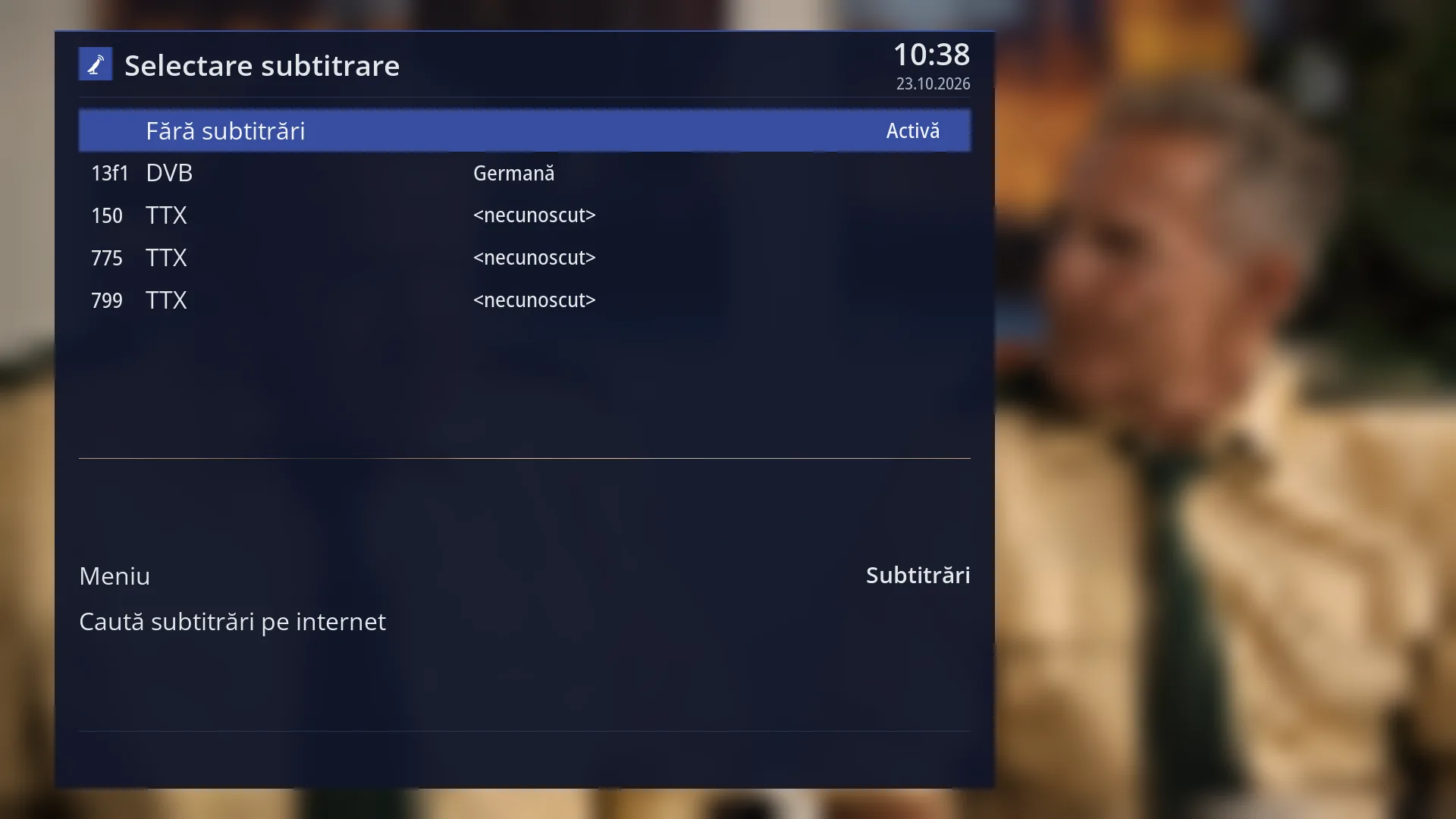
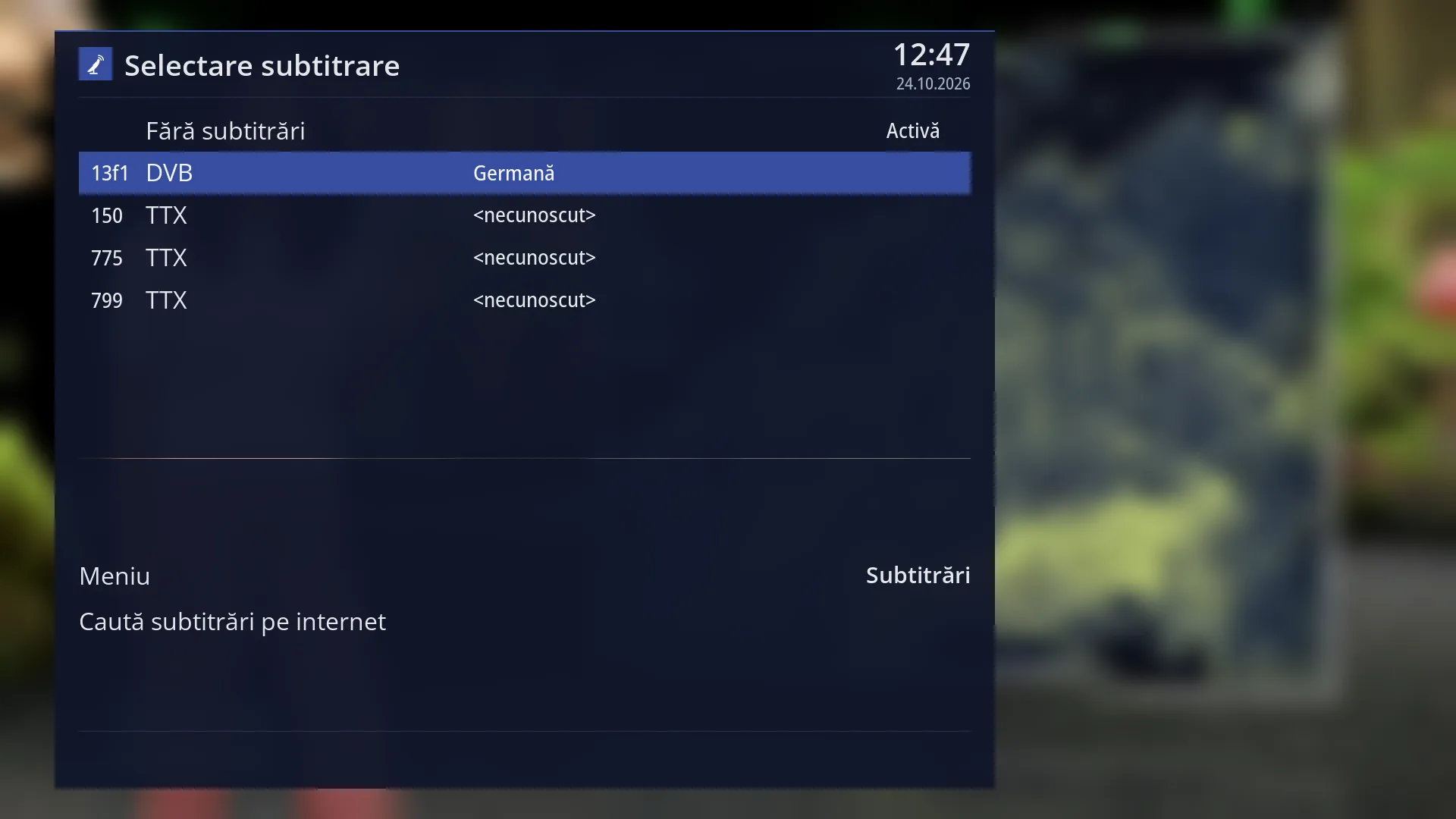
- 1 Window title: “Subtitle selection” (on the audio page, “Audio track selection”).
- 2 The first row, always “No subtitles”: OK turns the subtitles off and remembers this for the channel.
- 3 A subtitle: its number (for teletext, the page, for example 888) and the type: DVB or TTX, for films the format.
- 4 The subtitle language, with “for the hard of hearing” where applicable.
- 5 The “Active” mark: the subtitles that are on now (or “No subtitles”, when none are on).
- 6 The setting rows: “Menu” (audio or subtitles) and “Search subtitles on the internet”; for a film, also the film rows.
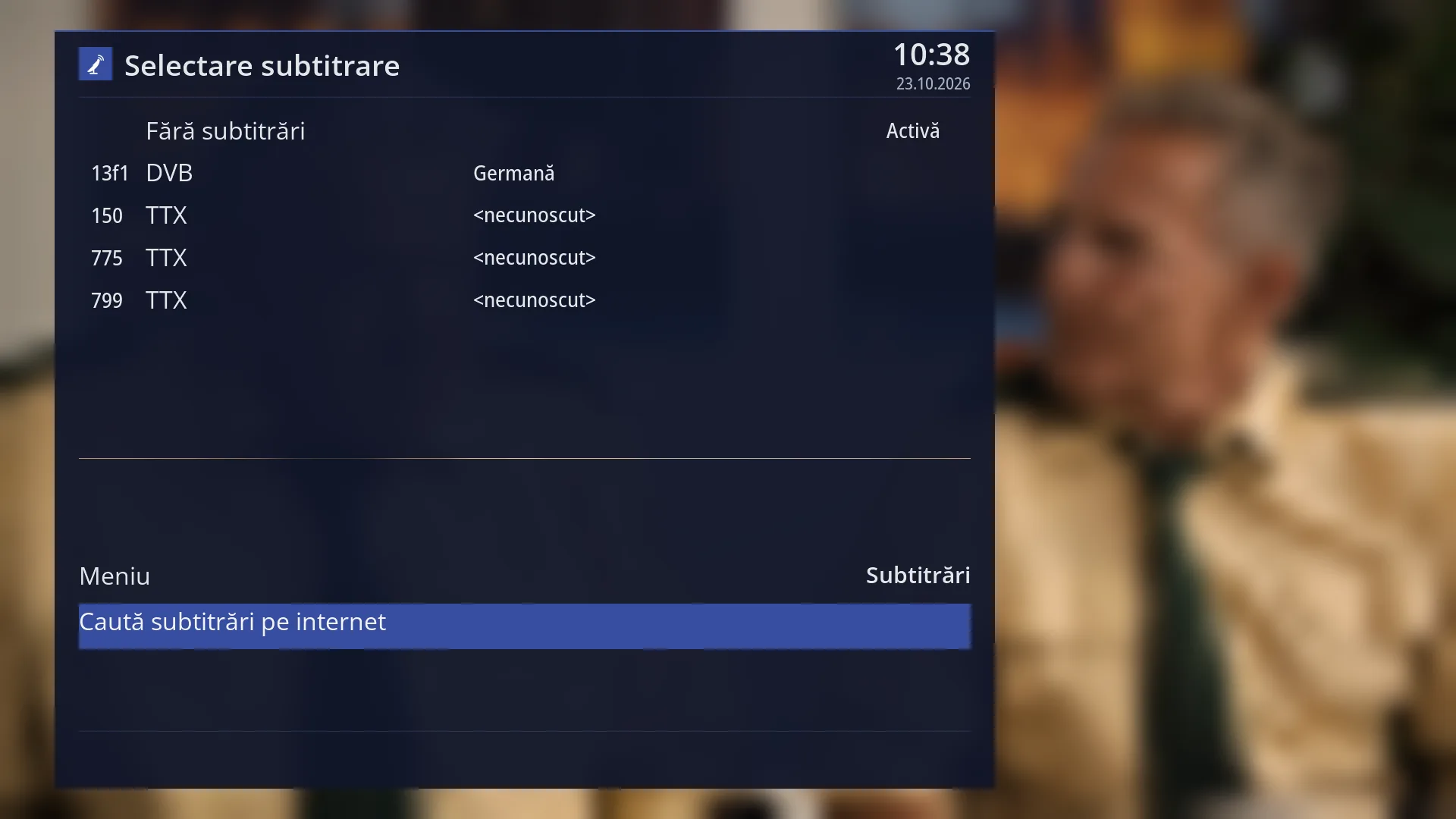
- 1 The selected row.
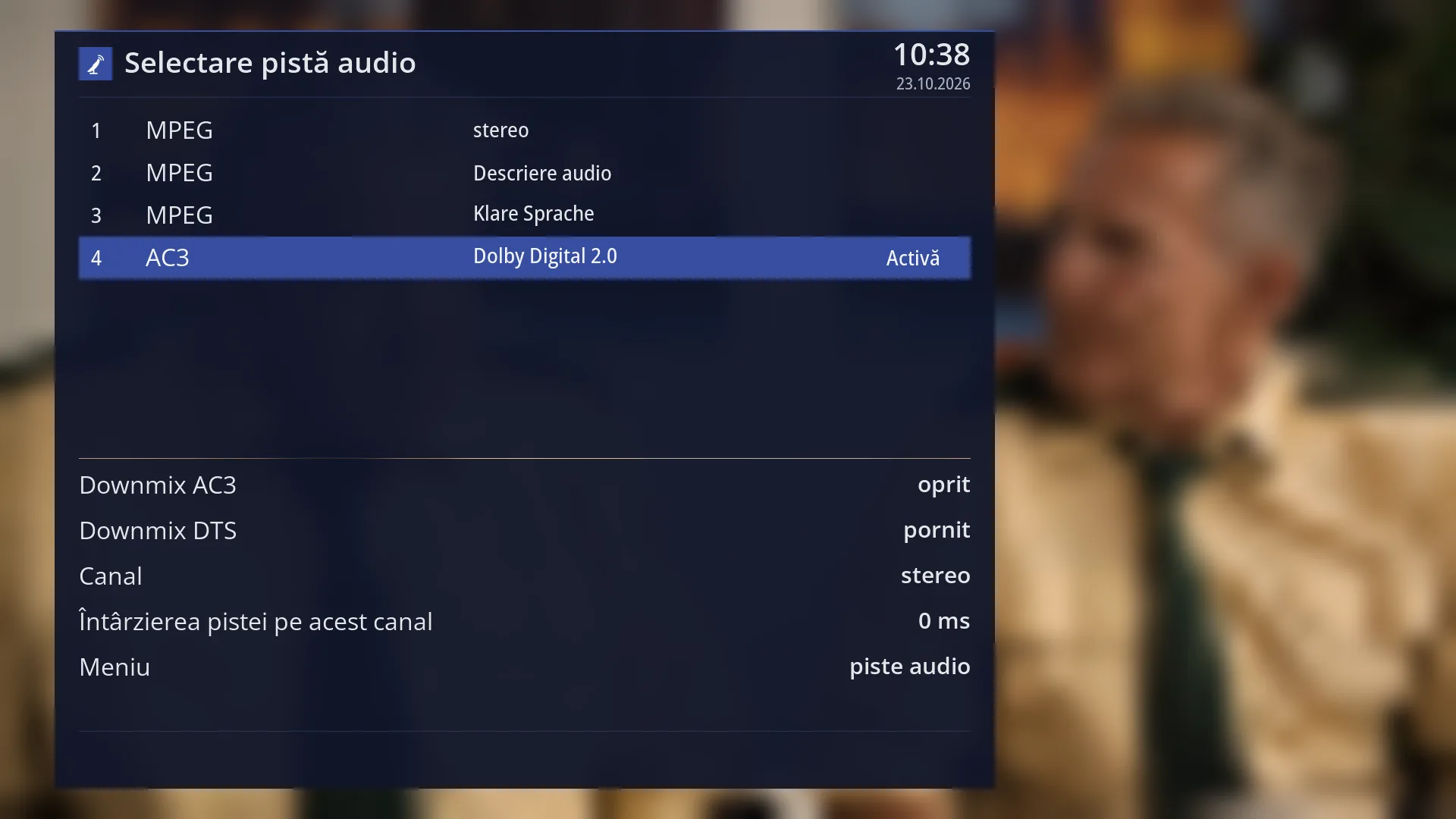
- 1 The same window, on the audio page; YELLOW takes you back to subtitles.
What it is for
Here you choose the subtitles for the channel you are watching, or turn them off with the “No subtitles” row.
The list shows all the subtitles the channel is sending right now: DVB subtitles and teletext subtitles, each with its language. For a film on a USB stick or disk, it also shows the subtitles inside the film and the subtitle files next to it.
What you choose here yourself is remembered for that channel permanently and takes priority over the preferred languages in the settings. “No subtitles” is remembered in the same way.
You can also start a subtitle search on the internet from here, with the BLUE key.
How to get here
Path: from live TV, press SUBT.
Keys while watching: SUBT.
It works the same way in the recordings player and in the film player.
From the audio window (AUDIO key) you get here with YELLOW, and from here back to audio also with YELLOW.
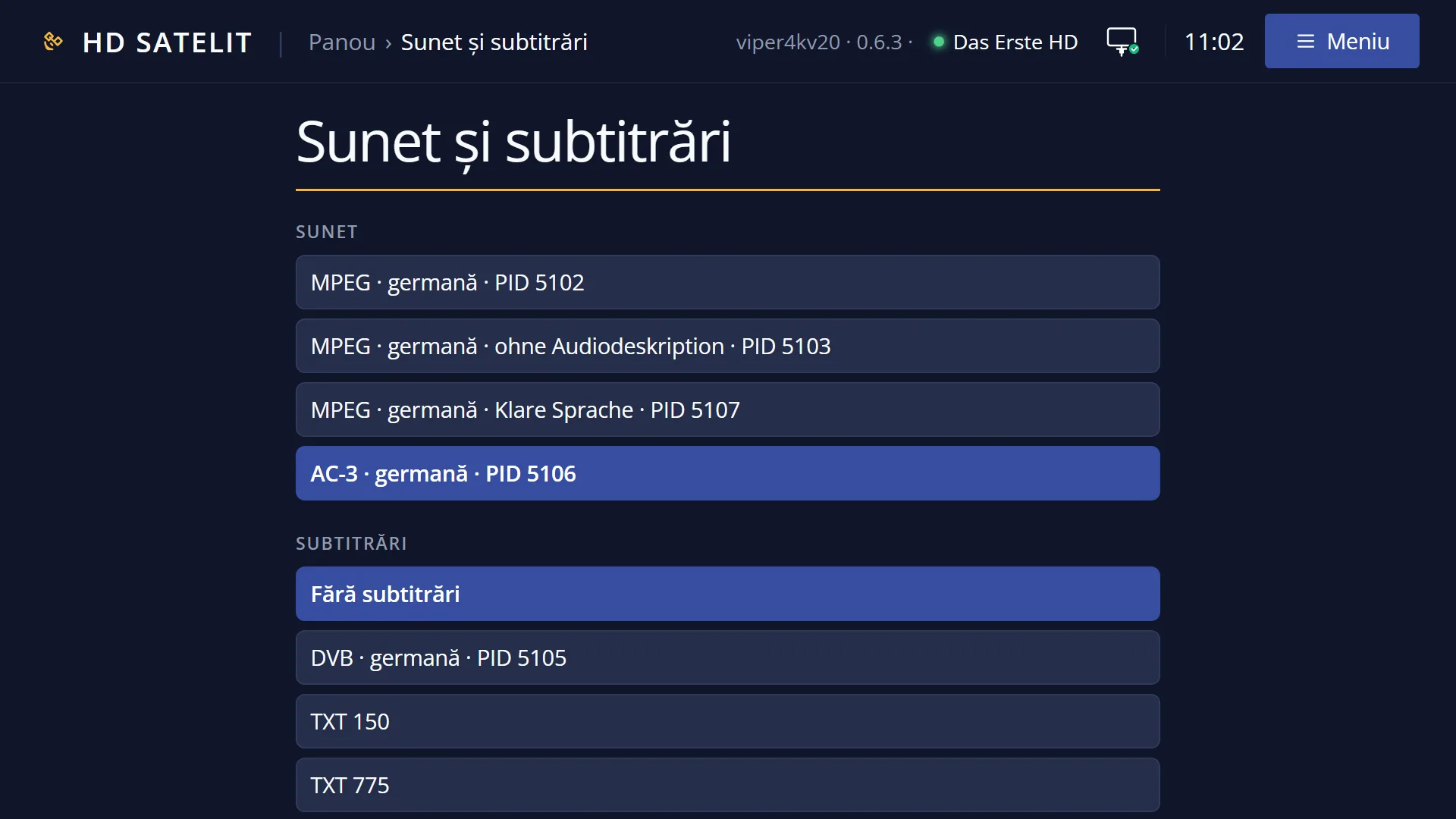
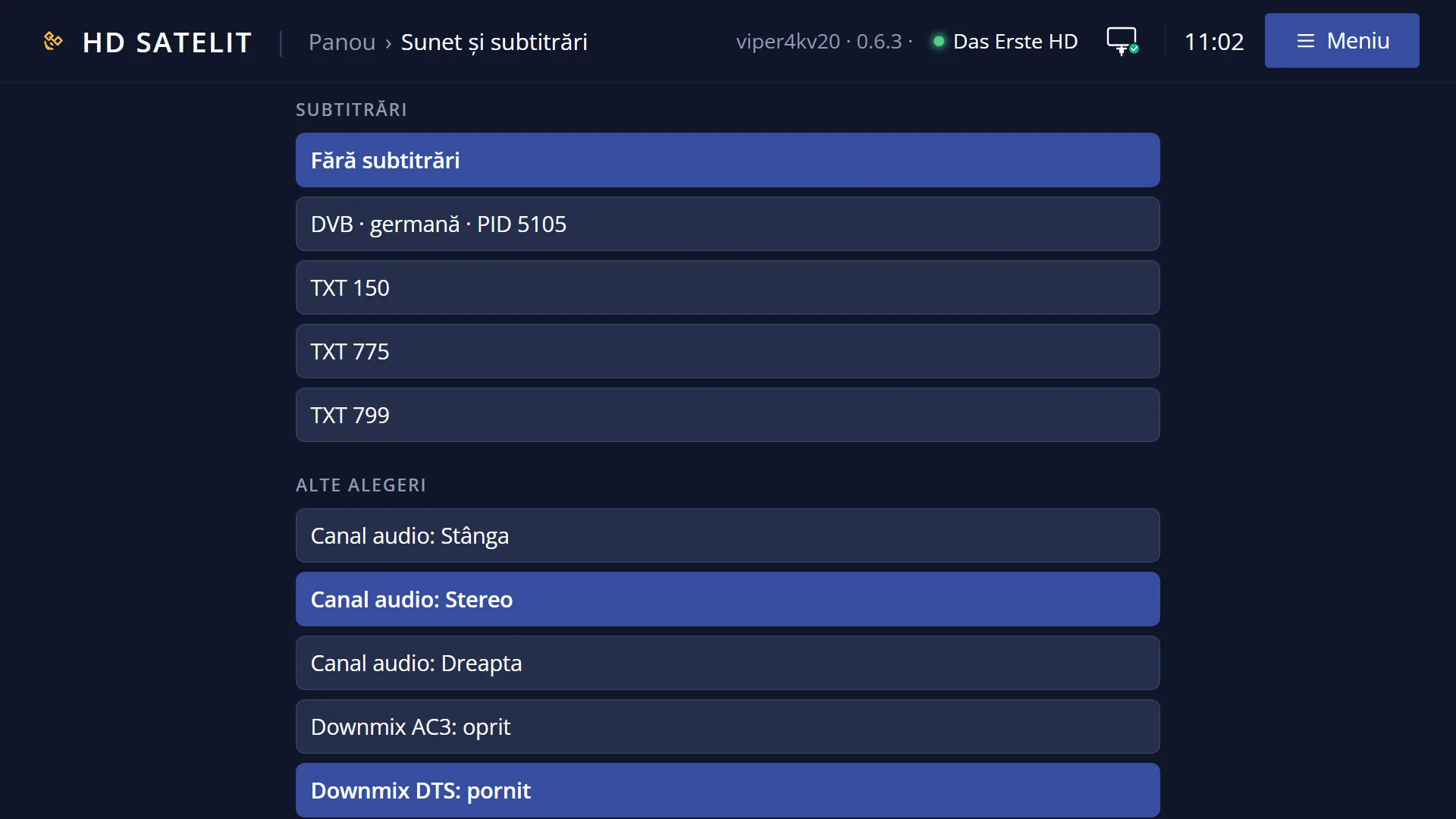
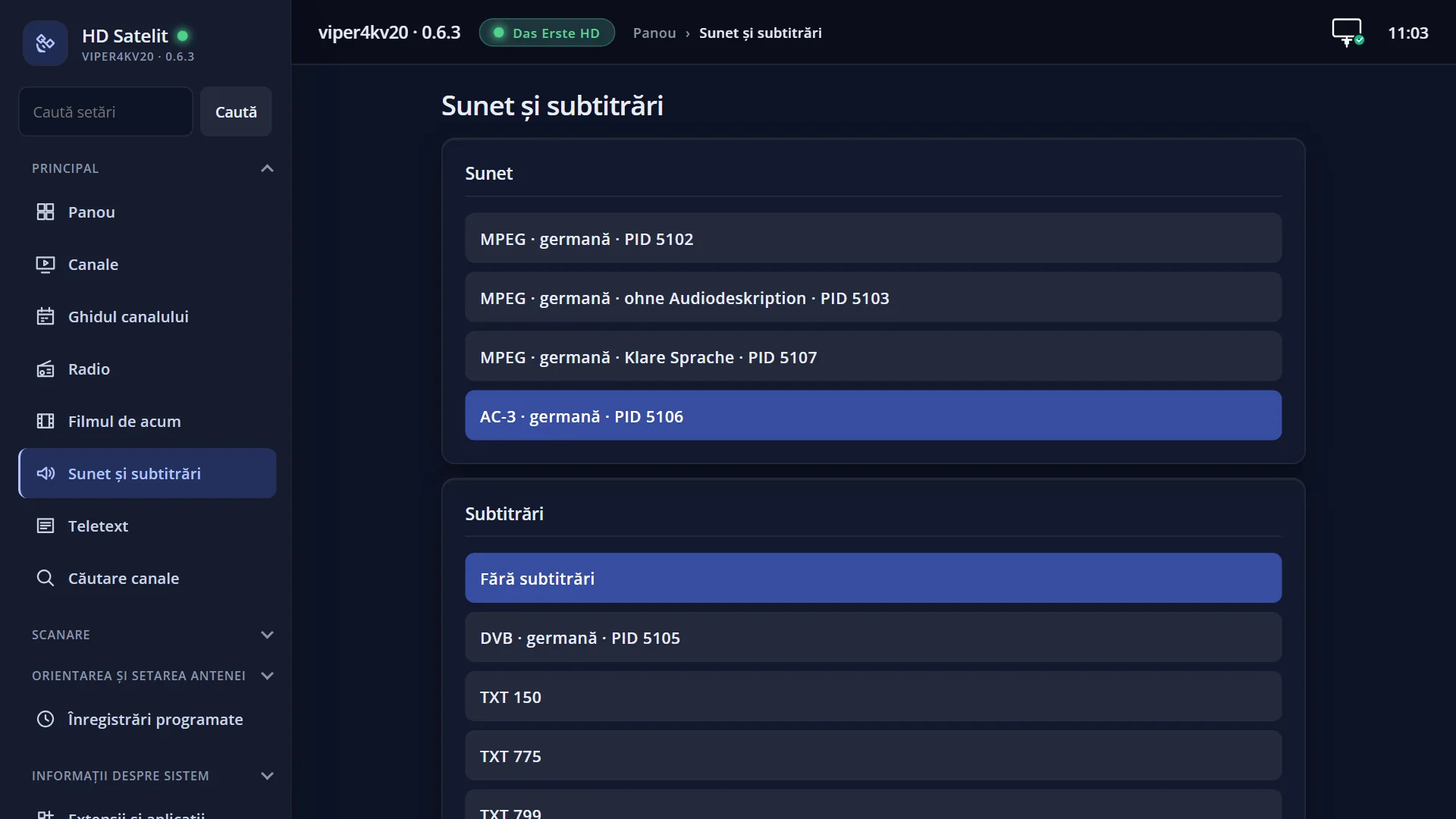
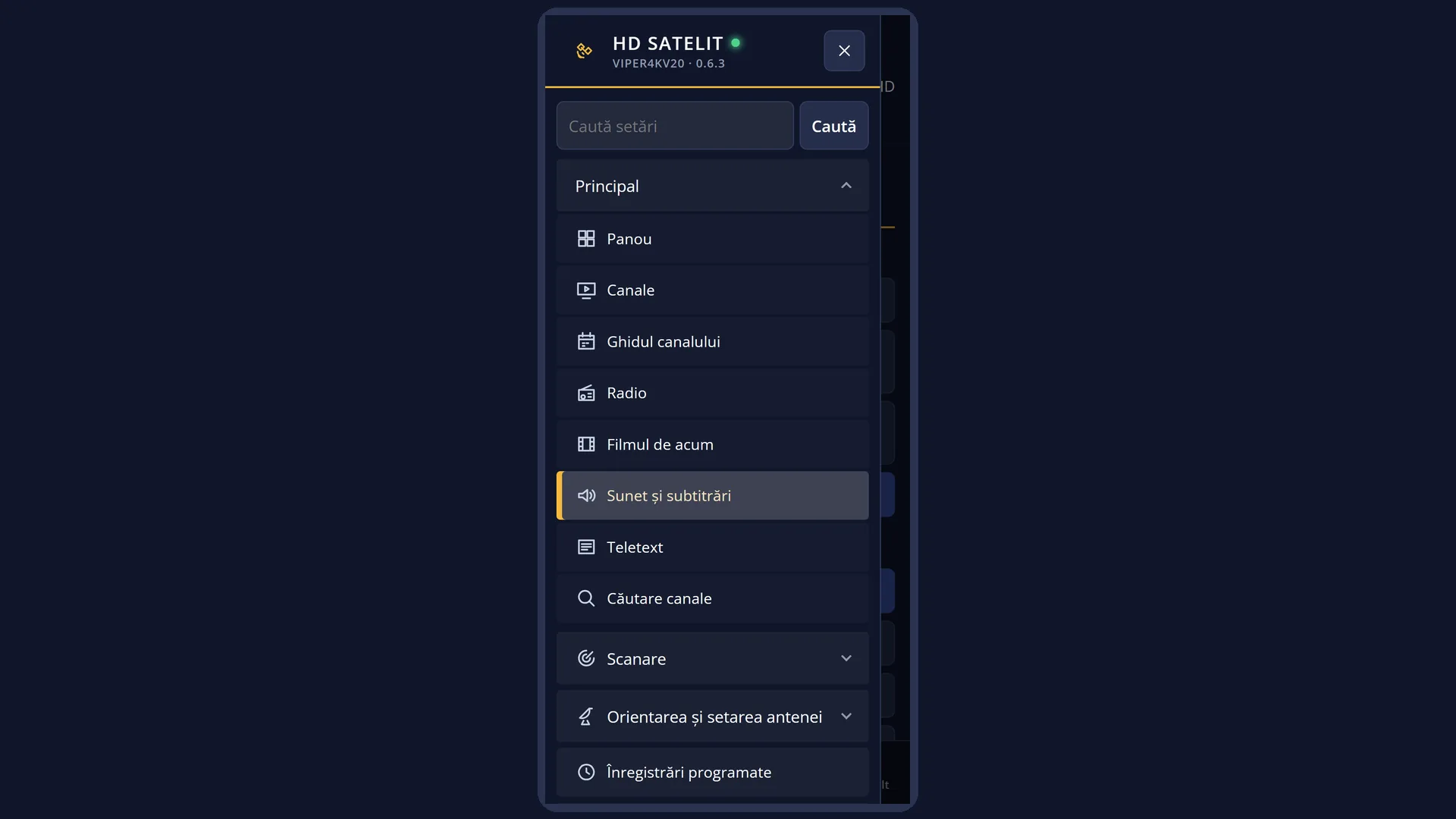
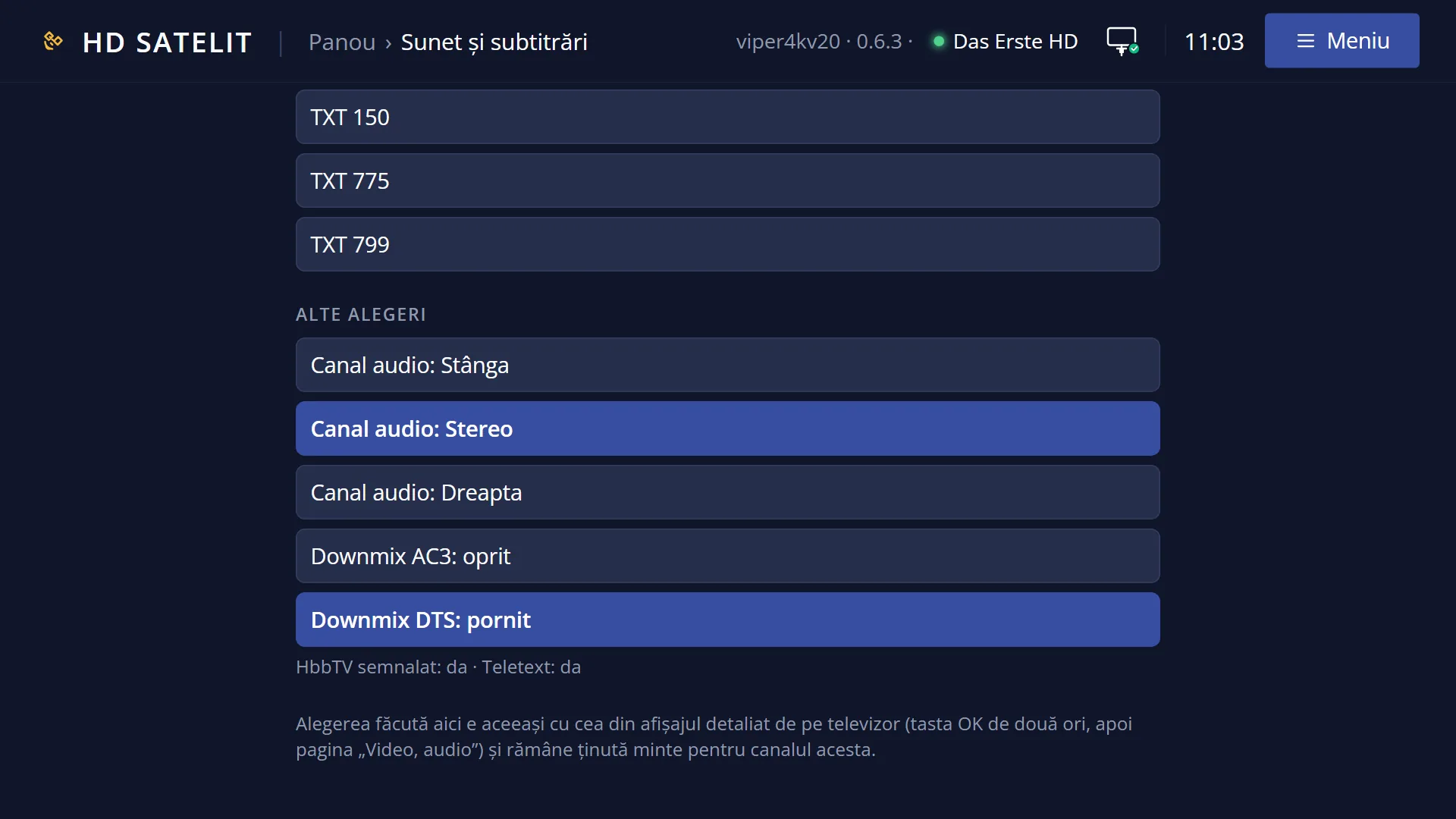
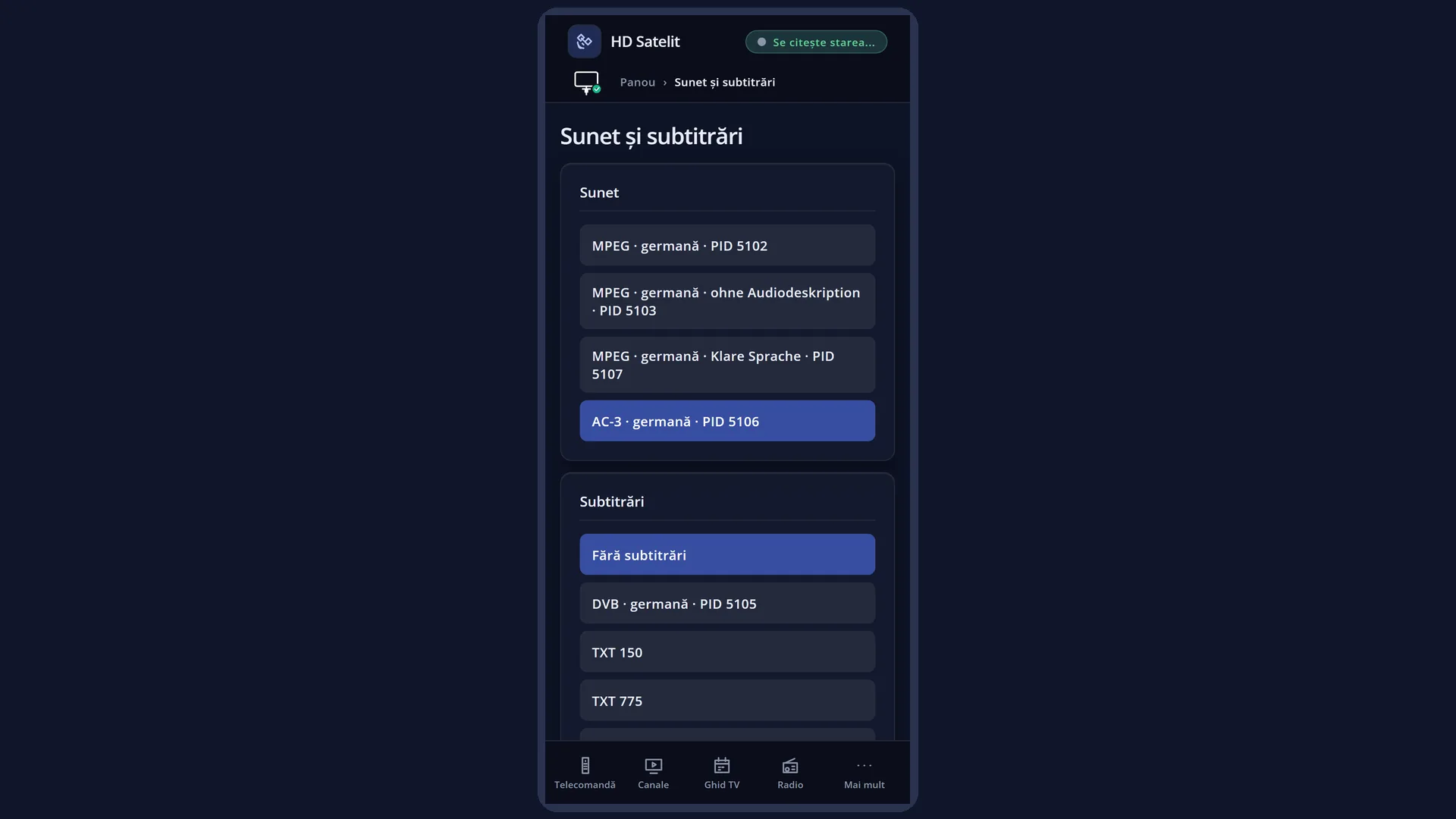
In the web interface: the /piste page (sound tracks and subtitles, with “No subtitles”), and the subtitle button below the live picture on the dashboard.
What you see on the screen
At the top, the title “Subtitle selection” and the clock.
The first row is always “No subtitles”. It is marked “Active” when no subtitles are on.
Below it, one row per subtitle: on the left its number (for teletext, the subtitle page, for example 888), then the type (DVB, TTX, and for films Text, SRT, ASS, PGS, VobSub and others), then the language (for example “Romanian” or “German, for the hard of hearing”; “<unknown>” when the channel does not give the language).
The row of the subtitle that is on now is marked “Active” on the right.
Below the line are the setting rows: “Menu” (switches between the subtitles page and the audio page) and, on a channel with a picture, for a recording or a film, “Search subtitles on the internet”. When internet subtitles are on for a channel, you also see “Line: < previous, next >”, “Advert break” and “Subtitle sync…”; for a film, the film rows (“Subtitle delay” and the others).
At the bottom are the colour key hints: YELLOW for audio and BLUE for the internet search, when available.
Rows and settings
| Row | Values | Default | What it does |
|---|---|---|---|
| No subtitles | Turns the subtitles off and remembers for this channel that you do not want subtitles. When subtitles come on by themselves on a channel and get in your way. | ||
| The channel's subtitles (one row per subtitle) | DVB, TTX, for films: Text, SRT, ASS, SSA, VTT, PGS, VobSub, SUB, MPL2, TMPlayer, SAMI | the subtitles chosen from the preferred languages in “Audio and subtitle language” | OK turns the subtitles on and remembers them for the channel. OK on subtitles already marked “Active” turns them off. When you want a different language, or the subtitles for the hard of hearing instead of the normal ones. |
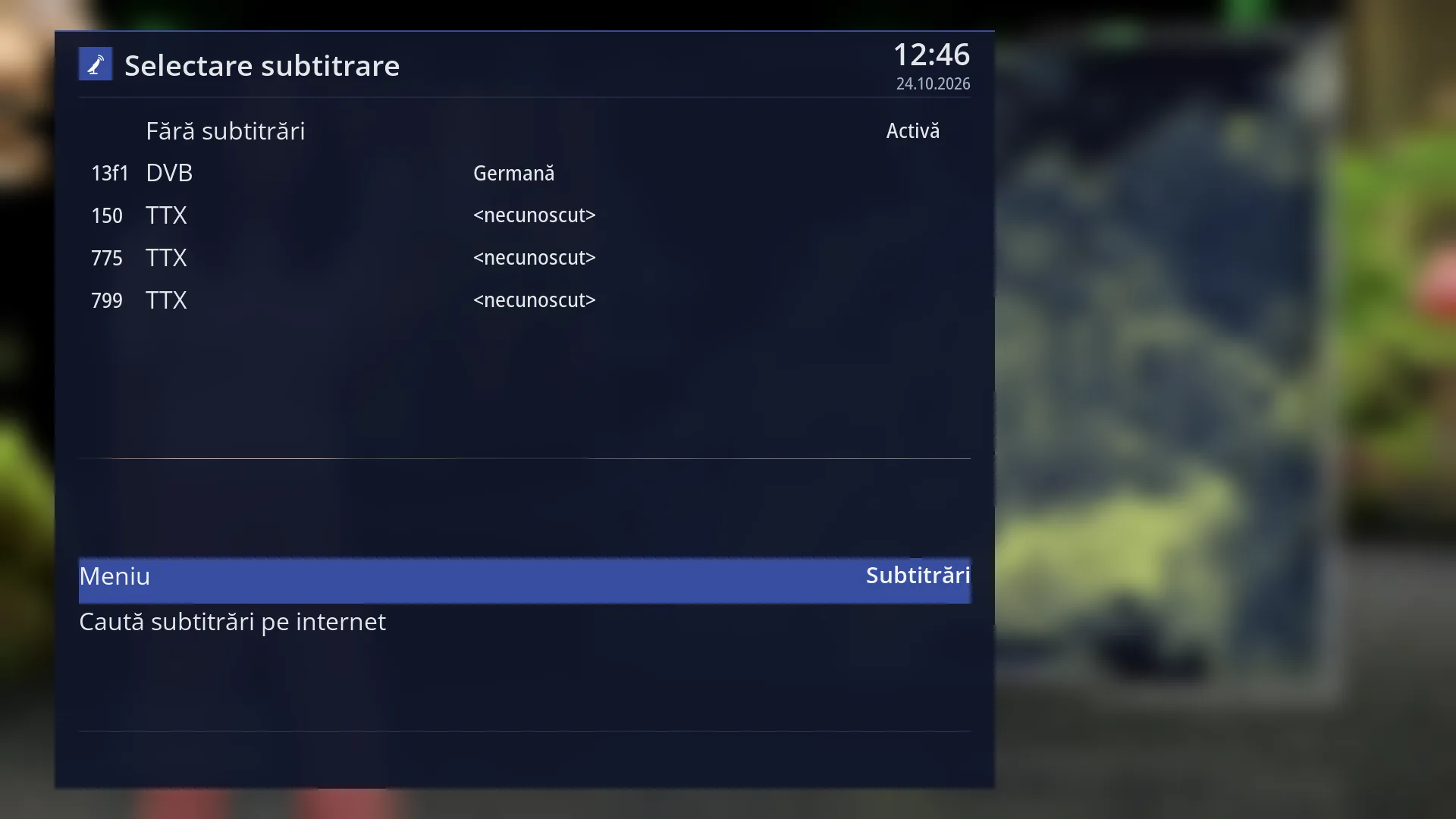
| Menu | Subtitles, audio tracks | Subtitles (with the SUBT key) | Switches the window to the audio page (“Audio track selection”) or back to subtitles. When you also want to change the audio language without closing the window. |
| Search subtitles on the internet | Appears on a TV channel with a picture, for a recording and for a film from a file. Opens the subtitle search on the internet (see the “Search subtitles on the internet” page). When the film has no subtitles in your language. | ||
| Line: < previous, next >, Advert break, Subtitle sync… | These appear only when internet subtitles are on for a channel or a recording. They match the subtitles to the film; they are explained on the “Search subtitles on the internet” page. When the internet subtitles come too early or too late. |
Keys
| UP / DOWN | Move the cursor in the list. UP from the first row (“No subtitles”) jumps to the setting rows at the bottom; DOWN from the last setting row takes you back to the list. |
| OK | On a subtitle: turns it on (or off, if it was on) and closes the window. On “No subtitles”: turns the subtitles off and closes the window. On a setting row: does what the row says. |
| LEFT / RIGHT | In the list: jump to the first or the last row. On a setting row: change the value (for example “Menu”) or start the row (“Search subtitles on the internet”). |
| Digits 1-9 | Select the row with that number directly and close the window. Where the numbers do not start at 1 (on channels), the digit selects the row by position: 1 is “No subtitles”, 2 the first subtitle, and so on. |
| YELLOW | Switches to the audio page (“Audio track selection”) and back. |
| BLUE | “Search subtitles on the internet”, when the row is there (TV channel with a picture, recording, film). |
| RED / GREEN | Do nothing on the subtitles page (on the audio page: AC3 downmix and the audio channel). |
| EXIT | Closes the window without changing anything. |
Step by step
Turning on subtitles in your language
- Press SUBT.
- Use UP and DOWN to select the row with the language you want (for example “Romanian”).
- Press OK. The subtitles come on, and the receiver selects them by itself next time on this channel.
Turning off subtitles that come on by themselves
- Press SUBT.
- Select “No subtitles” (or press 1) and press OK.
- On this channel the subtitles stay off next time too. For all channels: “Never show subtitles” in Menu > Settings > Audio & Sound Tracks > Audio and subtitle language.
Problems and solutions
The list only shows “No subtitles”.
The channel is not sending any subtitles right now. Some programmes have subtitles, others do not; the list fills in by itself when the channel announces new ones. For films, you can search for subtitles on the internet with BLUE.
I chose subtitles, but nothing appears on the screen.
Subtitles only appear when someone is speaking. If they never appear, try other subtitles from the list: some channels announce subtitles that have no text in the current programme.
The subtitle language shows as “<unknown>”.
The channel did not give the subtitle language. Turn the subtitles on and see which language they are in.
On one channel, subtitles I do not want come on by themselves.
Select “No subtitles” here: it is remembered for the channel. If it is an old remembered choice, you can clear it in “Audio and subtitle language” (YELLOW “Forget this channel”, BLUE “Forget all channels”).
The subtitle letters are too small, too big or hard to read.
Teletext and file subtitles are adjusted in “Subtitle appearance”. DVB subtitles are images sent by the channel; they can be read as text with “DVB subtitle scaling” (see the “DVB subtitles read as text” page).
BLUE does nothing.
The internet search works on a TV channel with a picture, for a recording or for a film from a file; on a radio channel the row does not appear.
Related topics
- Search subtitles on the internet
- Film subtitles (the extra rows for a film)
- DVB subtitles read as text
- The translated subtitle on screen
- Preferred languages, “Never show subtitles” and clearing remembered choices: Menu > Settings > Audio & Sound Tracks > Audio and subtitle language (on the web, /limbi).
- Subtitle letters: Menu > Settings > Audio & Sound Tracks > Subtitle appearance (on the web, /subtitrari).
- Matching web page: /piste.