

Web page themes
English screenshots coming: some of the pictures below still show the receiver and the web interface in Romanian. The rows, keys and steps described on this page are the English ones.
What it is for
The web interface pages have two themes, “Classic” and “Pro”, and the same colour palettes as the TV. You choose them on the /setari page, in the “Web interface look” box.
The theme and colours apply only to the web interface. What you choose here changes nothing on the TV, and the theme and colours on the TV are not changed from here. By default, the pages use the Classic theme and the “Same as on the TV” colours.
Your choice applies straight away and is remembered in the browser where you made it. With “Make them the defaults on the receiver”, it becomes the choice for every browser that has not chosen something else.
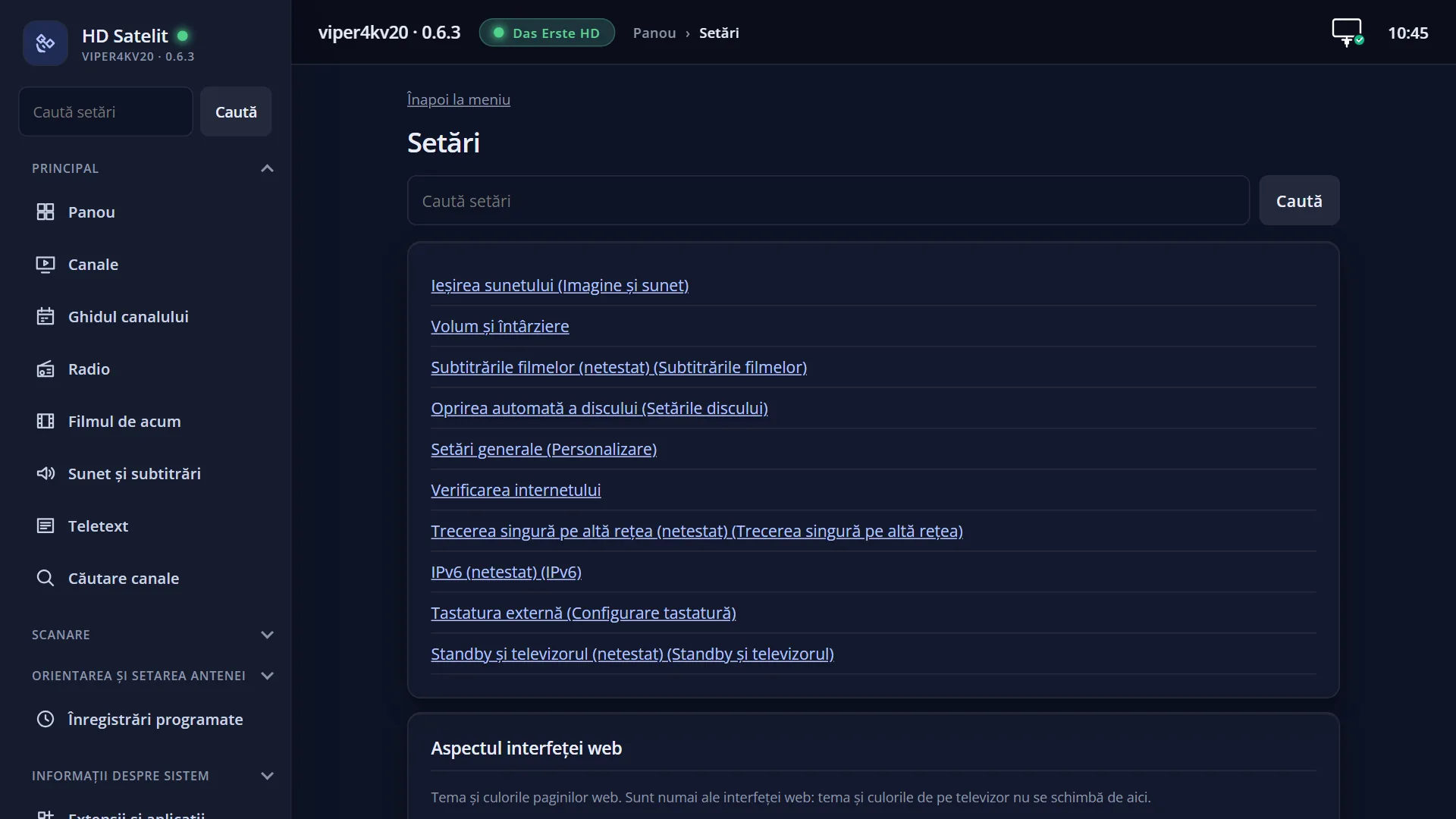
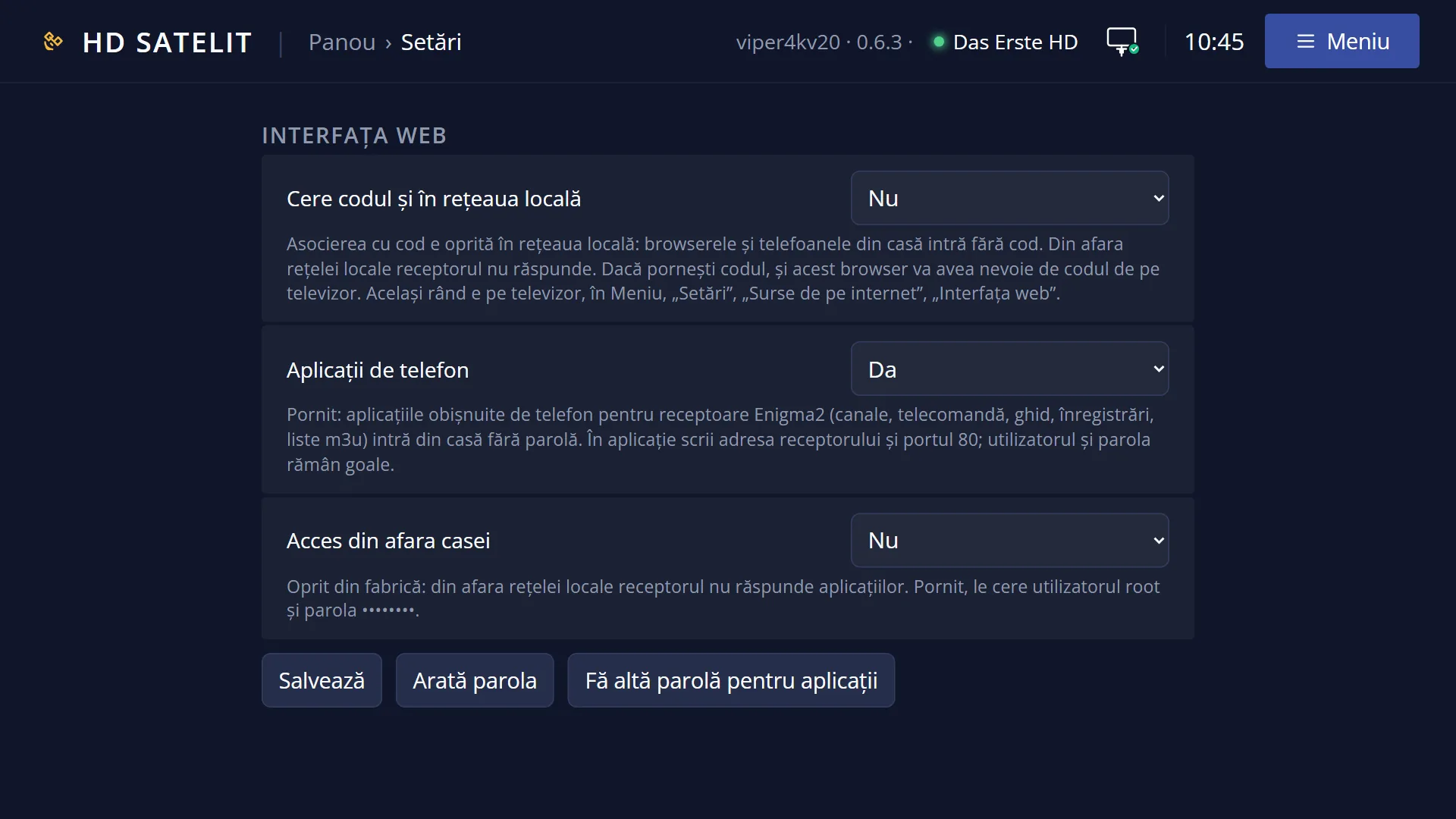
The same /setari page also has the receiver's settings screens (the same rows as on the TV) and the “Web interface” box (the code, the phone apps).
How to get here
In the web interface: the /setari page, “Web interface look” box.
From the top menu of the pages or from /meniu: Settings.
What you see on the screen
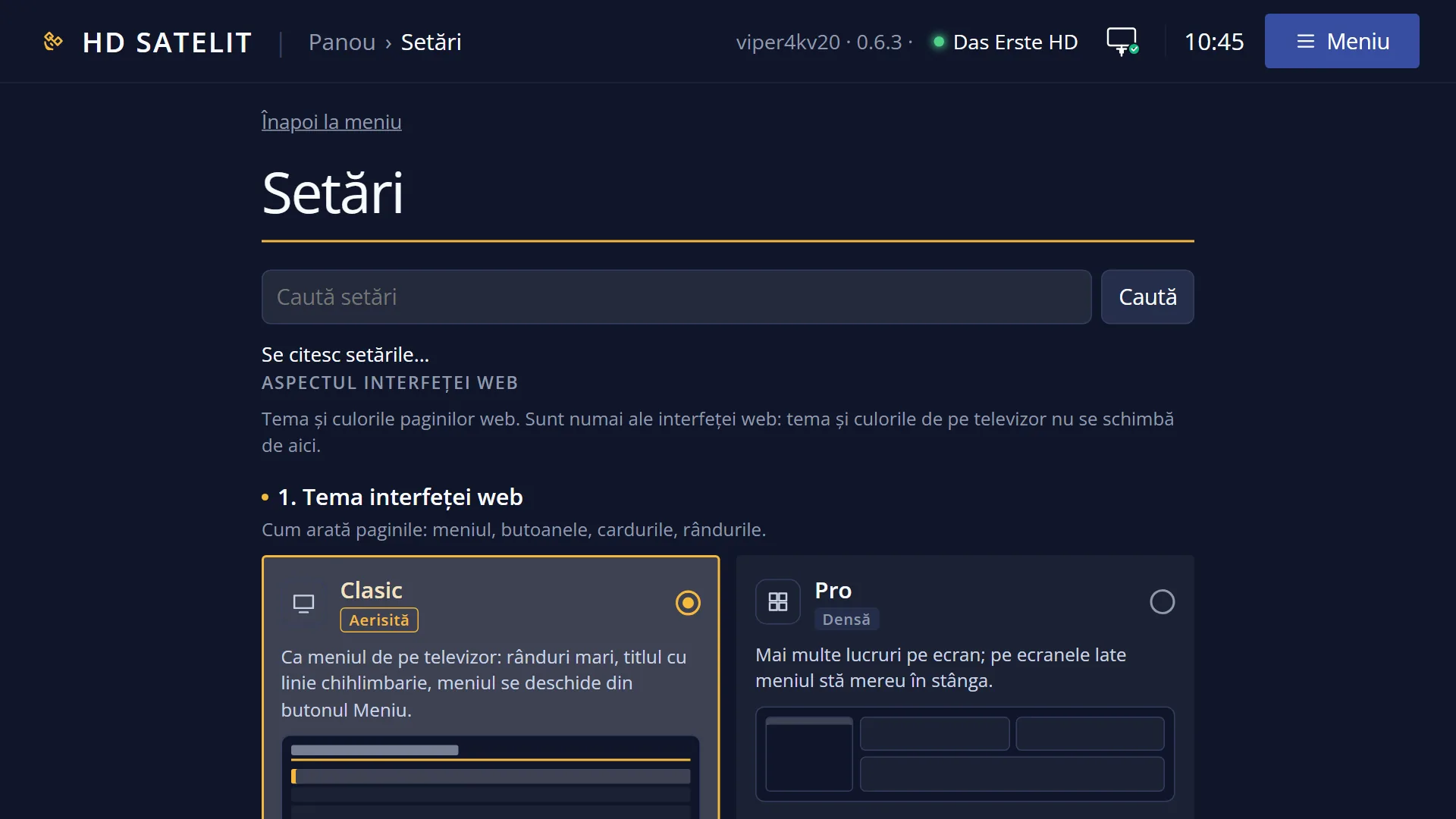
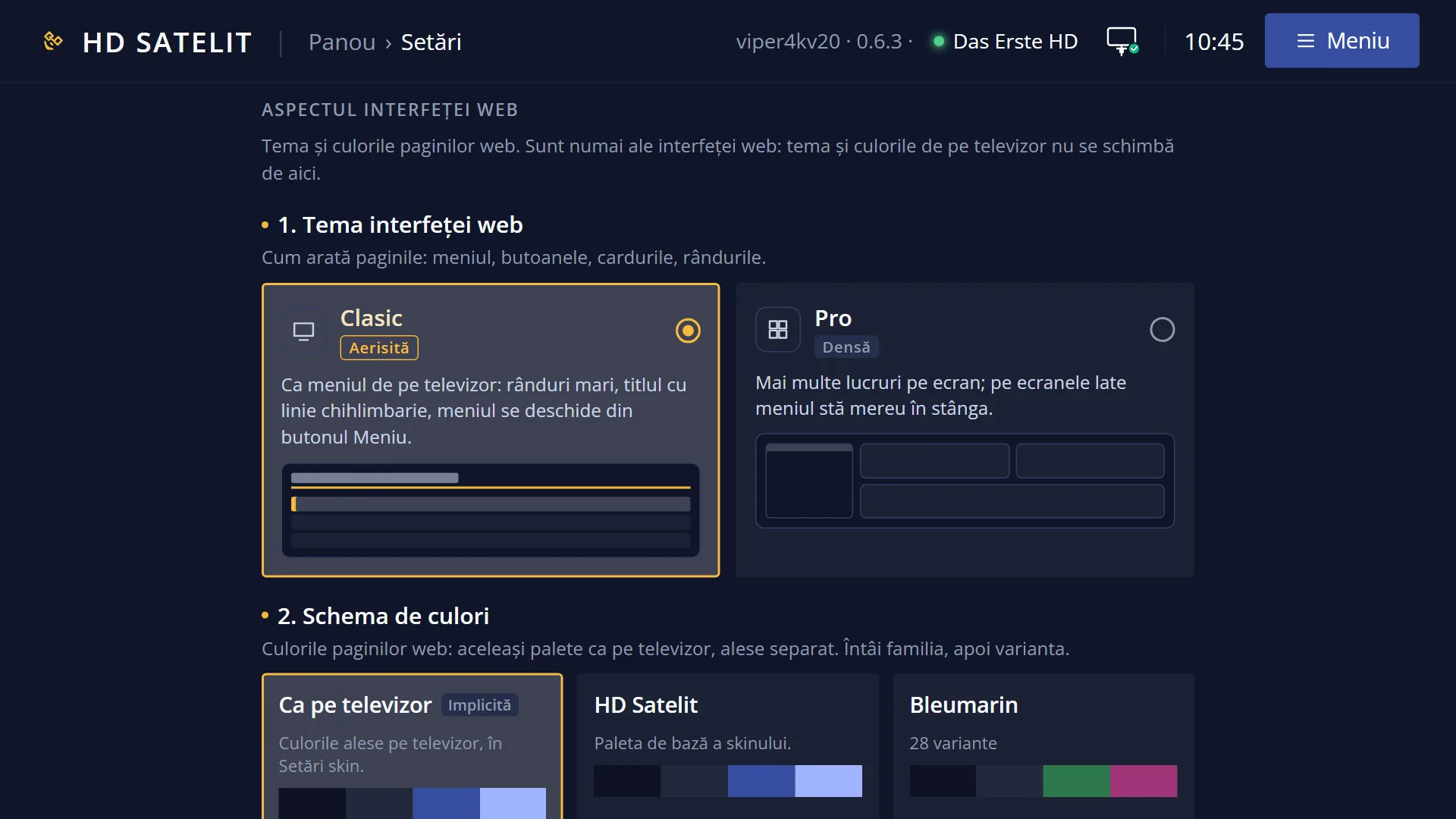
The “Web interface look” box, with the note “The theme and colours of the web pages. They belong only to the web interface: the theme and colours on the TV are not changed from here.”.
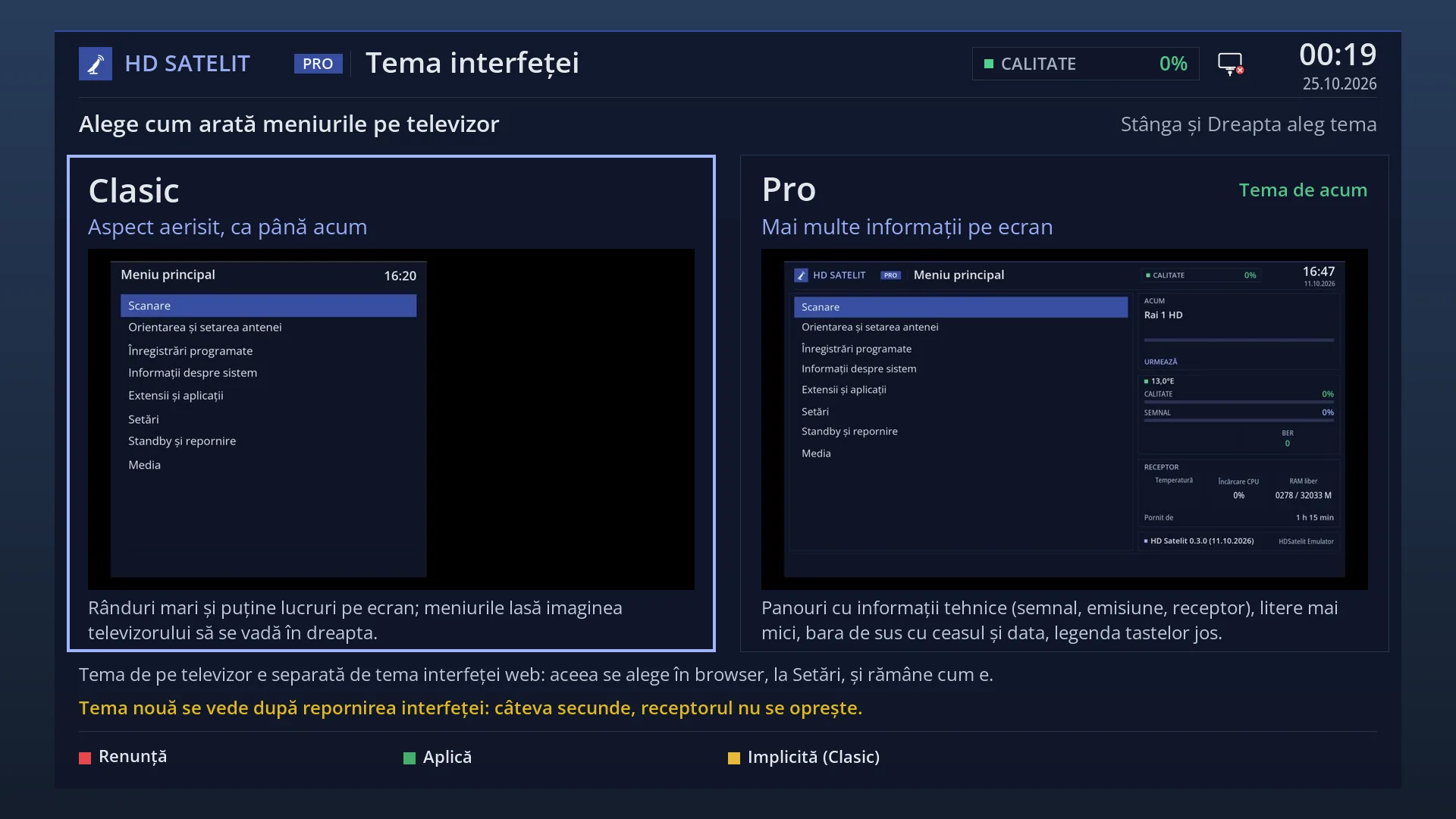
“1. Web interface theme”: two cards, each with a small preview. “Classic” (Airy): “Like the menu on the TV: large rows, the title with an amber line, the menu opens from the Menu button.”. “Pro” (Dense): “More things on the screen; on wide screens the menu always stays on the left.”. The selected card has a highlighted border and a tick.
“2. Colour scheme”: “Same as on the TV” (Default, “The colours chosen on the TV, in Skin settings.”), “HD Satelit” (“The skin's base palette.”) and the palette families from the TV, each showing how many variants it has (for example “Navy blue, 28 variants”) and a strip with its colours. Click a family to see its variants.
“3. Where it is remembered”: what is chosen in this browser and what is the default on the receiver, with the buttons “Make them the defaults on the receiver” and “Go back to the receiver's defaults”.
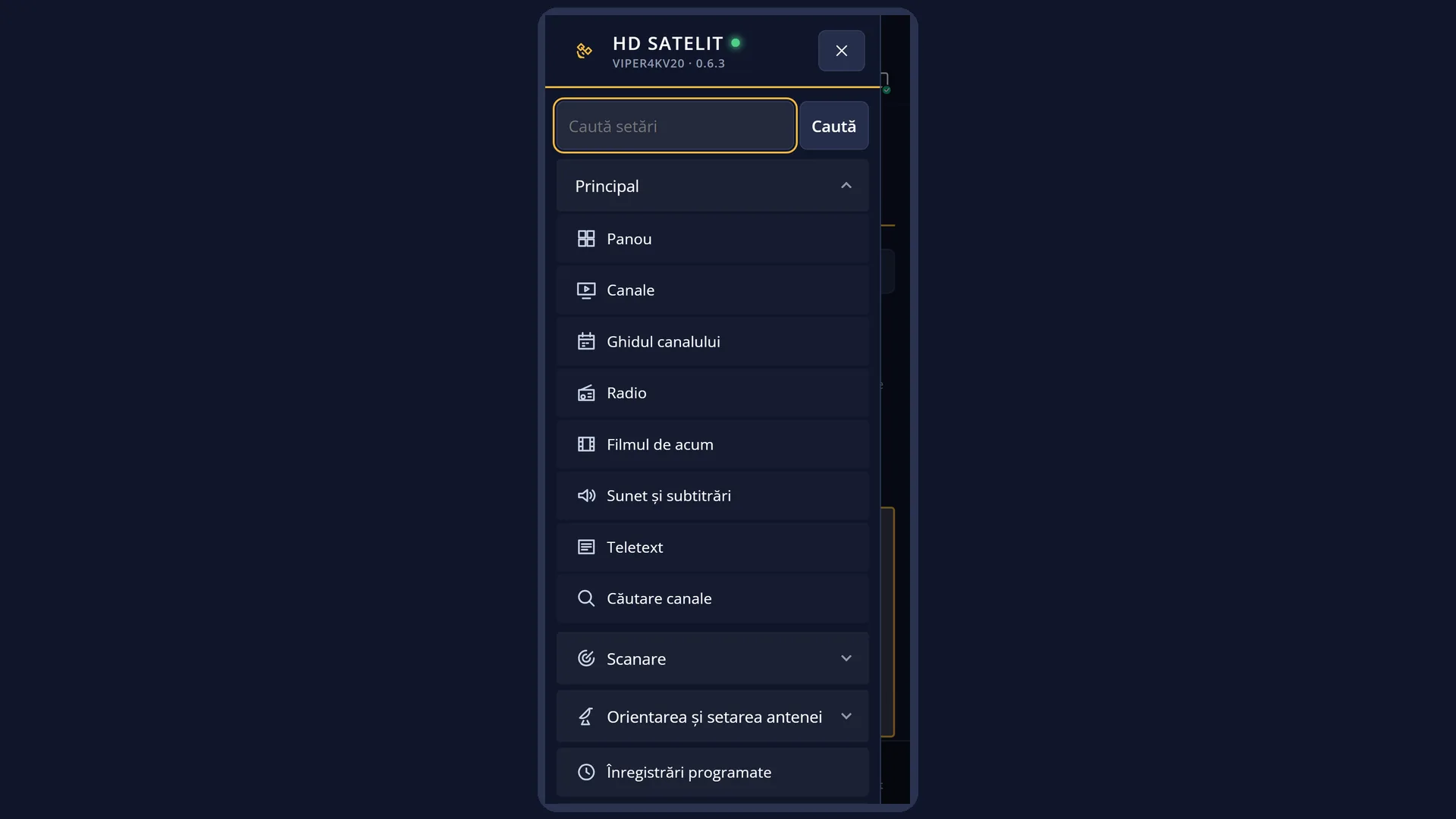
Classic theme: solid background, “HD SATELIT | …” at the top and the large “Menu” button, which opens the menu like a drawer; large titles with an amber line, the selected row lighter. Pro theme: the menu, in groups, always stays on the left on wide screens, the header shows the receiver's name, the status and the clock, and the cards are packed more closely.
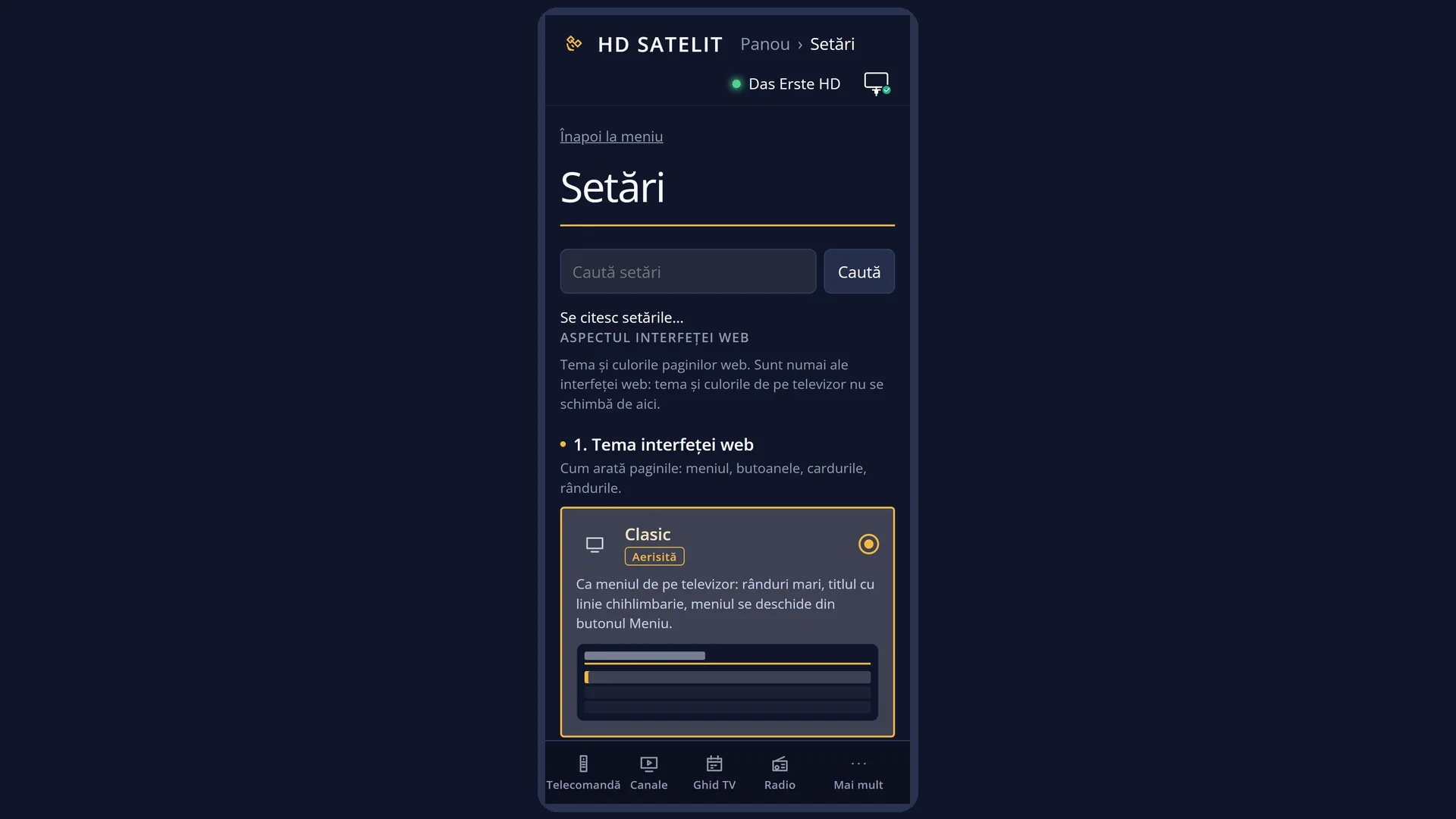
On a phone, in both themes, the bar at the bottom shows “Remote”, “Channels”, “TV guide”, “Radio” and “More” (which opens the menu).
The lettering is the same as the skin on the TV, and the colours adjust by themselves so that text is easy to read on any palette, dark or light.
Rows and settings
| Row | Values | Default | What it does |
|---|---|---|---|
| Web interface theme | Classic, Pro | Classic | How the pages look: the menu, the buttons, the cards, the rows. Classic resembles the menu on the TV; Pro puts more things on the screen. Pro on a computer with a wide screen; Classic on a phone or if you want large rows. |
| Colour scheme | Same as on the TV, HD Satelit, the palette families from the TV, with their variants | Same as on the TV | The colours of the web pages. “Same as on the TV” follows the colours chosen on the TV in Skin settings; the others are palettes chosen only for the web (first the family, then the variant). When you want different colours in the browser from those on the TV. |
| Make them the defaults on the receiver | The theme and colours chosen in this browser become the receiver's defaults, for browsers and phones that have no choice of their own. When you want the same look on all the devices in your home. | ||
| Go back to the receiver's defaults | Deletes this browser's own choice: the pages take the receiver's default theme and colours again. | ||
| The rest of the /setari page | The list of settings screens from the receiver's menu. Each one opens with the same rows, the same values and the same help text as on the TV, and “Save” applies them straight away. The “Web interface” box has the rows “Ask for the code on the local network too”, “Phone apps” and “Access from outside the home”, as on the TV. |
Keys
| The Classic / Pro card | Chooses the theme; it applies straight away. |
| A colour family, then a variant | Chooses the palette; it applies straight away. |
| Make them the defaults on the receiver | Sets the choice as the default for all browsers without a choice of their own. |
| Go back to the receiver's defaults | Removes this browser's own choice. |
| Menu (Classic theme) / More (on a phone) | Opens the menu in groups. |
| Back to the menu | Takes you to the /meniu page. |
Step by step
Switch the pages to the Pro theme
- Open /setari.
- Under “1. Web interface theme”, click the “Pro” card. The pages change straight away in this browser.
Choose different colours for the web
- Under “2. Colour scheme”, choose a family (for example Navy blue), then a variant.
- To go back to the TV colours, choose “Same as on the TV”.
Set the same look on all devices
- Choose the theme and colours in your browser.
- Press “Make them the defaults on the receiver”: phones and computers without a choice of their own use them from now on.
Problems and solutions
I changed the theme on my phone, but the computer still has the old one.
The choice is remembered in each browser. Either choose it on the computer as well, or press “Make them the defaults on the receiver” and then, on the computer, “Go back to the receiver's defaults”.
I changed the colours on the web and the TV stayed the same.
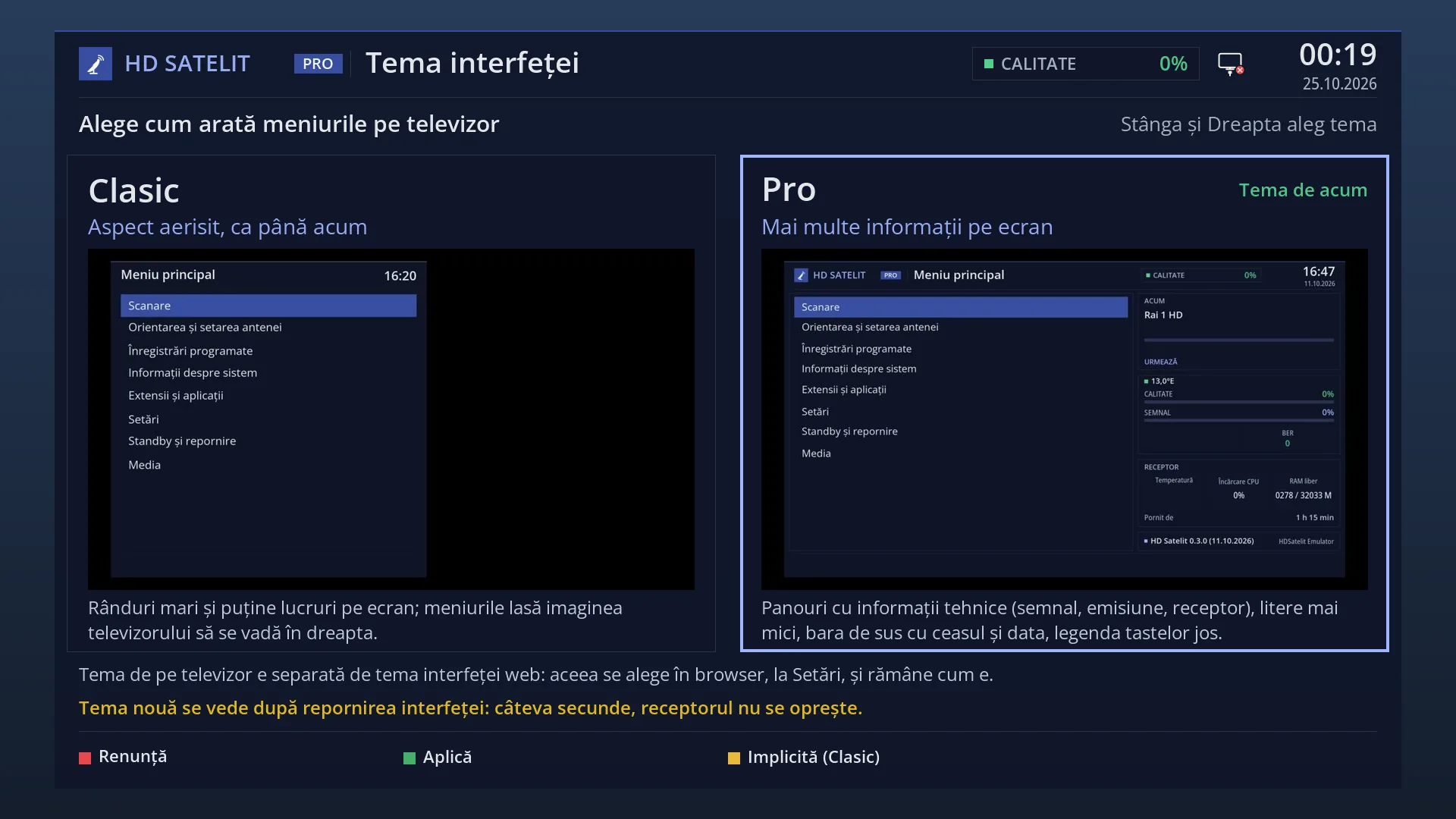
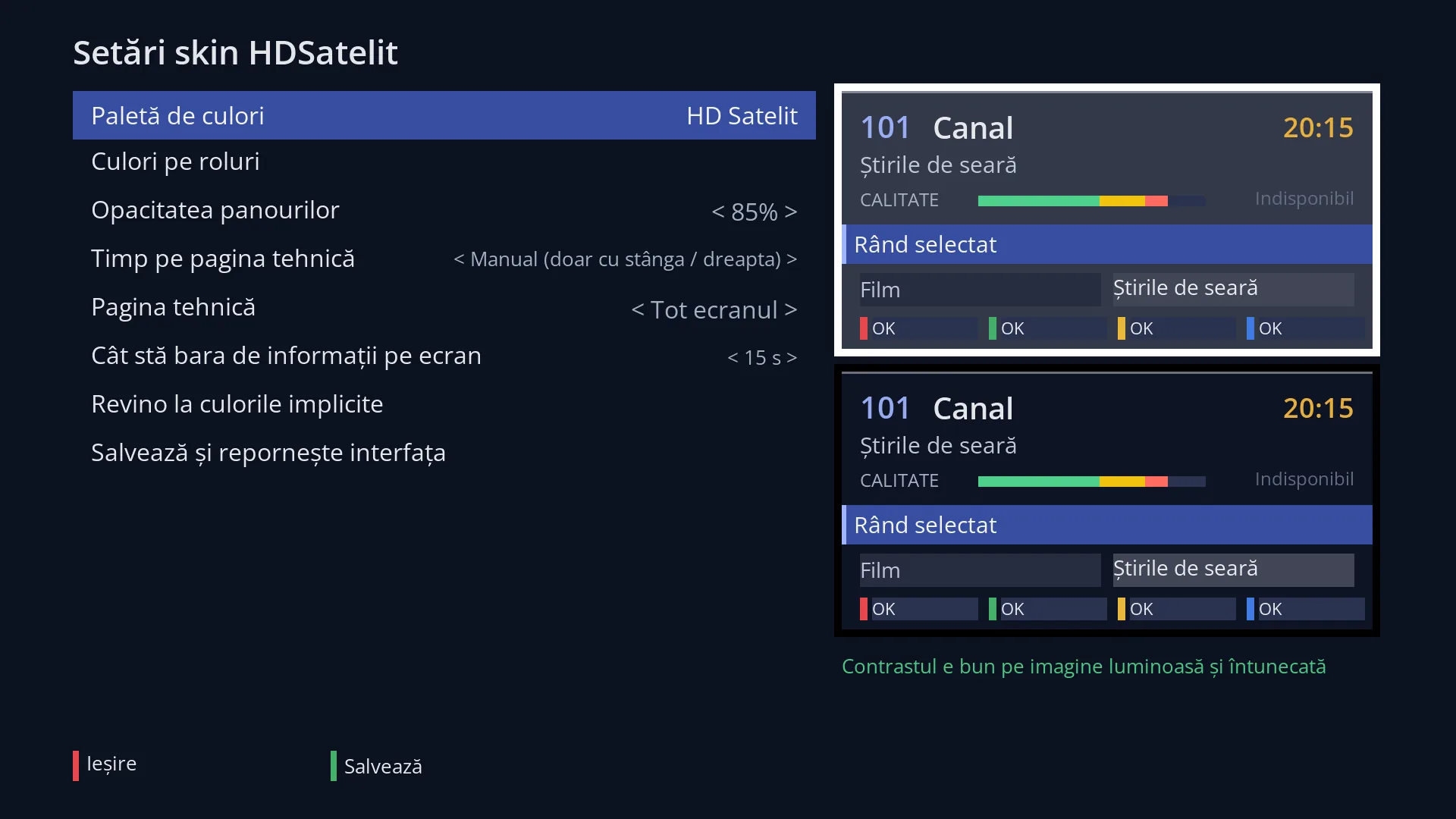
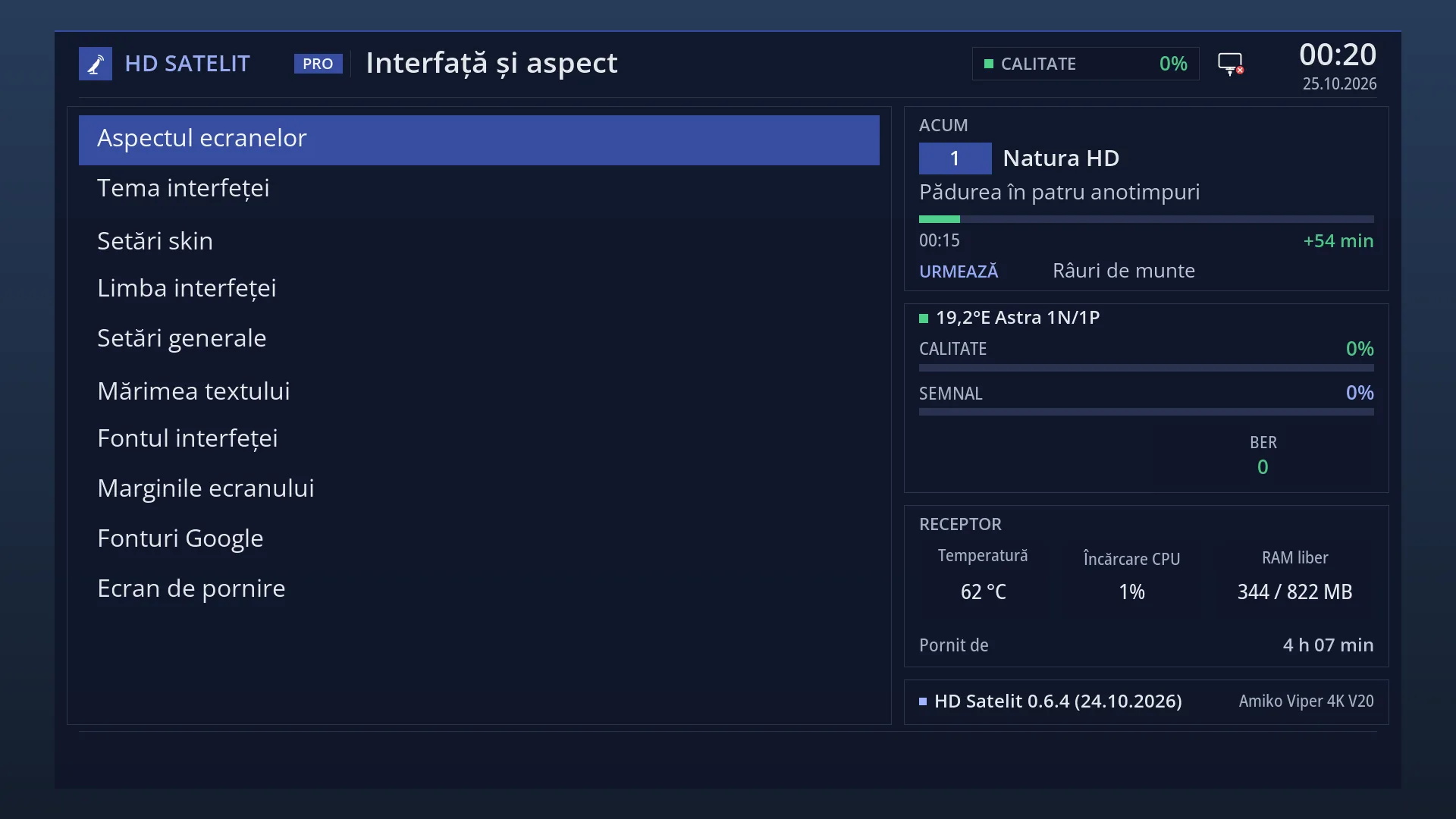
This is intended: the web theme and colours apply only to the pages. On the TV, you change the theme in Settings > Interface & Appearance > Interface theme, and the colours in Skin settings.
“The palettes from the TV are not found on the receiver (is the HDSatelit skin missing?).”
The palettes come from the HD Satelit skin. If you have chosen a different skin on the TV, only “Same as on the TV” and “HD Satelit” remain on the web.
After I cleared the browser data, the pages went back to Classic.
Your own choice is stored in the browser and is lost along with its data. Choose again, or set the choice as the default on the receiver.
I cannot find the menu on my phone.
On a phone, the menu opens from “More”, the last button in the bottom bar.