

Film subtitles
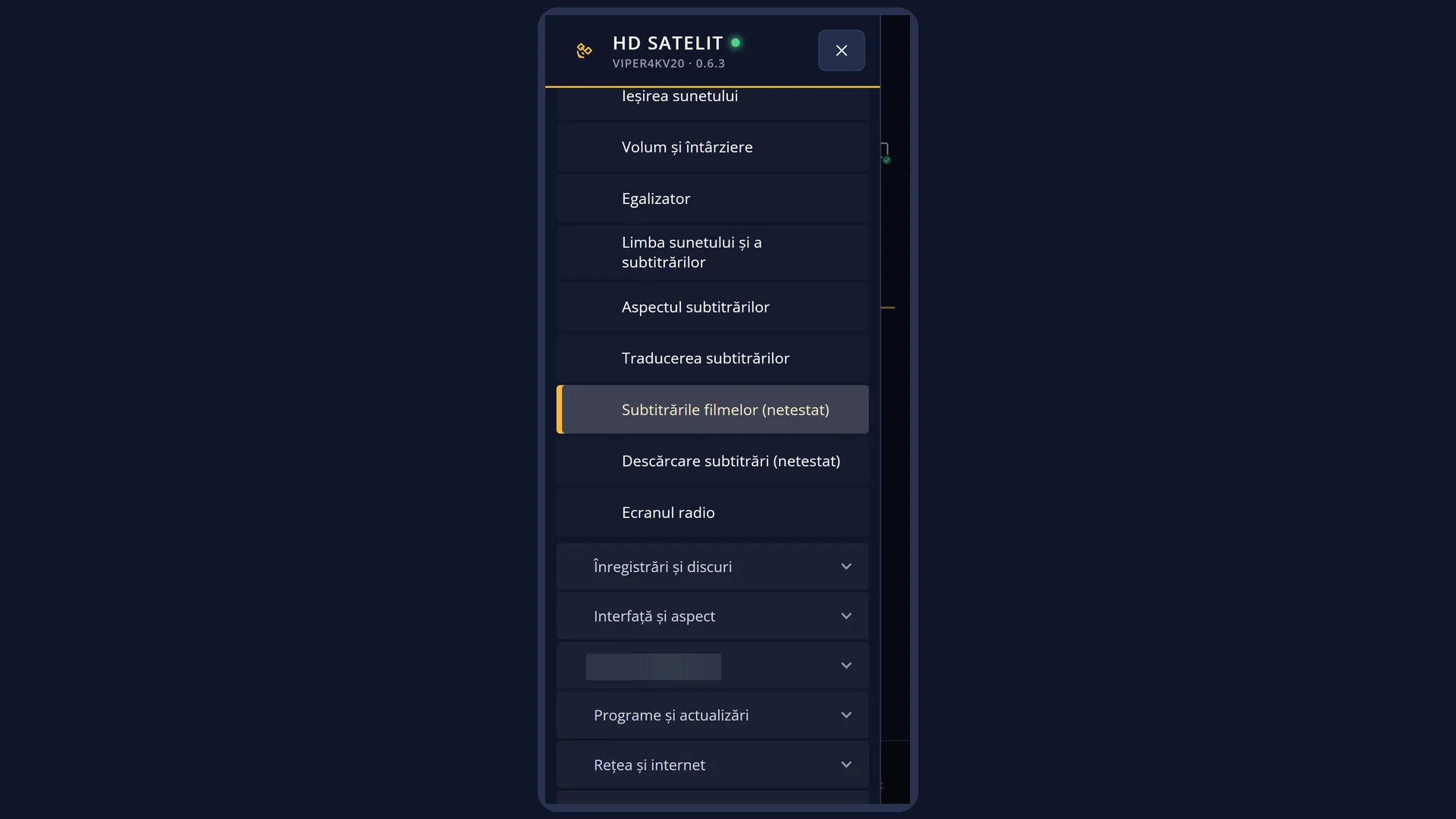
Screenshots are being added: so far 0 from the receiver and 3 from the web interface; the aim is at least 5 of each, with arrows and frames, and, where a setting changes what you see, a before and after comparison.
English screenshots coming: some of the pictures below still show the receiver and the web interface in Romanian. The rows, keys and steps described on this page are the English ones.
What it is for
When you play a film from a USB stick, a disk or the network, the SUBT key shows the subtitles in the film and the subtitle files next to it. The receiver picks the right one by itself.
The receiver finds the files by itself: in the film's folder and in the Subs, Sub, Subtitles, Subtitle or Subtitrari subfolders, every file whose name starts with the film's name (for example film.srt, film.ro.srt). The language is taken from the name. If the name has no language, the receiver guesses it from the text.
Diacritics show correctly even in old subtitles: the encoding is detected automatically, and ş and ţ with cedilla are shown as ș and ț with comma.
For each film, the receiver remembers the subtitle you chose (or “No subtitles”), the delay, the encoding, the frames per second and the files you added by hand, even if you move the film to another folder.
For a film, the subtitle window also has the rows “Subtitle delay”, “Encoding”, “Frames per second” and, at the end of the list, “Choose another file…”.
How to get here
Path: start the film from Menu > Media > Media player (or from the recordings list), then press SUBT.
Keys on the TV: SUBT, while the film is playing.
In the web interface: the /subtitrari-film page (the subtitle of the current film, the delay, the encoding and the files).
What you see on the screen
The subtitle list starts with “No subtitles”. Next come the tracks in the film, numbered from 1, with their type (Text, SRT, ASS, PGS, VobSub and others) and language. Then come the files next to the film, without a number, with their format and the part of the name that tells them apart (for example “SRT ro.forced.srt”).
At the end of the list is the “Choose another file…” row, which opens the file browser in the film's folder.
Below the line are the film rows: “Subtitle delay” with the value and the step (for example “+1,5 s (step 0,1 s)”), “Encoding” (only for a subtitle from a text file; “Encoding (seems wrong)” when the letters come out garbled) and “Frames per second” (only for files that count frames, not seconds).
The “Choose the subtitle file” browser shows the folder you are in at the top, the folders and subtitle files in the middle, and at the bottom the hint “Choose a subtitle file (srt, sub, ass, ssa, vtt, smi, txt; for DVD the idx file, for Blu-ray sup) and press OK. It stays in the list for this film.”
Rows and settings
| Row | Values | Default | What it does |
|---|---|---|---|
| Subtitle delay | from −10 minutes to +10 minutes, step: 0.1 s, 1 s or 10 s | 0 s, step 0.1 s | Shifts the subtitle relative to the film: with plus it appears later, with minus earlier. LEFT and RIGHT shift it by the chosen step, OK changes the step (0.1 s, 1 s, 10 s), and the digits 1 and 3 shift it one second earlier or later. It is remembered per film. When the lines appear before or after the actors speak. |
| Encoding / Encoding (seems wrong) | Automatic (with the encoding found, for example “Automatic: Central Europe (Windows-1250)”), UTF-8, Central Europe (Windows-1250), South-Eastern Europe (ISO-8859-16), Western Europe (ISO-8859-15), Cyrillic (Windows-1251), Greek (Windows-1253), Turkish (Windows-1254) | Automatic | How the letters in the subtitle file are read. Automatic detects the encoding by itself. The row appears only for a subtitle from a text file and is remembered per film. When strange symbols appear instead of ă, î, ș, ț, especially when the row says “Encoding (seems wrong)”. For old Romanian subtitles, try Central Europe (Windows-1250) first. |
| Frames per second | Automatic (from the film), 23,976, 24, 25, 29,97, 30 | Automatic (from the film) | Appears only for subtitles that count frames instead of seconds (MicroDVD-type .sub files). It sets the frames per second the subtitle was made for, so the lines come at the right time. It is remembered per film. When the subtitle starts in sync but falls further and further behind or gets further ahead as the film goes on. |
| Choose another file… | Opens the file browser in the film's folder. You can also go to another USB stick, disk or the network. The chosen file is added to the film's list, starts playing and stays in the list next time. When the subtitle's name does not start with the film's name, or the subtitle is in another folder. |
Keys
| UP / DOWN | Move the cursor between subtitles. UP on the first row jumps to the film rows at the bottom, and DOWN on the last row at the bottom takes you back to the list. |
| OK | On a subtitle: starts it and closes the window. On “Choose another file…”: opens the browser. On “Subtitle delay”: changes the step (0.1 s, 1 s, 10 s). |
| LEFT / RIGHT | On “Subtitle delay”: shifts the subtitle by the chosen step. On “Encoding” and “Frames per second”: the previous or next value. |
| 1 / 3 | With the cursor on “Subtitle delay”: 1 shifts the subtitle one second earlier, 3 one second later. In the list, the digits choose the track with that number. |
| YELLOW | Switches to the film's audio page and back. |
| BLUE | “Search subtitles on the internet” for this film. |
| EXIT | Closes the window. Your changes to the delay, encoding and frames are kept. |
| In the browser: OK / GREEN | OK opens a folder or chooses the file. GREEN (“Choose”) chooses the file. While the file is being checked, the bottom of the screen shows “Reading the file...”. |
| In the browser: RED / EXIT | “Back”: closes the browser without choosing anything. |
Step by step
Adjust a subtitle that comes too early or too late
- While the film is playing, press SUBT.
- Use DOWN (or UP on the first row) to move the cursor to “Subtitle delay”.
- Press RIGHT if the lines come too early, LEFT if they come too late. OK changes the step, from 0.1 s to 1 s and 10 s.
- Press EXIT. The delay is remembered for this film.
Fix garbled diacritics
- Press SUBT and move the cursor to “Encoding”.
- Use LEFT and RIGHT to choose “Central Europe (Windows-1250)” for old Romanian subtitles, or another encoding, until the letters show correctly.
- The chosen encoding is remembered per film.
Add a subtitle from a file with a different name
- Press SUBT and choose “Choose another file…” at the end of the list.
- Go to the folder with the subtitle, choose the file and press OK.
- The subtitle starts and stays in the list for this film.
Problems and solutions
Strange symbols appear instead of ă, î, ș, ț.
The file's encoding was not recognised. Change the “Encoding” row (for Romanian, Central Europe (Windows-1250)). The encoding used for all films is set in Menu > Settings > Audio & Sound Tracks > Film subtitles.
The subtitle next to the film does not appear in the list.
The file name must start with the film's name (film.mkv and film.ro.srt), and the file must be in the film's folder or in a Subs, Sub, Subtitles, Subtitle or Subtitrari subfolder (if “Also search the Subs subfolder” is on in “Film subtitles”; it is on by default). Otherwise, choose it with “Choose another file…”.
The browser says “This file is not a subtitle.”
The file has no lines the receiver can read. Choose an srt, sub, ass, ssa, vtt, smi or txt file; for DVD the idx file, for Blu-ray the sup file.
The subtitle starts in sync, then falls further and further behind.
The subtitle was made for a different film speed. For .sub files that count frames, change “Frames per second”. For other files, look for a different subtitle that matches your film.
DVD subtitles in an MKV file do not show.
They do not work yet in this version (version 0.5.7 changelog). DVD subtitles from idx files and Blu-ray subtitles work.
“The film already has too many subtitles.” appears.
The film already has the maximum number of subtitle files in its list. Move the files you do not need out of the film's folder.
Related topics
- Subtitle selection (the SUBT key window)
- Search subtitles on the internet
- Settings for all films (default encoding, ș and ț with comma, file next to the film first, the Subs subfolder): Menu > Settings > Audio & Sound Tracks > Film subtitles (MENU 6 4 7).
- Subtitle lettering: Menu > Settings > Audio & Sound Tracks > Subtitle appearance.
- Matching web page: /subtitrari-film.